

Install the widget in your product
Put the StrikeUp widget into your web app with two tags: the widget script and a call to window.initStrikeUpChatWidget with your widget’s application token and the signed-in user’s details. It works the same in plain HTML, React, Vue, Angular or any server-rendered framework, because there is no package to install. When you are done, the launcher (or the pane or embedded chat you chose) appears on your pages, and the assistant knows which of your users it is talking to. Plan about fifteen minutes, most of it for replacing the placeholders with real values from your app.
Before you start
Section titled “Before you start”| You need | Where it lives |
|---|---|
| A widget with at least one toolkit | ConfigureEmbed, where you also create one with the dashed “New widget” card |
| The widget’s embed code, which holds its application token | ConfigureEmbed, under Embed Code. No other screen shows the token |
| The display type you want, and the pages the widget should appear on | ConfigureUser Interface; see Display types and custom triggers |
| Access to your app’s page template or root layout, and the id your app uses for the signed-in user | Your own code base |
Any signed-in user of your StrikeUp workspace can open the Embed screen and copy the code. The widget needs no plan or feature switch.
-
Copy the embed code. Open ConfigureEmbed, select your widget’s card at the top and scroll to Embed Code. Select the
Copy embed codebutton under the code. The button readsCopied!for a moment; the code is now on your clipboard.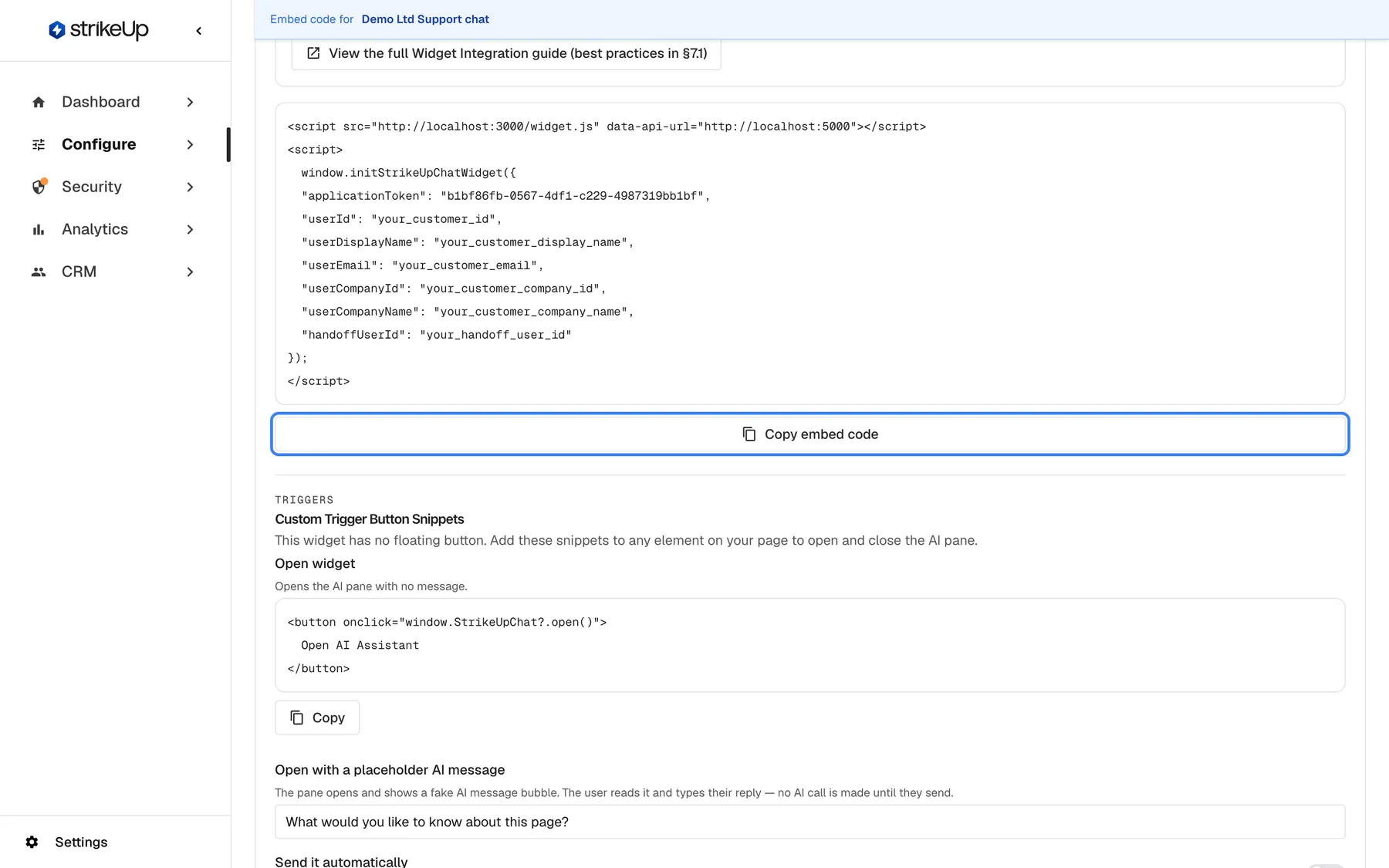
Copy the two tags from Embed, then replace or delete every your_… placeholder before you publish. What this screenshot shows
- Screen
- Embed (/admin/configure/embed?widgetId=…)
- Highlighted
- button “”, embed-code-block-bottom, enabled. copies the script tag and the initStrikeUpChatWidget call to the clipboard
- Also visible
- script tag with src …/widget.js and data-api-url (development URLs in this capture); initStrikeUpChatWidget with applicationToken and your_… placeholders for the user fields; Start of Custom Trigger Button Snippets
- Purpose
- where developers get the install code
The code has this shape. Copy the exact script URL and
data-api-urlfrom the Embed screen. The StrikeUp API is athttps://api.strikeup.io; the script URL is shown here as a placeholder.<script src="https://<your widget script URL>" data-api-url="https://api.strikeup.io"></script><script>window.initStrikeUpChatWidget({"applicationToken": "<your widget's application token>","userId": "your_customer_id","userDisplayName": "your_customer_display_name","userEmail": "your_customer_email","userCompanyId": "your_…","userCompanyName": "your_…","handoffUserId": "your_handoff_user_id"});</script> -
Replace or delete every
your_…placeholder. The placeholders are literal text. If you publish the code as it is, every visitor becomes the same customer, calledyour_customer_id, and they all share one chat history. Fill each field from your app’s signed-in user, or delete the line:<script>window.initStrikeUpChatWidget({applicationToken: "<your widget's application token>",userId: "cus_48210", // your stable id for this personuserDisplayName: "Rosie Kendall",userEmail: "rosie.kendall@example.com",userCompanyId: "SAP-5531", // the Company ID of their company in CRMuserCompanyName: "Sample & Partners Ltd"});</script>Use an id that never changes for that person, such as your database key, not an email address that may change. It keeps their chats, memories and saved toolkit credentials together. Delete
handoffUserIdunless you hand chats over to a help desk. What each field does is in Identify users and pass context. -
Paste both tags at the end of your page’s
<body>. Put them in the layout that every page of your app uses, just before</body>, with the script tag first. Keep the script tag plain, withoutasyncordefer: the inline call works because the script has already run. Do not put the script in<head>. There the widget still starts, but part of the script fails because the page body does not exist yet: the widget stops re-checking its URL rules as visitors move around a single-page app, and thestrikeupChatWidgetLoadedevent never fires.If your app adds scripts asynchronously, start the widget from the event the script fires when it has loaded:
<script src="https://<your widget script URL>" data-api-url="https://api.strikeup.io" async></script><script>window.addEventListener("strikeupChatWidgetLoaded", function () {window.initStrikeUpChatWidget({ applicationToken: "<your widget's application token>", userId: "cus_48210" });});</script>Or define the call queue yourself before anything else; the widget script keeps the queue and replays it when it loads:
<script>window._strikeupChatWidgetQueue = window._strikeupChatWidgetQueue || [];window.initStrikeUpChatWidget = window.initStrikeUpChatWidget ||function (config) { window._strikeupChatWidgetQueue.push(config); };window.initStrikeUpChatWidget({ applicationToken: "<your widget's application token>", userId: "cus_48210" });</script> -
Embed the chat inside your layout (optional). To show the chat inside a section of your page instead of floating over it, switch on Embed inside a container on the Embed screen. The code gains a container element and two options. Give the container an explicit height: with no height, the widget collapses to zero.
<div id="strikeup-widget" style="width: 100%; height: 600px;"></div><script>window.initStrikeUpChatWidget({applicationToken: "<your widget's application token>",userId: "cus_48210",displayType: "inline",container: "#strikeup-widget",portalDisplayType: "inline" // optional: open the customer portal in the same container});</script>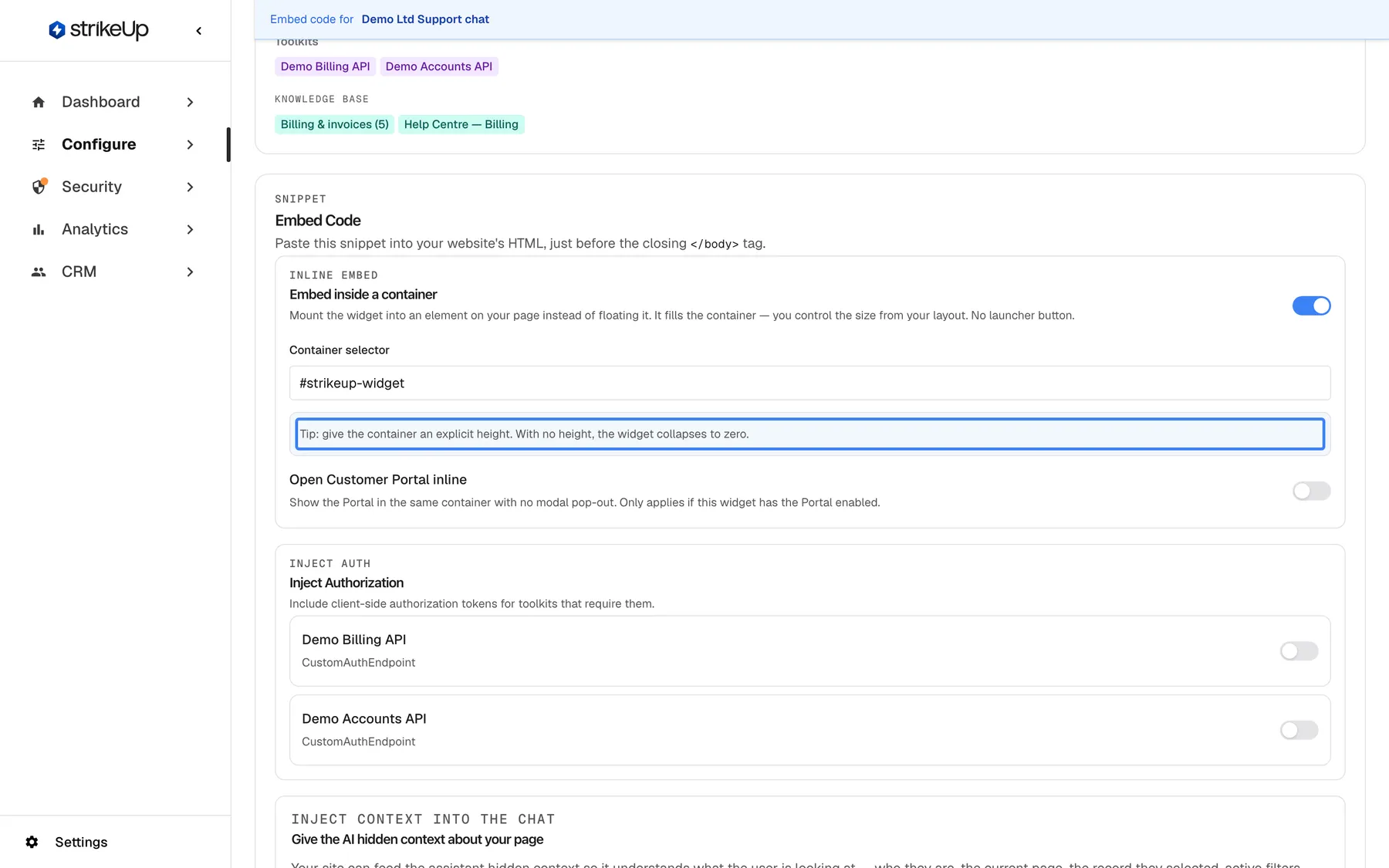
For an inline widget, switch on Embed inside a container and give that element a fixed height on your page. What this screenshot shows
- Screen
- Embed (/admin/configure/embed?widgetId=…)
- Highlighted
- note “Tip: give the container an explicit height. With no height, the widget collapses to zero.”, embed-code-card-inline-option, shown because the inline option is on. none (hint)
- Also visible
- Embed inside a container switched on; Container selector #strikeup-widget; Open Customer Portal inline switch, off; Inject Authorization box with Demo Billing API and Demo Accounts API
- Purpose
- the inline variant of the install code (not saved; it only changes the generated snippet)
The container must exist when the call runs. The switch only changes the generated code; nothing is saved on the widget.
-
Allow the widget in your Content Security Policy (optional). If your site sends a
Content-Security-Policyheader, allow the widget’s hosts in these directives. Use the hosts from the two URLs on the Embed screen.Directive Allow Why script-srcThe widget script’s host, plus a nonce or hash for the inline init script (or 'unsafe-inline')Loads the widget script and runs your init call connect-srcThe host of data-api-url(https://api.strikeup.io)Your page fetches the widget’s settings from the StrikeUp API frame-src(orchild-src)The widget script’s host The chat, and full-size charts, run in frames from that host style-srcNothing extra The widget sets its styles through the DOM. Without 'unsafe-inline', only the small arrow on the sidebar tab loses its turning animationIf you send a
Permissions-Policyheader, do not switch offmicrophoneorclipboard-writefor the widget’s host: the chat uses them for voice input and the copy buttons. Voice input also needs your page to be served over HTTPS (or fromlocalhost). -
Load a page and check the widget. Open your app in a browser. With the default pop-up display type, a round launcher with a chat-bubble icon appears in the bottom-right corner; select it and the chat opens.
When the install works, the launcher appears in the corner of every page the widget's URL rules allow. What this screenshot shows
- Screen
- (host page (https://app.example.com/))
- Highlighted
- button “”, bottom-right, closed (popup display type). opens the chat window
- Also visible
- Neutral host page with placeholder layout; Round blue launcher with chat-bubble icon, bottom-right
- Purpose
- what a successful install looks like
To check from the browser console, run:
window.StrikeUpChat.onReady(function (type) { console.log("widget:", type); });It prints the display type, such as
popup, once the chat is ready. It printsnullwhen the token or the address indata-api-urlis wrong.
What happens next
Section titled “What happens next”On every page load the widget script reads data-api-url from its own tag and fetches the widget’s saved settings from the StrikeUp API with the application token. It then checks the widget’s URL Visibility Rules against the page’s path, draws the launcher, pane or embedded chat, and loads the chat frame. The pop-up and modal types load the chat frame on the first click; the others load it with the page. Inside the frame, the visitor goes through sign-in and toolkit authorization if your widget needs them, then sees the welcome screen.
Settings you change in StrikeUp, such as colours, display type or URL rules, reach visitors the next time a page loads; you do not change or redeploy your code. Each load is counted as “Widget Loaded” in the funnel on the Dashboard. Display types that load the chat frame with the page can record two loads for one page view.
How to check it worked:
- The launcher, pane or embedded chat appears, and
StrikeUpChat.onReadyreports the display type. - In your browser’s network tab, the request to the StrikeUp API that ends with your application token returns 200.
- After a first chat, the visitor appears under CRMCustomers with the id you passed as
userId.
Options
Section titled “Options”| Choice | When to pick it | Effect |
|---|---|---|
| A floating type (pop-up, sidebar or panel), chosen on User Interface | Help that is available on every page | A launcher, or a pane that is always there |
displayType: "inline" with container | The chat belongs inside your layout, such as a help page | The chat fills your element, with no launcher |
| A custom-trigger type, chosen on User Interface | You want your own “Ask AI” button | No launcher; your button calls StrikeUpChat.open() |
portalDisplayType: "inline" | Inline embeds that use the customer portal | The portal replaces the chat inside the container instead of opening a large window |
displayType set in the call on one page | One page needs a different display type from the rest of your app | Overrides the saved display type on that page only |
Single-page apps and frameworks
Section titled “Single-page apps and frameworks”Load the script once, in the HTML shell or root layout, and call initStrikeUpChatWidget after the user is known. Route changes need no new call: the widget re-checks its URL rules when the path changes. Calling initStrikeUpChatWidget again with the same userId changes nothing in the open chat. Calling it with a different userId, for example after another user signs in without a page reload, removes the widget and starts it again for the new user. Loading the script twice by accident is harmless.
// React: start the widget once the signed-in user is knownuseEffect(() => { if (!user) return; window.initStrikeUpChatWidget({ applicationToken: WIDGET_TOKEN, userId: user.id, userDisplayName: user.name });}, [user?.id]);Removing the widget
Section titled “Removing the widget”Call window.StrikeUpChat.destroy() to take the widget off the page, for example when the user signs out of your app. It removes the launcher, the pane and the chat frame, ends the live chat connection and gives your page back its original padding. Removing the script tag alone does not remove the widget.
The script file
Section titled “The script file”Load the script from the URL on the Embed screen and keep its file name. The widget finds its own tag by the name widget.js, reads data-api-url from it, and loads the chat frame from the same folder. data-api-url is the only attribute the tag reads; position, colours and greeting come from the widget’s settings in StrikeUp.
If something goes wrong
Section titled “If something goes wrong”| Symptom | What to check | Fix |
|---|---|---|
| Nothing appears and the console shows no error | The network tab: the settings request returns 404 (token wrong or widget deleted) or fails (wrong data-api-url). Then the widget’s URL Visibility Rules for this path. For inline, the container | Copy the code again from ConfigureEmbed; adjust the URL rules; give the container a height |
TypeError: window.initStrikeUpChatWidget is not a function | The script tag is async, defer, added by code, or placed after your call | Use the plain tag before the call, the strikeupChatWidgetLoaded event or the queue from the steps |
The console shows [StrikeUpChat] displayType "inline" requires a valid container (CSS selector or Element). Widget not mounted. | The container selector matches nothing when the call runs | Render the element first, or pass the element itself |
| The chat frame shows “Widget Configuration Error” and “Please contact the website administrator.” | The token is not valid for the API the chat frame uses | Copy the code again from the Embed screen of the right workspace |
| The widget appears on some pages and not on others | The widget’s URL rules: each * matches exactly one path segment | Add a pattern for the missing paths on ConfigureUser Interface |
| Every visitor sees the same chat history | userId is still your_customer_id, or another fixed value | Pass each user’s own id |
| The microphone button is missing | The page is not served over HTTPS, or a Permissions-Policy blocks microphone | Serve the page over HTTPS and allow the microphone |
| Visitors see “Too many voice messages right now. Please try again later.” or “Transcription failed (429)” after recording | Voice transcription is limited to 10 recordings a minute per visitor network address, 60 a minute per widget and 2,000 a day per company | Visitors can type, or record again a minute later; the daily limit frees up within 24 hours. Ask StrikeUp support if your traffic needs higher limits |
| The widget stops reacting to route changes and the loaded event never fires | The script tag is in <head> | Move both tags to the end of <body> |