

Authorization Logs
The Authorization Logs page lists every request StrikeUp sent to your token endpoint for one toolkit, newest first, with the visitor it was for and whether it worked. Use it when visitors cannot use a toolkit’s tools and you need to see what your token endpoint answered. It belongs to toolkits whose authorisation type is Custom Auth Endpoint - Automatic Token Fetching. Open it from ConfigureToolkits: select the toolkit’s card, then View Authorization Logs in its details. It is not in the sidebar, and it needs the Admin role.
What you can do here
Section titled “What you can do here”- See every automatic token fetch. Each row is one request to your token endpoint or refresh endpoint, for one visitor, with its result and the HTTP status code your endpoint returned. Read the log.
- Find one visitor’s attempts. Search by customer ID, the user id your embed code passes for the visitor. Find a visitor’s attempts.
- Show only failures. Filter the list to failed attempts to see what is going wrong now. Find a visitor’s attempts.
- Read what was sent and received. Open a row to see the error, the request StrikeUp sent and your endpoint’s response, with secret values masked. Diagnose a failed attempt · Toolkits.
The screen at a glance
Section titled “The screen at a glance”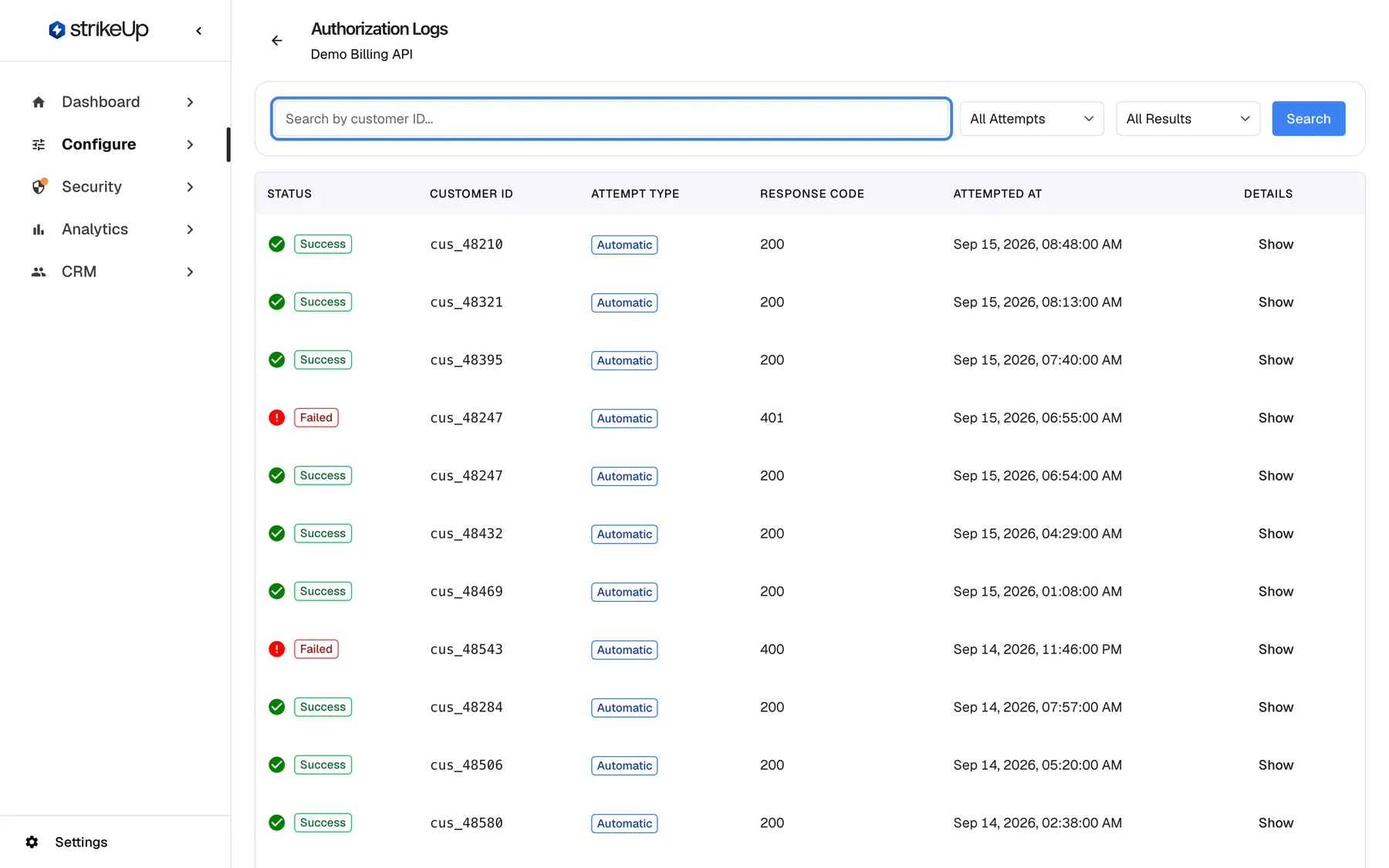
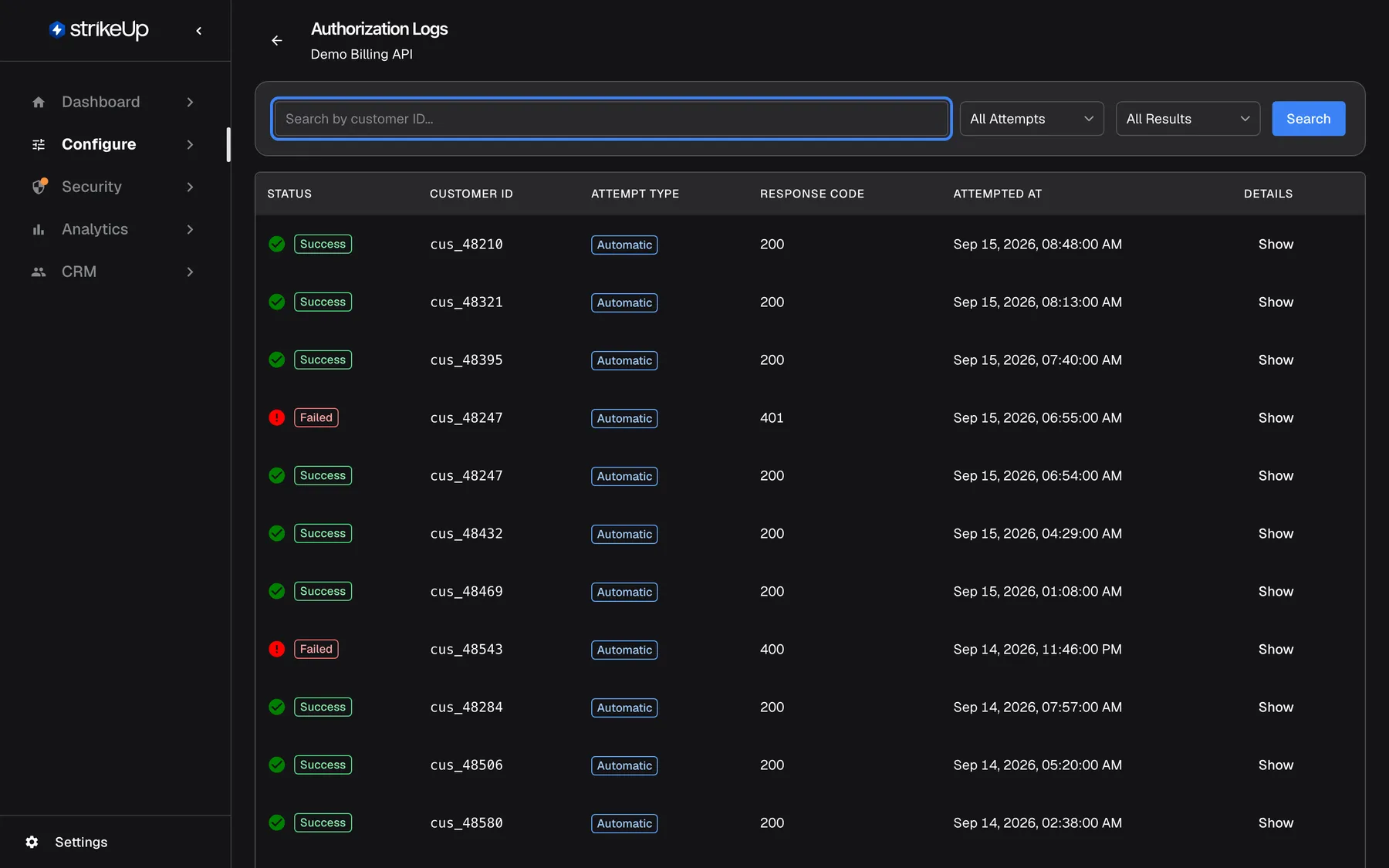
What this screenshot shows
- Screen
- Authorization Logs (/admin/servers/authorization-logs/:serverId)
- Highlighted
- textbox “Search by customer ID...”, filter-bar-left, empty. filters the log to customer IDs containing the typed text when Enter or Search is pressed
- Also visible
- Heading Authorization Logs with the toolkit name Demo Billing API; Filters All Attempts and All Results, Search button; Rows with Success or Failed, customer ID, Automatic, response code 200/401/400, timestamp, Show
- Purpose
- auditing automatic token fetches for a toolkit that uses a custom auth endpoint
| Region | What it shows | What you do there |
|---|---|---|
| Header | A back arrow, the title Authorization Logs and the toolkit’s name | Go back to the toolkit |
| Filter bar | The customer ID search box, the attempt type filter, the result filter and Search | Narrow the list |
| Table | One row per token request: Status, Customer ID, Attempt Type, Response Code, Attempted At, Details | Open a row’s details |
| Pages, bottom | Previous, “Page 1 of 3” and Next | Move through older entries, 20 rows at a time |
Read the log
Section titled “Read the log”StrikeUp writes a row every time it asks your token endpoint for a visitor’s token, and every time it uses your refresh endpoint to renew one. That happens when a visitor’s chat connects to a toolkit that needs a token, and when a tool call is refused with 401 and the token is refreshed. Rows are listed newest first.
| Column | What it shows |
|---|---|
| Status | Success or Failed |
| Customer ID | The visitor’s user id, as your embed code passed it, such as cus_48247 |
| Attempt Type | Always “Automatic”, in English in every language |
| Response Code | The HTTP status code your endpoint returned, or N/A when no response arrived |
| Attempted At | Date and time of the request, in the English format “Sep 15, 2026, 06:55:00 AM” in every language |
| Details | Show opens the error, request and response under the row |
Example: at 06:55 the visitor cus_48247 opened the chat. StrikeUp asked the Demo token endpoint for a token, and the endpoint answered 401. The row reads Failed, cus_48247, “Automatic”, 401. That visitor’s tools cannot be called until a later attempt succeeds.
What is not in the log: credentials a visitor types into the chat for a key or token header or a user name and password, and credentials your embed code passes for other authorisation types. Only automatic token requests are logged, so the log of a toolkit with any other authorisation type stays empty.
Find a visitor’s attempts
Section titled “Find a visitor’s attempts”- Type all or part of a customer ID into Search by customer ID..., such as
cus_482. Any ID that contains the text matches. - Press Enter or select Search. The list reloads from the first page.
- To see only failures, set the result filter to Failed. The list reloads as soon as you pick a value.
The attempt type filter offers All Attempts and Automatic; both show the same rows, because every row is an automatic attempt. To clear the search, empty the box and press Enter.
Diagnose a failed attempt
Section titled “Diagnose a failed attempt”Select Show on a row. Up to three blocks open under it, and the button changes to Hide.
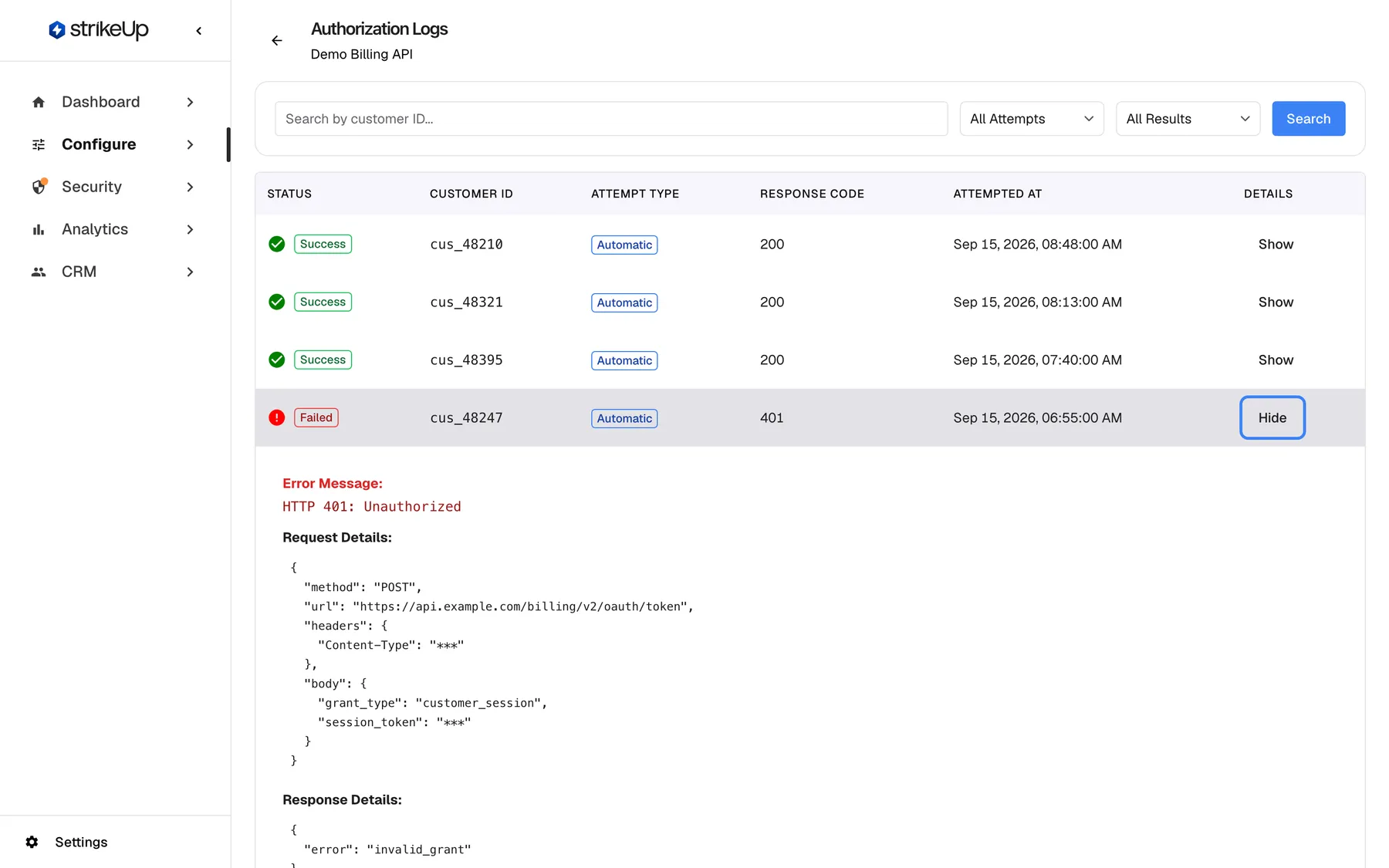
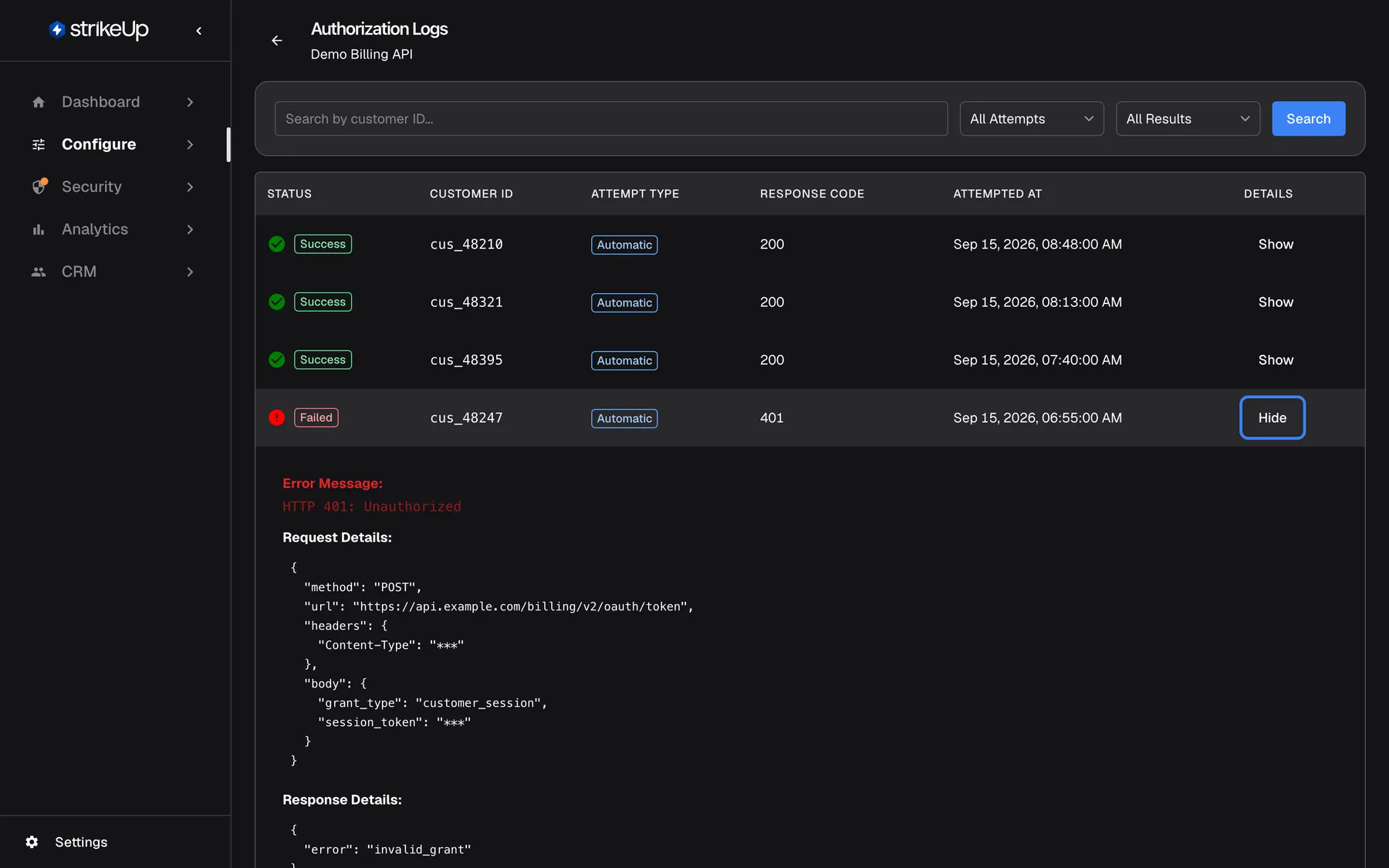
What this screenshot shows
- Screen
- Authorization Logs (/admin/servers/authorization-logs/:serverId)
- Highlighted
- button “Hide”, table-details-column, row expanded. collapses the details of this log row
- Also visible
- Error Message: HTTP 401: Unauthorized; Request Details: POST https://api.example.com/billing/v2/oauth/token, header and session_token values masked; Response Details: error invalid_grant
- Purpose
- diagnosing why a token fetch failed
| Block | What it contains |
|---|---|
| Error Message | Why the attempt failed, for example “HTTP 401: Unauthorized” |
| Request Details | The method and URL StrikeUp called, the header names it sent, and the request body. Header values and placeholder values are shown as *** |
| Response Details | The status code and the body your endpoint returned, with secret-looking values masked |
The error messages you can meet:
| Error message | What it means | What to check |
|---|---|---|
| “HTTP 401: Unauthorized” or another “HTTP …” code | Your token endpoint refused the request | The request headers and body configured on the toolkit, and the values the visitor or your embed code gave for custom placeholders |
| “JSON parsing failed: …” | The response was not valid JSON | That the endpoint returns JSON, also on errors |
| “Extracted token is null or empty” | The response arrived, but the token path found nothing | The Token Response Path on the toolkit, against the response shown here |
| “HTTP request failed: …” | The endpoint could not be reached | That the token URL is correct and reachable from the internet |
If your token endpoint expects the toolkit’s Secret Value (optional usage), put {secret} in the request headers or the request body. StrikeUp fills it in the first token request and in every refresh. Like every placeholder value, it shows as *** in this log.
When a token request fails because your endpoint cannot be reached, StrikeUp keeps using the last token it obtained for that visitor, so the visitor may not notice a short outage.
Every control, explained
Section titled “Every control, explained”Back arrow
Section titled “Back arrow”Beside the page title, at the top left.
Returns to the page you came from, usually the toolkit on ConfigureToolkits.
The log has no sidebar entry, so the arrow is the way back to the toolkit you are fixing.
Customer ID search
Section titled “Customer ID search”The first box in the filter bar, with the placeholder Search by customer ID.... It applies when you press Enter or select Search.
Matches every row whose customer ID contains the text you typed. An empty box shows every visitor.
When one visitor reports a problem, their ID takes you straight to their attempts.
Attempt type filter
Section titled “Attempt type filter”The first drop-down in the filter bar. It reloads the list as soon as you change it.
All Attempts or Automatic. Every row in the log is an automatic attempt, so both choices show the same rows.
It narrows the list to one kind of attempt; today all attempts are automatic token requests.
Result filter
Section titled “Result filter”The second drop-down in the filter bar. It reloads the list as soon as you change it.
All Results, Success or Failed.
Pick Failed to see at once whether a problem affects one visitor or everyone.
Show and Hide
Section titled “Show and Hide”In the Details column of every row.
Show opens the error message, request details and response details of that row; Hide closes them. Several rows can be open at once.
The request and response tell you whether the fault is in the toolkit’s configuration, in the visitor’s values or in your token endpoint.
Paging
Section titled “Paging”Under the table: Previous, the page count and Next.
Shows 20 rows per page, newest first. The filters and search apply across all pages.
A busy toolkit fetches a token every time a visitor’s chat connects, so the log grows quickly.
Who sees what
Section titled “Who sees what”| Part of the screen | Who sees it |
|---|---|
| View Authorization Logs on a toolkit | Every signed-in user, for a toolkit with the Custom Auth Endpoint - Automatic Token Fetching type |
| The log itself | Users with the Admin role. Anyone else sees Failed to load authorization logs with the status code 403 |
What you need to know
Section titled “What you need to know”| Topic | Fact |
|---|---|
| What is logged | Only automatic token requests and refreshes for a toolkit with the Custom Auth Endpoint - Automatic Token Fetching type. |
| Masking | Header values, placeholder values and secret-looking response values are shown as ***. Tokens are never shown. |
| Order and paging | Newest first, 20 rows per page. |
| Dates | Shown in English date format in your browser’s time zone, whatever the app language. |
| Per toolkit | Each toolkit has its own log. A toolkit from another workspace cannot be opened. |
| Empty log | Normal for a toolkit that has not fetched a token yet, or uses another authorisation type. |
Frequently asked questions
Section titled “Frequently asked questions”Using the log
Section titled “Using the log”How do I open the Authorization Logs?
Section titled “How do I open the Authorization Logs?”Go to ConfigureToolkits, select the toolkit’s card and choose View Authorization Logs in its details. The button appears for toolkits with the Custom Auth Endpoint - Automatic Token Fetching type, and the log opens only for users with the Admin role.
Why is the log empty?
Section titled “Why is the log empty?”The log only records requests StrikeUp sends to your token endpoint or refresh endpoint. It stays empty until a visitor’s chat connects to a toolkit with the Custom Auth Endpoint - Automatic Token Fetching type. Toolkits with any other authorisation type never write to it.
Why does the log fail to load with status code 403?
Section titled “Why does the log fail to load with status code 403?”The log is available only to users with the Admin role, although the View Authorization Logs button on ConfigureToolkits is shown to everyone. Ask a colleague with the Admin role to open it, or to give you that role.
Are API keys that visitors type into the chat logged here?
Section titled “Are API keys that visitors type into the chat logged here?”No. Credentials a visitor enters in the chat, such as a key, a token or a user name and password, are not written to this log, and neither are credentials your embed code passes. Only the requests StrikeUp sends to your own token endpoint are recorded.
What is the customer ID in the log?
Section titled “What is the customer ID in the log?”It is the user id of the visitor the token was requested for, as your embed code passed it to the widget. Search for it with Search by customer ID... to see every token request made for that visitor.
Errors
Section titled “Errors”What does “Extracted token is null or empty” mean?
Section titled “What does “Extracted token is null or empty” mean?”Your token endpoint answered, but the Token Response Path configured on the toolkit found no token in the response. Open the row with Show, compare the response with the path, and correct the path on ConfigureToolkits.
What does “HTTP 401: Unauthorized” mean?
Section titled “What does “HTTP 401: Unauthorized” mean?”Your token endpoint refused the request StrikeUp sent. Open the row with Show and compare the request headers and body with what your endpoint expects, including the values of any custom placeholders the visitor or your embed code provided.
Can I see the token that was issued?
Section titled “Can I see the token that was issued?”No. The log shows the response body with secret-looking values masked as ***, and request header values and placeholder values are masked too. It tells you whether a token was obtained, not what the token was.
Does a failed request lock the visitor out?
Section titled “Does a failed request lock the visitor out?”Not necessarily. If your token endpoint cannot be reached, StrikeUp keeps using the last token it obtained for that visitor. If your endpoint refuses the request, the visitor cannot use the toolkit’s tools until a later request succeeds.
Troubleshooting
Section titled “Troubleshooting”| Symptom | What to check |
|---|---|
| Failed to load authorization logs with the status code 403 | You do not have the Admin role. Ask an Admin to open the log. |
| The log is empty although visitors chat | Check that the toolkit’s type is Custom Auth Endpoint - Automatic Token Fetching, that its tools are switched on, and that the toolkit is chosen for the widget on ConfigureEmbed. |
| Every row is Failed with 401 | The token request is configured wrongly. Compare the request details with what your token endpoint expects. |
| Rows fail with “Extracted token is null or empty” | Correct the token response path on the toolkit to match the response shown in the row. |
| Rows fail with “HTTP request failed: …” | The token URL is wrong, or not reachable from the internet. Check the URL on the toolkit. |
| One visitor fails, everyone else succeeds | Search for that visitor’s customer ID and compare their request with a successful one; the difference is usually a custom placeholder value. |