

Sign Up
The sign-up page creates a new StrikeUp company and your account as its first administrator. It is where you start when your organisation does not use StrikeUp yet. You need only an email address and a password. StrikeUp then emails you a confirmation link; when you open it (at /auth/verify-email), StrikeUp creates the company, signs you in and opens the setup wizard that connects your first API. The page is at /auth/sign-up, reached from Create an Account on the sign-in page.
What you can do here
Section titled “What you can do here”- Create your company and administrator account. One sign-up makes one new company and one user with the Admin role. StrikeUp creates them when you open the confirmation link it emails you, then signs you in. Create your account.
- Name your company and give its website. Both are optional. The website lets StrikeUp generate guardrails that fit your business, so it is worth adding. Create your account · Guardrails.
- Choose a strong enough password. A five-part meter shows how strong the password is, and the form refuses one that meets fewer than three of the five criteria. Choose a password the form accepts.
- Go to sign-in instead. Already have an account? Sign in here takes you to the sign-in page if you already have an account. Log in.
The screen at a glance
Section titled “The screen at a glance”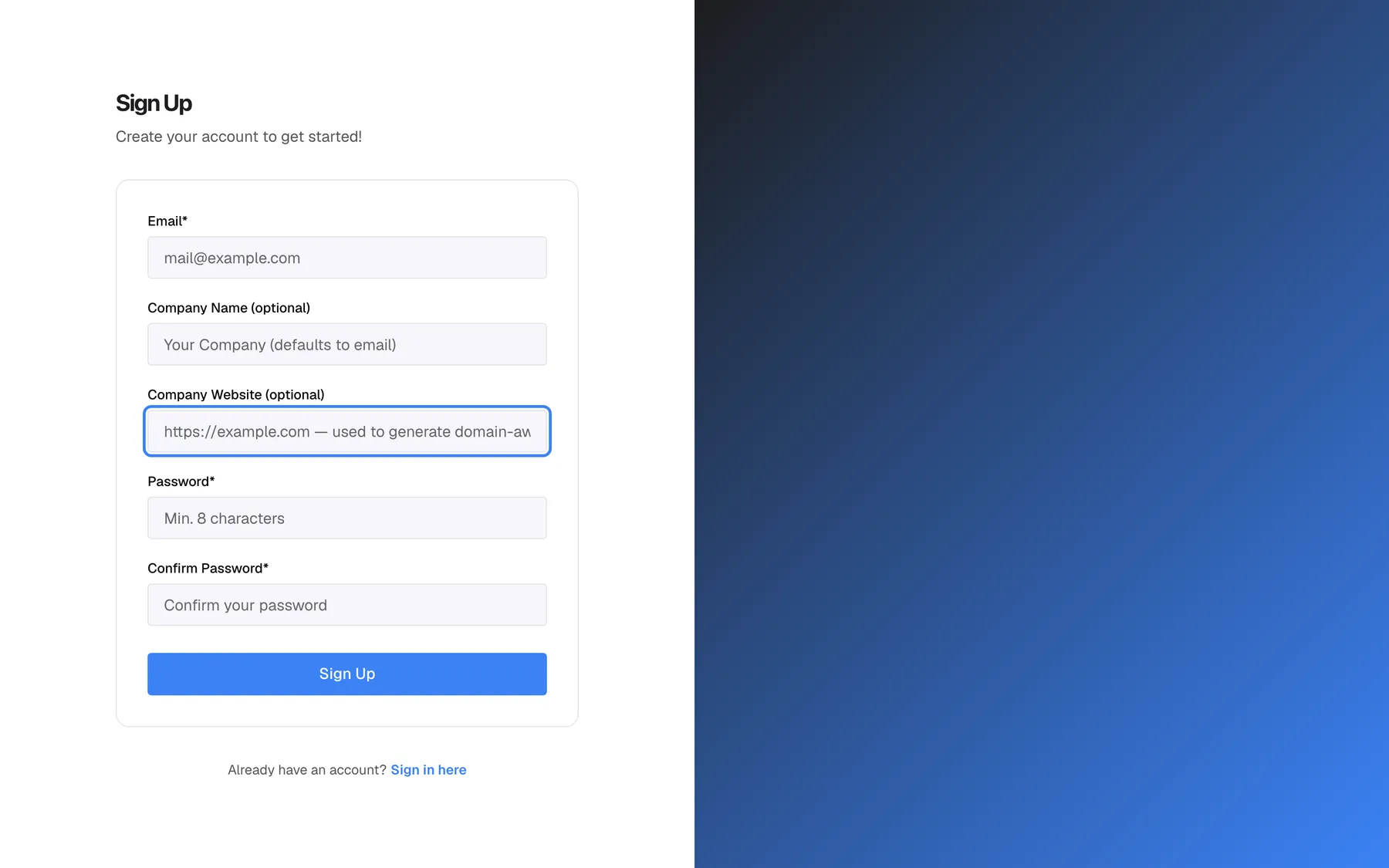
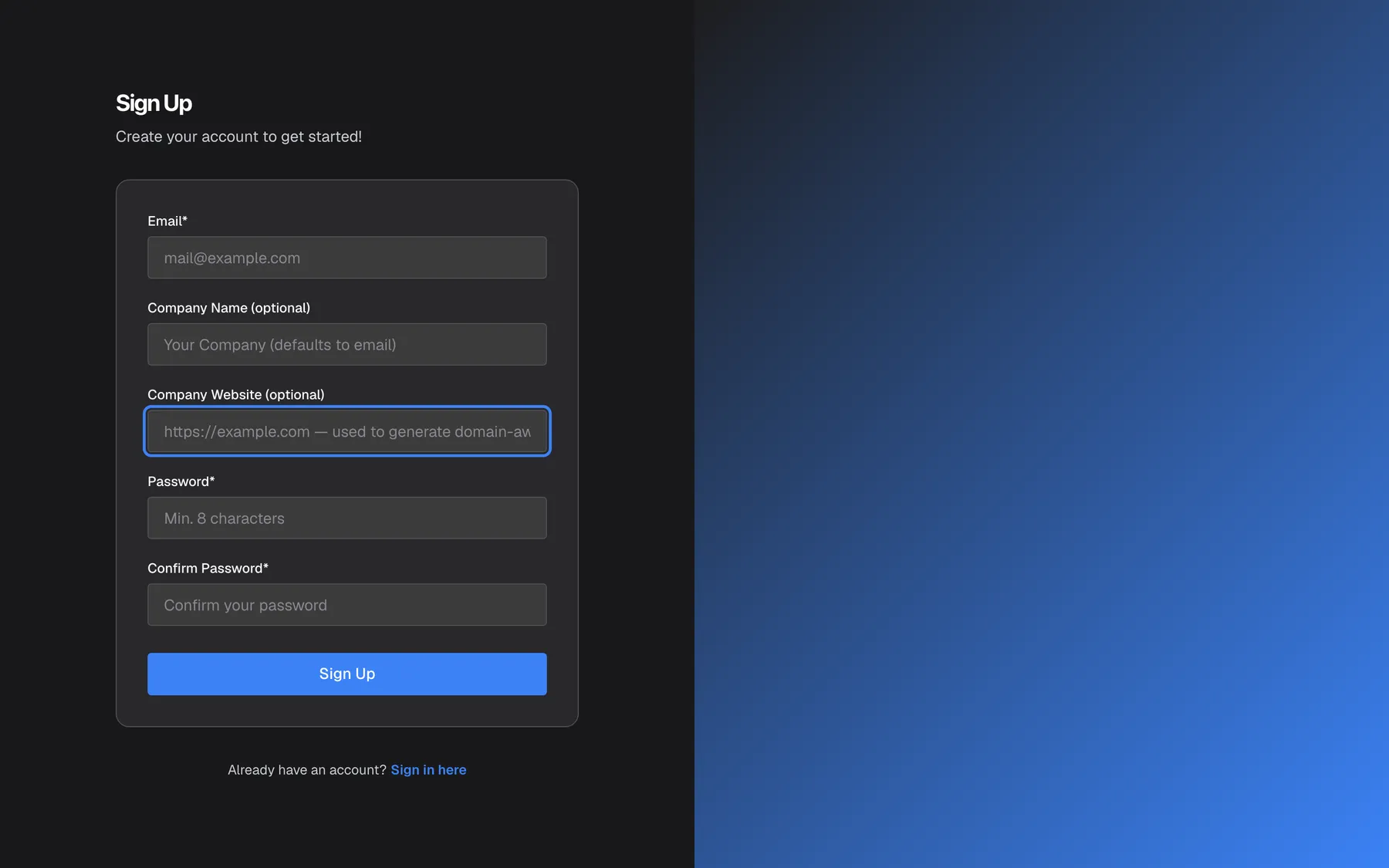
What this screenshot shows
- Screen
- Sign Up (/auth/sign-up)
- Highlighted
- textbox “Company Website (optional)”, sign-up-card-middle, empty. optional company website used for domain-aware guardrails
- Also visible
- Email*, Company Name (optional), Company Website (optional), Password*, Confirm Password* fields, all empty; Sign Up button; Already have an account? Sign in here link
- Purpose
- the sign-up form as a new customer first sees it
| Region | What it shows | What you do there |
|---|---|---|
| Heading, top left | The StrikeUp logo, the heading Sign Up and the line Create your account to get started! | Confirm you are creating a new company |
| Banner, above the card (only when there is something to say) | A red message when the form or StrikeUp refuses the sign-up | Read what to correct |
| The card | Email*, Company Name (optional), Company Website (optional), Password* with its strength meter, Confirm Password* and the Sign Up button | Fill in your details and sign up |
| Below the card | Already have an account? Sign in here | Go to sign-in if you already have an account |
The page follows your browser’s language and has no language switch. Messages from the server are in English.
Create your account
Section titled “Create your account”-
Open the sign-up page from Create an Account on the sign-in page.
-
Type your work email address in Email*. Capital letters do not matter: StrikeUp stores the address in lower case and accepts any spelling of it when you sign in. Use an address you can open now, because StrikeUp sends the confirmation link there.
-
Optionally, enter your company’s name in Company Name (optional) and its public website in Company Website (optional), starting with
https://. -
Type a password in Password* and the same password again in Confirm Password*. Watch the meter under the password: it must show at least Good.
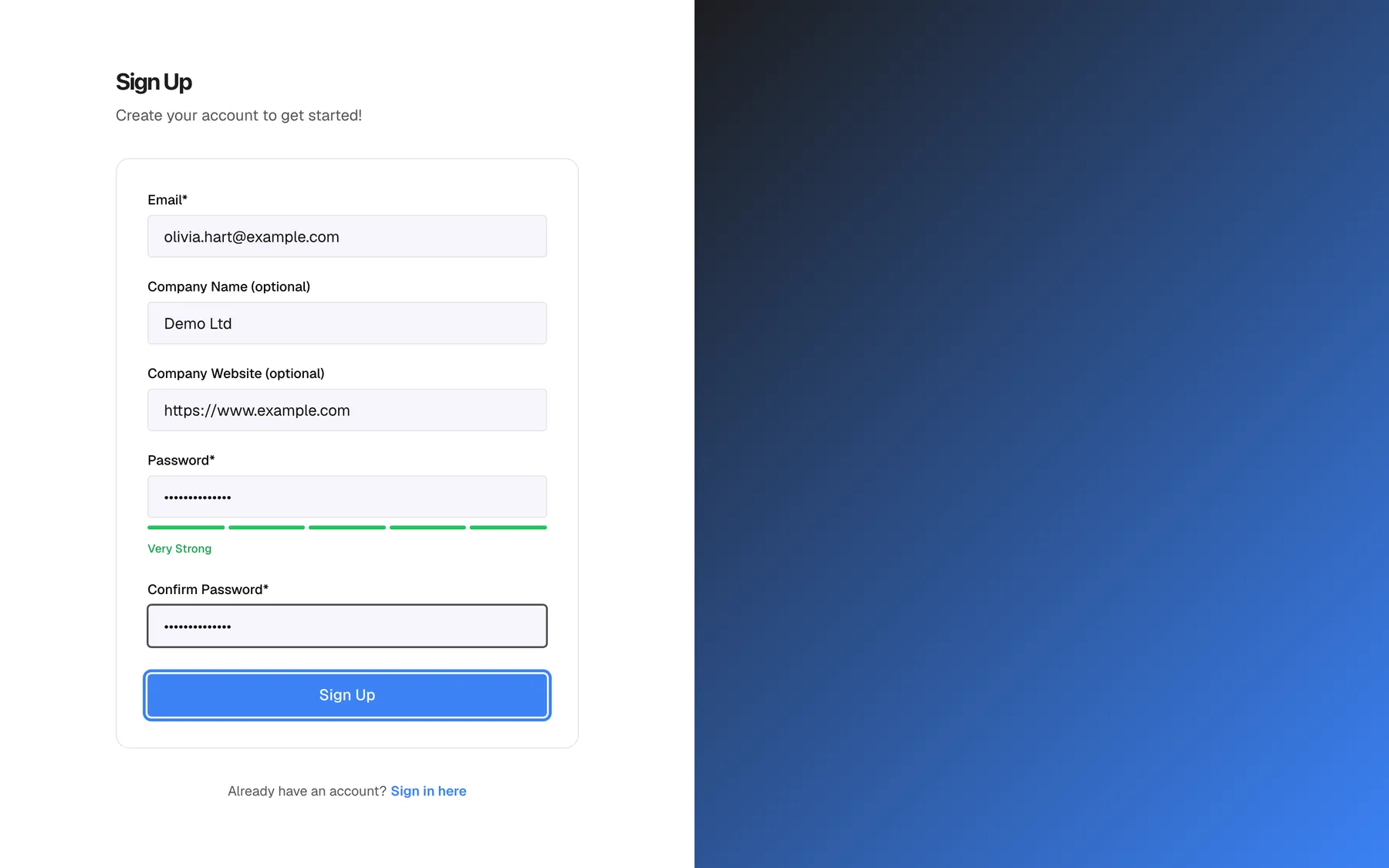
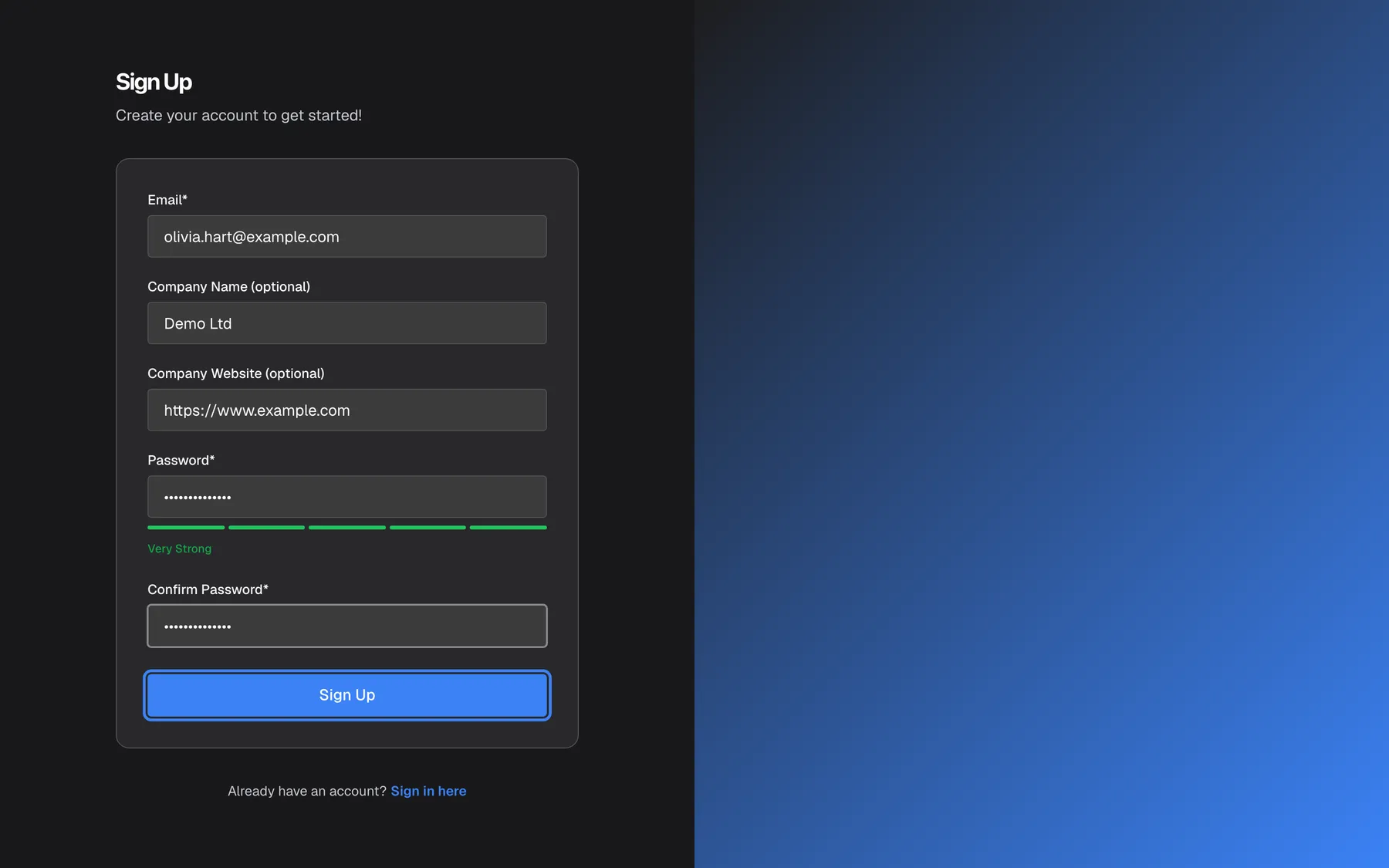
A password that meets all five criteria shows Very Strong; select Sign Up to get the confirmation link. What this screenshot shows
- Screen
- Sign Up (/auth/sign-up)
- Highlighted
- button “Sign Up”, sign-up-card-bottom, enabled. sends a confirmation link (POST /api/auth/register); the company is created when the link is opened
- Also visible
- Email*: olivia.hart@example.com; Company Name (optional): Demo Ltd; Company Website (optional): https://www.example.com; Password strength: 5 of 5 segments, Very Strong
- Purpose
- the completed sign-up form just before creating the account
-
Select Sign Up. The button reads Creating Account... while StrikeUp checks your details. The page then shows Check your email and the address the link went to. Nothing is created yet.
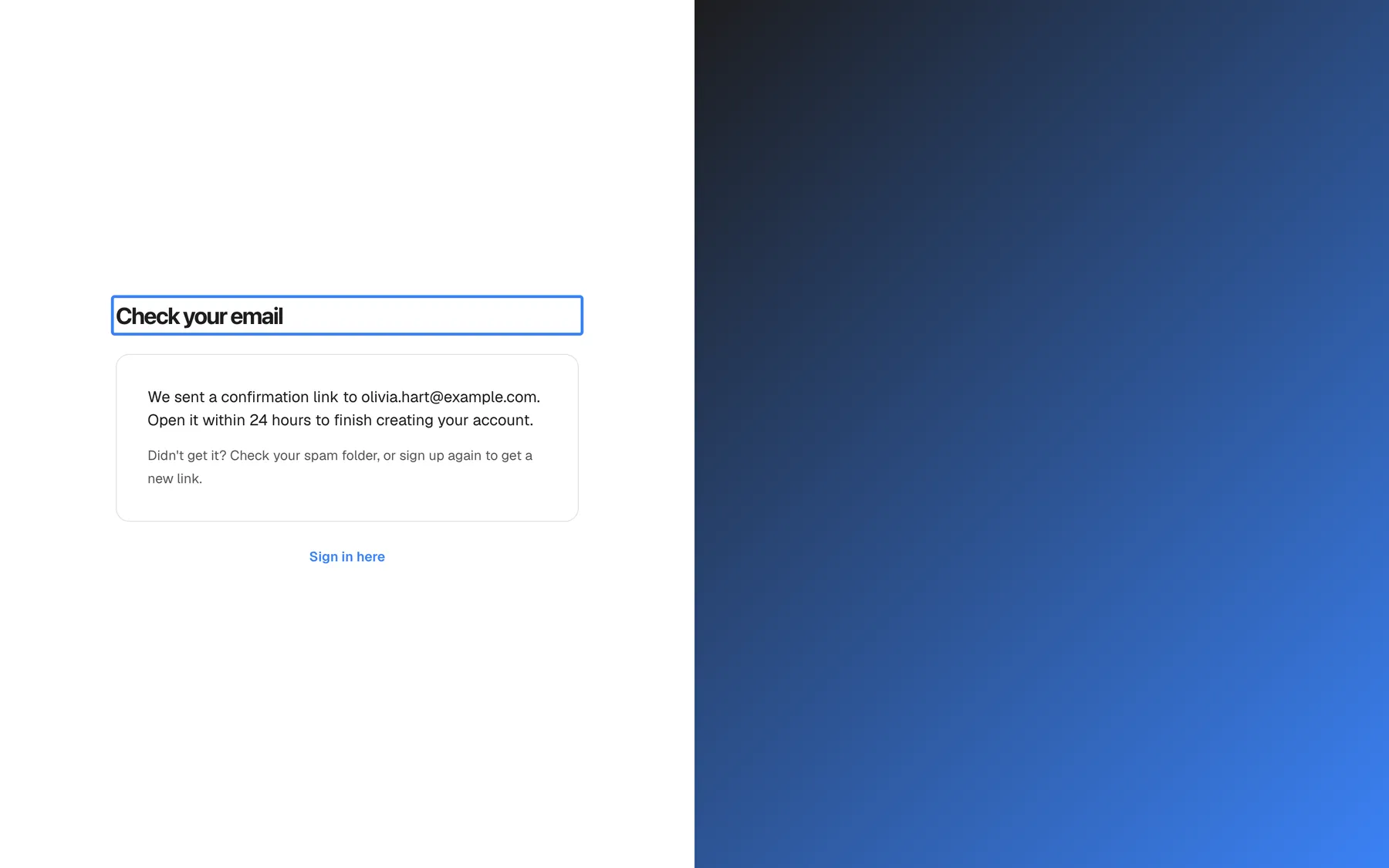
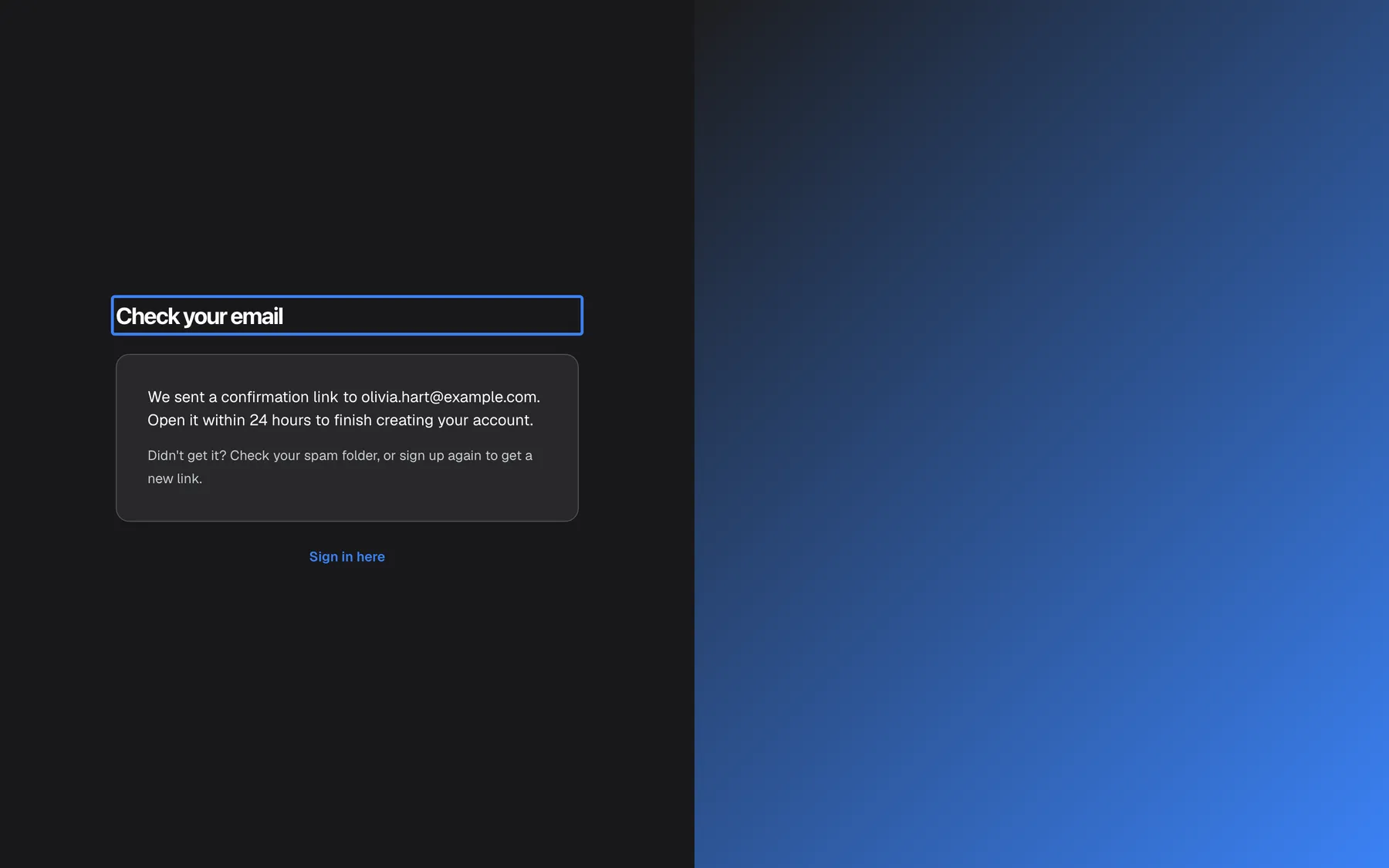
After Sign Up, open the confirmation link from your email within 24 hours. What this screenshot shows
- Screen
- Sign Up (/auth/sign-up)
- Highlighted
- heading “Check your email”, sign-up-card, confirmation link sent. none; the next step is the link in the email
- Also visible
- The address the link was sent to; Hint about the spam folder and signing up again
- Purpose
- the confirmation step of sign-up
-
Open the email with the subject
Confirm your email for strikeUpand select Confirm Email within 24 hours. If it is not in your inbox, look in your spam folder. -
The link opens the Confirm your email page, which shows Confirming your email and setting up your account... while StrikeUp creates your company. StrikeUp then signs you in and opens the admin app.
When you open the confirmation link, StrikeUp:
| What | Details |
|---|---|
| Creates your company | Named after Company Name (optional), or after your full email address if you left it empty. You can rename it later under SettingsCompany. |
| Creates your user | With the Admin role, so you can change every setting. |
| Signs you in | As soon as the company is ready. You do not type your password again. |
| Sends a welcome email | To the address you entered, with a link to the admin app. If the email cannot be sent, sign-up still succeeds. |
| Opens the setup wizard | The setup wizard covers the Dashboard until you have connected your first API and chosen its tools. |
Two-factor authentication is not required for a new company, so StrikeUp does not ask for a code. You can switch it on later; see Two-factor authentication.
Example: Olivia Hart signs up as Olivia.Hart@example.com, with the company name “Demo Ltd” and the website https://www.example.com. StrikeUp emails a confirmation link to olivia.hart@example.com. When she opens it, StrikeUp creates the company “Demo Ltd”, makes Olivia its administrator and opens the setup wizard. Had she left the name empty, the company would be called “olivia.hart@example.com” until she renamed it.
Choose a password the form accepts
Section titled “Choose a password the form accepts”The meter under Password* counts how many of these five criteria your password meets:
- at least 8 characters;
- an upper-case letter;
- a lower-case letter;
- a digit;
- a special character from the set
! @ # $ % ^ & * ( ) _ + = { } ; [ ] ' : " \ | , . < > / ?. A hyphen (-), a tilde (~) or a space does not count.
| Criteria met | The meter shows | Can you sign up? |
|---|---|---|
| 0 or 1 | Weak | No |
| 2 | Fair | No |
| 3 | Good | Yes |
| 4 | Strong | Yes |
| 5 | Very Strong | Yes |
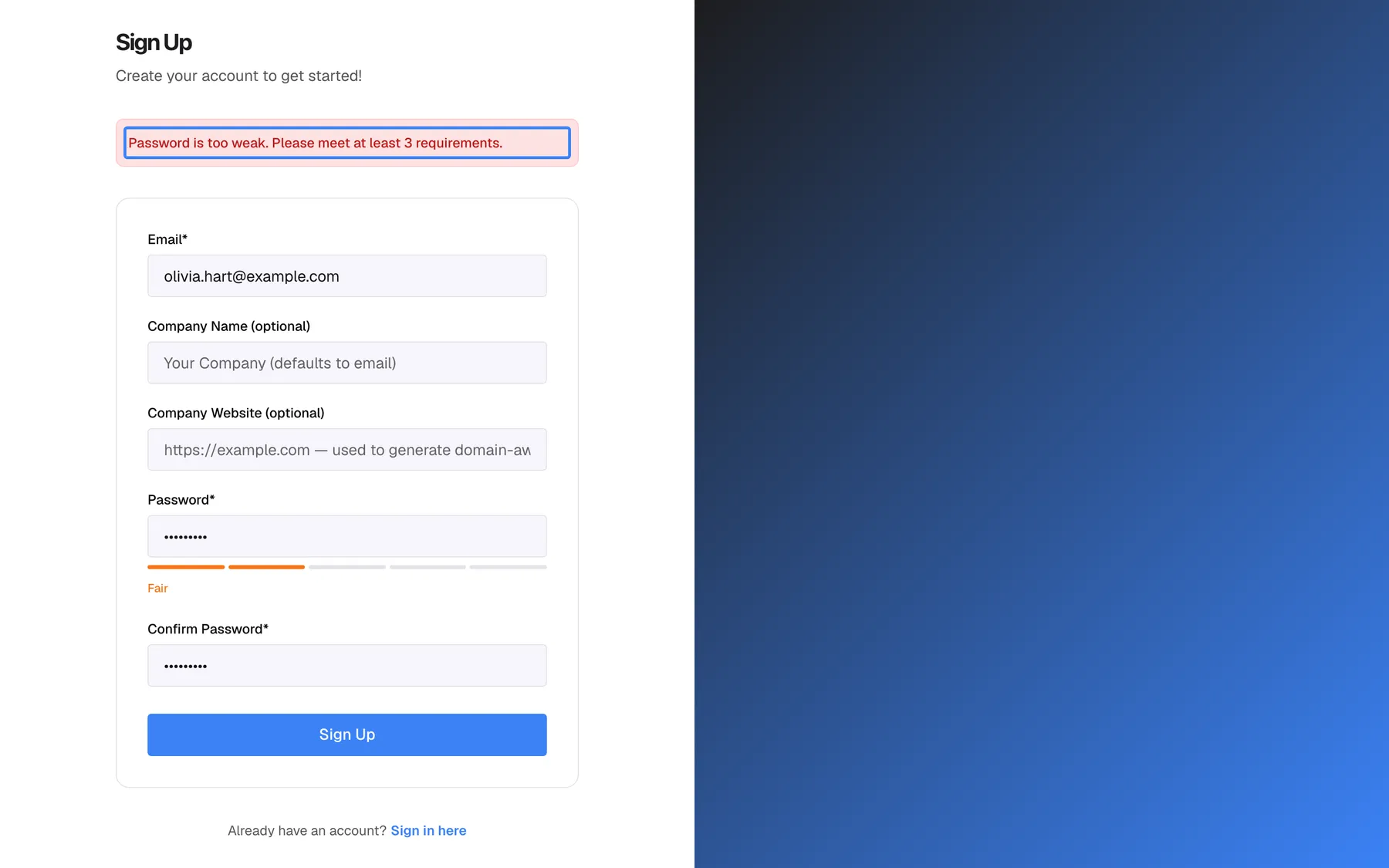
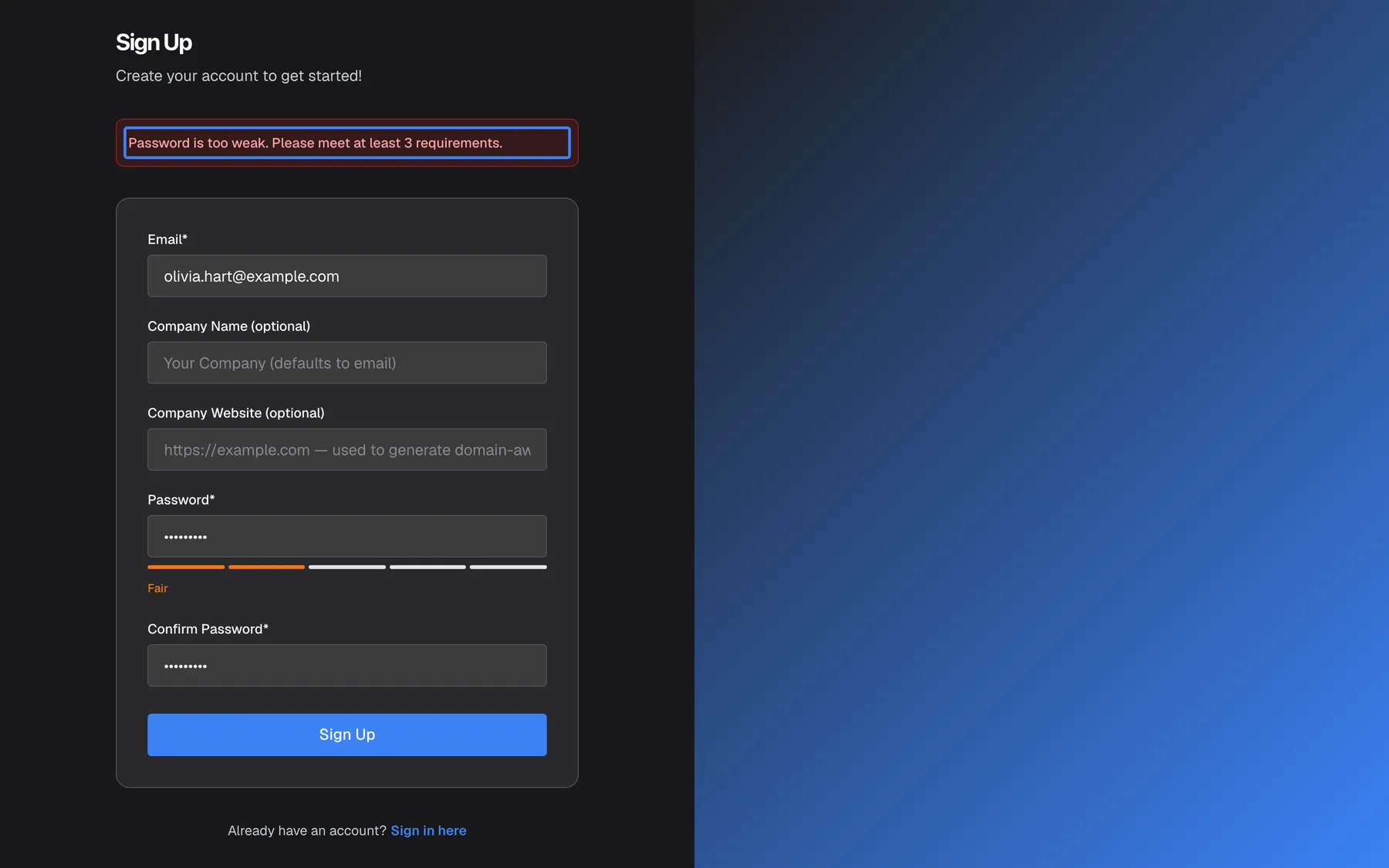
With fewer than three criteria, selecting Sign Up shows Password is too weak. Please meet at least 3 requirements. and nothing is created.
What this screenshot shows
- Screen
- Sign Up (/auth/sign-up)
- Highlighted
- alert-banner “Password is too weak. Please meet at least 3 requirements.”, above-sign-up-card, visible. none; the form is not submitted
- Also visible
- Password strength: 2 of 5 segments, Fair; Email*: olivia.hart@example.com
- Purpose
- client-side validation error for a weak password
StrikeUp also requires 8 to 128 characters. A password such as demologin (9 lower-case letters) meets two criteria and is refused; Demo-2026 meets four (the hyphen is not counted), and Demo-2026! meets all five. A password longer than 128 characters passes the meter but StrikeUp refuses it with “Password must be at most 128 characters long.”
Every control, explained
Section titled “Every control, explained”Each field and link on the sign-up card, in the order you meet them.
The first field, Email*, with the example mail@example.com. Required.
Becomes your sign-in name and your company’s contact address. The browser checks that it looks like an email address. StrikeUp refuses an address that already has an account, in any company, with “Email already registered”. Capital letters do not matter: StrikeUp stores the address in lower case, so Anna.Becker@example.com and anna.becker@example.com are the same address and you can sign in with either. StrikeUp sends the confirmation link to this address.
Your email identifies you everywhere in StrikeUp, and one address can belong to only one company.
Company Name (optional)
Section titled “Company Name (optional)”The second field, Company Name (optional), with the hint Your Company (defaults to email).
The name of your new StrikeUp company. If you leave it empty, StrikeUp uses your full email address as the name. You can change it later under SettingsCompany.
The name appears in the admin app and in the welcome email; a real name makes it easier for teammates you invite to recognise the company.
Company Website (optional)
Section titled “Company Website (optional)”The third field, Company Website (optional). Its hint, partly cut off by the field width, reads https://example.com — used to generate domain-aware guardrails.
Your company’s public website, starting with http:// or https://. The browser checks the format when the field is filled. StrikeUp keeps it as your company website and uses it, together with your toolkits, to generate a guardrails policy that knows your business. The setup wizard asks for the website again and fills it in from what you enter here.
The guardrails decide which visitor messages the assistant answers. A policy that knows what your business does lets ordinary questions about your product through and keeps the assistant on topic. See Guardrails.
Password and its strength meter
Section titled “Password and its strength meter”The fourth field, Password*, with the hint Min. 8 characters. The five-segment meter and its label appear under it as you type.
The password for your account. The form requires at least three of the five criteria (8 characters, upper-case, lower-case, digit, special character); StrikeUp itself requires 8 to 128 characters. The meter shows Weak, Fair, Good, Strong or Very Strong.
This account is the company’s first administrator, able to change everything, so its password matters more than most.
Confirm Password
Section titled “Confirm Password”The fifth field, Confirm Password*, with the hint Confirm your password.
Must match the password exactly. If it does not, selecting Sign Up shows Passwords do not match and nothing is created.
A typing mistake in a hidden field would otherwise lock you out of the account you just created.
Sign Up button
Section titled “Sign Up button”The full-width blue button at the bottom of the card, Sign Up. It reads Creating Account... while StrikeUp works.
Checks the two passwords and the strength in the browser, then sends your details to StrikeUp, which emails you the confirmation link. Nothing is created until you open that link: StrikeUp then creates the company, the administrator account and the company’s own data store, and signs you in. If StrikeUp cannot prepare the data store, it removes the half-created company and the Confirm your email page shows “Failed to provision company database. Registration rolled back.”; open the same link again later, it still works until it expires.
Confirming first means nobody can create a company with an email address they do not own. The company and its administrator are still created together, so you are never left with a company that has no administrator.
Sign in here
Section titled “Sign in here”Below the card: Already have an account? Sign in here.
Opens the sign-in page without creating anything.
If your email already has an account, signing in is the way in; signing up again with it is refused.
What you need to know
Section titled “What you need to know”| Topic | Fact |
|---|---|
| One sign-up, one company | Sign-up always creates a new company. To join an existing one, ask its administrator for an invitation. |
| One email, one company | An email address can have only one StrikeUp account, in one company. |
| Capitals in email | Do not matter. StrikeUp stores the address in lower case, and you can sign in with any spelling of it. |
| Email confirmation | Required. Open the link within 24 hours; nothing is created until you do. Each link works once, and signing up again sends a new link and cancels the old one. |
| Your role | Admin, the only role that can change settings. |
| Password | 8 to 128 characters, and at least three of the five criteria on this form. |
| Rate limit | Sign-up and the confirmation link share the sign-in rate limit for your network address. |
| Cost | Sign-up itself creates no charges. |
Frequently asked questions
Section titled “Frequently asked questions”Before you sign up
Section titled “Before you sign up”Do I need to confirm my email address before I can use StrikeUp?
Section titled “Do I need to confirm my email address before I can use StrikeUp?”Yes. After you select Sign Up, StrikeUp emails a confirmation link to the address you entered, and nothing is created until you open it. The link works for 24 hours. When you open it, StrikeUp creates your company, signs you in and sends a welcome email with a link to the admin app.
I did not get the confirmation email, or the link has expired. What do I do?
Section titled “I did not get the confirmation email, or the link has expired. What do I do?”Use the sign-up form again with the same email address. StrikeUp sends a new link, and the old one stops working. Look in your spam folder first: the email has the subject Confirm your email for strikeUp.
Can I join my colleague’s StrikeUp company by signing up?
Section titled “Can I join my colleague’s StrikeUp company by signing up?”No. Signing up always creates a new, separate company with you as its administrator. To join an existing company, ask one of its administrators to invite you from SettingsUsers, then accept the invitation from the email link.
Can I use an email address that already has a StrikeUp account in another company?
Section titled “Can I use an email address that already has a StrikeUp account in another company?”No. Each email address can have only one StrikeUp account, and StrikeUp refuses the sign-up with “Email already registered”. Sign in with that address instead, or use a different email address for the new company.
Does it matter whether I type my email in capitals?
Section titled “Does it matter whether I type my email in capitals?”No. StrikeUp stores email addresses in lower case and ignores capitals when you sign up or sign in, so Olivia.Hart@example.com and olivia.hart@example.com are the same account. The same applies to invitations.
Company details
Section titled “Company details”What happens if I leave the company name empty?
Section titled “What happens if I leave the company name empty?”StrikeUp names the new company after your full email address, for example “olivia.hart@example.com”. An administrator can rename it at any time under SettingsCompany with Edit Details.
What is the company website used for?
Section titled “What is the company website used for?”StrikeUp uses your public website, together with the APIs you connect, to generate a guardrails policy that understands what your business does, so ordinary questions about your product are let through. The setup wizard asks for the website again and pre-fills it with what you entered on the sign-up page.
Password and account
Section titled “Password and account”What are the password rules?
Section titled “What are the password rules?”On the sign-up page the password must meet at least three of five criteria: 8 or more characters, an upper-case letter, a lower-case letter, a digit and a special character. StrikeUp also requires a length of 8 to 128 characters. The meter must show at least Good before you can sign up.
What role do I have after signing up?
Section titled “What role do I have after signing up?”Admin. The person who signs up becomes the administrator of the new company and can change every setting, invite teammates and choose their roles under SettingsUsers. Teammates with the User or Guest role can look at every screen but cannot save changes.
Does signing up cost anything?
Section titled “Does signing up cost anything?”Signing up itself creates no charges. The setup wizard that opens afterwards generates your toolkit with AI, and the cost of those calls to AI models appears on the AI Spend page of the Dashboard.
Why are Knowledge Base and Integrations missing from the menu right after I signed up?
Section titled “Why are Knowledge Base and Integrations missing from the menu right after I signed up?”Right after sign-up and the setup wizard, the admin app does not yet show menu entries that depend on your company’s features, such as Knowledge Base and Integrations. Sign out from SettingsLogout and sign in again, and they appear. They also appear on their own within about an hour.
Troubleshooting
Section titled “Troubleshooting”| Symptom | What to check |
|---|---|
| “Email already registered” | That address already has a StrikeUp account, possibly in another company. Sign in, or reset the password from Forgot password?. If a colleague invited you, accept the invitation from the email instead. On the Confirm your email page it means the address got an account after you signed up, for example by accepting an invitation; sign in instead. |
| Password is too weak. Please meet at least 3 requirements. | The password meets fewer than three criteria. Add an upper-case letter, a digit or a special character until the meter shows Good or better. |
| Passwords do not match | The two password fields differ. Retype both. |
| “Password must be at most 128 characters long.” | Shorten the password to 128 characters or fewer. |
| “Failed to provision company database. Registration rolled back.” | StrikeUp could not prepare your company and removed it again. Open the same confirmation link in a few minutes; it keeps working until it expires. |
| “We could not send the verification email. Please try again later.” | StrikeUp could not send the confirmation email. Try signing up again in a few minutes. |
| You see Check your email but no email arrives | Look in your spam folder for the subject Confirm your email for strikeUp. Check the address shown on the page; if it is wrong, sign up again with the right one. Signing up again with the same address sends a new link. |
| “This verification link is invalid or has expired. Please sign up again.” | The link is older than 24 hours, was already used, was replaced by a newer sign-up, or was not copied completely. If you already confirmed, sign in; otherwise select Sign up again. |
| “This verification link has already been used.” | The link was opened twice at the same moment, for example in two tabs. The other tab is finishing the sign-up; wait a moment, then sign in with your email and password. |
| This confirmation link is incomplete. Open the link from the email again. | The address in your browser is missing part of the link. Open the link from the email again, or copy all of it. |
| “Too many requests. Please wait a minute and try again.” | Too many sign-in or sign-up requests came from your network address. Wait a minute, then try once. |
| You are sent to the Dashboard when you open the sign-up page | You are already signed in in this browser. Sign out first to create another company. |
| Knowledge Base and Integrations are missing from the menu | Sign out and sign in again; the entries appear after your session is renewed. |