

Agent jobs
The Agent jobs page lists the runs your assistant does in the background, without anyone chatting: autonomous agents started by a webhook, scheduled workflows, and workflows or agents a customer starts with Run now in their portal. Each row shows the job’s status, what started it, whose job it is, what it is waiting on and, once it has finished, its tokens and estimated cost. Use it to see what your automations are doing and which runs are stuck waiting for a customer. It lives at AnalyticsAgent jobs; everyone in your workspace can open it. The page only reads: approvals and answers are given by the customer, not from here.
What you can do here
Section titled “What you can do here”- See every background run. Jobs from webhooks, schedules and Run now are listed newest first; chat conversations never appear here. Read the job list.
- Find runs waiting on a customer. Filter by status, such as Waiting on a customer, and by trigger. Find jobs that are waiting.
- Open a job. See its plan steps, approvals and event history on the job’s own page. Agent job.
The screen at a glance
Section titled “The screen at a glance”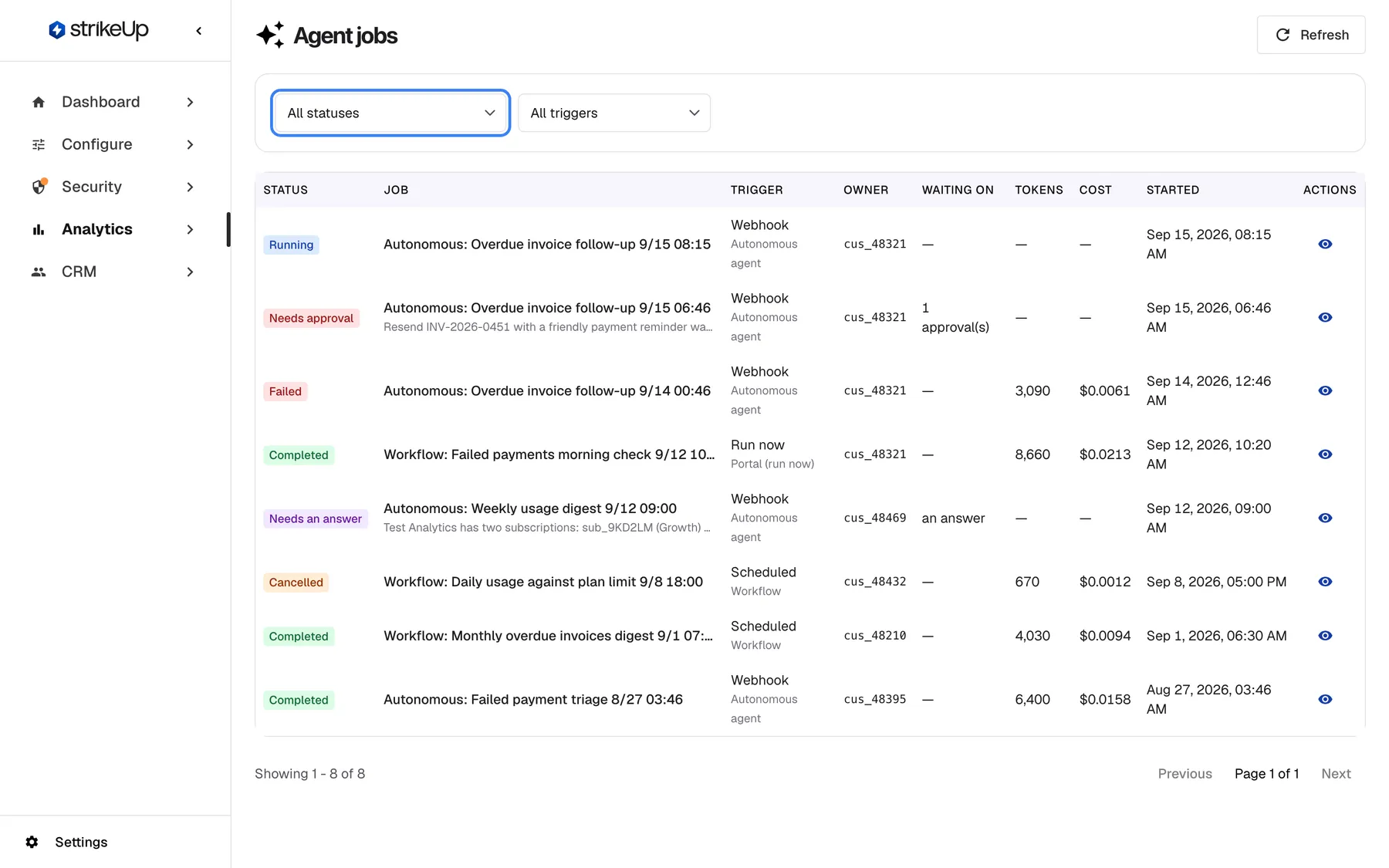
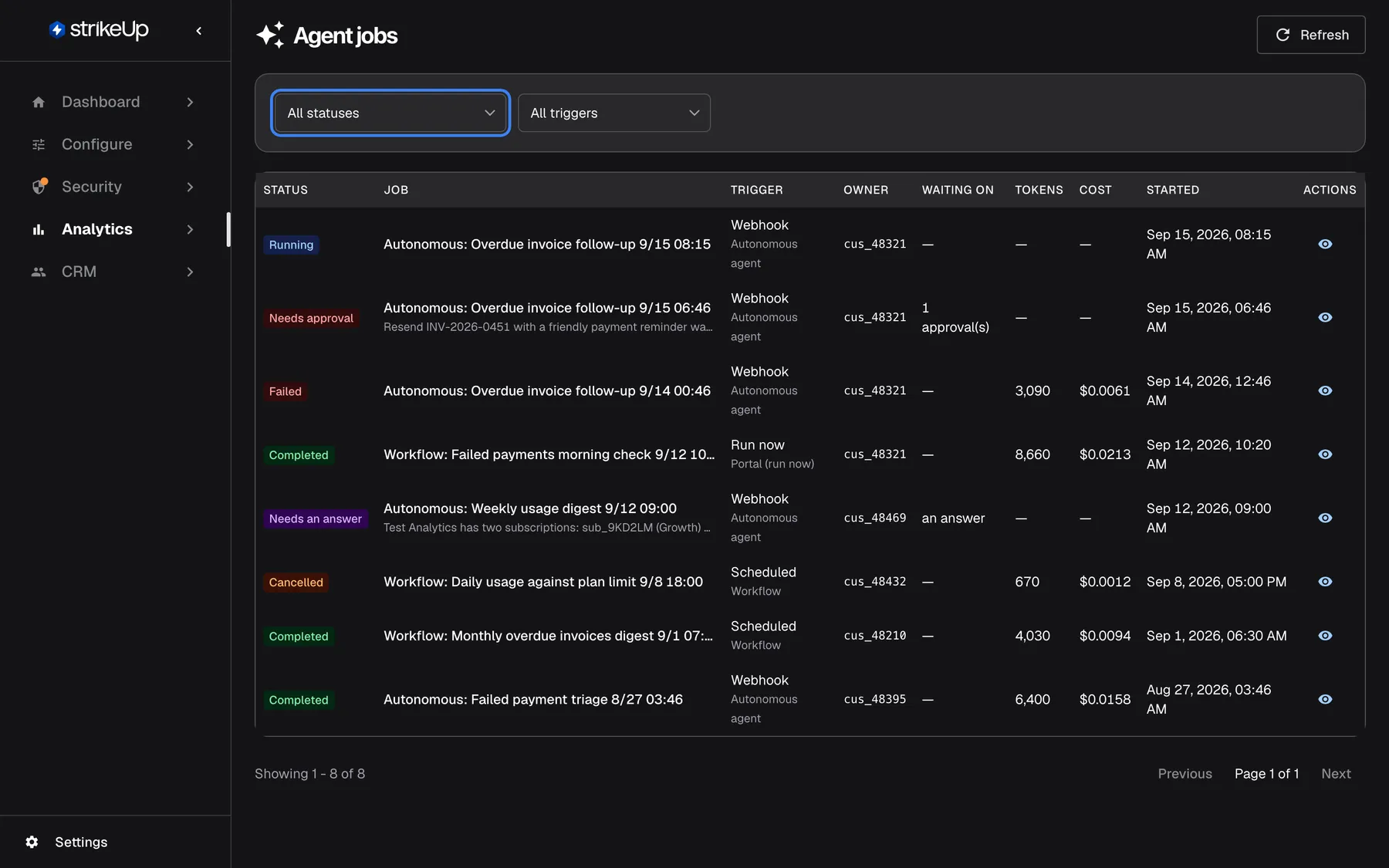
What this screenshot shows
- Screen
- Agent jobs (/admin/agent-jobs)
- Highlighted
- combobox “All statuses”, above-table-left, All statuses. filters jobs by status
- Also visible
- Eight jobs: Running, Needs approval, Failed, Needs an answer, Completed x3, Cancelled; Autonomous runs all Webhook; Schedule and Run now only on workflows; Cost and tokens only on finished jobs
- Purpose
- the headless run list as it opens
| Region | What it shows | What you do there |
|---|---|---|
| Header | The heading Agent jobs and Refresh | Reload the list |
| Filter card | The status and trigger drop-downs | Narrow the list |
| The table | One row per job, newest first, 20 per page | Select the eye icon to open a job |
| Pagination, bottom | The rows shown, the total and the page number | Move through older jobs |
Read the job list
Section titled “Read the job list”Each row is one job. A job is created when a run starts and keeps its row after it finishes.
| Status | What it means |
|---|---|
| Planned | The run was accepted and has not started yet |
| Running | The run is working |
| Needs approval | The run wants to use a tool that needs approval and waits for the customer’s decision |
| Needs an answer | The run asked the customer a question and waits for the answer |
| Paused | The run stopped because the AI allowance for the period is used up; it continues when the allowance resets or the limit is raised |
| Completed | The run finished |
| Failed | The run stopped with an error |
| Cancelled | The run was stopped before it finished |
Completed, Failed and Cancelled are final; every other status means the job is still open.
- The Job column names the workflow or agent and when it ran, such as “Workflow: …” or “Autonomous: …”. While a job waits, a grey line below says what it waits for, in English in every language, such as ”… wants to use …” for an approval or the question asked.
- Trigger shows what started the job — Webhook, Scheduled or Run now — with the source below it, such as Autonomous agent or Workflow.
- Owner is the customer the job runs for, by their ID in your product, or
—for jobs that belong to no customer. - Tokens and Cost stay
—until the job finishes. They are added up from the job’s calls to AI models when it reaches a final status. The cost is an estimate in US dollars from the models’ listed prices; calls without a price count as 0.
Find jobs that are waiting
Section titled “Find jobs that are waiting”The status and trigger filters narrow the list. Both apply the moment you change them and return to page 1.
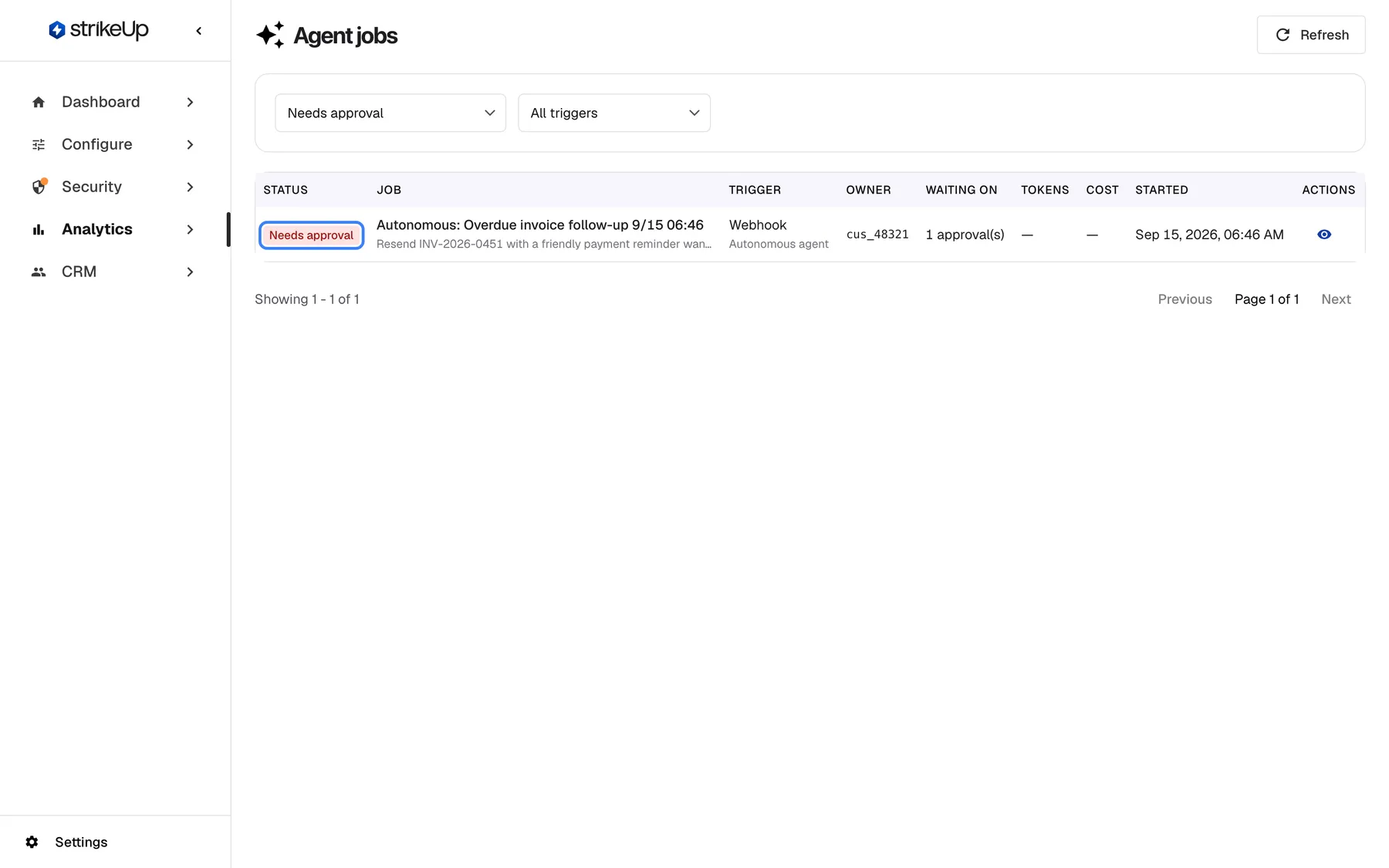
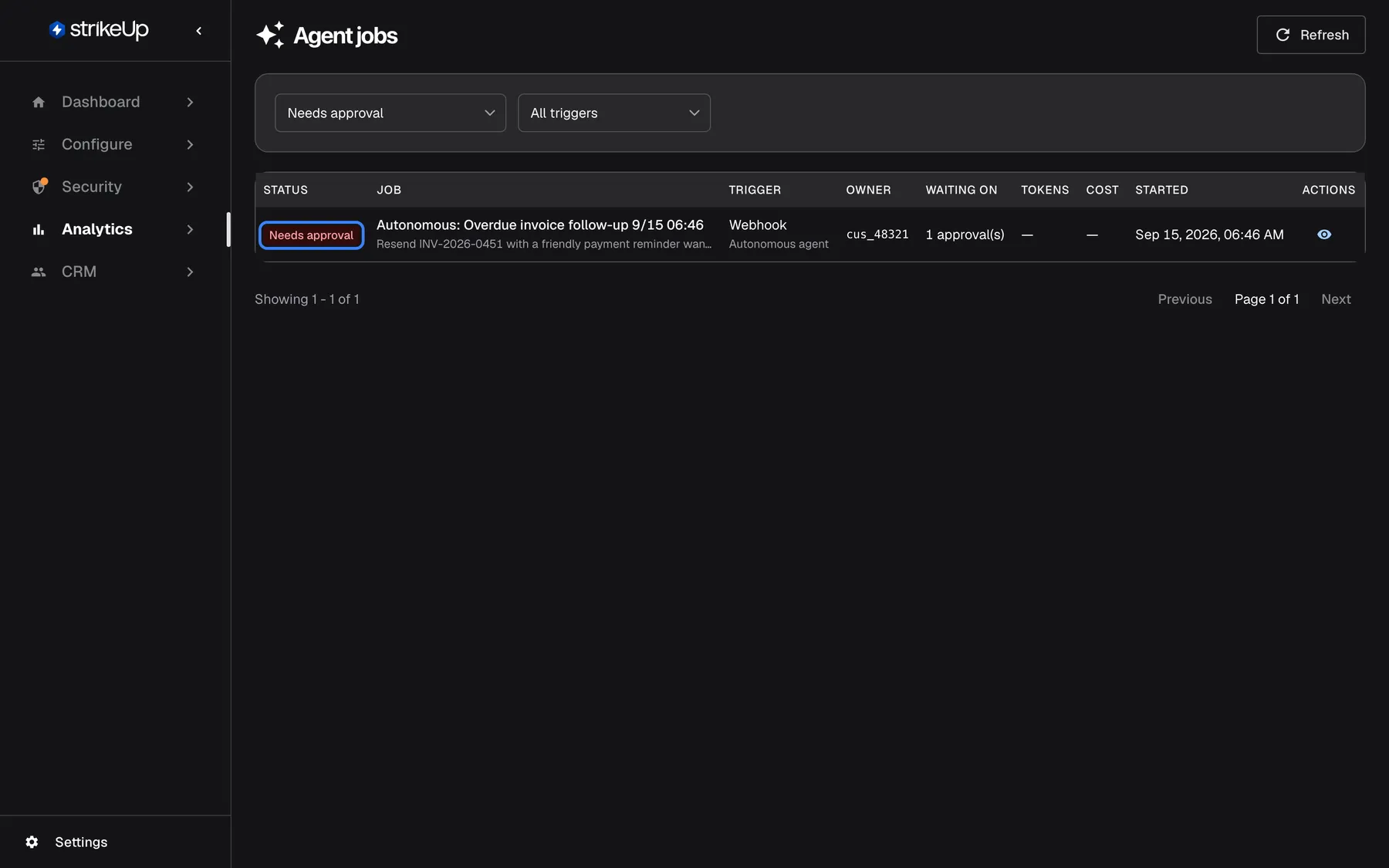
What this screenshot shows
- Screen
- Agent jobs (/admin/agent-jobs)
- Highlighted
- “”, table-row-1-status, one job. marks a job parked until a customer approves a tool call
- Also visible
- Status filter Needs approval; Waiting on: 1 approval(s)
- Purpose
- find jobs waiting for a decision
- Set the status filter to Waiting on a customer to see every job that waits for a customer, whether for an approval or for a reply to a question. Or pick Needs approval or Needs an answer on its own.
- Read Waiting on: for example ”… approval(s)” or an answer.
- Open the job with the eye icon to see which tool call waits and what it acts on.
Example: a webhook started the Billing Assistant to deal with a duplicate invoice. The job shows Needs approval, the line “Issue a credit note for the duplicate September invoice wants to use createCreditNote”, and ”… approval(s)” under Waiting on. The customer who owns the job approves or denies it in their customer portal; the job then continues or skips that step.
- Nobody approves from this page. Decisions belong to the customer who owns the job, in their portal. Tell the customer if a job has been waiting a long time.
- An approval that nobody decides in time expires. The step that needed it fails; the job itself does not fail because of it.
- Planned and Paused are not offered in the status filter. Use All statuses to see them.
Every control, explained
Section titled “Every control, explained”Status filter
Section titled “Status filter”The first drop-down in the filter card. Applies when you change it.
All statuses (the default), Waiting on a customer (both waiting statuses together), Running, Needs approval, Needs an answer, Completed, Failed or Cancelled.
Find the jobs that need a customer, or check how many runs failed.
Trigger filter
Section titled “Trigger filter”The second drop-down in the filter card. Applies when you change it.
All triggers (the default), Webhook, Scheduled or Run now.
Look at one kind of automation, for example only scheduled workflows.
Columns
Section titled “Columns”| Column | What it shows | Why |
|---|---|---|
| Status | A coloured status badge | See where each job stands |
| Job | The workflow or agent and its start, plus, while waiting, what it waits for | Recognise the run |
| Trigger | Webhook, Scheduled or Run now, with the source below | Know what started it |
| Owner | The customer’s ID in your product, or — | Know whose run it is and whom to contact |
| Waiting on | ”… approval(s)”, an answer or — | See what blocks an open job |
| Tokens | Input plus output tokens of a finished job, or — | See how much work a run took |
| Cost | The estimated cost of a finished job in US dollars, four decimals, or — | Compare runs |
| Started | When the job was created, in US date format | Order and date the runs |
| (last column) | An eye icon, View details | Open the job |
Pagination
Section titled “Pagination”Below the table, shown when there is at least one job.
Which rows are on screen out of the total, previous and next buttons and the page number. Each page holds 20 jobs.
Reach older runs.
Refresh
Section titled “Refresh”The Refresh button at the top right.
Reloads the list with the current filters. The page does not update on its own, so a job’s new status shows only after a refresh.
Check whether a job moved on after the customer decided.
What you need to know
Section titled “What you need to know”| Topic | Fact |
|---|---|
| Only background runs | Webhook runs, scheduled workflows and Run now runs are listed. Chat conversations are not, even when they used tools. |
| Read-only | Approving, answering and cancelling are not possible here. |
| Cost and tokens | Added up when a job reaches Completed, Failed or Cancelled; open jobs show —. Calls without a price count as 0. |
| Start limit | Each customer can start at most 5 background runs per minute across webhooks, schedules and Run now. A start over the limit is refused before any work is done, so no job appears for it. |
| Event history | A job, its steps and its approvals are kept. The events of a finished job are deleted once they are more than 7 days old; this is the only automatic deletion in Analytics. |
| Sorting | Newest first by creation time, 20 per page. |
| English text | The waiting line under a job’s title is written in English in every language. |
| Who sees it | Every signed-in user of your workspace, whatever their role. |
Frequently asked questions
Section titled “Frequently asked questions”The list
Section titled “The list”Why don’t chat conversations appear on Agent jobs?
Section titled “Why don’t chat conversations appear on Agent jobs?”AnalyticsAgent jobs lists only runs that happen without a chat: webhook runs of autonomous agents, scheduled workflows and Run now runs. Chat conversations are on AnalyticsAI actions and in each customer’s chat history.
What does Waiting on a customer mean?
Section titled “What does Waiting on a customer mean?”Waiting on a customer in the status filter shows every job that is parked until a customer acts: jobs with Needs approval, which wait for a tool approval, and jobs with Needs an answer, which wait for the customer to reply to a question.
Who is the owner of a job?
Section titled “Who is the owner of a job?”Owner is the customer the run belongs to, shown by the ID your product gave them. That customer is the one who decides the job’s approvals in their customer portal. Jobs that belong to no customer, such as some scheduled workflows, show —.
Why is Planned or Paused not in the status filter?
Section titled “Why is Planned or Paused not in the status filter?”The status filter on AnalyticsAgent jobs does not offer Planned or Paused. Choose All statuses to see jobs in those statuses; their badges are grey.
Does the list update by itself?
Section titled “Does the list update by itself?”No. AnalyticsAgent jobs loads when you open it and when you change a filter. Select Refresh at the top right to see new jobs and status changes.
Approvals and statuses
Section titled “Approvals and statuses”Can I approve a job from here?
Section titled “Can I approve a job from here?”No. The page only reads. The customer who owns the job approves or denies the tool call in their customer portal. Once they decide, the job continues or skips that step, and Refresh shows the new status here.
What happens when nobody approves?
Section titled “What happens when nobody approves?”An approval that nobody decides before it expires counts as expired. The step that needed it fails, but the job itself does not fail because of the expired approval. The job’s page shows the approval as Expired.
Why is a job Paused?
Section titled “Why is a job Paused?”Paused means the AI allowance for the current period is used up. The job continues on its own when the allowance resets or when you raise the limit under ConfigureBudgets & limits.
Cost and data
Section titled “Cost and data”Why do tokens and cost show a dash?
Section titled “Why do tokens and cost show a dash?”Tokens and Cost are added up from the job’s calls to AI models only when the job reaches Completed, Failed or Cancelled. Until then they show —, and a finished job whose calls had no price shows — for cost.
How long are jobs kept?
Section titled “How long are jobs kept?”StrikeUp keeps every job with its steps and approvals. The events of a finished job, shown on its own page, are deleted once they are more than 7 days old. That is the only automatic deletion in Analytics.
Why did a webhook call create no job?
Section titled “Why did a webhook call create no job?”Each customer can start at most 5 background runs per minute. A start over that limit is refused before any work is done, so no job is created. The caller can try again a moment later.
Troubleshooting
Section titled “Troubleshooting”| Symptom | What to check |
|---|---|
| A job stays Needs approval | The customer has not decided yet. Ask them to approve or deny it in their customer portal. |
| A job is Paused | The AI allowance is used up. Wait for the period to reset or raise the limit under ConfigureBudgets & limits. |
| No jobs yet | No background run has started yet. Webhook runs, schedules and Run now create jobs; chats do not. |
| A webhook run is missing | More than 5 runs for the same customer were started within a minute, and the extra start was refused. Check the response your system received. |
| A job is Failed | Open it and read Reason and the steps’ Last error. |
| Failed to load agent jobs | Select Refresh. If it happens again, sign out and in again; your session may have expired. |