

AI memory
A customer who told the assistant last week that they prefer short answers, or that their invoices go to the finance team, should not have to say it again today. AI memory lets the assistant keep short, factual notes about each customer and about each customer company, and use them in later conversations. You decide whether it is used, you can write facts for a whole customer company yourself, and you can delete any memory.
What it does
Section titled “What it does”Without memory, every conversation starts from nothing. Customers repeat their preferences, their setup and the history of their last problem, and the assistant gives the same generic answer it gave before.
With AI memory switched on for your company, the assistant reads up to 12 remembered facts about the customer and their company at every turn and treats them as background. From there:
- StrikeUp learns facts about each customer from their finished conversations: preferences, their setup, open questions and how earlier problems were solved. Understanding AI memory.
- Administrators write facts that apply to every customer of a customer company, such as how that company wants to be invoiced. Account memory, facts for a whole company.
- You review what the assistant remembers about one customer and delete any memory, for example on a data request. Customer memory, what was learned about one customer.
- Your customers see their own memories in the customer portal, can delete them and can opt out. Memory in the customer portal.
Every memory is listed with its category and date on the customer’s or the customer company’s page, so you can always see what the assistant may draw on.
Before you start
Section titled “Before you start”| Requirement | Details |
|---|---|
| Availability | AI memory is available to every workspace; your company switch decides whether it is used. |
| Role | Only an Admin can switch memory on, add account memories and delete memories. Users and Guests can read the lists; their changes are refused with “This action requires the Admin role.” |
| The company switch | Enable AI memory under SettingsCompany. It is off for a new company. |
| Customers the assistant can recognise | Memory belongs to a customer or a customer company. A chat must identify the customer, or their customer company, for memory to be used. See Identify users and pass context. |
| Cost | Learning memories makes an AI call for each finished conversation, and adding an account memory makes one AI call for its safety review. |
Understanding AI memory
Section titled “Understanding AI memory”Memory is kept at two levels. There is no memory for your whole workspace.
| Level | Where it comes from | Who it applies to | Where you see it | Example |
|---|---|---|---|---|
| Customer memory | Learned by StrikeUp from that customer’s finished conversations | One customer | CRMCustomers › the customer › Memory | Prefers short answers with the invoice number first. |
| Account memory | Written by an administrator | Every customer of one customer company | CRMCompanies › the company › Overview › Account Memory | Purchase orders must be quoted on every invoice. |
Each memory has a category:
| Category | What it holds | Example |
|---|---|---|
| Fact | Something true about the customer or company | UK company — every invoice must show 20% UK VAT. |
| Preference | How the customer likes to be helped | Prefers short answers with the invoice number first. |
| Profile | The customer’s role or setup | Owns the API keys for the Example staging app. |
| OpenThread | A question still open; expires after 14 days by default, at most 30 | Waiting for the corrected March invoice. |
| Resolution | How an earlier problem was solved | VAT on INV-2026-0418 corrected with a credit note. |
How StrikeUp decides
Section titled “How StrikeUp decides”- When memory is used. At every turn, only if AI memory is available for your workspace, Enable AI memory is on, the customer has not opted out, and the chat identifies the customer or their customer company. If loading memory fails, the chat carries on without it.
- Which memories are used. Active memories of the customer and of their customer company, ranked by importance, then the customer’s own before the company’s, then newest first. At most 12 per turn, and at least half of the places are kept for the customer’s own memories.
- When something is learned. Not during the chat. StrikeUp looks at finished conversations every hour and merges the results into the customer’s memory once a day at 03:00 UTC, so a new fact usually becomes usable within a day.
- How memories are kept short. A memory is at most 400 characters. A customer keeps at most 60 active memories; beyond that the least useful are dropped.
- Deleted means gone for good. A deleted memory is not used again and is not learned again from the same conversations.
What does not get stored
Section titled “What does not get stored”- Claims about plans, tiers, subscriptions, upgrades, payments or permissions.
- Short-lived numbers, such as counts within a time window.
- Personal data that cannot be removed from the note. Other personal data is removed before the note is stored.
- Notes judged unimportant or uncertain.
- Anything from customers who have opted out of memory.
- Anything from conversations started by a webhook or a scheduled workflow: autonomous agents and workflows neither create nor use memory.
- Anything from conversations held while Enable AI memory is off. They are not read for memory, then or after you switch it back on.
Setting it up in four steps
Section titled “Setting it up in four steps”-
Open the company settings. Open the Settings menu at the bottom of the sidebar and select Company.
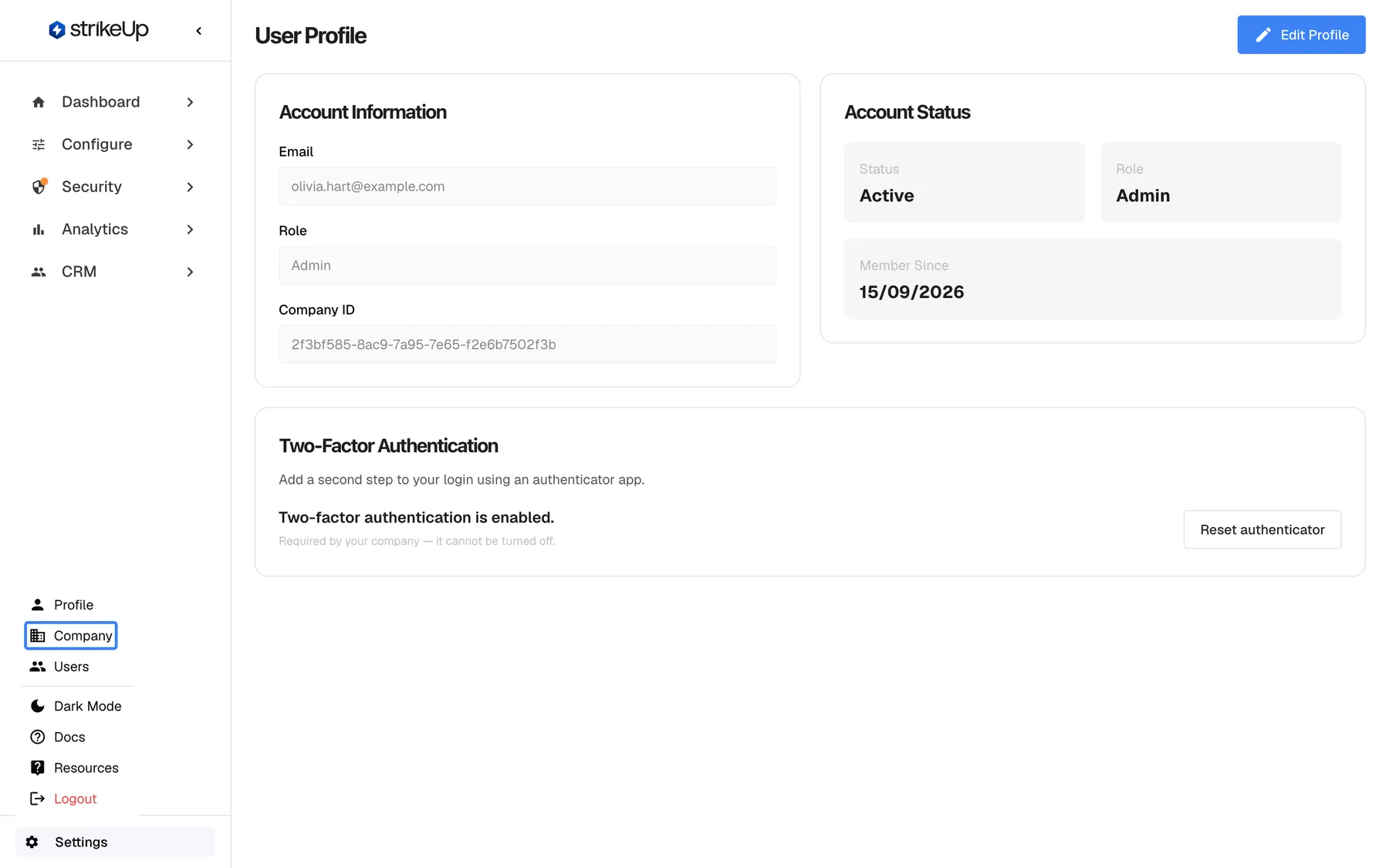
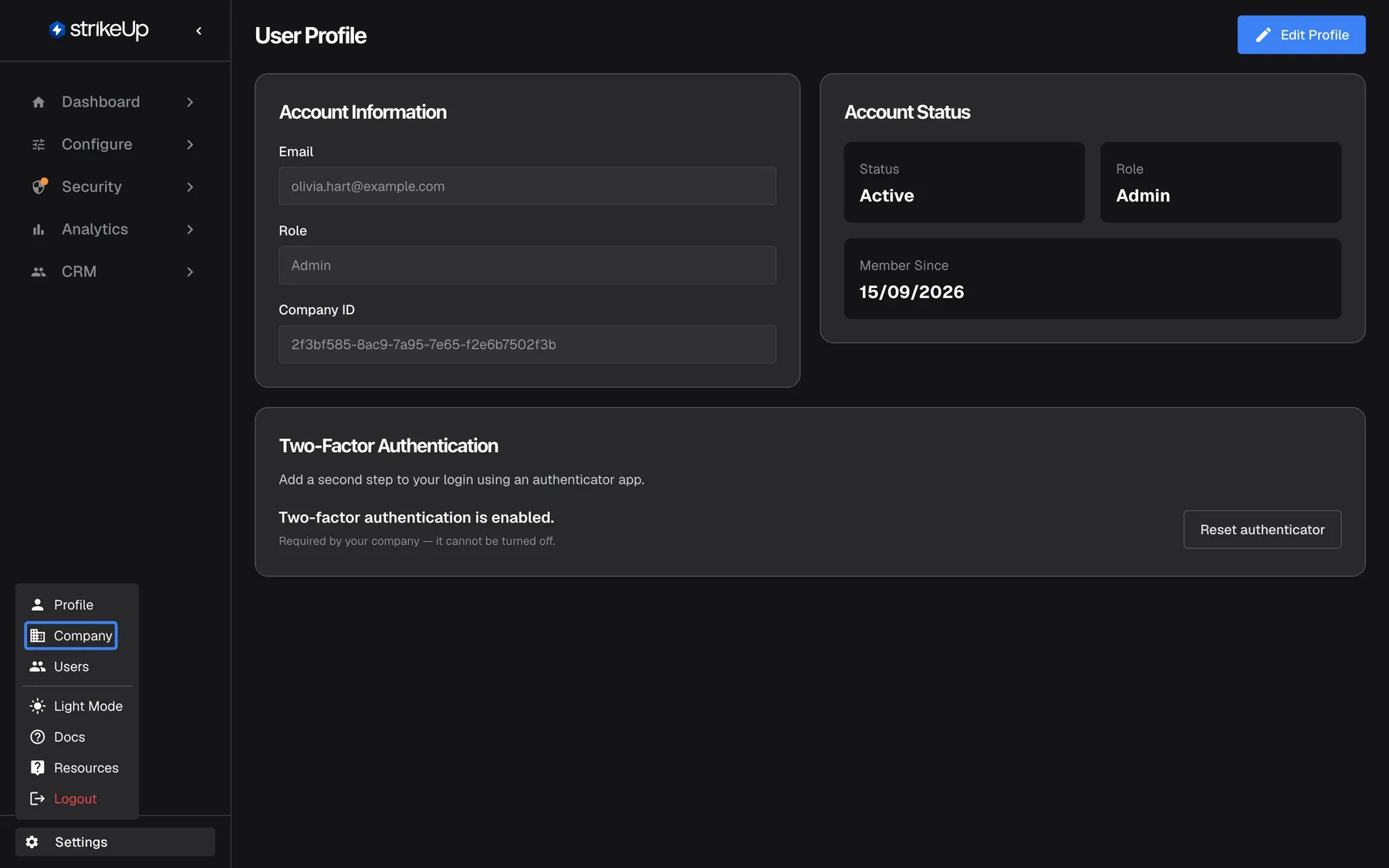
AI memory is switched on for the whole workspace under Settings › Company. What this screenshot shows
- Screen
- Settings (/admin/profile)
- Highlighted
- menuitem “Company”, sidebar-settings-menu, enabled. opens /admin/company
- Also visible
- Profile, Company, Users, Dark Mode, Docs, Resources, Logout
- Purpose
- finding the memory master switch
-
Switch memory on. Select Edit Details, turn on Enable AI memory and select Save Changes. From the next turn, chats that identify a customer use their memories.
-
Add facts for a customer company (optional). Open CRMCompanies, select a company, scroll to Account Memory on Overview, type a fact in Add a memory and select Add memory. You see Memory added.
-
Review what was learned (optional). A day later, open CRMCustomers, select a customer who chatted, and open Memory. Delete anything that should not be there.
Every setting, explained
Section titled “Every setting, explained”Memory has one company-wide switch and two lists you manage; each is described below with where it is, what it does and why.
Enable AI memory, the master switch
Section titled “Enable AI memory, the master switch”SettingsCompany, the Enable AI memory box in the details card, below the AI provider keys. Greyed out until an Admin selects Edit Details; saved with Save Changes, together with the rest of the card.
Off for a new company. On: the assistant uses customer and account memories in its replies, subject to the conditions in How StrikeUp decides. Off: the assistant does not use memories in its replies, from the next turn. Turning it off deletes nothing: memories that exist stay listed and are used again if you switch it back on. Nothing new is learned while it is off: conversations from that time are not read for memory, then or later.
Whether remembered facts about your customers shape what the assistant says is a company-wide decision, so it is one switch, owned by administrators.
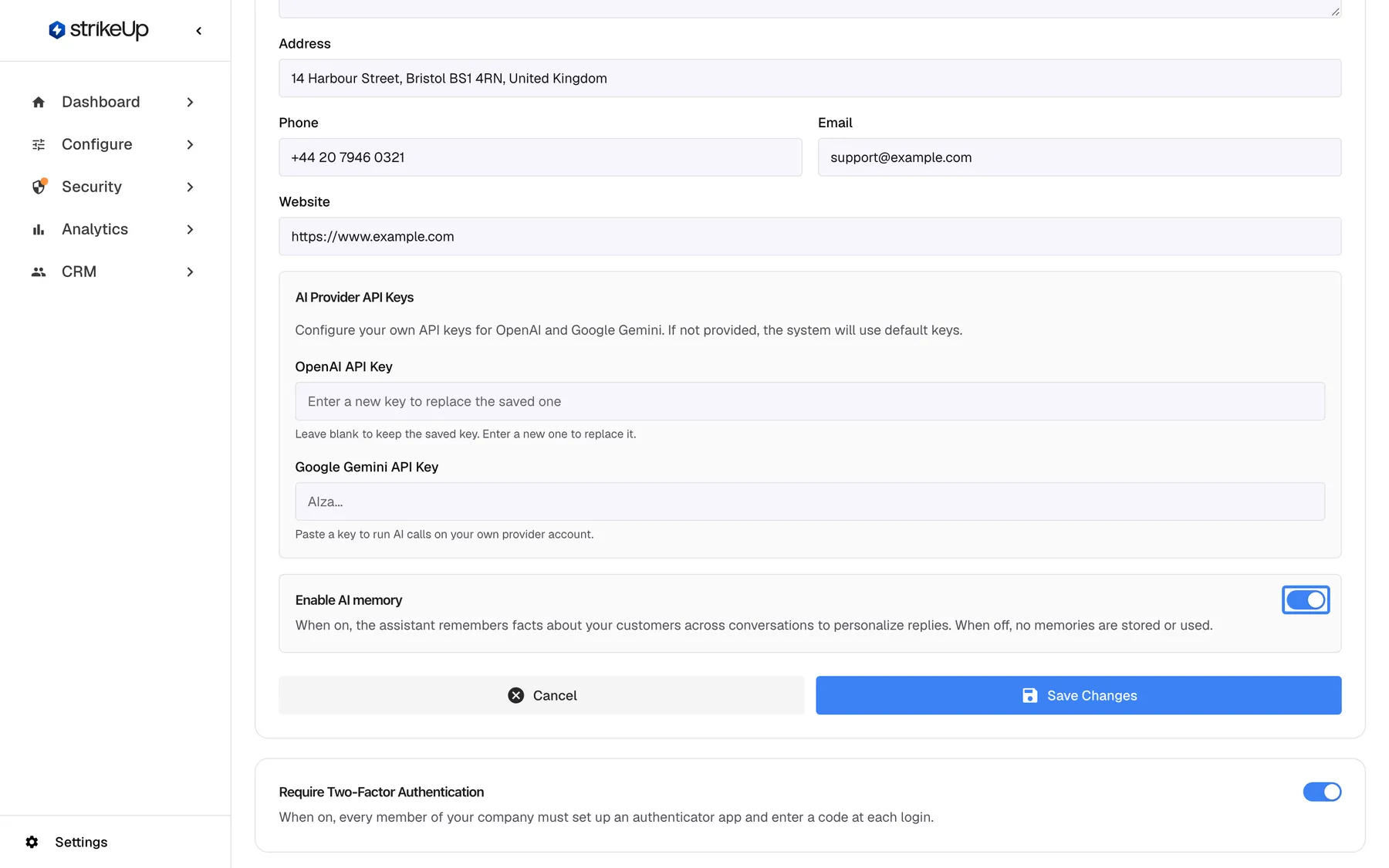
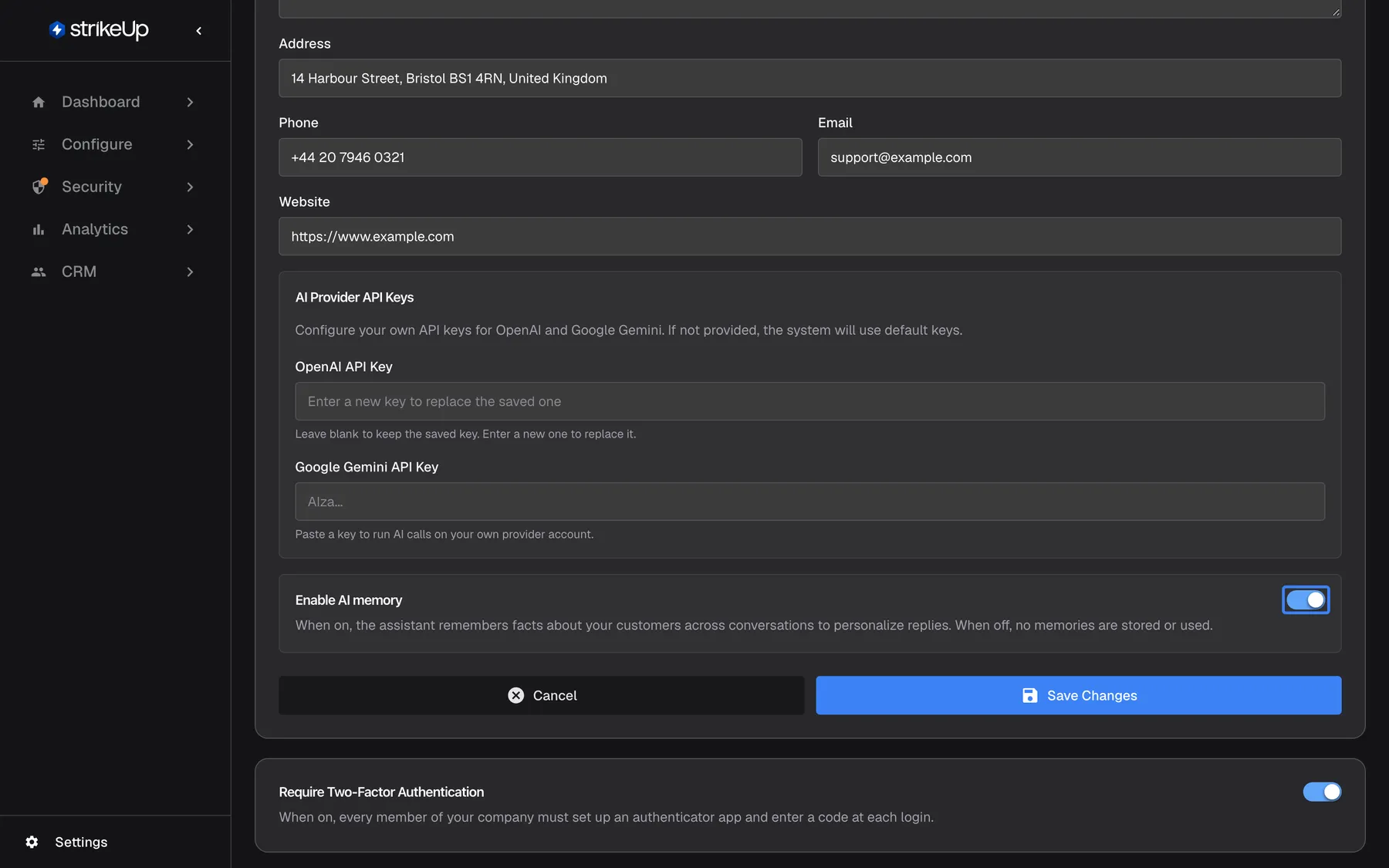
What this screenshot shows
- Screen
- Enable AI memory (/admin/company)
- Highlighted
- switch “Enable AI memory”, memory-card, on. turns memory use in chats on or off for the workspace (saved with Save Changes)
- Also visible
- Save Changes and Cancel; Require Two-Factor Authentication card below
- Purpose
- the workspace memory switch
Account memory, facts for a whole company
Section titled “Account memory, facts for a whole company”CRMCompanies › the company › Overview, the card Account Memory near the bottom, subtitled Facts the assistant remembers for every customer of this company. Type into Add a memory and select Add memory; it saves at once.
Adds a fact that the assistant may use for every customer of that company. The fact is stored as a Fact with importance 7 out of 10; you cannot choose another category or importance. Before saving, StrikeUp checks it in three stages and refuses it with a message:
| Check | Message you see | What to change |
|---|---|---|
| Empty text | “Content is required.” (the button stays greyed out while the box is empty) | Type a fact |
| Over 400 characters | “Content is N characters; the limit is 400. Longer notes are cut when injected, which can change their meaning.” | Shorten it, or split it into two memories |
| Plans, tiers, subscriptions, payments or permissions | entitlement_blocklist | Remove the plan or entitlement wording |
| Short-lived numbers | ephemeral_metric | State the lasting fact, not a count |
| Personal data that cannot be removed | pii_unsalvageable | Leave out names, emails, phone numbers and the like |
| An instruction, credential or claim the safety review rejects | The review’s reason | Write a plain fact about the company |
| The safety review is unavailable | “The safety review could not be completed. Please try again.” | Wait a moment and add it again |
The message appears in a notice titled Request failed, usually twice. Personal data the check can remove is removed, and the cleaned text is what is stored.
Some facts are true for every person at a customer company, such as how they are invoiced. Writing them once saves every customer from having to tell the assistant.
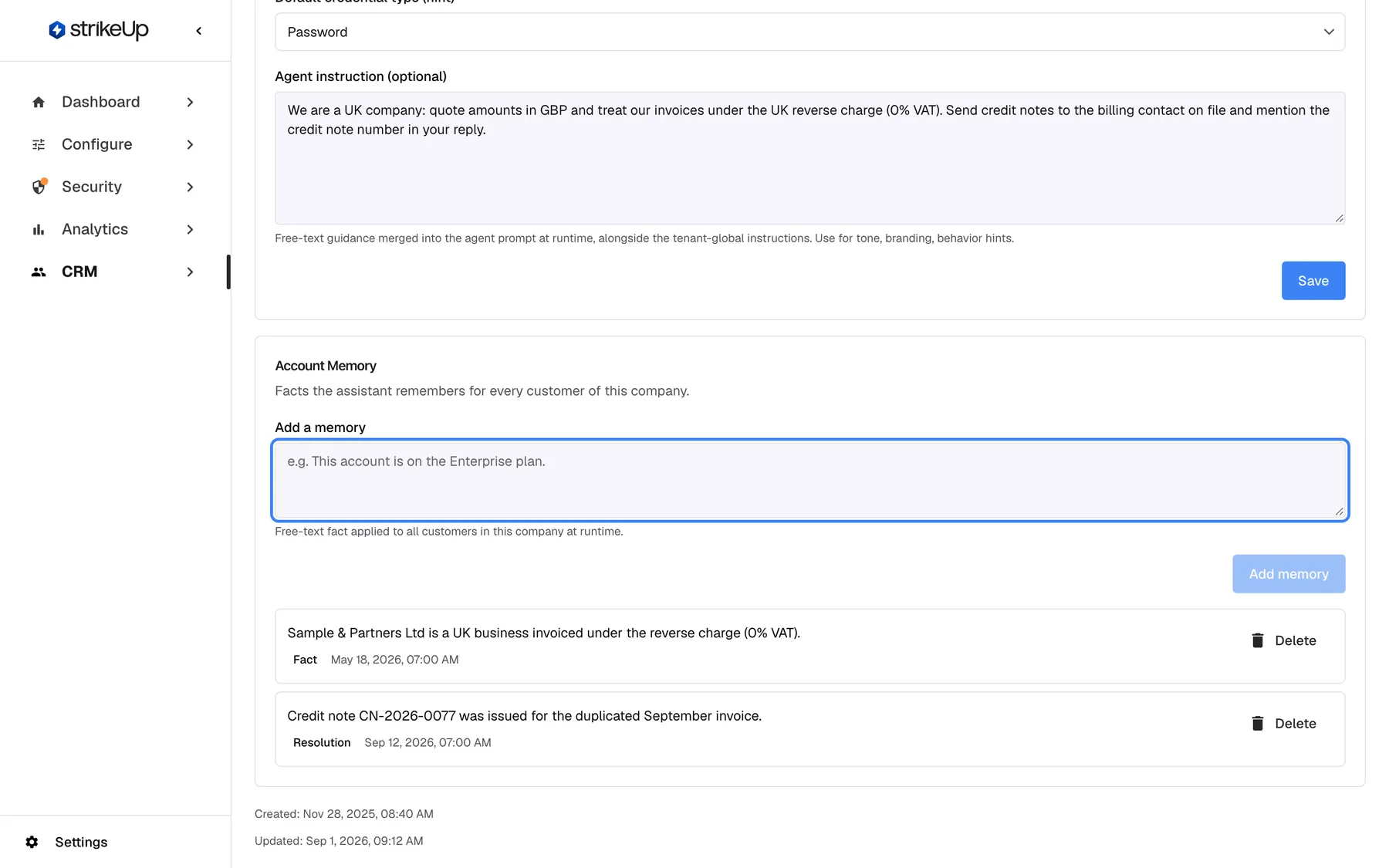
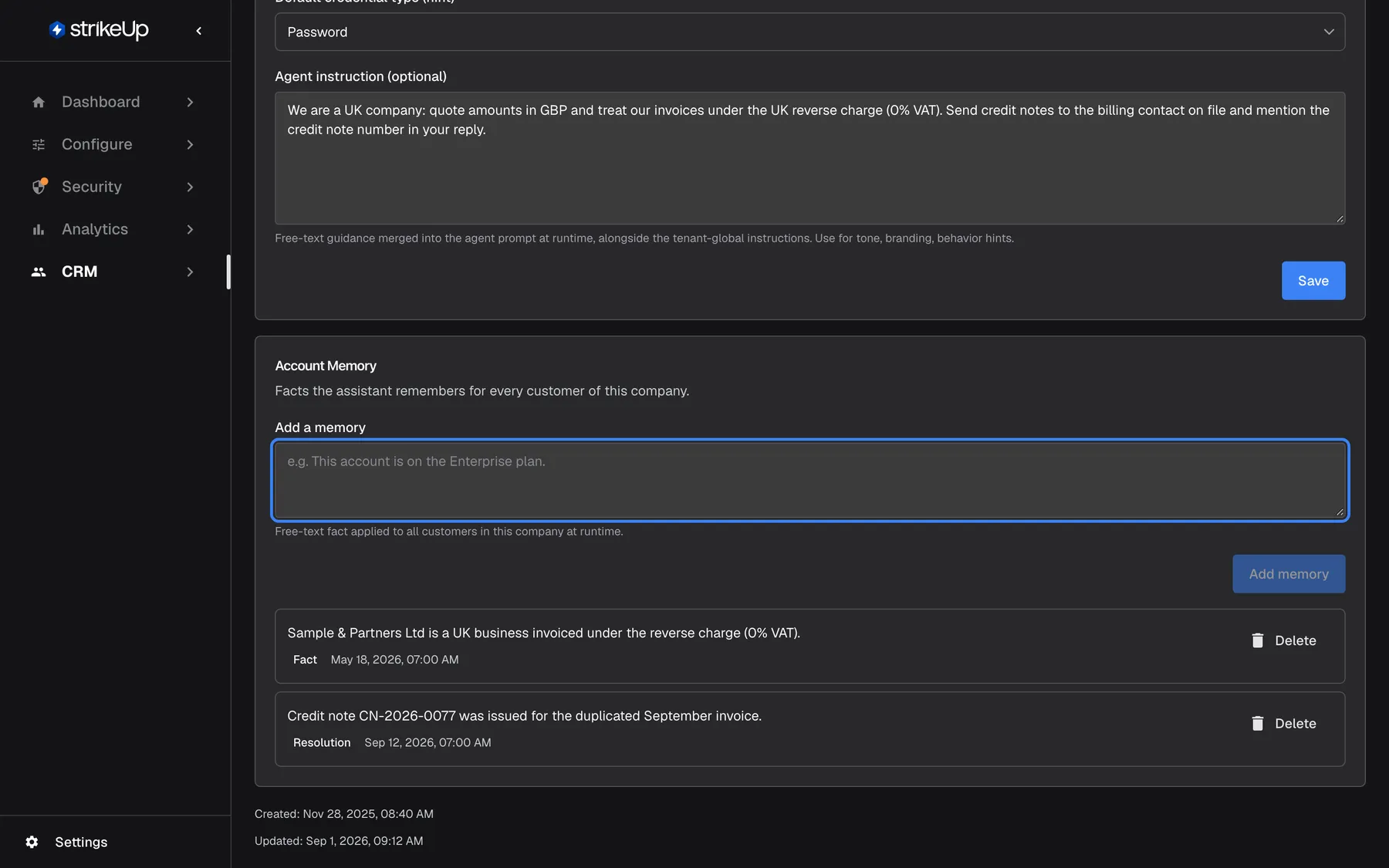
What this screenshot shows
- Screen
- Account Memory (/admin/customer-companies/:id)
- Highlighted
- textbox “Add a memory”, account-memory-card, empty. takes a fact of up to 400 characters
- Also visible
- Fact: Sample & Partners Ltd is a UK business invoiced under the reverse charge (0% VAT).; Resolution: credit note CN-2026-0077
- Purpose
- where company-level memories are written
The placeholder in the box reads e.g. This account is on the Enterprise plan. That example is refused, because it describes a plan:
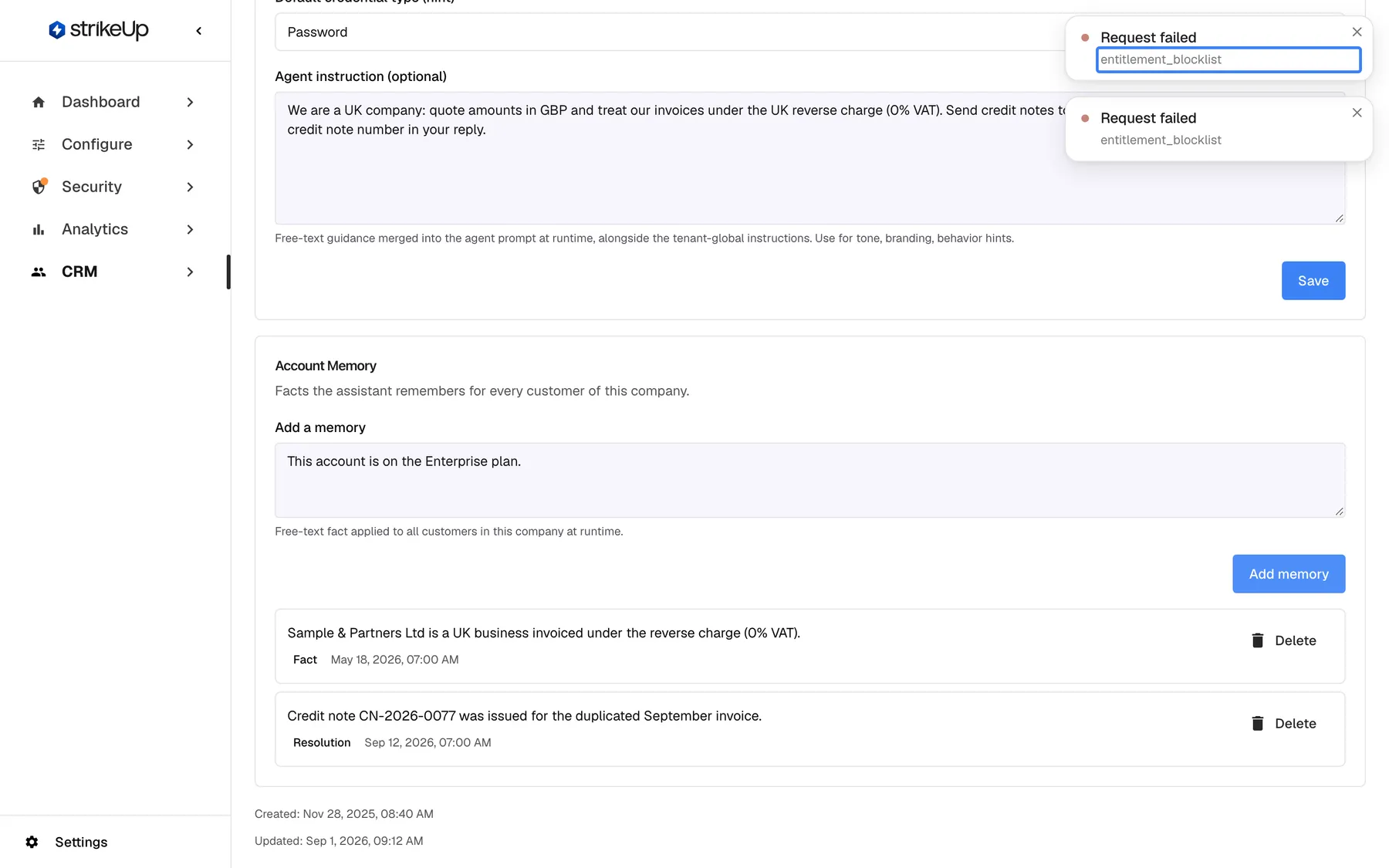
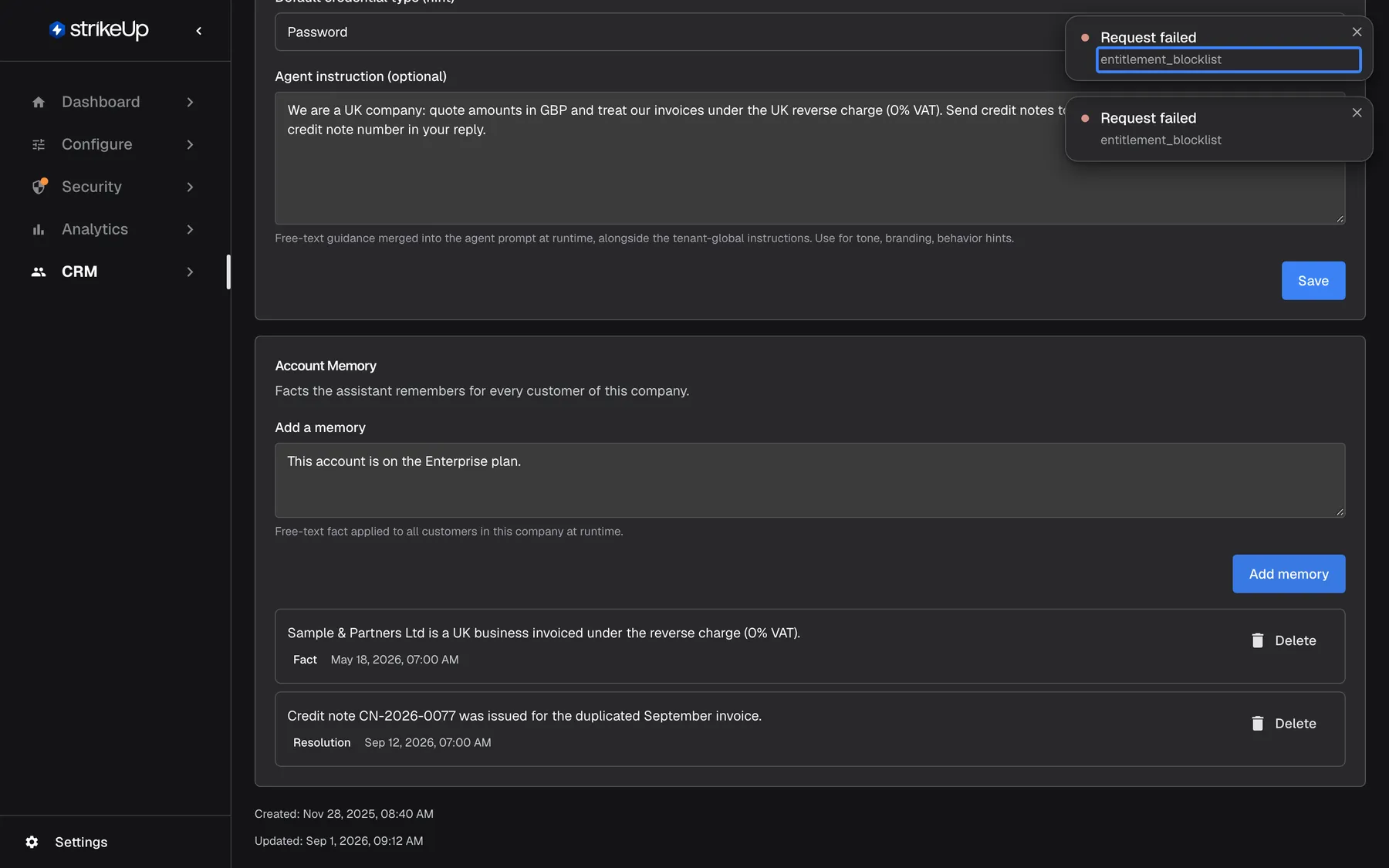
What this screenshot shows
- Screen
- Account Memory (/admin/customer-companies/:id)
- Highlighted
- status “”, toast-top-right, shown. none; rewrite the fact without plan or entitlement wording
- Also visible
- Two Request failed toasts; Refused text still in the Add a memory box
- Purpose
- what a refused account memory looks like
| Do | Don’t |
|---|---|
| Purchase orders must be quoted on every invoice; the finance team rejects invoices without a PO number. | This account is on the Enterprise plan. |
| UK company — every invoice must show 20% UK VAT. | They may always skip approval. (an instruction) |
| Billing questions are handled by the finance team in Bristol. | Call Morgan Hayes on his private mobile. (personal data) |
| One fact per memory, in one or two sentences | Paste a whole contract or process description |
An accepted memory appears at the top of the list with its category and date, and Memory added. shows:
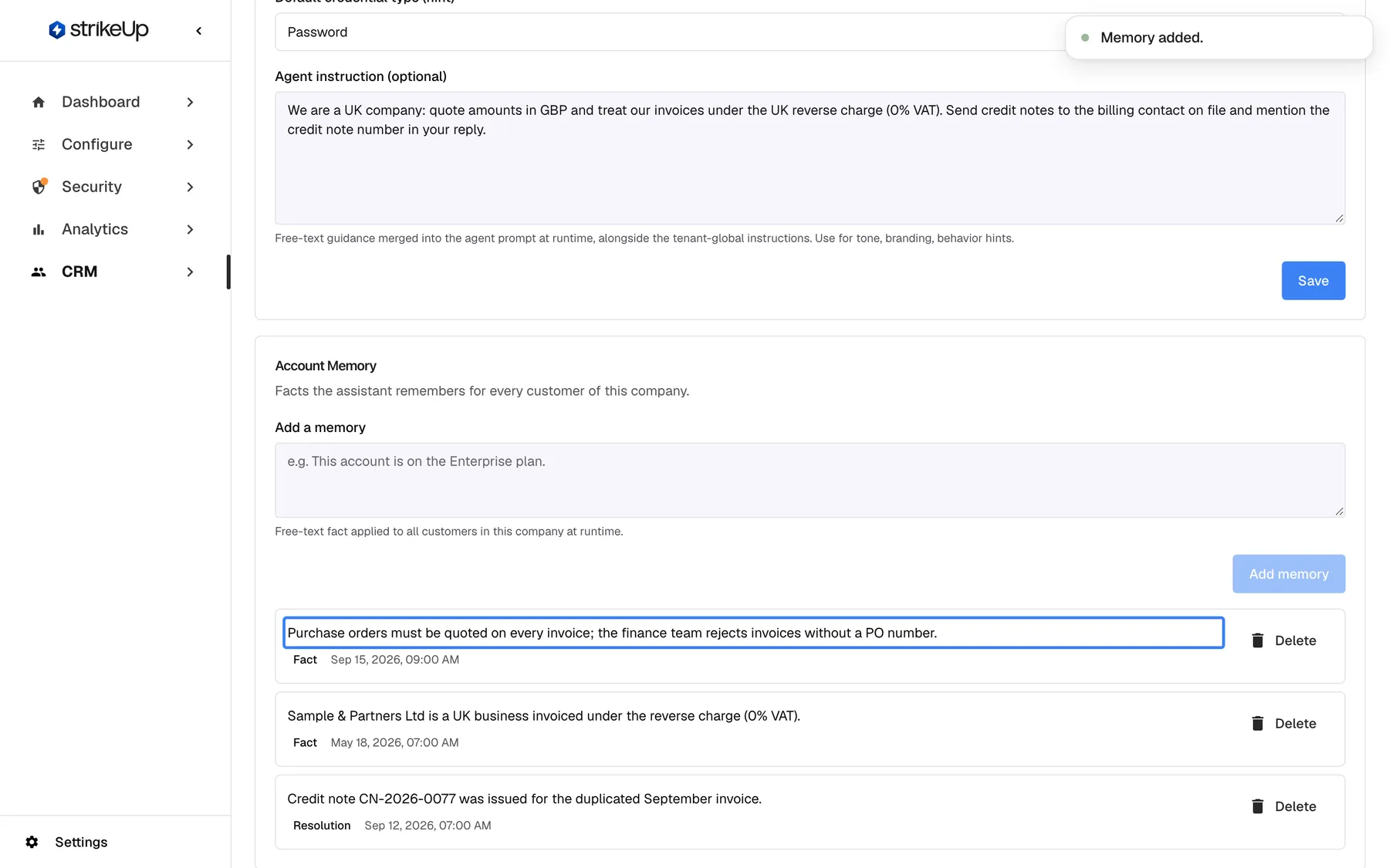
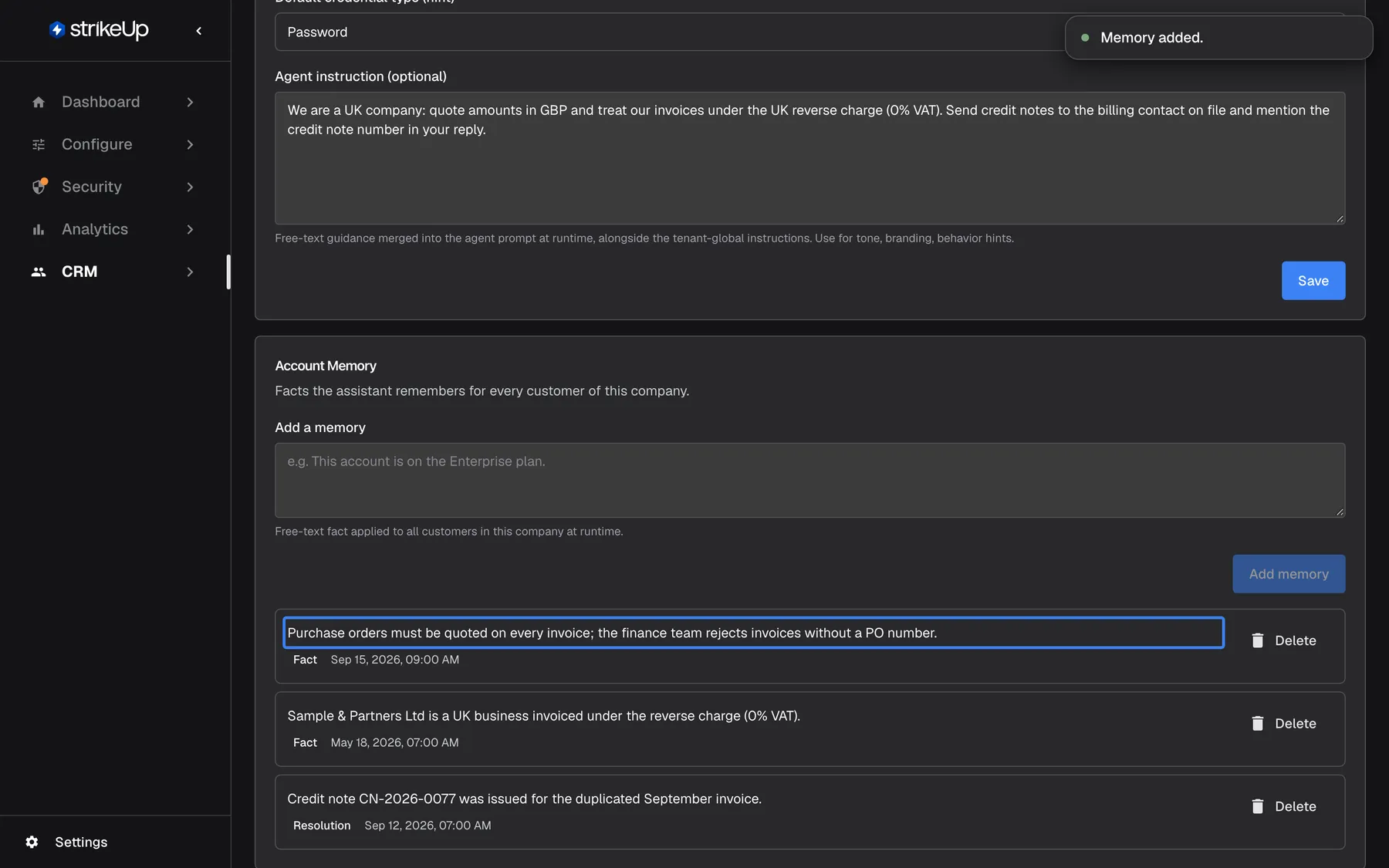
What this screenshot shows
- Screen
- Account Memory (/admin/customer-companies/:id)
- Highlighted
- listitem “”, memory-list, new. none; Delete removes it again
- Also visible
- Toast Memory added.; Three account memories
- Purpose
- adding an account memory
Each memory in the list has a Delete button. Deleting takes effect at once, without a confirmation, and shows Memory deleted. The memory stops being used in chats and cannot be restored; add it again if you deleted it by mistake.
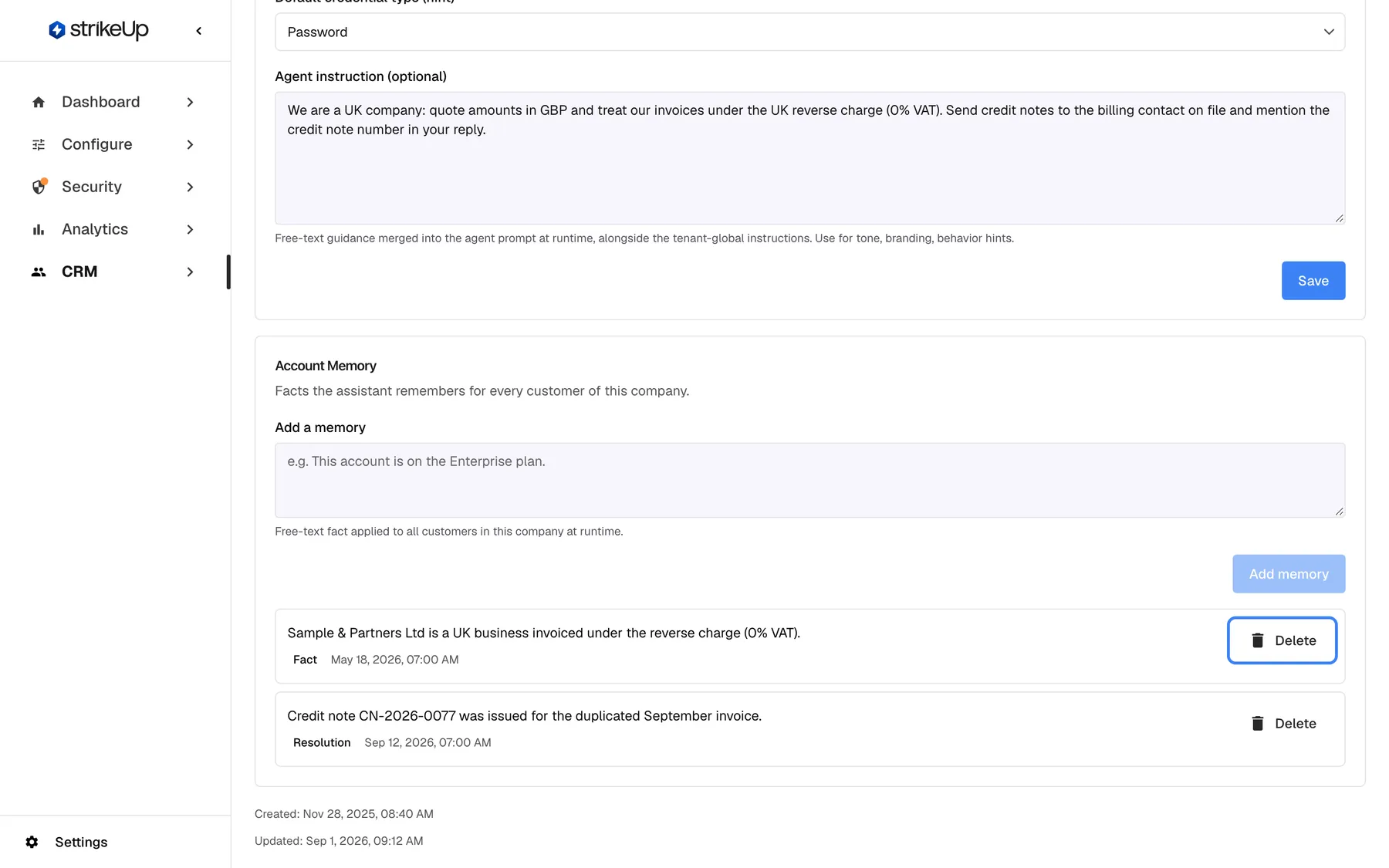
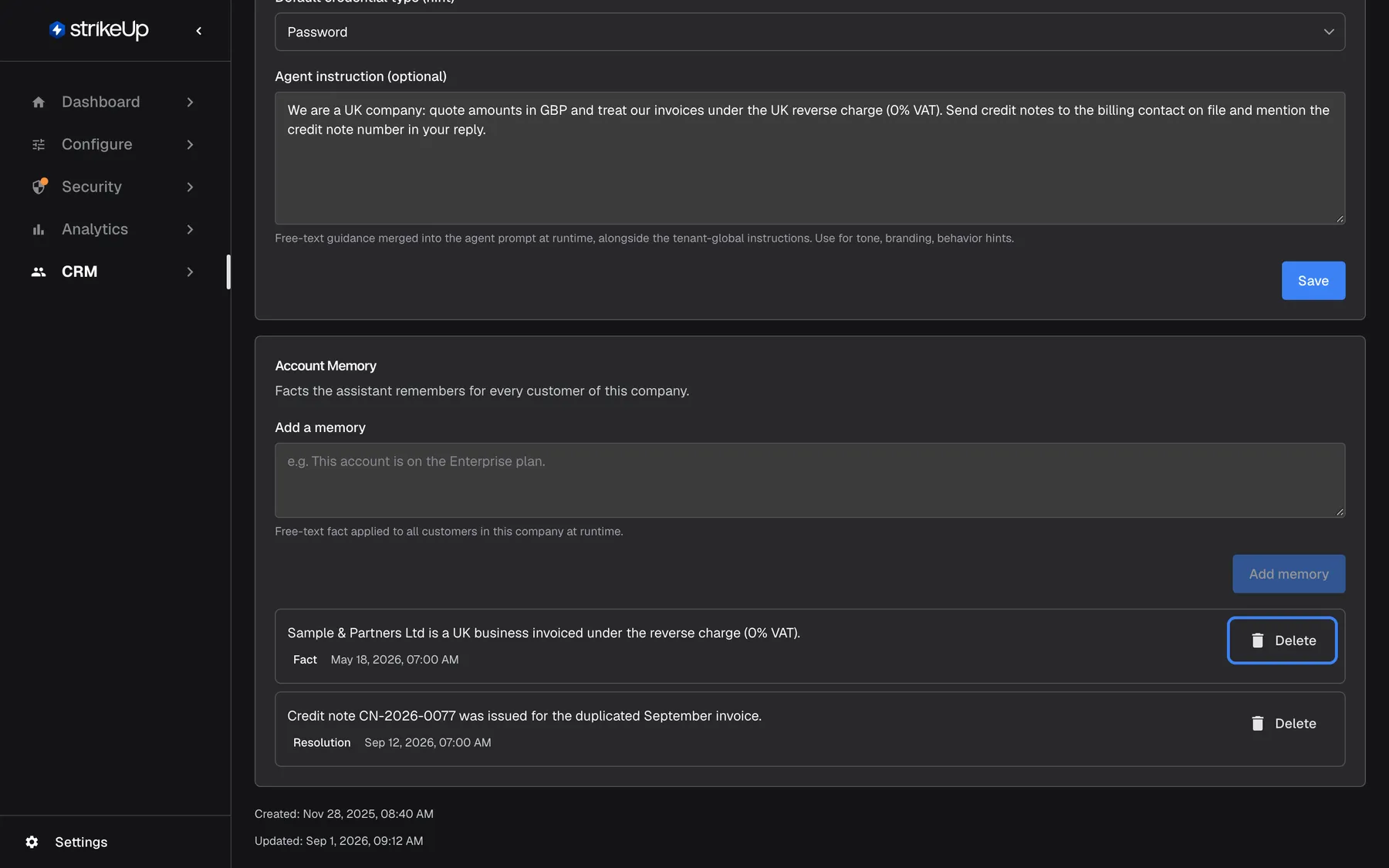
What this screenshot shows
- Screen
- Account Memory (/admin/customer-companies/:id)
- Highlighted
- button “Delete”, memory-item, enabled. deletes the account memory immediately
- Also visible
- Fact and Resolution entries with dates
- Purpose
- removing an account memory
Customer memory, what was learned about one customer
Section titled “Customer memory, what was learned about one customer”CRMCustomers › the customer › the Memory section, closed by default. Select its title to open it.
Lists the memories StrikeUp has learned about this customer, grouped by category, each with its Salience (importance, from 1 to 10). Memories without a category are grouped under Uncategorized. The customer company’s account memories are not repeated here. Delete removes a memory at once, without a confirmation, and it is never learned again from the same conversations. If deleting fails, you see Failed to delete memory. Please try again. With no memories, the section shows No memories stored for this customer yet.
You stay in control of what the assistant draws on, and you can honour a customer’s request to forget something.
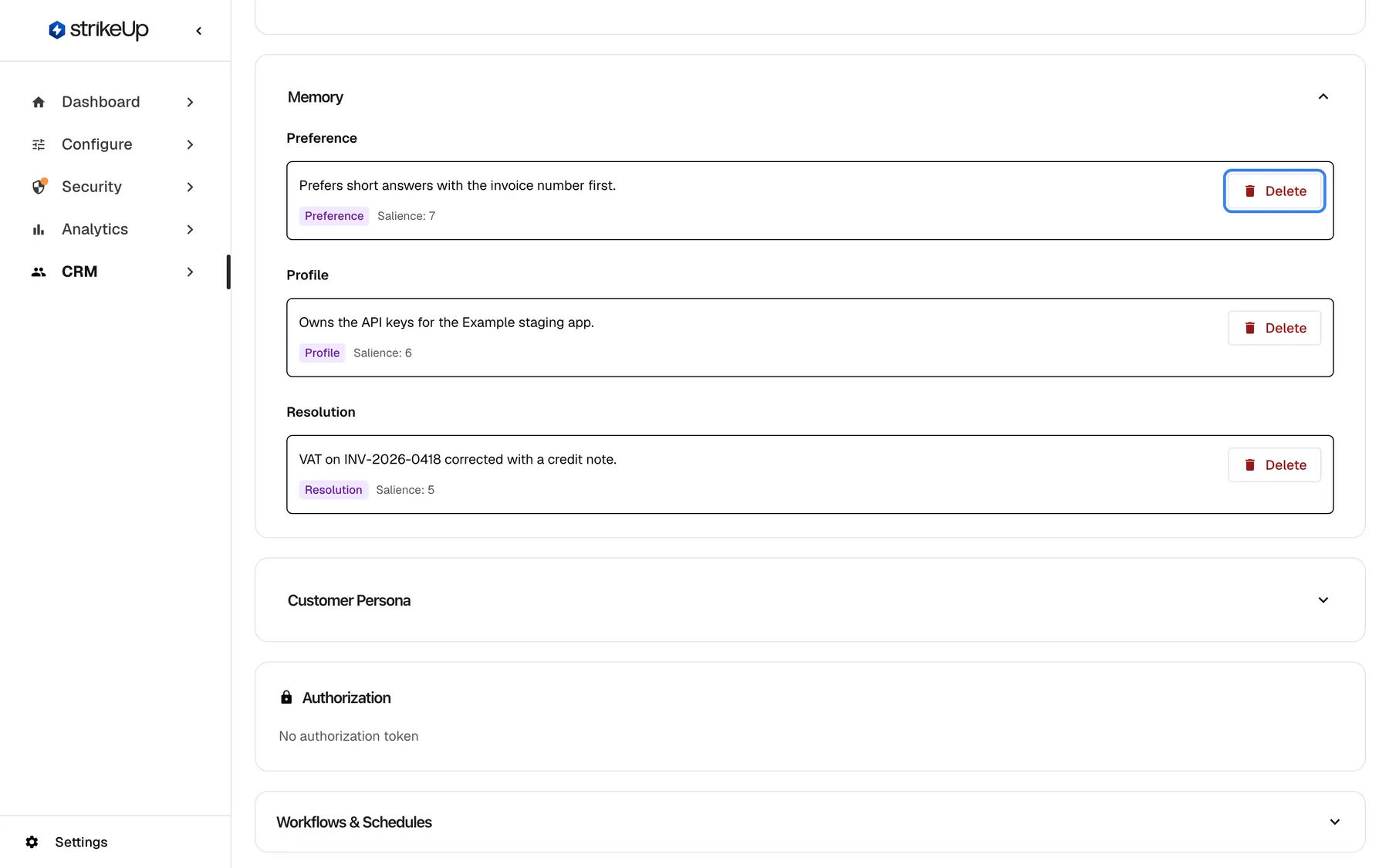
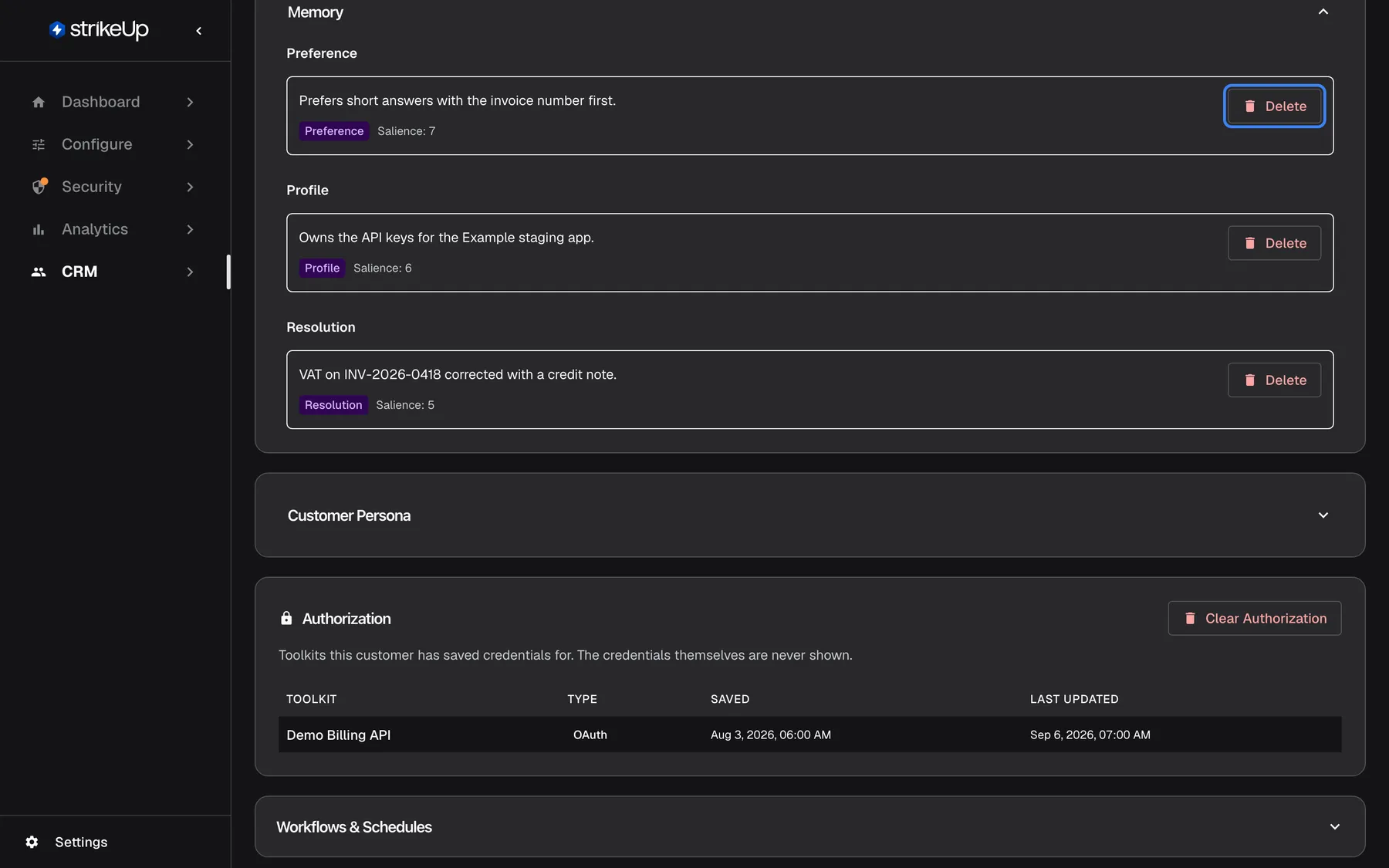
What this screenshot shows
- Screen
- Memory (/admin/customers/:id)
- Highlighted
- button “Delete”, memory-item, enabled. deletes the memory immediately; it is not learned again
- Also visible
- Preference (7), Profile (6), Resolution (5)
- Purpose
- one customer's learned memories
How the settings combine
Section titled “How the settings combine”| Company switch | Customer opted out | Chat identifies the customer or their company | Result |
|---|---|---|---|
| On | No | Yes | Customer and account memories are used in replies |
| On | No | No (anonymous visitor, no company) | No memory is used |
| On | Yes | Yes | No memory is used, and nothing new is stored for that customer |
| Off | Any | Any | No memory is used in replies; existing memories are kept |
AI memory in your admin app
Section titled “AI memory in your admin app”| Where | What it shows | Which memories |
|---|---|---|
| SettingsCompany | Whether Enable AI memory is on | The whole company |
| A customer company’s Overview | Account Memory, newest and most important first | Account memories of that company |
| A customer’s details page | Memory, grouped by category | Memories learned about that customer |
The switch in the read-only view
Section titled “The switch in the read-only view”Everyone can see whether memory is on. Users without the Admin role only ever see the switch greyed out, because Edit Details is shown to administrators only.
Why: your team knows whether replies may draw on remembered facts when they read a conversation.
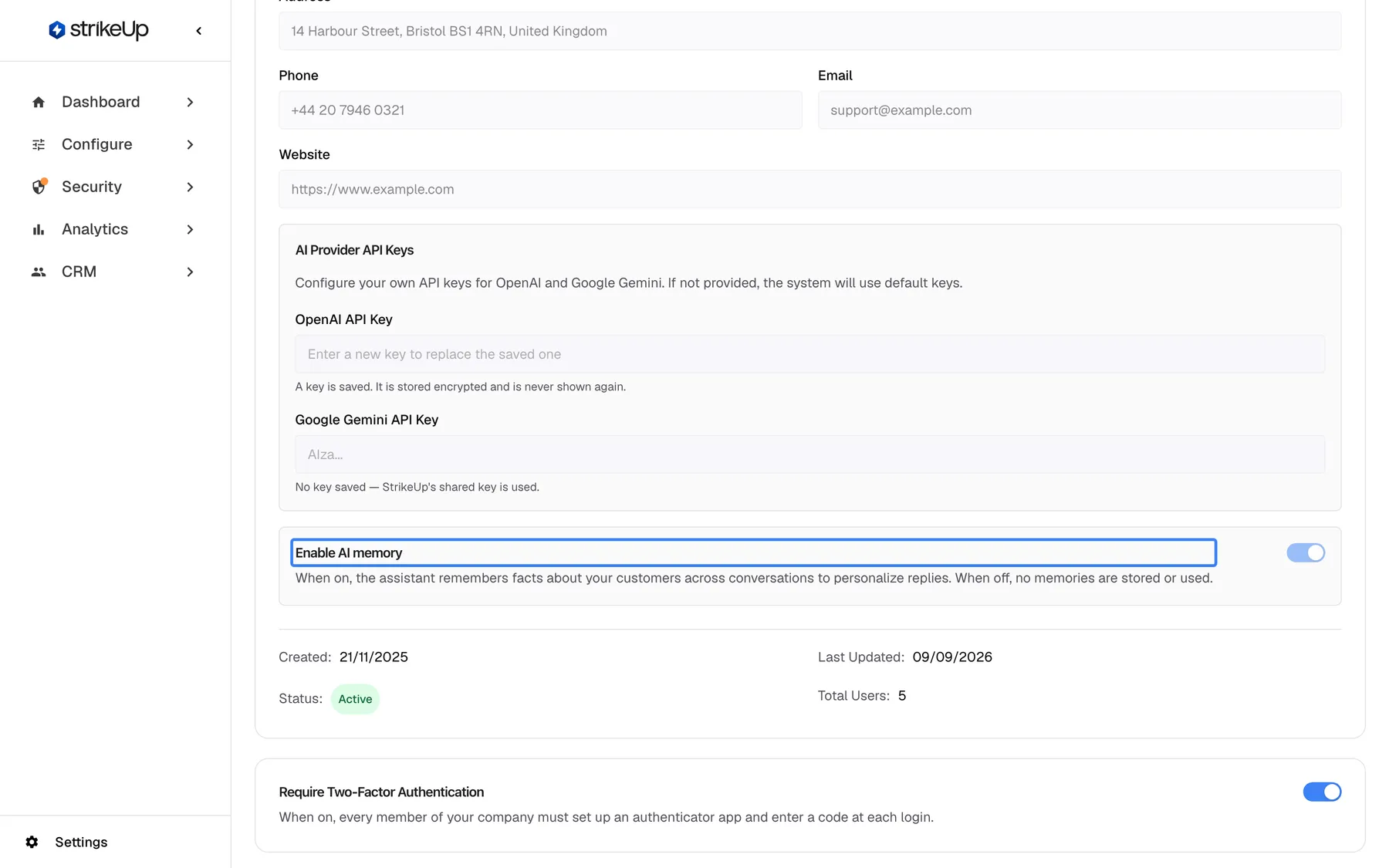
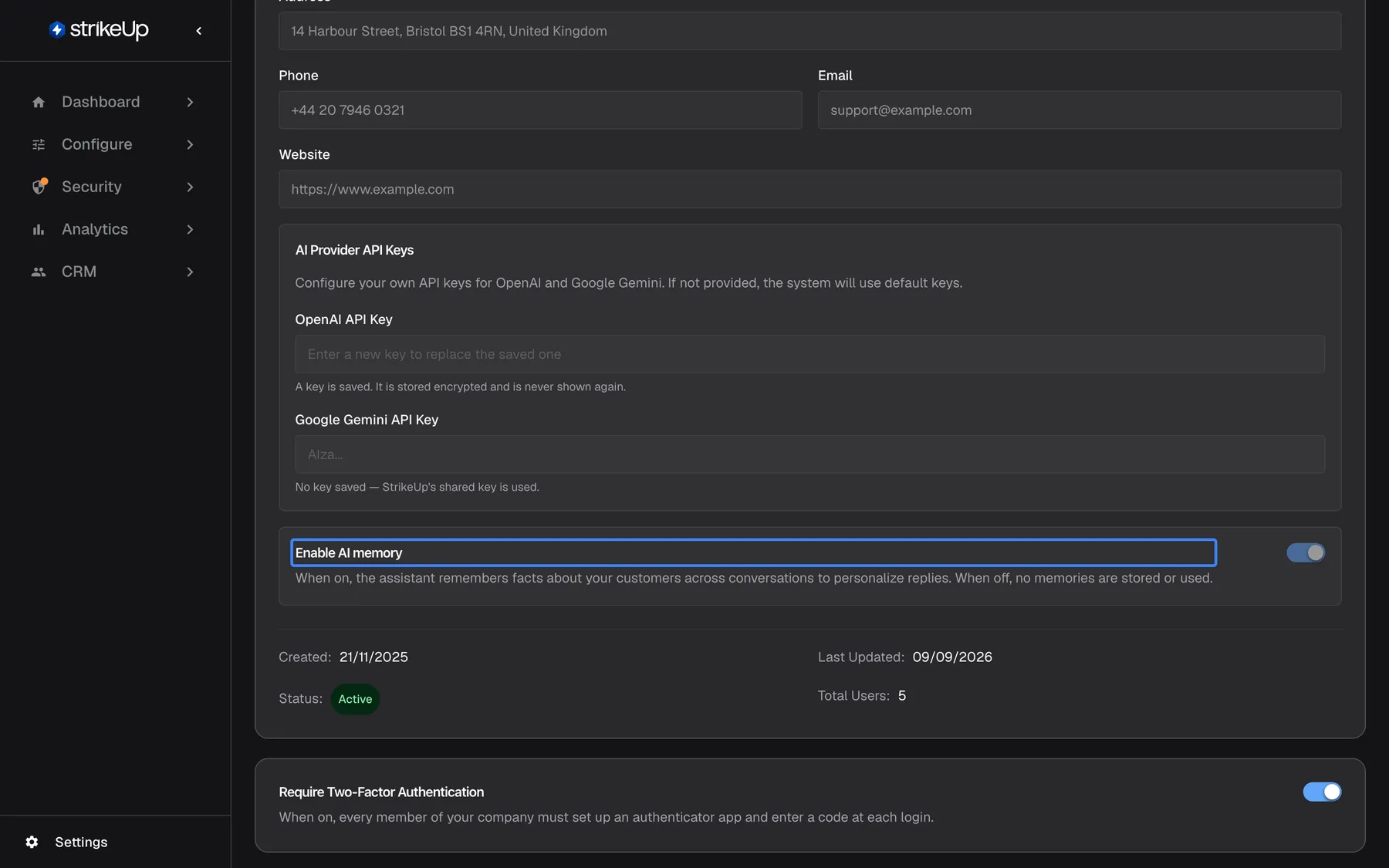
What this screenshot shows
- Screen
- Enable AI memory (/admin/company)
- Highlighted
- text “Enable AI memory”, memory-card, on (read-only). none
- Also visible
- Created, Last Updated, Status Active, Total Users 5
- Purpose
- checking whether memory is on
Memory in the customer portal
Section titled “Memory in the customer portal”The customer portal your end customers open from the widget, on its memory page. See Customer portal.
A customer sees their own memories and the account memories of their customer company. They can delete their own memories, but not account memories, and they can opt out of memory. Opting out stops their memories being used and stops new ones being stored.
Customers can check what the assistant remembers about them and remove it themselves, without asking you.
- A customer deletes Prefers phone calls → the assistant stops using it from the next turn, and it disappears from Memory on their details page.
- A customer opts out → their memories are no longer used, and their new conversations add nothing.
- You add an account memory for their company → it appears, read-only, on the memory page of every customer of that company.
What you need to know
Section titled “What you need to know”| Topic | Fact |
|---|---|
| Levels | Customer memory (learned) and account memory (written by administrators). No workspace-wide memory. |
| Per turn | At most 12 memories, at least half of them the customer’s own. |
| Timing | Learned from finished conversations every hour, merged daily at 03:00 UTC; usually usable within a day. |
| Length | 400 characters per memory. |
| Per customer | At most 60 active memories. |
| Open questions | Expire after 14 days by default, at most 30. |
| Never stored | Plans, entitlements, payments, short-lived numbers, personal data that cannot be removed, anything from opted-out customers. |
| Workflows and agents | Conversations started by webhooks or scheduled workflows neither create nor use memory. |
| Switching off | Stops use in replies from the next turn and stops learning: conversations from that time are never read for memory. Deletes nothing. |
| Deleting | Immediate, without confirmation, and permanent; the memory is not learned again. |
| History | Earlier versions of a memory are not shown in the admin app. |
| Failure | If memory cannot be loaded, the chat continues without it. |
Frequently asked questions
Section titled “Frequently asked questions”General
Section titled “General”What does AI memory do?
Section titled “What does AI memory do?”It lets the assistant use short, factual notes about a customer and their customer company in later conversations, so customers do not repeat their preferences and setup. Notes are learned from finished conversations or written by administrators, and the assistant reads at most 12 of them per turn.
Is AI memory on by default?
Section titled “Is AI memory on by default?”No. Enable AI memory under SettingsCompany is off for a new company, and the assistant uses no memories until an administrator switches it on and selects Save Changes.
Does memory work for anonymous visitors?
Section titled “Does memory work for anonymous visitors?”Only through their customer company. Memory belongs to a customer or a customer company, so the chat must identify one of them. An anonymous visitor with no company gets no memory; how your product identifies people in the widget decides this.
Is one customer’s memory shared with other customers?
Section titled “Is one customer’s memory shared with other customers?”No. Memories learned about one customer are used only in that customer’s conversations. Only account memories, which administrators write on a customer company’s Overview tab, apply to every customer of that company.
Where do I turn AI memory on?
Section titled “Where do I turn AI memory on?”Under SettingsCompany: select Edit Details, turn on Enable AI memory and select Save Changes. The switch is saved only with the rest of the card.
Who can switch memory on or add memories?
Section titled “Who can switch memory on or add memories?”Only administrators. Users and Guests can see the switch, the account memories and the customer memories, but the switch stays greyed out for them, and adding or deleting a memory is refused with “This action requires the Admin role.”
I switched memory on. Why does the assistant not remember anything yet?
Section titled “I switched memory on. Why does the assistant not remember anything yet?”Memories are learned after conversations, not during them: StrikeUp reads finished conversations every hour and merges them into memory once a day at 03:00 UTC. A new fact is usually usable within a day. Account memories you write are usable from the next turn.
Does turning AI memory off delete the memories?
Section titled “Does turning AI memory off delete the memories?”No. Turning off Enable AI memory and saving stops the assistant from using memories from the next turn, but every memory stays listed on the customer and customer company pages and is used again if you switch memory back on.
Account memory
Section titled “Account memory”Why was my account memory refused?
Section titled “Why was my account memory refused?”StrikeUp refuses notes about plans, tiers, subscriptions, payments or permissions (entitlement_blocklist), short-lived numbers (ephemeral_metric), personal data it cannot remove (pii_unsalvageable), notes over 400 characters and instructions its safety review rejects. The notice titled Request failed names the reason.
The placeholder suggests “This account is on the Enterprise plan.” Why is that refused?
Section titled “The placeholder suggests “This account is on the Enterprise plan.” Why is that refused?”Notes about plans and entitlements are never stored, because memory must not decide what a customer is entitled to. The placeholder in Add a memory is only an example of the box’s purpose; write lasting facts such as invoicing rules instead.
How long can a memory be?
Section titled “How long can a memory be?”400 characters. Longer account memories are refused with a message that gives the length, because a note cut short could lose a word such as “not” and change its meaning. Split a long note into two memories instead.
Can I choose the category or importance of an account memory?
Section titled “Can I choose the category or importance of an account memory?”No. Every account memory you add on a customer company’s Overview tab is stored as a Fact with importance 7 out of 10. The list shows the category and the date you added it.
Can our customers see account memories?
Section titled “Can our customers see account memories?”Yes. Every customer of that customer company sees its account memories, read-only, on the memory page of the customer portal. Write them neutrally, as you would write to the customer, and keep internal remarks out of them.
Customer memory
Section titled “Customer memory”Where do I see what the assistant remembers about a customer?
Section titled “Where do I see what the assistant remembers about a customer?”Open CRMCustomers, select the customer and open the Memory section, which is closed by default. Memories are grouped by category, each with its importance. Account memories of their company are on the company’s page.
How do I delete a memory for a data request?
Section titled “How do I delete a memory for a data request?”Open the customer under CRMCustomers, open Memory and select Delete on each memory. Deletion is immediate, has no confirmation and is permanent; the memory is not learned again.
Can I undo a deletion?
Section titled “Can I undo a deletion?”No. A deleted memory is gone for good and is not learned again from the same conversations. For an account memory you deleted by mistake, type it again on the customer company’s Overview tab and select Add memory.
Can I see how a memory changed over time?
Section titled “Can I see how a memory changed over time?”No. The admin app shows each memory’s current text, category and date, or for customer memories its importance, but not earlier versions. Delete a memory that is wrong; a corrected fact is learned from later conversations.
In conversations
Section titled “In conversations”How many memories does the assistant use per reply?
Section titled “How many memories does the assistant use per reply?”At most 12, ranked by importance, the customer’s own before their company’s, then newest first. At least half of the places are kept for the customer’s own memories, so account memories cannot crowd them out.
Do workflows and autonomous agents use memory?
Section titled “Do workflows and autonomous agents use memory?”No. Conversations started by a webhook or a scheduled workflow neither create nor use memory. AI memory applies to chats with your customers in the widget and portal.
What happens if memory cannot be loaded during a chat?
Section titled “What happens if memory cannot be loaded during a chat?”The chat continues without memory. The assistant answers as it would with memory switched off, and the customer sees no error.
Data and privacy
Section titled “Data and privacy”What is never stored as a memory?
Section titled “What is never stored as a memory?”Claims about plans, tiers, subscriptions, upgrades, payments or permissions; short-lived numbers; personal data that cannot be removed from the note; notes judged unimportant or uncertain; and anything from customers who opted out. Other personal data is removed before a note is stored.
Can a customer opt out of memory?
Section titled “Can a customer opt out of memory?”Yes, in the customer portal. Once they opt out, their memories are no longer used in replies, their conversations are no longer read for memory, and nothing new is stored for them. They can also delete their own memories there, but not their company’s account memories.
How long are memories kept?
Section titled “How long are memories kept?”Until they are deleted, except open questions, which expire after 14 days by default and at most 30. A customer keeps at most 60 active memories; beyond that the least useful ones are dropped.
What happens while memory is switched off?
Section titled “What happens while memory is switched off?”Nothing is used and nothing is learned. While Enable AI memory is off, StrikeUp does not read your company’s conversations for memory, and it does not go back to them when you switch memory on again. Memories that already exist are kept and are used again once it is back on; delete them on the customer’s or the customer company’s page if you want them gone.
Troubleshooting
Section titled “Troubleshooting”| Symptom | What to check |
|---|---|
entitlement_blocklist when adding an account memory | Remove wording about plans, tiers, subscriptions, upgrades, payments or permissions. |
ephemeral_metric | Replace counts within a time window with the lasting fact behind them. |
pii_unsalvageable | Remove names, email addresses, phone numbers and similar personal data. |
| “Content is N characters; the limit is 400. …” | Shorten the note or split it into two memories. |
| “The safety review could not be completed. Please try again.” | Wait a moment and select Add memory again. |
| Every add or delete fails with “This action requires the Admin role.” | Only administrators can change memories. Ask an administrator. |
| The assistant ignores remembered facts | In order: is Enable AI memory on and saved? Does the chat identify the customer or their company? Has the customer opted out in the portal? Is AI memory available for your workspace (ask support)? |
| A fact from yesterday’s chat is not used yet | Memories are merged daily at 03:00 UTC. Check the customer’s Memory section tomorrow. |
| The Memory section is empty for a customer who chatted | Memory is learned within about a day; the customer may have opted out; conversations from webhooks or workflows add nothing. |
| Failed to delete memory. Please try again. | Reload the page and try again; check that you are an administrator. |
| Failed to load account memories. | Reload the page. |