

Embed
The Embed page is the last step before your widget goes live. You decide which toolkits and knowledge the widget’s assistant can use, then copy the code that puts the widget into your product, with the visitor’s identity and, where needed, their credentials for your API. For widgets opened from your own buttons, the page also gives you ready-made JavaScript snippets. Open it from ConfigureEmbed and pick the widget card at the top. The page heading, the widget card and the snippet buttons are in English in every language; this guide quotes them as the page shows them.
What you can do here
Section titled “What you can do here”- Create a widget. Name it, choose its display type and sign-in, and pick up to 5 toolkits. Create a widget.
- Choose the widget’s toolkits and knowledge. Switch toolkits on or off for the widget and pick the knowledge base folders and sources it answers from. Edit the widget’s toolkits and knowledge.
- Copy the embed code. One script tag and one call that start the widget in your product. Copy the embed code · Install the widget in your product.
- Pass the visitor’s identity and credentials. Fill in who the visitor is, and pass credentials for toolkits that need them, so the visitor is not asked in the chat. Pass identity and credentials · Identify users and pass context.
- Place the widget inside your page. Mount it in a container instead of floating it. Embed the widget in a container.
- Open the widget from your own buttons. Copy snippets to open, close and check the widget, with an optional first message. Open the widget from your own buttons · Widget JavaScript API reference.
- Give the assistant context about your page. Learn how to send hidden context, such as the record a visitor is looking at. Give the assistant page context.
The screen at a glance
Section titled “The screen at a glance”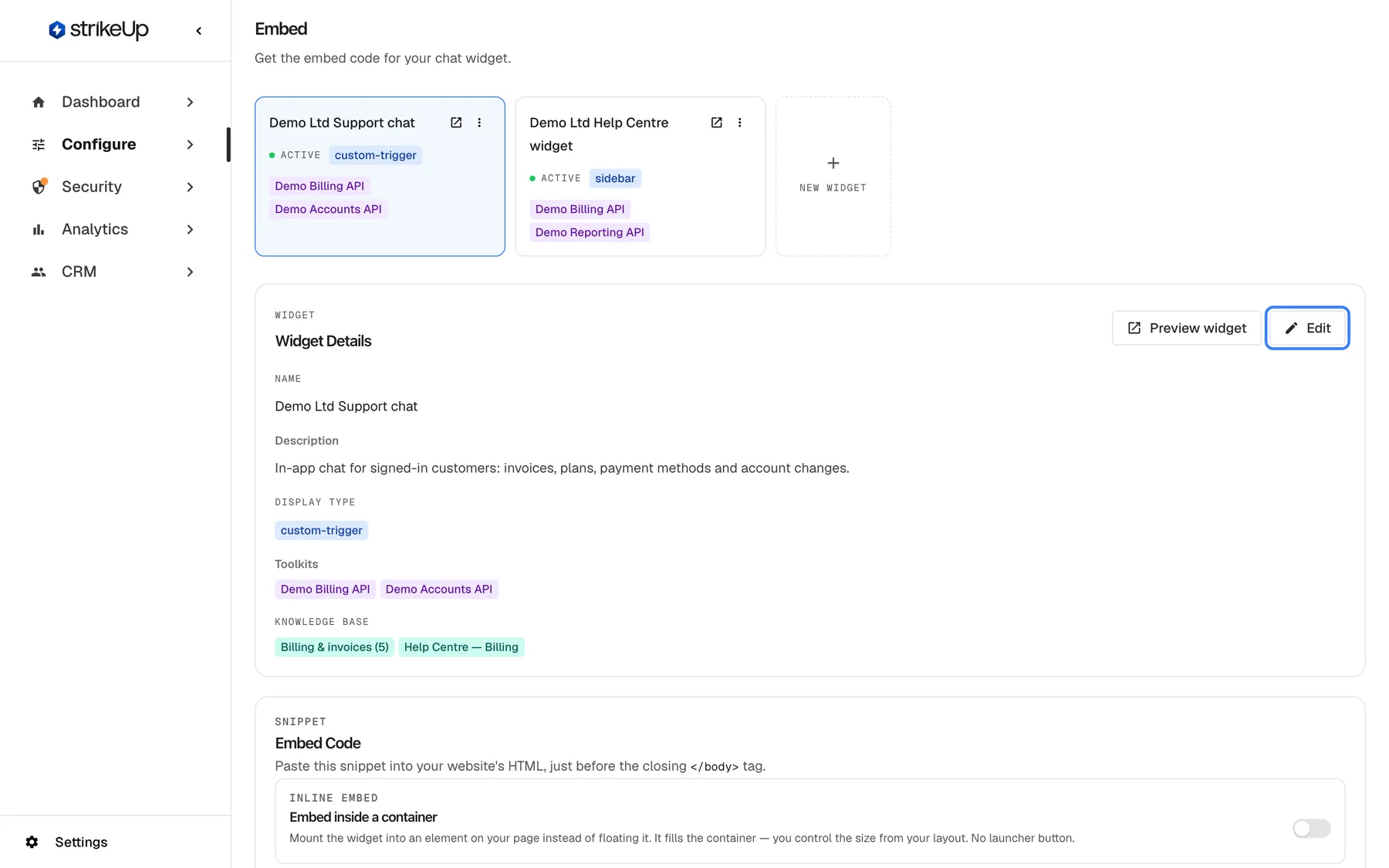
What this screenshot shows
- Screen
- Embed (/admin/configure/embed?widgetId=…)
- Highlighted
- button “”, widget-details-card-top-right, enabled. switches the card to an edit form for name, description, toolkits and knowledge base
- Also visible
- Widget cards with Demo Ltd Support chat selected; Toolkits: Demo Billing API, Demo Accounts API; Knowledge Base: Billing & invoices (5), Help Centre — Billing; Preview widget button
- Purpose
- entry point of the Embed page
| Region | What it shows | What you do there |
|---|---|---|
| Widget cards, top | Your widgets and a dashed “New widget” card | Pick the widget, create or delete one |
Widget Details | Name, description, display type, toolkits and knowledge base of the widget, with Preview widget and Edit | Check and change what the widget can use |
Snippet | The embed code, with Copy embed code | Copy the code for your product |
| Inline embed | Embed inside a container | Mount the widget in a container |
Inject auth | Inject Authorization, one switch per toolkit that needs credentials | Add credentials to the embed code |
Triggers | Custom Trigger Button Snippets, for custom-trigger display types only | Copy snippets for your own buttons |
| Inject context into the chat | Give the AI hidden context about your page, with rules and examples | Learn how to pass page context |
The selected widget stays selected on AI & UX and User Interface.
Create a widget
Section titled “Create a widget”- Select the dashed “New widget” card. The Create New Widget Configuration dialog opens.
- Enter Widget Name *, such as Demo Ltd Support chat, and optionally a description.
- Choose the display type, pop-up or sidebar, and whether visitors must sign in. Sign-in is on by default.
- Switch on the toolkits the widget may use. You can pick up to 5; the dialog’s labels speak of one toolkit and its counter reads “of 1”, but the limit is 5. Once 5 are on, the remaining switches are greyed out. Only active toolkits are listed.
- Optionally pick knowledge base documents and web sources.
- Select Create Widget. The message Widget created successfully! appears, and the new widget is selected a moment later.
The widget gets its own application token, the identifier in its embed code. It also gets a set of default agents and two starter cards on its welcome screen. The dialog keeps only the name, description, display type, sign-in choice, toolkits and knowledge; set colours and size on User Interface afterwards.
Tool names must be unique across the toolkits of one widget. If two toolkits both have a tool called getInvoice, the widget is refused with “Cannot assign servers: Tool names must be unique. The following tools exist in multiple servers: …”. Rename the tool in one toolkit on Toolkits.
To delete a widget, open the ⋮ menu on its card, select “Delete” and confirm “Delete this widget?”. Its embed code stops working.
Edit the widget’s toolkits and knowledge
Section titled “Edit the widget’s toolkits and knowledge”- Pick the widget card.
Widget Detailsshows its name, description, display type, toolkits and knowledge base folders. - Select
Edit. The card becomesEdit Widget. - Change
Name *orDescriptionif needed. - Under
Toolkits *, switch toolkits on or off. The hint readsSelect up to 5 toolkits., and the counter shows how many are selected. - Under the knowledge base picker, choose the folders, documents and web sources the assistant may answer from.
- Select
Save. The card returns toWidget Detailswith the new values; no message appears.
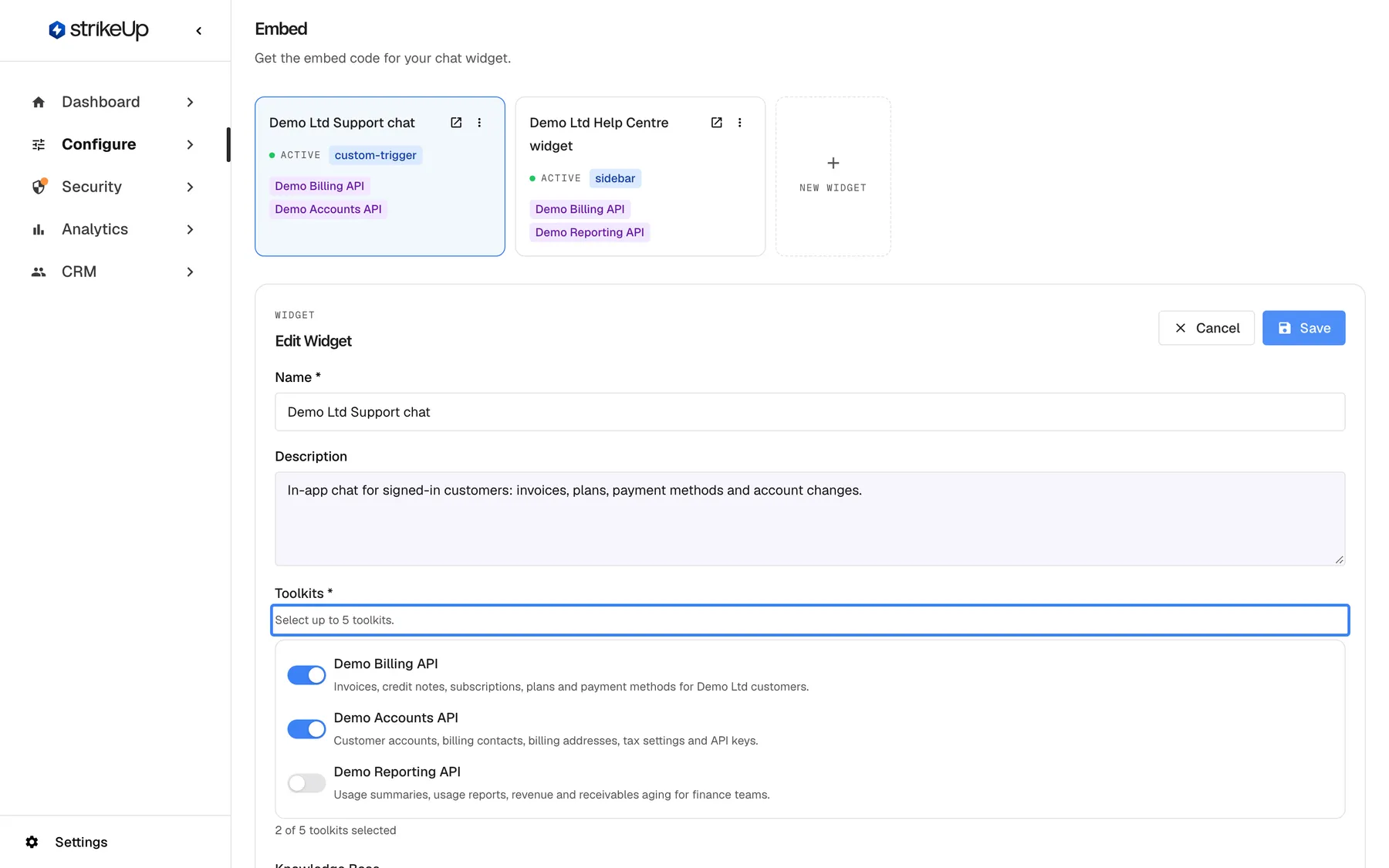
What this screenshot shows
- Screen
- Embed (/admin/configure/embed?widgetId=…)
- Highlighted
- hint “”, edit-widget-toolkits, 2 of 5 toolkits selected. none (hint); the switches below choose the widget's toolkits
- Also visible
- Name and Description fields; Toolkit switches: Demo Billing API on, Demo Accounts API on, Demo Reporting API off; Cancel and Save buttons
- Purpose
- changing which toolkits a widget uses
| Message | Cause |
|---|---|
Widget name is required. | The name is empty |
At least one toolkit must be selected. | No toolkit is switched on; a widget needs at least 1 |
Maximum 5 toolkits can be selected. | You tried to switch on a sixth toolkit |
| “Cannot assign servers: Tool names must be unique…” | Two selected toolkits have a tool with the same name |
Failed to save widget. | The save failed for another reason; try again |
Only active toolkits are listed; with none, the card reads No active toolkits available. A toolkit whose import failed is inactive and does not appear.
Copy the embed code
Section titled “Copy the embed code”The Snippet section shows the code for the selected widget. It has two parts:
- A
<script>tag that loads the widget script, with adata-api-urlattribute. Both addresses are filled in for your StrikeUp environment; keep them as they are. - A call to
window.initStrikeUpChatWidget({...})with the widget’sapplicationTokenand placeholders for the visitor.
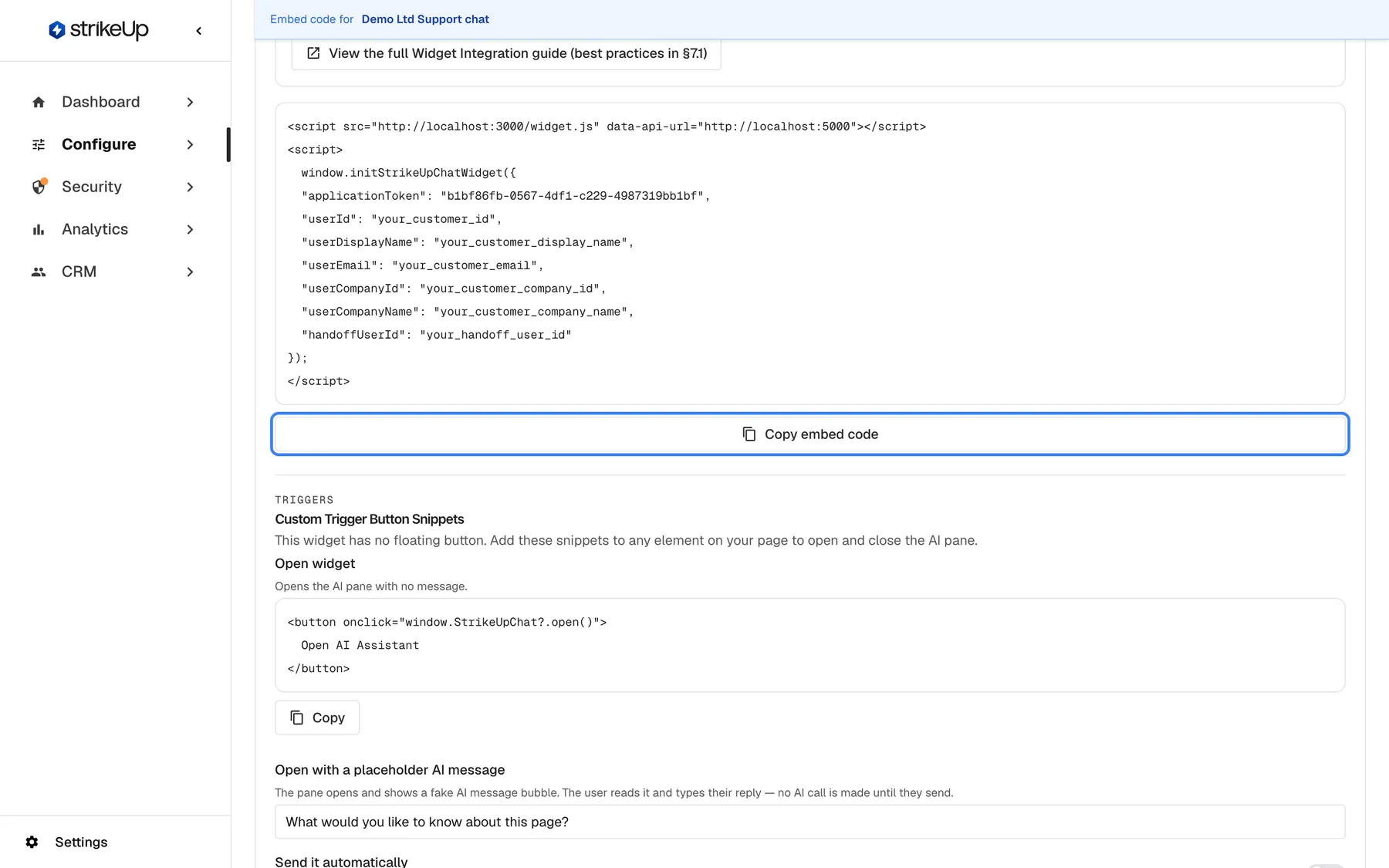
What this screenshot shows
- Screen
- Embed (/admin/configure/embed?widgetId=…)
- Highlighted
- button “”, embed-code-block-bottom, enabled. copies the full embed snippet to the clipboard
- Also visible
- Script tag loading widget.js with data-api-url; initStrikeUpChatWidget with applicationToken b1bf86fb-0567-4df1-c229-4987319bb1bf; Placeholders userId, userDisplayName, userEmail, userCompanyId, userCompanyName, handoffUserId; Start of Custom Trigger Button Snippets
- Purpose
- getting the code that puts the widget on your site
- Pick the widget card.
- Optionally switch on the options below the code, such as inline embedding or injected credentials; the code updates as you go.
- Select
Copy embed code. The button readsCopied!for a moment. - Paste the code into your product’s page template, at the end of the
<body>. - Replace the placeholder values, such as
your_customer_id, with the signed-in visitor’s real values from your product.
The options you switch on below the code are not saved. They only change the code shown, so set them again when you come back to copy the code another time.
What the widget does with the code:
- It reads only
data-api-urlfrom the script tag. Settings such as colours or position cannot be passed as script attributes; they come from User Interface. - It asks StrikeUp for the widget’s settings using the
applicationToken. If the token is wrong, or the widget was deleted, nothing is shown. - Calls made before the script has loaded are queued and run once it is ready.
Pass identity and credentials
Section titled “Pass identity and credentials”The embed code tells the widget who the visitor is:
| Field | What to put in |
|---|---|
userId | Your own unique, stable id for the signed-in user, such as cus_48247 |
userDisplayName | The name the assistant and your team see |
userEmail | The user’s email address, used for example when the assistant emails a report |
userCompanyId, userCompanyName | The user’s company in your product, for business customers |
handoffUserId | The user’s id in your helpdesk, for human handoff |
Always pass the visitor’s identity explicitly in the embed code, from your product’s own sign-in, and never let the page address supply it. The customer record under CRM, the visitor’s chat history and the credentials they enter are all tied to userId.
For any widget whose tools read or change a visitor’s own data, switch on end-customer sign-in on User Interface, so a visitor sets a PIN or password before chatting. How sign-in works for your customers, and the options for signing them in from your product, are in End-customer sign-in (PIN or password).
Inject credentials for a toolkit
Section titled “Inject credentials for a toolkit”When a toolkit needs the visitor’s credentials, the visitor is normally asked for them in the chat. If your product already has them, you can pass them in the embed code instead.
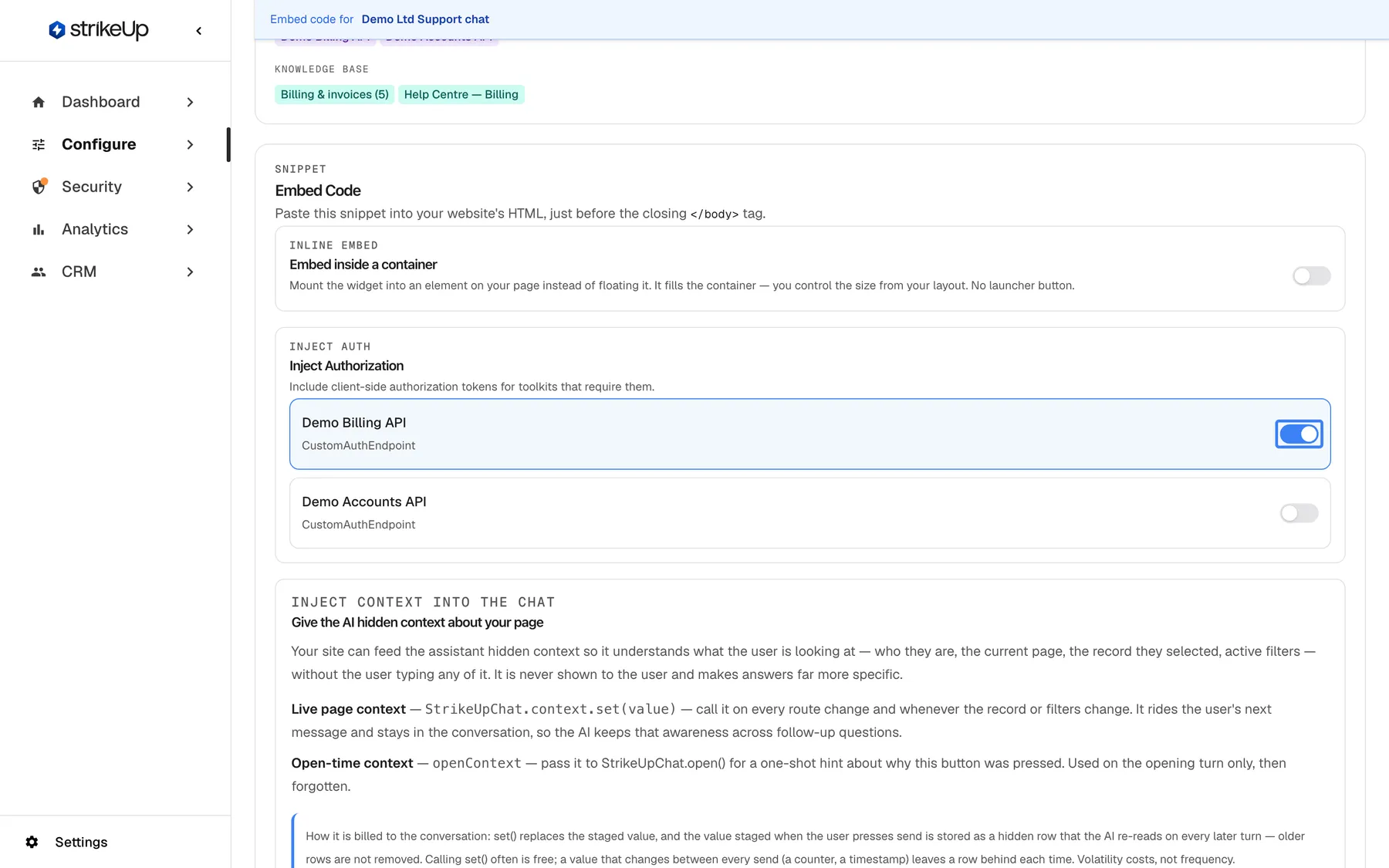
What this screenshot shows
- Screen
- Embed (/admin/configure/embed?widgetId=…)
- Highlighted
- switch “”, inject-authorization-box, on. adds serverAuthorizations for this toolkit to the generated snippet (not saved)
- Also visible
- Inline embed: Embed inside a container, off; Inject Authorization: Demo Billing API on, Demo Accounts API off, both CustomAuthEndpoint
- Purpose
- passing toolkit credentials from the host page instead of asking the customer
- Under
Inject Authorization, switch on the toolkit. Only the widget’s toolkits that use authorisation are listed, each with its type. - The embed code gains a
serverAuthorizationsentry with the toolkit’sserverIdand anauthDataexample for its type:usernameandpasswordfor user name and password, and one value per custom placeholder for a token endpoint. - Copy the code and replace the example values with the visitor’s real credentials from your product.
When the chat connects, StrikeUp saves the injected credentials for that visitor and uses them on the toolkit’s calls; for a token endpoint, it fetches the token with the values you passed. A toolkit that is not part of this widget is refused. The exact authData for each authorisation type is in Let the assistant call your API as the user.
Embed the widget in a container
Section titled “Embed the widget in a container”By default the widget floats above your page. To place it inside your layout, for example as a panel in your app:
- Under Inline embed, switch on Embed inside a container.
- Enter the Container selector, such as
#strikeup-widget, the default. - Optionally switch on Open Customer Portal inline, so the customer portal opens in the same container.
- Copy the code. It now starts with a
<div>for the container, 600 pixels high, and setsdisplayTypetoinline.
Tip: give the container an explicit height. With no height, the widget collapses to zero. An inline widget has no launcher button and fills its container.
Open the widget from your own buttons
Section titled “Open the widget from your own buttons”For a widget with a custom-trigger display type, Custom Trigger Button Snippets appear under Triggers. Each snippet has its own Copy button.
| Snippet | What it does |
|---|---|
| “Open widget” | Opens the widget with no message, with StrikeUpChat.open() |
| Open with a message | Opens the widget and shows your message, such as “What would you like to know about this page?”, as an opening line from the assistant |
| Open with context | Opens the widget and passes a hidden openContext sentence about why the button was pressed, used for the opening turn only |
| Check if the widget is open | Uses StrikeUpChat.isOpen() so one button can toggle the widget |
| Close widget | Closes the widget with StrikeUpChat.close() |
Send it automatically adds autoSend: true: your message is then sent as the visitor’s own first message in a new chat, and the assistant starts answering at once.
isOpen() reports the real state, including when the visitor closes the widget with its own controls, but there is no change event: call it when your button is clicked, or check it every 200 milliseconds to keep a button’s look in step. Every method of window.StrikeUpChat is in the Widget JavaScript API reference, and how each display type behaves is in Display types and custom triggers.
Give the assistant page context
Section titled “Give the assistant page context”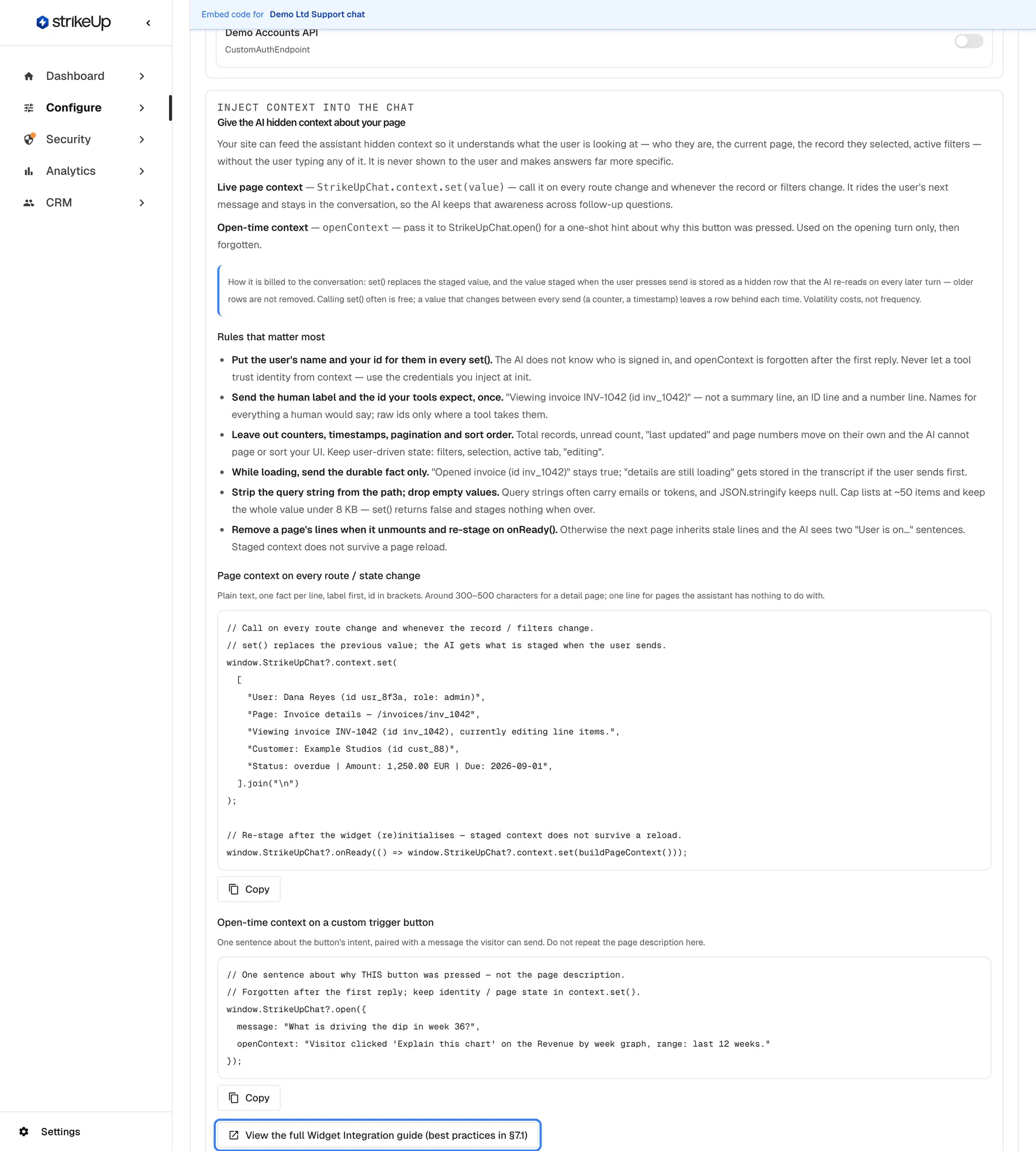
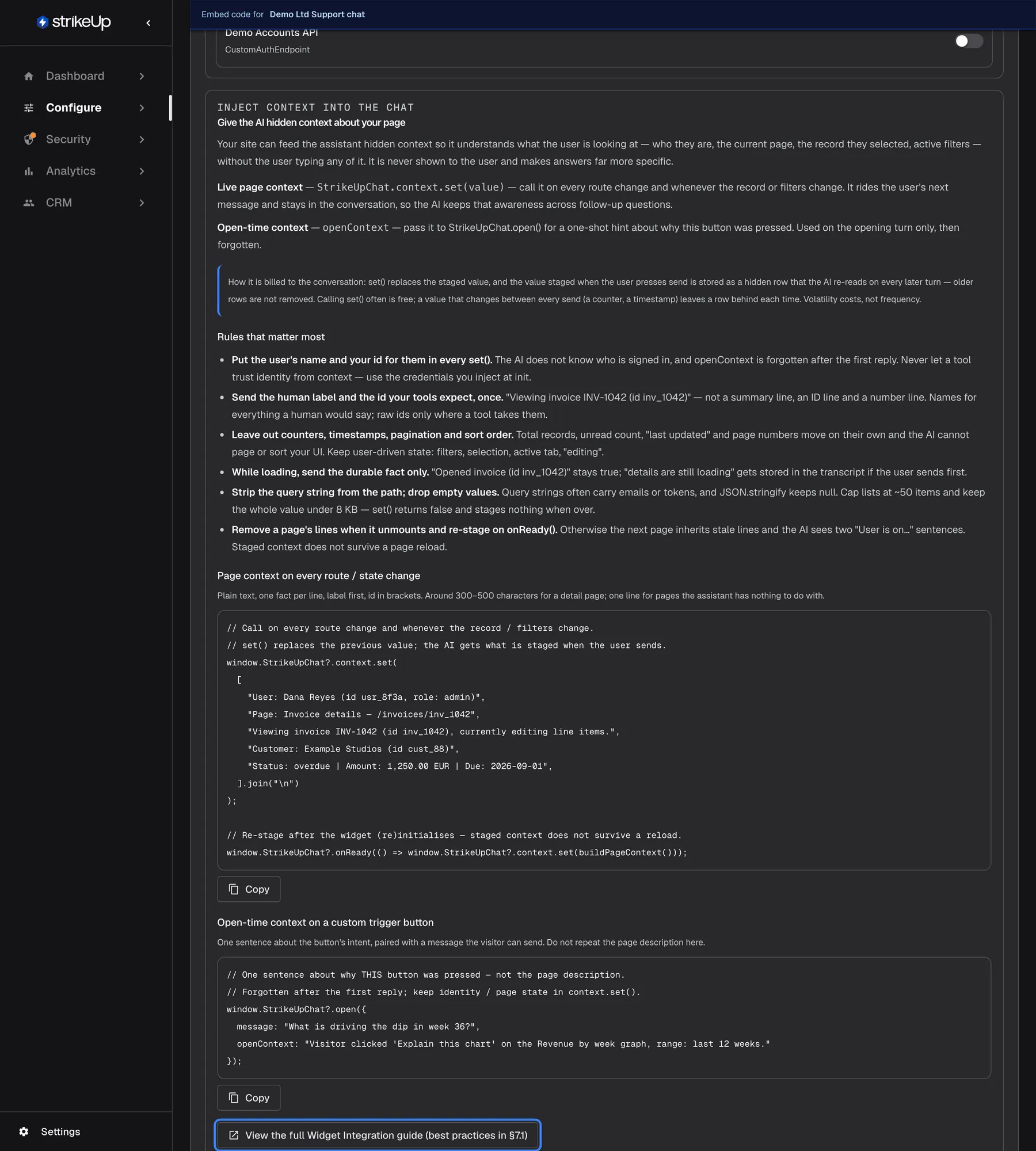
What this screenshot shows
- Screen
- Embed (/admin/configure/embed?widgetId=…)
- Highlighted
- link “View the full Widget Integration guide (best practices in §7.1)”, context-panel-bottom, enabled. opens the Widget Integration technical guide in Help
- Also visible
- Live page context and Open-time context explanations; Cost note about staged context rows; Rules that matter most; Two code examples with Copy buttons
- Purpose
- teaching how to give the assistant page context from the host site
Give the AI hidden context about your page explains how your page can tell the assistant what the visitor is looking at, without the visitor typing it:
- Live page context: call
StrikeUpChat.context.set(value)on every route change. The value travels with the visitor’s next message and stays in the conversation. - Open-time context: pass
openContexttoStrikeUpChat.open()for a one-time hint about the button that was pressed.
The value can be up to 8,192 characters; a larger value is refused and set() returns false. Context is never shown to the visitor, and it is lost when the page reloads. The panel’s rules and examples, and View the full Widget Integration guide (best practices in §7.1), cover what to send and what to leave out. Do not rely on page context to identify the visitor: pass identity in the embed code.
Every control, explained
Section titled “Every control, explained”Widget Details and Edit Widget
Section titled “Widget Details and Edit Widget”The card under the widget cards. Edit switches it to Edit Widget; Save and Cancel sit at its top right.
View: name, description, display type, toolkits and knowledge base. Edit: Name * (required), Description, Toolkits * (1 to 5 active toolkits, unique tool names across them) and the knowledge base picker. The knowledge base picker is shown even when the knowledge base feature is off for your workspace.
Which toolkits a widget may use decides what its assistant can do in your product; keeping it here, beside the embed code, lets you check both before go-live.
Preview widget
Section titled “Preview widget”At the top right of Widget Details, and as an icon on the widget card, where your installation offers a preview.
Opens the widget in a new browser tab with a temporary preview visitor, using the saved settings.
Try the assistant before you embed it anywhere.
Copy embed code
Section titled “Copy embed code”Under the code block in Snippet.
Copies the whole code shown, including any options switched on below it. The button reads Copied! for a moment.
The code must be pasted exactly; copying avoids typing mistakes in the token.
Embed inside a container
Section titled “Embed inside a container”Under Inline embed.
Embed inside a container switches the code to inline mode; Container selector (default #strikeup-widget) and Open Customer Portal inline refine it. Not saved; only changes the code shown.
In an app, a panel that sits inside your layout often fits better than a floating window.
Inject Authorization
Section titled “Inject Authorization”Under Inject auth. One switch per toolkit of the widget that uses authorisation.
Adds a serverAuthorizations entry for each toolkit switched on, with an example authData for its type. Not saved; only changes the code shown.
When your product already holds the visitor’s credentials for your API, the visitor does not need to enter them again in the chat.
Custom Trigger Button Snippets
Section titled “Custom Trigger Button Snippets”Under Triggers, only for widgets with a custom-trigger display type.
Snippets for opening (plain, with a message, with context), checking and closing the widget, each with Copy. Send it automatically makes the message be sent at once as the visitor’s first message.
A widget without a launcher opens only when your page asks it to.
What you need to know
Section titled “What you need to know”| Topic | Fact |
|---|---|
| Toolkits per widget | At least 1, at most 5, active only, with unique tool names across them. |
| Who can change widgets | Users with the Admin role create, edit and delete widgets. Everyone else can read them and copy the embed code; their changes fail with “This action requires the Admin role.” |
| Application token | Each widget has its own; it identifies the widget in the embed code. There is no button to change it. |
| Snippet options | Inline, injected credentials and trigger options are not saved; they only change the code shown. |
| Script attributes | Only data-api-url is read from the script tag. |
| Placement | Load the script at the end of the <body>. |
| Wrong token | The widget shows nothing. |
| Context size | Up to 8,192 characters per value. |
Frequently asked questions
Section titled “Frequently asked questions”Embedding
Section titled “Embedding”Where do I find my widget’s ID or token?
Section titled “Where do I find my widget’s ID or token?”The widget’s applicationToken is in the embed code on ConfigureEmbed, inside the window.initStrikeUpChatWidget call. Each widget has its own token, and the admin app has no button to replace it with a new one.
Can I pass settings through data attributes on the script tag?
Section titled “Can I pass settings through data attributes on the script tag?”No. The widget reads only data-api-url from its script tag. Display type, colours, size and the pages it appears on are set on ConfigureUser Interface, and identity and credentials go into the initStrikeUpChatWidget call.
Where should I place the embed code?
Section titled “Where should I place the embed code?”At the end of the <body> of every page where the widget may appear, after replacing the placeholder values with the signed-in visitor’s real values. To limit the pages it shows on, use the URL rules on ConfigureUser Interface rather than leaving the code out.
Why are my inline or credential options gone when I come back?
Section titled “Why are my inline or credential options gone when I come back?”The options below the code on ConfigureEmbed, such as Embed inside a container and Inject Authorization, are not saved. They only change the code shown at that moment, so switch them on again before copying the code another time.
Toolkits and identity
Section titled “Toolkits and identity”How many toolkits can a widget have?
Section titled “How many toolkits can a widget have?”Between 1 and 5 active toolkits, chosen under Toolkits * on ConfigureEmbed or in the create dialog. Tool names must be unique across the selected toolkits, or the widget is refused with a list of the clashing tools.
Why is my toolkit missing from the list?
Section titled “Why is my toolkit missing from the list?”Only active toolkits are listed. A toolkit whose import failed on ConfigureToolkits stays inactive and does not appear; delete it and import the specification again.
Do I have to pass the visitor’s identity?
Section titled “Do I have to pass the visitor’s identity?”Yes, for any widget used by signed-in people. Fill in userId and the other fields in the embed code from your product’s own sign-in. The customer record, the chat history and stored credentials are all tied to userId, so a missing or shared id mixes people up.
Should visitors sign in to the widget as well?
Section titled “Should visitors sign in to the widget as well?”Switch on end-customer sign-in on ConfigureUser Interface for every widget whose tools read or change a visitor’s own data. Visitors then set a PIN or password before they chat. For a widget that only answers general questions, it is optional.
Opening and context
Section titled “Opening and context”How do I open the widget from my own button?
Section titled “How do I open the widget from my own button?”Choose a custom-trigger display type on ConfigureUser Interface, save, and copy “Open widget” from Custom Trigger Button Snippets on ConfigureEmbed. Attach it to your button’s click handler; it calls StrikeUpChat.open().
How do I know whether the widget is open?
Section titled “How do I know whether the widget is open?”Call StrikeUpChat.isOpen(). It reports the real state, also when the visitor closed the widget with its own controls. There is no change event, so call it when your button is clicked, or check it every 200 milliseconds to keep a button’s appearance in step.
Will visitors see the context I pass?
Section titled “Will visitors see the context I pass?”No. Page context set with StrikeUpChat.context.set() and the openContext passed to StrikeUpChat.open() are hidden from the visitor and only read by the assistant. A value is limited to 8,192 characters and is lost when the page reloads.
Troubleshooting
Section titled “Troubleshooting”| Symptom | What to check |
|---|---|
| Nothing appears on the page | Check the applicationToken against ConfigureEmbed, that the widget still exists, and the URL rules on ConfigureUser Interface. Load the script at the end of the <body>. |
| The inline widget is invisible | Give the container an explicit height; without one the widget collapses to zero. |
| A custom-trigger widget never opens | Check that your button calls StrikeUpChat.open(), copied from Custom Trigger Button Snippets. |
| “Cannot assign servers: Tool names must be unique…” | Rename the clashing tool in one of the toolkits on ConfigureToolkits. |
Maximum 5 toolkits can be selected. | Switch off a toolkit before switching on another. |
No active toolkits available. | Import a toolkit, or replace a failed one, on ConfigureToolkits. |
| Visitors are still asked for credentials | Check that the toolkit is switched on under Inject Authorization in the code you deployed, and that the authData values are the visitor’s real values. |
context.set() returns false | The value is over 8,192 characters. Send fewer facts. |
| A change fails with Request failed and “This action requires the Admin role.” | Changes on this page need the Admin role. Ask an Admin to make the change, or to give you the Admin role under Settings › Users. |