

Profile
The User Profile page is about you, not your company: it shows the email address you sign in with, your role and your company ID, and it is where you change your password and manage your own two-factor sign-in. Open it from SettingsProfile. Every role can use it, including User and Guest, who cannot change anything else in StrikeUp.
What you can do here
Section titled “What you can do here”- Check your account details. Your sign-in email, your role and your company ID are shown read-only, for example when support asks for your company ID. The screen at a glance.
- Change your password. Enter the current password once and the new one twice; the new password needs 8 to 128 characters. Change your password.
- Protect your account with two-factor sign-in. Switch it on, move it to a new phone or switch it off, unless your company requires it. Manage your two-factor sign-in · Two-factor authentication.
The screen at a glance
Section titled “The screen at a glance”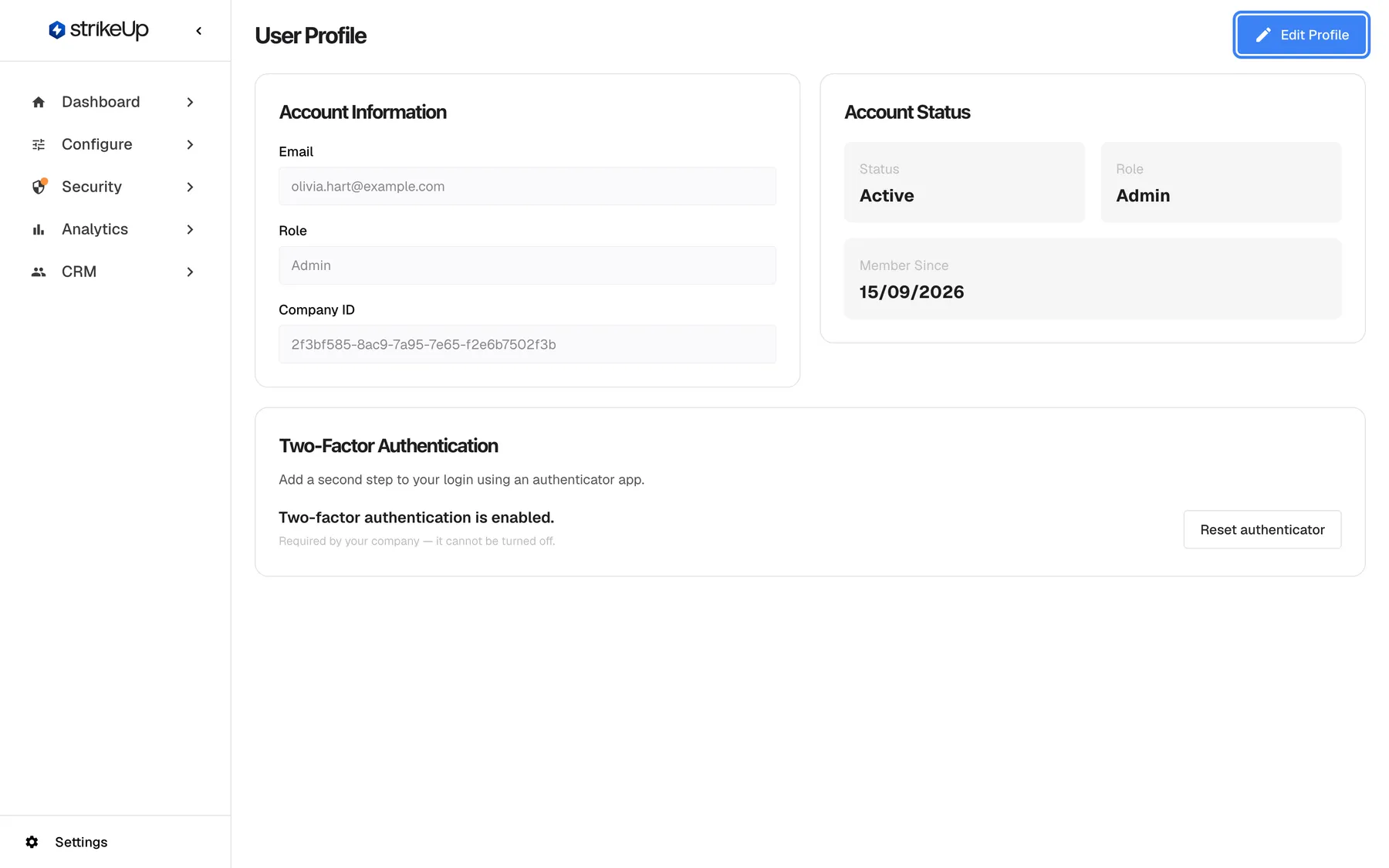
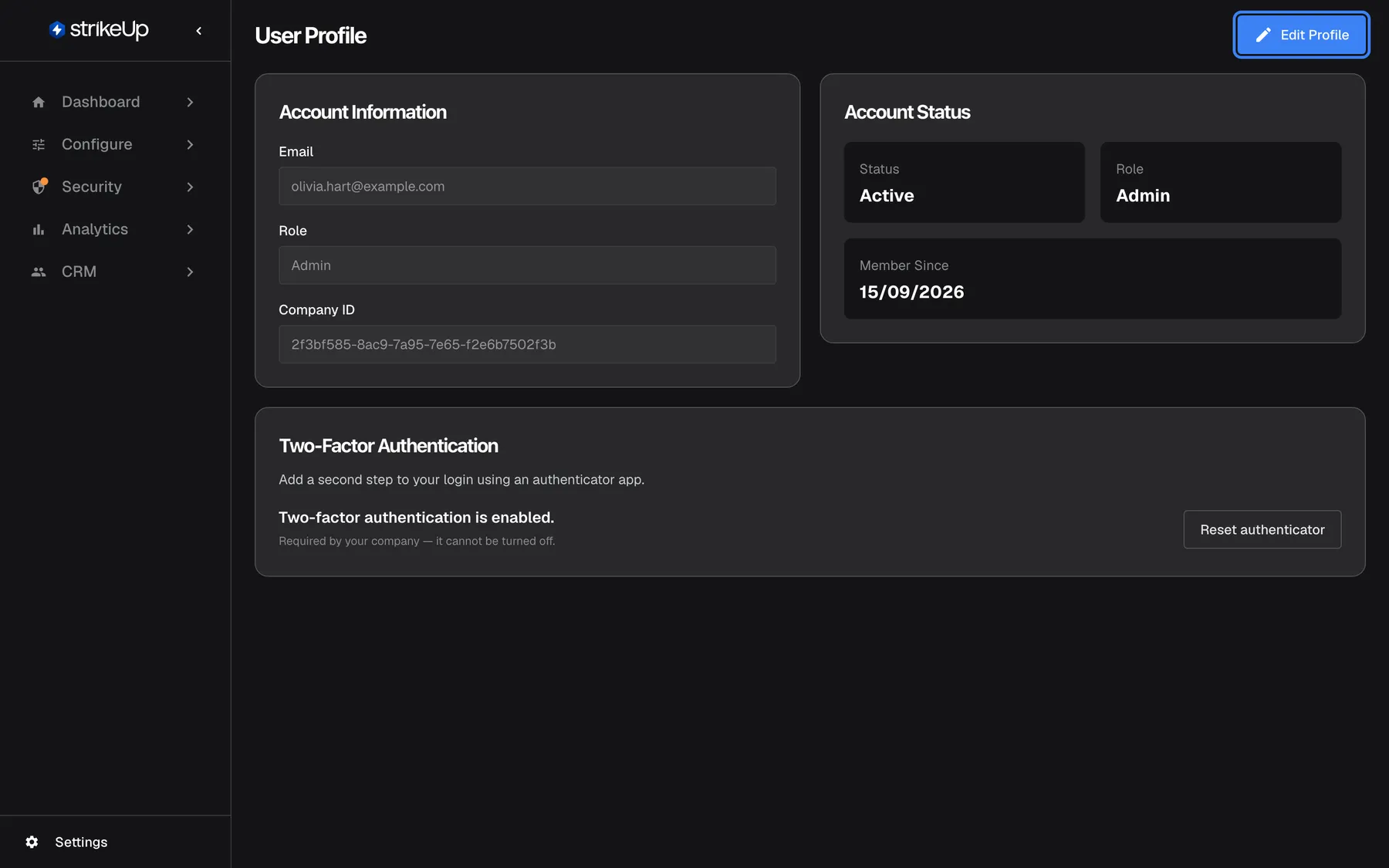
What this screenshot shows
- Screen
- User Profile (/admin/profile)
- Highlighted
- button “Edit Profile”, top-bar-right, enabled. opens the Change Password card
- Also visible
- Email olivia.hart@example.com, Role Admin, Company ID; Status Active, Member Since 15/09/2026
- Purpose
- your own account
| Region | What it shows | What you do there |
|---|---|---|
| Header, top | The heading User Profile, Ask strikeUp when available, and Edit Profile | Open the password form |
| Account Information, left | Email, Role and Company ID, read-only | Read your account details |
| Account Status, right | Status, Role and Member Since | Nothing; it is information only |
| Change Password (after Edit Profile) | Three password fields with Cancel and Save Changes | Change your password |
| Two-Factor Authentication card | Whether two-factor sign-in is on, and its buttons | Switch it on, reset or switch it off |
Nothing in the two account cards can be edited. Edit Profile only opens the password form.
Change your password
Section titled “Change your password”-
Open SettingsProfile and select Edit Profile. The Change Password card appears.
-
Type your current password in Current Password.
-
Type the new password in New Password and again in Confirm Password. It needs at least 8 and at most 128 characters.
-
Select Save Changes.
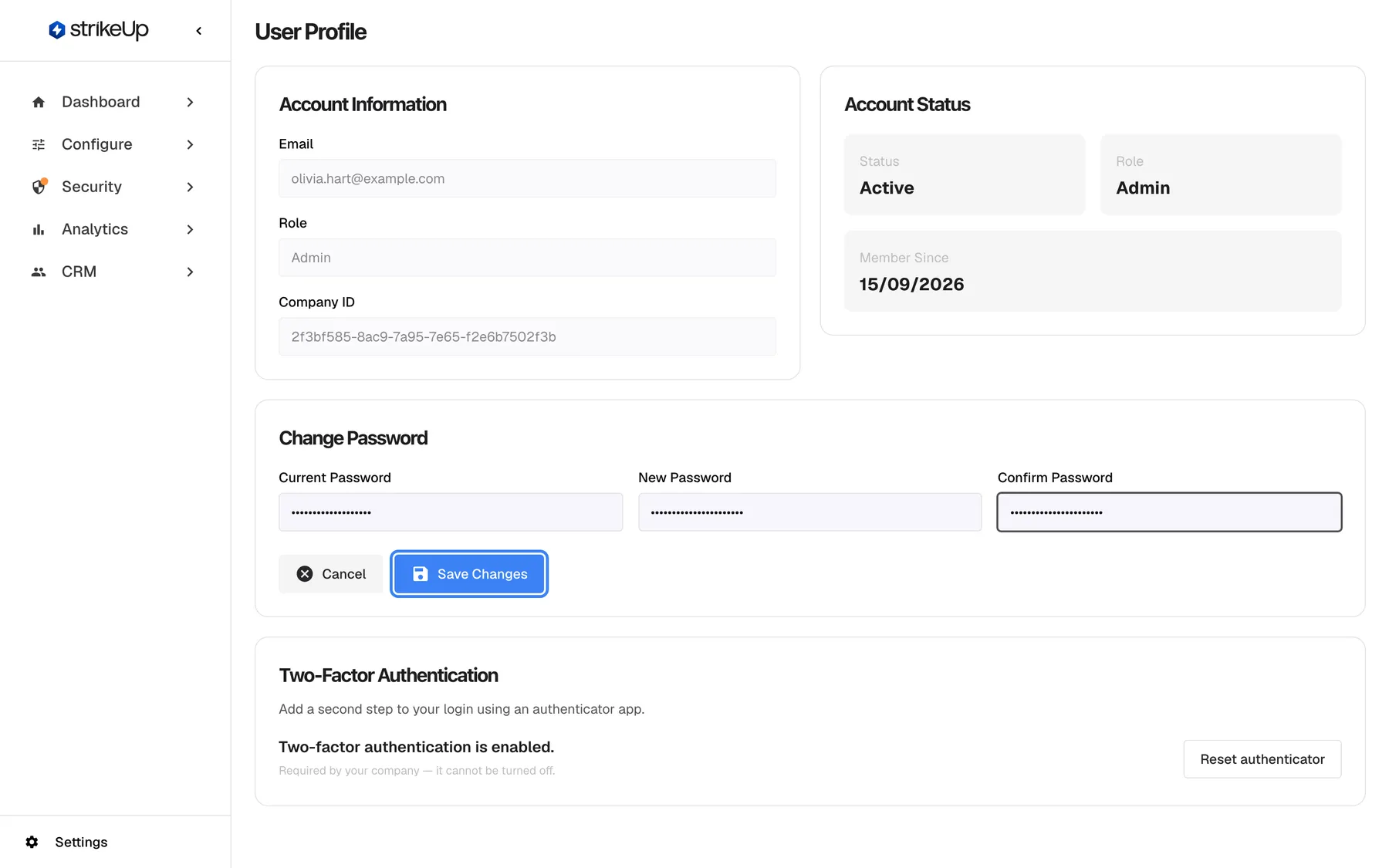
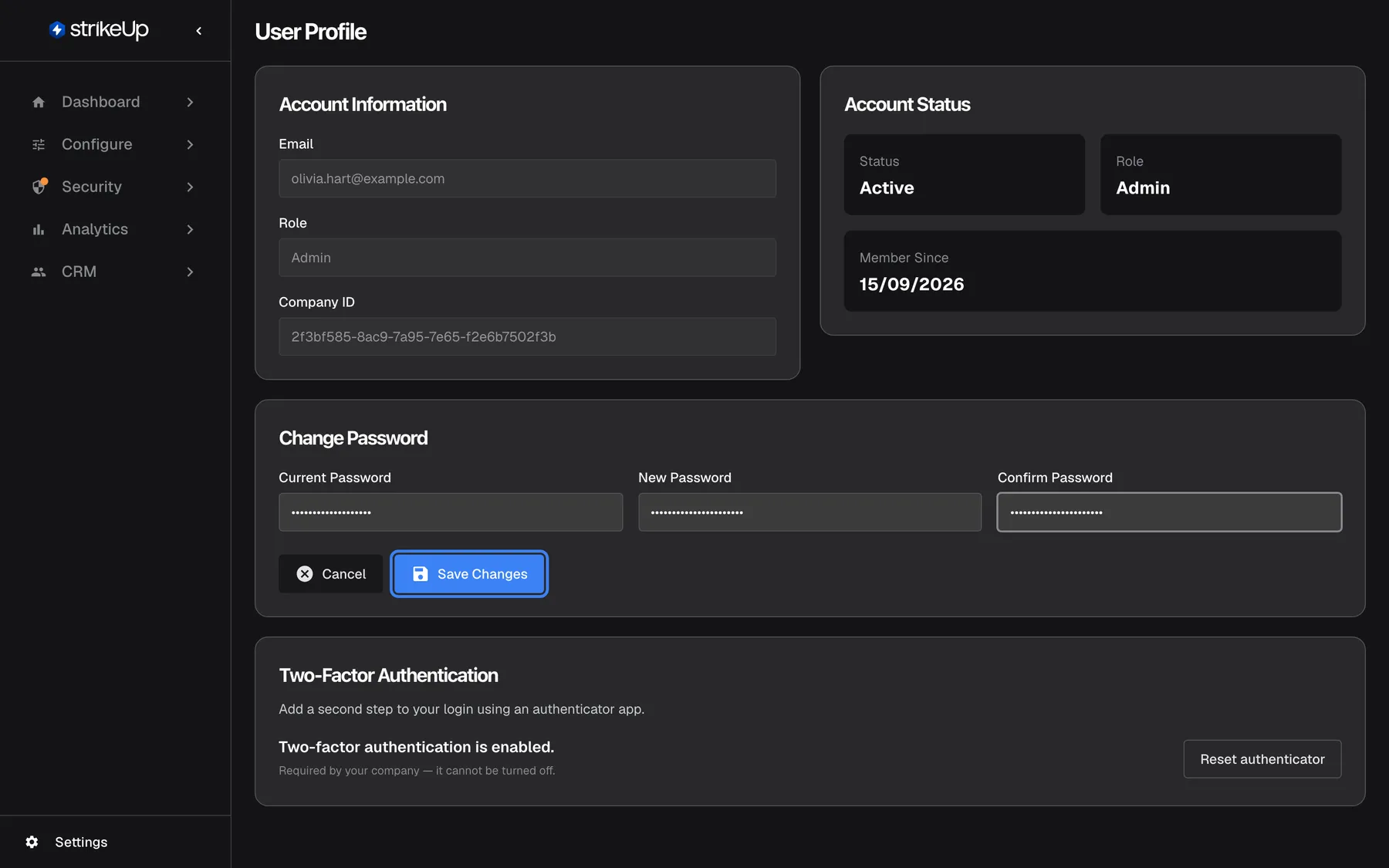
What this screenshot shows
- Screen
- Change Password (/admin/profile)
- Highlighted
- button “Save Changes”, card-footer, enabled. changes your password (POST /api/auth/change-password)
- Also visible
- Current, new and confirm password filled (masked); Cancel button
- Purpose
- changing your password
The card closes, the fields are cleared and a green banner Profile updated successfully appears at the top of the page. Use the new password from your next sign-in. Every other browser and device where you are signed in is signed out: those sessions can no longer renew and end within an hour at the latest. This browser stays signed in.
Example: Ruth, a User at Demo Ltd, suspects a colleague saw her password. She opens her profile, selects Edit Profile, enters her current password and a new 16-character passphrase twice, and selects Save Changes. The shared office computer, where she is still signed in, can no longer renew her session and is signed out within the hour.
If something is wrong, the card stays open and shows the reason:
| Message | Why |
|---|---|
| Fields must match | The two new passwords differ |
| “Must be at least 8 characters” | The new password is shorter than 8 characters |
| “Password must be at most 128 characters long.” | The new password is longer than 128 characters |
| “Current password is incorrect” | The current password you typed is wrong. This does not count towards the sign-in lockout and does not sign you out. |
| “Too many requests. Please wait a minute and try again.” | More than 10 attempts a minute came from your network address. Wait a minute. |
Manage your two-factor sign-in
Section titled “Manage your two-factor sign-in”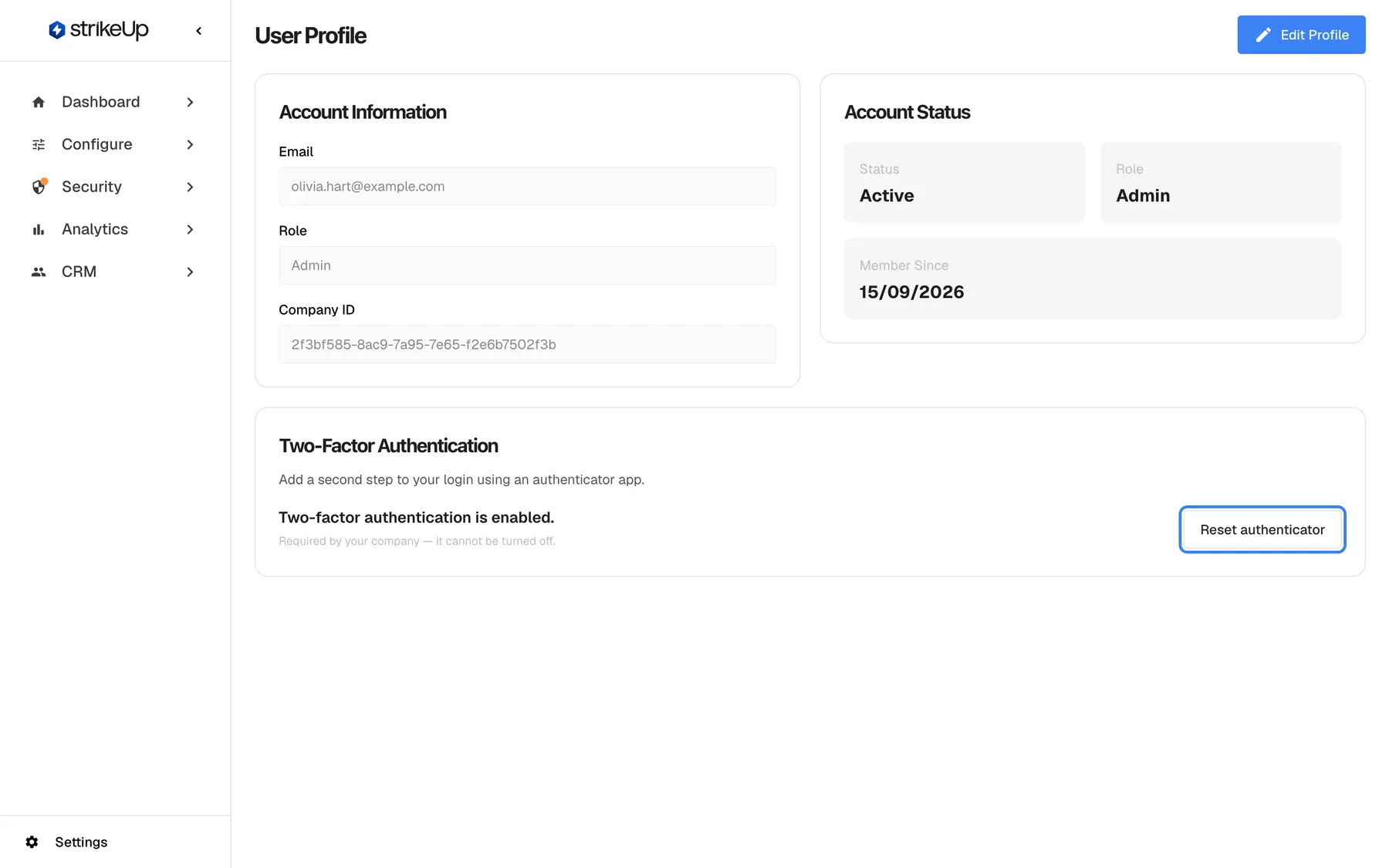
What this screenshot shows
- Screen
- Two-Factor Authentication (/admin/profile)
- Highlighted
- button “Reset authenticator”, 2fa-card-right, enabled. starts setting up a new authenticator
- Also visible
- Two-factor authentication is enabled; required by your company
- Purpose
- your two-factor settings
The Two-Factor Authentication card shows Two-factor authentication is enabled. or Two-factor authentication is not enabled. and the buttons that apply:
| State | Buttons | What they do |
|---|---|---|
| Not enabled | Enable 2FA | Link an authenticator app to your account |
| Enabled | Reset authenticator and Disable 2FA | Move to a new authenticator app, or switch two-factor sign-in off with a current code |
| Enabled and required by your company | Reset authenticator only, with Required by your company — it cannot be turned off. | Move to a new authenticator app |
Every step of these flows, and what to do when codes fail, is in Two-factor authentication.
Every control, explained
Section titled “Every control, explained”Each control below says where it is, what it does and why it is there, in the order the page shows them.
Ask strikeUp
Section titled “Ask strikeUp”At the top right, before Edit Profile, only when the StrikeUp assistant built into the admin app is set to open from buttons on the page. It is labelled Ask strikeUp.
Opens the built-in assistant with an opening message that offers help with your profile, your password or two-factor settings. When the built-in assistant opens another way, the button is not shown.
A quick way to ask for help with your account without leaving the page.
Edit Profile
Section titled “Edit Profile”The blue button at the top right, Edit Profile. Hidden while the password form is open.
Opens the Change Password card. It does not make any other field editable.
Your email, role and company are managed elsewhere; the password is the one thing you change here.
Account Information
Section titled “Account Information”| Field | What it shows | Why |
|---|---|---|
| The email address you sign in with. It cannot be changed in the admin app. | Confirms which account you are using | |
| Role | Admin, User or Guest. Only an administrator can change it, under SettingsUsers. | Tells you whether you can change settings |
| Company ID | Your company’s identifier | Give it to StrikeUp support so they find your company |
Account Status
Section titled “Account Status”| Field | What it shows | Why |
|---|---|---|
| Status | Always Active. The tile does not read your account’s real status. | Information only |
| Role | Your role again; User if none is known | Quick reference |
| Member Since | Today’s date, whatever day you joined | Not a reliable joining date |
Change Password
Section titled “Change Password”The card that opens with Edit Profile: Current Password, New Password and Confirm Password, then Cancel and Save Changes.
Changes your password after checking the current one. The new password must match its confirmation and have 8 to 128 characters. Errors appear inside the card, as StrikeUp’s message or Failed to update profile. Cancel closes the card and clears all three fields. Other signed-in sessions are not signed out.
Asking for the current password stops someone at an unlocked computer from taking over your account.
Two-Factor Authentication
Section titled “Two-Factor Authentication”The card below the account cards, Two-Factor Authentication, described as Add a second step to your login using an authenticator app.
Shows whether two-factor sign-in is on and offers Enable 2FA, Reset authenticator and Disable 2FA as they apply. Disable 2FA is hidden while your company requires two-factor sign-in. Works for every role.
A stolen password alone is not enough to sign in once the second step is on.
What you need to know
Section titled “What you need to know”| Topic | Fact |
|---|---|
| Who can use it | Every role. Password and two-factor changes are the only changes a User or Guest can make in StrikeUp. |
| Password length | 8 to 128 characters. |
| Other sessions | Changing the password signs out every other browser and device within an hour at the latest; this browser stays signed in. |
| Wrong current password | Shown as an error; it does not count towards the sign-in lockout. |
| Not on this page | Your name, a picture, your email address, the language, notifications and the colour theme. StrikeUp accounts have no names; the theme is Dark Mode or Light Mode in the Settings menu. |
| Language | The admin app follows your browser’s language. |
Frequently asked questions
Section titled “Frequently asked questions”Your account
Section titled “Your account”How do I change my email address?
Section titled “How do I change my email address?”You cannot change it in the admin app. Your sign-in email is fixed when you sign up or accept an invitation. If you need a different address, an administrator can invite the new address under SettingsUsers and delete the old account afterwards.
How do I change my name or picture?
Section titled “How do I change my name or picture?”StrikeUp accounts have no display name or picture: everyone is identified by their email address, which is what SettingsProfile and the users table show. There is nothing to change.
Why does Member Since show today’s date?
Section titled “Why does Member Since show today’s date?”The Member Since tile on SettingsProfile always shows the current date, not the day your account was created. Treat it as information only; the creation date of each account is in the users table that administrators see.
Why can’t I change my role?
Section titled “Why can’t I change my role?”Roles are given by administrators under SettingsUsers, and nobody can change their own role, administrators included. Ask an administrator of your company if you need a different role.
What is my company ID for?
Section titled “What is my company ID for?”It identifies your company inside StrikeUp. Support may ask for it to find your company quickly. It is shown read-only under Account Information on your profile and is the same for everyone in your company.
Password
Section titled “Password”What are the password rules on my profile?
Section titled “What are the password rules on my profile?”The new password needs at least 8 and at most 128 characters, and both new fields must match. The profile form checks nothing else, but the sign-up rules are a good guide: mix upper- and lower-case letters, digits and a special character.
Does changing my password sign me out on other devices?
Section titled “Does changing my password sign me out on other devices?”Yes. When you change your password on SettingsProfile, every other browser and device where you are signed in can no longer renew its session and is signed out within an hour at the latest. The browser you changed it in stays signed in.
I forgot my current password. How do I change it?
Section titled “I forgot my current password. How do I change it?”The profile form needs your current password. Sign out from SettingsLogout, select Forgot password? on the sign-in page, and set a new password from the email StrikeUp sends you.
Can a User or Guest change their own password?
Section titled “Can a User or Guest change their own password?”Yes. Changing your own password and managing your own two-factor sign-in work for every role on SettingsProfile, even though Users and Guests cannot change anything else in StrikeUp.
Preferences
Section titled “Preferences”How do I change the language of StrikeUp?
Section titled “How do I change the language of StrikeUp?”The admin app shows its labels in your browser’s language, and there is no language setting on your profile or anywhere else. Change your browser’s preferred language and reload the page; screens that have no translation show English.
How do I switch to dark mode?
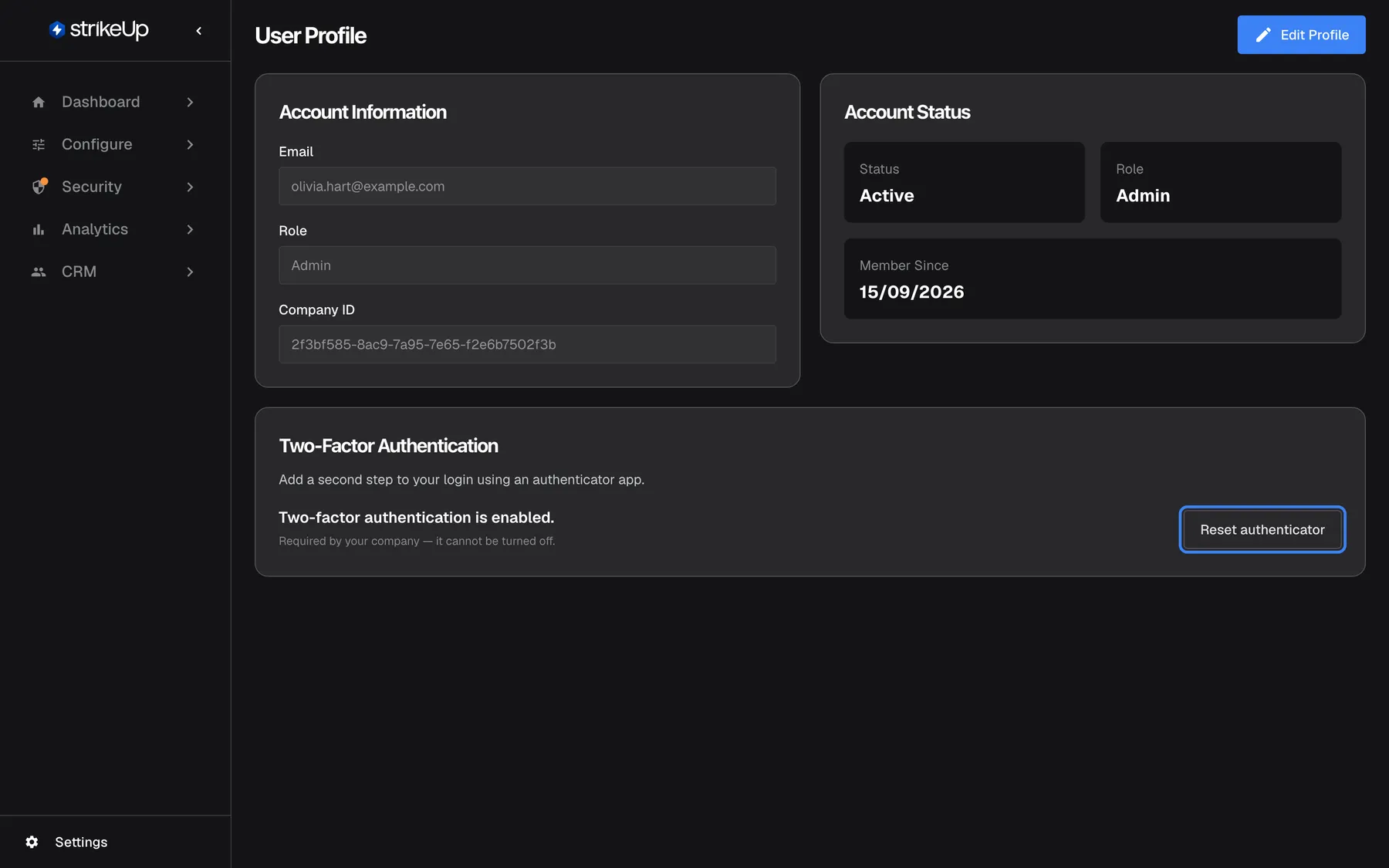
Section titled “How do I switch to dark mode?”Open the Settings menu at the bottom of the sidebar and select Dark Mode; the same item then reads Light Mode. The choice is remembered in this browser only.
Troubleshooting
Section titled “Troubleshooting”| Symptom | What to check |
|---|---|
| “Current password is incorrect” | Retype the current password, watching the Caps Lock key. If you no longer know it, sign out and use Forgot password? on the sign-in page. |
| Fields must match | Retype the new password in both new fields. |
| “Must be at least 8 characters” or “Password must be at most 128 characters long.” | Choose a password of 8 to 128 characters. |
| “Too many requests. Please wait a minute and try again.” | Wait a minute, then try once. |
| Disable 2FA is missing | Your company requires two-factor sign-in. Only an administrator can change that on SettingsCompany. |
| The role shown is out of date | Your role changed recently. Sign out and in again to see the current one. |