

Log in
The sign-in page is the door to the StrikeUp admin app. Everyone in your company uses it, whatever their role: you enter the email address and password of your StrikeUp account and, if two-factor authentication applies to you, a code from your authenticator app. It is at /auth/sign-in, and StrikeUp sends you there whenever you open an admin page without being signed in. StrikeUp offers no single sign-on: email, password and, where it applies, an authenticator code are the only ways in.
What you can do here
Section titled “What you can do here”- Sign in with your email and password. The page checks both and opens the Dashboard. Capital letters in the email do not matter. Sign in.
- Pass the two-step verification. If you or your company switched on two-factor authentication, the form is replaced by a code step after a correct password. You have 5 minutes to enter the 6-digit code. Enter your two-factor code · Two-factor authentication.
- Set up an authenticator when your company requires one. If the company requires two-factor authentication and you have no authenticator yet, sign-in walks you through scanning a QR code before it lets you in. Set up an authenticator during sign-in.
- Recover a forgotten password. The Forgot password? link starts a password reset by email. A reset also unlocks an account that was locked after too many wrong passwords. Reset your password.
- Create a new company instead. Create an Account opens the sign-up page, which creates a new StrikeUp company with you as its administrator. Sign up.
The screen at a glance
Section titled “The screen at a glance”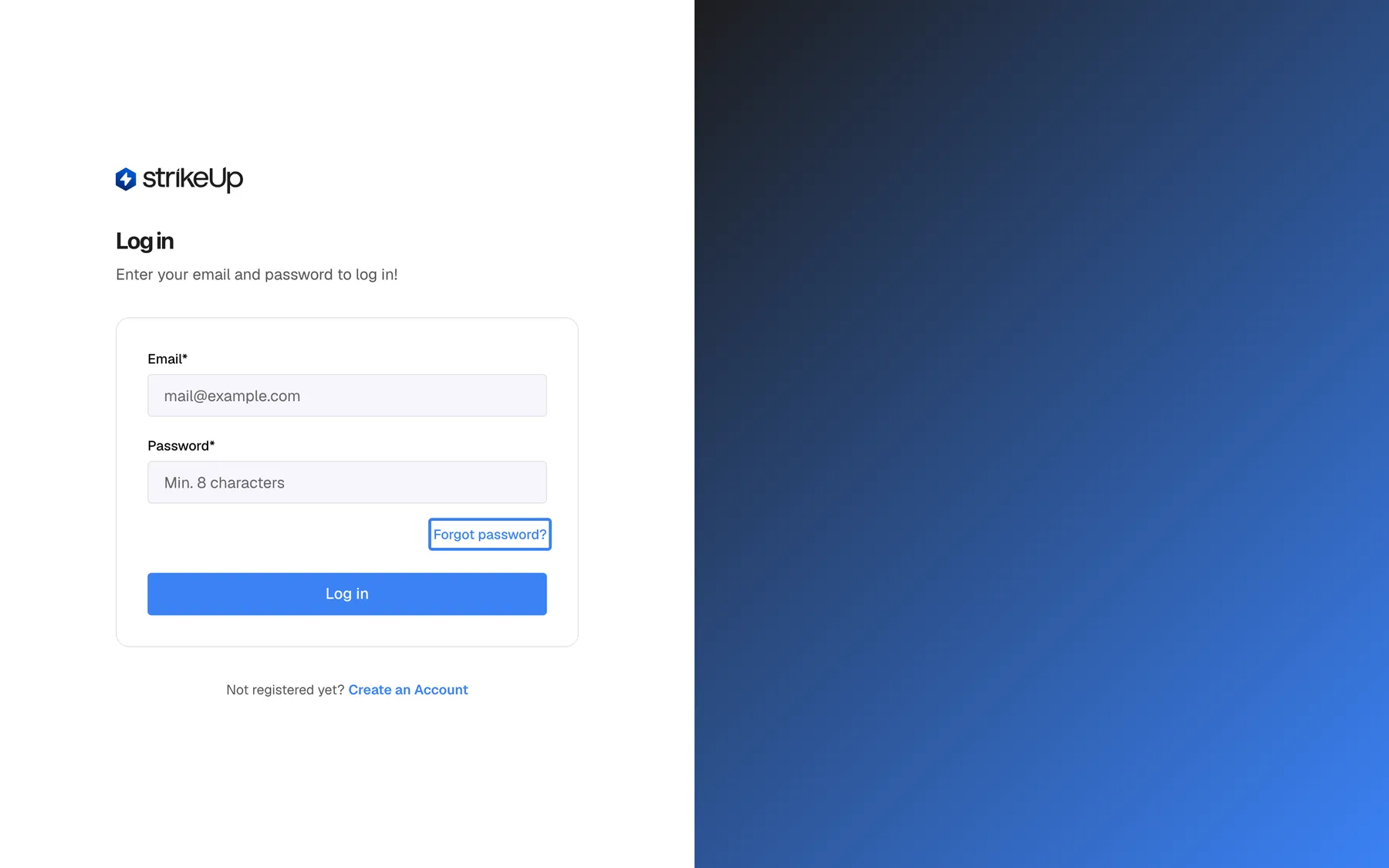
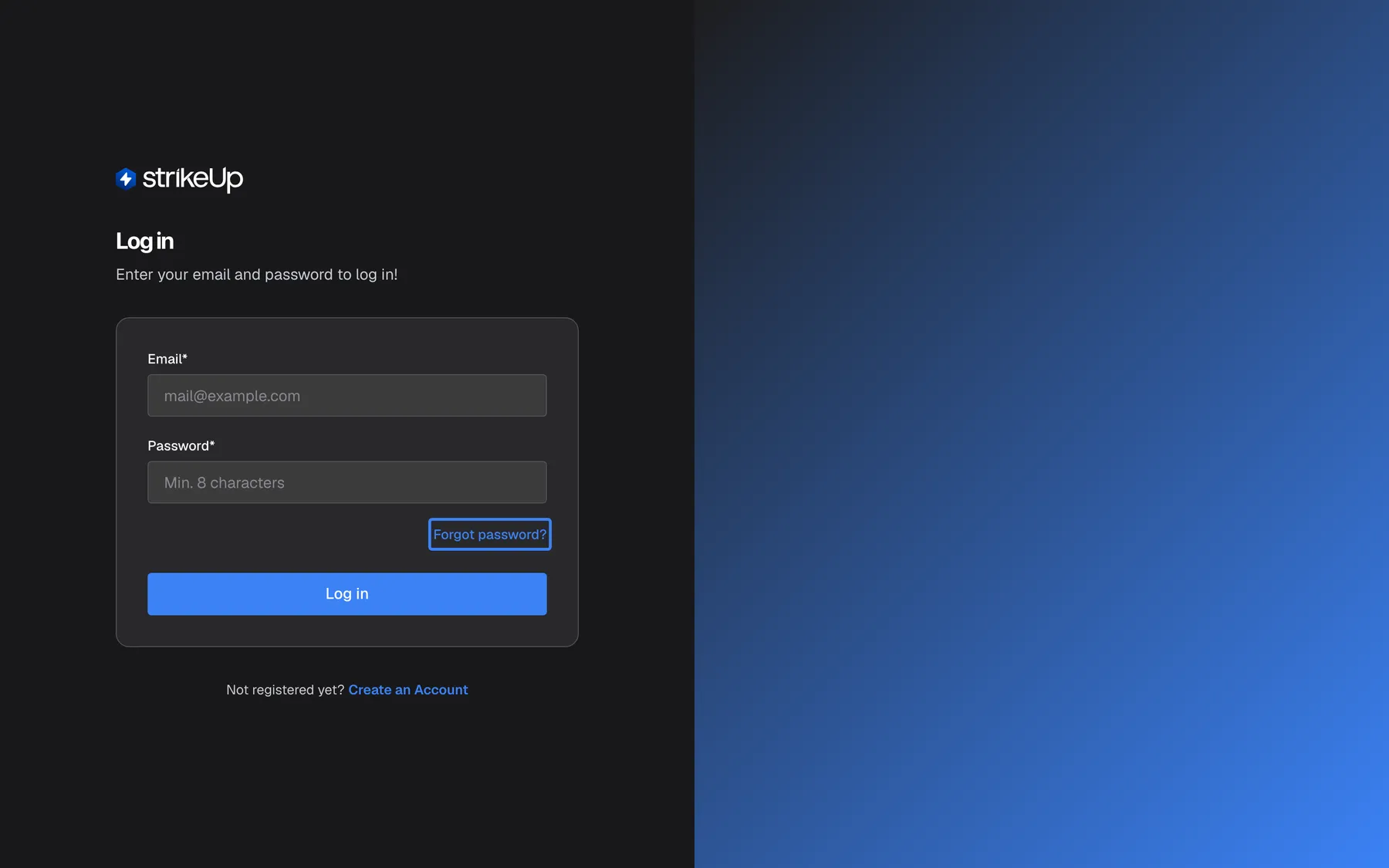
What this screenshot shows
- Screen
- Log in (/auth/sign-in)
- Highlighted
- link “Forgot password?”, sign-in-card-right, enabled. opens /auth/forgot-password
- Also visible
- Empty Email* and Password* fields; Log in button; Not registered yet? Create an Account link below the card
- Purpose
- the sign-in screen as a signed-out user first sees it
| Region | What it shows | What you do there |
|---|---|---|
| Heading, top left | The StrikeUp logo, the heading Log in and the line Enter your email and password to log in! | Confirm you are on the sign-in page |
| Banner, above the card (only when there is something to say) | A green confirmation after a password reset, or a red message when sign-in failed | Read why the last attempt did not work |
| The card | Email*, Password*, the Forgot password? link and the Log in button. After a correct password, the code step or the authenticator setup replaces these | Enter your details and sign in |
| Below the card | Not registered yet? Create an Account (hidden during the code step) | Go to sign-up if you have no account |
| Right half (large screens only) | A brand colour gradient | Nothing |
The page has no language switch. It appears in your browser’s language, and the messages that come back from the server are always in English.
Sign in
Section titled “Sign in”-
Open the admin app. If you are not signed in, StrikeUp shows the sign-in page.
-
Type your email address in Email* (capitals do not matter) and your password in Password*.
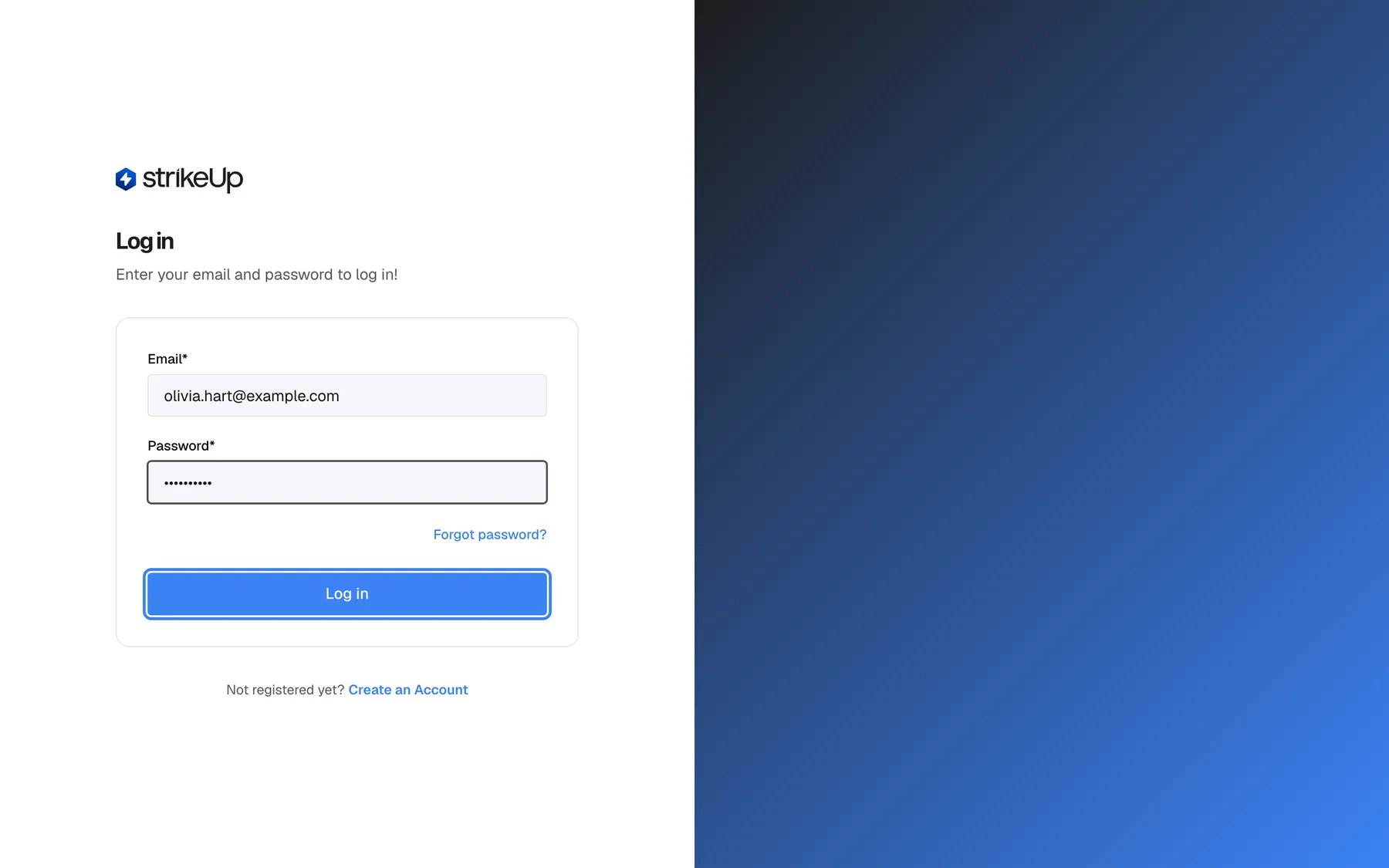
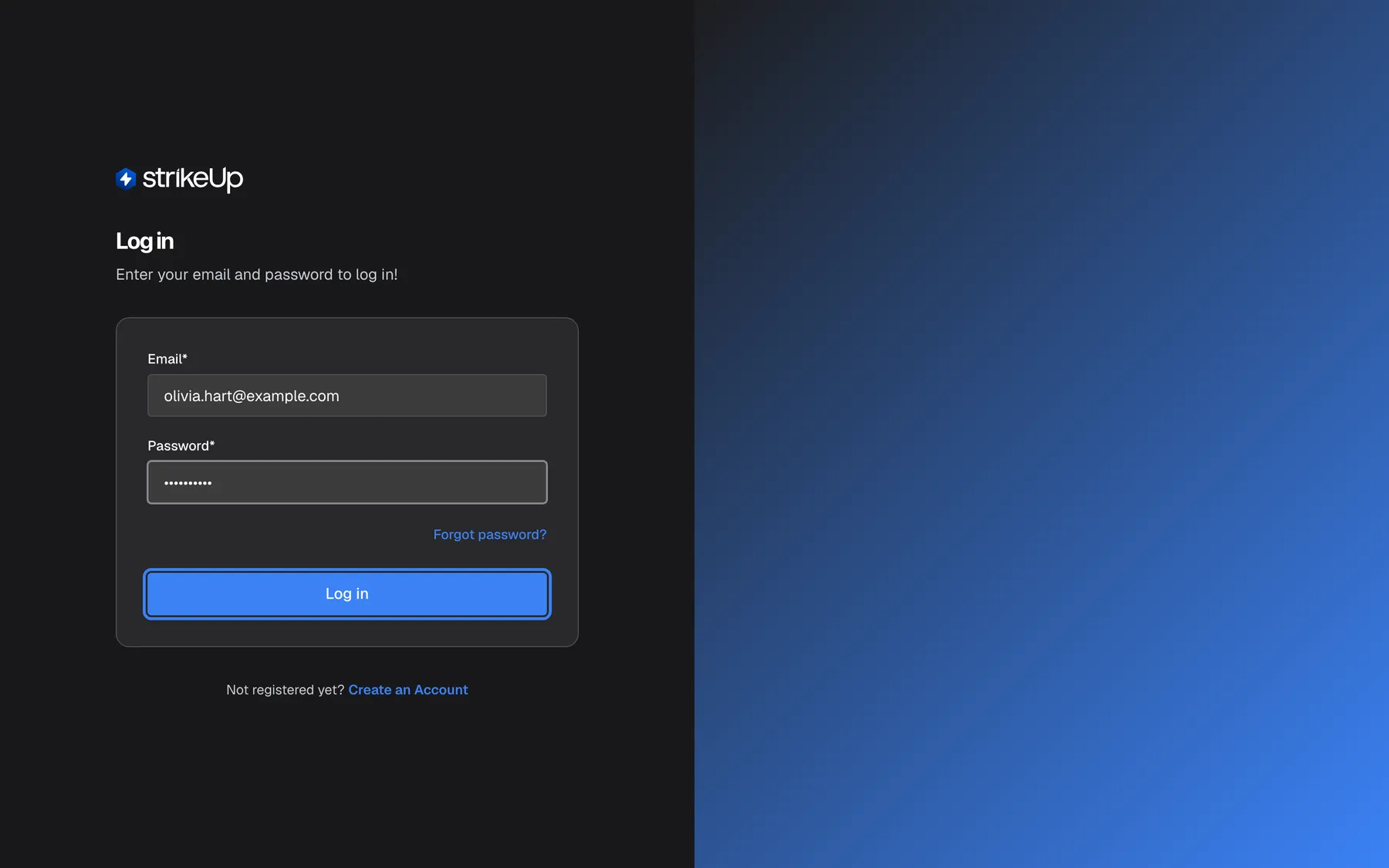
Enter the email address and password of your StrikeUp account, then select Log in. What this screenshot shows
- Screen
- Log in (/auth/sign-in)
- Highlighted
- button “Log in”, sign-in-card-bottom, enabled. submits the credentials (POST /api/auth/login)
- Also visible
- Email*: olivia.hart@example.com; Password*: masked
- Purpose
- the filled form just before signing in
-
Select Log in. While StrikeUp checks your details, the button reads Logging in....
StrikeUp then does one of three things:
| Your account | What happens next |
|---|---|
| No two-factor authentication, and your company does not require it | The Dashboard opens straight away |
| Two-factor authentication switched on for your account | The card asks for a 6-digit code (Enter your two-factor code) |
| Your company requires two-factor authentication and you have not set it up | The card asks you to set up an authenticator app (Set up an authenticator during sign-in) |
If you signed up a moment ago, the first sign-in can take a little longer than usual while StrikeUp prepares your company’s workspace. New companies also see the setup wizard on top of the Dashboard until it is finished.
Example: Olivia Hart registered as olivia.hart@example.com. She types olivia.hart@example.com and her password, selects Log in, and lands on the Dashboard. Had she typed Olivia.Hart@example.com, StrikeUp would have answered “Invalid email or password”.
When the password is wrong
Section titled “When the password is wrong”A wrong password, or an email address StrikeUp does not know, gives the same red message, “Invalid email or password”. The form keeps what you typed, so you can correct it and try again.
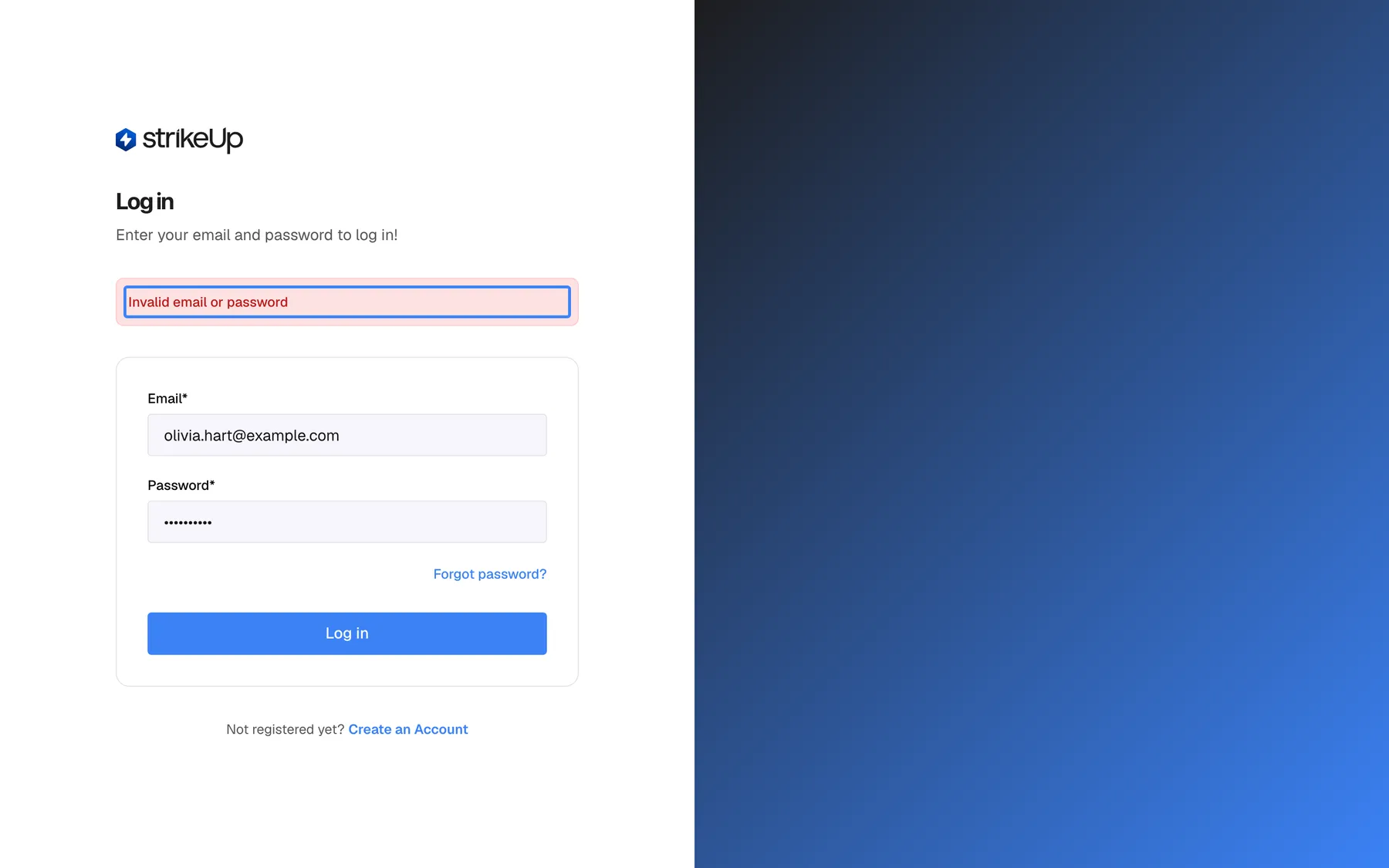
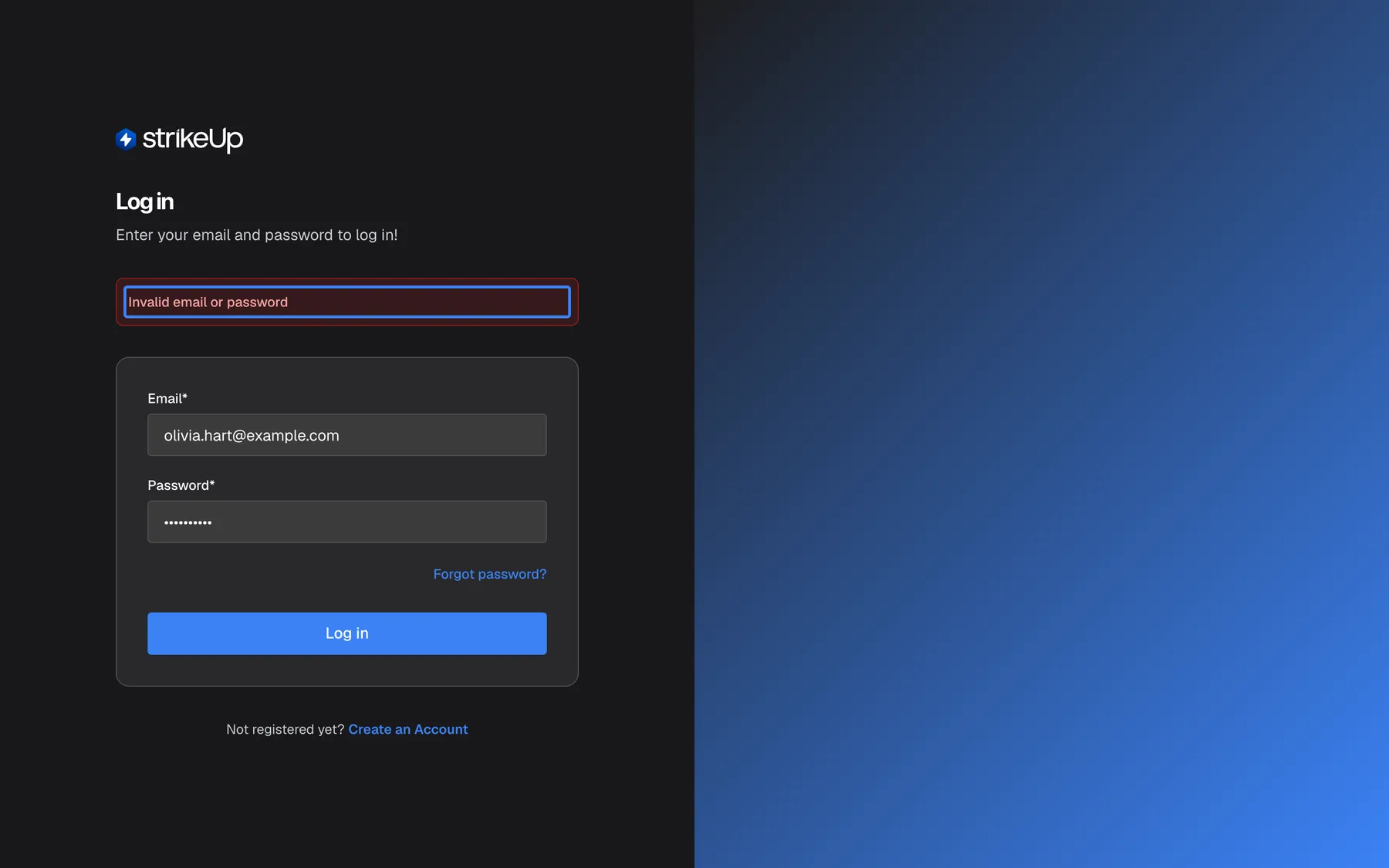
What this screenshot shows
- Screen
- Log in (/auth/sign-in)
- Highlighted
- alert-banner “”, above-sign-in-card, visible. none; informs that the credentials were rejected (HTTP 401)
- Also visible
- Email* still filled with olivia.hart@example.com; Forgot password? link
- Purpose
- error state after a rejected sign-in
Five wrong passwords in a row lock the account for a short time, and every further wrong password makes the next lock longer:
| Wrong passwords in a row | The account is locked for |
|---|---|
| 1 to 4 | Not locked |
| 5 | 1 minute |
| 6 | 5 minutes |
| 7 | 15 minutes |
| 8 or more | 1 hour, each time |
While the account is locked, StrikeUp does not check the password at all and shows “Too many failed sign-in attempts. Please wait a few minutes and try again.” The message does not say how long the lock lasts. Waiting does not reset the count: the first wrong password after a lock expires is counted as the next one in the row. Only a successful sign-in or a password reset sets the count back to zero. A mistyped email that belongs to no account is never counted against anyone.
When there are too many requests
Section titled “When there are too many requests”Sign-in is rate-limited to 10 requests a minute per network address. The limit is shared by the sign-in, password reset and two-factor requests made from the same address, so colleagues behind one office connection share it too. When it is reached, the red banner reads “Too many requests. Please wait a minute and try again.” Wait a minute, then try once.
Enter your two-factor code
Section titled “Enter your two-factor code”After a correct password, an account with two-factor authentication sees the step Two-step verification in the same card.
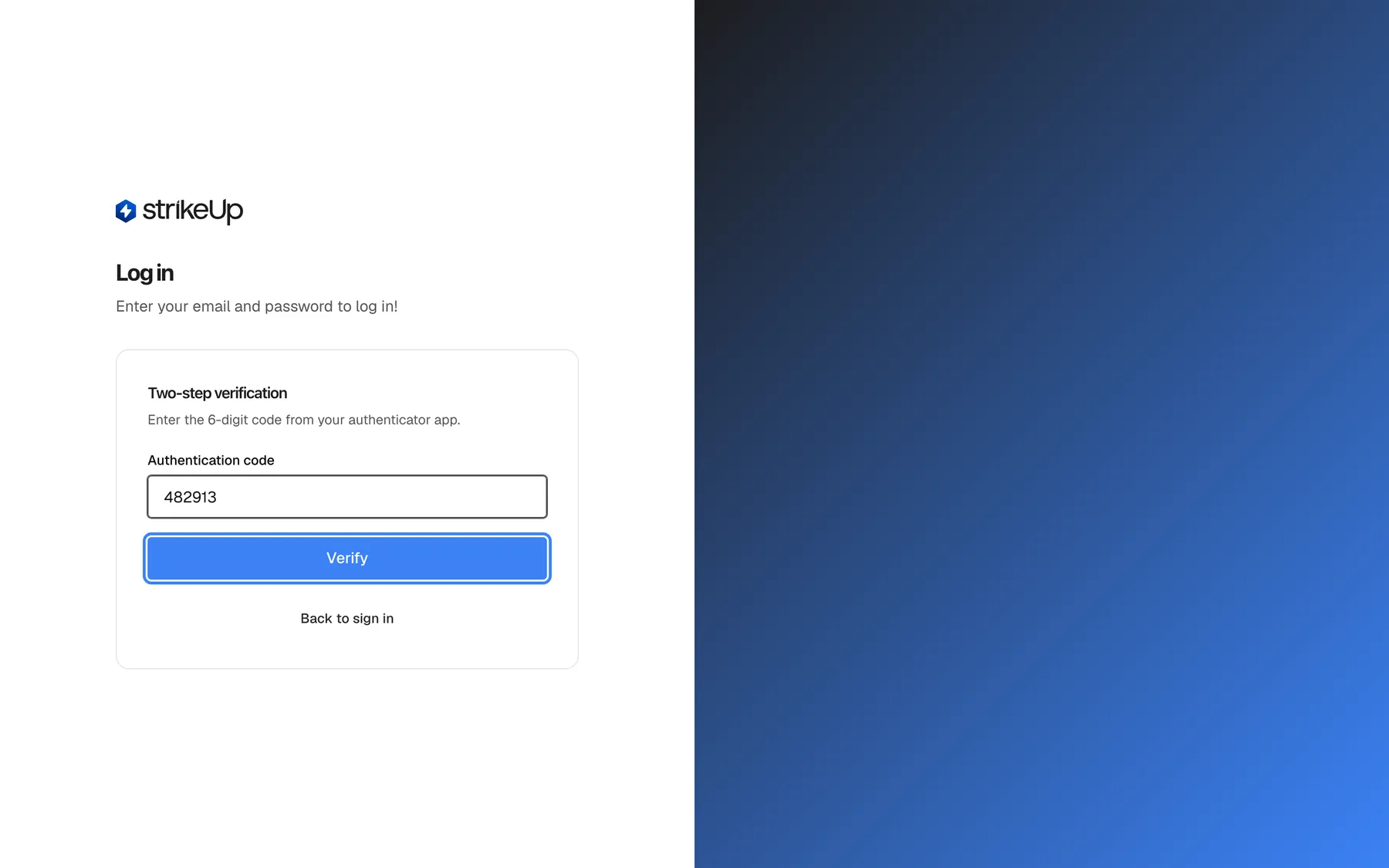
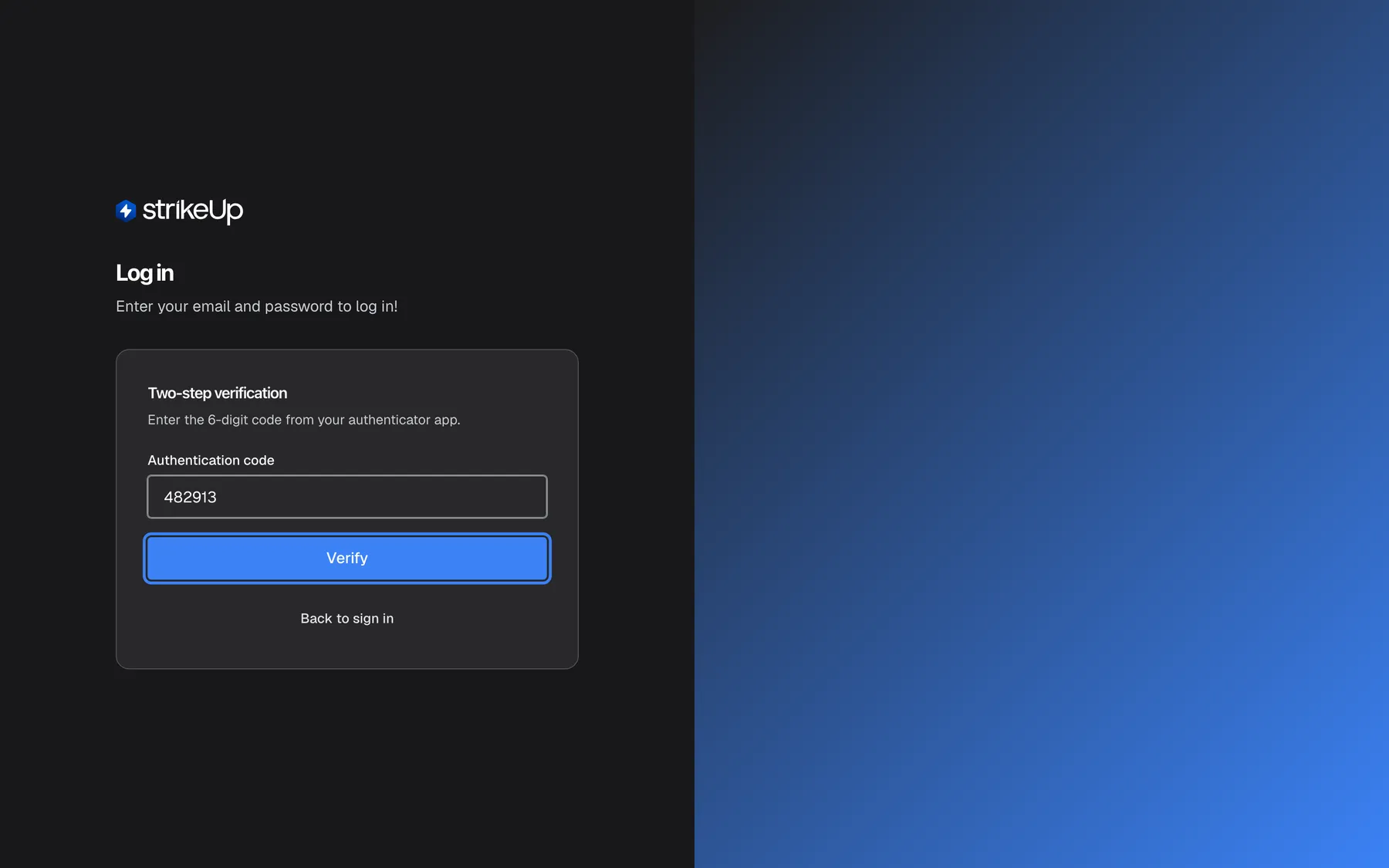
What this screenshot shows
- Screen
- Log in (/auth/sign-in)
- Highlighted
- button “Verify”, sign-in-card, enabled. submits the code (POST /api/auth/2fa/login-verify) and opens the dashboard
- Also visible
- Heading Two-step verification; Authentication code: 482913; Back to sign in button
- Purpose
- the inline two-factor challenge that follows a correct password
-
Open your authenticator app and find the entry
StrikeUp:followed by your email address. -
Type the 6-digit code it shows into Authentication code. The field accepts digits only.
-
Select Verify. StrikeUp checks the code and opens the Dashboard.
The code step is valid for 5 minutes after your password was accepted. After that StrikeUp answers “Your verification session has expired. Please sign in again.” and you start from the password. Each wrong code counts down from five (“Invalid authentication code. 4 attempt(s) remaining.”), and after five wrong codes StrikeUp refuses every code, even a correct one, for 15 minutes. Back to sign in returns you to the empty email and password form. The full rules are in Two-factor authentication.
Set up an authenticator during sign-in
Section titled “Set up an authenticator during sign-in”When your company requires two-factor authentication and you have never set it up, a correct password leads to the authenticator setup instead of the Dashboard.
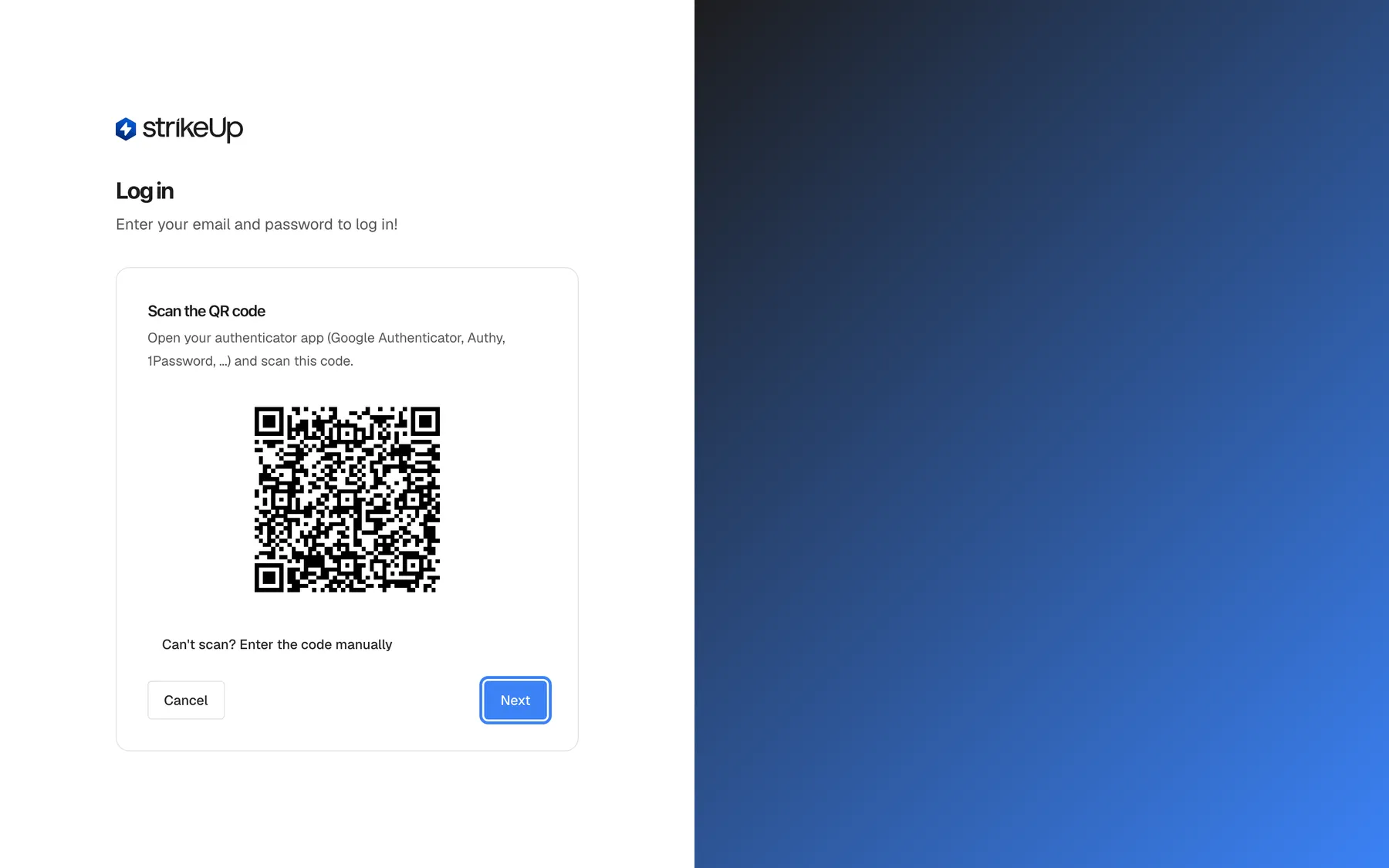
What this screenshot shows
- Screen
- Log in (/auth/sign-in)
- Highlighted
- button “Next”, sign-in-card-bottom-right, enabled. shows the Enter the code step of the authenticator setup
- Also visible
- Heading Scan the QR code; QR code (fictional secret); Can't scan? Enter the code manually toggle; Cancel button
- Purpose
- forced authenticator enrolment at sign-in when the company requires 2FA
-
Open an authenticator app on your phone, such as Google Authenticator, Authy or 1Password, and scan the QR code. If you cannot scan it, select Can't scan? Enter the code manually and type the key into the app instead.
-
Select Next.
-
Type the 6-digit code the app now shows and select Verify & enable. StrikeUp switches two-factor authentication on for your account and opens the Dashboard.
Cancel takes you back to the email and password form, but you cannot get into StrikeUp without finishing this setup while your company requires it. From now on, every sign-in asks for a code.
Stay signed in and sign out
Section titled “Stay signed in and sign out”Once you are in, StrikeUp keeps you signed in in this browser. Your session renews itself in the background while the app is open, and it stays valid for up to 7 days without a visit. After 7 days without using StrikeUp, you sign in again.
To sign out, open SettingsLogout at the bottom of the sidebar. Signing out ends your session in this browser at once, also on StrikeUp’s side, so the same session cannot be picked up again; other browsers and devices where you are signed in stay signed in.
If an administrator disables your account, StrikeUp refuses your changes straight away and signs you out the next time your session renews, within the hour. Signing in then shows “Account or company is inactive”.
Every control, explained
Section titled “Every control, explained”The sign-in card changes with the step you are on. Each control below says where it is, what it does and why it is there.
The first field in the card, labelled Email*, with the example mail@example.com while empty.
The email address of your StrikeUp account. It is required, and the browser checks that it looks like an email address before sending. StrikeUp ignores capital letters, so Anna.Becker@example.com and anna.becker@example.com sign in to the same account.
Your email address is your user name in StrikeUp. There are no separate user names, and one email address belongs to exactly one company.
Password
Section titled “Password”The second field, labelled Password*, with the hint Min. 8 characters. The characters show as dots.
The password you chose at sign-up, when you accepted your invitation or at your last reset. The sign-in page itself does not check the length; StrikeUp checks the password when you select Log in.
The hint reminds you of the password rule (8 to 128 characters) that applied when you chose it.
Forgot password?
Section titled “Forgot password?”The link at the right, between the password field and the button: Forgot password?.
Opens the page where you ask for a password reset email. The link in that email works for one hour. A successful reset also lifts a sign-in lock.
It is the only way back in when you have forgotten your password, because nobody at your company can see or set it for you. See Reset your password.
Log in button
Section titled “Log in button”The full-width blue button at the bottom of the card, Log in. It reads Logging in... while StrikeUp checks your details.
Sends your email and password. StrikeUp checks, in this order: that both fields are filled, that the account is not locked, that the password is right, that your account and your company are active, and finally whether two-factor authentication applies.
Because the account and company check comes after the password check, “Account or company is inactive” appears only when the password was right, so the message never reveals anything to someone guessing passwords.
Messages above the card
Section titled “Messages above the card”A banner between the subtitle and the card. Green after a password reset, red after a failed attempt.
The green banner reads Password reset successfully. You can now sign in.. The red banner shows the server’s message word for word, in English. Some errors, such as “Too many requests…”, also show a Request failed notification in the corner of the screen, so you may see the same problem twice.
The banner tells you which of the checks failed, so you know whether to retype, wait, reset your password or ask an administrator.
| Message | What it means |
|---|---|
| “Invalid email or password” | The email is unknown or the password is wrong. Check the spelling of the email; capitals do not matter. |
| “Too many failed sign-in attempts. Please wait a few minutes and try again.” | Five or more wrong passwords in a row locked the account. |
| “Too many requests. Please wait a minute and try again.” | Too many sign-in requests came from your network address. |
| “Account or company is inactive” | Your password was right, but an administrator disabled your account, or your company is deactivated. |
| “Email and password are required” | One of the fields was empty. |
| “Login failed” | StrikeUp could not complete the sign-in on its side. Wait a moment and retry. |
Create an Account
Section titled “Create an Account”Below the card: Not registered yet? Create an Account. Hidden while the code step or the authenticator setup is shown.
Opens the sign-up page. Signing up always creates a new company with you as its administrator.
It is for people starting with StrikeUp. To join a colleague’s company, ask one of its administrators to invite you instead. See Accept an invitation.
The two-step verification controls
Section titled “The two-step verification controls”In the card, after a correct password, for accounts with two-factor authentication: the heading Two-step verification, the field Authentication code, the button Verify and the button Back to sign in.
The field takes up to six digits and ignores anything else. Verify checks the code; Back to sign in abandons the step and shows the empty form again. The step expires 5 minutes after the password was accepted.
A stolen password alone does not get anyone into your account; they would also need your phone.
Who sees what
Section titled “Who sees what”| Part of the page | Who sees it |
|---|---|
| Email and password form | Everyone who is signed out |
| Two-step verification | Accounts with two-factor authentication switched on |
| Authenticator setup with Cancel | Members of a company that requires two-factor authentication who have not set it up |
| The sign-in page at all | Nobody who is already signed in in this browser: they are sent to the Dashboard |
After sign-in, what you can change depends on your role. Admins can change everything. Users and Guests can look at every screen but cannot save changes: StrikeUp answers their changes with “This action requires the Admin role.” Everyone, whatever the role, can change their own password and manage their own two-factor authentication.
What you need to know
Section titled “What you need to know”| Topic | Fact |
|---|---|
| Email capitals | Do not matter. Anna.Becker@example.com and anna.becker@example.com are the same account. |
| Lockout | 5 wrong passwords in a row lock the account for 1 minute, then 5 minutes, 15 minutes and 1 hour for each further wrong password. |
| What resets the count | A successful sign-in or a password reset. Waiting does not. |
| Rate limit | Sign-in, password reset and two-factor requests are limited per network address. |
| Code step | Valid for 5 minutes after the password. Five wrong codes block codes for 15 minutes. |
| Session | Renews itself while you work; sign in again after 7 days without a visit. |
| Sign-in methods | Email and password, plus an authenticator code where it applies. No single sign-on, no social login. |
| Language | The page follows your browser’s language; server messages are in English. |
Frequently asked questions
Section titled “Frequently asked questions”General
Section titled “General”Can I sign in with Google, Microsoft or single sign-on?
Section titled “Can I sign in with Google, Microsoft or single sign-on?”No. StrikeUp signs you in with the email address and password of your StrikeUp account only, followed by a code from your authenticator app when two-factor authentication applies. There is no social login and no single sign-on.
Is my email address case-sensitive when I sign in?
Section titled “Is my email address case-sensitive when I sign in?”No. StrikeUp ignores capital letters in the email address. If your account was registered as anna.becker@example.com, typing Anna.Becker@example.com signs you in to the same account.
Why does the sign-in page open in English when my company works in German?
Section titled “Why does the sign-in page open in English when my company works in German?”The page follows your browser’s language, not your company’s, and it has no language switch. Set your browser to German and the labels appear in German. Messages that come back from the server, such as “Invalid email or password”, are always in English.
How long do I stay signed in?
Section titled “How long do I stay signed in?”Your session renews itself in the background while StrikeUp is open, and it stays valid for up to 7 days between visits. If you do not use StrikeUp in this browser for 7 days, the sign-in page appears and you sign in again.
Wrong passwords and lockout
Section titled “Wrong passwords and lockout”How many wrong passwords can I enter before I am locked out?
Section titled “How many wrong passwords can I enter before I am locked out?”Four. The fifth wrong password in a row locks your account for 1 minute. Each further wrong password after a lock makes the next lock longer: 5 minutes, then 15 minutes, then 1 hour for every one after that. A successful sign-in sets the count back to zero.
How long is my account locked?
Section titled “How long is my account locked?”It depends on how many wrong passwords you entered in a row: 1 minute after the fifth, 5 minutes after the sixth, 15 minutes after the seventh and 1 hour after the eighth and each one after it. The lock message on the sign-in page does not show the time, so wait at least that long before trying again.
Does waiting reset the number of wrong passwords?
Section titled “Does waiting reset the number of wrong passwords?”No. Waiting only ends the lock. The count of wrong passwords in a row stays, so the first wrong password after a 1-minute lock already causes a 5-minute lock. Only a successful sign-in or a password reset sets the count back to zero.
Will resetting my password unlock my account?
Section titled “Will resetting my password unlock my account?”Yes. Completing a password reset from the Forgot password? link lifts the lock and sets the count of wrong passwords back to zero, so you can sign in with the new password straight away.
What is the difference between “Too many requests” and “Too many failed sign-in attempts”?
Section titled “What is the difference between “Too many requests” and “Too many failed sign-in attempts”?”“Too many failed sign-in attempts” means your account is locked after five or more wrong passwords in a row. “Too many requests. Please wait a minute and try again.” means too many sign-in, password reset or code requests came from your network address in a short time, whichever account they were for. For the second, wait a minute and try once.
Can someone lock my account by typing my email with the wrong password?
Section titled “Can someone lock my account by typing my email with the wrong password?”Yes, wrong passwords for your email address count towards your lock, whoever types them. Lockouts are short, and only you, with the right password after the lock ends or with a password reset, clear the count. A mistyped email address that belongs to no account is not counted against anyone.
Two-factor authentication
Section titled “Two-factor authentication”Why does StrikeUp ask me for a code after my password?
Section titled “Why does StrikeUp ask me for a code after my password?”Two-factor authentication is switched on for your account, either because you turned it on in your profile or because your company requires it. Open your authenticator app, find the entry StrikeUp: followed by your email, type the current 6-digit code and select Verify.
Why does sign-in ask me to scan a QR code?
Section titled “Why does sign-in ask me to scan a QR code?”Your company requires two-factor authentication and your account has no authenticator yet. Scan the code with an authenticator app, select Next, type the code the app shows and select Verify & enable. You cannot get into StrikeUp without finishing this step while the company requires it.
How long do I have to enter the code?
Section titled “How long do I have to enter the code?”Five minutes from the moment StrikeUp accepted your password. After that, the code step answers “Your verification session has expired. Please sign in again.” and you start again from your email and password.
Account and access
Section titled “Account and access”Why do I see “Account or company is inactive”?
Section titled “Why do I see “Account or company is inactive”?”Your password was correct, but either an administrator of your company has disabled your account or your company itself has been deactivated. Ask an administrator in your company to enable your account under SettingsUsers. If your whole company is affected, contact StrikeUp support.
Can I join my colleague’s company by creating an account?
Section titled “Can I join my colleague’s company by creating an account?”No. Creating an account on the sign-up page always creates a new, separate company. To join an existing company, ask one of its administrators to invite you from SettingsUsers, then follow the link in the invitation email.
Why can I see screens but not save anything after signing in?
Section titled “Why can I see screens but not save anything after signing in?”Your role is User or Guest. Both roles can open every screen but cannot save changes; StrikeUp answers with “This action requires the Admin role.” Ask an administrator to change your role under SettingsUsers if you need to make changes.
Does signing out sign me out everywhere?
Section titled “Does signing out sign me out everywhere?”No. SettingsLogout ends your session in the current browser only. Other browsers and devices where you are signed in stay signed in until their session ends. To sign out everywhere else, change your password on SettingsProfile or reset it: the other sessions can no longer renew and end within an hour at the latest.
Troubleshooting
Section titled “Troubleshooting”| Symptom | What to check |
|---|---|
| “Invalid email or password” | In order: the email’s spelling (capitals in it do not matter); Caps Lock; whether you are using an old password. If you are unsure of the password, reset it from Forgot password?. |
| “Too many failed sign-in attempts. Please wait a few minutes and try again.” | Your account is locked after five or more wrong passwords in a row. Wait (1 minute after the fifth, up to 1 hour later on), or reset your password, which lifts the lock at once. |
| “Too many requests. Please wait a minute and try again.” | Too many requests from your network address. Wait a minute and try once. Colleagues on the same office connection share the limit. |
| “Account or company is inactive” | Your account was disabled or your company was deactivated. Ask an administrator to enable you under SettingsUsers. |
| “Your verification session has expired. Please sign in again.” | More than 5 minutes passed between the password and the code. Sign in again and enter the code promptly. |
| “Invalid authentication code. N attempt(s) remaining.” | Use the code from the entry for this email address, and check that your phone sets its time automatically. Wait for a fresh code if the current one is about to change. |
| “Too many incorrect codes. Please wait a few minutes and try again.” | Five wrong codes in a row. Codes are refused for 15 minutes, even correct ones. |
| You are sent to the Dashboard when you open the sign-in page | You are already signed in in this browser. Sign out first if you want to use another account. |
| The same error appears twice, once in the banner and once in the corner | Expected for some errors: the corner notification Request failed repeats the banner. Act on the banner. |