

Overview
The Overview page is the first thing you see after signing in to StrikeUp: four headline numbers, the messages exchanged each day and how far visitors get through your chat widget, all for one period you choose. Use it to spot in a few seconds whether something needs attention, then go to the other Dashboard pages for the detail. It lives at DashboardOverview, and everyone in your workspace can open it.
What you can do here
Section titled “What you can do here”- Read the four headline numbers. The tiles show how often the chat window was opened, the share of sessions whose visitor got a successful tool call, the share of thumbs-down votes and the number of customers whose health score is below 80. Read the headline tiles.
- Follow message activity. A stacked bar chart shows the messages visitors sent and the replies the assistant gave, day by day or hour by hour. Follow message activity.
- See how far visitors get. The engagement funnel counts widget loads, chat-window opens, messages sent and tool calls in the range. Read the engagement funnel.
- Change the period. Pick the last 7, 14 or 30 days, or any range of days up to today, and every tile and chart reloads. The choice carries over to the other Dashboard pages. Change the period.
- Reload the numbers. Fetch the latest data without leaving the page. Refresh the numbers.
The screen at a glance
Section titled “The screen at a glance”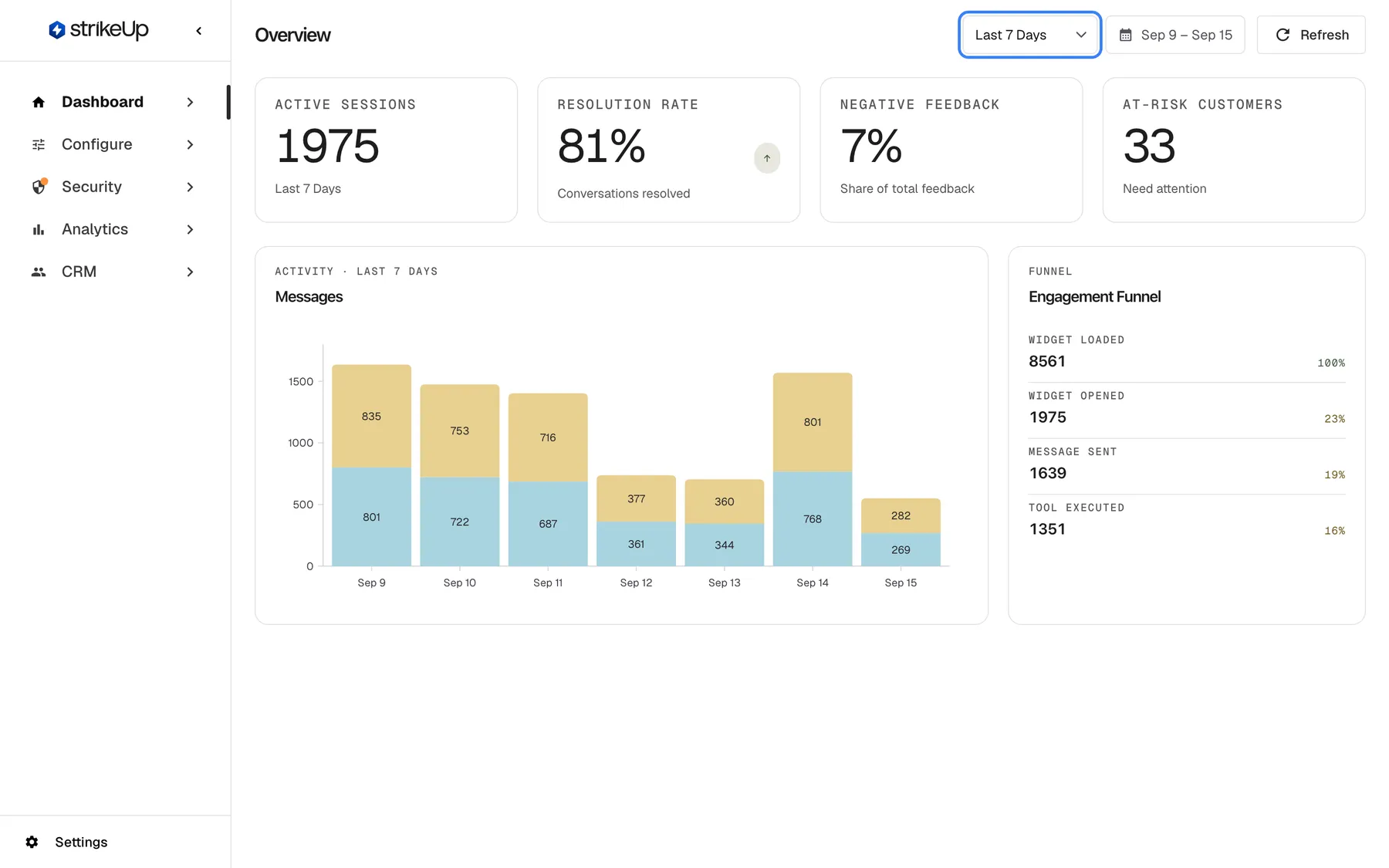
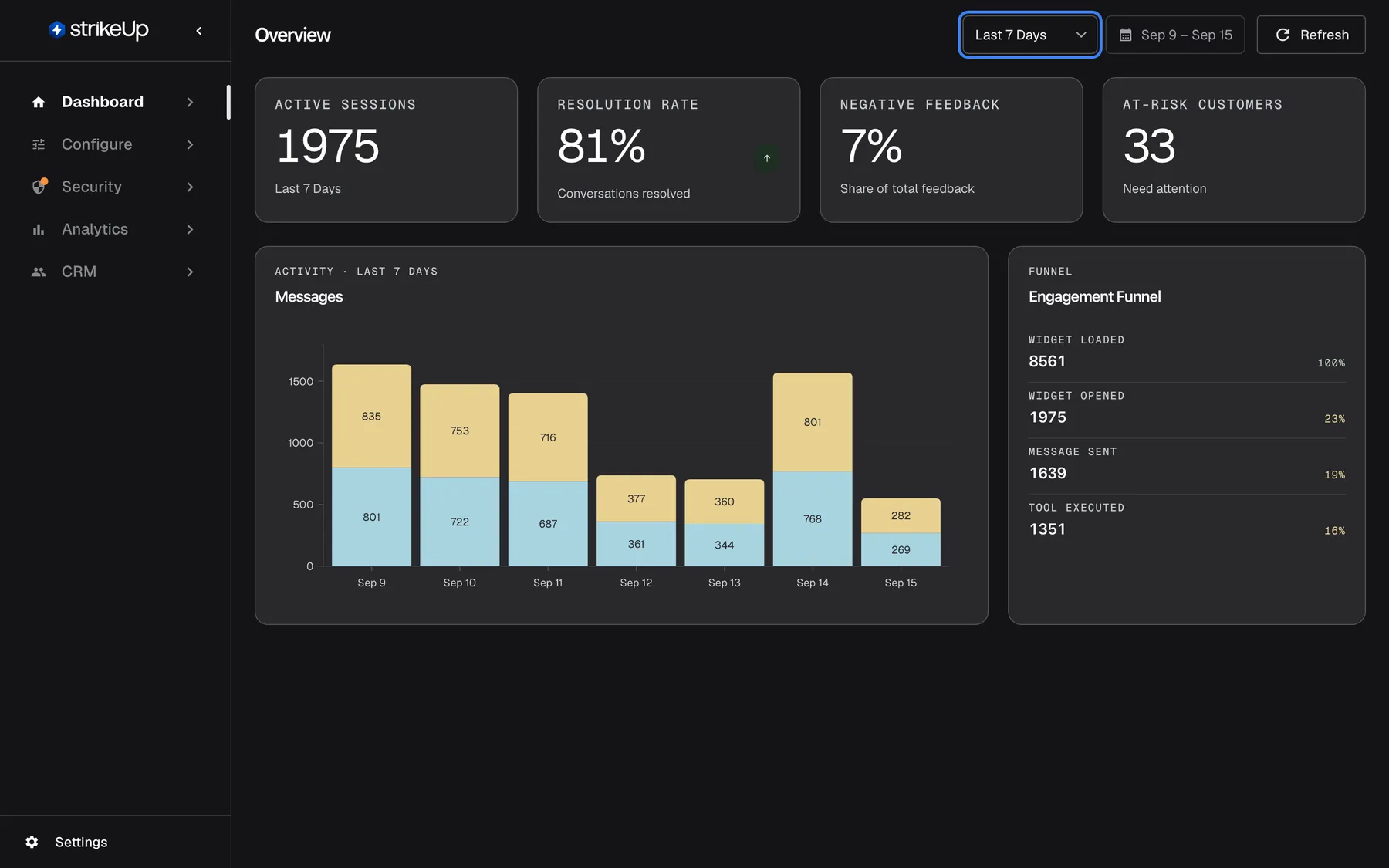
What this screenshot shows
- Screen
- Overview (/admin/dashboard/overview)
- Highlighted
- combobox “Last 7 Days”, header-right, Last 7 Days selected. switches the period to the last 7, 14 or 30 days, or to a custom range picked in the calendar
- Also visible
- KPI tiles: Active Sessions 1975, Resolution Rate 81%, Negative Feedback 7%, At-Risk Customers 33; Messages stacked bar chart, Sep 9 – Sep 15; Engagement Funnel: Widget Loaded 8561, Widget Opened 1975, Message Sent 1639, Tool Executed 1351; Sidebar: Dashboard section active
- Purpose
- the landing screen after sign-in and the shared date-range control
| Region | What it shows | What you do there |
|---|---|---|
| Header, left | The page title Overview | — |
| Header, right | The range drop-down, the calendar button with the dates in force, and Refresh | Change the period, reload the data |
| Tile row | Active Sessions, Resolution Rate, Negative Feedback, At-Risk Customers | Read the headline numbers |
| Messages, left | Visitor messages and assistant replies per day or hour | Hover a bar for the exact count |
| Engagement Funnel, right | Four widget events with their counts and percentages | Compare each stage with the first |
Change the period
Section titled “Change the period”The range applies to every tile and chart on the page, and to the other Dashboard pages too.
-
Open DashboardOverview. The page opens on the range you used last in this browser, or on Last 7 Days the first time.
-
To use a preset, open the range drop-down at the top right and pick Last 7 Days, Last 14 Days or Last 30 Days. Every tile and chart reloads straight away, and the calendar button shows the new dates.
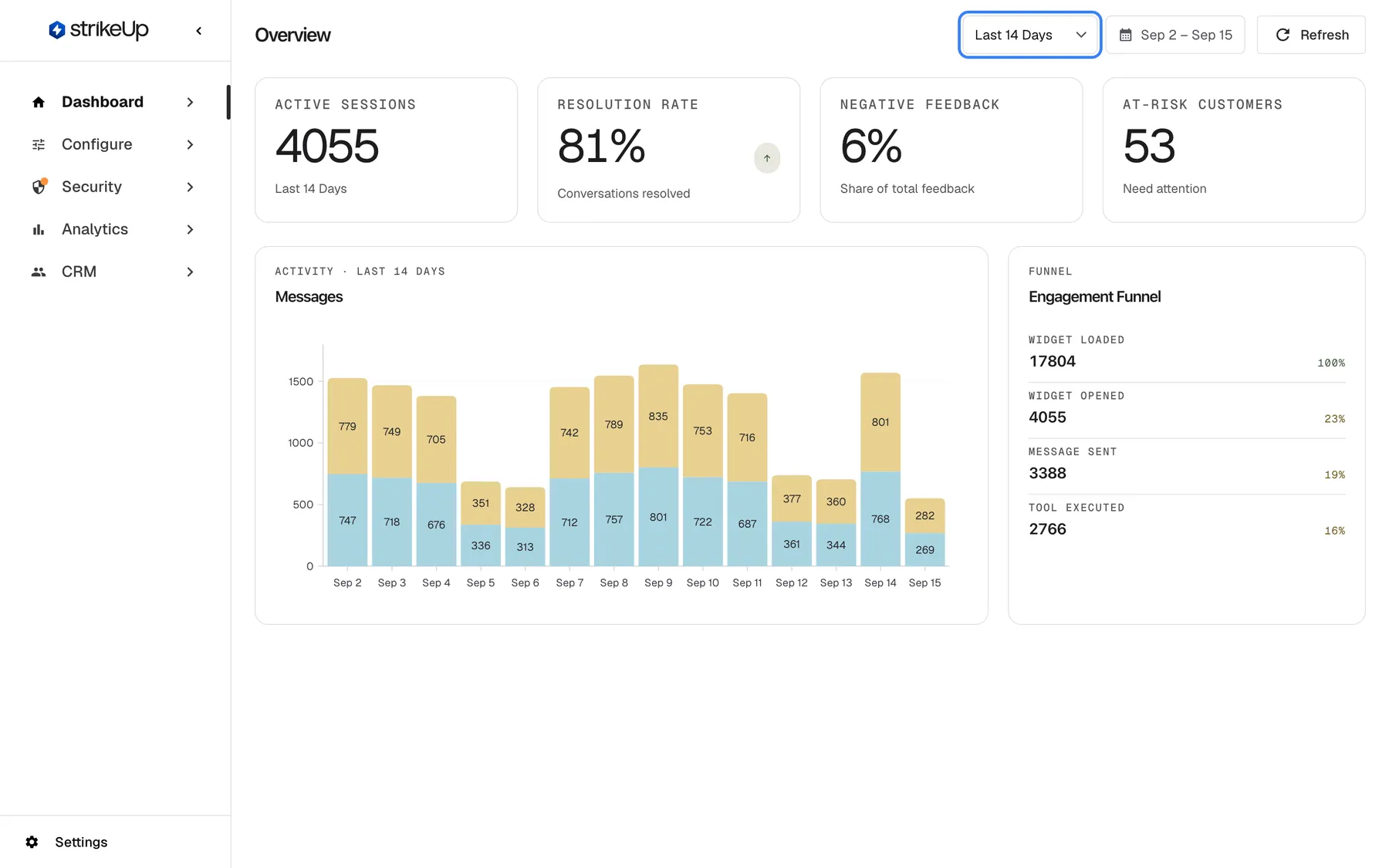
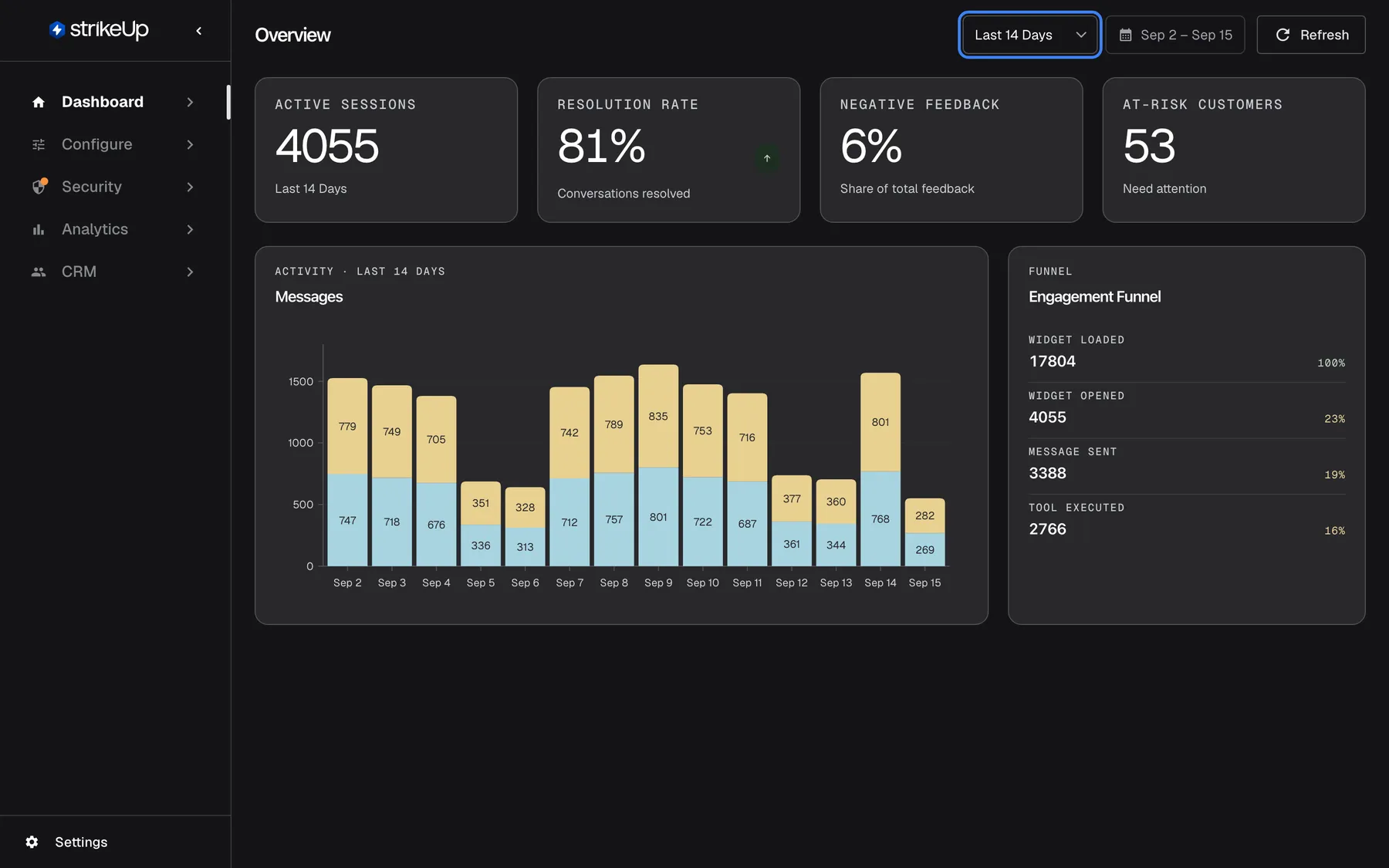
Pick Last 14 Days and every tile and chart reloads for that period; the choice carries over to the other dashboard pages. What this screenshot shows
- Screen
- Overview (/admin/dashboard/overview)
- Highlighted
- combobox “Last 14 Days”, header-right, Last 14 Days selected. reloads every tile and chart for the last 14 days and remembers the choice in this browser
- Also visible
- Calendar button: Sep 2 – Sep 15; Messages chart with 14 daily bars; KPI tiles recalculated for 14 days
- Purpose
- changing the dashboard period with a preset
-
To use your own dates, select the calendar button next to the drop-down, which shows the dates in force, such as “Sep 9 – Sep 15”. Pick the first day, then the last day. The range applies as soon as you pick the second day, and the drop-down switches to Custom.
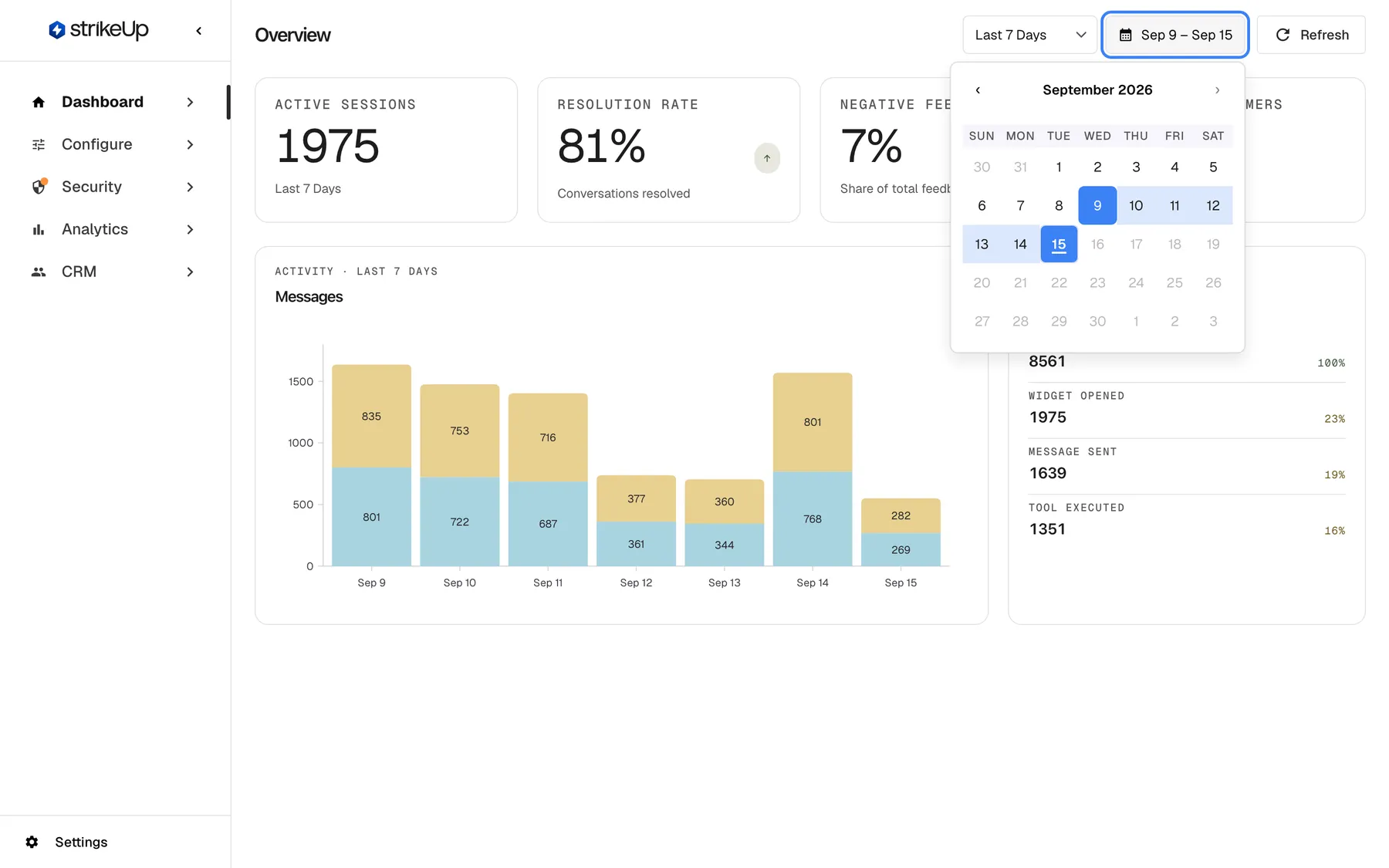
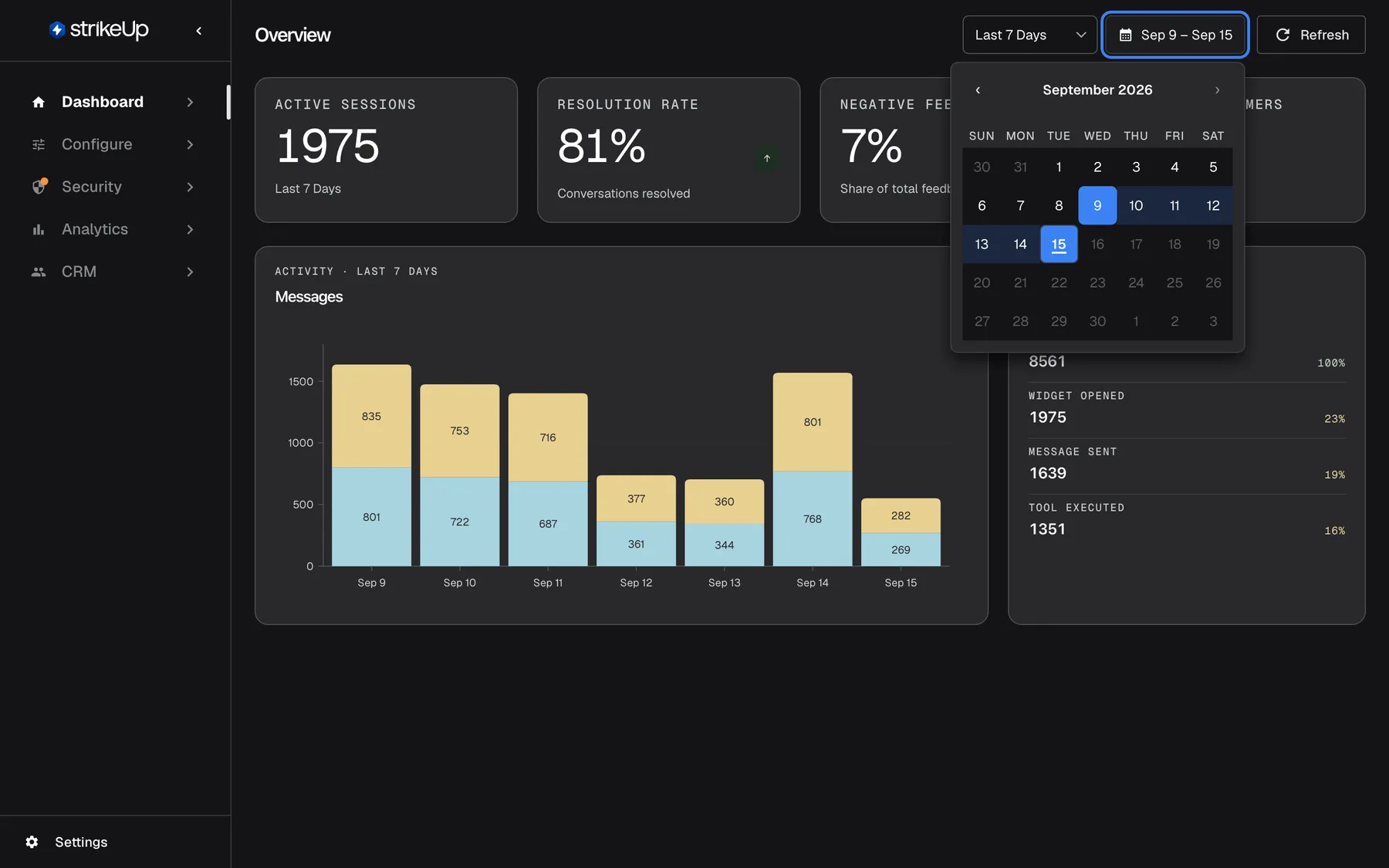
Open the calendar to pick a custom range; choose the first day, then the last day. Future days cannot be picked. What this screenshot shows
- Screen
- Overview (/admin/dashboard/overview)
- Highlighted
- button “”, header-right, expanded, calendar open. picking a start and an end day applies a custom range
- Also visible
- Calendar for September 2026 with 9–15 September selected; Days after 15 September disabled; Previous/next month arrows and a month/year switch
- Purpose
- choosing a custom date range for the dashboard
Example: to see the week of a product launch, open the calendar, pick Monday 7 September and then Sunday 13 September. The tiles now count only those seven days.
Things that surprise people:
- Choosing Custom in the drop-down does nothing on its own. The range changes only when you pick two days in the calendar.
- If you pick the later day first, StrikeUp swaps the two days for you.
- Days after today are greyed out and cannot be picked.
- A day is a UTC day, from midnight to midnight UTC. A preset such as Last 7 Days means today and the 6 days before it, worked out again every time you open the page.
- When your range covers one or two days, the message chart switches from daily to hourly bars.
Read the headline tiles
Section titled “Read the headline tiles”The four tiles summarise the range in single numbers. Each shows ”—” until its data has loaded.
| Tile | What it counts | Example |
|---|---|---|
| Active Sessions | Every “Widget Opened” event in the range: one each time the chat widget starts its chat connection for a visitor. Reconnecting after a dropped connection does not count again. It is the same number as the second stage of the engagement funnel. The line under it names the range. | 1975 in the last 7 days |
| Resolution Rate | The share of chat sessions started in the range whose visitor had at least one successful tool call in the range, rounded to a whole percent. The line under it reads Conversations resolved. | 81%: 81 of every 100 new sessions belong to a visitor with a successful API call |
| Negative Feedback | Thumbs-down votes divided by all votes on assistant replies in the range, rounded to a whole percent. | 7%: 7 of every 100 votes were thumbs-down |
| At-Risk Customers | Every customer with a chat message in the range whose health score is below 80, that is with the status At Risk or Churning. | 33 customers |
How the tiles behave:
- Active Sessions counts events, not people. A visitor who opens the chat on three pages counts three times.
- Resolution Rate is about tool calls, not about whether the question was answered. A session counts when its visitor had any successful tool call in the range, even one made in another of that visitor’s sessions. A conversation the assistant answered from your knowledge base, without calling your API, does not count. With no sessions in the range, the tile shows 0%.
- The arrow on Resolution Rate is a threshold, not a trend. It points up at 50% and above, and down below 50%, whatever the previous period was.
- Negative Feedback shows 0% when nobody voted. Check the feedback chart on Performance to tell “no complaints” from “no votes”.
- At-Risk Customers counts everyone active in the range. The customer table on Performance lists only the ten highest scores, so most of the customers counted here are not in that table. How the score is worked out is on the Performance page.
Follow message activity
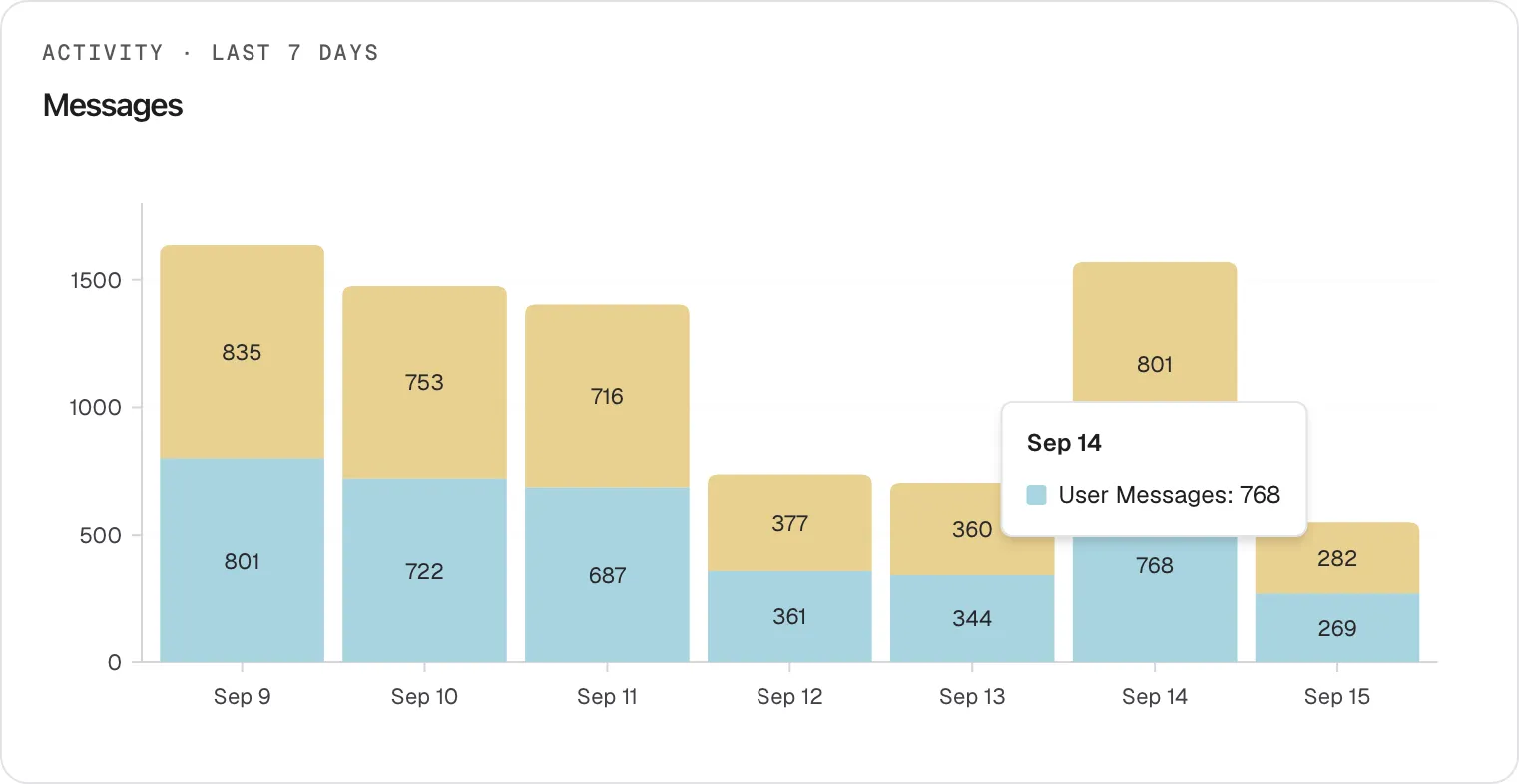
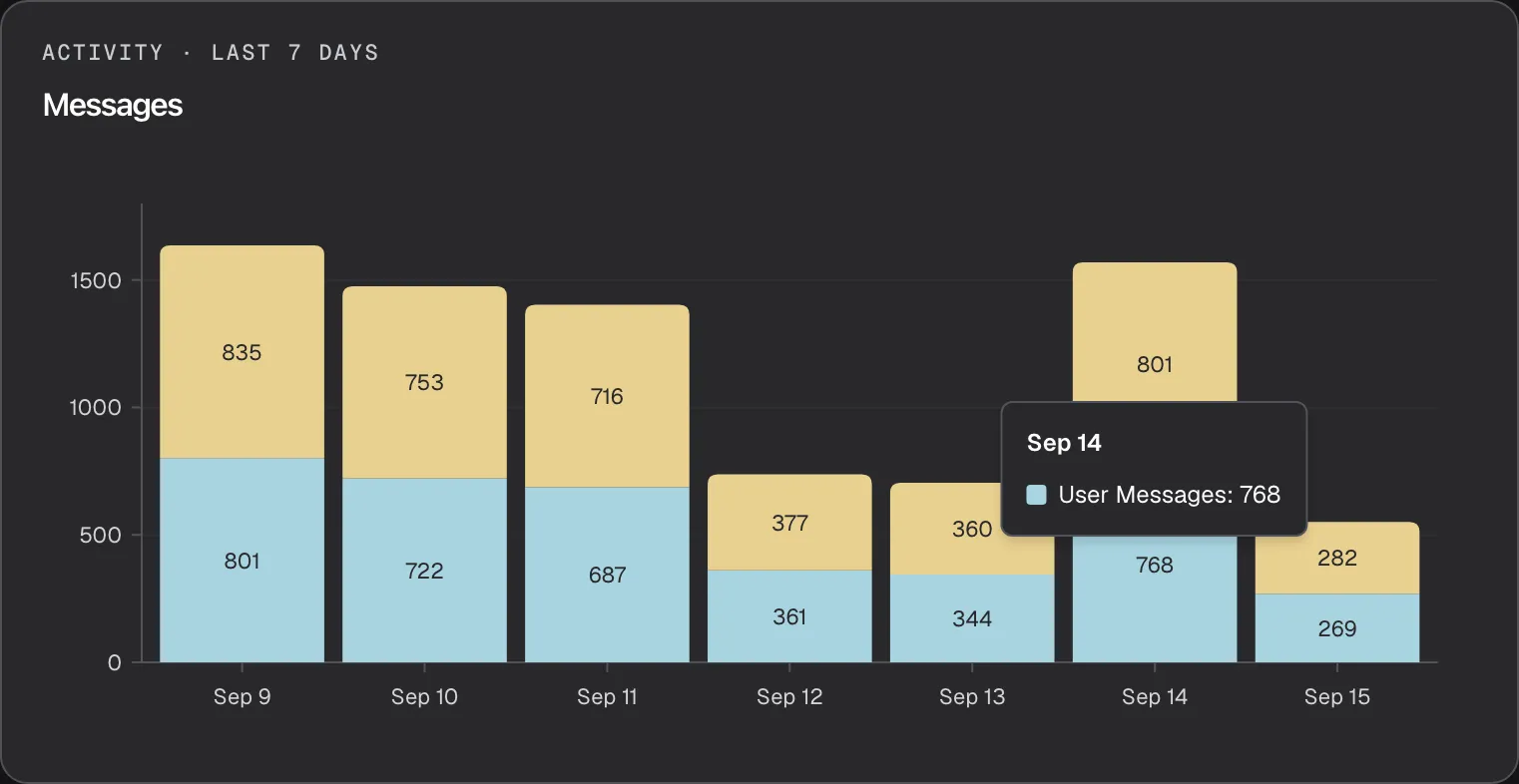
Section titled “Follow message activity”The Messages chart stacks two series for each day: messages your visitors sent (blue, at the bottom) and replies from the assistant (yellow, on top). The count is printed inside each part of a bar.
What this screenshot shows
- Screen
- Overview (/admin/dashboard/overview)
- Highlighted
- tooltip “”, messages-card, tooltip shown for Sep 14. shows the day, series and exact count of the hovered bar segment
- Also visible
- Stacked bars Sep 9 – Sep 15: User Messages (blue) and Assistant Messages (yellow); Tooltip: Sep 14, User Messages: 768; Series names are shown in English in every language
- Purpose
- reading exact values in the Messages chart
- Hover any part of a bar. A tooltip shows the day, the series and the exact count, such as “Sep 14” and
User Messages: 768. - Compare the two parts. They are usually close, because the assistant answers each visitor message; a much shorter yellow part means visitors wrote without getting replies.
The chart counts every stored chat message from visitors and from the assistant, in every chat of the range. System and tool messages are not counted. The series names, User Messages and Assistant Messages, are in English in every language. For a range of one or two days the bars are hourly, and the labels show your local time. A day with no messages shows as an empty slot, not as a gap in the axis.
Read the engagement funnel
Section titled “Read the engagement funnel”The Engagement Funnel card follows visitors from the moment the widget appears on a page to the moment the assistant calls your API. Each stage shows its event count in the range and its share of the first stage.
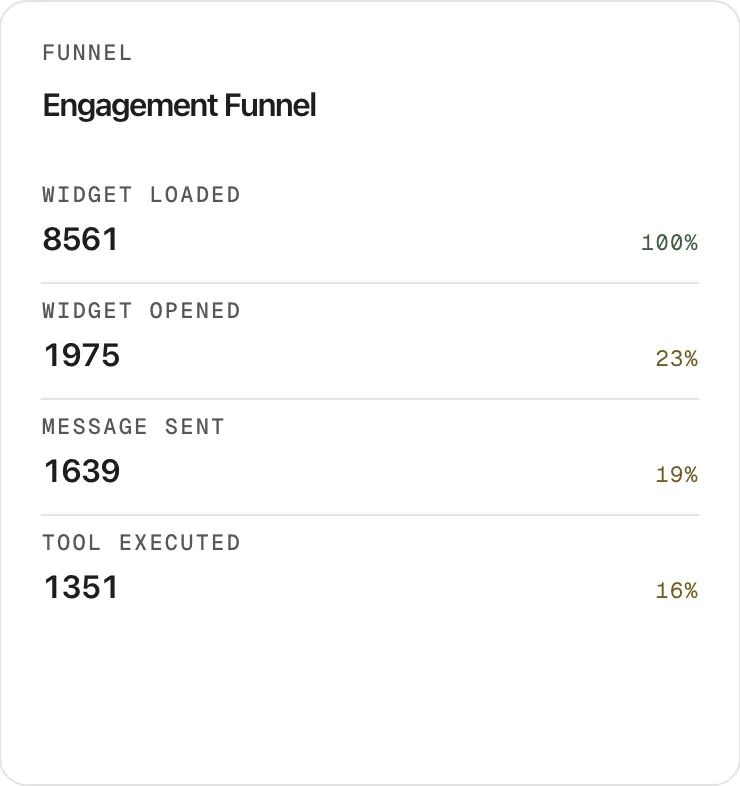
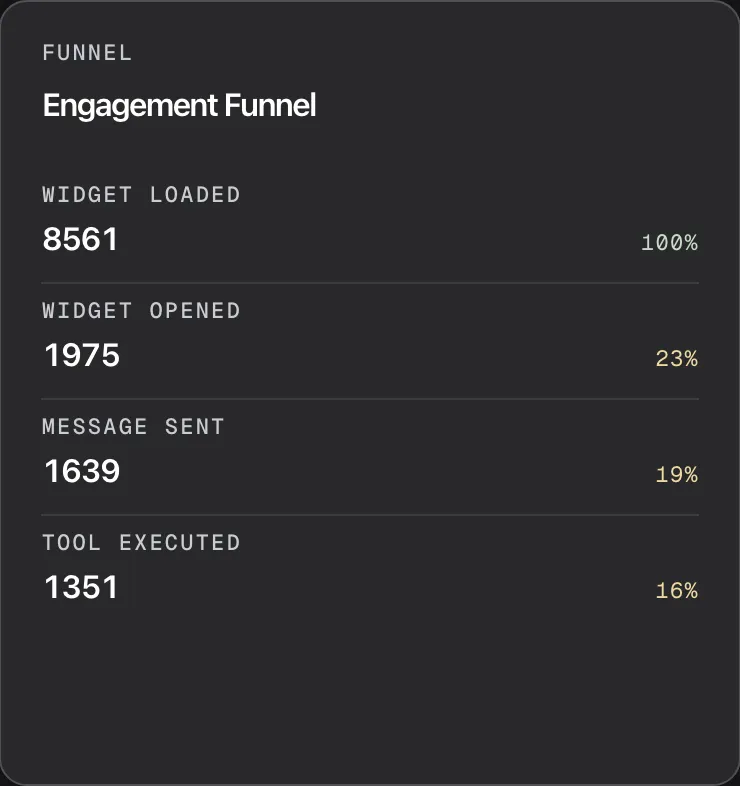
What this screenshot shows
- Screen
- Overview (/admin/dashboard/overview)
- Highlighted
- heading “Engagement Funnel”, funnel-card, loaded with the last 7 days. read-only
- Also visible
- Widget Loaded 8561 (100%); Widget Opened 1975 (23%); Message Sent 1639 (19%); Tool Executed 1351 (16%); Stage names are English in every language
- Purpose
- explaining the engagement funnel stages and percentages
| Stage (shown in English) | One event is counted when | Example count and share |
|---|---|---|
| “Widget Loaded” | The widget is loaded on a page and checks its access token | 8561 · 100% |
| “Widget Opened” | The widget starts its chat connection for a visitor; reconnects do not count | 1975 · 23% |
| “Message Sent” | A visitor sends a message | 1639 · 19% |
| “Tool Executed” | The assistant runs a tool, that is calls one of your API endpoints, in a chat | 1351 · 16% |
How to read it:
- Every percentage compares with “Widget Loaded”, not with the stage just above it. In the example, 1639 ÷ 8561 = 19%.
- Percentages above 50% are green, the others amber.
- Counts are events, not people. One visitor who sends five messages adds five to “Message Sent”. A stage can therefore be larger than the one above it, and its percentage can go over 100%, for example when visitors send many messages per opened chat.
- When “Widget Loaded” is 0, every percentage shows 0%.
- With no widget traffic in the range, the card shows four stages with 0 rather than an empty message.
Refresh the numbers
Section titled “Refresh the numbers”Select Refresh at the top right. Every tile and chart fetches its data again for the same range, and each card shows a small spinner while it reloads. The page has no automatic refresh: it shows the data as it was when you opened it, selected Refresh or changed the range.
Every control, explained
Section titled “Every control, explained”Range drop-down
Section titled “Range drop-down”The first control at the top right of the page. It changes the range the moment you pick an option; there is nothing to save.
Offers Last 7 Days (the default), Last 14 Days, Last 30 Days and Custom. A preset always ends today and is worked out again each time you open the page. Custom shows when you have picked your own dates; picking it yourself does nothing until you choose dates in the calendar. The choice is stored in this browser and applies on Usage, Performance and AI Spend too.
Most questions are about “lately”. The presets answer them in one click and keep moving with the calendar, so a bookmark always shows the current week.
Calendar button
Section titled “Calendar button”Next to the range drop-down. Its label is the range in force, such as “Sep 9 – Sep 15”, in English date format in every language.
Opens a month calendar. Pick a first and a last day; both are included. The range applies when you pick the second day. Arrows move between months, and the month name opens a month and year view for jumping further back. Days after today are greyed out. There is no earliest date and no maximum length.
Use it to look at a specific period, such as a launch week or the month before a contract renewal.
Refresh
Section titled “Refresh”The Refresh button at the top right.
Fetches every tile and chart again for the same range. Each card shows a spinner while it reloads. The button’s own spinner stops almost at once; the card spinners show the real progress.
The page does not update on its own. Refresh after a test chat or a busy hour to see the latest figures.
Ask strikeUp button
Section titled “Ask strikeUp button”At the top right, before the range drop-down, only when the StrikeUp assistant built into the admin app is set to open from buttons on the page. It is labelled Ask strikeUp.
Opens the assistant with an opening message that offers to summarise what stands out on the dashboard or to dig into one metric. When the built-in assistant opens another way, the button is not shown.
A quick way to ask what a number means without leaving the page.
Headline tiles
Section titled “Headline tiles”| Tile | What it shows | Why |
|---|---|---|
| Active Sessions | “Widget Opened” events in the range, with the range name below | A quick measure of how often visitors start a chat |
| Resolution Rate | Sessions started in the range whose visitor had a successful tool call, as a whole percent, with an up arrow at 50% or more and a down arrow below | Shows whether visitors get to the point where the assistant acts in your product |
| Negative Feedback | Thumbs-down votes as a share of all votes, whole percent; 0% when there are no votes | An early sign that answers are getting worse |
| At-Risk Customers | Customers active in the range with a health score below 80 | Tells you how many customers to look at on Performance |
Messages chart
Section titled “Messages chart”The wide card under the tiles, headed Activity and the range name, titled Messages.
Stacked bars per UTC day, or per hour for a range of one or two days: visitor messages in blue, assistant replies in yellow. Hover a bar part for its exact count. Day labels use the English month format in every language.
Shows when your visitors are busiest and whether every visitor message got a reply.
Engagement funnel
Section titled “Engagement funnel”The narrow card to the right of the message chart, headed Funnel and titled Engagement Funnel.
Four stages, “Widget Loaded”, “Widget Opened”, “Message Sent” and “Tool Executed”, in English in every language. Each has its event count and its share of “Widget Loaded”, green above 50% and amber otherwise. Nothing on the card is clickable.
Shows where visitors drop off: a widget that loads but is rarely opened needs a better trigger or position; chats that rarely reach a tool call may need better skills or toolkit descriptions.
What you need to know
Section titled “What you need to know”| Topic | Fact |
|---|---|
| Read-only | Nothing on this page changes your setup or what visitors see. |
| Who sees it | Every signed-in user of your workspace, whatever their role. End customers never see it. |
| Range is per browser | The range is stored in your browser, not in your account. Colleagues and your other devices keep their own. |
| UTC days | Each day starts and ends at midnight UTC. If you are west of UTC, day labels read one day earlier than the UTC day they count, and messages from late in your evening count towards the next day. |
| Live data | Every load, range change and refresh reads the current data. Nothing is cached or stored as a snapshot. |
| Counting | The funnel and Active Sessions count events; At-Risk Customers counts customers; Resolution Rate counts sessions. |
| Sample data | If StrikeUp has added sample records to your workspace for a demonstration, they are counted on this page. |
| Cost | Viewing the page makes no requests to AI models and costs nothing. |
Frequently asked questions
Section titled “Frequently asked questions”The tiles
Section titled “The tiles”Why is Active Sessions higher than the number of conversations I see?
Section titled “Why is Active Sessions higher than the number of conversations I see?”Active Sessions on DashboardOverview counts every “Widget Opened” event in the range, one each time the chat widget starts its chat connection for a visitor. It counts events, not people or conversations, so a visitor who opens the chat on several pages is counted on each.
What does Resolution Rate mean?
Section titled “What does Resolution Rate mean?”Resolution Rate is the share of chat sessions started in the range whose visitor had at least one successful tool call, that is a successful call to one of your API endpoints, in the same range. It does not record whether a person confirmed the question was solved, and answers given without calling your API do not count.
Why is the arrow on Resolution Rate pointing down when the rate went up?
Section titled “Why is the arrow on Resolution Rate pointing down when the rate went up?”The arrow on the Resolution Rate tile does not compare periods. It points up whenever the rate is 50% or more and down whenever it is below 50%, so a rise from 30% to 40% still shows a down arrow.
How is Negative Feedback worked out?
Section titled “How is Negative Feedback worked out?”Negative Feedback divides the thumbs-down votes on assistant replies in the range by all thumbs-up and thumbs-down votes in the range, and rounds to a whole percent. Each visitor can vote once per reply. When nobody voted, the tile shows 0%.
Who counts as an at-risk customer?
Section titled “Who counts as an at-risk customer?”At-Risk Customers counts every customer who sent a chat message in the range and whose health score is below 80, that is everyone with the status At Risk (50 to under 80) or Churning (under 50). The score and the customer table are on DashboardPerformance.
Why are my at-risk customers not in the table on Performance?
Section titled “Why are my at-risk customers not in the table on Performance?”The Customer Health Scores table on DashboardPerformance lists only the ten customers with the highest scores. The At-Risk Customers tile counts every customer active in the range, so most of the customers it counts do not appear in that table.
The charts
Section titled “The charts”Why do the funnel percentages go over 100%?
Section titled “Why do the funnel percentages go over 100%?”Each stage of the Engagement Funnel counts events, and every percentage compares the stage with “Widget Loaded”. When visitors send several messages per loaded widget, “Message Sent” can be larger than “Widget Loaded”, and its percentage goes over 100%.
Why are the funnel stage and series names in English?
Section titled “Why are the funnel stage and series names in English?”The stage names in the Engagement Funnel and the series names User Messages and Assistant Messages in the Messages tooltip come from the server in English, so they read the same in every language the admin app offers. Chart dates also always use the English month format.
Why do the day labels look one day off?
Section titled “Why do the day labels look one day off?”The Dashboard counts UTC days, from midnight to midnight UTC. Day labels are shown in your browser’s time zone, so if you are west of UTC, such as in the Americas, each label reads one day earlier than the UTC day it counts. East of UTC the labels match.
The date range
Section titled “The date range”Is my date range shared with my colleagues?
Section titled “Is my date range shared with my colleagues?”No. The range you pick on DashboardOverview is stored in your browser only. It follows you to the other Dashboard pages and is still set next time in the same browser, but colleagues and your other devices keep their own range.
Why can’t I pick tomorrow’s date?
Section titled “Why can’t I pick tomorrow’s date?”The calendar on every Dashboard page greys out days after today, because there is no data for them yet. If you are west of UTC, the last hours of your local evening already belong to the next UTC day and appear once that day can be picked.
How often does the Overview update?
Section titled “How often does the Overview update?”DashboardOverview reads live data when you open it, change the range or select Refresh. It has no automatic refresh, so a page left open shows the figures from the moment it last loaded.
Can I click a tile to see the detail?
Section titled “Can I click a tile to see the detail?”No. The tiles and the funnel on DashboardOverview are not clickable. For detail, go to DashboardPerformance for customer health and feedback, or to AnalyticsFeedback for the individual votes.
Data and privacy
Section titled “Data and privacy”Who can see the Overview page?
Section titled “Who can see the Overview page?”Every signed-in user of your workspace can open DashboardOverview, whatever their role, and no feature flag hides it. Your end customers never see the Dashboard; they only see the chat widget.
Does opening the Dashboard cost anything?
Section titled “Does opening the Dashboard cost anything?”No. The Overview page only reads counts from your workspace’s data. It makes no requests to AI models, so it adds nothing to the estimated cost shown on DashboardAI Spend.
Troubleshooting
Section titled “Troubleshooting”| Symptom | What to check |
|---|---|
| A Request failed message appears and tiles stay at ”—” | Select Refresh. If it happens again, sign out and in again, because your session may have expired. If it persists, the service may be unavailable; try again in a few minutes. |
| Every tile is 0 and the funnel shows four zeros | Check that the widget is embedded on a live page (ConfigureEmbed) and that visitors used it in the range. Widen the range to Last 30 Days. |
| Today’s latest chats are missing | If you are west of UTC, the last hours of your local evening already belong to the next UTC day. They appear tomorrow, when that day is in the range. |
| Resolution Rate is 0% although chats took place | The tile counts only sessions whose visitor had a successful tool call. Check AnalyticsTool runs for failed or missing API calls in the range. |
| Negative Feedback shows 0% | Either nobody voted, or every vote was positive. Check the feedback chart on DashboardPerformance. |