

Suggestions
The Suggestions page collects everything StrikeUp proposes to improve your assistant. StrikeUp reads past conversations, finds what visitors keep needing and where the assistant struggles, and proposes a remedy for each: a shortcut, a new skill, an addition to a skill, a change to a tool, a knowledge gap to fill or a scheduled workflow. Masking rules for sensitive fields found in your toolkits are listed here too. Nothing changes until you accept a suggestion. Open the page from ConfigureSuggestions.
What you can do here
Section titled “What you can do here”- See what visitors keep needing. Suggestions are grouped by need, with the evidence behind each: sessions, people, refusals, retries and corrections. Read the needs.
- Accept a remedy. Each kind does something different when accepted, from creating a shortcut to switching a tool on. Accept a suggestion.
- Review a new skill before it is created. Skill suggestions open a dialog where you edit the name, trigger and instructions first. Accept a suggestion · Skills.
- Switch off a tool that keeps failing. Defects list tools that return nothing or fail for several people, with a one-click switch-off. Deal with defects.
- Approve masking rules. Turn proposed masking rules for sensitive fields into active rules. Approve masking rules · Data masking.
- Change your mind. Dismiss what does not fit, and restore a dismissed or accepted suggestion to pending. Dismiss and restore.
The screen at a glance
Section titled “The screen at a glance”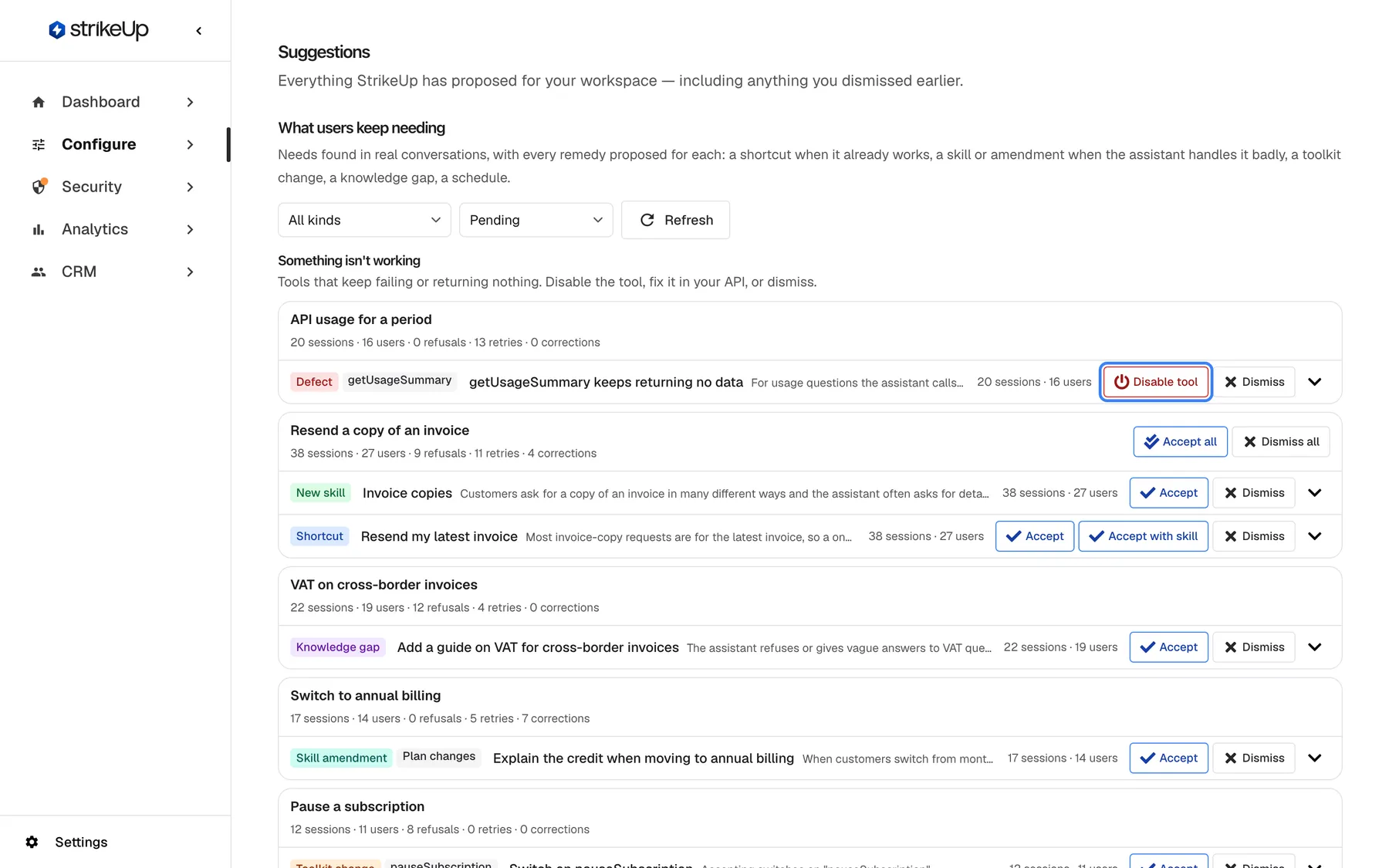
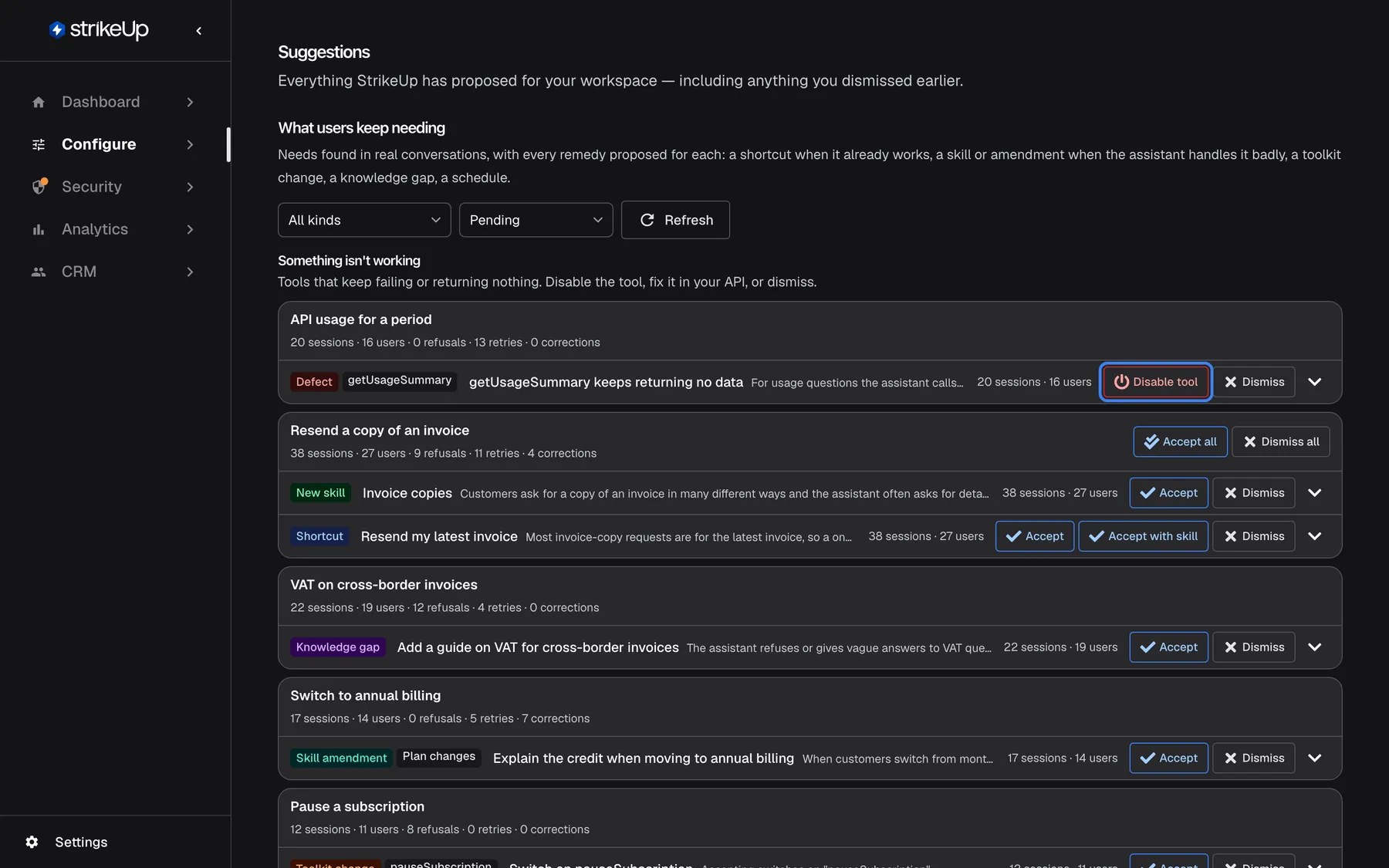
What this screenshot shows
- Screen
- Suggestions (/admin/suggestions)
- Highlighted
- button “Disable tool”, defects-section, enabled. switches off the getUsageSummary tool that keeps returning no data
- Also visible
- Filters All kinds and Pending, Refresh; Defect: getUsageSummary keeps returning no data, Disable tool, Dismiss; Need group Resend a copy of an invoice with Accept all, Dismiss all, New skill and Shortcut rows; Knowledge gap, Skill amendment and Toolkit change rows
- Purpose
- entry point of the Suggestions page
| Region | What it shows | What you do there |
|---|---|---|
| Header | Suggestions and Everything StrikeUp has proposed for your workspace — including anything you dismissed earlier. | — |
| What users keep needing | Filters for kind and status, and Refresh | Narrow the list |
| Something isn't working | Tools that keep failing or returning nothing, listed first | Switch a tool off, or dismiss |
| Need groups | One block per need, with its evidence line and one row per proposed remedy | Accept, dismiss, open the details |
| Masking rule suggestions | Proposed masking rules with rule, field and toolkit | Approve or dismiss |
Read the needs
Section titled “Read the needs”StrikeUp’s analysis looks at the summaries of past chat sessions and groups them into needs, such as Resend a copy of an invoice. It weighs how much friction each need caused: the assistant refusing, the visitor retrying, the visitor correcting the assistant. A need is only proposed once it involves at least 2 different people and enough friction, and at most 10 needs are added per run. The AI writes only the wording of each suggestion.
Each group shows the need and its evidence, such as {{sessions}} sessions · {{users}} users · {{refusals}} refusals · {{retries}} retries · {{corrections}} corrections filled in as “38 sessions · 27 users · 9 refusals · 11 retries · 4 corrections”. Under it are the remedies proposed for that need, each with a kind badge:
| Kind | When it is proposed |
|---|---|
| Shortcut | The need already works but takes typing: at least 3 sessions from at least 2 people, and no shortcut or shortcut card covers it |
| New skill | The assistant handles the need badly and no skill covers it |
| Skill amendment | An existing skill covers the need but misses something |
| Toolkit change | A tool that would help is switched off, asks for approval needlessly, or its schema needs a look |
| Knowledge gap | Visitors ask questions your knowledge base cannot answer |
| Schedule | One person asks for the same thing on the same weekday again and again: at least 4 times, on that weekday in at least 60% of cases |
| Defect | A tool returned nothing or failed for at least 3 people, or in at least 3 loops |
Select Show details on a row to see What accepting does: the exact text, skill or change it would create, Why it is proposed and quotes of what visitors typed and The assistant said.
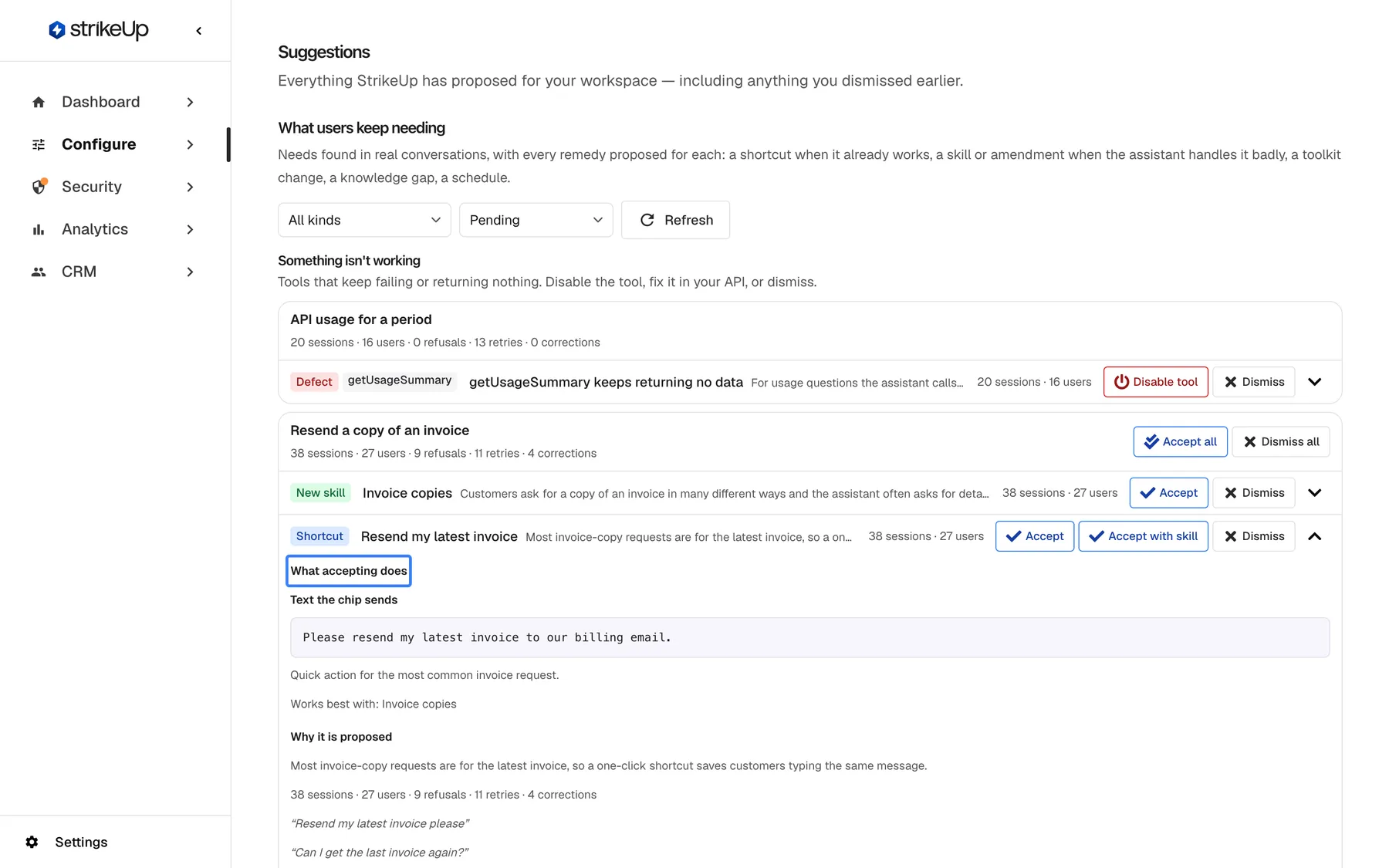
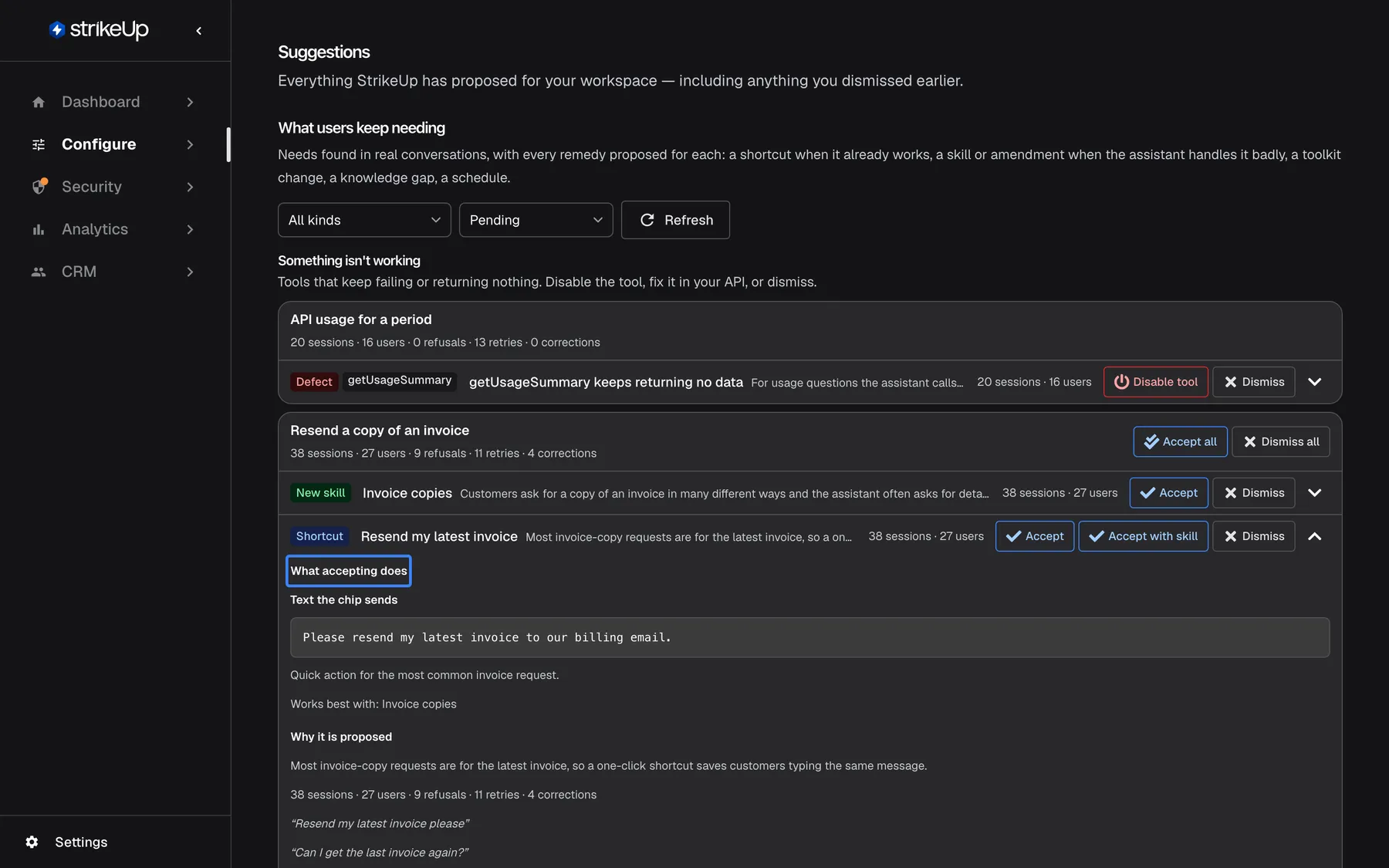
What this screenshot shows
- Screen
- Suggestions (/admin/suggestions)
- Highlighted
- heading “What accepting does”, suggestion-row-details, details expanded. none (section heading of the preview)
- Also visible
- Text the chip sends: Please resend my latest invoice to our billing email.; Works best with: Invoice copies; Why it is proposed, evidence line and customer quotes; Accept, Accept with skill, Dismiss
- Purpose
- reviewing a suggestion before accepting it
Filter by kind with All kinds and by status with Pending, Dismissed or Accepted. With nothing in a state, the list reads Nothing in this state..
Accept a suggestion
Section titled “Accept a suggestion”Select Accept on a row. What happens depends on the kind:
| Kind | Effect of accepting |
|---|---|
| Shortcut | Creates an active prompt shortcut for all your widgets, or for one business customer when the suggestion was found there. Message: Shortcut created |
| New skill | Opens Review the new skill, where you edit the skill first. Create skill creates it |
| Skill amendment | Opens a dialog showing the section to append. Apply amendment adds it to the skill’s instructions and keeps a copy of the previous version |
| Toolkit change | Switches the tool on, or stops it asking for approval, or only records that you reviewed its schema. The row’s details say which before you accept |
| Knowledge gap | Records your decision only: Noted — add the source in Knowledge Base |
| Schedule | Records your decision only: Noted — set it up under Workflows. Times are in UTC |
| Defect | Disable tool switches the tool off |
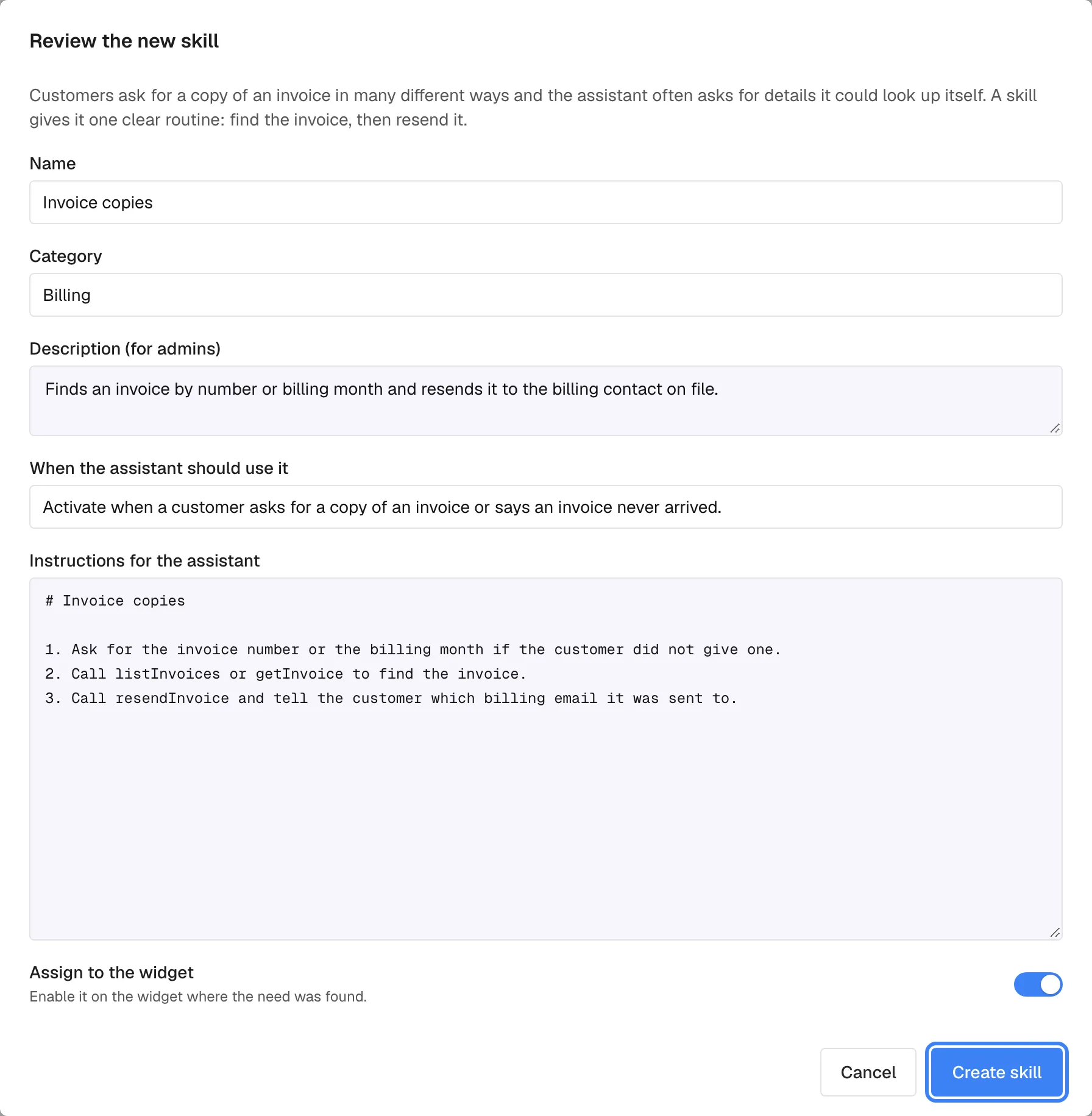
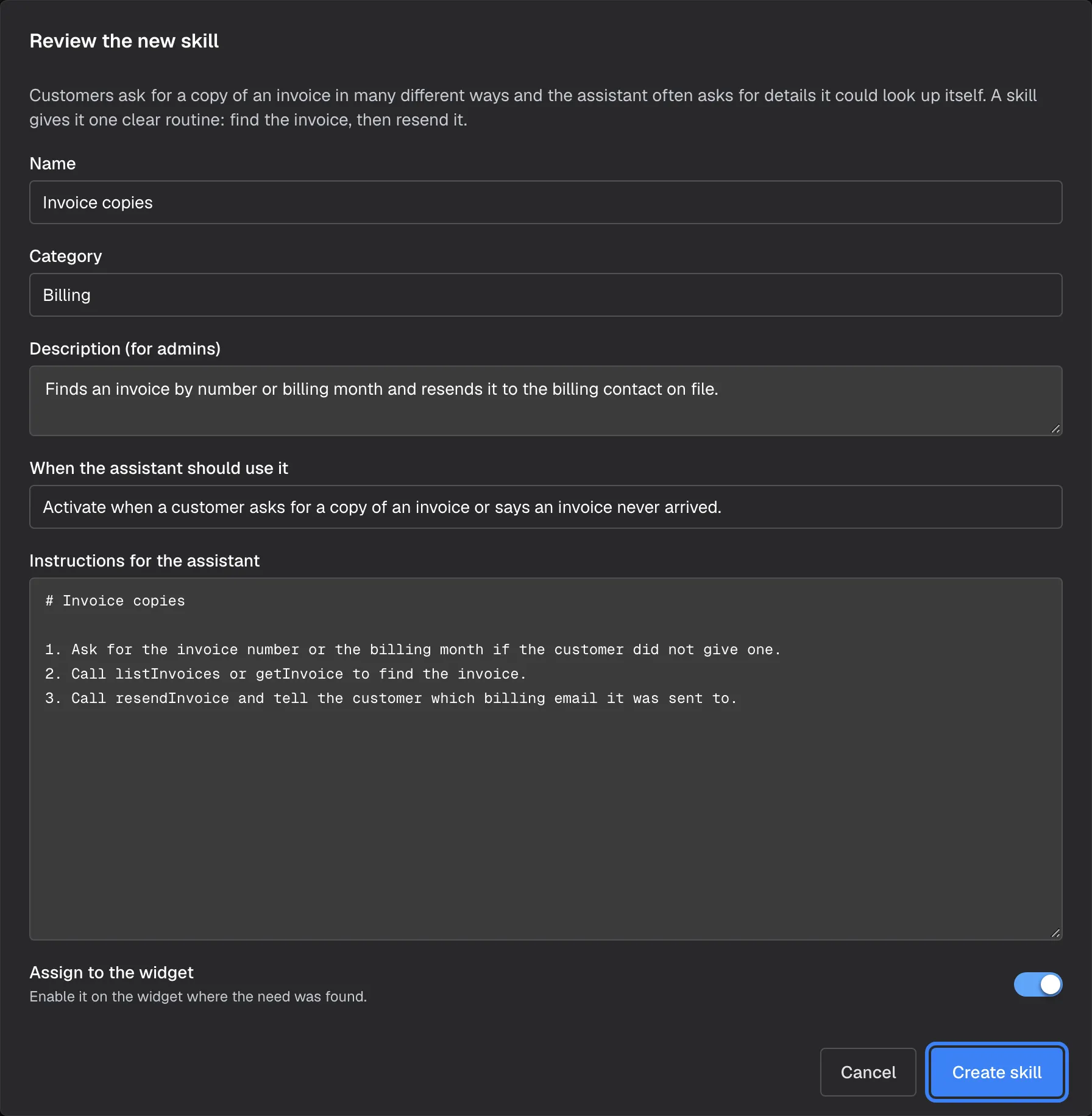
What this screenshot shows
- Screen
- Suggestions (/admin/suggestions)
- Highlighted
- button “Create skill”, dialog-footer, enabled. creates the skill and, with Assign to the widget on, enables it on the widget where the need was found
- Also visible
- Name Invoice copies, Category Billing; When the assistant should use it: Activate when a customer asks for a copy of an invoice or says an invoice never arrived.; Instructions with three steps; Assign to the widget: on
- Purpose
- turning a skill suggestion into a real skill
The skill dialog lets you change Name, Category, Description (for admins), When the assistant should use it and Instructions for the assistant. Assign to the widget is on by default and switches the new skill on for the widget where the need was found. Read the instructions before you create the skill: the assistant follows them as written.
Two more ways to accept:
- Accept with skill on a shortcut that depends on a new skill ("Works best with: {{skill}}") opens the skill dialog first, then creates the shortcut.
- Accept all on a group with more than one pending suggestion accepts them one after another. Skills are then created without the review dialog.
A shortcut or skill name already in use stops the acceptance with “A shortcut named ’…’ already exists. Rename it before accepting.” or “A skill named ’…’ already exists. Rename it before accepting.” Rename the existing one, then accept again.
Did it help? About 14 days after you accept a suggestion, once at least 3 more sessions have taken place, the row shows After acceptance: {{delta}} friction per session over {{sessions}} sessions: how the friction in each session changed for that need.
Deal with defects
Section titled “Deal with defects”Something isn't working lists tools that keep failing or returning nothing, such as “getUsageSummary keeps returning no data”, above all other suggestions. Each shows how often the tool returned nothing and how often it failed.
- Disable tool switches the tool off, so the assistant stops calling it. The message Tool disabled confirms it. Switch it on again on ConfigureToolkits once your API is fixed.
- Dismiss keeps the tool as it is.
Approve masking rules
Section titled “Approve masking rules”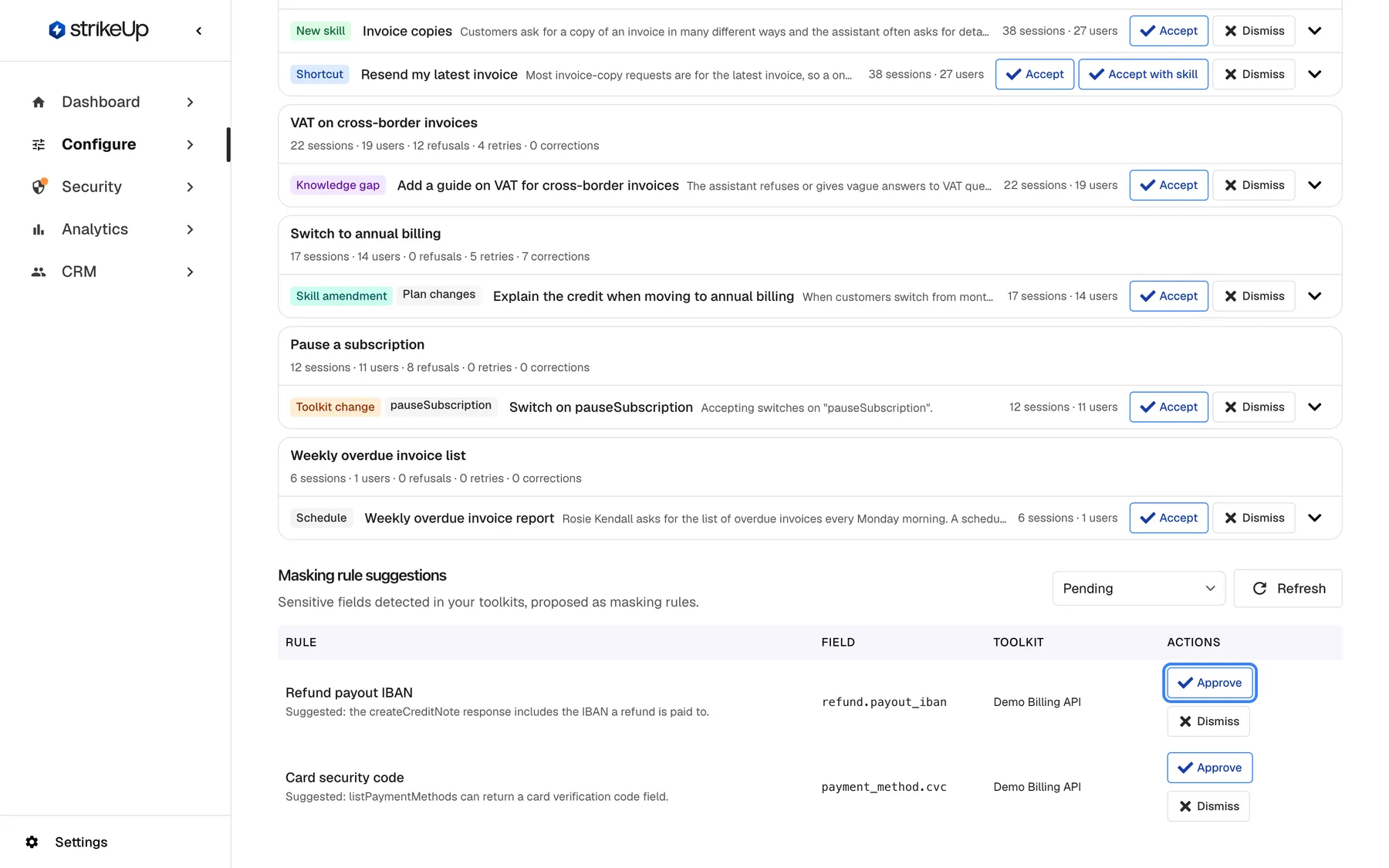
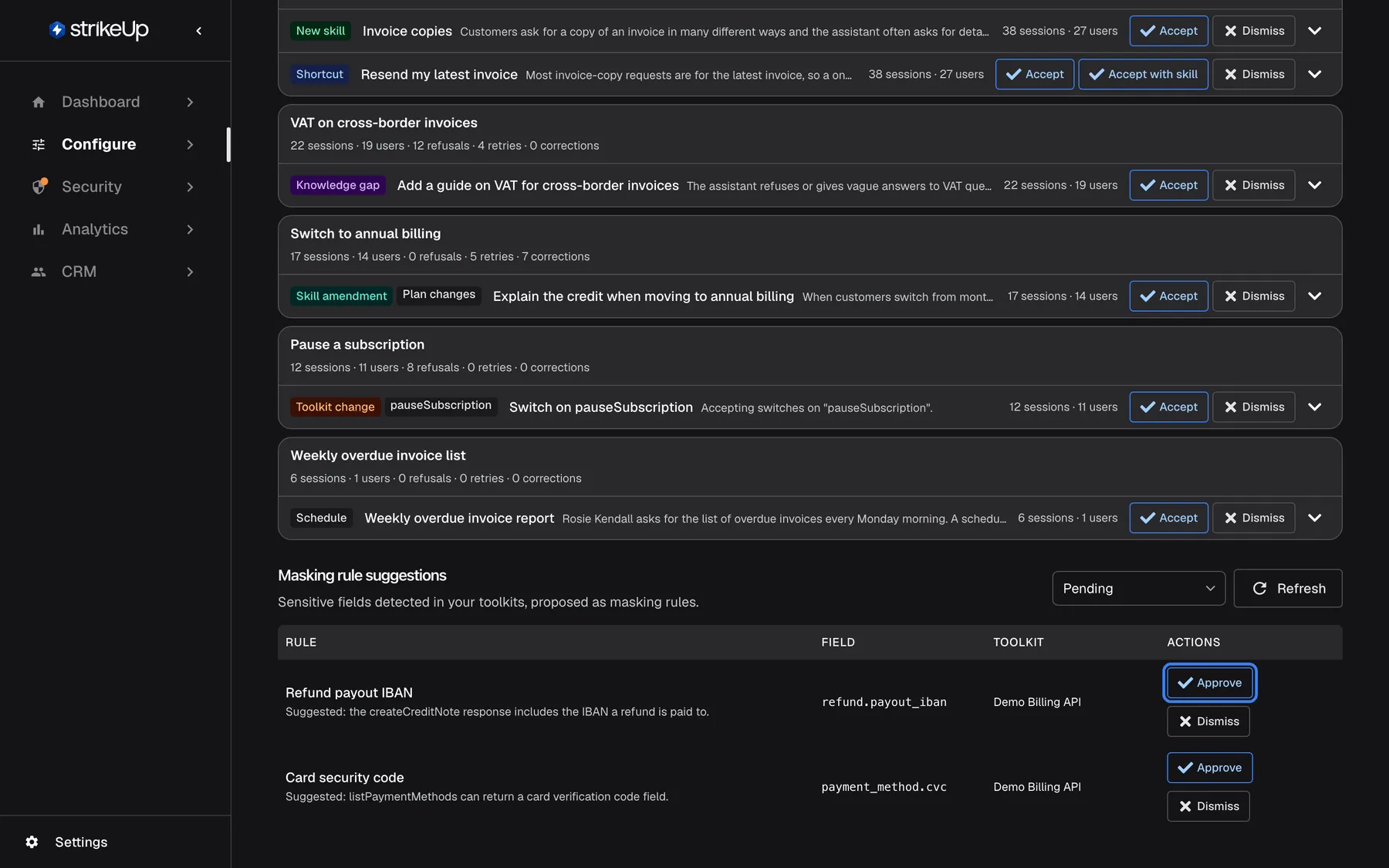
What this screenshot shows
- Screen
- Suggestions (/admin/suggestions)
- Highlighted
- button “Approve”, masking-table-actions, enabled. turns the Refund payout IBAN suggestion into an active masking rule
- Also visible
- Refund payout IBAN — refund.payout_iban — Demo Billing API; Card security code — payment_method.cvc — Demo Billing API; Status filter and Refresh
- Purpose
- reviewing sensitive-field masking proposals
When a toolkit is imported, StrikeUp looks for fields that look sensitive, such as an IBAN or a card security code, and proposes a masking rule for each. They wait under Masking rule suggestions, switched off.
| Button | What happens |
|---|---|
| Approve | The rule becomes an ordinary active masking rule and leaves this list. Message: Masking rule approved |
| Dismiss | The rule is kept, switched off, under the dismissed status |
| Restore | A dismissed rule goes back to pending |
The Toolkit column reads All toolkits for a rule that applies to every toolkit. Approved rules are managed on Data masking.
Dismiss and restore
Section titled “Dismiss and restore”- Dismiss keeps the suggestion under the dismissed status. It is never proposed again.
- Dismiss all dismisses every pending suggestion of a group.
- Restore, shown under the dismissed and accepted statuses, puts a suggestion back to pending. Restoring an accepted shortcut or skill does not remove what was created; delete it on its own page if you no longer want it. Accepting a restored skill amendment again appends the section a second time.
A suggestion that was already decided cannot be decided again: “Suggestion has already been … and cannot be … again.” Restore it first.
Every control, explained
Section titled “Every control, explained”Kind filter
Section titled “Kind filter”Under What users keep needing, the first drop-down. It filters at once.
All kinds or one of the seven kinds.
Work through one kind at a time, such as all shortcuts first.
Status filter
Section titled “Status filter”Next to the kind filter.
Pending (the default), Dismissed or Accepted.
Find a suggestion you dismissed earlier, or check what you already accepted.
Row actions
Section titled “Row actions”| Control | What it does | Why |
|---|---|---|
| Accept | Applies the remedy as the kind table describes | Act on the suggestion |
| Accept with skill | Creates the skill a shortcut depends on, then the shortcut | Keep a shortcut and its skill together |
| Dismiss | Moves the suggestion to dismissed for good | Clear proposals that do not fit |
| Show details | Opens What accepting does | See the exact change and the evidence first |
| Restore | Puts a dismissed or accepted suggestion back to pending | Reconsider a decision |
Group actions
Section titled “Group actions”On a need group with more than one pending suggestion.
Accept all accepts every pending suggestion in the group, one after another, creating skills without the review dialog. Dismiss all dismisses them all.
When you agree with every remedy for a need, one click is enough.
Suggestion banners
Section titled “Suggestion banners”At the top of the admin app, on every page except this one.
Widget shortcuts suggested ({{count}}) — customers keep asking the same questions. links here; Masking rules suggested ({{count}}) — sensitive fields detected in your toolkits. links to data masking. Review them and the close button both hide the banner, for you only.
New suggestions are worth a look without having to check this page.
What you need to know
Section titled “What you need to know”| Topic | Fact |
|---|---|
| Source | Suggestions come from summaries of past conversations; masking suggestions come from toolkit imports. |
| Thresholds | At least 2 different people per need; shortcuts need at least 3 sessions. |
| Nothing automatic | Suggestions change nothing until you accept them. |
| Dismissed | Kept, never proposed again, and can be restored. |
| Privacy | Details include quotes of what visitors typed and what the assistant answered. Every signed-in user of your workspace can see them. |
| Cost | The AI writes the wording of each new suggestion, which costs AI model calls during the analysis, not when you open the page. |
| Banners are personal | Closing a banner hides it only for you. |
| Who can decide | Users with the Admin role accept, dismiss and restore suggestions. Everyone else can read them and close the banners; their accepts, dismisses and restores fail with “This action requires the Admin role.” |
Frequently asked questions
Section titled “Frequently asked questions”Getting suggestions
Section titled “Getting suggestions”Why don’t I see any suggestions?
Section titled “Why don’t I see any suggestions?”StrikeUp proposes a need only once at least 2 different people ran into it with enough friction, and a shortcut only after at least 3 sessions. A new workspace, or one with few conversations, may have none yet. Masking suggestions appear only after you import a toolkit on ConfigureToolkits.
Where do suggestions come from?
Section titled “Where do suggestions come from?”From StrikeUp’s analysis of the summaries of past chat sessions in your workspace. It groups conversations into needs by friction, such as refusals, retries and corrections, compares each need with what the widget can already do and proposes remedies. The AI writes only the wording.
Do suggestions change my assistant on their own?
Section titled “Do suggestions change my assistant on their own?”No. On ConfigureSuggestions nothing is created, switched or changed until you select Accept, Disable tool or Approve. A knowledge gap or schedule suggestion only records your decision even then.
Deciding
Section titled “Deciding”Can I edit a suggestion before accepting it?
Section titled “Can I edit a suggestion before accepting it?”New skills and skill amendments open a dialog on ConfigureSuggestions where you edit the text first. Shortcuts and tool changes are applied as proposed; edit a created shortcut afterwards on ConfigureShortcuts.
What does accepting a toolkit change do?
Section titled “What does accepting a toolkit change do?”It does one of three things, stated on the row: switches the tool on, stops the tool asking the visitor for approval, or only records that you reviewed the tool’s schema. Change the tool further on ConfigureToolkits.
Does dismissing hide a suggestion forever?
Section titled “Does dismissing hide a suggestion forever?”A dismissed suggestion is never proposed again, but it is kept. Set the status filter on ConfigureSuggestions to Dismissed to find it, and select Restore to put it back to pending.
Does restoring an accepted suggestion undo it?
Section titled “Does restoring an accepted suggestion undo it?”No. Restore only puts the suggestion back to pending. A shortcut or skill it created stays; delete it on ConfigureShortcuts or ConfigureSkills if you no longer want it.
Why do I get “A skill named … already exists”?
Section titled “Why do I get “A skill named … already exists”?”Skill and shortcut names must be unique in your workspace. The suggestion proposes a name that is already used, so accepting stops. Rename the existing skill or shortcut, then accept the suggestion again on ConfigureSuggestions.
Results
Section titled “Results”When does the outcome line appear?
Section titled “When does the outcome line appear?”About 14 days after you accept a suggestion, once at least 3 more sessions about that need took place, the row shows After acceptance: {{delta}} friction per session over {{sessions}} sessions. It compares the friction in each session before and after you accepted.
Does closing the banner hide it for my whole team?
Section titled “Does closing the banner hide it for my whole team?”No. Closing a suggestion banner, or selecting Review them, hides it only for you. The masking banner comes back when an imported toolkit produces new masking suggestions.
Troubleshooting
Section titled “Troubleshooting”| Symptom | What to check |
|---|---|
| Nothing in this state. | Check the status filter; it shows Pending by default. If nothing is pending, there are not yet enough conversations. |
| “A shortcut named ’…’ already exists. Rename it before accepting.” | Rename the existing shortcut on ConfigureShortcuts, then accept again. |
| “Suggestion has already been … and cannot be … again.” | The suggestion was decided already, perhaps by a colleague. Select Refresh, and restore it if needed. |
| Could not accept the suggestion | Accept again. If a skill dialog shows “The skill draft is missing its trigger context or instructions.”, fill both fields. |
| A tool disabled from a defect is still needed | Switch it on again on ConfigureToolkits once your API answers correctly. |
| No masking suggestions after an import | StrikeUp found no field that looked sensitive, or the import has not reached 100%. |
| A change fails with Request failed and “This action requires the Admin role.” | Changes on this page need the Admin role. Ask an Admin to make the change, or to give you the Admin role under Settings › Users. |