

The StrikeUp widget
The StrikeUp widget is the chat your end customers use inside your own product. One <script> tag and one call to window.initStrikeUpChatWidget put it on your pages: a launcher, a side pane or a section of your layout that opens the assistant, and behind a gear button the customer portal where your customers manage their own account and company. Everything the widget shows, from its colours to the toolkits the assistant may call, comes from the widget’s settings in StrikeUp, so you change it there without redeploying your product.
You build each widget in the admin app and copy its code from ConfigureEmbed. The code identifies the widget by its application token, tells the widget who the signed-in user of your product is, and can hand over that user’s own credentials for your API. The widget loads its saved settings, draws itself on your page and runs the chat in an isolated frame, so your page’s styles and scripts do not mix with it.
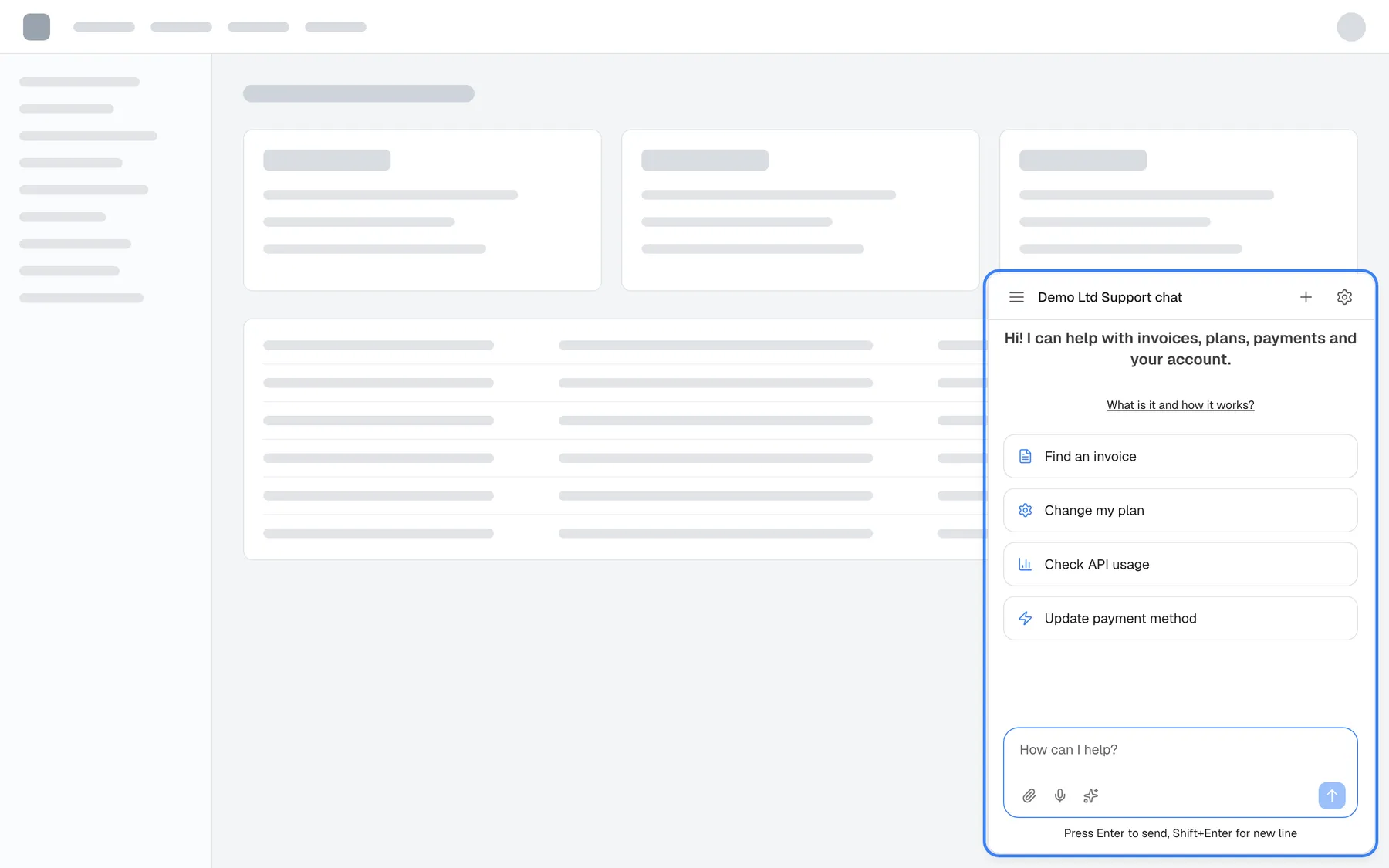
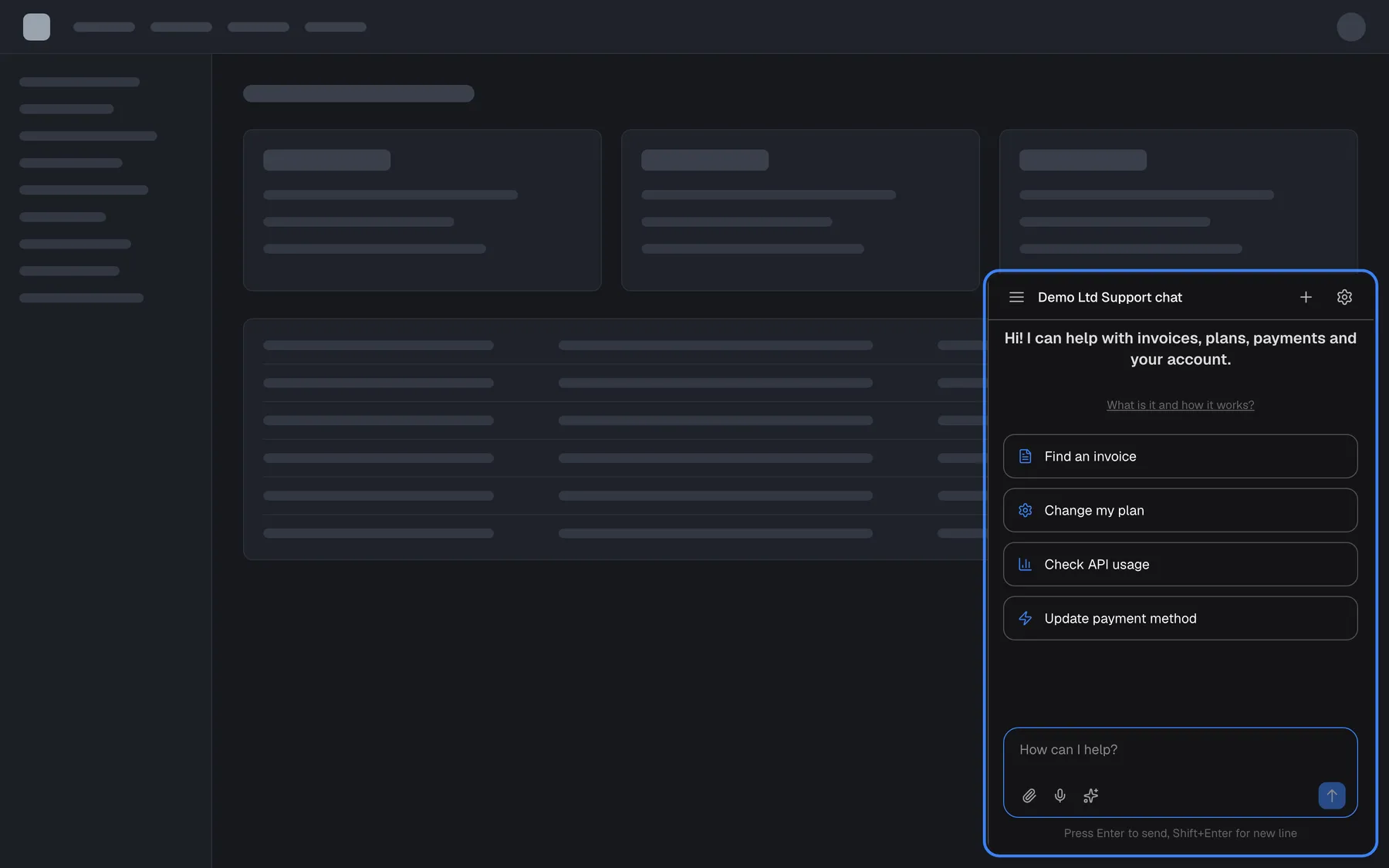
What this screenshot shows
- Screen
- (host page (https://app.example.com/))
- Highlighted
- iframe “”, bottom-right, open (popup display type). the chat window your customers use
- Also visible
- Neutral host page with placeholder layout; Widget title Demo Ltd Support chat; Welcome text and four shortcut cards; Message box How can I help?
- Purpose
- what the widget looks like inside a tenant's product
Where the widget is configured
Section titled “Where the widget is configured”Three Configure screens edit one widget at a time: pick the widget card at the top of the screen, and the choice follows you between them. Who may sign in and what the portal shows are managed in CRM.
| Screen | What it decides for the widget |
|---|---|
| ConfigureAI & UX | The assistant’s persona and instructions, which skills it may use, human handoff and AI email notifications |
| ConfigureUser Interface | The display type, size, colours and fonts, whether end customers sign in, which portal pages they see, the shortcut cards on the welcome screen and the pages the widget appears on |
| ConfigureEmbed | The widget’s name and description, its toolkits (1 to 5) and knowledge, and the code you paste into your product, with snippets for inline embedding, your own trigger buttons and page context |
| CRMCustomers and CRMCompanies | The end customers who used the widget or were imported, their roles and access, and the company data the portal shows |
What you can do here
Section titled “What you can do here”- Put the widget into your product. Paste two tags at the end of your page’s
<body>, replace the placeholders with your user’s details and check that the launcher appears. Install the widget in your product. - Decide how the widget appears. Choose a floating pop-up, a side pane, an always-open panel, a section of your page or your own “Ask AI” button, and limit the widget to the pages where it helps. Display types and custom triggers.
- Tell the assistant who the user is and what they are looking at. Pass your user’s id, name, email and company when the widget starts, and give the assistant hidden page context as the user moves around your product. Identify users and pass context.
- Make end customers sign in. Require a PIN or password, pre-create customers with credentials, or sign them in from your backend with a one-time login ticket. End-customer sign-in.
- Give your customers a self-service portal. Choose which portal pages your end customers see, from members and knowledge to workflows and usage. The customer portal.
- Let the assistant call your API as the user. Hand over each user’s own credentials from your page so they are never asked for them in the chat. Let the assistant call your API as the user. Every option and method is listed in the Widget JavaScript API reference.
Concepts to know
Section titled “Concepts to know”Widget and application token
Section titled “Widget and application token”A widget is one chat assistant you embed. Each widget has its own toolkits, knowledge, persona, look, sign-in rule and code, so you can run separate assistants for different products or audiences. The application token in the embed code identifies the widget. It is public: it sits in your page source and only tells StrikeUp which widget’s settings to load. It is not a secret and does not sign anyone in. A page can hold one widget at a time; to switch widgets on a page, remove the first one before starting the second.
End customers
Section titled “End customers”A person who chats in your widget is an end customer, called a customer in StrikeUp. The userId your page passes becomes the customer’s id in CRM, and it keeps that person’s chat history, memories and saved toolkit credentials together. Customers can belong to a customer company, the business they work for, which owns shared knowledge, workflows and members in the portal.
Display type
Section titled “Display type”The display type decides how the widget sits on your page: a pop-up window from a corner launcher, a sidebar from a tab, an always-open panel, a centred modal, a pane opened by your own button, or a section inside your layout. It is a widget setting, and your code can override it on any page.
The chat frame
Section titled “The chat frame”The chat runs in its own frame served from the widget’s host. Your page talks to it only through window.StrikeUpChat, the small JavaScript API the widget script adds. The frame follows the visitor’s browser language (English, German or Spanish); your own texts, such as the welcome text and shortcut cards, have their own translations in the widget’s settings.
What your end customers see
Section titled “What your end customers see”Your end customers have their own help pages, written without StrikeUp branding, on your customers’ help site. They cover each of these surfaces from the customer’s point of view.
| Surface | When it appears |
|---|---|
| The launcher, pane or embedded chat | On every page the widget’s URL rules allow |
| The sign-in screen, where the customer sets up or enters a PIN or password | When the widget requires sign-in, or the customer already has a PIN or password |
| The authorization step (“Authorization Required”), one toolkit at a time | When a toolkit needs the customer’s own credentials and your page did not hand them over |
| The welcome screen with your shortcut cards, then the chat with answers, tables, charts, approvals and feedback | After sign-in and authorization |
| The customer portal, behind the gear in the chat’s top bar | When the portal is on and the customer has a session |
Availability
Section titled “Availability”Every signed-in user of your StrikeUp workspace can create widgets and copy their embed code; the widget itself needs no plan or feature switch. Human handoff in the chat appears only when helpdesk integrations are switched on for your workspace. A widget works on any website or web app that can load a script; there is no separate package for a framework.