

Customer company: prompt shortcuts
The Prompt shortcuts tab of a customer company holds one-click prompts that only that company’s signed-in customers see in the widget, such as “Check VAT on an invoice”. Picking one sends its prompt to the assistant, so customers do not have to type common requests. Open the tab from CRMCompanies: select the company, then Prompt shortcuts. Shortcuts for every customer live on Shortcuts.
What you can do here
Section titled “What you can do here”- See the company’s shortcuts in the order customers see them. Name, prompt, icon and whether each one is on. Read the list.
- Add a shortcut for this company only. It appears next to your workspace’s shortcuts, and one with the same name replaces the workspace shortcut for this company. Add or edit a shortcut.
- Put shortcuts in order. Move a shortcut up or down. Change the order.
- Hide a shortcut without deleting it. Switch it off. Switch a shortcut on or off.
- Remove a shortcut. Delete a shortcut.
The screen at a glance
Section titled “The screen at a glance”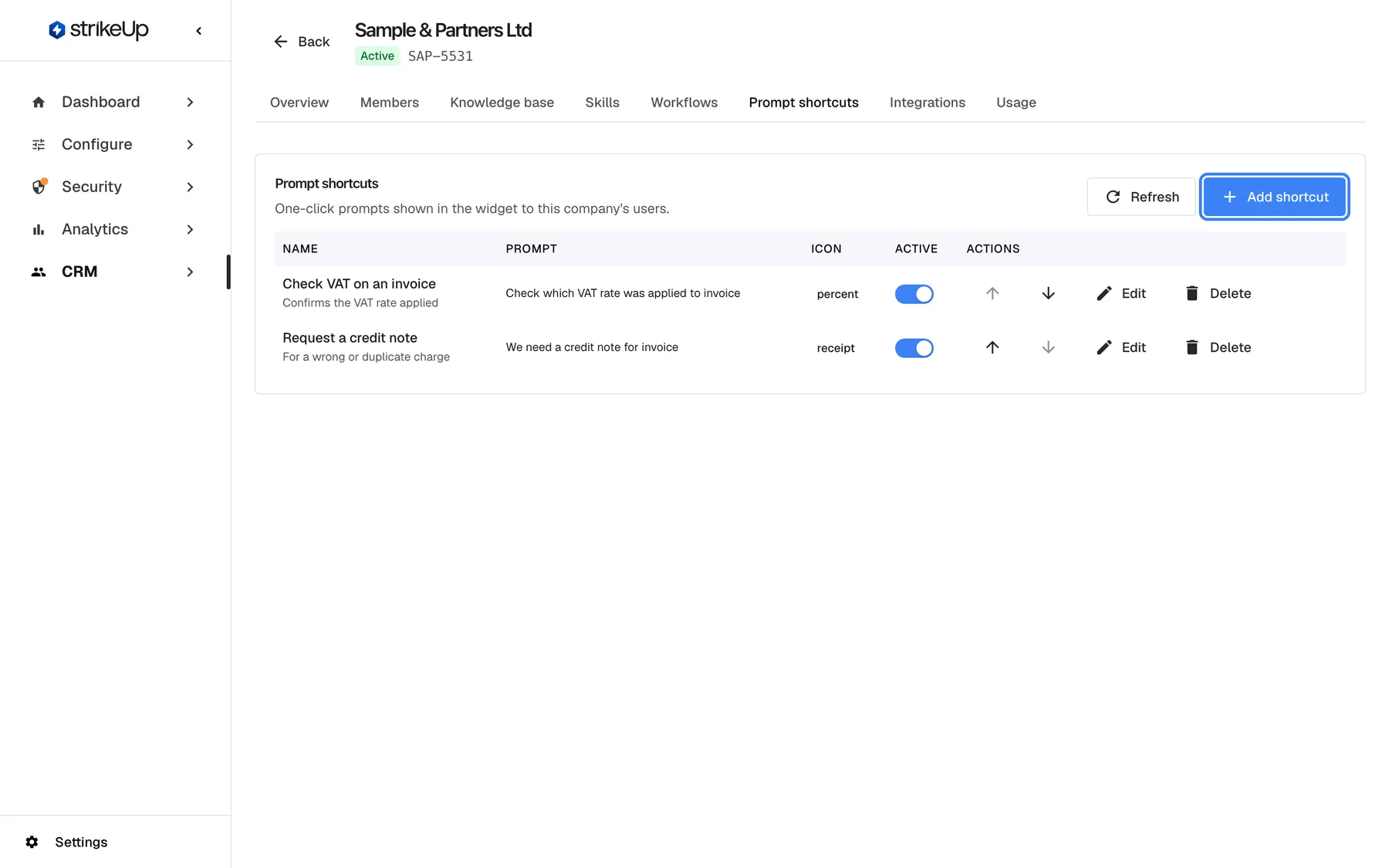
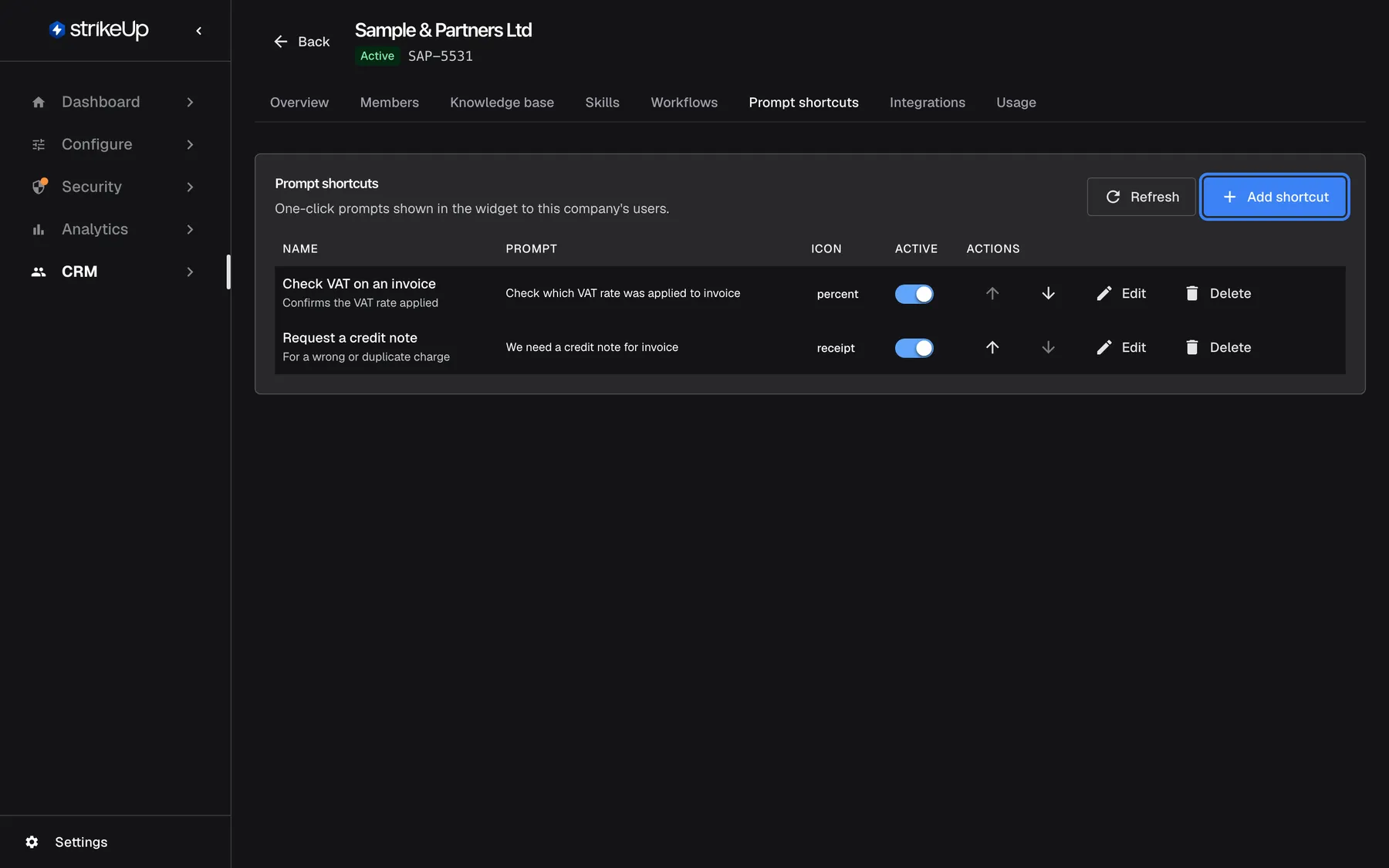
What this screenshot shows
- Screen
- Prompt shortcuts (/admin/customer-companies/:id?tab=prompts)
- Highlighted
- button “Add shortcut”, card-header-right, enabled. opens the Add shortcut form
- Also visible
- Check VAT on an invoice (percent) and Request a credit note (receipt), both active; Move up / Move down arrows set the order
- Purpose
- the company's prompt shortcuts
| Region | What it shows | What you do there |
|---|---|---|
| Card header | Prompt shortcuts, One-click prompts shown in the widget to this company's users., the hint Company shortcuts are not translated. Use tenant-wide shortcuts if you need multiple languages. and Add shortcut | Add a shortcut |
| Table | Name, Prompt, Icon, Active, the arrows Move up and Move down, edit and delete | Order, switch, edit and delete shortcuts |
| Dialog, under the table | The add or edit form | Write the shortcut |
Read the list
Section titled “Read the list”Shortcuts are listed in their order, then by name. In the widget, customers of this company see this company’s active shortcuts together with your workspace’s shortcuts, sorted the same way. They need to be signed in: anonymous visitors and customers without a company never see company shortcuts.
Example: your workspace has a shortcut “Request a credit note”. Sample & Partners Ltd has its own “Request a credit note” with a prompt that names their billing contact. Sample & Partners customers see only theirs; everyone else sees yours. Names are compared ignoring upper and lower case.
Add or edit a shortcut
Section titled “Add or edit a shortcut”-
Select Add shortcut, or the edit icon in a row. The dialog Add shortcut or Edit shortcut opens.
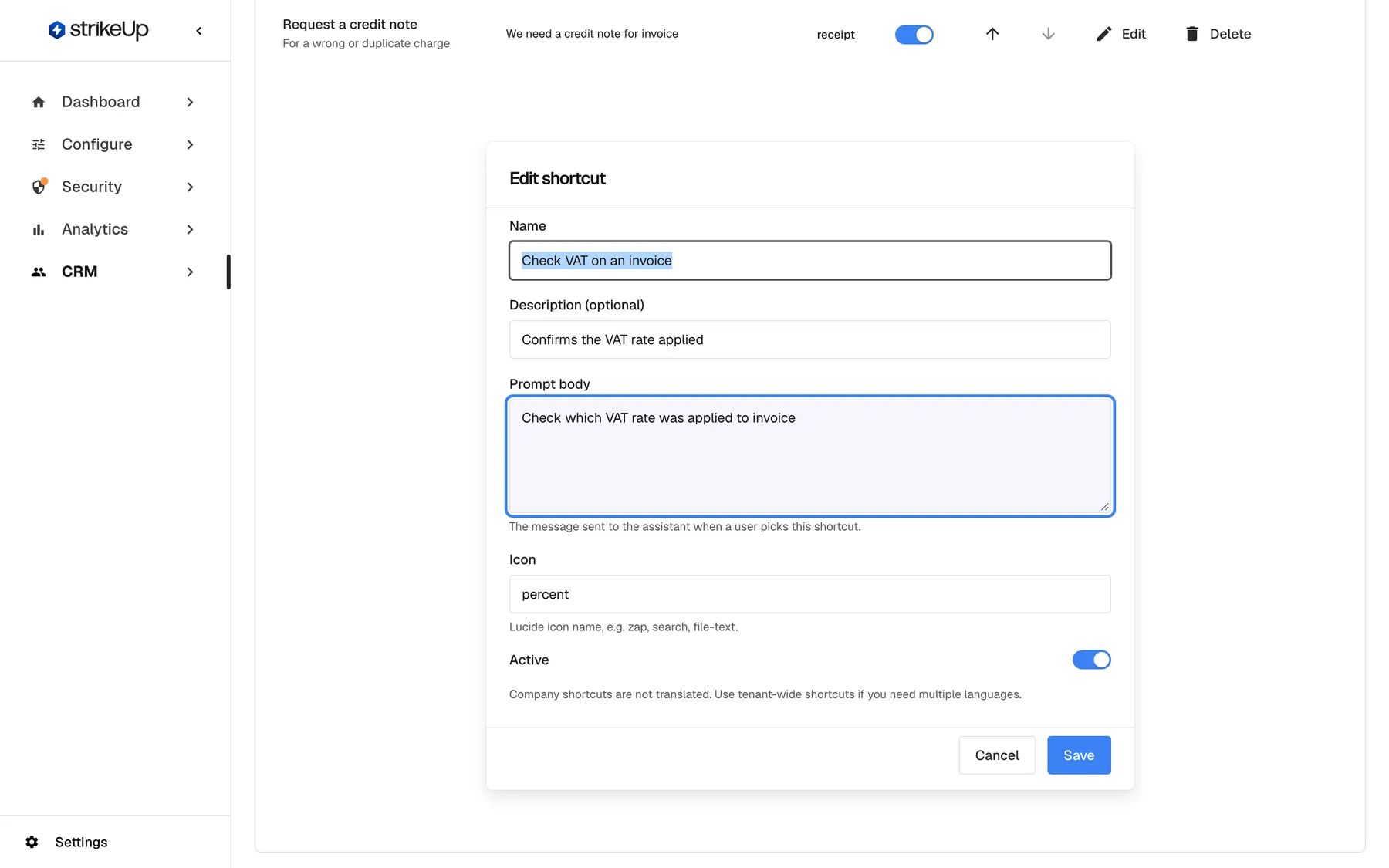
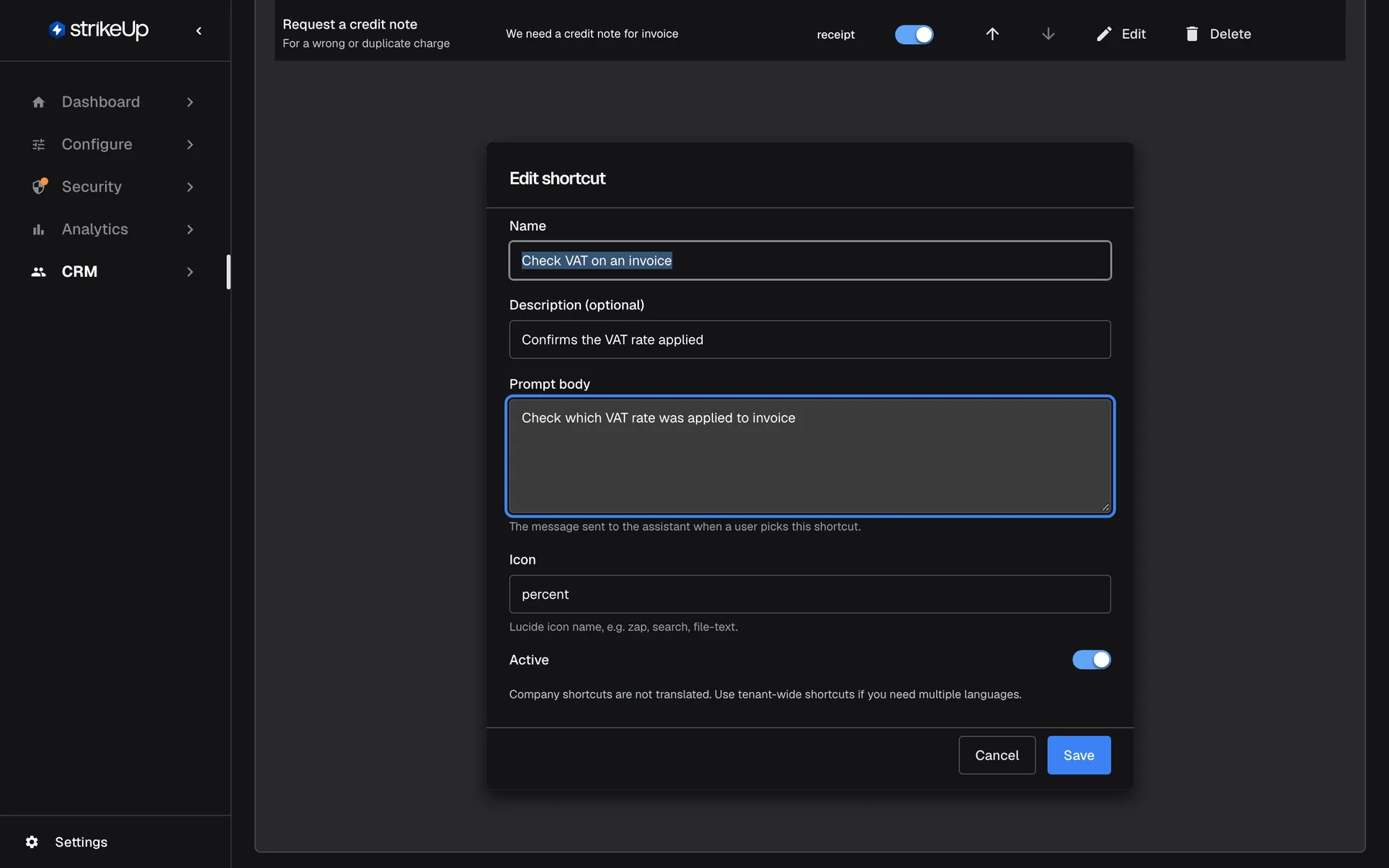
The prompt body is the message sent to the assistant when a customer picks the shortcut. What this screenshot shows
- Screen
- Edit shortcut (/admin/customer-companies/:id?tab=prompts)
- Highlighted
- textbox “Prompt body”, inline-dialog, filled. the text sent to the assistant when the shortcut is used (required)
- Also visible
- Name, Description, Icon percent, Active switch; Cancel and Save
- Purpose
- editing a company prompt shortcut
-
Fill in Name and Prompt body, and optionally Description (optional) and Icon.
-
Select Save. Prompt shortcut saved. appears. A new shortcut is placed last.
| Field | Rules |
|---|---|
| Name | Required, up to 255 characters, unique in this company. The label customers see. |
| Description (optional) | Optional, up to 1,000 characters |
| Prompt body | Required. The message sent to the assistant when a user picks this shortcut. |
| Icon | A Lucide icon name, up to 64 characters; zap by default. Lucide icon name, e.g. zap, search, file-text. |
| Active | On by default |
Company shortcuts have one language: Company shortcuts are not translated. Use tenant-wide shortcuts if you need multiple languages.
If the name or prompt is missing, the dialog shows Name and prompt body are required.. A name already used in this company is refused with “A shortcut named ’…’ already exists for this customer company.”
Change the order
Section titled “Change the order”Select Move up or Move down in a row. The new order is saved at once and is the order customers see.
Switch a shortcut on or off
Section titled “Switch a shortcut on or off”Turn the Active switch in the row off or on. It saves at once. An inactive shortcut stays in the list but customers do not see it.
Delete a shortcut
Section titled “Delete a shortcut”Select the delete icon in the row and confirm Delete shortcut: This shortcut will stop appearing in the widget for this company's users. Prompt shortcut deleted. appears.
Every control, explained
Section titled “Every control, explained”Add shortcut
Section titled “Add shortcut”Add shortcut, at the top right of the card.
Opens an empty dialog under the table. Saving needs the Admin role.
Give one business quick access to the requests its people make most.
Prompt body
Section titled “Prompt body”Prompt body in the dialog.
Required. The message sent to the assistant when a user picks this shortcut. Shown in the table’s Prompt column.
A precise prompt gets a better answer than what most people would type.
Icon in the dialog.
A Lucide icon name such as zap, search or file-text; zap if you leave the default.
An icon makes a shortcut easier to spot among several.
Active
Section titled “Active”The switch in each row and in the dialog.
On: the shortcut is shown to this company’s signed-in customers. Off: it is kept but hidden. The row switch saves at once. Needs the Admin role.
Hide a seasonal shortcut until it is needed again.
Move up and Move down
Section titled “Move up and Move down”The arrows Move up and Move down in each row.
Moves the shortcut one place and saves the order. Needs the Admin role.
Put the most used shortcut first, where customers see it.
Edit and delete
Section titled “Edit and delete”The icons at the end of each row.
Edit opens the dialog with the shortcut’s values. Delete asks for confirmation, then removes it. Both need the Admin role.
Keep the shortcuts current.
Who sees what
Section titled “Who sees what”| Part of the screen | Who can use it |
|---|---|
| The list | Every signed-in user of your workspace |
| Adding, editing, ordering, switching and deleting | Users with the Admin role. For anyone else the change fails with Request failed |
What you need to know
Section titled “What you need to know”| Topic | Fact |
|---|---|
| Who sees them | Signed-in customers of this company, in every widget they use. |
| Same name | A company shortcut replaces the workspace shortcut with the same name, ignoring case. |
| Language | No translations; the text shows as written. |
| Order | By position, then by name. New shortcuts go last. |
| Shared editing | The company’s Admins can manage the same shortcuts in the customer portal; Members can only read them. |
Frequently asked questions
Section titled “Frequently asked questions”Shortcuts
Section titled “Shortcuts”Who sees a company’s prompt shortcuts?
Section titled “Who sees a company’s prompt shortcuts?”Signed-in customers of that company, in the widget, next to your workspace’s shortcuts. Anonymous visitors and customers who belong to no company do not see them; they see only the workspace shortcuts from ConfigureShortcuts.
How do I change a workspace shortcut for just one company?
Section titled “How do I change a workspace shortcut for just one company?”Add a shortcut on that company’s Prompt shortcuts tab with exactly the same name as the workspace shortcut; upper and lower case do not matter. The company’s customers then see the company version instead of yours, and everyone else keeps seeing yours.
Why can’t I translate company shortcuts?
Section titled “Why can’t I translate company shortcuts?”Company shortcuts have no translations: Company shortcuts are not translated. Use tenant-wide shortcuts if you need multiple languages. Write them in the language the company’s people use, or create the shortcut on ConfigureShortcuts if you need several languages.
Does switching a shortcut off delete it?
Section titled “Does switching a shortcut off delete it?”No. Turning off the Active switch hides the shortcut from customers but keeps it with all its text on the company’s Prompt shortcuts tab. Turn it on again whenever it is needed.
In what order do customers see the shortcuts?
Section titled “In what order do customers see the shortcuts?”By the order you set with Move up and Move down, then by name, mixed with your workspace’s shortcuts sorted the same way. A newly added company shortcut is placed after the existing ones.
Errors and access
Section titled “Errors and access”Why does StrikeUp say a shortcut with this name already exists?
Section titled “Why does StrikeUp say a shortcut with this name already exists?”Each shortcut name must be unique within the company. Another shortcut on the Prompt shortcuts tab, perhaps a switched-off one or one created by the company’s Admins in the customer portal, already uses it. Pick another name or edit that shortcut.
Can the company’s own admins manage these shortcuts?
Section titled “Can the company’s own admins manage these shortcuts?”Yes. Customer Admins can add, edit, order, switch and delete the same shortcuts in the customer portal, and their changes show here. Members of the company can read the list in the portal but cannot change it.
What icons can I use?
Section titled “What icons can I use?”Any icon name from the Lucide icon set, such as zap, search, file-text, percent or receipt, typed into Icon. If you leave the field as it is, the shortcut uses zap.
Troubleshooting
Section titled “Troubleshooting”| Symptom | What to check |
|---|---|
| A customer does not see the company’s shortcuts | Check that they are signed in, that they belong to this company, and that the shortcut is Active. |
| A customer still sees the workspace shortcut | The company shortcut’s name must match the workspace shortcut’s name exactly, apart from case. |
| Name and prompt body are required. | Fill in the name and the prompt body. |
| “A shortcut named ’…’ already exists for this customer company.” | Choose another name or edit the existing shortcut. |
| Failed to load prompt shortcuts. | Reload the page; if it persists, sign in again. |
| Saving shows Request failed | You may not have the Admin role; ask an Admin. |