

Tool Execution Log Details
The Tool Execution Log Details page shows one tool run in full: one attempt by the assistant to call your API through a toolkit. You see the full address that was called, the request the assistant sent, the response your API returned and, when the assistant tried more than once, every attempt on the same call in order. Use it to tell whether a problem lay with your API, the toolkit’s set-up or the values the AI chose. You open it from a row on AnalyticsTool runs. It needs the Admin role, because it shows request and response bodies in full.
The same content also appears, without the page heading, in a customer’s chat details.
What you can do here
Section titled “What you can do here”- See exactly what was called. The top card shows the toolkit, tool, full endpoint with every value filled in, method, status, attempt number and failure kind. Check what was called.
- Read the request and the response. Both bodies are shown formatted, each with a copy button. Read the request and the response.
- Follow a retry. When the assistant tried the same tool more than once in a turn, a section lists every attempt with its arguments and the response or the reason it was stopped. Follow the attempts on a call.
The screen at a glance
Section titled “The screen at a glance”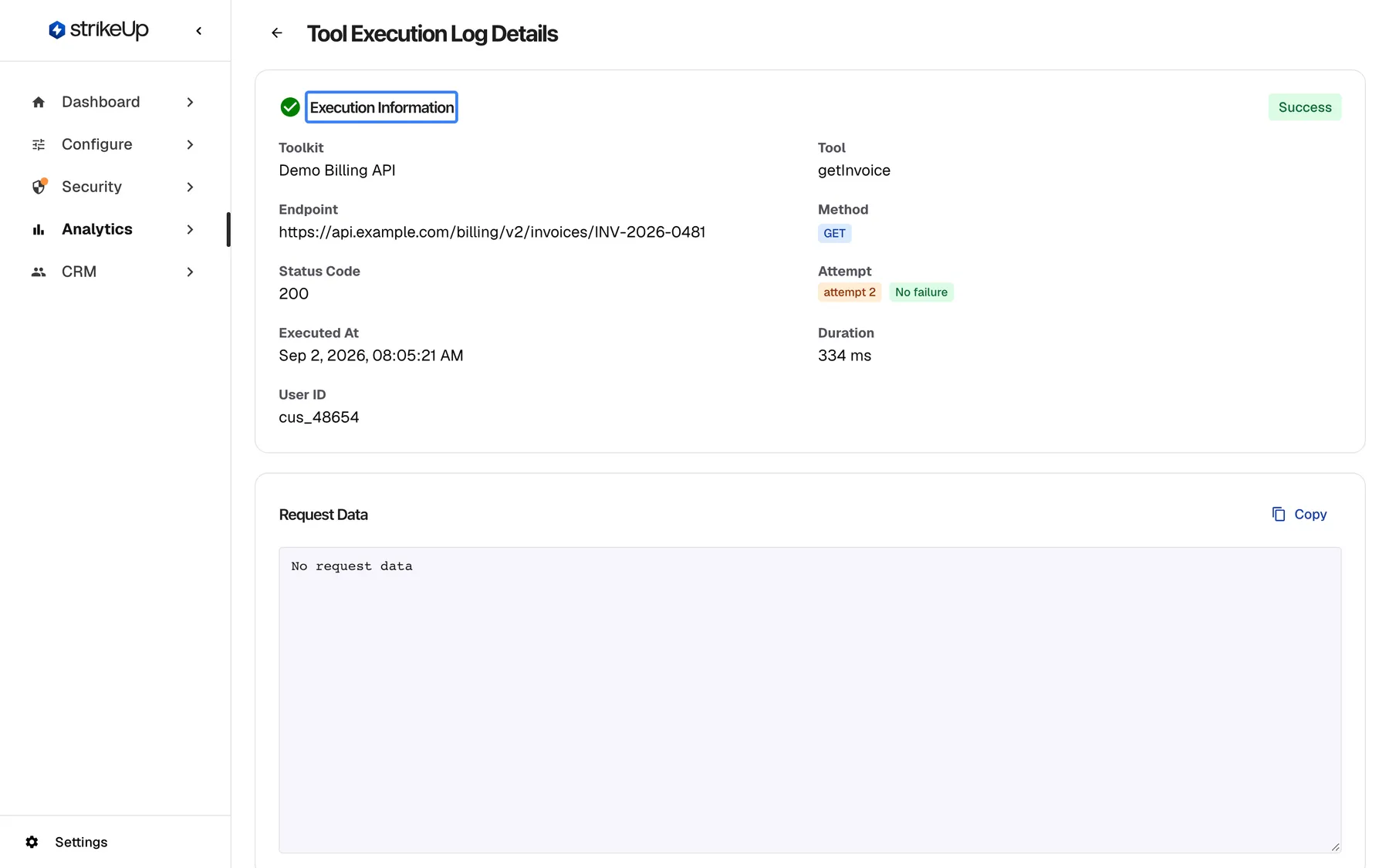
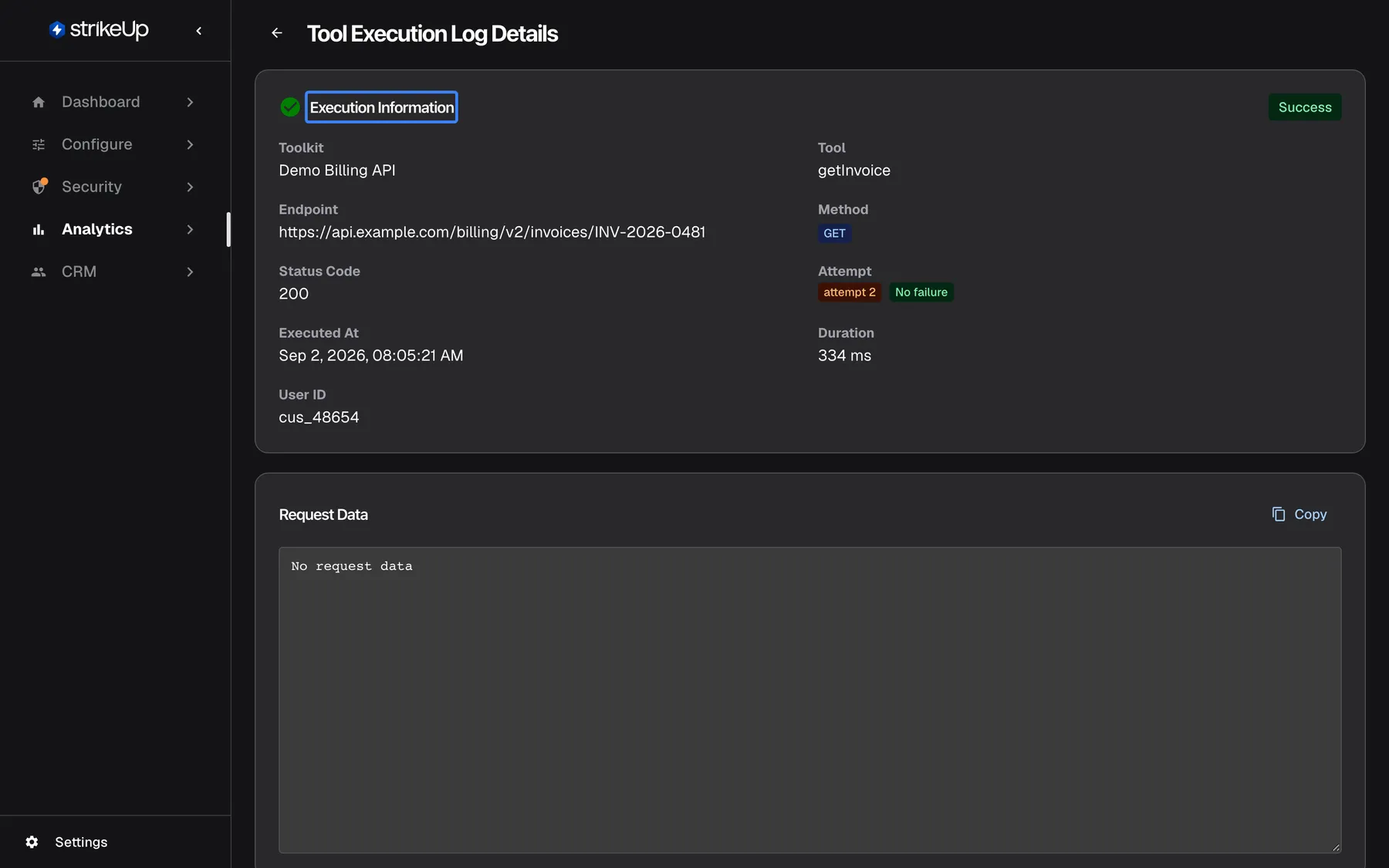
What this screenshot shows
- Screen
- Tool Execution Log Details (/admin/tool-execution-logs/:id)
- Highlighted
- “”, execution-information-card, success, attempt 2. summarises the tool run
- Also visible
- getInvoice GET 200 on the Demo Billing API, attempt 2, No failure
- Purpose
- the tool run page as it opens
| Region | What it shows | What you do there |
|---|---|---|
| Header | A back arrow and the heading Tool Execution Log Details | Return to Tool runs |
| Execution Information | Result, toolkit, tool, endpoint, method, status, attempt, failure kind, time, duration and user | Check what was called |
| Request Data | The body the assistant sent | Check the values the AI chose |
| Response Data | The body your API returned | Check what your API answered |
| Attempts, bottom | Every attempt on the same call, when there was more than one | Follow a retry |
Check what was called
Section titled “Check what was called”The Execution Information card sums up the run. Its header carries a Success or Failed badge.
| Field | What it shows |
|---|---|
| Toolkit | The toolkit’s name |
| Tool | The tool’s name |
| Endpoint | The full address, with the values from the AI filled in and any query parameters; (not dispatched) when nothing was sent |
| Method | GET, POST, PUT, DELETE and so on; - when nothing was sent |
| Status Code | Your API’s HTTP code, or not sent |
| Attempt | The attempt number, orange from 2 on, with the failure kind badge (green for No failure) |
| Executed At | Date and time in US format |
| Duration | Milliseconds, or seconds written as “seconds” in every language; “N/A” when not recorded |
| User ID | The visitor’s identity in the widget, when known |
Example: a run of a tool that fetches an invoice shows GET, status 200, attempt 2 and No failure. The endpoint ends with the invoice number the AI used. Attempt 2 tells you an earlier attempt on the same call failed; the attempts section at the bottom shows why.
Read the request and the response
Section titled “Read the request and the response”The middle of the page shows both bodies as formatted JSON in read-only boxes.
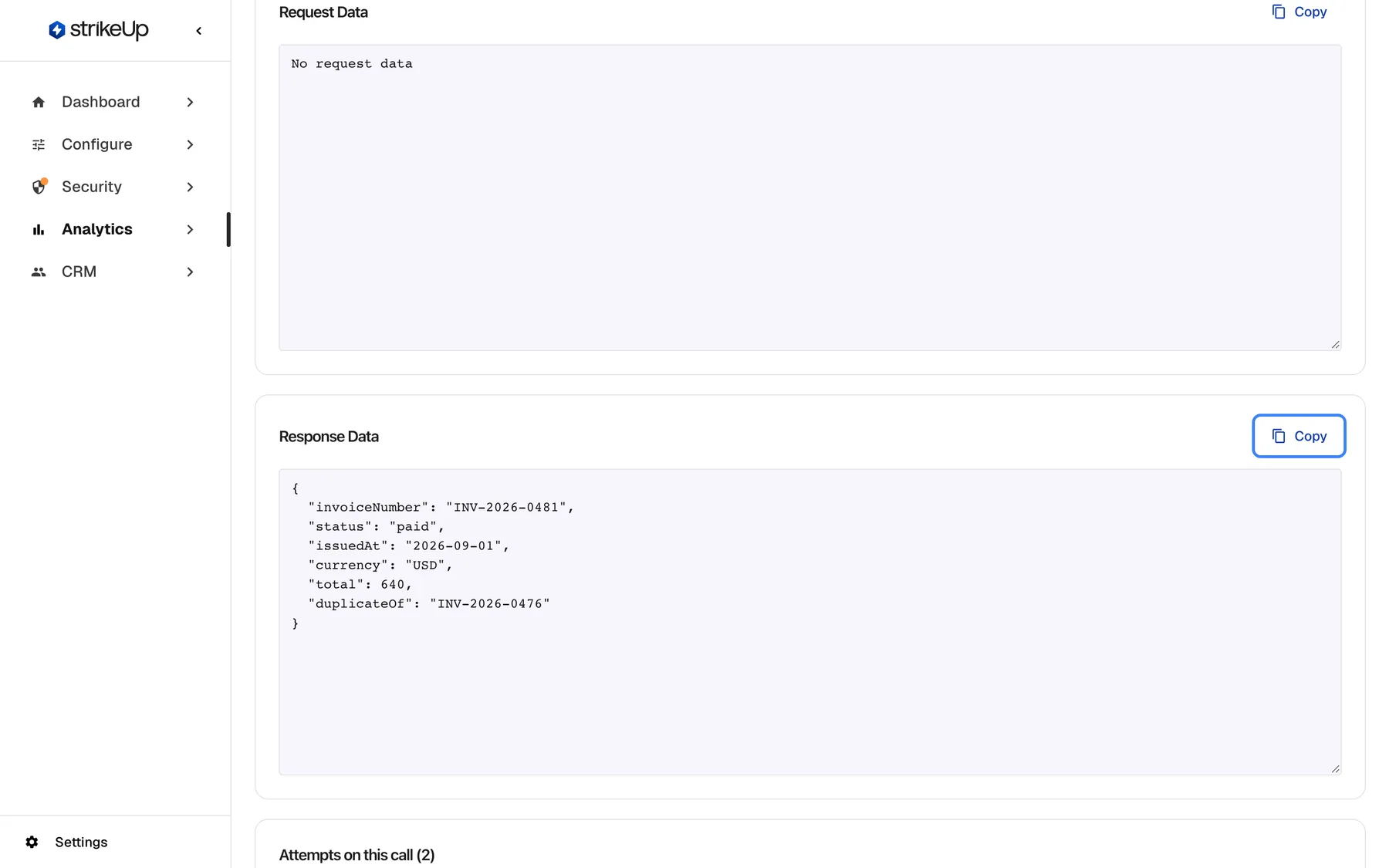
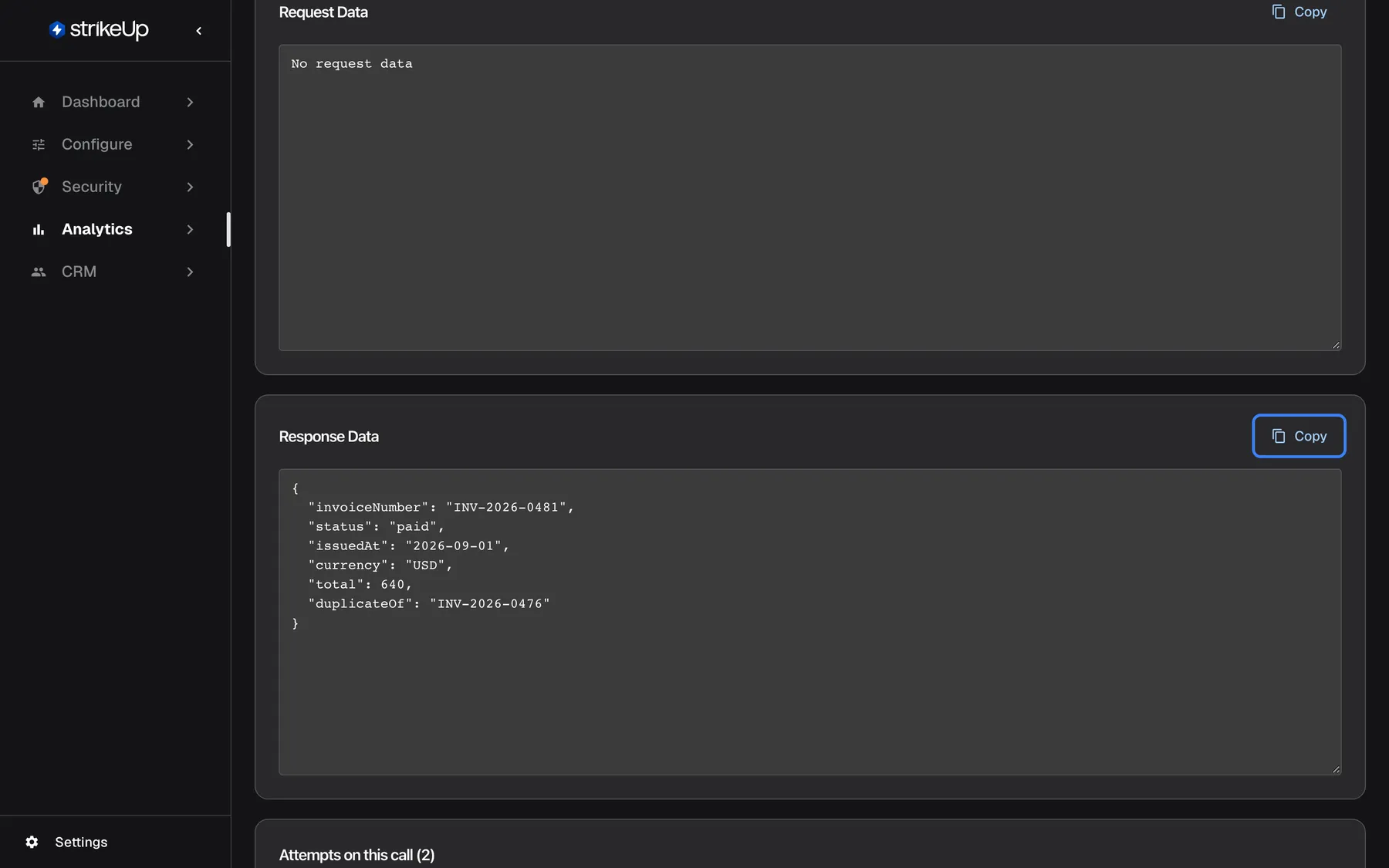
What this screenshot shows
- Screen
- Tool Execution Log Details (/admin/tool-execution-logs/:id)
- Highlighted
- button “Copy”, response-data, enabled. copies the response JSON
- Also visible
- Request Data: No request data; Response Data JSON for INV-2026-0481
- Purpose
- what was sent and received
- Request Data is the body the assistant sent, built from the AI’s arguments. A GET request has no body and shows No request data. For an attempt that was never sent, it shows the arguments the AI proposed.
- Response Data is what your API returned, after your masking rules were applied. For an attempt that was never sent, it shows the explanation StrikeUp gave the AI: which parameter failed, what was expected and what was sent.
- Copy above each box copies its content; the button reads Copied! for two seconds.
Request bodies and endpoint addresses are stored exactly as sent, without masking. Response bodies are masked by your rules under SecurityData masking before they are stored; if masking fails, the original response is stored. Request headers, and so credentials, are never stored.
Follow the attempts on a call
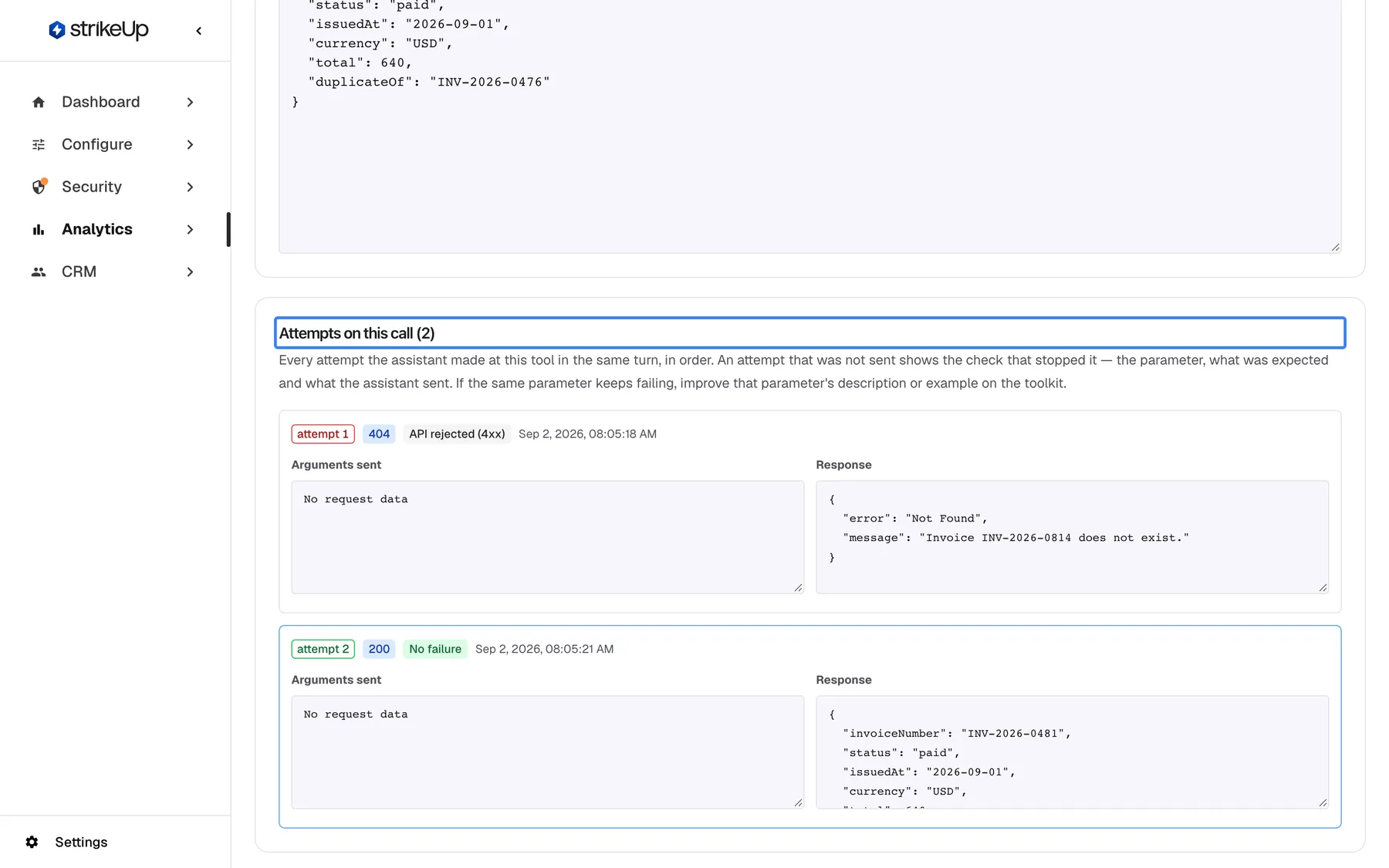
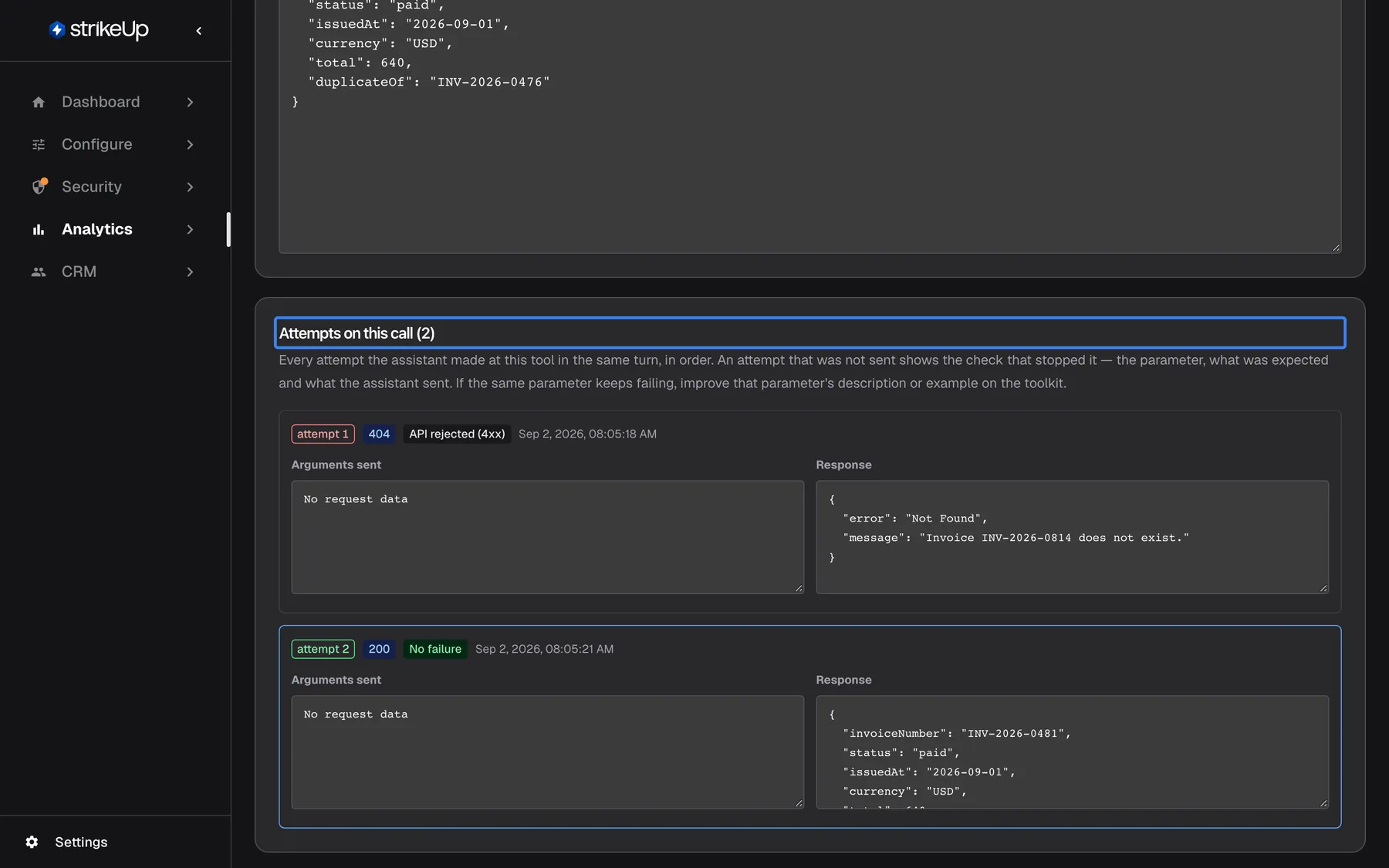
Section titled “Follow the attempts on a call”When the assistant tried the same tool more than once in the same turn, the section “Attempts on this call (…)” appears at the bottom, with the explanation Every attempt the assistant made at this tool in the same turn, in order. An attempt that was not sent shows the check that stopped it — the parameter, what was expected and what the assistant sent. If the same parameter keeps failing, improve that parameter's description or example on the toolkit.
What this screenshot shows
- Screen
- Tool Execution Log Details (/admin/tool-execution-logs/:id)
- Highlighted
- “”, attempts-section, 2 attempts. lists every attempt of this tool call
- Also visible
- Attempt 1: 404, API rejected (4xx), response Invoice INV-2026-0814 does not exist; Attempt 2: 200, current
- Purpose
- follow a retry
Each attempt is a card, in order, with:
- The attempt number, outlined green for a success or red for a failure. The attempt you are viewing is outlined in blue.
- The HTTP code in blue, or not sent in orange, and the failure kind.
- A sub-agent’s name, in purple, when a sub-agent made the attempt.
- Arguments sent: what the AI sent.
- Response or, for an attempt that never left StrikeUp, Why it was not sent.
Select another card to open that attempt’s own page.
Example: attempt 1 asked for an invoice number with two digits swapped and got 404 with API rejected (4xx); its response says the invoice does not exist. Attempt 2 used the correct number and got 200. The assistant recovered on its own; if this happens often, add an example of a valid invoice number to the tool’s parameter in the toolkit.
- The section appears only when there was more than one attempt. A run with a single attempt has no attempts section.
- The assistant makes at most 3 attempts at one tool call.
Every control, explained
Section titled “Every control, explained”Back arrow
Section titled “Back arrow”At the top left, before the heading Tool Execution Log Details.
Returns to AnalyticsTool runs, on the first page with no filters.
Go back to the list after checking one run.
Copy buttons
Section titled “Copy buttons”Above Request Data and above Response Data.
Copies the formatted body to your clipboard and shows Copied! for two seconds.
Paste the exact request into your own API client to reproduce the call, or the response into a ticket.
Attempt cards
Section titled “Attempt cards”In the attempts section at the bottom, shown only when the call had more than one attempt.
One card per attempt with result, HTTP code or not sent, failure kind, sub-agent, Arguments sent and the response or Why it was not sent. Selecting a card opens that attempt; in a customer’s chat details the cards cannot be selected.
Compare what changed between a failed attempt and the one that succeeded.
Who sees what
Section titled “Who sees what”| Part of the screen | Who sees it |
|---|---|
| The whole page | Users with the Admin role. Everyone else gets Tool execution log not found |
What you need to know
Section titled “What you need to know”| Topic | Fact |
|---|---|
| Masking | Responses are masked by your rules before they are stored. Requests and endpoint addresses, including values and query parameters, are stored without masking. |
| No credentials | Request headers, and so API keys and tokens, are never stored. |
| Attempts belong together | Attempts are grouped by the assistant’s reply they belonged to and the tool’s name. A run without a reply, such as a direct call, is its own only attempt. |
| Kept indefinitely | StrikeUp keeps every run, with no automatic deletion. The only automatic deletion in Analytics is the event history of finished agent jobs: their events are deleted once they are more than 7 days old. |
| Read-only | Nothing on the page can be changed, and it has no refresh button; reload the browser page to load it again. |
| Dates and units | Dates are in US format and long durations read “seconds” in every language. |
Frequently asked questions
Section titled “Frequently asked questions”Reading a run
Section titled “Reading a run”What does Why it was not sent show?
Section titled “What does Why it was not sent show?”Why it was not sent on an attempt card shows the explanation StrikeUp gave the AI when it stopped the attempt before calling your API: the parameter that failed, what was expected and what the AI sent. The AI uses it to correct its next attempt.
Why is Request Data empty?
Section titled “Why is Request Data empty?”No request data under Request Data means the request had no body. That is normal for GET and DELETE requests, whose values travel in the endpoint address, which the Execution Information card shows in full.
Why is the attempts section missing?
Section titled “Why is the attempts section missing?”The attempts section on Tool Execution Log Details appears only when the assistant tried the same tool more than once in the same turn. A run that succeeded or failed on the first try has nothing to compare, so the section is left out.
Why does the endpoint say (not dispatched)?
Section titled “Why does the endpoint say (not dispatched)?”(not dispatched) in Endpoint means StrikeUp stopped the attempt before any request was sent, usually because the AI’s arguments failed the tool’s checks. Response Data then shows why it was stopped.
Why does a successful run show attempt 2?
Section titled “Why does a successful run show attempt 2?”An orange attempt number of 2 or more means earlier attempts on the same call failed and the assistant tried again. The run you are looking at succeeded; the attempts section at the bottom of Tool Execution Log Details shows what went wrong before.
Data and privacy
Section titled “Data and privacy”Can I see the headers or credentials sent to my API?
Section titled “Can I see the headers or credentials sent to my API?”No. Request headers are never stored with a tool run, so API keys, tokens and other credentials sent to your API do not appear on Tool Execution Log Details. The endpoint, method and bodies are shown.
Is the response masked?
Section titled “Is the response masked?”Yes. Your API’s response is masked by your rules under SecurityData masking before it is stored, so Response Data shows masked values. The request and the endpoint address are stored as sent, without masking.
Why can’t a teammate open this page?
Section titled “Why can’t a teammate open this page?”Tool Execution Log Details needs the Admin role because it shows full request and response bodies. Members with another role can see the list on AnalyticsTool runs, but get Tool execution log not found here.
Troubleshooting
Section titled “Troubleshooting”| Symptom | What to check |
|---|---|
| Tool execution log not found | The page needs the Admin role. With the Admin role, the link may be wrong; the same message also appears when loading failed, so reload the page. |
| Failed to load log details above a loaded run | The list of toolkits could not be loaded, so the toolkit name may be missing. The run itself is complete. Reload the page. |
| The same parameter fails on every attempt | Read Why it was not sent or the response, then improve that parameter’s description or example in the toolkit under ConfigureToolkits. |
| Personal data appears in Request Data or the endpoint | Requests and addresses are not masked. Avoid tool parameters that carry personal data where you can; responses are masked by your rules. |
| The response shows an error from your API | Read its message and status code; compare Request Data with what your API expects. |