

Tool Policies
The tool policies page lists your tool access policies. A policy is a name, a key and a set of tools: a chat session that carries one or more policy keys is offered only the tools mapped to those keys, and a session without keys is offered every active tool of the widget’s toolkits. Use this page to define those sets and open the simulation that shows exactly which tools a widget offers for them. Open it from SecurityTool Policies; the page heading reads Tool Access Policies.
How a chat gets policy keys. Only your own backend can give a customer keys. When it signs a customer in with a one-time login ticket, it can list up to 50 policy keys for that customer. Every chat of that customer then carries those keys, including chats started earlier, from the next time the widget connects. Each new ticket replaces the list, and a ticket without keys lifts the restriction. The page that embeds the widget cannot set or change keys.
What you can do here
Section titled “What you can do here”- See every policy and its tools. The table shows each policy’s name and the tools it grants, up to five per row with a count of the rest. The screen at a glance.
- Find a policy by name. The search box filters the list while you type. Every control, explained.
- Create a policy. Give it a name and a key, pick a toolkit and tick the tools it grants. Create a policy.
- Read a policy’s key, or change a policy. The key, description and status are shown only in the edit dialog. Change a policy.
- Delete a policy. Remove its tools first; a policy that still has tools cannot be deleted. Delete a policy.
- Check what policies grant on a widget. Tool Access Simulation shows the tool list for any choice of policies. Tool Access Simulation · Plan and simulate tool policies.
The screen at a glance
Section titled “The screen at a glance”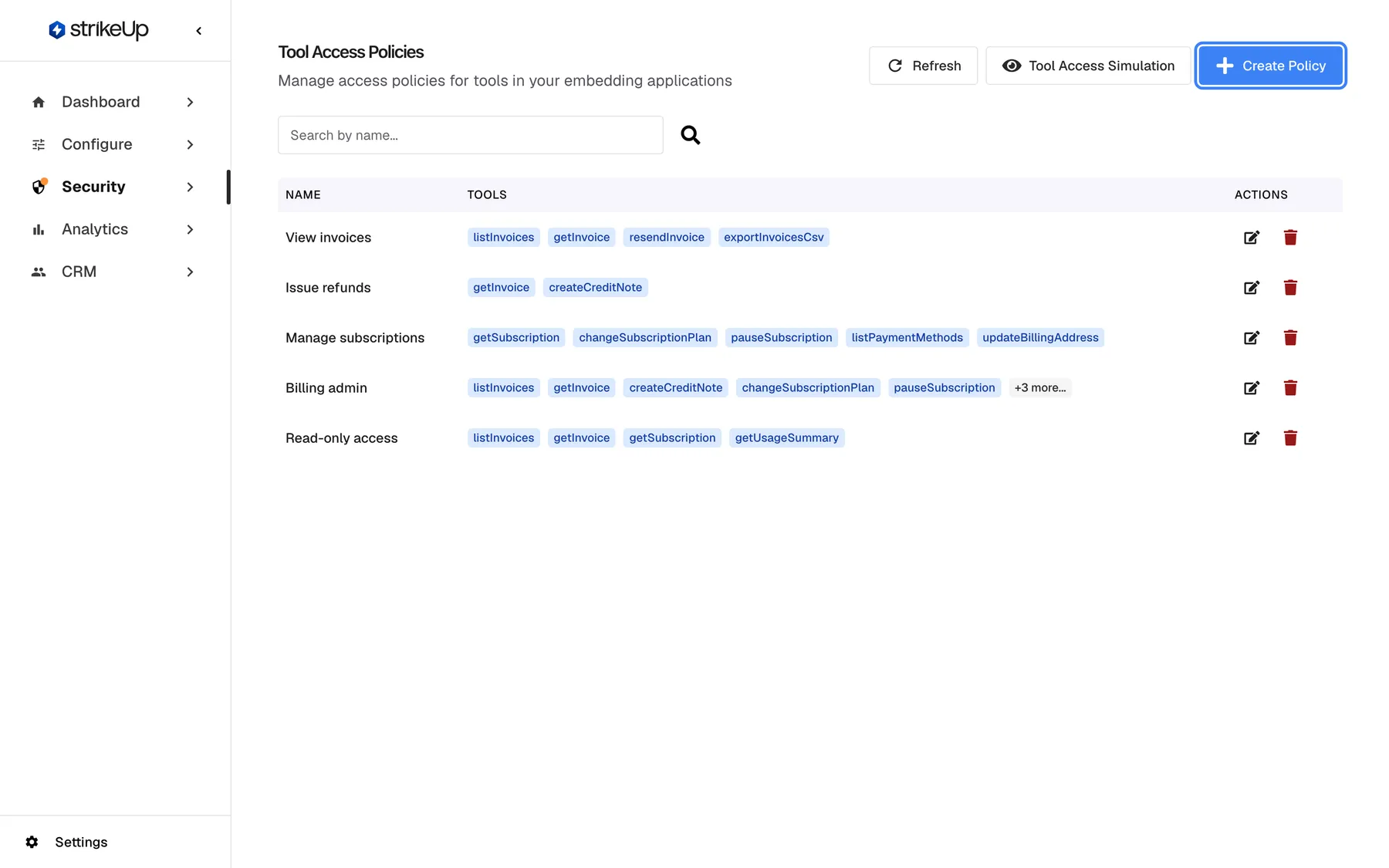
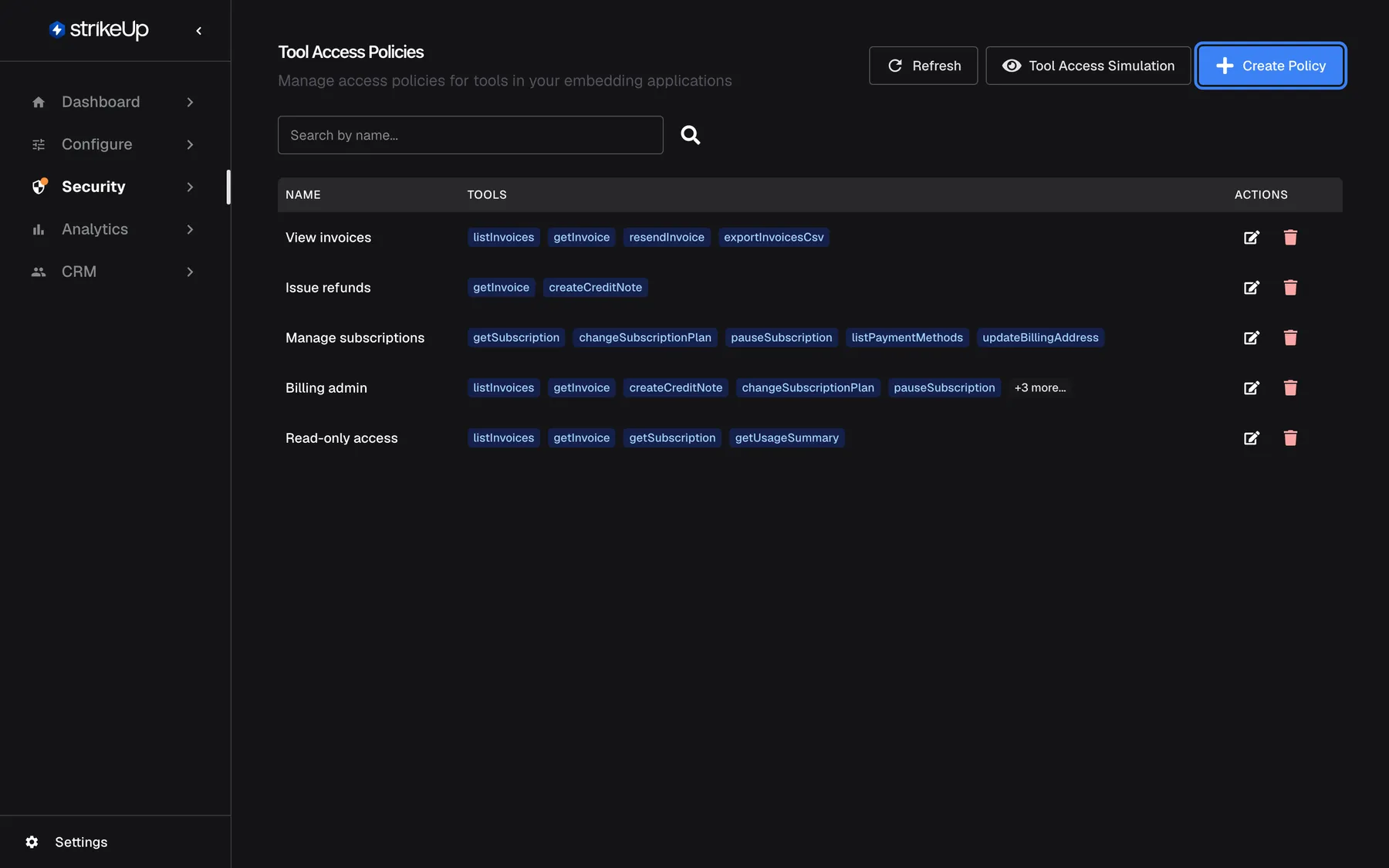
What this screenshot shows
- Screen
- Tool Policies (/admin/feature-flags)
- Highlighted
- button “Create Policy”, header-right, enabled. opens the Create Feature Flag dialog
- Also visible
- Five policies with tool badges; Billing admin shows +3 more; Search by name box; Refresh and Tool Access Simulation buttons; Key and status are not shown in the table
- Purpose
- the list of tool access policies as it opens
| Region | What it shows | What you do there |
|---|---|---|
| Header | Tool Access Policies, the subtitle, Refresh, Tool Access Simulation and Create Policy | Reload, open the simulation, create a policy |
| Search | The box Search by name... | Filter policies by name |
| Policy table | Name, Tools and Actions, one row per policy, active and inactive | Edit or delete a policy |
The table does not show a policy’s key or its status. Open the edit dialog to see both.
Create a policy
Section titled “Create a policy”- Select Create Policy. The dialog Create Feature Flag opens.
- Enter a Name, such as “Export invoices”.
- Enter a Key, such as
export_invoices. Capitals turn into lower case and spaces into underscores as you type. - Optionally add a Description.
- Choose a Toolkit. Its active tools appear as a checklist.
- Tick the tools the policy grants, or use Select All. The counter shows how many are ticked.
- Select Create Flag. Policy created successfully! confirms it, with the number of tools in English, for example “Access policy “Export invoices” has been created with 2 tool(s)”.
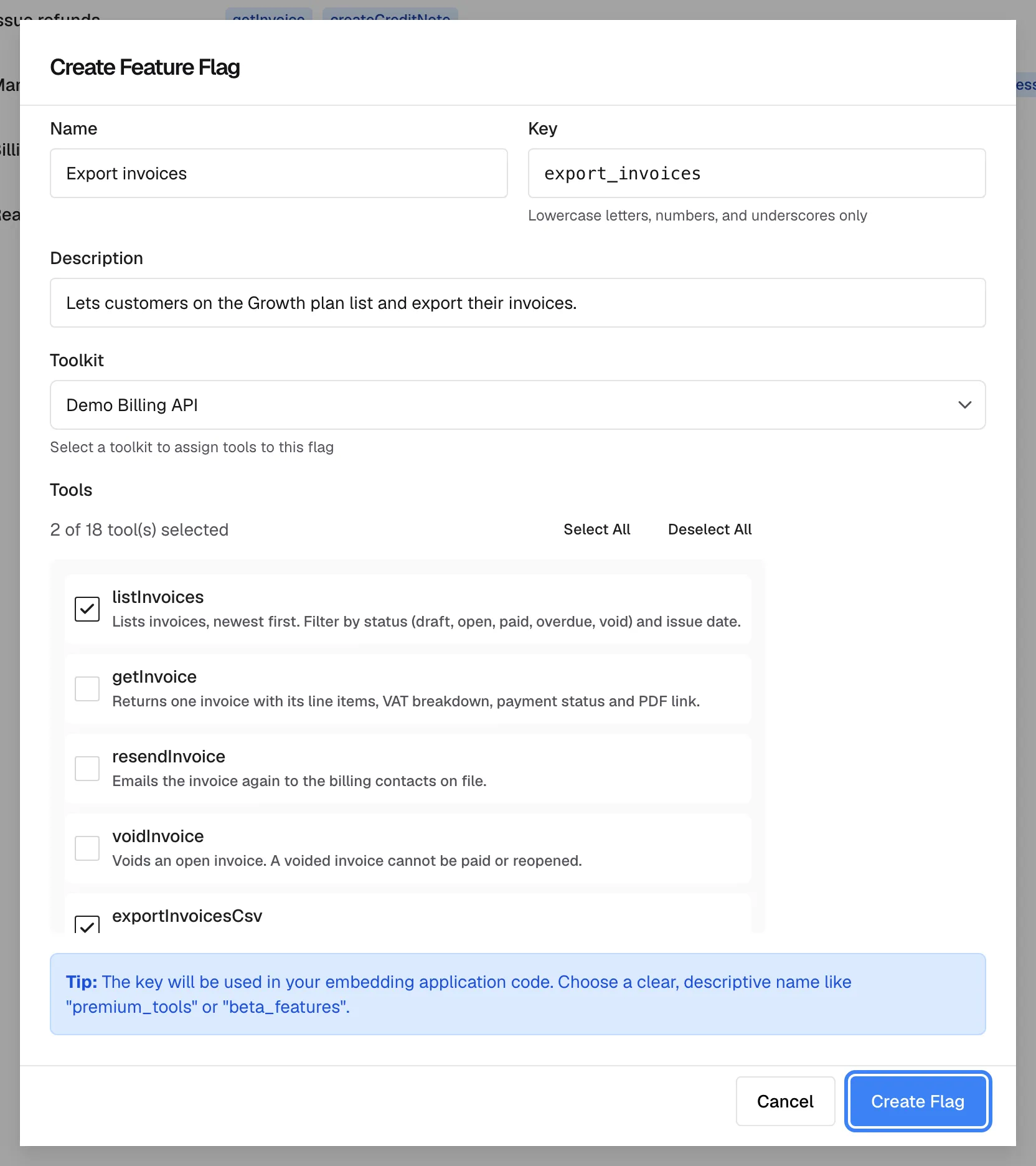
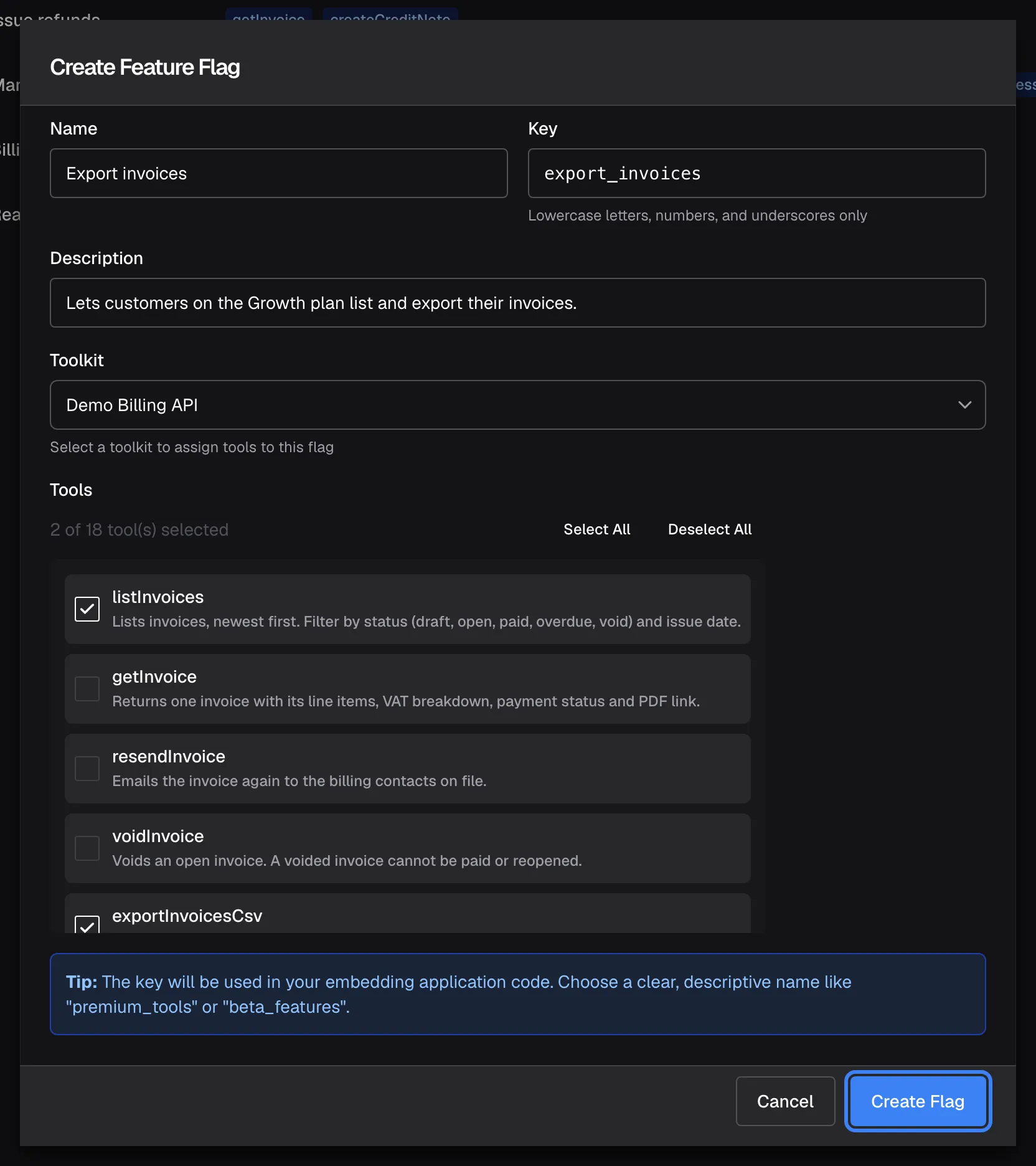
What this screenshot shows
- Screen
- Create Feature Flag (/admin/feature-flags)
- Highlighted
- button “Create Flag”, dialog-footer-right, enabled. creates the policy and maps the ticked tools to its key
- Also visible
- Name Export invoices, key export_invoices; Toolkit Demo Billing API, two tools ticked; Tip about using the key in embedding code
- Purpose
- create a tool access policy
A new policy is Active and appears in the list at once. One dialog covers one toolkit; to add tools from a second toolkit, change the policy afterwards.
Example. Demo Ltd wants to plan two tiers of its support chat. It creates “View invoices” (view_invoices) with listInvoices, getInvoice, resendInvoice and exportInvoicesCsv, and “Issue refunds” (issue_refunds) with getInvoice and createCreditNote, then compares both in Tool Access Simulation.
Change a policy
Section titled “Change a policy”- Select the pencil icon in the policy’s row. The dialog Edit Feature Flag opens with the name, key, description, status and the first toolkit the policy has tools in.
- Change the name, description or status as needed.
- Under Tools (Optional), tick every tool the policy should keep. The checklist opens with no box ticked, even for tools the policy already grants; the counter starts at 0. Compare with the badges in the list row.
- Select Save Changes. Policy updated successfully! confirms it.
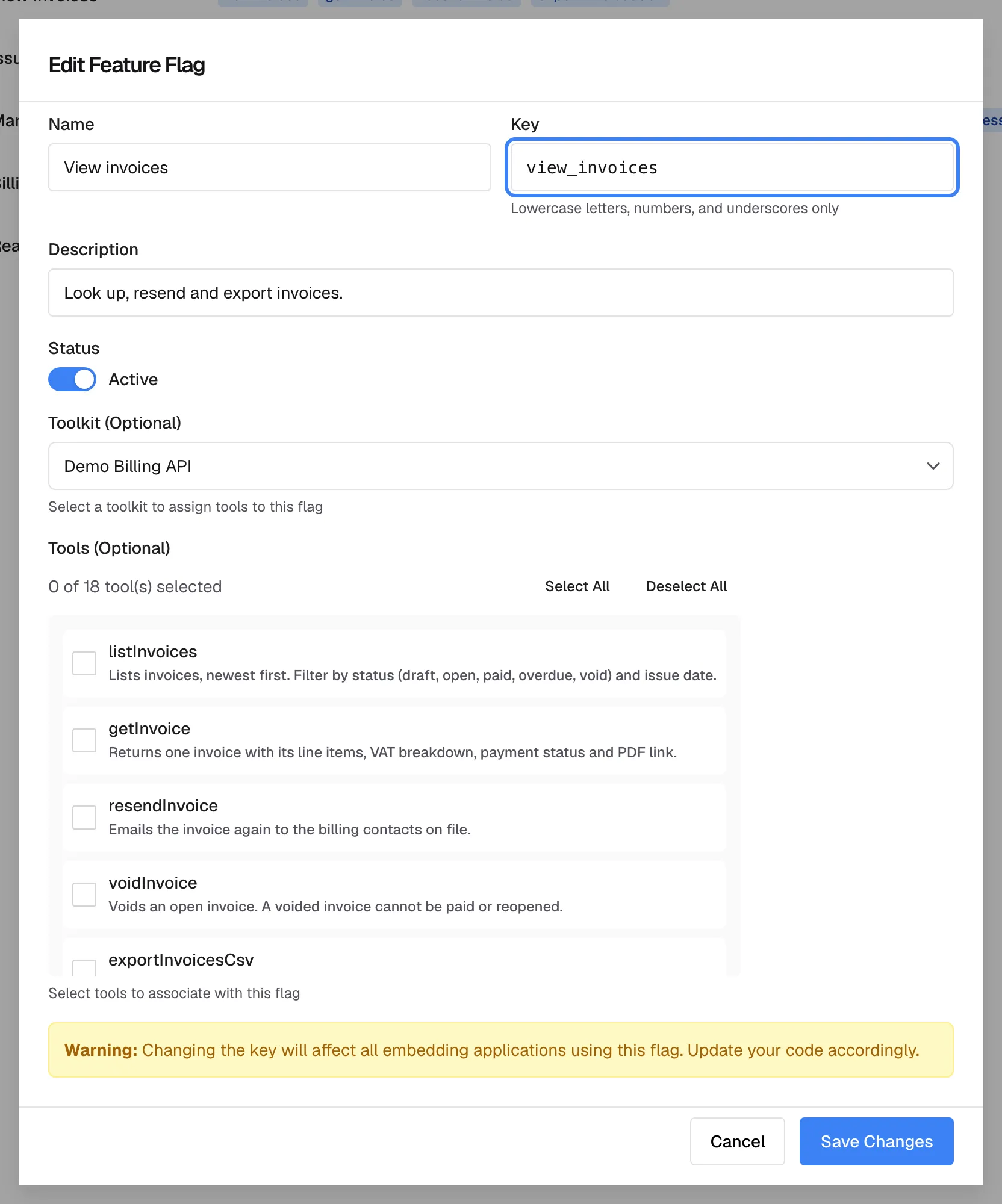
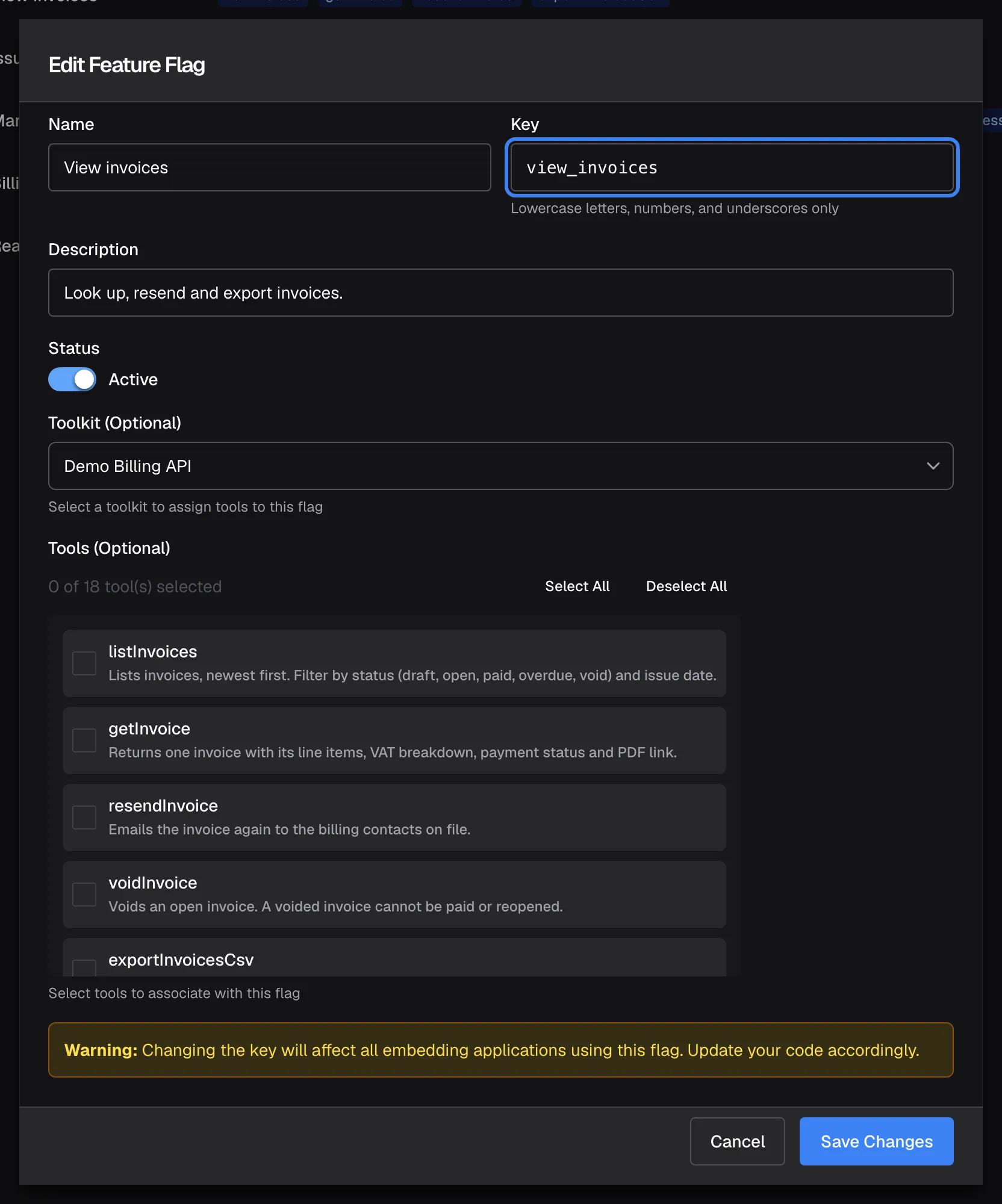
What this screenshot shows
- Screen
- Edit Feature Flag (/admin/feature-flags)
- Highlighted
- textbox “Key”, dialog-key-field, showing view_invoices. holds the key the host product passes for this policy
- Also visible
- Warning box about changing the key; Status switch Active; Toolkit Demo Billing API; tools counter 0 of 18 selected, nothing ticked (product defect: mapped tools load unticked)
- Purpose
- find a policy's key and change its status or tools
Tools of this toolkit that are unticked when you save are removed from the policy. If you only want to change the name or status, tick the policy’s current tools again before you save.
To add tools from another toolkit, pick it in Toolkit (Optional), tick its tools and save; the tools of the first toolkit stay. The dialog only shows, and only removes, tools of the toolkit selected in it.
Changing a key moves its tools. The policy keeps its tools under the new key. Customers whose login ticket still lists the old key get none of the policy’s tools until your backend sends the new key, so change the key in your backend at the same time.
Delete a policy
Section titled “Delete a policy”- Remove the policy’s tools: select the pencil icon, leave every tool unticked and select Save Changes. The row shows No tools.
- Select the bin icon in the row.
- Read Delete Access Policy and select Delete. The message “Policy deleted” confirms it.
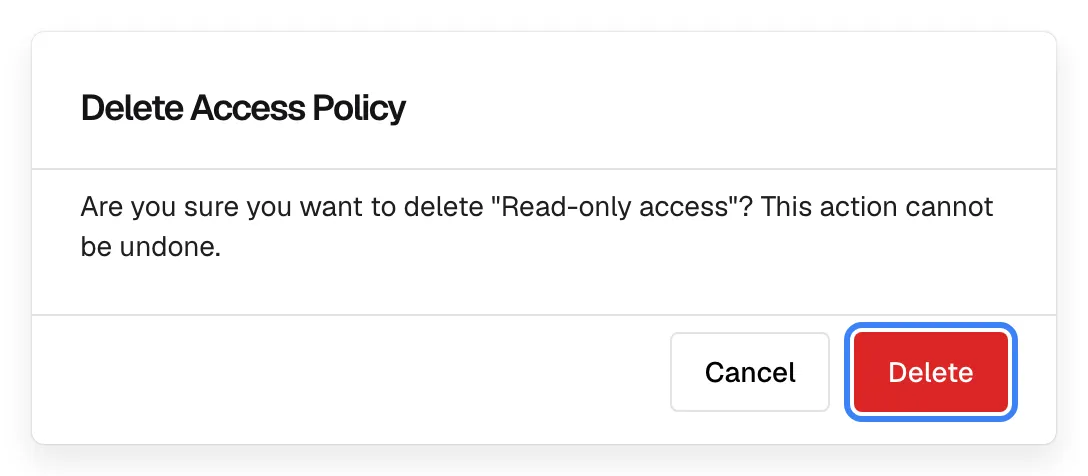
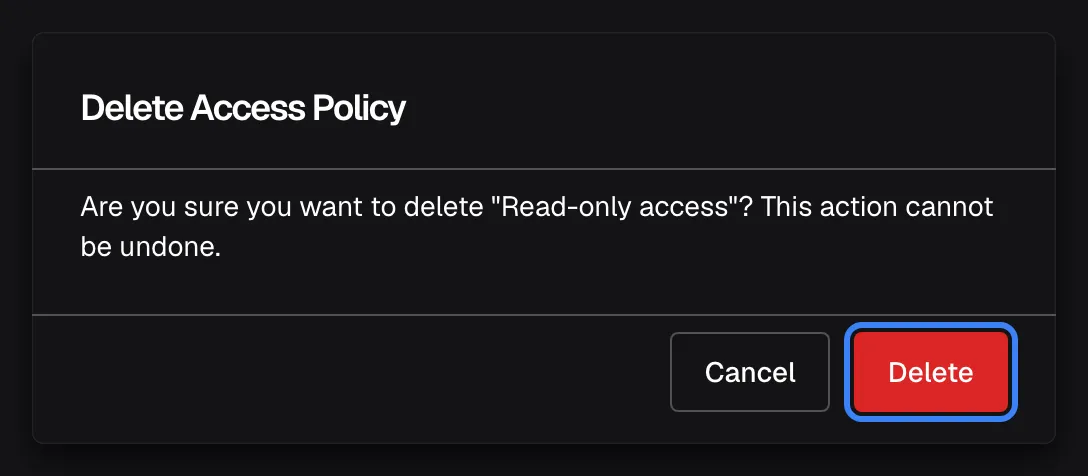
What this screenshot shows
- Screen
- Delete Access Policy (/admin/feature-flags)
- Highlighted
- button “Delete”, dialog-footer-right, enabled. deletes the policy (refused while tools are mapped)
- Also visible
- Confirmation text naming Read-only access
- Purpose
- last check before a policy is deleted
Deleting cannot be undone. While tools are still mapped, StrikeUp refuses with “Error deleting flag” and “Cannot delete flag ‘key’ because it is assigned to N tool(s). Remove the tool mappings first.” Deleting a toolkit or a tool removes it from every policy automatically.
Every control, explained
Section titled “Every control, explained”Refresh
Section titled “Refresh”Tool Access Simulation
Section titled “Tool Access Simulation”Create Policy
Section titled “Create Policy”Search by name
Section titled “Search by name”Policy table
Section titled “Policy table”| Column | What it shows | Why |
|---|---|---|
| Name | The policy name | How your team recognises the policy |
| Tools | Up to five tool names as badges, then +{{count}} more...; No tools when none. Tools from every toolkit are shown together | What the policy grants |
| Actions | Pencil (edit) and bin (delete) icons | Change or remove the policy |
With no policies, the page shows Create your first policy to control which tools are available to different users or embedding applications.
Create Feature Flag dialog
Section titled “Create Feature Flag dialog”| Field | Rules |
|---|---|
| Name | Required: Name is required. Up to 255 characters |
| Key | Required: Key is required. Lower-case letters, digits and underscores only, otherwise Key must contain only lowercase letters, numbers, and underscores. Unique in your workspace, including inactive policies |
| Description | Optional. Shown only in the edit dialog |
| Toolkit | Required: Toolkit is required. One toolkit per dialog |
| Tools | At least one: Please select at least one tool. Only active tools are listed; No active tools found for this toolkit when the toolkit has none |
The Tip: box under the fields gives advice on choosing a clear key.
Edit Feature Flag dialog
Section titled “Edit Feature Flag dialog”Status: Active or Inactive
Section titled “Status: Active or Inactive”Delete icon
Section titled “Delete icon”Who sees what
Section titled “Who sees what”| Part | Who can use it |
|---|---|
| The list, search and the edit dialog, read-only | Every signed-in member |
| Creating, saving changes and deleting | The Admin role only. Other roles see the buttons, but the change fails with Request failed |
| Tool Access Simulation | Opens for everyone; the simulation itself needs the Admin role |
What you need to know
Section titled “What you need to know”| Topic | Fact |
|---|---|
| No keys, every tool | A session without policy keys is offered every active tool of the widget’s toolkits. |
| Keys come from your backend | Only a login ticket from your backend gives a customer policy keys. The page that embeds the widget cannot set or change them. |
| Several keys add up | A session with several keys gets every tool mapped to any of them. |
| Unknown keys grant nothing | A key that matches no active policy with tools in the widget’s toolkits leaves the session with no tools from those toolkits. Keys are case-sensitive. |
| Switched-off tools are never offered | A tool switched off on the Toolkits page is not offered, whatever the policies say. |
| Inactive grants nothing | An inactive policy gives no tools. Its tools stay attached, so making it active again restores them. |
| Changes reach open chats | A change to a policy’s key, status or tools applies from the next message, also in chats that are already open. |
| English messages | Some notices on this page, such as “Error deleting flag”, are shown in English in every language. |
| Ticket sign-ins only | Policies restrict customers your backend signs in with a login ticket. Everyone else is offered every active tool, so keep switching tools off, approvals and the permission checks in your API. |
Frequently asked questions
Section titled “Frequently asked questions”General
Section titled “General”What is a tool access policy?
Section titled “What is a tool access policy?”It is a name, a key and a set of tools on SecurityTool Policies. A chat session that carries the key is offered the policy’s tools; a session without keys is offered every active tool of the widget’s toolkits. Use Tool Access Simulation to see the result for a widget.
Is a tool policy a security control?
Section titled “Is a tool policy a security control?”For customers your backend signs in with a login ticket, yes: they are offered only the tools of the policies the ticket lists, and the page that embeds the widget cannot change that. Customers who sign in any other way are offered every active tool, so also switch risky tools off on ConfigureToolkits, require approval for them, and let your API check permissions.
How does a chat get policy keys?
Section titled “How does a chat get policy keys?”Your backend sends them when it signs the customer in with a one-time login ticket. Every chat of that customer then carries those keys, and each new ticket replaces them. Customers who sign in any other way have no keys, so they are offered every active tool.
Where do I find a policy’s key?
Section titled “Where do I find a policy’s key?”Open the policy with the pencil icon in its row on SecurityTool Policies. The key is shown in the Key field of the edit dialog. The list itself shows only names and tools.
Why doesn’t search find my policy by its key?
Section titled “Why doesn’t search find my policy by its key?”The search box on the policy list matches policy names only, not keys or tool names. Search for the name instead, or open policies one by one with the pencil icon to read their keys.
Creating and changing
Section titled “Creating and changing”Why did my policy lose its tools after I edited it?
Section titled “Why did my policy lose its tools after I edited it?”The tool checklist in the edit dialog opens with no box ticked, and tools left unticked are removed when you select Save Changes. Open the dialog again, tick the tools the policy should have, and save; compare with the badges in the list row first.
Can one policy include tools from two toolkits?
Section titled “Can one policy include tools from two toolkits?”Yes. Create the policy with tools from one toolkit, then open it with the pencil icon, choose the second toolkit in Toolkit (Optional), tick its tools and save. The dialog always opens on the first toolkit, and only removes tools of the toolkit selected in it.
What happens if I change a policy’s key?
Section titled “What happens if I change a policy’s key?”The policy keeps its tools under the new key. Customers whose login ticket still lists the old key get none of them until your backend sends the new key. Change the key in your backend at the same time.
Does making a policy inactive switch it off?
Section titled “Does making a policy inactive switch it off?”Yes. A policy set to Inactive grants no tools from the next message on, also in open chats, and is hidden from Tool Access Simulation. Its tools stay attached, so setting it back to Active restores them.
Deleting
Section titled “Deleting”Why can’t I delete a policy?
Section titled “Why can’t I delete a policy?”A policy that still has tools cannot be deleted. Open it with the pencil icon, leave every tool unticked, select Save Changes, then delete it with the bin icon. The error names the key and the number of tools still assigned.
What happens to policies when I delete a toolkit or a tool?
Section titled “What happens to policies when I delete a toolkit or a tool?”The deleted toolkit’s or tool’s entries are removed from every policy automatically. A policy can end up with No tools; it stays in the list until you delete it.
Day to day
Section titled “Day to day”When does a policy change reach an open chat?
Section titled “When does a policy change reach an open chat?”With the customer’s next message. A change to a policy’s key, status or tools also applies to chats that are already open. The simulation on Tool Access Preview always shows the current state.
Troubleshooting
Section titled “Troubleshooting”| Symptom | What to check |
|---|---|
| Key must contain only lowercase letters, numbers, and underscores | Use lower-case letters, digits and underscores only: export_invoices, not export-invoices. |
| “A flag with key ’…’ already exists” | Keys are unique in your workspace, including inactive policies. Choose another key. |
| Please select at least one tool | Tick at least one tool before Create Flag. |
| No active tools found for this toolkit | Switch on tools in that toolkit on ConfigureToolkits. |
| “Error deleting flag” with “Cannot delete flag … because it is assigned to N tool(s)” | Remove the policy’s tools in the edit dialog first, then delete. |
| Customers lost a policy’s tools after its key was changed | Your backend still sends the old key. Send the new key in its login tickets. |
| A customer is offered every tool despite your policies | Only customers signed in with a login ticket that lists policy keys are restricted. Check how that customer signed in and that your backend sends the keys. |
| A customer is offered none of your tools | The keys in their login ticket belong only to inactive or deleted policies, or their policies have no tools in this widget’s toolkits. |
| A policy lost its tools after an edit | The checklist opened unticked and was saved that way. Tick the tools again and save. |
| Changes fail with Request failed | Creating, changing and deleting need the Admin role. |
| A policy with tools in two toolkits cannot be emptied | The edit dialog removes only tools of the first toolkit. Contact StrikeUp support to remove the rest. |