

Customer details
The Customer Details page shows everything about one person who uses your widget: who they are, which company they belong to and with which role, every chat they started, how engaged they are, what their AI use cost, what the assistant remembers about them, notes your team keeps, and their scheduled workflows. Open it from CRMCustomers by selecting a customer, or with View on a company’s Members tab.
What you can do here
Section titled “What you can do here”- See who the customer is. Id, name, email, company, role and dates, with a summary your team writes. Read and edit basic information.
- Make the customer an Admin or a Member of their company. Member type decides whether they can manage the company in the customer portal. Change the member type · Customer roles and access.
- Read their chats. Every chat, with its number of messages and tool calls, opens into a step-by-step timeline. Open a chat · Chat Details.
- See how engaged they are. Sessions, messages, tool success and days since they were last active, over the last 30 days. Check engagement.
- See what their AI use cost. Calls, tokens and estimated cost, by source and workflow. See usage and cost.
- Delete what the assistant remembers about them. One memory at a time, for example on the customer’s request. Delete memories · AI memory.
- Keep notes on how they communicate. The persona fields record your team’s observations. Keep persona notes.
- See and clear their saved toolkit credentials. Which toolkits they authorized and when; the credentials themselves are never shown. See and clear saved toolkit credentials.
- See their workflows. Each workflow with its schedules and last five runs. See workflows and schedules.
The screen at a glance
Section titled “The screen at a glance”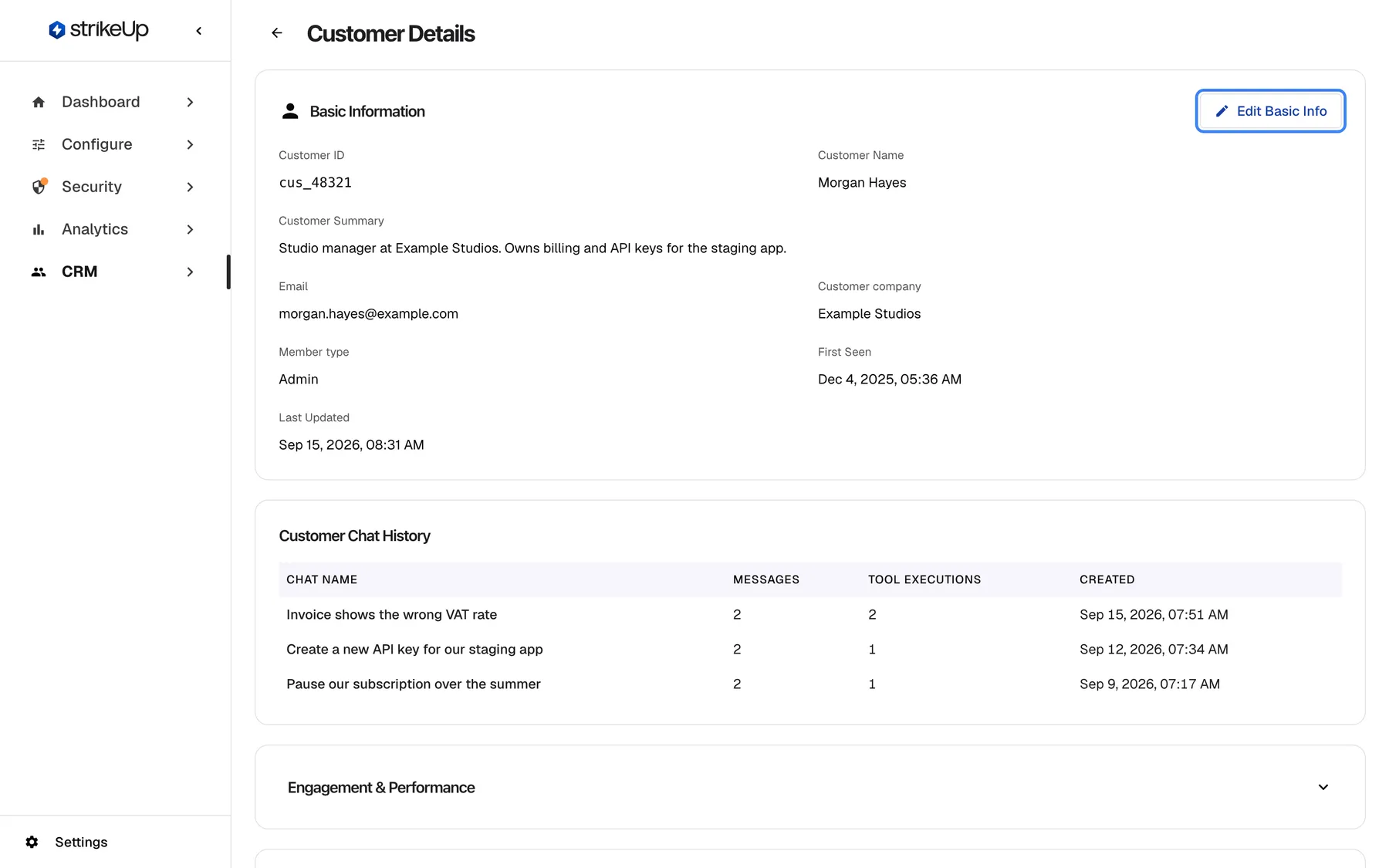
What this screenshot shows
- Screen
- Customer Details (/admin/customers/:id)
- Highlighted
- button “Edit Basic Info”, card-header-right, enabled. switches the card to edit mode
- Also visible
- Customer ID cus_48321, Morgan Hayes, Example Studios, Member type Admin; Start of Customer Chat History
- Purpose
- identifying a customer
The page is one long column of cards; five of them are closed until you open them.
| Region | What it shows | What you do there |
|---|---|---|
| Header | The back arrow and the title Customer Details | Return to the customers list |
| Basic Information | Id, name, summary, email, company, member type, dates | Edit name, summary and member type |
| Customer Chat History | One row per chat | Open a chat |
| Engagement & Performance (closed) | Engagement over 30 days | Check activity |
| AI usage (closed) | Calls to AI models, tokens and cost | Check cost |
| Memory (closed) | What the assistant remembers about the customer | Delete memories |
| Customer Persona (closed) | Seventeen note fields | Edit notes |
| Authorization | Toolkits the customer saved credentials for | Clear all saved credentials |
| Workflows & Schedules (closed) | Workflows, schedules and recent runs | Read only |
Read and edit basic information
Section titled “Read and edit basic information”| Field | Where it comes from | Editable here |
|---|---|---|
| Customer ID | The id your product passes, such as cus_48321 | No |
| Customer Name | Your product, an import, or your edit | Yes |
| Customer Summary | Your team | Yes |
| Your product or an import | No | |
| Customer company | The company the customer belongs to; Legacy ref: follows when your product passed a different reference | No |
| Member type | Admin by default | Yes |
| First Seen and Last Updated | When the record was created and last changed | No |
- Select Edit Basic Info. Name, summary and member type become editable.
- Make your changes.
- Select Save Basic Info. The card returns to read-only with the new values. There is no confirmation message; if saving fails, Failed to update customer appears in red at the top of the page.
Your product never overwrites a name you set here: it only fills fields that are empty. A name or summary cannot be emptied once set; an empty field keeps the old value. Email and company cannot be changed here; a CSV import can change both.
Change the member type
Section titled “Change the member type”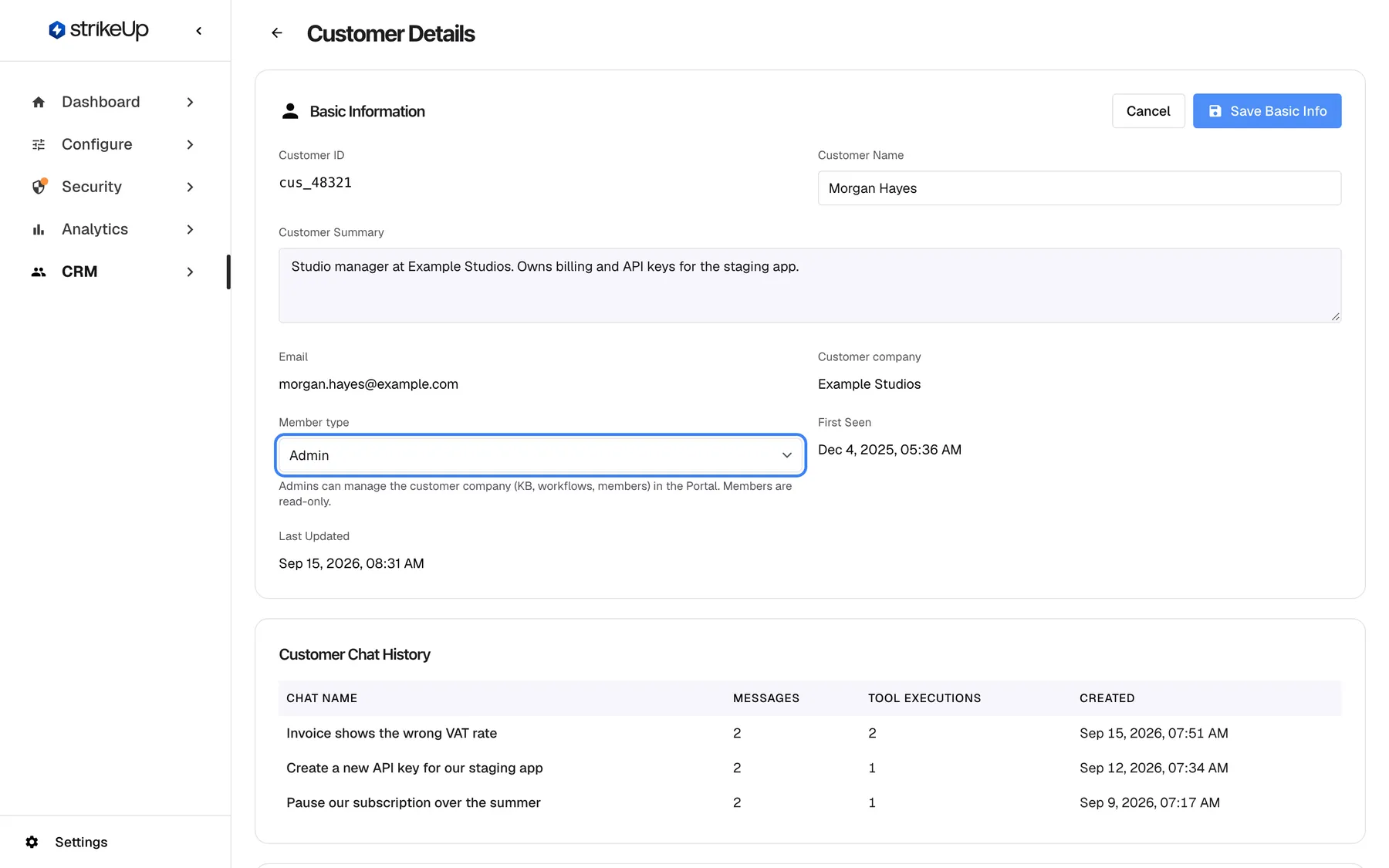
What this screenshot shows
- Screen
- Basic Information (/admin/customers/:id)
- Highlighted
- combobox “Member type”, basic-info-card, Admin. saved with Save Basic Info; takes effect at the customer's next sign-in
- Also visible
- Editable Customer Name and Customer Summary; Cancel and Save Basic Info
- Purpose
- editing a customer's name, summary and role
Member type is the customer’s role in their company: Admins can manage the customer company (KB, workflows, members) in the Portal. Members are read-only. Change it in edit mode and select Save Basic Info.
Saving a new role signs the customer out on their next request. They sign in again and get the new role.
Open a chat
Section titled “Open a chat”

What this screenshot shows
- Screen
- Customer Chat History (/admin/customers/:id)
- Highlighted
- row “”, table-row, shown. opens the chat details timeline
- Also visible
- 3 chats with message and tool execution counts
- Purpose
- finding a customer's conversations
Customer Chat History lists every chat the customer started, newest first:
| Column | What it shows |
|---|---|
| Chat Name | The chat’s title, or Untitled Chat |
| Messages | Messages from the customer and the assistant |
| Tool Executions | Tool calls that ran |
| Created | When the chat started |
Select a row to open the chat’s timeline. See Chat Details.
Check engagement
Section titled “Check engagement”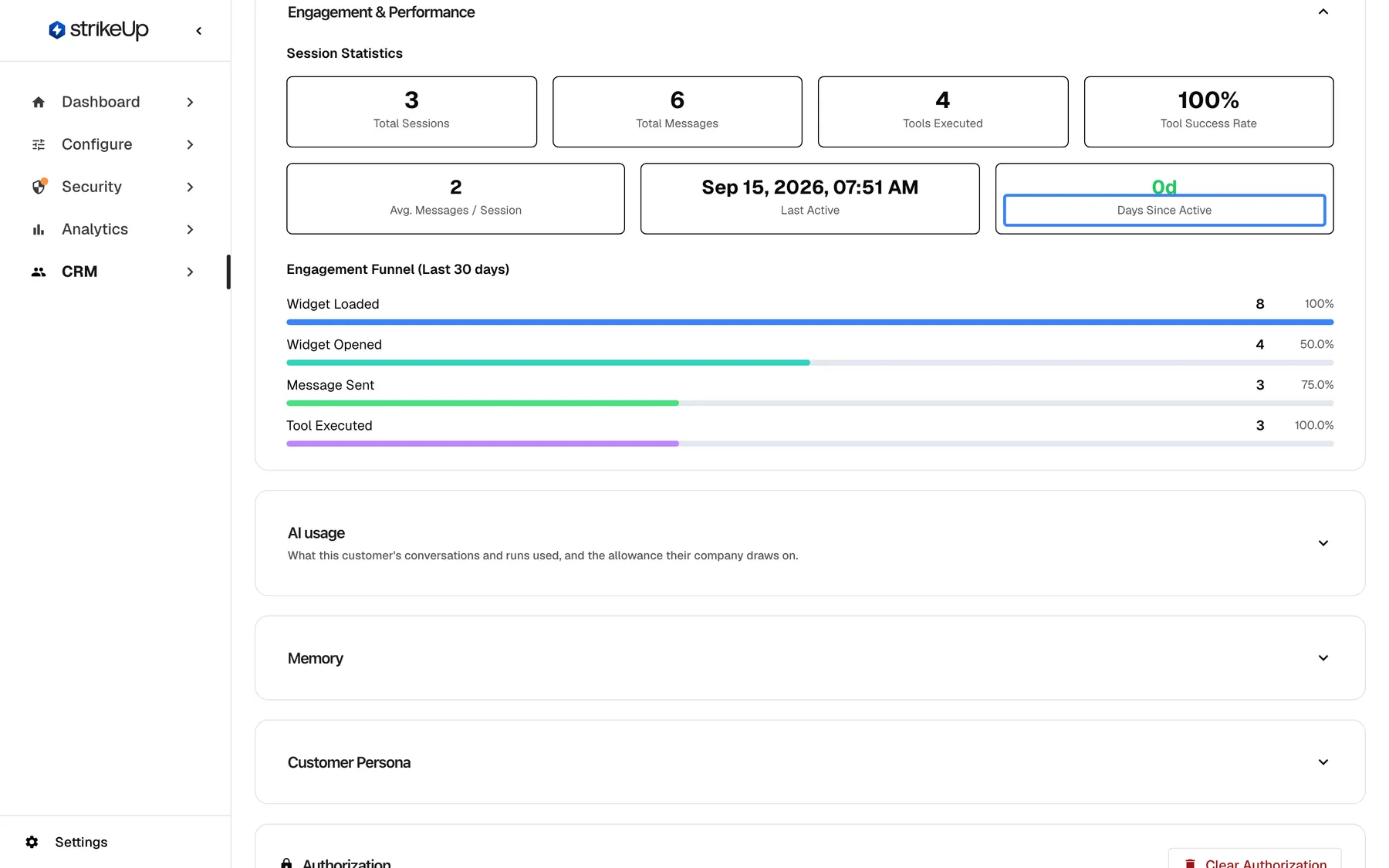
What this screenshot shows
- Screen
- Engagement & Performance (/admin/customers/:id)
- Highlighted
- text “”, session-statistics, 0d, green. none
- Also visible
- 3 sessions, 6 messages, 4 tools, 100% success, 2 messages per session; Funnel: loaded 8, opened 4, message sent 3, tool executed 3
- Purpose
- how active a customer is
Open Engagement & Performance. The figures always cover the last 30 days:
| Tile | What it shows |
|---|---|
| Total Sessions, Total Messages | Chats and messages |
| Tools Executed, Tool Success Rate | Tool calls and the share that succeeded |
| Avg. Messages / Session | Messages per chat |
| Last Active | Their latest activity |
| Days Since Active | Green up to 7 days, orange from 8 to 14, red after 14 |
Engagement Funnel (Last 30 days) shows how many times the customer loaded the widget, opened it, sent a message and had a tool run; the stage names appear in English. A customer without activity shows No analytics data available for this customer yet..
See usage and cost
Section titled “See usage and cost”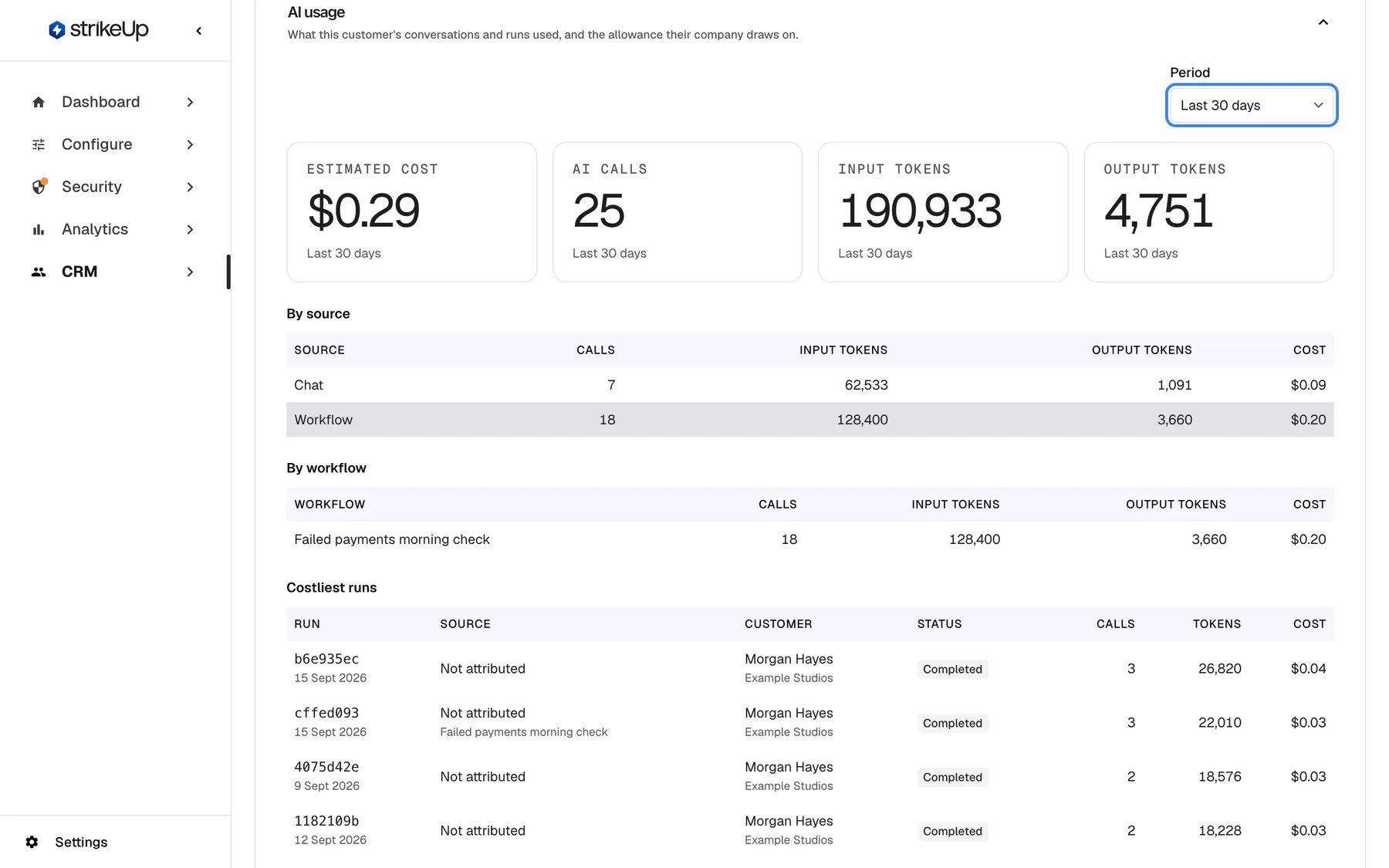
What this screenshot shows
- Screen
- AI usage (/admin/customers/:id)
- Highlighted
- combobox “Period”, section-top-right, Last 30 days. changes the period
- Also visible
- $0.29, 25 AI calls, 190,933 input and 4,751 output tokens; By source: Chat and Workflow; By workflow: Failed payments morning check
- Purpose
- one customer's AI usage
Open AI usage: What this customer's conversations and runs used, and the allowance their company draws on. It loads only when you open it.
| Part | What it shows |
|---|---|
| Period | This month, or the last 7, 30 (default) or 90 days |
| Allowance | The company’s allowance, when one is enforced as a hard limit |
| Tiles | Estimated cost, AI calls, Input tokens, Output tokens |
| By source, By workflow, Costliest runs | Where the usage came from |
Costs are estimates in US dollars from each provider’s published prices.
Delete memories
Section titled “Delete memories”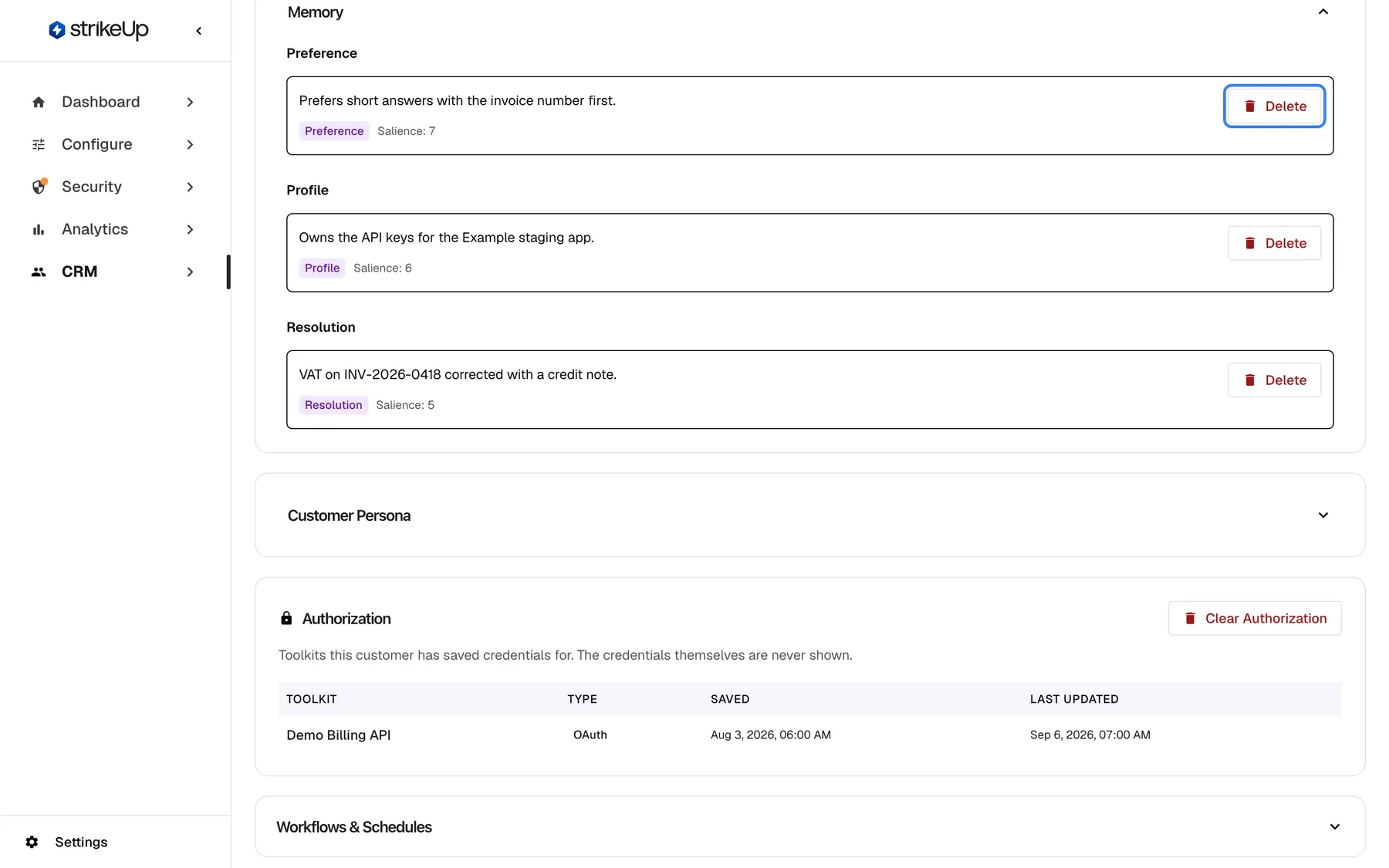
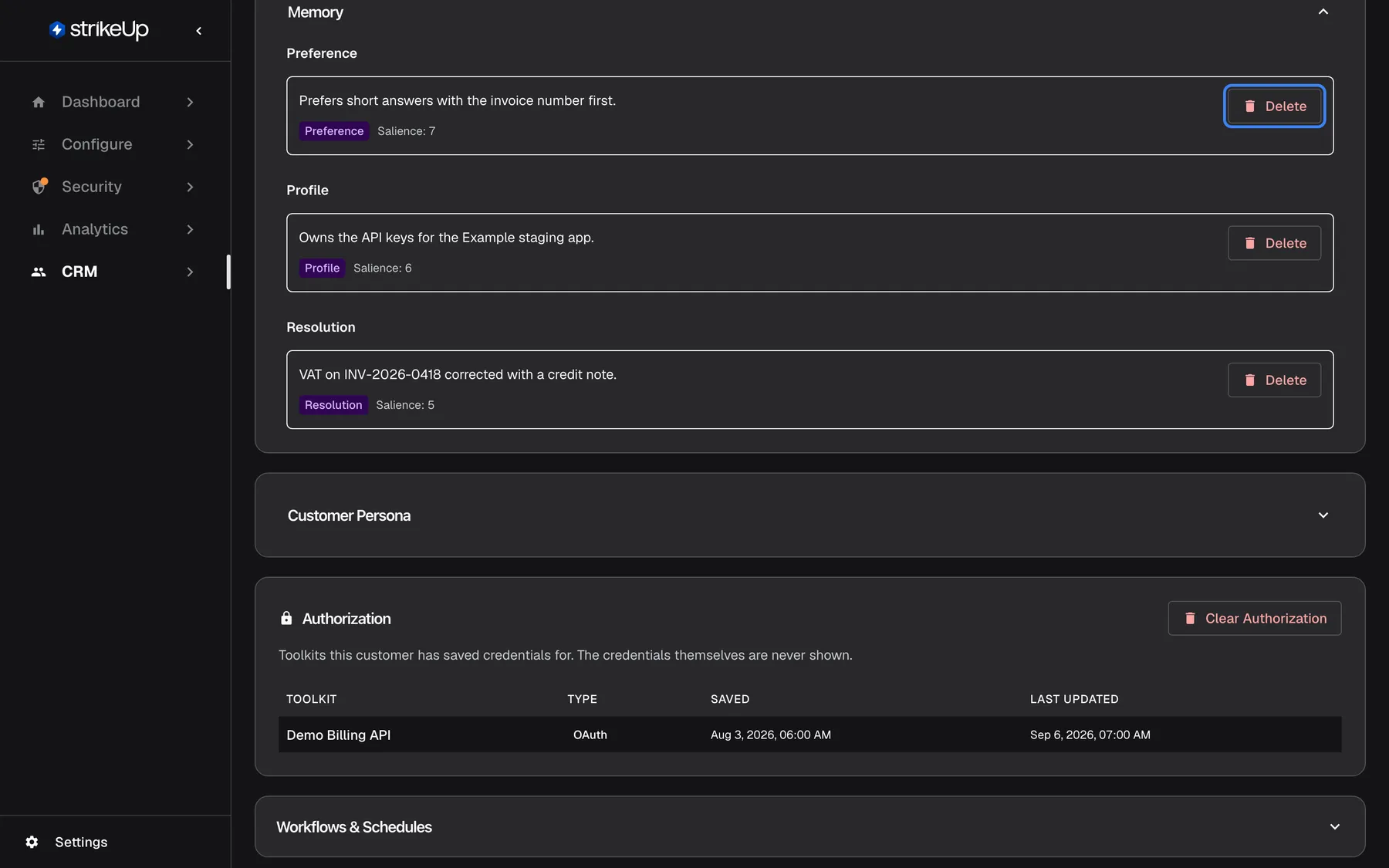
What this screenshot shows
- Screen
- Memory (/admin/customers/:id)
- Highlighted
- button “Delete”, memory-item, enabled. deletes the memory immediately; it is not learned again
- Also visible
- Preference (salience 7), Profile (6), Resolution (5)
- Purpose
- the customer's own memories
Open Memory to see what the assistant has learned about this customer, grouped by category, each with its Salience (how important it is). Select Delete to remove one. It is deleted at once, without a confirmation, and is never learned again. Use it when a customer asks for something to be forgotten, or when a memory is wrong.
Memories about the whole company are on the company’s Overview tab, not here. Customers can also see and forget their own memories, and turn memory off, in the customer portal. See AI memory.
Keep persona notes
Section titled “Keep persona notes”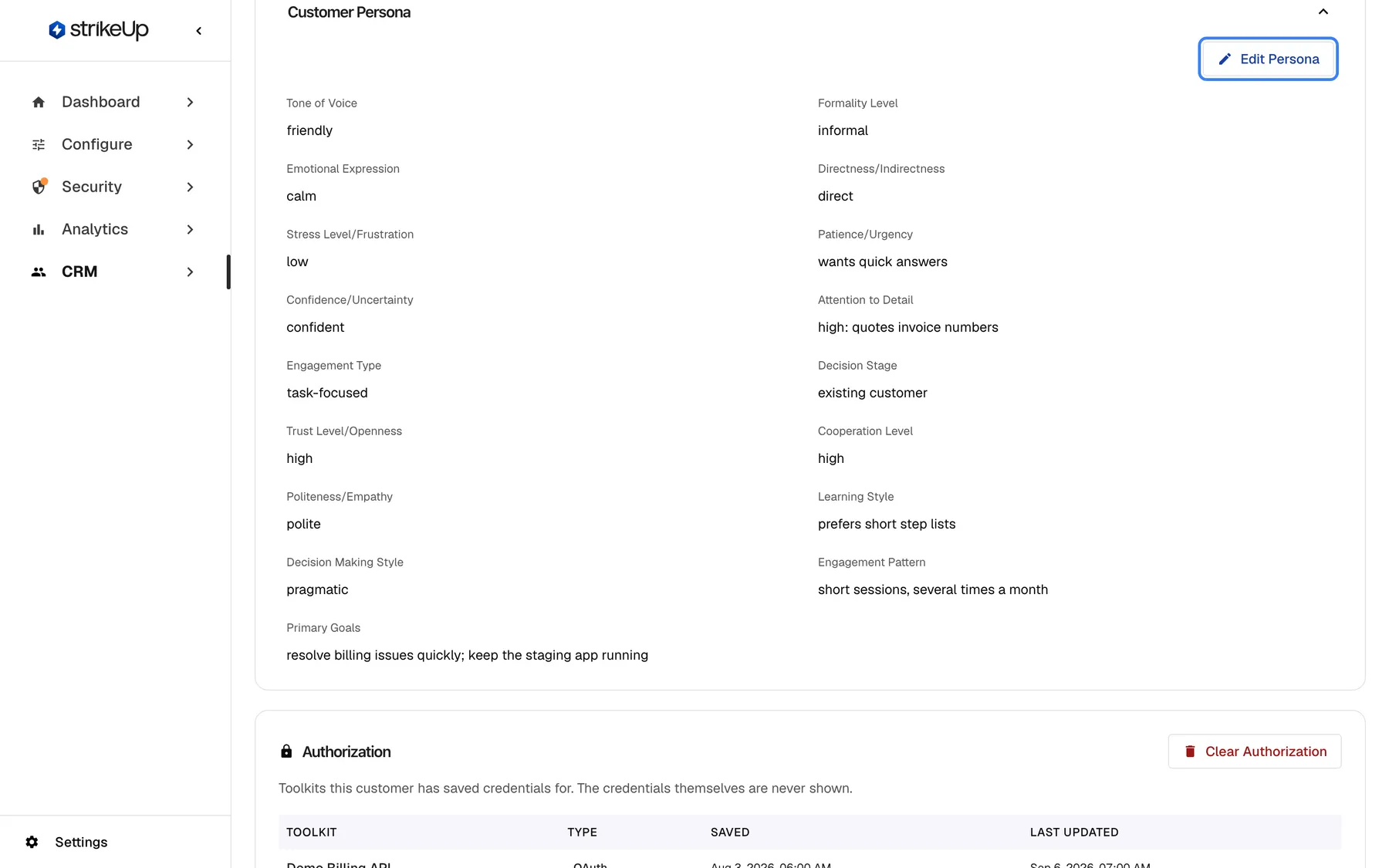
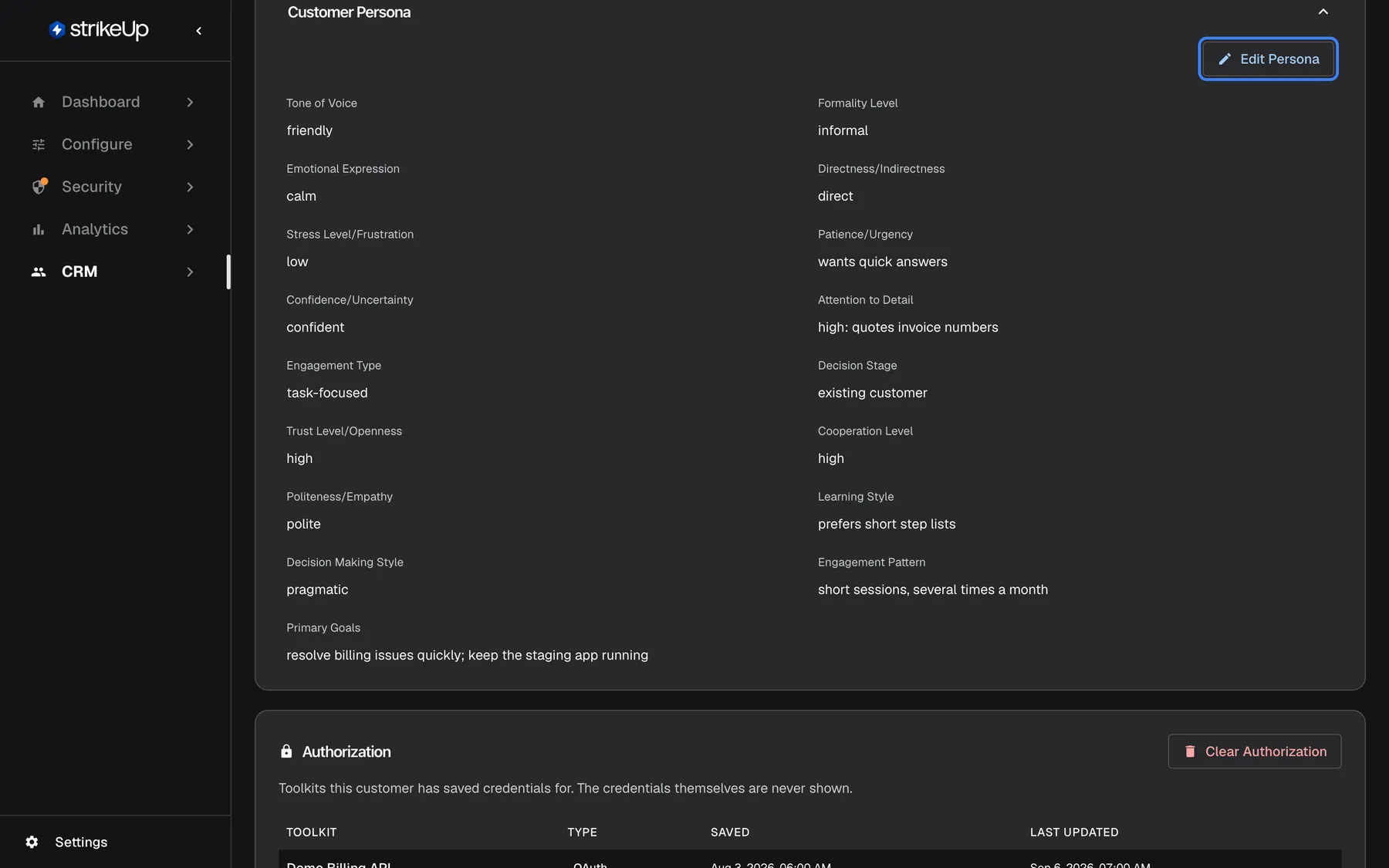
What this screenshot shows
- Screen
- Customer Persona (/admin/customers/:id)
- Highlighted
- button “Edit Persona”, section-header-right, enabled. switches the 17 persona fields to edit mode
- Also visible
- 17 persona fields such as Tone of Voice, Formality Level, Primary Goals
- Purpose
- the customer persona notes
Customer Persona has seventeen fields for your team’s observations about how the customer communicates, from Tone of Voice and Formality Level to Primary Goals. They hold whatever your team writes into them.
- Open Customer Persona and select Edit Persona.
- Fill in or change the fields.
- Select Save Persona. If saving fails, Failed to update persona appears.
A field cannot be emptied once filled. Cancel only restores Tone of Voice and Formality Level; reload the page to discard other unsaved changes.
See and clear saved toolkit credentials
Section titled “See and clear saved toolkit credentials”Authorization lists the toolkits this customer saved credentials for when the assistant asked them to authorize. Toolkits this customer has saved credentials for. The credentials themselves are never shown.
| Column | What it shows |
|---|---|
| Toolkit | The toolkit’s name, or Deleted toolkit when the toolkit no longer exists |
| Type | Basic Auth, Custom Token, OAuth or Custom Auth Endpoint |
| Saved | When the customer first saved credentials for the toolkit |
| Last Updated | When those credentials last changed |
A customer who saved nothing shows This customer has not saved credentials for any toolkit..
To make the customer authorize again, for example when they ask for their credentials to be removed:
- Select Clear Authorization at the top right of the card. A confirmation opens: This deletes the credentials this customer saved for every toolkit. They will be asked to authorize again the next time the assistant needs one of those toolkits. Continue?
- Select Clear Authorization in the confirmation. The list reloads and shows This customer has not saved credentials for any toolkit..
Clearing removes the credentials for every toolkit at once; you cannot clear a single toolkit. The button needs the Admin role and appears only when the list is not empty. The customer’s chats and other records stay.
See workflows and schedules
Section titled “See workflows and schedules”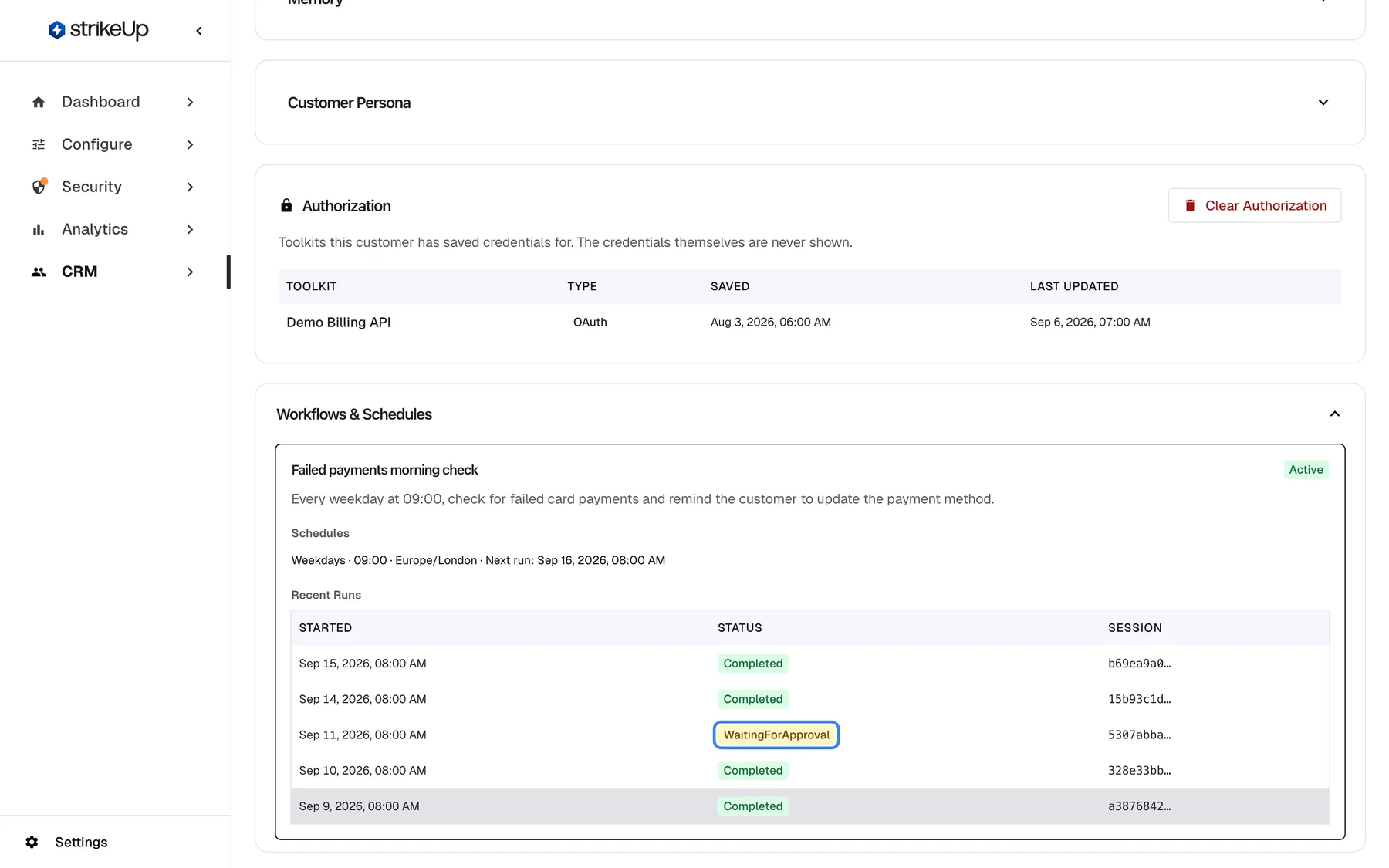
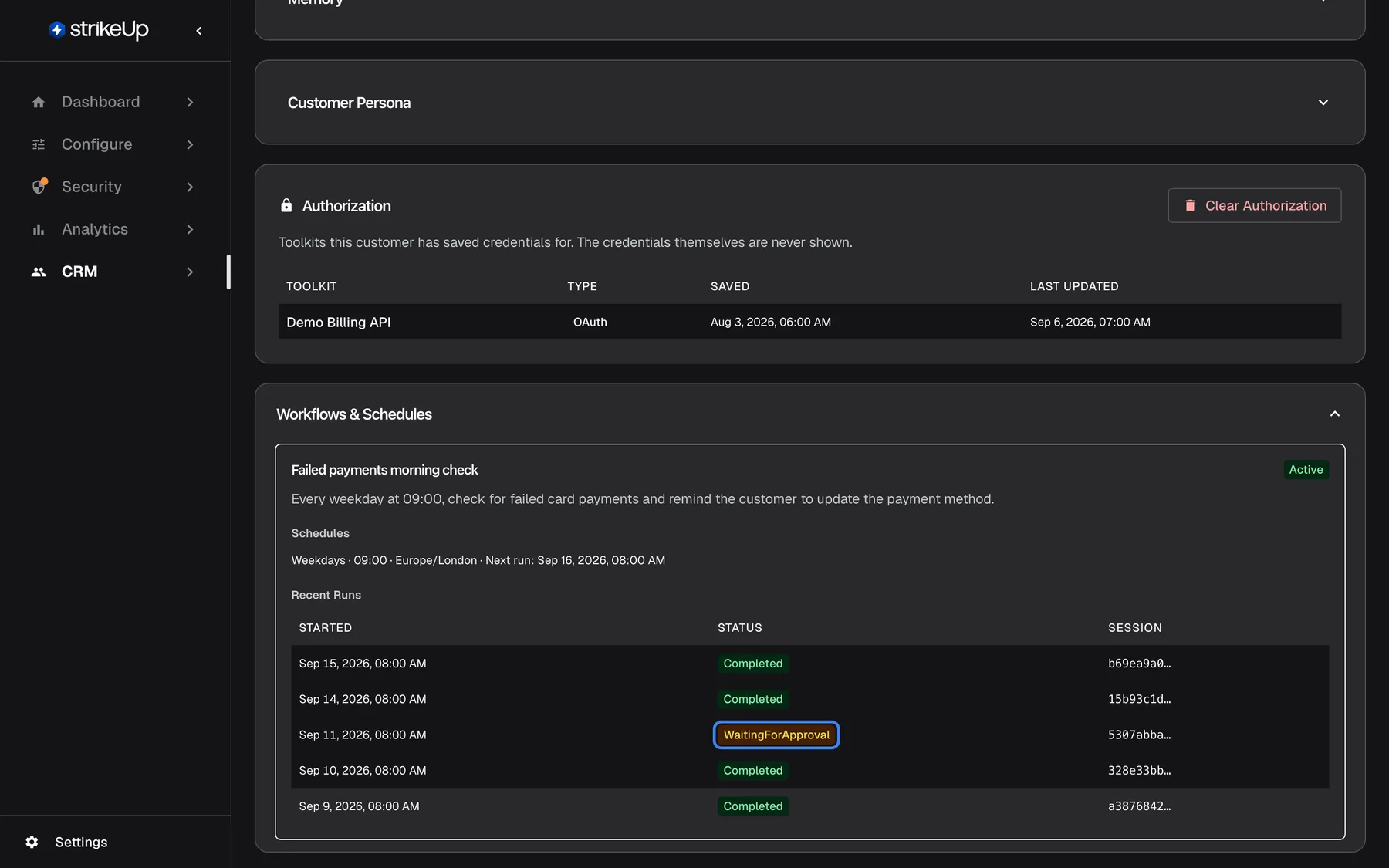
What this screenshot shows
- Screen
- Workflows & Schedules (/admin/customers/:id)
- Highlighted
- cell “”, recent-runs, shown. none
- Also visible
- Authorization: Demo Billing API, OAuth; Failed payments morning check, Weekdays 09:00 Europe/London; 5 recent runs
- Purpose
- the customer's workflows and recent runs
Open Workflows & Schedules to see every workflow the customer owns, with an Active or Inactive badge, its schedules (frequency, time, time zone and Next run) and Recent Runs: the last five runs with their start, status and the first characters of the chat they ran in. The section is read-only; pause, edit or delete workflows on the company’s Workflows tab.
Every control, explained
Section titled “Every control, explained”Edit Basic Info
Section titled “Edit Basic Info”Edit Basic Info at the top right of Basic Information; then Cancel and Save Basic Info.
Makes name, summary and member type editable. Saving shows no message when it works. Empty name or summary keeps the old value. Needs the Admin role.
Give support the context they need: a real name and a one-line summary of who the person is.
Member type
Section titled “Member type”Member type in Basic Information, in edit mode.
Admin or Member. Saving a change signs the customer out on their next request. Does not stop you demoting a company’s last Admin. Needs the Admin role.
Change one person’s rights while you are looking at their record.
Chat rows
Section titled “Chat rows”The rows of Customer Chat History.
Selecting one opens that chat’s timeline.
See exactly what the customer asked and what the assistant did.
Clear Authorization
Section titled “Clear Authorization”Clear Authorization at the top right of Authorization, shown only when the customer saved credentials.
Opens a confirmation, then deletes the customer’s credentials for every toolkit. A failure shows Failed to clear authorization. Needs the Admin role.
Make a customer authorize again, or remove their credentials when they ask.
Collapsible sections
Section titled “Collapsible sections”The headers Engagement & Performance, AI usage, Memory, Customer Persona and Workflows & Schedules.
Select a header to open or close its section. Usage loads only when opened.
The page stays short until you need a section.
Delete memory
Section titled “Delete memory”Delete beside each memory.
Deletes the memory at once, without confirmation; it is not learned again. A failure shows Failed to delete memory. Please try again.. Needs the Admin role.
Honour a customer’s request to forget something, or remove a wrong fact.
Edit Persona
Section titled “Edit Persona”Edit Persona in Customer Persona; then Save Persona.
Makes the seventeen fields editable. Filled fields cannot be emptied. Needs the Admin role.
Keep your team’s observations about a customer in one place.
Who sees what
Section titled “Who sees what”| Part of the screen | Who can use it |
|---|---|
| Every card and section | Every signed-in user of your workspace |
| Save Basic Info, Save Persona and deleting memories | Users with the Admin role. For anyone else the change fails |
| Clear Authorization | Users with the Admin role. Anyone else sees the list without the button |
What you need to know
Section titled “What you need to know”| Topic | Fact |
|---|---|
| Your edits stick | Your product only fills empty name, email and company fields. |
| Clearing fields | Name, summary and persona fields cannot be emptied once set. |
| Engagement period | Always the last 30 days. |
| Memory deletion | Immediate, no confirmation, never learned again. |
| No delete | The customer record itself cannot be deleted. |
| Credentials | A customer’s PIN or password is not shown or reset on this page. |
| Toolkit credentials | Never shown. Clearing removes them for every toolkit at once. |
| Role changes | Saving a new member type signs the customer out on their next request. |
| Dates | Shown in English format in every language. |
Frequently asked questions
Section titled “Frequently asked questions”Profile and role
Section titled “Profile and role”How do I make a customer the admin of their company?
Section titled “How do I make a customer the admin of their company?”Select Edit Basic Info, set Member type to Admin and select Save Basic Info, or change the role on the company’s Members tab. The customer is signed out on their next request and gets the new role when they sign in again.
Why did the name I cleared come back?
Section titled “Why did the name I cleared come back?”Customer Name and Customer Summary cannot be emptied once they hold a value: saving an empty field keeps the old text. Replace it with another value instead on the Basic Information card.
Can I move a customer to another company?
Section titled “Can I move a customer to another company?”Not on this page. Import a CSV file on CRMCustomers › Import from CSV with the customer’s id in CustomerId and the target company’s name in CustomerCompanyName; the import updates the existing customer’s company.
Can I reset a customer’s PIN or password?
Section titled “Can I reset a customer’s PIN or password?”Not on this page. Re-import the customer with a new value in the Pin or Password column on CRMCustomers › Import from CSV. That replaces the credential, lifts any lockout and signs the customer out on their next request.
Chats and activity
Section titled “Chats and activity”Where are the customer’s conversations?
Section titled “Where are the customer’s conversations?”In Customer Chat History on this page, newest first. Select a chat to open its timeline, with the customer’s messages, each AI step including the assistant’s reply, and every tool call.
Why does engagement only cover 30 days?
Section titled “Why does engagement only cover 30 days?”Engagement & Performance always covers the last 30 days; there is no period choice in this section. For a longer period of usage, open AI usage and choose 90 days in Period.
Memory and notes
Section titled “Memory and notes”Can I delete what the assistant remembers about a customer?
Section titled “Can I delete what the assistant remembers about a customer?”Yes. Open Memory and select Delete beside each memory. It is removed at once, without a confirmation, and the assistant does not learn it again. Company-wide memories are on the company’s Overview tab.
Who fills in the persona fields?
Section titled “Who fills in the persona fields?”Your team does. The seventeen fields in Customer Persona keep whatever someone with the Admin role writes there with Edit Persona, such as how formal the customer is or what they want to achieve.
Can I see the credentials a customer saved for a toolkit?
Section titled “Can I see the credentials a customer saved for a toolkit?”No. Authorization shows only the toolkit, the type and the dates. An Admin can delete all of them with Clear Authorization; the customer then authorizes again the next time the assistant needs one of those toolkits.
Can I delete the customer?
Section titled “Can I delete the customer?”No. Customer records cannot be deleted in StrikeUp. You can delete their memories here and disable their sign-in on their company’s Members tab; their chats and records stay.
Troubleshooting
Section titled “Troubleshooting”| Symptom | What to check |
|---|---|
| Failed to update customer | You may not have the Admin role. Reload and try again. |
| Failed to update persona | You may not have the Admin role. Reload and try again. |
| An emptied field shows its old value after saving | Emptying is not supported; replace the value. |
| Cancel in the persona left some changes | Only two fields are restored; reload the page to discard the rest. |
| A company has no Admin any more | Someone set the last Admin to Member here. Make a member Admin on the company’s Members tab. |
| Failed to load authorization | Reload the page. If it stays, the customer may no longer exist in your workspace. |
| Failed to clear authorization | You may not have the Admin role. Reload and try again. |
| There is no Clear Authorization button | You do not have the Admin role, or the customer saved no credentials. |
| Customer not found | The customer does not exist in your workspace; open them from the customers list. |