

Tool runs
The Tool runs page lists every attempt the assistant made to call your API through a toolkit: the calls that reached your API, and the attempts StrikeUp stopped before sending because the AI’s input did not pass its checks. Each row shows the tool, the endpoint, the HTTP status and, for a failure, what kind of failure it was. Developers and support leads use it to find out why an action in a conversation did not work. It lives at AnalyticsTool runs; the page heading reads Tool Execution Logs. Everyone in your workspace can see the list; opening a run needs the Admin role.
What you can do here
Section titled “What you can do here”- Find a specific call. Search by tool name, endpoint or status code. Search for a run.
- List the failures. Filter by success or error and by failure kind, such as authorisation, timeout or rejected before sending, to group problems with one cause. Find failed runs.
- Spot retries. An attempt badge marks a run that the assistant repeated after an earlier attempt failed. Find failed runs.
- Open a run in full. See the full endpoint, the request the assistant sent, your API’s response and every attempt on the same call. Open a run · Tool Execution Log Details.
The screen at a glance
Section titled “The screen at a glance”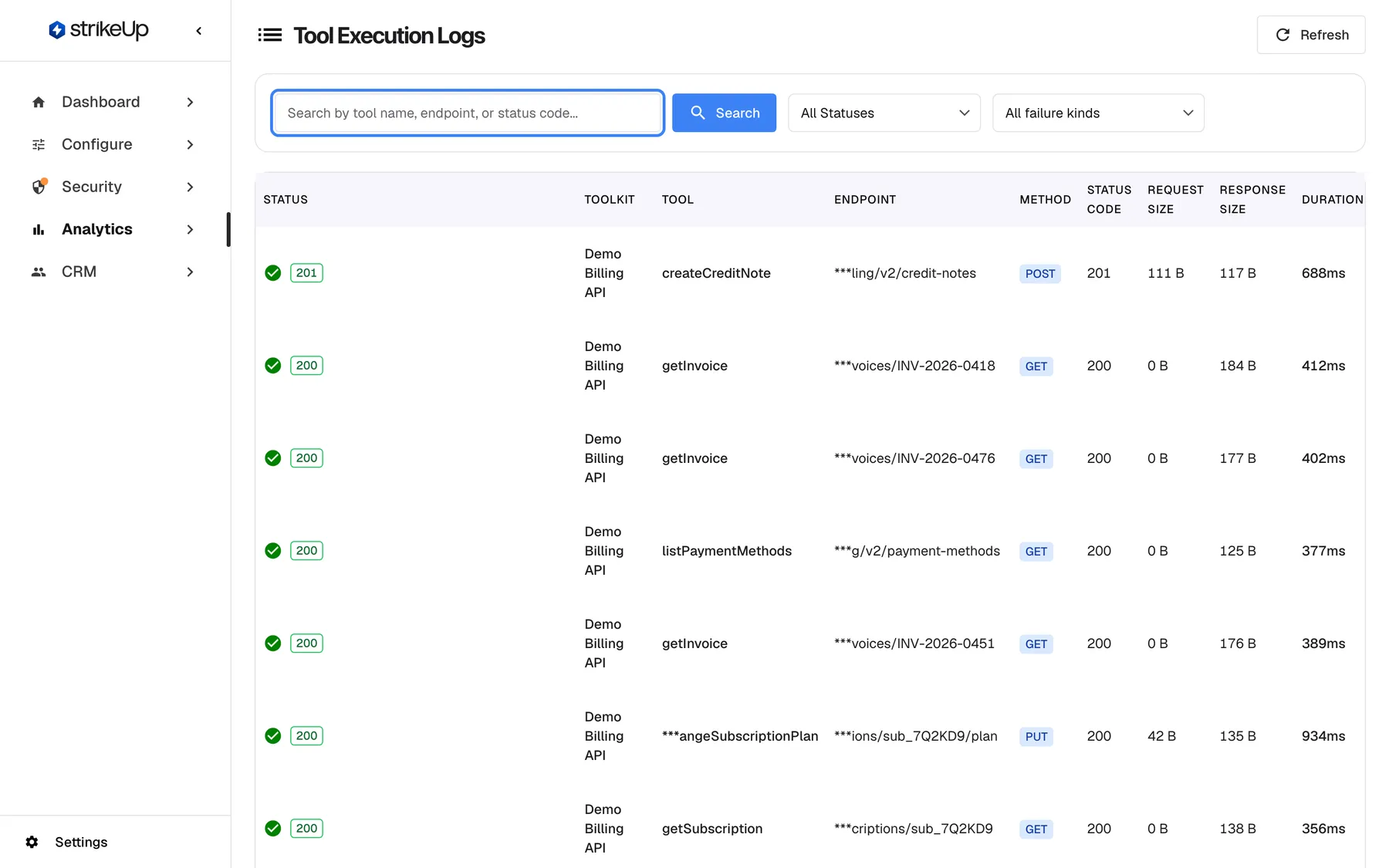
What this screenshot shows
- Screen
- Tool runs (/admin/tool-execution-logs)
- Highlighted
- textbox “Search by tool name, endpoint, or status code...”, filter-card-left, empty. searches tool name, endpoint and status code
- Also visible
- Status and failure kind selects; Rows: status, toolkit, tool, endpoint (truncated), method, status code, sizes, duration; Table is wider than the window; executed-at and actions columns need horizontal scrolling
- Purpose
- the tool run log as it opens
| Region | What it shows | What you do there |
|---|---|---|
| Header | The heading Tool Execution Logs, Refresh and, when available, Ask strikeUp | Reload the list, ask the built-in assistant |
| Filter card | The search box, Search, the status filter and the failure kind filter | Narrow the list |
| The table | One row per attempt, newest first, 20 per page | Select a row or the eye icon to open it |
| Pagination, bottom | The rows shown, the total and the page number | Move through older runs |
The table is wider than most windows: scroll it sideways to reach Executed At and the eye icon.
Search for a run
Section titled “Search for a run”The search box finds runs by tool name, endpoint or status code. It applies when you select Search or press Enter.
- Type part of a tool name, an address or a status code into Search by tool name, endpoint, or status code....
- Select Search. The list returns to page 1 and shows the matching runs.
| You type | You find |
|---|---|
invoice | Runs of tools such as getInvoice or listInvoices, and runs whose address contains “invoice” |
| A record number, such as an invoice number | Runs whose address contains it, because addresses include the values filled in |
401 | Runs answered with 401 |
40 | Runs answered with any code containing “40”, such as 400, 401, 404 or 408 |
- Search is not case-sensitive and matches any part of the text.
- Search does not look inside request or response bodies. Open a run to read them.
- An empty box shows everything again once you select Search.
Find failed runs
Section titled “Find failed runs”The two drop-downs narrow the list to failures and their causes. They apply the moment you change them.
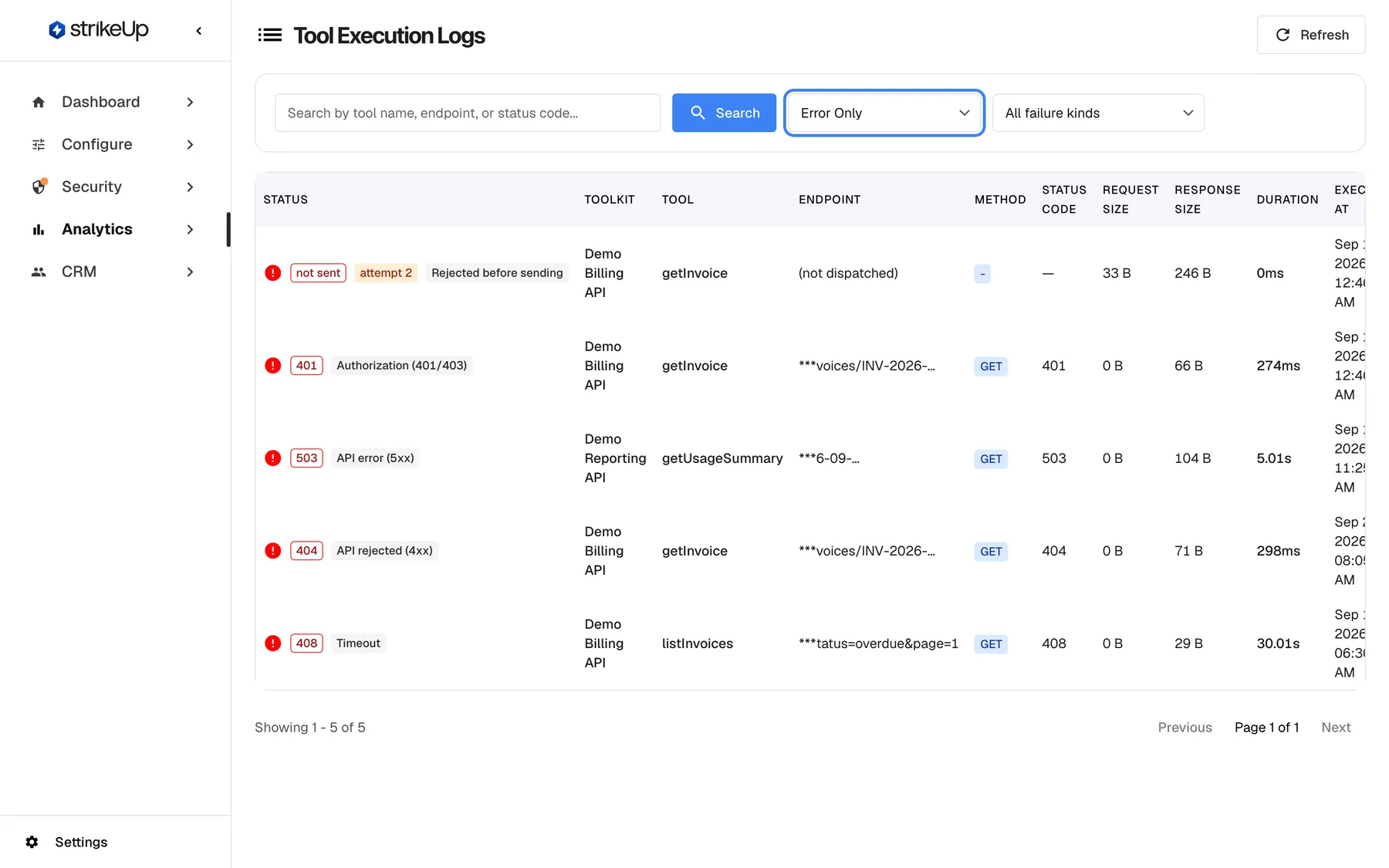
What this screenshot shows
- Screen
- Tool runs (/admin/tool-execution-logs)
- Highlighted
- combobox “Error Only”, filter-card, Error Only. shows failed runs only
- Also visible
- Five failed runs with failure-kind badges (validation, auth, 5xx, 4xx, timeout); A rejected attempt: not sent, method -, endpoint (not dispatched), attempt 2
- Purpose
- find failed tool runs
- Set the status filter to Error Only. The list keeps every run that did not succeed.
- Look at the grey badge in each row’s status cell: it names the failure kind.
- Set the failure kind filter to one kind to see all runs with that cause.
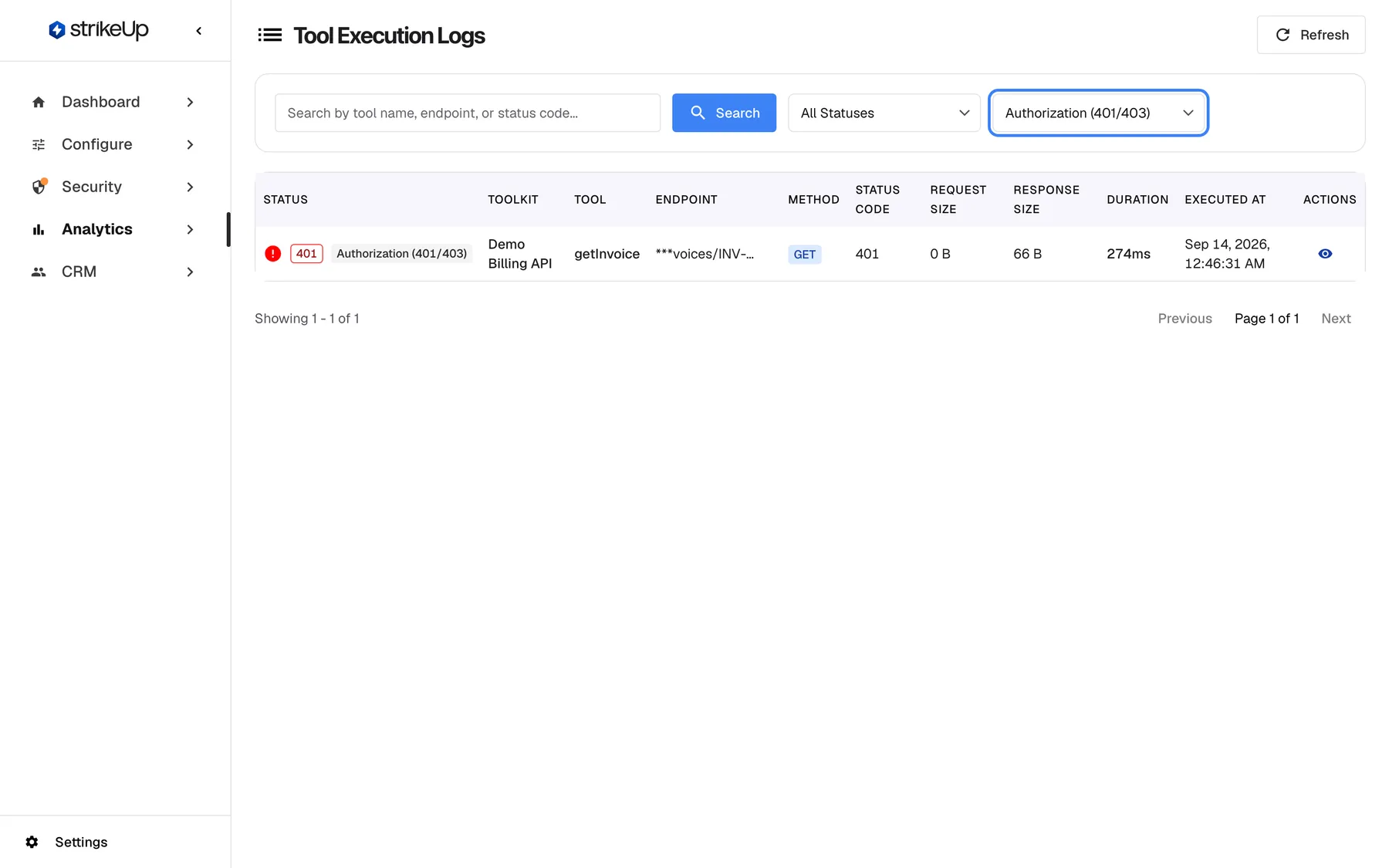
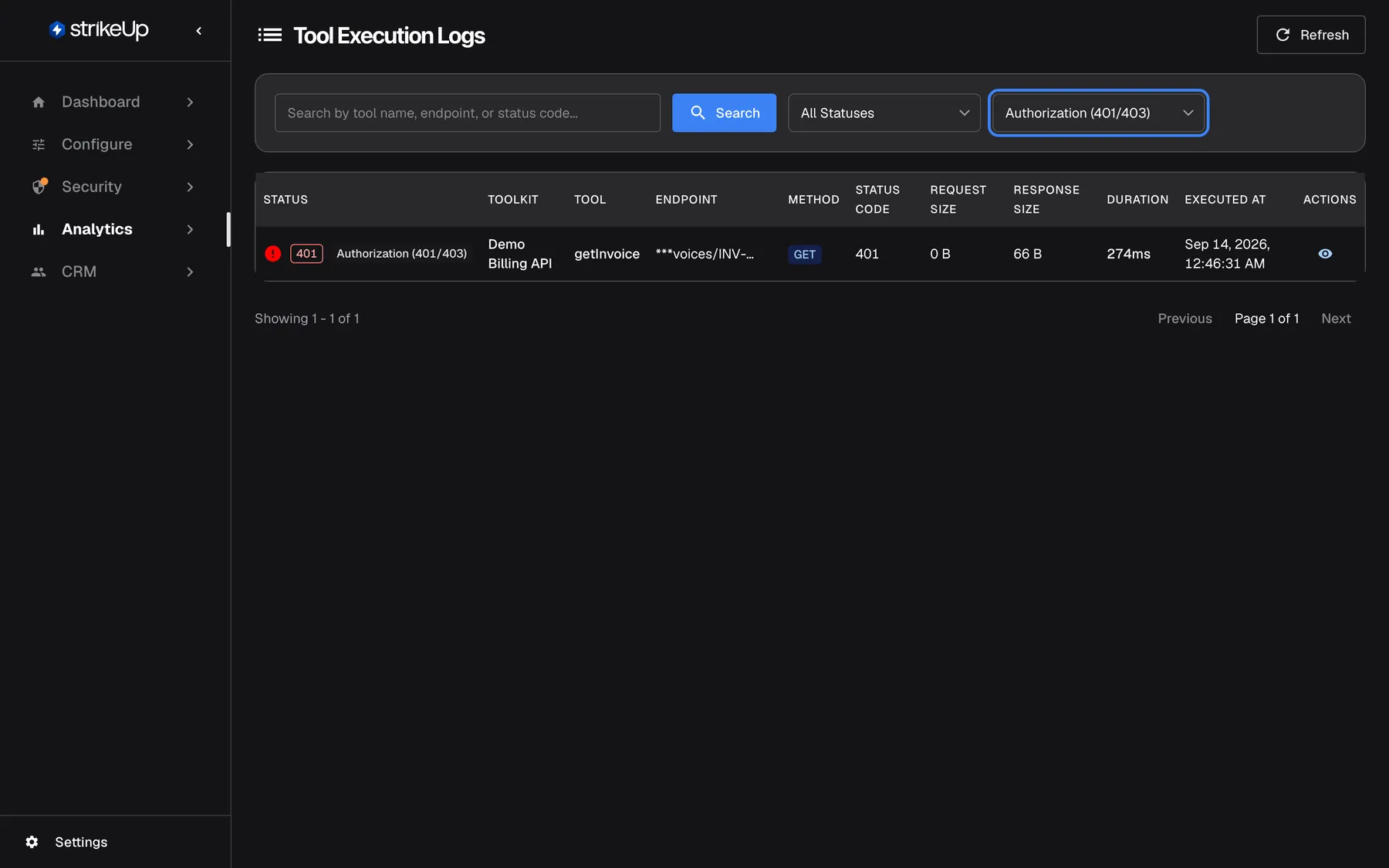
What this screenshot shows
- Screen
- Tool runs (/admin/tool-execution-logs)
- Highlighted
- combobox “Authorization (401/403)”, filter-card-right, Authorization (401/403). shows runs with this failure kind only
- Also visible
- One getInvoice run with 401
- Purpose
- group failures by cause
| Failure kind | When a run gets it | Where to look |
|---|---|---|
| Rejected before sending | StrikeUp stopped the attempt before calling your API: an argument from the AI failed the tool’s checks, the AI repeated an identical attempt, the attempt limit was reached, or the customer first has to authorise the toolkit | The tool’s parameter descriptions and examples in its toolkit |
| Authorization (401/403) | Your API answered 401 or 403 | The toolkit’s credentials, or the customer’s authorisation |
| API rejected (4xx) | Your API answered another 4xx code, such as 400 or 404 | The values the AI sent; open the run to compare them with what your API expects |
| API error (5xx) | Your API answered 500 or above | Your API’s own logs and health |
| Timeout | Your API did not answer in time, recorded as 408 | Your API’s response time |
| No failure | Your API answered with a 2xx or 3xx code | Nothing to fix |
Example: two runs of a tool that revokes API keys both show 401 and Authorization (401/403), and the newer one carries an orange “attempt 2” badge. The assistant retried, and your API refused both times. The fix is in the toolkit’s credentials, not in the AI.
- “attempt 2” or higher means the assistant tried the same tool again in the same turn after an earlier attempt failed. Hover the badge for the explanation. The assistant makes at most 3 attempts at one tool call.
- not sent in the status cell means no request reached your API. That is the case for Rejected before sending, and also for a call that could not connect to your API at all, for example because the address could not be resolved; such a call shows no failure kind badge.
- Runs that were never sent have no endpoint or method. The Status Code column shows
—.
Open a run
Section titled “Open a run”Select a row, or the eye icon at its end, to open the run on its own page. This needs the Admin role.
The run’s page shows the full endpoint, the request the assistant sent, your API’s response and, when the assistant tried more than once, every attempt on that call in order. A run that never reached your API shows the check that stopped it. Tool Execution Log Details explains the page.
Every control, explained
Section titled “Every control, explained”Search box and Search
Section titled “Search box and Search”The text box Search by tool name, endpoint, or status code... and the blue Search button at the left of the filter card. Applies on Search or Enter.
Keeps runs whose tool name or endpoint contains the text, in any case, or whose status code contains it. Returns to page 1.
Jump to the runs of one tool, one record or one status code.
Status filter
Section titled “Status filter”The first drop-down in the filter card. Applies when you change it.
All Statuses (the default), Success Only or Error Only. A run counts as a success when StrikeUp recorded it as successful; runs that never reached your API are errors.
Error Only is the quickest way to everything that went wrong.
Failure kind filter
Section titled “Failure kind filter”The second drop-down in the filter card. Applies when you change it.
All failure kinds (the default) or one of Rejected before sending, API rejected (4xx), API error (5xx), Authorization (401/403), Timeout and No failure. Runs recorded before StrikeUp classified failures have no kind and appear only under All failure kinds.
Group problems with one cause, such as every run blocked by expired credentials.
Columns
Section titled “Columns”| Column | What it shows | Why |
|---|---|---|
| Status | A green check or red icon, the HTTP code or not sent, an orange “attempt …” badge from the second attempt on, and a grey failure kind badge | See at a glance what happened |
| Toolkit | The toolkit’s name, or its internal ID if the toolkit no longer exists | Know which API was called |
| Tool | The tool’s name | Know which operation ran |
| Endpoint | The last 20 characters of the address, after ***; hover for the full address | Recognise the record it was about |
| Method | GET, POST, PUT, DELETE and so on | Tell reads from changes |
| Status Code | The HTTP code, or — when nothing was sent | The exact answer of your API |
| Request Size | The size of the body sent, in B, KB or MB | Spot unusually large requests |
| Response Size | The size of the response stored, in B, KB or MB | Spot empty or huge answers |
| Duration | Milliseconds or seconds | Find slow endpoints |
| Executed At | Date and time in US format | Place the run in time |
| Actions | An eye icon, View Details | Open the run |
Pagination
Section titled “Pagination”Below the table, shown when there is at least one run.
Which rows are on screen out of the total, previous and next buttons and the page number. Each page holds 20 runs.
Reach older runs; the list has no date filter and reaches back to the first run recorded.
Refresh
Section titled “Refresh”The Refresh button at the top right.
Reloads the list with the current search and filters. The page never updates on its own.
See runs from a conversation happening right now, for example while you test a toolkit in the widget.
Ask strikeUp
Section titled “Ask strikeUp”At the top right of the page, when the StrikeUp assistant built into the admin app is set to open from buttons on the page. Labelled Ask strikeUp.
Opens the built-in assistant with an offer to spot failed runs, slow calls or trace a specific request.
A quick way to ask about the runs without leaving the page.
Who sees what
Section titled “Who sees what”| Part of the screen | Who sees it |
|---|---|
| The list, search and filters | Every signed-in user of your workspace |
| A run’s own page, with request and response | Users with the Admin role. Everyone else gets Tool execution log not found |
What you need to know
Section titled “What you need to know”| Topic | Fact |
|---|---|
| What counts as a run | One attempt at one tool: a request sent to your API, or an attempt stopped before sending. |
| Attempt limit | The assistant makes at most 3 attempts at one tool call, in the main conversation and in sub-agents alike. |
| Masking | Responses from your API are masked by your rules under SecurityData masking before they are stored; if masking fails, the original response is stored. Requests and endpoint addresses, including any values and query parameters in them, are stored as sent, without masking. |
| No credentials | Request headers, and so API keys and tokens, are never stored. |
| Kept indefinitely | StrikeUp keeps every run, with no automatic deletion. The only automatic deletion in Analytics is the event history of finished agent jobs: their events are deleted once they are more than 7 days old. |
| Sorting | Newest first, 20 per page, all time. |
| No cost | Runs show no cost; only calls to AI models are priced. |
| Sample data | Sample records StrikeUp added for a demonstration appear in this list. |
| Dates | Shown in US format in every language. |
Frequently asked questions
Section titled “Frequently asked questions”Reading the list
Section titled “Reading the list”What does not sent mean?
Section titled “What does not sent mean?”not sent in the status cell on AnalyticsTool runs means no request reached your API. Either StrikeUp stopped the attempt because the AI’s input failed the tool’s checks, or the connection to your API could not be made at all.
What does attempt 2 mean?
Section titled “What does attempt 2 mean?”The orange “attempt 2” badge marks a run that the assistant made again, in the same turn, after an earlier attempt at the same tool failed. The assistant makes at most 3 attempts at one tool call.
What do the failure kinds mean?
Section titled “What do the failure kinds mean?”Rejected before sending means StrikeUp stopped the attempt; Authorization (401/403) is a 401 or 403; API rejected (4xx) any other 4xx; API error (5xx) 500 and above; Timeout no answer in time; No failure a 2xx or 3xx answer.
Why does the endpoint start with three asterisks?
Section titled “Why does the endpoint start with three asterisks?”The Endpoint column shows only the last 20 characters of a long address, after ***, to keep the table readable. Hover the cell to see the full address, or open the run to read it in full.
Why is the status code a dash?
Section titled “Why is the status code a dash?”The Status Code column shows — when no request reached your API, so there is no HTTP answer to show. The status cell of the same row reads not sent.
How far back does the list go?
Section titled “How far back does the list go?”AnalyticsTool runs has no date limit. It lists every run recorded for your workspace, newest first, 20 per page, and StrikeUp does not delete runs automatically.
Does the search look inside requests and responses?
Section titled “Does the search look inside requests and responses?”No. The Search by tool name, endpoint, or status code... box matches tool names, endpoint addresses and status codes only. Because addresses include the values filled in, searching for a record number often finds the runs about that record.
Fixing problems
Section titled “Fixing problems”Many runs say Rejected before sending. What should I change?
Section titled “Many runs say Rejected before sending. What should I change?”Rejected before sending means the AI’s input for the tool failed its checks. Open a run to see which parameter failed and what was expected, then improve that parameter’s description or example in the toolkit under ConfigureToolkits.
What should I do about Authorization (401/403) runs?
Section titled “What should I do about Authorization (401/403) runs?”Runs with Authorization (401/403) were refused by your API. Check the toolkit’s credentials under ConfigureToolkits, and, for toolkits that act as the visitor, whether the customer still has to authorise the toolkit.
Data and privacy
Section titled “Data and privacy”Are API keys or tokens stored with the runs?
Section titled “Are API keys or tokens stored with the runs?”No. Request headers are never stored with a run, so the API keys, tokens and other credentials sent to your API do not appear on AnalyticsTool runs or on a run’s page.
Are responses masked?
Section titled “Are responses masked?”Yes. Your API’s responses are masked by your rules under SecurityData masking before they are stored. Requests and endpoint addresses are stored as sent, without masking, so values the AI put in them are visible.
Why can’t a teammate open a run?
Section titled “Why can’t a teammate open a run?”Opening a run needs the Admin role, because a run’s page shows the full request and response. Members with another role see the list on AnalyticsTool runs, but Tool execution log not found when they open a row.
Troubleshooting
Section titled “Troubleshooting”| Symptom | What to check |
|---|---|
| Many Rejected before sending runs for one tool | Open one and read why it was stopped. Improve that parameter’s description or example in the toolkit. |
| Runs with Authorization (401/403) | Check the toolkit’s credentials, and whether the customer needs to authorise the toolkit again. |
| Runs with Timeout | Your API answered too slowly. Check its response time for that endpoint. |
| not sent with no failure kind badge | StrikeUp could not connect to your API, for example because the address could not be resolved or the connection was refused. Check the toolkit’s base address and that your API is reachable from the internet. |
| Tool execution log not found when opening a run | Opening runs needs the Admin role. |
| A toolkit shows as a long ID instead of its name | The toolkit was deleted after the run, or the list of toolkits could not be loaded. Reload the browser page. |
| Failed to load tool execution logs appears | Select Refresh. If it happens again, sign out and in again; your session may have expired. |