

New Company
The New Company form creates a customer company: a business account that groups the people of one of your customers. Create one when you onboard a business customer, so its members, knowledge base, skills and instruction for the assistant are ready before its people start chatting. Open it from CRMCompanies with New Company at the top right.
What you can do here
Section titled “What you can do here”- Name the company. The name is the only required field and must be unique in your workspace, ignoring case and extra spaces. Create a company.
- Link it to your own records. The Company ID (optional) is your reference for this business; when your product passes the same value to the widget, its users land in this company. Link the company to your product.
- Let people join on their own. Allow self-registration lets anyone with the company’s registration link create an account in it. Every control, explained.
- Steer the assistant for this company. The Agent instruction (optional) is added to the assistant’s instructions in every chat with this company’s customers. Write an agent instruction.
- Prepare a company without switching it on. Clear Active to create the company inactive, so nobody in it can sign in until you are ready. Every control, explained.
The screen at a glance
Section titled “The screen at a glance”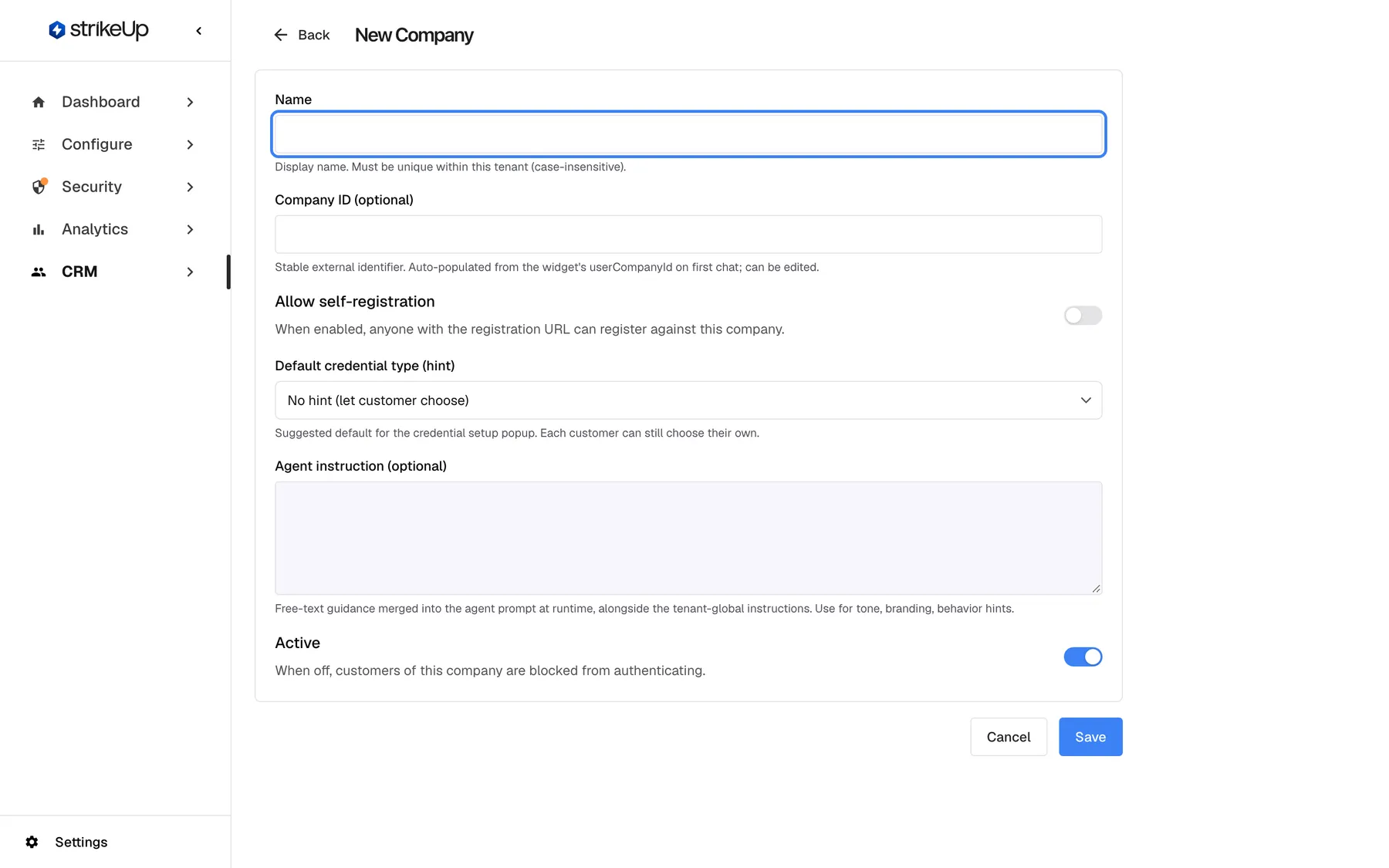
What this screenshot shows
- Screen
- New Company (/admin/customer-companies/new)
- Highlighted
- textbox “Name”, form-top, empty. names the new customer company (required, unique per tenant)
- Also visible
- Defaults: self-registration off, credential hint No hint, Active on; Cancel and Save buttons
- Purpose
- the New Company form before input
| Region | What it shows | What you do there |
|---|---|---|
| Header | Back and the title New Company | Return to the list without saving |
| Form | Name, Company ID (optional), Allow self-registration, Default credential type (hint), Agent instruction (optional) and Active, each with a help text | Fill in the company’s settings |
| Error box, above the form | The reason the last save failed | Correct the field it names |
| Buttons, below the form | Cancel and Save | Save the company or leave |
Create a company
Section titled “Create a company”- Go to CRMCompanies and select New Company. The empty form opens.
- Type the company’s name in Name, for example “Fairbanks Joinery Ltd”.
- Optionally fill in the other fields, described under Every control, explained. Every one of them can be changed later.
- Select Save. StrikeUp shows Company created. and opens the new company’s page on its Overview tab.
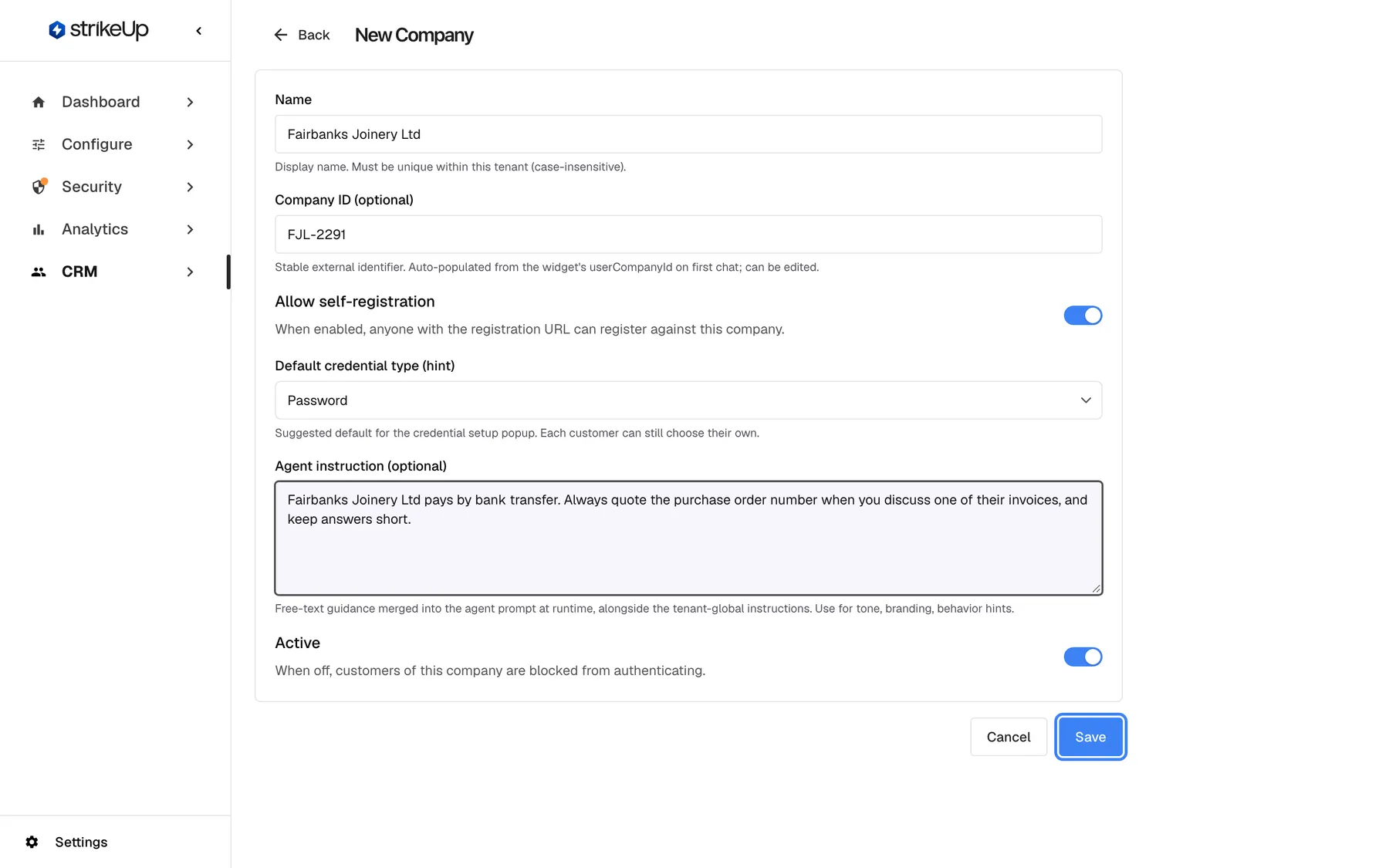
What this screenshot shows
- Screen
- New Company (/admin/customer-companies/new)
- Highlighted
- button “Save”, form-footer, enabled. creates the company (POST /api/customer-companies) and navigates to its detail page
- Also visible
- Name Fairbanks Joinery Ltd, Company ID FJL-2291; Allow self-registration on, credential hint Password, Active on; Agent instruction about bank transfer and purchase order numbers
- Purpose
- the filled form just before saving
The new company has no members yet. Add people by importing a CSV file with the company’s name in the CustomerCompanyName column, by passing its Company ID (optional) from your product, or through self-registration. Then add documents, skills and prompt shortcuts on its tabs. The whole sequence is in Onboard a business customer.
If the name is taken, the error box shows “A CustomerCompany with name ‘Fairbanks Joinery Ltd’ already exists.” and nothing is saved. The other company may be deactivated: turn on Show inactive on the list to find it.
Link the company to your product
Section titled “Link the company to your product”StrikeUp files a widget user under a company by the userCompanyId your product passes to the widget. It looks for a company whose Company ID (optional) equals that value, then for one whose name equals userCompanyName, and creates a new company only if neither exists. So enter the same reference your product sends, such as FJL-2291, and the company’s people land here as they chat.
| Your product passes | A company with that reference exists | Result |
|---|---|---|
userCompanyId: "FJL-2291" | Yes, “Fairbanks Joinery Ltd” | The customer joins Fairbanks Joinery Ltd |
userCompanyId: "FJL-2291", userCompanyName: "Fairbanks Joinery Ltd" | No, but a company has that name | The customer joins it, and the empty reference is filled with FJL-2291 |
userCompanyId: "FJL-2291" | No, and no name matches | StrikeUp creates a company named “FJL-2291” |
| Anything | The customer already belongs to a company | The customer stays where they are |
A customer is only filed under a company while they have none. Creating the company after its people have chatted does not move them; move them with a CSV import that names this company. See Identify users and pass context for how your product passes these fields.
Write an agent instruction
Section titled “Write an agent instruction”The Agent instruction (optional) is text the assistant receives in every chat with a customer of this company, after your workspace’s own instructions. It adds to them; it does not replace them. StrikeUp tells the assistant that this text adjusts tone and workflow only and never relaxes your actions and permissions, guardrails, citations or approval rules.
Example: “Fairbanks Joinery pays by bank transfer. Always quote the purchase order number when you talk about an invoice.”
| Do | Don’t |
|---|---|
| Describe the customer’s situation: contract terms, how they pay, who they are | Tell the assistant to ignore its rules or act as someone else |
| Set tone and conventions: “quote the PO number”, “answer in short steps” | Paste passwords, API keys or tokens |
| Keep it to what is true for every person in the company | Write anything about one person only |
Before saving, StrikeUp reviews the text. It refuses text over 4,000 characters, text that tries to override the assistant’s rules, text that looks like it contains a password, key or token, and control markers such as [handoff]. A refusal appears in the error box as “Agent instruction:” followed by the reason, for example “This text looks like it contains a password, key or token.” If the review itself cannot run, the message is “The safety review could not be completed. Please try again.” and you save again.
Every control, explained
Section titled “Every control, explained”Back, at the top left beside the title.
Returns to the companies list without saving. Cancel under the form does the same.
Leave the form without creating a company.
Name, the first field. Required. Help: Display name. Must be unique within this tenant (case-insensitive).
Up to 255 characters, trimmed. Empty: the form shows Name is required.. A name that differs from an existing company’s only in case or spacing is refused with “A CustomerCompany with name ’…’ already exists.”
Your team finds the company by name in every CRM list and in usage reports.
Company ID
Section titled “Company ID”Company ID (optional), under the name. Help: Stable external identifier. Auto-populated from the widget's userCompanyId on first chat; can be edited.
Optional, up to 255 characters, trimmed; empty is stored as no reference. Not required to be unique. StrikeUp matches it against the userCompanyId your product passes to the widget. It is not the identifier in the company page’s address, which CSV imports and the registration link use.
It ties the company to the account in your own systems, so widget users are grouped without manual work.
Allow self-registration
Section titled “Allow self-registration”The switch Allow self-registration. Off by default. Help: When enabled, anyone with the registration URL can register against this company.
On: anyone who opens your widget’s registration link for this company can create an account in it. The link is the widget’s address with mode=register and customerCompanyId= followed by the identifier from the company page’s address, not the Company ID (optional). People who register this way become Admins of the company. Registration is refused while the company is inactive.
For a business with many people, sharing one link is quicker than importing them.
Default credential type (hint)
Section titled “Default credential type (hint)”The selector Default credential type (hint). Help: Suggested default for the credential setup popup. Each customer can still choose their own.
No hint (let customer choose) (the default), PIN (4-6 digits) or Password. It only decides which choice is selected first when one of the company’s customers sets up their sign-in; each customer can still pick the other. A PIN has 4–8 digits, although the option reads “4-6”; a password needs at least 8 characters. How customers sign in is explained in End-customer sign-in.
Some businesses prefer one kind of credential for all their people; the hint nudges them towards it.
Agent instruction
Section titled “Agent instruction”The text box Agent instruction (optional). Help: Free-text guidance merged into the agent prompt at runtime, alongside the tenant-global instructions. Use for tone, branding, behavior hints.
Optional, up to 4,000 characters. Added to the assistant’s instructions in every chat with this company’s customers, after your own. Reviewed before it is saved; a refusal shows “Agent instruction:” and the reason. The company’s Admins can change it later in the customer portal.
One business may need conventions the others do not, such as quoting a purchase order number.
Active
Section titled “Active”The switch Active, the last field. On by default. Help: When off, customers of this company are blocked from authenticating.
On: the company’s customers can sign in. Off: the company is created inactive; nobody in it can sign in or register until you turn it on, and it is hidden on the list unless Show inactive is on.
Prepare a company completely, with documents and skills, before its people get access.
Save and Cancel
Section titled “Save and Cancel”Under the form.
Save checks the name, creates the company, shows Company created. and opens its page. Cancel returns to the list without saving. Saving needs the Admin role.
Nothing is created until you save, so you can abandon the form safely.
Who sees what
Section titled “Who sees what”| Part of the screen | Who can use it |
|---|---|
| The form | Every signed-in user of your workspace can open and fill it |
| Save | Users with the Admin role. For anyone else the save fails with Request failed |
What you need to know
Section titled “What you need to know”| Topic | Fact |
|---|---|
| Required | Only the name. Everything else can be set or changed later on the Overview tab. |
| Limits | Name and Company ID up to 255 characters each; agent instruction up to 4,000 characters. |
| Defaults | Self-registration off, no credential hint, active. |
| Existing customers | Creating a company does not move customers who already belong to another company. |
| Two identifiers | The Company ID is your own reference. The identifier in the company page’s address is what CSV imports and the registration link need. |
Frequently asked questions
Section titled “Frequently asked questions”Setting up
Section titled “Setting up”Is the Company ID required?
Section titled “Is the Company ID required?”No. Only the name is required on CRMCompanies › New Company. Add a Company ID (optional) when your product passes a userCompanyId to the widget, so that its users are filed under this company automatically.
What is the Company ID for?
Section titled “What is the Company ID for?”It is your own reference for the business, such as the account number in your CRM. When your product passes the same value to the widget as userCompanyId, StrikeUp files the customer under this company. It is not the identifier in the company page’s address, which CSV imports and the registration link use.
I created the company after its people had already chatted. Are they moved into it?
Section titled “I created the company after its people had already chatted. Are they moved into it?”No. StrikeUp only files a customer under a company while the customer has none, so people who already belong to another company, including a placeholder, stay there. Move them with a CSV import on CRMCustomers › Import from CSV that names this company in CustomerCompanyName.
Why does StrikeUp say the name already exists?
Section titled “Why does StrikeUp say the name already exists?”Company names must be unique in your workspace, and StrikeUp ignores upper and lower case and extra spaces when it compares them. The other company may be deactivated: turn on Show inactive on CRMCompanies to find it, then reuse or rename it.
Can I create a company that is not active yet?
Section titled “Can I create a company that is not active yet?”Yes. Turn off Active before you select Save. The company is created with all its settings, nobody in it can sign in or register, and it is hidden on the list until you turn on Show inactive.
Agent instruction and sign-in
Section titled “Agent instruction and sign-in”Does the agent instruction replace my agent’s instructions?
Section titled “Does the agent instruction replace my agent’s instructions?”No. StrikeUp adds the Agent instruction (optional) after your workspace’s own instructions in every chat with this company’s customers. It is told to adjust tone and workflow only, never to relax your actions and permissions, guardrails, citations or approval rules.
Why was my agent instruction refused?
Section titled “Why was my agent instruction refused?”Before saving, StrikeUp reviews the instruction. It refuses text over 4,000 characters, text that tries to override the assistant’s rules, text that looks like a password, key or token, and control markers such as [handoff]. The error box names the reason after “Agent instruction:”; rewrite the text as guidance on tone and conventions and save again.
Does the credential hint force customers to use a PIN or a password?
Section titled “Does the credential hint force customers to use a PIN or a password?”No. Default credential type (hint) only decides which choice is selected first when a customer of this company sets up their sign-in. Every customer can still choose the other kind. A PIN has 4–8 digits, even though the option is labelled “4-6”.
What role do self-registered customers get?
Section titled “What role do self-registered customers get?”Customers who register through the company’s registration link get the Admin role, so they can manage the company’s set-up in the customer portal. Turn on Allow self-registration only when that is acceptable, and change regular users to Member on the company’s Members tab.
Troubleshooting
Section titled “Troubleshooting”| Symptom | What to check |
|---|---|
| Name is required. | Type a name; spaces alone do not count. |
| “A CustomerCompany with name ’…’ already exists.” | Another company, perhaps a deactivated one, has the same name ignoring case and spaces. Turn on Show inactive on the list, or choose another name. |
| “Agent instruction:” followed by a reason | The review refused the instruction. Remove passwords and keys, rules the assistant should break and […] markers, keep it under 4,000 characters, then save again. |
| “The safety review could not be completed. Please try again.” | The review could not run this time. Save again. |
| Request failed | You may not have the Admin role. Ask an Admin to create the company. |
| Widget users do not appear in the new company | Check that your product passes exactly this Company ID (optional) as userCompanyId. People who already belonged to a company stay there; move them with a CSV import. |