

Knowledge Base
The knowledge base is the content your assistant answers from: your policies, price lists, help articles and technical documentation. On the Knowledge Base page you upload documents, add websites for StrikeUp to crawl, sort both into folders, decide which content every widget sees, and test which passages a question retrieves. Open it from ConfigureKnowledge Base. The page belongs to the knowledge base feature, which is on for every new workspace; every signed-in user can view it and test retrieval, and adding, changing and deleting content needs the Admin role. Most of the page shows its labels in English in every language.
What you can do here
Section titled “What you can do here”- Upload documents. PDF, Word, text, Markdown and JSONL files of up to 100 MB each, processed in the background. Upload documents.
- Add a website. StrikeUp crawls the pages you point it to, within the limits and filters you set. Add a web source.
- See what was crawled and why pages were skipped. Each web source lists every page with its result. Check crawled pages.
- Organise content in folders. Folders keep the list readable and can be given to widgets as a whole. Organise with folders.
- Decide which widgets use what. Content marked Global is used by every widget; the rest only where you assign it. Choose which widgets use the content · Embed.
- Try a question. Ask a question and see the passages the assistant would receive, with their relevance and source. Try a question against the content.
- Find, refresh and delete content. Search by file name, filter by status, and delete one or many items. Find and delete content.
The screen at a glance
Section titled “The screen at a glance”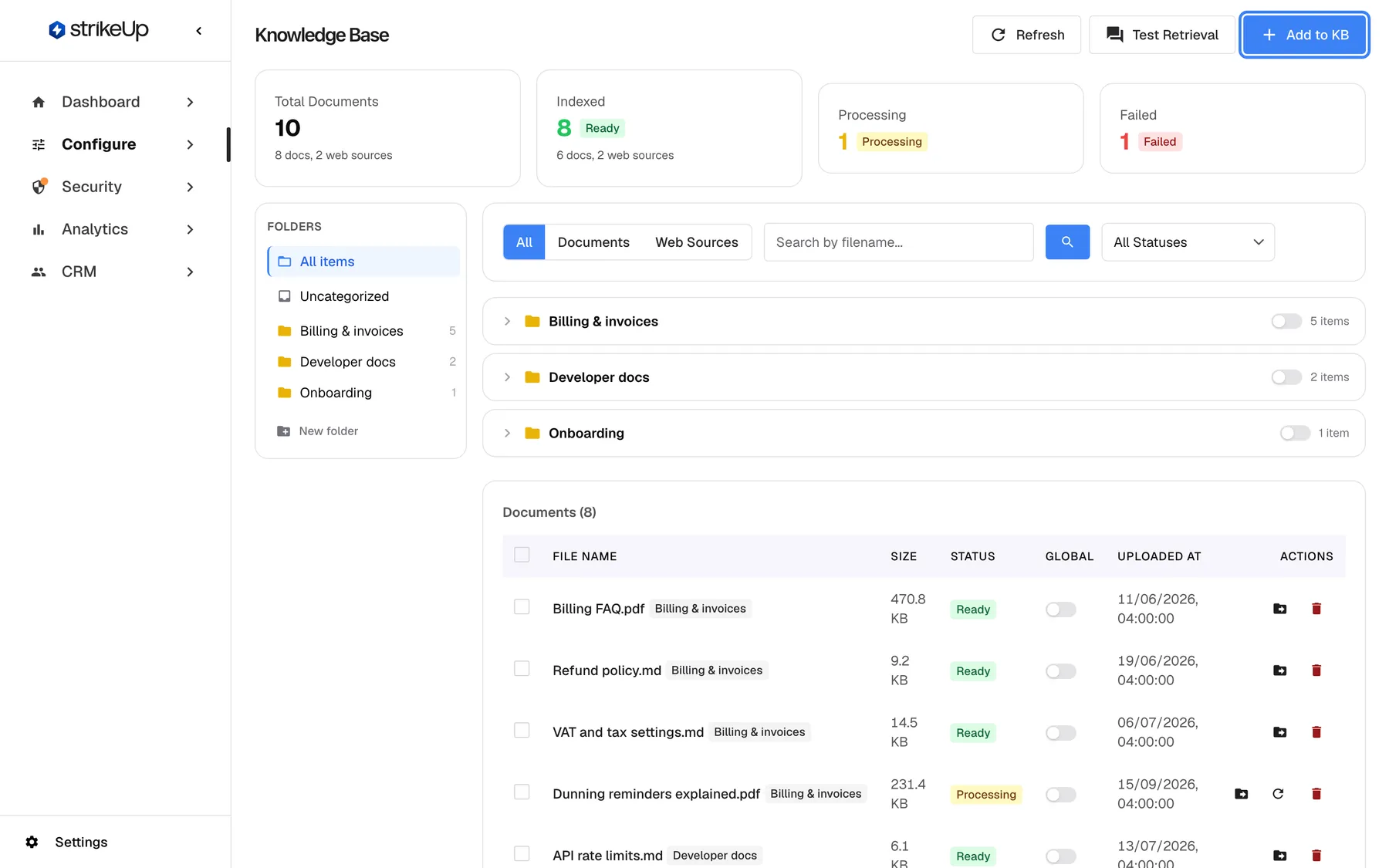
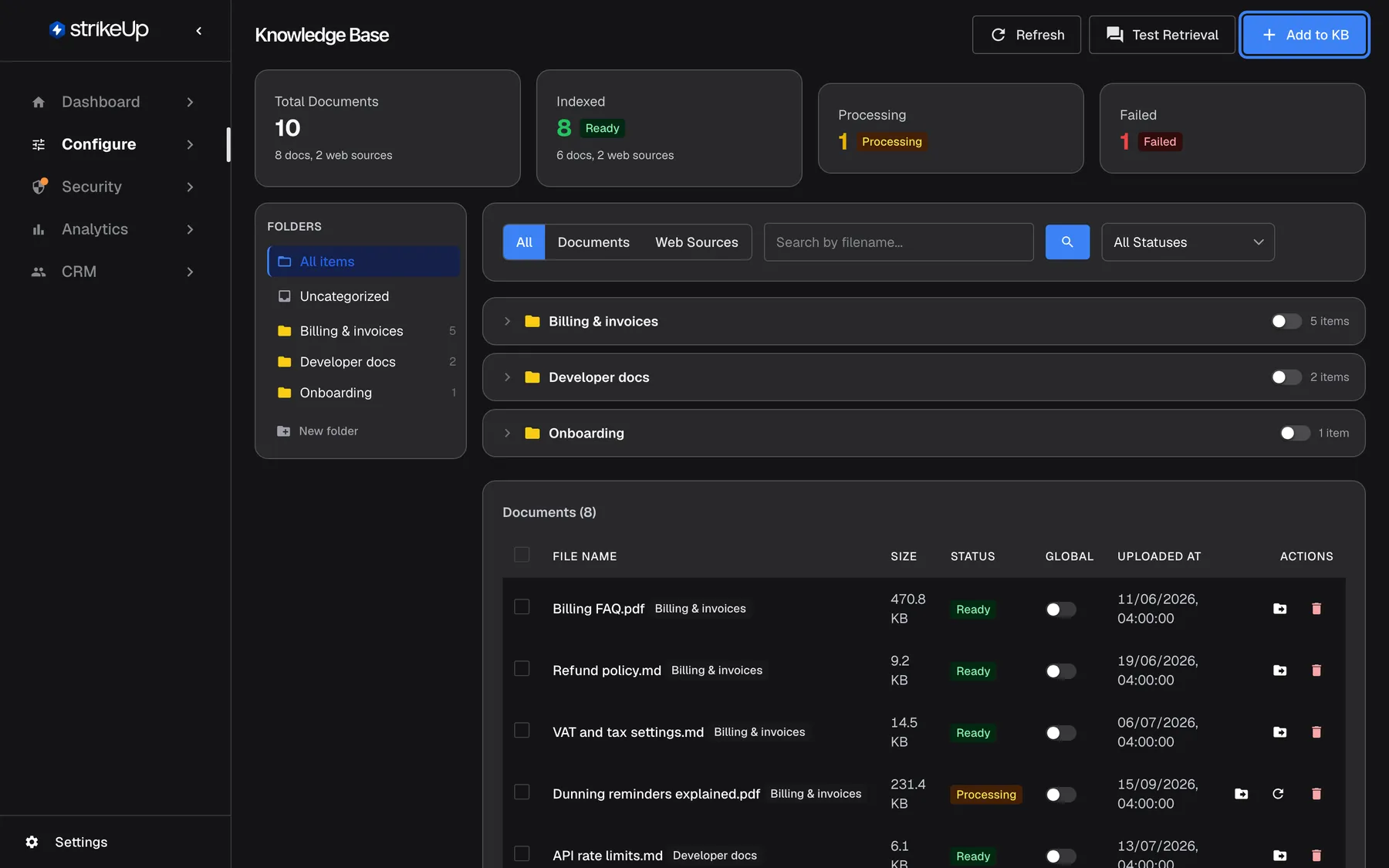
What this screenshot shows
- Screen
- Knowledge Base (/admin/knowledge-base)
- Highlighted
- button “”, header-right, enabled. opens the choice between uploading a document and adding a web source
- Also visible
- Stats: Total 10, Indexed 8, Processing 1, Failed 1; Folders: Billing & invoices (5), Developer docs (2), Onboarding (1)
- Purpose
- overview of the knowledge base
| Region | What it shows | What you do there |
|---|---|---|
| Header | Knowledge Base, a refresh button, Test Retrieval and “Add to KB” | Reload, test, add content |
| Statistics cards | Total Documents (with documents and web sources), Indexed, Processing, Failed | See the state of your content |
| “Folders”, left | “All items”, “Uncategorized”, your folders with item counts, and “New folder” | Filter by folder, manage folders, drop items into a folder |
| Toolbar | All, Documents, Web Sources; Search by filename...; a status filter | Narrow the list |
| Content | Documents and web sources, grouped by folder under “All items” | Read status, make global, move, sync, delete |
How the assistant uses the knowledge base
Section titled “How the assistant uses the knowledge base”For each visitor message, the assistant’s planning step decides whether the knowledge base is needed. It is told to use it for questions about policies, pricing, plans, features, service levels, frequently asked questions and how-to topics.
| The planner chooses | What the assistant receives |
|---|---|
| No knowledge | Nothing from the knowledge base |
| Light | The 3 best-matching passages, from up to 2 searches |
| Full | The 8 best-matching passages, from up to 3 searches |
- Only content in the widget’s scope is searched: Global items, items assigned to the widget, and items in folders that are Global or assigned to the widget. A visitor who belongs to a customer company also gets that company’s own documents. If the scope cannot be determined, nothing is searched.
- Content is data, not instructions. Text in a document cannot make the assistant hand a chat to a person or change its rules.
- Answers cite their sources. The assistant marks sentences that come from the knowledge base with the document’s file name or the page’s full address, and the widget shows these citations to the visitor. Visitors can see your file names and page addresses.
Upload documents
Section titled “Upload documents”-
Select the folder the documents should go into in “Folders”, or “All items” for none.
-
Select “Add to KB”. In the dialog, select Upload Document.
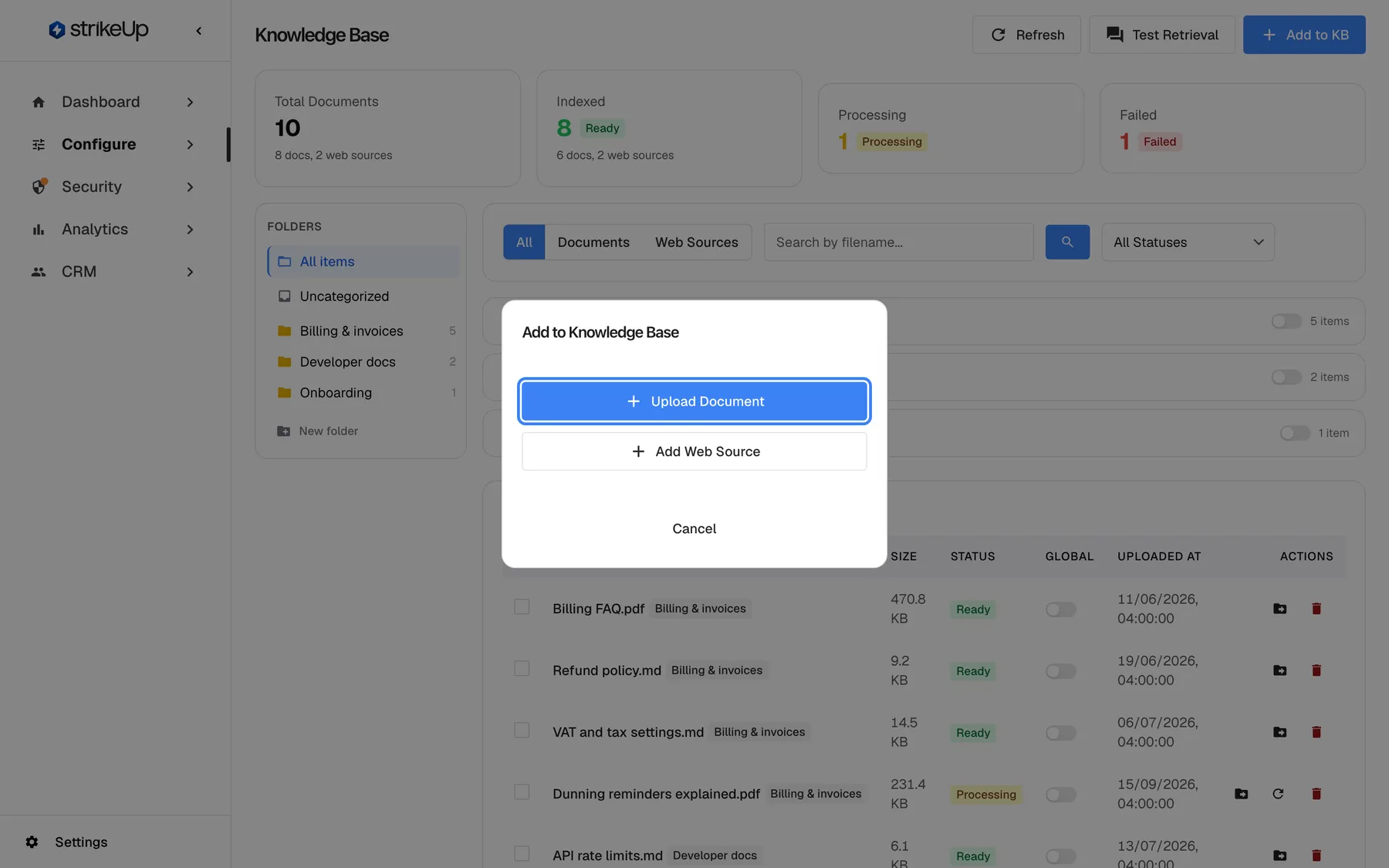
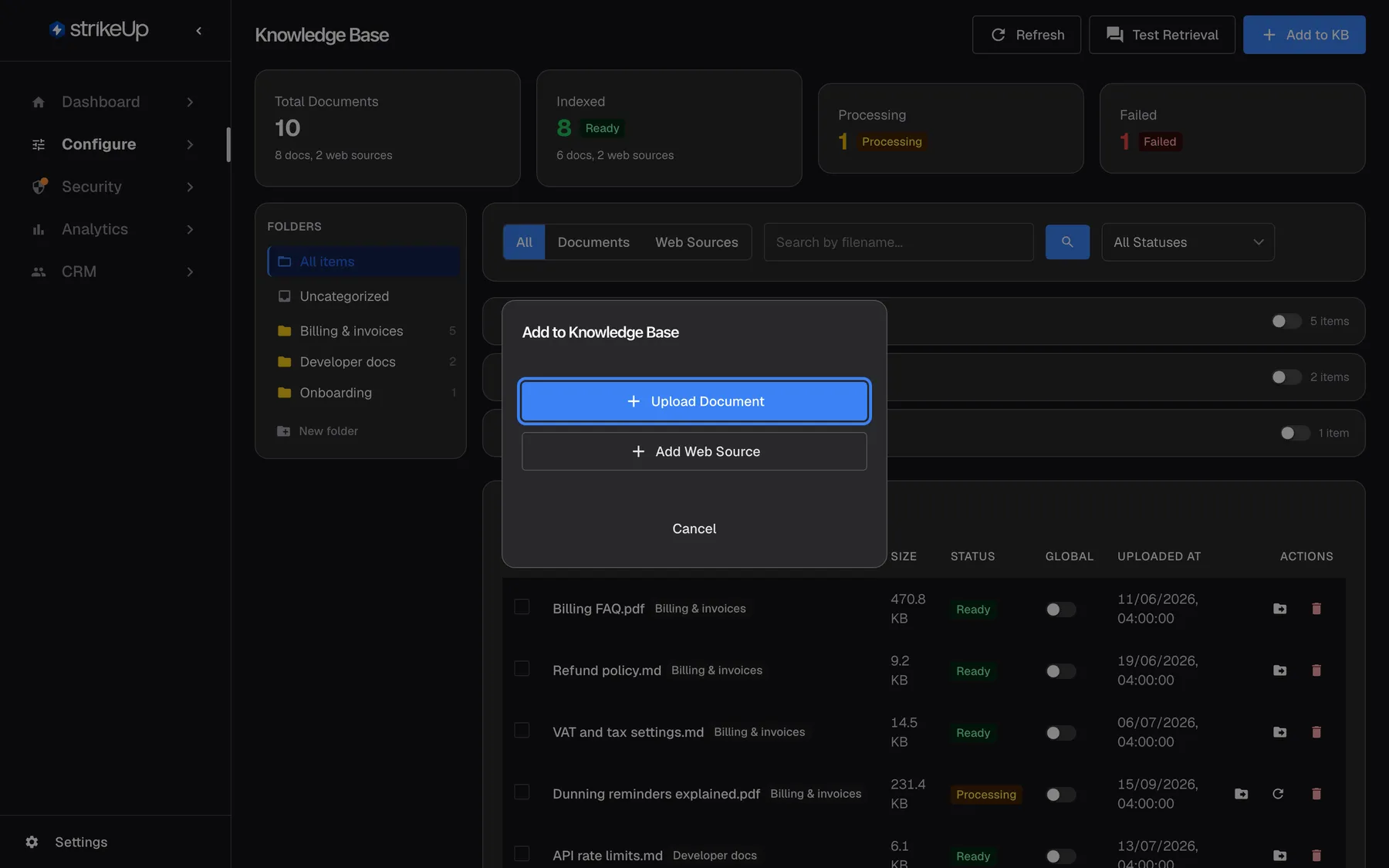
Add to KB asks whether you want to upload a document or crawl a website. What this screenshot shows
- Screen
- Knowledge Base (/admin/knowledge-base)
- Highlighted
- button “”, dialog, enabled. opens the upload dialog
- Also visible
- Add Web Source and Cancel
- Purpose
- choosing what to add
-
Drag files onto the drop area or click it to choose them. Each file shows its status: Pending, Uploading..., Processing..., Done or Error.
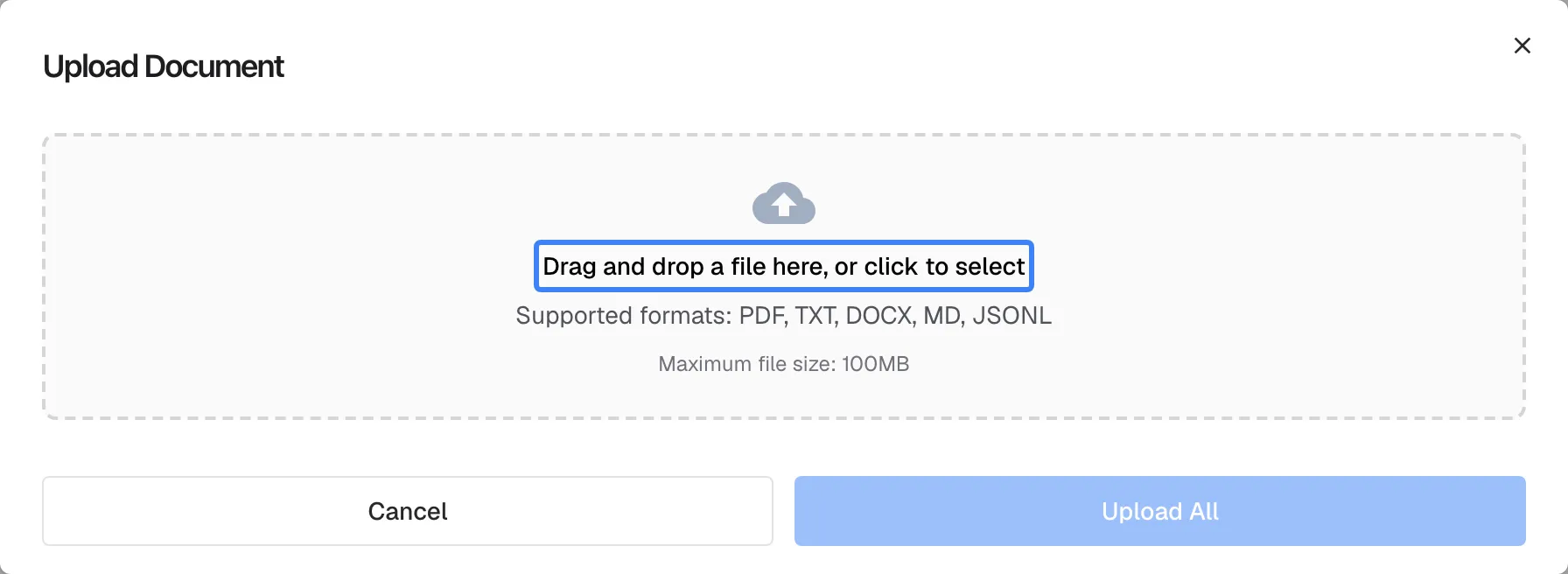
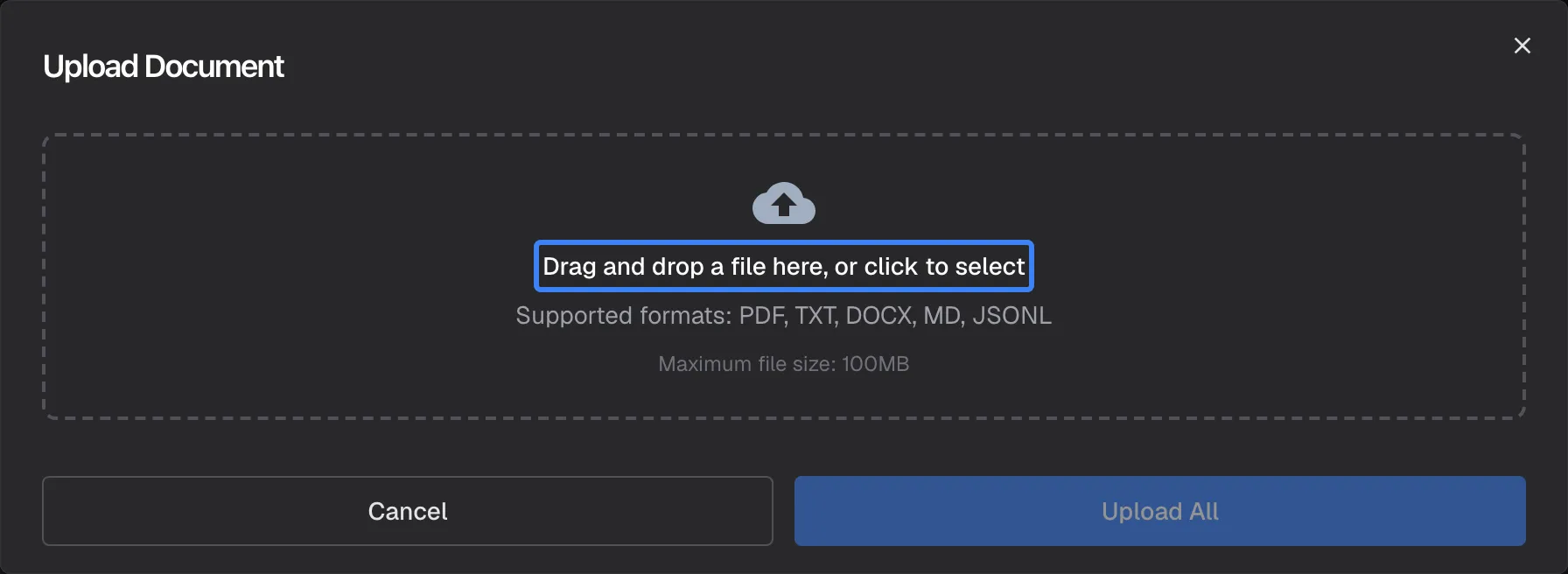
Drop or choose files of up to 100 MB; they are processed in the background after upload. What this screenshot shows
- Screen
- Upload Document (/admin/knowledge-base)
- Highlighted
- “”, dropzone, empty. opens the file picker
- Also visible
- Supported formats and size limit; Upload All disabled
- Purpose
- uploading documents
-
Select Upload All. Three files upload at a time. The dialog closes when all succeed; it cannot be closed while files are uploading. If only some succeed, it shows {{success}} of {{total}} uploaded.
After upload, each document goes through three statuses:
| Status | Meaning |
|---|---|
| Uploaded | The file is stored; processing starts within about 10 seconds |
| Processing | The text is being split and indexed; a refresh icon on the row checks the status now |
| Ready | The assistant can use it |
| Failed | Processing failed; the reason is shown under the file name |
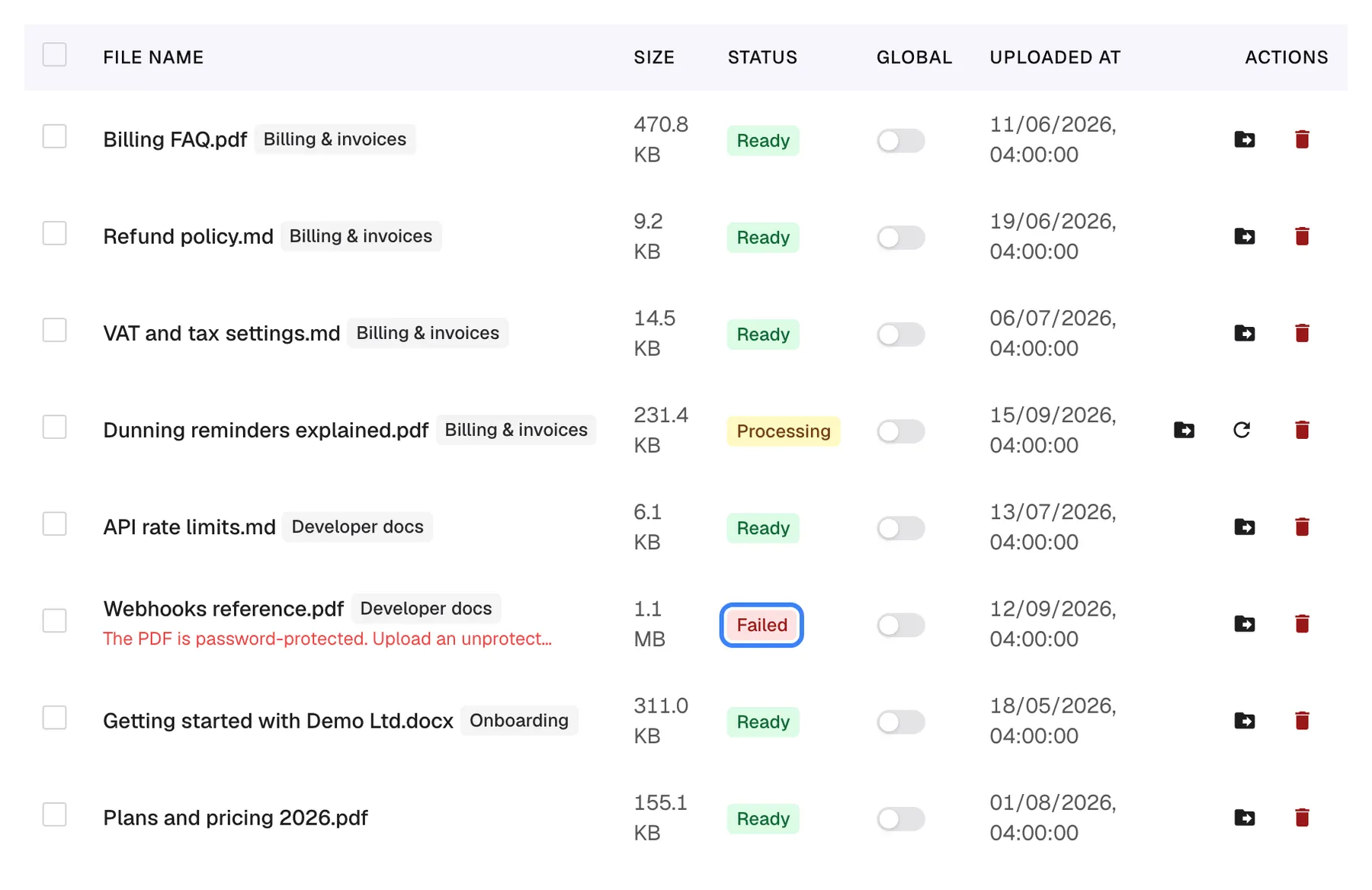
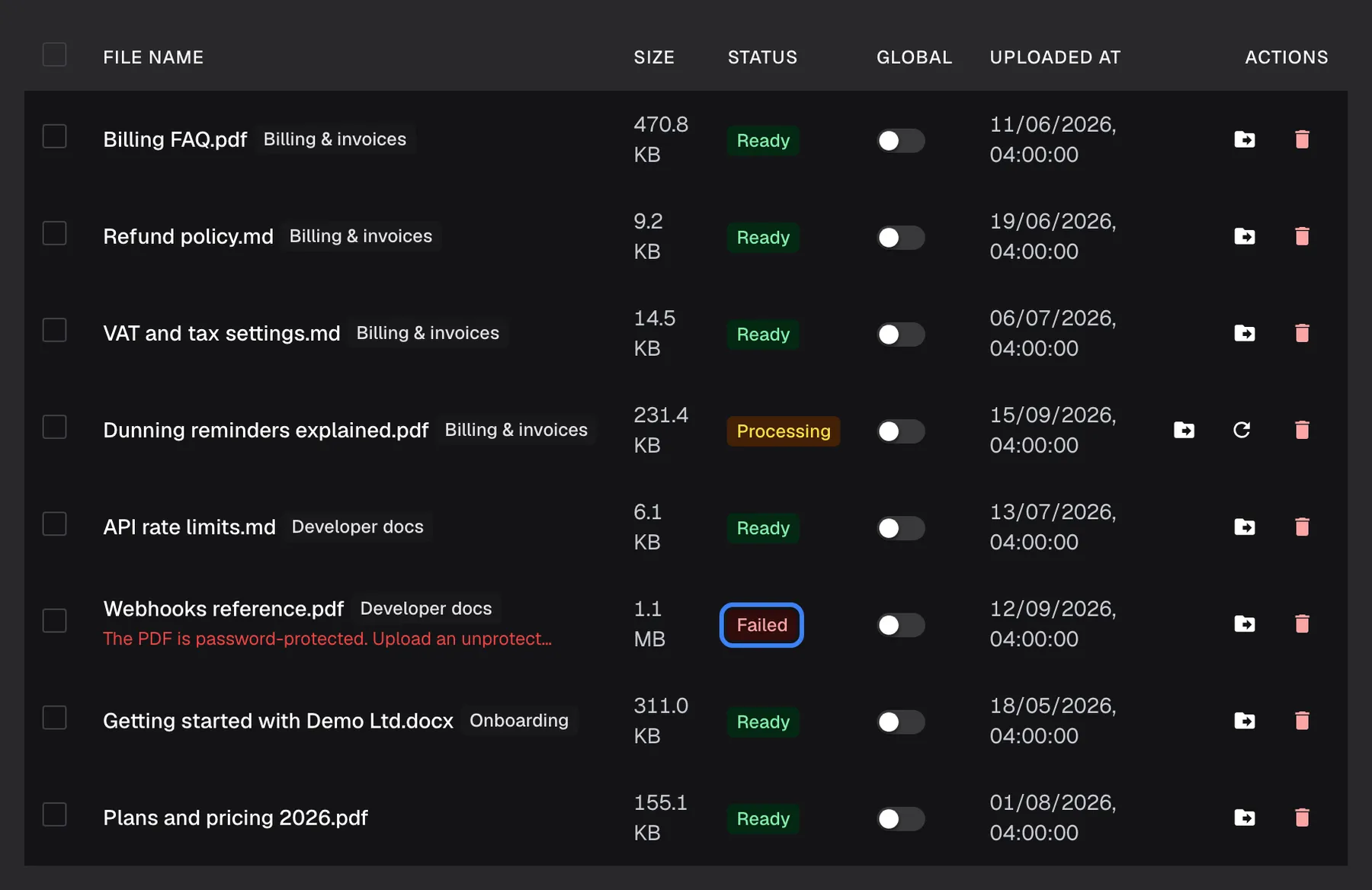
What this screenshot shows
- Screen
- Knowledge Base (/admin/knowledge-base)
- Highlighted
- “”, documents-table-status-column, failed. none
- Also visible
- 6 Ready, 1 Processing, 1 Failed with reason
- Purpose
- reading document status
| File | Accepted |
|---|---|
| PDF, TXT, DOCX, DOC, MD, JSONL | Yes (the drop area lists all but DOC) |
| JSON | No; save the data as JSONL instead |
| Other types | No: File type not supported |
| Over 100 MB | No: File is too large (max 100MB) |
Status changes appear live in the main list. A document’s status inside a folder group updates when you reload.
Add a web source
Section titled “Add a web source”-
Select “Add to KB”, then Add Web Source.
-
Enter a Name and one or more Seed URLs, one per line, such as the start page of your help centre.
-
Set Max Pages. The default is 1, which crawls only one page; raise it to cover a section of a site.
-
Optionally set Rate Limit, Crawl Scope, Inclusion Filters and Exclusion Filters, and switch on “Global KB” if every widget should use it.
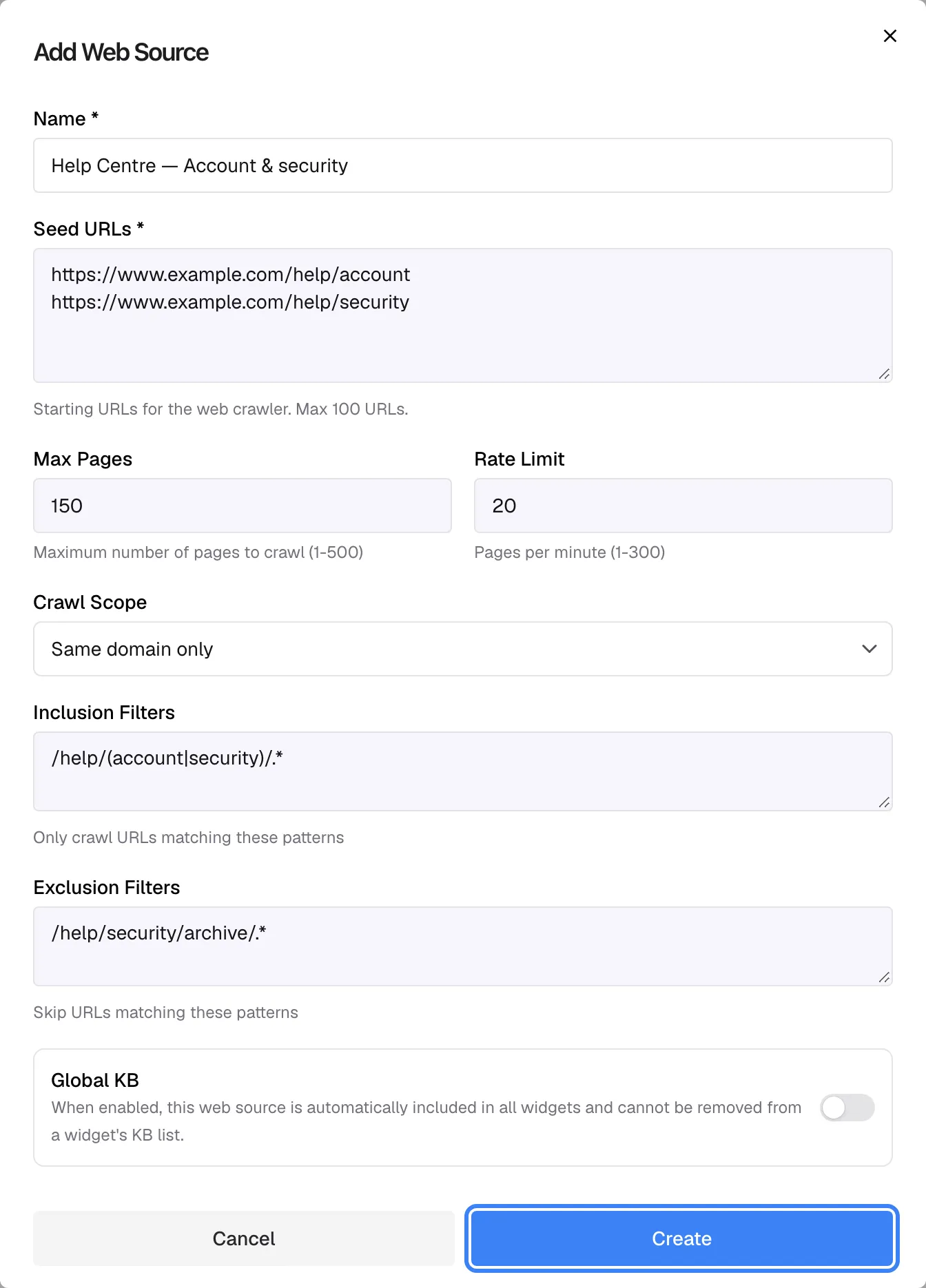
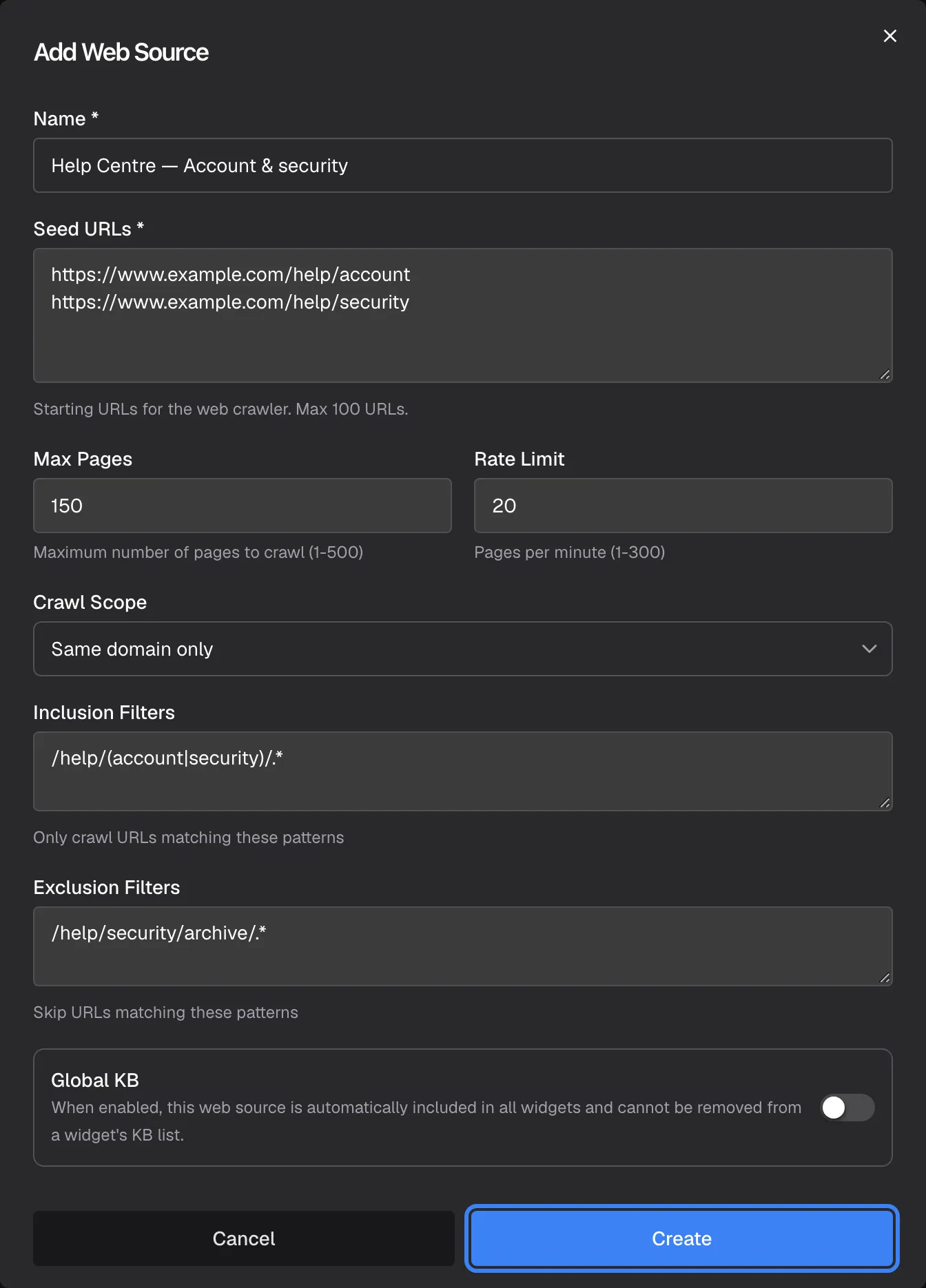
A web source starts from one or more URLs; filters and the page limit keep the crawl to the pages you want. What this screenshot shows
- Screen
- Add Web Source (/admin/knowledge-base)
- Highlighted
- button “Create”, dialog-footer, enabled. creates the web source and queues the crawl
- Also visible
- Two seed URLs, Max Pages 150, Rate Limit 20, Same domain only, include and exclude filters
- Purpose
- crawling a website
-
Select Create. The source is listed as Pending, then Syncing while the first crawl runs, then Active.
| Setting | Allowed | Default | What it does |
|---|---|---|---|
| Seed URLs | 1 to 100 public http or https addresses | — | Where the crawl starts. Private or internal addresses are refused: ”’…’ cannot be crawled: only public http(s) website addresses are allowed.” |
| Max Pages | 1 to 500 | 1 | The most pages indexed per crawl |
| Rate Limit | 1 to 300 pages per minute | 20 | How fast StrikeUp fetches pages, to spare your server |
| Crawl Scope | Same domain only or Include subdomains | Same domain only | Exactly the start address’s host, or also its subdomains |
| Inclusion Filters | Regular expressions, one per line | None | Only addresses matching one of them are crawled |
| Exclusion Filters | Regular expressions, one per line | None | Addresses matching one of them are skipped; exclusion wins over inclusion |
Filters are case-insensitive and are matched against the whole address; a pattern that is not a valid regular expression is ignored. A filter may take at most 200 milliseconds to check one address: a pattern that takes longer, usually one with nested repetition such as (a+)+$, stops the crawl, which then fails with “The exclusion filter “(a+)+$” takes too long to check a URL. Change or remove it, then crawl again.” (or “inclusion filter”). Keep filters simple, such as /blog/ or \.pdf$. At the default speed, a 500-page crawl takes about 25 minutes. StrikeUp prefers a site’s AI-friendly Markdown versions of pages when the site publishes them, and opens pages in a browser when they show too little text without one.
Crawls do not repeat on their own. Editing a web source does not crawl it again either. Select Sync Now on the row to crawl the site again.
Check crawled pages
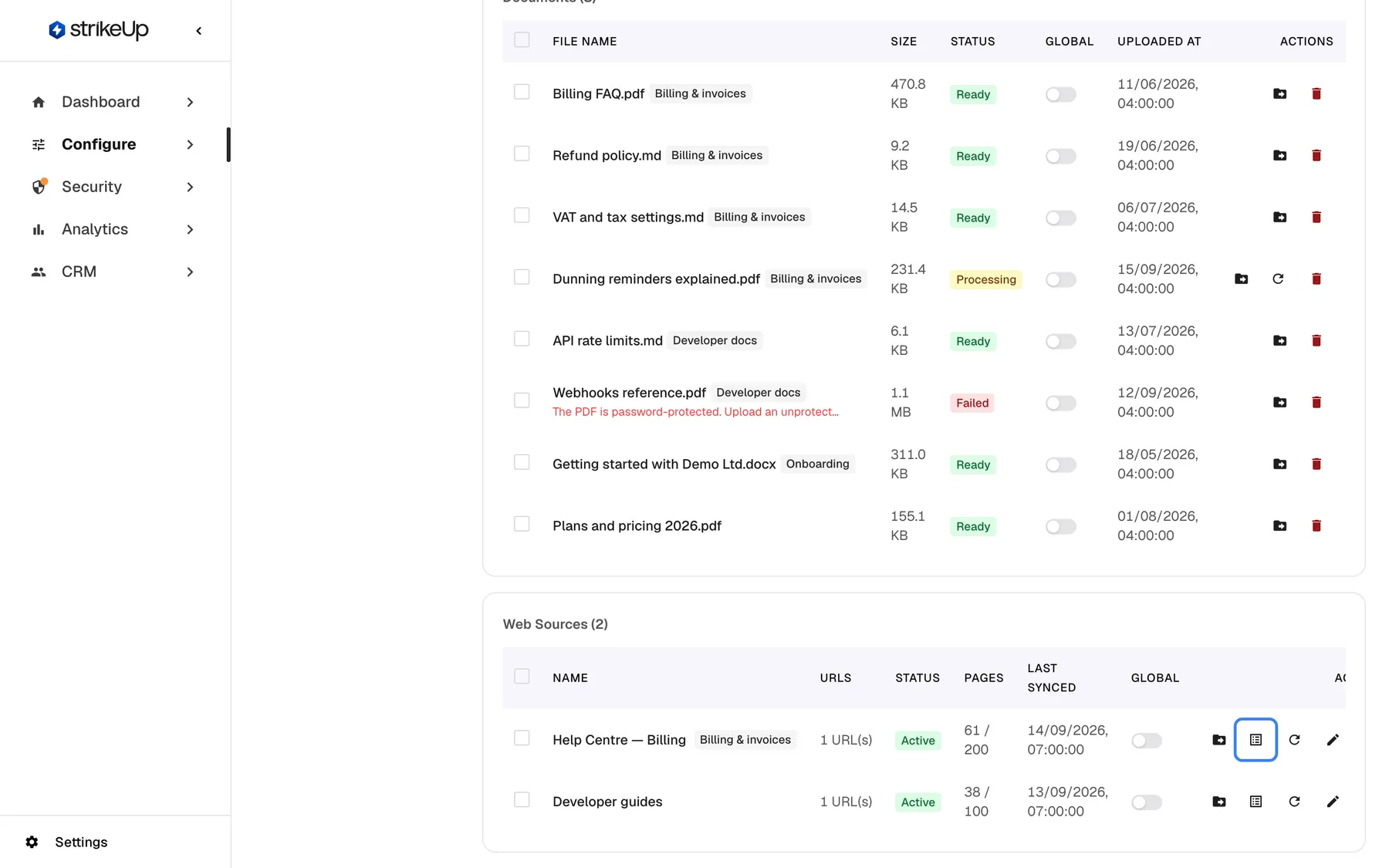
Section titled “Check crawled pages”Select View Pages on a web source. The dialog Crawled Pages summarises the result as {{indexed}} indexed · {{skipped}} skipped · {{failed}} failed and lists each page.
What this screenshot shows
- Screen
- Knowledge Base (/admin/knowledge-base)
- Highlighted
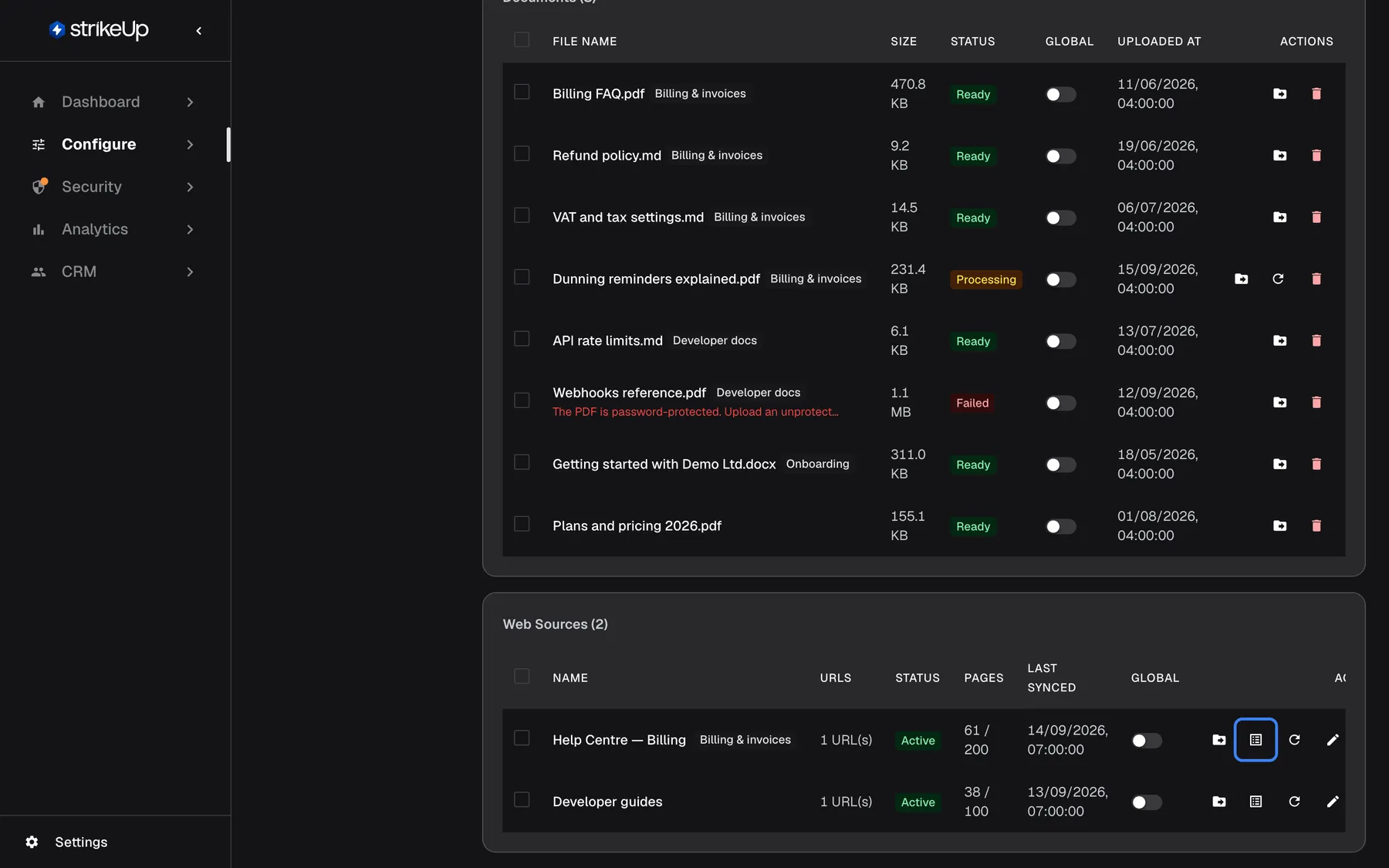
- button “View Pages”, web-sources-actions, enabled. opens the crawled pages list
- Also visible
- Help Centre — Billing 61/200, Developer guides 38/100, both Active
- Purpose
- managing crawled websites
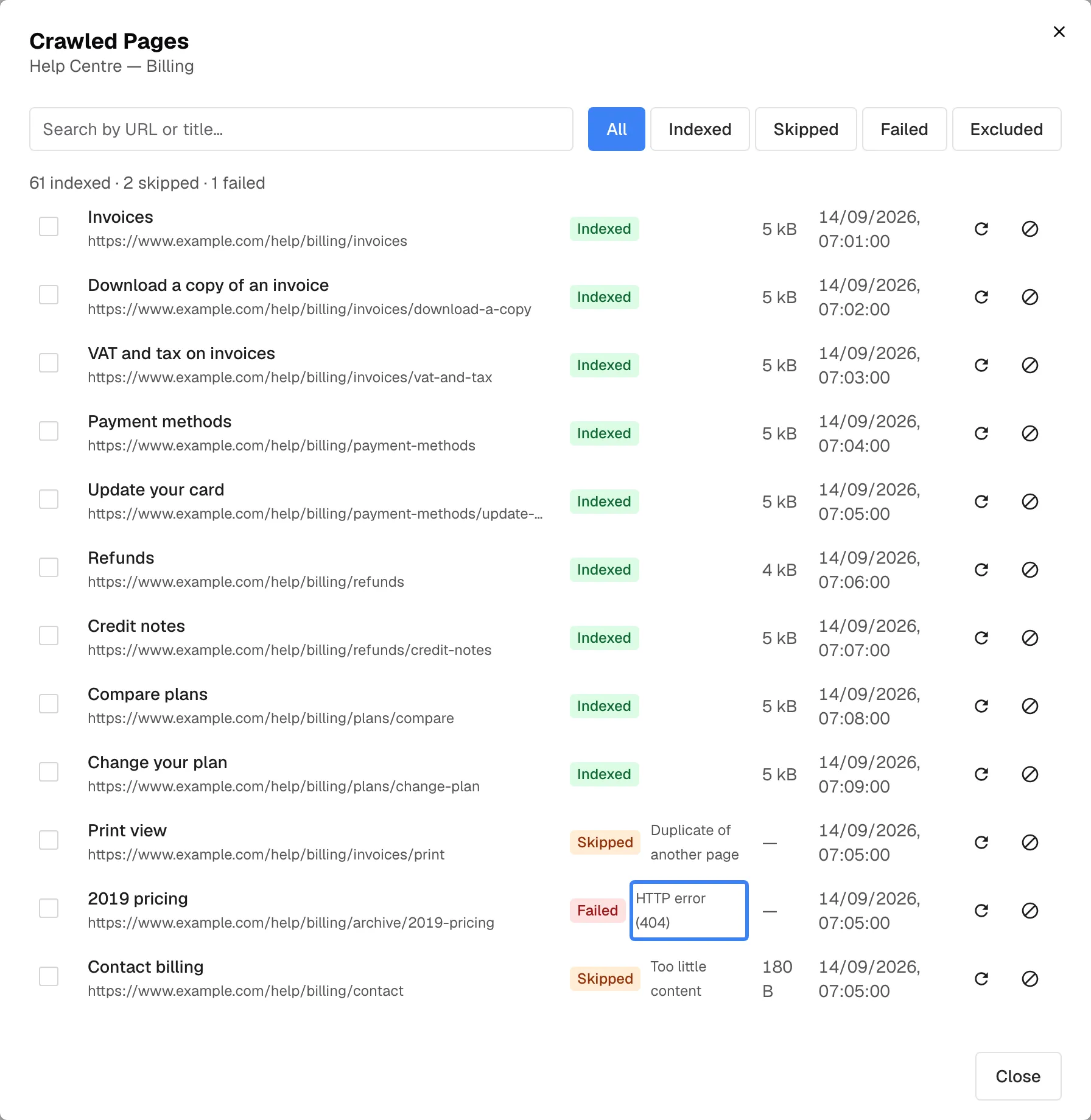
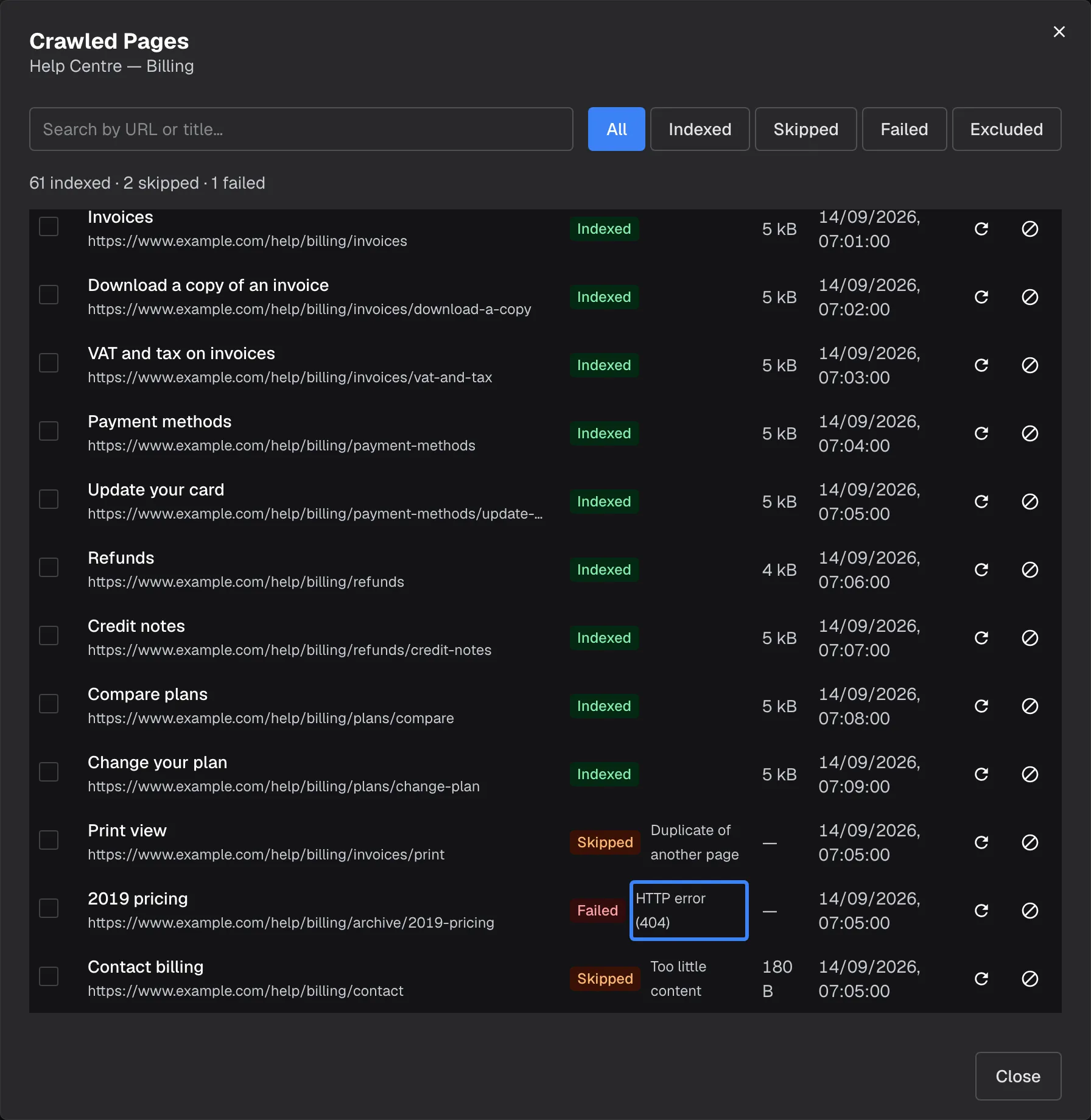
What this screenshot shows
- Screen
- Crawled Pages (/admin/knowledge-base)
- Highlighted
- “”, pages-table, failed page. none
- Also visible
- Summary 61 indexed · 2 skipped · 1 failed; Reasons: Duplicate of another page, Too little content, HTTP error
- Purpose
- diagnosing a crawl
| Status | Reason shown | What to do |
|---|---|---|
| Indexed | — | Nothing; the assistant can use it |
| Skipped | Max Pages reached | Raise Max Pages or narrow the filters |
| Skipped | Too little content | Usually expected, such as a contact page |
| Skipped | Duplicate of another page | Expected for print views and copies |
| Skipped | Unsupported file type | Upload the file as a document instead |
| Failed | HTTP error with the status code | Check the page exists, then re-crawl it |
| Failed | Could not be reached | Check the site is reachable from the internet |
Filter the list with All, Indexed, Skipped, Failed and Excluded. Select Re-crawl this page on a row to crawl one page again; the notice Page queued for re-crawl confirms it.
Exclude pages from the knowledge base
Section titled “Exclude pages from the knowledge base”A crawl sometimes pulls in pages that should not answer questions: an outdated price list, a print view, a page for staff. Use the crossed-circle icon (Exclude from knowledge base) on a row for one page, or tick rows, or tick the box in the header to select every page the current filter shows, and select Exclude {{count}} from knowledge base in the bar above the table. The notice {{count}} page(s) excluded from the knowledge base confirms it.
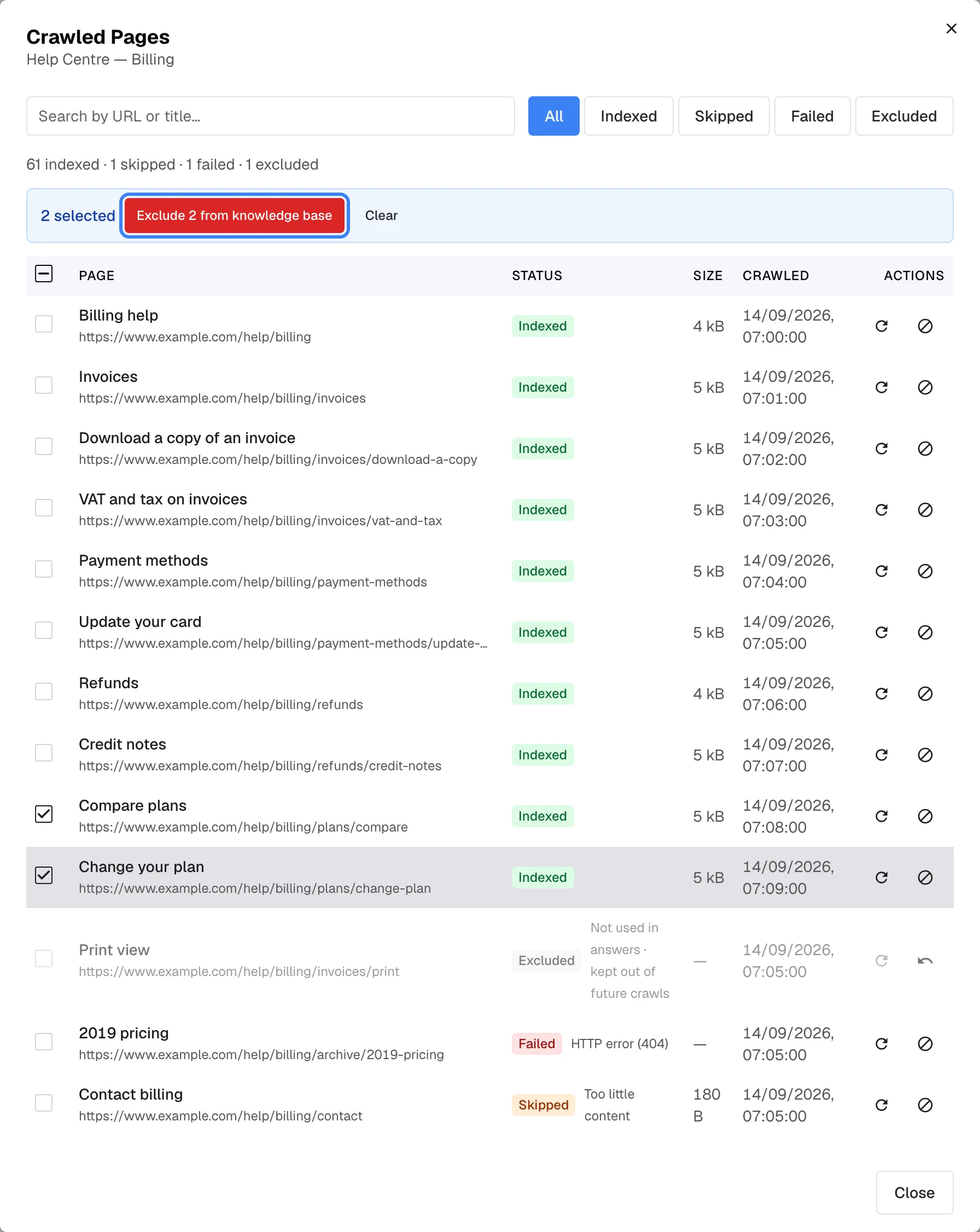
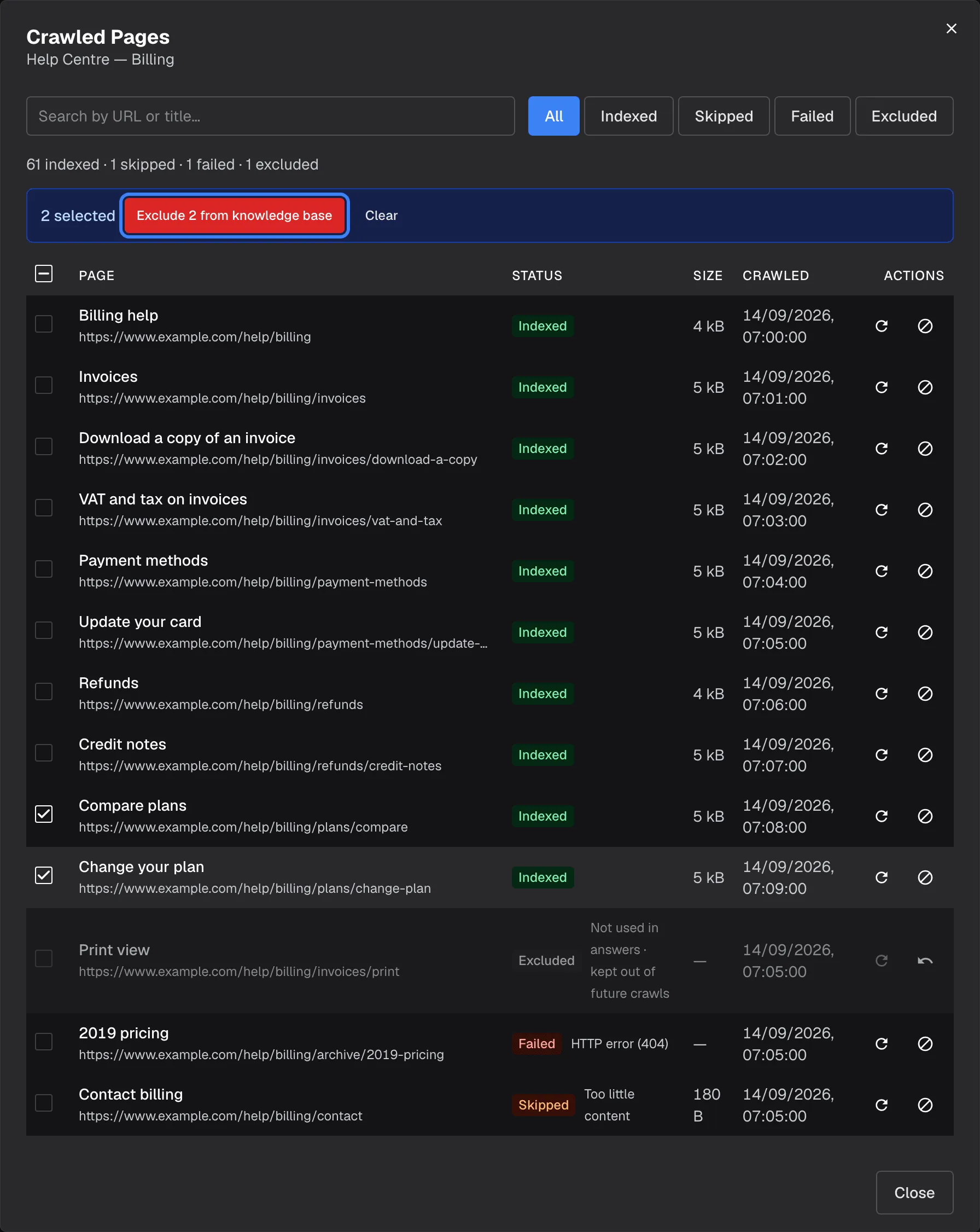
What this screenshot shows
- Screen
- Crawled Pages (/admin/knowledge-base)
- Highlighted
- button “Exclude {{count}} from knowledge base”, bulk-bar, 2 pages selected. deletes their content and keeps them out of future crawls
- Also visible
- 2 selected, Exclude 2 from knowledge base, Clear; Print view: Excluded, Not used in answers · kept out of future crawls
- Purpose
- excluding crawled pages
An excluded page shows the status Excluded and Not used in answers · kept out of future crawls. Its content is deleted from the knowledge base at once, and later crawls follow its links but never store it. The summary adds {{count}} excluded. To bring a page back, tick it and select Include {{count}} again; the notice {{count}} page(s) included again and queued for re-crawl confirms that it was queued for a new crawl. The single-page re-crawl stays unavailable for an excluded page (Include this page again before re-crawling it).
Organise with folders
Section titled “Organise with folders”- Create a folder: select “New folder” in “Folders”, type a name and press Enter. Folders created here are top-level.
- Move items: drag a document or web source onto a folder, or use the move action on its row or the bulk bar.
- Rename, delete or make a folder global: use the icons that appear when you hover over a folder. Deleting a folder asks “Delete this folder? Items inside will be moved to root.” and moves its content to “Uncategorized”.
- Filter: “All items” shows every item grouped by folder; “Uncategorized” shows items in no folder.
New uploads go into the folder selected at the time. Folders also exist in each widget’s content picker, so assigning a folder there gives the widget everything in it.
Choose which widgets use the content
Section titled “Choose which widgets use the content”| Content | Which widgets use it |
|---|---|
| A document or web source with its Global switch on | Every widget |
| An item in a folder made global | Every widget |
| Anything else | Only widgets it, or its folder, is assigned to on Embed |
Switch Global on or off on a row, with Set Global and Unset Global for several items, or on a folder. The change applies at once. Assign the rest in the widget’s content picker on ConfigureEmbed, where Global items are already ticked and locked.
Try a question against the content
Section titled “Try a question against the content”-
Select Test Retrieval. It is available once at least one document is ready or one web source is active.
-
Type a question in Search Query and press Ctrl+Enter or select Test.
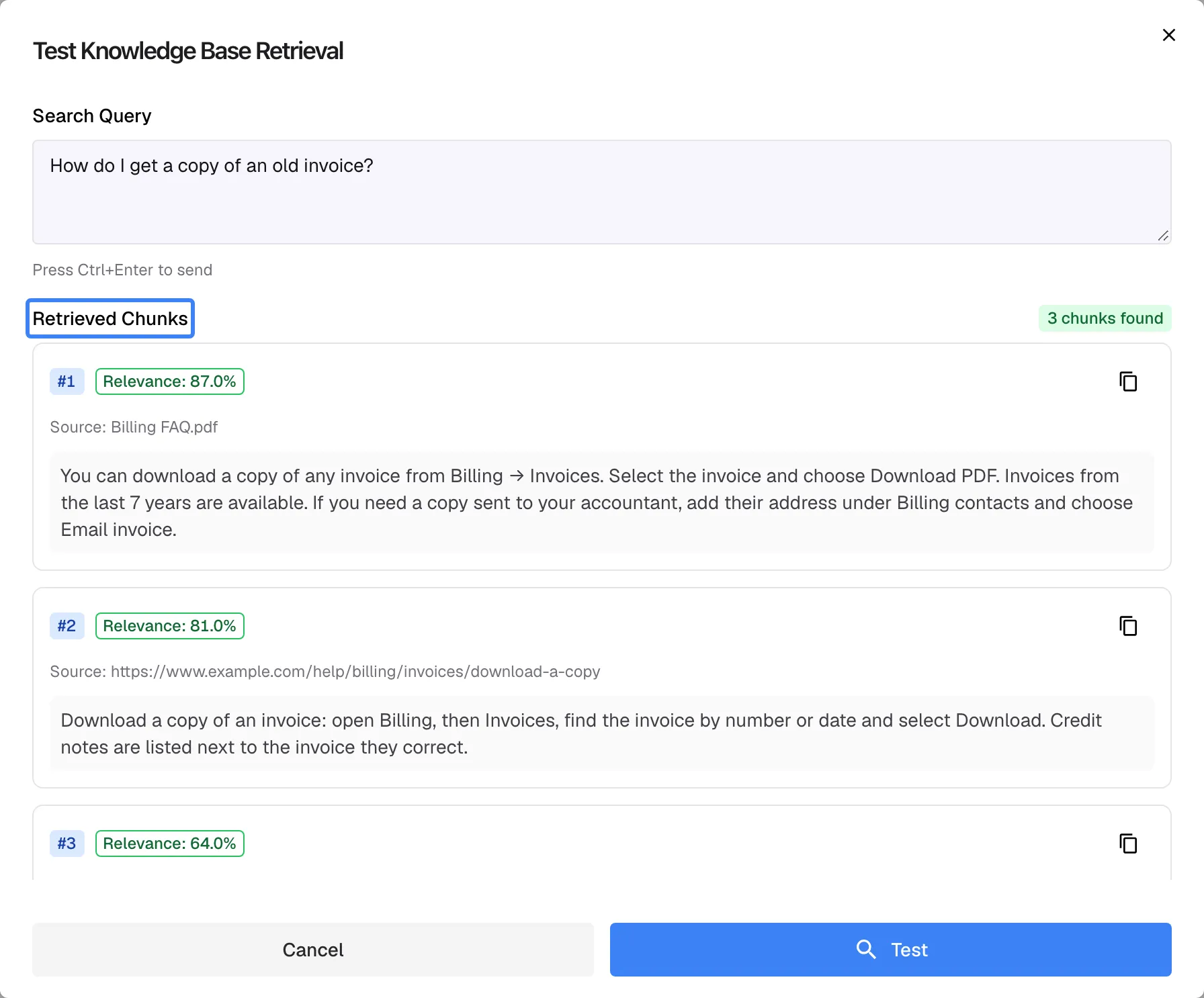
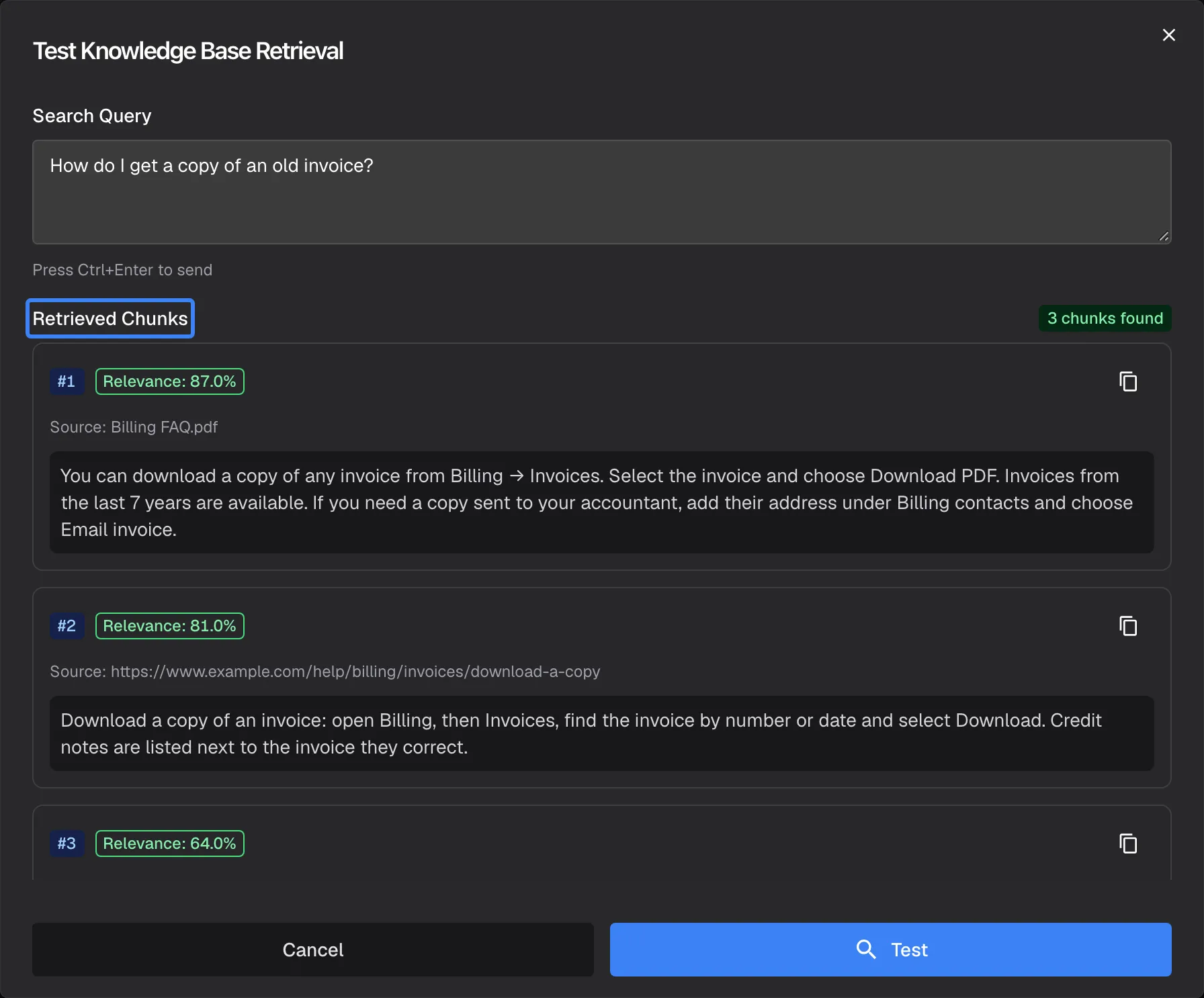
Test Retrieval shows which passages the assistant would get for a question, with their relevance and source. What this screenshot shows
- Screen
- Test Knowledge Base Retrieval (/admin/knowledge-base)
- Highlighted
- “”, results, 3 chunks found. none
- Also visible
- Query: How do I get a copy of an old invoice?; 3 chunks with Relevance and Source
- Purpose
- checking what the assistant will find
-
Read Retrieved Chunks: the 3 best passages, each with its Relevance and Source, and a copy button.
The test searches your whole knowledge base, not one widget’s scope. A passage found here may still be out of reach for a widget that is not assigned that content. Without matches, the dialog shows No matching content found. Make sure your documents are indexed.
Find and delete content
Section titled “Find and delete content”- Search with Search by filename... and Enter. It matches part of the file name, ignoring case, and applies to documents only; it does not search inside documents.
- Filter by status: All Statuses, Uploaded, Processing, Ready or Failed.
- Delete one document with its delete action and the confirmation Are you sure you want to delete this document?, or several with the bulk bar and Delete {{count}} file(s)? This cannot be undone..
- Delete a web source with its delete action and Are you sure you want to delete this web source?
Deleting removes the file from storage and from the index, so the assistant stops using it once the index is updated. It cannot be undone; upload the file again to restore it. The list shows 20 documents per page.
Every control, explained
Section titled “Every control, explained”Add to KB
Section titled “Add to KB”Header, top right, the blue “Add to KB” button.
Opens a small dialog with Upload Document and Add Web Source.
One entry point for both kinds of content.
Test Retrieval and refresh
Section titled “Test Retrieval and refresh”Header, next to “Add to KB”.
Test Retrieval opens Test Knowledge Base Retrieval; it is disabled until something is indexed. The refresh button reloads documents and web sources.
Check content before visitors rely on it, and see the latest statuses.
Statistics cards
Section titled “Statistics cards”| Card | What it counts |
|---|---|
| Total Documents | All documents, with a line splitting documents and web sources |
| Indexed | Documents marked Ready |
| Processing | Documents still being processed |
| Failed | Documents that failed |
Folders panel
Section titled “Folders panel”Left side, “Folders”.
“All items”, “Uncategorized”, your folders with counts and “New folder”. Hover a folder for rename, delete and make-global icons; drop items on a folder to move them.
Keeps large knowledge bases manageable and lets widgets get content folder by folder.
Document and web source columns
Section titled “Document and web source columns”| Column | Documents | Web sources |
|---|---|---|
| Name | File Name, with the failure reason underneath | Name, folder and any error |
| Size or pages | Size | URLs and Pages (indexed of the maximum) |
| Status | Status | Status |
| Global | A switch | A switch |
| Date | Uploaded At | Last Synced |
| Actions | Refresh status, move, delete | Move, Sync Now, Edit, View Pages, delete |
Bulk bar
Section titled “Bulk bar”Appears above the list when you select rows.
{{count}} selected, Set Global, Unset Global, Move, Delete and Clear.
Reorganise or clean up many items at once.
Web source form
Section titled “Web source form”Add Web Source or Edit on a web source. Saved with Create or Update.
Name (required, up to 255 characters), Seed URLs, Max Pages, Rate Limit, Crawl Scope, both filter boxes and “Global KB”. Missing values: Name is required, At least one URL is required, Invalid URL format.
Keeps a crawl to the pages you want and at a speed your site can take.
Who sees what
Section titled “Who sees what”| Part | What decides whether you see it |
|---|---|
| Knowledge Base in the menu and the page | The knowledge base feature, on for every new workspace. When it is off, the menu item is hidden and the page’s address leads to the Dashboard. |
| Test Retrieval | Enabled once a document is ready or a web source is active |
Every signed-in user can browse the content and use Test Retrieval. Adding, changing and deleting content needs the Admin role; for anyone else the change fails with “This action requires the Admin role.”
What you need to know
Section titled “What you need to know”| Topic | Fact |
|---|---|
| File size | Up to 100 MB per file. |
| Formats | PDF, TXT, DOCX, DOC, MD and JSONL in the upload dialog. |
| Processing | Starts within about 10 seconds of upload; how long it takes depends on the file. |
| Web pages | Public http or https only; 1 to 500 pages per source; 1 to 300 pages per minute. |
| Re-crawling | Only with Sync Now or a single page’s re-crawl; never on a schedule. |
| Scope | Global content plus content assigned to the widget; plus a customer company’s own documents for its people. |
| Citations | Visitors see the file names and page addresses the assistant cites. |
| Search | File names only, documents only. |
| Deleting | Removes the item from storage and the index; deleting a folder moves its content to “Uncategorized”. |
| Language | Content in any language; most labels on this page are in English in every language. |
Frequently asked questions
Section titled “Frequently asked questions”Content
Section titled “Content”How do I keep one crawled page out of the answers?
Section titled “How do I keep one crawled page out of the answers?”Open View Pages on the web source under ConfigureKnowledge Base, tick the page and select Exclude {{count}} from knowledge base. Its content is removed and later crawls skip it; ticking it and selecting Include {{count}} again brings it back.
Which file formats can I upload?
Section titled “Which file formats can I upload?”The upload dialog on ConfigureKnowledge Base accepts PDF, TXT, DOCX, DOC, MD and JSONL files of up to 100 MB each. Other types are refused with File type not supported; convert them to one of these first.
How long until a document is ready?
Section titled “How long until a document is ready?”Processing starts within about 10 seconds of the upload and then depends on the size of the file. The status moves from Uploaded to Processing to Ready; select the refresh icon on the row to check it at once.
Why did my document fail?
Section titled “Why did my document fail?”The reason is shown under the file name, for example a password-protected PDF. Fix the file, delete the failed document and upload it again. A file that keeps failing may contain no extractable text, such as a scanned PDF of images.
Can it crawl our intranet?
Section titled “Can it crawl our intranet?”No. Web sources accept only public http or https addresses. A private or internal address is refused with “only public http(s) website addresses are allowed”. Export internal pages as files and upload them as documents instead.
Does editing a web source crawl it again?
Section titled “Does editing a web source crawl it again?”No. Saving changes to a web source keeps its pages as they are. Select Sync Now on the web source to crawl it again with the new settings, or re-crawl single pages from Crawled Pages.
Are websites crawled again automatically?
Section titled “Are websites crawled again automatically?”No. A web source is crawled when you create it and when you select Sync Now or re-crawl a single page. Sync after you change your website, so the assistant does not answer from outdated pages.
Why is a page of my website missing?
Section titled “Why is a page of my website missing?”Open View Pages on the web source and filter by Skipped or Failed. The reason says why: Max Pages reached means Max Pages was reached, which with the default of 1 happens after the first page.
What does Rate Limit mean?
Section titled “What does Rate Limit mean?”Rate Limit is how many pages per minute StrikeUp fetches from your site, from 1 to 300, 20 by default. It protects your server; a 500-page crawl at 20 pages per minute takes about 25 minutes.
How do inclusion and exclusion filters work?
Section titled “How do inclusion and exclusion filters work?”Each line is a regular expression matched against the page’s full address, ignoring case. With inclusion filters, only matching addresses are crawled; an address matching an exclusion filter is always skipped. A line that is not a valid regular expression is ignored.
Widgets and answers
Section titled “Widgets and answers”Does every widget use every document?
Section titled “Does every widget use every document?”No. A widget searches Global content and the documents, web sources and folders assigned to it on ConfigureEmbed. Switch Global on for content every widget should use.
How do I limit a document to one widget?
Section titled “How do I limit a document to one widget?”Switch Global off for the document and its folder, then tick it, or its folder, in that widget’s content picker on ConfigureEmbed. Other widgets then never search it.
Does Test Retrieval show what a widget would find?
Section titled “Does Test Retrieval show what a widget would find?”Not exactly. Test Retrieval searches your whole knowledge base and returns the 3 best passages. A widget searches only its own scope, so a passage found in the test may be out of reach for a widget that is not assigned it.
Can visitors see where an answer came from?
Section titled “Can visitors see where an answer came from?”Yes. The assistant cites knowledge base content with the document’s file name or the page’s full address, and the widget shows these citations. Name files with that in mind, and keep internal-only material out of content that widgets use.
My document is ready, but the assistant does not use it. Why?
Section titled “My document is ready, but the assistant does not use it. Why?”Check that it is Global or assigned to the widget on ConfigureEmbed. The assistant also decides per message whether to search the knowledge base; ask the question as a visitor would, and check with Test Retrieval that the document matches it.
Organising
Section titled “Organising”Can I nest folders?
Section titled “Can I nest folders?”Folders created on the Knowledge Base page are top-level. Use clear folder names, such as a product area, and move items into them by drag and drop or with the move action.
What happens when I delete a folder?
Section titled “What happens when I delete a folder?”After the confirmation “Delete this folder? Items inside will be moved to root.”, the folder is removed and its documents and web sources move to “Uncategorized”. Nothing inside is deleted.
Does the search look inside documents?
Section titled “Does the search look inside documents?”No. The search box matches part of the file name, ignoring case, and applies to documents only. To check what is inside your documents, use Test Retrieval.
Troubleshooting
Section titled “Troubleshooting”| Symptom | What to check |
|---|---|
| A web source fails with “The inclusion filter … takes too long to check a URL” or “The exclusion filter …” | One filter needs more than 200 ms per address. Simplify or remove the filter named in the message, then crawl again. |
| File type not supported | Convert the file to PDF, DOCX, TXT, MD or JSONL. |
| File is too large (max 100MB) | Split the file into parts under 100 MB. |
| A document stays Processing | Select the refresh icon on its row; large files take longer. Reload the page if a folder group shows an old status. |
| A document is Failed | Read the reason under its name, fix the file and upload it again. |
| “only public http(s) website addresses are allowed” | The address is private or internal. Use a public address. |
| A web source indexed only one page | Max Pages is 1, the default. Raise it and select Sync Now. |
| A web source stays Syncing | Large sites take time at the set speed. Check View Pages for progress. |
| Test Retrieval is disabled | Nothing is ready yet. Wait for a document to be ready or a web source to be active. |
| No matching content found. Make sure your documents are indexed. | Rephrase the question with words from your content, and check the content is ready. |
| A widget does not use content that is ready | Make the content Global or assign it on Embed. |
| A change fails with Request failed and “This action requires the Admin role.” | Changes on this page need the Admin role. Ask an Admin to make the change, or to give you the Admin role under Settings › Users. |
Related
Section titled “Related”- Embed: choose a widget’s content
- AI & UX
- The company’s knowledge base
- Skills