

Customer company: skills
The Skills tab of a customer company holds behaviours the assistant applies only in chats with that company’s customers, such as walking them through an invoice dispute their way. Each skill says what to do and when it applies. Open it from CRMCompanies: select the company, then the Skills tab. Skills for all your customers live on Skills instead.
What you can do here
Section titled “What you can do here”- See the company’s skills. One row per skill, with its category, the situation that triggers it, whether it is on, and when it last changed. Read the skills list.
- Add a skill for this company only. Describe what the assistant should do and when; it is offered only in this company’s chats, next to the skills of the widget they use. Add or edit a skill.
- Pause a skill without losing it. The Active switch takes a skill out of use and puts it back. Switch a skill on or off.
- Remove a skill. Delete it for good. Delete a skill.
The screen at a glance
Section titled “The screen at a glance”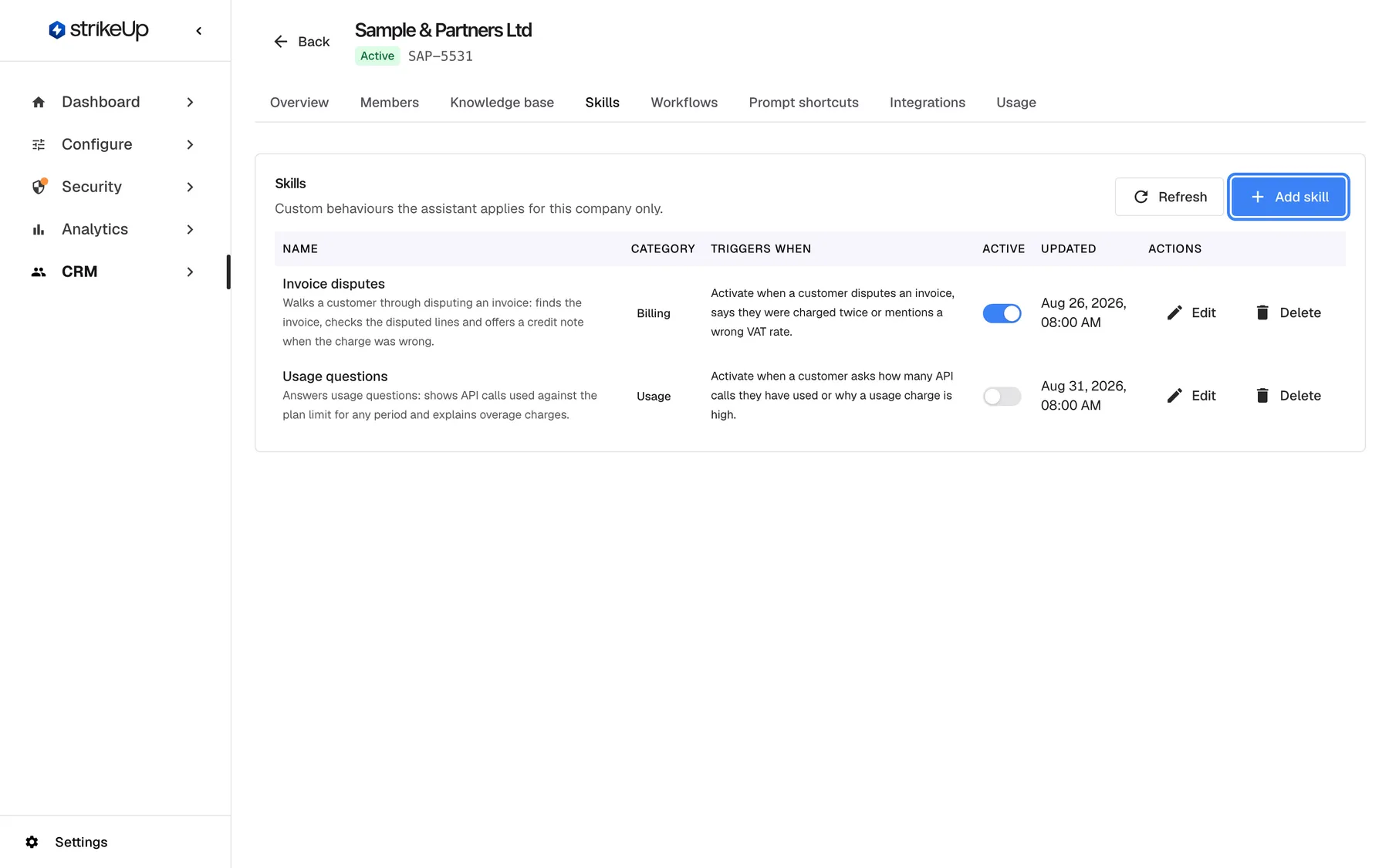
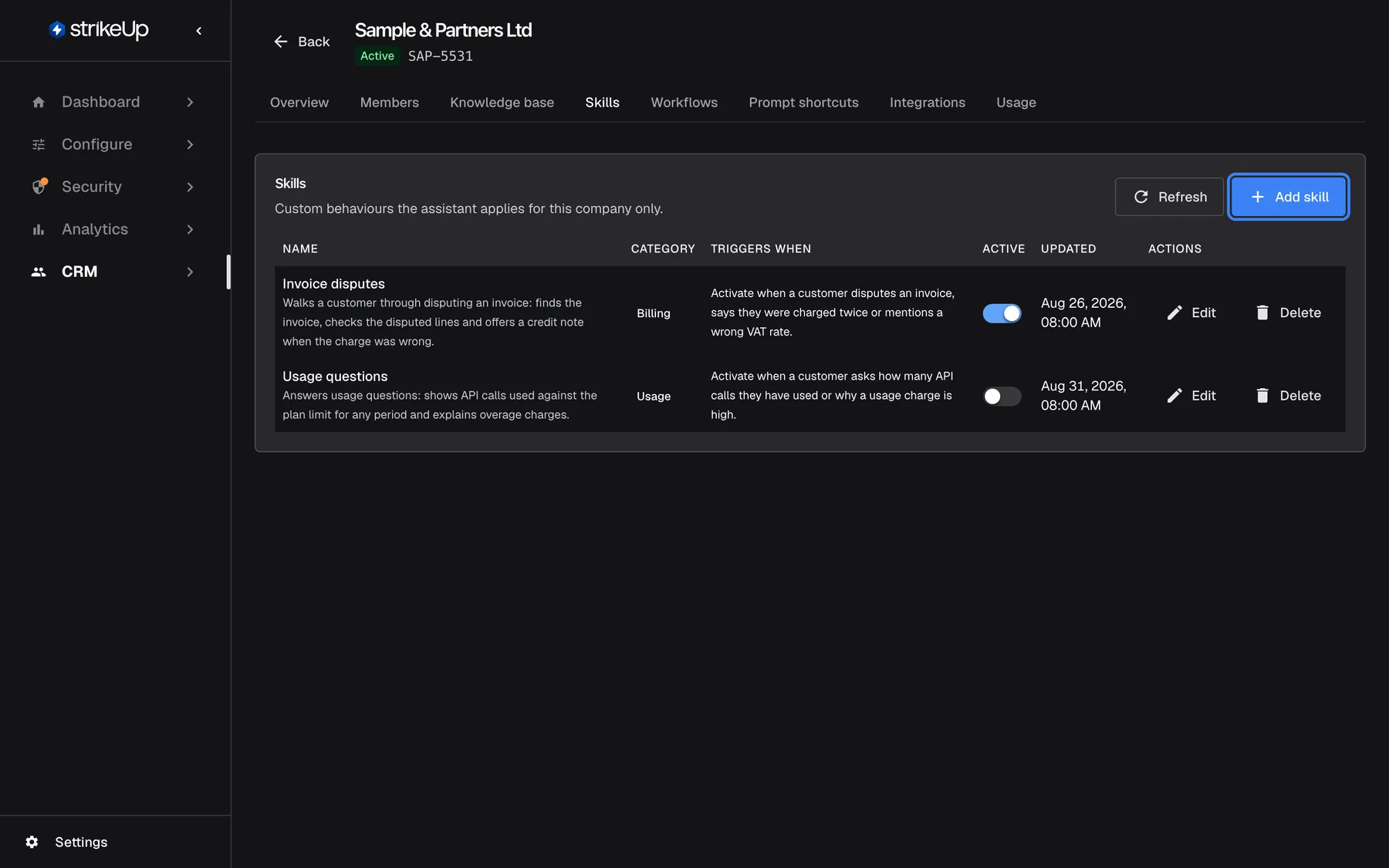
What this screenshot shows
- Screen
- Skills (/admin/customer-companies/:id?tab=skills)
- Highlighted
- button “Add skill”, card-header-right, enabled. opens the Add skill form
- Also visible
- Invoice disputes: Billing, active, updated Aug 26, 2026; Usage questions: Usage, inactive, updated Aug 31, 2026
- Purpose
- the list of company skills
| Region | What it shows | What you do there |
|---|---|---|
| Card header | Skills, Custom behaviours the assistant applies for this company only. and Add skill | Add a skill |
| Table | Name with the description, Category, Triggers when, Active, Updated, edit and delete | Read, switch, edit and delete skills |
| Form, under the table | The add or edit form when it is open | Write the skill |
Read the skills list
Section titled “Read the skills list”Skills are listed by name. In each chat with a customer of this company, the assistant receives the list of active company skills, each as its name and the situation that triggers it, next to the skills of the widget. When a conversation matches a skill’s Triggers when, the assistant picks it and follows its description.
Example: “Invoice disputes” (category Billing) triggers when a customer disputes an invoice or mentions a wrong VAT rate. When a Sample & Partners customer writes “Invoice INV-2026-0418 has the wrong VAT”, the assistant follows that skill’s steps.
Add or edit a skill
Section titled “Add or edit a skill”-
Select Add skill, or the edit icon in a skill’s row. The form Add skill or Edit skill opens under the table.
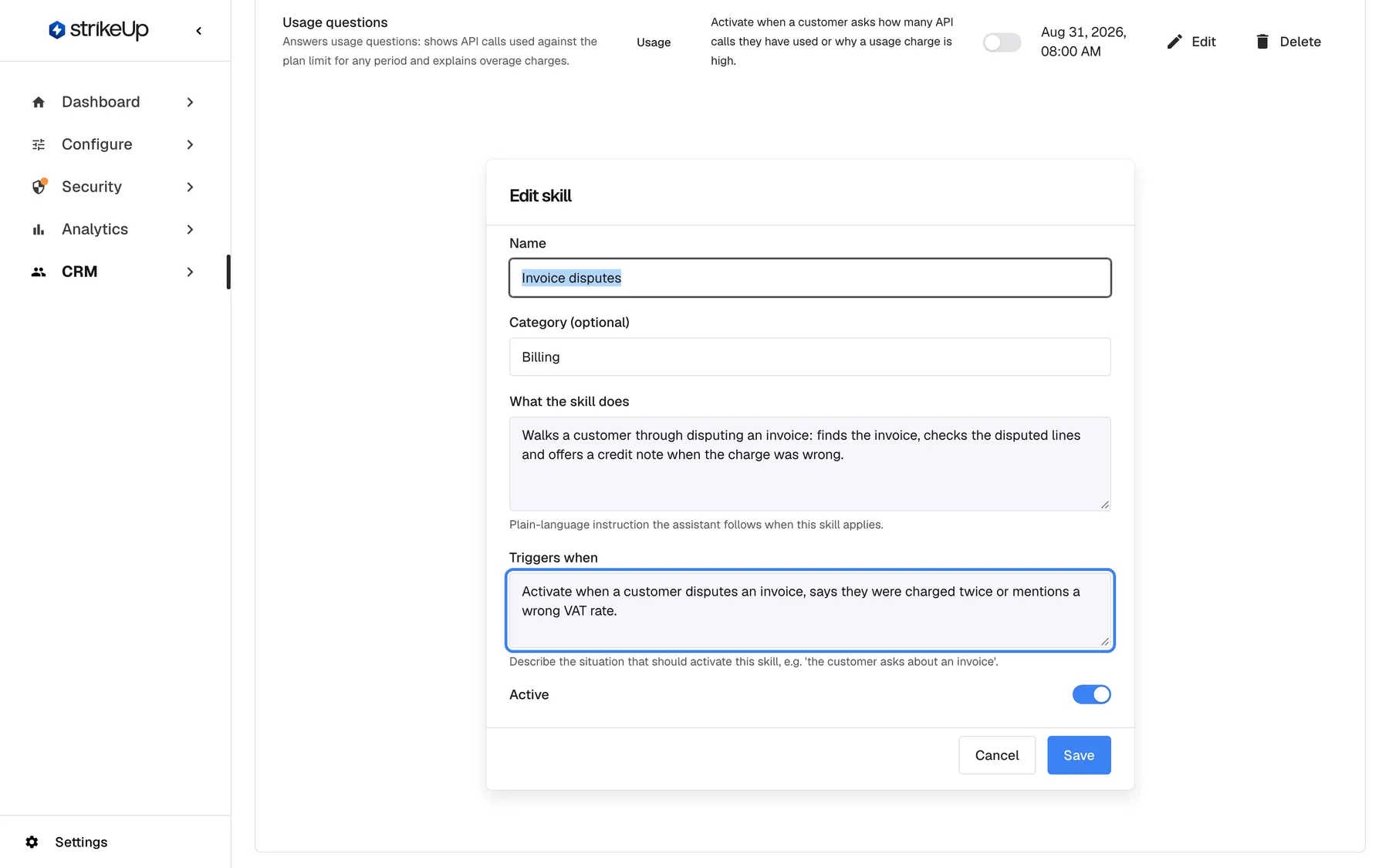
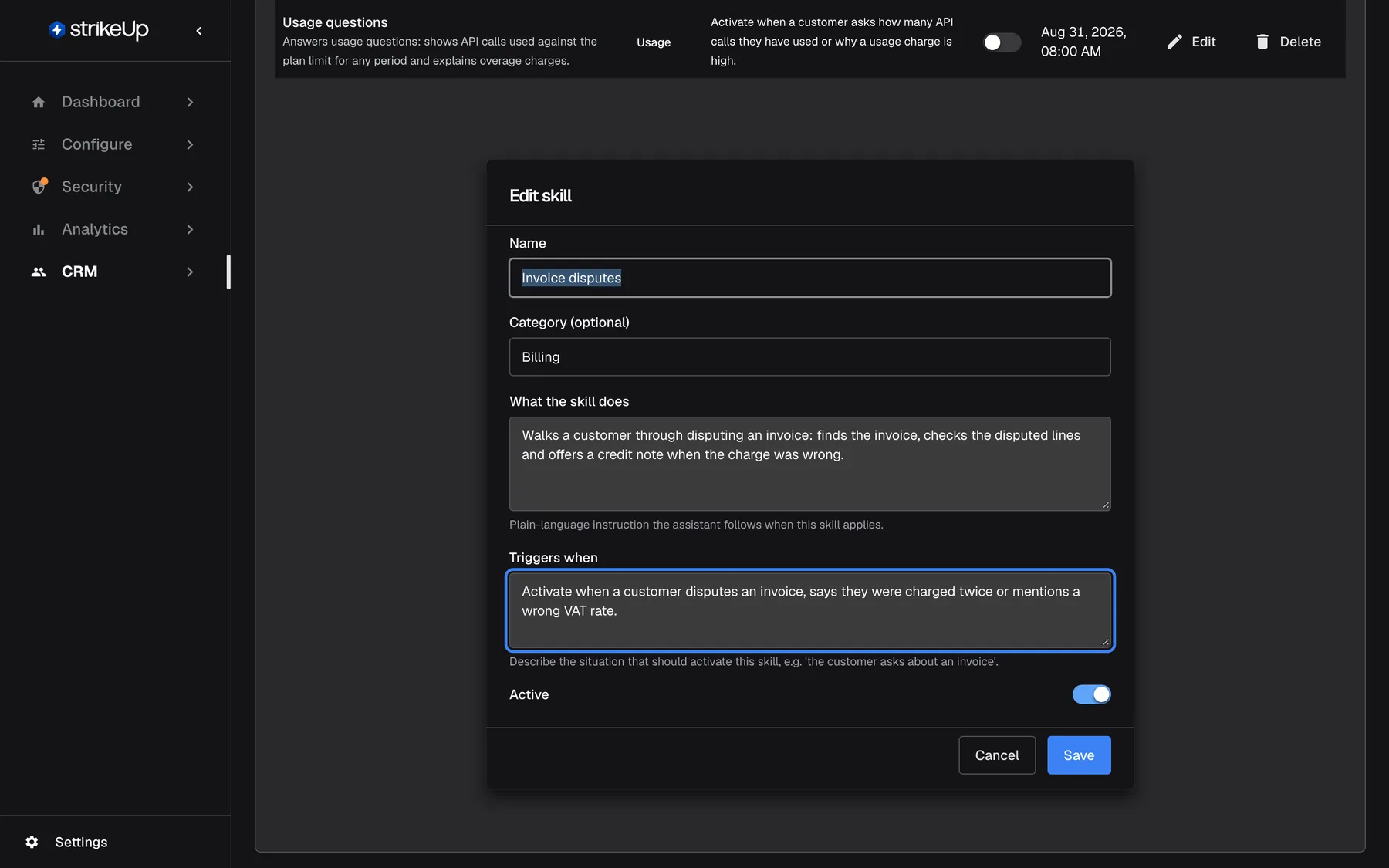
Describe the situation in Triggers when; the assistant applies the skill when a conversation matches it. What this screenshot shows
- Screen
- Edit skill (/admin/customer-companies/:id?tab=skills)
- Highlighted
- textbox “Triggers when”, inline-dialog, filled. defines when the assistant uses the skill (required, reviewed by the content check)
- Also visible
- Name Invoice disputes, Category Billing; What the skill does, Triggers when, Active switch; Cancel and Save
- Purpose
- editing a company skill
-
Fill in Name, optionally Category (optional), then What the skill does and Triggers when.
-
Leave Active on to use the skill straight away.
-
Select Save. StrikeUp reviews the description and trigger, saves the skill and shows Skill saved..
| Field | Rules |
|---|---|
| Name | Required, up to 200 characters, unique in this company. Upper and lower case count as different. |
| Category (optional) | Optional, up to 100 characters. Once set, emptying it keeps the old category. |
| What the skill does | Required. The instruction the assistant follows. |
| Triggers when | Required, up to 2,000 characters. The situation that activates the skill. |
| Do | Don’t |
|---|---|
| Describe the situation as a customer would bring it up: “the customer asks when their licences renew” | Write a trigger so broad it matches every message: “the customer asks anything” |
| Write the description as steps: what to check, what to offer, when to hand over | Tell the assistant to ignore its rules or skip approvals |
| Keep one job per skill | Paste passwords, keys or tokens |
If a field is missing, the form shows Name, description and trigger context are required.. A name already used in this company is refused with “A skill with name ’…’ already exists for this customer company.” If the review refuses the text, the message starts with “Skill description:” or “Trigger context:” followed by the reason.
Switch a skill on or off
Section titled “Switch a skill on or off”Turn the Active switch in a skill’s row off or on. It saves at once. An inactive skill stays in the list but is not offered to the assistant.
Delete a skill
Section titled “Delete a skill”Select the delete icon in the row. A confirmation titled Delete skill says This skill will no longer be applied to this company's conversations. Confirm and Skill deleted. appears. The skill is gone for good; to keep it for later, switch it off instead.
Every control, explained
Section titled “Every control, explained”Add skill
Section titled “Add skill”Add skill, at the top right of the card.
Opens an empty form under the table. Saving needs the Admin role.
A business customer may need a behaviour none of your other customers need.
Name and category
Section titled “Name and category”Name and Category (optional) at the top of the form.
Name: required, up to 200 characters, unique in this company. Category: optional, up to 100 characters, shown as its own column.
The name is what the assistant sees in its list of skills; a clear name helps it choose.
What the skill does
Section titled “What the skill does”What the skill does, with the help Plain-language instruction the assistant follows when this skill applies.
Required. Reviewed whenever it changes; text that tries to override the assistant’s rules, contains credentials or uses control markers is refused with “Skill description:” and the reason.
This is what the assistant does once the skill applies.
Triggers when
Section titled “Triggers when”Triggers when, with the help Describe the situation that should activate this skill, e.g. 'the customer asks about an invoice'.
Required, up to 2,000 characters, reviewed whenever it changes (“Trigger context:” and the reason on refusal). Shown in the table’s Triggers when column.
The assistant compares the conversation with this text to decide whether the skill applies.
Active
Section titled “Active”The switch in each row, and in the form. On by default for a new skill.
On: the skill is offered in this company’s chats. Off: it is kept but not used. The switch in the row saves at once; the one in the form saves with Save. Needs the Admin role.
Try a skill for a while, or pause it, without deleting what you wrote.
Edit and delete
Section titled “Edit and delete”The icons at the end of each row.
Edit opens the form with the skill’s values. Delete asks for confirmation, then removes the skill for good. Both need the Admin role.
Keep the company’s skills current as their processes change.
Who sees what
Section titled “Who sees what”| Part of the screen | Who can use it |
|---|---|
| The skills list | Every signed-in user of your workspace |
| Add skill, edit, the Active switch and delete | Users with the Admin role. For anyone else the change fails with Request failed |
What you need to know
Section titled “What you need to know”| Topic | Fact |
|---|---|
| Scope | Offered only in chats with this company’s customers, together with the widget’s own skills. |
| Shared editing | The company’s Admins can create and edit skills in the customer portal; you see and can change theirs here, and they see yours. |
| Review | Description and trigger are reviewed whenever they change. |
| Names | Unique per company, and case-sensitive: “Billing” and “billing” are two names. |
| Category | Cannot be emptied once set; replace it instead. |
| Delete | Permanent. Switch the skill off to keep it. |
Frequently asked questions
Section titled “Frequently asked questions”Skills
Section titled “Skills”How are company skills different from the skills on Configure?
Section titled “How are company skills different from the skills on Configure?”Skills on ConfigureSkills belong to a widget and apply to everyone who chats there. Skills on a company’s Skills tab are offered only in chats with that company’s customers, next to the widget’s skills.
When does the assistant use a company skill?
Section titled “When does the assistant use a company skill?”In every chat with a customer of the company, the assistant sees each active company skill as its name and its Triggers when text. When the conversation matches that situation, it chooses the skill and follows its What the skill does text.
Does switching a skill off delete it?
Section titled “Does switching a skill off delete it?”No. Turning off the Active switch keeps the skill and everything you wrote in it; the assistant simply stops being offered it in this company’s chats. Turn it back on at any time on the company’s Skills tab.
Can the company’s admins change skills I created?
Section titled “Can the company’s admins change skills I created?”Yes. Customer Admins manage the same list of skills in the customer portal, so they can edit, switch off or delete skills your team created, and you can do the same with theirs on the Skills tab.
Errors
Section titled “Errors”Why was my skill refused?
Section titled “Why was my skill refused?”StrikeUp reviews the description and the trigger whenever they change. Text that tries to override the assistant’s rules, contains a password, key or token, or uses markers such as [handoff] is refused. The message starts with “Skill description:” or “Trigger context:” and gives the reason.
Why does StrikeUp say a skill with this name already exists?
Section titled “Why does StrikeUp say a skill with this name already exists?”Every skill name must be unique within the company, comparing upper and lower case exactly. Another skill in this company, perhaps one switched off or created by the company’s Admins in the customer portal, already has that name; choose another or edit that skill.
Why did the category come back after I emptied it?
Section titled “Why did the category come back after I emptied it?”Once a skill has a Category (optional), emptying the field and saving keeps the old category. Replace it with another category instead; there is no way to remove it entirely on the Skills tab.
Why can’t I save the form?
Section titled “Why can’t I save the form?”The form needs Name, What the skill does and Triggers when filled in; otherwise it shows Name, description and trigger context are required.. Saving also needs the Admin role in your workspace.
Troubleshooting
Section titled “Troubleshooting”| Symptom | What to check |
|---|---|
| Name, description and trigger context are required. | Fill in the name, what the skill does and when it triggers. |
| “A skill with name ’…’ already exists for this customer company.” | Use another name, or edit the existing skill. |
| “Skill description:” or “Trigger context:” followed by a reason | Remove rule overrides, credentials and […] markers, and save again. |
| The assistant does not use a skill | Check that it is Active, that the customer belongs to this company, and that the trigger describes the situation in the customer’s words. |
| Failed to load skills. | Reload the page; if it persists, sign in again. |
| Saving shows Request failed | You may not have the Admin role; ask an Admin. |