

Log Details
The Log Details page shows one AI action in full: one call your assistant made to an AI model. It tells you which provider and model answered, whether the call succeeded, what the AI was given (the visitor’s messages, page context from your product, knowledge base passages, skills and tool results) and what it replied. The operating instructions given to the model are never shown. Use it to understand why a particular answer came out the way it did. You reach it from a row on AnalyticsAI actions or from View call in a conversation turn; everyone in your workspace can open it.
The same content also appears, without the page heading, in the detail panel of AnalyticsFeedback and in a customer’s chat details.
What you can do here
Section titled “What you can do here”- Check how the call went. The top card names the provider and model, the duration, the HTTP status, the conversation it belongs to and, for a failed call, the error. Check how the call went.
- See what the AI was given. The visitor’s messages, attachments, the hidden context your product passed in, and the knowledge base passages with their relevance. See what the AI was given.
- See what the AI did and answered. The skills and capabilities it had, the results of the tools it had called, the tools it could call, and its answer with any tool requests. See what the AI did and answered.
- Understand a failed call. The provider’s error message and status code tell you whether to wait, retry or change a model. Understand a failed call.
The screen at a glance
Section titled “The screen at a glance”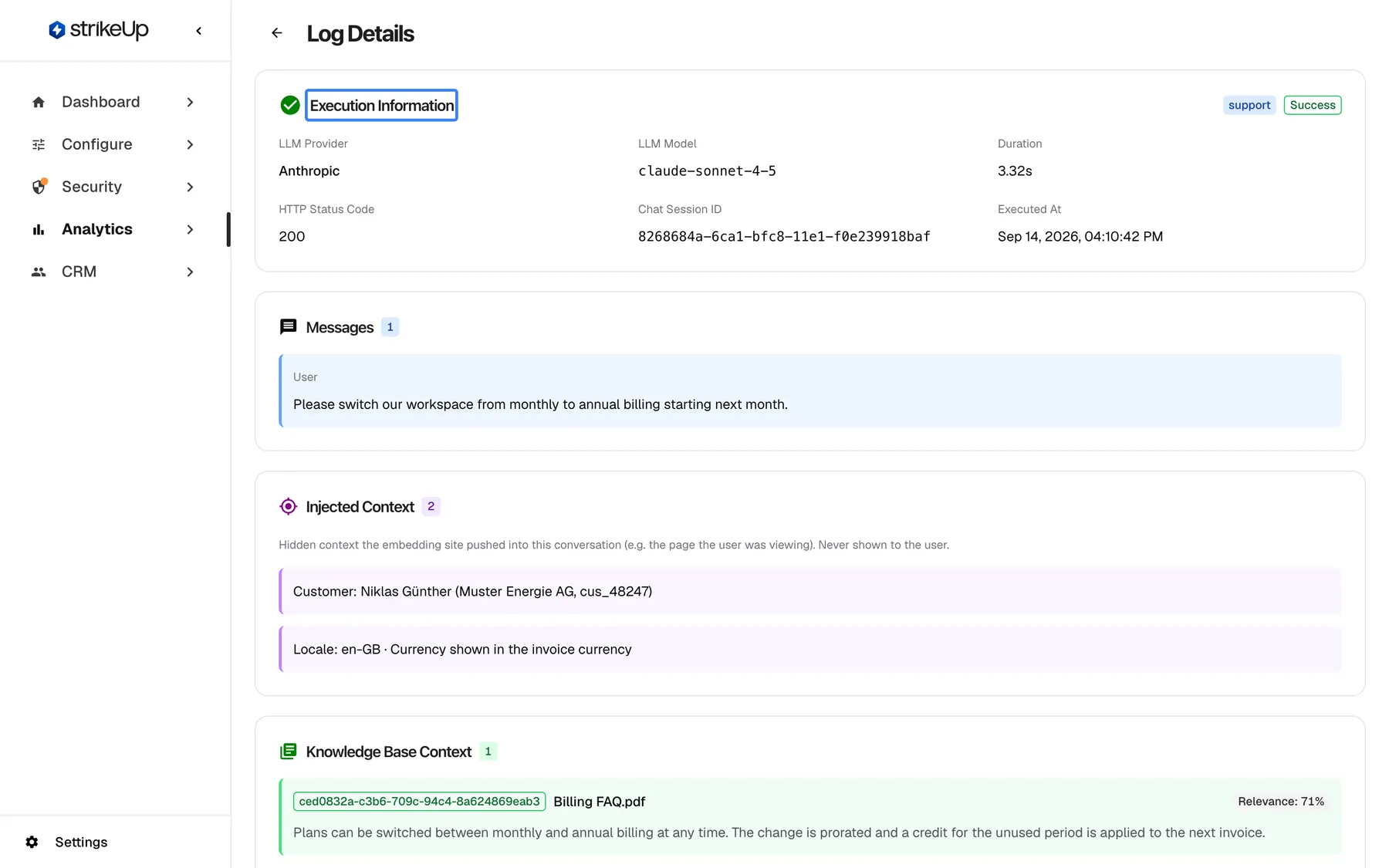
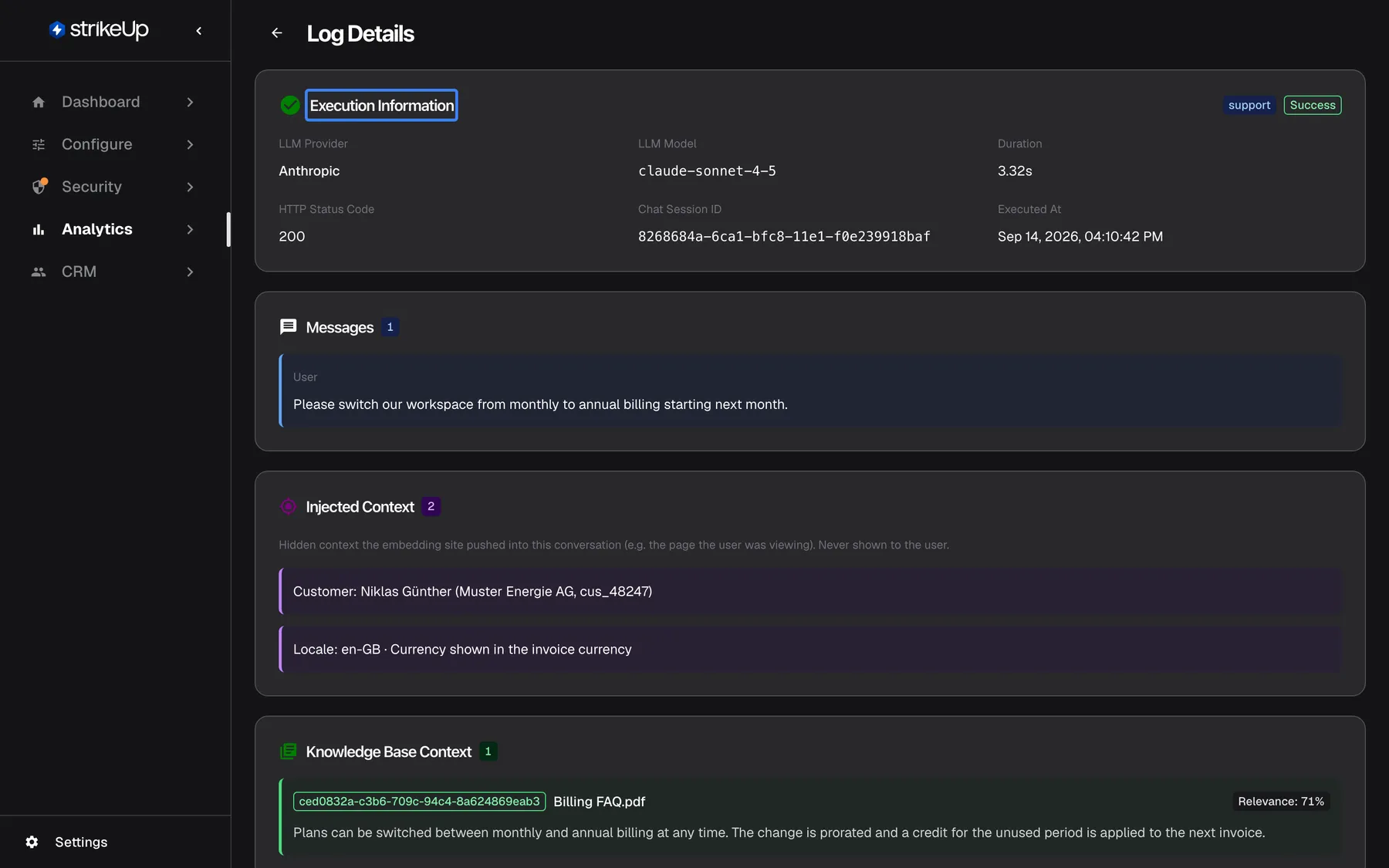
What this screenshot shows
- Screen
- Log Details (/admin/ai-logs/:id)
- Highlighted
- “”, execution-information-card, success. summarises the call
- Also visible
- Provider Anthropic, model claude-sonnet-4-5, 3.32s, HTTP 200; Messages: the customer's request
- Purpose
- the AI action page as it opens
| Region | What it shows | What you do there |
|---|---|---|
| Header | A back arrow and the heading Log Details | Return to AI actions |
| Execution Information | Result, badges, provider, model, duration, status, chat session and time | Check how the call went |
| Messages and the context sections | What the AI was given | Check the inputs behind the reply |
| Skills, capabilities, tool results and tools | What the AI could use and what its tools returned | Check whether a tool or skill was involved |
| Response Data | The answer, tool requests and finish reason | Read what the AI produced |
Check how the call went
Section titled “Check how the call went”The Execution Information card at the top sums up the call. Its header carries a green check or red marker and a row of badges:
| Badge | Shown when |
|---|---|
The agent, such as general or support | Always, when the call belongs to an agent |
| “Structured Output” | The AI was asked for a structured answer, such as data for a chart or table. In English in every language. |
| Notification | The AI could send a notification by email or Telegram during this call |
| Short extract | Only part of the request and response was kept for this call |
| Success or Failed | Always |
Below the badges are LLM Provider, LLM Model, Duration, HTTP Status Code, Chat Session ID and Executed At.
Example: a visitor asked to switch their workspace to annual billing. The card shows a green check, the agent general, the provider and model that answered, a duration of a few seconds and HTTP 200. The Chat Session ID identifies the conversation; quote it to support or use it to find the chat under CRMCustomers.
- The chat session ID is plain text, not a link.
- “N/A” under Duration means no duration was recorded for the call.
- Dates are in US format in every language, such as Sep 14, 2026, 04:10:42 PM.
See what the AI was given
Section titled “See what the AI was given”The middle of the page lists everything that went into the call apart from the operating instructions.
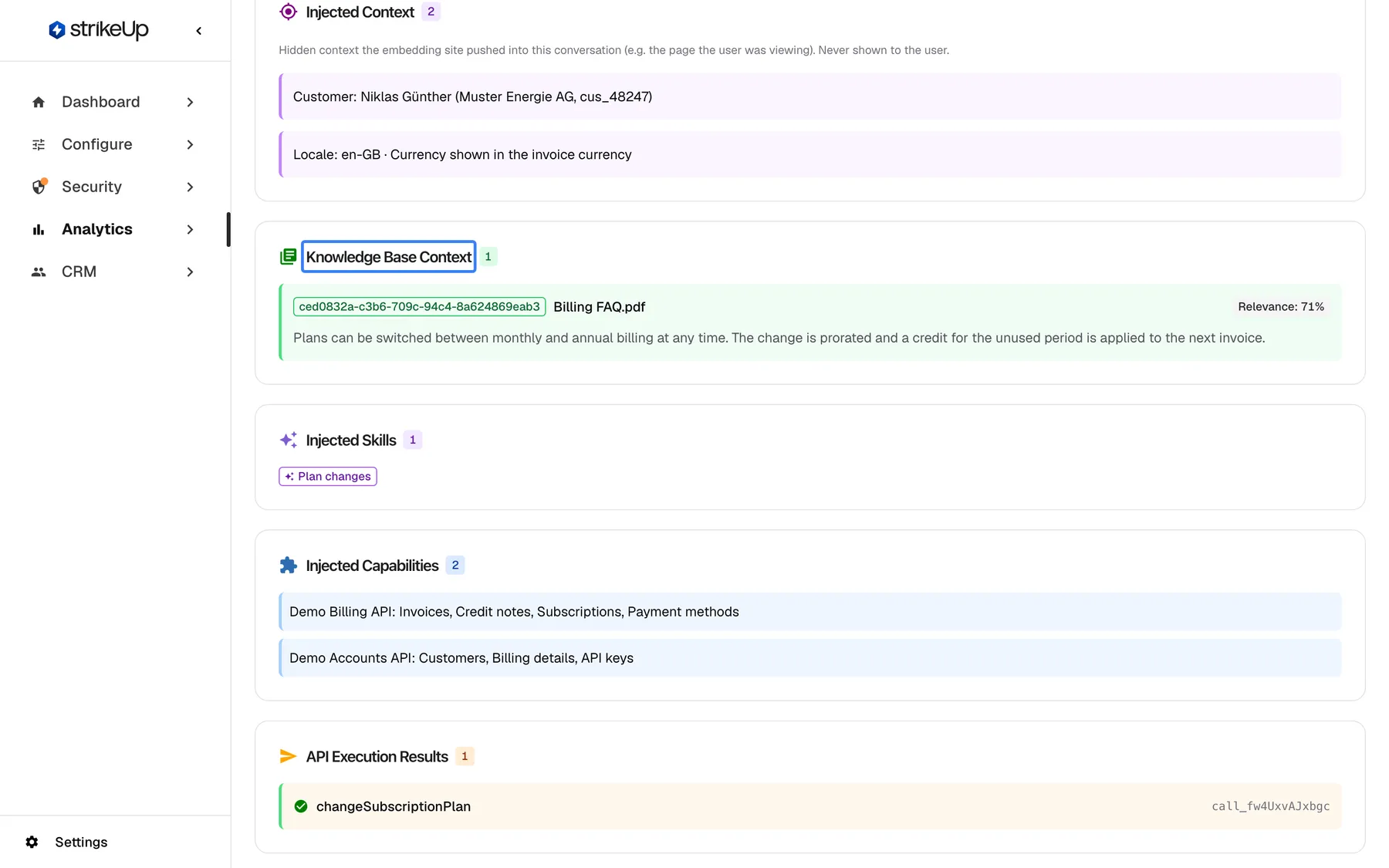
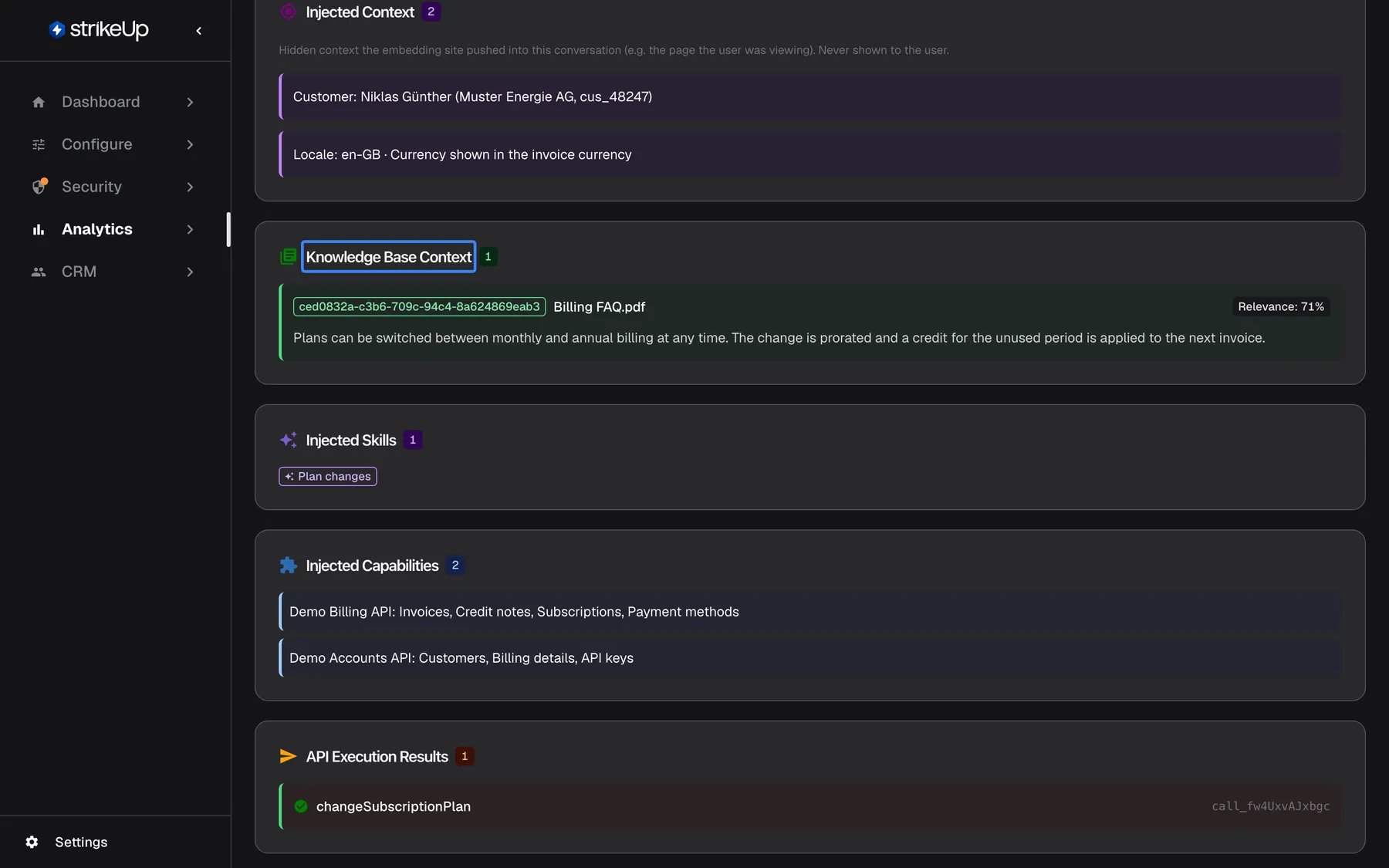
What this screenshot shows
- Screen
- Log Details (/admin/ai-logs/:id)
- Highlighted
- “”, knowledge-base-section, one entry, relevance 71%. shows which knowledge base passages were used
- Also visible
- Injected Context with customer and locale; Billing FAQ.pdf passage
- Purpose
- check the inputs behind an answer
| Section | What it shows |
|---|---|
| Messages | The conversation as the AI received it: the visitor’s messages and the assistant’s earlier replies, oldest first. No messages in this request when there were none. |
| Attachments sent to AI | Files the visitor attached: name, type and approximate size. Only when there were any. |
| Injected Context | Context your product passed into the conversation, such as the customer’s account or the page they were viewing. Shown with the note "Hidden context the embedding site pushed into this conversation (e.g. the page the user was viewing). Never shown to the user." |
| Knowledge Base Context | The knowledge base passages the AI received: file name, Relevance as a percentage, and the passage text |
Relevance is how closely a passage matched the visitor’s question. Higher means a closer match.
Example: Injected Context lists the customer’s name, company and customer number that your product passed in, plus the locale. Knowledge Base Context shows a passage from a billing FAQ saying that a plan change is prorated with a credit for the unused period. If the answer then leaves the credit out, the knowledge was there and the gap is in how the answer used it.
See what the AI did and answered
Section titled “See what the AI did and answered”The lower part of the page shows what the AI could use and what came out.
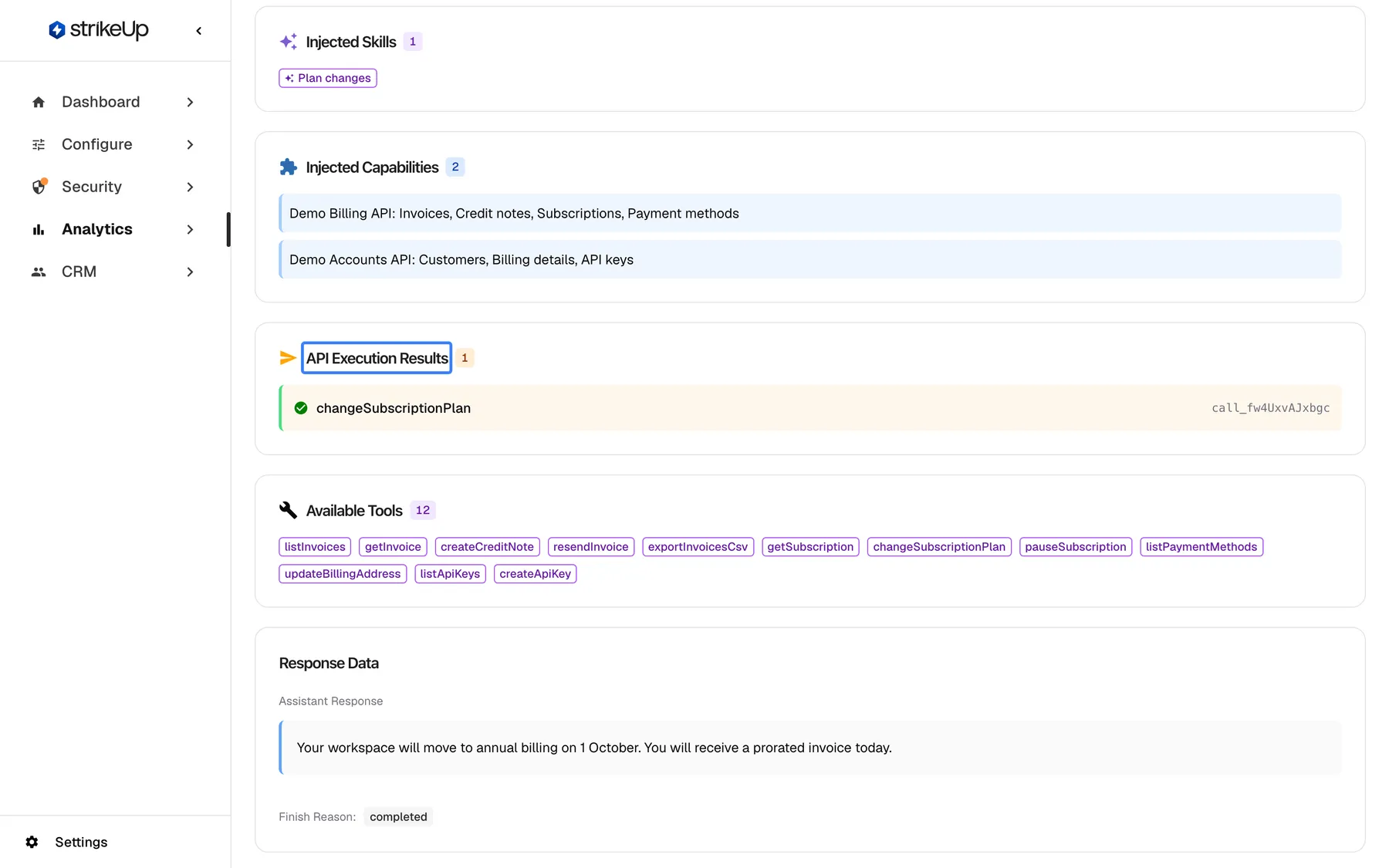
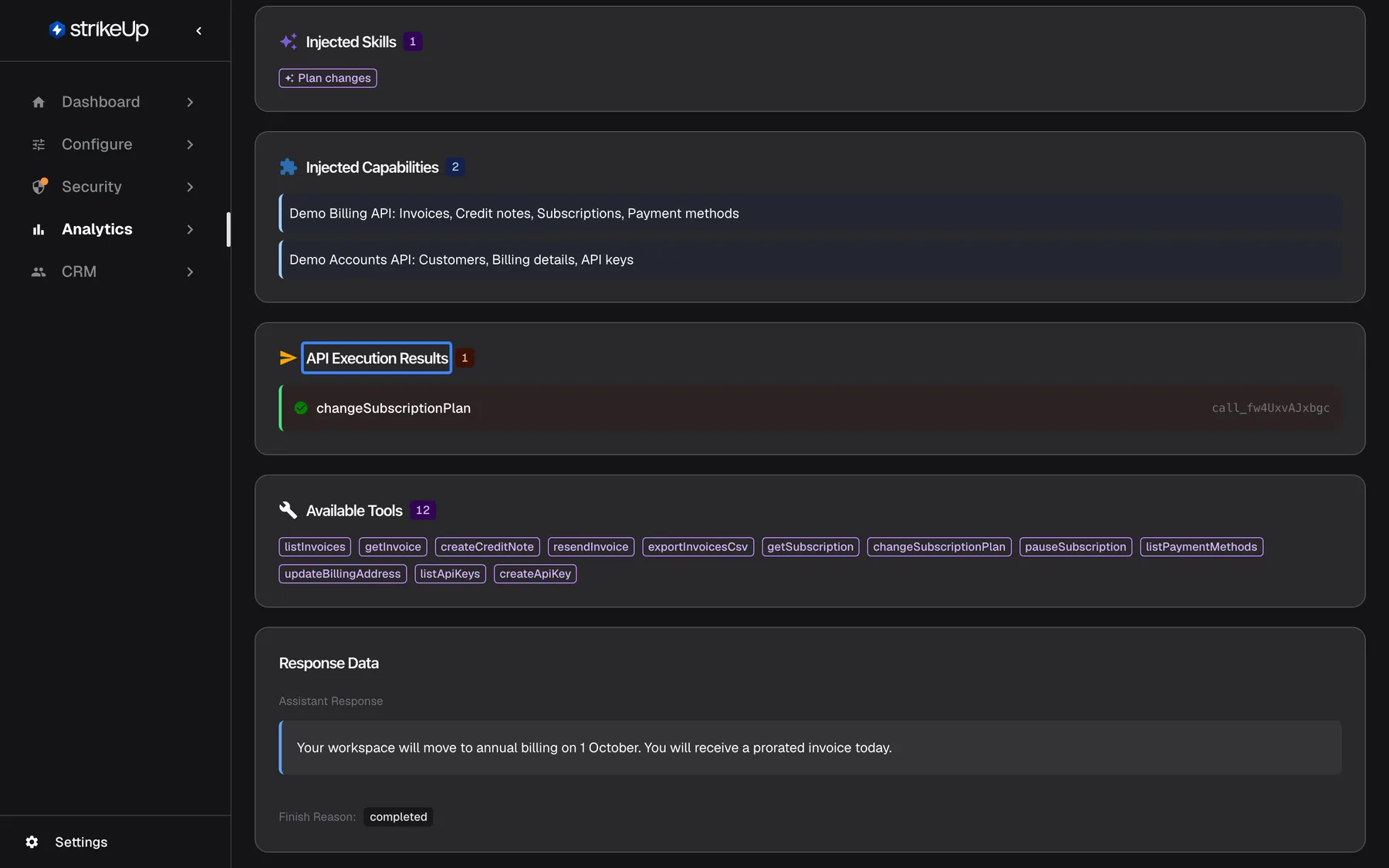
What this screenshot shows
- Screen
- Log Details (/admin/ai-logs/:id)
- Highlighted
- “”, api-execution-results-section, one successful tool result. lists the tool results fed back to the model
- Also visible
- Injected Skills, Injected Capabilities; Available Tools (12); Response Data with the assistant's answer
- Purpose
- what the AI did and answered
| Section | What it shows |
|---|---|
| Injected Skills | The names of the skills the AI received for this call |
| Injected Capabilities | The names of the capability areas the AI was told about, such as your toolkits |
| API Execution Results | Results of tools that ran before this call, as they were fed back to the AI, each with a success or error icon |
| Available Tools | The names of every tool the AI could call |
| Response Data | Assistant Response with Chart or Table badges when the answer contained one, Tool Execution Requests when the AI asked to run tools, and Finish Reason |
- A call that asks for a tool usually has no answer text. The AI asks for the tool in one call, StrikeUp runs it, and the next call of the turn receives the result under API Execution Results and writes the answer.
- You see names, not definitions. Skills, capabilities and tools are listed by name; their instructions and parameter descriptions are not shown.
- A tool marked Notification is one of the built-in notification tools that send an email or a Telegram message.
Understand a failed call
Section titled “Understand a failed call”A failed call shows a red marker, the HTTP status the provider returned and, under Error Message, its message.
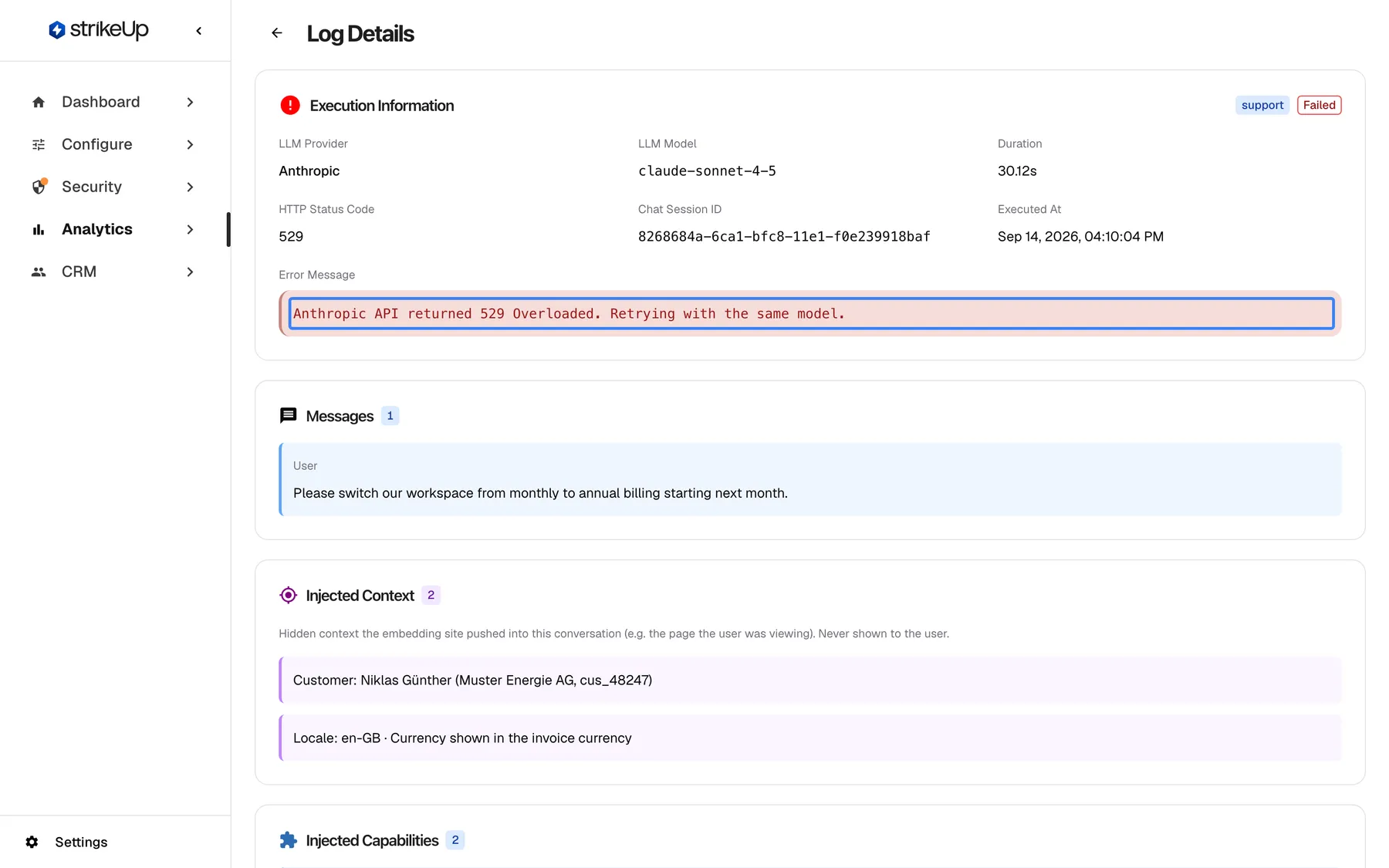
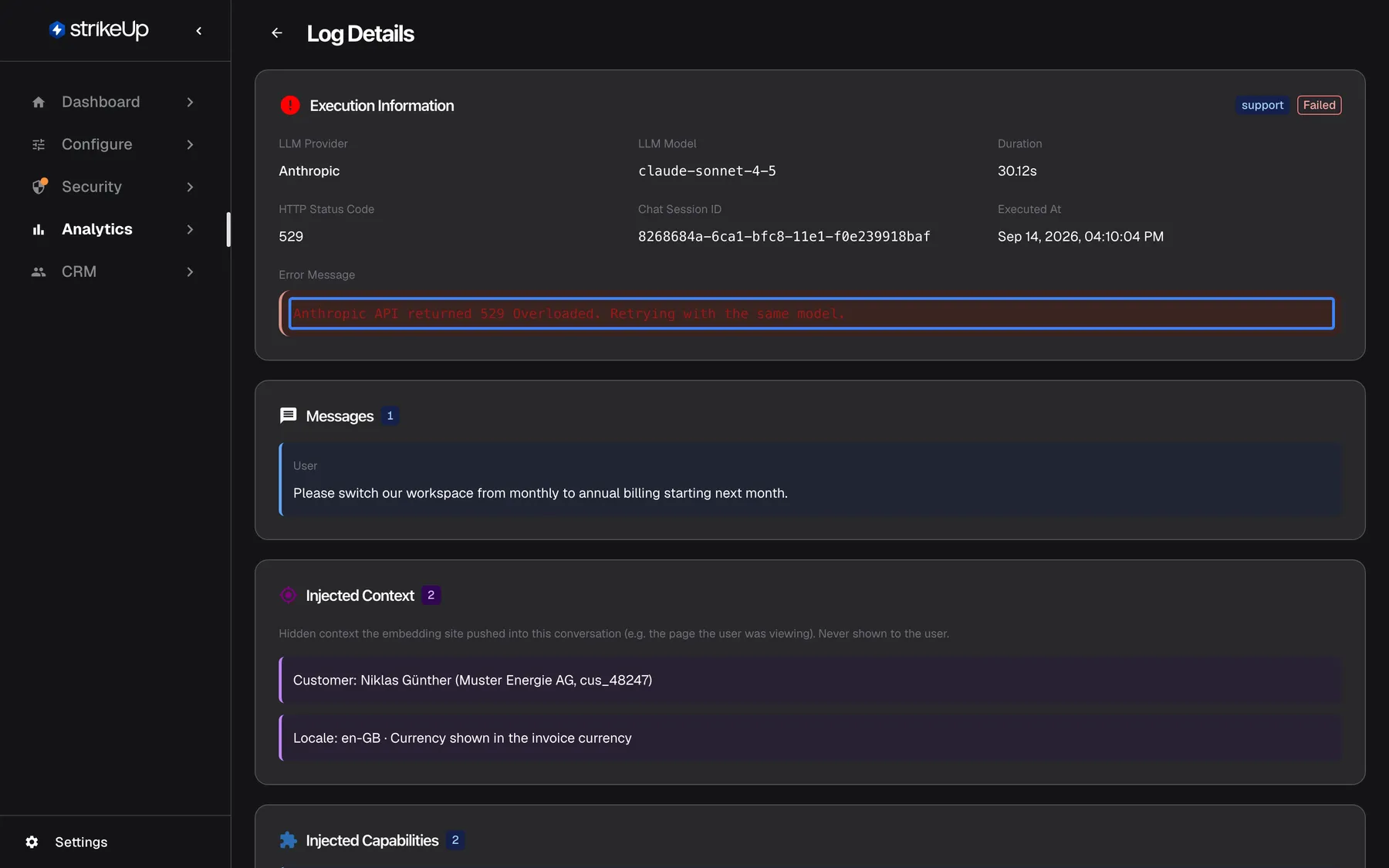
What this screenshot shows
- Screen
- Log Details (/admin/ai-logs/:id)
- Highlighted
- “”, execution-information-error, failed, HTTP 529. explains why the call failed
- Also visible
- Provider Anthropic, model claude-sonnet-4-5, HTTP 529, ~30 s
- Purpose
- a failed AI action
| Status | Usually means | What to do |
|---|---|---|
| 429 | The provider limited the number of requests | Check the limits of your AI connection; add a fallback model |
| 500–599, such as 529 | The provider had an internal error or was overloaded | Usually temporary; check on Activity whether a retry succeeded |
| 401 or 403 | The provider refused the credentials | If you use your own AI connection, check its key |
| 400 | The provider rejected the request | Read the message under Error Message |
A failed call does not always mean a failed answer. StrikeUp can retry the same model or fall back to another one. Open the turn on the Activity tab of AnalyticsAI actions to see whether a later attempt succeeded.
Every control, explained
Section titled “Every control, explained”Back arrow
Section titled “Back arrow”At the top left, before the heading Log Details.
Returns to AnalyticsAI actions, on the AI actions tab and its first page.
Go back to the list after checking one call.
Execution Information fields
Section titled “Execution Information fields”| Field | What it shows | Why |
|---|---|---|
| LLM Provider | The AI provider, such as OpenAI or Anthropic | Know whose service answered |
| LLM Model | The exact model | Check the model your settings picked |
| Duration | Seconds, or “N/A” | Find slow calls |
| HTTP Status Code | The provider’s status, such as 200 or 529 | Tell success from failure and its kind |
| Chat Session ID | The conversation’s identifier | Find the conversation or quote it to support |
| Executed At | Date and time in US format | Place the call in time |
| Error Message | The provider’s message, only for failed calls | Understand the failure |
Input sections
Section titled “Input sections”| Section | What it shows | Why |
|---|---|---|
| Messages | The messages the AI received, with their role | See exactly which question the AI answered |
| Attachments sent to AI | Attached files: name, type, approximate size | Confirm a file reached the AI |
| Injected Context | Context your product passed in | Check that your product sends the right customer and page details |
| Knowledge Base Context | Passages from your knowledge base, with relevance | Check whether the right article was found |
Output sections
Section titled “Output sections”| Section | What it shows | Why |
|---|---|---|
| Injected Skills | Skill names | Confirm the skill you expected was active |
| Injected Capabilities | Capability names | See which areas the AI knew it could act in |
| API Execution Results | Tool results fed back to the AI | Check what your API returned before the answer |
| Available Tools | Tool names | Check that a tool was offered at all |
| Response Data | The answer, tool requests and finish reason | Read what the AI produced, or No response content |
What you need to know
Section titled “What you need to know”| Topic | Fact |
|---|---|
| Hidden by design | The operating instructions, the descriptions and parameters of tools, and the text of skills are never shown. Names are. |
| Masking | Responses from your API are masked by your rules under SecurityData masking before the AI sees them, so API Execution Results shows masked data. When a tool call fails, the error text from your API reaches the AI unmasked and appears here as it was. If masking itself fails, the original data is used. Visitors’ messages are not masked. |
| Kept indefinitely | StrikeUp keeps the full request and response of every call, with no automatic deletion. The only automatic deletion in Analytics is the event history of finished agent jobs: their events are deleted once they are more than 7 days old. |
| Partial records | Short extract marks a call of which only part was kept: older records, and conversations whose AI text was erased on request. Some sections are then empty. |
| No cost or tokens | This page shows neither. Find them on the Activity tab of AI actions. |
| Read-only | Nothing on this page can be changed, copied with a button or refreshed; reload the browser page to load it again. |
| Who sees it | Every signed-in user of your workspace, whatever their role. |
Frequently asked questions
Section titled “Frequently asked questions”What the page shows
Section titled “What the page shows”Why can’t I see the system prompt?
Section titled “Why can’t I see the system prompt?”The operating instructions given to the model are hidden on purpose on every AI action page. Log Details shows the visitor’s messages, the context the AI received and its answer, and lists skills, capabilities and tools by name only.
What does Short extract mean?
Section titled “What does Short extract mean?”The Short extract badge in Execution Information means only part of the call’s request and response was kept. It appears on older records and on conversations whose AI text was erased on request, and some sections of the page are then empty.
Why are some sections missing?
Section titled “Why are some sections missing?”Each section appears only when the call had that kind of content. A call without attachments has no Attachments sent to AI, a call where no knowledge base passage matched has no Knowledge Base Context, and a Short extract record can lack several sections.
Why is there no answer text, only tool requests?
Section titled “Why is there no answer text, only tool requests?”That call asked to run a tool. The AI requests tools in one call; StrikeUp runs them, and the next call of the same turn receives the results under API Execution Results and writes the answer. Open the turn on the Activity tab of AI actions to find it.
What does Relevance mean in Knowledge Base Context?
Section titled “What does Relevance mean in Knowledge Base Context?”Relevance under Knowledge Base Context is how closely a knowledge base passage matched the visitor’s question, as a percentage. Higher is closer. A low value on the only passage often means the knowledge base has no article that really answers the question.
What is Injected Context?
Section titled “What is Injected Context?”Injected Context lists the information your product passed into the conversation through the widget, such as the signed-in customer or the page they were on. The AI uses it to answer; the visitor never sees it in the chat.
Why does Duration say N/A?
Section titled “Why does Duration say N/A?”“N/A” under Duration in Execution Information means no duration was recorded for the call. The rest of the call’s details are still complete.
Using the page
Section titled “Using the page”Can I copy the raw request or response?
Section titled “Can I copy the raw request or response?”No. Log Details shows the call broken into sections and has no copy buttons and no raw view. The raw request contains the operating instructions, which are never shown.
Where do I see the cost and tokens of this call?
Section titled “Where do I see the cost and tokens of this call?”Not on this page. Open AnalyticsAI actions, select the Activity tab and open the turn: each attempt shows its tokens and estimated cost there.
How do I get to the whole conversation?
Section titled “How do I get to the whole conversation?”Copy the Chat Session ID from Execution Information, then open the customer’s chat under CRMCustomers. The ID is plain text on this page, not a link.
Data and privacy
Section titled “Data and privacy”Is customer data masked on this page?
Section titled “Is customer data masked on this page?”Responses from your API are masked by your rules under SecurityData masking before the AI sees them. Visitors’ messages are not masked, and the error text of a failed tool call reaches the AI and this page unmasked.
Who can open this page?
Section titled “Who can open this page?”Every signed-in user of your workspace, whatever their role, can open an AI action from AnalyticsAI actions. Keep that in mind for what your visitors write and what your API returns.
Troubleshooting
Section titled “Troubleshooting”| Symptom | What to check |
|---|---|
| Log not found | The link may be wrong or the call no longer exists. The same message appears when loading failed: reload the page, and if it persists, sign out and in again. |
| A section you expected is empty | Check for the Short extract badge; such records keep only part of the call. Otherwise the call had no such content. |
| The answer ignored the knowledge base | Check Knowledge Base Context: no passage, or a low Relevance, means no matching article was found. Check that your knowledge base has an article that answers this question. |
| A tool you expected is not under Available Tools | The tool may be switched off in its toolkit or limited by a tool policy for this customer. |
| Injected Context is missing or wrong | Your product did not pass the context. Check how your page passes context to the widget. |
| Customer data appears unmasked in API Execution Results | Check your rules under SecurityData masking. Error texts from failed tool calls are not masked. |