

Onboard a business customer
When a business signs up for your product, you can give its people an assistant set up for them: grouped in their own customer company, with roles that decide who manages it, documents and skills only they get, one-click prompts, and a customer portal where their admins look after it themselves. This guide takes you through it in order, for a business called Example Studios. It takes about twenty minutes plus the time to prepare a CSV file of its people.
Before you start
Section titled “Before you start”| You need | Where it lives |
|---|---|
| The Admin role in StrikeUp | SettingsUsers; every step below saves changes, which only Admins can do |
| A widget your product already shows to this business’s users | ConfigureEmbed; see Install the widget in your product |
The reference your product uses for this business, if it passes one to the widget as userCompanyId | Your own product, for example EXS-1042 |
| A list of the business’s people: user id, email, and who should manage the company | Your own records, or the business itself |
| The documents only this business should get answers from | Your files; PDF, Word, text, Markdown or JSON, up to 100 MB each |
-
Open the companies list. Go to CRMCompanies and select New Company at the top right. The form for a new company opens.
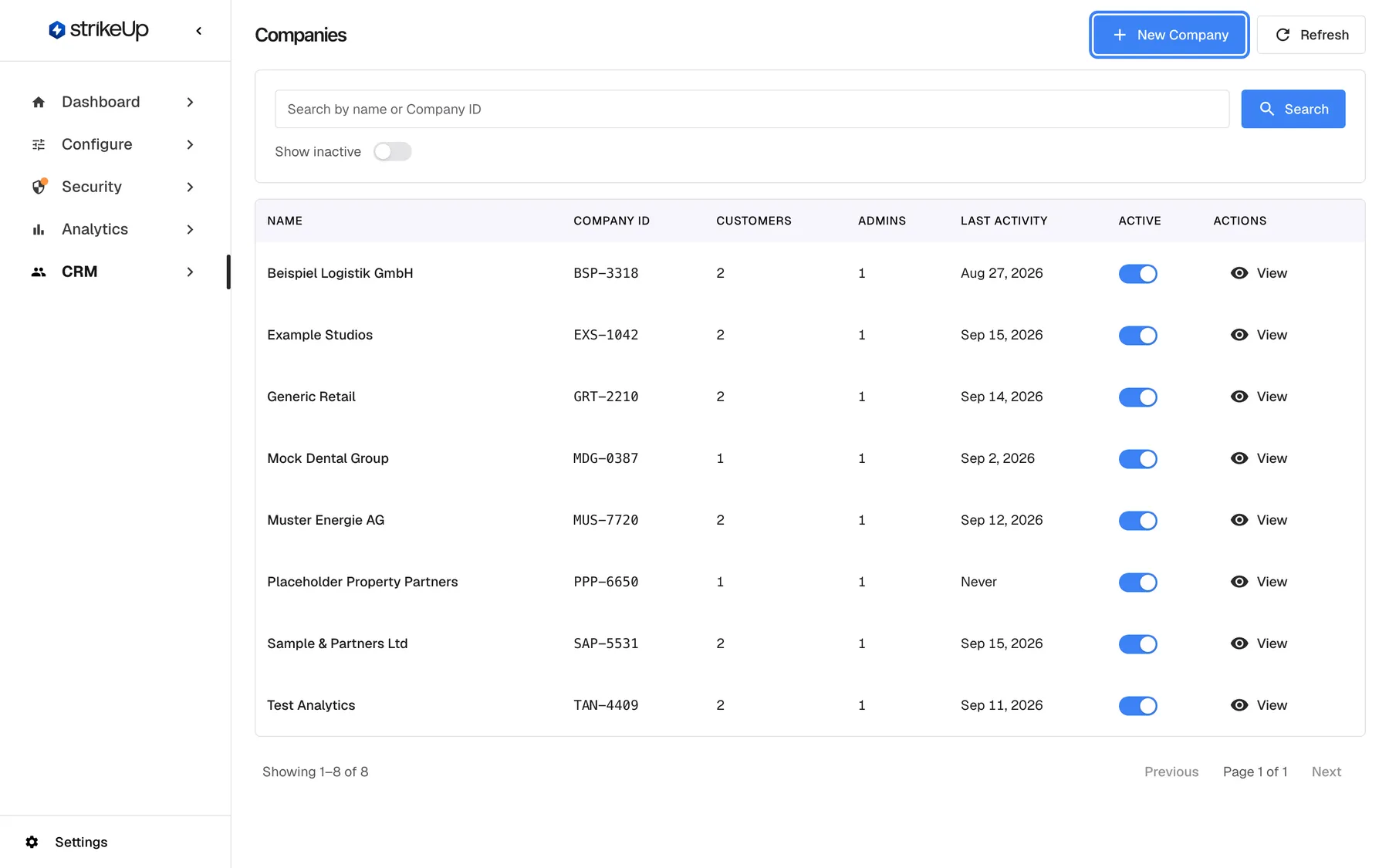
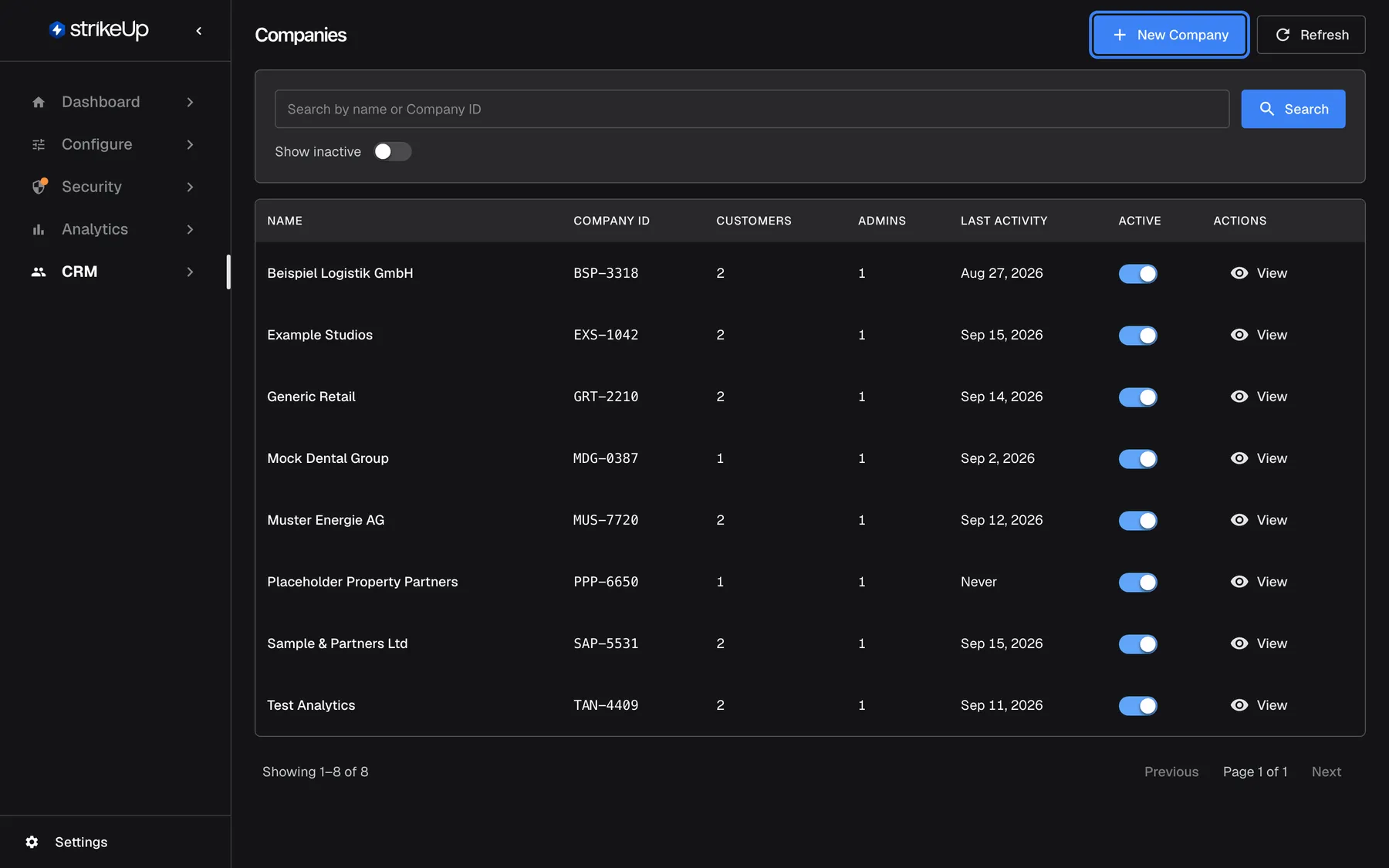
Go to CRM › Companies and choose New Company. What this screenshot shows
- Screen
- Companies (/admin/customer-companies)
- Highlighted
- button “New Company”, top-bar-right, enabled. opens the New Company form
- Also visible
- Existing customer companies with Company ID and Active switch
- Purpose
- entry point of the onboarding task
-
Create the company. Type the name in Name. In Company ID (optional), enter the same reference your product passes to the widget as
userCompanyId, so that its users land in this company as they chat. Choose a Default credential type (hint) if the business prefers a PIN or a password; a PIN has 4–8 digits, although the option reads “4-6”. Add an Agent instruction (optional) for conventions that apply to everyone there, such as “Confirm the invoice number before issuing a credit note”. Leave Allow self-registration off unless you want anyone with the registration link to join (as a Member, or as the Admin when nobody is in the company yet). Select Save; the company’s page opens.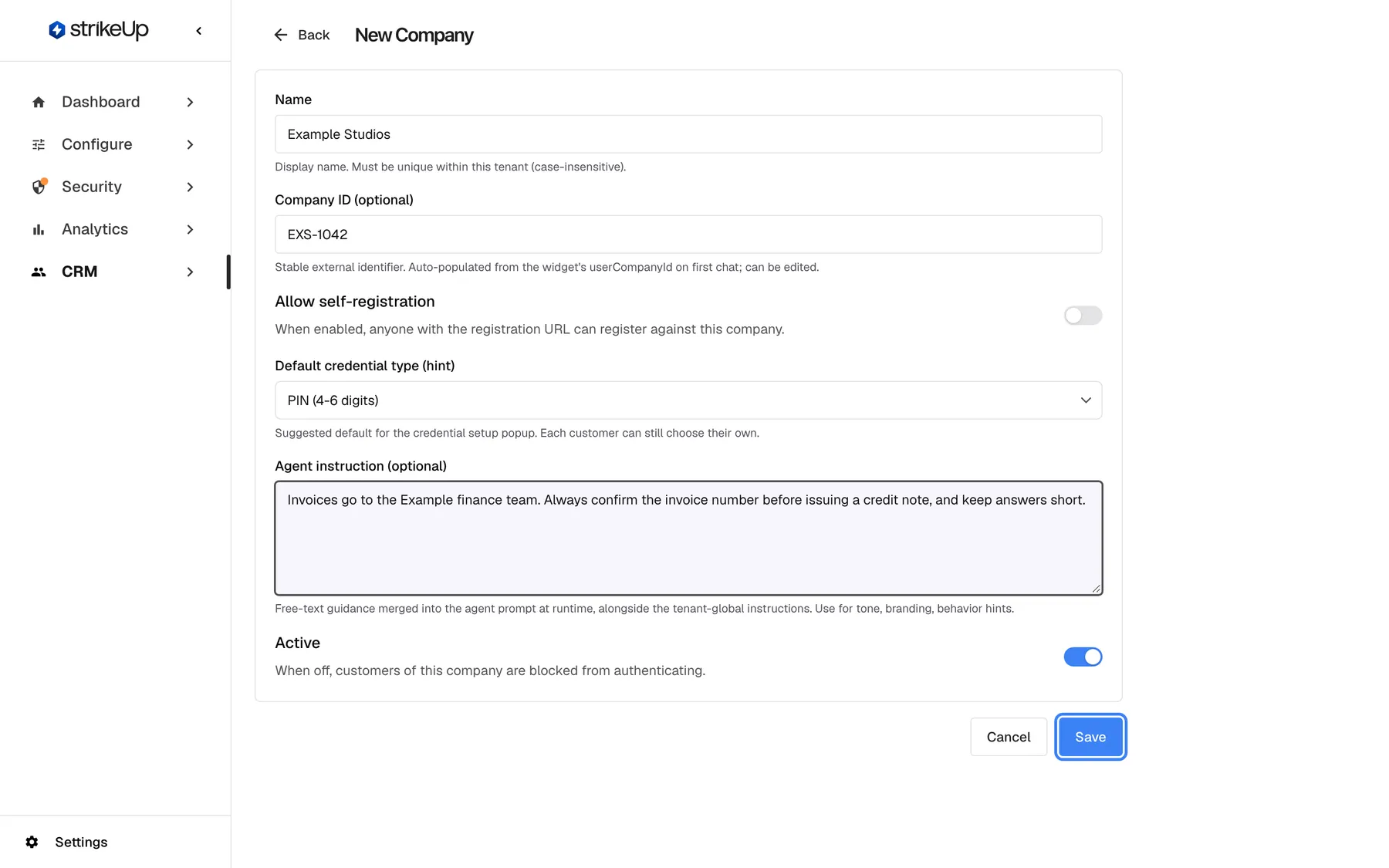
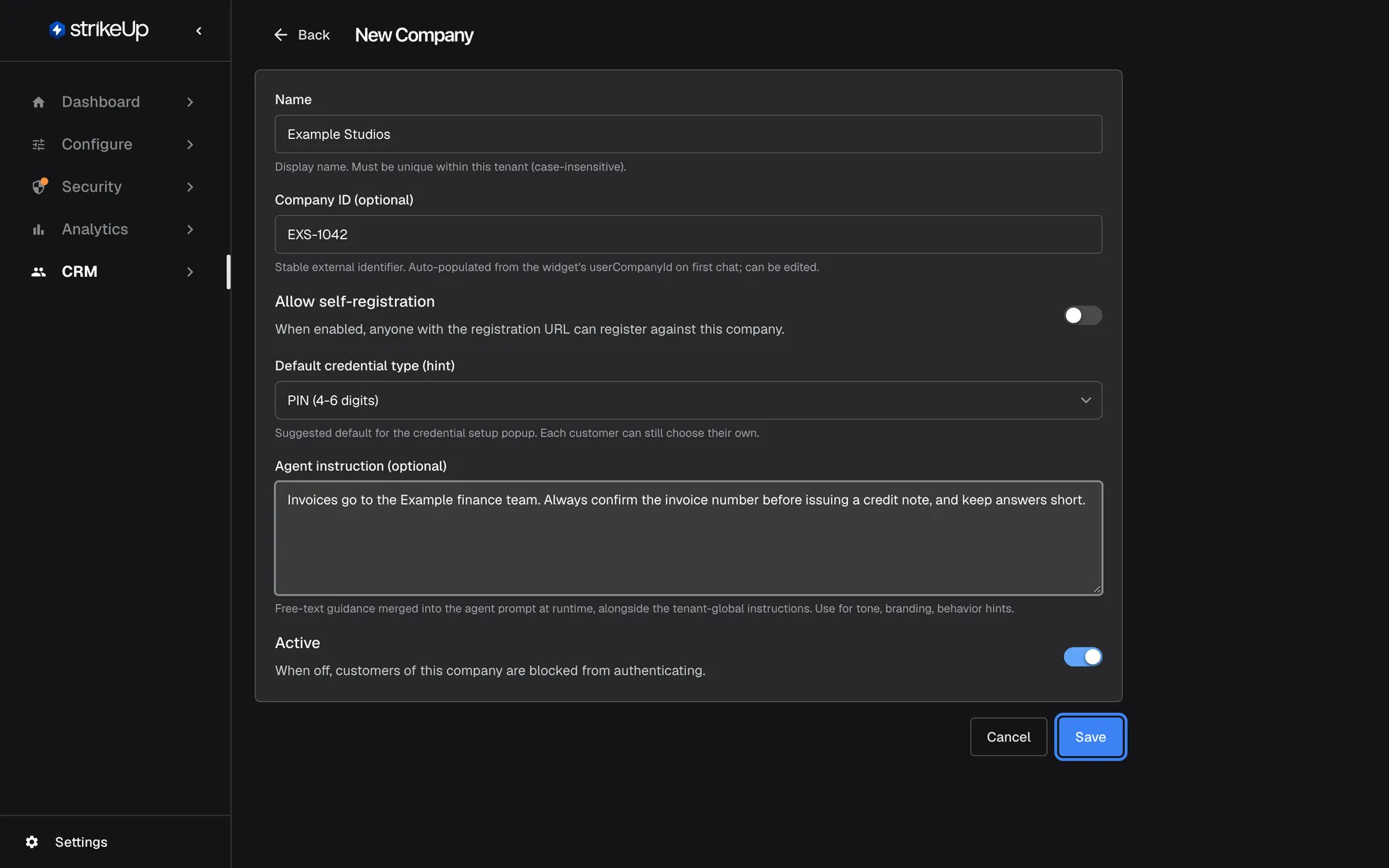
Use the same Company ID your product passes to the widget, so signed-in users land in this company. What this screenshot shows
- Screen
- New Company (/admin/customer-companies/new)
- Highlighted
- button “Save”, form-footer, enabled. creates the company and opens its detail page
- Also visible
- Name Example Studios, Company ID EXS-1042, credential hint PIN; Agent instruction about confirming invoice numbers
- Purpose
- creating the customer company
-
Import the company’s people. Go to CRMCustomers and select Import from CSV. Download the template, add one row per person with their
CustomerId(the user id your product passes for them),CustomerEmail, the company’s name inCustomerCompanyName, andRole. WriteMemberfor everyone who should not manage the company: an empty role makes the person an Admin. Add aPin(4–8 digits) or aPassword(at least 8 characters) if you hand out credentials. If you useCustomerCompanyIdinstead of the name, it needs the internal id from the company page’s address, not the Company ID. Choose the file and select Preview; nothing is saved yet.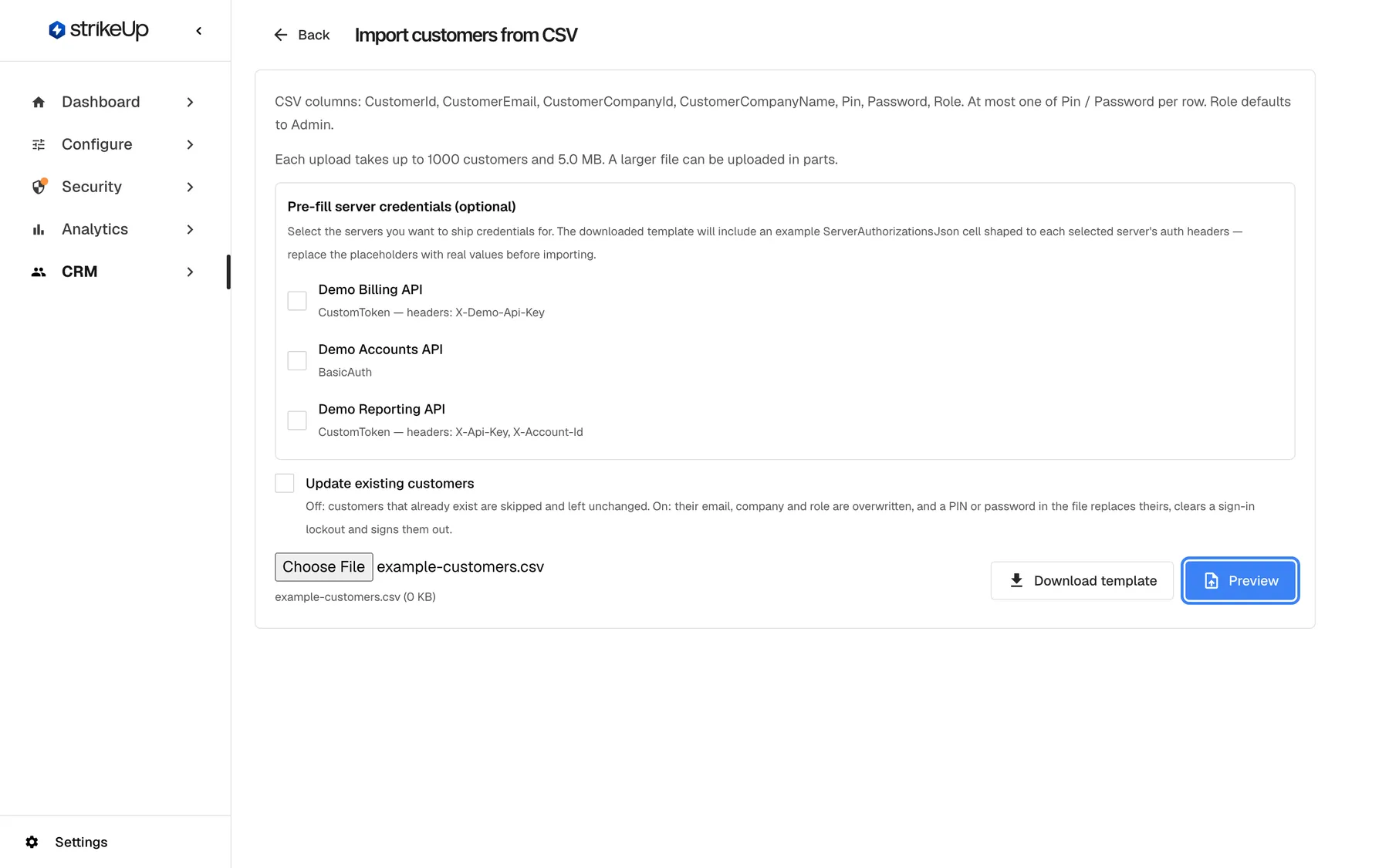
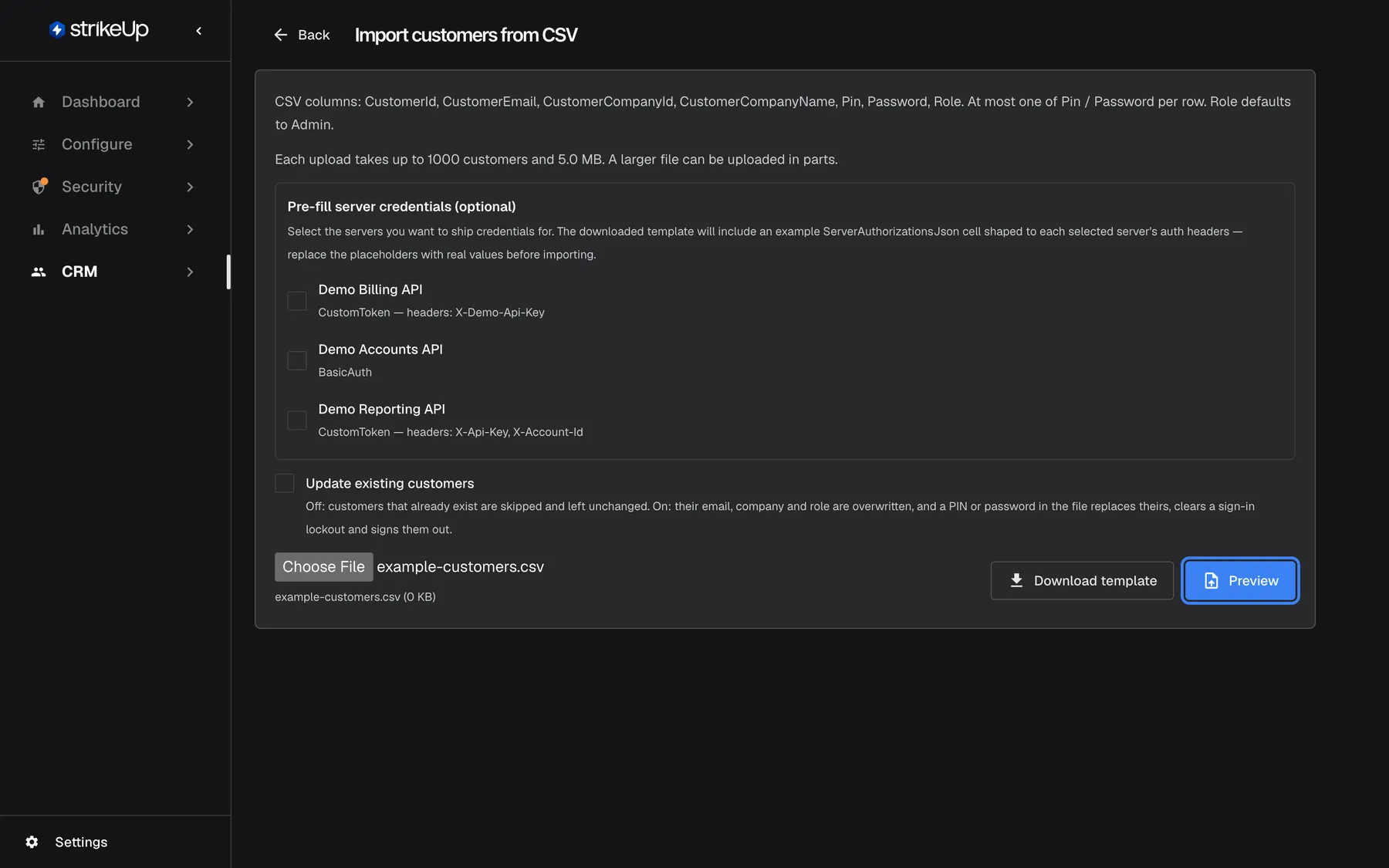
Import the company's users with a CSV; set Role to Member for everyone who should not manage the company. What this screenshot shows
- Screen
- Import customers from CSV (/admin/customers-import)
- Highlighted
- button “Preview”, actions-right, enabled. validates the file without saving
- Also visible
- Chosen file example-customers.csv
- Purpose
- adding the company's users
-
Commit the import. Fix every row the preview marks as an error and preview again until Errors is 0, then select Commit import. All rows are saved together, or none if anything fails. See Import customers for every column and message.
-
Check who is Admin. Open the company from CRMCompanies and select the Members tab. Make sure only the people who should manage the company in the customer portal show Admin; change the others to Member in the role selector, which saves at once.
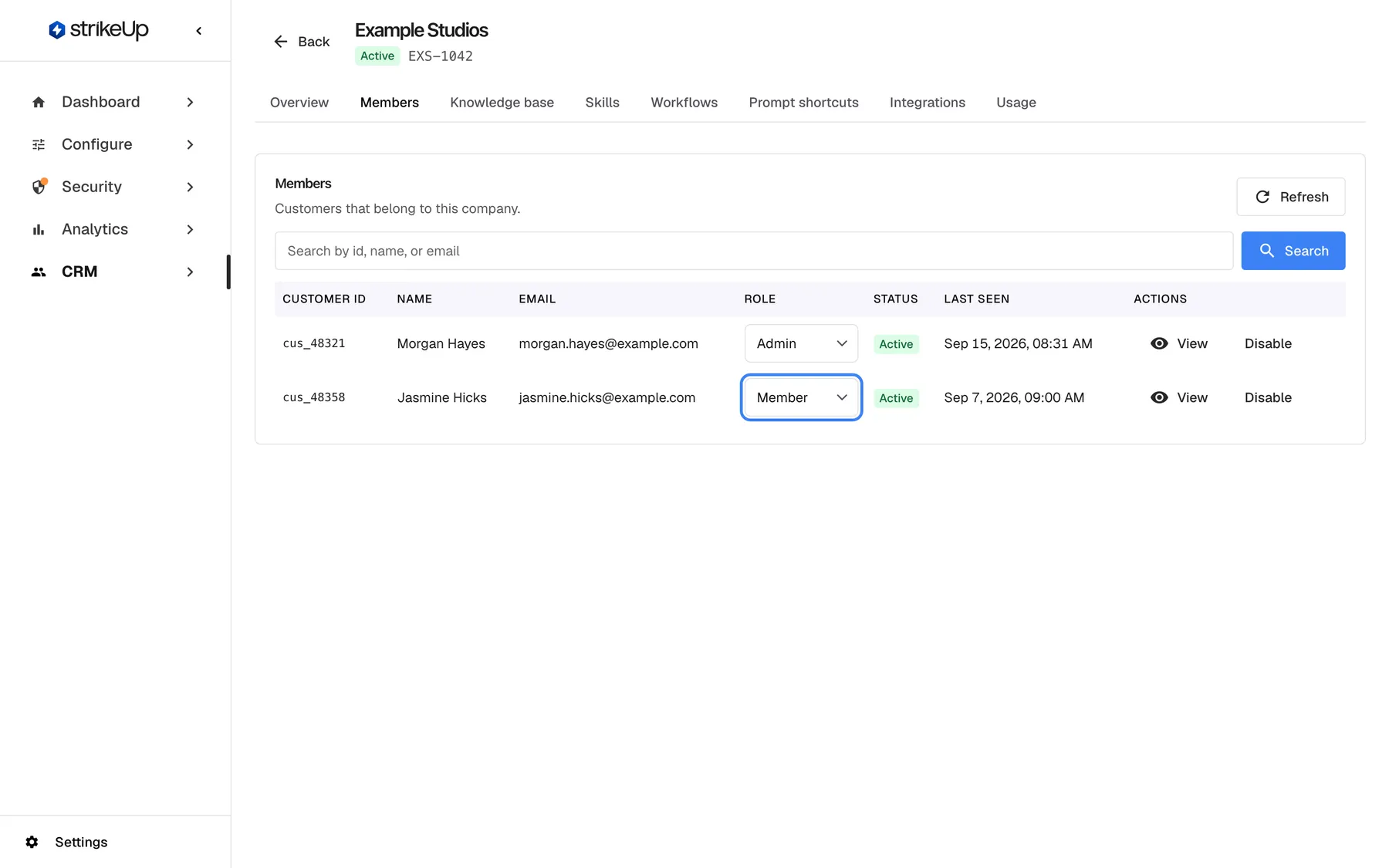
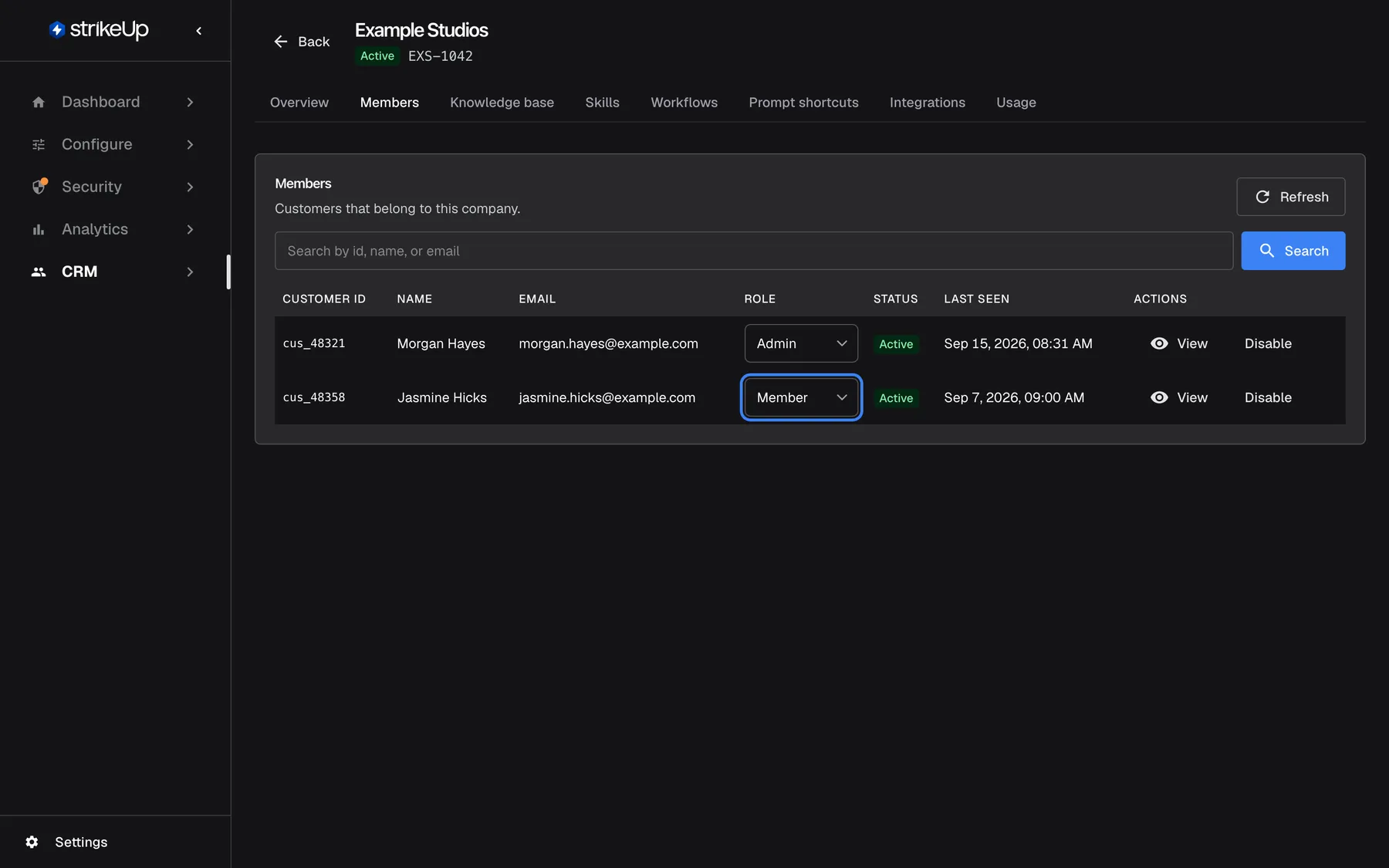
Check that only the people who should manage the company in the Customer Portal are Admins. What this screenshot shows
- Screen
- Members (/admin/customer-companies/:id?tab=members)
- Highlighted
- combobox “Role”, table-row, Member. changes the role immediately
- Also visible
- Morgan Hayes Admin, Jasmine Hicks Member, both Active
- Purpose
- reviewing roles after the import
-
Upload the company’s documents. On the Knowledge base tab, select Upload document for each file. Select Refresh after a minute or two until each shows “Indexed”, then ask a typical question in Test retrieval to check the answer is found. These documents are searched only in this company’s chats, together with your workspace’s knowledge base.
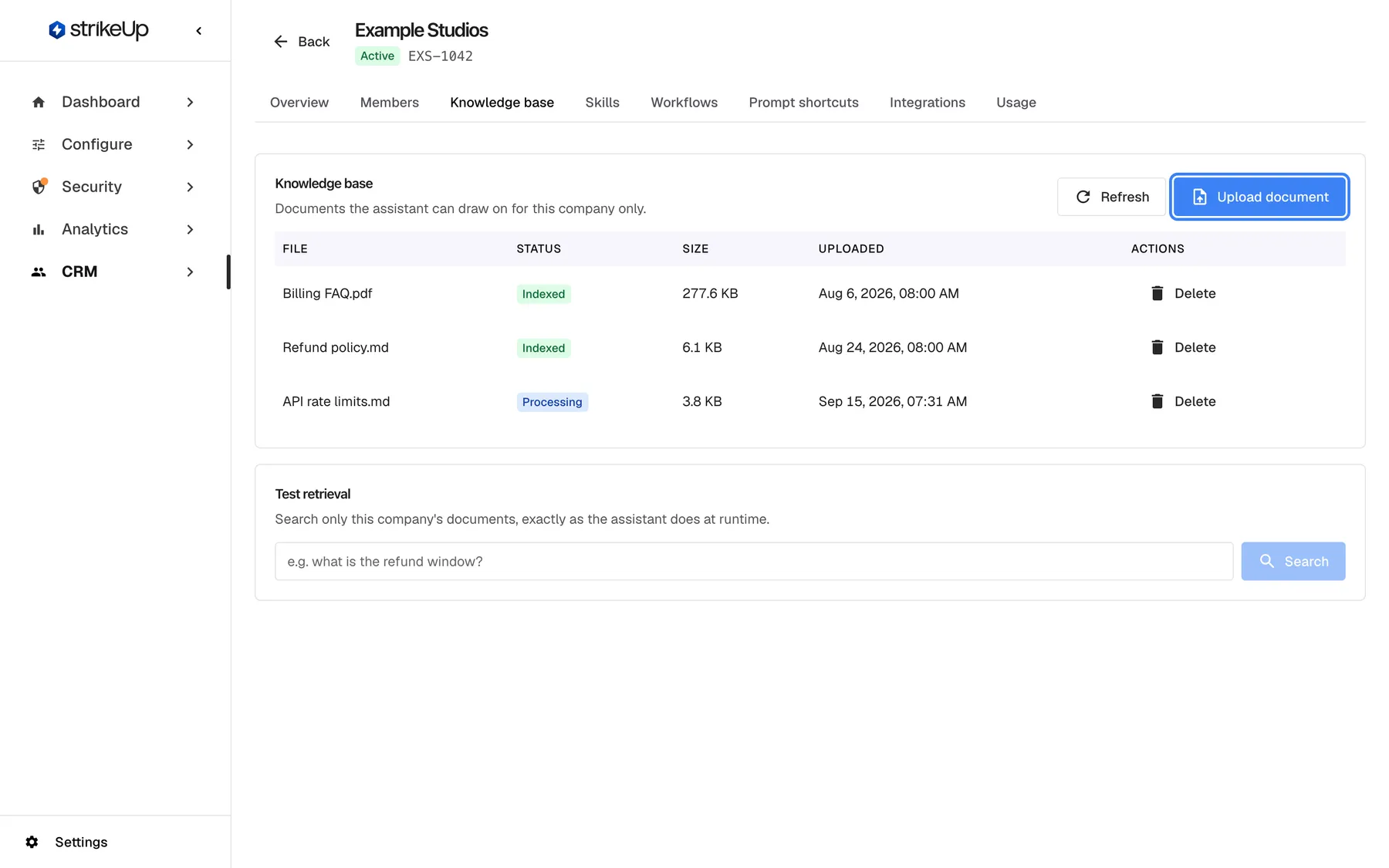
Upload documents that only this company's customers should get answers from; press Refresh until they show Indexed. What this screenshot shows
- Screen
- Knowledge base (/admin/customer-companies/:id?tab=knowledge-base)
- Highlighted
- button “Upload document”, card-header-right, enabled. uploads a document for this company only
- Also visible
- 2 Indexed documents, 1 Processing
- Purpose
- giving the company its own knowledge
-
Add the company’s skills. On the Skills tab, select Add skill. Fill in Name, What the skill does (what the assistant should do) and Triggers when (the situation, in the customer’s words), and select Save. Repeat for each behaviour that matters only to this business.
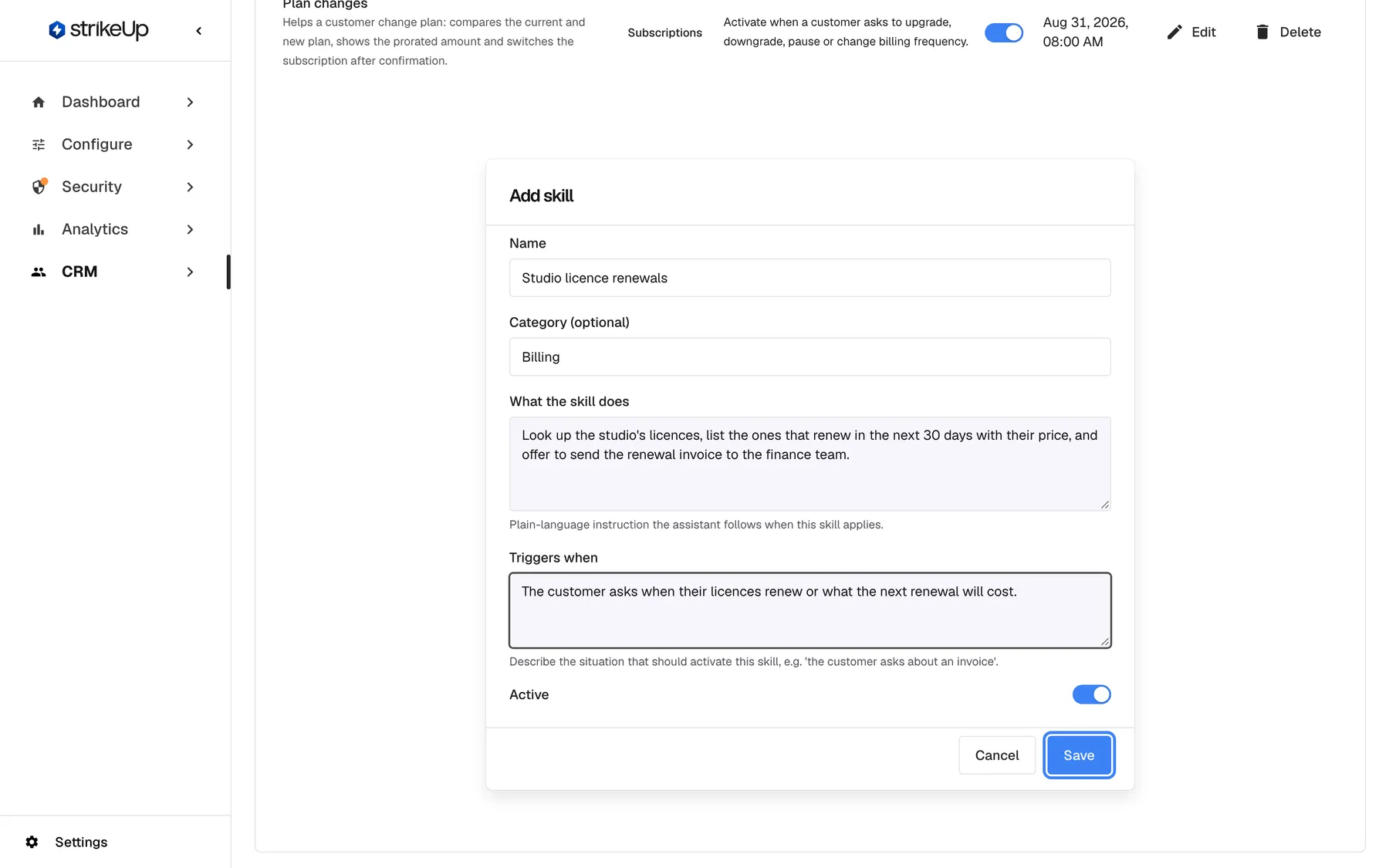
Add the behaviours that matter only for this company; the assistant uses them when the situation in Triggers when comes up. What this screenshot shows
- Screen
- Add skill (/admin/customer-companies/:id?tab=skills)
- Highlighted
- button “Save”, inline-dialog-footer, enabled. saves the skill for this company (description and trigger are checked by the content review)
- Also visible
- Name Studio licence renewals, Category Billing; Description and Triggers when filled in, Active on
- Purpose
- giving the company its own skill
-
Add prompt shortcuts (optional). On the Prompt shortcuts tab, select Add shortcut for each one-click prompt the company’s people should see in the widget, such as “Show my latest invoice”. A shortcut with the same name as one of your workspace shortcuts replaces it for this company.
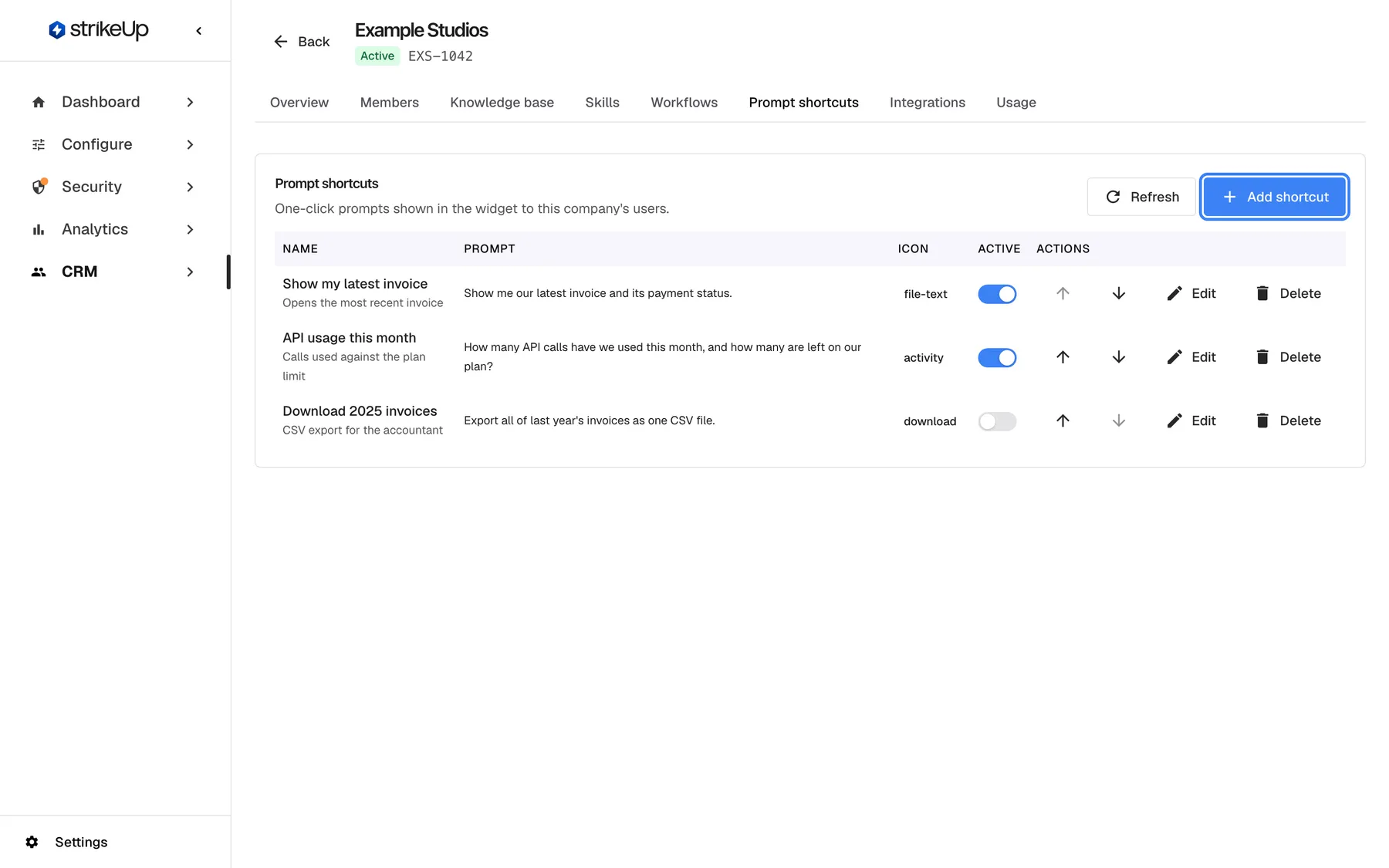
Optional: add one-click prompts that this company's customers see in the widget. What this screenshot shows
- Screen
- Prompt shortcuts (/admin/customer-companies/:id?tab=prompts)
- Highlighted
- button “Add shortcut”, card-header-right, enabled. opens the Add shortcut form
- Also visible
- 3 shortcuts, one inactive
- Purpose
- company prompt shortcuts
-
Give the company its own notification channels (optional). If messages for this business should come from its own mailbox or bot, add them on the Integrations tab with the Add button of each provider, and send a test. See the company’s integrations.
-
Switch on the customer portal. Go to ConfigureUser Interface, pick the widget, and scroll to Customer Portal. Turn on Require customer authentication so people sign in with their PIN or password, turn on Enable Customer Portal, and tick the pages under Visible pages that the company’s Admins should use. Select
Save User Interface Settingsat the bottom of the page. These settings apply to every company that uses this widget.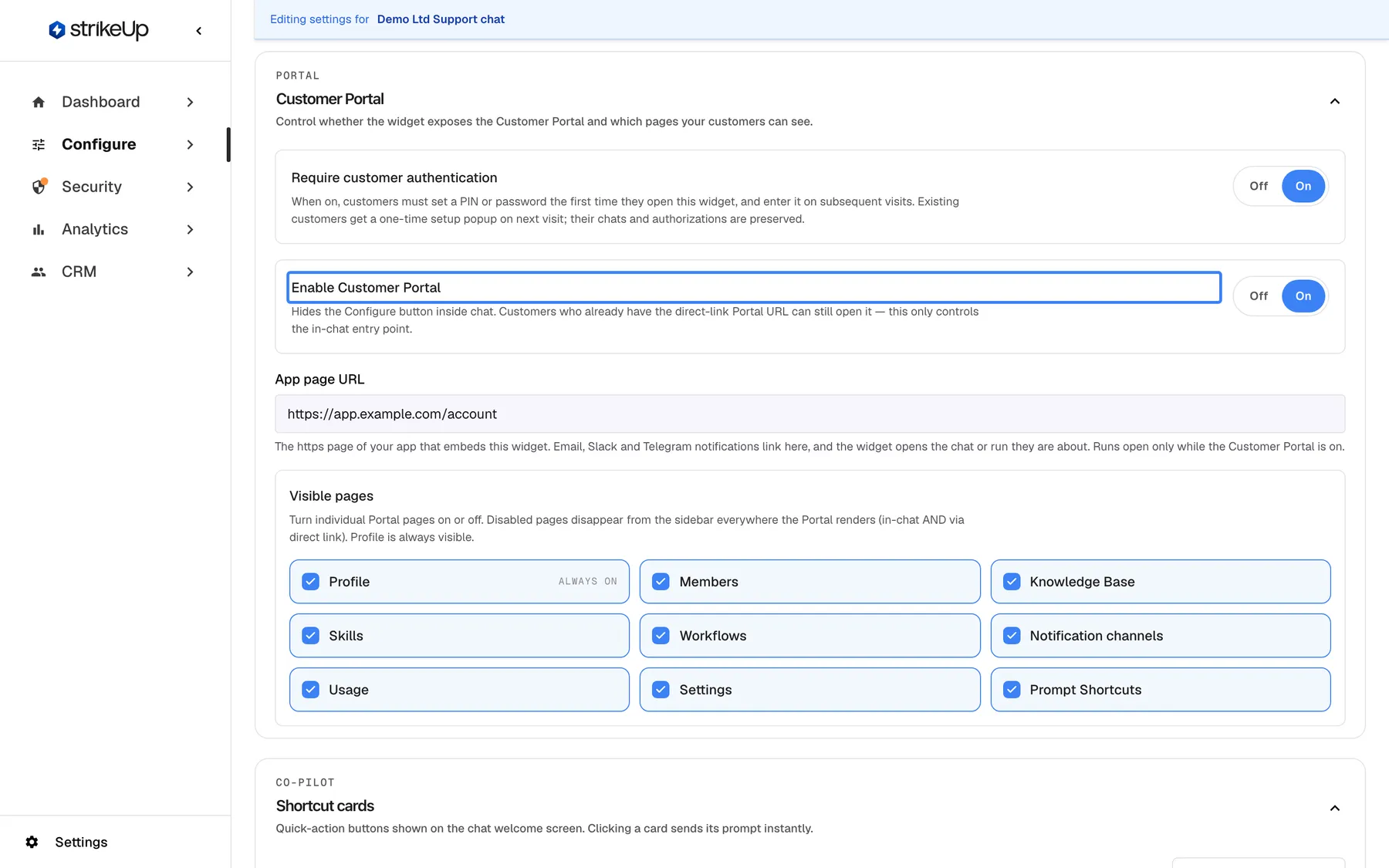
Turn on the Customer Portal for the widget and choose which pages the company's Admins can use. What this screenshot shows
- Screen
- Customer Portal (/admin/configure/user-interface)
- Highlighted
- radiogroup “Enable Customer Portal”, customer-portal-section, On. shows or hides the in-chat entry to the Customer Portal
- Also visible
- Require customer authentication On; Visible pages: all nine ticked, Profile always on
- Purpose
- switching on the customer portal
-
Tell the company’s people how to sign in. Give each person the PIN or password from your file through a channel you trust. How sign-in works for them, including people you imported without a credential, is explained in End-customer sign-in.
What happens next
Section titled “What happens next”The company is live as soon as the steps are saved. When one of its people chats, the assistant adds the company’s agent instruction to its own, searches the company’s documents as well as yours, can use its skills, and shows its prompt shortcuts. Its Admins see the company’s members, knowledge base, skills, workflows, shortcuts, notification channels and settings in the customer portal, and what they change there appears on the company’s tabs in the admin app.
To check it worked:
- The company’s Members tab lists everyone you imported, with the right roles.
- Last activity on CRMCompanies shows a date once someone has chatted.
- The company’s Usage tab shows the first calls to AI models.
- Open a chat of one of its people on their customer page to see the steps the assistant took.
Options
Section titled “Options”| Choice | When to pick it | Effect |
|---|---|---|
| Import people with a PIN or password | You want to control who can sign in from day one | Each person signs in with the credential you gave them |
| Import people without a credential | The business prefers its people to choose their own | See End-customer sign-in for how they sign in |
| Let people join with Allow self-registration | The business is large and you trust everyone who gets the link | Anyone with the registration link joins as a Member (the company’s first person as its Admin); promote further Admins afterwards |
Rely on userCompanyId from your product | Your product already knows each user’s business | People are filed under the company as they chat, with no import; they start as Admins |
| Create the company with Active off | You want to prepare everything before anyone can sign in | Turn it on when you are ready |
If something goes wrong
Section titled “If something goes wrong”| Symptom | What to check | Fix |
|---|---|---|
| Widget users do not land in the new company | Does your product pass exactly the company’s Company ID as userCompanyId? Did they already belong to another company? | Correct the reference; move existing people with a CSV import that names the company |
| Every import row says “CustomerId is required.” | Is the file comma-separated, with the header line? | Save the file as comma-separated CSV |
| “CustomerCompanyId must be a valid Guid.” | Did you put the company’s reference into CustomerCompanyId? | Use CustomerCompanyName, or the internal id from the company page’s address |
| Everyone in the company is an Admin | Was the Role column empty? | Change roles on the Members tab |
| A promoted person cannot manage the company in the portal | Roles apply at the next sign-in | Ask them to sign out and in again |
| A document stays “Processing” | Indexing takes a few minutes | Select Refresh on the Knowledge base tab |