

AI actions
The AI actions page is the log of your assistant’s work with AI models. Every time the assistant asks a model to answer a visitor, StrikeUp records the call: which provider and model, how long it took, whether it succeeded and what was sent and returned. Use it to find out why a reply was slow, failed or cost more than expected. It lives at AnalyticsAI actions; the page heading reads AI Execution Logs. Everyone in your workspace can open it.
The page has two tabs. AI actions lists one row per model call. Activity groups those calls into one row per conversation turn, that is, everything the assistant did to answer one visitor message, with tokens and estimated cost.
What you can do here
Section titled “What you can do here”- Browse every model call. The AI actions tab lists calls newest first, with status, agent, provider, model, sizes and duration, and opens each one in full. Browse the model calls · Log Details.
- See what each conversation turn cost. The Activity tab shows, per visitor message, the models used, the number of attempts, the time spent at the provider, tokens and an estimated cost in US dollars, for the last 1, 7 or 30 days. Follow conversation turns.
- Find turns that hit an error. One switch keeps only turns where at least one attempt failed, including turns that recovered with a retry. Follow conversation turns.
- Follow a turn attempt by attempt. The turn dialog lists each call in order with every attempt, the model, who chose it, tokens and cost, and links to the full call. Open a conversation turn.
The screen at a glance
Section titled “The screen at a glance”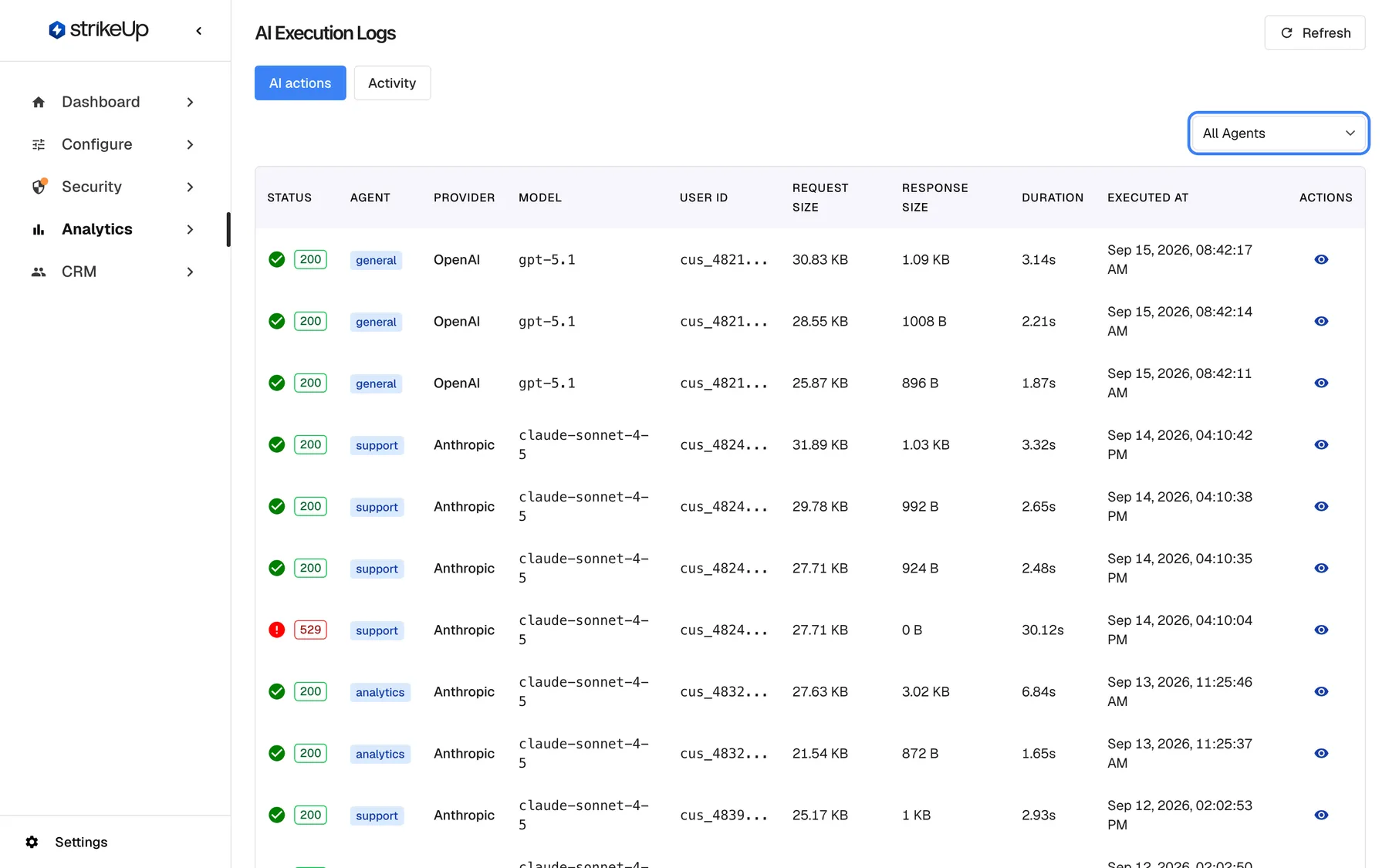
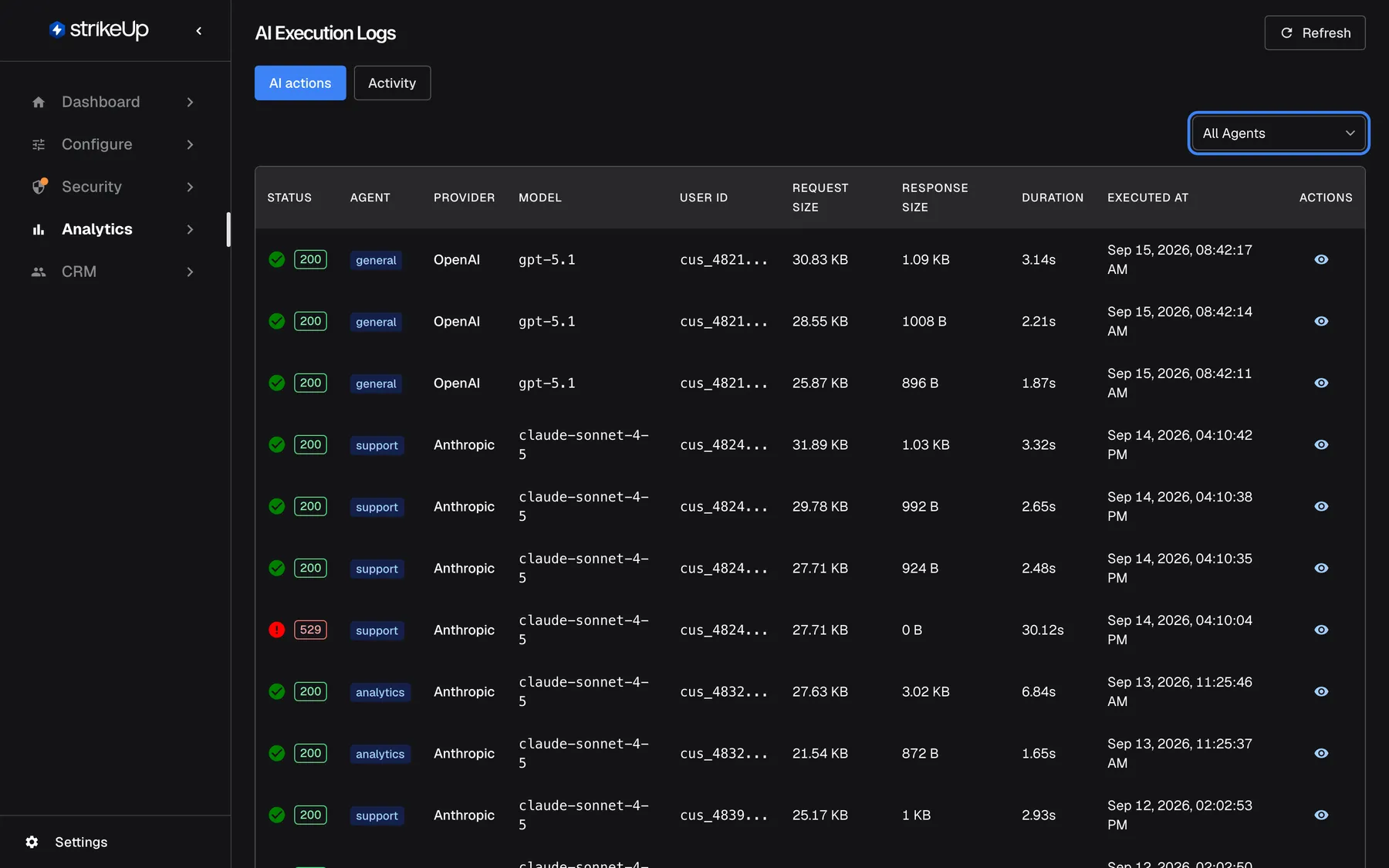
What this screenshot shows
- Screen
- AI actions (/admin/ai-logs)
- Highlighted
- combobox “All Agents”, tab-panel-top-left, All Agents. filters calls by agent route (support, analytics, copilot, general)
- Also visible
- Tabs AI actions (selected) and Activity; Rows: status, agent, provider, model, user, sizes, duration, executed at, eye icon; One call with HTTP 529
- Purpose
- the per-call log as it opens
| Region | What it shows | What you do there |
|---|---|---|
| Header | The heading AI Execution Logs, Refresh and, when available, Ask strikeUp | Reload both tabs, ask the built-in assistant |
| Tab buttons | AI actions (open when the page loads) and Activity | Switch between calls and turns |
| Agent filter, AI actions tab | All Agents or one agent | Show one agent’s calls |
| The table | One row per model call, newest first, 20 per page | Select a row or the eye icon to open the call |
| Pagination, bottom | The rows shown, the total and the page number | Move through older calls |
Browse the model calls
Section titled “Browse the model calls”The AI actions tab opens with the page. It lists every call your agents made to a model, from the first call ever recorded, newest first.
- Open AnalyticsAI actions. The AI actions tab is selected.
- Optionally pick an agent in the drop-down at the top left. The list returns to page 1 and shows only that agent’s calls.
- Select a row, or the eye icon at its end, to open the call on its own page.
Example: a visitor complained that a reply took long to arrive. On AI actions, the row from that minute shows a red status with an HTTP 5xx code and a long duration: the model provider was overloaded. The next row, seconds later, succeeded. Open the turn on the Activity tab to see that both belong to the same visitor message.
- The list shows your agents’ calls only. Calls made by StrikeUp’s own stages for a message, such as the safety check of your guardrails, the planner and the generation of conversation titles, never appear on either tab. Calls made by sub-agents appear on Activity, not here.
- There is no date, status or text filter on this tab. Use the page buttons to go back in time, or the Activity tab to look at a period.
- The agent drop-down disappears while the list loads and comes back when it has loaded.
- Request and response sizes count characters of what was stored. The request includes the instructions and tool list sent to the model, so it is usually much larger than the visitor’s message.
Follow conversation turns
Section titled “Follow conversation turns”A conversation turn is everything the assistant did to answer one visitor message: one or more calls, each made of one or more attempts. The Activity tab lists turns, newest first, 25 per page.
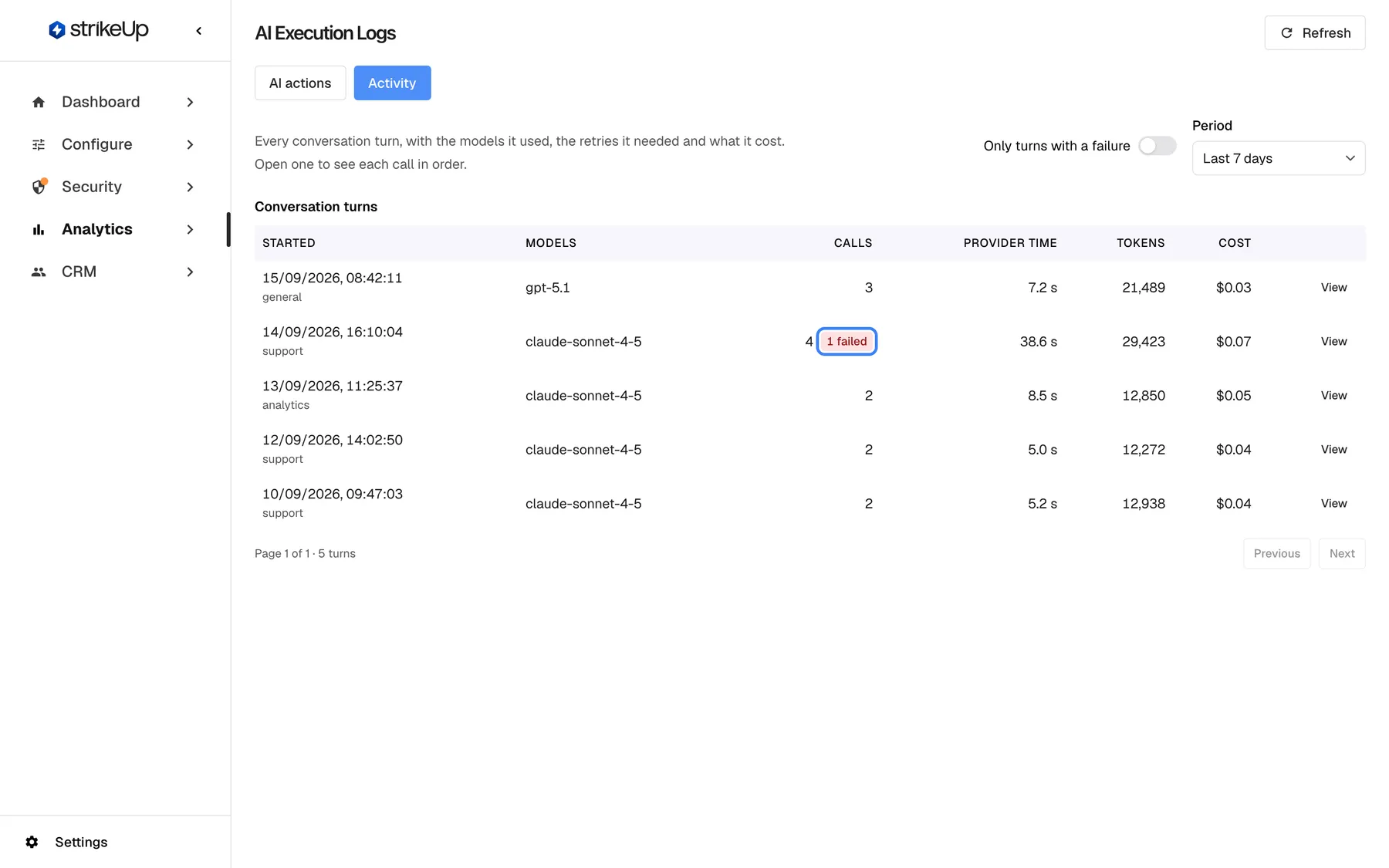
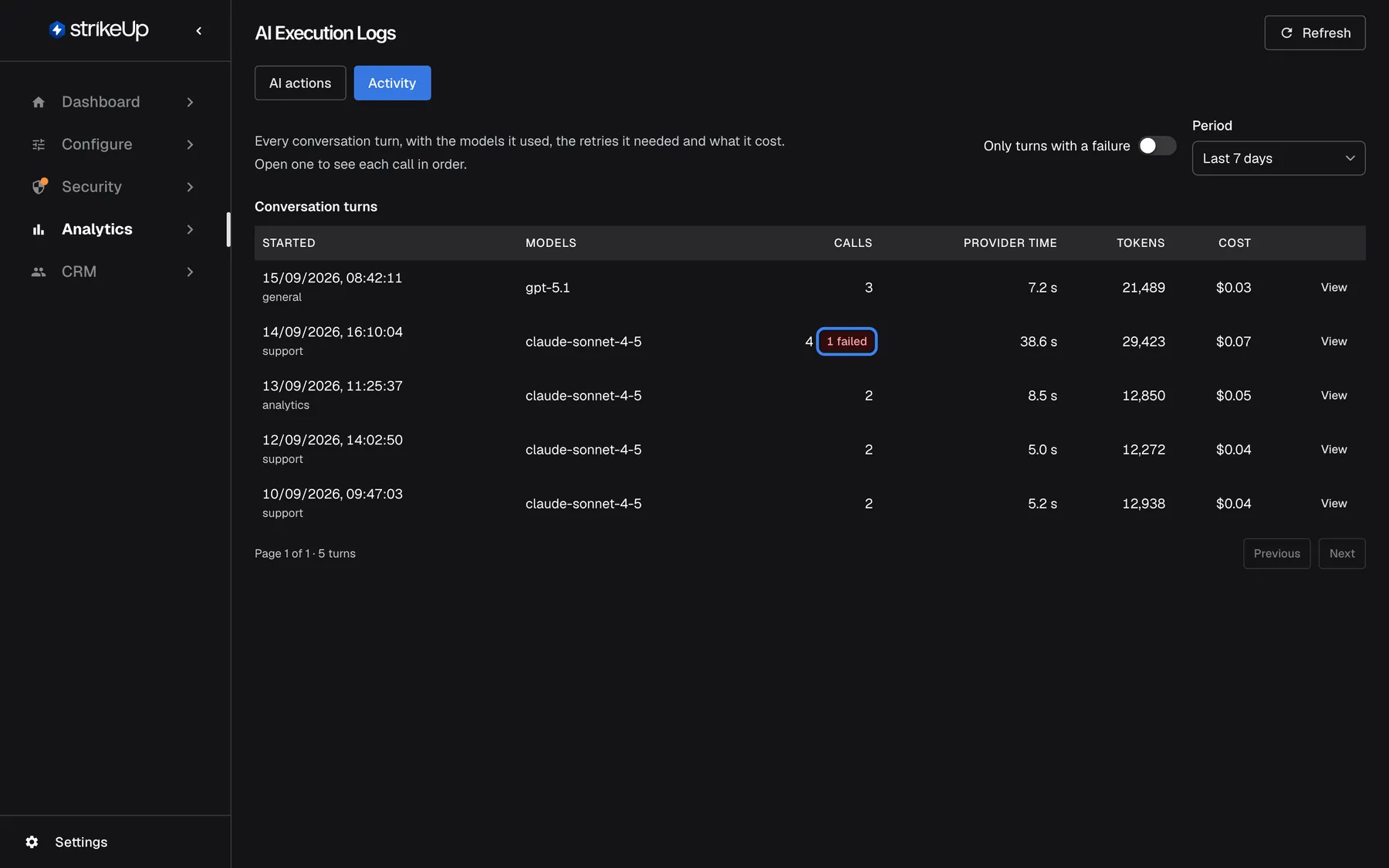
What this screenshot shows
- Screen
- Activity (/admin/ai-logs)
- Highlighted
- “”, table-row-2-calls-column, 1 failed. marks a turn with at least one failed attempt
- Also visible
- Period Last 7 days, switch Only turns with a failure; Five turns with models, calls, provider time, tokens, cost
- Purpose
- per-turn view with cost
- Select Activity.
- Pick a period under Period: the last 1, 7 (the default) or 30 days.
- Optionally turn on Only turns with a failure to keep only turns where at least one attempt failed.
- Select View at the end of a row to open the turn.
- Calls counts attempts, not calls. A call that failed once and succeeded on the retry counts as two. A red badge such as “1 failed” next to the number says how many attempts failed.
- A failed badge does not mean the visitor saw an error. When a retry or a fallback model succeeded, the visitor got a reply as usual.
- Provider time adds up the time of every attempt. When sub-agents work in parallel, it can be longer than the time the visitor waited.
- Cost is an estimate in US dollars, worked out for each attempt when it ran from the price listed for that model at that moment. Attempts without a listed price add nothing, and the row says how many with ”… not priced”. The estimate is not an invoice.
- The period counts back from now. The last 30 days is the furthest this tab reaches; the AI actions tab has no limit.
- Rows are ordered by when the turn ended, while the first column shows when it started.
Open a conversation turn
Section titled “Open a conversation turn”Select View on a turn to open the Conversation turn dialog. It needs the Admin role.
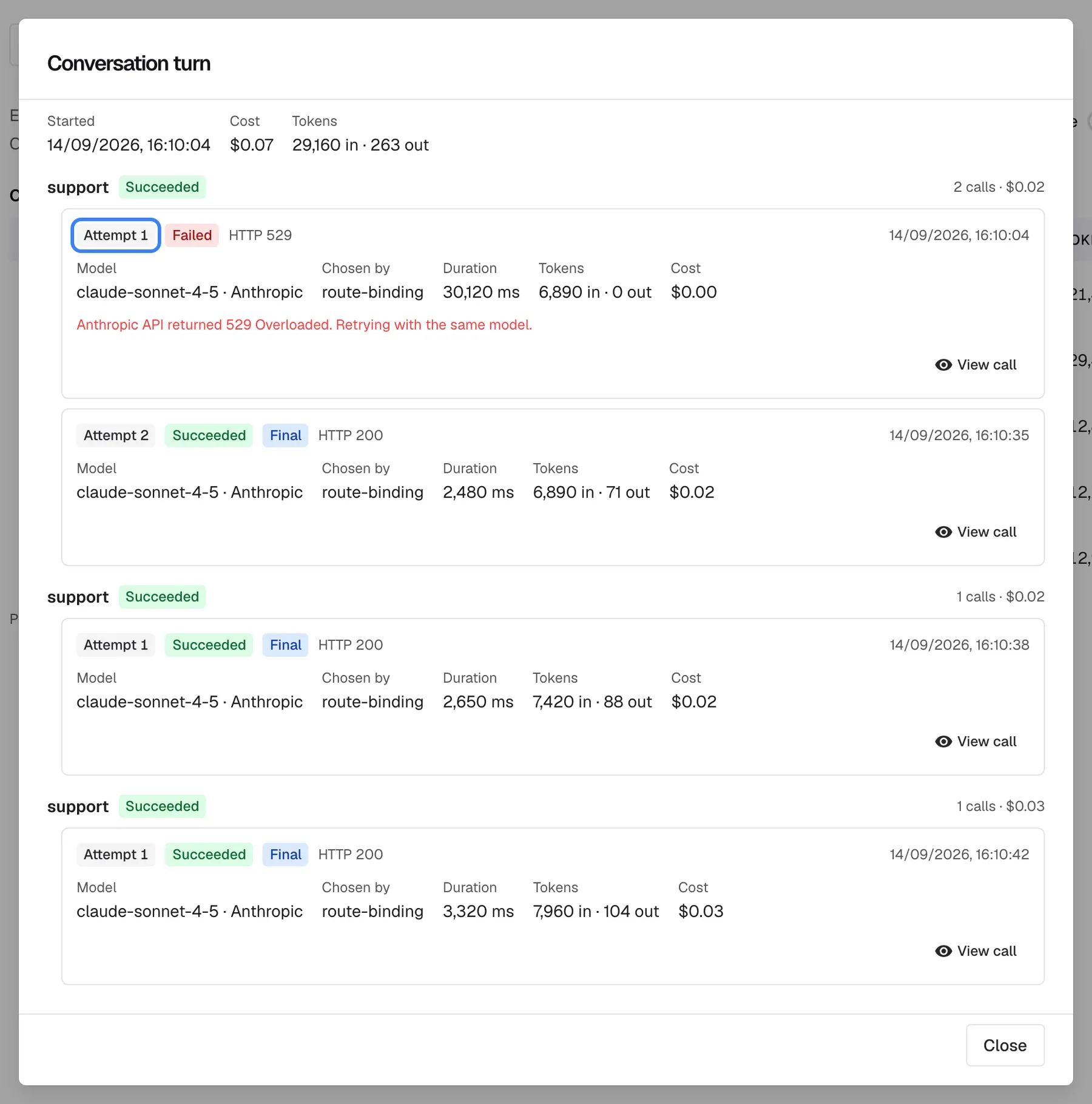
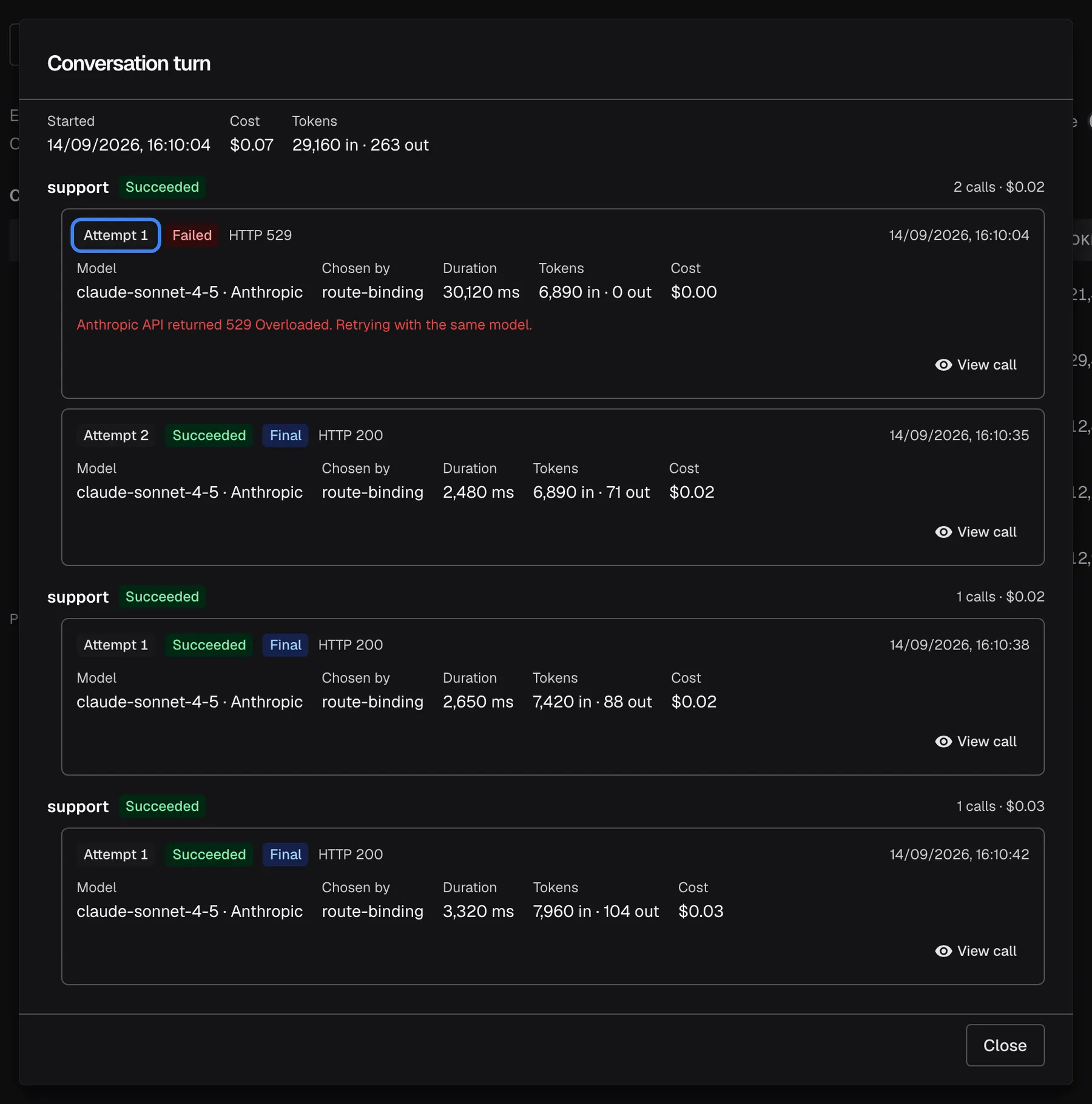
What this screenshot shows
- Screen
- Conversation turn (/admin/ai-logs)
- Highlighted
- “”, dialog-first-call, Failed, HTTP 529. shows the failed first attempt that was retried
- Also visible
- Header with start, cost, tokens; Three support calls; the first with two attempts (529 then success); View call buttons
- Purpose
- drill into one turn (Admin only)
The dialog shows:
- At the top: Started, the total Cost and the Tokens in and out. When some attempts have no price, a warning says the total is lower than the real amount.
- One block per call, in order, titled with the agent or stage, a sub-agent’s name when there is one, and whether the call ended in success or failure. The number of attempts and their cost are at the right.
- One card per attempt, with Succeeded or Failed, Final on the attempt that ended the call, the HTTP status, the time, Model, Chosen by, Duration, Tokens and Cost. A failed attempt shows the provider’s error message in red.
- View call on each attempt closes the dialog and opens that attempt’s full page.
Chosen by tells you which rule picked the model for an attempt:
| Value | What chose the model |
|---|---|
route-binding | A model you or StrikeUp pinned to that stage of the assistant |
agent-config | The agent’s own model setting |
call-override | A model set for this one call |
difficulty-tier | The difficulty level the message was sorted into |
platform-default | StrikeUp’s default model for the provider |
fallback-chain | A retry on another model after an earlier attempt failed |
Example: in a turn with several calls, the first call’s attempt 1 failed because the provider reported it was overloaded, and its red error message says the call is retried with the same model. Attempt 2 succeeded and is marked Final. The last call of the turn usually wrote the answer the visitor saw. A call’s cost includes its failed attempts.
- The dialog never shows message text. To read what was sent and answered, use View call.
- Older record — calls may not be grouped exactly appears on turns recorded before StrikeUp grouped attempts into calls.
Every control, explained
Section titled “Every control, explained”The two buttons under the heading. The choice is not kept: the page always opens on AI actions.
AI actions lists individual model calls of your agents for all time. Activity lists conversation turns of a chosen period, with sub-agent calls, tokens and cost.
Look at a single call when you know what went wrong; look at turns when you want to know what a conversation cost or where retries happen.
Agent filter
Section titled “Agent filter”The drop-down at the top left of the AI actions tab. Applies when you change it.
All Agents (the default) or one of the agents support, analytics, copilot and general, shown with these internal names in every language.
Check one agent’s model, error rate or speed in isolation.
Columns on the AI actions tab
Section titled “Columns on the AI actions tab”| Column | What it shows | Why |
|---|---|---|
| Status | A green check or red icon and a badge with the HTTP status, or N/A when none was recorded | Spot failed calls |
| Agent | The agent that made the call, or — | See which agent was answering |
| Provider | The AI provider, such as OpenAI or Anthropic | See which provider served the call |
| Model | The model name | Check the model your settings picked |
| User ID | The first eight characters of the visitor’s identity in the widget | Tell visitors apart |
| Request Size | The stored request in B, KB or MB | Spot calls with a very large context |
| Response Size | The stored response in B, KB or MB | Spot unusually long answers |
| Duration | Milliseconds or seconds, or “N/A” when not recorded | Find slow calls |
| Executed At | Date and time in US format, such as Sep 14, 2026 | Place the call in time |
| Actions | An eye icon, View details | Open the call’s page |
Period
Section titled “Period”Period, at the top right of the Activity tab. Applies when you change it.
The last 1, 7 (the default) or 30 days, counted back from now.
Compare a quiet day with a busy week, or check the turns since a configuration change.
Only turns with a failure
Section titled “Only turns with a failure”The switch Only turns with a failure next to the period. Applies when you switch it.
Keeps only turns with at least one failed attempt, whether or not a retry rescued them.
Find provider outages, timeouts and models that often need a fallback.
Columns on the Activity tab
Section titled “Columns on the Activity tab”| Column | What it shows | Why |
|---|---|---|
| Started | When the turn started, with the agents and stages involved below it, or No stage recorded | Identify the turn |
| Models | Every model used in the turn, or No model recorded | See whether a fallback model stepped in |
| Calls | The number of attempts, with a red ”… failed” badge when some failed | Spot retries |
| Provider time | The time of all attempts added together | Find slow turns |
| Tokens | Input plus output tokens | Spot heavy turns |
| Cost | The estimated cost in US dollars, with ”… not priced” when some attempts have no price | Find expensive turns |
| (last column) | View | Open the turn |
Below the table, a line such as “Page … of … · … turns” gives your position, with Previous and Next.
Conversation turn dialog
Section titled “Conversation turn dialog”Opens from View on the Activity tab; needs the Admin role. Close it with the button at the bottom.
Lists every call of the turn in order with every attempt, its result, HTTP status, model, Chosen by, duration, tokens and cost, and the provider’s error message for failed attempts. It loads fresh each time you open it.
See exactly where a turn spent its time and money, and which attempt to open for the full details.
Pagination on the AI actions tab
Section titled “Pagination on the AI actions tab”Below the table, shown when there is at least one call.
“Showing … to … of … results”, Previous, Next and the page number. Each page holds 20 calls.
Go back through older calls; this tab has no date filter.
Refresh
Section titled “Refresh”The Refresh button at the top right.
Reloads both tabs with their current filters. Neither tab updates on its own.
See calls from a conversation that is happening right now.
Ask strikeUp
Section titled “Ask strikeUp”At the top right of the page, when the StrikeUp assistant built into the admin app is set to open from buttons on the page. Labelled Ask strikeUp.
Opens the built-in assistant with an offer to surface failures, slow calls or a specific session.
A quick way to ask about the log without leaving the page.
Who sees what
Section titled “Who sees what”| Part of the screen | Who sees it |
|---|---|
| Both tabs and their lists | Every signed-in user of your workspace |
| The Conversation turn dialog | Users with the Admin role. Everyone else gets This turn is no longer available. |
| A call’s own page, opened from a row | Every signed-in user of your workspace |
| Calls of StrikeUp’s own stages (safety check, planner, titles) | Nobody; they are not shown on either tab |
What you need to know
Section titled “What you need to know”| Topic | Fact |
|---|---|
| No AI gateway needed | Both tabs work for every workspace, whether or not you set up your own AI connections. |
| Kept indefinitely | StrikeUp keeps every call with its full request and response, with no automatic deletion. The only automatic deletion in Analytics is the event history of finished agent jobs: their events are deleted once they are more than 7 days old. There is no delete button; to have a conversation’s AI text erased, contact StrikeUp support. |
| Not masked | Visitors’ messages are stored in the calls as they typed them. Your masking rules apply to the responses of your API before the AI sees them, not to what visitors write. |
| Cost estimate | Worked out once, when the call ran, from that moment’s listed price. Later price changes do not change it. Calls without a price count as “not priced”, not as free. |
| Granularity | AI actions: one row per call of your agents, all time, 20 per page. Activity: one row per turn, up to 30 days, 25 per page, sub-agent calls included. |
| Sample data | Sample records StrikeUp added for a demonstration appear on AI actions but not on Activity. |
| Dates | AI actions shows dates in US format in every language; Activity uses your browser’s format. |
| No live updates | Use Refresh to see new calls. |
Frequently asked questions
Section titled “Frequently asked questions”Calls and turns
Section titled “Calls and turns”What is the difference between the AI actions and Activity tabs?
Section titled “What is the difference between the AI actions and Activity tabs?”On AnalyticsAI actions, AI actions lists each model call of your agents, for all time and without cost. Activity groups calls by visitor message for the last 1, 7 or 30 days, includes sub-agent calls, and adds tokens and estimated cost.
Why does one question show several calls?
Section titled “Why does one question show several calls?”The Calls column on Activity counts attempts. One visitor message can need several calls, such as a call that runs a tool and a call that writes the answer, or sub-agents, and every retry after an error is one more attempt.
Where are the guardrails and planner calls?
Section titled “Where are the guardrails and planner calls?”They are not shown. The safety check of your guardrails, the planner, title generation and StrikeUp’s other own stages are left out of both tabs on AnalyticsAI actions. Messages blocked by the safety check are listed under AnalyticsViolations.
Does a red failed badge mean the visitor saw an error?
Section titled “Does a red failed badge mean the visitor saw an error?”Not necessarily. On Activity, the badge counts failed attempts in the turn. When a retry or a fallback model then succeeded, the visitor got a normal answer. Open the turn and look for the attempt marked Final to see how each call ended.
Why is Provider time longer than the conversation took?
Section titled “Why is Provider time longer than the conversation took?”Provider time on the Activity tab adds up the time of every attempt in the turn. When sub-agents run at the same time, their times are added, so the total can be longer than the visitor actually waited.
Can I filter the AI actions tab by date or status?
Section titled “Can I filter the AI actions tab by date or status?”No. The AI actions tab has only the agent filter and lists all calls, newest first. To look at a period or at failures only, use the Activity tab with its period and Only turns with a failure switch.
Why does Activity show nothing older than 30 days?
Section titled “Why does Activity show nothing older than 30 days?”The Period drop-down on the Activity tab offers the last 1, 7 or 30 days, and 30 days is the furthest it reaches. Older calls are still listed on the AI actions tab, which has no date limit.
What does Chosen by mean?
Section titled “What does Chosen by mean?”Chosen by in the turn dialog names the rule that picked the model for an attempt, for example agent-config for the agent’s own model setting, route-binding for a model pinned to that stage, or fallback-chain for a retry on another model after a failure.
Why does a turn say not priced?
Section titled “Why does a turn say not priced?””… not priced” on the Activity tab means some attempts used a model with no listed price when they ran. Those attempts add nothing to the cost shown, so the real amount is higher. The turn dialog marks each such attempt as Not priced.
How exact is the cost on the Activity tab?
Section titled “How exact is the cost on the Activity tab?”The cost on the Activity tab is an estimate in US dollars, worked out once from each model’s listed price at the time of the call. Later price changes do not change it, attempts without a price add nothing, and failed attempts are included.
Access
Section titled “Access”Why can’t I open a turn?
Section titled “Why can’t I open a turn?”The Conversation turn dialog needs the Admin role. Members with another role see This turn is no longer available. when they select View. They can still open each call from the AI actions tab.
Do I need the AI gateway to see the Activity tab?
Section titled “Do I need the AI gateway to see the Activity tab?”No. Both tabs on AnalyticsAI actions work for every workspace, whether you use StrikeUp’s models or your own AI connections configured under the AI gateway.
Data and privacy
Section titled “Data and privacy”How long are AI calls kept, and can I delete them?
Section titled “How long are AI calls kept, and can I delete them?”StrikeUp keeps every call with its full request and response, with no automatic deletion, and the admin app has no delete button. To have the AI text of a conversation erased, contact StrikeUp support with the conversation’s chat session ID.
Is the system prompt visible to my team?
Section titled “Is the system prompt visible to my team?”No. A call’s own page shows the visitor’s messages, the context and tools the AI received and the answer, but never the operating instructions given to the model. The turn dialog on Activity shows no message text at all.
Troubleshooting
Section titled “Troubleshooting”| Symptom | What to check |
|---|---|
| This turn is no longer available. when opening a turn | You need the Admin role to open turns. With the Admin role, the turn may belong to sample data or have been erased; open its calls from AI actions. |
| No conversation turns in this period. | Choose a longer Period, and turn off Only turns with a failure. If a conversation definitely happened in the period, select Refresh: the tab shows the same message when loading failed. |
| A conversation’s safety check is missing from the list | StrikeUp’s own stages, including the safety check, are not shown. Blocked messages are listed under AnalyticsViolations. |
| The agent drop-down vanished | The tab is loading. It comes back when the list has loaded. |
| Failed to load logs appears | Select Refresh. If it happens again, sign out and in again; your session may have expired. |
| Many turns show ”… failed” | Open a turn and read the error on the failed attempts. HTTP 429 and 529 mean the provider was busy or limited; check your AI connections and fallback models. |