

Chat Details
The Chat Details page lays out one customer chat as a timeline: each message the customer sent, each step the AI took, and each call to your API, in the order they happened. Select an item to see its full record beside the timeline. Open it from CRMCustomers: select a customer, then a chat in Customer Chat History. Support uses it to see exactly what a customer asked and what the assistant did about it.
What you can do here
Section titled “What you can do here”- Follow the chat in order. Customer messages, AI steps and tool calls appear in the order they happened, each with its time. Read the timeline.
- See what the AI did and why. An AI item shows the model, the messages it received, the tools it called and its reply. Inspect an AI step · AI actions.
- See what a tool call sent and got back. A tool item shows the toolkit, endpoint, method, HTTP status, attempts and duration. Inspect a tool call · Tool runs.
- Spot rated answers. A thumbs-up or thumbs-down on an AI item shows the customer’s latest rating of that answer. Read the timeline.
The screen at a glance
Section titled “The screen at a glance”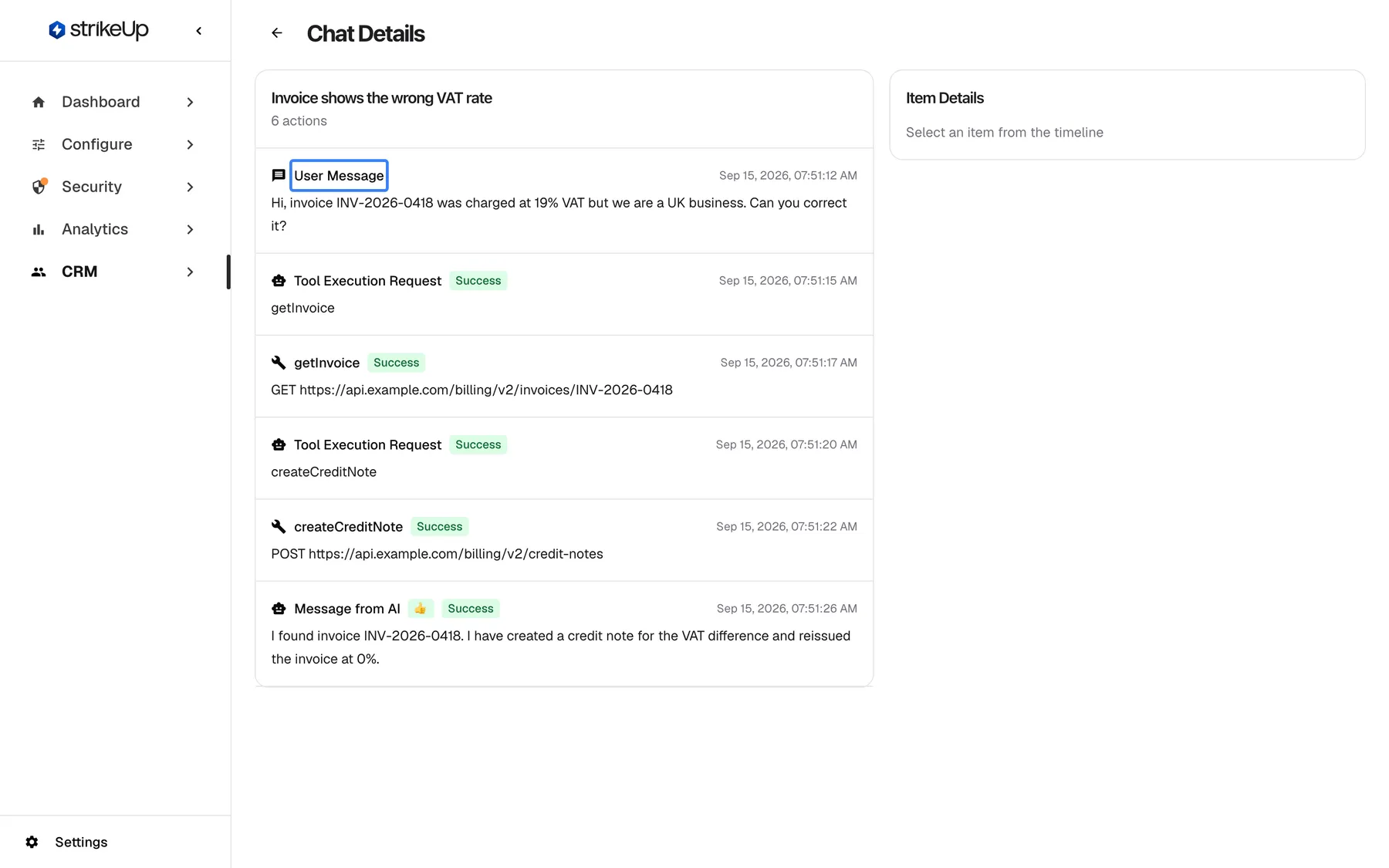
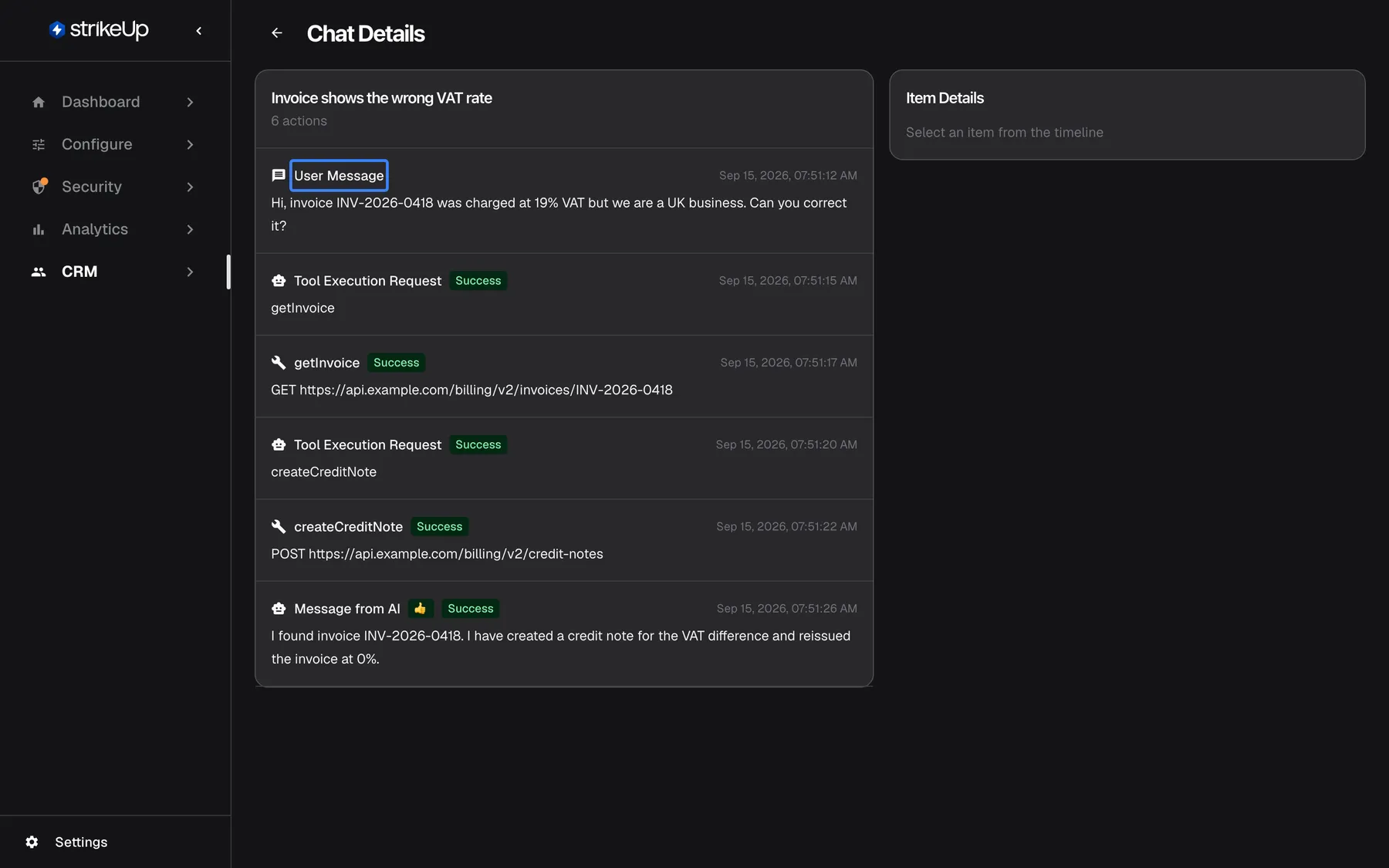
What this screenshot shows
- Screen
- Chat Details (/admin/customers/:customerId/chats/:chatId)
- Highlighted
- listitem “”, timeline-top, shown. selecting an item opens it in Item Details
- Also visible
- 6 actions: user message, 2 tool execution requests, getInvoice, createCreditNote, message from AI; Item Details placeholder
- Purpose
- following one conversation
| Region | What it shows | What you do there |
|---|---|---|
| Header | The back arrow and Chat Details | Return to the customer |
| Timeline, left | The chat’s title, the number of items (“6 actions”), then one card per item | Select an item |
| Item Details, right | Select an item from the timeline until you select an item, then its full record | Read the details |
Read the timeline
Section titled “Read the timeline”Items are listed oldest first. The item titles come from the server and appear in English.
| Item | Title | Preview |
|---|---|---|
| Customer message | “User Message” | The first 220 characters of the message, and any attachments with name, type and size |
| AI step | “Tool Execution Request” when the AI decided to call tools, with their names; “Message from AI” when it replied, with the start of the reply | A Success or failure badge; 👍 or 👎 when the customer rated this answer |
| Tool call | The tool’s name, such as createCreditNote | The method and endpoint, such as POST https://api.example.com/billing/v2/credit-notes; a Success or failure badge; Notification for email and Telegram notifications |
The assistant’s replies are not separate items: each one is inside its “Message from AI” AI step.
Example: in “Invoice shows the wrong VAT rate”, Morgan Hayes asks about invoice INV-2026-0418. The AI asks for getInvoice, the tool reads the invoice, the AI asks for createCreditNote, the tool creates the credit note with status 201, and the AI replies; the customer rated the reply 👍.
Inspect an AI step
Section titled “Inspect an AI step”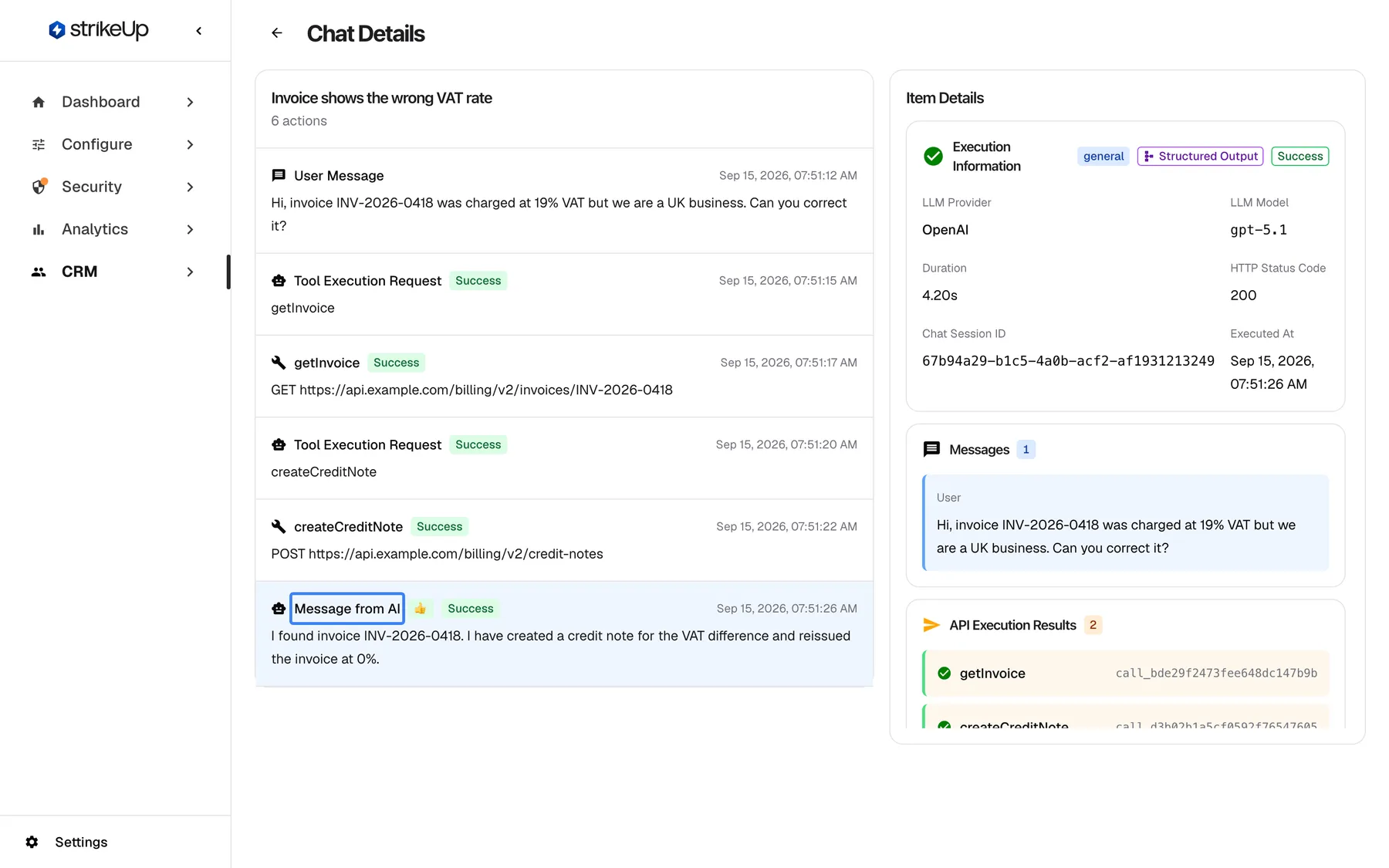
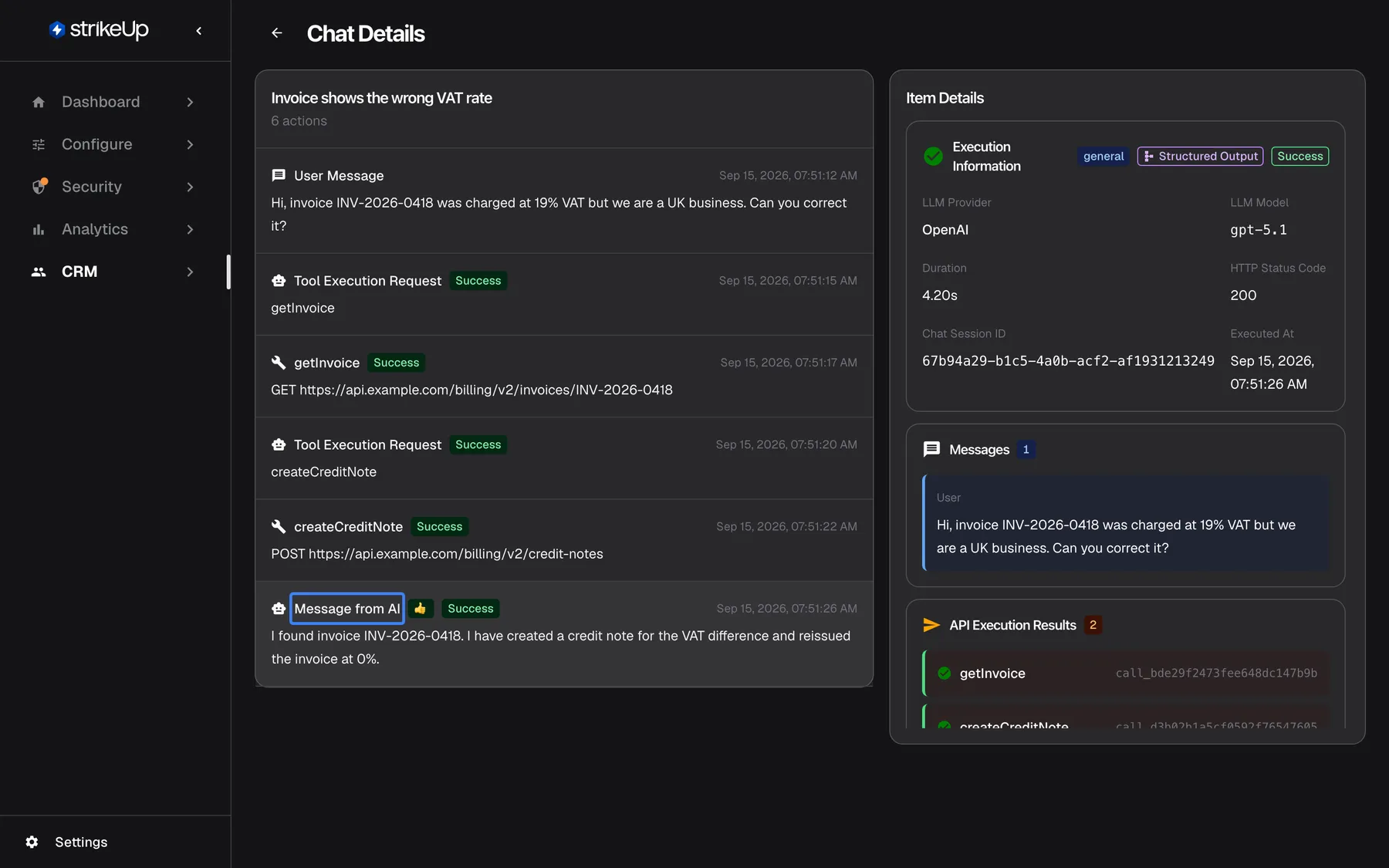
What this screenshot shows
- Screen
- Chat Details (/admin/customers/:customerId/chats/:chatId)
- Highlighted
- listitem “”, timeline, selected. shows the AI execution in Item Details
- Also visible
- OpenAI gpt-5.1, 4.20s, HTTP 200; API Execution Results: getInvoice, createCreditNote
- Purpose
- inspecting what the assistant did in one step
Select an AI item. The panel shows the same record as the AI action’s own log page:
| Block | What it shows |
|---|---|
| Execution information | Badges such as the agent, Structured Output and Success; the LLM provider and model, duration, HTTP status, chat session id and time |
| Messages | What the AI received, for example the customer’s question |
| API execution results | Each tool call it made, with its call id |
| Further down | The tools it had available and its full reply |
Inspect a tool call
Section titled “Inspect a tool call”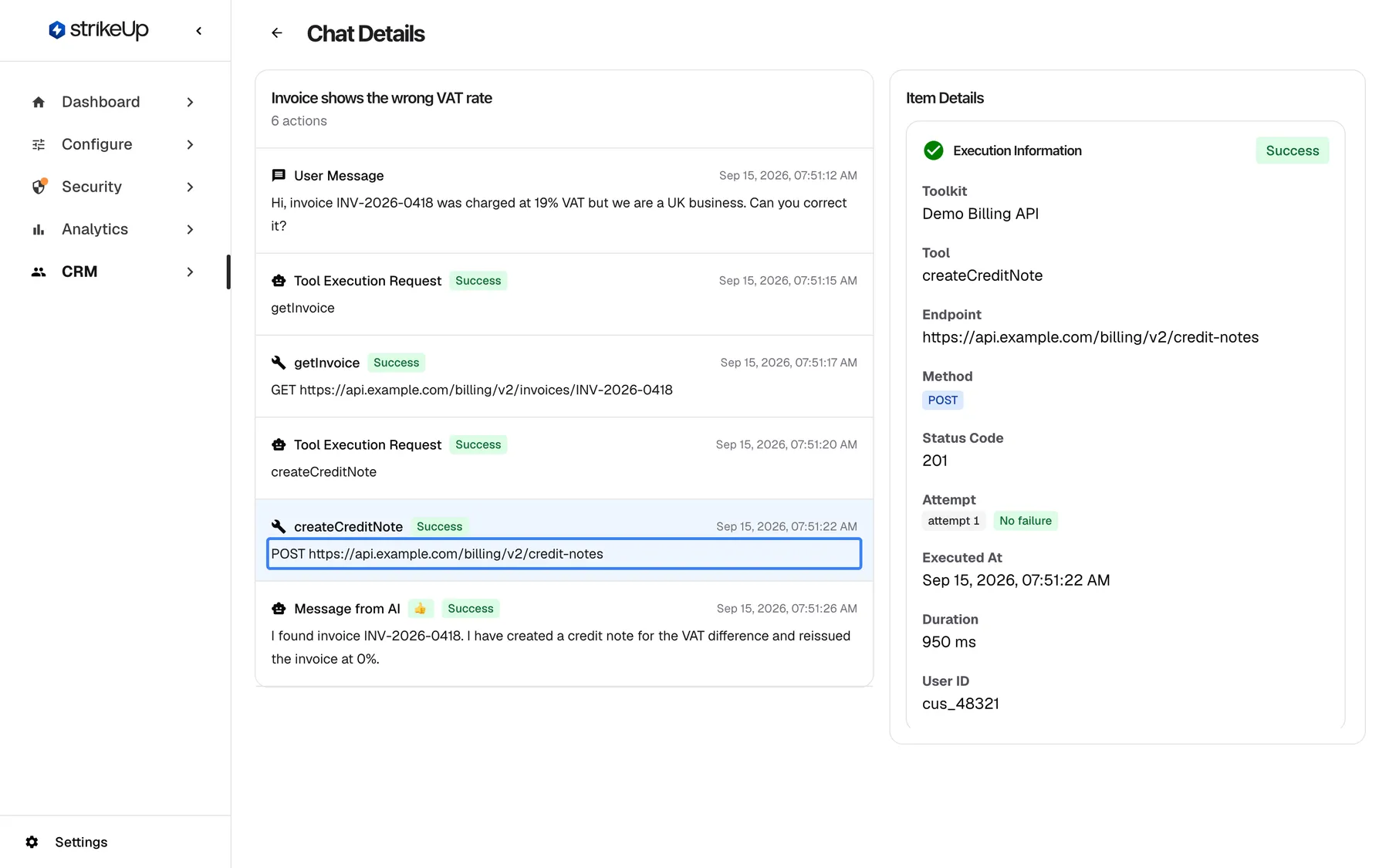
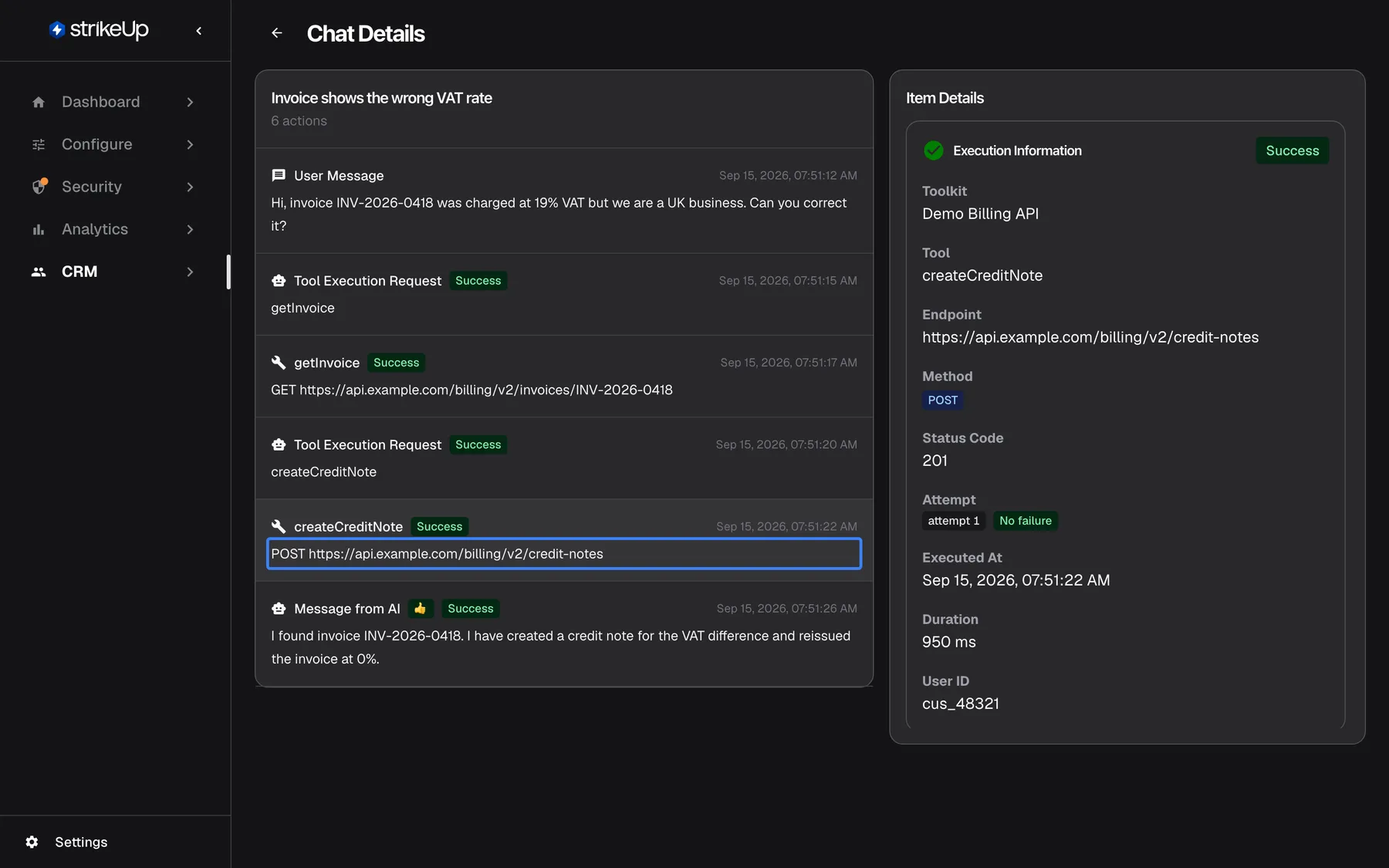
What this screenshot shows
- Screen
- Chat Details (/admin/customers/:customerId/chats/:chatId)
- Highlighted
- listitem “”, timeline, selected. shows the tool execution in Item Details
- Also visible
- Toolkit Demo Billing API, POST, status 201, attempt 1 no failure, 950 ms, user cus_48321
- Purpose
- checking an action the assistant took
Choose a tool item. The panel shows the toolkit, the tool, the endpoint, the method, the status code, each attempt with its outcome (“attempt 1”, No failure), when it ran, how long it took and the id of the customer it ran for. This is the same record as on the tool run’s own log page.
Read a customer message
Section titled “Read a customer message”Select a “User Message” item. The panel shows Message Role and the text, followed by Attachments when there are any. Only the first 220 characters of the message are shown, in the timeline and in the panel; a longer message ends with ”…”.
Every control, explained
Section titled “Every control, explained”Back arrow
Section titled “Back arrow”Left of the title Chat Details.
Returns to the customer’s page.
Chat details has no sidebar entry; you reach it from a customer.
Timeline items
Section titled “Timeline items”The cards in the timeline on the left. The list scrolls on its own when the chat is long.
Selecting a card highlights it and loads its record into Item Details. Each card shows its type, its badges and its time with seconds, in English format.
Step through the chat one action at a time.
Item Details
Section titled “Item Details”The panel on the right.
Shows Select an item from the timeline until you select an item, then the message text, the AI action’s log or the tool run’s log. While it loads it shows Loading item details...; a failure shows Failed to load selected item details.
See the full record without leaving the chat.
What you need to know
Section titled “What you need to know”| Topic | Fact |
|---|---|
| Read-only | Nothing on this page can be changed, exported or deleted. |
| No live updates | The page shows the chat as it was when you opened it; reload to see new messages. |
| Long messages | Customer messages show only their first 220 characters. |
| Who sees it | Everyone in your workspace. Customers never see this view. |
| Language | Item titles and dates appear in English in every language. |
Frequently asked questions
Section titled “Frequently asked questions”The timeline
Section titled “The timeline”Where are the assistant’s answers?
Section titled “Where are the assistant’s answers?”Inside the AI steps. Each reply is in a “Message from AI” item: the card shows the start of the reply, and selecting it shows the full record, with the reply further down in Item Details. There are no separate items for assistant messages.
Why is the customer’s message cut off?
Section titled “Why is the customer’s message cut off?”Chat Details shows only the first 220 characters of each customer message, in the timeline and in the details panel, and ends a longer one with ”…”. The customer can see their full message in their own chat history in the widget.
What do the thumbs on an AI item mean?
Section titled “What do the thumbs on an AI item mean?”👍 or 👎 on an AI item is the customer’s latest rating of that answer in the widget. All ratings, with their reasons, are on Feedback under AnalyticsFeedback.
What does the Notification badge mean?
Section titled “What does the Notification badge mean?”Notification marks a tool call that sent an email or a Telegram message for the customer, rather than calling one of your own APIs. Select the item to see its details, such as when it ran and whether it succeeded.
Access
Section titled “Access”Why does the page say Chat not found?
Section titled “Why does the page say Chat not found?”Chat not found appears when the chat does not belong to the customer in the address, or when loading failed for another reason, which the page does not show. Open the chat again from the customer’s Customer Chat History and reload.
Can I export or delete a chat?
Section titled “Can I export or delete a chat?”No. Chat Details is read-only: chats cannot be exported or deleted here, and the customer record they belong to cannot be deleted either. Use the AI action and tool run log pages under Analytics to share one step’s record.
Does the customer see this view?
Section titled “Does the customer see this view?”No. This page exists only in the admin app, for your team. Customers see their own chats in the widget, without AI steps, models, tool endpoints or status codes.
Does the page update while the customer is still chatting?
Section titled “Does the page update while the customer is still chatting?”No. The timeline is loaded once when you open the page. Reload the page to see messages and actions that happened after you opened it.
Troubleshooting
Section titled “Troubleshooting”| Symptom | What to check |
|---|---|
| Chat not found | Open the chat from the customer’s page; reload if it was a temporary error. |
| Failed to load selected item details | Select the item again; reload the page if it persists. |
| A long customer message ends with ”…” | Only 220 characters are shown; the full text is not available here. |
| New messages do not appear | Reload the page. |
| No timeline items available | The chat has no recorded messages or actions yet. |