

Customer company: knowledge base
The Knowledge base tab of a customer company holds documents the assistant searches only in chats with that company’s customers: their contract terms, their price list, their own set-up guide. Other companies never get answers from them. Open it from CRMCompanies: select the company, then the Knowledge base tab.
What you can do here
Section titled “What you can do here”- Give one company its own documents. Files uploaded here are searched in addition to your workspace’s knowledge base, only for this company’s customers. Upload a document · Knowledge Base.
- Follow indexing. Each document shows whether it is still being processed, ready to be found, or failed, with the reason. Check a document’s status.
- Test what the assistant finds. Ask a question and see the best passages with their scores, from this company’s documents only. Try a question.
- Remove a document. Delete it so the assistant stops using it. Delete a document.
The screen at a glance
Section titled “The screen at a glance”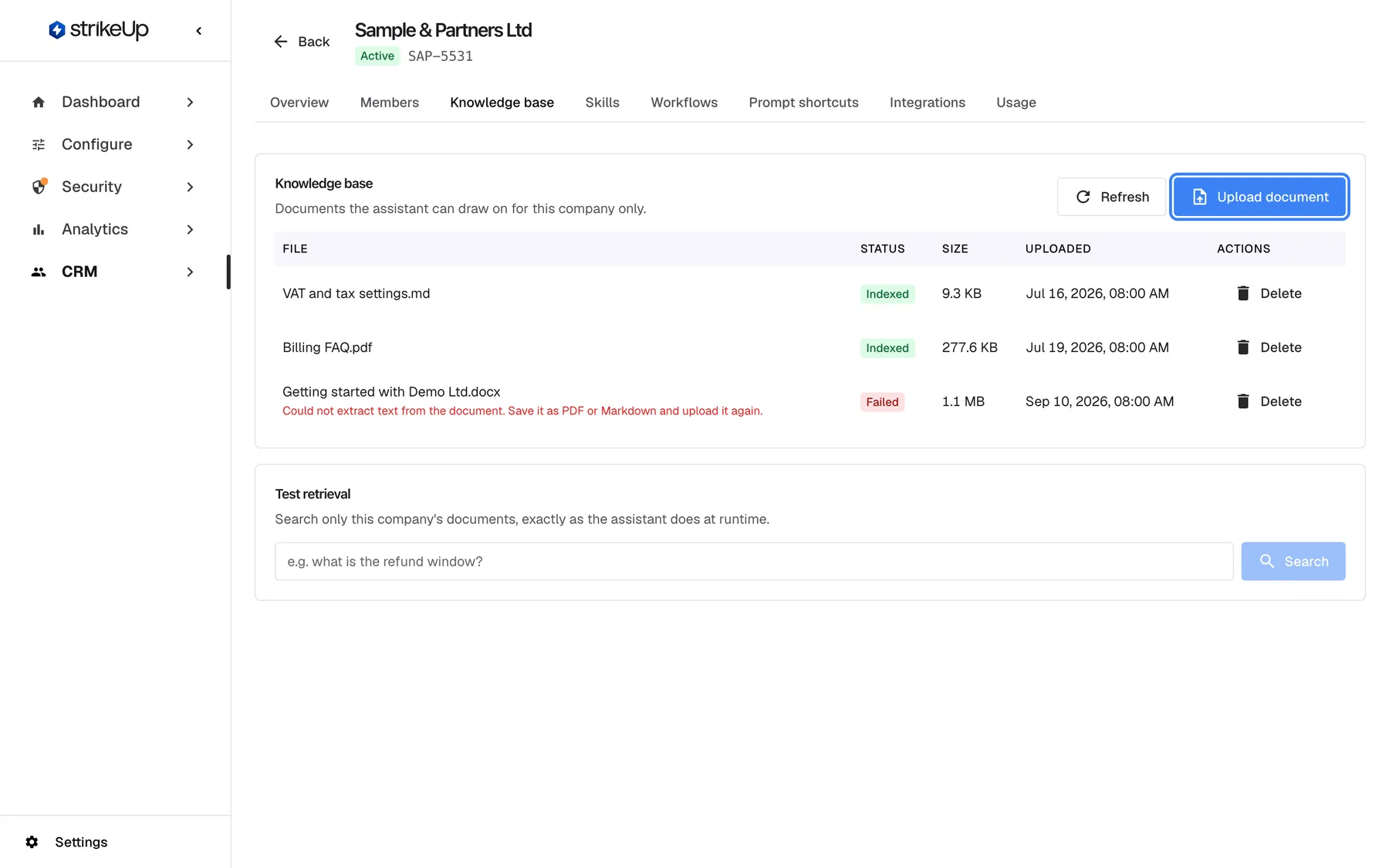
What this screenshot shows
- Screen
- Knowledge base (/admin/customer-companies/:id?tab=knowledge-base)
- Highlighted
- button “Upload document”, card-header-right, enabled. opens the file picker and uploads one document
- Also visible
- 3 documents: two Indexed, one Failed with an error message; Test retrieval card below
- Purpose
- the company knowledge base list
| Region | What it shows | What you do there |
|---|---|---|
| Card header | Knowledge base, Documents the assistant can draw on for this company only., Refresh and Upload document | Upload, refresh statuses |
| Document table | File, Status, Size, Uploaded and Delete | Check and remove documents |
| Test card | Test retrieval, a question box and Search | Try a question |
Upload a document
Section titled “Upload a document”- Select Upload document and choose a file. The button shows Uploading... while it uploads.
- When the upload finishes, Document uploaded. Indexing starts shortly. appears and the document is listed with a status.
- Select Refresh after a minute or two until the status reads “Indexed”.
| Rule | Value |
|---|---|
| File types | PDF, Word (.docx, .doc), plain text, Markdown, JSON and JSON Lines |
| Size | Up to 100 MB per file |
| Upload link | The file must reach storage within 15 minutes of choosing it |
A file of another type, such as an image or a spreadsheet, is refused with “Content type ’…’ is not allowed.” followed by the list of allowed types. A file whose type the browser does not recognise may be accepted and then fail during indexing.
Check a document’s status
Section titled “Check a document’s status”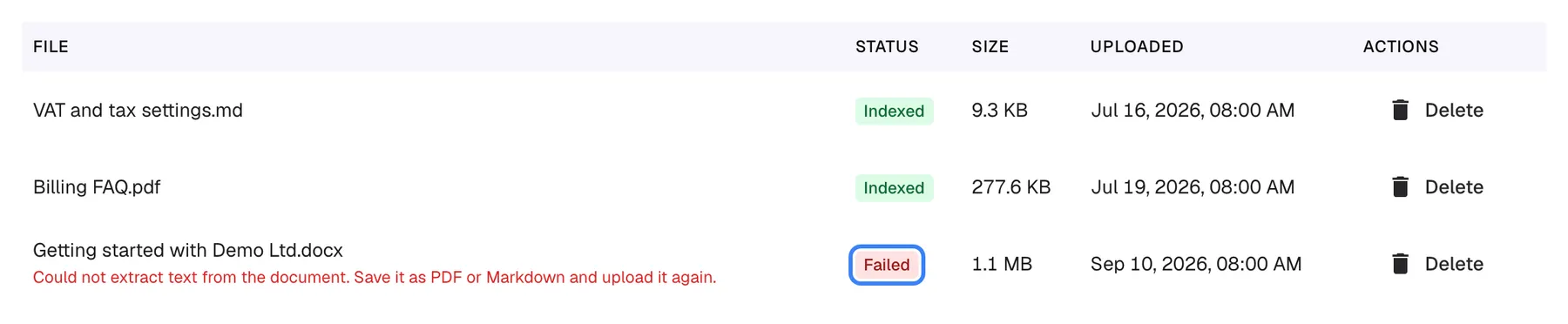
What this screenshot shows
- Screen
- Knowledge base (/admin/customer-companies/:id?tab=knowledge-base)
- Highlighted
- status “”, table-row, Failed. none; the error message under the file name explains the fix
- Also visible
- Error: Could not extract text from the document. Save it as PDF or Markdown and upload it again.; Two Indexed documents
- Purpose
- recognising a document that failed to index
The status is shown in English in every language:
| Status | Meaning |
|---|---|
| “Uploaded” | The file arrived; indexing has not started yet |
| “Processing” | Indexing is running. The assistant cannot find the document yet. |
| “Indexed” | Ready. The assistant can find passages in it. |
| “Failed” | Indexing failed. The reason is shown in red under the file name. |
Statuses do not update on their own: every Refresh checks indexing again. For a “Failed” document, fix the file as the reason says, for example by saving it as PDF, delete the failed entry and upload the file again.
Test retrieval
Section titled “Test retrieval”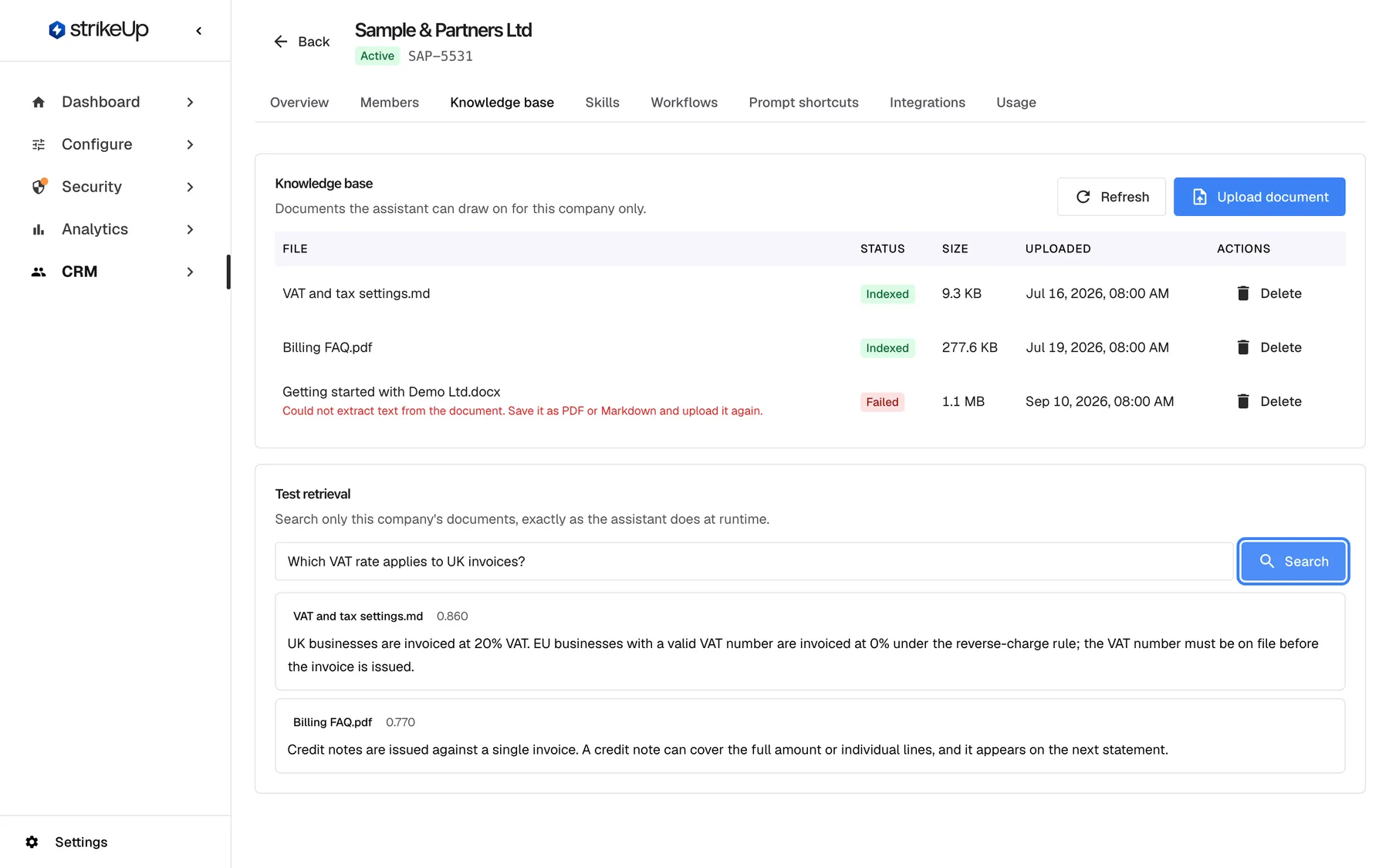
What this screenshot shows
- Screen
- Test retrieval (/admin/customer-companies/:id?tab=knowledge-base)
- Highlighted
- button “Search”, test-retrieval-card, enabled. searches this company's documents and lists the top passages with source and score
- Also visible
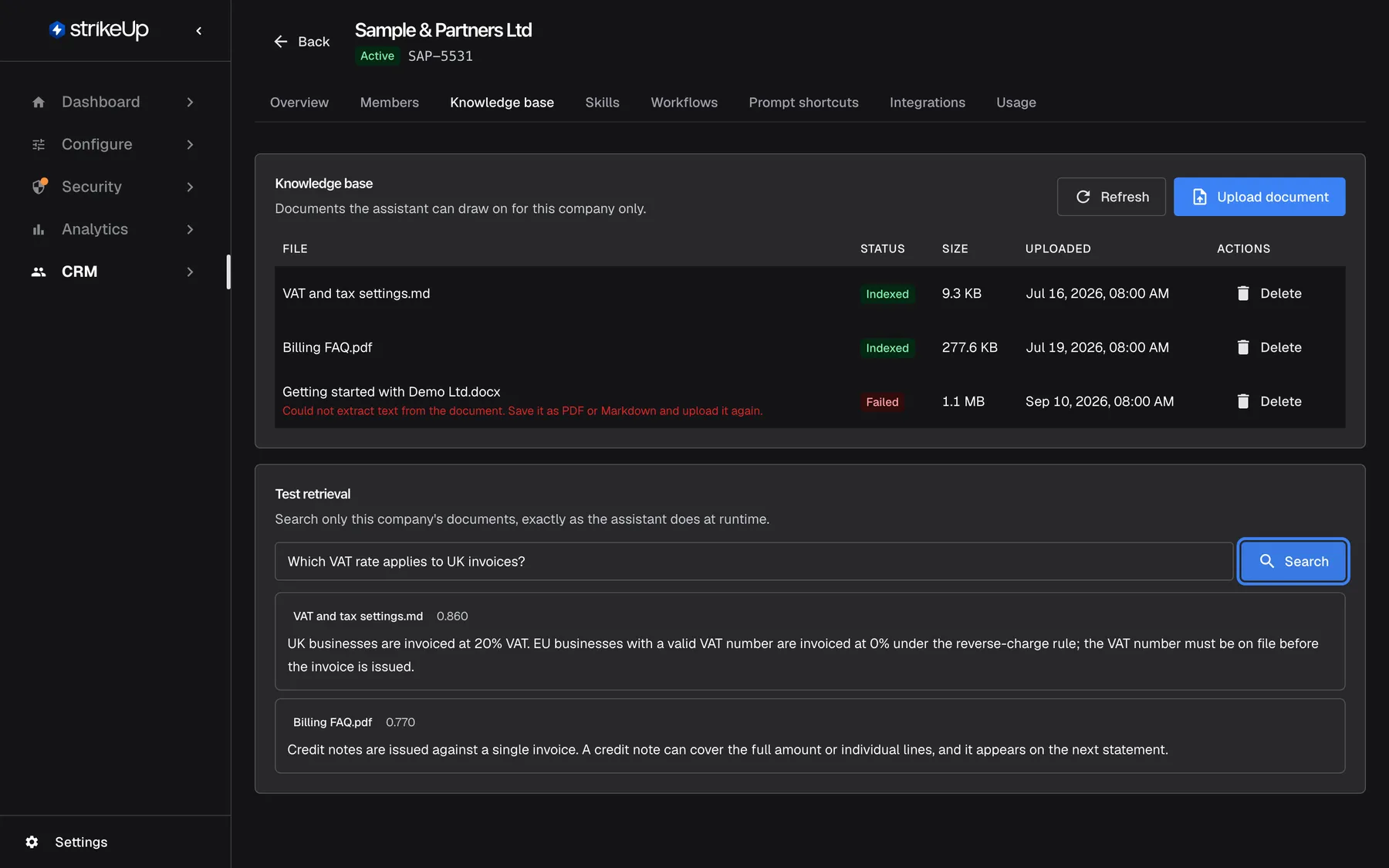
- Query about the VAT rate for UK invoices; Result 1: VAT and tax settings.md, 0.860; result 2: Billing FAQ.pdf, 0.770
- Purpose
- checking what the assistant will find for a question
- Type a question a customer might ask into the box with the placeholder e.g. what is the refund window?.
- Select Search. While it runs, the button shows Searching....
- Read the passages. Each shows its source file and a score; higher scores are closer matches.
Search only this company's documents, exactly as the assistant does at runtime. The test returns up to 5 passages. Your workspace’s own knowledge base is not included in the test, although the assistant searches it too in real chats. If nothing matches, the card shows No matching content found.; documents that are not “Indexed” yet are never found.
Example: for Sample & Partners Ltd, “Which VAT rate applies to UK invoices?” returns a passage from “VAT and tax settings.md” with the score 0.860, then one from “Billing FAQ.pdf” with 0.770.
Delete a document
Section titled “Delete a document”Select Delete in the document’s row. A confirmation titled Delete document says This document will be removed from the company's knowledge base and the assistant will stop retrieving from it. Confirm, and Document deleted. appears. The file is removed and the document leaves the list.
Every control, explained
Section titled “Every control, explained”Upload document
Section titled “Upload document”Upload document, at the top right of the card.
Opens your computer’s file picker. The upload starts as soon as you choose a file. Allowed: PDF, Word, text, Markdown, JSON, JSON Lines; up to 100 MB. Needs the Admin role.
Answers about one customer’s terms belong only in that customer’s chats.
Refresh
Section titled “Refresh”Refresh, beside Upload document.
Reloads the list and checks again how far indexing has got, so “Processing” moves on to “Indexed” or “Failed”.
Indexing runs in the background and the page does not update by itself.
Document table
Section titled “Document table”| Column | What it shows | Why |
|---|---|---|
| File | The file name, and the failure reason in red | Recognise the document and see why it failed |
| Status | “Uploaded”, “Processing”, “Indexed” or “Failed” | Know whether the assistant can find it |
| Size | The file size | Spot an unexpectedly small or empty file |
| Uploaded | Upload date | Find outdated documents |
| Actions | Delete | Remove the document |
Test retrieval
Section titled “Test retrieval”The card Test retrieval under the table.
Searches only this company’s documents for the question and shows up to 5 passages with source and score. An empty question is refused. Every signed-in user can run it.
Check that a new document answers the questions customers actually ask before they ask them.
Who sees what
Section titled “Who sees what”| Part of the screen | Who can use it |
|---|---|
| The list, Refresh and Test retrieval | Every signed-in user of your workspace |
| Upload document and Delete | Users with the Admin role. For anyone else the action fails with Request failed |
What you need to know
Section titled “What you need to know”| Topic | Fact |
|---|---|
| Scope | Searched only in chats with this company’s customers, together with your workspace’s knowledge base. Customers without a company get only the workspace documents. |
| Structure | One flat list: no folders and no website crawling. |
| Shared editing | The company’s Admins can upload and delete documents in the customer portal; you see theirs here and they see yours. |
| Deactivated company | You can still upload and delete documents. |
| Order | Newest upload first. |
Frequently asked questions
Section titled “Frequently asked questions”Documents
Section titled “Documents”Which files can I upload?
Section titled “Which files can I upload?”PDF, Word (.docx and .doc), plain text, Markdown, JSON and JSON Lines files, up to 100 MB each, with Upload document on the company’s Knowledge base tab. Images and spreadsheets are refused with “Content type ’…’ is not allowed.”
Why does my document still say Processing?
Section titled “Why does my document still say Processing?”Indexing runs in the background and can take a few minutes for a large file. The status only updates when you select Refresh on the Knowledge base tab, so refresh after a minute or two until it reads “Indexed” or “Failed”.
What do I do with a document marked Failed?
Section titled “What do I do with a document marked Failed?”Read the red reason under the file name, for example that text could not be extracted. Fix the file, often by saving it as PDF or Markdown, delete the failed entry with Delete, and upload the corrected file again.
Can I organise company documents in folders or crawl a website?
Section titled “Can I organise company documents in folders or crawl a website?”No. A customer company’s knowledge base is one flat list of uploaded files, without folders and without website sources. Use your workspace’s knowledge base on ConfigureKnowledge Base for folders and crawled websites.
Answers
Section titled “Answers”Do other companies’ customers get answers from these documents?
Section titled “Do other companies’ customers get answers from these documents?”No. Documents on a company’s Knowledge base tab are searched only in chats with that company’s customers. Customers of other companies, and customers without a company, only get answers from your workspace’s own knowledge base.
Does this replace my main knowledge base for this company?
Section titled “Does this replace my main knowledge base for this company?”No. In chats with this company’s customers the assistant searches your workspace’s knowledge base and this company’s documents together. The Test retrieval card, however, searches only the company’s documents.
Why does Test retrieval find nothing?
Section titled “Why does Test retrieval find nothing?”Only documents with the status “Indexed” can be found, and the test searches only this company’s documents, not your workspace’s knowledge base. Select Refresh to update statuses, then try the question again with words that appear in the document.
Can the company’s own admins add documents?
Section titled “Can the company’s own admins add documents?”Yes. Customer Admins can upload, delete and test documents on the knowledge base page of the customer portal. Their documents appear on the Knowledge base tab here, and documents you upload appear in their portal.
Troubleshooting
Section titled “Troubleshooting”| Symptom | What to check |
|---|---|
| “Content type ’…’ is not allowed.” | Convert the file to PDF, Word, text or Markdown and upload it again. |
| A document stays “Processing” | Select Refresh; large files take a few minutes. |
| A document shows “Failed” with a reason | Fix the file as the reason says, delete the failed entry and upload again. |
| Upload fails part-way | The file must reach storage within 15 minutes; try again on a steadier connection or with a smaller file. |
| No matching content found. | Check that the documents are “Indexed” and that the question uses their wording. |
| Upload or delete shows Request failed | You may not have the Admin role; ask an Admin. |
| Failed to load knowledge base documents. | Reload the page; if it persists, sign in again. |