

Two-factor authentication
A StrikeUp account can change how your assistant talks to your customers and which of your APIs it calls, so a leaked password is a real risk. Two-factor authentication adds a second step to every sign-in: after the password, StrikeUp asks for a 6-digit code from an authenticator app on your phone. Anyone can switch it on for their own account, and an administrator can require it for everyone in the company.
What it does
Section titled “What it does”Passwords get reused, phished and guessed. Without a second step, anyone who has your email address and password can sign in to your company’s StrikeUp workspace from anywhere, change the assistant’s instructions and read what your customers asked.
With two-factor authentication on, a correct password is no longer enough. StrikeUp asks for a 6-digit code that changes every 30 seconds and exists only in the authenticator app on your phone. From there:
- You protect your own account from your profile, and move it to a new phone when you change phones. Every setting, explained.
- An administrator can make it mandatory for every member of the company, including people who join later. The company switch.
- Every sign-in asks for the code, and too many wrong codes block further attempts for 15 minutes. Two-factor authentication at sign-in.
The secret your app uses is stored encrypted, and turning the protection off needs a valid current code, so a stolen password alone cannot remove it.
Before you start
Section titled “Before you start”| Requirement | Details |
|---|---|
| Plan | None. Two-factor authentication is available to every StrikeUp company. |
| Role | Any role (Admin, User or Guest) can switch it on for their own account under SettingsProfile. Only an Admin can require it for the company under SettingsCompany. |
| An authenticator app | Any app that creates standard time-based codes, such as Google Authenticator, Authy or 1Password, on a phone you keep with you. |
| A correct clock on the phone | Codes are based on the time. Let the phone set its time automatically. |
| Cost | None. |
Understanding two-factor authentication
Section titled “Understanding two-factor authentication”Each account is in one of four states, and the company policy decides whether members may stay unprotected.
| State | What it means | What sign-in does |
|---|---|---|
| Not enabled | No authenticator is linked to the account | Email and password only, unless the company requires two-factor authentication |
| Setup started | You scanned a QR code but have not confirmed a code yet | Same as not enabled; the half-finished setup does nothing |
| Enabled | An authenticator is linked and confirmed | Asks for a 6-digit code after the password |
| Locked | Five wrong codes in a row at sign-in | Refuses every code, even a correct one, for 15 minutes |
How StrikeUp decides
Section titled “How StrikeUp decides”- The password always comes first. StrikeUp checks the password, the account lock and whether the account and company are active before it thinks about codes.
- An enabled account is always asked for a code. It does not matter whether the company requires it.
- The company policy catches the rest. If the company requires two-factor authentication and the account has no authenticator, sign-in sets one up before letting the member in.
- The code step lasts 5 minutes. After that, StrikeUp answers “Your verification session has expired. Please sign in again.”
- Codes have a small time window. StrikeUp accepts the current code and the ones just before and after it, so a phone clock that is up to about 30 seconds off still works.
- A code works once. A code that was already accepted, or an older one, is refused, and at sign-in it counts as a wrong code. Wait for the next code instead of entering the same one twice.
- Five wrong codes at sign-in lock codes for 15 minutes. The count starts again after the lock or after a correct code. This lock is separate from the password lock; both can apply.
What two-factor authentication does not cover
Section titled “What two-factor authentication does not cover”- Your end customers in the chat widget.
- Text-message or email codes: StrikeUp supports authenticator apps only.
- Backup or recovery codes: there are none. If you lose your phone, see Lost phone.
- Sessions that are already open. Requiring two-factor authentication or switching it on does not sign anyone out; it applies at the next sign-in.
Setting it up in three steps
Section titled “Setting it up in three steps”-
Open your profile. Go to SettingsProfile. The card Two-Factor Authentication shows Two-factor authentication is not enabled.. Select Enable 2FA.
-
Scan the code. The dialog Set up two-factor authentication opens at Scan the QR code. Scan the code with your authenticator app, or select Can't scan? Enter the code manually and type the key into the app. Select Next.
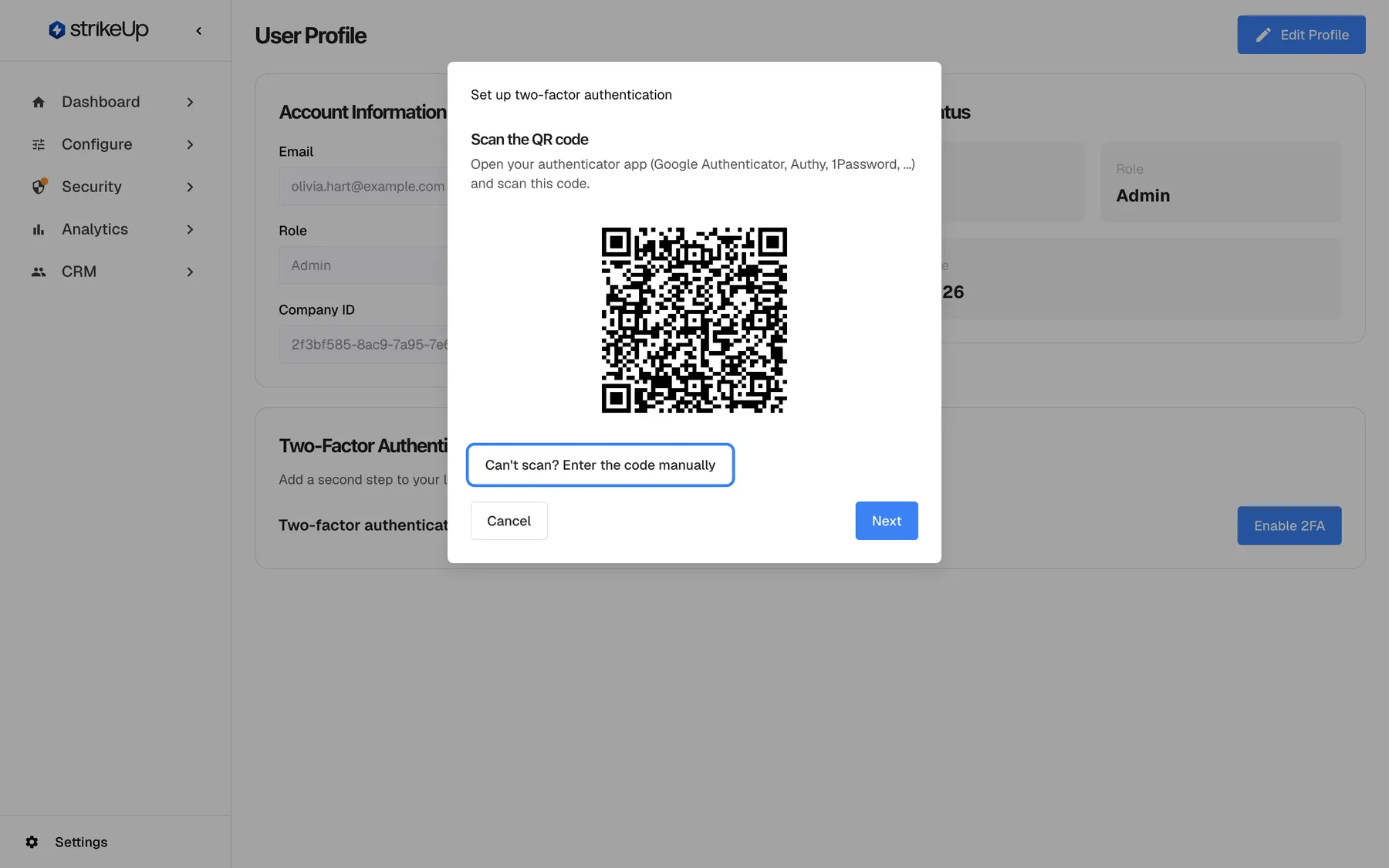
Scan the QR code with any authenticator app; if scanning fails, reveal the key and type it in. What this screenshot shows
- Screen
- Set up two-factor authentication (/admin/profile)
- Highlighted
- button “Can't scan? Enter the code manually”, dialog-middle, collapsed. shows the base32 setup key with a Copy button
- Also visible
- QR code (fictional); Cancel and Next buttons
- Purpose
- first step of authenticator enrolment
-
Confirm with a code. Type the 6-digit code the app now shows and select Verify & enable. StrikeUp shows Two-factor authentication enabled., the card changes to Two-factor authentication is enabled., and every sign-in from now on asks for a code.
Every setting, explained
Section titled “Every setting, explained”Two-factor authentication has three controls on your profile, for your own account, and one switch on the company page, for everyone.
Enable 2FA, for your own account
Section titled “Enable 2FA, for your own account”SettingsProfile, the card Two-Factor Authentication, button Enable 2FA at the right. Shown while two-factor authentication is not enabled for your account.
Opens the dialog Set up two-factor authentication with a new QR code. Nothing changes until you confirm a code. On the first step, Can't scan? Enter the code manually shows the key in groups of four with Copy; Cancel closes the dialog without changes. On the second step, Enter the code, the field takes six digits; anything else shows Enter the 6-digit code from your authenticator app.. A wrong code shows “Invalid authentication code.” and you can retype it. Back returns to the QR code.
Confirming a code before switching on proves your app produces the right codes, so you cannot lock yourself out with a failed scan.
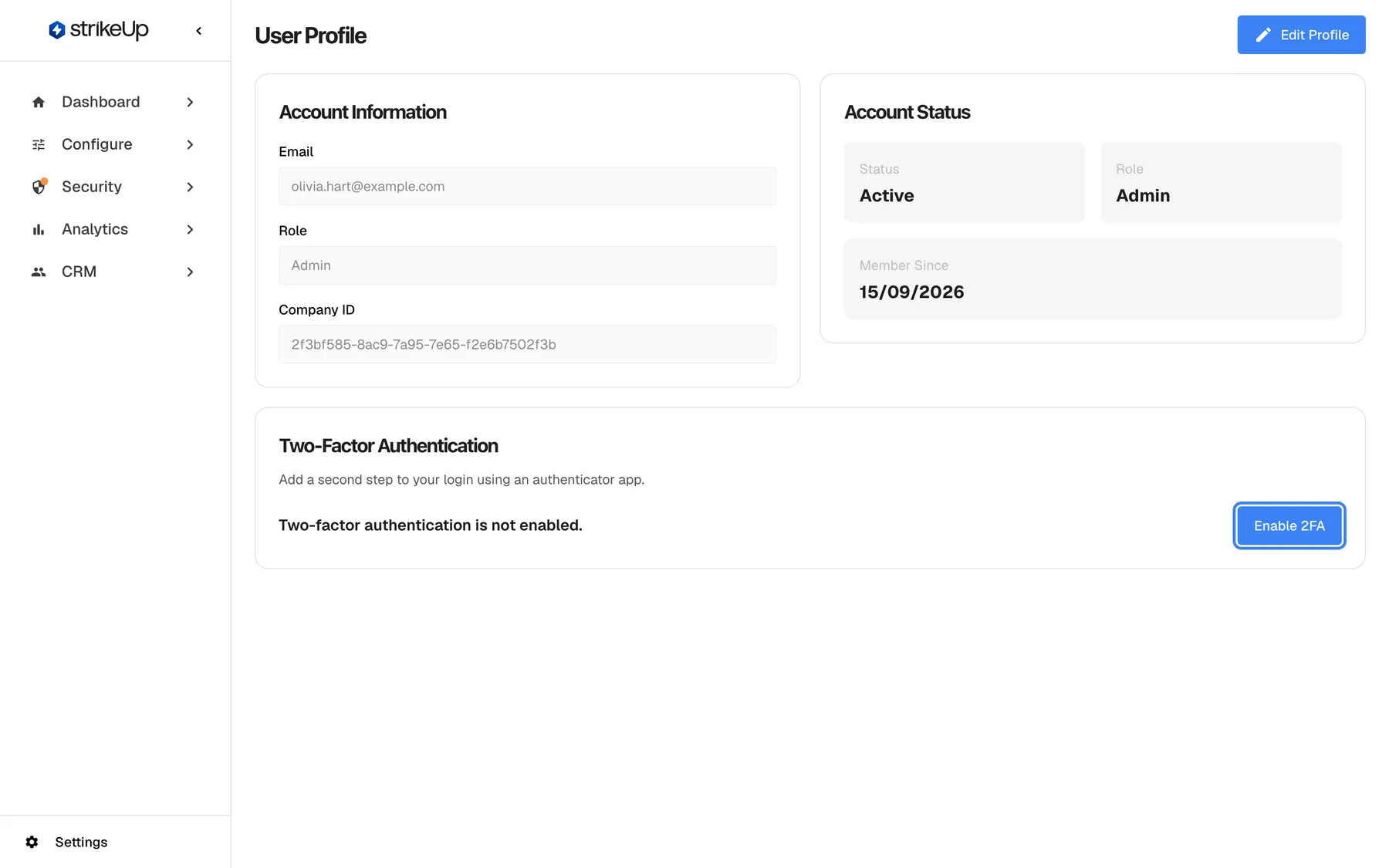
What this screenshot shows
- Screen
- User Profile (/admin/profile)
- Highlighted
- button “Enable 2FA”, two-factor-card-right, enabled. opens the authenticator setup dialog (POST /api/auth/2fa/setup)
- Also visible
- Status: Two-factor authentication is not enabled.; Account Information and Account Status cards
- Purpose
- entry point for enrolling an authenticator app
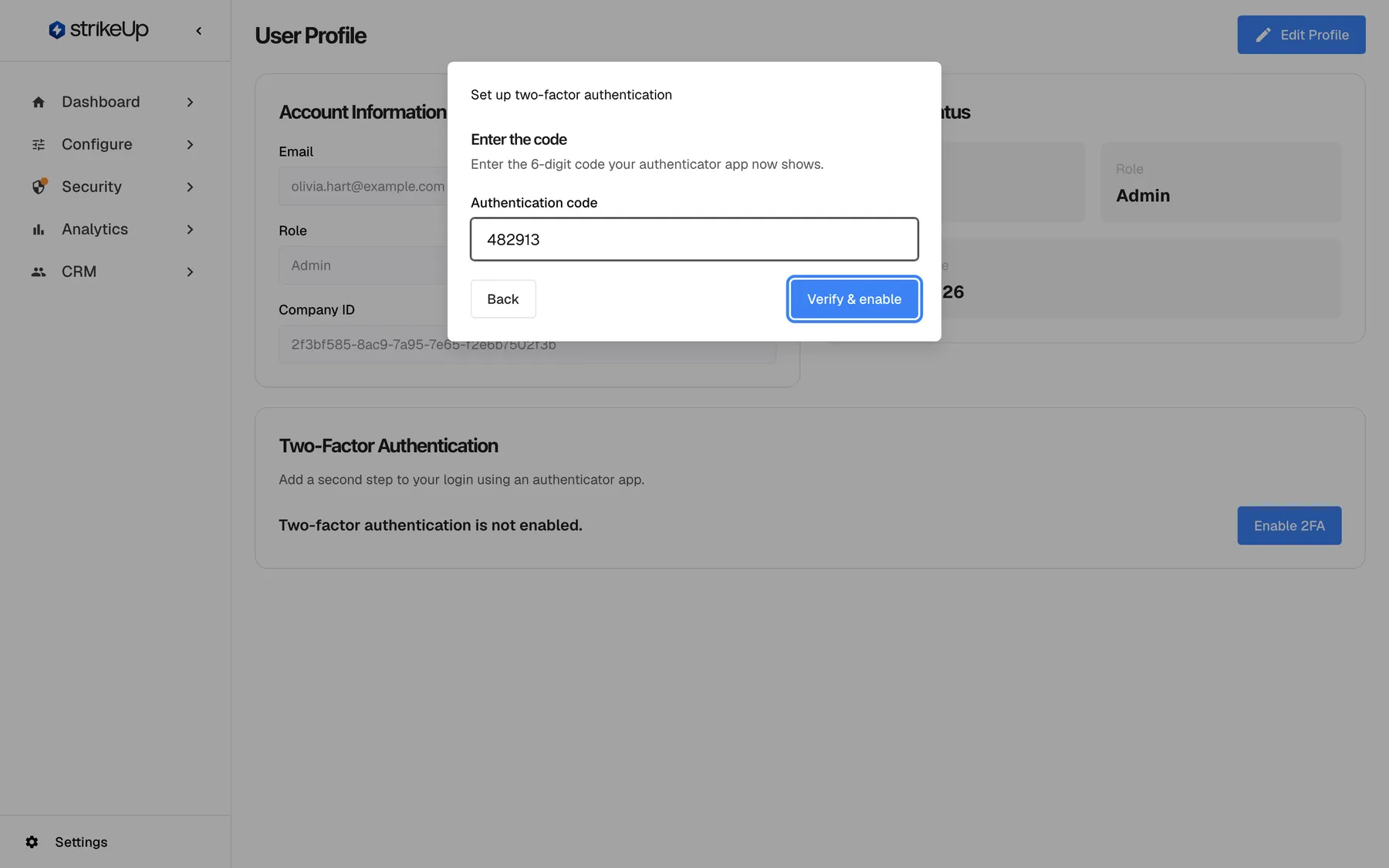
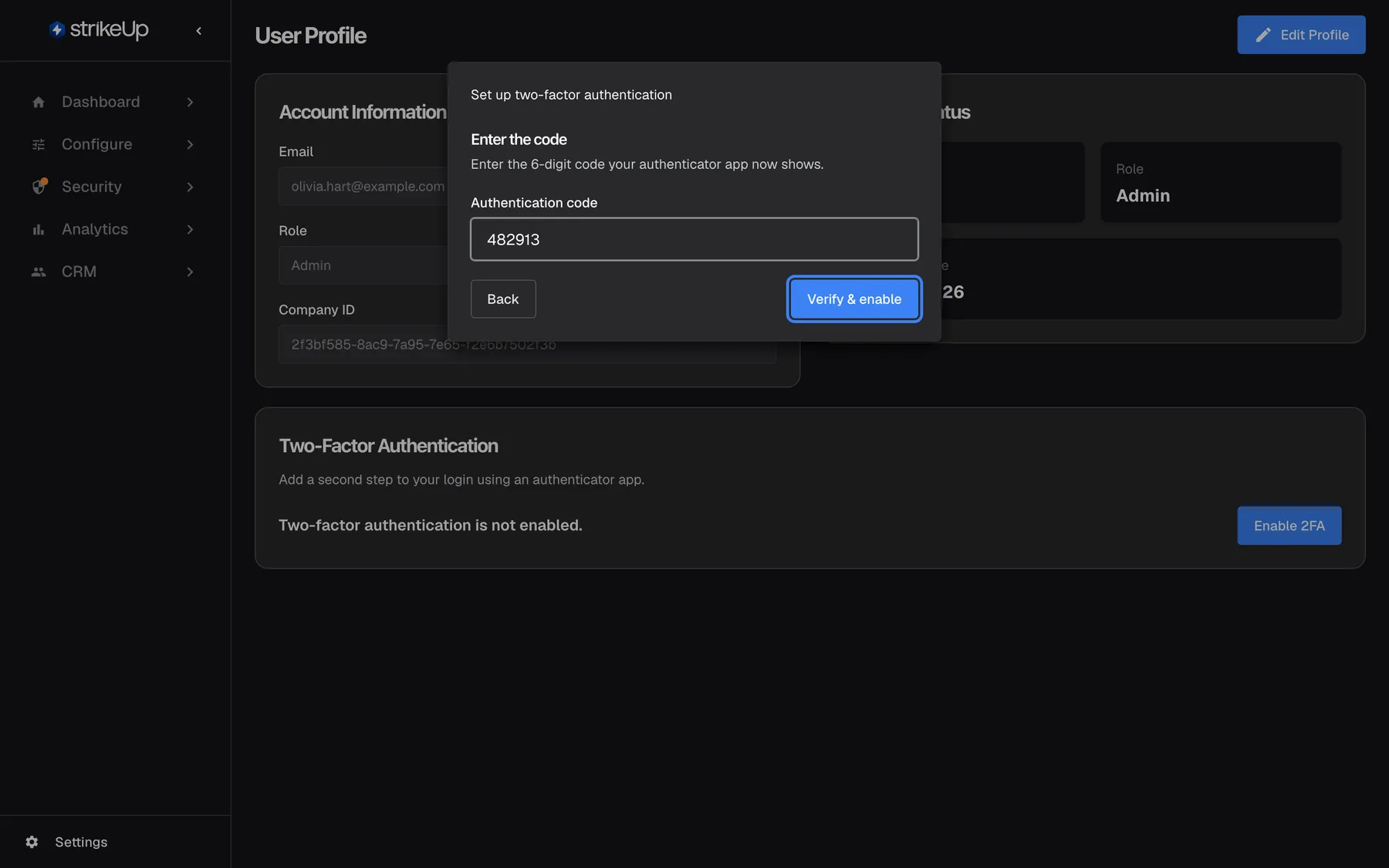
What this screenshot shows
- Screen
- Set up two-factor authentication (/admin/profile)
- Highlighted
- button “Verify & enable”, dialog-bottom-right, enabled. confirms the code (POST /api/auth/2fa/enable) and enables 2FA
- Also visible
- Heading Enter the code; Authentication code: 482913; Back button
- Purpose
- confirm enrolment with the first code
Reset authenticator, for a new phone
Section titled “Reset authenticator, for a new phone”The same card, button Reset authenticator. Shown while two-factor authentication is enabled.
Opens the same setup dialog with a new QR code for your new phone. Your old app keeps working until the new one is confirmed with a valid code; then only the new one works. If you cancel half-way, nothing changes. It does not ask for a code from the old app.
You can move to a new phone without first switching protection off and leaving your account unprotected in between.
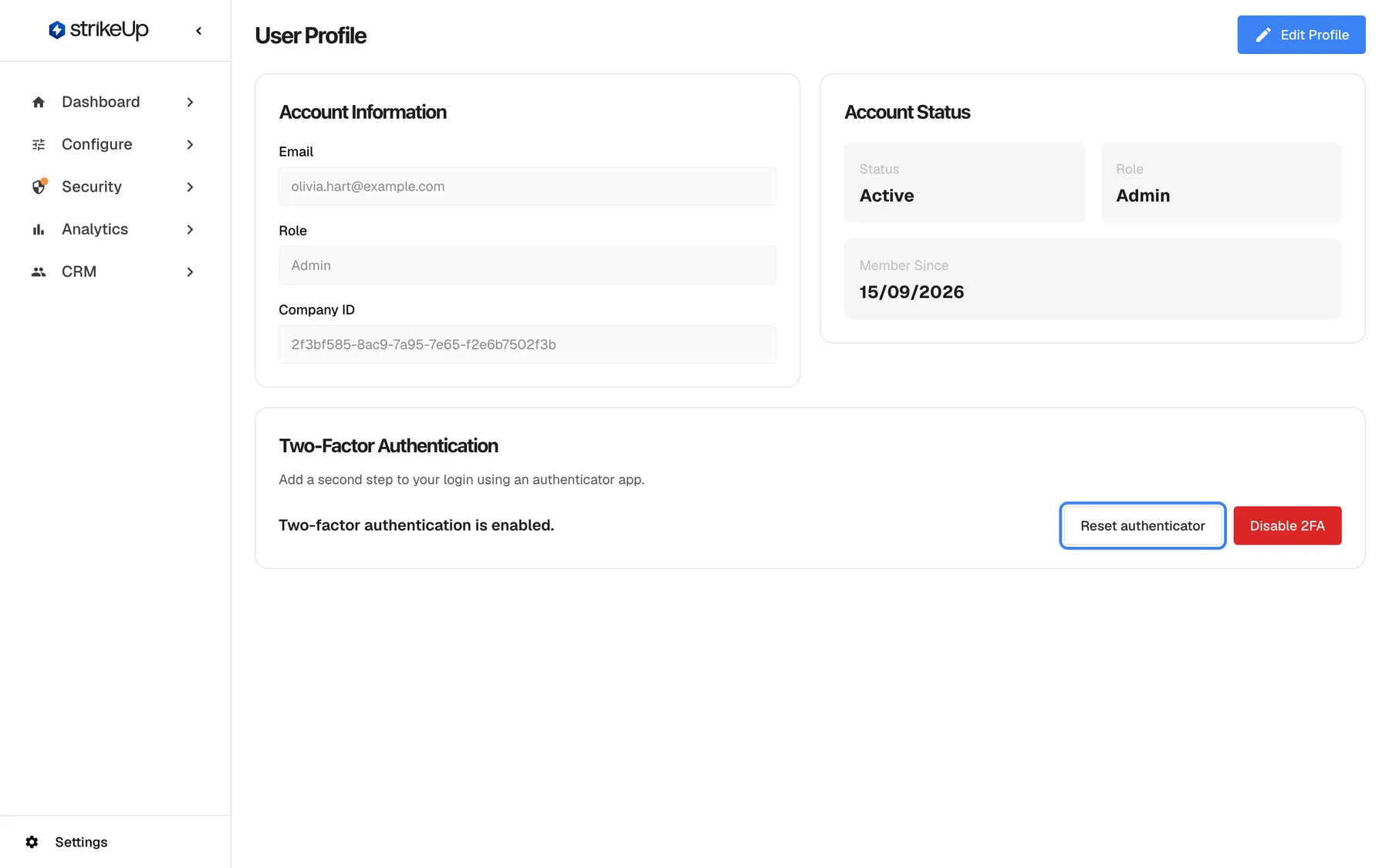
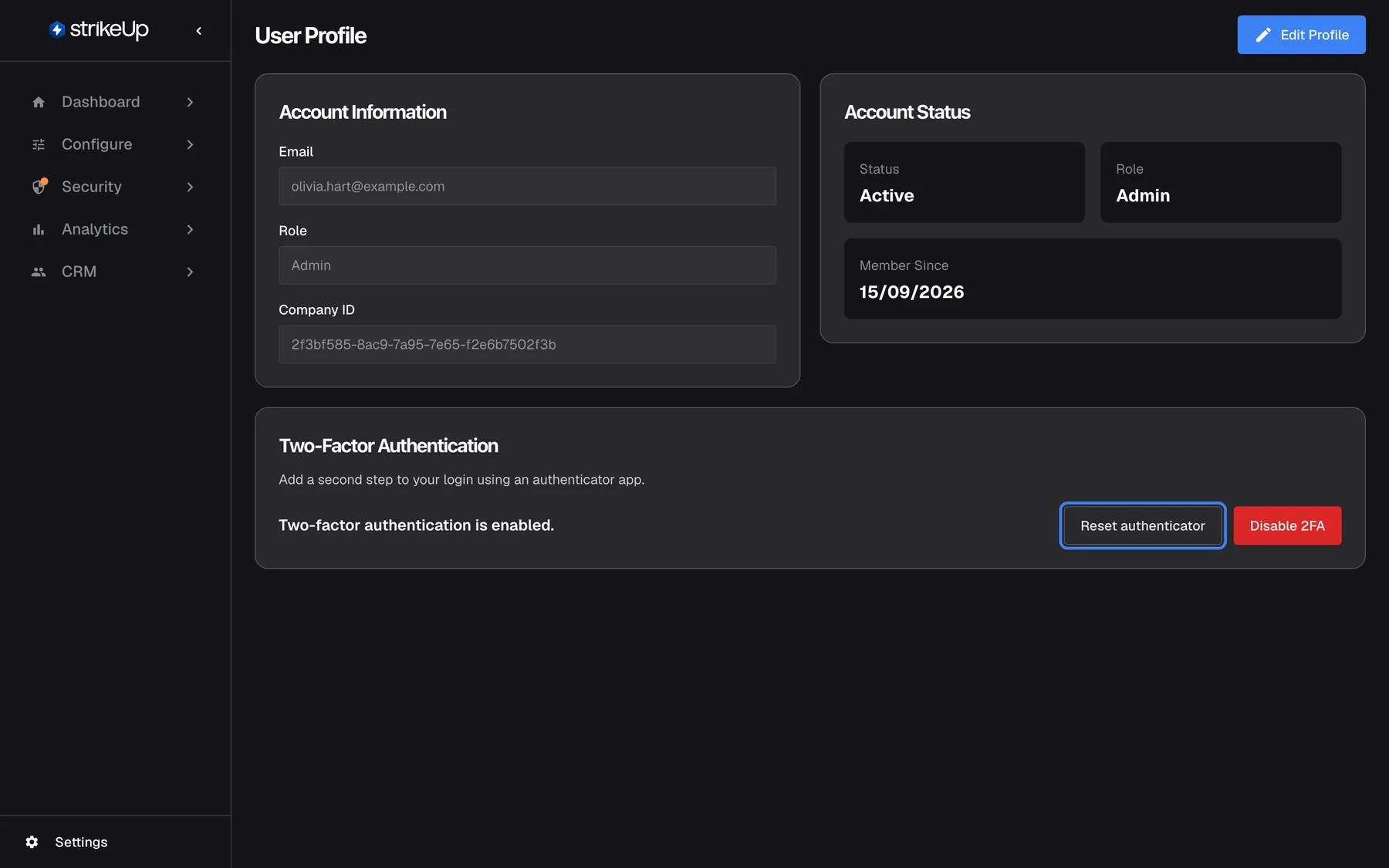
What this screenshot shows
- Screen
- User Profile (/admin/profile)
- Highlighted
- button “Reset authenticator”, two-factor-card-right, enabled. opens the setup dialog to enrol a new authenticator (POST /api/auth/2fa/setup)
- Also visible
- Status: Two-factor authentication is enabled.; Disable 2FA button (red)
- Purpose
- managing an enabled authenticator
Disable 2FA, for your own account
Section titled “Disable 2FA, for your own account”The same card, red button Disable 2FA. Hidden while your company requires two-factor authentication.
Opens the dialog Disable two-factor authentication: Enter a current code from your authenticator app to confirm. Type a current code and select Disable 2FA. StrikeUp shows Two-factor authentication disabled. and sign-in asks for email and password only. A wrong code shows “Invalid authentication code.”; if the company has just started requiring two-factor authentication, StrikeUp refuses with “Two-factor authentication is required by your company and cannot be disabled.”
Requiring a current code means someone who knows only your password cannot switch your protection off.
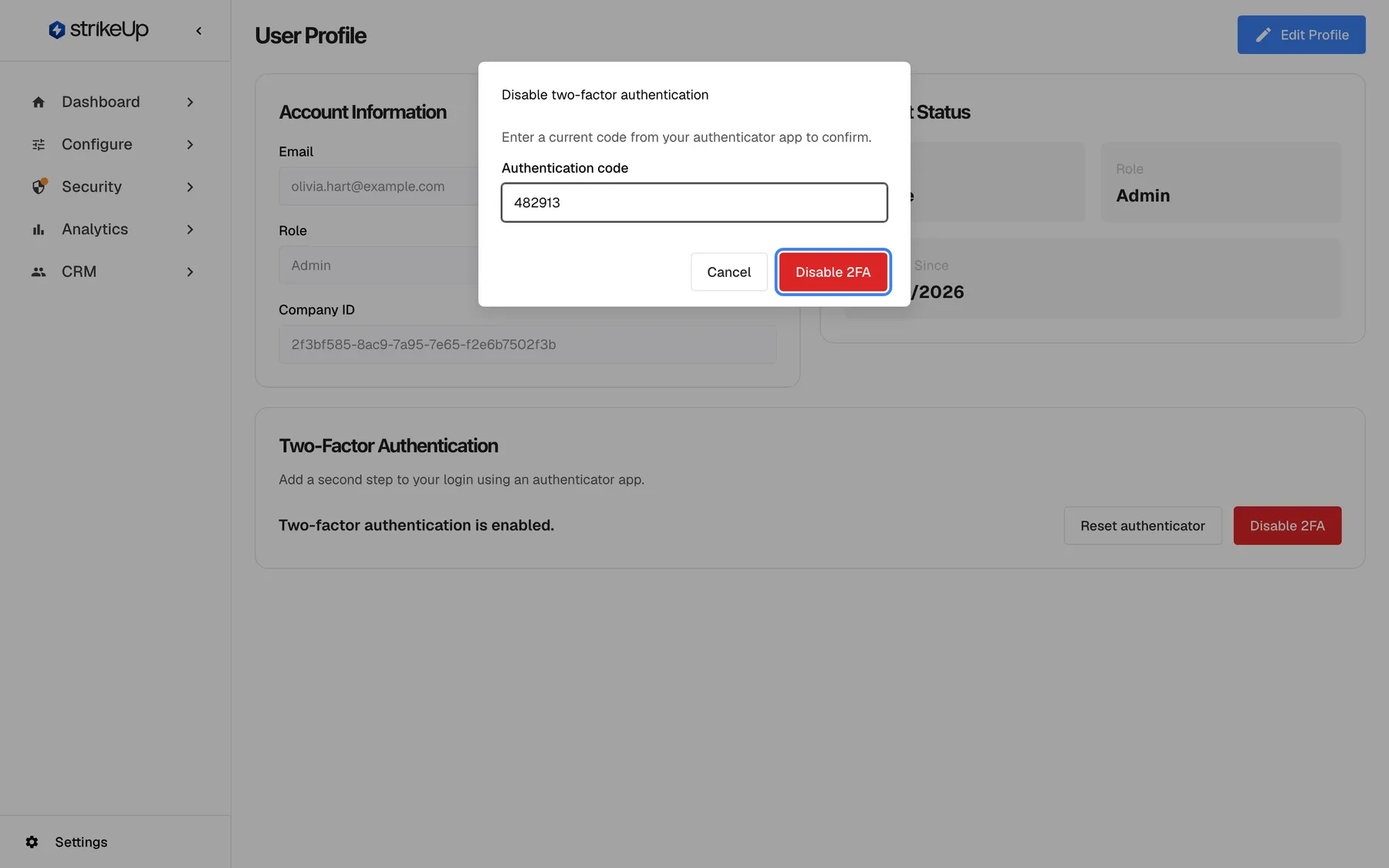
What this screenshot shows
- Screen
- Disable two-factor authentication (/admin/profile)
- Highlighted
- button “Disable 2FA”, dialog-footer-right, enabled. disables 2FA after checking the code (POST /api/auth/2fa/disable)
- Also visible
- Authentication code: 482913; Cancel button
- Purpose
- confirm turning two-factor authentication off
Require Two-Factor Authentication, the company switch
Section titled “Require Two-Factor Authentication, the company switch”SettingsCompany, the last card, Require Two-Factor Authentication, the switch at its right end. It saves the moment you switch it, with no save button, and shows Two-factor policy updated.. Only administrators can change it; everyone else sees it greyed out with Only administrators can change this setting.
When on, every member of your company must set up an authenticator app and enter a code at each login. When on: members without an authenticator must set one up at their next sign-in, with no way past it; invited people set it up while accepting their invitation; Disable 2FA disappears from every profile, which shows Required by your company — it cannot be turned off. instead. Members already signed in keep working until they next sign in. When off again: nobody’s two-factor authentication is removed; members may turn their own off. The switch is off for a new company.
One unprotected administrator account is enough to change your assistant. Requiring it closes that gap for everyone, including people who join later.
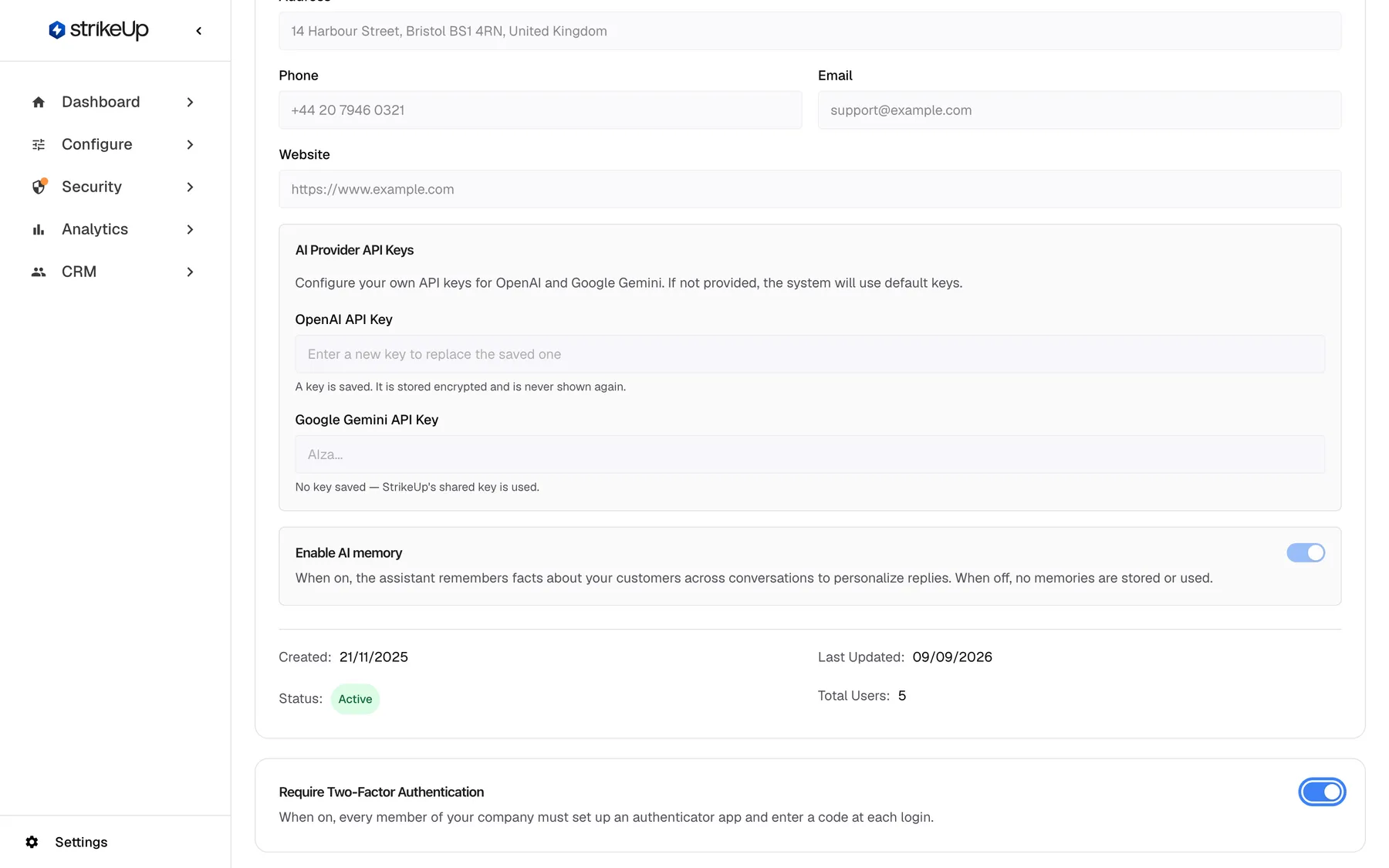
What this screenshot shows
- Screen
- Company (/admin/company)
- Highlighted
- switch “Require Two-Factor Authentication”, last-card-right, on. saves the company policy immediately (PUT /api/company/{id}/2fa-policy)
- Also visible
- Require Two-Factor Authentication card with description; Enable AI memory switch above
- Purpose
- company-wide two-factor requirement (Admin only)
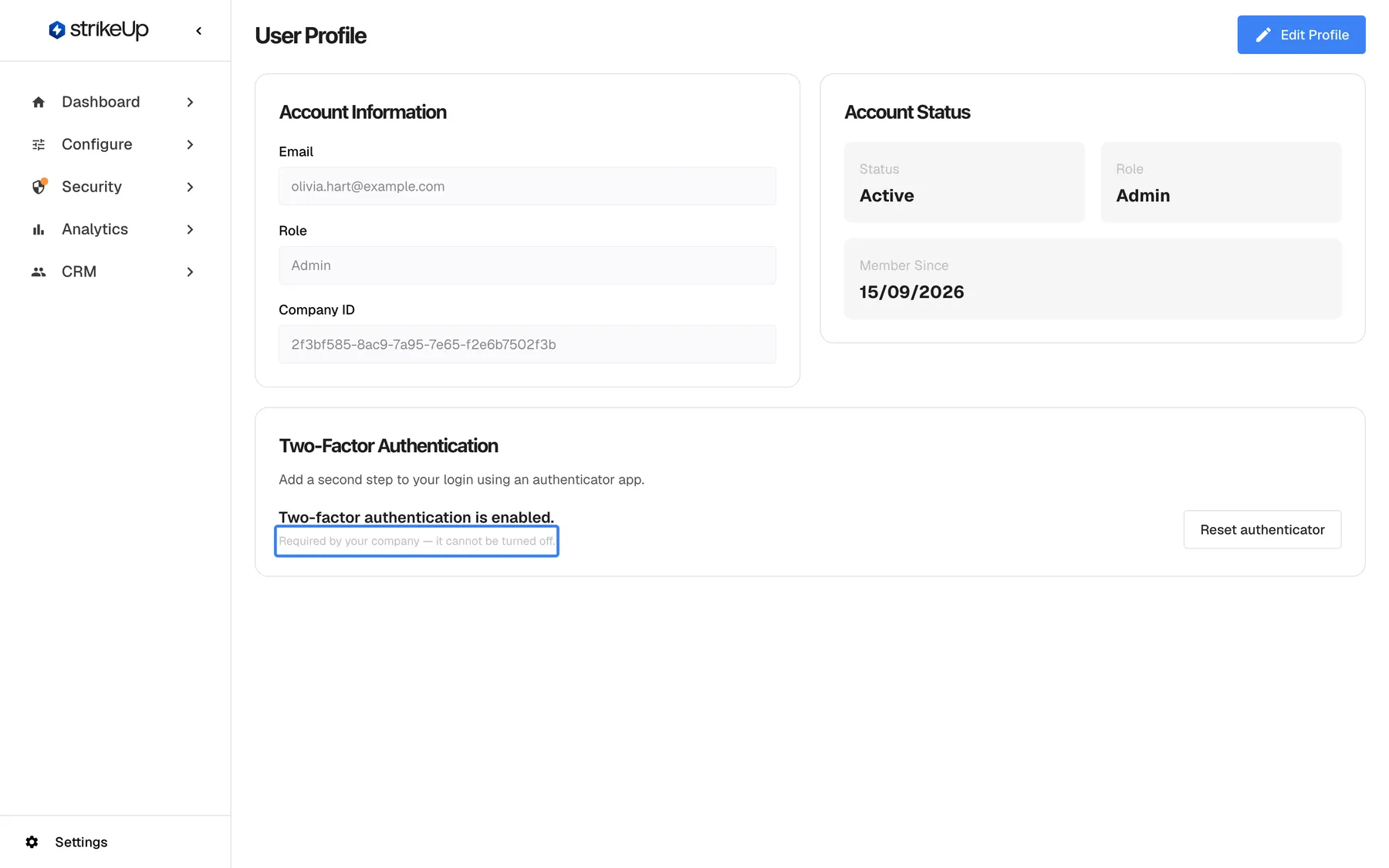
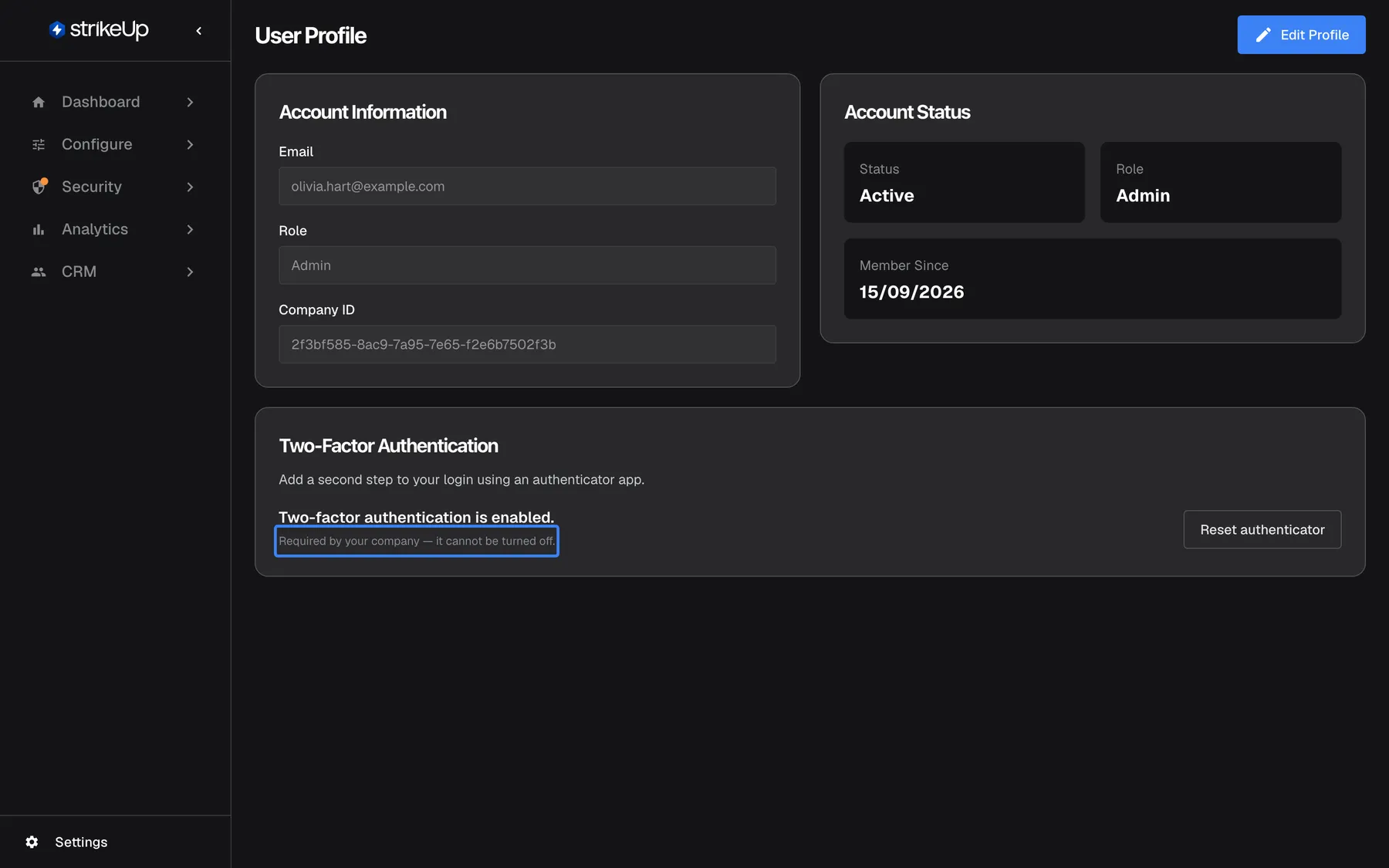
What this screenshot shows
- Screen
- User Profile (/admin/profile)
- Highlighted
- note “Required by your company — it cannot be turned off.”, two-factor-card-left, visible. none
- Also visible
- Status: Two-factor authentication is enabled.; Reset authenticator button only
- Purpose
- profile card under a company-wide requirement
How the settings combine
Section titled “How the settings combine”| Company switch | Your account | What happens at your next sign-in | Can you turn it off? |
|---|---|---|---|
| Off | Not enabled | Email and password only | Nothing to turn off |
| Off | Enabled | Password, then a code | Yes, with a current code |
| On | Not enabled | Password, then the authenticator setup, then StrikeUp | No |
| On | Enabled | Password, then a code | No; Disable 2FA is hidden |
Two-factor authentication at sign-in
Section titled “Two-factor authentication at sign-in”Every member of your company meets two-factor authentication on the sign-in page, in the same card as the password.
| What you see after the password | When | What to do |
|---|---|---|
| Two-step verification | Your account has two-factor authentication enabled | Enter the current code within 5 minutes |
| Scan the QR code with Cancel | Your company requires it and your account has none | Set up your authenticator, then enter its first code |
| Scan the QR code without Cancel | You are accepting an invitation and your company requires it | Set up your authenticator before your first sign-in |
The code step
Section titled “The code step”After a correct password, the card shows Two-step verification and Enter the 6-digit code from your authenticator app. Type the code from the app entry StrikeUp: followed by your email address, and select Verify. Back to sign in abandons the step.
Why: the code proves you have your phone, so a password found in a leak or a phishing email is not enough.
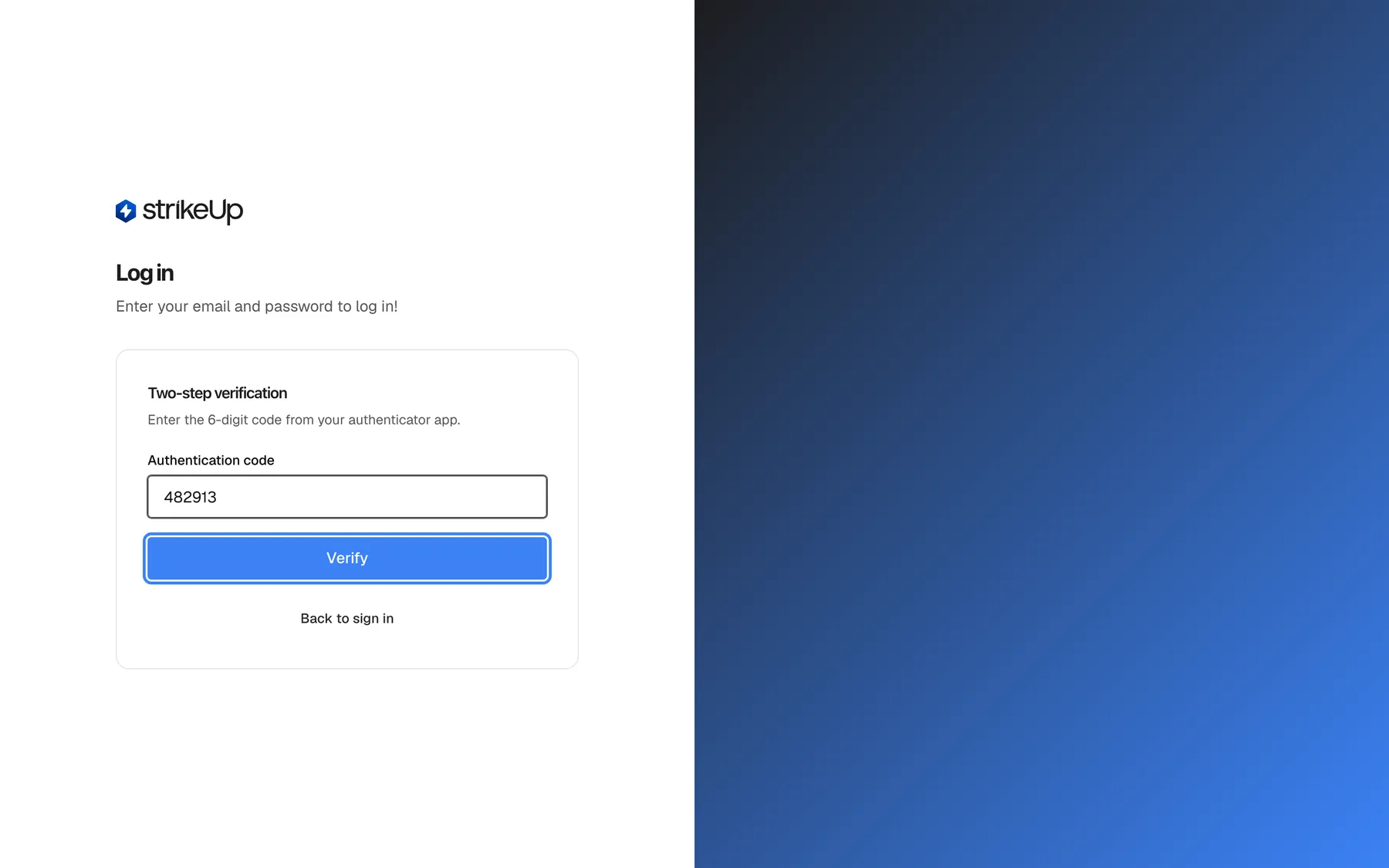
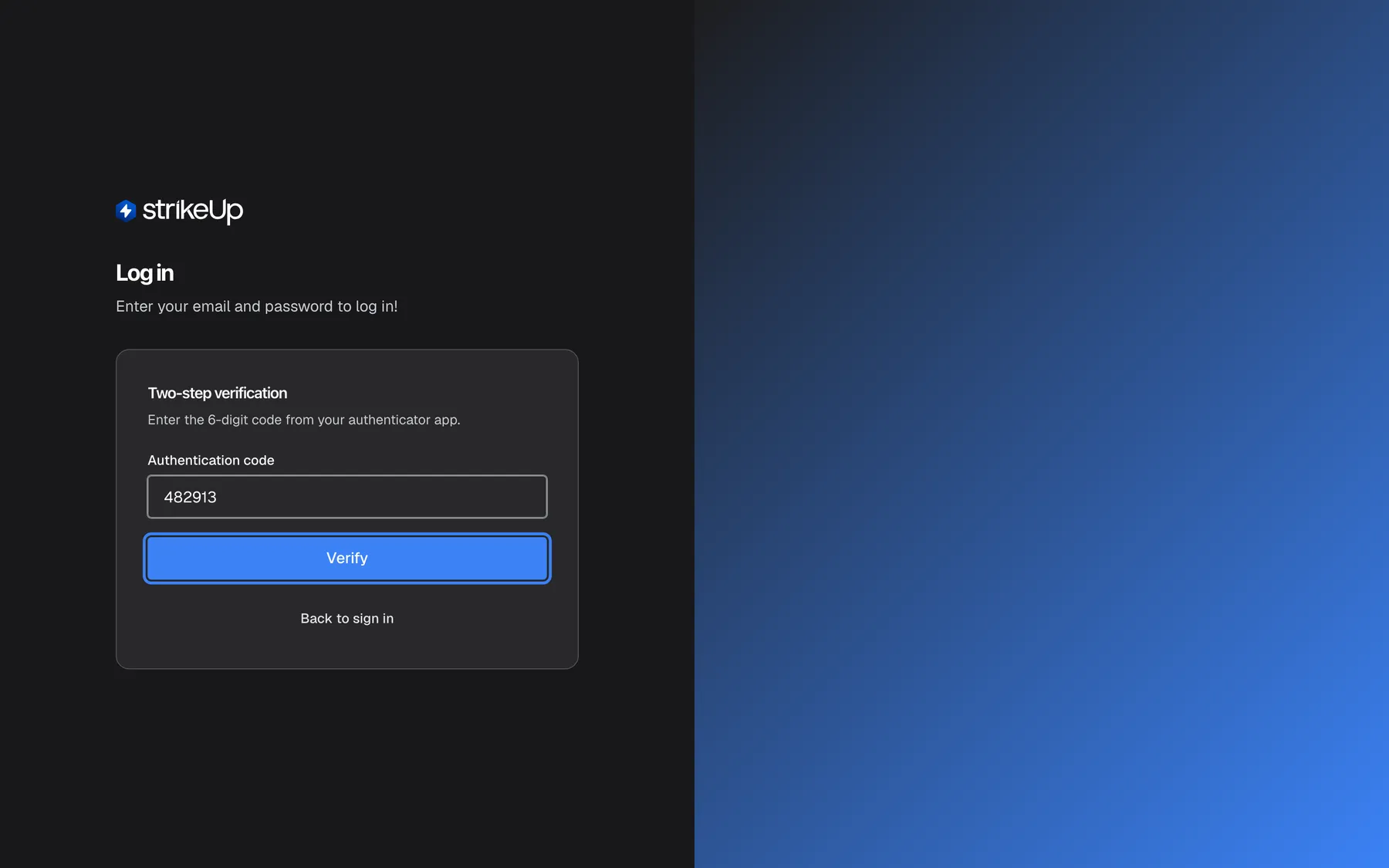
What this screenshot shows
- Screen
- Log in (/auth/sign-in)
- Highlighted
- button “Verify”, sign-in-card, enabled. verifies the code (POST /api/auth/2fa/login-verify)
- Also visible
- Two-step verification heading; Authentication code: 482913; Back to sign in button
- Purpose
- the code challenge at sign-in
Wrong codes
Section titled “Wrong codes”A wrong code shows “Invalid authentication code. N attempt(s) remaining.”, counting down from five. After five wrong codes in a row, StrikeUp shows “Too many incorrect codes. Please wait a few minutes and try again.” and refuses every code, even a correct one, for 15 minutes. The message does not show the time.
| Wrong codes in a row | What StrikeUp says |
|---|---|
| 1 | “Invalid authentication code. 4 attempt(s) remaining.” |
| 4 | “Invalid authentication code. 1 attempt(s) remaining.” |
| 5 | Codes are blocked for 15 minutes |
| During the 15 minutes | “Too many incorrect codes. Please wait a few minutes and try again.”, whatever you type |
Why: six-digit codes could otherwise be guessed by trying many in a row.
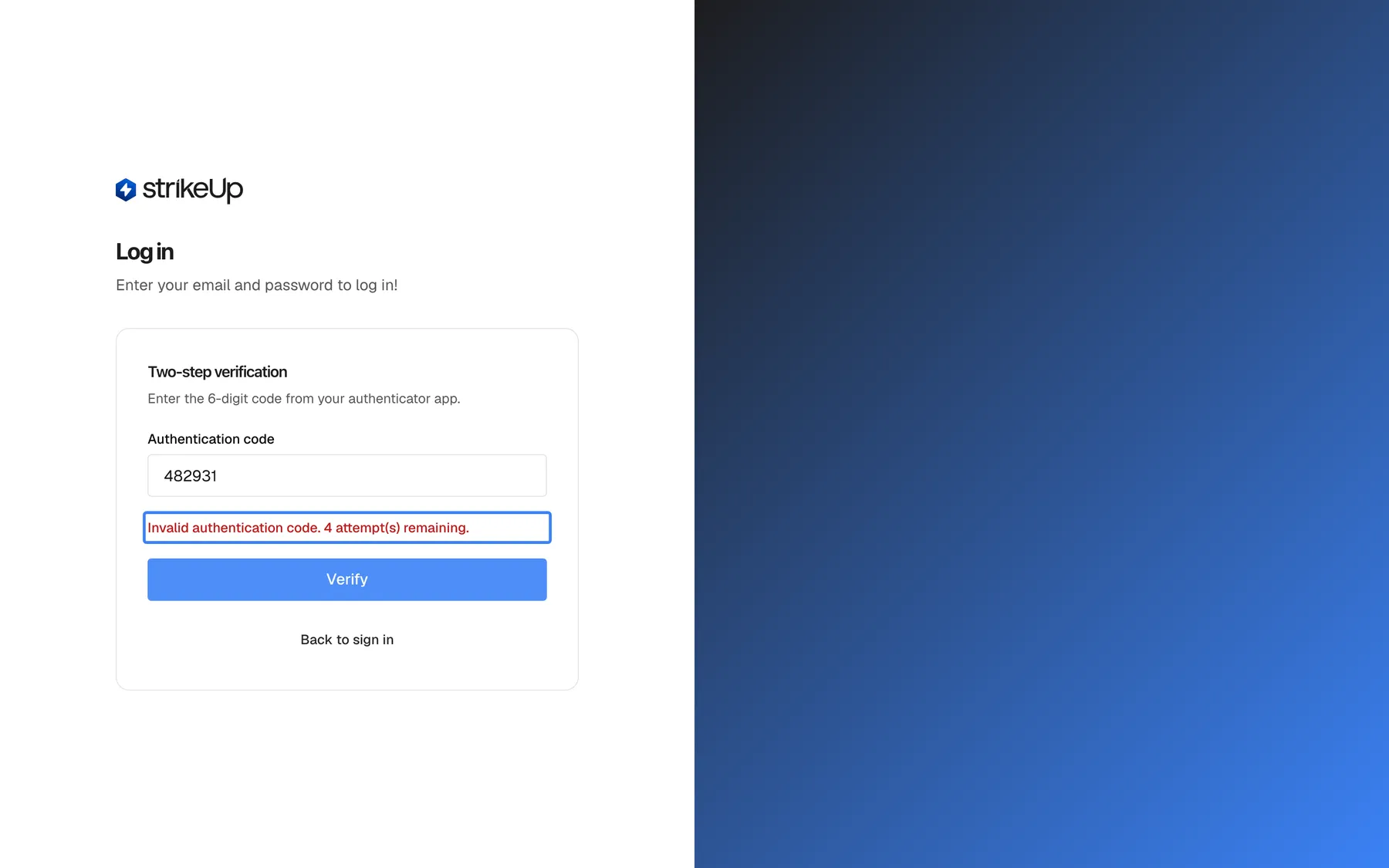
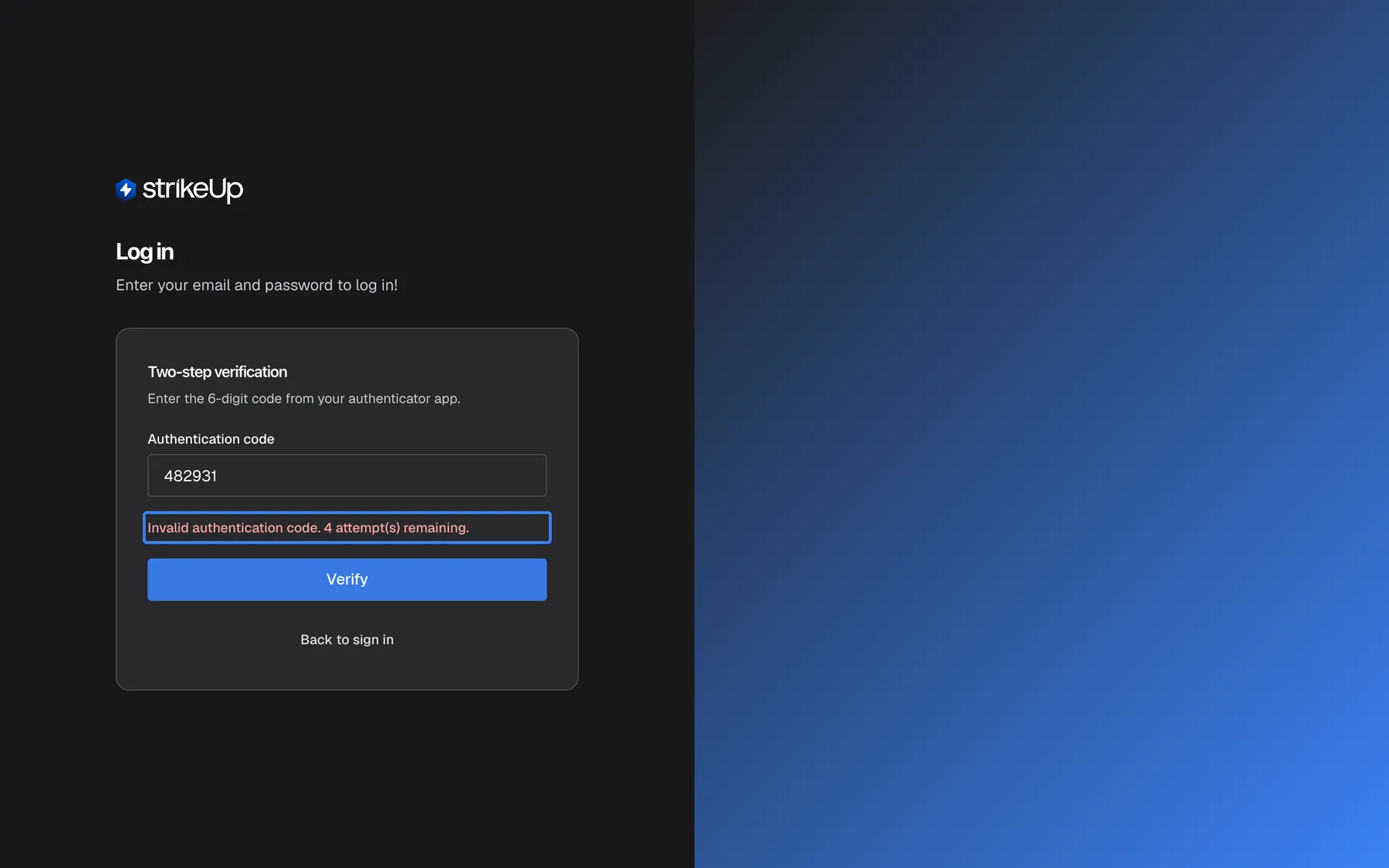
What this screenshot shows
- Screen
- Log in (/auth/sign-in)
- Highlighted
- error-text “”, sign-in-card-middle, visible. none
- Also visible
- Authentication code: 482931; Verify and Back to sign in buttons
- Purpose
- wrong-code error at the sign-in challenge
Setup forced by the company
Section titled “Setup forced by the company”When the company requires two-factor authentication and you have no authenticator, sign-in shows the setup instead of the code step. Scan the code with your app, select Next, type the code and select Verify & enable. A wrong code here shows Invalid authentication code. Please try again. and does not count towards the 15-minute block. Cancel returns to the password form, but you cannot get in without finishing.
Why: a policy that members could skip at sign-in would protect nobody.
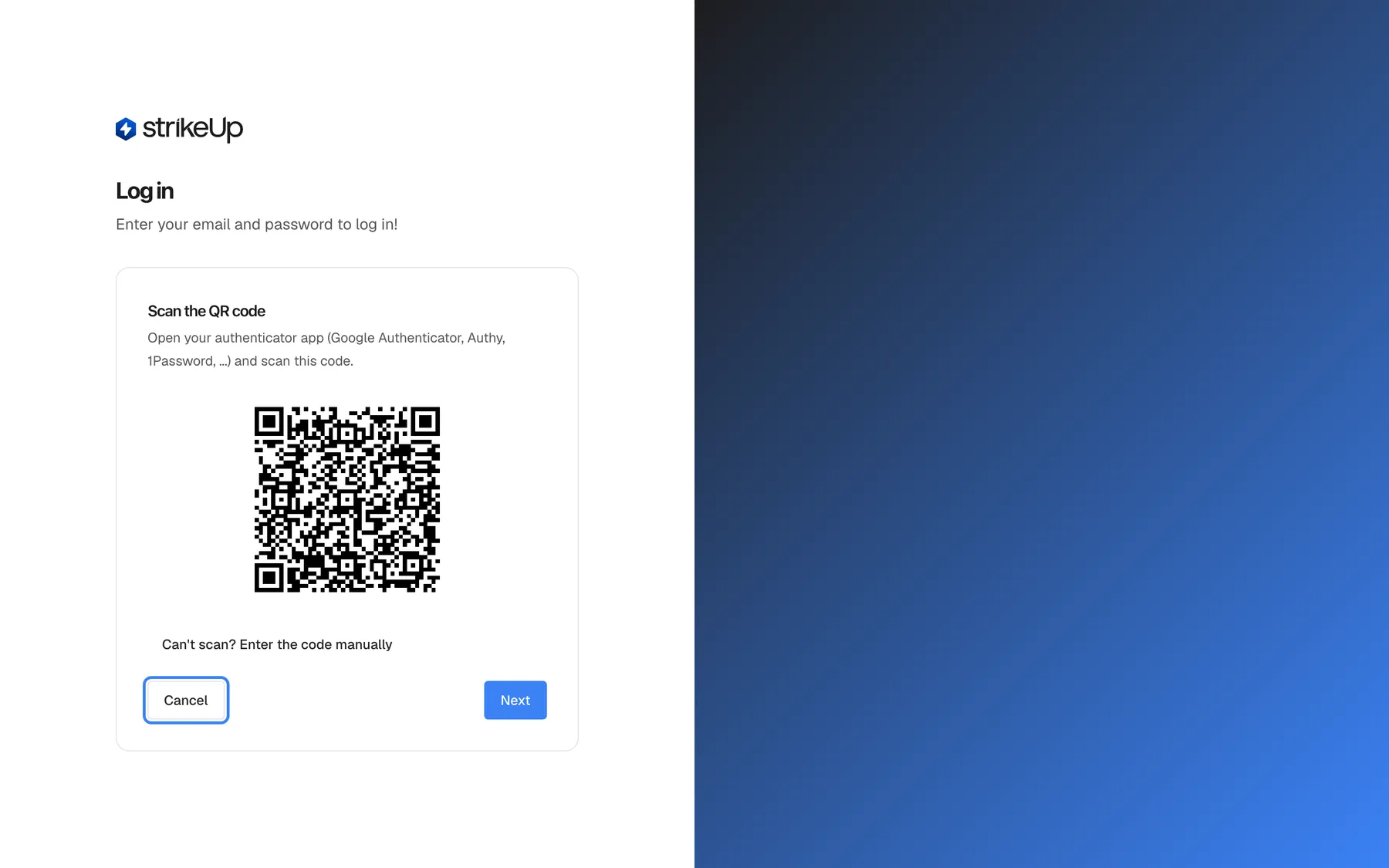
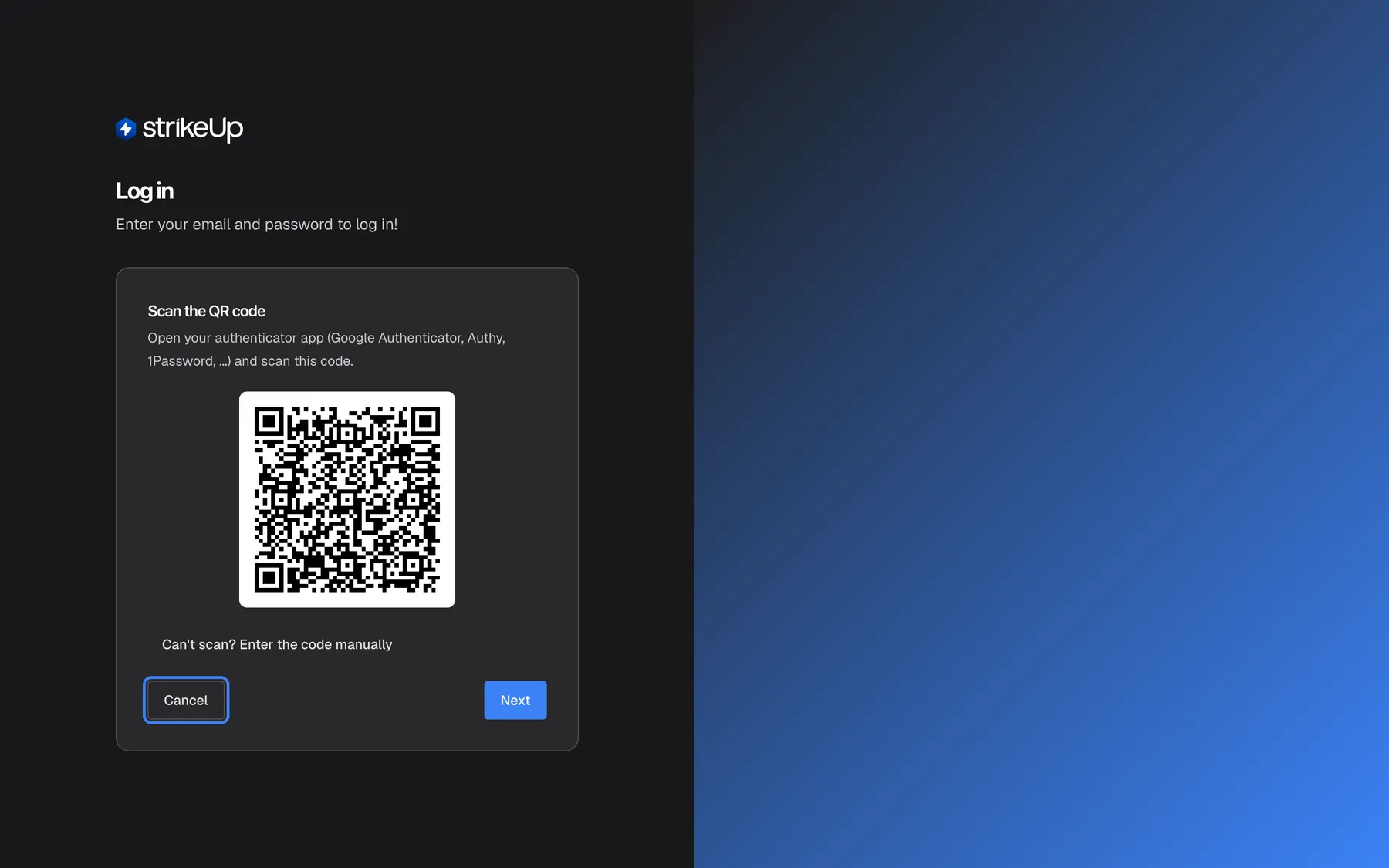
What this screenshot shows
- Screen
- Log in (/auth/sign-in)
- Highlighted
- button “Cancel”, sign-in-card-bottom-left, enabled. returns to the email and password form without signing in
- Also visible
- Scan the QR code heading and QR code (fictional); Next button
- Purpose
- forced enrolment at sign-in under a company requirement
What you need to know
Section titled “What you need to know”| Topic | Fact |
|---|---|
| Codes | 6 digits, a new one every 30 seconds, from any standard authenticator app. The entry in the app is StrikeUp: followed by your email address. |
| Clock tolerance | About 30 seconds either way. |
| Code step | Valid for 5 minutes after the password. |
| Wrong codes | 5 in a row at sign-in block codes for 15 minutes. Wrong codes while switching on, switching off or during a forced setup do not count. |
| Reused codes | A code works once; entering it again counts as a wrong code at sign-in. |
| Lost phone | There are no backup codes and no self-service recovery. An administrator cannot reset it in the app either; contact StrikeUp support. |
| Password reset | Does not switch two-factor authentication off. |
| Turning the company switch on | Does not sign anyone out. Members set up an authenticator at their next sign-in. |
| Turning the company switch off | Removes nobody’s two-factor authentication. |
| Storage | The secret behind your codes is stored encrypted. |
| Rate limit | Code requests share the sign-in limit of 10 requests a minute for your network address. |
| Language | Some messages from the server are in English in every interface language. |
Frequently asked questions
Section titled “Frequently asked questions”General
Section titled “General”Which authenticator apps work with StrikeUp?
Section titled “Which authenticator apps work with StrikeUp?”Any app that creates standard time-based 6-digit codes. The setup names Google Authenticator, Authy and 1Password as examples. Install the app on a phone you keep with you, then scan the QR code shown when you select Enable 2FA on SettingsProfile.
Can StrikeUp send me the code by text message or email instead?
Section titled “Can StrikeUp send me the code by text message or email instead?”No. StrikeUp supports codes from an authenticator app only. There are no text-message or email codes, so you need an authenticator app on your phone to use two-factor authentication or to work in a company that requires it.
Are there backup or recovery codes?
Section titled “Are there backup or recovery codes?”No. StrikeUp does not issue backup codes. Keep your authenticator app safe, and when you change phones use Reset authenticator on SettingsProfile while you still have the old phone, so your account moves to the new one without a gap.
Does two-factor authentication apply to our customers in the chat widget?
Section titled “Does two-factor authentication apply to our customers in the chat widget?”No. It protects the accounts of your team in the StrikeUp admin app only. End customers who use your chat widget sign in, if your widget requires it, with their own PIN or password, and never see an authenticator step.
Does it cost anything?
Section titled “Does it cost anything?”No. Two-factor authentication is part of every StrikeUp company at no cost, for every role. You need only a free authenticator app on your phone.
How do I switch on two-factor authentication for my account?
Section titled “How do I switch on two-factor authentication for my account?”Go to SettingsProfile, select Enable 2FA in the card Two-Factor Authentication, scan the QR code with your authenticator app, select Next, type the 6-digit code the app shows and select Verify & enable.
The QR code will not scan. What can I do?
Section titled “The QR code will not scan. What can I do?”Select Can't scan? Enter the code manually under the QR code. StrikeUp shows the setup key in groups of four characters, with Copy. Add a new account in your authenticator app by entering this key instead of scanning, then continue with Next.
Can a User or Guest switch on two-factor authentication?
Section titled “Can a User or Guest switch on two-factor authentication?”Yes. Every role can manage two-factor authentication for its own account on SettingsProfile, even though Users and Guests cannot save other changes in StrikeUp. Only requiring it for the whole company needs the Admin role.
Codes and sign-in
Section titled “Codes and sign-in”How often does the code change?
Section titled “How often does the code change?”Every 30 seconds. StrikeUp also accepts the code just before and just after the current one, so a code that changes while you type it usually still works. If it is about to change, waiting for the next one is the safer choice.
My code is refused although I typed it correctly. Why?
Section titled “My code is refused although I typed it correctly. Why?”The most common cause is the phone’s clock: let your phone set the time automatically. Also check that you used the entry StrikeUp: followed by your email address, not an older entry. A code that was already accepted once is also refused, so wait for the next code.
How many wrong codes can I enter at sign-in?
Section titled “How many wrong codes can I enter at sign-in?”Five in a row. Each wrong code shows how many attempts remain. After the fifth, StrikeUp refuses every code, even a correct one, for 15 minutes and shows “Too many incorrect codes. Please wait a few minutes and try again.” After the 15 minutes you have five attempts again.
Why did a correct code not let me in?
Section titled “Why did a correct code not let me in?”Either the code step had expired, because more than 5 minutes passed after your password, or codes were blocked after five wrong ones. The first shows “Your verification session has expired. Please sign in again.”; the second shows “Too many incorrect codes…” and lasts 15 minutes.
Can I cancel the authenticator setup that appears when I sign in?
Section titled “Can I cancel the authenticator setup that appears when I sign in?”Yes, Cancel returns you to the email and password form, but you cannot get into StrikeUp without finishing it while your company requires two-factor authentication. During an invitation the setup has no cancel option at all.
Phones and recovery
Section titled “Phones and recovery”I am getting a new phone. How do I move two-factor authentication?
Section titled “I am getting a new phone. How do I move two-factor authentication?”Before you give up the old phone, sign in, open SettingsProfile, select Reset authenticator, scan the new QR code with the app on the new phone and confirm a code. The old phone keeps working until that moment, then stops.
I lost my phone. How do I get back into StrikeUp?
Section titled “I lost my phone. How do I get back into StrikeUp?”There is no self-service recovery and no backup codes, and an administrator cannot reset your two-factor authentication from the Users page either. Contact StrikeUp support with your account’s email address; support can reset it, after which you sign in with your password and set up a new authenticator.
Does resetting my password switch off two-factor authentication?
Section titled “Does resetting my password switch off two-factor authentication?”No. After a password reset you still enter a code from your authenticator app after the new password. A password reset helps when you forgot the password, not when you lost the phone.
The company policy
Section titled “The company policy”Who can require two-factor authentication for the whole company?
Section titled “Who can require two-factor authentication for the whole company?”Only administrators. The switch Require Two-Factor Authentication is the last card on SettingsCompany. Users and Guests see it greyed out with Only administrators can change this setting.
Does requiring two-factor authentication sign everyone out?
Section titled “Does requiring two-factor authentication sign everyone out?”No. Members who are signed in keep working. The rule applies at each member’s next sign-in, when anyone without an authenticator has to set one up before getting in. New members set it up while accepting their invitation.
What happens to people we invite after turning the switch on?
Section titled “What happens to people we invite after turning the switch on?”They set up their authenticator straight after choosing their password on the invitation page, with no option to skip or cancel, and only then reach StrikeUp. From then on every sign-in asks them for a code.
Can a member turn two-factor authentication off while the company requires it?
Section titled “Can a member turn two-factor authentication off while the company requires it?”No. While the switch is on, the Disable 2FA button is hidden from every profile and the card shows Required by your company — it cannot be turned off. Members can still move to a new phone with Reset authenticator.
If we turn the company switch off again, is everyone’s two-factor authentication removed?
Section titled “If we turn the company switch off again, is everyone’s two-factor authentication removed?”No. Turning the switch off only stops forcing it. Every member who set up an authenticator keeps it and is still asked for a code, until they switch it off themselves from SettingsProfile with a current code.
Data and privacy
Section titled “Data and privacy”Where is my authenticator secret stored?
Section titled “Where is my authenticator secret stored?”StrikeUp stores the secret behind your codes in its database in encrypted form, together with the date you switched two-factor authentication on and the count of recent wrong codes. Nobody in your company can read the secret or see your codes.
Troubleshooting
Section titled “Troubleshooting”| Symptom | What to check |
|---|---|
| “Invalid authentication code. N attempt(s) remaining.” | In order: the phone sets its time automatically; you used the entry StrikeUp: with this email address; the code had not just changed; you did not enter the same code twice. |
| “Too many incorrect codes. Please wait a few minutes and try again.” | Five wrong codes in a row. Wait 15 minutes; until then even correct codes are refused. |
| “Your verification session has expired. Please sign in again.” | More than 5 minutes passed after your password. Sign in again and enter the code promptly. |
| “Invalid authentication code.” while switching on or off | Type the code currently shown by the app you just scanned, or for switching off, by the app linked to your account. |
| “No pending 2FA setup to confirm. Start setup again.” | The setup was started elsewhere or replaced. Close the dialog and select Enable 2FA or Reset authenticator again. |
| “Two-factor authentication is required by your company and cannot be disabled.” | The company switch is on. Ask an administrator, or keep it on and use Reset authenticator to change phones. |
| “Two-factor authentication is already set up for this account. Enter a code from your authenticator app.” | Your account already has an authenticator. Use the code from it instead of setting up another. |
| The QR code does not scan | Select Can't scan? Enter the code manually and type the key into the app. |
| The profile card shows Two-factor authentication is not enabled. although sign-in asks you for codes | The card could not load your status. Reload the page before selecting Enable 2FA. |
| The company switch is greyed out | You are not an administrator. Ask an Admin of your company to change it. |
| Lost or broken phone | No self-service recovery exists. Contact StrikeUp support. |