

Plan and simulate tool policies
One widget often serves customers who should see different parts of your product: a free plan that can only look up invoices, a paid plan that can also issue refunds. Tool access policies let you describe those sets of tools under a short key, and the simulation shows exactly which tools the assistant gets on a widget for any combination of keys. This guide covers what a policy is, how StrikeUp builds a session’s tool list from it, every setting, and the limits you need to know before you rely on it.
What it does
Section titled “What it does”The assistant can call every active tool of the toolkits linked to a widget. When different customers should see different tools, you need a way to name each set and to check what a given combination produces before customers meet it.
A tool access policy is a name, a key and a set of tools. A chat session that carries one or more policy keys is offered only the tools mapped to those keys; a session without keys is offered every active tool of the widget’s toolkits. From there:
- You define each set once, by name and key, and pick its tools from your toolkits. Every setting, explained.
- Several keys add up, so you can build tiers from small building blocks. Understanding policy keys.
- The simulation shows the exact tool list for a widget and any choice of policies, and compares two set-ups side by side. Tool policies in the simulation.
Policies restrict customers your backend signs in. Only your own backend gives a customer policy keys, in the one-time login ticket it signs the customer in with; the page that embeds the widget cannot set or change them. Customers who sign in any other way carry no keys and are offered every active tool. So keep switched-off tools, approvals and the permission checks in your own API, also as a second line of defence.
StrikeUp shows no record of which keys a session carried. To check a policy, use the simulation, which applies the same rule as live chats.
Before you start
Section titled “Before you start”| Requirement | Details |
|---|---|
| Plan or add-on | None. Every workspace has SecurityTool Policies. |
| Role | The Admin role to create, change and delete policies and to run the simulation. Other members can view the policy list. |
| Toolkits with active tools | Policies are built from tools switched on at ConfigureToolkits. Switched-off tools are never offered. |
| A widget linked to toolkits | The simulation and live sessions use the toolkits linked to the widget. |
| Cost | None. Policies and the simulation use no AI and count towards no quota. |
Understanding policy keys
Section titled “Understanding policy keys”A session’s tool list is built from the widget’s toolkits and the keys the session carries:
| Keys the session carries | Tools the assistant gets from the widget’s toolkits | Example on Demo Ltd’s support chat |
|---|---|---|
| None | Every active tool | 34 tools |
| One key | The active tools mapped to that key | view_invoices: listInvoices, getInvoice, resendInvoice, exportInvoicesCsv |
| Several keys | Every active tool mapped to any of them | view_invoices and manage_subscriptions: 9 tools |
| A key that matches no mapped tool | None | view_invoice (typo) or a key from another toolkit’s policy: 0 tools |
| The key of an inactive policy | None | read_only while inactive: 0 tools |
How StrikeUp decides
Section titled “How StrikeUp decides”- Keys come from your backend. A session carries the keys your backend listed in the customer’s login ticket. Customers who sign in any other way carry none.
- No keys means no narrowing. A session without keys, or with an empty list, gets every active tool of the widget’s toolkits.
- Keys add up. With several keys, a tool is offered if it is mapped to any of them. A tool mapped to two keys appears once.
- Keys match exactly. Upper and lower case count, so
View_Invoicesdoes not matchview_invoices. Keys can only be created in lower case. - Only active tools. A tool switched off on the Toolkits page is never offered, whatever the policies say.
- Only active policies grant. A key whose policy is Inactive, deleted or unknown grants nothing. Setting a policy back to Active restores its tools.
- Changes reach open chats. A change to a policy’s key, status or tools applies from the customer’s next message, also in chats that are already open. New keys from a login ticket reach the customer’s chats the next time the widget connects.
- Tool names must be unique on a widget. If two of a widget’s toolkits have a tool with the same name, the tool list cannot be built and the chat turn fails.
What policies do not affect
Section titled “What policies do not affect”- StrikeUp’s built-in notification tools, which a session can get regardless of keys.
- Guardrails, data masking and the knowledge base. Masking still applies to the responses of whatever tools remain, and approval still applies to tools marked Requires User Approval.
- Sessions started by workflows and autonomous agents. They carry no keys, so they get every active tool.
- Conversations that already happened.
Setting it up in four steps
Section titled “Setting it up in four steps”-
Open the policy list. Go to SecurityTool Policies. The page shows every policy with the tools it grants.
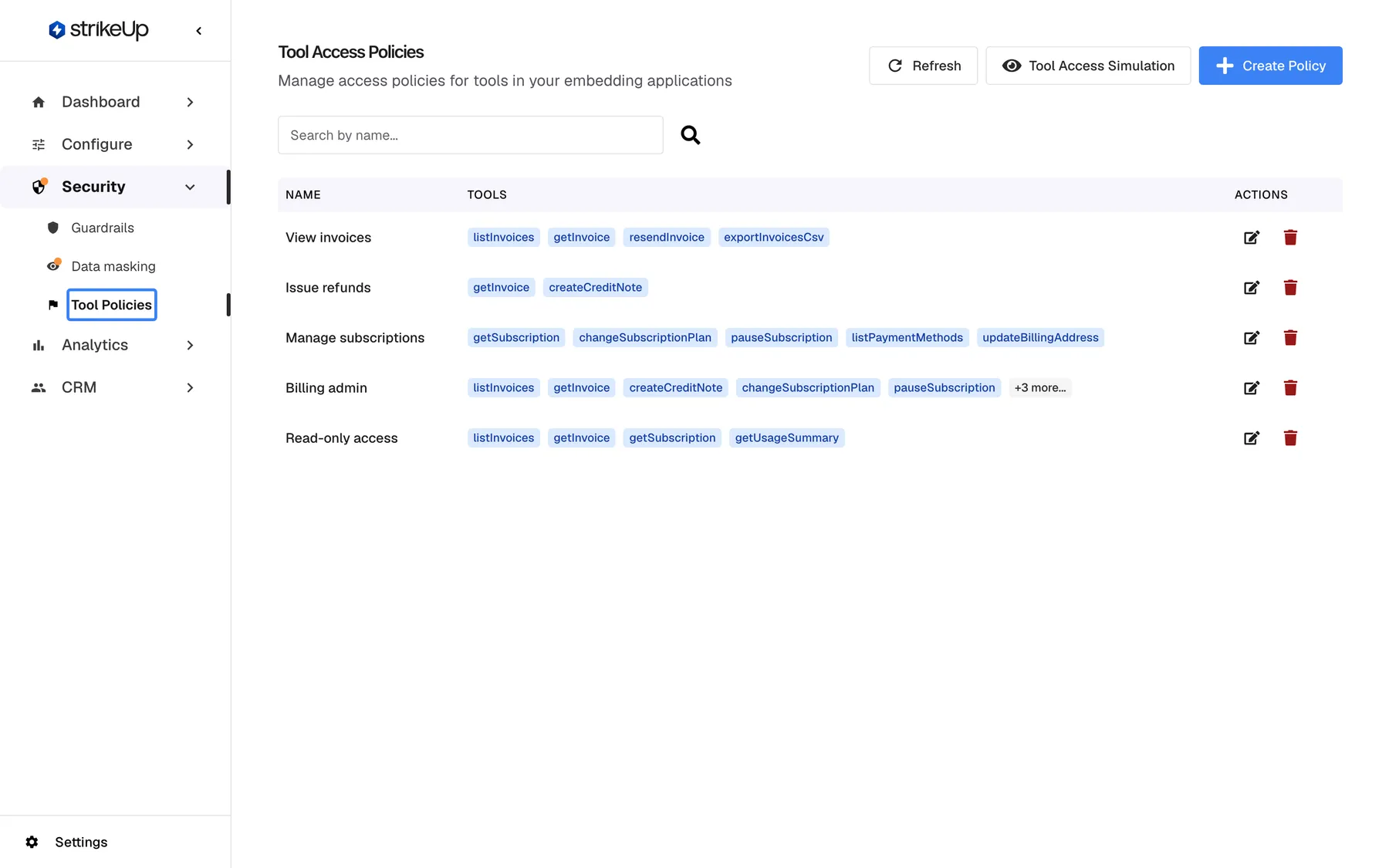
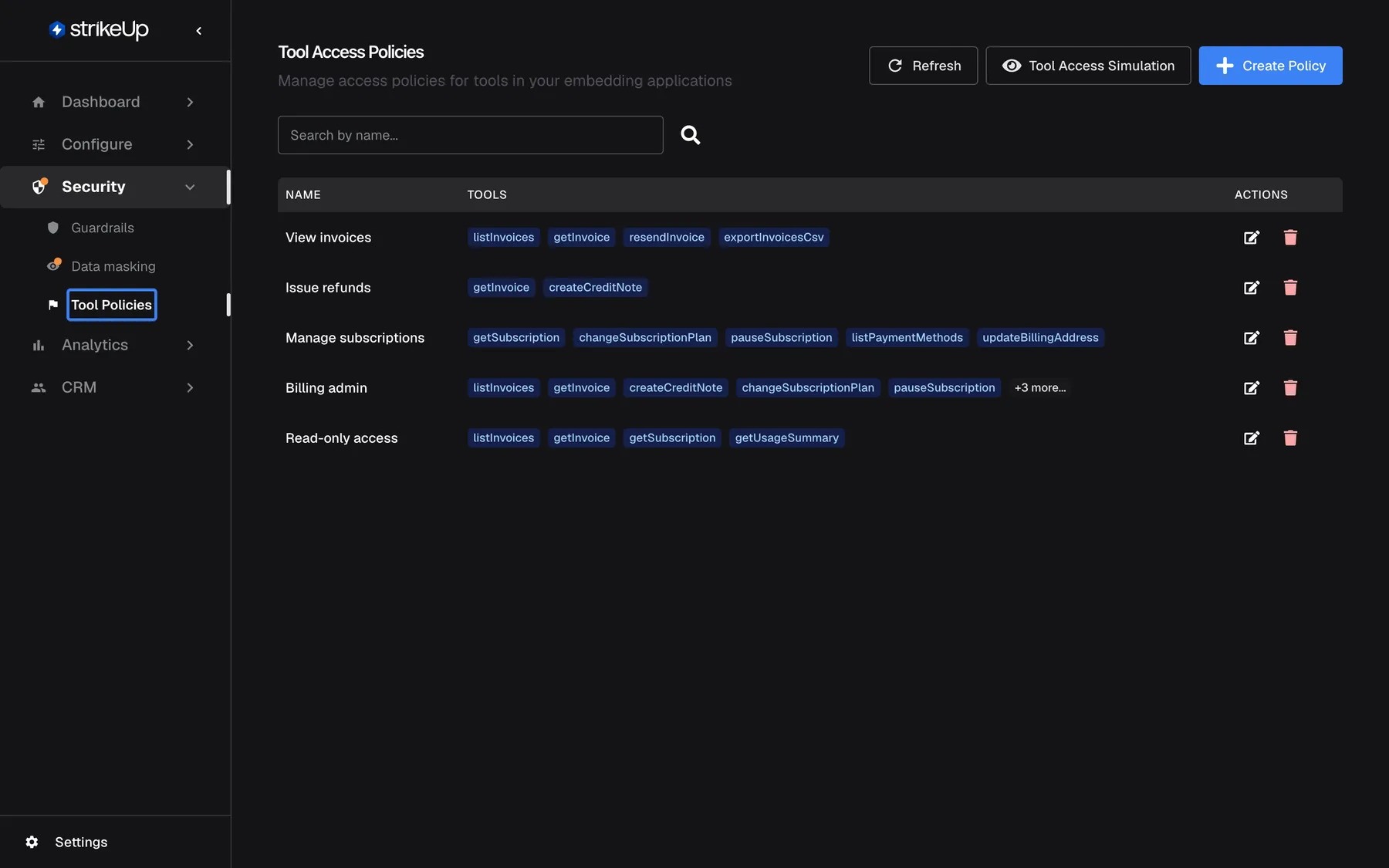
Tool access policies live under Security › Tool Policies. What this screenshot shows
- Screen
- Tool Policies (/admin/feature-flags)
- Highlighted
- “”, sidebar-security-group, current page. opens the Tool Access Policies list
- Also visible
- Security group expanded: Guardrails, Data masking, Tool Policies; Policy list with five policies
- Purpose
- entry point of the feature
-
Create one policy per building block. Select Create Policy, enter a name and a key such as
view_invoices, choose a toolkit, tick the tools and select Create Flag. Small policies, such as “View invoices” and “Issue refunds”, combine more easily than one policy per plan. -
Check each policy in the simulation. Select Tool Access Simulation, choose the widget, and tick the policy. Available Tools shows exactly what a session with that key gets.
-
Compare your tiers (optional). Switch to Compare, set up both tiers as scenarios, and select Compare Results to see what the higher tier adds.
Then give customers their keys. Your backend lists each customer’s policy keys when it signs the customer in with a one-time login ticket. Until it does, customers are offered every active tool.
Every setting, explained
Section titled “Every setting, explained”A policy has six settings. The create dialog Create Feature Flag asks for the first five; status and further toolkits are set in the edit dialog Edit Feature Flag.
Name, how your team recognises the policy
Section titled “Name, how your team recognises the policy”Key, the identifier a session carries
Section titled “Key, the identifier a session carries”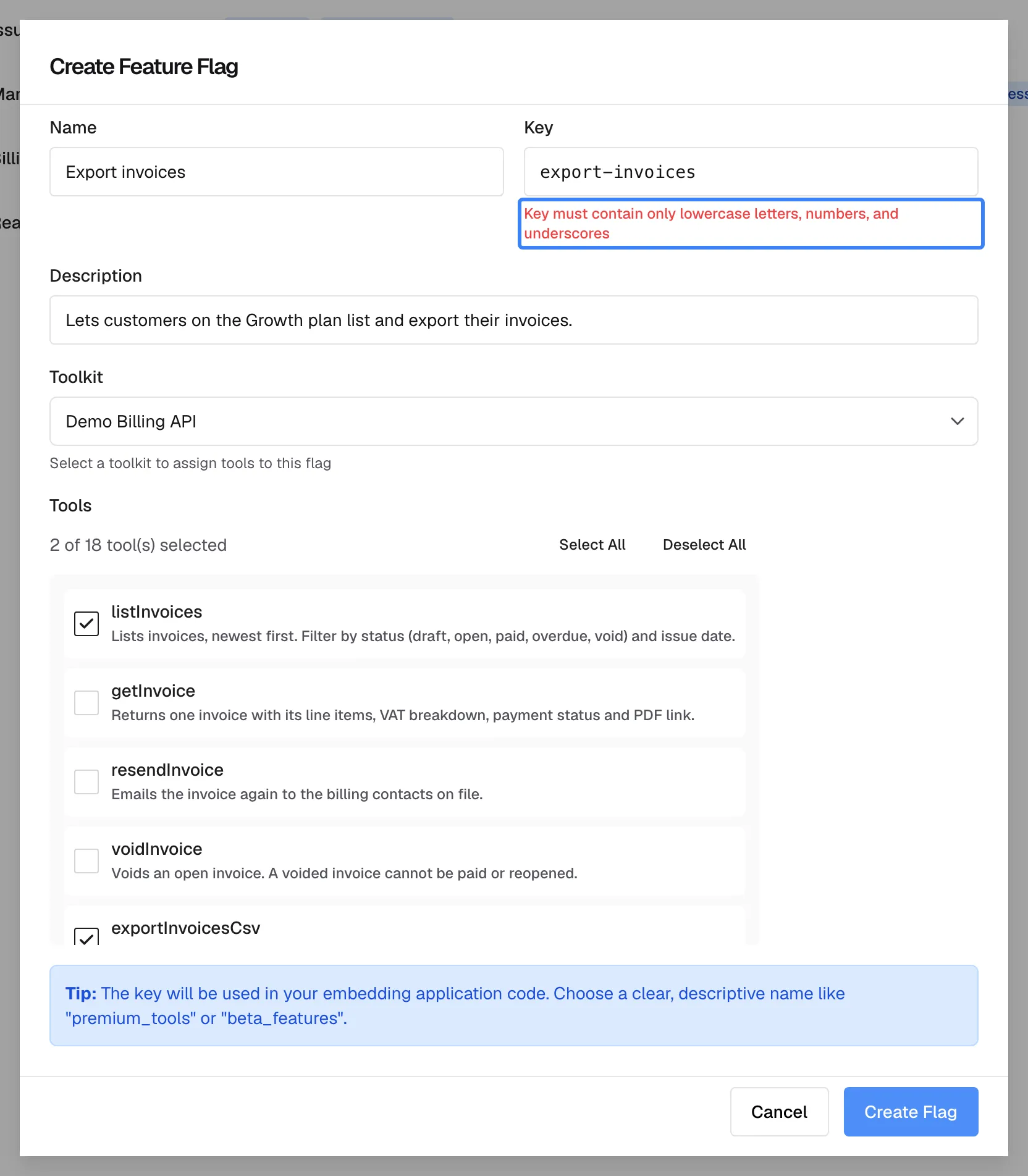
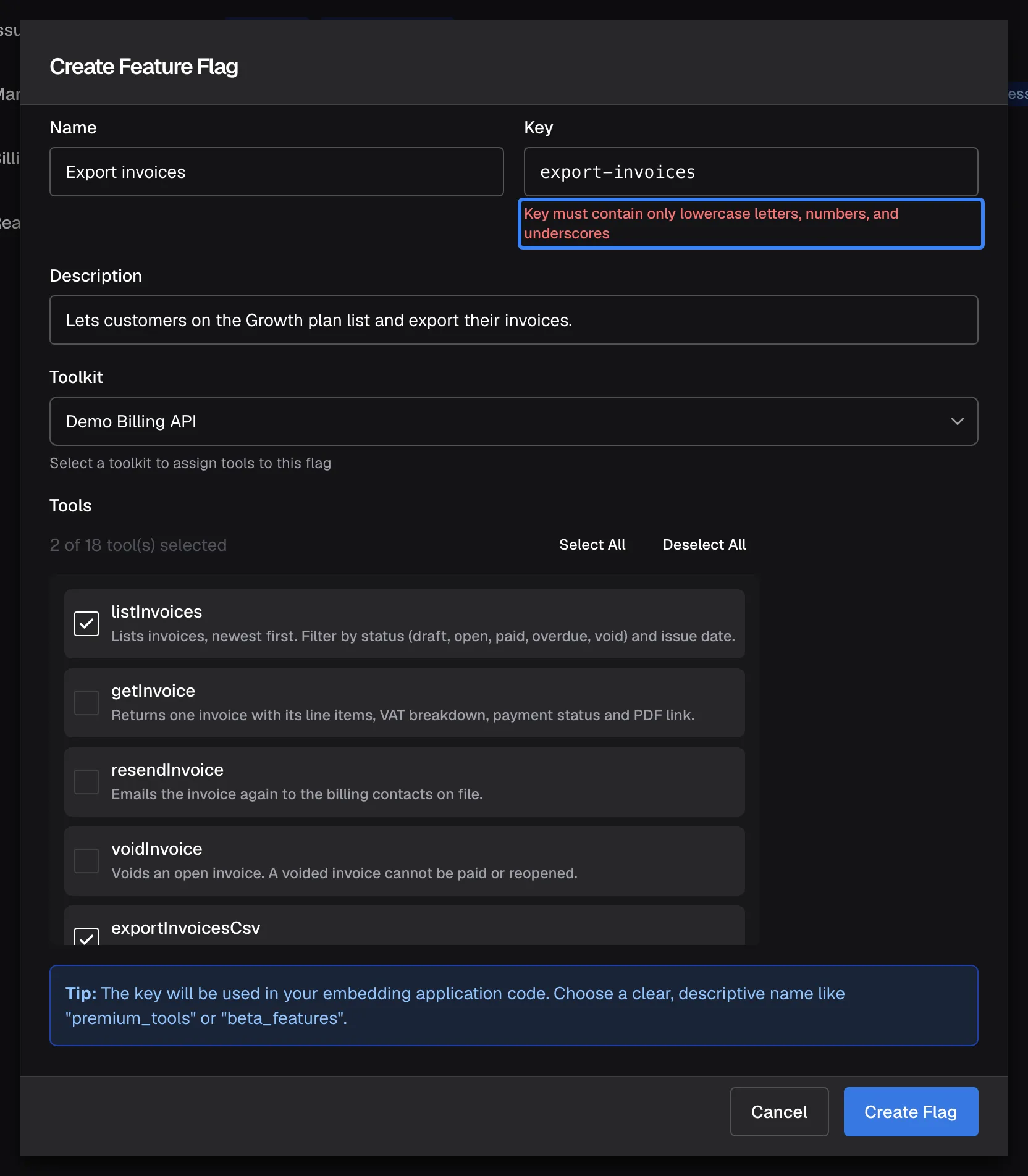
What this screenshot shows
- Screen
- Create Feature Flag (/admin/feature-flags)
- Highlighted
- “”, dialog-key-field-error, shown after Create Flag. blocks saving until the key is valid
- Also visible
- Key export-invoices marked invalid
- Purpose
- validation error for a key with a hyphen
| Do | Don’t |
|---|---|
Name what the key grants: view_invoices, issue_refunds | Use hyphens or capitals: View-Invoices |
| Keep one key per building block | Put plan names in keys you may rename later |
| Change a key here and in your backend at the same time | Rename a key while your backend still sends the old one |
Description, the note for your team
Section titled “Description, the note for your team”Toolkit, where the tools come from
Section titled “Toolkit, where the tools come from”Tools, what the policy grants
Section titled “Tools, what the policy grants”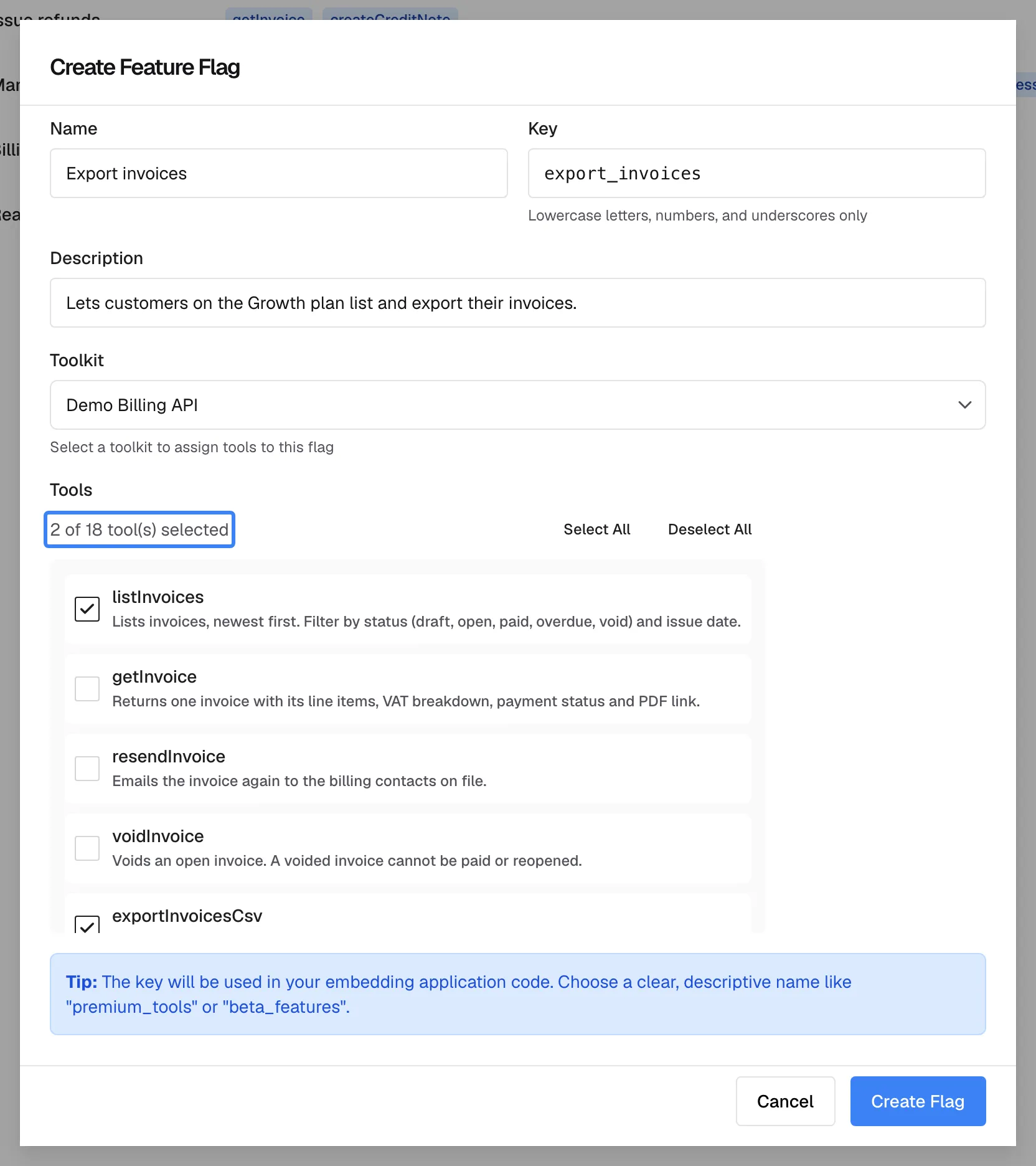
What this screenshot shows
- Screen
- Create Feature Flag (/admin/feature-flags)
- Highlighted
- “”, dialog-tools-header, 2 of 18 selected. counts the ticked tools
- Also visible
- Name Export invoices, key export_invoices, toolkit Demo Billing API; listInvoices and exportInvoicesCsv ticked
- Purpose
- choose the tools a policy grants
Status, whether the policy grants its tools
Section titled “Status, whether the policy grants its tools”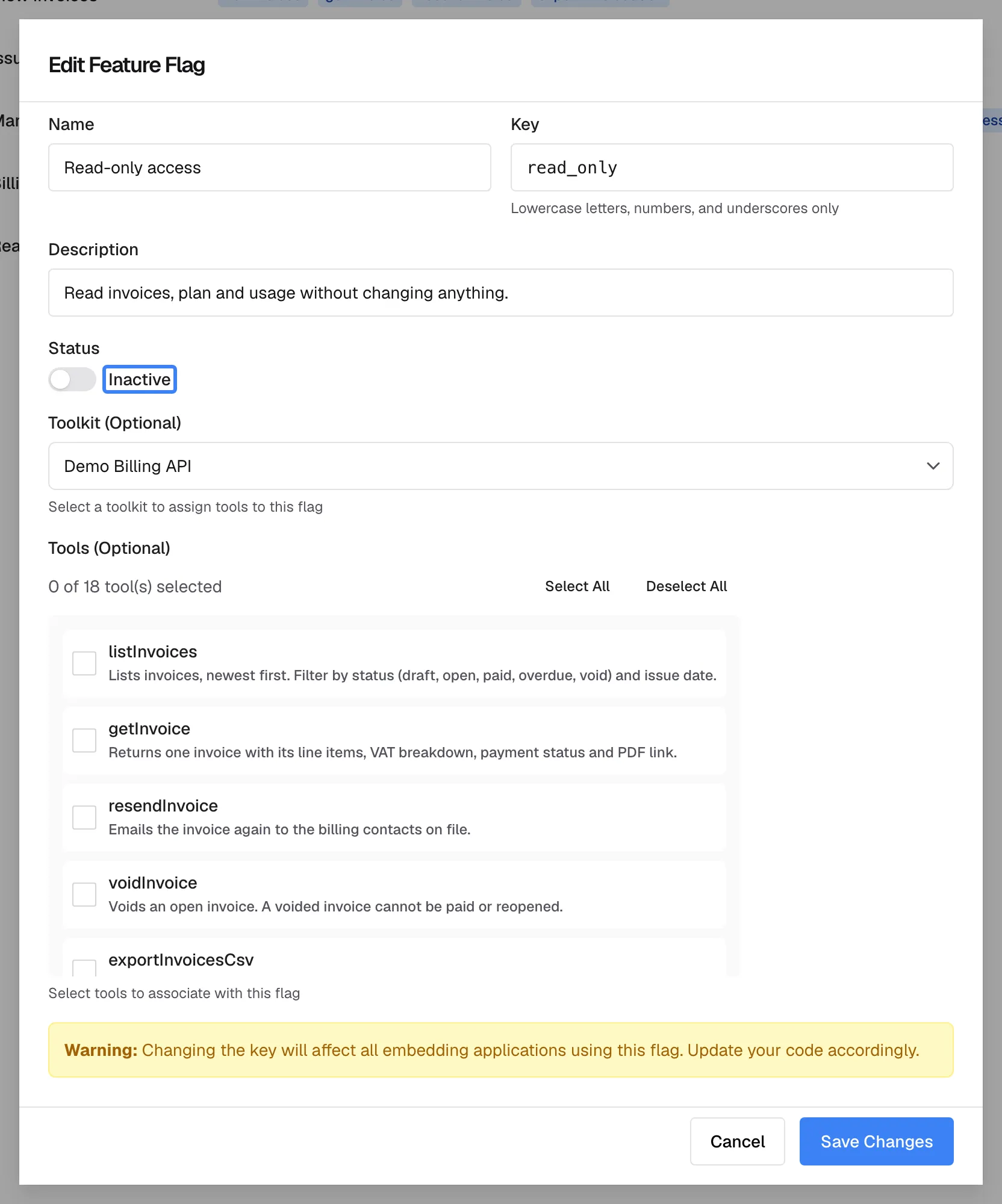
What this screenshot shows
- Screen
- Edit Feature Flag (/admin/feature-flags)
- Highlighted
- switch “Status”, dialog-status, Inactive. switches the policy between Active and Inactive
- Also visible
- Name Read-only access, key read_only; Warning box about key changes
- Purpose
- what the status switch does (and does not) do
How the settings combine
Section titled “How the settings combine”| Tools mapped | Status | A session carrying the key gets | Appears in the simulation |
|---|---|---|---|
| Some | Active | The mapped tools that are active | Yes |
| Some | Inactive | Nothing from the widget’s toolkits | No |
| None | Either | Nothing from the widget’s toolkits | Only when active |
| Mapped, but all switched off on the Toolkits page | Either | Nothing from the widget’s toolkits | Only when active |
Tool policies on the policy list
Section titled “Tool policies on the policy list”The list and its search
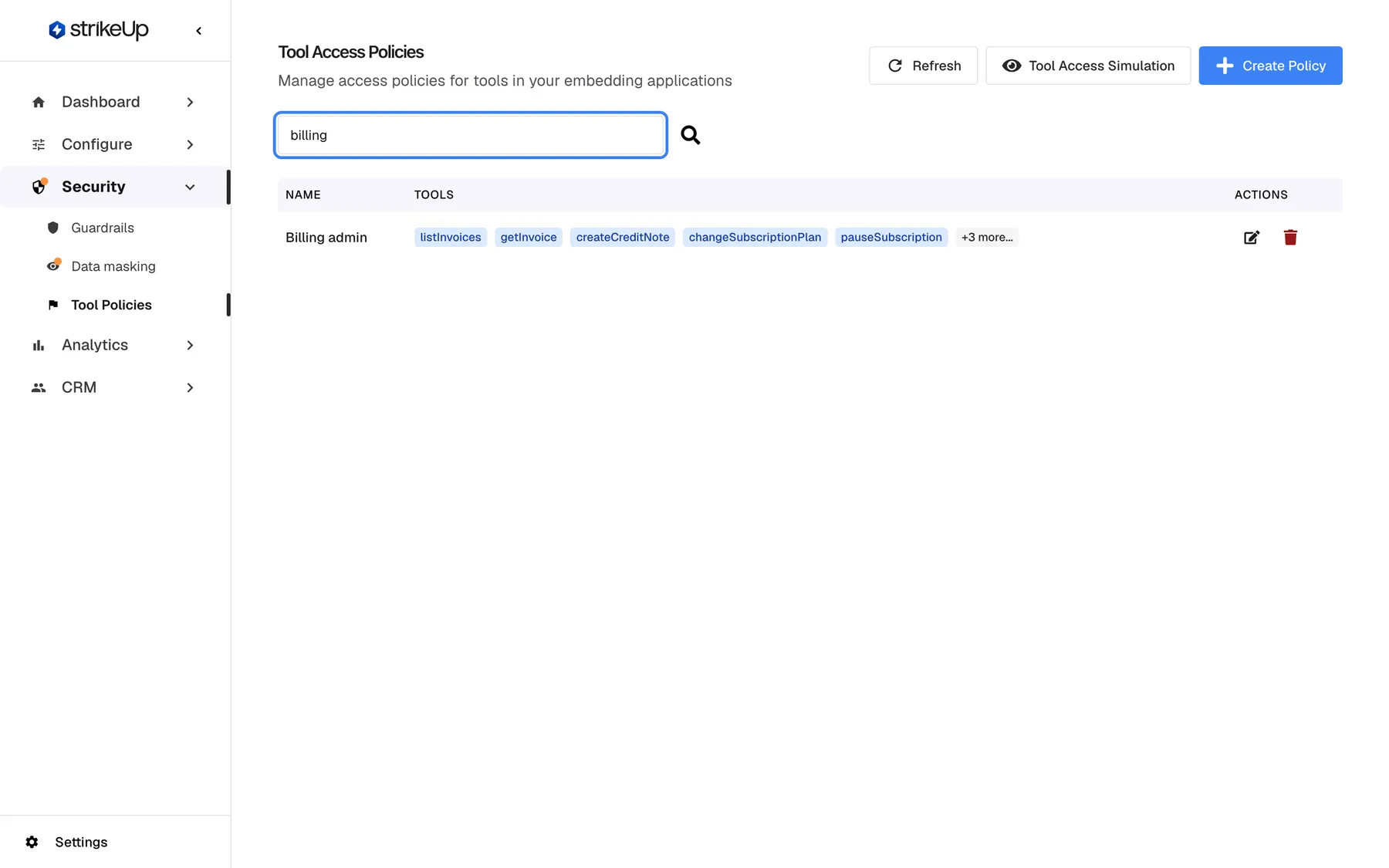
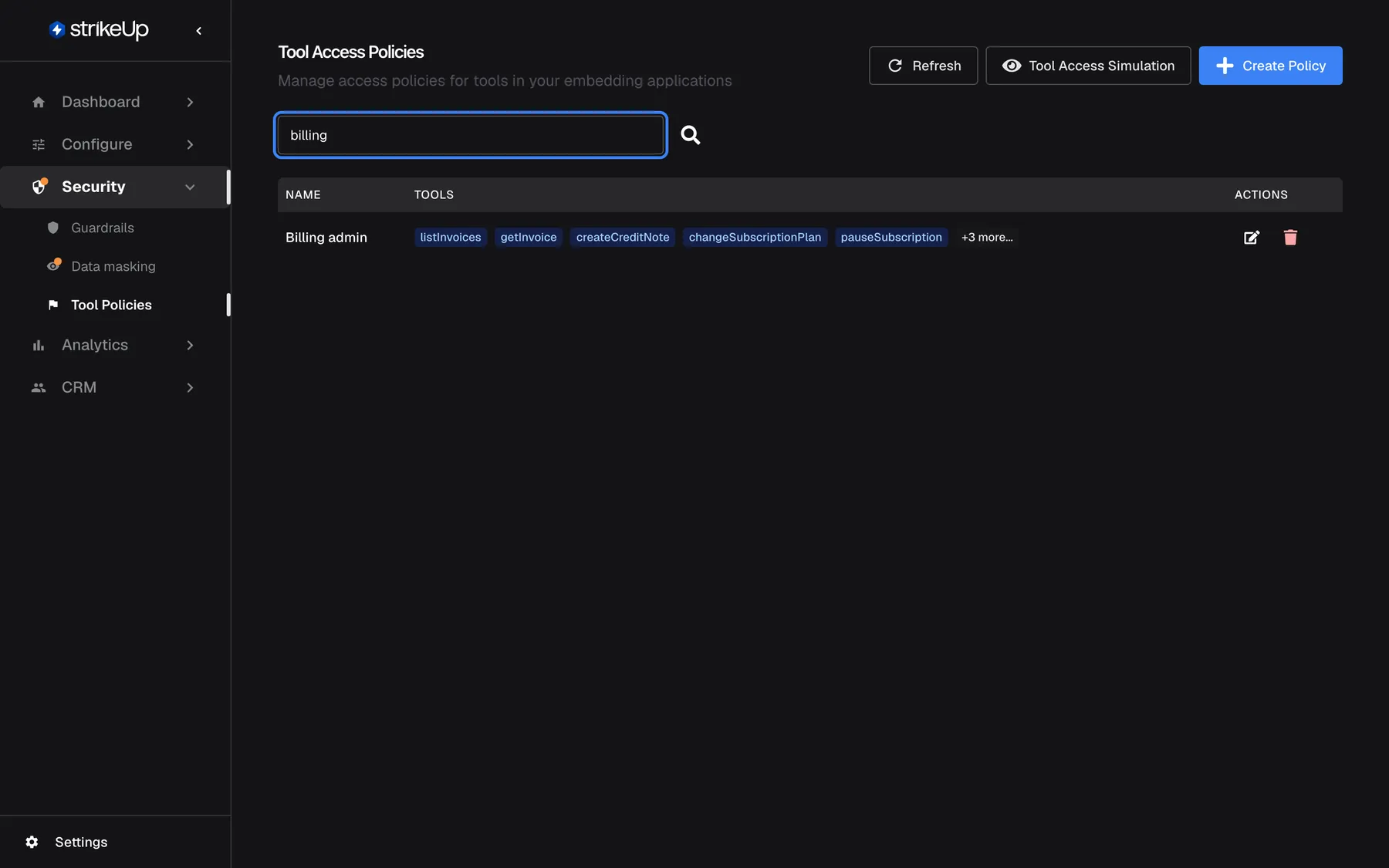
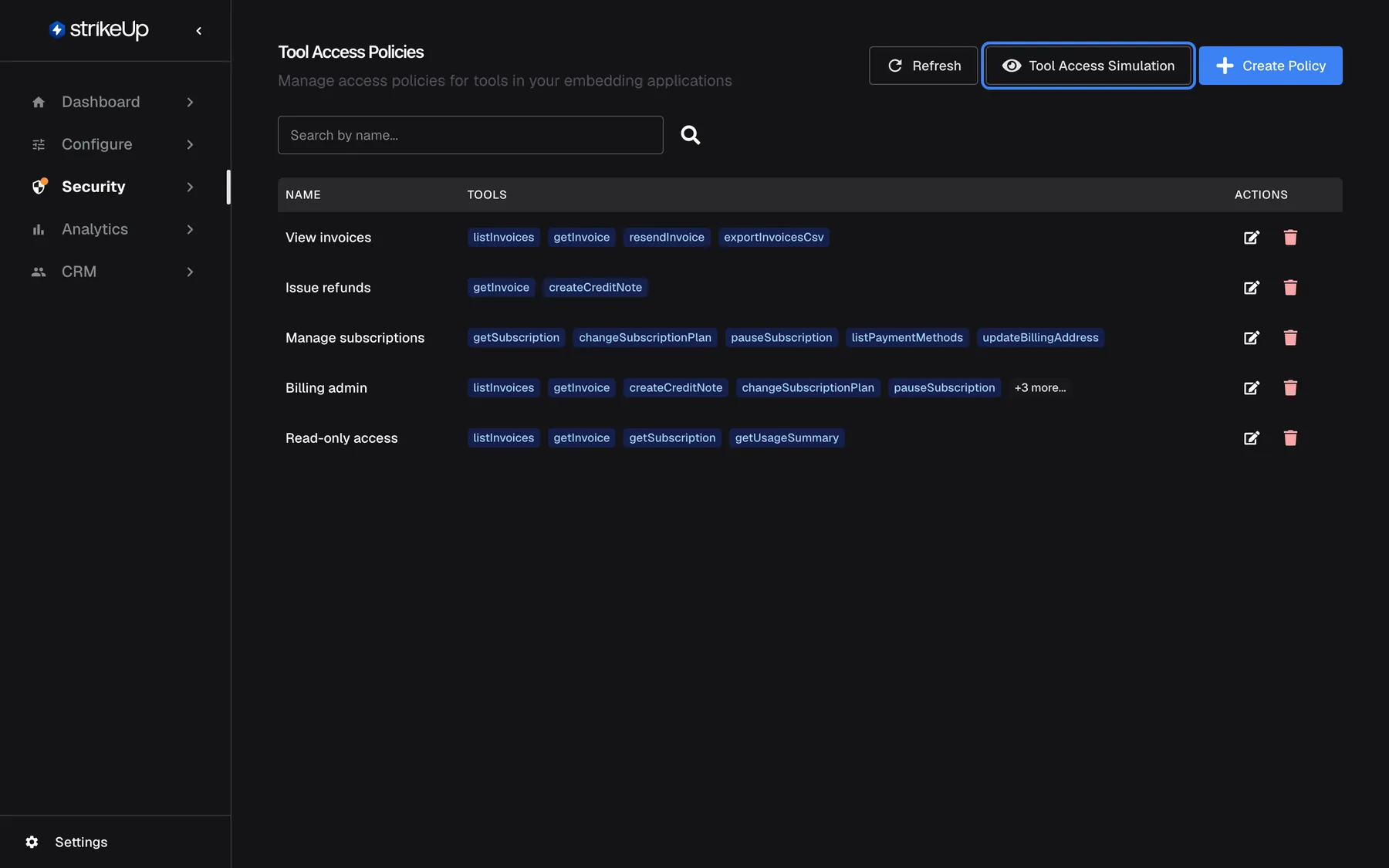
Section titled “The list and its search”The policy list shows each policy’s name and up to five of its tools as badges, then +{{count}} more.... Tools from all toolkits are shown together. The search box filters by name only, as you type.
Why: the list is where you see at a glance which tools each policy grants, without opening it.
What this screenshot shows
- Screen
- Tool Access Policies (/admin/feature-flags)
- Highlighted
- textbox “Search by name...”, above-table-left, contains "billing". filters the list by policy name
- Also visible
- One result: Billing admin with 5 tool badges and +3 more
- Purpose
- find a policy in a long list
Deleting a policy
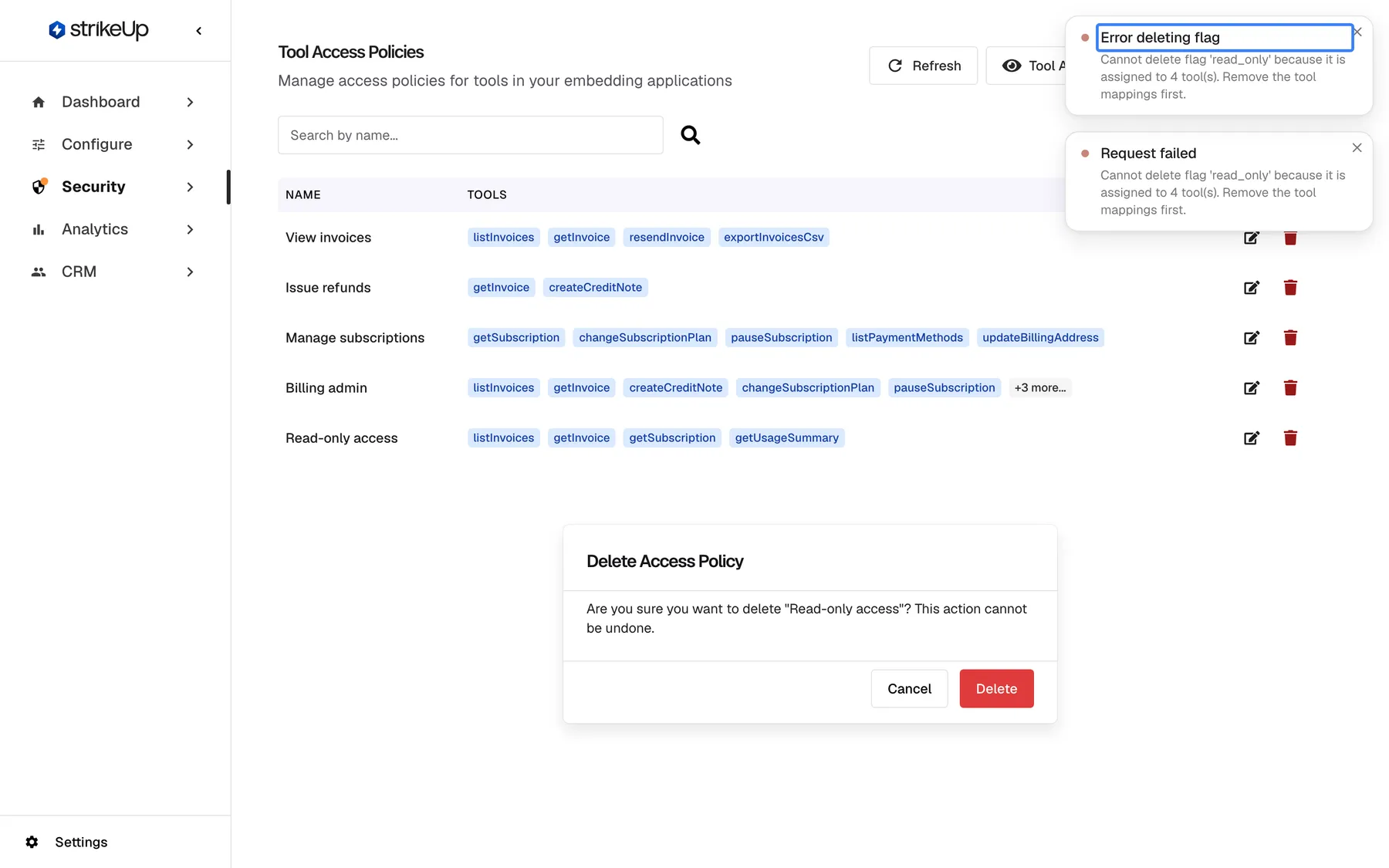
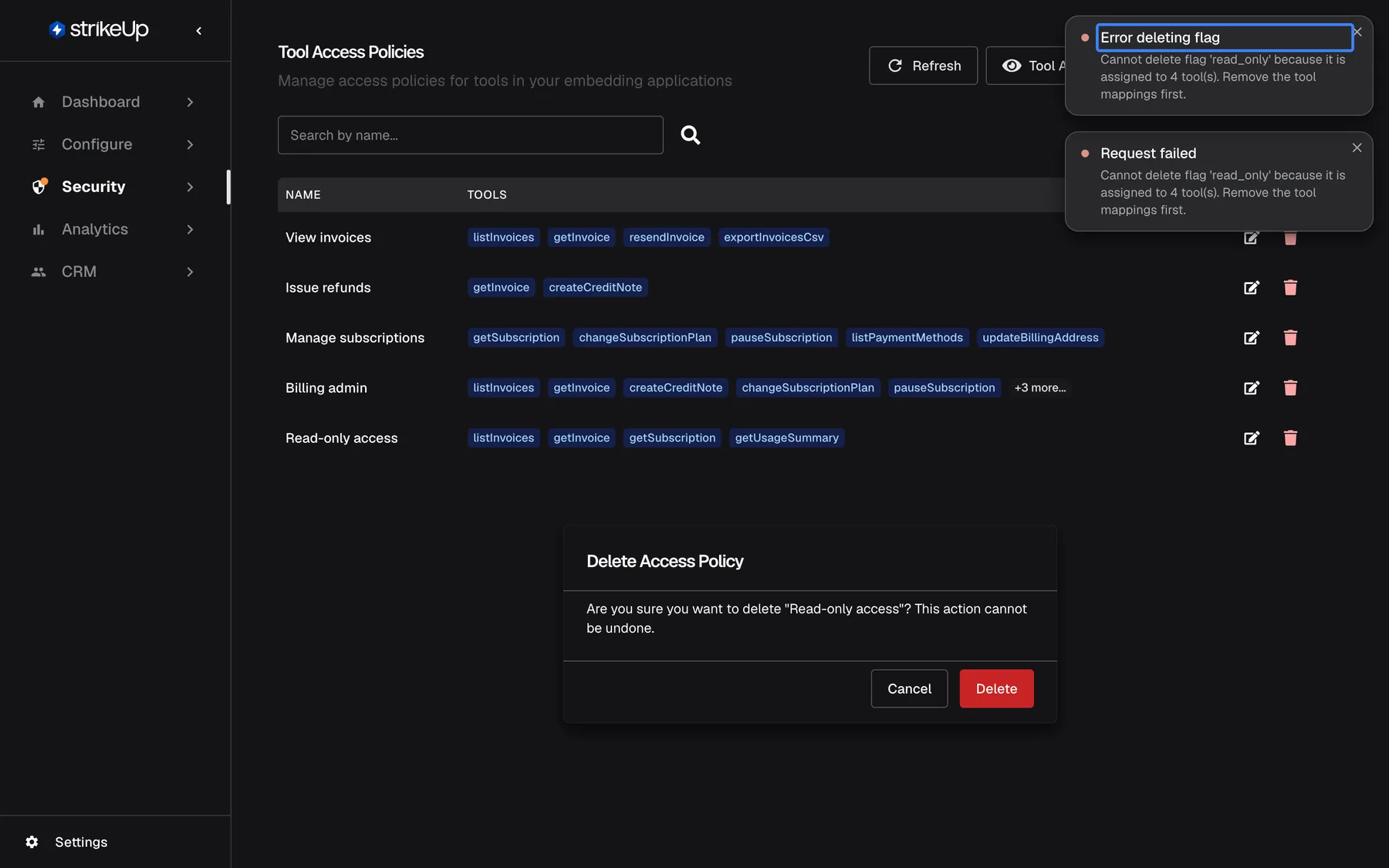
Section titled “Deleting a policy”A policy that still has tools cannot be deleted. StrikeUp refuses with “Error deleting flag” and “Cannot delete flag ‘key’ because it is assigned to N tool(s). Remove the tool mappings first.” Open the policy, leave every tool unticked, save, then delete it.
Why: deleting cannot be undone, so the policy must be emptied deliberately first.
What this screenshot shows
- Screen
- Delete Access Policy (/admin/feature-flags)
- Highlighted
- “”, toast-top-right, error toast. explains why the delete was refused
- Also visible
- Request failed toast and Error deleting flag toast; Delete Access Policy dialog still open
- Purpose
- troubleshooting a refused delete
Tool policies in the simulation
Section titled “Tool policies in the simulation”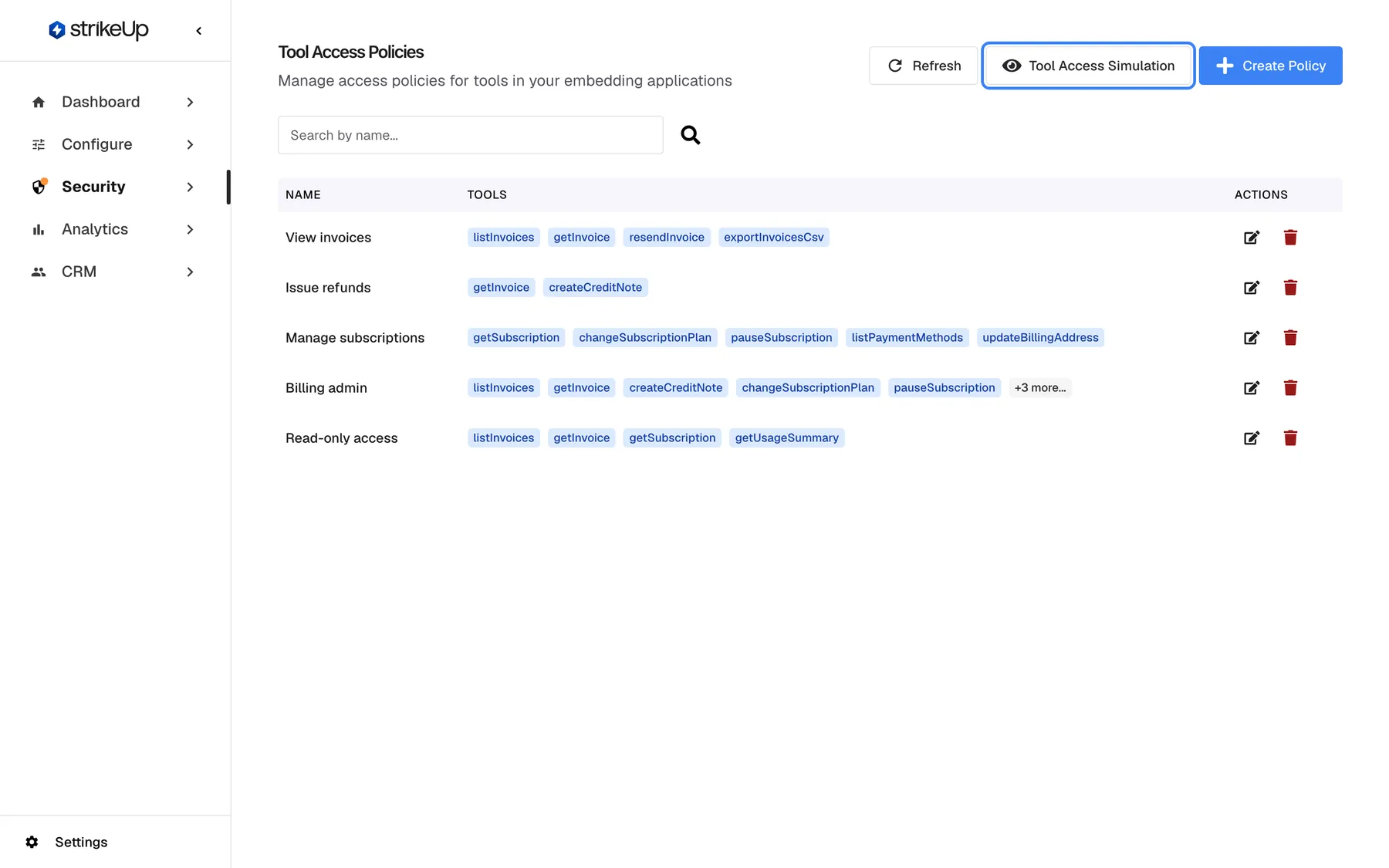
What this screenshot shows
- Screen
- Tool Access Policies (/admin/feature-flags)
- Highlighted
- button “Tool Access Simulation”, header-right, enabled. opens /admin/feature-flags/preview
- Also visible
- Refresh and Create Policy buttons beside it
- Purpose
- entry point of the simulation
Three ways to use it:
-
Check the default. No policy ticked shows what a session without keys gets: every active tool.
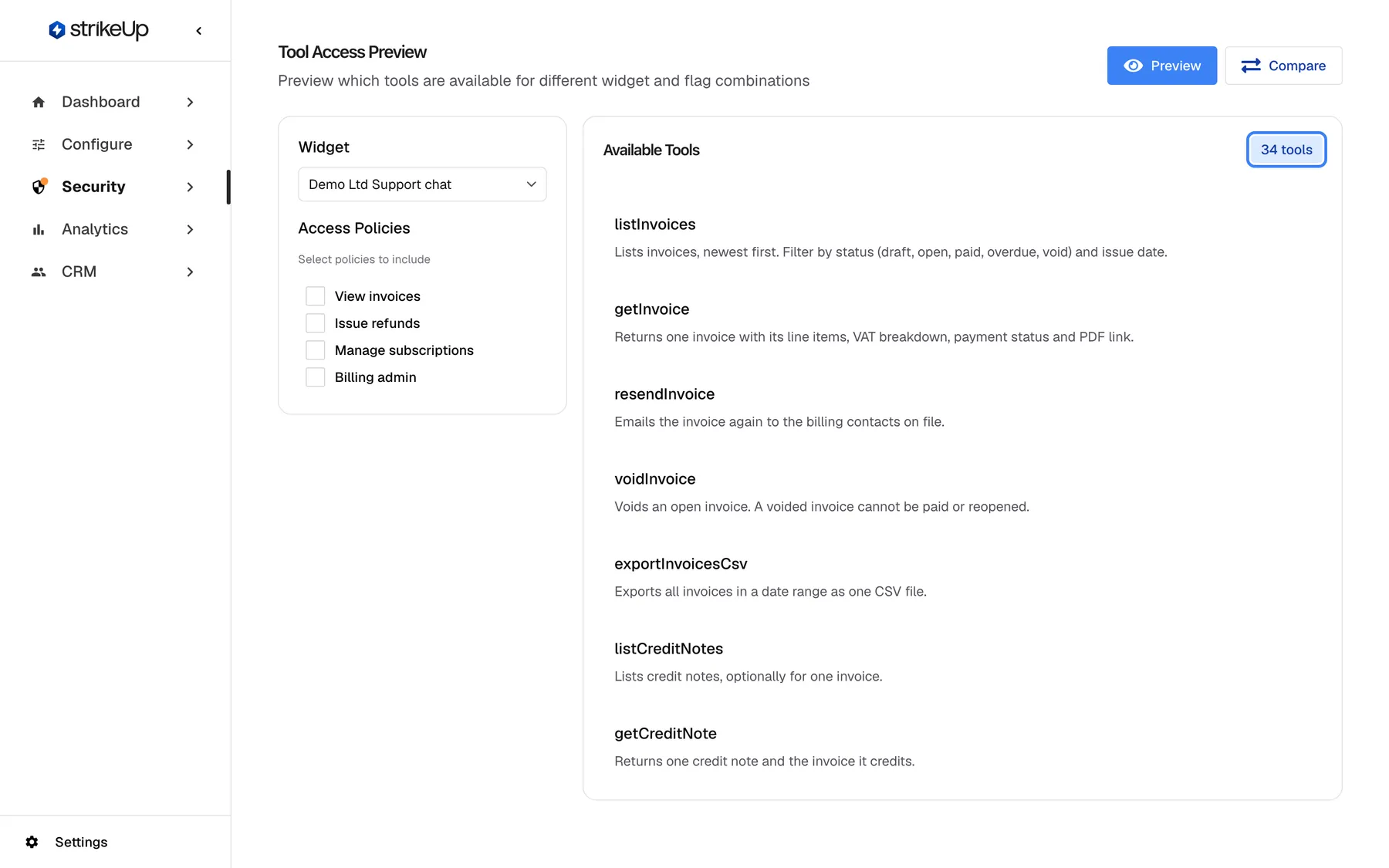
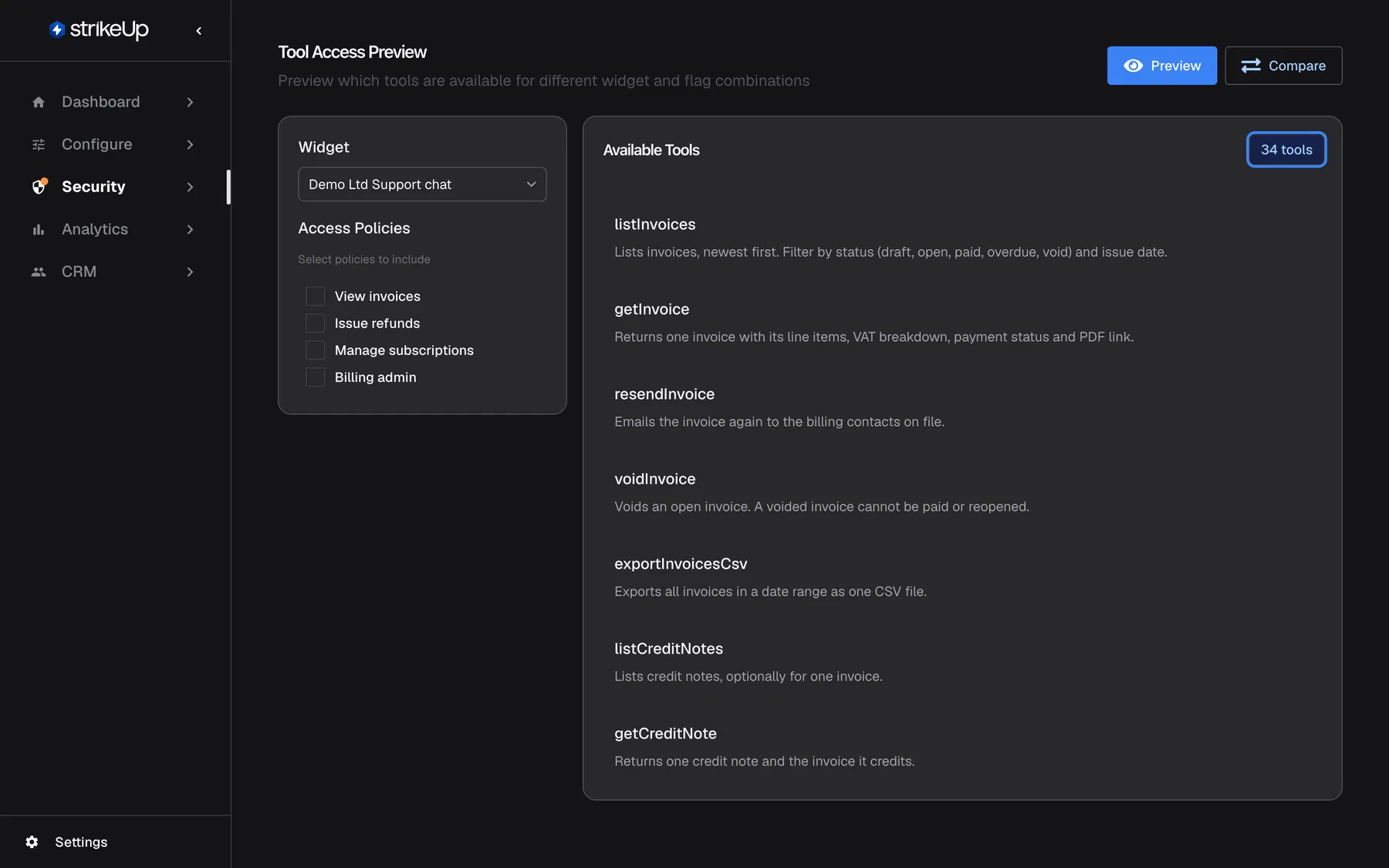
No policy means no restriction; the session gets every active tool of the widget's toolkits. What this screenshot shows
- Screen
- Tool Access Preview (/admin/feature-flags/preview)
- Highlighted
- “”, available-tools-header, 34 tools. counts the tools a session without keys gets
- Also visible
- Widget Demo Ltd Support chat, no policy ticked
- Purpose
- the default without policy keys
-
Check one policy. Ticking View invoices on the support chat narrows the list to 4 tools.
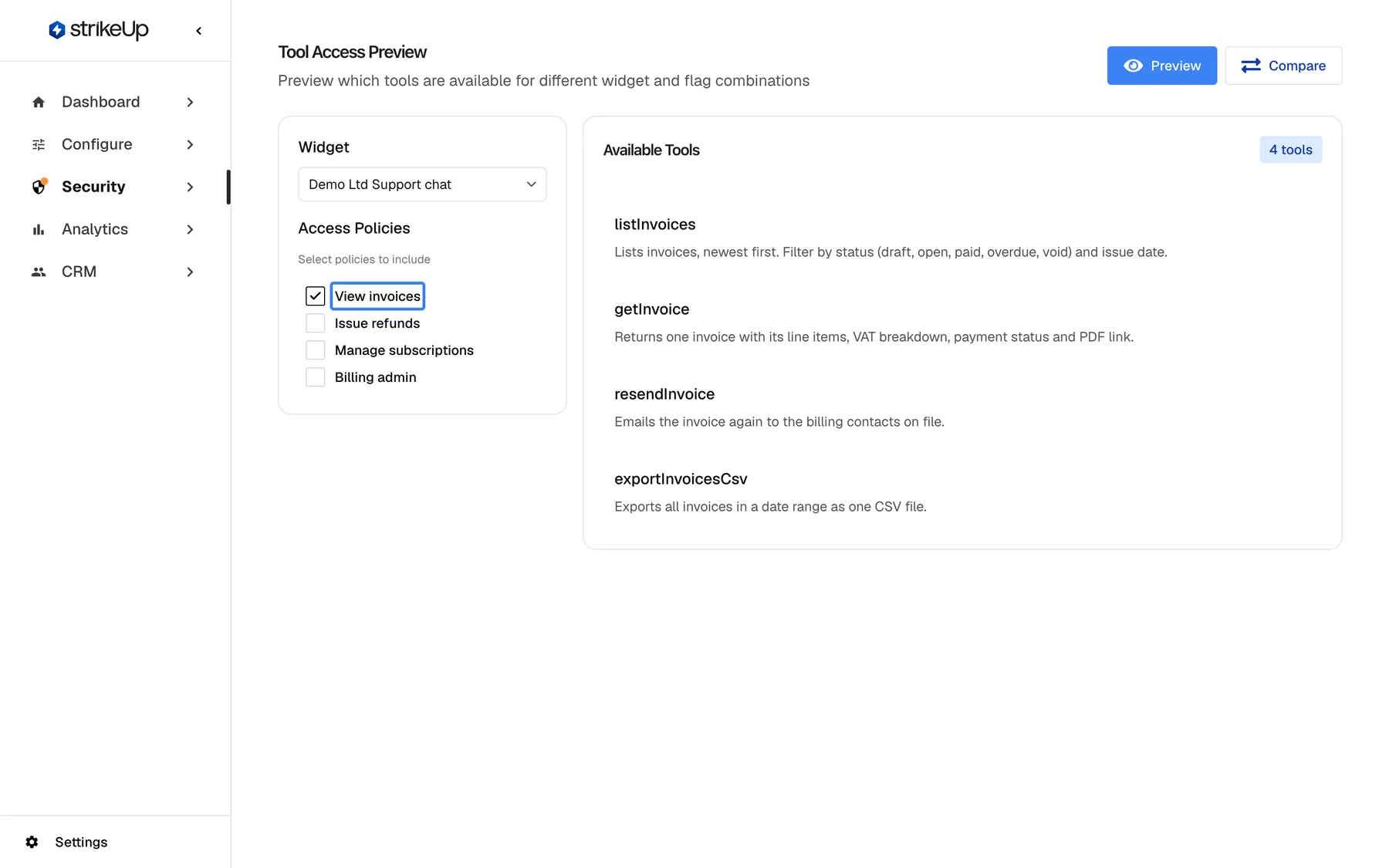
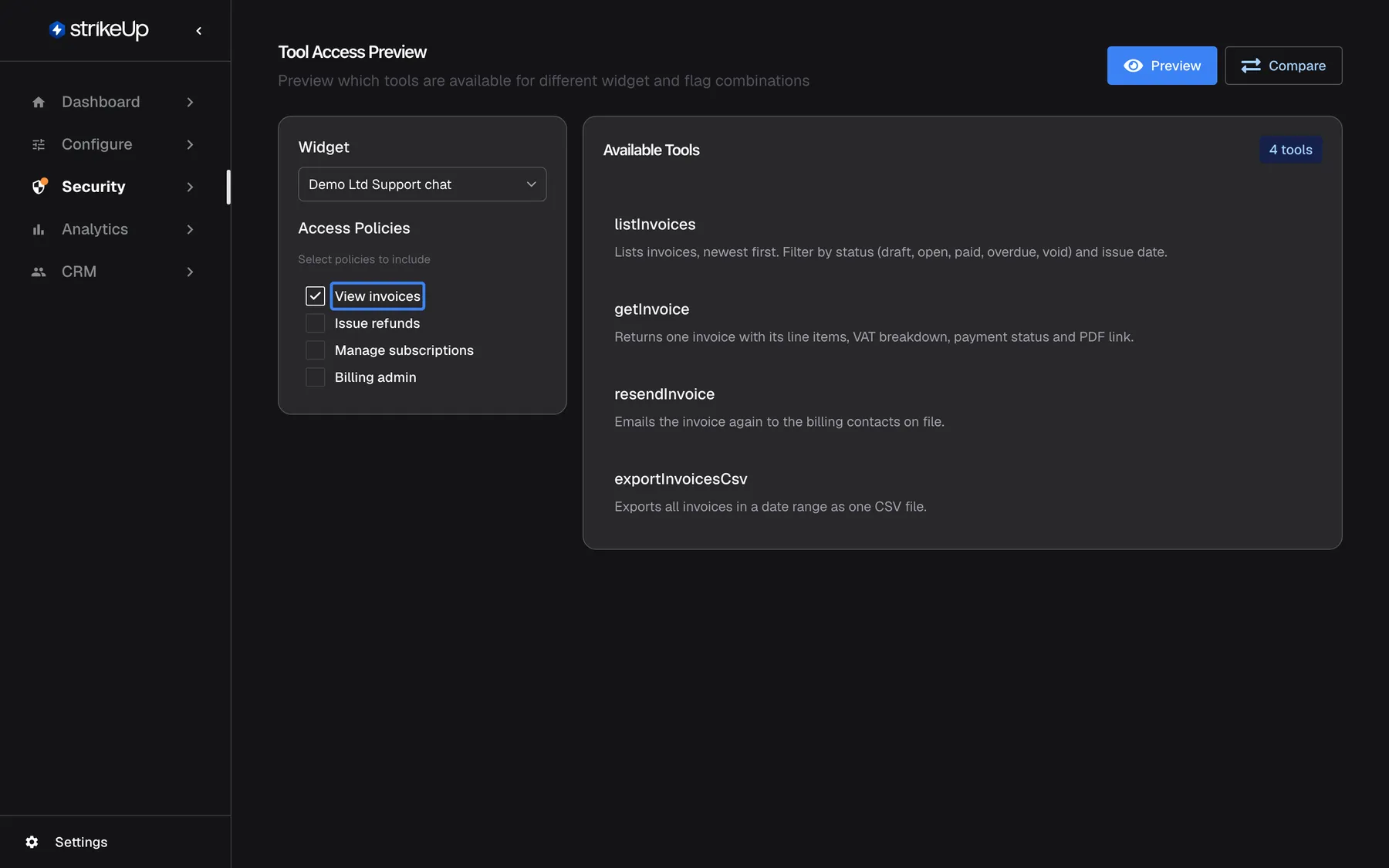
With one policy the session gets only that policy's tools; several policies add up. What this screenshot shows
- Screen
- Tool Access Preview (/admin/feature-flags/preview)
- Highlighted
- “”, left-panel-policies, ticked. simulates a session carrying the key view_invoices
- Also visible
- Available Tools: 4 tools
- Purpose
- how one policy narrows the tool list
-
Compare two tiers. One scenario with View invoices and another with Issue refunds and Manage subscriptions show which tools only the higher tier gets.
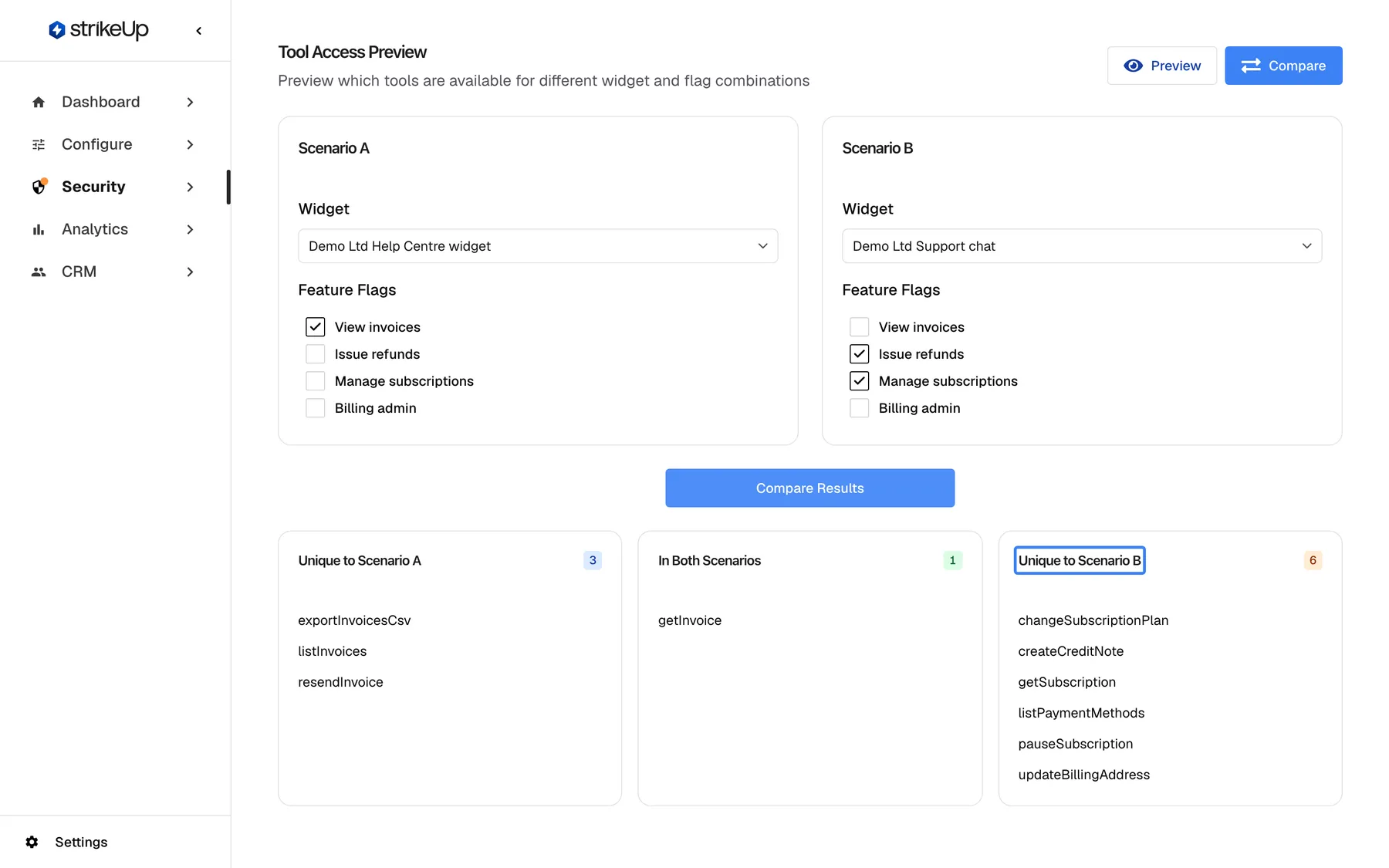
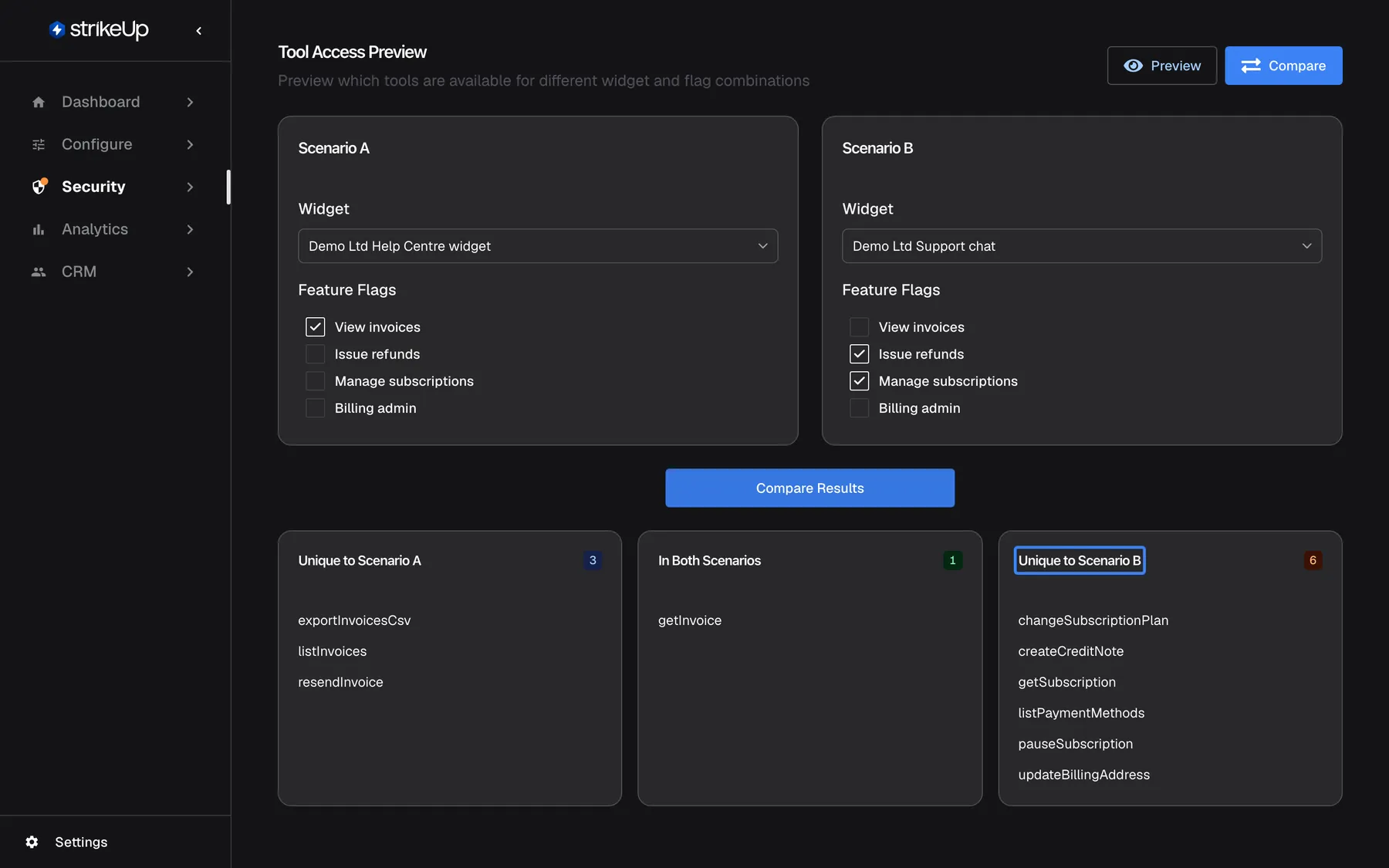
Compare two set-ups side by side to check what an upgrade adds before your customers see it. What this screenshot shows
- Screen
- Tool Access Preview (/admin/feature-flags/preview)
- Highlighted
- “”, results-right-column, 6 tools. lists tools only scenario B gets
- Also visible
- Scenario A and B widget selects with ticked policies (labelled Feature Flags in this mode); Three result columns: 3 / 1 / 6 tools
- Purpose
- plan-tier comparison
What you need to know
Section titled “What you need to know”| Topic | Fact |
|---|---|
| Ticket sign-ins only | Policies restrict customers your backend signs in with a login ticket that lists policy keys. Everyone else is offered every active tool. |
| Keys come from your backend | Only the login ticket gives a customer keys. The page that embeds the widget cannot set or change them. |
| No keys, every tool | A session without keys gets every active tool of the widget’s toolkits. |
| Keys add up | Several keys give every tool mapped to any of them. |
| Exact match | Keys are case-sensitive and must match exactly. |
| Inactive grants nothing | An inactive policy gives no tools and is hidden from the simulation. Its tools stay attached. |
| Changes reach open chats | A change to a policy’s key, status or tools applies from the next message. |
| Renaming a key | The tools move to the new key. Customers get them once your backend sends the new key. |
| Editing | The edit dialog opens with no tool ticked; tick the tools to keep before saving. It shows and removes one toolkit’s tools at a time. |
| Deleting | Refused while tools are mapped. Deleting a toolkit or tool removes it from every policy. |
| Workflows and autonomous agents | They carry no keys and get every active tool. |
| No usage view | StrikeUp shows no record of which keys a session carried. |
| Languages | Keys are identifiers and work in every language. Several notices on these screens are shown in English. |
| Cost | None. |
Frequently asked questions
Section titled “Frequently asked questions”General
Section titled “General”What is a tool access policy?
Section titled “What is a tool access policy?”It is a name, a key and a set of tools on SecurityTool Policies. A chat session that carries the key is offered the policy’s tools; a session without keys is offered every active tool of the widget’s toolkits. Several keys add up.
Can I use tool policies to stop a customer from using a tool?
Section titled “Can I use tool policies to stop a customer from using a tool?”For customers your backend signs in with a login ticket that lists policy keys, yes: they are offered only the tools of those policies. Customers who sign in any other way are offered every active tool. To keep a tool from them, and as a second line of defence for everyone, switch it off on ConfigureToolkits, mark it Requires User Approval, and let your API refuse what the customer may not do.
How does a session get policy keys?
Section titled “How does a session get policy keys?”Your backend lists them when it signs the customer in with a one-time login ticket. Every chat of that customer then carries them, and each new ticket replaces them; a ticket without keys lifts the restriction. The page that embeds the widget cannot set or change keys.
What happens when a session carries no policy key?
Section titled “What happens when a session carries no policy key?”It gets every active tool of the widget’s toolkits, exactly as if no policies existed. You can see this list in Tool Access Simulation by choosing the widget and ticking no policy.
Do tool policies cost anything?
Section titled “Do tool policies cost anything?”No. Creating policies and running the simulation use no AI and count towards no quota or budget. The tools the assistant then calls cost what they always cost; policies only decide which tools are offered.
Do policies change what the assistant knows or says?
Section titled “Do policies change what the assistant knows or says?”No. Policies only decide which of your API tools the assistant can choose from. The knowledge base, guardrails on SecurityGuardrails and data masking work exactly the same with or without keys.
Who can create and change policies?
Section titled “Who can create and change policies?”Members with the Admin role. Other members can open SecurityTool Policies and read the list, but creating, saving and deleting fail with Request failed. Running the simulation also needs the Admin role.
Which tools can I add to a policy?
Section titled “Which tools can I add to a policy?”The active tools of your toolkits. The create dialog lists the active tools of the toolkit you choose; switch tools on at ConfigureToolkits first if the list shows No active tools found for this toolkit.
Can one policy include tools from two toolkits?
Section titled “Can one policy include tools from two toolkits?”Yes. Create it with tools from one toolkit, then open it with the pencil icon, choose the second toolkit in Toolkit (Optional), tick its tools and save. The edit dialog opens on the first toolkit and removes only tools of the toolkit selected in it.
Why did my policy lose its tools after I edited it?
Section titled “Why did my policy lose its tools after I edited it?”The tool checklist in Edit Feature Flag opens with no box ticked, and saving removes every unticked tool of that toolkit. Open the policy again, tick the tools it should grant, and select Save Changes.
What rules apply to a key?
Section titled “What rules apply to a key?”Lower-case letters, digits and underscores only, unique in your workspace, inactive policies included. Capitals become lower case and spaces become underscores while you type; hyphens are refused with Key must contain only lowercase letters, numbers, and underscores.
Can I rename a key?
Section titled “Can I rename a key?”Yes. The policy keeps its tools under the new key. Customers whose login ticket still lists the old key get none of them until your backend sends the new key, so change it there at the same time.
Keys and combinations
Section titled “Keys and combinations”Two keys in one session: do I get the tools both share, or all of them?
Section titled “Two keys in one session: do I get the tools both share, or all of them?”All of them. A session with several keys is offered every tool mapped to any of its keys, and a tool shared by two policies appears once. Build tiers by combining small policies, such as View invoices plus Issue refunds.
Are keys case-sensitive?
Section titled “Are keys case-sensitive?”Yes, but they are always lower case: policies can only be created that way, and a login ticket with a capital letter in a key is refused. A session’s keys must match a policy key exactly, so view_invoice does not match view_invoices and grants no tools.
What happens if a key matches no policy?
Section titled “What happens if a key matches no policy?”The session gets no tools from the widget’s toolkits; the assistant can only answer from its knowledge. The same happens for a key whose policy is inactive or has no tools on that widget’s toolkits, and for the old key of a renamed policy.
Does setting a policy to inactive switch it off?
Section titled “Does setting a policy to inactive switch it off?”Yes. A policy set to Inactive grants no tools from the next message on, also in open chats, and is hidden from Tool Access Simulation. Its tools stay attached, so setting it back to Active restores them.
Do workflows and autonomous agents use tool policies?
Section titled “Do workflows and autonomous agents use tool policies?”No. Sessions started by workflows and autonomous agents carry no policy keys, so they are offered every active tool of their toolkits. Control their tools by switching tools on and off on ConfigureToolkits.
Where it is shown
Section titled “Where it is shown”When does a policy change reach an open chat?
Section titled “When does a policy change reach an open chat?”With the customer’s next message. A change to a policy’s key, status or tools also applies to chats that are already open; the simulation always shows the current state.
Can I see which keys a session used?
Section titled “Can I see which keys a session used?”No. StrikeUp does not show which policy keys a chat session carried. Use Tool Access Simulation to see what a given set of keys grants on a widget.
Simulation
Section titled “Simulation”Why does the simulation list fewer tools than a customer’s chat shows?
Section titled “Why does the simulation list fewer tools than a customer’s chat shows?”A live session can also get StrikeUp’s built-in notification tools, which do not depend on policies and are not listed in Tool Access Preview.
Why is a policy missing from the simulation?
Section titled “Why is a policy missing from the simulation?”The simulation lists active policies only. Set the policy’s Status to Active in the edit dialog on SecurityTool Policies to simulate it. While it is inactive, it also grants nothing in live chats.
What does “Duplicate tool names detected across servers” mean?
Section titled “What does “Duplicate tool names detected across servers” mean?”Two toolkits linked to the widget have a tool with the same name, so StrikeUp cannot build a tool list for that widget, in the simulation or in a live chat. Rename one of the tools on ConfigureToolkits, or remove one toolkit from the widget.
Deleting
Section titled “Deleting”What happens to my policies when I delete a toolkit or a tool?
Section titled “What happens to my policies when I delete a toolkit or a tool?”The deleted toolkit’s or tool’s entries are removed from every policy automatically. A policy can end up with No tools on SecurityTool Policies; it stays in the list until you delete it.
Troubleshooting
Section titled “Troubleshooting”| Symptom | What to check |
|---|---|
| A customer is offered every tool | In order: did the customer sign in with a login ticket from your backend? Only those customers carry keys. Does the ticket list the policy keys? A session without keys gets every active tool. |
| A customer is offered no tools from your API | In order: does the key match exactly? Was the key renamed while your backend still sends the old one? Is the policy active? Does it have tools on the widget’s toolkits? Are those tools switched on? |
| A policy no longer grants its tools | Its status is Inactive. Set it back to Active in the edit dialog. |
| “Duplicate tool names detected across servers” | Two of the widget’s toolkits share a tool name. Rename one tool or remove one toolkit from the widget. |
| “Error deleting flag” with “Cannot delete flag … because it is assigned to N tool(s)” | Untick every tool in the edit dialog, save, then delete. |
| A policy lost its tools after an edit | The checklist opened unticked and was saved. Tick the tools again and save. |
| Customers lost a policy’s tools after its key was changed | Your backend still sends the old key. Send the new key in its login tickets. |
| Key must contain only lowercase letters, numbers, and underscores | Use lower-case letters, digits and underscores only. |
| The simulation fails with Request failed | Running it needs the Admin role. |