

End-customer sign-in (PIN or password)
An assistant that shows a person’s chat history, acts with their saved credentials and opens their company’s portal must know that the person in front of the screen is that customer. End-customer sign-in puts a PIN or password in front of the widget. You can pre-create customers with credentials, or sign them in from your own backend with a one-time login ticket so they never see the prompt.
What it does
Section titled “What it does”The widget learns who a visitor is from the userId your page passes. That is enough for an assistant that answers general questions, but not for one that reads personal data, calls your API with a person’s own credentials or lets them manage their company in the customer portal.
When you switch on Require customer authentication, every visitor proves they are that customer with a PIN of 4 to 8 digits or a password of at least 8 characters before the chat opens. From there:
- Customers sign in once per browser and stay signed in for 12 hours, or 7 days with “Remember me on this browser”. Session length and Remember me.
- You decide how customers get their credential: pre-created by import, or set up on their first visit. Credentials in the customer import, pre-created access.
- Your backend can sign a customer in without a prompt by handing the widget a login ticket. loginTicket, sign-in from your backend.
- Repeated wrong entries lock the account for a growing time. Understanding sign-in.
Your staff never see a customer’s PIN or password in the admin app. Customers who are disabled in CRM, or whose company is deactivated, are refused at sign-in.
Before you start
Section titled “Before you start”| Requirement | Details |
|---|---|
| A widget | Its sign-in switch is on ConfigureUser Interface, in the Customer Portal section |
A stable userId on every page | The sign-in screen asks only for the PIN or password; it signs in the customer whose id your page passes. See Identify users and pass context |
| Credentials for existing users (recommended) | Imported under CRMCustomers › Import from CSV, or issued as login tickets by your backend |
| Role | The Admin role to change the switch and import customers; every other signed-in user of your workspace can view them |
| Plan or cost | No plan gate and no cost |
When your page passes no userId, the widget makes up a random id and keeps it in that browser’s storage. The visitor’s access then belongs to that browser: on a new browser or device, or after the visitor clears the site’s data, the widget shows the setup screen again and creates a new, empty customer, without the earlier chat history or memories. Passing your own stable id avoids this.
Understanding sign-in
Section titled “Understanding sign-in”A visitor on a sign-in widget sees one of these screens before the chat. The texts appear in the visitor’s browser language; the English versions are quoted here.
| Screen | When it appears | What the visitor does |
|---|---|---|
| “Preparing your session…” | While the widget checks the customer | Waits |
| “Set up your access” | The customer has no PIN or password yet | Chooses PIN or password, types it twice, optionally ticks “Remember me on this browser”, selects “Continue” |
Welcome back | The customer has a PIN or password | Types it, optionally ticks “Remember me on this browser”, selects “Continue” |
| “Account locked” | Too many wrong entries | Waits for the countdown; the widget checks again when it ends |
| “Account unavailable” | The customer is disabled, or their company is deactivated | Nothing; contacts you |
Something went wrong | The check failed | Selects “Retry” |
How StrikeUp decides
Section titled “How StrikeUp decides”| Rule | Value | Examples |
|---|---|---|
| PIN | 4 to 8 digits, nothing else | 123 refused · 1234 accepted · 12345678 accepted · 123456789 refused · 12a4 refused |
| Password | At least 8 characters, no other rule | 7 characters refused · 8 characters accepted |
| Lockout | Failures 1 to 4: nothing. 5th: 1 minute. 6th: 5 minutes. 7th: 15 minutes. 8th: 1 hour. 9th and later: 6 hours each | A wrong entry during a lockout is refused without being checked and does not lengthen it; a correct entry resets the count |
| Session | 12 hours; 7 days with “Remember me on this browser” | The customer chooses at sign-in; for tickets, your backend chooses |
| Renewal | When the widget is open about a minute before the session ends, it renews it for a new full period | A session that has already ended needs the PIN or password again |
| Login ticket | Valid 60 seconds, once, for the widget it was issued for | A ticket wins over a session already in the browser |
- Whoever has no credential gets the setup screen. A customer who exists without a PIN or password, and an id StrikeUp has never seen, both get “Set up your access”. Setup on an unknown id creates the customer, with the Admin role and a company of their own.
- Existing customers keep everything. When you switch sign-in on, customers who already chatted keep their chats and saved toolkit credentials; on their next visit they sign in, or set up their credential if you did not import one.
What does not need sign-in
Section titled “What does not need sign-in”- Widgets with Require customer authentication off. Visitors chat without a prompt, unless the customer with that id already has a PIN or password: then the widget shows the sign-in screen anyway.
- Visitors your backend signs in with a valid login ticket: they never see the prompt.
Setting it up in four steps
Section titled “Setting it up in four steps”-
Decide how customers get their credential. Pick one: import your existing users with a PIN or password, issue login tickets from your backend, or let customers set their own on the first visit. The first two do not depend on first-visit setup and are the recommended choice for existing users.
-
Pre-create customers with credentials (recommended). Under CRMCustomers, select Import from CSV and upload a CSV with a
PinorPasswordcolumn. Tell each person their credential through your own channel. -
Pass a stable
userId, and a ticket if you use them. Make sure every page passes the person’s own id, and, for silent sign-in, a freshloginTicket:window.initStrikeUpChatWidget({applicationToken: "<your widget's application token>",userId: "cus_48210",loginTicket: "<ticket your backend obtained for cus_48210>"}); -
Switch sign-in on. Open ConfigureUser Interface, select the widget’s card, turn on Require customer authentication in the Customer Portal section and select
Save User Interface Settingsat the bottom. From the next page load, every visitor signs in before chatting.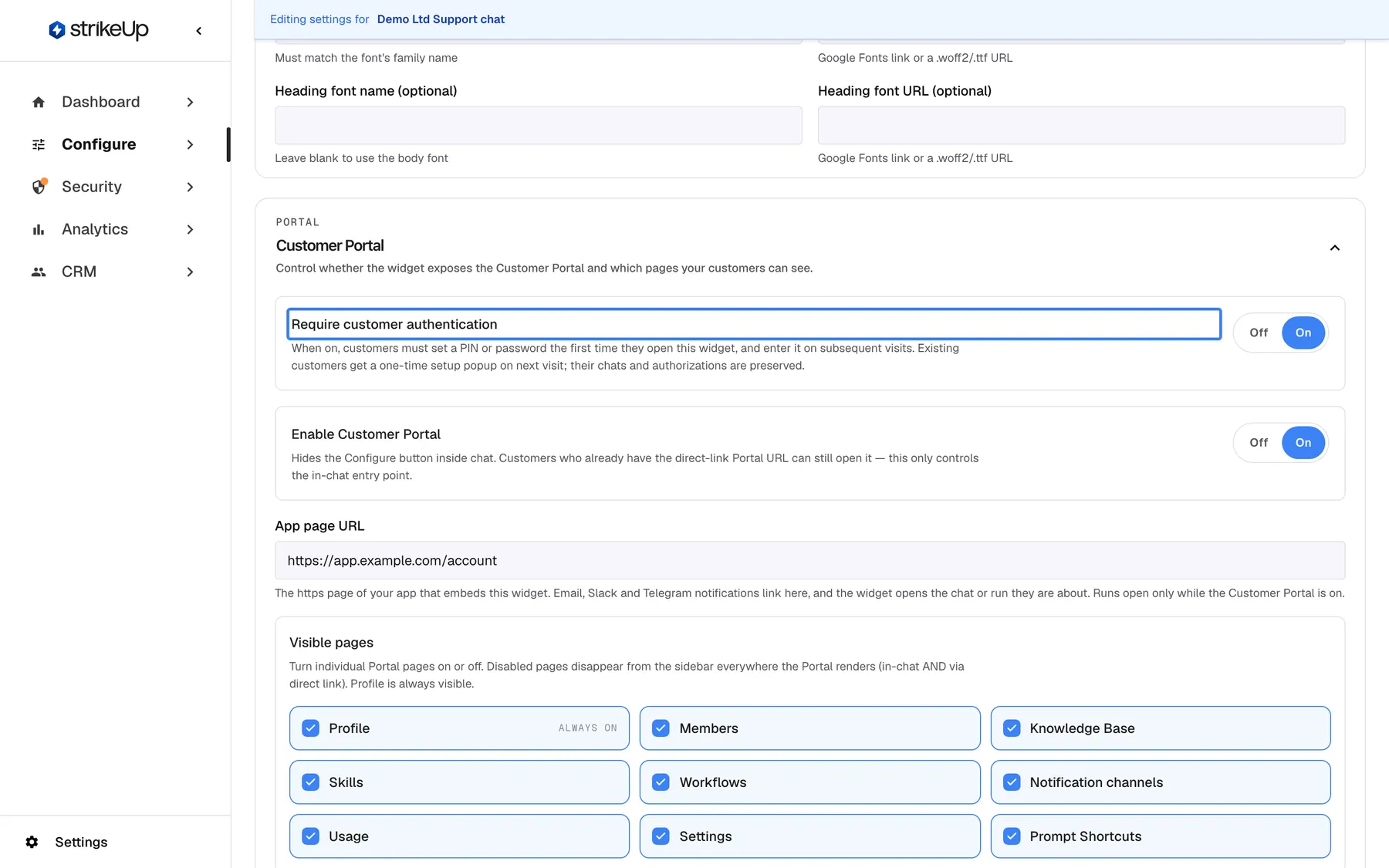
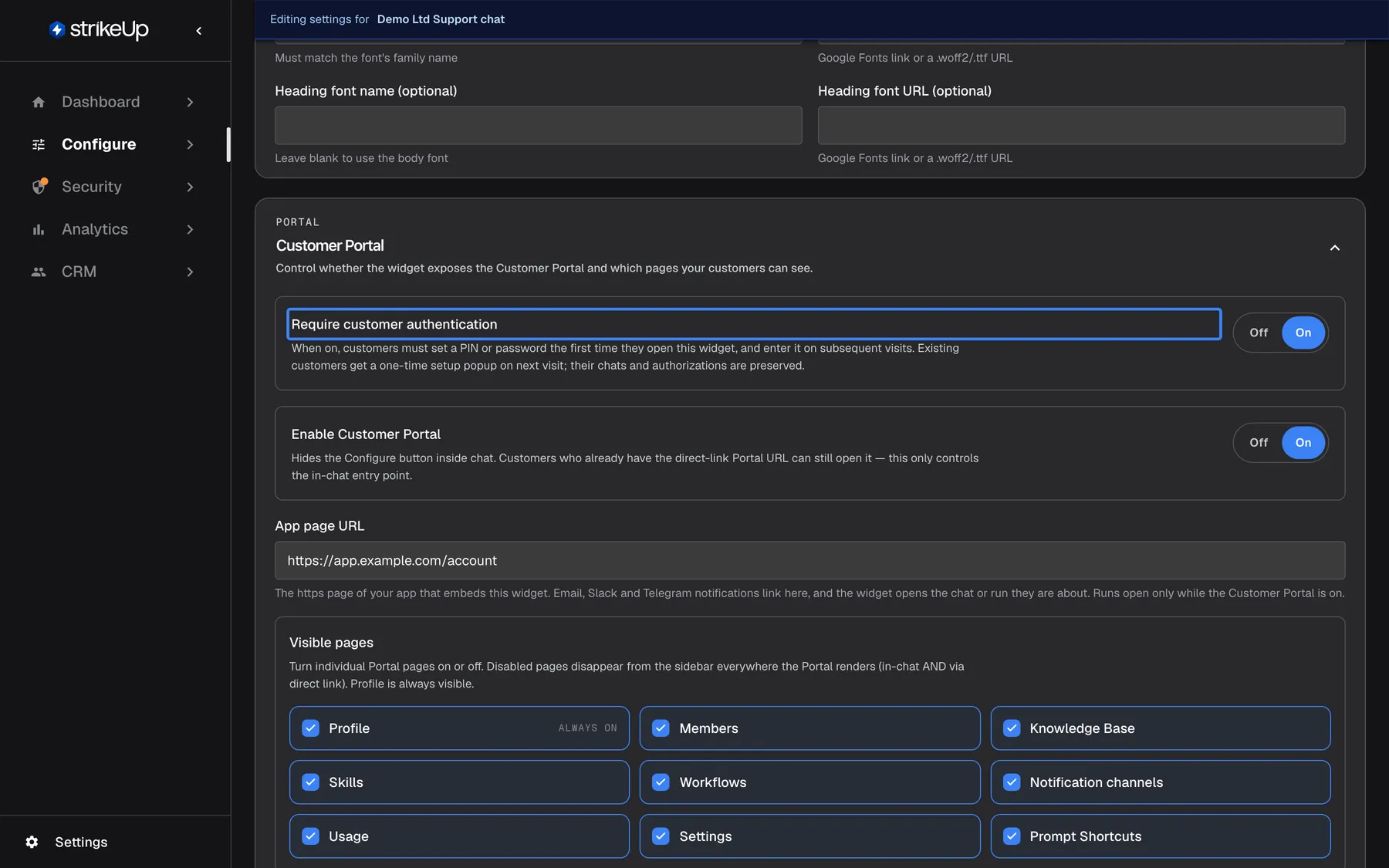
Require customer authentication makes every visitor set up and then enter a PIN or password before chatting. What this screenshot shows
- Screen
- User Interface (/admin/configure/user-interface?widgetId=…)
- Highlighted
- switch “Require customer authentication”, customer-portal-section-top, On. turns end-customer sign-in on or off for this widget (saved with the page)
- Also visible
- Help text about first-time PIN or password set-up; Enable Customer Portal On; Visible pages checkboxes
- Purpose
- the switch that turns end-customer sign-in on
Every setting, explained
Section titled “Every setting, explained”Sign-in has one switch on the widget, credentials in the customer import, and one option in your code.
Require customer authentication, the master switch
Section titled “Require customer authentication, the master switch”ConfigureUser Interface, the widget’s card, then the Customer Portal section, the switch Require customer authentication. Saved with Save User Interface Settings. New widgets have it switched on.
On: every visitor signs in with a PIN or password before the chat, or is signed in by a login ticket. The help text reads: When on, customers must set a PIN or password the first time they open this widget, and enter it on subsequent visits. Existing customers get a one-time setup popup on next visit; their chats and authorizations are preserved.. Off: visitors chat without a prompt, except customers who already have a PIN or password, who still see the sign-in screen. The change reaches visitors on their next page load; sessions already running continue.
A widget that shows personal history, acts with a person’s credentials or opens the customer portal must not be usable by whoever has the id.
Credentials in the customer import, pre-created access
Section titled “Credentials in the customer import, pre-created access”CRMCustomers › Import from CSV. The CSV columns are CustomerId, CustomerEmail, CustomerCompanyId, CustomerCompanyName, Pin, Password and Role, and optionally a column of toolkit credentials.
Fill Pin or Password for a row, never both; the same rules apply as in the widget (4 to 8 digits; at least 8 characters). Role defaults to Admin. The import is all or nothing: one invalid row stops the whole file. A customer imported with a credential gets Welcome back on the first visit; one imported without gets “Set up your access”. Importing a customer again with a new Pin or Password replaces a forgotten credential and clears a lockout, and signs them out of sessions already running on their next request.
Pre-created credentials mean the first visit already asks for a credential you handed out, and they are the basis for login tickets.
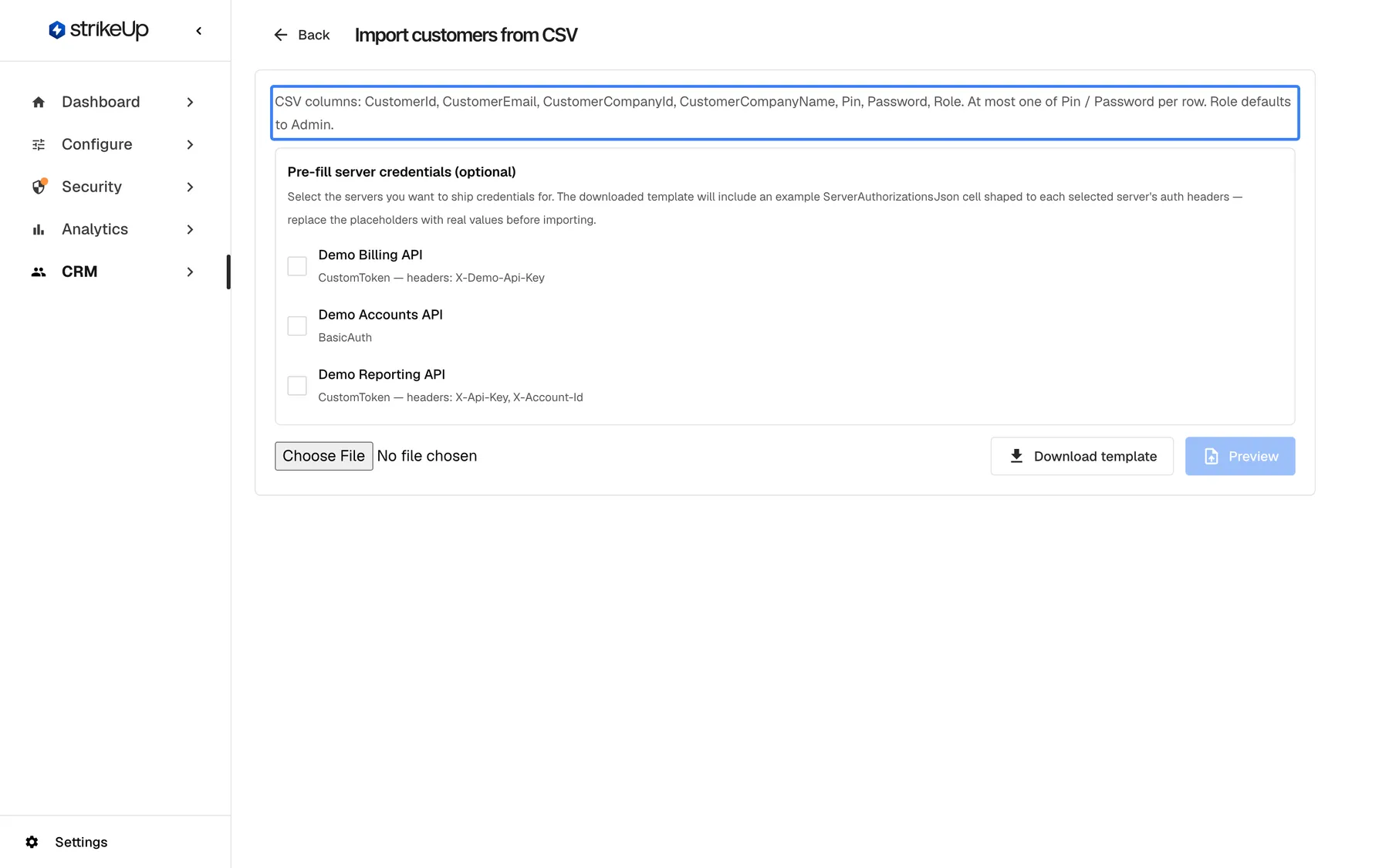
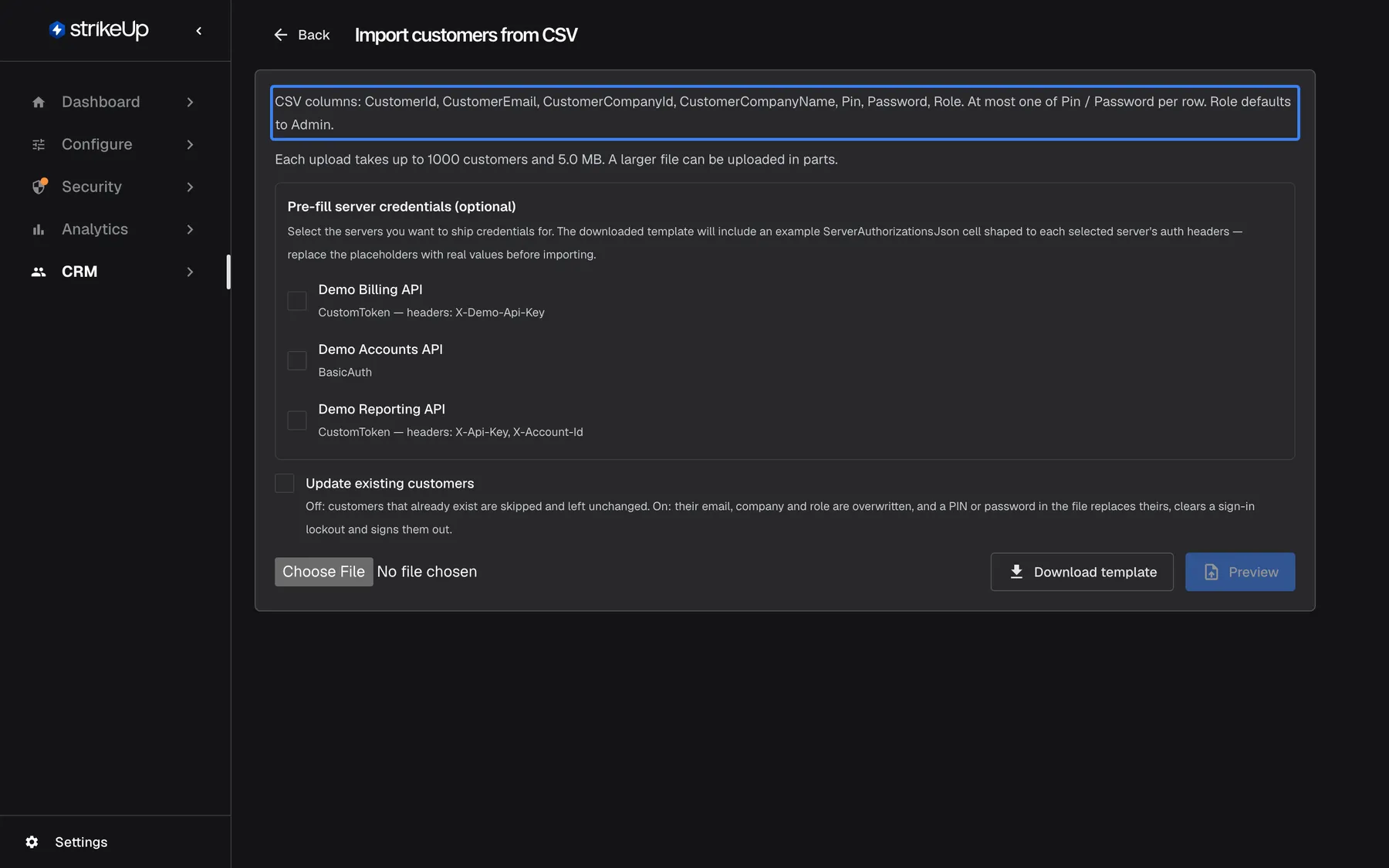
What this screenshot shows
- Screen
- Import customers from CSV (/admin/customers-import)
- Highlighted
- text “CSV columns: CustomerId, CustomerEmail, CustomerCompanyId, CustomerCompanyName, Pin, Password, Role. At most one of Pin / Password per row. Role defaults to Admin.”, page-intro, shown. none (explains the CSV columns)
- Also visible
- Pre-fill server credentials box with three toolkits; File chooser, Download template, Preview (disabled)
- Purpose
- pre-creating customers with a PIN or password before sign-in is switched on
loginTicket, sign-in from your backend
Section titled “loginTicket, sign-in from your backend”The loginTicket option of your initStrikeUpChatWidget call. The widget also accepts it from window.chatWidgetConfig.loginTicket, or from a loginTicket parameter in your page’s address, in that order.
A login ticket is a one-time pass your backend obtains from StrikeUp for one customer and one widget, by presenting that customer’s PIN or password. The customer must already exist with a credential. The ticket is valid for 60 seconds and works once, so obtain a fresh one for each page load. When your request asks to remember the customer, the session lasts 7 days, otherwise 12 hours. The widget redeems the ticket before anything else, and the pop-up and modal types load at once when a ticket is present. A valid ticket wins over a session already in the browser. A ticket that has expired, was used before or belongs to another widget is ignored, and the visitor sees the normal sign-in screen; a session already in that browser is kept only if it belongs to the same userId. A new ticket in a later initStrikeUpChatWidget call restarts the widget.
Your users are already signed in to your product. A ticket carries that sign-in into the widget, so they are never asked for a second credential.
Session length and Remember me
Section titled “Session length and Remember me”The “Remember me on this browser” box on the widget’s sign-in screens, ticked by the customer. For tickets, the choice your backend makes when obtaining the ticket.
A session lasts 12 hours, or 7 days (168 hours) with “Remember me on this browser”. Both survive closing the browser; the box only chooses between the two lengths. While the widget is open, the session renews itself shortly before it ends. A customer signs out with “Log out” in the customer portal’s sidebar; your page cannot sign them out, and StrikeUpChat.destroy() leaves the session in place.
Customers who use your product daily should not type a PIN every morning; on shared devices, the 12-hour default limits how long a forgotten session stays usable.
How the settings combine
Section titled “How the settings combine”| Require customer authentication | Customer has a credential | Ticket passed | What the visitor sees |
|---|---|---|---|
| Off | No | No | The chat, without a prompt |
| Off | Yes | No | Welcome back, then the chat |
| On | No | No | “Set up your access”, then the chat |
| On | Yes | No | Welcome back, then the chat |
| On or off | Yes | Valid | The chat, signed in, without a prompt |
| On or off | Yes | Expired or used | Welcome back |
Sign-in in the widget
Section titled “Sign-in in the widget”| Screen title | Meaning |
|---|---|
| “Set up your access” | First sign-in for this customer: choose a PIN or password |
Welcome back | Enter the existing PIN or password |
| “Account locked” | Too many wrong entries; a live countdown shows the wait |
| “Account unavailable” | Disabled customer or deactivated company |
First visit: Set up your access
Section titled “First visit: Set up your access”The card explains “Choose how you’d like to log in next time. PIN is faster; password is stronger.” The visitor picks “PIN” or “Password”, types it in two fields and selects “Continue”, which stays disabled until both entries match. A mismatch shows “Entries don’t match.”.
Why: a customer with no credential must create one before the widget shows anything personal.
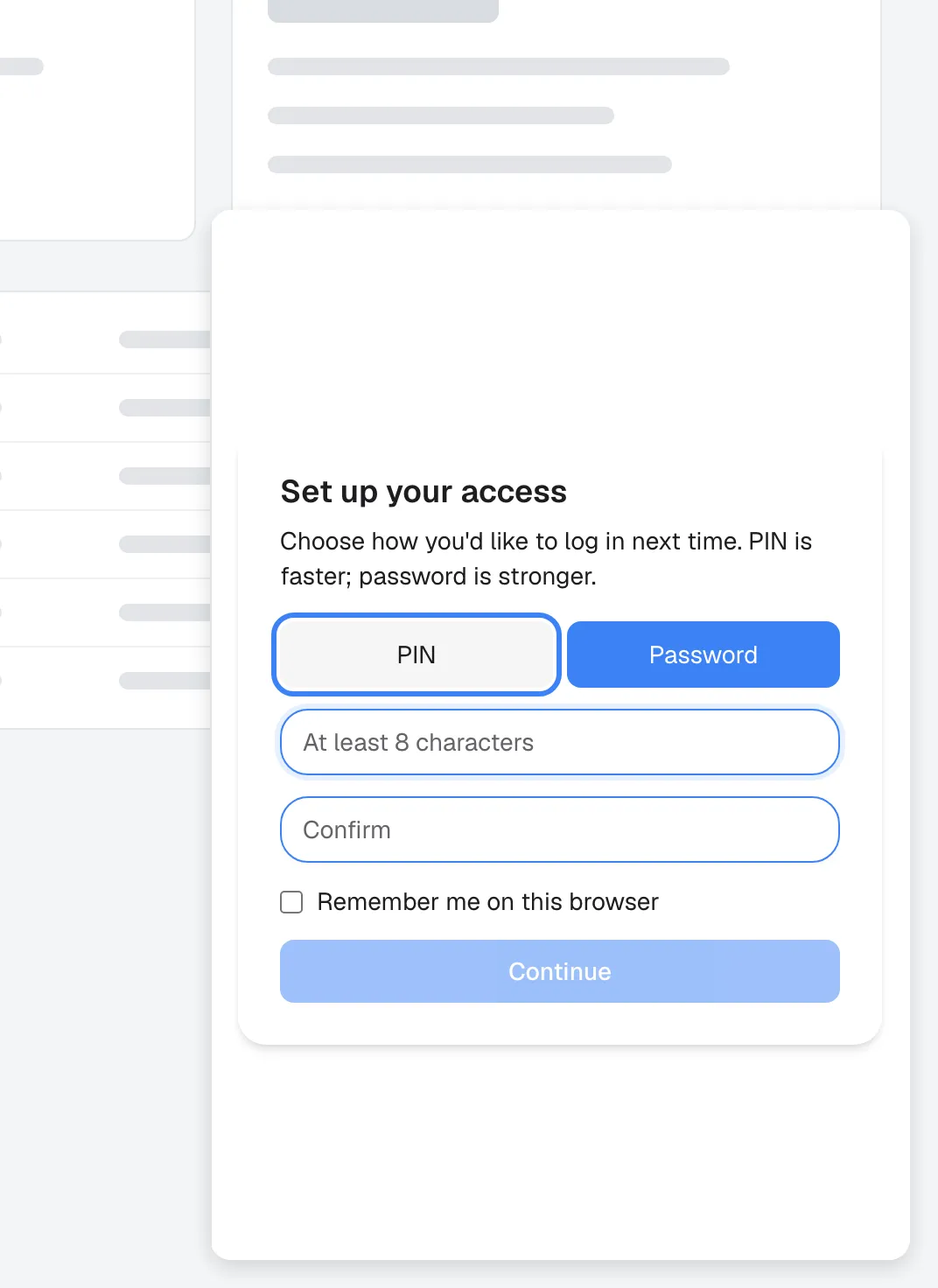
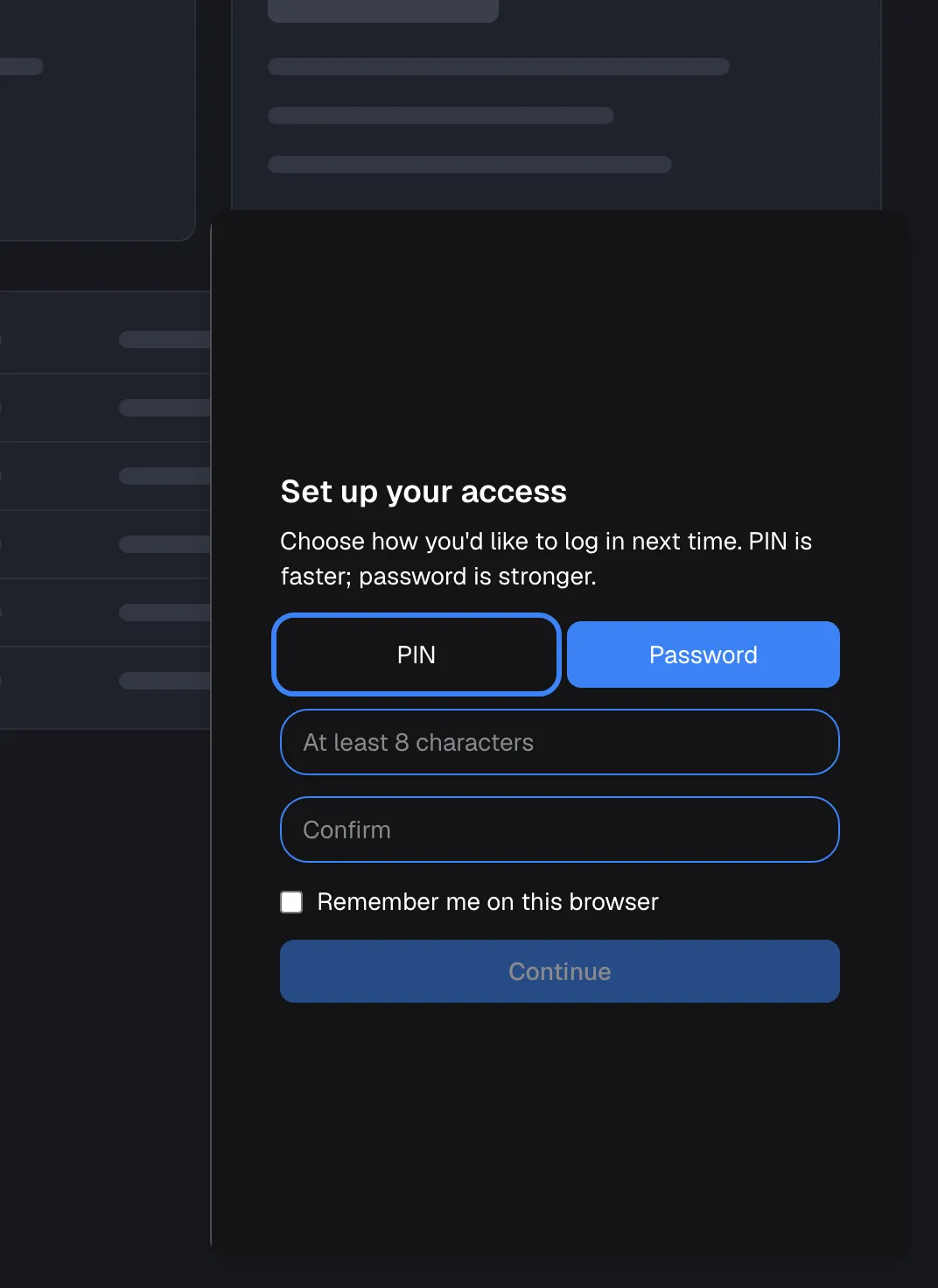
What this screenshot shows
- Screen
- Set up your access (host page › widget (popup))
- Highlighted
- button “PIN”, setup-card-type-toggle, not selected (Password preselected from the company's preference). switches the fields to a numeric PIN
- Also visible
- Intro text about PIN vs password; Password preselected; fields At least 8 characters and Confirm; Remember me on this browser checkbox; Continue button (disabled)
- Purpose
- first-time credential set-up
Returning visit: Welcome back
Section titled “Returning visit: Welcome back”The card asks “Enter your PIN to continue.” or “Enter your password to continue.” above one field and the “Remember me on this browser” box. A wrong entry shows the server’s message, such as “Invalid credential.”, in English.
Why: one field is all a returning customer needs.
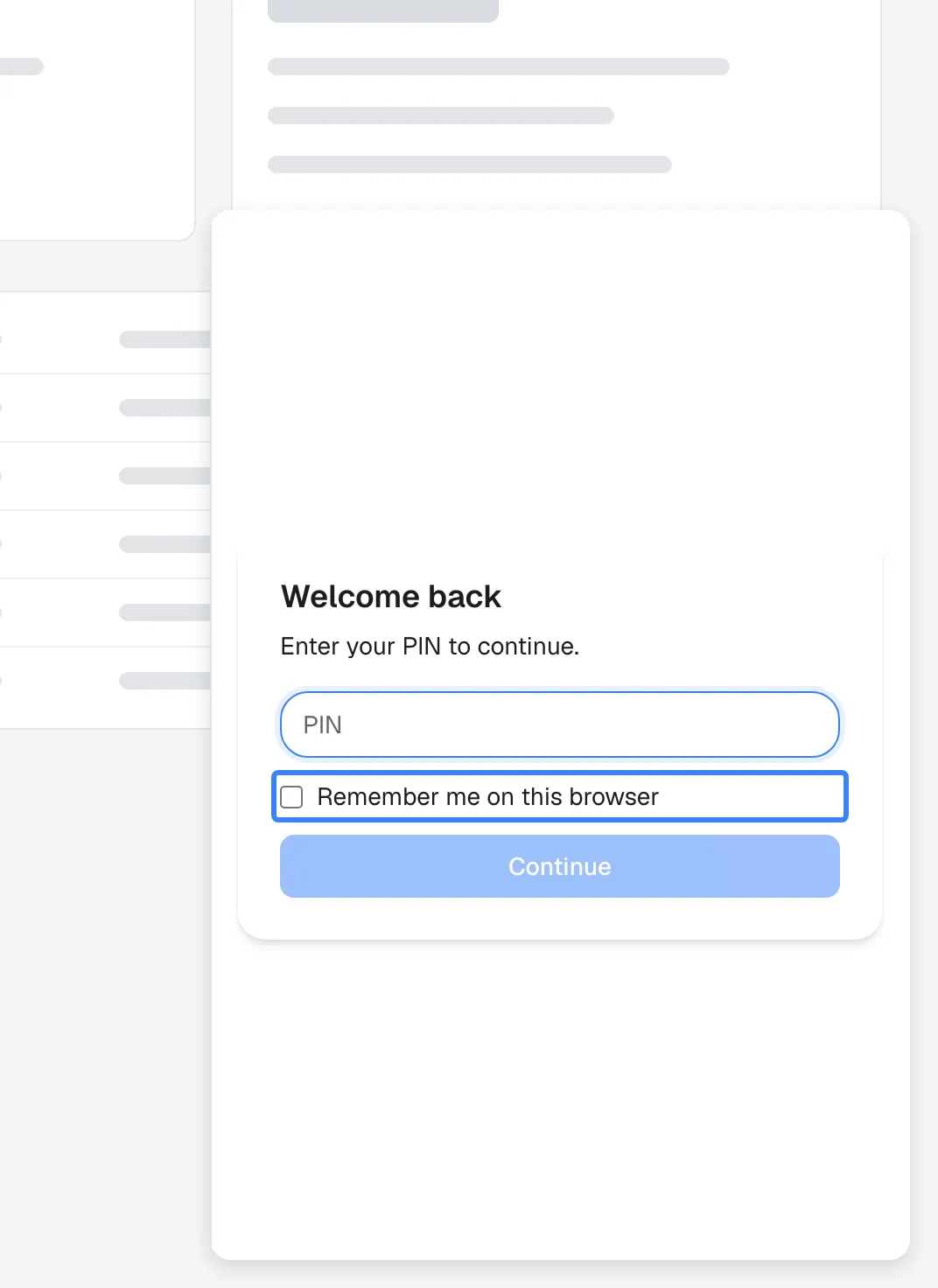
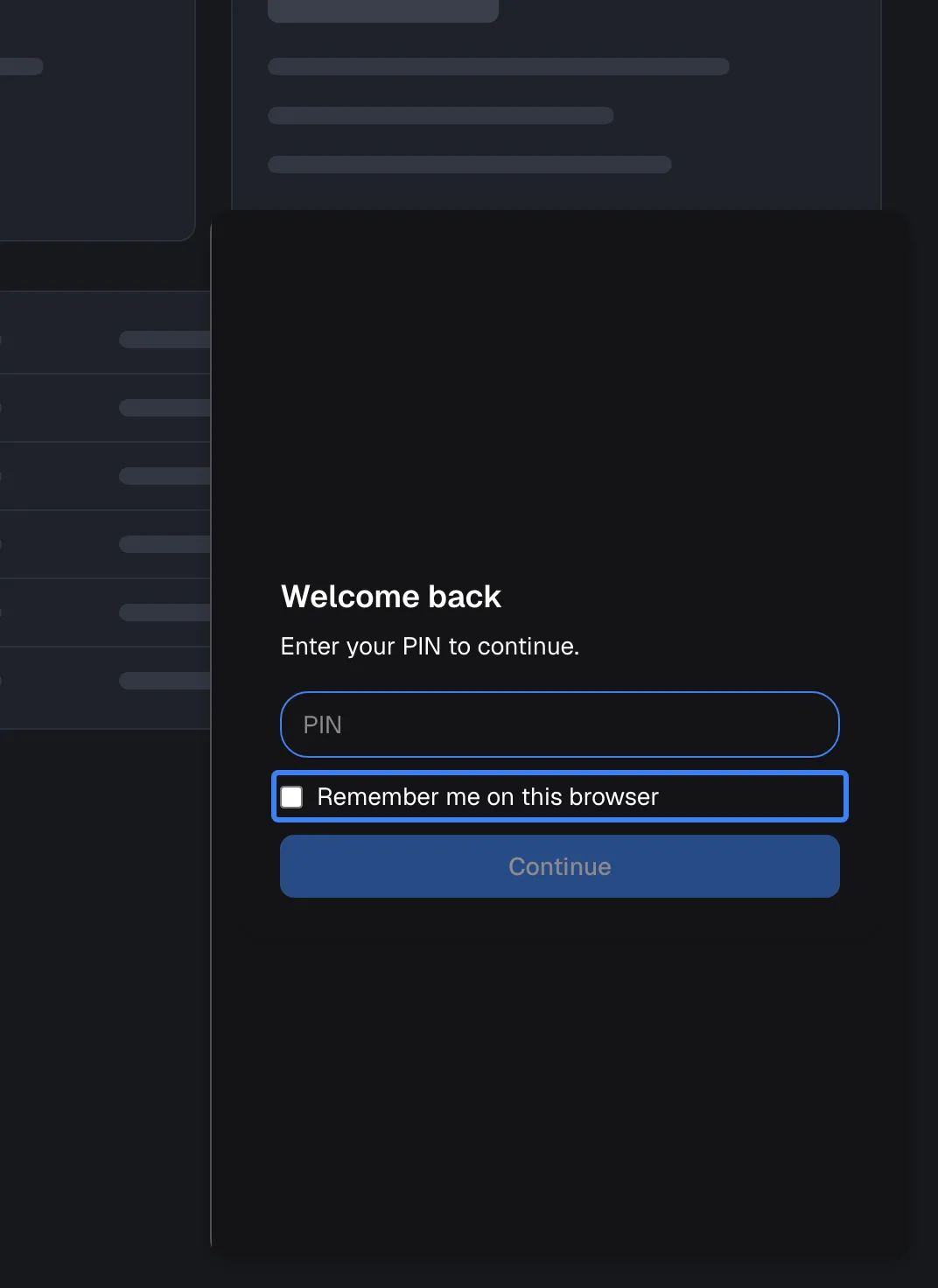
What this screenshot shows
- Screen
- Welcome back (host page › widget (popup))
- Highlighted
- checkbox “Remember me on this browser”, entry-card, unticked. keeps the session for 7 days on this browser instead of 12 hours
- Also visible
- Prompt Enter your PIN to continue.; PIN field; Continue button (disabled)
- Purpose
- sign-in on later visits
Account locked
Section titled “Account locked”After the fifth wrong entry in a row, the card reads “Account locked” and Too many failed attempts. Try again in followed by a live countdown. There is no field and no button. Your staff cannot unlock the account in the admin app other than by importing the customer again with a new credential.
Why: a growing wait makes guessing a PIN impractical without locking out a customer who mistyped once.
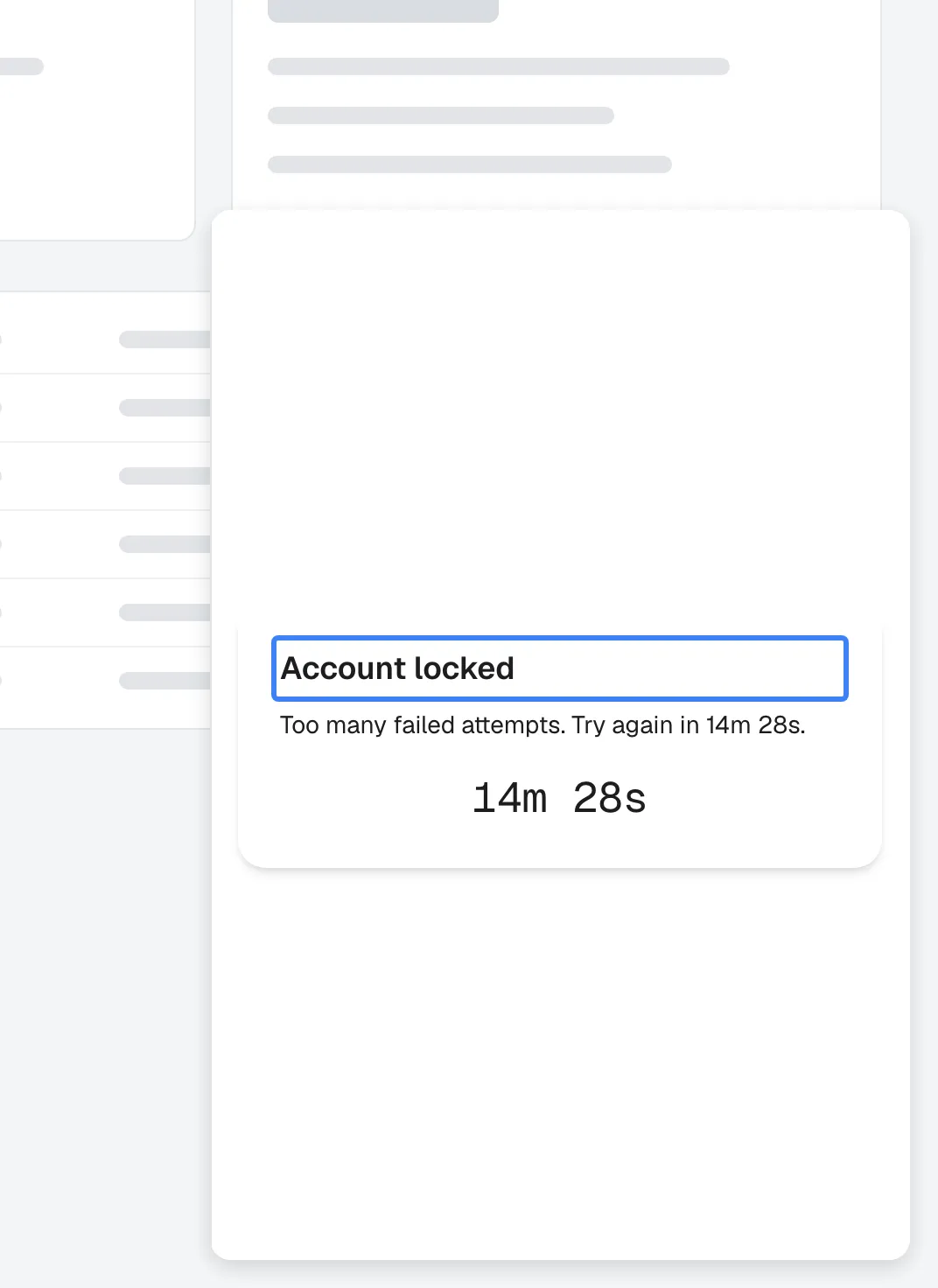
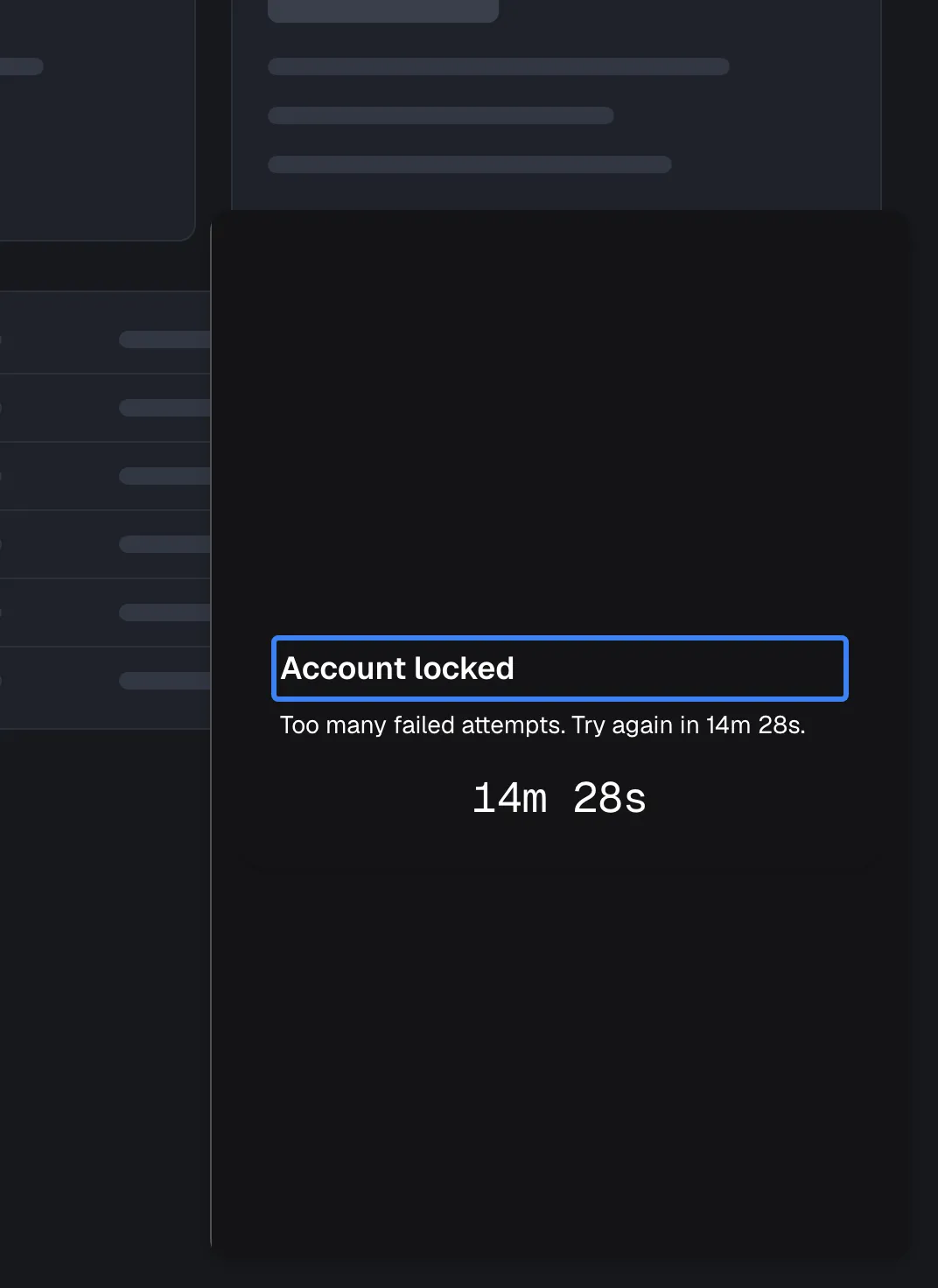
What this screenshot shows
- Screen
- Account locked (host page › widget (popup))
- Highlighted
- heading “Account locked”, locked-card, locked, about 14.5 minutes left. none; the widget re-checks when the countdown ends
- Also visible
- Message Too many failed attempts. Try again in … (about 14 minutes); Live countdown in minutes and seconds
- Purpose
- what a lockout looks like
Account unavailable
Section titled “Account unavailable”The card reads “Account unavailable” and “This account is currently disabled. Please contact your administrator if you believe this is in error.” It appears both for a disabled customer and for a customer whose company is deactivated, so the visitor cannot tell which. Disabling a customer also ends their running sessions at once; deactivating a company refuses sign-in and signs its customers out on their next request.
Why: you can stop a person’s access without deleting their records.
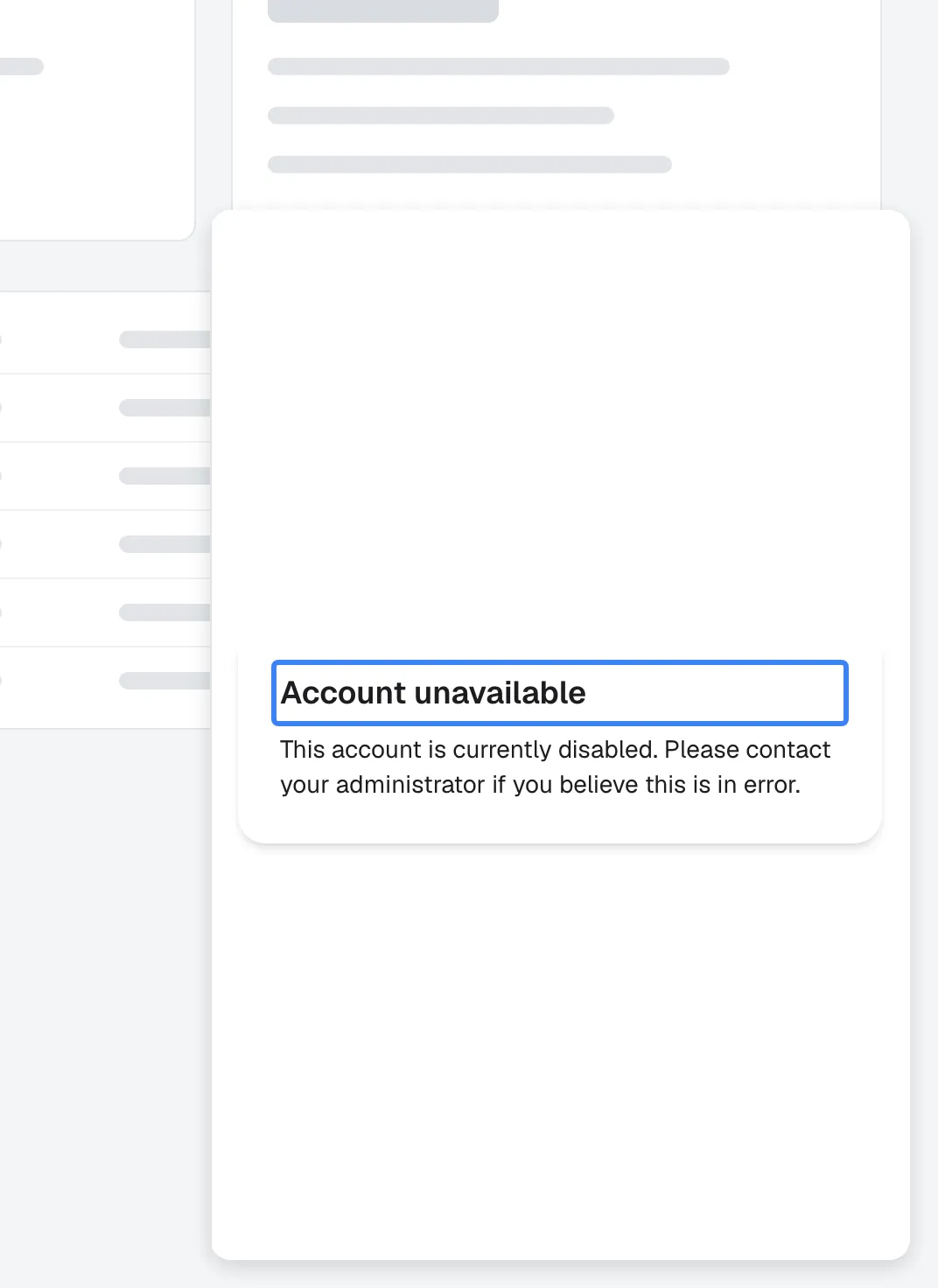
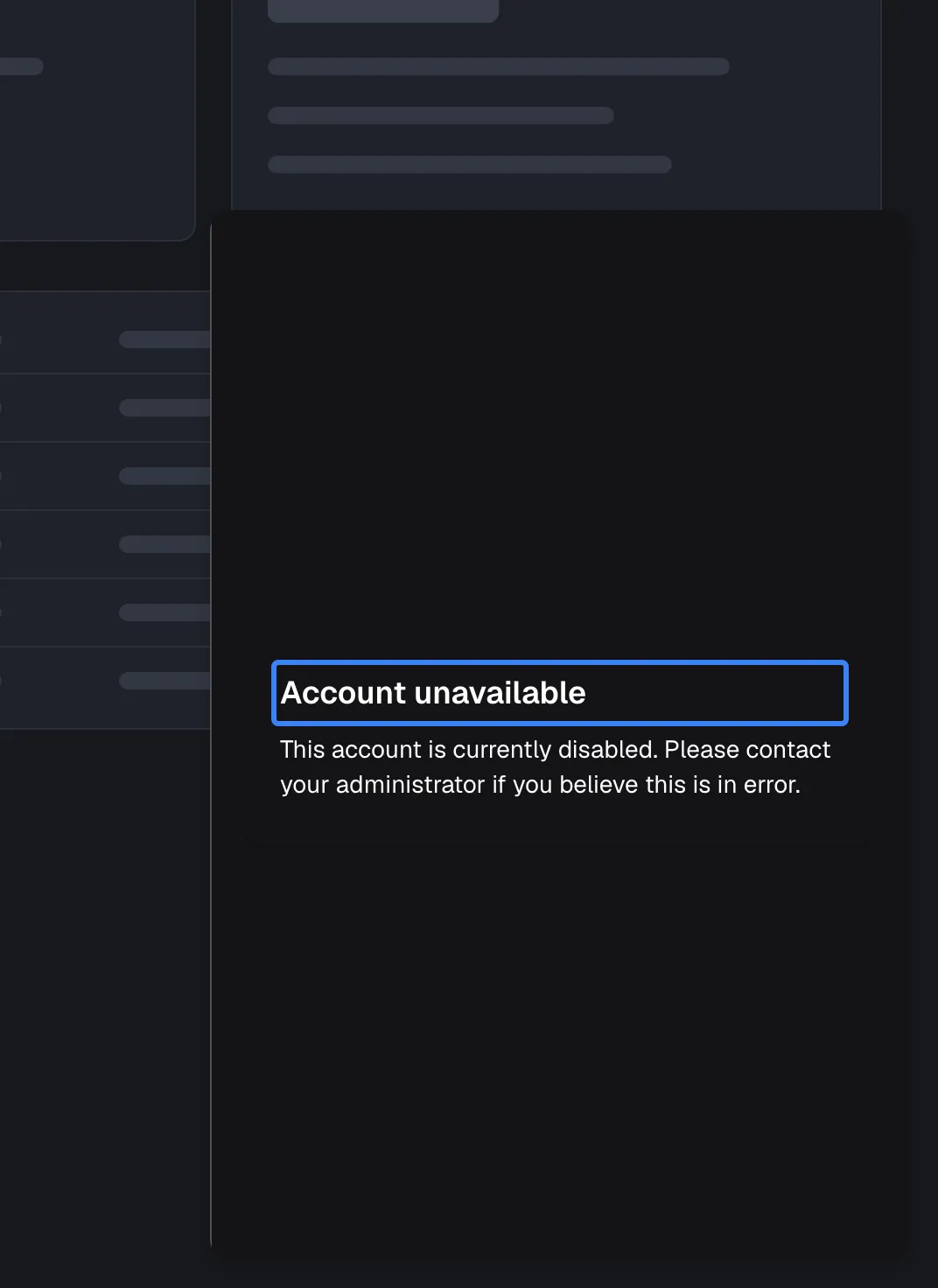
What this screenshot shows
- Screen
- Account unavailable (host page › widget (popup))
- Highlighted
- heading “Account unavailable”, disabled-card, shown. none
- Also visible
- Message This account is currently disabled…
- Purpose
- what a disabled customer sees
What you need to know
Section titled “What you need to know”| Topic | Fact |
|---|---|
| PIN and password rules | PIN 4 to 8 digits; password at least 8 characters; the customer chooses |
| Session | 12 hours, 7 days with “Remember me on this browser” |
| Lockout | From the 5th wrong entry: 1 minute, 5 minutes, 15 minutes, 1 hour, then 6 hours each time |
| Reset | No self-service reset or change in the widget; import the customer again with a new credential |
| Signing out | Only “Log out” in the customer portal; destroy() and your own sign-out do not end the widget session |
| Login tickets | 60 seconds, single use, one widget; the customer needs an existing credential |
| Role after self-setup | Admin of a company of their own |
| Too many requests | Repeated sign-in requests from one network are slowed down for about a minute |
| Languages | Screens follow the browser (English, German, Spanish); error messages from the server are in English |
Frequently asked questions
Section titled “Frequently asked questions”General
Section titled “General”Should I require sign-in on my widget?
Section titled “Should I require sign-in on my widget?”Yes, if the assistant shows personal chat history, acts with a person’s own toolkit credentials or opens the customer portal. Switch on Require customer authentication on ConfigureUser Interface, and pre-create credentials or use login tickets so you do not rely on first-visit setup.
What does the visitor type to identify themselves?
Section titled “What does the visitor type to identify themselves?”Only their PIN or password. The sign-in screen never asks for a name, email or id; it signs in the customer whose id your page passes as userId. That is why every page must pass the same stable id for the same person.
Is there single sign-on or a JWT login for end customers?
Section titled “Is there single sign-on or a JWT login for end customers?”There is no SSO or JWT option for end customers. They sign in with a PIN or password, or your backend signs them in with a one-time login ticket. A login ticket is the way to carry your own product’s sign-in into the widget.
Does turning the switch on lose existing chats?
Section titled “Does turning the switch on lose existing chats?”No. Customers who already chatted keep their chats and saved toolkit credentials, because both belong to their customer id. On their next visit they sign in with an imported credential, or set one up if you did not import one.
Where is the sign-in switch?
Section titled “Where is the sign-in switch?”On ConfigureUser Interface: select the widget’s card, find Require customer authentication in the Customer Portal section, switch it on and select Save User Interface Settings. Visitors are asked to sign in from their next page load; chats already running continue.
How do I pre-create customers with credentials?
Section titled “How do I pre-create customers with credentials?”Under CRMCustomers, select Import from CSV and upload a file with the columns CustomerId, Pin or Password, and optionally CustomerEmail, CustomerCompanyId, CustomerCompanyName and Role. Fill either Pin or Password per row, never both. The whole file is refused if one row is invalid.
PIN or password: which should my customers use?
Section titled “PIN or password: which should my customers use?”The customer chooses on the setup screen. A PIN has 4 to 8 digits and is quicker to type; a password has at least 8 characters and is harder to guess. When you import customers, you choose for them by filling the Pin or the Password column.
What role do customers get when they set up their own credential?
Section titled “What role do customers get when they set up their own credential?”A customer created on the setup screen becomes Admin of a company of their own. Imported customers get the Role from your file, Admin by default. Change roles under CRM, or let a customer Admin change them in the portal’s Members page.
Sessions and lockouts
Section titled “Sessions and lockouts”How long do customers stay signed in?
Section titled “How long do customers stay signed in?”Twelve hours, or seven days when they tick “Remember me on this browser”. Both survive closing the browser. While the widget is open, the session renews itself shortly before it ends, so active customers are not interrupted.
How long is an account locked after wrong entries?
Section titled “How long is an account locked after wrong entries?”The first four wrong entries in a row have no effect. The fifth locks the account for 1 minute, the sixth for 5 minutes, the seventh for 15 minutes, the eighth for 1 hour, and each further one for 6 hours. A correct entry resets the count.
Can I unlock a customer?
Section titled “Can I unlock a customer?”Not with a button. Import the customer again under CRMCustomers › Import from CSV with a new Pin or Password: that replaces the credential and clears the lockout. Otherwise the lockout ends when its time runs out.
A customer forgot their PIN. What do I do?
Section titled “A customer forgot their PIN. What do I do?”There is no self-service reset in the widget. Import the customer again with a new Pin or Password under CRMCustomers › Import from CSV and tell them the new one through your own channel. The import also signs them out of sessions already running on their next request.
Can customers change their own PIN?
Section titled “Can customers change their own PIN?”Not in the widget or the portal today. To change a credential, import the customer again with the new Pin or Password under CRMCustomers › Import from CSV, and tell them the new one.
Login tickets
Section titled “Login tickets”What is a login ticket?
Section titled “What is a login ticket?”A login ticket is a one-time pass your backend obtains from StrikeUp for one customer and one widget, by presenting that customer’s PIN or password. Your page passes it as loginTicket in initStrikeUpChatWidget, and the widget signs the customer in without showing the sign-in screen.
Why is the visitor still asked for their PIN although I passed a ticket?
Section titled “Why is the visitor still asked for their PIN although I passed a ticket?”The ticket was not accepted. It is valid for 60 seconds and once only, and only for the widget it was issued for. Obtain a fresh ticket on every page load, pass it in the same initStrikeUpChatWidget call as the matching userId, and check the widget it was issued for.
Can a ticket sign in a customer who has no PIN or password?
Section titled “Can a ticket sign in a customer who has no PIN or password?”No. Tickets are issued only for customers who already have a credential, because your backend presents that credential to obtain the ticket. Import such customers with a Pin or Password first.
Can a ticket sign in a disabled customer?
Section titled “Can a ticket sign in a disabled customer?”No. A disabled customer, or a customer whose company is deactivated, is refused when the ticket is requested, and the widget shows “Account unavailable” if they try to sign in. Enable the customer under CRM first.
Where it is shown
Section titled “Where it is shown”What does a disabled customer see?
Section titled “What does a disabled customer see?”“Account unavailable” and “This account is currently disabled. Please contact your administrator if you believe this is in error.” The same screen appears when the customer’s company is deactivated, so the visitor cannot tell which. Enable the customer or the company under CRM to restore access.
Why does a visitor see the sign-in screen on a widget without sign-in?
Section titled “Why does a visitor see the sign-in screen on a widget without sign-in?”The customer with that id already has a PIN or password, so the widget asks for it even though Require customer authentication is off. This protects a customer who set up a credential on another of your widgets, or whom you imported with one.
How does a customer sign out?
Section titled “How does a customer sign out?”With “Log out” at the bottom of the customer portal’s sidebar. Your page cannot sign a customer out: StrikeUpChat.destroy() removes the widget but leaves the session. On the next load, pass the new person’s userId, so the widget discards a session that belongs to someone else.
Data and privacy
Section titled “Data and privacy”Can my staff see a customer’s PIN or password?
Section titled “Can my staff see a customer’s PIN or password?”No. The admin app never shows a customer’s PIN or password, and it cannot be read back from the import. Staff can only replace it by importing the customer again with a new credential.
On a shared computer, can the next person see the previous person’s chats?
Section titled “On a shared computer, can the next person see the previous person’s chats?”Not when your page passes each person’s own userId: the widget discards a stored session that belongs to another id, and the next person signs in as themselves. Ask customers on shared computers to leave “Remember me on this browser” unticked and to use “Log out” in the portal.
Troubleshooting
Section titled “Troubleshooting”| Symptom | What to check |
|---|---|
| Every visitor ends up in the same account | userId is still your_customer_id or another fixed value. Pass each person’s own id |
| A customer is asked to set up a new PIN on another device | Does your page pass the same userId on both devices? |
A visitor with a ticket still sees Welcome back | In order: was the ticket obtained less than 60 seconds before the page loaded? Was it used before? Was it issued for this widget and for the same userId your page passes? |
| Your backend is refused with “Customer has no credential set — auto-injection requires a pre-set credential.” | Import the customer with a Pin or Password first |
| “Account locked” with a countdown | Five or more wrong entries in a row. Wait, or import the customer again with a new credential |
| “Account unavailable” | Is the customer disabled, or their company deactivated, under CRMCustomers? |
| A wrong PIN shows “PIN must be 4-8 numeric digits. (Parameter ‘credential’)” | The PIN has fewer than 4 or more than 8 digits, or contains other characters |
Sign-in shows Request failed (429) | Too many sign-in requests came from one network in a short time. Wait a minute, then sign in again |
| “Session expired.” after a long break | The 12-hour or 7-day session ended. The customer signs in again |
| The import is refused | A row has both Pin and Password, a PIN outside 4 to 8 digits or a password under 8 characters; the whole file is refused |
| A customer still looks signed in after their company was deactivated | They are signed out on their next request, for example when they send a message. Check that the company is deactivated under CRM |
| A change fails with Request failed and “This action requires the Admin role.” | Changing these settings in StrikeUp needs the Admin role. Ask an Admin to make the change, or to give you the Admin role under Settings › Users. |