

AI Gateway: advanced mode
Your assistant works in stages: the main agent that answers a visitor, specialised agents such as support or copilot, their sub-agents, and the small model that judges how hard a question is. The Advanced Mode tab lets you pin one stage to one exact model, overriding the level that stage would get on the Standard Mode tab. It also shows each stage’s backup models and the stages StrikeUp runs for you. Open it from ConfigureAI Gateway and select the Advanced Mode tab. The page is available once StrikeUp has switched the AI Gateway feature on for your workspace.
What you can do here
Section titled “What you can do here”- Pin a stage to an exact model. Choose a model in a stage’s drop-down and the stage uses it from the next message. There is no Save button. Pin a stage to a model.
- Hand a stage back to its level. Clear removes the pin, so the stage follows Standard Mode again. Clear a pin.
- See which backup models are tried. Each stage lists up to 3 backup models, set by StrikeUp, that take over when its model is unavailable. Read the backup models.
- See the stages StrikeUp runs for you. Planning, safety checks and other services run on StrikeUp’s own models and cannot be pinned. StrikeUp’s own stages.
- Choose between pinning and levels. Pins are for the few stages that need one specific model; levels are simpler for the rest. AI Gateway: Standard Mode · AI models, spend and budgets.
The screen at a glance
Section titled “The screen at a glance”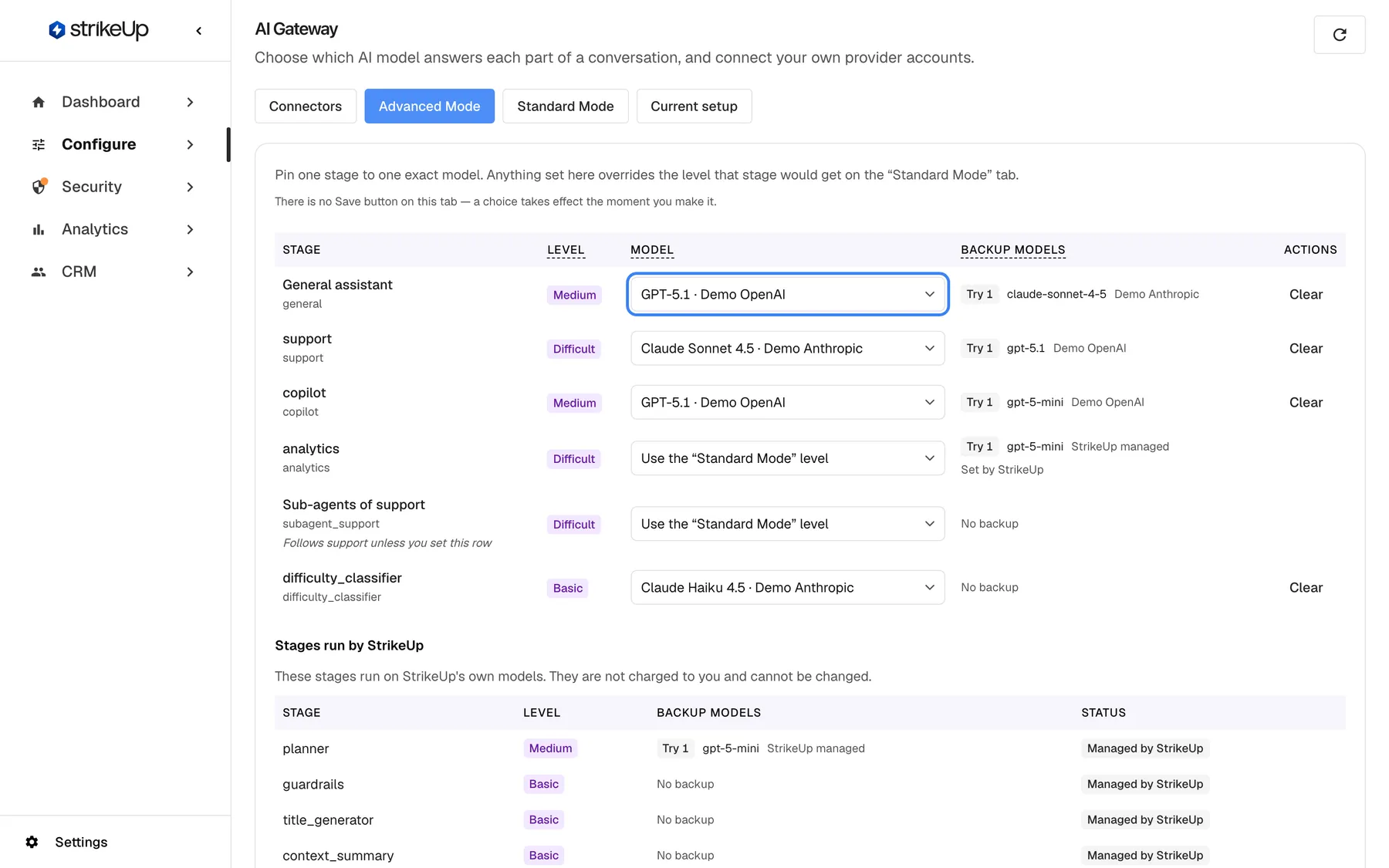
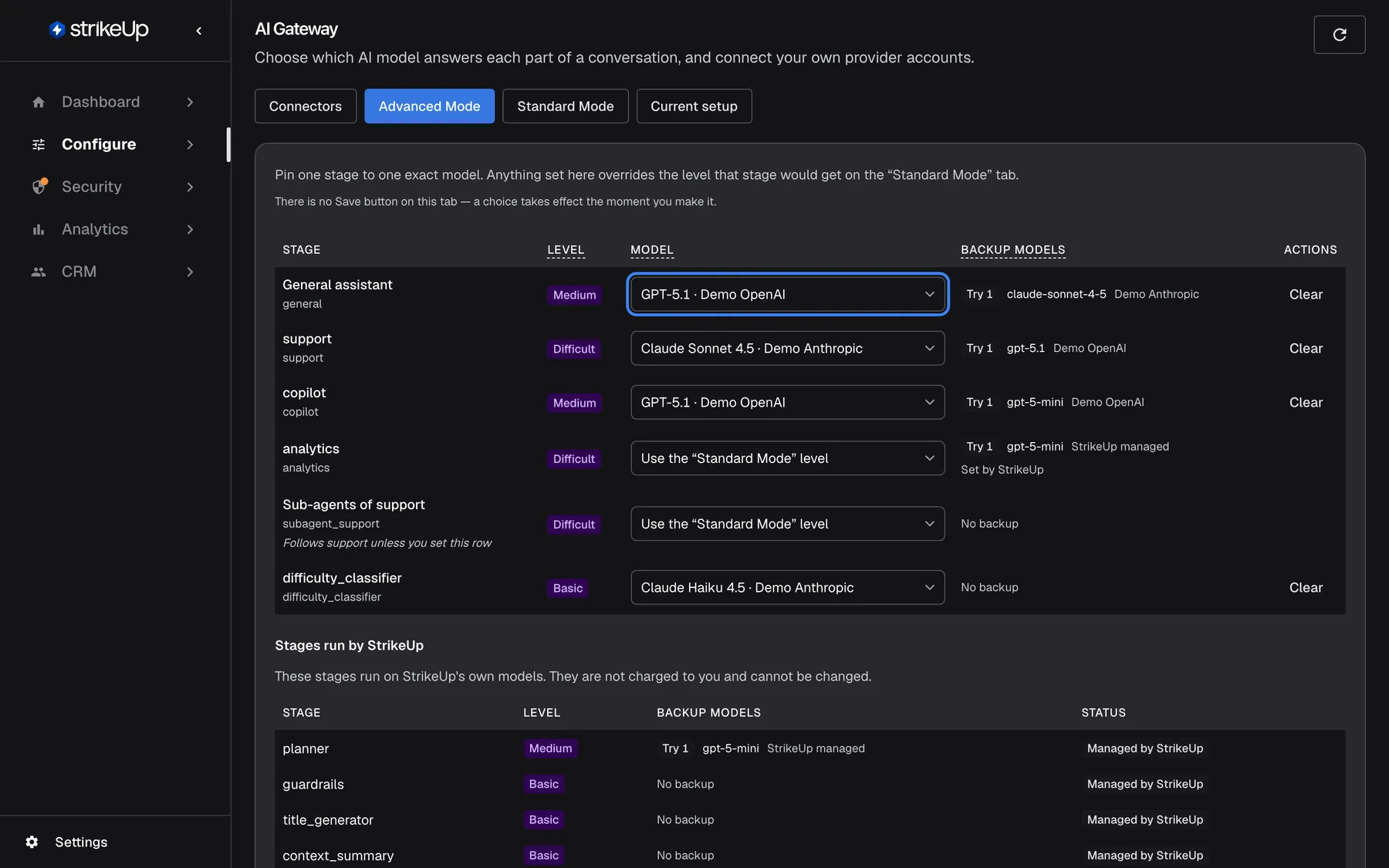
What this screenshot shows
- Screen
- Advanced Mode (/admin/configure/ai-gateway)
- Highlighted
- combobox “”, stage-table-model-column, GPT-5.1 · Demo OpenAI. pins the stage to the chosen model and saves at once
- Also visible
- Stages: General assistant, support, copilot, analytics, Sub-agents of support, difficulty_classifier; analytics and Sub-agents of support: Use the “Standard Mode” level; Stages run by StrikeUp section below
- Purpose
- overview of per-stage model pins
| Region | What it shows | What you do there |
|---|---|---|
| Intro | Pin one stage to one exact model. Anything set here overrides the level that stage would get on the “Standard Mode” tab. and the note There is no Save button on this tab — a choice takes effect the moment you make it. | Read how the tab behaves |
| Stage table | One row per stage your agents use: Stage, Level, Model, Backup models and Clear for pinned rows | Pin or clear a stage |
| Stages run by StrikeUp | A read-only table of the stages StrikeUp runs, with their levels and backups | See what runs outside your control |
When your workspace has no stages yet, the table shows No stages to configure yet.
Which stages are listed
Section titled “Which stages are listed”The stage table lists every stage your agents can reach:
| Stage, as shown | What it is |
|---|---|
| General assistant | The general assistant that answers when no specialised agent applies |
support, copilot, analytics and other names | The agents switched on for your widgets, shown by their internal stage names in every language |
| Sub-agents of {{parent}}, with the agent’s name | The sub-agents a stage starts when it splits a task. They follow their parent stage unless you set the row: Follows {{parent}} unless you set this row |
difficulty_classifier | The small model that judges how hard each question is when per-question routing is on |
| Any stage pinned earlier | Kept in the list while its pin exists, even if the agent was switched off |
Pin a stage to a model
Section titled “Pin a stage to a model”-
Open ConfigureAI Gateway and select Advanced Mode.
-
Find the stage’s row and open its Model drop-down. The first option is Use the “Standard Mode” level; the others read as model name, a dot, and the connector or provider it runs through, such as “GPT-5.1 · My OpenAI connector”.
-
Choose the model. The notice Model updated appears, the row shows a Clear button, and all four tabs reload.
The pin is saved the moment you choose. It is recorded under Configuration changes on the Current setup tab, and reaches conversations within about a minute, normally from the next message.
Example: your support agent handles billing disputes that need careful reasoning, while everything else is routine. Leave every stage on its level, and pin only support to your strongest model. Its sub-agents follow the pin until you set their own row.
How a pin interacts with your other settings:
- A pin wins over everything else you set. It beats an agent’s own model setting, the stage’s level on Standard Mode and StrikeUp’s defaults. The Level column stays visible for reference only.
- Judging questions never moves a pinned stage. Raising the level for difficult questions applies to stages that follow their level, not to pinned ones.
- A pin can never break a conversation. If the pinned model is later withdrawn or turned off, or its connector is deleted or switched off, the stage quietly uses the next setting in line. The row then shows Retired model — no longer available as a greyed-out choice until you pick another model.
- When StrikeUp retires a model and names a replacement, pins to the old model move to the replacement.
Clear a pin
Section titled “Clear a pin”-
Find the pinned stage. Only pinned rows show Clear.
-
Select Clear, or choose Use the “Standard Mode” level in the drop-down. Both do the same.
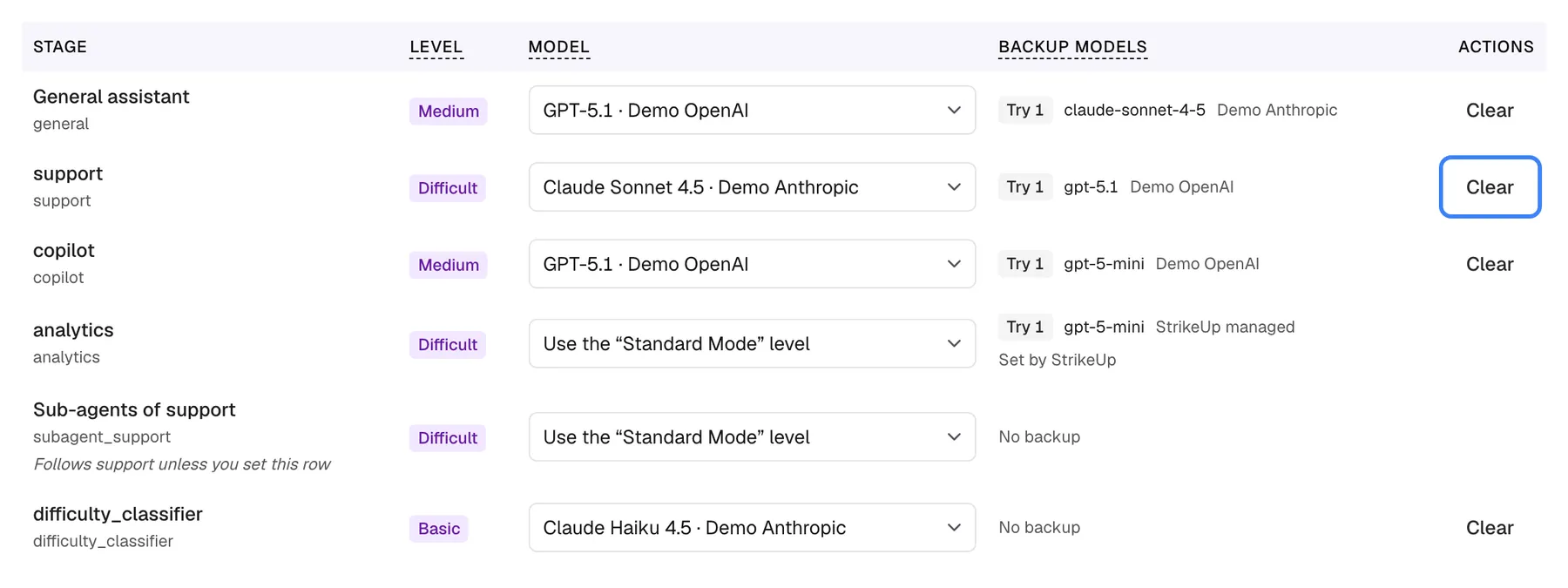
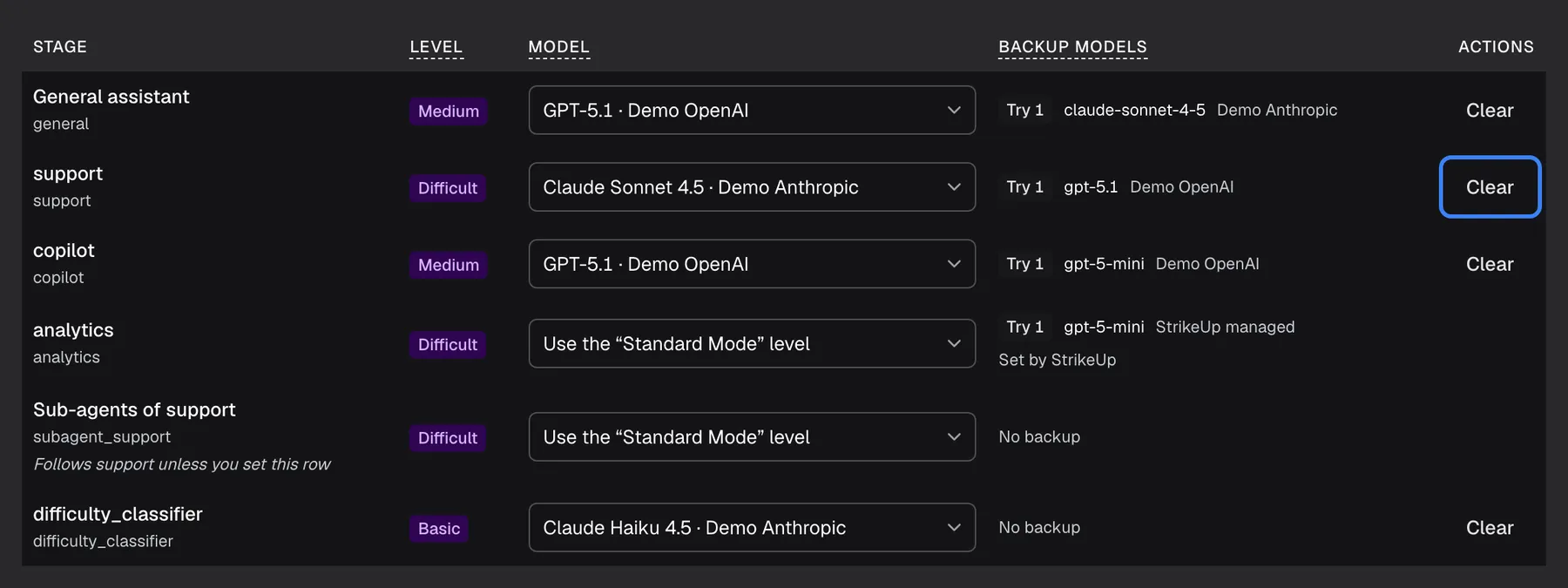
Clear removes a stage's pin, so the stage follows its Standard Mode level again. What this screenshot shows
- Screen
- Advanced Mode (/admin/configure/ai-gateway)
- Highlighted
- button “Clear”, stage-table-actions-column, enabled. removes the stage's model pin immediately
- Also visible
- support pinned to Claude Sonnet 4.5 · Demo Anthropic
- Purpose
- undoing a pin
Removes the pin and hands this stage back to the level system on the “Standard Mode” tab. The notice Model updated confirms it, and the change is recorded in the change history.
Read the backup models
Section titled “Read the backup models”The Backup models column lists, for each stage, the models tried in order when its model cannot answer: Tried in order when the chosen model is unavailable. Set by StrikeUp and not editable here.
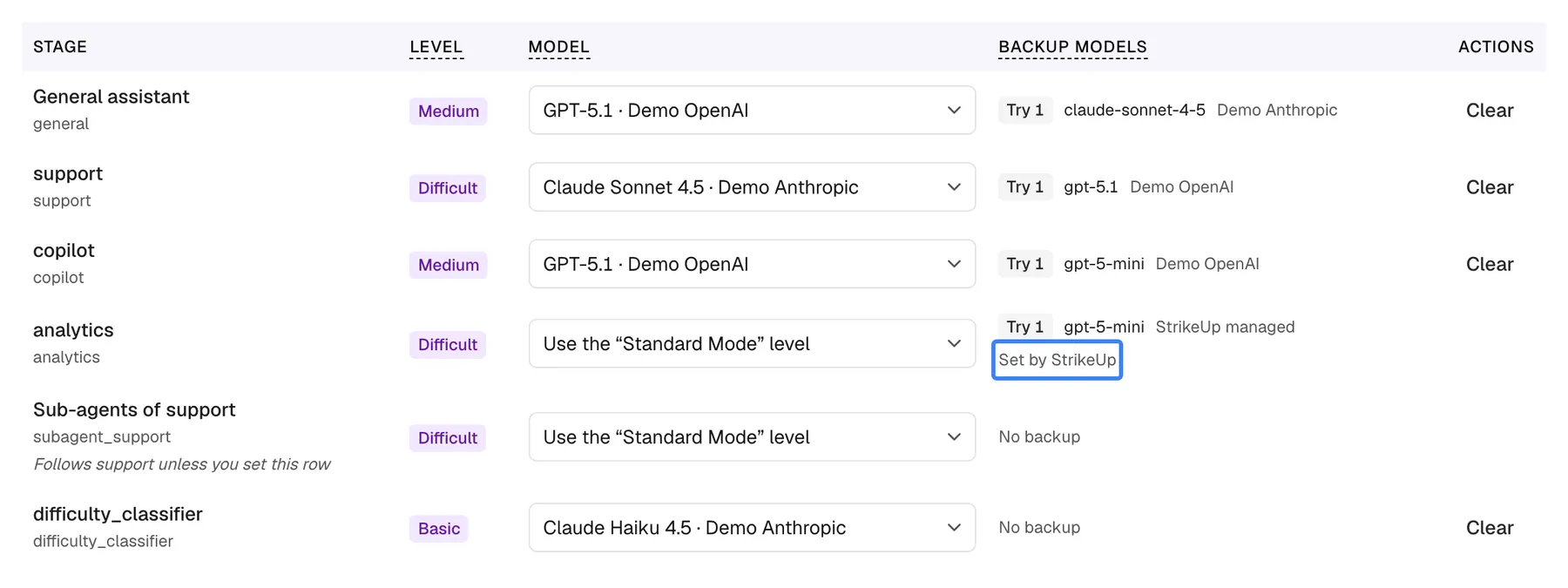
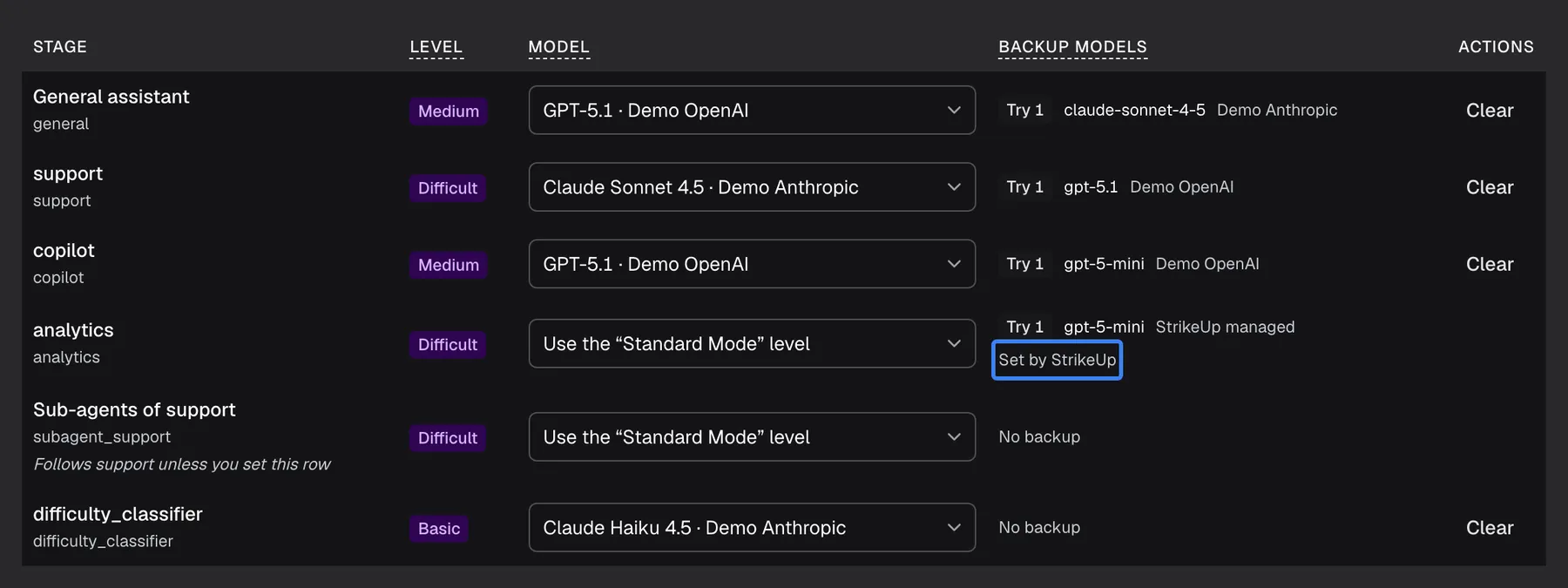
What this screenshot shows
- Screen
- Advanced Mode (/admin/configure/ai-gateway)
- Highlighted
- “”, stage-table-backup-column, read-only. none
- Also visible
- Try 1 entries per stage; No backup for two stages
- Purpose
- reading the fallback chain
| What the column shows | Meaning |
|---|---|
| Try {{order}} with a model and a connector | One backup, in the order it is tried. At most 3 per stage. |
| Model turned off | This backup’s model is switched off and is skipped |
| Set by StrikeUp | The backup list comes from StrikeUp |
| No backup | The stage has no backup; if its model fails, the visitor gets the unavailable message |
When the backups are used:
| What happened to the call | Retried on the same model? | Backups tried? |
|---|---|---|
| Rate limit, server error or timeout | Up to 2 times | Yes |
| The provider rejected the key (HTTP 401 or 403) | No | Yes |
| The conversation is too long for the model | No | Yes, the next backup may accept it |
| The provider called the request invalid (HTTP 400, 413 or 422) | No | No, another model would refuse it too |
| Any other error | No | Yes |
- A streamed answer can switch only before its first word. Once the visitor sees text arriving, a failure ends that answer instead of switching model.
- When every model fails, the visitor reads “The assistant is temporarily unavailable. Please try again shortly.” or, when the providers are rate-limiting, “The assistant is busy right now. Please try again in a moment.”
You cannot change backup models on this tab. To have backups set up or changed, ask StrikeUp.
StrikeUp’s own stages
Section titled “StrikeUp’s own stages”The section Stages run by StrikeUp at the bottom lists the stages StrikeUp runs around your agents: These stages run on StrikeUp's own models. They are not charged to you and cannot be changed.
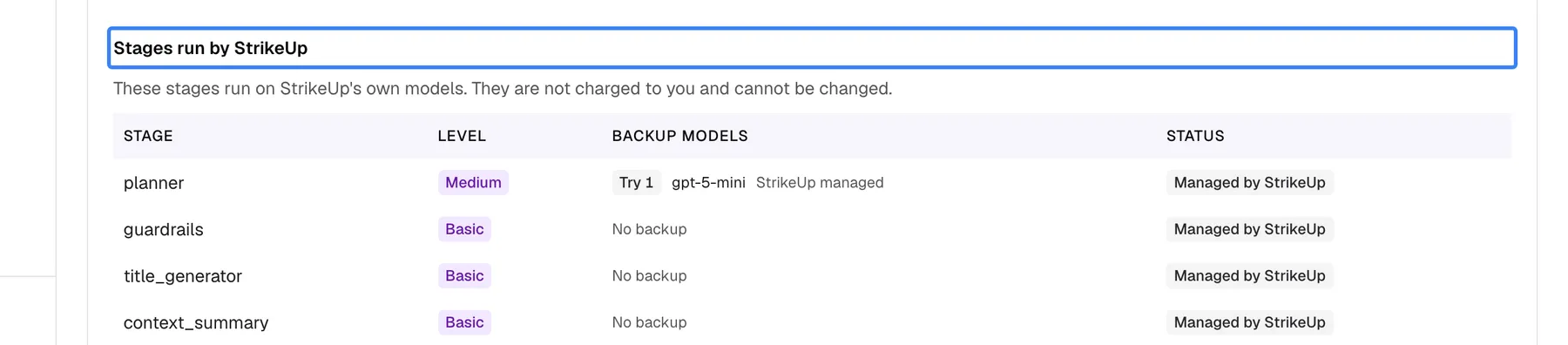
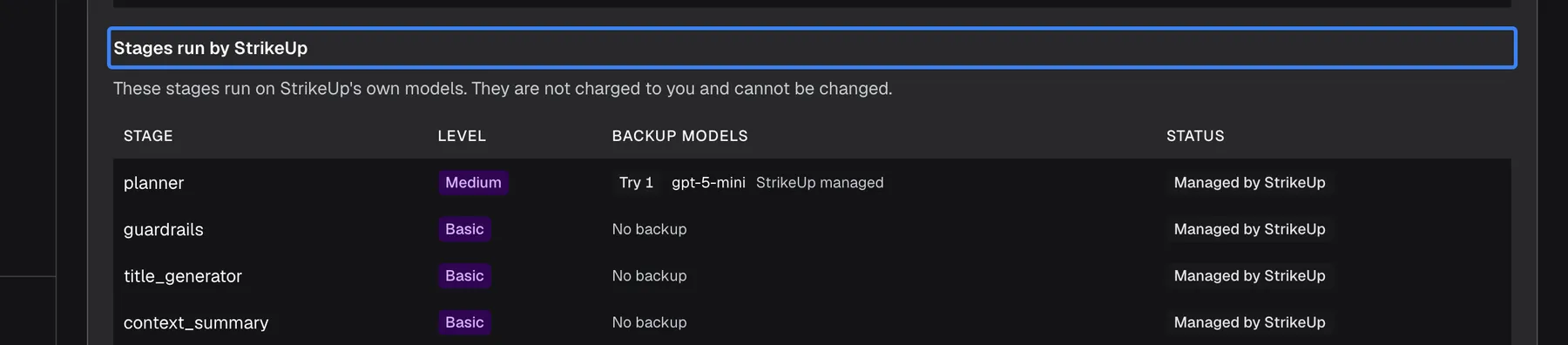
What this screenshot shows
- Screen
- Advanced Mode (/admin/configure/ai-gateway)
- Highlighted
- “”, platform-stages-section, read-only. none
- Also visible
- planner, guardrails, title_generator, context_summary — Managed by StrikeUp
- Purpose
- which stages you cannot change
They include planner, which decides how to answer each message and which skills and knowledge to use; guardrails, which checks messages against your rules; title_generator, which names chats; and context_summary, which shortens long conversations. The table shows their internal names, levels and backups, with no drop-down. These stages are never charged as your agents’ usage and never count towards your budgets.
Every control, explained
Section titled “Every control, explained”Model drop-down
Section titled “Model drop-down”The Model column of the stage table, one drop-down per row. It saves the moment you choose.
Use the “Standard Mode” level (no pin) or a model, shown with the connector or provider it runs through. Only active models your workspace may use are offered. A pin to a model that is no longer available shows as Retired model — no longer available, which cannot be chosen again. If saving fails, the notice Request failed appears and the row keeps its previous model.
The Level column, a badge per row: Basic, Medium or Difficult.
The level this stage has on the “Standard Mode” tab. Shown for reference — a model picked here overrides it. Change it on the Standard Mode tab.
Shows which model the stage would use if you cleared its pin.
Backup model column
Section titled “Backup model column”The Backup models column, read-only.
Up to 3 backups per stage, tried in order, or No backup.
Keeps the assistant answering when a provider is down, without you having to act.
The last column, Clear, on pinned rows only. Saves at once.
Undo a pin in one click, without searching for the inherit option.
StrikeUp’s own stages
Section titled “StrikeUp’s own stages”The read-only table Stages run by StrikeUp at the bottom of the tab.
The stage name, its level, its backups and the badge Managed by StrikeUp. Nothing can be changed.
Shows the whole picture of the models behind your assistant, including the ones StrikeUp pays for.
Who sees what
Section titled “Who sees what”| Part | What decides whether you see it |
|---|---|
| The Advanced Mode tab and the whole page | The AI Gateway feature, which StrikeUp switches on per workspace. Without it the menu item is hidden and the page’s address takes you to the Dashboard. |
| A stage’s row | The stage belongs to an agent switched on for one of your widgets, is a sub-agent or the question judge, or was pinned before |
| Clear | Only on pinned rows |
Every signed-in user of a workspace with the feature can read this tab. Pinning and clearing stages needs the Admin role; for anyone else the change fails with “This action requires the Admin role.”
What you need to know
Section titled “What you need to know”| Topic | Fact |
|---|---|
| Saving | Each choice saves at once; there is no Save button and no undo, apart from choosing again. |
| Order of settings | A pin comes first, then an agent’s own model setting, then the stage’s level, then StrikeUp’s defaults. The first one that is usable wins. |
| When changes apply | Within about a minute; normally from the next message. |
| Unusable pins | A pin to a withdrawn or switched-off model, or through a deleted or inactive connector, is skipped without an error. |
| Backups | Up to 3 per stage, configured by StrikeUp, read-only here. |
| Retries | Up to 2 per connector for temporary failures. |
| Stage names | Only General assistant and sub-agent rows have friendly names; the others show their internal names in every language. |
| History | Every pin and clear is listed under Configuration changes on Current setup. |
Frequently asked questions
Section titled “Frequently asked questions”Pinning
Section titled “Pinning”Is there a Save button on the Advanced Mode tab?
Section titled “Is there a Save button on the Advanced Mode tab?”No. On ConfigureAI Gateway › Advanced Mode, choosing a model in a stage’s drop-down saves the pin at once and shows Model updated. Choose again to change it, or use Clear to remove it.
How do I undo a pin?
Section titled “How do I undo a pin?”Select Clear in the stage’s row, or choose Use the “Standard Mode” level in its drop-down. Both remove the pin, and the stage follows its level on the Standard Mode tab again from the next message.
Which wins, a pin or the Standard Mode level?
Section titled “Which wins, a pin or the Standard Mode level?”The pin. A model pinned on Advanced Mode overrides the stage’s level on Standard Mode, an agent’s own model setting and StrikeUp’s defaults. The Level column only shows what the stage would use without the pin.
Does pinning a stage also pin its sub-agents?
Section titled “Does pinning a stage also pin its sub-agents?”The sub-agent row Sub-agents of {{parent}} follows its parent stage until you set the sub-agent row itself. Pin the sub-agent row separately when the sub-agents should use a different model from the agent that starts them.
Why are my stages called support or copilot instead of a friendly name?
Section titled “Why are my stages called support or copilot instead of a friendly name?”The stage table shows the internal names of your agents’ stages, such as support, copilot and analytics, in every language. Only General assistant and the sub-agent rows have translated names. The same names appear on Current setup and in spend reports.
What does Retired model mean in a drop-down?
Section titled “What does Retired model mean in a drop-down?”Retired model — no longer available means the pinned model was withdrawn or switched off. The stage is not broken: it already uses the next setting in line, such as its level. Choose a current model, or select Clear, to tidy the row up.
Backups
Section titled “Backups”What are the backup models, and can I change them?
Section titled “What are the backup models, and can I change them?”The backup models are tried in order, up to 3 per stage, when the stage’s own model is unavailable. StrikeUp sets them, and the Backup models column on Advanced Mode is read-only. Ask StrikeUp to add or change backups for a stage.
Does a backup take over when the conversation is too long for the model?
Section titled “Does a backup take over when the conversation is too long for the model?”Yes. When a model refuses a conversation as too long, the next backup model is tried straight away, because a model with a larger context may accept it. A request the provider calls invalid, such as HTTP 400, is not passed to a backup, because another model would refuse it too.
What does the visitor see when every model fails?
Section titled “What does the visitor see when every model fails?”The visitor reads “The assistant is temporarily unavailable. Please try again shortly.” or, when the providers are limiting the number of requests, “The assistant is busy right now. Please try again in a moment.” This happens only after retries and every backup model have failed.
StrikeUp’s own stages
Section titled “StrikeUp’s own stages”Why can’t I change the planner or the guardrails?
Section titled “Why can’t I change the planner or the guardrails?”planner, guardrails and the other stages under Stages run by StrikeUp run on StrikeUp’s own models for every workspace. These stages run on StrikeUp's own models. They are not charged to you and cannot be changed. They are listed so you can see the whole picture.
Do StrikeUp’s stages count towards my budgets?
Section titled “Do StrikeUp’s stages count towards my budgets?”No. The stages under Stages run by StrikeUp are never counted as your agents’ usage, so they never count towards a budget under ConfigureBudgets & limits. AI Spend can show them separately, for transparency.
Troubleshooting
Section titled “Troubleshooting”| Symptom | What to check |
|---|---|
| A stage uses another model than the one you pinned | Open Current setup and read Decided by. If the pin is not the deciding setting, the model may have been withdrawn, or its connector deleted or switched off on Connectors. Wait a minute after a change. |
| Retired model — no longer available in a drop-down | The pinned model is no longer available. Choose another model or clear the pin. |
| Request failed after choosing a model | The pin was not saved. Reload with the refresh button and choose again. |
| A stage you expect is missing | It appears when its agent is switched on for one of your widgets. Check the widget’s agents on AI & UX. |
| The model you want is not in the drop-down | Only active models your workspace may use are offered. Ask StrikeUp which models are available to you. |
| No stages to configure yet. | No agent is switched on yet. Set up a widget’s agents first. |
| Visitors see “The assistant is temporarily unavailable” | The model and every backup failed. Check Health on Connectors and ask StrikeUp about backups for that stage. |
| The Advanced Mode tab is missing | The AI Gateway feature is not switched on for your workspace. |
| A change fails with Request failed and “This action requires the Admin role.” | Changes on this page need the Admin role. Ask an Admin to make the change, or to give you the Admin role under Settings › Users. |