

Display types and custom triggers
A chat that floats over a checkout page gets in the way; a chat hidden behind a corner button is never found on a busy dashboard. The widget’s display type decides how the assistant sits on your pages, your own buttons can open it with a question already prepared, and URL rules keep it to the paths where it helps.
What it does
Section titled “What it does”Products differ in where help belongs. A marketing site wants a small launcher in the corner; an analytics tool wants the assistant open beside the data; a help page wants the chat inside its layout; and many products already have an “Ask AI” button in their own design that should open the assistant.
The widget offers seven display types, five of which you pick on ConfigureUser Interface, and any of which your code can set for one page. From there:
- The widget appears in the form that suits your product: a pop-up, a sidebar, an always-open panel, a centred modal, a pane behind your own button, or a section of your page. Understanding display types.
- Your own buttons open and close the assistant, optionally with a prepared message that is shown or sent straight away. Opening the widget from your own button.
- The widget shows only on the paths you choose, re-checked as visitors move around a single-page app. URL rules, where the widget appears.
Everything here is saved on the widget, so you can check it at any time on ConfigureUser Interface, and the Test URL box there gives the same verdict for a path as the widget does on your site.
Before you start
Section titled “Before you start”| Requirement | Details |
|---|---|
| A widget | Created on ConfigureEmbed with at least one toolkit |
| The widget installed in your product | The script and init call from Install the widget in your product |
| Role | The Admin role to change a widget’s display settings; every other signed-in user of your workspace can view them |
| Plan or cost | None. Display types, triggers and URL rules have no plan gate and no cost |
Understanding display types
Section titled “Understanding display types”The display type decides three things: what visitors see before the chat opens, where the chat opens, and whether visitors can close it.
| Display type | Chosen where | Before it opens | Where the chat opens | Visitors close it with |
|---|---|---|---|---|
| Popup (default) | User Interface | A round launcher with a chat-bubble icon, bottom-right | A window in that corner, by default 400 × 600 pixels | No close control: the window covers the launcher |
| Sidebar | User Interface | A tab with an arrow on the right edge, halfway down | A full-height pane on the right, at most 500 pixels and 85% of the window wide | The same tab, now on the pane’s edge |
| Panel | User Interface | Nothing: it is always open | A full-height pane on the right that pushes your page aside; visitors drag its edge to resize it | Cannot be closed |
| Custom Trigger — Sidebar | User Interface | Nothing: your own button opens it | A full-height pane on the right, sidebar width | A collapse tab on the pane’s edge, or your code |
| Custom Trigger — Panel | User Interface | Nothing: your own button opens it | Like the custom-trigger sidebar, plus a drag handle; the width is remembered | A collapse tab on the pane’s edge, or your code |
| Modal | Only in code: displayType: "modal" | A round launcher, bottom-right | A centred window over a dimmed page | Selecting the dimmed backdrop |
| Inline | Only in code: displayType: "inline" with container | Nothing: it fills your element | Inside your element, in the normal page flow | Cannot be closed |
How StrikeUp decides
Section titled “How StrikeUp decides”- Your code wins over the saved setting. A
displayTypein theinitStrikeUpChatWidgetcall overrides the widget’s saved display type for any value, on that page only. - The pop-up and modal load the chat on the first click. All other types load the chat frame together with your page, so they are ready the moment they open. When your page passes a login ticket, the pop-up and modal also load straight away, so the ticket is used before it expires.
- URL rules come first. On every page load, and every time the path changes, the widget checks its URL rules before drawing anything. On a hidden path nothing is drawn at all.
- One widget per page. A page holds one widget; a second
initStrikeUpChatWidgetcall with another user replaces the first.
What does not get shown
Section titled “What does not get shown”- Paths excluded by the widget’s URL rules, and every path outside its include rules when include rules exist.
- An inline widget whose
containermatches no element when the call runs. The console warns and nothing is drawn. - Any widget whose application token is wrong or whose settings cannot be loaded. Nothing is drawn and the console stays quiet.
Setting it up in four steps
Section titled “Setting it up in four steps”-
Open the widget’s display settings. Go to ConfigureUser Interface and select the widget’s card at the top.
-
Pick the display type. In
Data display, select one of the five display types. For Sidebar and the custom-trigger types, also chooseDisplay behaviour:OverlayorPush. Set the width and, for the pop-up, the height.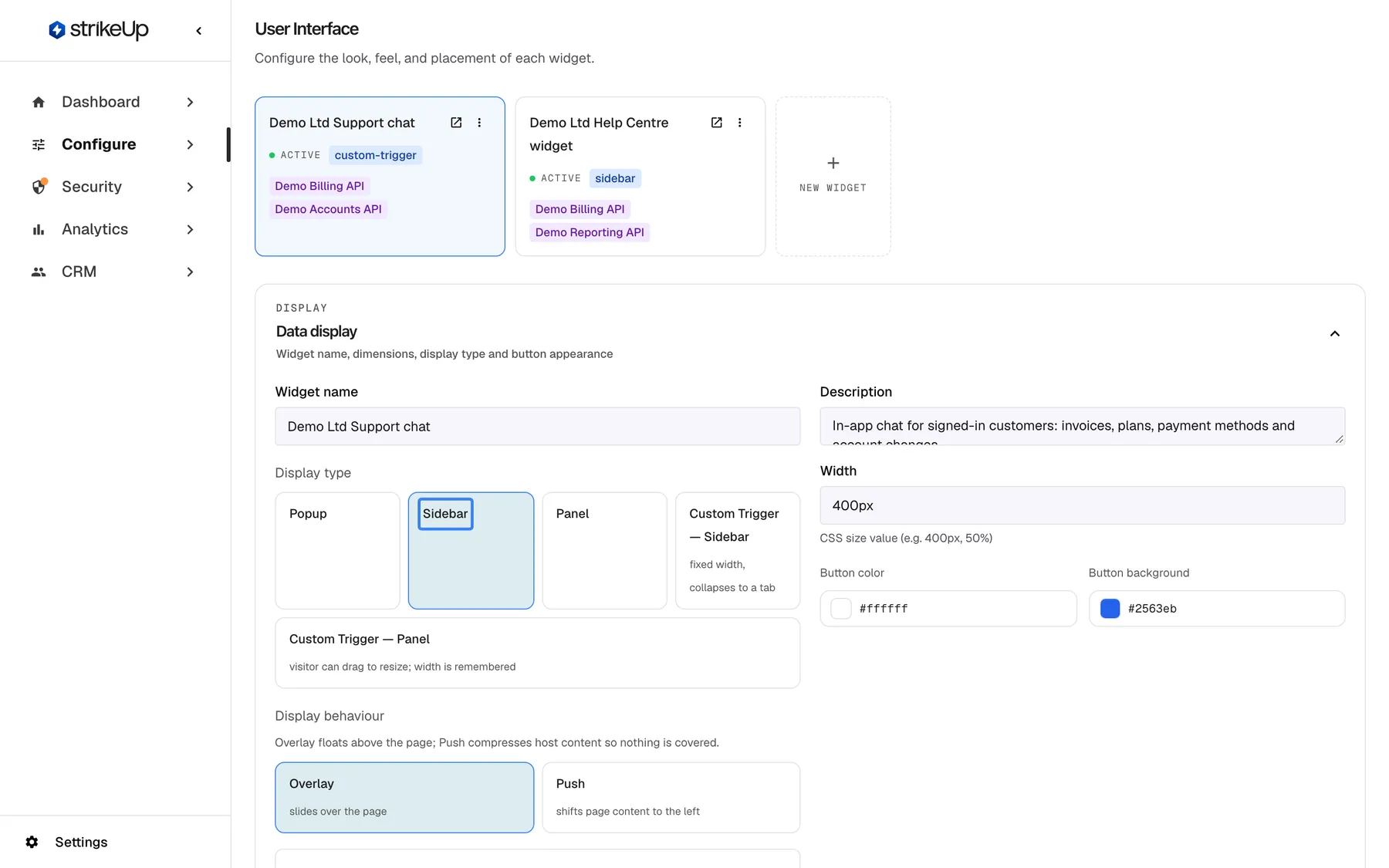
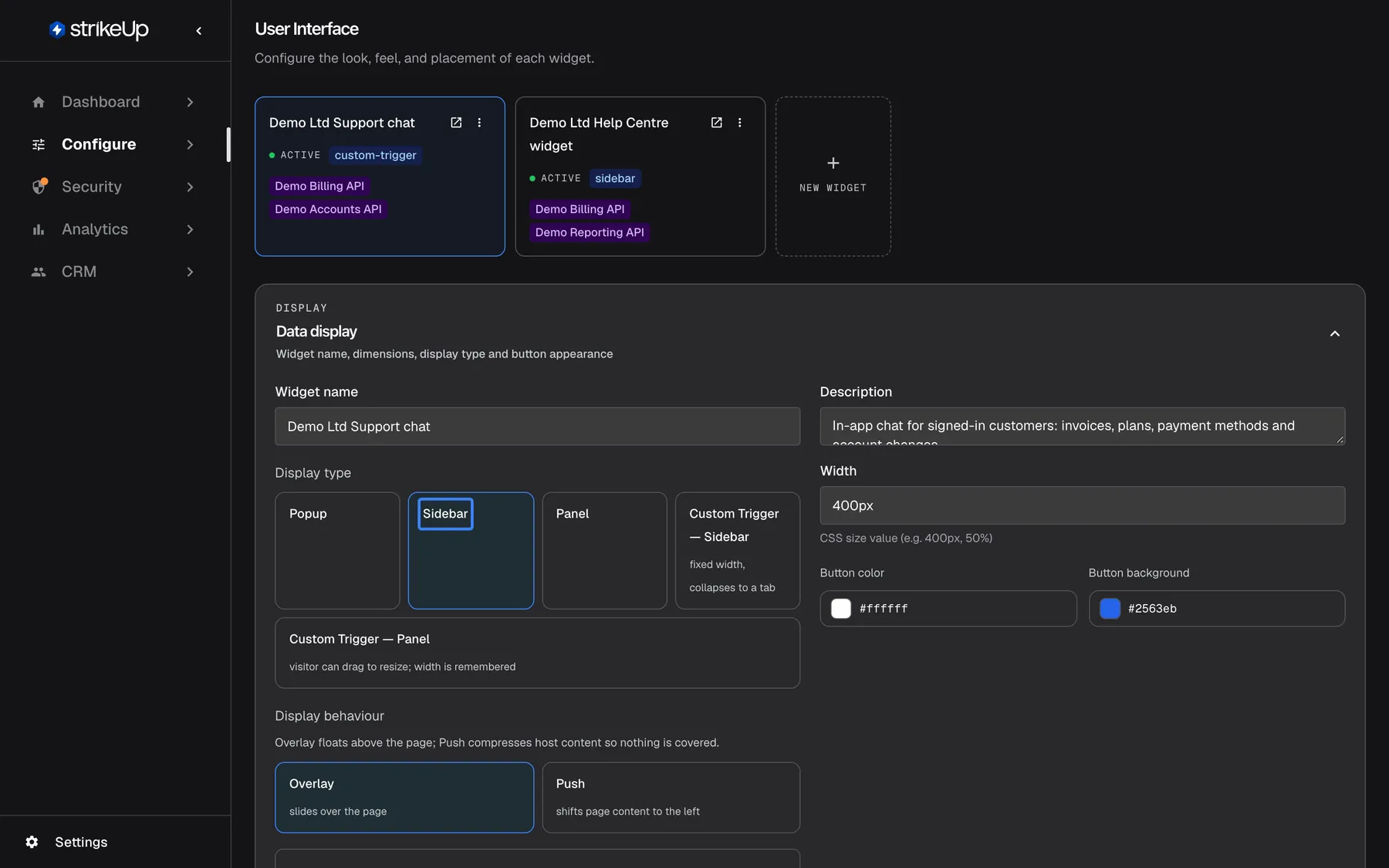
Pick the display type on User Interface; for sidebar types, Display behaviour decides whether the pane covers or pushes your page. What this screenshot shows
- Screen
- User Interface (/admin/configure/user-interface?widgetId=…)
- Highlighted
- radio “Sidebar”, data-display-section-left, selected (not saved yet). sets the widget to a sidebar opened from a tab on the right edge
- Also visible
- Display type options Popup, Sidebar, Panel, Custom Trigger — Sidebar, Custom Trigger — Panel; Display behaviour Overlay (selected) and Push; Width 400px, Button color, Button background
- Purpose
- where the display type is chosen
-
Limit the widget to the right paths (optional). In URL Visibility Rules, add include or exclude patterns and check a few paths in Test URL. Then select
Save User Interface Settingsat the bottom of the page. Visitors see the change on their next page load. -
Add your own trigger button (custom-trigger types only). Open ConfigureEmbed, copy a snippet from
Custom Trigger Button Snippetsand paste it where your button belongs.
Every setting, explained
Section titled “Every setting, explained”The display settings live on ConfigureUser Interface, the trigger snippets on ConfigureEmbed, and two options exist only in your code.
Display type, how the widget appears
Section titled “Display type, how the widget appears”ConfigureUser Interface, the widget’s card, then the display type choice in Data display. Saved with Save User Interface Settings.
One of Popup (the default), Sidebar, Panel, Custom Trigger — Sidebar or Custom Trigger — Panel. The behaviour of each is in the table under Understanding display types. The modal and inline types are not offered here; set them with displayType in your code.
Where help belongs depends on the page. A launcher stays out of the way; a pane keeps the assistant beside the work; your own button fits your design.
Display behaviour, cover or push your page
Section titled “Display behaviour, cover or push your page”Data display on ConfigureUser Interface, shown only for Sidebar and the two custom-trigger types. Saved with Save User Interface Settings.
Overlay, the default, slides the pane over your page. Push adds padding to the right of your page’s <body>, the width of the pane, so your content moves left and stays visible. The panel type always pushes.
Push keeps tables and forms readable while the assistant explains them. Overlay suits pages whose layout breaks when it gets narrower.
Width and height, the size of the chat
Section titled “Width and height, the size of the chat”Data display on ConfigureUser Interface, the Width and height fields. Saved with Save User Interface Settings.
The width defaults to 400 pixels. The pop-up uses width and height, capped at the window size minus 40 pixels across and 100 pixels down, so it fits small screens. The sidebar uses the width but never more than 500 pixels or 85% of the window. The modal uses at most 90% of the window each way. For the panel and the custom-trigger panel, the width is only the starting width: visitors drag the edge between 240 and 900 pixels (never more than 85% of the window), and the widget remembers their width for that widget in their browser. The inline type ignores both: it fills your element.
A wide pane shows tables and charts without scrolling; a narrow one leaves room for your page. The caps keep the chat usable on phones.
URL rules, where the widget appears
Section titled “URL rules, where the widget appears”ConfigureUser Interface, section URL Visibility Rules: Include Patterns (Show Only On) and Exclude Patterns (Hide On), each with Add Pattern, and the Test URL box. Saved with Save User Interface Settings.
With no patterns, the widget shows on every page. When include patterns exist, it shows only on paths that match one of them; then any matching exclude pattern hides it, so an exclude pattern always wins. A pattern must start with / or * and contain no spaces. The widget compares only the path of the page, never the domain, query string or # part, and ignores upper and lower case and a leading or trailing /. A pattern must match the whole path. Each * matches exactly one path segment, and there is no other wildcard: ** is not a wildcard and never matches a real path. The rules are checked again on every route change in a single-page app, within half a second.
| Pattern | Path | Shown? | Why |
|---|---|---|---|
/products/* | /products/123 | Yes | * matches the one segment 123 |
/products/* | /products | No | * needs a segment; add /products as its own pattern |
/products/* | /products/123/edit | No | * matches one segment, not two |
/dashboard | /dashboard/settings | No | The whole path must match |
/dashboard | /Dashboard/ | Yes | Case and the trailing / are ignored |
*/login | /eu/login | Yes | One segment before /login |
*/login | /eu/de/login | No | Two segments before /login |
/docs/** | /docs/setup | No | ** is not a wildcard |
/billing | /billing?tab=invoices | Yes | The query string is not part of the path |
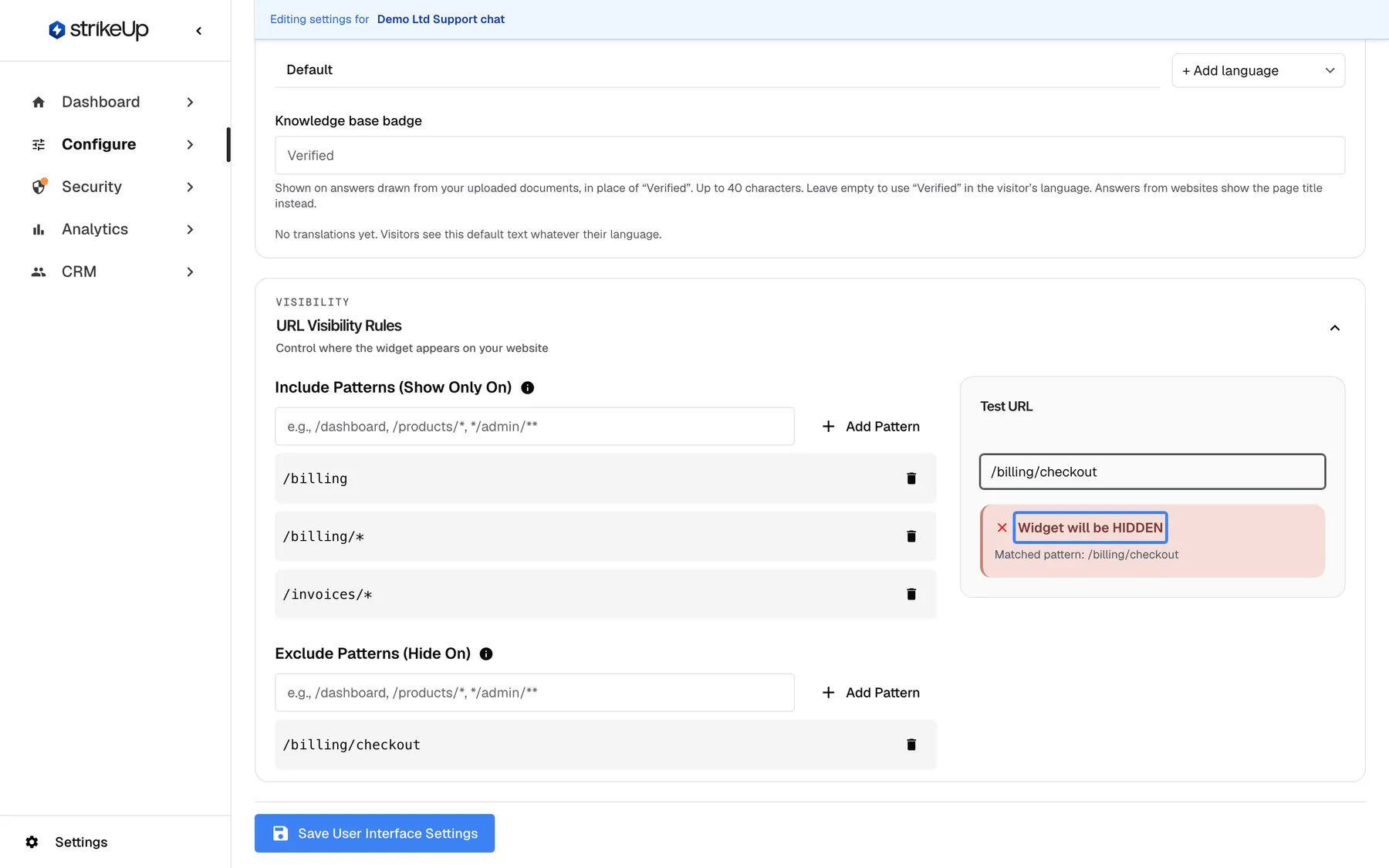
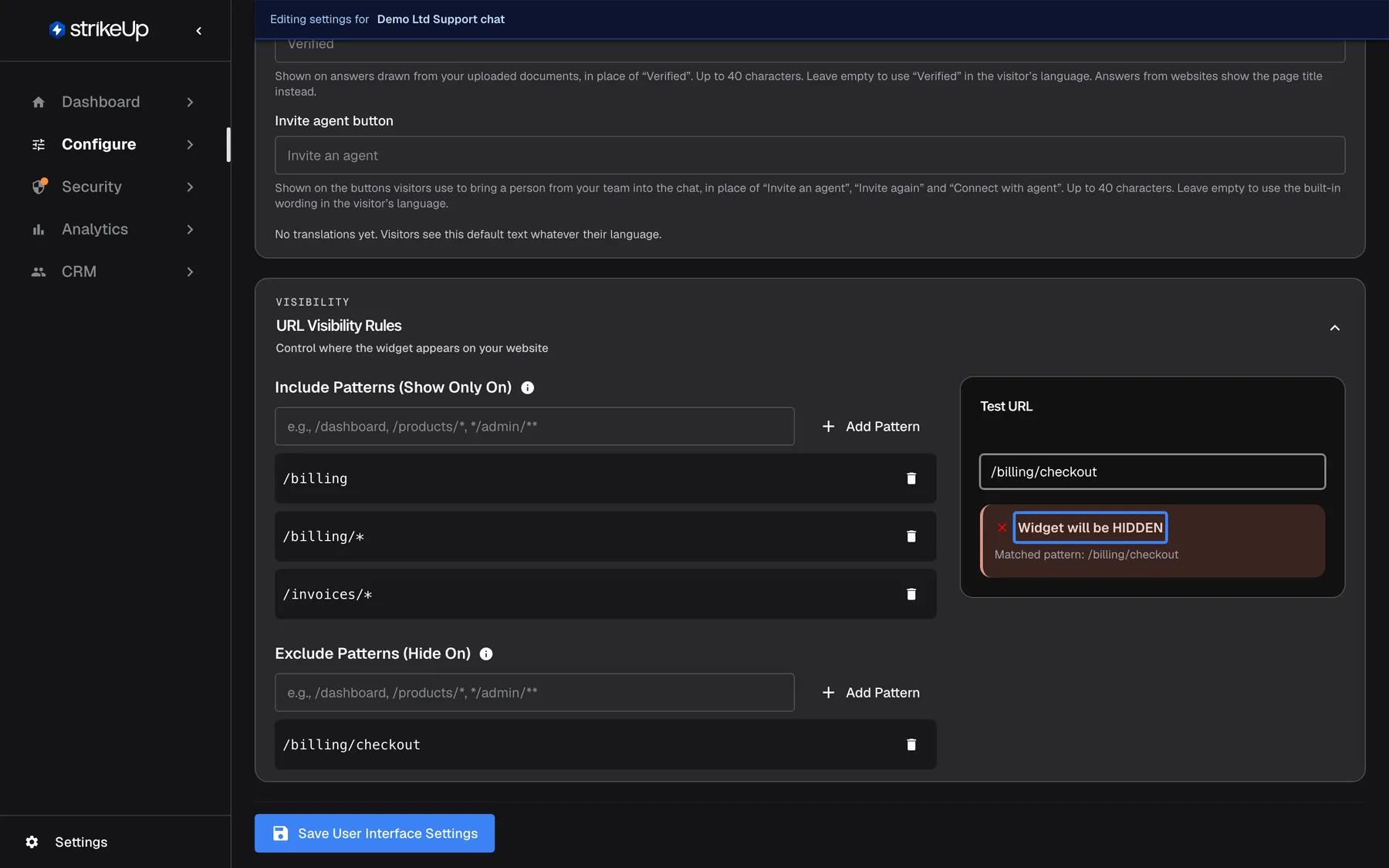
What this screenshot shows
- Screen
- User Interface (/admin/configure/user-interface?widgetId=…)
- Highlighted
- status “Widget will be HIDDEN”, url-visibility-test-box, shown for /billing/checkout. none (verdict of the test)
- Also visible
- Include patterns /billing, /billing/*, /invoices/*; Exclude pattern /billing/checkout; Test URL /billing/checkout
- Purpose
- limiting the widget to certain pages
| Do | Don’t |
|---|---|
Add a pattern for each depth: /help and /help/* | Expect /help/* to match /help or /help/a/b |
Exclude sensitive flows explicitly, such as /checkout and /checkout/* | Use ** for “everything below” |
| Test real paths from your app in Test URL | Target a tab through the query string, such as ?tab=billing |
An assistant on a payment step can distract or confuse; one on a settings page is where people get stuck. URL rules let you place it without changing your code.
Custom Trigger Button Snippets, ready-made buttons
Section titled “Custom Trigger Button Snippets, ready-made buttons”ConfigureEmbed, the part headed Custom Trigger Button Snippets under the embed code. It appears only when the widget uses Custom Trigger — Sidebar or Custom Trigger — Panel. Each snippet has a Copy button; nothing here is saved on the widget.
Four snippets: open the widget; open it with a message, with the text field prefilled with “What would you like to know about this page?” and the switch Send it automatically, which adds autoSend: true; open it with a message and hidden open-time context; and Check if the widget is open, a toggle built on isOpen().
<button onclick="window.StrikeUpChat?.open()">Open AI Assistant</button><button onclick="window.StrikeUpChat?.open({ message: 'What would you like to know about this page?', autoSend: true })">Ask AI</button>The snippets give you working code for each kind of button, so you only restyle them and change the text.
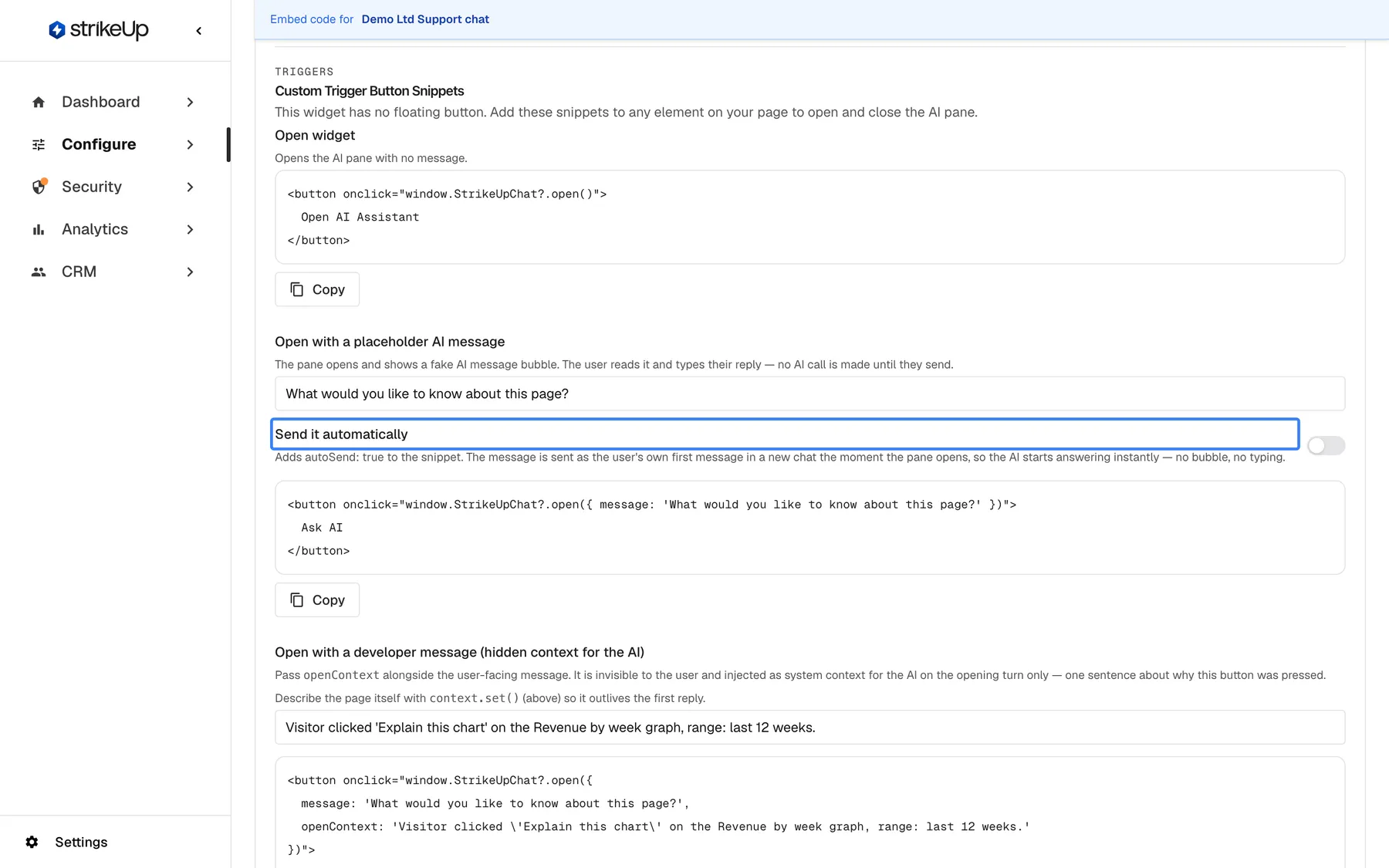
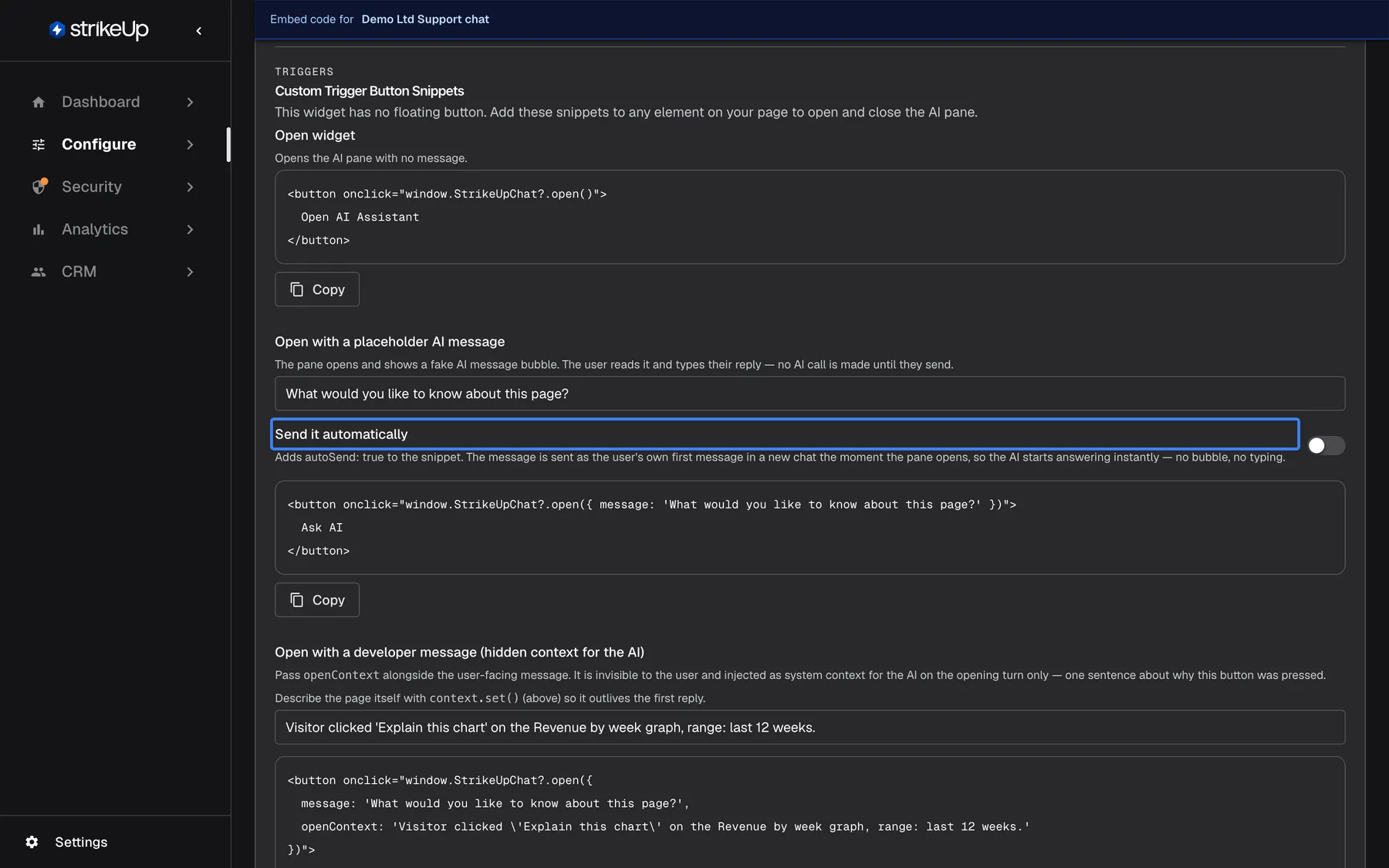
What this screenshot shows
- Screen
- Embed (/admin/configure/embed?widgetId=…)
- Highlighted
- switch “Send it automatically”, custom-trigger-snippets, off. adds autoSend: true to the open({ message }) snippet (not saved)
- Also visible
- Open widget snippet with Copy; Placeholder message field What would you like to know about this page?; Snippet with open({ message: … }); Start of the developer-message (openContext) snippet
- Purpose
- copying your own trigger buttons
displayType and container, code-only options
Section titled “displayType and container, code-only options”In your initStrikeUpChatWidget call. The inline variant is generated on ConfigureEmbed when you switch on Embed inside a container.
displayType takes "popup", "modal", "sidebar", "panel", "custom-trigger", "custom-trigger-panel" or "inline" and overrides the saved display type on that page. container (a CSS selector or an element) is required for "inline"; the element needs an explicit height. portalDisplayType: "inline" opens the customer portal inside the same container instead of in a large window.
window.initStrikeUpChatWidget({ applicationToken: "<your widget's application token>", userId: "cus_48210", displayType: "modal" });One widget can serve several pages that need different forms: a pop-up across the app, inline on the help page, a modal on a page with no room for a pane.
How the settings combine
Section titled “How the settings combine”| Display type | Display behaviour | URL rules match the path | Result |
|---|---|---|---|
| Pop-up | not shown | yes | Launcher bottom-right; the window opens over the page |
| Sidebar | Overlay | yes | Tab on the right edge; the pane covers the right of the page |
| Sidebar | Push | yes | Tab on the right edge; the page moves left while the pane is open |
| Panel | always pushes | yes | Always-open pane; the page is narrower all the time |
| Custom trigger, either kind | Overlay or Push | yes | No launcher; your button opens the pane |
| Any | any | no | Nothing is drawn; isOpen() returns false |
| Inline (code) | ignored | yes | The chat fills your element |
Display types on your page
Section titled “Display types on your page”| What the visitor sees | Display type | What it means |
|---|---|---|
| A round blue launcher bottom-right | Pop-up or modal | Selecting it opens the chat |
| A tab with an arrow on the right edge | Sidebar | Selecting it slides the pane in or out |
| A pane on the right that never closes | Panel | Always open; its left edge resizes it |
| No widget until your button is used | Custom trigger | Your page opens the pane |
| A chat inside the page layout | Inline | Part of your page |
Pop-up
Section titled “Pop-up”The launcher sits 1rem from the bottom-right corner of the window. It has no text label. Selecting it fades the launcher out and opens the window in the same corner, with rounded corners and a shadow. The window covers the launcher and has no close control of its own, so the chat stays open until the visitor leaves or reloads the page.
Why: the pop-up takes almost no space until a visitor asks for help.
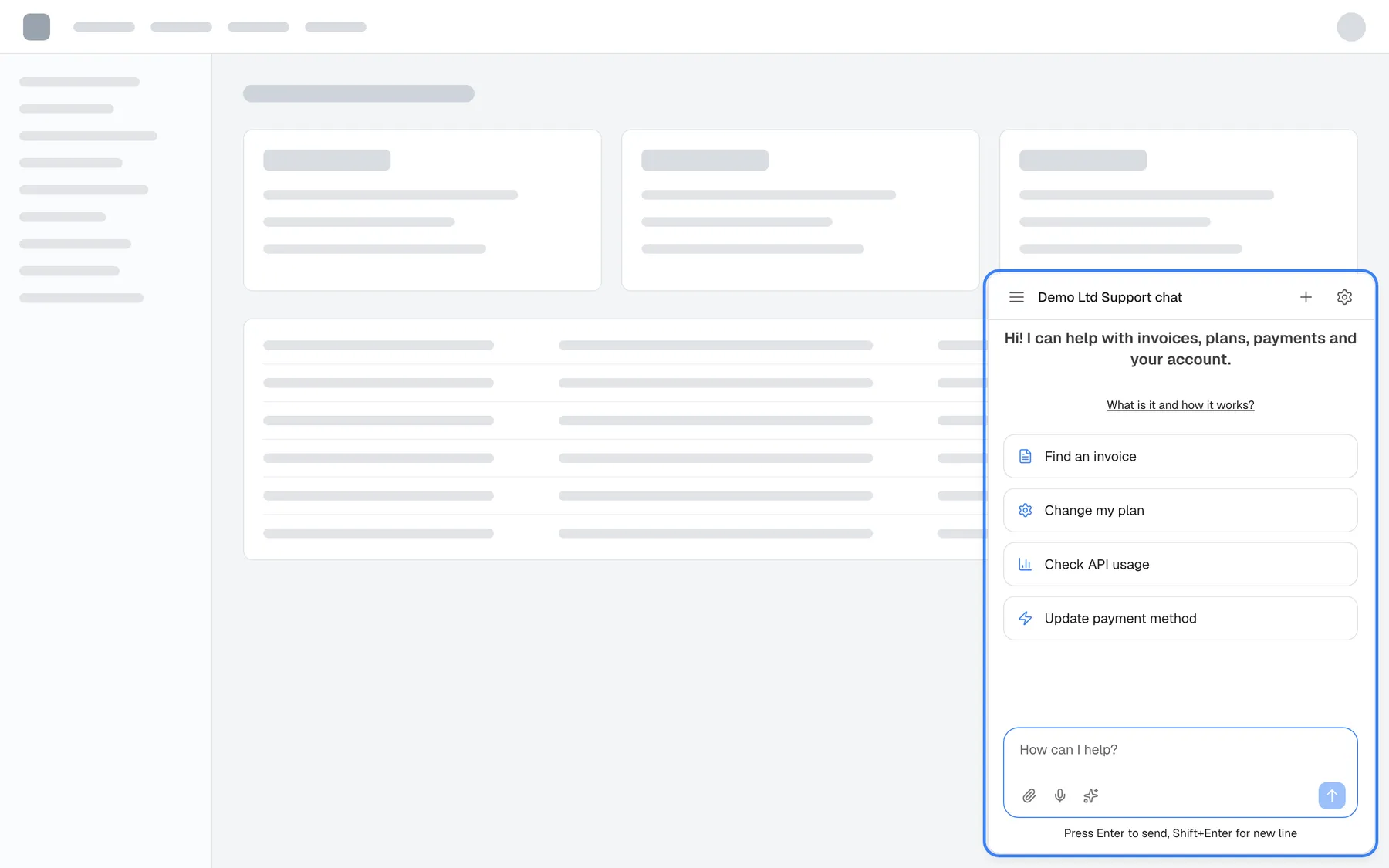
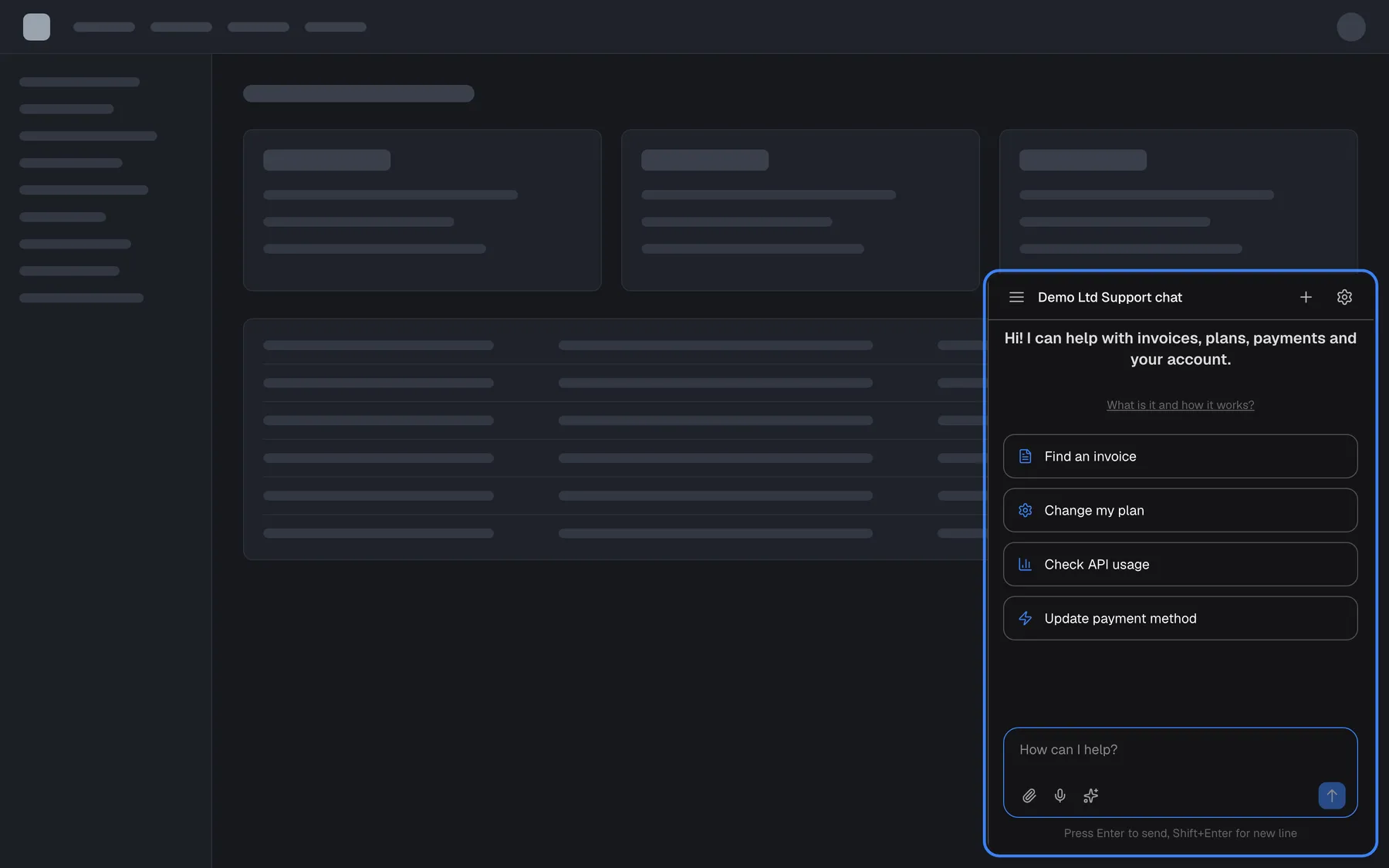
What this screenshot shows
- Screen
- (host page (https://app.example.com/))
- Highlighted
- iframe “”, bottom-right, open. the chat window; it covers the launcher while open
- Also visible
- Popup window 400 px wide in the bottom-right corner; Welcome text, four shortcut cards, message box
- Purpose
- what the popup display type looks like
Sidebar
Section titled “Sidebar”The tab waits halfway down the right edge. Selecting it slides in a full-height pane; the tab moves to the pane’s left edge and closes it again. The chat inside keeps its conversation while the pane is closed.
Why: a full-height pane shows long answers and tables without scrolling, and closes out of the way.
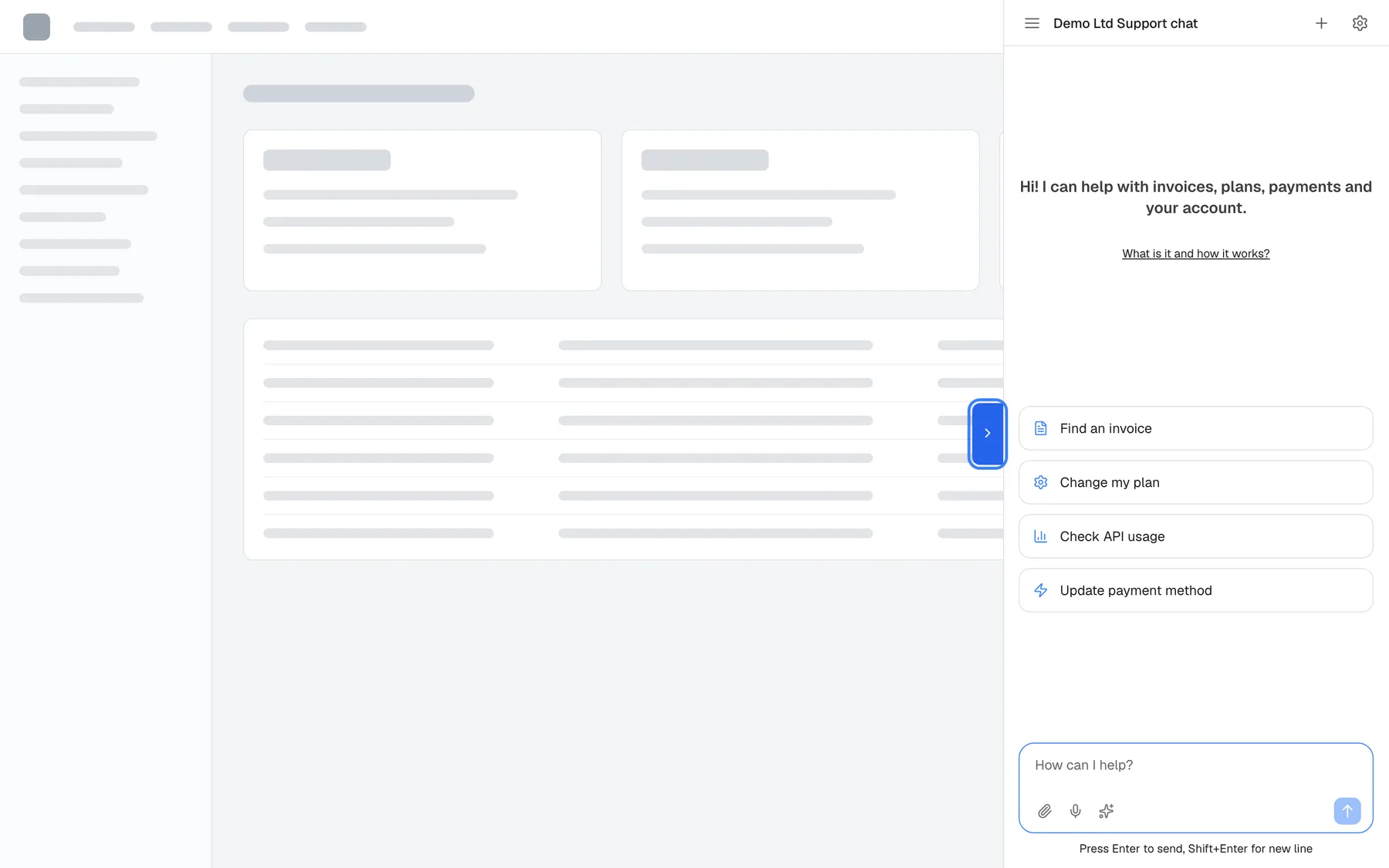
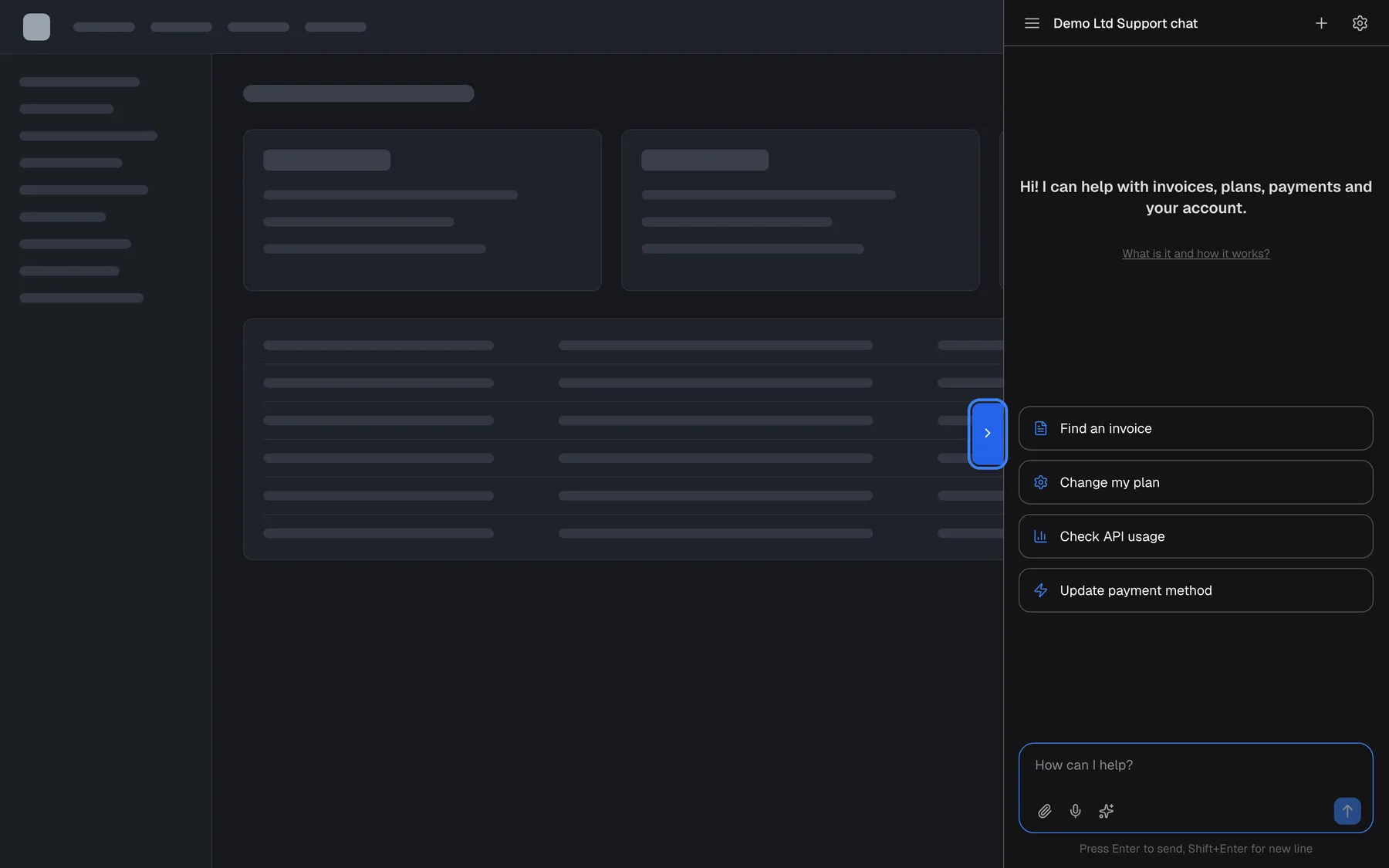
What this screenshot shows
- Screen
- (host page (https://app.example.com/))
- Highlighted
- button “”, right-edge-middle, sidebar open, chevron points right. closes the sidebar
- Also visible
- Full-height pane on the right, overlaying the page; Welcome text, shortcut cards, message box
- Purpose
- what the sidebar display type looks like
The panel is open from the moment the page loads and pushes your content aside. The strip on its left edge is a drag handle; the width a visitor chooses is kept for that widget in their browser. There is no way to close it, and StrikeUpChat.close() does not affect it.
Why: for tools where people work with the assistant all the time, such as analytics or admin consoles.
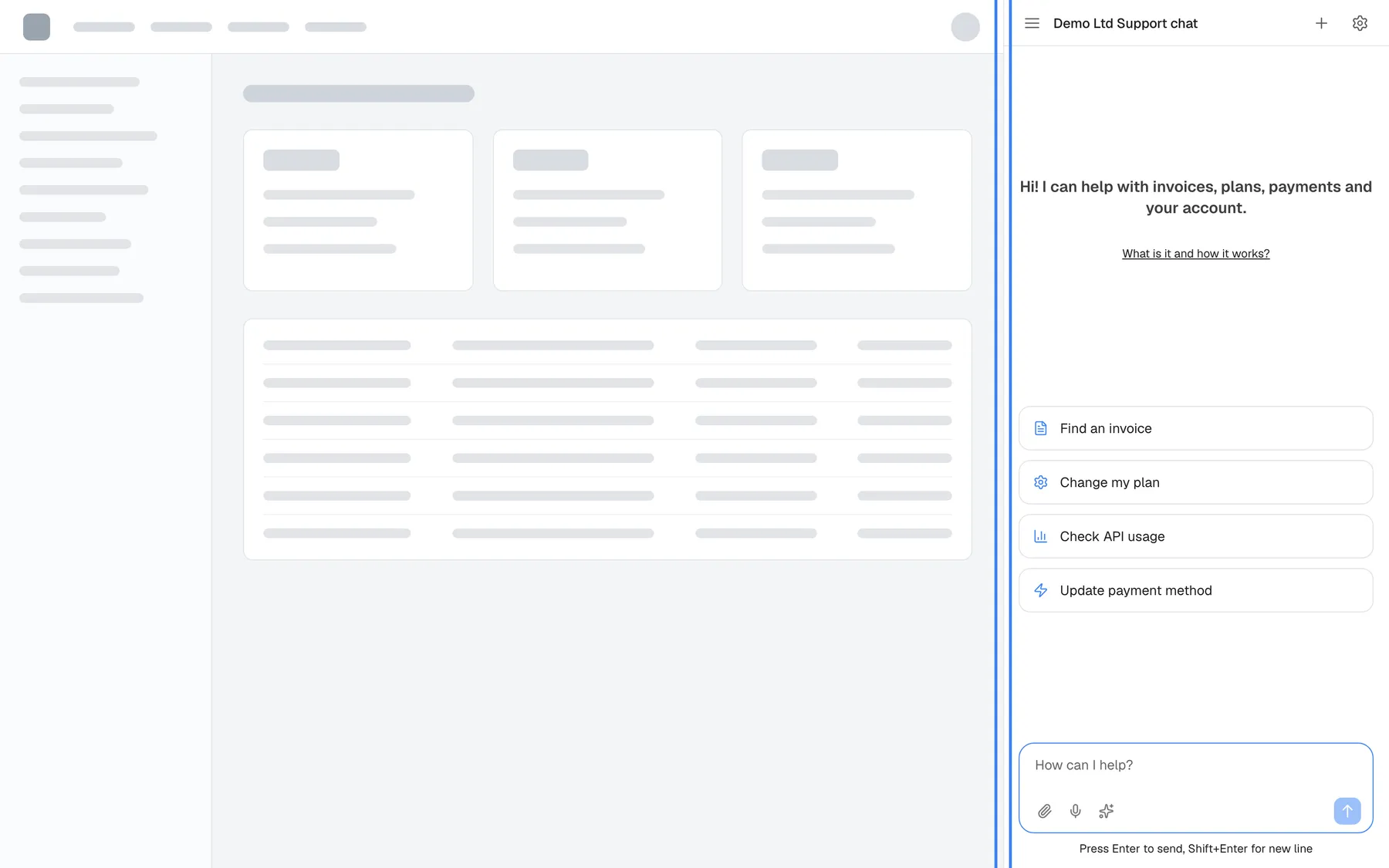
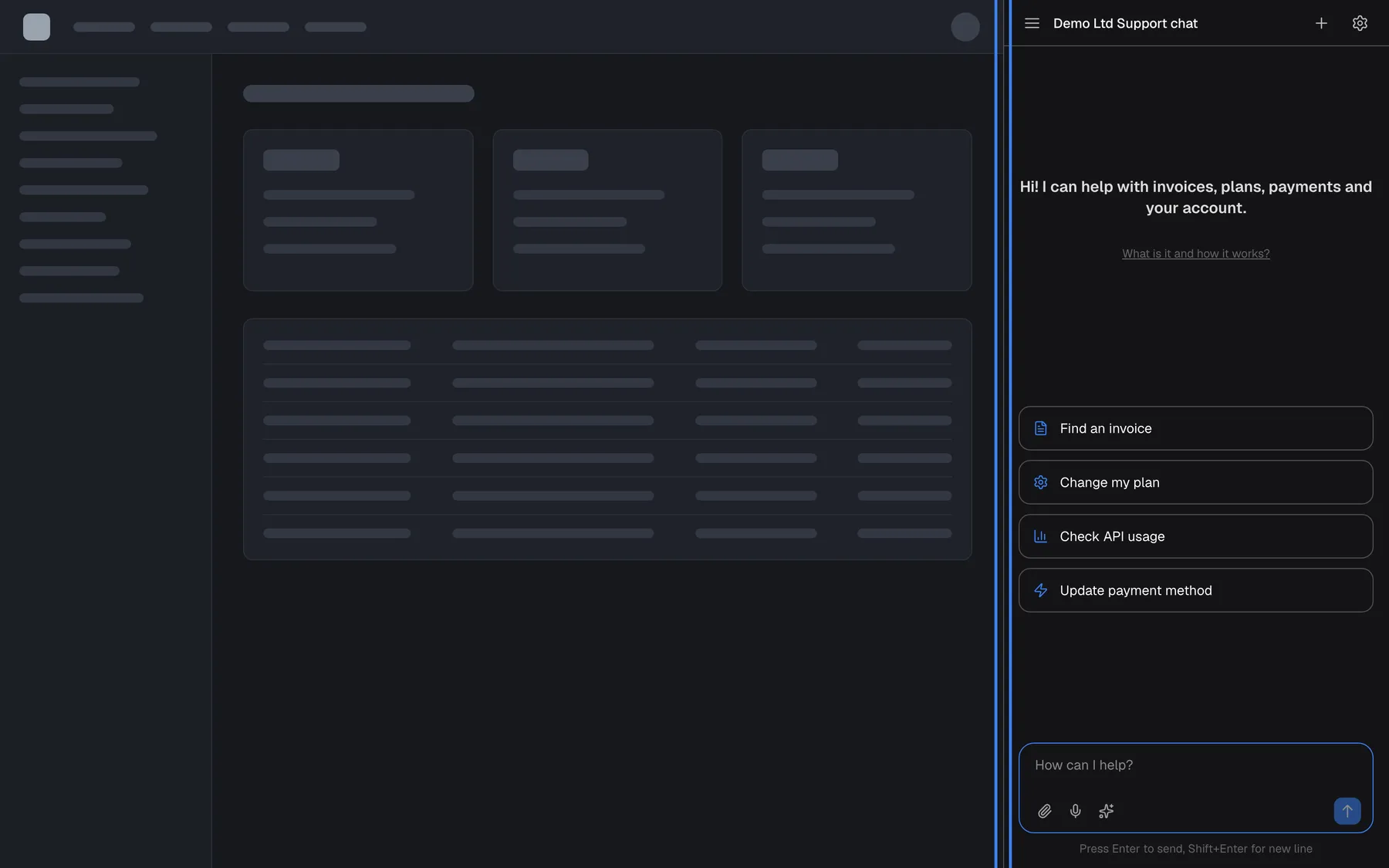
What this screenshot shows
- Screen
- (host page (https://app.example.com/))
- Highlighted
- separator “”, panel-left-edge, panel open (always). drag to resize; the width is remembered in that browser
- Also visible
- Host content narrowed to make room; Full-height pane on the right with welcome text, cards and message box; No launcher
- Purpose
- what the panel display type looks like
The modal opens from a launcher like the pop-up, but in the middle of the screen over a dark backdrop. Selecting the backdrop closes it. You choose it only in code, with displayType: "modal".
Why: it focuses the visitor on the chat on pages that have no room for a pane.
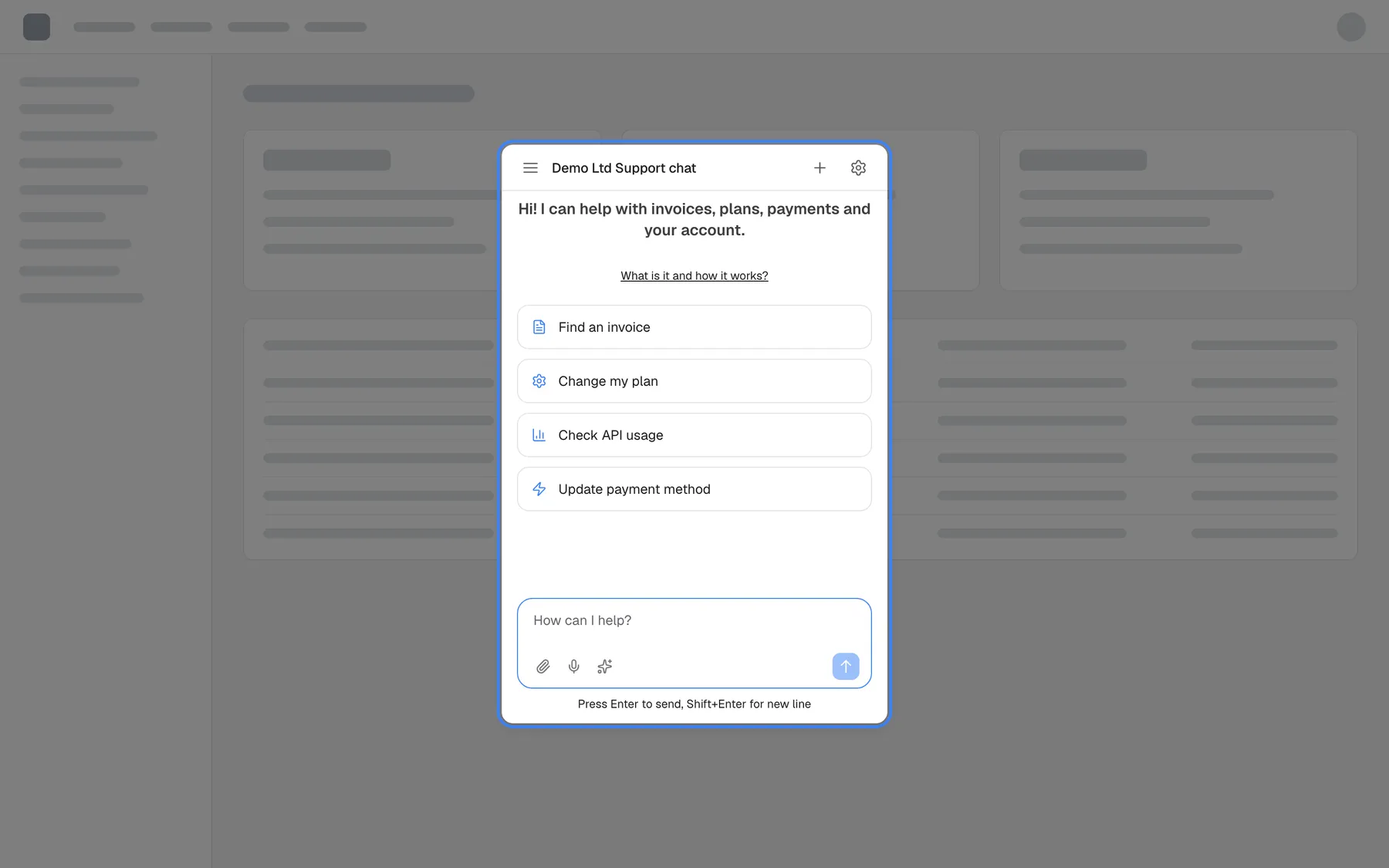
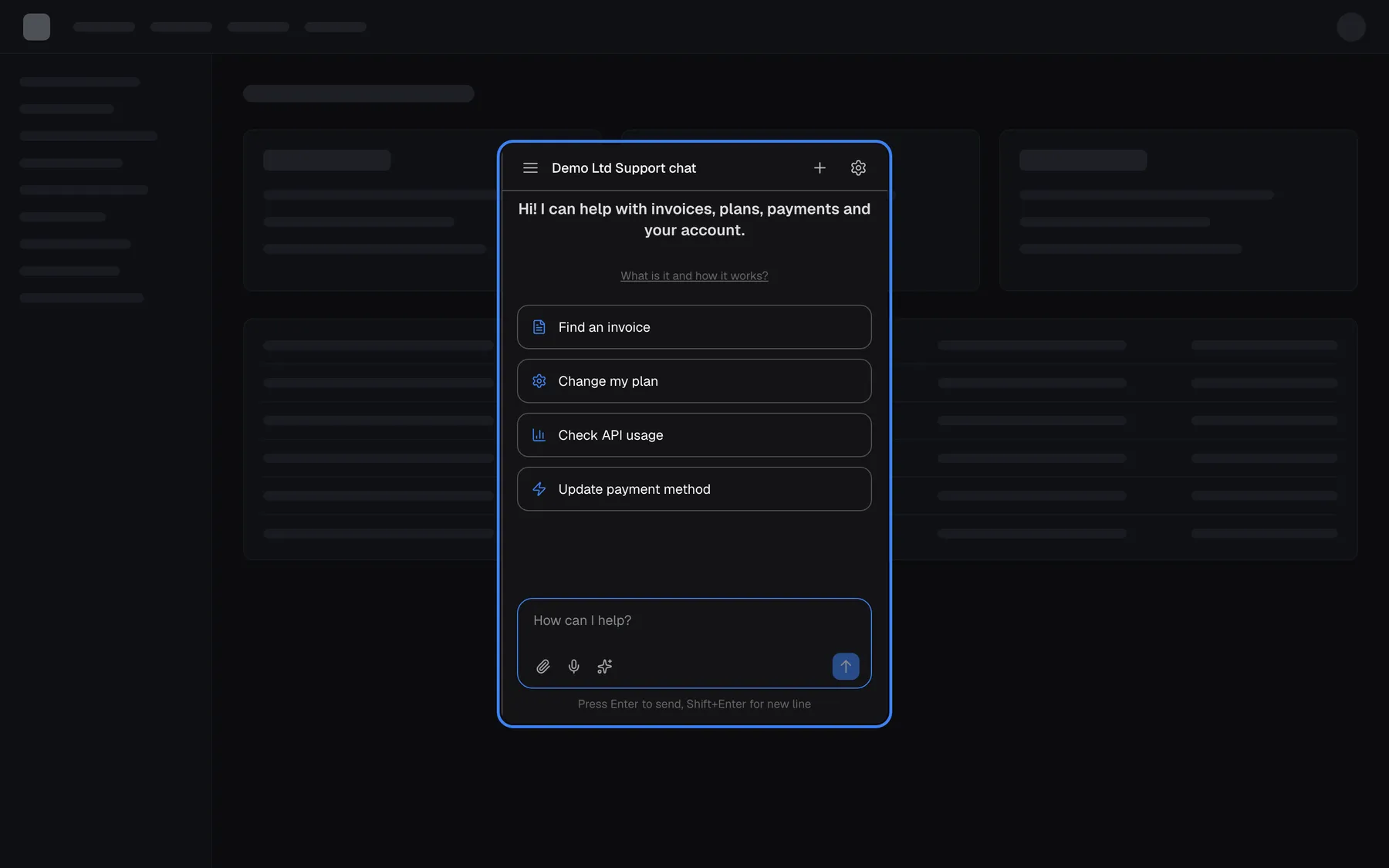
What this screenshot shows
- Screen
- (host page (https://app.example.com/))
- Highlighted
- iframe “”, centre, open (modal display type). the chat window; the backdrop around it closes it
- Also visible
- Centred chat window with welcome text, cards and message box; Dimmed backdrop over the host page
- Purpose
- what the modal display type looks like
Inline
Section titled “Inline”The inline widget fills the element you pass as container, in the normal page flow, with no launcher and no shadow. It is always open. The chat hides its window controls; the gear for the customer portal appears only when you also pass portalDisplayType: "inline".
Why: a help or support page can make the assistant its main content.
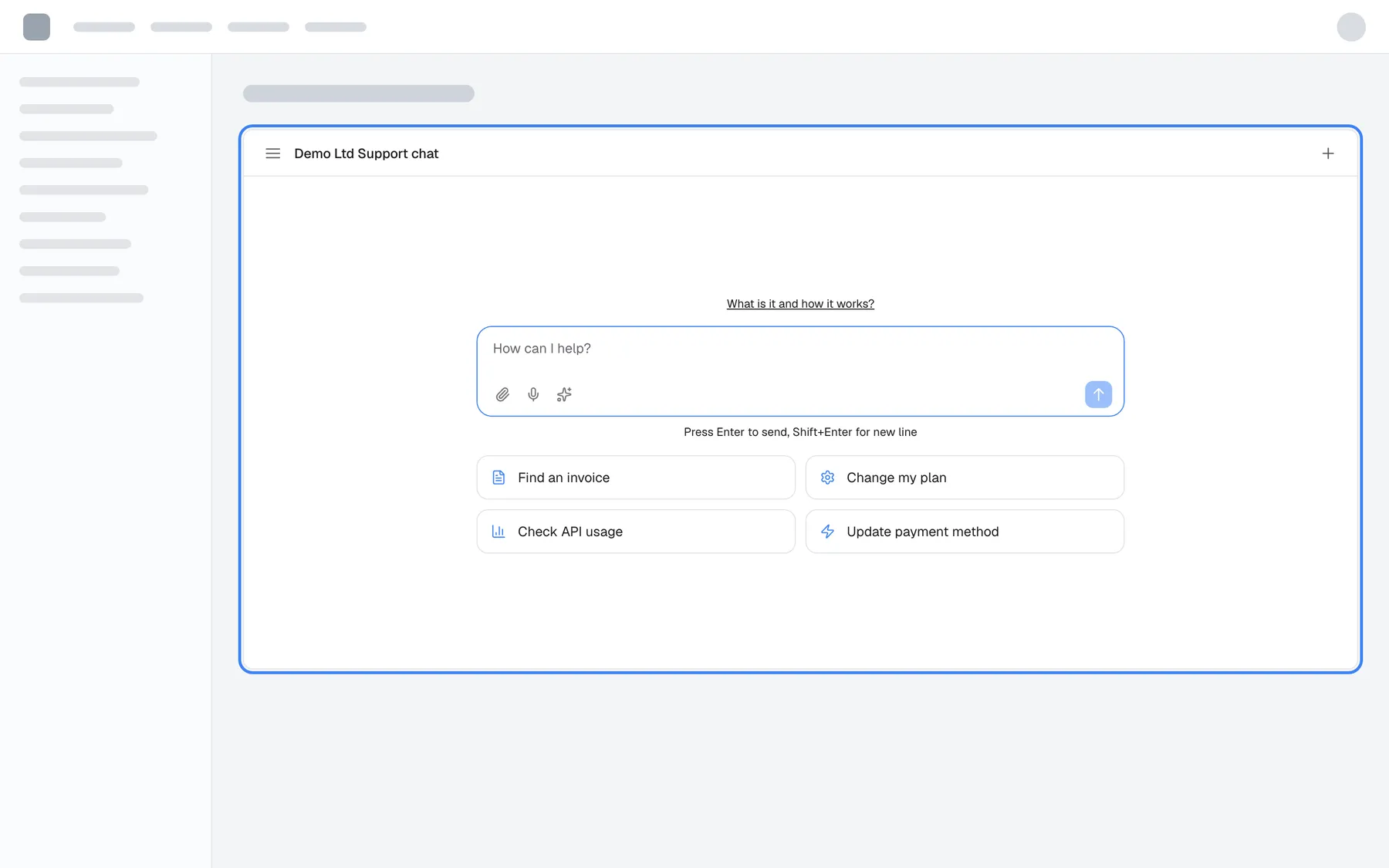
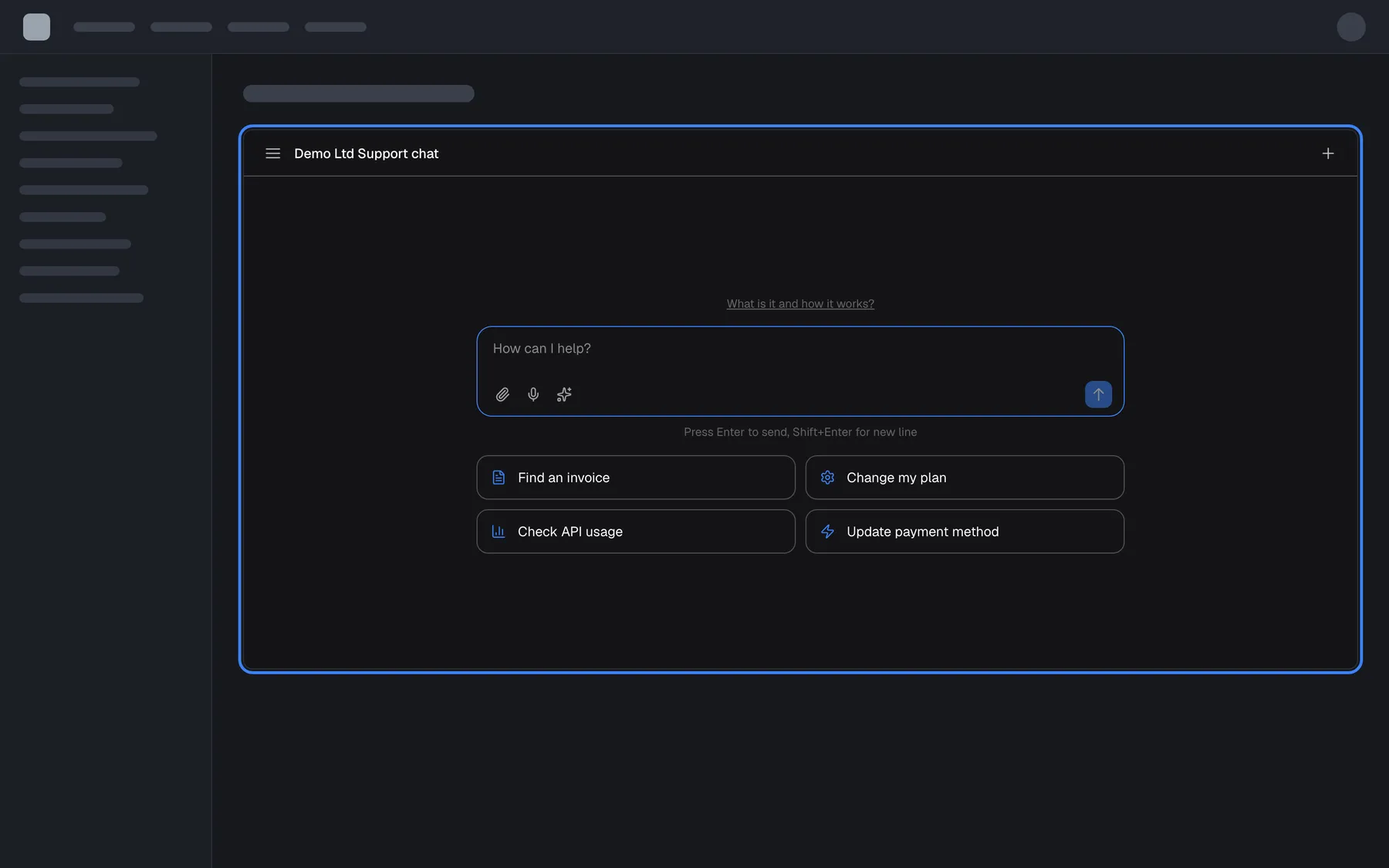
What this screenshot shows
- Screen
- (host page (https://app.example.com/))
- Highlighted
- region “”, main-content, widget mounted, 560 px high. none (the host's container)
- Also visible
- Widget inside a page section, no launcher; Title bar, message box and shortcut cards
- Purpose
- what the inline display type looks like
Custom trigger
Section titled “Custom trigger”With a custom-trigger type, the widget is loaded but hidden: there is no launcher anywhere on the page. Your own button opens the pane. A collapse tab slides in with the pane and closes it again.
Why: the assistant opens from controls that already belong to your design, in the place where the question arises.
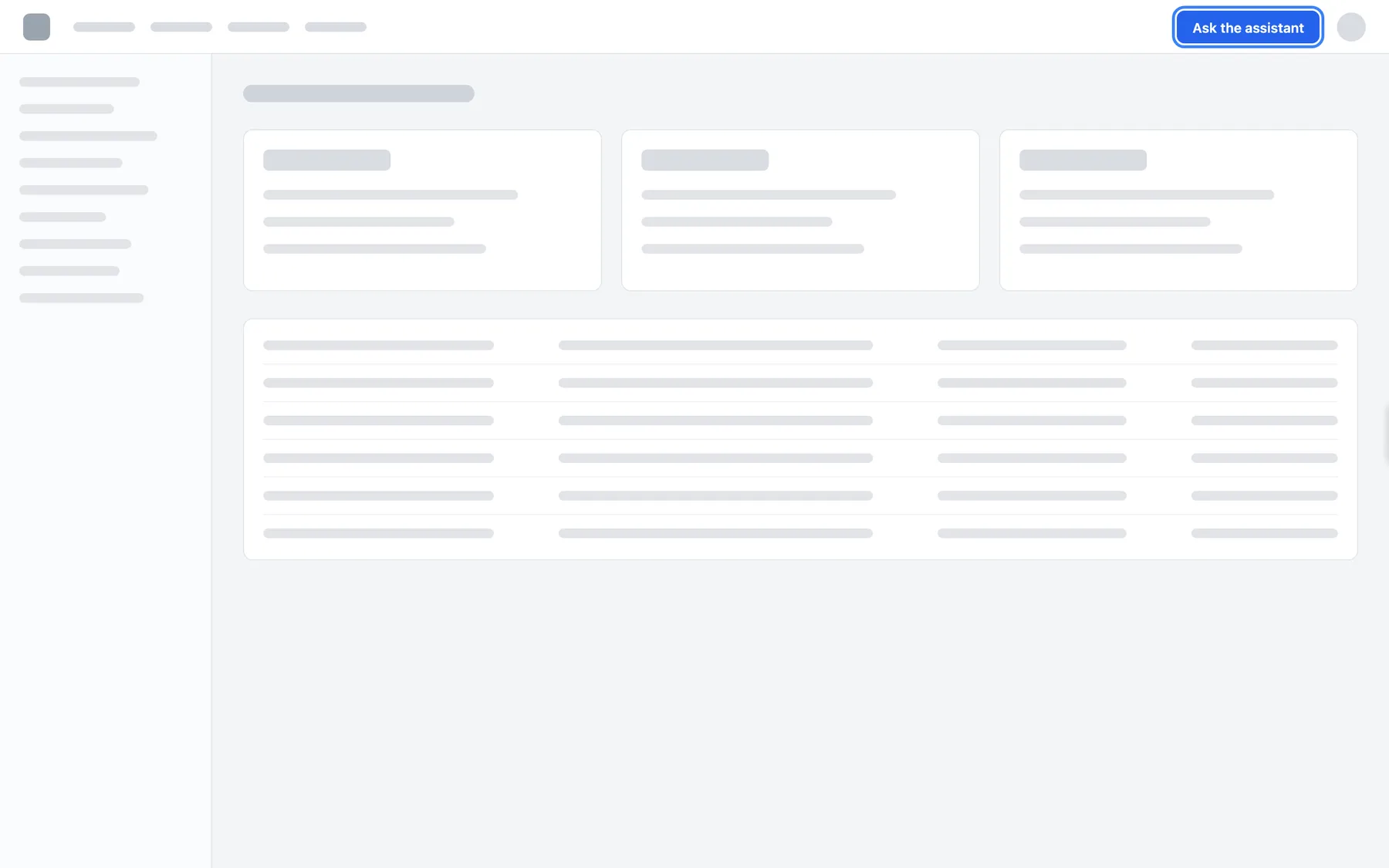
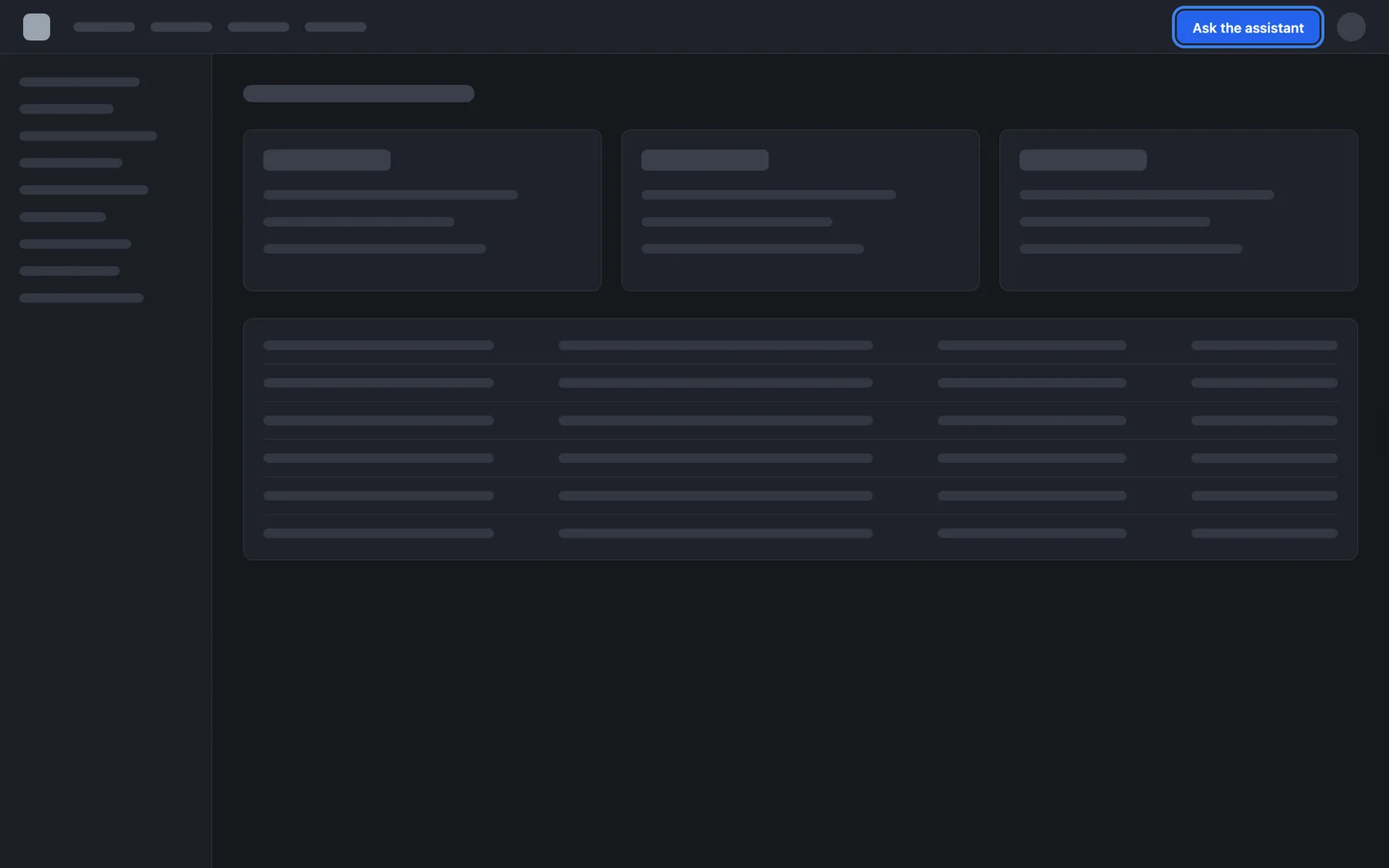
What this screenshot shows
- Screen
- (host page (https://app.example.com/))
- Highlighted
- button “”, host-header-right, enabled. calls window.StrikeUpChat.open({ message })
- Also visible
- No StrikeUp launcher; Host page with its own Ask the assistant button in the header
- Purpose
- the entry point of a custom trigger
Opening the widget from your own button
Section titled “Opening the widget from your own button”Your page’s code, using window.StrikeUpChat. Ready-made snippets are on ConfigureEmbed under Custom Trigger Button Snippets.
StrikeUpChat.open() opens the pane, and StrikeUpChat.close() collapses it. Use them with the two custom-trigger types: they are built for those panes, and on the pop-up, modal and sidebar they either do nothing or leave the launcher hidden. open() does nothing until the widget is ready, so enable your button in StrikeUpChat.onReady. isOpen() tells you whether the pane is open; there is no event when the visitor closes it with the collapse tab, so read it when your button is used, or poll it every 200 milliseconds.
open() accepts three options:
| Call | Result |
|---|---|
open({ message }) | The message appears as the assistant’s opening line on the welcome screen. Nothing is sent; the visitor types their own reply |
open({ message, autoSend: true }) | A new conversation starts with the message sent as the visitor’s own first question. It waits until the visitor has signed in and authorized toolkits. autoSend accepts true, 1, "1" and "true"; any other value counts as false |
autoSend without message | Nothing extra happens |
open({ message, openContext }) | Hidden context for the assistant’s first answer only; see Identify users and pass context |
window.StrikeUpChat.onReady(function (type) { if (type === null) return; // token wrong or API unreachable askButton.disabled = false;});askButton.onclick = function () { window.StrikeUpChat.isOpen() ? window.StrikeUpChat.close() : window.StrikeUpChat.open();};A question asked from the right place needs no typing: “Explain this invoice” on an invoice page, “Why did this fail?” next to an error.
Three ways to use it:
- An “Explain this chart” button →
open({ message: "Explain the revenue chart for the last 12 weeks", autoSend: true }). - A help icon in a form →
open({ message: "Which VAT rate applies to this customer?" }), so the visitor adds their own detail. - A header button “Ask the assistant” → the toggle in the example above.
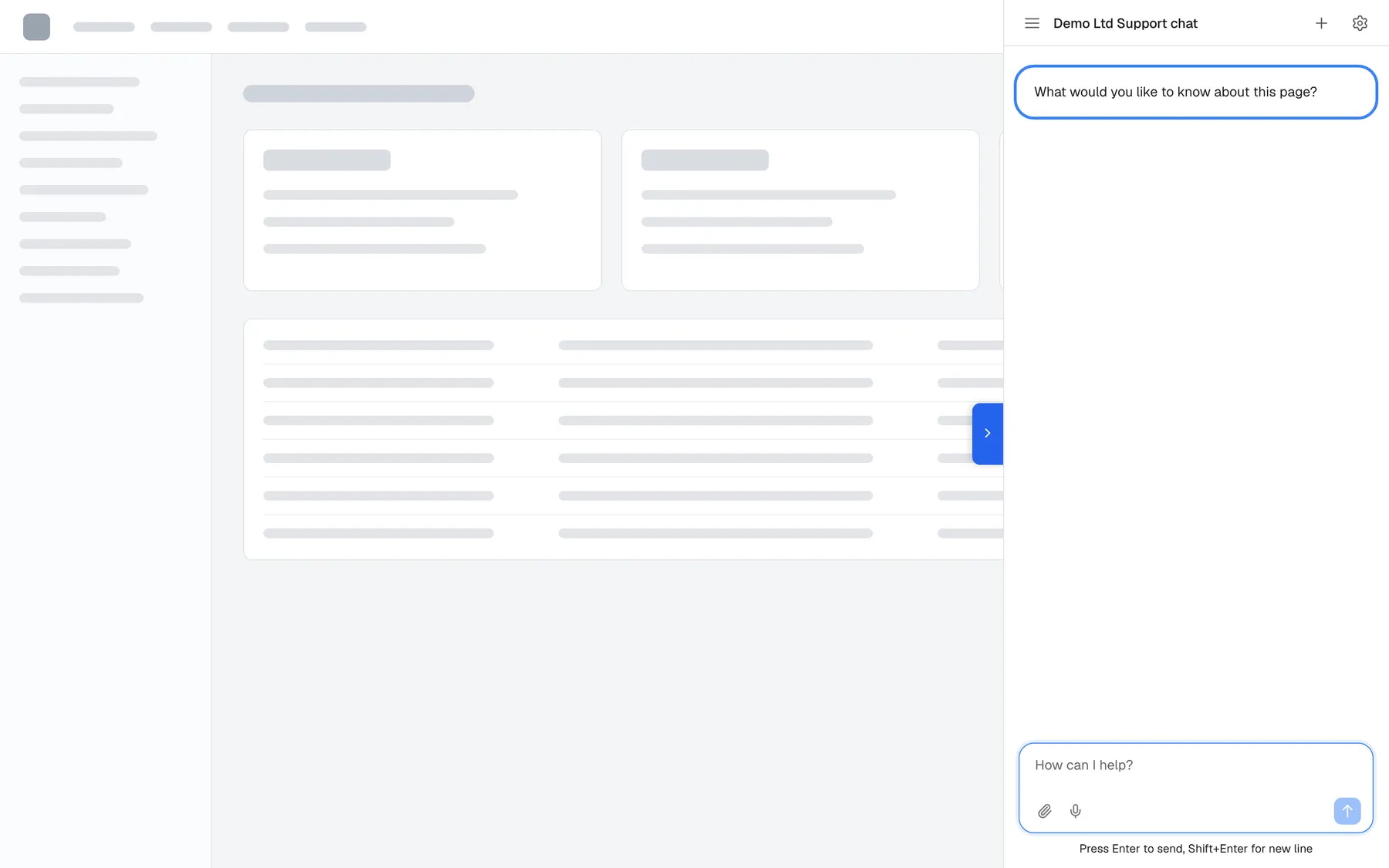
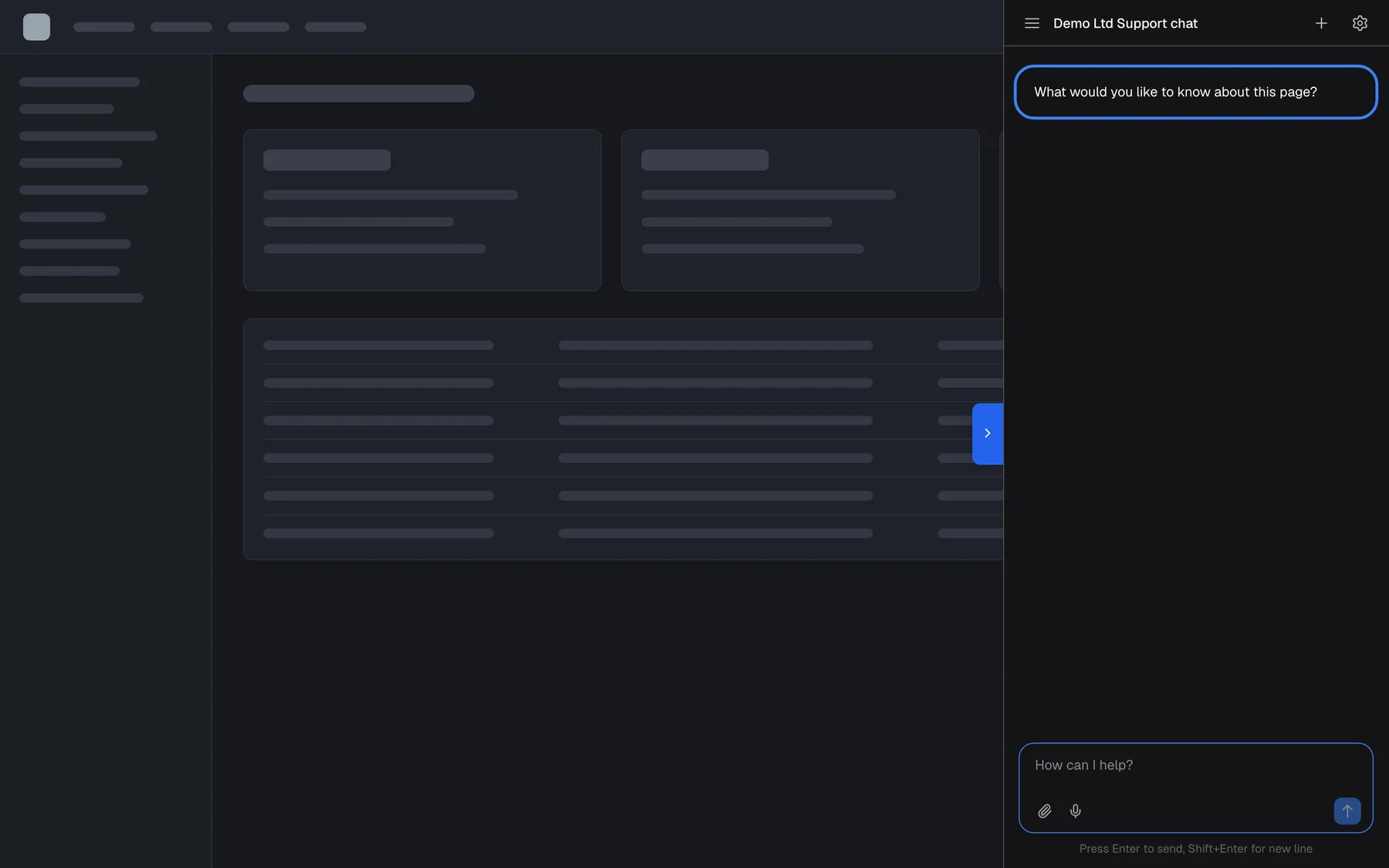
What this screenshot shows
- Screen
- (host page (https://app.example.com/))
- Highlighted
- text “”, pane-conversation-top, placeholder bubble shown, not sent. none; the visitor types their reply
- Also visible
- Pane on the right with the title Demo Ltd Support chat; Placeholder message from open({ message }); Collapse tab on the pane's left edge
- Purpose
- the result of a custom trigger with a prepared message
What you need to know
Section titled “What you need to know”| Topic | Fact |
|---|---|
| Launcher position | Bottom-right, 1rem from the corner |
| Launcher icon | A chat bubble. The admin app has no setting to change it, and the launcher has no text label |
| Loading | The pop-up and modal load the chat on the first click (or at once with a login ticket); all other types load it with the page |
| Remembered width | Panel and custom-trigger panel only, per widget, in each visitor’s browser; capped at 85% of the window every time it opens |
| Closing keeps the chat | Closing a sidebar or custom-trigger pane only hides it; the conversation is still there when it opens again |
| Hidden by URL rules | Sidebar, pop-up and custom-trigger widgets close and hide; a panel is removed and loaded again, with a fresh connection, when the visitor returns to an allowed path |
| Portal window | The gear opens the customer portal in a large centred window, up to 1400 × 900 pixels, over a dimmed page; inline widgets with portalDisplayType: "inline" show it inside the container |
| Phones | The pop-up shrinks to the screen minus margins; the sidebar takes at most 85% of the width |
Frequently asked questions
Section titled “Frequently asked questions”General
Section titled “General”Which display type should I pick for my product?
Section titled “Which display type should I pick for my product?”Pick the pop-up for help that should be available on every page, the sidebar or panel when people work with the assistant beside your data, a custom-trigger type when your design already has an “Ask AI” button, and inline for a dedicated help page. You set the first five on ConfigureUser Interface.
Why can’t I pick the modal display type in the admin app?
Section titled “Why can’t I pick the modal display type in the admin app?”The modal display type is not offered on ConfigureUser Interface. Set it in your page’s code by adding displayType: "modal" to the initStrikeUpChatWidget call; the widget then opens in the middle of the screen over a dimmed backdrop.
Can I use a different display type on one page of my app?
Section titled “Can I use a different display type on one page of my app?”Yes. Pass displayType in the initStrikeUpChatWidget call on that page, for example "inline" on your help page. It overrides the widget’s saved display type for every value, but only on the page where your code passes it.
Do I need to change my code when I switch display type?
Section titled “Do I need to change my code when I switch display type?”No, unless you switch to inline, modal or a custom-trigger type. The widget reads its saved settings on every page load, so a new pop-up, sidebar or panel setting reaches visitors on their next page load without a deployment.
Where do I choose the display type?
Section titled “Where do I choose the display type?”Open ConfigureUser Interface, select the widget’s card, choose the display type in Data display and select Save User Interface Settings at the bottom of the page. Visitors see the new display type the next time a page loads.
What does Push do compared with Overlay?
Section titled “What does Push do compared with Overlay?”Push adds padding on the right of your page’s body, as wide as the pane, so your content moves left and stays visible while the pane is open. Overlay, the default, slides the pane over your content. The choice appears for the sidebar and the two custom-trigger types; the panel always pushes.
How big is the pop-up on a phone?
Section titled “How big is the pop-up on a phone?”The pop-up uses the widget’s width and height, 400 by 600 pixels by default, but never more than the window minus 40 pixels across and 100 pixels down. On a phone it therefore fills most of the screen, leaving a margin around it.
Can visitors resize the pane?
Section titled “Can visitors resize the pane?”Visitors can drag the left edge of the panel and of the custom-trigger panel between 240 and 900 pixels, never wider than 85% of the window. The widget remembers that width for the widget in the visitor’s browser. The sidebar and custom-trigger sidebar have a fixed width.
Custom triggers
Section titled “Custom triggers”My open() button does nothing. Why?
Section titled “My open() button does nothing. Why?”StrikeUpChat.open() works with the two custom-trigger display types and only once the widget is ready. Check that the widget uses Custom Trigger — Sidebar or Custom Trigger — Panel, and enable your button inside StrikeUpChat.onReady. On a pop-up or modal that has not been opened yet, open() does nothing.
Can I open the widget with a question already asked?
Section titled “Can I open the widget with a question already asked?”Yes. Call StrikeUpChat.open({ message: "your question", autoSend: true }). The widget starts a new conversation and sends the message as the visitor’s own first question, so the assistant starts answering at once. It waits until the visitor has signed in and authorized any toolkits.
What happens with open({ message }) without autoSend?
Section titled “What happens with open({ message }) without autoSend?”The message appears as the assistant’s opening line on the welcome screen, and nothing is sent to the assistant. The visitor reads it and types their own reply. Use it to suggest a direction, such as “What would you like to know about this page?”.
Does an auto-sent question continue the current conversation?
Section titled “Does an auto-sent question continue the current conversation?”No. open({ message, autoSend: true }) always starts a new conversation. The previous conversation stays in the visitor’s history. Page context you staged with StrikeUpChat.context.set() is not attached to the auto-sent question, so stage it again afterwards if later questions need it.
How do I know whether the pane is open?
Section titled “How do I know whether the pane is open?”Call StrikeUpChat.isOpen(). It returns true while the pane is visible and false before the widget starts, after destroy() and on paths hidden by URL rules. There is no event when the visitor closes the pane with its collapse tab, so read it when your button is used or poll it every 200 milliseconds.
Why does the panel ignore close()?
Section titled “Why does the panel ignore close()?”The panel display type is always open by design, so StrikeUpChat.close() has no effect on it and isOpen() stays true while it is on the page. Use the custom-trigger panel instead if you need a pane that your code can open and close.
Is there a close button inside the chat?
Section titled “Is there a close button inside the chat?”No. Visitors close a sidebar or custom-trigger pane with the tab on its edge, a modal with its backdrop, and your code can call StrikeUpChat.close() for custom-trigger panes. The pop-up has no close control, and the panel and inline types are always open.
URL rules
Section titled “URL rules”How do I show the widget only on my help pages?
Section titled “How do I show the widget only on my help pages?”Open ConfigureUser Interface, add two include patterns, /help and /help/*, and save. Each * matches exactly one path segment, so add /help/*/* as well if your help pages are two levels deep. Check real paths in the Test URL box before saving.
How do I hide the widget on checkout?
Section titled “How do I hide the widget on checkout?”Add exclude patterns for /checkout and /checkout/* on ConfigureUser Interface and save. An exclude pattern always wins over include patterns, so the widget stays hidden on those paths even when another rule would show it.
Does the query string matter for URL rules?
Section titled “Does the query string matter for URL rules?”No. The widget compares only the path of the page, never the domain, the query string or the part after #. A rule cannot target ?tab=billing; give that view its own path if the widget should behave differently there.
My rules do not apply after navigating in my single-page app. What should I check?
Section titled “My rules do not apply after navigating in my single-page app. What should I check?”The widget re-checks its URL rules on back and forward navigation, on page changes and every half second, so a new path is applied within half a second. If the widget still shows, check the pattern in the Test URL box: a * matches one segment only, and ** never matches.
Where it is shown
Section titled “Where it is shown”Can I change the launcher icon?
Section titled “Can I change the launcher icon?”Not from the admin app. The pop-up and modal launcher is a round button with a chat-bubble icon in the widget’s button colours, which you set on ConfigureUser Interface. The launcher has no text label.
Does closing the pane lose the conversation?
Section titled “Does closing the pane lose the conversation?”No. Closing a sidebar or custom-trigger pane only hides it; the conversation is there when it opens again. A panel hidden by URL rules is removed and loaded again when the visitor returns to an allowed path, and the chat then reconnects.
Can the customer portal open inside my inline widget?
Section titled “Can the customer portal open inside my inline widget?”Yes. Add portalDisplayType: "inline" next to displayType: "inline" and container in the initStrikeUpChatWidget call. The portal then replaces the chat inside your container instead of opening in a large window over the page.
Troubleshooting
Section titled “Troubleshooting”| Symptom | What to check |
|---|---|
| My own button does nothing | In order: does the widget use a custom-trigger display type? Is the button enabled only after StrikeUpChat.onReady? Is window.StrikeUpChat defined, so the widget script loaded before your button’s code? |
| The pop-up cannot be closed | The pop-up window has no close control and covers the launcher. Use the sidebar or a custom-trigger type if visitors need to close the chat |
| The widget is missing on some paths | The URL rules on ConfigureUser Interface: each * matches exactly one segment, ** never matches, and an exclude pattern wins. Test the exact path in Test URL |
| The inline widget is blank or has no height | The container needs an explicit height. Check the console for [StrikeUpChat] displayType "inline" requires a valid container (CSS selector or Element). Widget not mounted.: the selector matched nothing when the call ran |
| My page jumps sideways when the pane opens | Display behaviour is Push, or the type is the panel, which always pushes. Choose Overlay for the sidebar or custom-trigger types |
| The panel width is wrong for one visitor | The visitor dragged it; the width is kept in their browser for that widget. They can drag it back; it is capped at 85% of the window on every open |
| An auto-sent question did not use the page context | An autoSend open starts a new chat without the staged page context. Call StrikeUpChat.context.set() again after open() |
isOpen() stays true after the visitor closed the pop-up | close() and isOpen() are built for custom-trigger panes. Use a custom-trigger type when your code needs to track the state |
| The modal type does not appear in the display type list | It is set only in code with displayType: "modal" |
The URL rules show [Widget] Failed to parse includeUrls in the console | The saved rules are not valid; open URL Visibility Rules, remove and re-add the patterns, and save |
| A change fails with Request failed and “This action requires the Admin role.” | Changing these settings in StrikeUp needs the Admin role. Ask an Admin to make the change, or to give you the Admin role under Settings › Users. |