

Data masking
The data masking page holds the rules that hide parts of sensitive values in your API’s responses. When the assistant calls one of your tools, StrikeUp masks the response before the AI reads it and before it is stored in the tool-run log, so a card number reaches the AI as ************4242. Here you review the rules StrikeUp suggests, create your own, and test them on sample JSON. Open it from SecurityData masking; the page heading reads Privacy Data Masking.
What you can do here
Section titled “What you can do here”- Review the rules StrikeUp suggests. When a toolkit is generated from your API specification, StrikeUp proposes rules for fields that look sensitive. They mask nothing until you activate them. Activate suggested rules.
- Create a rule for any field. Name the field, choose which toolkits and tools it covers, and how many characters stay visible at each end. Create a rule.
- Check rules on sample data. Paste a JSON response and see the masked version the assistant would receive. Nothing is saved. Test masking.
- Pause, change or delete a rule. Switch a rule off without losing it, or adjust what it keeps. Change, pause or delete a rule.
- Find a rule by its reach. Filter the table by scope: every toolkit, one toolkit or one tool. Every control, explained.
The screen at a glance
Section titled “The screen at a glance”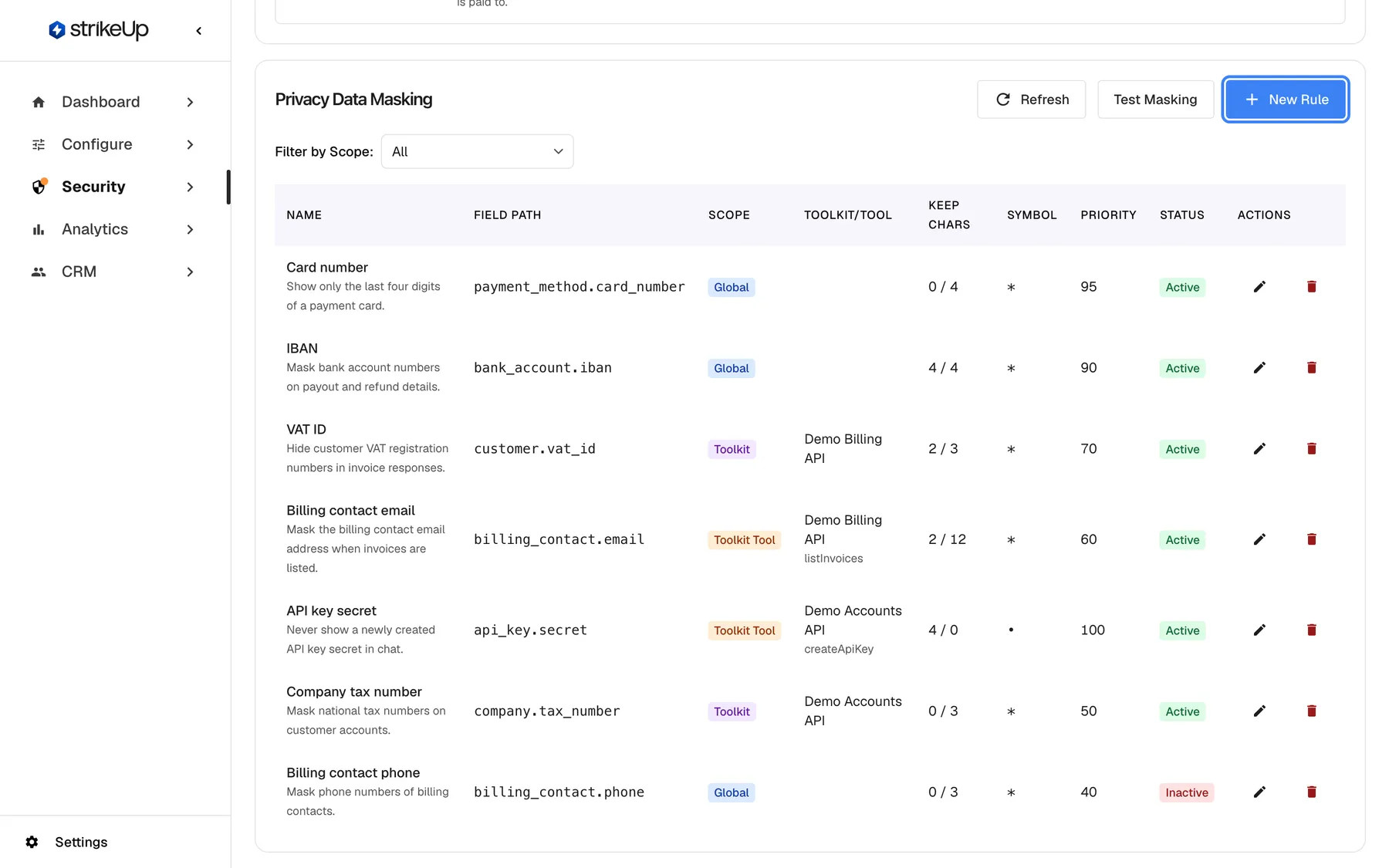
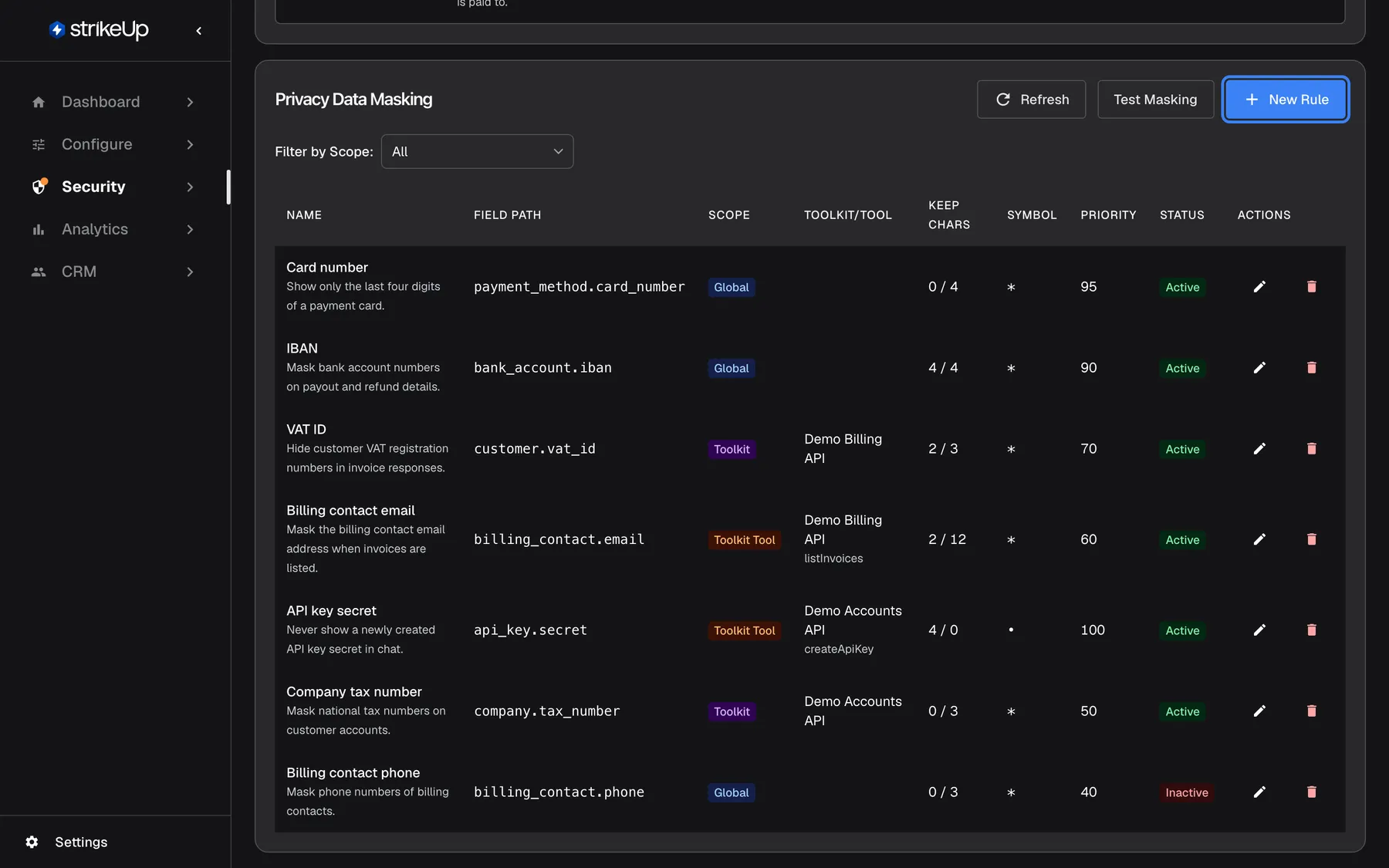
What this screenshot shows
- Screen
- Data masking (/admin/security/data-privacy)
- Highlighted
- button “New Rule”, rules-card-header-right, enabled. opens the Create Masking Rule dialog
- Also visible
- Filter by Scope select set to All; Seven rules: Global, Toolkit and Toolkit Tool scopes; one Inactive; Columns name, field path, scope, toolkit/tool, keep chars, symbol, priority, status, actions
- Purpose
- overview of the company's masking rules
| Region | What it shows | What you do there |
|---|---|---|
| Suggested rules, at the very top | AI Suggested Masking Rules ({{count}}) with the field, name, toolkit and a preview for each suggestion. Shown only while suggestions are waiting | Activate or dismiss suggestions |
| Header | Privacy Data Masking, Refresh, Test Masking and New Rule | Reload rules, test, create a rule |
| Filter by Scope: | A scope filter | Narrow the table to one scope |
| Rules table | Every rule, active and inactive, highest priority first | Edit or delete a rule |
How a rule masks a value
Section titled “How a rule masks a value”A rule keeps the first and last characters you choose and replaces every character in between with the masking symbol. The value keeps its length, so the AI can still tell a card number from a postcode.
| Value | Keep first | Keep last | Result |
|---|---|---|---|
abcd | 2 | 2 | abcd, unchanged: 4 characters is not longer than 2 + 2 |
abcde | 2 | 2 | ab*de |
jane.doe@example.com | 2 | 2 | ja****************om |
4242424242424242 | 0 | 4 | ************4242 |
Robert | 3 | 3 | Robert, unchanged: 6 characters is not longer than 3 + 3 |
Roberta | 3 | 3 | Rob*rta |
A value is masked only when it is longer than the two numbers added together. Only text values are masked: a card number your API returns as a JSON number, such as 4242424242424242 without quotes, passes unchanged.
Which fields a rule matches
Section titled “Which fields a rule matches”The field path is compared with each field’s position in the response, ignoring upper and lower case. Fields inside lists are numbered from 0, such as orders[0].customer.email.
| Field path in the rule | Matches | Does not match |
|---|---|---|
email | email, user.email, orders[0].customer.email | emailVerified |
user.email | user.email, account.user.email | user.emails[0] |
*.iban | iban and any field called iban at any depth | iban_country |
user | every text value inside user, such as user.name and user.phone | username |
emails* | emails[0], emails[1]: a list of plain text values | — |
*.account_number,*.sort_code | both fields; a comma separates several paths in one rule | — |
A path that names an object masks everything inside it. user masks the whole user record, which is rarely what you want; name the field instead.
Which rule wins
Section titled “Which rule wins”For each field, StrikeUp takes the rules that apply to the toolkit and tool that answered, in this order, and uses the first one that matches:
- Higher Priority first.
- With equal priority, the narrower scope first: one tool, then one toolkit, then all toolkits.
| Rule | Scope | Priority | Field path | Used for billing_contact.email from the tool listInvoices? |
|---|---|---|---|---|
| Billing contact email | One tool: listInvoices | 60 | billing_contact.email | Yes: highest priority that matches |
| Customer email | One toolkit | 60 | *.email | No: same priority, wider scope |
| Any email | Every toolkit | 40 | email | No: lower priority |
Activate suggested rules
Section titled “Activate suggested rules”StrikeUp suggests rules when it generates a toolkit from your API specification. It reads the field names in the specification and proposes a rule for each field that looks like a password, key, card, bank, identity, contact or personal detail, with keep and priority values to match. Identifiers, counts, statuses and dates are not suggested.
- Open SecurityData masking. Pending suggestions appear at the top in AI Suggested Masking Rules ({{count}}), grouped by kind, such as “Passwords & Secrets” and “Payment & Financial”. The group names are always in English.
- Read each row: the field, the rule name with the reason, the toolkit, and Masked Preview.
- Select Activate on a row, or Activate All for a whole group or every suggestion. The message {{count}} rule(s) activated confirms it, and the rule moves to the rules table as Active.
- Select the ✕ icon on a row you do not want, or Dismiss All.
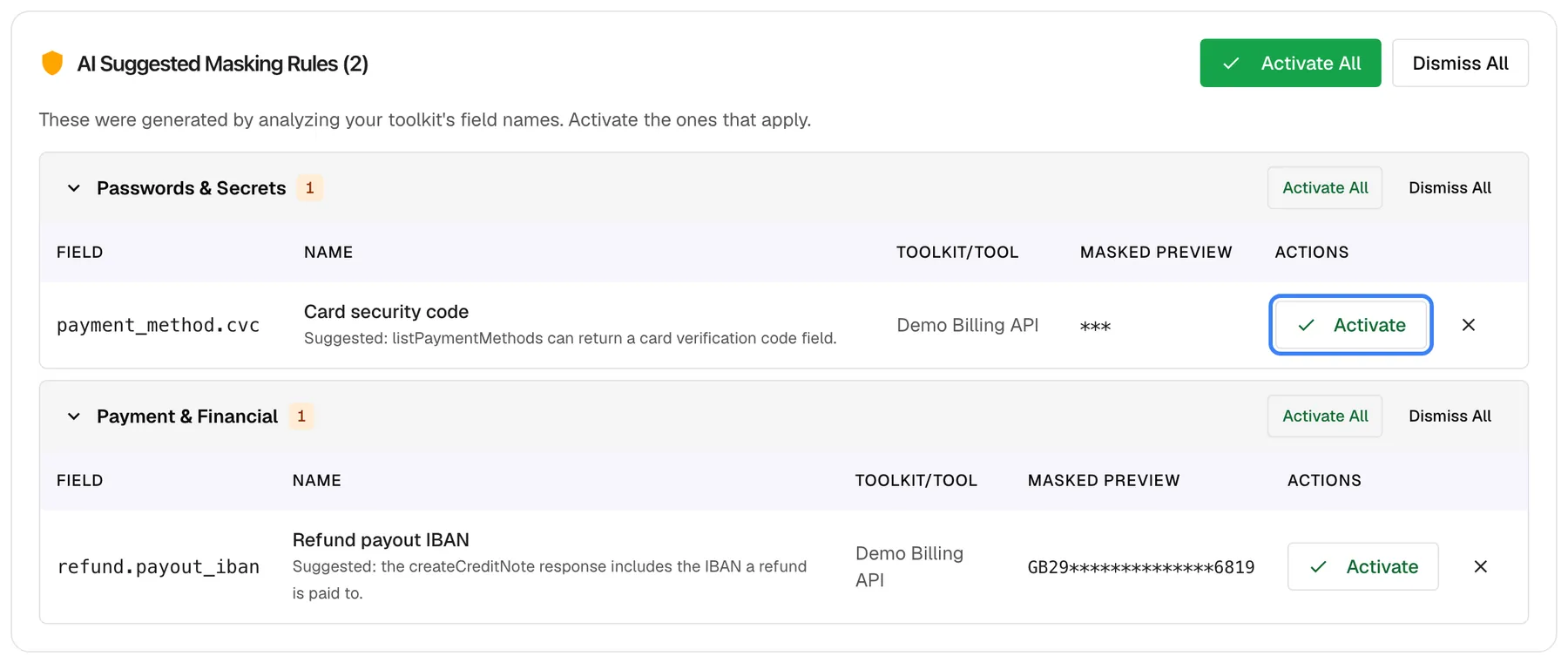
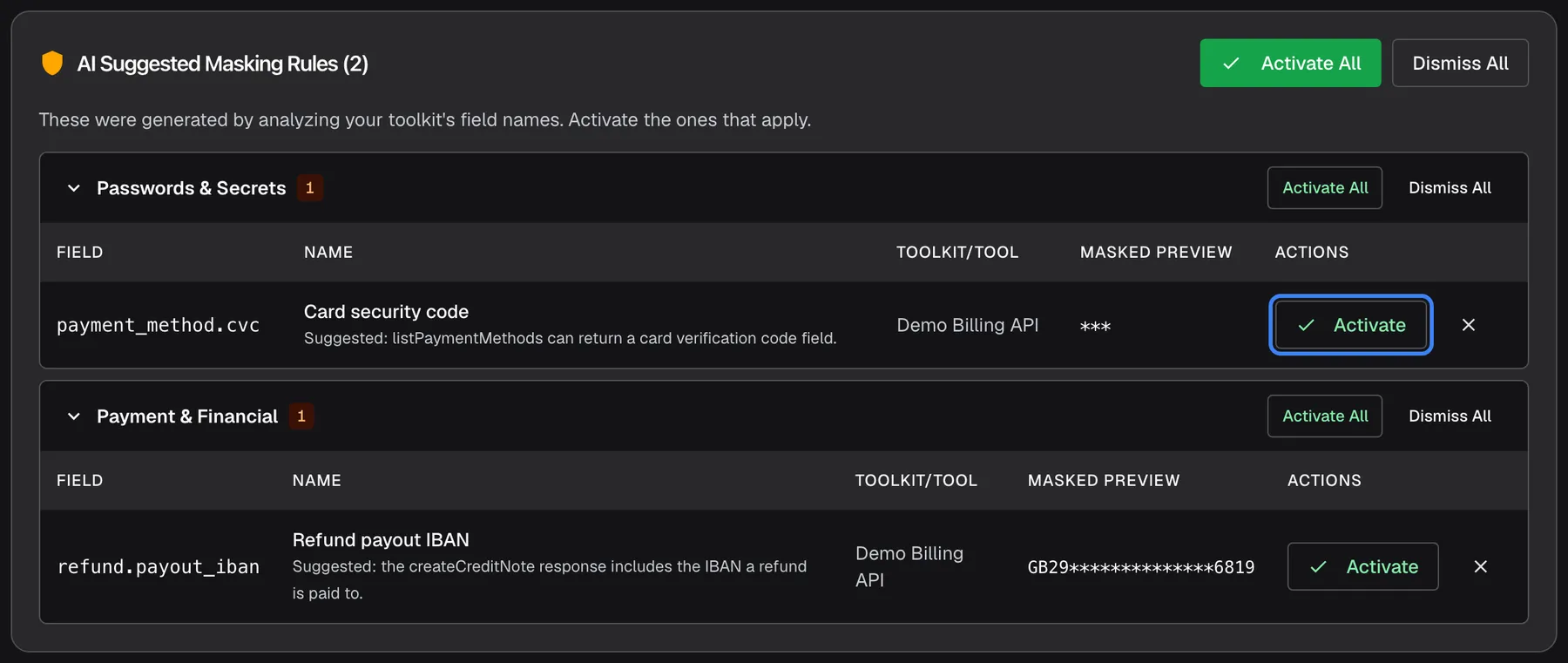
What this screenshot shows
- Screen
- Data masking (/admin/security/data-privacy)
- Highlighted
- button “Activate”, suggestions-card-first-group-row, enabled. activates the suggested rule for payment_method.cvc
- Also visible
- Groups Passwords & Secrets and Payment & Financial (English-only group names); Two suggestions with field, name, toolkit, masked preview; Activate All / Dismiss All at card and group level
- Purpose
- review AI-suggested masking rules created when a toolkit was generated
An activated suggestion becomes an ordinary rule for that toolkit, and you can edit it like any other. A dismissed suggestion stays switched off and is not suggested again for that toolkit; restore it from Suggestions. While suggestions wait, other pages show Masking rules suggested ({{count}}) — sensitive fields detected in your toolkits. with a Review them link.
The preview uses an invented sample value, so it can differ from the real result, for example for very short values. Use Test masking to see the real outcome.
Typical suggestions look like this:
| Kind of field | Keep first | Keep last | Priority |
|---|---|---|---|
| Passwords, PINs, card security codes, secret keys | 0 | 0 | 90 |
| API keys and tokens | 4 | 0 | 80 |
| Card and bank account numbers, national ID and phone numbers | 0 | 4 | 75 |
| Email addresses, IBANs, passport numbers | 2 | 4 | 65 |
| Names, addresses, dates of birth | 3 | 3 | 50 |
| IP addresses | 8 | 0 | 40 |
Create a rule
Section titled “Create a rule”- Select New Rule in the header.
- Fill in Name * and Field Path *, for example
*.email. Add a Description if colleagues need the reason. - Choose Scope *. For Toolkit-specific, also pick the toolkit; for Toolkit-Tool specific, the toolkit and the tool.
- Set Keep First Characters, Keep Last Characters, Masking Symbol and Priority.
- Select Create. The message Masking rule created successfully! appears and the dialog closes.
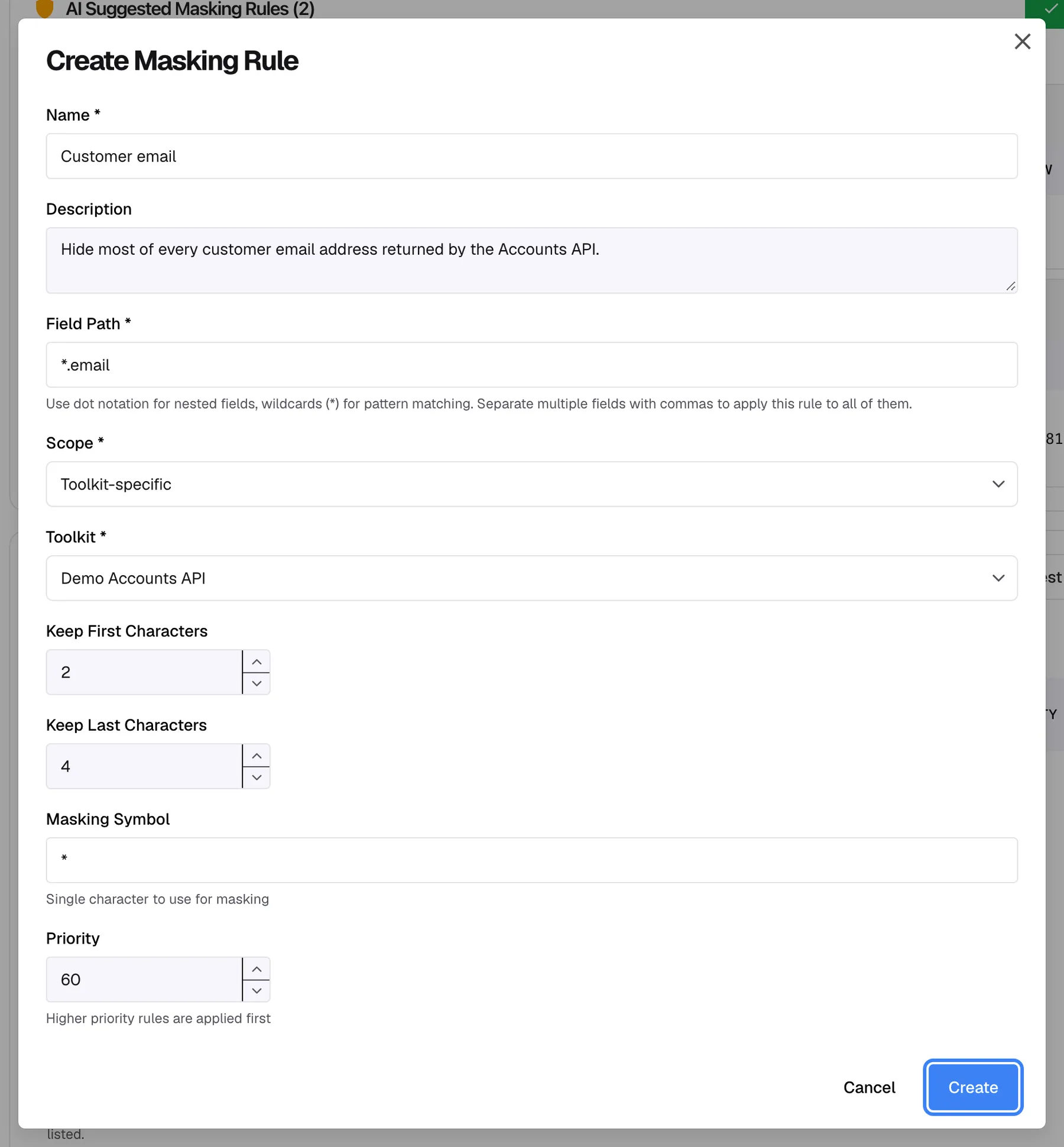
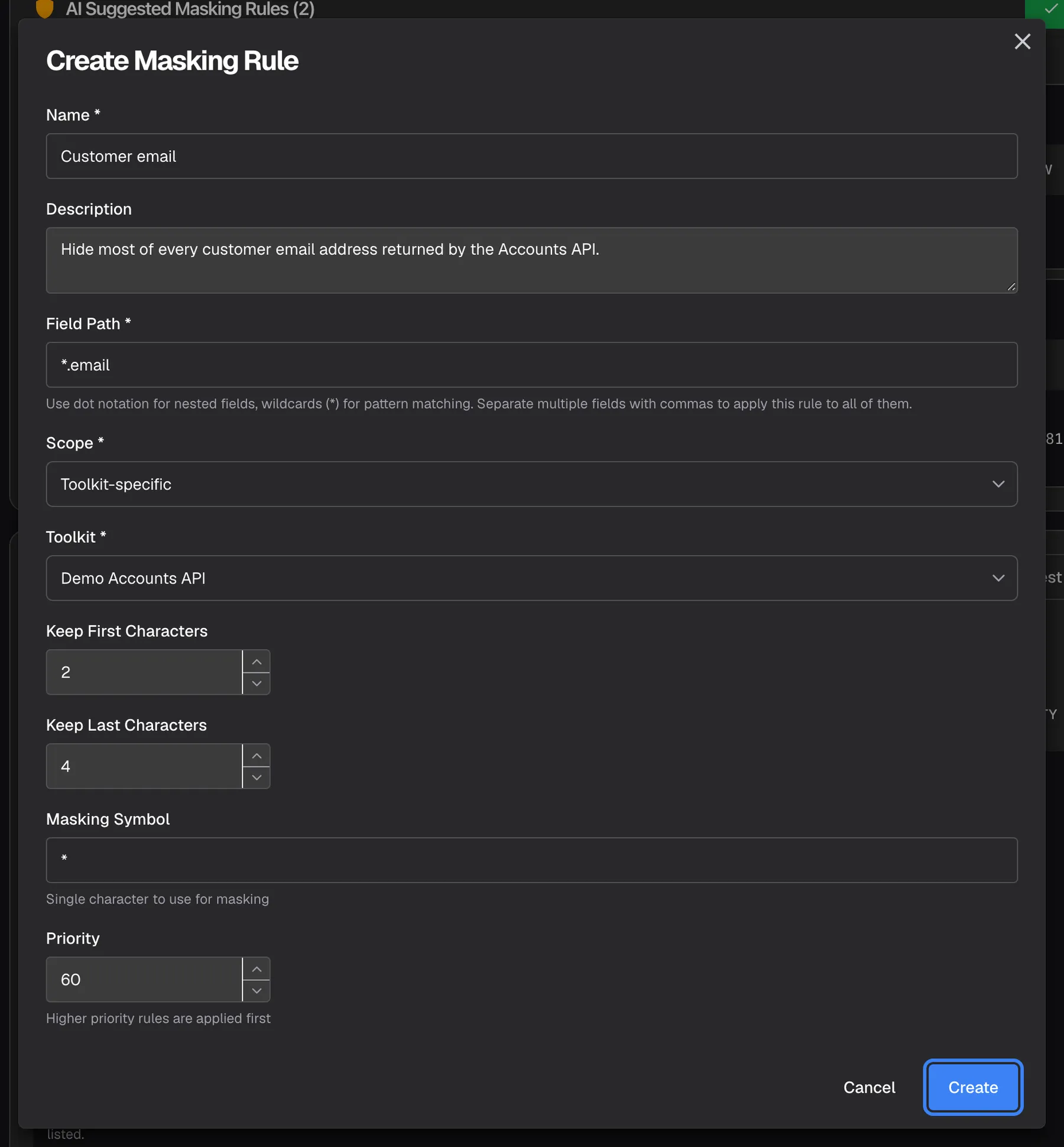
What this screenshot shows
- Screen
- Create Masking Rule (/admin/security/data-privacy)
- Highlighted
- button “Create”, dialog-footer-right, enabled. creates the rule; it is active immediately
- Also visible
- Name Customer email, field path *.email; Scope Toolkit-specific, toolkit Demo Accounts API; Keep first 2, keep last 4, symbol *, priority 60
- Purpose
- create a masking rule
A new rule is active at once and applies from the next tool call. Responses already stored in the tool-run log keep what they had.
Example. The rule in the screenshot masks every email field returned by the Demo Accounts API, keeping 2 characters at the start and 4 at the end: olivia.hart@example.com becomes ol*****************.com.
Test masking
Section titled “Test masking”- Select Test Masking in the header.
- Paste a sample response into JSON Data *. It must be valid JSON.
- Optionally choose Toolkit (Optional) and Tool Name (Optional).
- Select Test and compare Original JSON: with Masked JSON:.
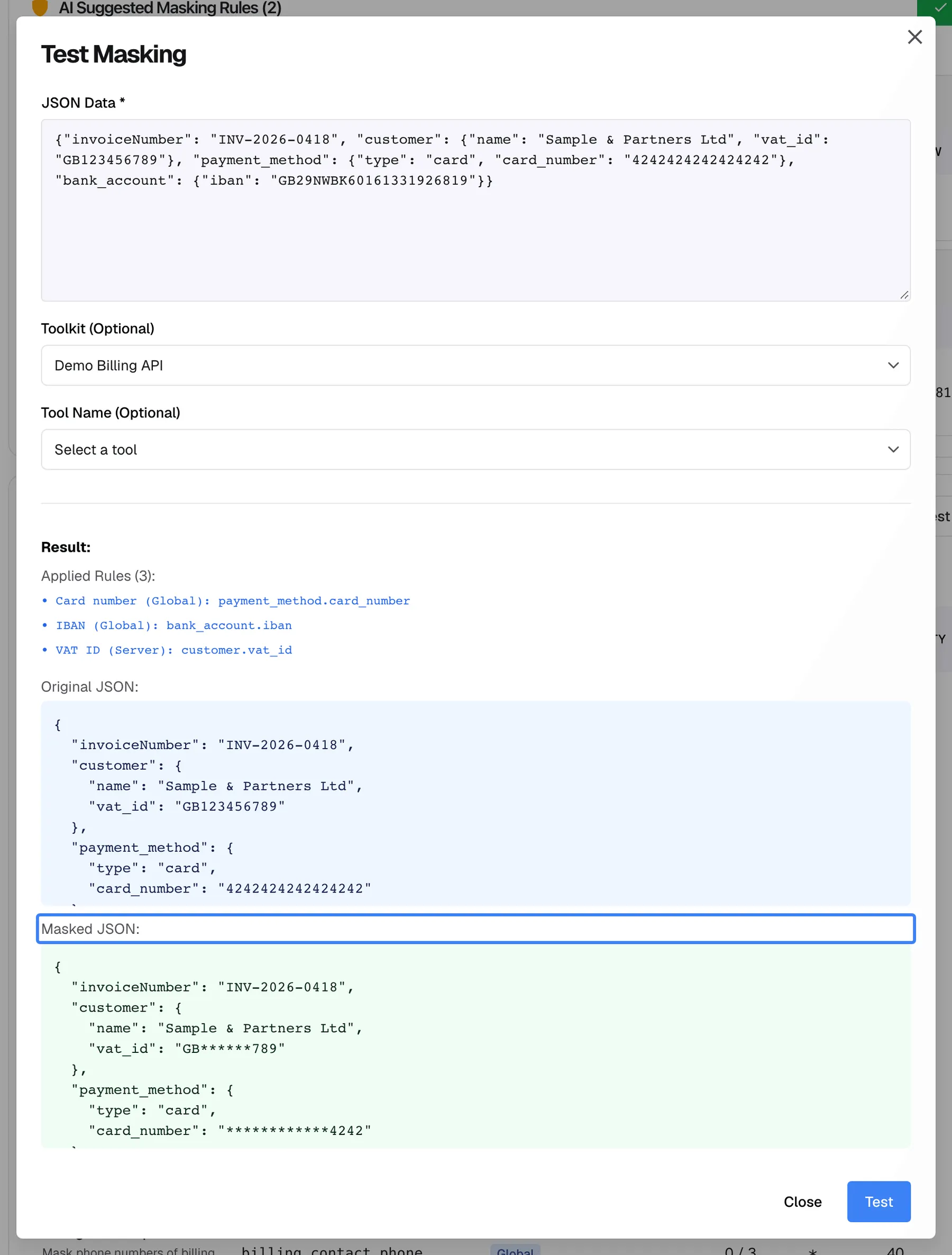
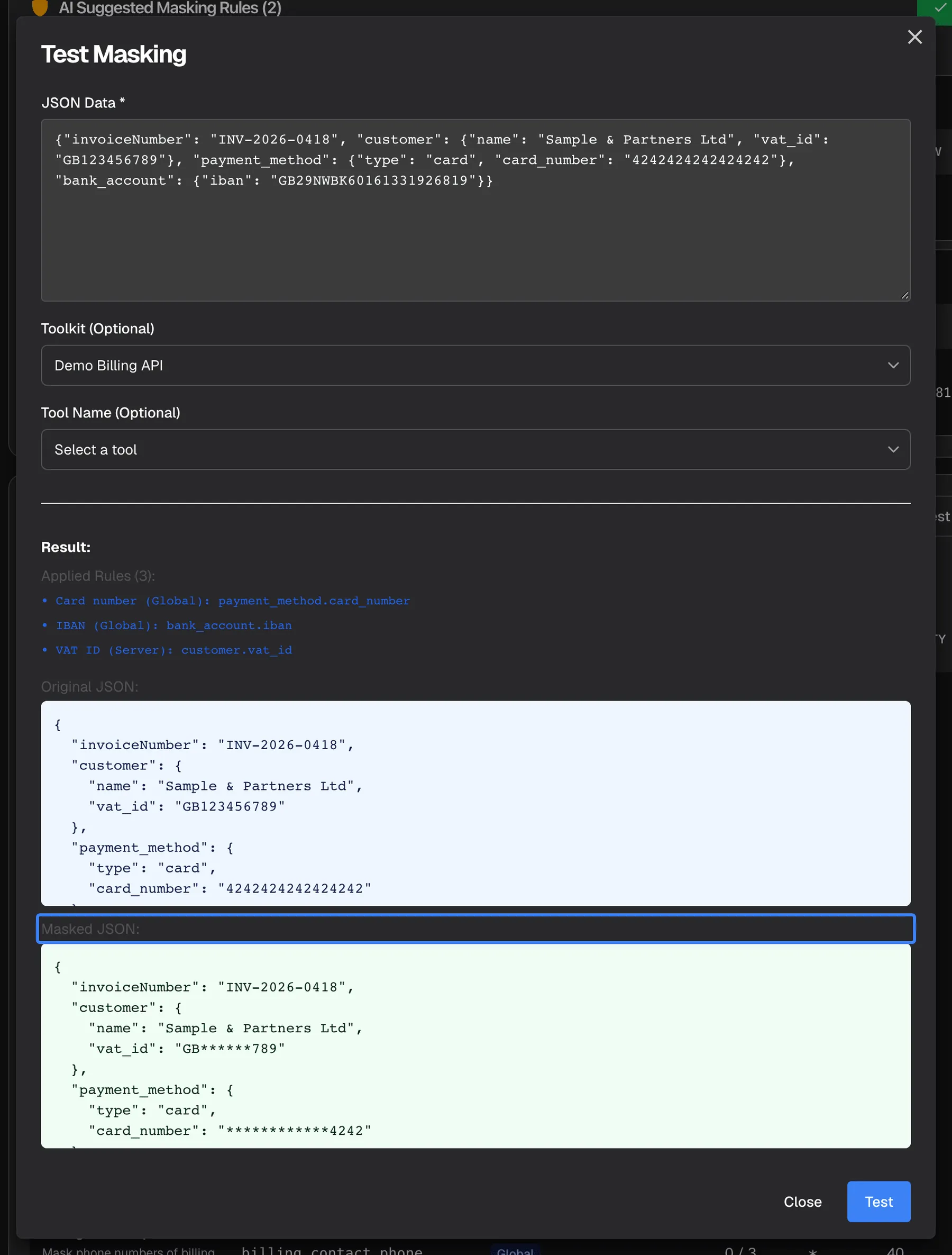
What this screenshot shows
- Screen
- Test Masking (/admin/security/data-privacy)
- Highlighted
- “”, dialog-result-masked-json, shown after Test. shows the masked version of the sample JSON
- Also visible
- Applied Rules (3) list: every active rule in scope for the chosen toolkit; Original JSON with card number, IBAN, VAT ID; Masked JSON with the same values masked
- Purpose
- check rules on sample data before relying on them
The test uses the same rules and order as a live tool call:
| Your choice | Rules used |
|---|---|
| No toolkit | Rules for all toolkits only |
| A toolkit | Rules for all toolkits and for that toolkit |
| A toolkit and a tool | Rules for all toolkits, for that toolkit and for that tool |
The list under AI Suggested Masking Rules ({{count}}) is not involved: suggestions waiting for activation never mask. The applied-rules list names every active rule that applies to your choice, whether or not it changed a value, with its scope in StrikeUp’s internal wording (“Global”, “Server”, “ServerTool”). Compare the two JSON blocks to see what actually changed. Nothing is saved, and any member of your team can run tests.
Change, pause or delete a rule
Section titled “Change, pause or delete a rule”- Change a rule: select the pencil icon in its row, adjust the fields, and select Update. Scope, toolkit and tool cannot be changed; delete the rule and create a new one instead.
- Pause a rule: in the same dialog, select Disable, then Update. The rule shows Inactive and masks nothing until you select Enable and save again.
- Delete a rule: select the bin icon and confirm the browser’s question, Are you sure you want to delete this masking rule?. The rule is removed for good.
A change applies from the next tool call.
Every control, explained
Section titled “Every control, explained”Suggested rules card
Section titled “Suggested rules card”Refresh
Section titled “Refresh”Test Masking
Section titled “Test Masking”New Rule
Section titled “New Rule”Filter by Scope
Section titled “Filter by Scope”Rules table columns
Section titled “Rules table columns”| Column | What it shows | Why |
|---|---|---|
| Name | The rule name, with its description underneath | Tells colleagues what the rule protects |
| Field Path | The path or paths the rule matches | Check the path matches your API’s field names |
| Scope | Global (blue), Toolkit (purple) or Toolkit Tool (orange) | Shows how far the rule reaches |
| Toolkit/Tool | The toolkit, and the tool for single-tool rules; empty for rules on all toolkits | Shows which API the rule belongs to |
| Keep Chars | Characters kept at the start / at the end | Shows how much stays readable |
| Symbol | The masking character | — |
| Priority | 0–100; the table is sorted by it, highest first | Decides which rule wins |
| Status | Active or Inactive | Inactive rules mask nothing |
| Actions | Pencil (edit) and bin (delete) icons | Change or remove the rule |
Create Masking Rule dialog
Section titled “Create Masking Rule dialog”| Field | Default | Rules |
|---|---|---|
| Name * | Empty | Required. Missing name or path shows Name and Field Path are required |
| Description | Empty | Optional |
| Field Path * | Empty | Required. Dot notation, * wildcards, commas between several paths. The path is not checked against your API |
| Scope * | Global (all toolkits) | Or Toolkit-specific, or Toolkit-Tool specific |
| Toolkit * | — | Required for the two narrower scopes: Toolkit is required for toolkit-specific rules. Lists every toolkit, including switched-off ones |
| Tool Name * | — | Required for a single-tool rule: Tool name is required for toolkit-tool specific rules. Matches the tool’s exact name |
| Keep First Characters | 2 | 0–50 |
| Keep Last Characters | 2 | 0–50 |
| Masking Symbol | * | One character. Do not leave it empty |
| Priority | 0 | 0–100; Higher priority rules are applied first |
The Edit Masking Rule dialog has the same fields except scope, toolkit and tool, plus the Disable or Enable button.
Test Masking dialog
Section titled “Test Masking dialog”Who sees what
Section titled “Who sees what”| Part | Who can use it |
|---|---|
| The page, rules table and suggestions, read-only | Every signed-in member |
| Test Masking | Every signed-in member |
| Creating, editing, pausing and deleting rules; activating and dismissing suggestions | The Admin role only. Other roles see the buttons, but the change fails with Request failed |
What you need to know
Section titled “What you need to know”| Topic | Fact |
|---|---|
| What is masked | Successful responses from your toolkits’ tools, before the AI reads them and before they are written to the tool-run log. |
| What is not masked | What customers type in the chat, the assistant’s replies, the request the assistant sends to your API (it is stored in the tool-run log as sent), knowledge base content, and messages on the violations page. |
| Error responses | When your API answers with an error, the AI receives the error text unmasked; only the copy in the tool-run log is masked. Keep personal data out of your API’s error messages. |
| If masking fails, the response is withheld | If masking a response fails, for example because a rule’s masking symbol is empty, neither the AI nor the log gets the response: both see “[Error] The API response was withheld because the data-masking rules could not be applied.” and the assistant cannot use that tool result. Check every rule has a symbol. |
| One-way | Masking changes the value in the response. StrikeUp keeps no original, and there is no way to unmask. |
| Takes effect at once | New and changed rules apply from the next tool call. Older tool-run entries are not masked again. |
| Text values only | Numbers, true/false and empty values are never masked. |
| Per workspace | Rules belong to your workspace. A rule for all toolkits covers every toolkit of your workspace. |
| Languages | Matching uses field names, so it works whatever language the values are in. Suggestion group names are shown in English. |
| Cost | Masking itself uses no AI. Suggested rules are created as part of generating a toolkit. |
Frequently asked questions
Section titled “Frequently asked questions”General
Section titled “General”Does the AI ever see the unmasked value?
Section titled “Does the AI ever see the unmasked value?”Not for a successful tool response covered by an active rule. It sees an unmasked value only when no active rule matches the field; error responses from your API are masked like any other. When masking a response fails, the AI gets no response at all, only a note that it was withheld. Test your rules with Test Masking to close gaps.
Are my customers’ chat messages masked?
Section titled “Are my customers’ chat messages masked?”No. Masking applies only to the responses of your toolkits’ tools. What a customer types, and what the assistant writes back, is not masked. The guardrails on SecurityGuardrails check customer messages, but they allow or block; they do not mask.
Can I unmask data later?
Section titled “Can I unmask data later?”No. A rule replaces the characters in the response itself, and StrikeUp keeps no copy of the original value. The AI, the chat and the tool-run log only ever have the masked value. To see a full value, look it up in your own system.
Why wasn’t a short value masked?
Section titled “Why wasn’t a short value masked?”A value is masked only when it is longer than Keep First Characters and Keep Last Characters added together. With 3 and 3, “Robert” (6 characters) stays as it is and “Roberta” becomes “Rob*rta”. Lower the numbers for fields with short values.
Why wasn’t a number masked?
Section titled “Why wasn’t a number masked?”Only text values are masked. If your API returns a card number as a JSON number, without quotes, no rule changes it. Ask your API team to return such values as text, or remove them from the response.
Does the path email also mask customer.email?
Section titled “Does the path email also mask customer.email?”Yes. A path matches the field with that name at any depth, so email covers email, customer.email and orders[0].customer.email. Upper and lower case are ignored. Write customer.email instead if you only want that one.
How do I mask a list of email addresses?
Section titled “How do I mask a list of email addresses?”Add * to the end of the path, such as emails*. Values in a plain list are numbered, emails[0], emails[1], and the path emails on its own does not match them. Objects inside a list, such as orders[0].email, are matched by email as usual.
Two rules match the same field. Which one wins?
Section titled “Two rules match the same field. Which one wins?”The one with the higher Priority. With equal priority, the narrower scope wins: a single-tool rule before a toolkit rule before a rule for all toolkits. Only one rule applies to each field, so a later rule never masks further.
Can I change a rule’s scope or toolkit?
Section titled “Can I change a rule’s scope or toolkit?”No. The edit dialog changes name, description, path, the kept characters, symbol, priority and status only. To move a rule to another scope or toolkit, create the new rule with New Rule and delete the old one.
How do I switch a rule off without deleting it?
Section titled “How do I switch a rule off without deleting it?”Select the pencil icon in the rule’s row, select Disable, then Update. The rule shows Inactive and stops masking from the next tool call; switch it back on the same way.
Suggested rules
Section titled “Suggested rules”Where do suggested rules come from?
Section titled “Where do suggested rules come from?”StrikeUp creates them when it generates a toolkit from your API specification. It reads the field names in the specification and proposes rules for fields that look like secrets or personal data. The suggested rules belong to that toolkit and wait, switched off, until you activate them.
Do suggested rules mask anything before I activate them?
Section titled “Do suggested rules mask anything before I activate them?”No. A suggestion masks nothing until you select Activate or Activate All on SecurityData masking. After that it is an ordinary active rule that you can edit or pause.
I dismissed a suggestion by mistake. Can I get it back?
Section titled “I dismissed a suggestion by mistake. Can I get it back?”Yes. Dismissed suggestions are kept, switched off. Restore them from ConfigureSuggestions, then activate them on the data masking page. A dismissed field is not suggested again on its own when the toolkit is regenerated.
Why does the masked preview differ from the real result?
Section titled “Why does the masked preview differ from the real result?”The preview masks an invented sample value, not your data, and always shows at least a few masking characters. Real values that are too short stay unmasked. Paste a real-looking response into Test Masking to see the actual result.
Testing
Section titled “Testing”The test lists a rule that changed nothing. Why?
Section titled “The test lists a rule that changed nothing. Why?”The applied-rules list in Test Masking names every active rule that applies to the toolkit and tool you chose, whether or not its path matched a field. Compare the original and masked JSON to see which values actually changed.
Can colleagues without the Admin role test masking?
Section titled “Can colleagues without the Admin role test masking?”Yes. Every signed-in member can open Test Masking and run tests; nothing is saved. Creating, editing, deleting, activating and dismissing rules need the Admin role.
Data and privacy
Section titled “Data and privacy”Is the request the assistant sends to my API masked in the log?
Section titled “Is the request the assistant sends to my API masked in the log?”No. The tool-run log stores the request exactly as sent, including any values the customer gave the assistant. Only your API’s response is masked. Keep this in mind for tools that take personal data as input.
Do new rules mask older tool-run entries?
Section titled “Do new rules mask older tool-run entries?”No. A rule applies from the next tool call. Entries already in the tool-run log keep the values they were stored with, masked or not.
Troubleshooting
Section titled “Troubleshooting”| Symptom | What to check |
|---|---|
| A value still appears in full in a tool run | In order: is the rule Active? Does the path match the field (try Test Masking)? Is the value text, not a number? Is it longer than the kept characters together? Do the toolkit and the exact tool name match? Does a higher-priority rule keep more characters? |
| Nothing is masked any more for a toolkit | Look for a rule with an empty Symbol column. Give it a symbol, such as *, and save. |
| Name and Field Path are required | Fill in both the name and the field path. |
| Toolkit is required for toolkit-specific rules or Tool name is required for toolkit-tool specific rules | Pick the toolkit, and for a single-tool rule the tool, or choose a wider scope. |
| Invalid JSON format | The sample must be valid JSON: double quotes around names and text, no trailing commas. |
| Failed to activate masking rule, Failed to dismiss masking rule or Request failed | Changes need the Admin role. |
| The suggestions card is missing | No suggestions are waiting. Dismissed ones are on ConfigureSuggestions. Reload the page if you expected new ones. |
| The preview and the real result differ | The preview uses a sample value. Use Test Masking with a realistic response. |
| A whole object is masked | The path names the object, such as user. Name the field instead, such as user.email. |