

Toolkits
The Toolkits page is where you connect your product’s API to the assistant. You give StrikeUp the address of your API specification, and it turns every endpoint into a tool the assistant can call in a chat, such as “list invoices” or “resend an invoice”. On the same page you choose which tools are switched on, which ones ask the visitor for approval, and how calls are authorised against your API. Open it from ConfigureToolkits. The heading and subtitle, “Toolkits” and “Connect and configure your API toolkits.”, are shown in English in every language.
What you can do here
Section titled “What you can do here”- Import an API as a toolkit. Paste the URL of a Swagger, OpenAPI or Readme.io specification; StrikeUp checks it, then generates one tool per endpoint in the background. Import an API as a toolkit.
- Decide what the assistant may do. Every imported tool starts switched off. Switch tools on one by one, by group or by risk level. Switch tools on and off.
- Guard risky actions. Mark a tool as needing the visitor’s approval, set its risk level and flag it as destructive or bulk. Edit a tool.
- Add an endpoint the specification misses. Create a tool by hand with its method, path and schemas. Add a tool by hand.
- Tell StrikeUp how to sign in to your API. Choose no authorisation, a key or token header, a user name and password, or a token your own endpoint issues for each visitor. Set up authorisation · Let the assistant call your API as the user.
- Follow changes to your API. Compare the stored specification with the current one and apply new, changed and deleted endpoints. Keep a toolkit up to date.
- Copy or delete a toolkit. Duplicate a toolkit with its tools and settings, or remove it with everything that belongs to it. Copy or delete a toolkit.
The screen at a glance
Section titled “The screen at a glance”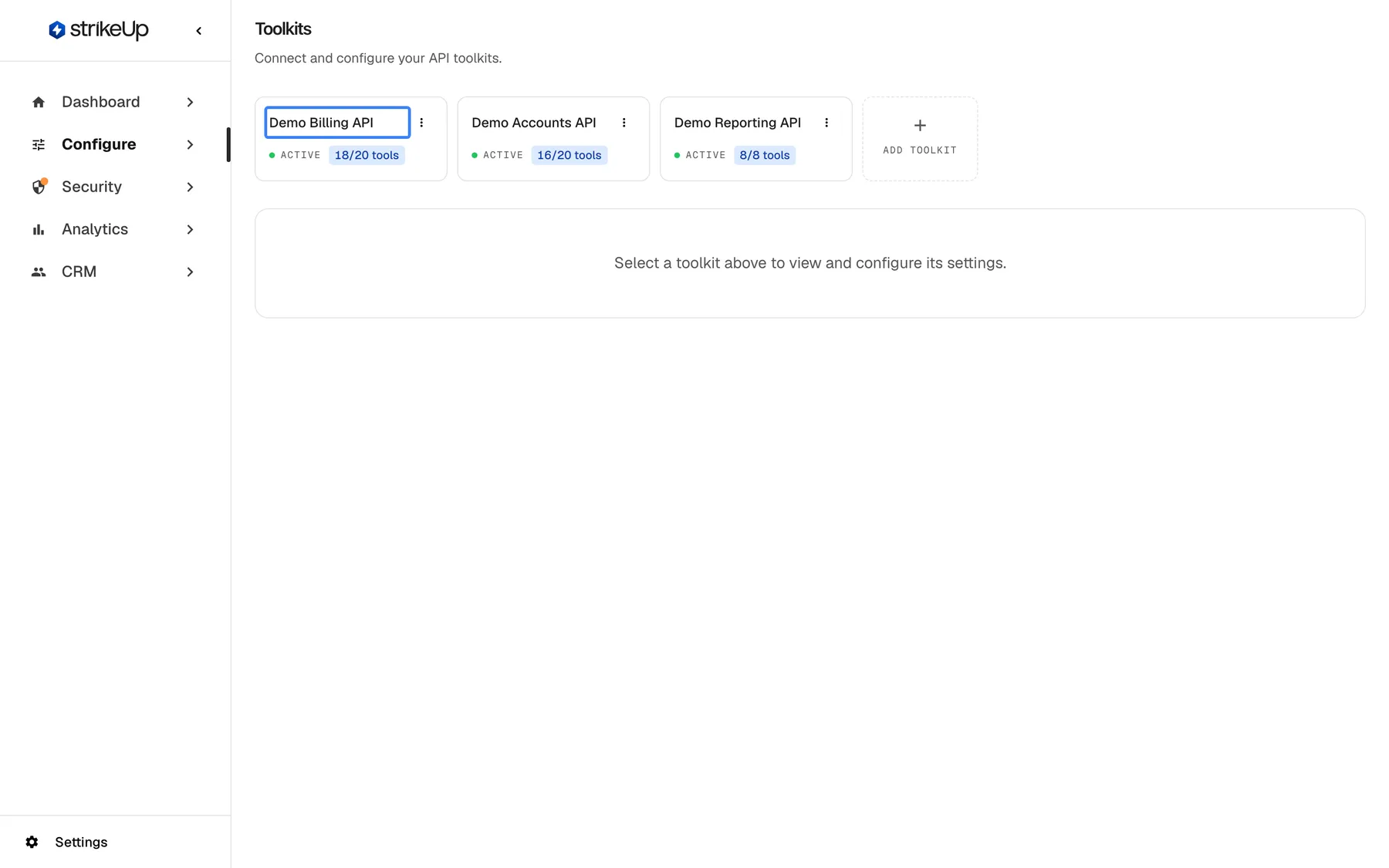
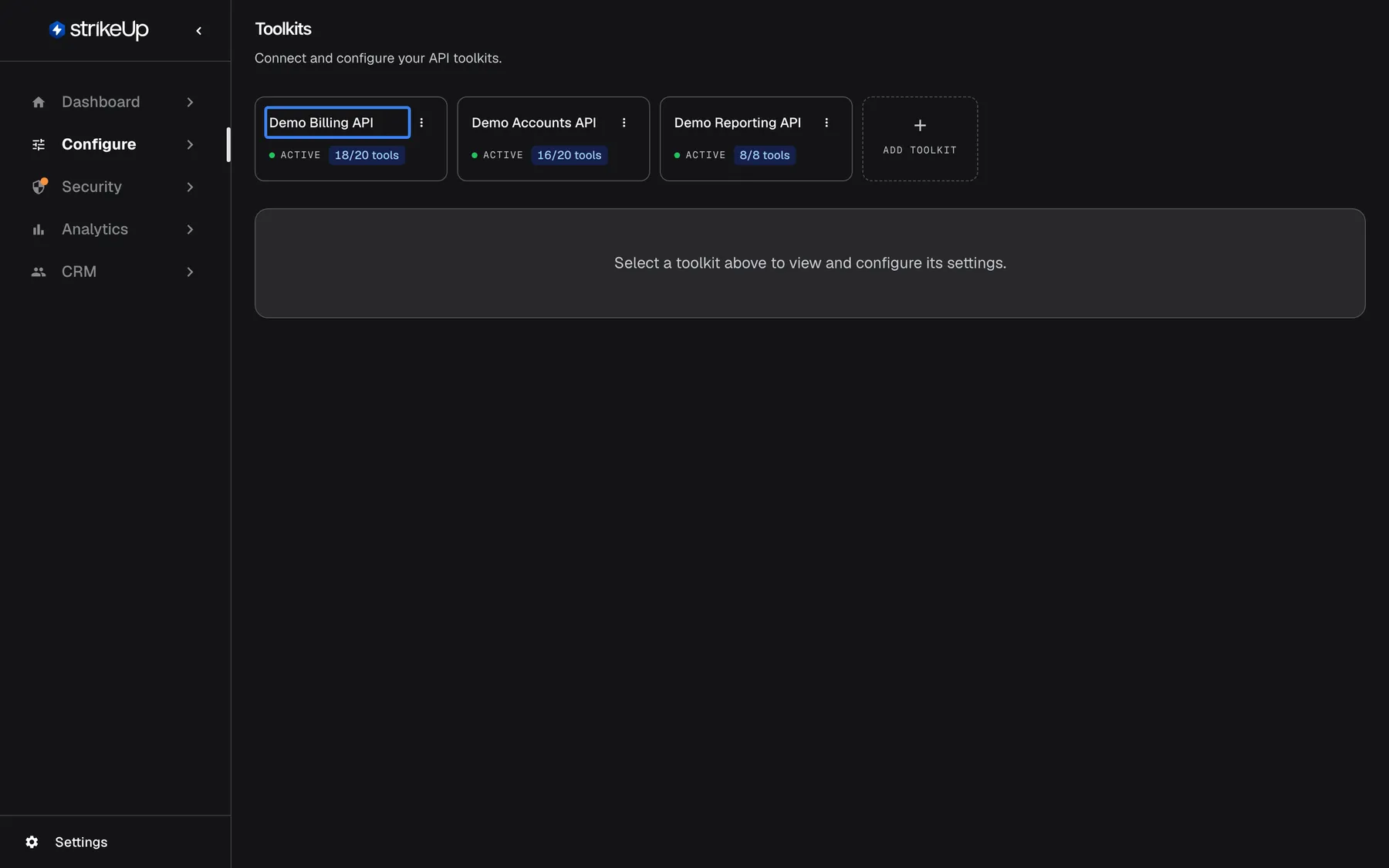
What this screenshot shows
- Screen
- Toolkits (/admin/servers)
- Highlighted
- card “”, toolkit-cards-row, not selected. selects the toolkit and opens its details, authorization and tools below
- Also visible
- Three toolkit cards, each with an ACTIVE status and an enabled/total tools count; Dashed Add toolkit card at the end of the row; Empty panel: Select a toolkit above to view and configure its settings.
- Purpose
- entry point of the Toolkits page
| Region | What it shows | What you do there |
|---|---|---|
| Toolkit cards, top | One card per toolkit with its name, status, tools switched on out of the total, and a percentage while tools are being generated. A dashed “Add toolkit” card ends the row | Pick the toolkit to work on; open the ⋮ menu to copy or delete it; start an import |
| Toolkit Details | Name, base URL, specification URL and description of the selected toolkit, with Check for Updates and Edit | Check for API changes, edit the details, open the authorisation logs |
| Authorization Configuration | How calls to your API are authorised. Collapsed when the page opens | Choose the authorisation type and its headers, then save |
| Tools | Every tool of the toolkit, grouped by the first part of its path, with filters, search, Bulk Actions and Add Tool | Switch tools on and off, edit or delete them, add new ones |
Until you pick a card, the area below the cards only asks you to choose one. The selected toolkit is kept in the page address (?serverId=…), so a bookmark or a shared link opens the same toolkit.
Import an API as a toolkit
Section titled “Import an API as a toolkit”An import reads your API specification once and creates a toolkit with one tool per endpoint. Nothing is callable afterwards until you switch tools on.
-
Open ConfigureToolkits and select the dashed “Add toolkit” card. The Create New Toolkit dialog opens.
-
Under API Documentation Type *, keep Swagger/OpenAPI for a Swagger 2.0 or OpenAPI 3.0 file, or pick Readme.io.
-
Paste the address into API Specification URL *, for example
https://api.example.com/billing/v2/openapi.json. For Readme.io, use the API endpoint address withdereference=true&reduce=false.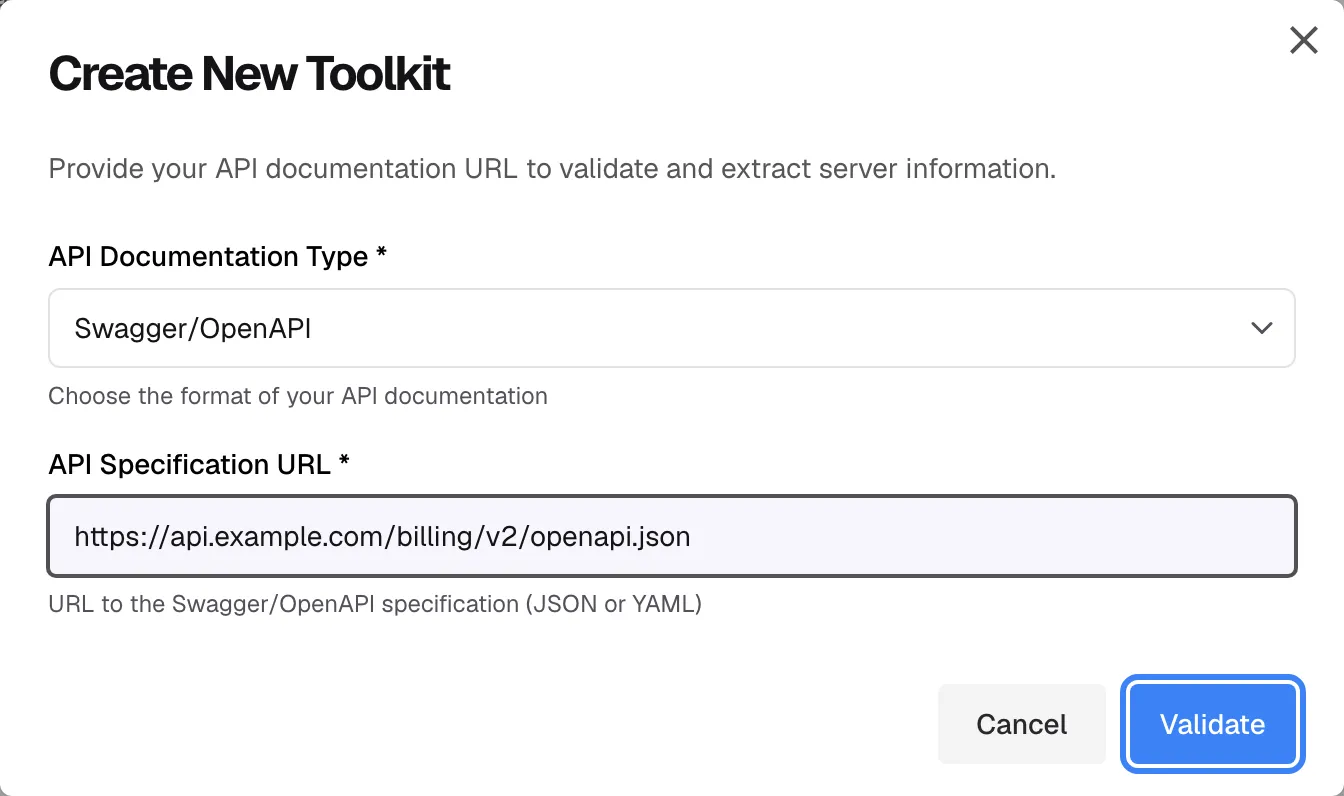
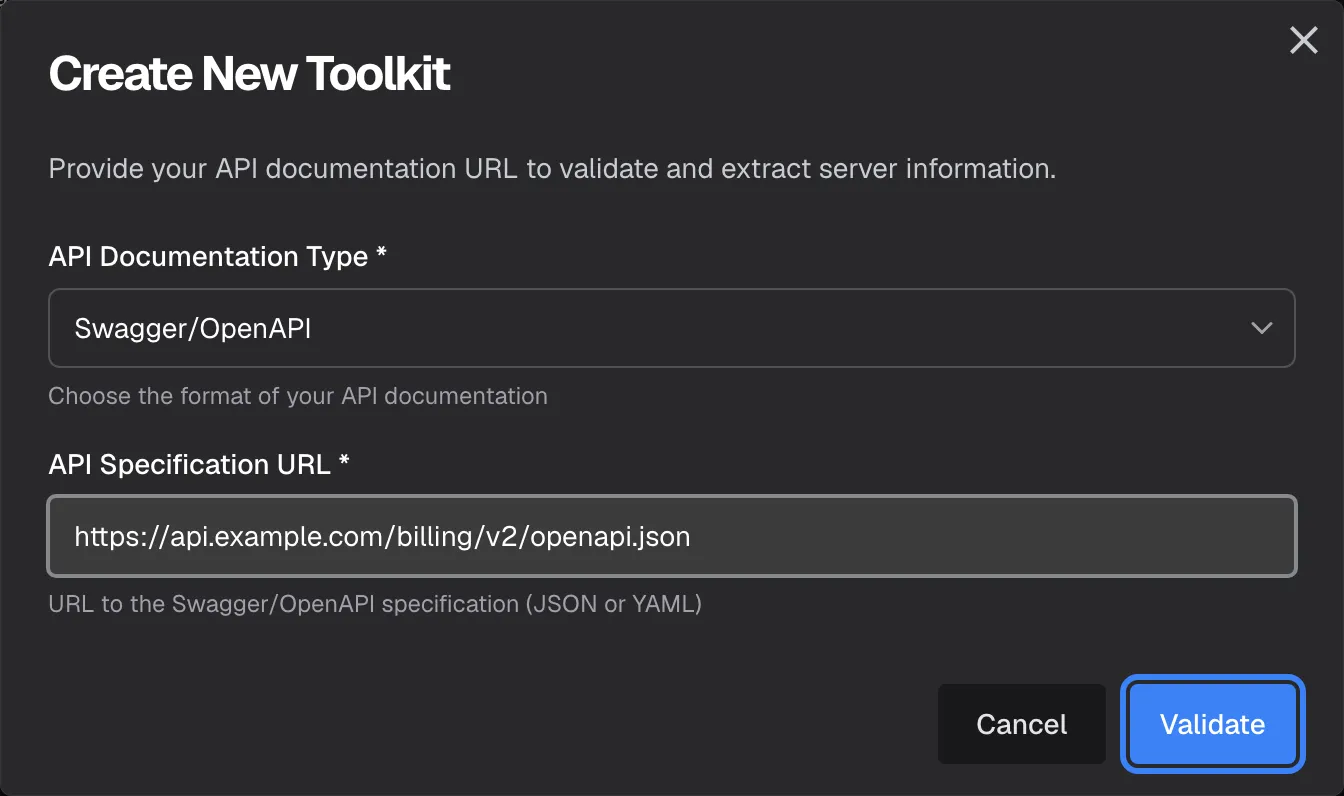
Paste the URL of your Swagger/OpenAPI specification and select Validate before anything is created. What this screenshot shows
- Screen
- Toolkits (/admin/servers)
- Highlighted
- button “”, dialog-footer-right, enabled. validates the specification URL and reveals the name, description and details fields
- Also visible
- Dialog title Create New Toolkit; API Documentation Type: Swagger/OpenAPI; API Specification URL: https://api.example.com/billing/v2/openapi.json; Cancel button
- Purpose
- first step of importing an API as a toolkit
-
Select “Validate”. StrikeUp downloads the specification and checks it. When it is valid, three fields appear: Toolkit Name *, filled from the specification’s title, Description *, filled from its description, and the optional Additional Details URL.
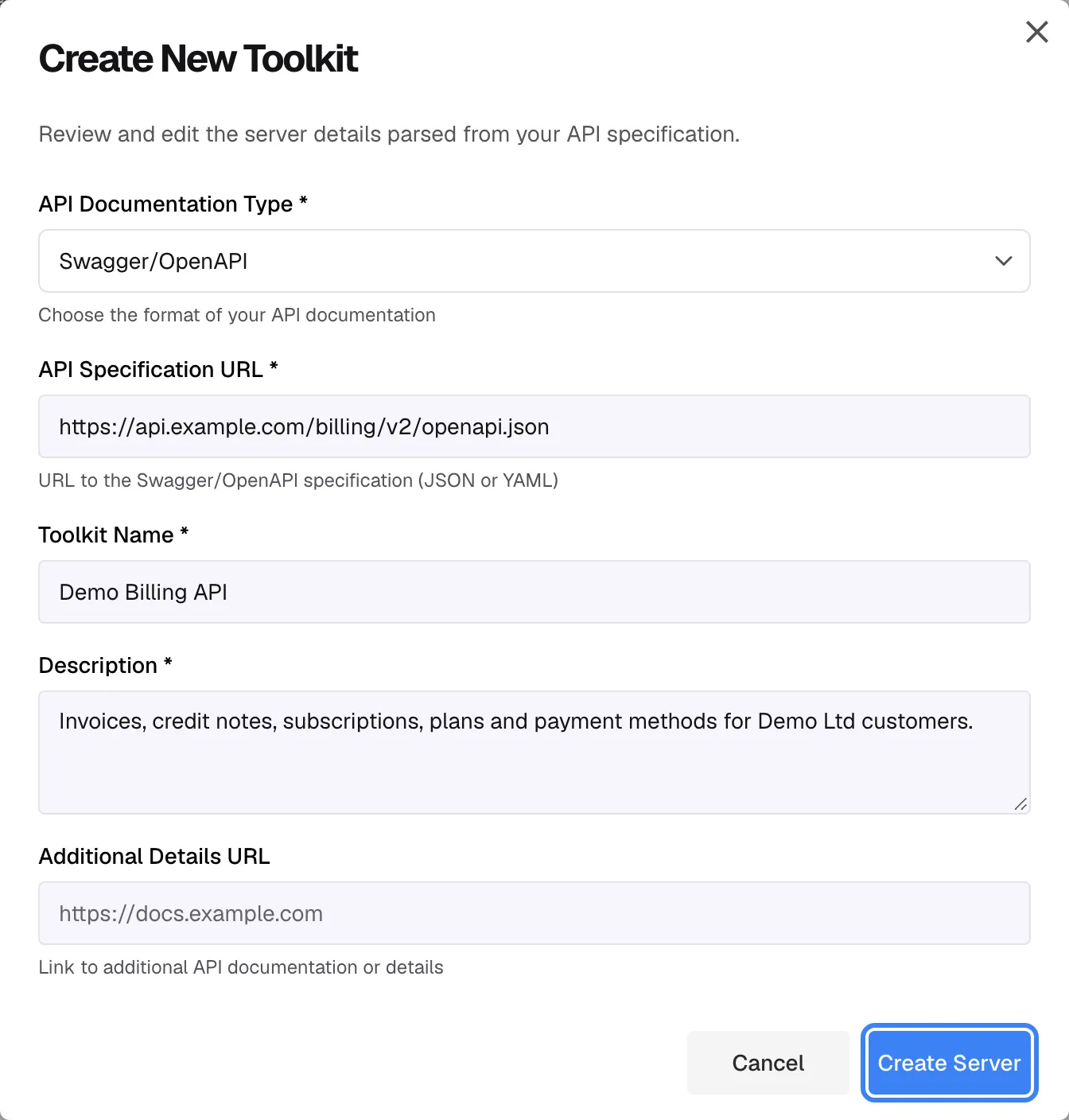
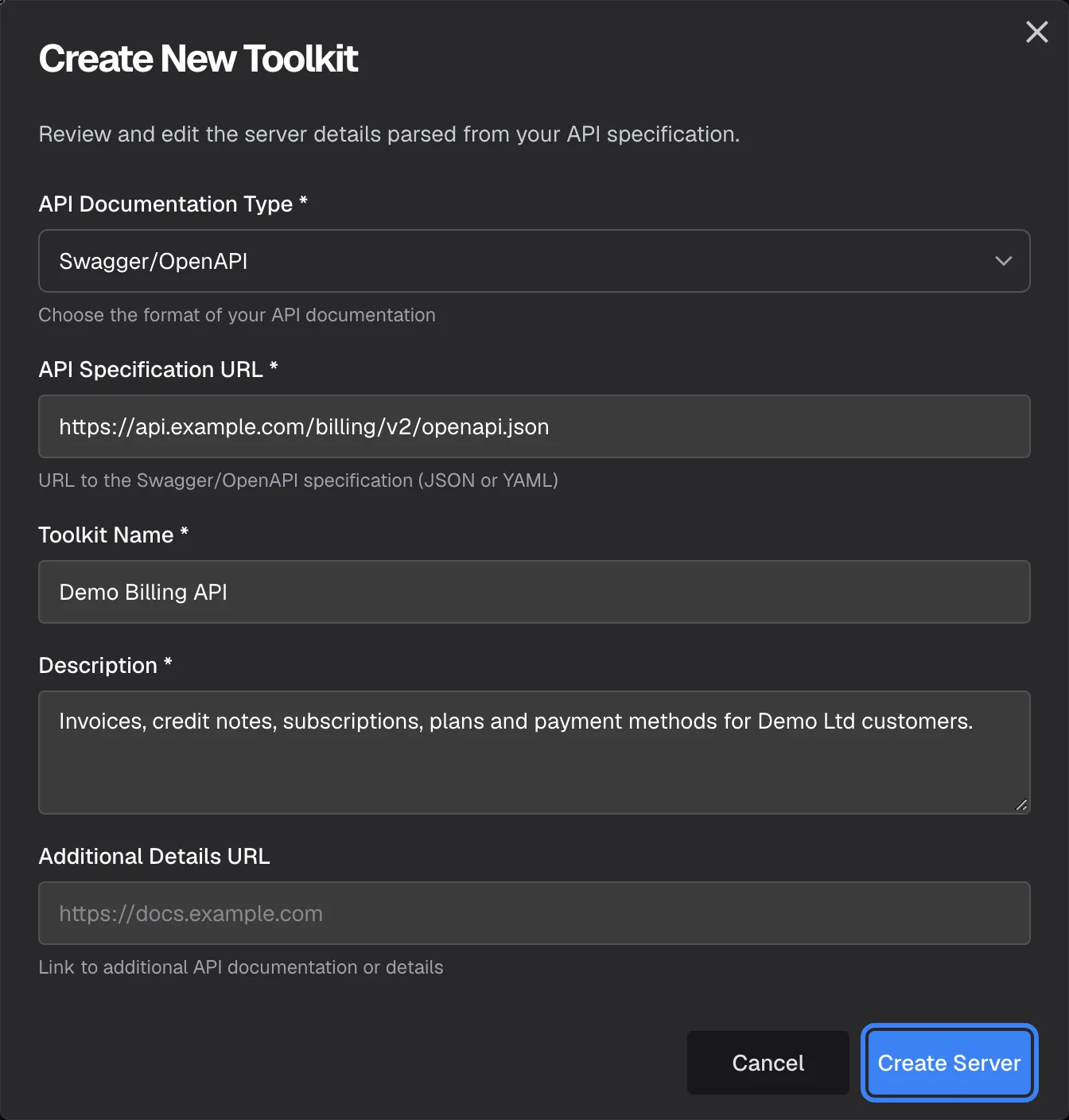
After validation the name and description come from the specification; edit them if needed, then select Create Server. What this screenshot shows
- Screen
- Toolkits (/admin/servers)
- Highlighted
- button “”, dialog-footer-right, enabled. saves the toolkit and starts tool generation in the background
- Also visible
- Toolkit Name prefilled: Demo Billing API; Description prefilled from the specification; Optional Additional Details URL field
- Purpose
- second step of importing an API, reviewing what the specification provided
-
Edit the name and description if you want; the assistant reads the description to understand what the API is for. Select “Create Server”. The dialog shows Starting generation…, then Generating tools… with the progress.
-
Wait, or select Continue in background. The new card shows the percentage while it works, and the dialog closes by itself 2 seconds after it shows Tools ready!.
What happens in the background. Generation runs in three phases: reading the data models (up to 5%), writing AI descriptions for their fields (up to 60%) and creating one tool per endpoint (up to 100%). The last two phases call AI models, so a large API takes longer and costs more than a small one; there is no fixed duration. At 100% the card turns active. If StrikeUp found fields that look sensitive, such as emails or card numbers, a message about new masking rules appears for 10 seconds, and the suggestions wait for you under SecurityData masking.
Example: the Demo Billing API specification lists 20 endpoints. After the import, the card reads “0/20 tools”: the toolkit exists, and nothing can be called until you switch tools on.
What StrikeUp accepts:
- A URL, not a file. The address must start with
http://orhttps://and be reachable from the public internet. There is no file upload. - JSON or YAML, Swagger 2.0 or OpenAPI 3.0.
- A documentation page works too. If you paste the address of a Swagger UI, Redoc, RapiDoc, Scalar or Stoplight page, StrikeUp finds the specification it loads, swaps that address into the field and shows We detected this specification URL from the documentation page you entered..
- Public addresses only. Addresses on a private network, such as
localhostor10.x.x.x, are refused with “Outbound request blocked: the destination is not a public internet address.” - No sign-in. A specification that needs a login to download cannot be imported from this dialog.
- Size and time. The download may take up to 100 seconds and be up to 25 MB, with at most 5 redirects.
- YAML structure. A YAML specification may nest at most 64 levels deep, and its aliases (
*name) may expand to at most 2,000,000 values; otherwise the import fails with a message saying which limit was hit. Use the JSON version of the specification in that case.
The surprise for most people: a new toolkit gets no authorisation. Its type is “None” until you set it under Authorization Configuration, so set up authorisation before you switch on tools that need it.
Review a toolkit’s details
Section titled “Review a toolkit’s details”Pick a toolkit card to open its details. Toolkit Details shows the toolkit name, the base URL every tool call is sent to, the specification URL and the description.
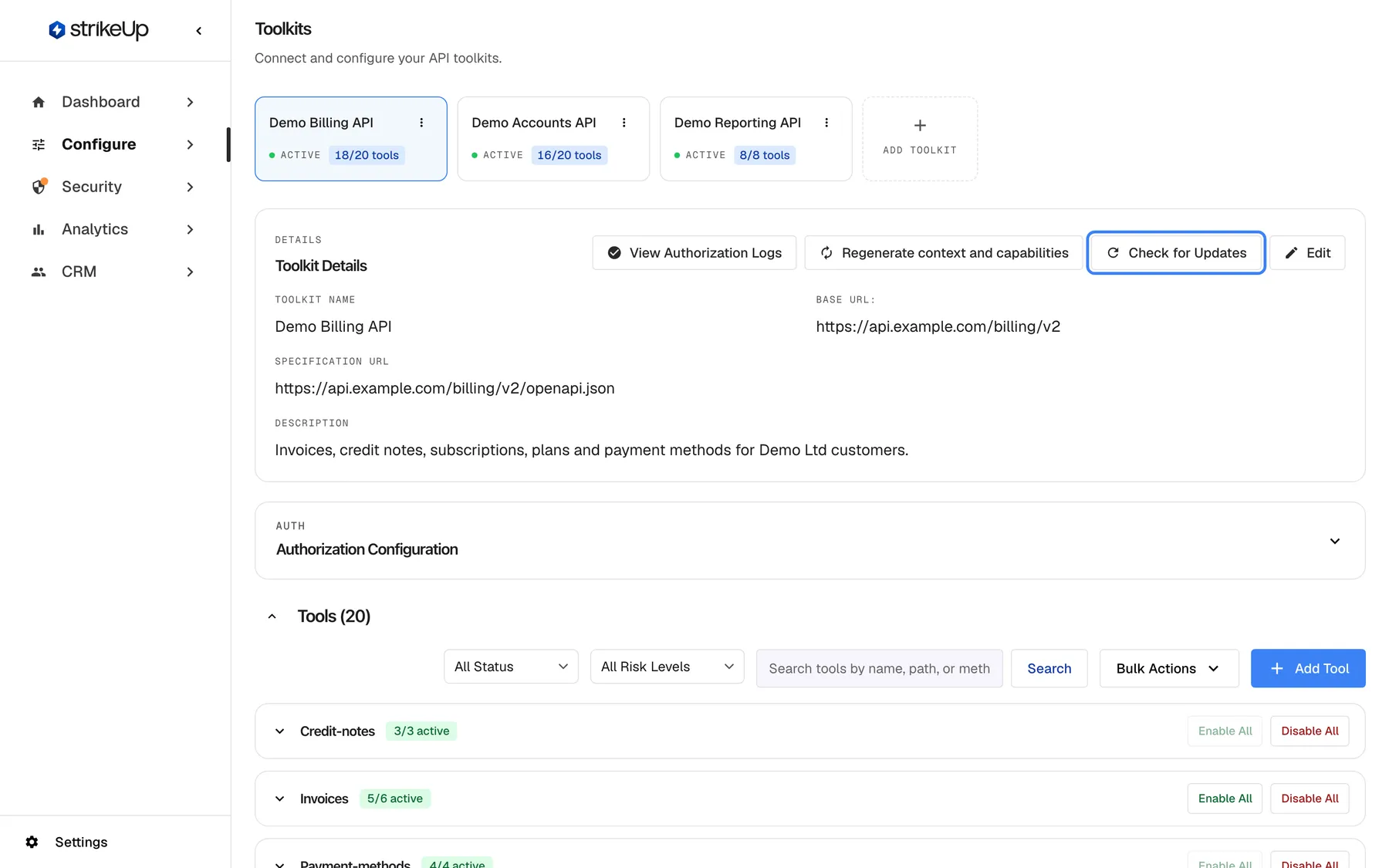
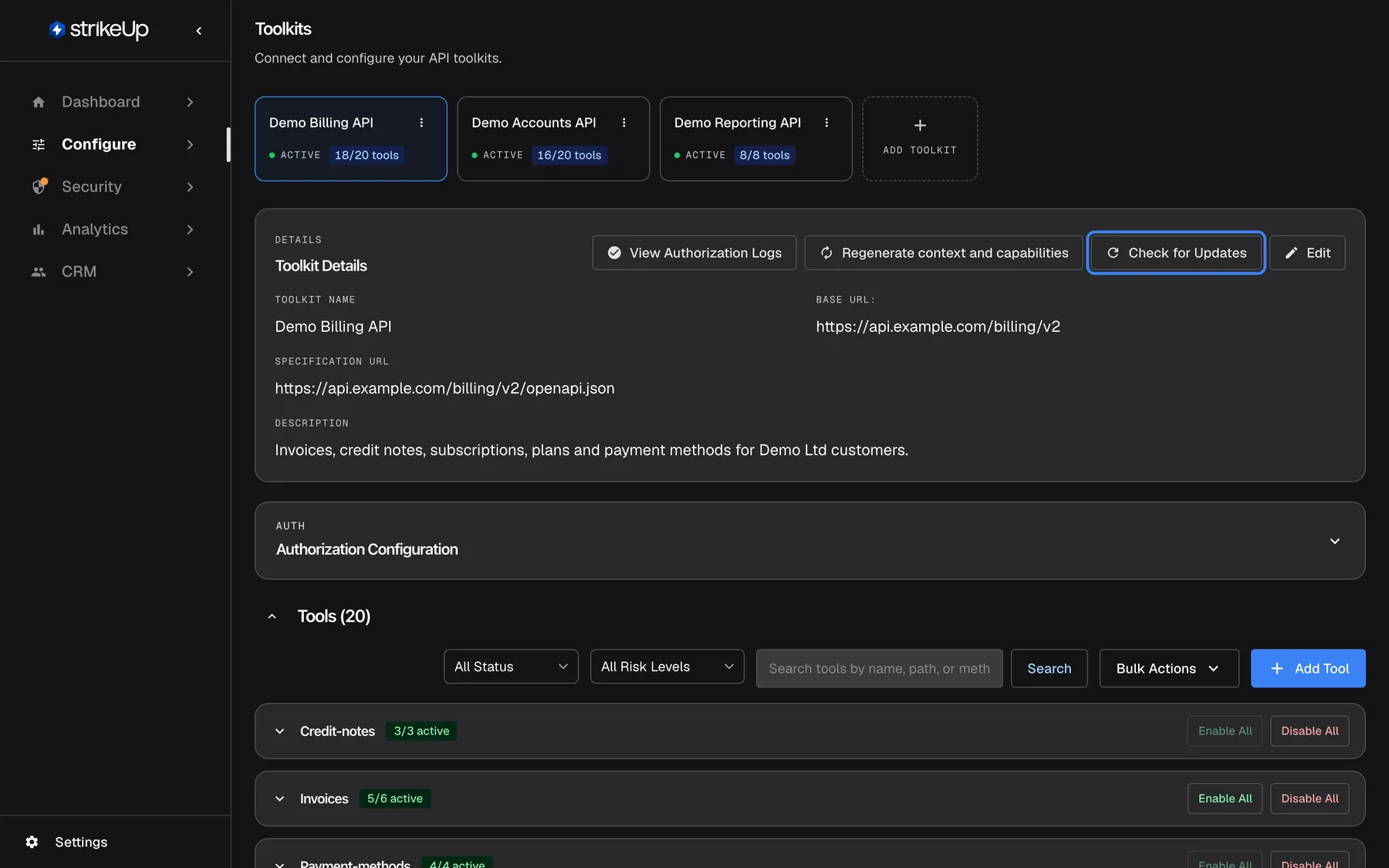
What this screenshot shows
- Screen
- Toolkits (/admin/servers?serverId=…)
- Highlighted
- button “Check for Updates”, details-panel-top-right, enabled. compares the stored specification with the current one and lists new, updated and deleted endpoints
- Also visible
- Toolkit Details: name, base URL, specification URL, description; View Authorization Logs and Edit buttons; Authorization Configuration section, collapsed; Tools (20) with filters, Bulk Actions and Add Tool
- Purpose
- overview of one toolkit's settings
To change them, select Edit. The fields become editable:
- Toolkit Name and Description are what the assistant and your team see.
- Base URL: is where tool calls go. It comes from the specification; change it to point the toolkit at another environment, such as a staging server.
- Specification URL is checked automatically shortly after you stop typing. While it is checked you see Checking specification...; you cannot save until it shows that the specification loaded.
Select Save. When the specification URL changed, StrikeUp shows Specification URL updated with Run Check for Updates to review what changed.. Changing the URL alone does not touch any tool; the next update check shows what differs. A toolkit that has no specification yet, such as one built from hand-made tools, can be given one this way.
StrikeUp keeps a summary of each toolkit’s capabilities that the assistant reads. It is rebuilt automatically a few seconds after any change to the toolkit’s tools. If that rebuild failed, select Regenerate context and capabilities in the details panel; the notice Capabilities regenerated confirms it, and Failed to regenerate capabilities shows the reason when it fails.
Switch tools on and off
Section titled “Switch tools on and off”The Tools ({{count}}) area lists every tool, grouped by the first part of its path: /invoices/{id}/void belongs to the group “Invoices”. Each group header shows how many of its tools are on, such as “5/6 active”.
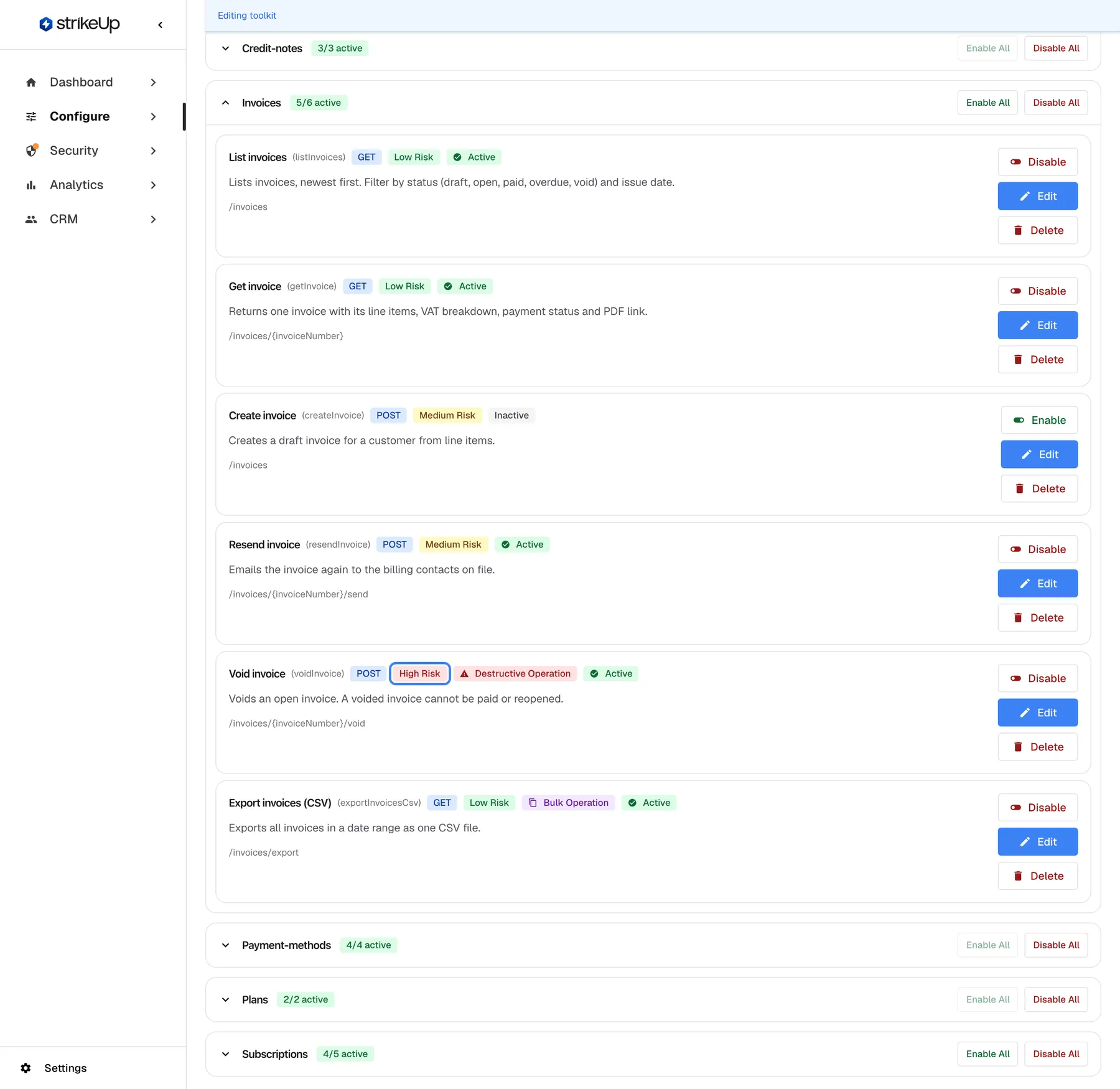
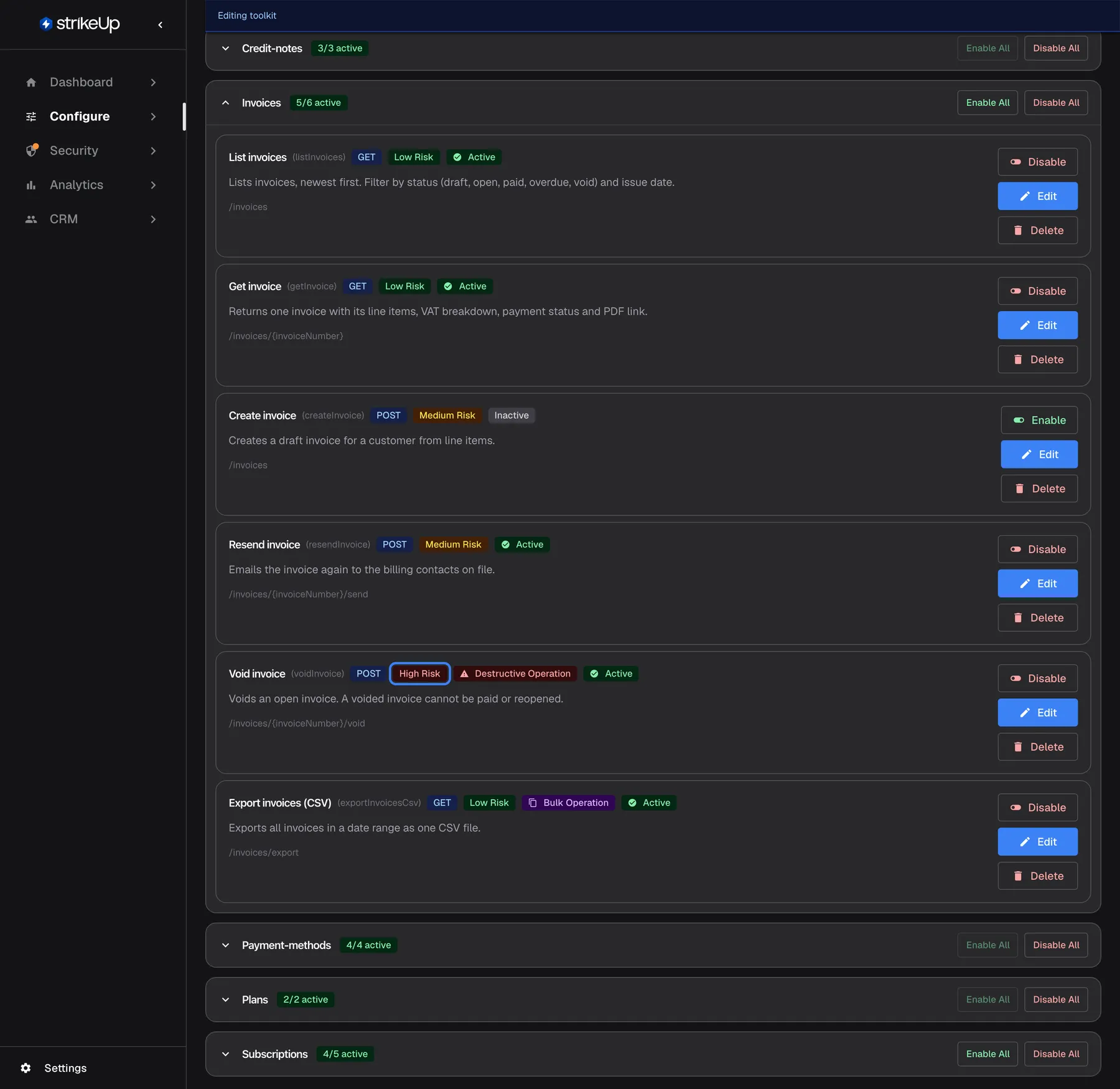
What this screenshot shows
- Screen
- Toolkits (/admin/servers?serverId=…)
- Highlighted
- badge “High Risk”, tools-list-invoices-group, shown on the Void invoice tool. none (status badge); high-risk tools ask the end user for approval before they run
- Also visible
- Invoices group header: 5/6 active, Enable All, Disable All; Six tools with GET/POST method, Low/Medium/High Risk badges and Active/Inactive status; Destructive Operation badge on Void invoice, Bulk Operation badge on Export invoices (CSV); Per tool: Disable/Enable, Edit, Delete
- Purpose
- reviewing which tools are on and how risky they are
Each tool row shows its display name, internal name, HTTP method, a risk badge, a badge for Destructive Operation or Bulk Operation when set, and whether it is Active or Inactive.
To switch tools on:
- One tool: select Enable or Disable on its row.
- A whole group: select Enable All or Disable All on the group header.
- By risk level: open Bulk Actions and pick Enable All, Enable Low Risk only, Enable Medium Risk only or Enable High Risk only.
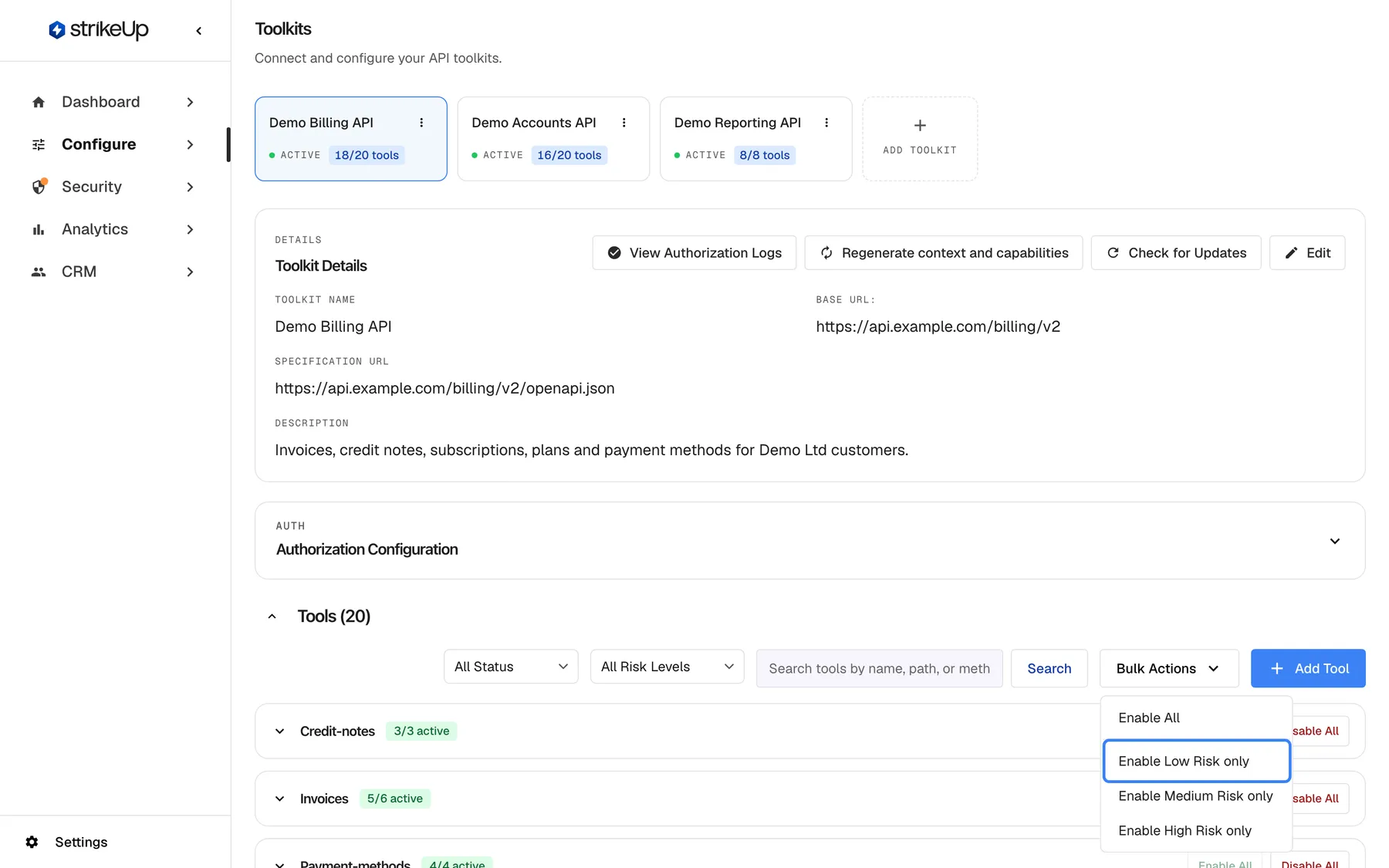
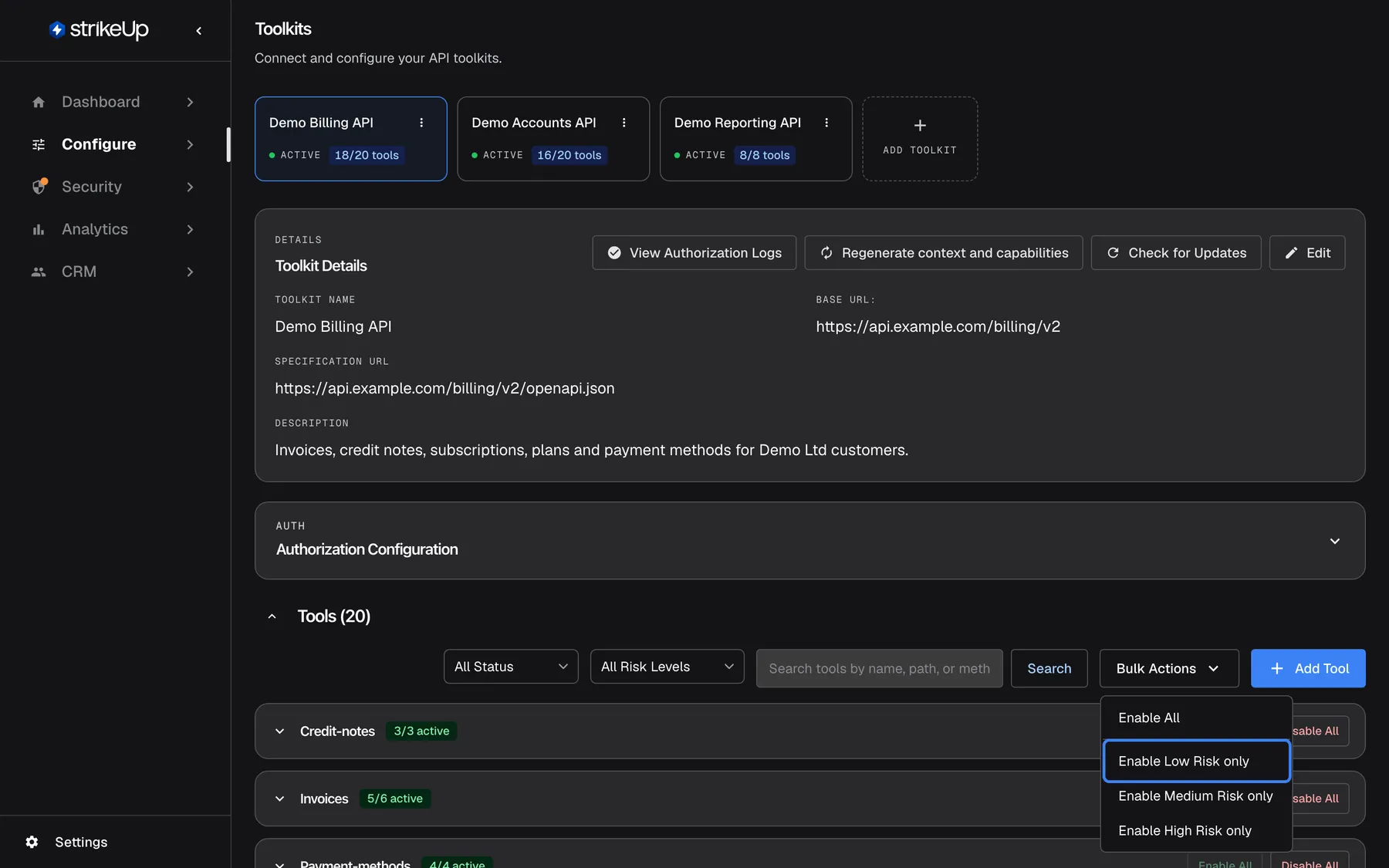
What this screenshot shows
- Screen
- Toolkits (/admin/servers?serverId=…)
- Highlighted
- menuitem “Enable Low Risk only”, tools-toolbar-right, menu open. enables every inactive tool whose risk level is exactly low
- Also visible
- Menu items: Enable All, Enable Low Risk only, Enable Medium Risk only, Enable High Risk only; Filters All Status and All Risk Levels, search box, Search, Add Tool
- Purpose
- switching tools on in bulk after an import
Each risk option switches on only the inactive tools of exactly that level; it is not cumulative. Enable Medium Risk only leaves low-risk tools off. A message confirms how many tools were switched on.
To find a tool, use the status filter (All Status, Active, Inactive), the risk filter (All Risk Levels or one level) and the search box. Search looks at the name, display name, description and path, and runs when you press Enter or select Search.
Example rollout: switch on Enable Low Risk only first. Those are read operations such as “List invoices”. Try the assistant, then switch on the medium-risk tools you need one by one; they ask the visitor for approval before they run.
Edit a tool
Section titled “Edit a tool”Select Edit on a tool row to open the editor under it.
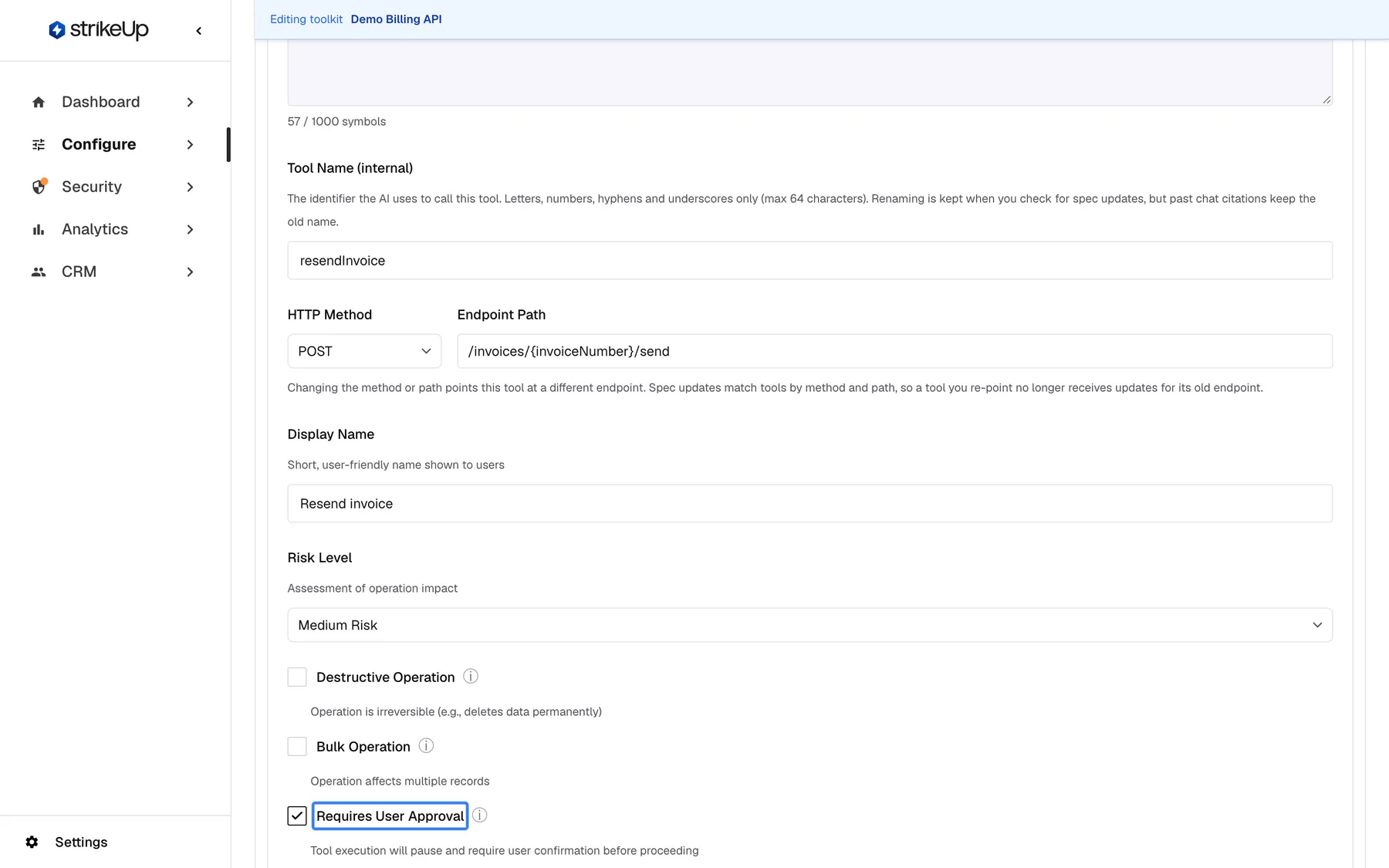
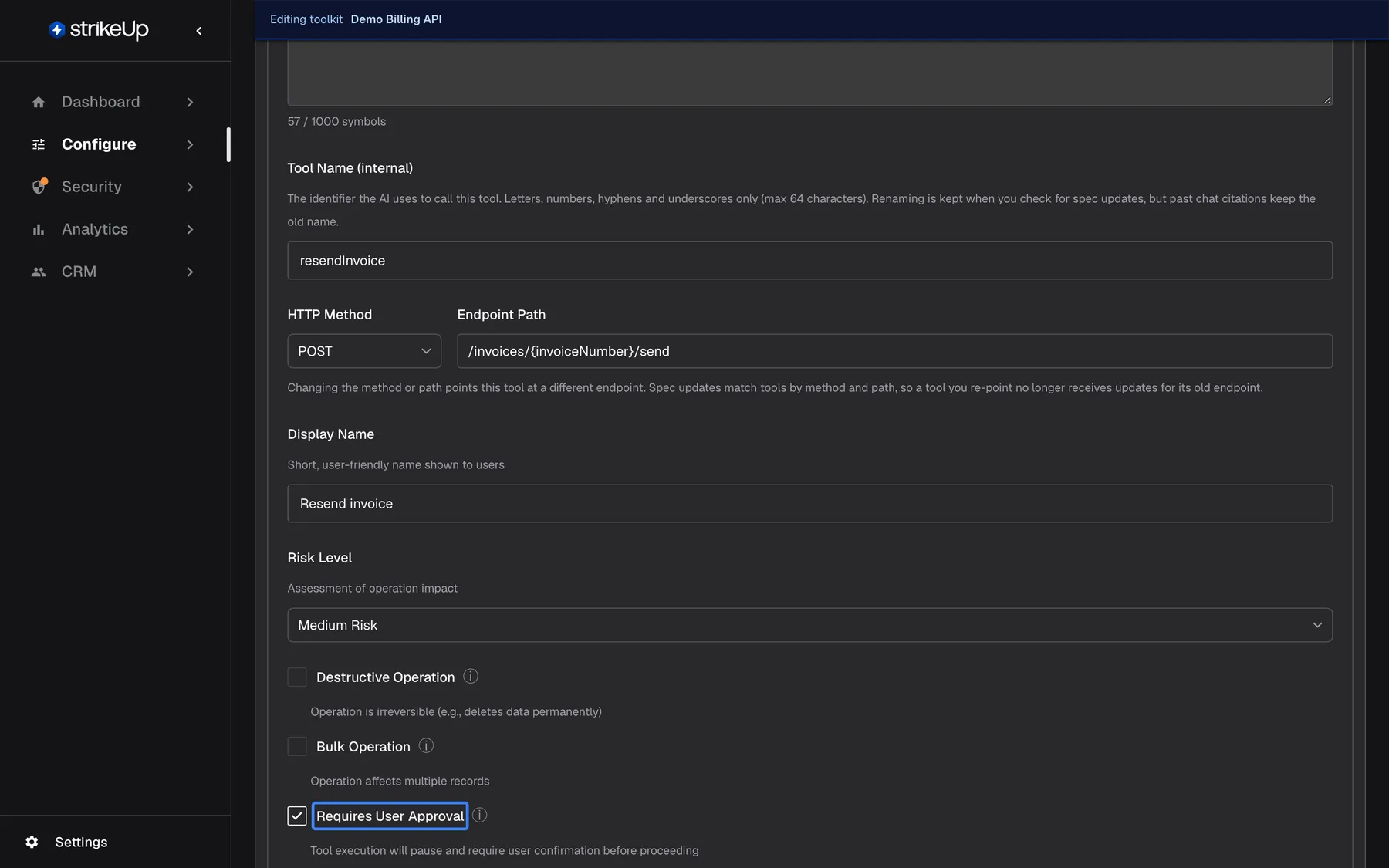
What this screenshot shows
- Screen
- Toolkits (/admin/servers?serverId=…)
- Highlighted
- checkbox “Requires User Approval”, tool-editor-flags, checked. makes every call of this tool wait for the end user's approval in the chat
- Also visible
- Tool Description with character counter 57 / 1000; Tool Name (internal): resendInvoice; HTTP Method POST; Endpoint Path /invoices/{invoiceNumber}/send; Display Name: Resend invoice; Risk Level: Medium Risk; Destructive Operation and Bulk Operation unchecked
- Purpose
- adjusting how one tool is described and guarded
| Field | What it does | Limits |
|---|---|---|
| Tool Description | Tells the assistant what the tool does and when to use it | Up to 1,000 characters, with a counter |
| Tool Name (internal) | The identifier the assistant uses to call the tool | Required; up to 64 characters; letters, numbers, hyphens and underscores; unique in the toolkit |
| HTTP Method and Endpoint Path | The endpoint the tool calls. Changing the method or path points this tool at a different endpoint. Spec updates match tools by method and path, so a tool you re-point no longer receives updates for its old endpoint. | Both required; GET, POST, PUT, PATCH or DELETE; the path starts with / |
| Display Name | The short name shown to visitors, for example on an approval card | — |
| Risk Level | Low Risk, Medium Risk or High Risk | — |
| Destructive Operation | Marks an action that cannot be undone | — |
| Bulk Operation | Marks an action on many records at once | — |
| Requires User Approval | The assistant asks the visitor to approve every call of this tool | — |
| Parameter descriptions | One description per input parameter, read by the assistant | — |
Save with Save Changes. A duplicate name is refused with “A tool with this name already exists for this server”.
How approval works in a chat. When the assistant wants to call several tools at once and any one of them needs approval, every call in that batch waits. The visitor sees an approval card with the tool’s display name, the values it would send, its risk level and its destructive and bulk flags. The assistant continues only after the visitor approves.
Defaults after an import. The risk level comes from the AI’s reading of the endpoint; where it gives none, the HTTP method decides:
| Method | Risk level | Approval required |
|---|---|---|
| GET | Low | No |
| POST, PUT | Medium | Yes |
| PATCH | High | Yes |
| DELETE | High, and destructive | Yes |
A DELETE endpoint is always imported as high risk, destructive and needing approval, whatever the AI’s reading says; for other methods the AI’s reading can raise or lower the level. A tool needs approval whenever its risk is not low or it is destructive. Change any of these in the editor.
Regenerate Tool asks the AI to write the tool’s description and input and output schemas again from the specification. It overwrites a description you wrote yourself. The name, display name, risk level, flags, approval and on/off state stay as they are.
Add a tool by hand
Section titled “Add a tool by hand”Use Add Tool for an endpoint the specification does not describe.
- Select Add Tool above the tool list.
- Fill in Tool Name (up to 64 letters, numbers, hyphens and underscores, such as
get_user_details; anything else is refused with Use only letters, numbers, hyphens and underscores.), an optional description, HTTP Method and Endpoint Path, such as/api/users/{userId}. The path must start with/. - Optionally add Input Schema, Output Schema and Request Body Template. Generate Schema from JSON builds a schema from a JSON example.
- Choose Initial Status. A hand-made tool is Active by default, unlike imported tools.
- Select Create Tool.
The method sets the starting risk and approval: GET is low risk with no approval; POST and PUT are medium risk; PATCH and DELETE are high risk, and DELETE is also destructive. Every method except GET asks for approval. Change these afterwards in the editor.
Set up authorisation
Section titled “Set up authorisation”Authorization Configuration decides what StrikeUp sends to your API with every tool call, and whether a visitor has to provide credentials in the chat first. Open the section, choose Authorization Type, fill in the fields that appear and select Save Authorization. The message Authorization saved successfully! confirms it.
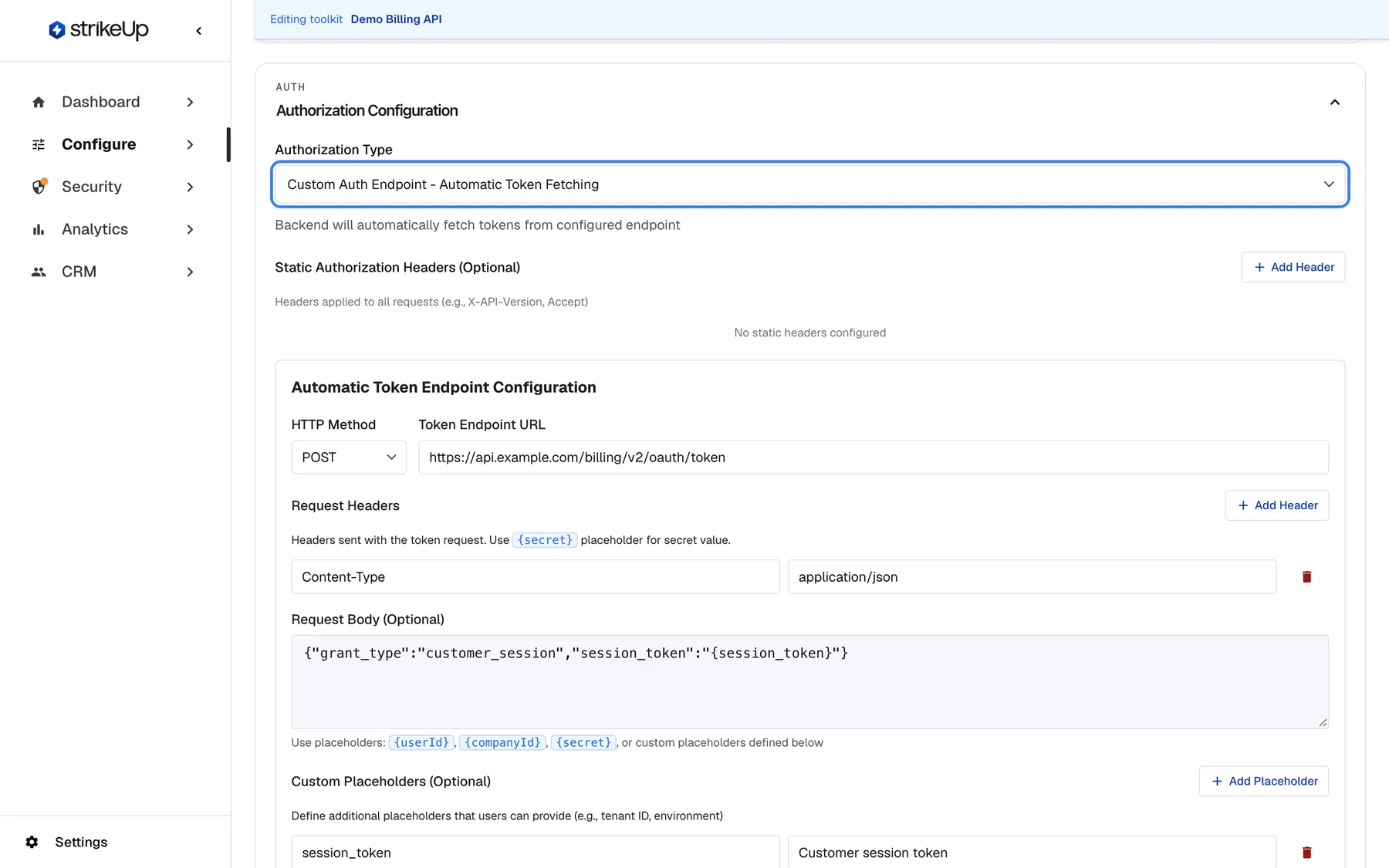
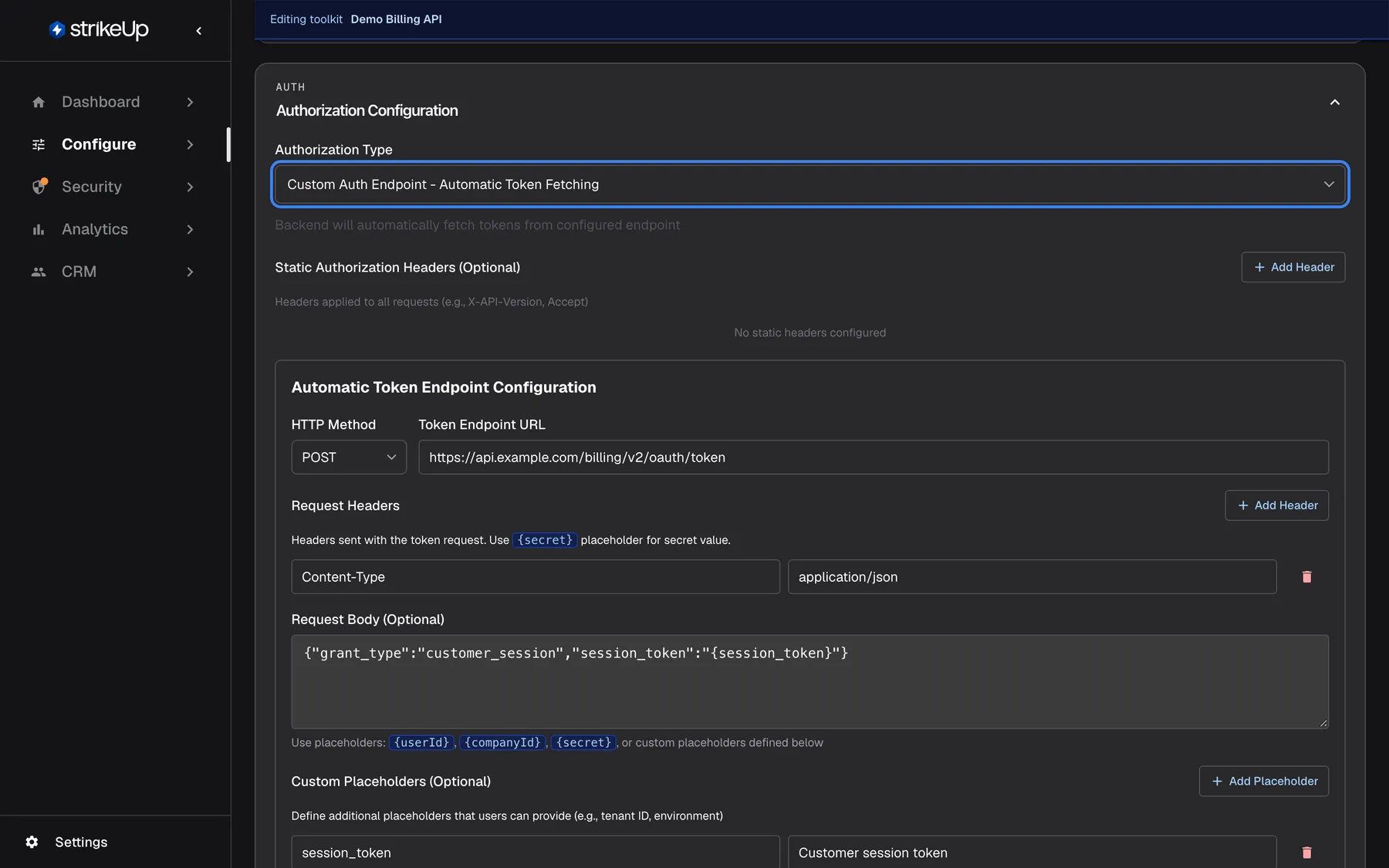
What this screenshot shows
- Screen
- Toolkits (/admin/servers?serverId=…)
- Highlighted
- combobox “Authorization Type”, authorization-section-top, Custom Auth Endpoint - Automatic Token Fetching selected. chooses how tool calls to this API are authorized and which fields appear below
- Also visible
- Static Authorization Headers (Optional): none configured, Add Header; Automatic Token Endpoint Configuration: POST https://api.example.com/billing/v2/oauth/token; Request header Content-Type: application/json, request body, custom placeholder session_token
- Purpose
- configuring how the assistant authenticates against the API
| Authorisation type | You configure | What the visitor sees |
|---|---|---|
| None - No Authorization Required | Nothing | No prompt |
| Custom Token - API Key or Bearer Token | Static headers sent on every call, and optionally dynamic headers each visitor must provide | A prompt only when you defined dynamic headers |
| Basic Auth - Username & Password | Optional static headers | A prompt for a user name and password, sent as an Authorization: Basic header |
| Custom Auth Endpoint - Automatic Token Fetching | A token endpoint StrikeUp calls for each visitor, and where the token goes | No prompt, unless you define custom placeholders; then one field per placeholder |
OAuth - Dynamic Token Flow is also in the list and offers the same static and dynamic header fields as a custom token. The access token a visitor saves fills the placeholders in your dynamic headers, such as Authorization with Bearer {{accessToken}}; {{accessToken}} and {{access_token}} both take the access token. A dynamic header whose placeholders the visitor did not provide is left out of the call. If no dynamic header could be filled but an access token was saved, StrikeUp sends Authorization: Bearer <token>.
Static and dynamic headers. Static Authorization Headers (Optional) are the same for everyone, such as X-API-Version: 2. Dynamic Authorization Headers Schema (Optional) are headers each visitor fills in; write the value with a placeholder, such as Authorization with Bearer {{apiKey}}, and the visitor is asked for apiKey. Saving a custom token without any header shows a warning, At least one authorization header is required, but does not stop the save. Authorization Instructions URL (Optional) adds a link the visitor sees, explaining where to get their credentials.
Which value wins. StrikeUp builds the headers of each call in layers. Your static headers come first. The visitor’s own credentials, entered in the chat or passed by your embed code, come next and replace a static header of the same name. Header names are compared without regard to case.
A token endpoint for each visitor
Section titled “A token endpoint for each visitor”With Custom Auth Endpoint - Automatic Token Fetching, StrikeUp calls your own token endpoint for each visitor and puts the token it gets back on every tool call.
- Under Automatic Token Endpoint Configuration, pick the HTTP Method and enter the Token Endpoint URL, for example
https://api.example.com/billing/v2/oauth/token. - Add Request Headers and a Request Body (Optional). In both you can use
{userId}, the visitor’s user id,{companyId}, your StrikeUp workspace’s id, and{secret}, the toolkit’s Secret Value (optional usage). A custom placeholder namedsecretdoes not replace it. - Optionally add Custom Placeholders (Optional), such as
session_tokenlabelled “Customer session token”. The visitor is asked for each one, or your embed code passes them. - Paste a Sample Response JSON (Optional) and pick the token in it, or type the Token Response Path yourself, such as
data.access_token. - Set the Authorization Header Name, usually
Authorization, and the Authorization Header Format, such asBearer {token}. - Optionally select Enable Refresh Token and fill in the refresh endpoint, the refresh token’s path in the first response and the new token’s path. The refresh request can use
{refresh_token},{secret},{userId}and{companyId}. - Select Save Authorization. The token URL, token path, header name and header format are required; a missing one is marked under its field.
What happens in a chat: without custom placeholders, the token is fetched silently when the visitor’s chat connects. With placeholders, the visitor is asked for the values first; wrong values give “Failed to authorize. Please verify your input values are correct.” When a tool call returns 401, StrikeUp refreshes the token, if refresh is set up, and retries the call once. If your token endpoint cannot be reached, the last token obtained for that visitor is used. Every fetch and refresh is recorded on Authorization Logs, which you open with View Authorization Logs in the toolkit details.
Secret Value (optional usage) holds a 64-character secret StrikeUp generates. You can copy it or generate a new one. The token request and the refresh request can include it with the {secret} placeholder.
The full set-up from the visitor’s side, including passing credentials from your product, is in Let the assistant call your API as the user.
Keep a toolkit up to date
Section titled “Keep a toolkit up to date”When your API changes, select Check for Updates in the toolkit details. StrikeUp loads the specification from its URL again and compares it with the version stored at import.
- With no differences you see No documentation changes detected. Your toolkit is up to date!.
- Otherwise Documentation Updates Available lists New Endpoints, Updated Endpoints and Deleted Endpoints, all ticked. Untick what you do not want and select Update Toolkit. The changes are applied in the background.
| Change | What applying it does |
|---|---|
| New endpoint | A new tool is created, switched off, with risk and approval set from its method as in an import |
| Updated endpoint | The tool’s description and schemas are written again, so a custom description is replaced. Its name, flags and on/off state stay. A tool you had deleted is created again |
| Deleted endpoint | The tool is deleted |
Note: The base documentation JSON will be updated globally for all tools, regardless of your selection. Only selected tools will be regenerated. In practice, the stored version becomes the new one whatever you tick, so the next check compares against it.
Tools are matched by method and path, not by name, so a tool you renamed keeps its name through an update.
Copy or delete a toolkit
Section titled “Copy or delete a toolkit”Open the ⋮ menu on a toolkit card.
- “Copy” creates “Demo Billing API copy” (then “copy 2” and so on) with all tools, their on/off state and flags, and the authorisation configuration including static headers and the token secret. It also copies every widget that uses the toolkit, each with its own new embed token, linked to the copy. Credentials your visitors entered are not copied, so they are asked again. The stored specification is copied too, so the copy can use Check for Updates and change its specification URL. No confirmation message appears; the new card is added to the row and selected.
- “Delete” asks “Delete this toolkit?” and then removes the toolkit with its tools, the credentials visitors entered for it, its masking rules and its tool run logs. It cannot be undone, and widgets lose access to its tools.
Every control, explained
Section titled “Every control, explained”Toolkit cards
Section titled “Toolkit cards”The row at the top of ConfigureToolkits. Selecting a card opens it below and puts its id in the page address.
Each card shows the toolkit name, its status (Active or not), the tools switched on out of the total, such as “18/20 tools”, and a percentage while tools are being generated. A toolkit whose import failed stays inactive. The ⋮ menu offers “Copy” and “Delete”. The dashed “Add toolkit” card opens the import dialog. There is no limit on the number of toolkits.
One card per API keeps each integration’s tools and credentials separate, and the count tells you at a glance how much of an API the assistant can use.
Import dialog
Section titled “Import dialog”Opened by the “Add toolkit” card. Titled Create New Toolkit.
Step one asks for API Documentation Type * and API Specification URL *, then “Validate”. Step two adds Toolkit Name *, Description * and Additional Details URL, then “Create Server”. Name, description and URL are required: Name, Description, and Swagger URL are required. A description longer than 999 characters is shortened. Changing the type or URL after validating returns you to “Validate”. Button labels are in English in every language.
Validating first means a broken URL or the wrong documentation type is caught before anything is created or any AI cost is spent.
Toolkit details
Section titled “Toolkit details”The Toolkit Details panel under the cards, with Check for Updates, Edit and, for a toolkit that uses a token endpoint, View Authorization Logs.
Shows Toolkit Name, Base URL:, Specification URL and Description. Edit makes them editable; Save stores them. The specification URL is checked as you type and must load before you can save: Wait for the specification URL check to pass before saving.
Point a toolkit at another environment, or follow a specification that moved, without importing it again and losing your tool settings.
Authorization Configuration
Section titled “Authorization Configuration”The collapsible Authorization Configuration section, closed when the page opens. It has its own Save Authorization button.
Authorization Type picks one of five types, and the fields below change with it: static headers for every type except none, dynamic headers for a custom token, the instructions link for a custom token and for user name and password, and the token endpoint, placeholders, token path, header, secret and refresh settings for the token endpoint. Nothing is stored until you save.
Your API decides how it trusts a caller. This section lets the assistant call it the same way your own product does.
Tool filters and search
Section titled “Tool filters and search”| Control | What it does | Why |
|---|---|---|
| Status filter (All Status) | Shows all, only active or only inactive tools | Find what is still switched off after an import |
| Risk filter (All Risk Levels) | Shows one risk level | Review every high-risk tool before go-live |
| Search box and Search | Matches name, display name, description and path; runs on Enter or the button | Find one endpoint in a large API |
Bulk Actions
Section titled “Bulk Actions”The Bulk Actions menu above the tool list.
Enable All switches on every inactive tool. The three risk options switch on only the inactive tools of exactly that level. A message reports how many were switched on. There is no bulk “switch off”; use Disable All on each group.
An imported API can have hundreds of endpoints. Switching on by risk lets you start with safe reads and add writes deliberately.
Group buttons
Section titled “Group buttons”On each group header in the tool list, next to the count such as “5/6 active”.
Enable All and Disable All switch every tool in that group on or off. Groups follow the first part of the tool’s path; tools without one are under “Other”.
Endpoints of one resource usually belong together, such as everything about invoices.
Tool row actions
Section titled “Tool row actions”At the right of each tool row.
Enable or Disable switches the tool. Edit opens the editor. Delete asks Delete this tool? and then removes the tool for good; its past run logs are kept.
Switch off a tool to take it out of the assistant’s reach while keeping its settings; delete it when the endpoint no longer exists.
Tool editor
Section titled “Tool editor”Opened under a tool row by Edit. Saved with Save Changes.
Edits the description (up to 1,000 characters), internal name (up to 64 characters: letters, numbers, hyphens, underscores), display name, risk level, the destructive, bulk and approval flags, and each parameter’s description. Regenerate Tool rewrites the description and schemas from the specification.
The assistant chooses tools by their descriptions. A precise description, and approval on anything that changes data, make its choices safer.
Add Tool
Section titled “Add Tool”The Add Tool button above the tool list.
Creates a tool from a name, method, path, optional description, schemas and request body template. It starts active unless you choose otherwise under Initial Status. The name must be unique in the toolkit.
Some specifications leave out endpoints, or you want a tool for a call that is not in the public API description.
Ask strikeUp
Section titled “Ask strikeUp”At the top right of the page, when the StrikeUp assistant built into the admin app is set to open from buttons on the page. Labelled Ask strikeUp.
Opens the built-in assistant with an offer to walk you through your toolkits or suggest what to connect next.
A quick way to ask about your set-up without leaving the page.
Who sees what
Section titled “Who sees what”| Part of the screen | Who sees it |
|---|---|
| The whole page | Every signed-in user of your workspace |
| Every change on it, including imports, tests and deletes | Users with the Admin role. Everyone else sees the buttons, but the change fails with Request failed and “This action requires the Admin role.” |
| Stored static header values, the token secret and the token and refresh request headers and body | Users with the Admin role. Everyone else sees *** in their place |
| View Authorization Logs | Shown for toolkits that use a token endpoint. Opening the logs needs the Admin role |
Make changes to Authorization Configuration while signed in as an Admin, so you work with the real values. Only Admins can save a toolkit, so a stored value is never overwritten with ***.
What you need to know
Section titled “What you need to know”| Topic | Fact |
|---|---|
| Imported tools start off | Every tool created by an import or an update is switched off. Hand-made tools start on. |
| Per widget | A widget uses 1 to 5 toolkits, chosen on ConfigureEmbed. Tool names must be unique across a widget’s toolkits. |
| Inactive toolkits | A toolkit whose import failed is inactive and cannot be chosen for a widget. Delete it and import again. |
| Cost | Imports, updates and Regenerate Tool call AI models. Switching tools on and off costs nothing. |
| Network | Specifications and tool calls only reach public internet addresses. |
| No retry | A failed import cannot be restarted; the card stays inactive with the error message. |
| Masking | Sensitive-looking fields found during an import become masking suggestions, switched off until you approve them. |
Frequently asked questions
Section titled “Frequently asked questions”Importing
Section titled “Importing”Which specification formats can I import?
Section titled “Which specification formats can I import?”On ConfigureToolkits, the import dialog accepts Swagger 2.0 and OpenAPI 3.0 specifications in JSON or YAML, and Readme.io API endpoints. You give the address of the specification; StrikeUp downloads it from that URL.
Can I upload a specification file?
Section titled “Can I upload a specification file?”No. The import dialog on ConfigureToolkits only takes a URL starting with http:// or https://. Publish the file at an address reachable from the public internet, for example in a storage bucket, and paste that address.
I pasted the address of my API documentation page. Will that work?
Section titled “I pasted the address of my API documentation page. Will that work?”Usually, yes. When the address returns a Swagger UI, Redoc, RapiDoc, Scalar or Stoplight page, StrikeUp looks for the specification the page loads, puts that address in the field and tells you it did. If it cannot find one, paste the address of the .json or .yaml file itself.
Can I import an API that runs on our internal network?
Section titled “Can I import an API that runs on our internal network?”No. StrikeUp only downloads specifications from, and sends tool calls to, public internet addresses. An address such as localhost, 10.0.0.5 or another private range is refused with “Outbound request blocked: the destination is not a public internet address.”
How long does an import take?
Section titled “How long does an import take?”It depends on the size of the API. StrikeUp writes AI descriptions for every data model and then creates one tool per endpoint, a few at a time, so an API with hundreds of endpoints takes much longer than one with twenty. The toolkit card on ConfigureToolkits shows the percentage while it runs.
Can I close the import dialog while tools are generated?
Section titled “Can I close the import dialog while tools are generated?”Yes. Select Continue in background and the generation continues. The toolkit card on ConfigureToolkits shows the percentage and turns active when it reaches 100%.
What do I do when an import fails?
Section titled “What do I do when an import fails?”A failed import leaves the toolkit card inactive, with the error in its progress message. There is no retry button. Fix the cause, such as an unreachable URL or the wrong documentation type, then delete the card with “Delete” in its ⋮ menu and import the specification again.
Why are all my tools switched off after the import?
Section titled “Why are all my tools switched off after the import?”Every tool StrikeUp creates from a specification starts switched off, so the assistant can call nothing until you decide. Switch tools on in the Tools ({{count}}) area of ConfigureToolkits, one by one, by group or with Bulk Actions.
Does Enable Medium Risk only also switch on low-risk tools?
Section titled “Does Enable Medium Risk only also switch on low-risk tools?”No. Each risk option in Bulk Actions on ConfigureToolkits switches on only the inactive tools of exactly that risk level. To switch on low and medium, use both options, or Enable All.
Why does a POST tool ask the visitor for approval?
Section titled “Why does a POST tool ask the visitor for approval?”When a toolkit is imported, a POST or PUT endpoint gets the risk level medium unless the AI rates it otherwise, and every tool whose risk is not low, or that is destructive, needs approval. Untick Requires User Approval in the tool editor if the call is safe without it.
What does the visitor see when a tool needs approval?
Section titled “What does the visitor see when a tool needs approval?”The chat shows an approval card with the tool’s display name, the values the assistant wants to send, its risk level and its destructive and bulk flags. If the assistant planned several calls together and any one needs approval, all of them wait until the visitor approves.
Will Check for Updates undo the name I gave a tool?
Section titled “Will Check for Updates undo the name I gave a tool?”No. Check for Updates matches tools by HTTP method and path, so a renamed tool keeps its name. An updated endpoint does get its description and schemas written again, which replaces a description you wrote yourself.
What is the difference between switching a tool off and deleting it?
Section titled “What is the difference between switching a tool off and deleting it?”Switching a tool off on ConfigureToolkits keeps it with all its settings, and you can switch it on again. Deleting it removes it permanently from the toolkit. Past run logs of the tool are kept in both cases.
Authorisation
Section titled “Authorisation”Which authorisation type should I choose?
Section titled “Which authorisation type should I choose?”Choose by how your API trusts callers. Use a custom token when each visitor has their own key or token, Basic Auth - Username & Password when they sign in with a user name and password, and the custom auth endpoint when your backend can issue a token for a visitor itself. Choose none only for a public API.
Will visitors be asked for credentials?
Section titled “Will visitors be asked for credentials?”Only when the toolkit needs something from them. On ConfigureToolkits, a custom token asks only when you defined dynamic headers, Basic Auth - Username & Password always asks for a user name and password, and a token endpoint asks only for the custom placeholders you defined.
Which header wins when the same header is set twice?
Section titled “Which header wins when the same header is set twice?”StrikeUp adds your static headers first, then the visitor’s own credentials, whether entered in the chat or passed by your embed code. A header from the visitor’s credentials replaces a static header with the same name, and names are compared without regard to case.
Why do I see *** instead of my header values?
Section titled “Why do I see *** instead of my header values?”Stored static header values, the token secret and the token request headers and body are shown in full only to users with the Admin role. Other users see ***. Ask an Admin to make changes to Authorization Configuration on ConfigureToolkits.
Copying and deleting
Section titled “Copying and deleting”What does Copy include?
Section titled “What does Copy include?”“Copy” in a toolkit card’s ⋮ menu duplicates the tools with their on/off state and flags, the authorisation configuration with static headers and token secret, and every widget that uses the toolkit, each with a new embed token, and the stored specification. Credentials your visitors entered are not copied.
What is deleted with a toolkit?
Section titled “What is deleted with a toolkit?”Deleting a toolkit with “Delete” in its card’s ⋮ menu removes the toolkit, its tools, the credentials visitors entered for it, its masking rules and its tool run logs. Widgets that used it lose those tools. It cannot be undone, and no preview lists what will go.
Troubleshooting
Section titled “Troubleshooting”| Symptom | What to check |
|---|---|
| “Outbound request blocked: the destination is not a public internet address.” | The specification URL points to a private address. Publish the specification at a public address and try again. |
| “This URL returns an API documentation page, not a specification file…” | StrikeUp could not find the specification behind the page. Paste the address of the .json or .yaml file itself. |
| “No API endpoints found in the specification…” | Check that API Documentation Type * matches the file (Swagger/OpenAPI or Readme.io) and that the specification lists paths. |
| “Unable to reach URL: …” | The address is not public, needs a login, or returns an error. Open it in a private browser window to see what it returns. |
| “The document at this URL could not be parsed as an OpenAPI/Swagger specification…” | The address returns something other than a specification, or the wrong type is selected. |
| Wait for the specification URL check to pass before saving when saving details | Wait until the specification URL check finishes and shows that it loaded. |
| The card stays inactive after an import | The import failed; its message starts with “Error:”. Delete the toolkit and import it again once the cause is fixed. |
| The assistant never uses a tool | Check that the tool is Active, that its toolkit is chosen for the widget on ConfigureEmbed, and that its description says clearly when to use it. |
| Visitors get “Failed to authorize. Please verify your input values are correct.” | The token endpoint rejected the values. Open View Authorization Logs as an Admin and read the failed attempt. |
| Failed to regenerate capabilities | The automatic rebuild of the toolkit’s capabilities failed as well. Retry later; the assistant keeps using the previous summary meanwhile. |
| A change fails with Request failed and “This action requires the Admin role.” | Changes on this page need the Admin role. Ask an Admin to make the change, or to give you the Admin role under Settings › Users. |