

AI Gateway: standard mode
Not every part of a conversation needs your most capable model. Naming a chat or checking a message is short, mechanical work; planning a multi-step answer is not. The Standard Mode tab groups every stage of your assistant into three levels, Basic, Medium and Difficult, and lets you choose one model per level, so cheap work runs on a cheap model. You can also let StrikeUp judge each question and answer easy ones at a lower level. Open it from ConfigureAI Gateway and select the Standard Mode tab. The page is available once StrikeUp has switched the AI Gateway feature on for your workspace.
What you can do here
Section titled “What you can do here”- Choose one model per level. Pick a model for Basic, Medium and Difficult, or leave a level on StrikeUp’s default. Choose a model for each level.
- Move a stage to another level. Every stage has a default level; change it only for the stages you want to move. Move a stage to another level.
- Let each question decide its level. With per-question routing on, StrikeUp judges every message first and can answer easy questions at a cheaper level, at the cost of one small extra call per message. Switch on per-question routing.
- Send difficult questions higher. Optionally send questions judged difficult to a stronger model. Send difficult questions to a higher level.
- Pin single stages instead. For a stage that needs one exact model, use the advanced mode; it overrides this tab. AI Gateway: Advanced Mode · AI models, spend and budgets.
The screen at a glance
Section titled “The screen at a glance”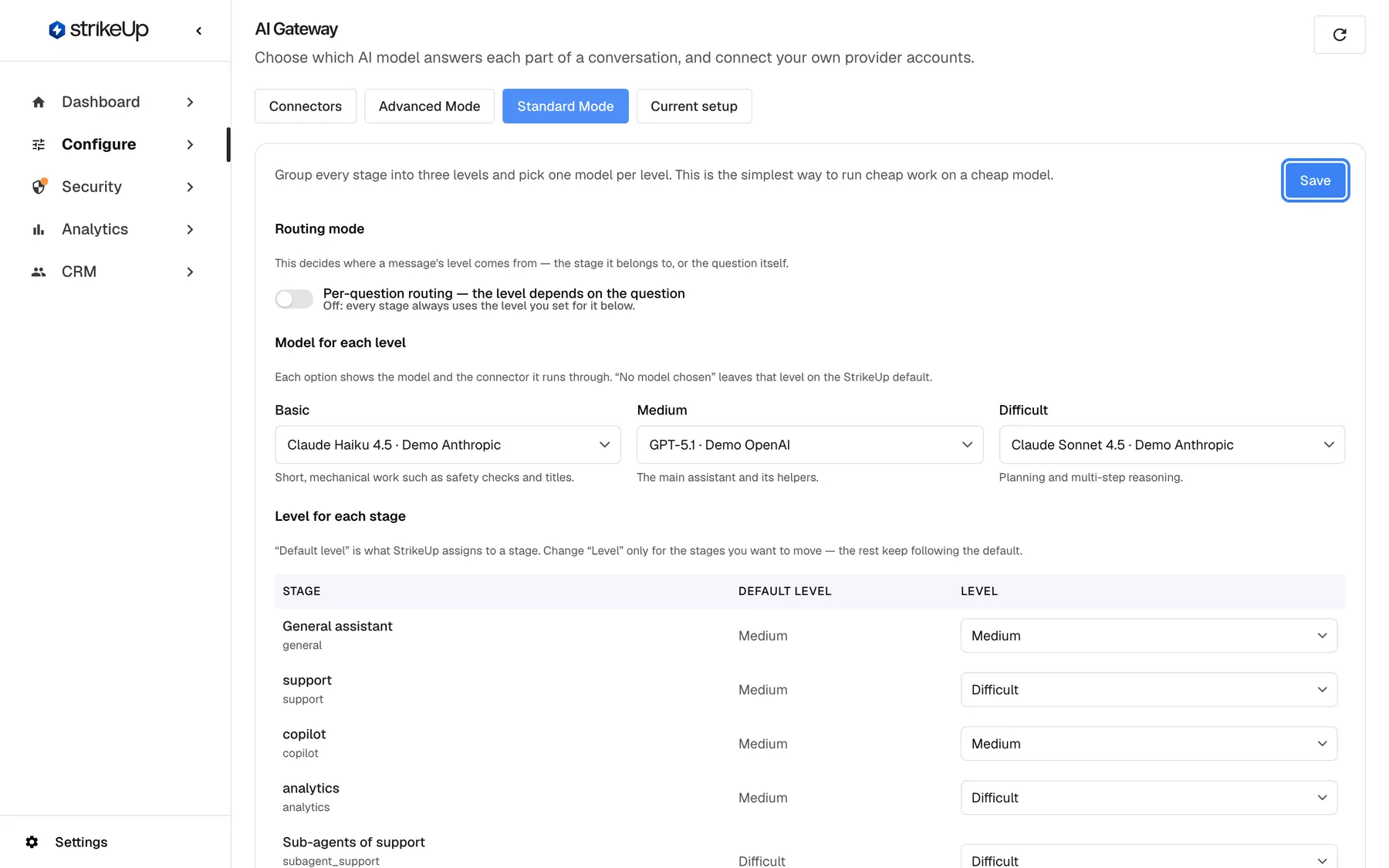
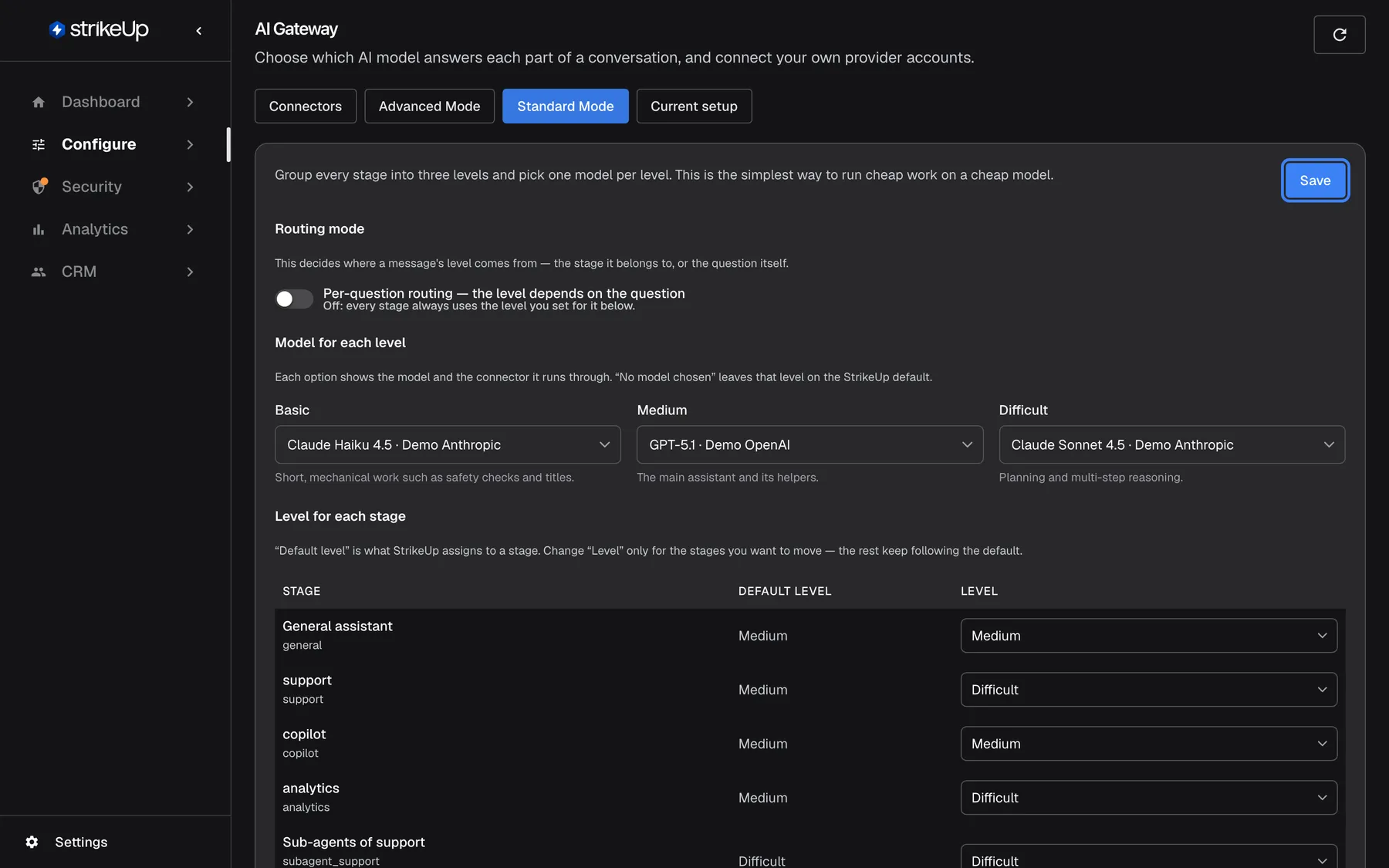
What this screenshot shows
- Screen
- Standard Mode (/admin/configure/ai-gateway)
- Highlighted
- button “Save”, panel-header-right, enabled. saves the routing settings
- Also visible
- Per-question routing switch off; Basic: Claude Haiku 4.5, Medium: GPT-5.1, Difficult: Claude Sonnet 4.5
- Purpose
- the Standard Mode form as it opens
| Region | What it shows | What you do there |
|---|---|---|
| Top | Group every stage into three levels and pick one model per level. This is the simplest way to run cheap work on a cheap model., the badge Using StrikeUp defaults while you have never saved, and Save at the right | Save everything on the tab |
| Routing mode | The switch Per-question routing — the level depends on the question and a cost notice | Choose where a message’s level comes from |
| Model for each level | Three drop-downs, one per level | Choose the models |
| Level for each stage | One row per stage: Stage, Default level, Level | Move stages between levels |
| Per-question routing | The judging model, the level for difficult questions and the switch to raise the level | Tune per-question routing |
Unlike the advanced mode, nothing on this tab applies until you select Save. Saving shows Routing settings saved, records the change under Configuration changes on the Current setup tab, and reaches conversations within about a minute. If the tab shows Routing settings are not available yet., the settings could not be prepared yet; reload the page.
Understanding the three levels
Section titled “Understanding the three levels”StrikeUp gives every stage a default level. These are the defaults for the stages your agents use:
| Level | Hint on screen | Stages on it by default | Typical model |
|---|---|---|---|
| Basic | Short, mechanical work such as safety checks and titles. | None of your agents’ stages; the question judge when per-question routing is on | A small, fast, inexpensive model |
| Medium | The main assistant and its helpers. | General assistant, support, copilot, analytics and every other agent | A capable general model |
| Difficult | Planning and multi-step reasoning. | None of your agents’ stages by default | Your strongest model |
- Sub-agents follow their parent. A sub-agent stage takes the level of the stage that starts it, unless you set its own row.
- StrikeUp’s own stages are separate. The planner, safety checks, chat titles and similar services also have levels, but they always run on StrikeUp’s own models, whatever you choose here.
How StrikeUp picks the model for a stage
Section titled “How StrikeUp picks the model for a stage”- A pin on the Advanced Mode tab wins.
- Otherwise, an agent’s own model setting wins.
- Otherwise, the model you chose for the stage’s level on this tab is used.
- Otherwise, StrikeUp’s default model for that level is used.
A model that is no longer available is skipped, and the next step applies. The Current setup tab shows which step decided each stage.
Choose a model for each level
Section titled “Choose a model for each level”-
Open ConfigureAI Gateway and select Standard Mode.
-
Under Model for each level, open each drop-down and choose a model. Each option names the model and the connector it runs through. No model chosen leaves the level on StrikeUp’s default.
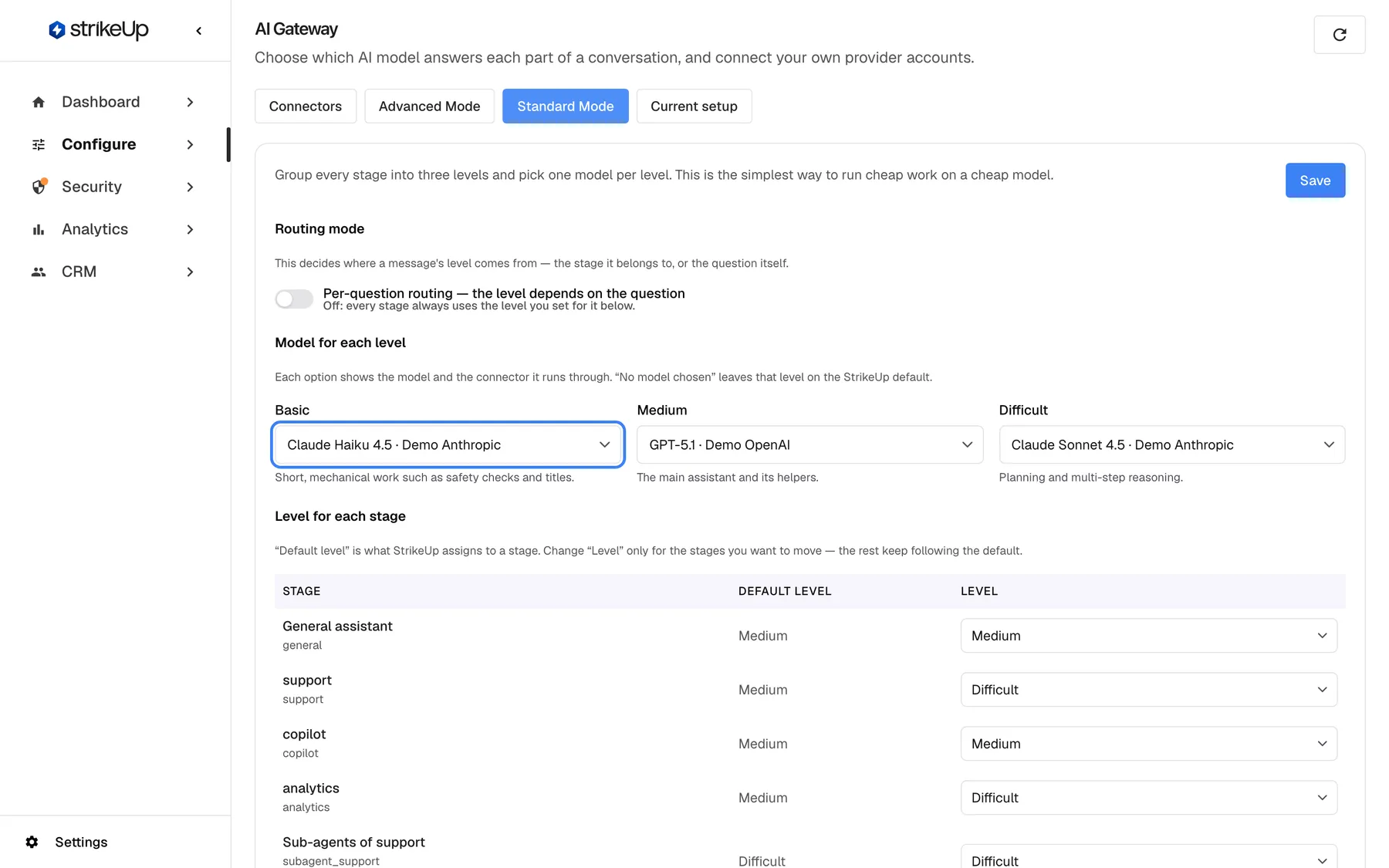
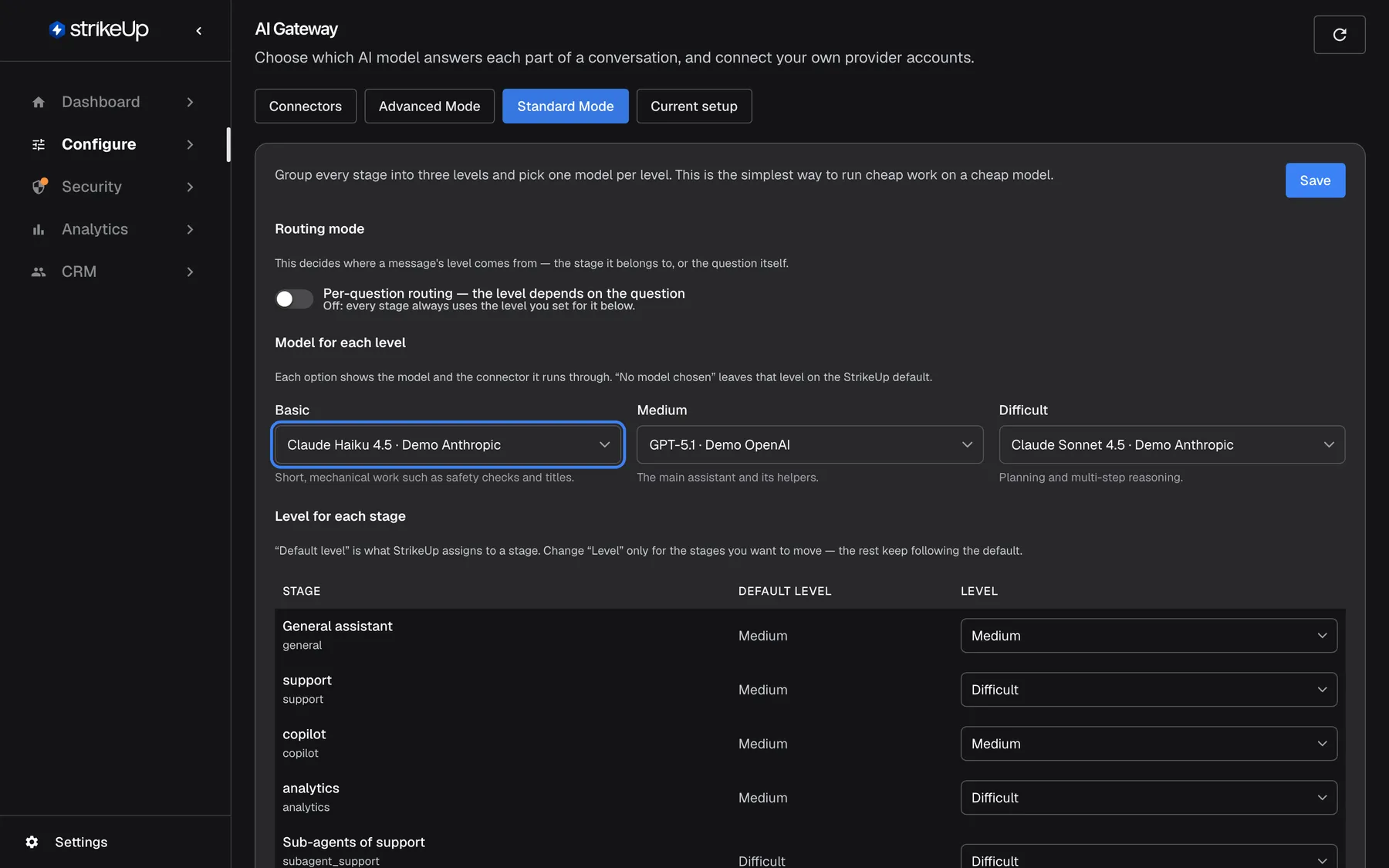
Pick one model per level; a cheap model on Basic keeps routine work such as safety checks inexpensive. What this screenshot shows
- Screen
- Standard Mode (/admin/configure/ai-gateway)
- Highlighted
- combobox “Basic”, models-section, Claude Haiku 4.5 · Demo Anthropic. chooses the model for the Basic level
- Also visible
- Medium: GPT-5.1 · Demo OpenAI; Difficult: Claude Sonnet 4.5 · Demo Anthropic
- Purpose
- choosing models per level
-
Select Save.
Each option shows the model and the connector it runs through. “No model chosen” leaves that level on the StrikeUp default. If a chosen model is later withdrawn, the drop-down shows Retired model — no longer available and the level falls back to StrikeUp’s default until you choose another.
Example: put a small model on Basic, a capable general model on Medium and your strongest model on Difficult. Then move only the one or two stages that need deep reasoning to Difficult.
Move a stage to another level
Section titled “Move a stage to another level”-
Under Level for each stage, find the stage. The Default level column shows StrikeUp’s level for it.
-
Choose a different level in its Level drop-down.
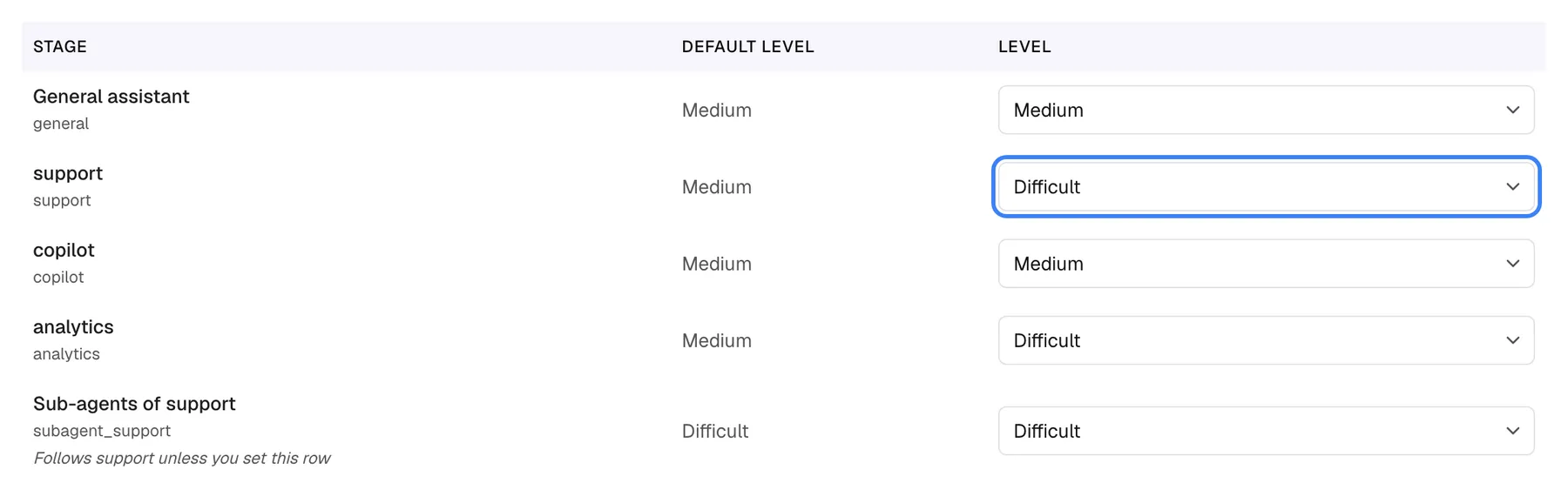
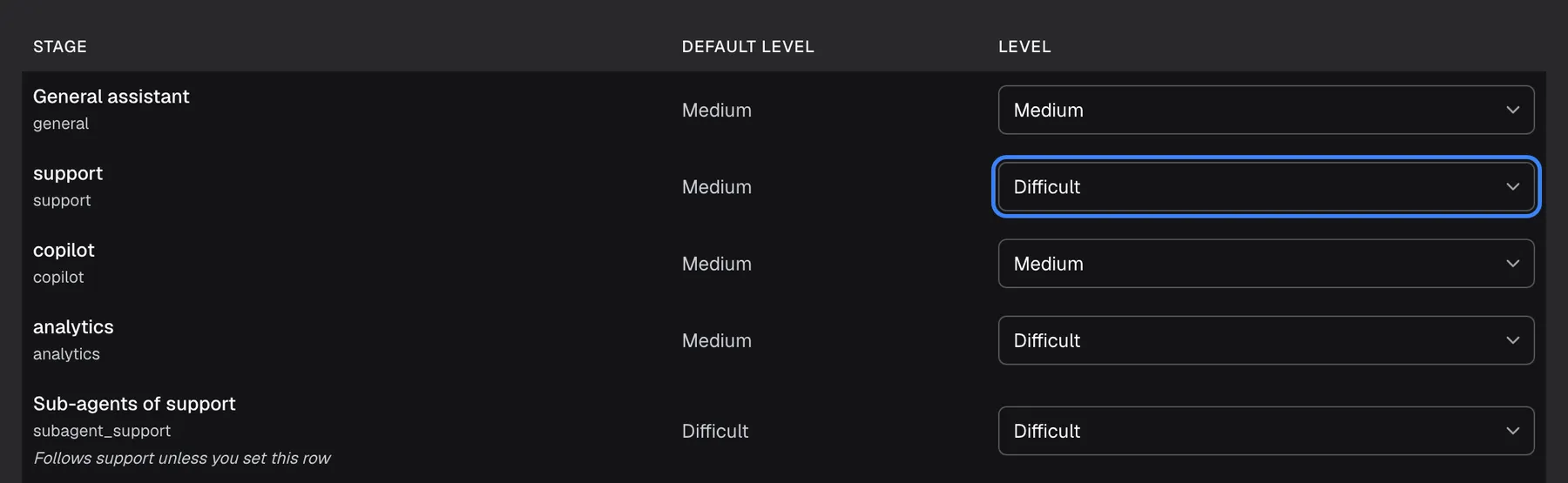
Change Level only for the stages you want to move; the others keep following the default level. What this screenshot shows
- Screen
- Standard Mode (/admin/configure/ai-gateway)
- Highlighted
- combobox “”, stage-level-table, Difficult (default Medium). moves the stage to another level on save
- Also visible
- general Medium/Medium, support Medium/Difficult, copilot Medium/Medium, analytics Medium/Difficult, Sub-agents of support Difficult
- Purpose
- moving a stage to another level
-
Select Save.
“Default level” is what StrikeUp assigns to a stage. Change “Level” only for the stages you want to move — the rest keep following the default. Only stages whose level differs from the default are saved as your choice. Set a stage back to its default level and save, and it follows StrikeUp’s default again, including any later change StrikeUp makes to it. Only your agents’ stages are listed; StrikeUp’s own stages cannot be moved.
Switch on per-question routing
Section titled “Switch on per-question routing”With per-question routing off, every stage always uses its level: Off: every stage always uses the level you set for it below. With it on: Each message is judged first, then answered by the level that fits it.
-
Under Routing mode, switch on Per-question routing — the level depends on the question. The notice This adds one extra call per message appears, and the settings under Per-question routing become available.
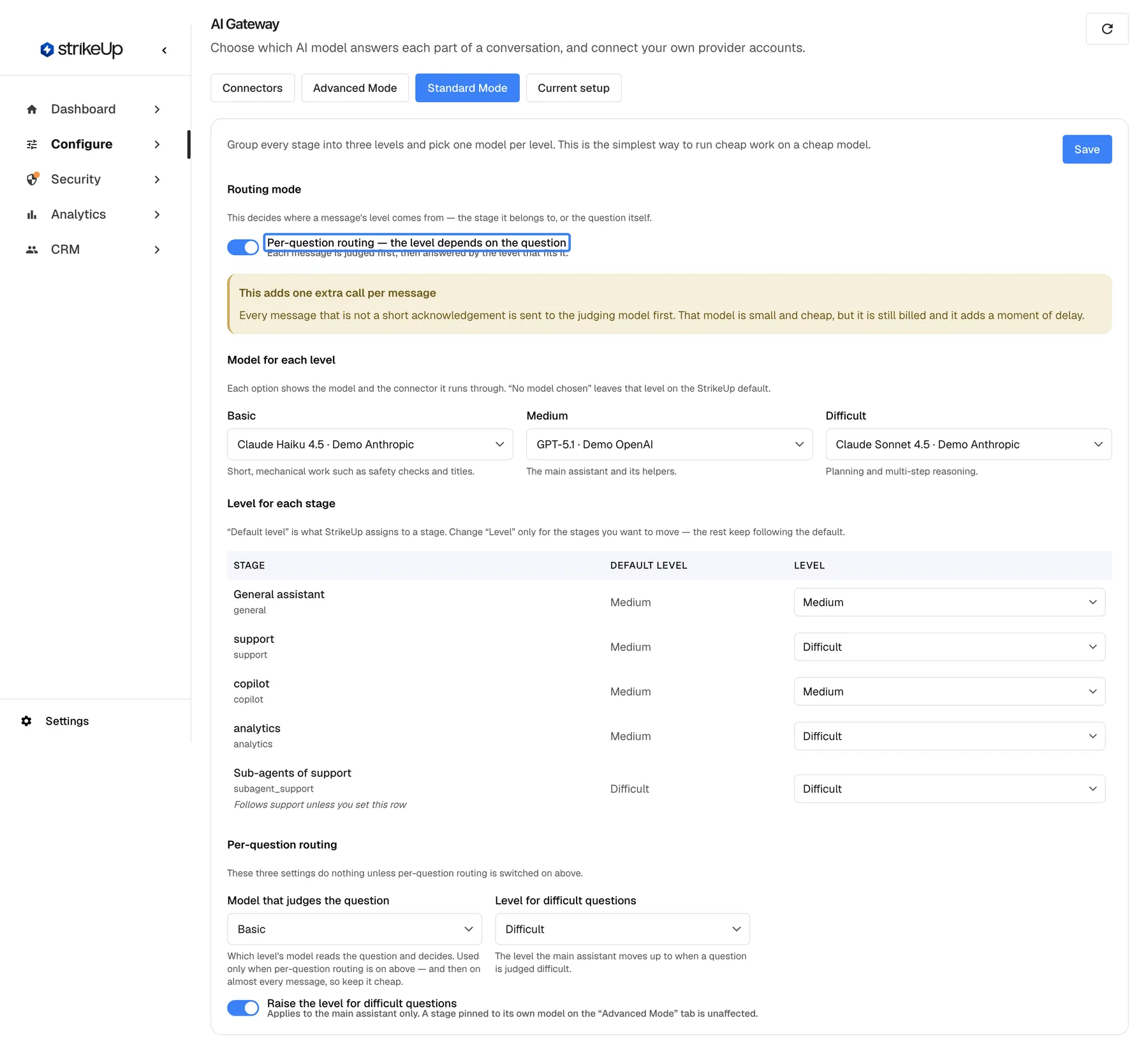
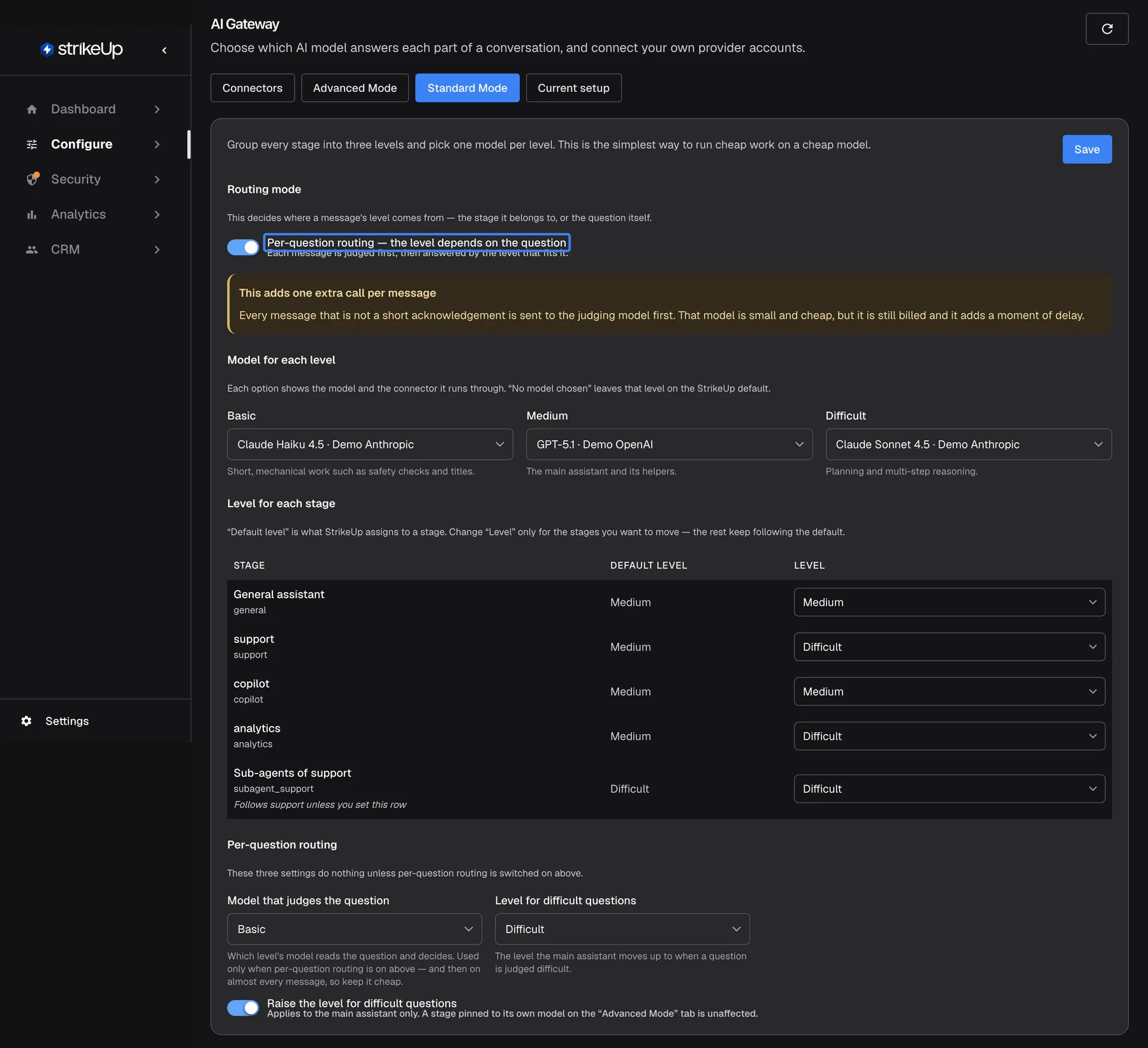
Per-question routing judges each message first and adds one small billed call per message; it applies once you save. What this screenshot shows
- Screen
- Standard Mode (/admin/configure/ai-gateway)
- Highlighted
- “”, routing-mode-section, switched on (unsaved). makes the level depend on each question
- Also visible
- Cost notice: This adds one extra call per message; Per-question routing section enabled: judge Basic, difficult questions Difficult, escalation on
- Purpose
- turning on per-question routing
-
Under Per-question routing, choose the level of the Model that judges the question. Keep it on Basic unless you have a reason not to.
-
Select Save.
Every message that is not a short acknowledgement is sent to the judging model first. That model is small and cheap, but it is still billed and it adds a moment of delay. The judging calls appear in your spend under the stage difficulty_classifier.
How StrikeUp judges a question
Section titled “How StrikeUp judges a question”| Visitor’s message | What happens | Level of the question |
|---|---|---|
| thanks, ok, hi, bye: up to 5 words, all short acknowledgements, no question mark | No judging call | Basic |
| yes or go ahead right after the assistant proposed something | No judging call; the previous message’s level is kept, so agreeing to a multi-step plan does not downgrade it | Same as the previous message |
| thanks, bye after a reply | No judging call; a closing stays simple | Basic |
| Any other message, such as Why was I charged twice in September? | One judging call, which also reads up to 600 characters of the assistant’s previous message | The judge’s verdict |
| The judge’s reply cannot be read | — | Medium |
| The judging call fails | — | No verdict; every stage uses its level, as with per-question routing off |
How the question’s level and the stage’s level combine
Section titled “How the question’s level and the stage’s level combine”The question’s level can only move a stage down, never up: StrikeUp uses the lower of the two. A stage on Difficult answers an easy question at Basic; a stage on Medium answers a difficult question at Medium, unless you raise the level for difficult questions.
| Stage’s level | Question judged | Raise the level: off | Raise the level: on, to Difficult |
|---|---|---|---|
| Medium | Basic | Basic | Basic |
| Medium | Medium | Medium | Medium |
| Medium | Difficult | Medium | Difficult |
| Difficult | Basic | Basic | Basic |
| Basic | Difficult | Basic | Basic |
The question is judged once per message. Sub-agents use the verdict of the message that started them and are never judged again. A stage pinned on the advanced mode is never moved.
Send difficult questions to a higher level
Section titled “Send difficult questions to a higher level”-
Make sure Per-question routing — the level depends on the question is on.
-
Under Per-question routing, switch on Raise the level for difficult questions.
-
Choose the Level for difficult questions, usually Difficult, and select Save.
A question is raised only when all of these are true: it was judged Difficult, the switch is on, a target level is chosen and is higher than the stage’s own level, the stage is not on Basic, and the stage is not a sub-agent. Applies to the main assistant only. A stage pinned to its own model on the “Advanced Mode” tab is unaffected.
Every control, explained
Section titled “Every control, explained”Top right of the tab, Save.
Saves the routing mode, the three models, the stage levels and the per-question settings together. Until then, nothing changes. The first save gives your workspace its own settings and removes the badge Using StrikeUp defaults.
Levels and models depend on each other, so they apply as one change.
Per-question routing switch
Section titled “Per-question routing switch”Routing mode, the switch Per-question routing — the level depends on the question. Saved with Save.
Off (the default): Off: every stage always uses the level you set for it below. On: Each message is judged first, then answered by the level that fits it. When StrikeUp has not enabled this for your deployment, the switch is disabled with Not available yet. Every conversation currently uses the stage-based levels.
Model for each level
Section titled “Model for each level”Model for each level, three drop-downs: Basic, Medium, Difficult.
No model chosen or a model with its connector. Only active models your workspace may use are offered.
Three choices cover every stage, which is far less to maintain than a model per stage.
Level for each stage
Section titled “Level for each stage”Level for each stage, a table with Stage, Default level and a Level drop-down per row.
Moves a stage to Basic, Medium or Difficult. Sub-agent rows follow their parent unless set.
Lets one demanding stage use your strongest model without moving the rest.
Model that judges the question
Section titled “Model that judges the question”Per-question routing, the drop-down Model that judges the question. Default Basic. Disabled while per-question routing is off.
The judge runs on almost every message, so its cost adds up quickly.
Send difficult questions to a higher level
Section titled “Send difficult questions to a higher level”Per-question routing, the switch Raise the level for difficult questions. Default off. Disabled while per-question routing is off; saving with per-question routing off also switches it off.
Gives hard questions a stronger model without moving the whole stage up.
Level for difficult questions
Section titled “Level for difficult questions”Per-question routing, the drop-down Level for difficult questions. Enabled only when the raising switch is on.
Lets you choose how far up a difficult question goes.
Who sees what
Section titled “Who sees what”| Part | What decides whether you see it |
|---|---|
| The Standard Mode tab and the whole page | The AI Gateway feature, which StrikeUp switches on per workspace. Without it the menu item is hidden and the page’s address takes you to the Dashboard. |
| A working Per-question routing — the level depends on the question switch | StrikeUp must enable per-question routing for your deployment by StrikeUp; otherwise it shows Not available yet. Every conversation currently uses the stage-based levels. |
| The badge Using StrikeUp defaults | Shown until your workspace saves this tab for the first time |
Every signed-in user of a workspace with the feature can read this tab. Changing and saving it needs the Admin role; for anyone else the save fails with “This action requires the Admin role.”
What you need to know
Section titled “What you need to know”| Topic | Fact |
|---|---|
| Saving | Nothing applies until Save. Changes reach conversations within about a minute. |
| Order of settings | A pin on Advanced Mode and an agent’s own model setting both win over the level. |
| Defaults | Routing per question off, judge on Basic, raising off. |
| Judging cost | One small call per message, except short acknowledgements, counted under difficulty_classifier. |
| Direction | A question can only lower a stage’s level, unless raising is on. |
| Sub-agents | Follow their parent’s level and verdict; never raised. |
| StrikeUp’s stages | Always use StrikeUp’s own models, whatever you choose here. |
| History | Every save is listed under Configuration changes on Current setup. |
Frequently asked questions
Section titled “Frequently asked questions”Levels and models
Section titled “Levels and models”Which stages are Basic, Medium and Difficult?
Section titled “Which stages are Basic, Medium and Difficult?”By default, all of your agents’ stages, including General assistant, support, copilot and analytics, are on Medium, and their sub-agents follow them. The Default level column under Level for each stage shows each stage’s default. StrikeUp’s own stages have levels too but always run on StrikeUp’s models.
What happens if I choose no model for a level?
Section titled “What happens if I choose no model for a level?”With No model chosen, stages on that level use StrikeUp’s default model for the level. That is also what every level uses before you save the Standard Mode tab for the first time, while the badge Using StrikeUp defaults is shown.
Do I need to select Save on this tab?
Section titled “Do I need to select Save on this tab?”Yes. Unlike Advanced Mode, where each choice saves at once, nothing on Standard Mode applies until you select Save at the top right. Leaving the tab without saving discards your changes.
Does Standard Mode override my agent’s own model setting?
Section titled “Does Standard Mode override my agent’s own model setting?”No. An agent’s own model setting wins over the level, and a pin on Advanced Mode wins over both. Open Current setup and read Decided by to see which setting decides each stage.
How do I put a stage back on its default level?
Section titled “How do I put a stage back on its default level?”Choose the level shown in its Default level column and select Save. The stage then follows StrikeUp’s default again, including any later change StrikeUp makes to that default.
Do sub-agents follow the level of their agent?
Section titled “Do sub-agents follow the level of their agent?”Yes. A sub-agent stage takes the level of the stage that starts it, unless you set its own row under Level for each stage. Moving an agent to Difficult therefore also moves its sub-agents, which can raise cost more than expected.
Per-question routing
Section titled “Per-question routing”Does per-question routing cost more?
Section titled “Does per-question routing cost more?”It adds one small call per visitor message to the judging model, except for short acknowledgements such as thanks or ok. It can also save money, because easy questions on a Difficult or Medium stage are answered at a lower level. Compare AI Spend by stage before and after.
Can a visitor make the assistant use my most expensive model?
Section titled “Can a visitor make the assistant use my most expensive model?”Only when Raise the level for difficult questions is on. Without it, a question can only lower a stage’s level. With it, a question judged difficult can raise the main answering stage, but never a stage on Basic, a sub-agent or a pinned stage.
Why is the per-question switch greyed out?
Section titled “Why is the per-question switch greyed out?”When the switch shows Not available yet. Every conversation currently uses the stage-based levels., per-question routing is not enabled for your deployment, and every conversation uses the stage-based levels. Ask StrikeUp whether it can be enabled for you.
Does a short yes from the visitor make the next answer cheaper?
Section titled “Does a short yes from the visitor make the next answer cheaper?”No. A bare yes or go ahead right after the assistant proposed something keeps the previous message’s level, so agreeing to a multi-step plan does not move it to a cheaper model. Only short greetings, thanks and closings are answered at Basic without a judging call.
What if the judging call fails?
Section titled “What if the judging call fails?”If the judging call fails, that message gets no verdict and every stage uses its own level, exactly as with per-question routing off. If the judge answers but its reply cannot be read, the question is treated as Medium.
Troubleshooting
Section titled “Troubleshooting”| Symptom | What to check |
|---|---|
| A change has no effect | Did you select Save and see Routing settings saved? Wait a minute. Then check Decided by on Current setup: a pin or an agent’s own model may decide first. |
| The badge Using StrikeUp defaults stays after saving | Reload the page with the refresh button. |
| The per-question switch shows Not available yet. Every conversation currently uses the stage-based levels. | StrikeUp has not enabled per-question routing for your deployment. Ask StrikeUp. |
| The judge settings are greyed out | Switch on Per-question routing — the level depends on the question first. |
| Costs rose after moving an agent to Difficult | Its sub-agents follow it. Set the sub-agent row to a lower level, or use per-question routing. |
| A level’s drop-down shows Retired model — no longer available | The model was withdrawn. Choose another model and save. |
Many difficulty_classifier calls in spend | Expected with per-question routing on: one per message, except short acknowledgements. Keep the judge on Basic. |
| Routing settings are not available yet. | Reload the page. If it persists, contact support. |
| A change fails with Request failed and “This action requires the Admin role.” | Changes on this page need the Admin role. Ask an Admin to make the change, or to give you the Admin role under Settings › Users. |