

Technical docs
The Technical docs tab of the Help & FAQ page collects the implementation guides StrikeUp publishes for developers: how to embed the chat widget, how to build on the customer portal and how to trigger autonomous agents from your own systems. Open it from SettingsResources and select Technical docs. Anyone signed in can read the guides and download them for a developer who has no StrikeUp account.
What you can do here
Section titled “What you can do here”- See which technical guides exist. The tab lists three guides, each with the date it was last updated and a one-line summary. The screen at a glance.
- Read a guide inside StrikeUp. A guide opens in a reader with formatted headings, tables and code samples. Read a guide.
- Hand a guide to a developer. Download .md saves the guide as a Markdown file you can send on. Download a guide.
- Link straight to one guide. A link with the guide’s name opens the reader directly, which is how other StrikeUp screens send you here. Link to a guide.
The screen at a glance
Section titled “The screen at a glance”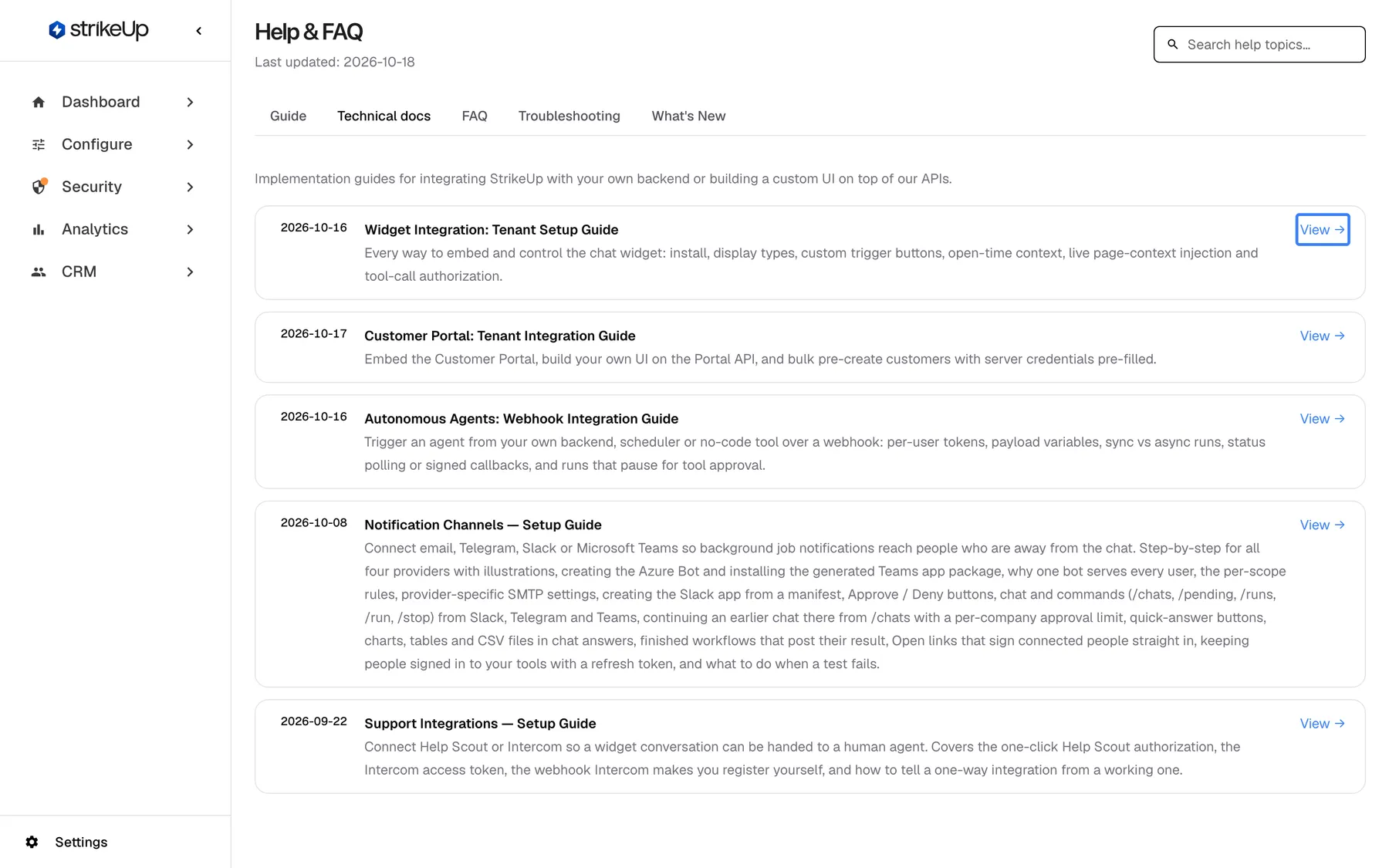
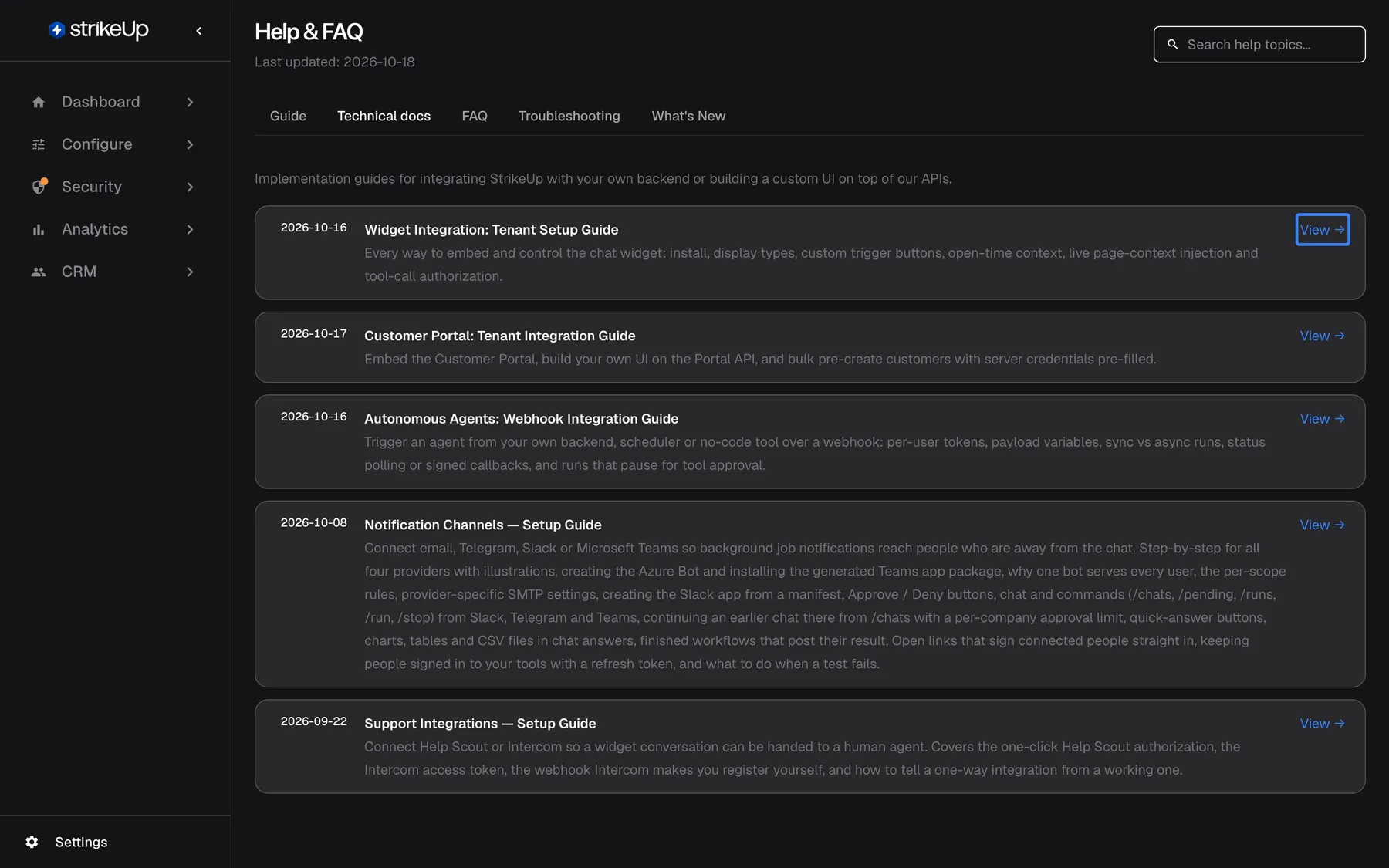
What this screenshot shows
- Screen
- Technical docs (/admin/help?tab=technical-docs)
- Highlighted
- button “View”, card-right, enabled. opens the guide in a reader dialog
- Also visible
- 5 guides: Widget Integration, Customer Portal, Autonomous Agents, Notification Channels, Support Integrations
- Purpose
- the list of developer guides
| Region | What it shows | What you do there |
|---|---|---|
| Header and tabs | The Help & FAQ heading, the search box and the five tabs, with Technical docs selected | Switch tabs |
| Intro line | Implementation guides for integrating StrikeUp with your own backend or building a custom UI on top of our APIs. | Know who the guides are for |
| Guide cards | One card per guide: its date, title, summary and View → | Open a guide |
The guides available today:
| Guide | For | Link name |
|---|---|---|
| Widget integration, tenant setup guide | Developers embedding the chat widget in your product: install, display types, trigger buttons, page context and tool-call authorisation | widget-integration |
| Customer portal, tenant integration guide | Developers embedding the customer portal or building their own interface on it | customer-portal-integration |
| Autonomous agents, webhook integration guide | Developers triggering an autonomous agent from a backend, scheduler or no-code tool | autonomous-agents-integration |
| Notification channel setup guide | Administrators connecting email, Telegram, Slack or Teams for job notifications; also shown to your customers’ Admins in the customer portal | notification-channels-setup |
| Support integrations, setup guide | Administrators connecting Help Scout or Intercom for human handoff | support-integrations-setup |
The guides are written and updated by StrikeUp and are in English. This page describes the tab, not the guides’ contents; for the behaviour of each feature, follow the related pages of this documentation.
Read a guide
Section titled “Read a guide”-
Open SettingsResources and select Technical docs.
-
Select a card, or its View link. The reader opens over the page with the guide’s title, its date with Updated, and the guide itself.
-
Scroll inside the reader. Select Close to return to the list.
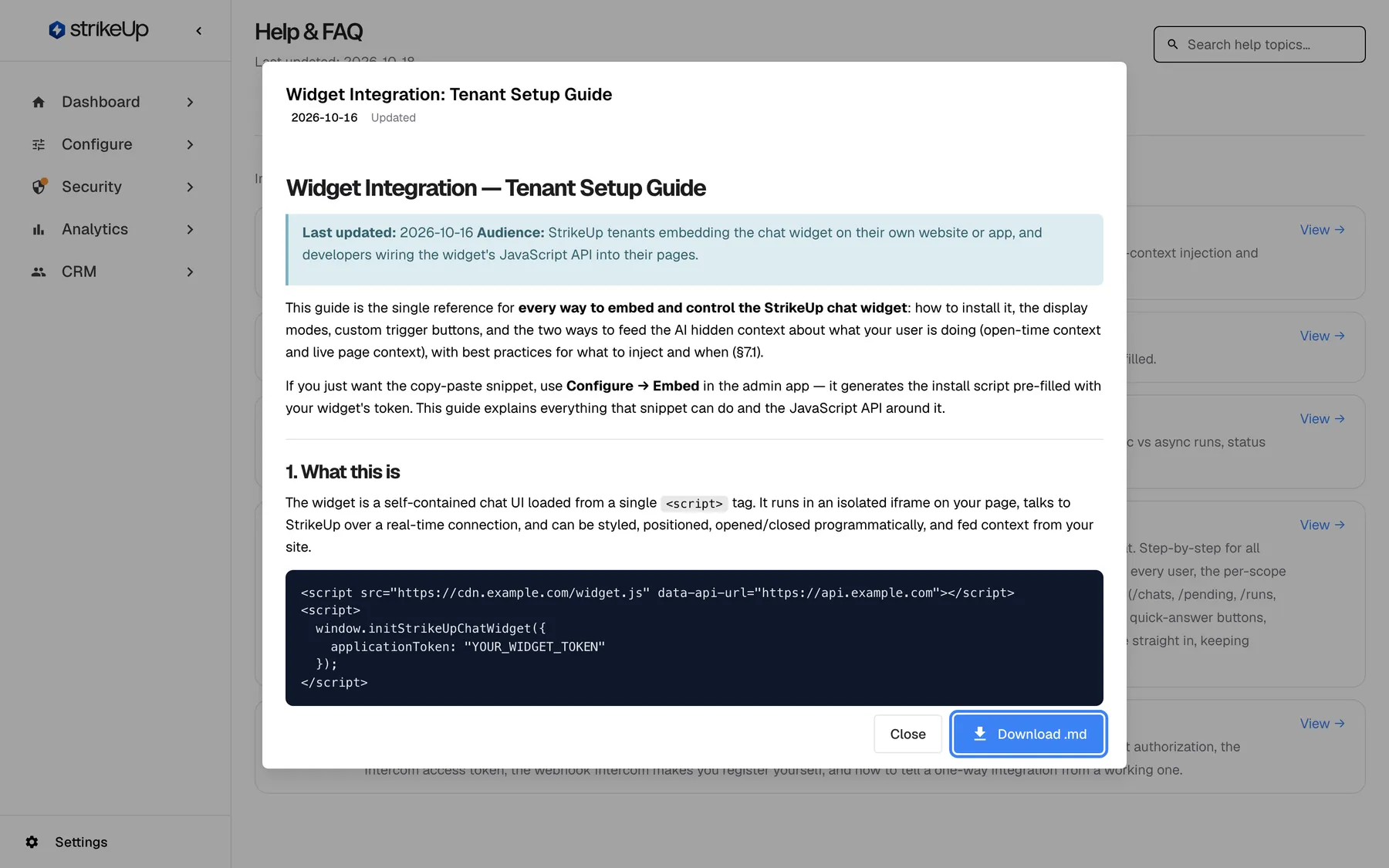
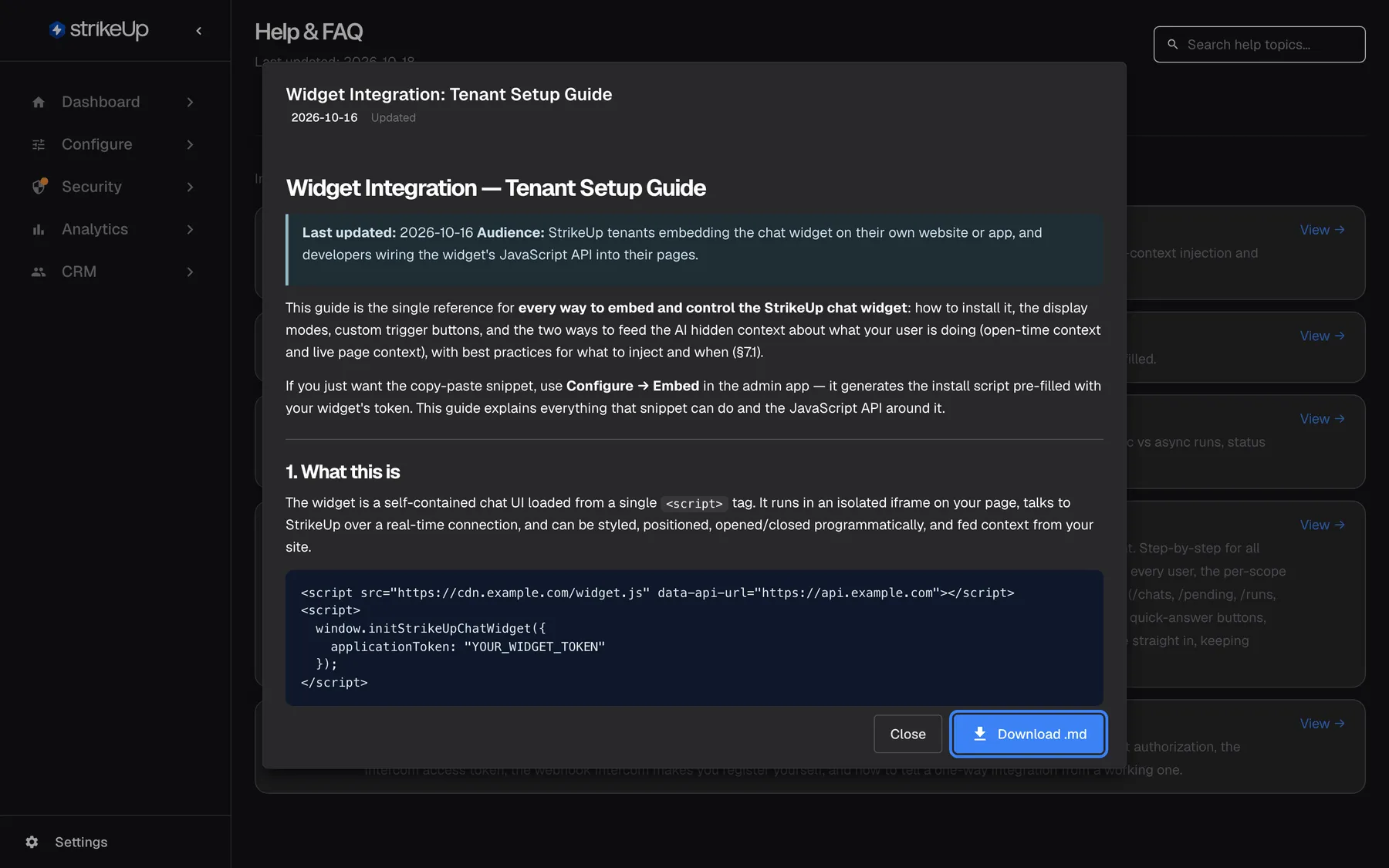
What this screenshot shows
- Screen
- Technical docs (/admin/help?tab=technical-docs&doc=widget-integration)
- Highlighted
- button “Download .md”, dialog-footer, enabled. downloads the guide as WIDGET_INTEGRATION_GUIDE.md
- Also visible
- Title, Updated 2026-09-25, rendered Markdown with a code block; Close button
- Purpose
- reading and sharing a developer guide
The reader shows the guide formatted: headings, highlighted notes, tables and code blocks you can copy from. Example: a developer at Demo Ltd opens the widget guide, copies the script snippet from its code block into the product’s page template, and keeps the reader open while testing.
Download a guide
Section titled “Download a guide”In the reader, select Download .md at the bottom right. Your browser saves the guide as a Markdown file named after the guide, such as WIDGET_INTEGRATION_GUIDE.md. The file is the same text the reader shows, so it opens in any text editor or Markdown viewer and can be sent to someone without a StrikeUp sign-in.
The button is greyed out while the guide is loading or when it could not be loaded.
Link to a guide
Section titled “Link to a guide”Add the guide’s link name to the address of the help page:
/admin/help?tab=technical-docs&doc=widget-integrationThe page opens on Technical docs with that guide’s reader already open. Add §ion= with a heading of the guide, written in lower case with dashes, such as §ion=telegram, and the reader shows only that part, with Showing only the {{section}} section. and Show full guide above it. The Setup guide buttons and the Where do I find these? links on ConfigureNotifications, a company’s Integrations tab and ConfigureIntegrations open guides this way, in a new tab. Other StrikeUp screens use such links: the page-context panel of the embed page under Configure sends you to the widget guide this way. The person opening the link must be signed in.
Every control, explained
Section titled “Every control, explained”Each control below says where it is, what it does and why it is there, in the order the tab shows them.
Guide cards
Section titled “Guide cards”The list below the intro line, one card per guide, in the order StrikeUp publishes them. The View → link sits at the right of each card.
Each card shows the date the guide was last updated, its title and a one-line summary. Selecting anywhere on the card opens the reader. While the list loads, a spinner shows; if there are no guides you see No technical docs are available yet., and if the list cannot be loaded, Couldn't load technical docs. Please try again.
The date and summary tell a developer at a glance whether a guide is new to them and whether it covers their task.
The reader
Section titled “The reader”Opens over the page when you select a card or follow a guide link. The title is at the top, with the date and Updated below it.
Shows the full guide with formatted headings, tables and code. If the guide cannot be loaded, the reader shows Technical document as its title and Couldn't load technical docs. Please try again. as its content.
You can read a guide without leaving StrikeUp or downloading anything.
Close and Download .md
Section titled “Close and Download .md”At the bottom of the reader: Close and Download .md.
Close closes the reader. Download .md saves the loaded guide as a Markdown file named after the guide; it is greyed out until the guide has loaded.
Developers who work outside StrikeUp need the guide as a file they can keep next to their code.
What you need to know
Section titled “What you need to know”| Topic | Fact |
|---|---|
| Who can read them | Everyone signed in to StrikeUp, whatever their role. The guides are not public. |
| Language | English only. |
| Dates | Each card and the reader show the date StrikeUp last updated that guide. |
| New guides | Appear when StrikeUp releases them. |
| Search | The help search box does not search the technical docs. |
| Download | One Markdown file per guide, built in your browser. |
| Links | ?tab=technical-docs&doc= followed by the guide’s link name opens it directly. |
Frequently asked questions
Section titled “Frequently asked questions”The guides
Section titled “The guides”Who are the technical docs for?
Section titled “Who are the technical docs for?”For the developers who connect StrikeUp to your own product: embedding the widget, building on the customer portal or calling autonomous agents from your systems. Administrators open them under SettingsResources › Technical docs and pass them on.
Which technical guides are available?
Section titled “Which technical guides are available?”Three: the widget integration guide, the customer portal integration guide and the autonomous agents webhook integration guide. Each card on the Technical docs tab shows the date the guide was last updated and a one-line summary of what it covers.
Are the guides available in German?
Section titled “Are the guides available in German?”No. The technical guides are written in English only. The tab name, the intro line and the buttons follow your browser’s language, but the text inside each guide on SettingsResources is always English.
Will more guides appear?
Section titled “Will more guides appear?”New guides appear on the Technical docs tab when StrikeUp releases them, with their own card, date and summary. There is nothing to switch on; check the dates on the cards to spot new or updated guides.
Sharing
Section titled “Sharing”How do I give a guide to a developer who has no StrikeUp account?
Section titled “How do I give a guide to a developer who has no StrikeUp account?”Open the guide on SettingsResources › Technical docs and select Download .md. Send them the Markdown file your browser saves; it contains the same text as the reader.
Can I link a colleague straight to one guide?
Section titled “Can I link a colleague straight to one guide?”Yes. Send the address /admin/help?tab=technical-docs&doc= followed by the guide’s link name, for example widget-integration. A signed-in colleague who opens it sees the reader with that guide already open.
Are the technical docs public?
Section titled “Are the technical docs public?”No. The list and the guides are only shown to people signed in to StrikeUp. To share a guide outside your team, download it with Download .md and send the file.
Reading
Section titled “Reading”Can I search inside the technical docs?
Section titled “Can I search inside the technical docs?”The search box at the top of the Help & FAQ page does not filter the Technical docs tab. Open the guide and use your browser’s find-in-page, or download it and search the Markdown file in an editor.
Why does the reader say it couldn’t load the guide?
Section titled “Why does the reader say it couldn’t load the guide?”The guide could not be fetched, often because the link name in a shared address is misspelt, or the connection dropped. The reader then shows Couldn't load technical docs. Please try again.. Close it, select the card again, or check the link name.
Troubleshooting
Section titled “Troubleshooting”| Symptom | What to check |
|---|---|
| Couldn't load technical docs. Please try again. instead of the cards | Reload the page. If it persists, sign out and in again. |
| The reader opens with the title Technical document and an error | The guide could not be loaded. Check the link name after doc= for typing mistakes, or open the guide from its card. |
| Download .md is greyed out | The guide has not loaded yet, or failed to load. Wait for the text to appear, or reopen the guide. |
| No technical docs are available yet. | No guides are published for StrikeUp at the moment. Contact support if you expected one. |
| A shared guide link opens the sign-in page | The person is signed out. After signing in, they open the link again. |