

Users
The Company Users page is where administrators decide who can work in your StrikeUp company and what they may change. It lists every account and every open invitation, with the controls to invite people, change roles, disable, delete and resend. Open it from SettingsUsers. The menu item is visible to everyone, but only administrators can use the page; everyone else sees Access denied. Only administrators can manage users.
What you can do here
Section titled “What you can do here”- Invite a teammate by email. Choose User or Admin; StrikeUp emails a link that is valid for 7 days, and the person shows as pending until they accept. Invite a teammate · Accept Invitation.
- Decide who is an Admin. Admins can change everything; Users and Guests can open every screen but cannot save any change. Change someone’s role.
- Disable an account without losing it. A disabled person cannot sign in and is signed out within the hour; you can enable them again at any time. Disable or enable an account.
- Delete an account for good. The account is removed and its email address can be invited again. Delete an account.
- Resend or cancel an invitation. Resending creates a new link valid for another 7 days; cancelling makes the link stop working. Manage pending invitations.
The screen at a glance
Section titled “The screen at a glance”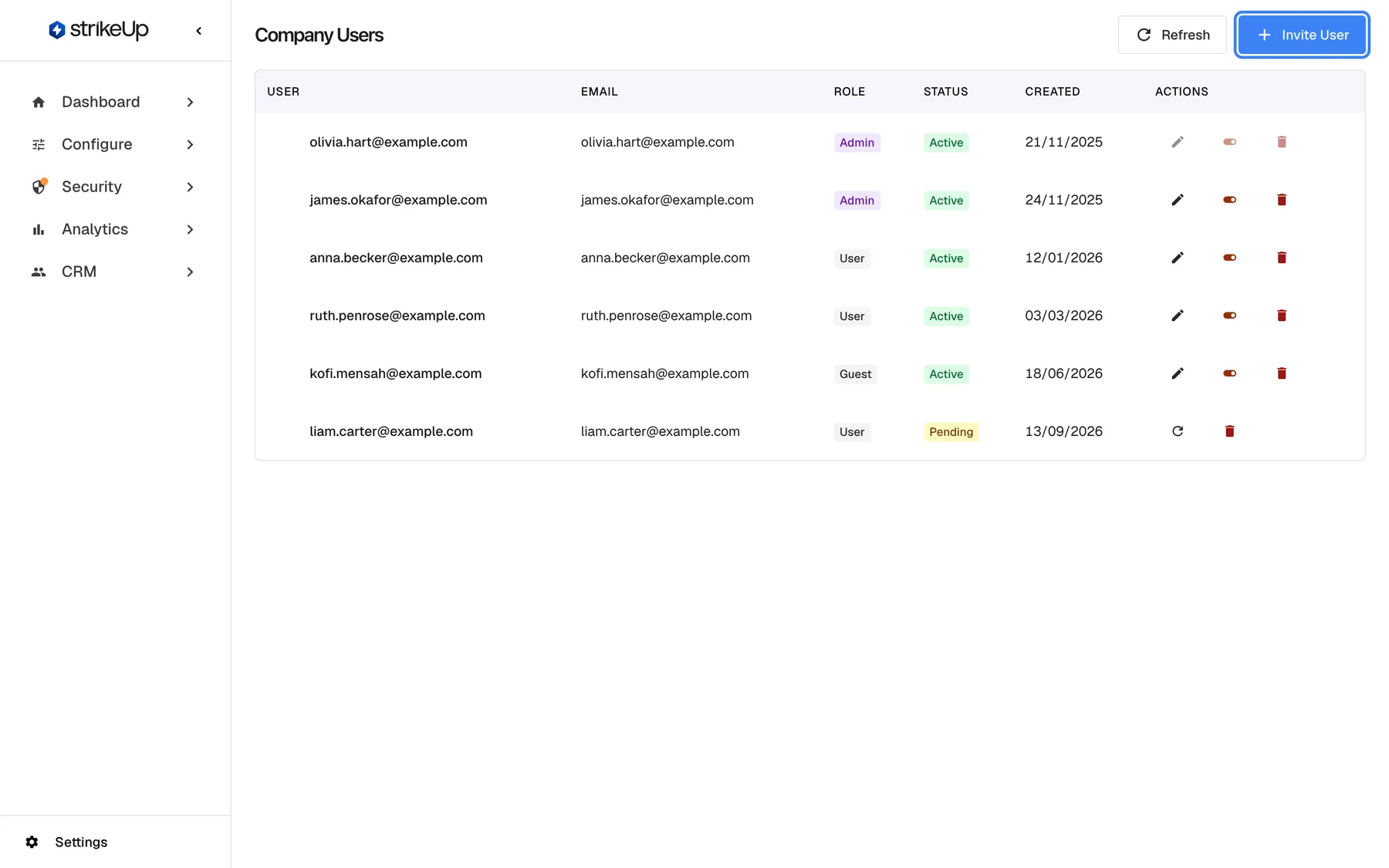
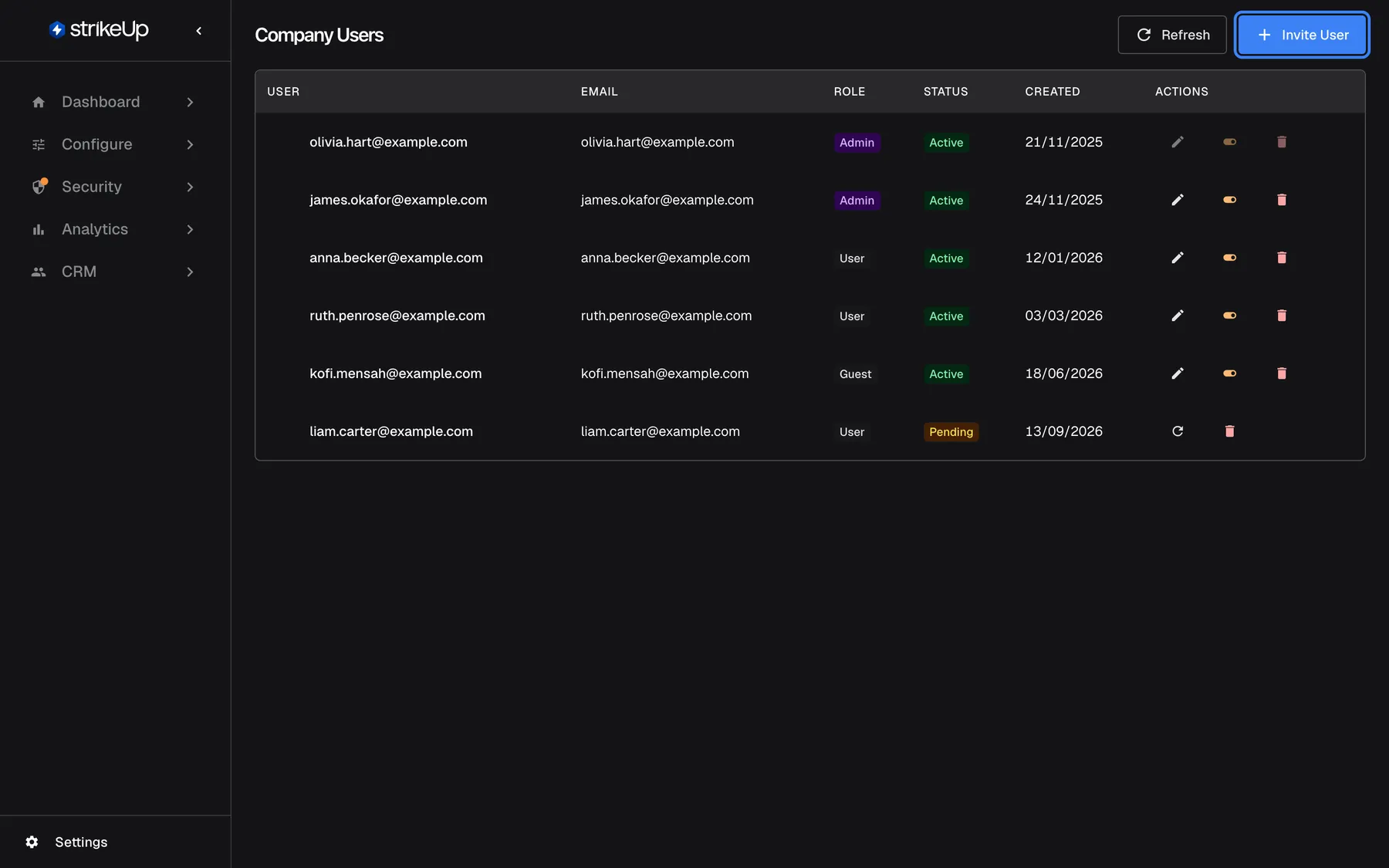
What this screenshot shows
- Screen
- Company Users (/admin/users)
- Highlighted
- button “Invite User”, top-bar-right, enabled. opens the Invite New User dialog
- Also visible
- 5 users: 2 Admin, 2 User, 1 Guest, all Active; 1 pending invitation for liam.carter@example.com
- Purpose
- the team list
| Region | What it shows | What you do there |
|---|---|---|
| Header, top | The heading Company Users, Ask strikeUp when available, a refresh button and Invite User | Reload the list, invite someone |
| Banner, below the header (only when there is something to say) | A green confirmation that disappears after three seconds, or a red error with Dismiss | Read the result of your last action |
| The table | One row per account, newest first, then one row per open invitation, newest first | Change roles, status, delete, resend or cancel |
What each role can do
Section titled “What each role can do”| Role | What they can do |
|---|---|
| Admin | Everything: change every setting, manage users, require two-factor sign-in. |
| User | Open every screen and read everything, but not save, create or delete anything. Can change their own password and their own two-factor sign-in. |
| Guest | The same as User. Guest cannot be chosen on this page. |
Users and Guests are read-only. Most screens still show their buttons, but every change they try is refused with Request failed and “This action requires the Admin role.”
Invite a teammate
Section titled “Invite a teammate”-
Open SettingsUsers and select Invite User at the top right. The Invite New User dialog opens.
-
Type the person’s email address in Email*. Capitals do not matter: StrikeUp stores the address in lower case, and the person can sign in with any spelling of it.
-
Choose Role*: User or Admin. There is no default; both fields are required.
-
Select Invite User. The button reads Inviting... while StrikeUp creates the invitation.
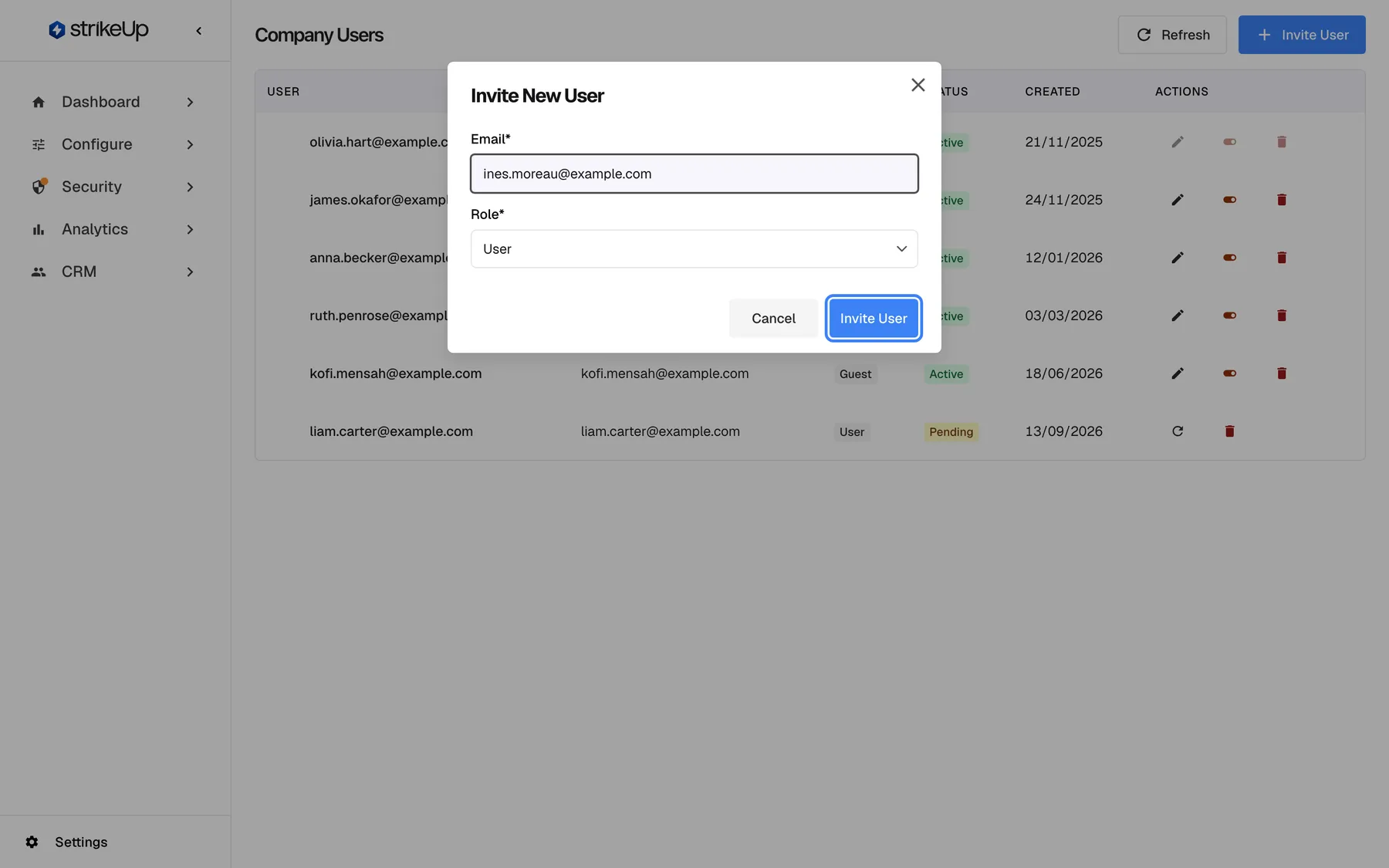
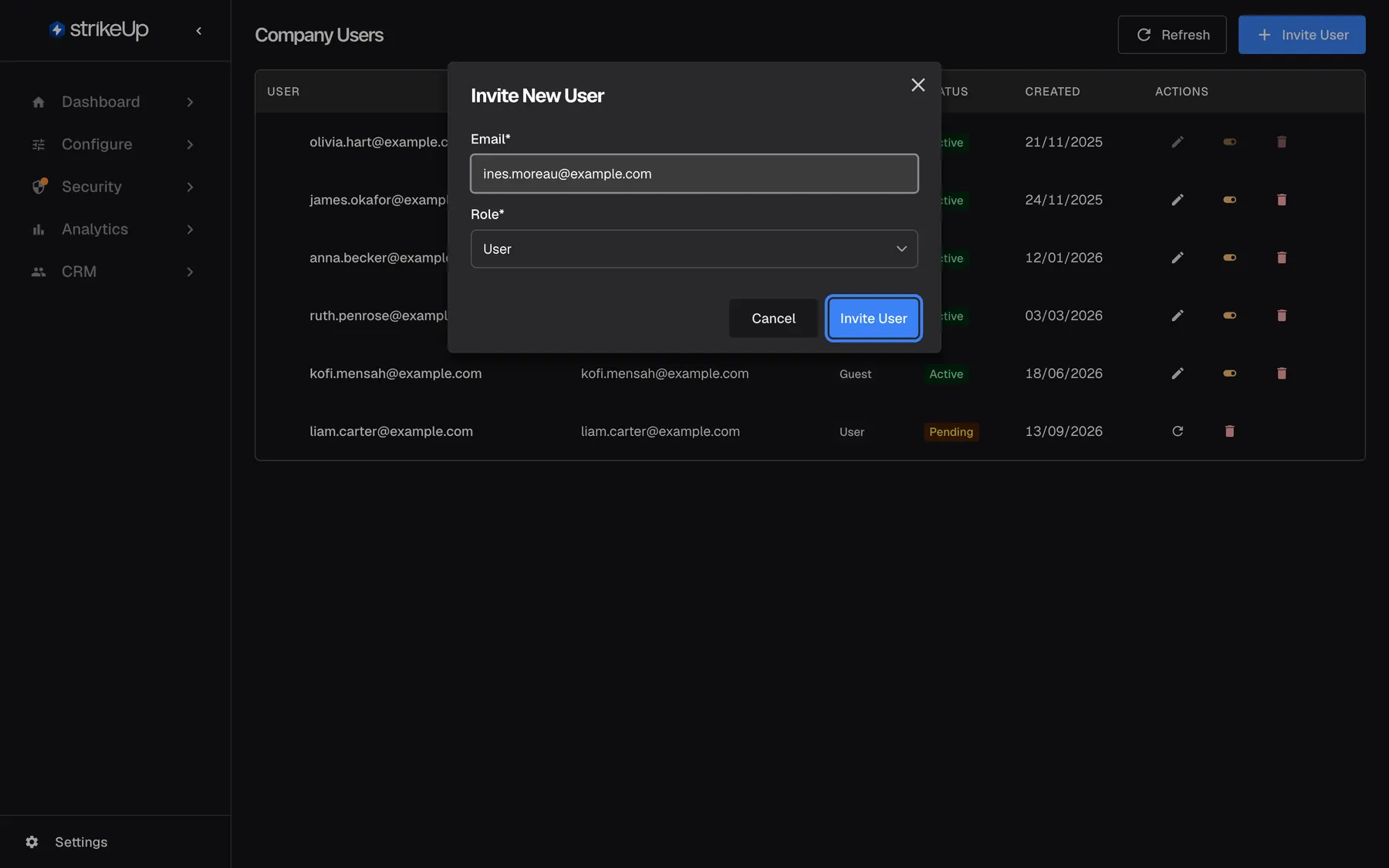
What this screenshot shows
- Screen
- Invite New User (/admin/users)
- Highlighted
- button “Invite User”, dialog-footer, enabled. sends the invitation (POST /api/company/users/invite)
- Also visible
- Email ines.moreau@example.com, Role User; Cancel button
- Purpose
- inviting a teammate
The dialog closes, User invited successfully! appears and the person is added at the end of the table with the status Pending. StrikeUp emails them a link that is valid for 7 days. When they accept, they choose a password and the row changes to Active.
Example: Olivia invites ines.moreau@example.com as a User on Monday. Ines accepts on Wednesday and can then open every screen; when she tries to save a change to a toolkit, StrikeUp refuses it because she is not an Admin.
StrikeUp refuses the invitation when:
| Message | Why |
|---|---|
| All fields are required | The email or the role is missing |
| “User with this email already exists.” | The address already has a StrikeUp account, in your company or any other. An email address can belong to only one company. |
| “An invitation has already been sent to this email address.” | An open invitation for that address exists. Use Resend invitation on its row instead. |
Change someone’s role
Section titled “Change someone’s role”-
In the person’s row, select the edit icon (Change role).
-
Confirm the question Are you sure you want to change this user's role to {{role}}?. The icon always switches between Admin and User: an Admin becomes a User, and anyone else, including a Guest, becomes an Admin.
User role updated successfully! appears and the role badge changes. The new role applies to the person’s next change at once. Their screens follow within an hour: StrikeUp signs their session out of the old role, so the app shows the new role after their session renews, at the latest within 60 minutes.
You cannot change your own role, and StrikeUp refuses to take the Admin role from the last active administrator: “Cannot remove the Admin role from the last admin.”
Disable or enable an account
Section titled “Disable or enable an account”-
In the person’s row, select the toggle icon (Disable user or Enable user).
-
Confirm Are you sure you want to {{action}} this user?.
A disabled account shows Disabled. From that moment the person cannot save any change, cannot sign in (“Account or company is inactive”) and is signed out when their session next renews, at the latest within 60 minutes. Everything they created stays and the account keeps its role, so enabling it again restores access as before.
You cannot disable yourself, and StrikeUp refuses to disable the last active administrator: “Cannot disable the last admin.”
Delete an account
Section titled “Delete an account”-
In the person’s row, select the bin icon (Delete user).
-
Confirm Are you sure you want to delete user "{{name}}"? This action cannot be undone..
User deleted successfully! appears and the row disappears. The account is removed and its email address is free to be invited again. If the person is signed in at that moment, they can keep reading until their session expires, at most an hour, but every change is refused.
You cannot delete yourself, and StrikeUp refuses to delete the last active administrator: “Cannot delete the last admin user.”
Manage pending invitations
Section titled “Manage pending invitations”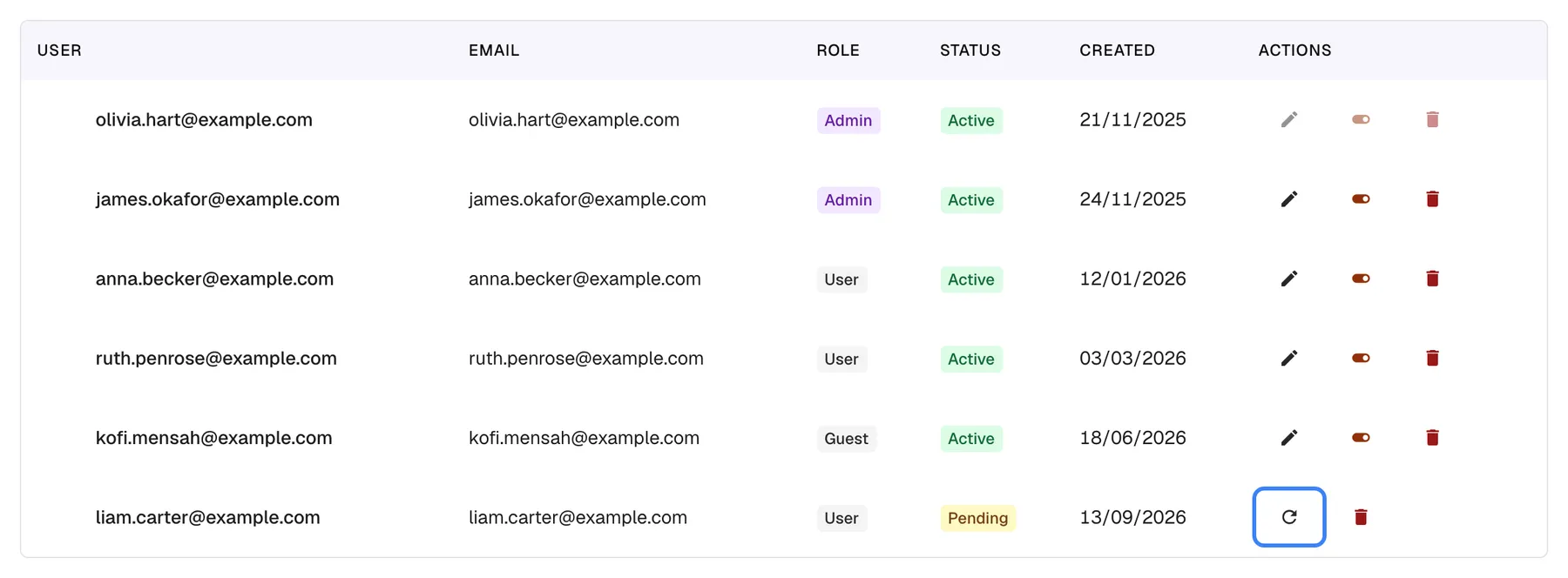
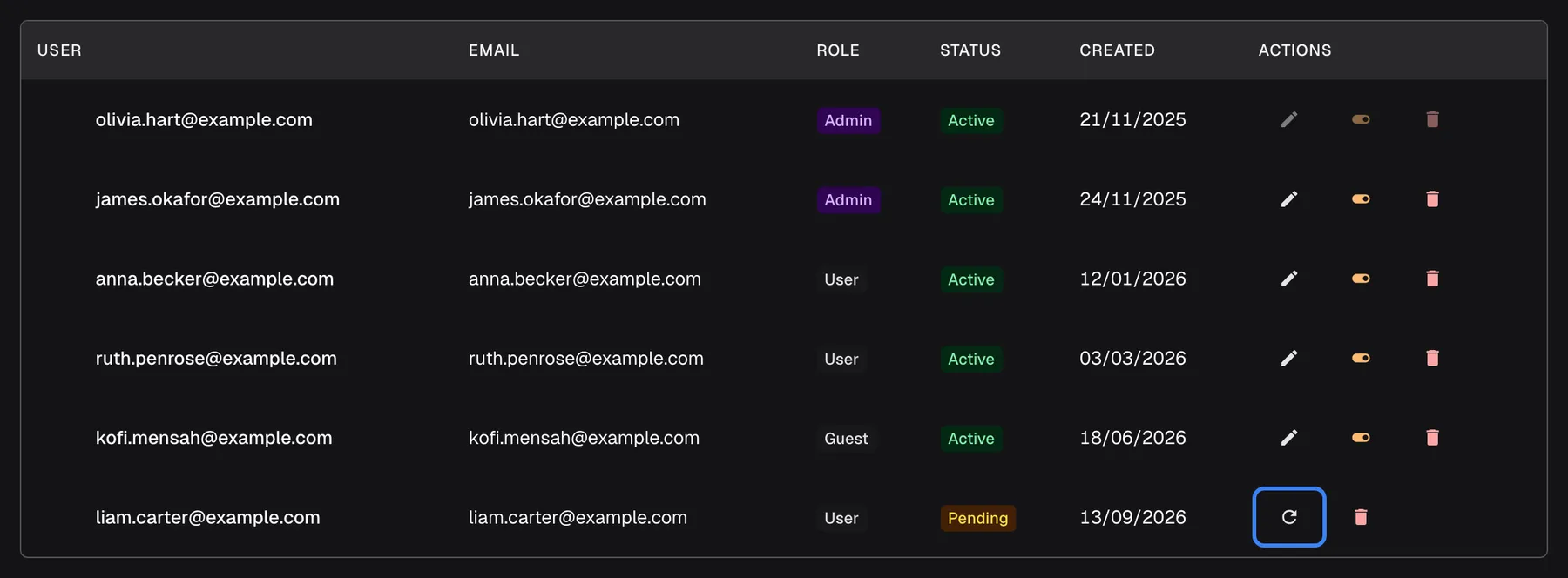
What this screenshot shows
- Screen
- Company Users (/admin/users)
- Highlighted
- button “Resend invitation”, table-row-actions, enabled. resends the invitation with a new 7-day link
- Also visible
- liam.carter@example.com Pending, created 13/09/2026
- Purpose
- managing an open invitation
A pending row has two actions instead of three:
- Resend invitation (the circular arrow) creates a new link valid for another 7 days and emails it. The link in the earlier email stops working. You see Invitation resent successfully!, or Failed to resend invitation if the email could not be sent; in that case the old link has still been replaced, so resend again.
- Cancel invitation (the bin) asks Are you sure you want to cancel the invitation for {{email}}? and deletes the invitation. Opening its link afterwards shows “Invalid invitation token”.
Expired invitations disappear from the table. After 7 days the row is gone and cannot be resent; invite the same address again with Invite User.
Every control, explained
Section titled “Every control, explained”Each control below says where it is, what it does and why it is there, in the order the page shows them.
Refresh and Invite User
Section titled “Refresh and Invite User”At the top right of the page: a round refresh button (Refresh), then the blue Invite User button. Ask strikeUp sits before them when the built-in StrikeUp assistant is set to open from buttons on the page.
Refresh reloads the table, for example to see whether someone accepted. Invite User opens the Invite New User dialog. Ask strikeUp opens the built-in assistant with an offer to help add a teammate or change roles.
Accepting happens in another person’s browser, so the table does not change on its own.
Table columns
Section titled “Table columns”| Column | What it shows | Why |
|---|---|---|
| User | An avatar and the email address. StrikeUp accounts have no display names. | Identify the person |
| The email address the person signs in with | The address to tell them, or to invite again | |
| Role | Admin (purple), User or Guest, as stored | See who can change things |
| Status | Pending (yellow), Active (green) or Disabled (red) | See who can sign in |
| Created | The day the account or invitation was created, in your browser’s date format | Spot old invitations |
| Actions | Three icons for accounts, two for invitations | Act on the row |
The table needs at least 600 pixels of width; on a narrow screen it scrolls sideways.
Change role
Section titled “Change role”The edit icon, first in Actions on an account row. Greyed out on your own row with Cannot change your own role.
Switches the person between Admin and User after a confirmation. A Guest becomes an Admin. Refused for the last active administrator.
Keeping the Admin role to the people who need it limits who can change the assistant and its connections.
Disable or enable
Section titled “Disable or enable”The toggle icon, second in Actions. Greyed out on your own row with Cannot change your own status.
Disables an active account or enables a disabled one after a confirmation. A disabled person cannot sign in or change anything; their account and data stay. Refused for the last active administrator.
Someone on leave or leaving the team loses access at once, and you can restore it without a new invitation.
Delete
Section titled “Delete”The bin icon, last in Actions on an account row. Greyed out on your own row with Cannot delete your own account.
Removes the account permanently after the confirmation Are you sure you want to delete user "{{name}}"? This action cannot be undone. Frees the email address for a new invitation. Refused for the last active administrator.
For people who have left for good, and to reuse an email address.
Resend invitation and cancel invitation
Section titled “Resend invitation and cancel invitation”On a row with the status Pending: the circular arrow (Resend invitation) and the bin (Cancel invitation).
Resend replaces the link, resets the 7 days and sends the email again; the table is not reloaded. Cancel deletes the invitation after a confirmation, so its link stops working.
Invitation emails get lost or sent to the wrong address; these fix either case without waiting for the link to expire.
The invitation dialog
Section titled “The invitation dialog”Opened by Invite User: Email*, Role*, Select role as the empty choice, then Cancel and Invite User.
Creates an invitation for one email address with the role you choose, User or Admin. Both fields are required. On failure the dialog shows StrikeUp’s message, or Failed to invite user.
Inviting by email means each person sets their own password; you never handle it.
Who sees what
Section titled “Who sees what”| Part | Admin | User or Guest |
|---|---|---|
| SettingsUsers in the menu | Shown | Shown |
| The page itself | The full table and every action | Only Access denied. Only administrators can manage users. |
The page decides from the role stored at sign-in. If your role was changed in the last hour, the page can still show the table, and every action is refused with “This action requires the Admin role.”
What you need to know
Section titled “What you need to know”| Topic | Fact |
|---|---|
| Invitation validity | 7 days from the invitation or the last resend. |
| Expired invitations | Disappear from the table; invite the address again. |
| One company per email | An address with a StrikeUp account in any company cannot be invited. |
| Email addresses | Stored in lower case. Capitals are ignored at sign-in and when StrikeUp checks whether the address already has an account. |
| Last administrator | Cannot lose the Admin role, be disabled or be deleted while they are the only active Admin. |
| Your own row | You cannot change your own role, status or account here. |
| Timing | Changes apply to the person’s next action at once; their screens and sessions follow within 60 minutes. |
| Not available | Display names, editing someone’s email, a last-sign-in date and resetting someone’s two-factor sign-in. |
| Limits | No limit on the number of users. |
Frequently asked questions
Section titled “Frequently asked questions”What is the difference between Admin and User?
Section titled “What is the difference between Admin and User?”An Admin can change every setting and manage users. A User can open every screen and read everything under the StrikeUp admin app, but every attempt to save, create or delete is refused with “This action requires the Admin role.” Both can change their own password and two-factor sign-in.
What is a Guest?
Section titled “What is a Guest?”A Guest has the same read-only access as a User. You cannot give someone the Guest role on SettingsUsers; if a Guest appears in your table, the change-role icon turns them into an Admin, not a User.
Can I change my own role?
Section titled “Can I change my own role?”No. The change-role icon is greyed out on your own row with Cannot change your own role. Ask another administrator to change it under SettingsUsers.
Why can’t I remove the Admin role from the last administrator?
Section titled “Why can’t I remove the Admin role from the last administrator?”Your company always needs one active Admin who can manage users and settings. StrikeUp refuses with “Cannot remove the Admin role from the last admin.” Make someone else an Admin first, then change the role of the first person.
How soon does a role change take effect?
Section titled “How soon does a role change take effect?”At once for changes: from the moment you confirm, StrikeUp checks the new role on everything the person saves. The person’s screens follow within an hour, when their session renews, or straight away if they sign out and in again.
Invitations
Section titled “Invitations”How long is an invitation valid?
Section titled “How long is an invitation valid?”Seven days from when you invited the person, or from the last time you selected Resend invitation. After that the invitation disappears from SettingsUsers and its link answers “This invitation has expired”.
An invitation expired. Where did it go?
Section titled “An invitation expired. Where did it go?”Expired invitations are not listed, so there is nothing to resend. Select Invite User and invite the same email address again with the role you want. The new email contains a new link valid for 7 days.
The person says they never got the invitation email. What can I do?
Section titled “The person says they never got the invitation email. What can I do?”Ask them to check their spam folder, then select Resend invitation on their pending row under SettingsUsers. The success message does not prove the email was delivered, so also check the address in the row for typing mistakes.
Why does the old invitation link no longer work after I resent it?
Section titled “Why does the old invitation link no longer work after I resent it?”Resending creates a new link and replaces the old one, so only the link in the newest email works. The old link answers “Invalid invitation token”. Ask the person to use the most recent invitation email.
Can I invite someone who already uses StrikeUp for another company?
Section titled “Can I invite someone who already uses StrikeUp for another company?”No. An email address can have only one StrikeUp account, and StrikeUp refuses the invitation with “User with this email already exists.” Ask the person to use a different email address for your company.
Disabling and deleting
Section titled “Disabling and deleting”What happens when I disable someone?
Section titled “What happens when I disable someone?”They cannot change anything from that moment, cannot sign in (“Account or company is inactive”) and are signed out when their session next renews, within 60 minutes. Their account, role and everything they created stay, and enabling the account restores access.
What is the difference between disabling and deleting?
Section titled “What is the difference between disabling and deleting?”Disabling blocks access and can be undone with the same toggle icon. Deleting removes the account for good and frees the email address for a new invitation. Neither can be done to yourself or to the last active administrator.
Can I reset a teammate’s two-factor sign-in?
Section titled “Can I reset a teammate’s two-factor sign-in?”Not in the admin app: SettingsUsers has no control for it. A teammate who still has their authenticator can move it themselves with the reset option on their profile; otherwise contact StrikeUp support.
Can I see when someone last signed in?
Section titled “Can I see when someone last signed in?”No. The table shows when an account or invitation was created, but StrikeUp does not show sign-in times anywhere in the admin app.
Troubleshooting
Section titled “Troubleshooting”| Symptom | What to check |
|---|---|
| Access denied. Only administrators can manage users. | You are not an Admin. Ask an administrator to make the change or to give you the Admin role. |
| “User with this email already exists.” | The address has a StrikeUp account, possibly in another company. Use a different address. |
| “An invitation has already been sent to this email address.” | An open invitation exists. Use Resend invitation on its row. |
| A pending invitation vanished from the table | It expired after 7 days. Invite the address again. |
| Failed to resend invitation | The email could not be sent, but the old link was already replaced. Resend again, and check the address. |
| “Cannot disable the last admin.” or a similar last-admin message | Make another person an Admin first. |
| “You cannot change your own role.” or a similar message about your own account | Ask another administrator. |
| Every action fails with “This action requires the Admin role.” | Your role was changed recently. Reload the page; the access-denied message appears once your session renews. |
| A disabled person can still see screens | Their session is still open. They are signed out within 60 minutes and cannot change anything meanwhile. |