

Customers
The Customers page lists every person your widget knows: people who chatted, people who only opened it, anonymous visitors and customers you imported. Each row leads to the customer’s page with their chats, memories, usage and workflows. Open it from CRMCustomers. Support teams use it to look up the person behind a complaint; customer success teams use it to see who is active.
What you can do here
Section titled “What you can do here”- Find one customer. Search by name, id, email or company name. Find a customer.
- Look at one kind of visitor. Chips such as Has chat session and Anonymous narrow the list; only customers who chatted are shown at first. Filter by kind of visitor.
- Look at a period. From and To limit the list to records changed in those days. Filter by date.
- Open a customer. See their chats, engagement, usage, memories, persona notes and workflows. Open a customer · Customer details.
- Bring in many customers at once. Import from CSV opens the CSV import. Every control, explained · Import customers.
The screen at a glance
Section titled “The screen at a glance”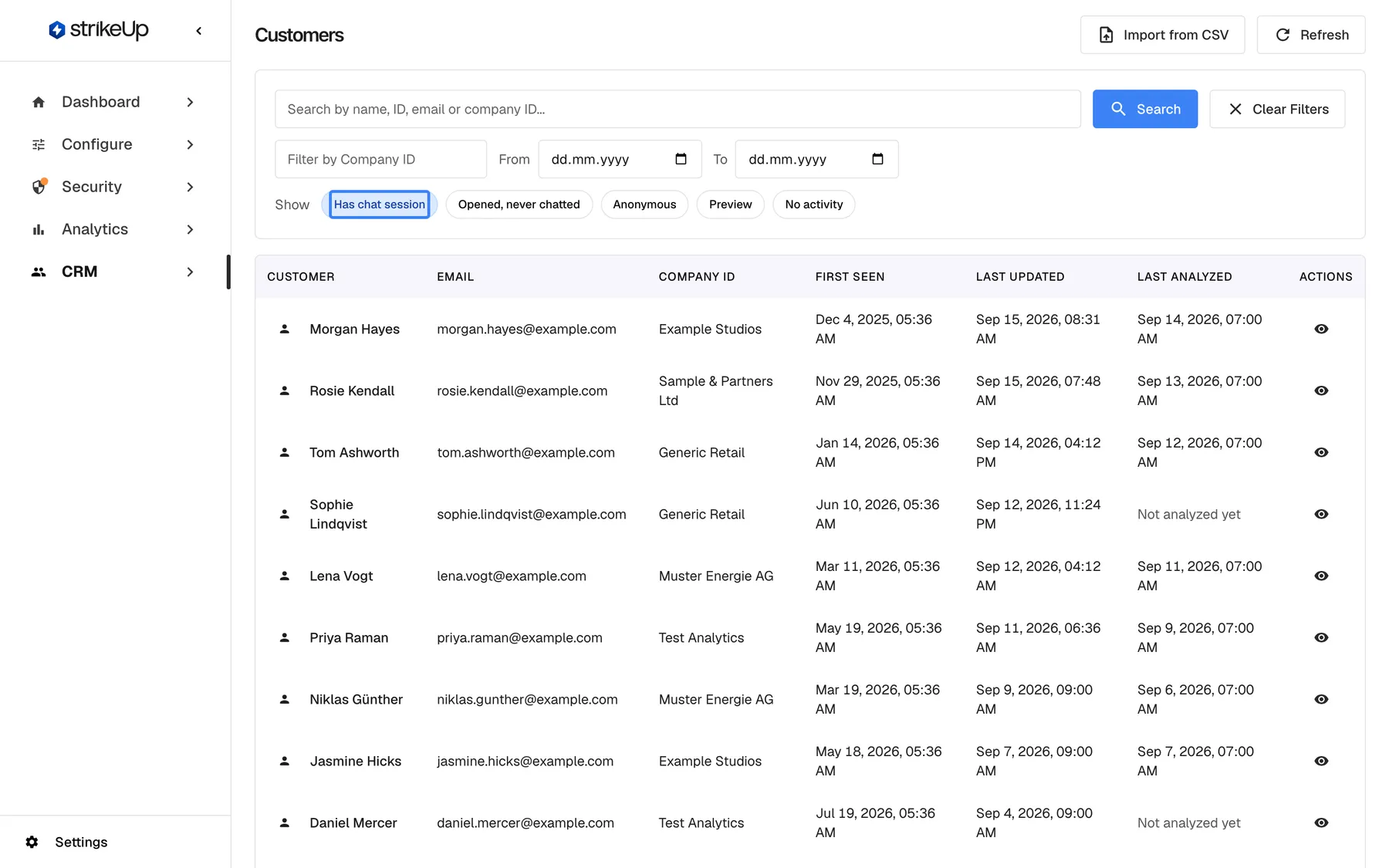
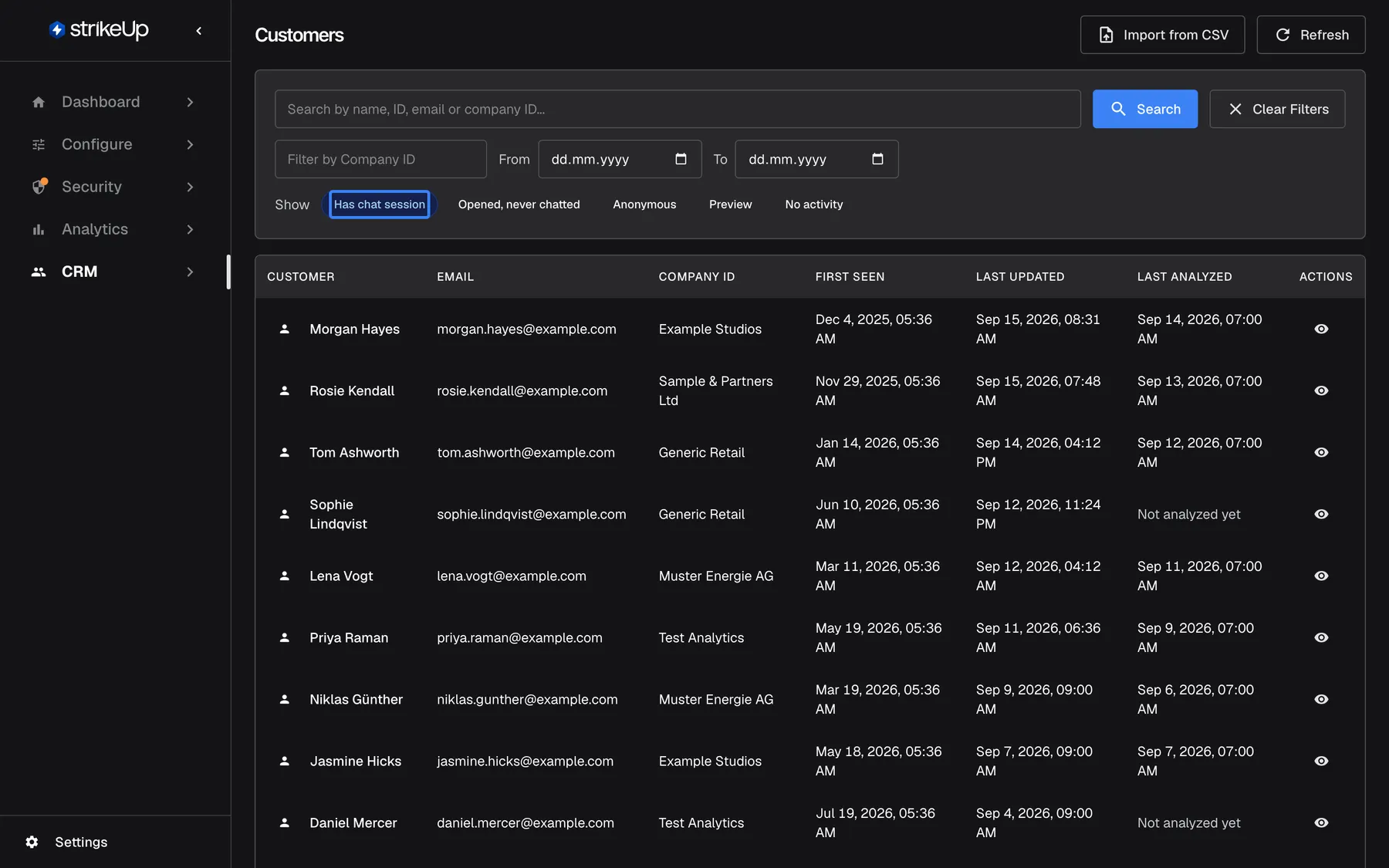
What this screenshot shows
- Screen
- Customers (/admin/customers)
- Highlighted
- button “Has chat session”, filter-card, selected. limits the list to customers with at least one chat session; chips combine with OR
- Also visible
- 13 customers with Customer, Email, Company ID (shows the company name), First Seen, Last Updated, Last Analyzed; Import from CSV and Refresh buttons
- Purpose
- the customer list and its default filter
| Region | What it shows | What you do there |
|---|---|---|
| Header | The title Customers, Ask strikeUp (when shown), Import from CSV and Refresh | Import customers, reload |
| Filter card | Search, Filter by Company ID, From, To, the Show chips and Clear Filters | Narrow the list |
| Table | Customer, Email, Company ID, First Seen, Last Updated, Last Analyzed, Actions | Open a customer |
| Pages, bottom | The count and page buttons | Move through the list, 20 customers at a time |
Read the list
Section titled “Read the list”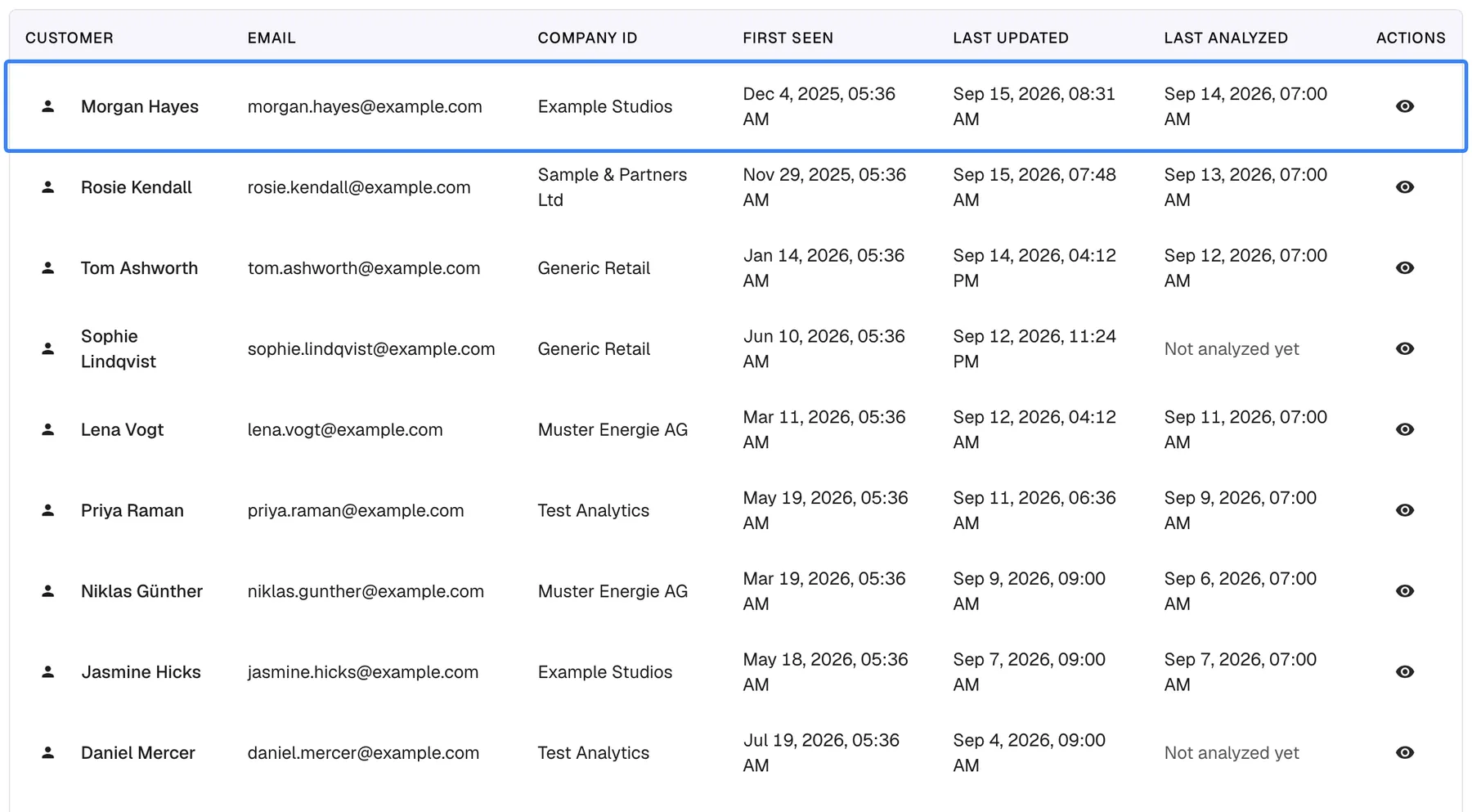
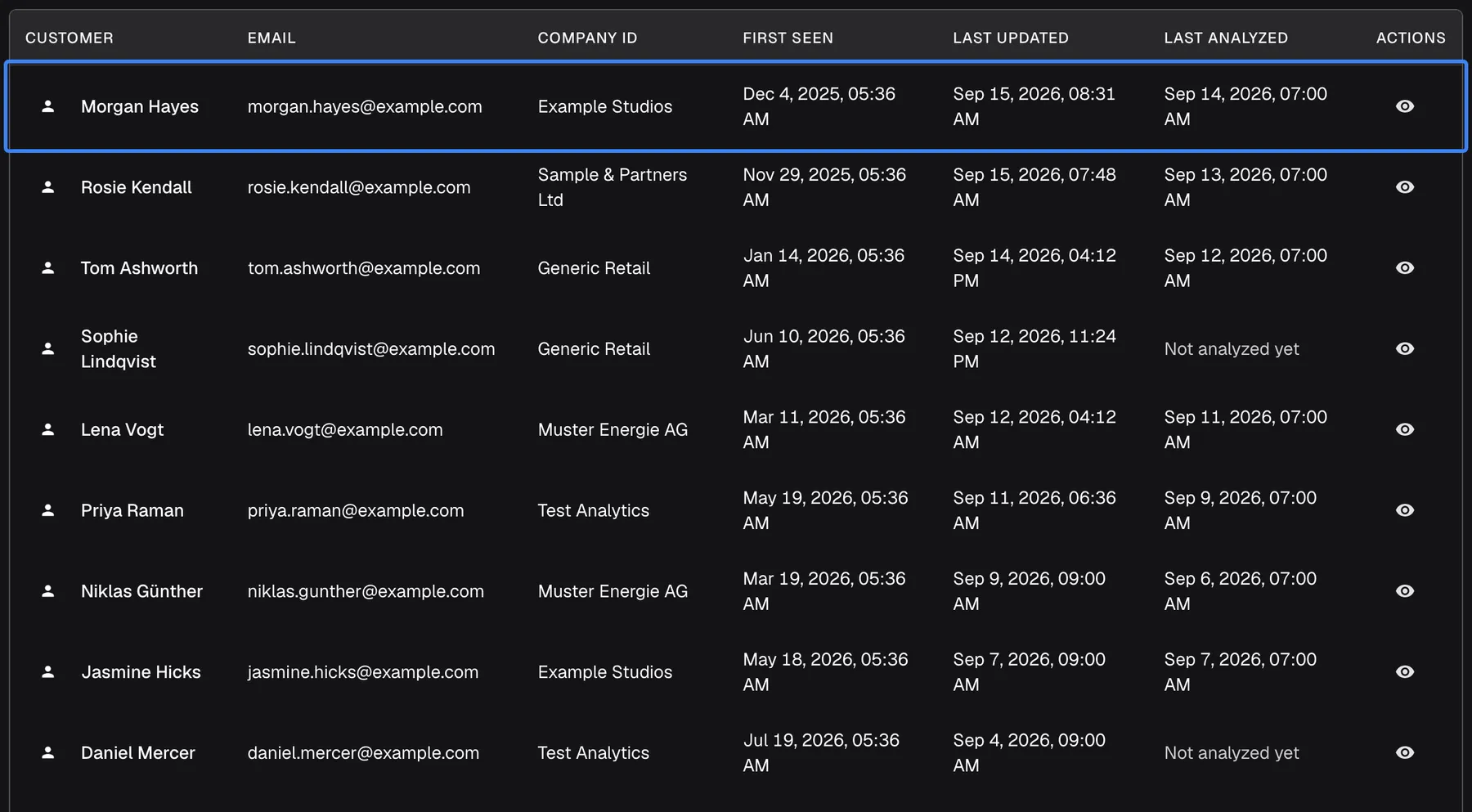
What this screenshot shows
- Screen
- Customers (/admin/customers)
- Highlighted
- row “”, table-row, shown. opens /admin/customers/:id
- Also visible
- Morgan Hayes, Example Studios, last updated Sep 15, 2026; Not analyzed yet for customers without a persona analysis
- Purpose
- reading a customer row
Customers are listed with the most recently changed record first, 20 per page.
| Column | What it shows |
|---|---|
| Customer | The name, or the id when there is no name |
| The email your product passed, or that was imported | |
| Company ID | Despite its header, the name of the customer’s company, such as Example Studios |
| First Seen | When the record was created |
| Last Updated | When the record last changed: a chat started, a sign-in failed, a profile or role changed |
| Last Analyzed | When the weekly analysis last ran for this customer, or Not analyzed yet |
| Actions | The eye icon View details |
The weekly analysis runs every Sunday at 04:00 UTC. It summarises what the customer’s chats and memories show, such as their preferred language and answer format.
Find a customer
Section titled “Find a customer”- Type part of a name, id, email or company name into Search by name, ID, email or company ID.... Case does not matter.
- Press Enter or select Search.
- If the person is not found, check the chips: by default only customers with a chat are shown.
The box Filter by Company ID has no effect on the list. To find everyone in one company, type the company’s name into the search box, or open the company’s Members tab on CRMCompanies.
Filter by kind of visitor
Section titled “Filter by kind of visitor”The Show chips choose which kinds of customer are listed. Select several and customers of any of them are shown; with none selected, everyone is shown.
| Chip | Who it shows |
|---|---|
| Has chat session (on by default) | Customers with at least one chat |
| Opened, never chatted | Customers who opened the widget but never sent a message |
| Anonymous | Visitors your product did not identify; their id starts with anon- or user- |
| Preview | Records created by previewing the widget in the admin app; their id starts with preview |
| No activity | Customers with no chat and no widget activity, for example imported customers who never visited |
Example: to find the customers you imported last week who have not used the widget yet, clear Has chat session, select No activity, and set the dates.
Filter by date
Section titled “Filter by date”Set From, To or both. The list shows customers whose Last Updated falls in that range; both days are included. Because the record changes for more than chats, a customer can appear for a day on which they only failed to sign in.
Open a customer
Section titled “Open a customer”Select a row or the eye icon View details. The customer’s page opens with their basic information, chat history, engagement, usage, memories, persona notes and workflows. See Customer details.
When the list is empty
Section titled “When the list is empty”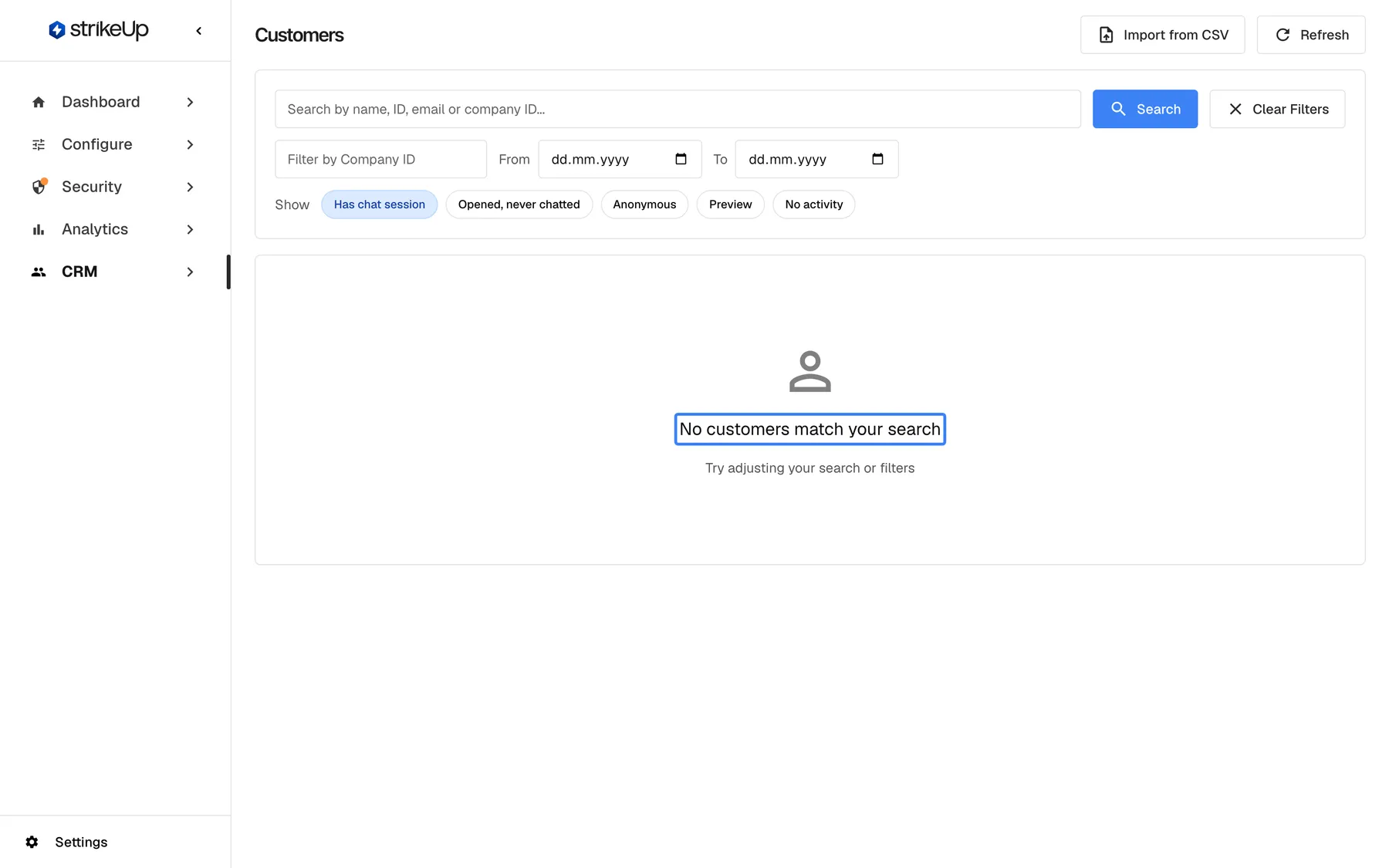
What this screenshot shows
- Screen
- Customers (/admin/customers)
- Highlighted
- text “”, content, shown. none; Clear Filters shows every record
- Also visible
- Has chat session chip selected
- Purpose
- empty result state
No customers match your search means the current search, dates or chips match nobody; Try adjusting your search or filters A new workspace sees this message first, because the default chip hides customers without a chat. Select Clear Filters to see every record. Only with no filters at all and no records does the page show No customers yet.
Every control, explained
Section titled “Every control, explained”Ask strikeUp
Section titled “Ask strikeUp”Ask strikeUp at the top right, shown only when the assistant built into the admin app is set to open from buttons on the page.
Opens that assistant with an offer to summarise customer engagement, flag accounts that need attention or look up a customer.
Ask a question about your customers without building the filter yourself.
Import from CSV
Section titled “Import from CSV”Import from CSV at the top right.
Opens the page that creates or updates customers from a CSV file. The import needs the Admin role.
Create a business customer’s people, with their company, role and PIN or password, before they first use the widget.
Refresh
Section titled “Refresh”Refresh at the top right.
Reloads the list with the current filters.
New visitors appear while you work.
Search
Section titled “Search”Search by name, ID, email or company ID... in the filter card. Applies on Enter or Search.
Matches part of the id, name, email, company name or the company reference your product passed, ignoring case.
Support usually knows a name or an email; your product’s logs know the id.
Filter by Company ID
Section titled “Filter by Company ID”The second box in the filter card, labelled Filter by Company ID.
Has no effect: whatever you type, the list does not change.
Use the search box with the company’s name instead, or the company’s Members tab.
From and To
Section titled “From and To”The date fields From and To.
Limit the list to records last changed between the two days, both included. Either can be left empty.
See who was active in a given week.
Show chips
Section titled “Show chips”The chips after Show.
Select one or more kinds of visitor; Has chat session is selected when the page opens. None selected shows everyone.
Most of the time you want real conversations, not every visitor who loaded a page.
Clear Filters
Section titled “Clear Filters”In the filter card, shown while any filter is set.
Clears the search, the dates and every chip, including Has chat session, so every record is listed.
Check that a customer exists at all before you look further.
What you need to know
Section titled “What you need to know”| Topic | Fact |
|---|---|
| Default filter | Has chat session is on when the page opens. |
| One record per id | The same id on two of your widgets is one customer. |
| Sorting and paging | Most recently changed first, 20 per page. |
| Company column | Shows the company name, despite its header. |
| No delete, no export | Customers cannot be deleted or exported from this page. |
| Dates | Shown in the English format “Sep 15, 2026” in every language. |
Frequently asked questions
Section titled “Frequently asked questions”The list
Section titled “The list”Why do I see so few customers?
Section titled “Why do I see so few customers?”When CRMCustomers opens, only the chip Has chat session is selected, so customers who never chatted are hidden. Select Clear Filters to see every record, or add chips such as No activity or Anonymous.
Why are there customers without a name?
Section titled “Why are there customers without a name?”Visitors your product does not identify are recorded with an id that starts with anon- or user- and no name. Your product can pass a name and email when it loads the widget; see Identify users and pass context. You can also add a name on the customer’s page.
What do Anonymous and Preview mean?
Section titled “What do Anonymous and Preview mean?”Anonymous shows visitors your product did not identify, whose id starts with anon- or user-. Preview shows records created when someone on your team previewed the widget in the admin app, whose id starts with preview.
Why does the Company ID column show a company name?
Section titled “Why does the Company ID column show a company name?”The column headed Company ID shows the name of the customer company the person belongs to. When a customer has no company but your product passed a company reference, that reference is shown instead. To see a company’s own reference, open it on CRMCompanies.
Is one customer the same across all my widgets?
Section titled “Is one customer the same across all my widgets?”Yes. A customer is identified by the id your product passes, once per workspace. The same id on two of your widgets is one record on CRMCustomers, with one chat history, one set of memories and one PIN or password.
Filters
Section titled “Filters”Why doesn’t the Filter by Company ID box change anything?
Section titled “Why doesn’t the Filter by Company ID box change anything?”The box Filter by Company ID currently has no effect on the list. Type the company’s name into Search by name, ID, email or company ID... instead, or open the company on CRMCompanies and use its Members tab.
What does Last Analyzed mean?
Section titled “What does Last Analyzed mean?”Last Analyzed shows when the weekly analysis last ran for the customer. It runs every Sunday at 04:00 UTC and works out things like the customer’s preferred language and answer format from their chats and memories. New customers show Not analyzed yet until the next run.
Managing customers
Section titled “Managing customers”Can I delete a customer?
Section titled “Can I delete a customer?”No. There is no way to delete a customer from CRMCustomers or the customer’s page. You can delete individual memories on the customer’s page, and disable a customer’s sign-in on their company’s Members tab.
Can I add a single customer by hand?
Section titled “Can I add a single customer by hand?”There is no form for one customer. Customers are created when people use the widget, or by a CSV import with Import from CSV; a file with a single row works for one person.
Troubleshooting
Section titled “Troubleshooting”| Symptom | What to check |
|---|---|
| No customers match your search on a workspace that has visitors | Select Clear Filters; the default chip hides customers who never chatted. |
| A known customer is missing | Clear the dates and chips, then search by email or id. |
| Typing in Filter by Company ID changes nothing | The box has no effect; search by company name instead. |
| A customer appears for a day they did not chat | Last Updated also changes on failed sign-ins and profile or role changes. |
| Failed to load customers | Reload the page; if it persists, sign in again. |