

Budgets & limits
A budget is a spend ceiling in US dollars for a month, a week or a day. It tells you by email when your estimated AI spend passes the levels you choose, such as 50, 80 and 100 per cent, and, if you switch it on, works as a hard limit that stops new conversations and pauses running agent jobs once the amount is used up. A budget can cover everything your workspace’s agents use, one widget or one customer company. The Budgets & limits page lists your budgets with how much of each is used, and the alerts they have raised. Open it from ConfigureBudgets & limits. Every signed-in user can view it, with or without the AI gateway; creating, changing and deleting budgets needs the Admin role.
What you can do here
Section titled “What you can do here”- See how much of each budget is used. Each row shows the amount, what it covers, when it resets and a bar of spend so far in the current period. The screen at a glance.
- Add a budget. Choose the amount, the period, the alert levels and who gets the emails. Add a budget.
- Get told when spend passes a level. Each level raises one alert per period, listed on the page and sent by email. Understand alerts.
- Turn a budget into a hard limit. When the amount is used up, new conversations in that scope are refused and agent jobs pause until the period resets. Enforce a hard limit · AI models, spend and budgets.
- Change, switch off or delete a budget. Switching off keeps its history; deleting removes its alerts too. Edit, switch off or delete a budget.
The screen at a glance
Section titled “The screen at a glance”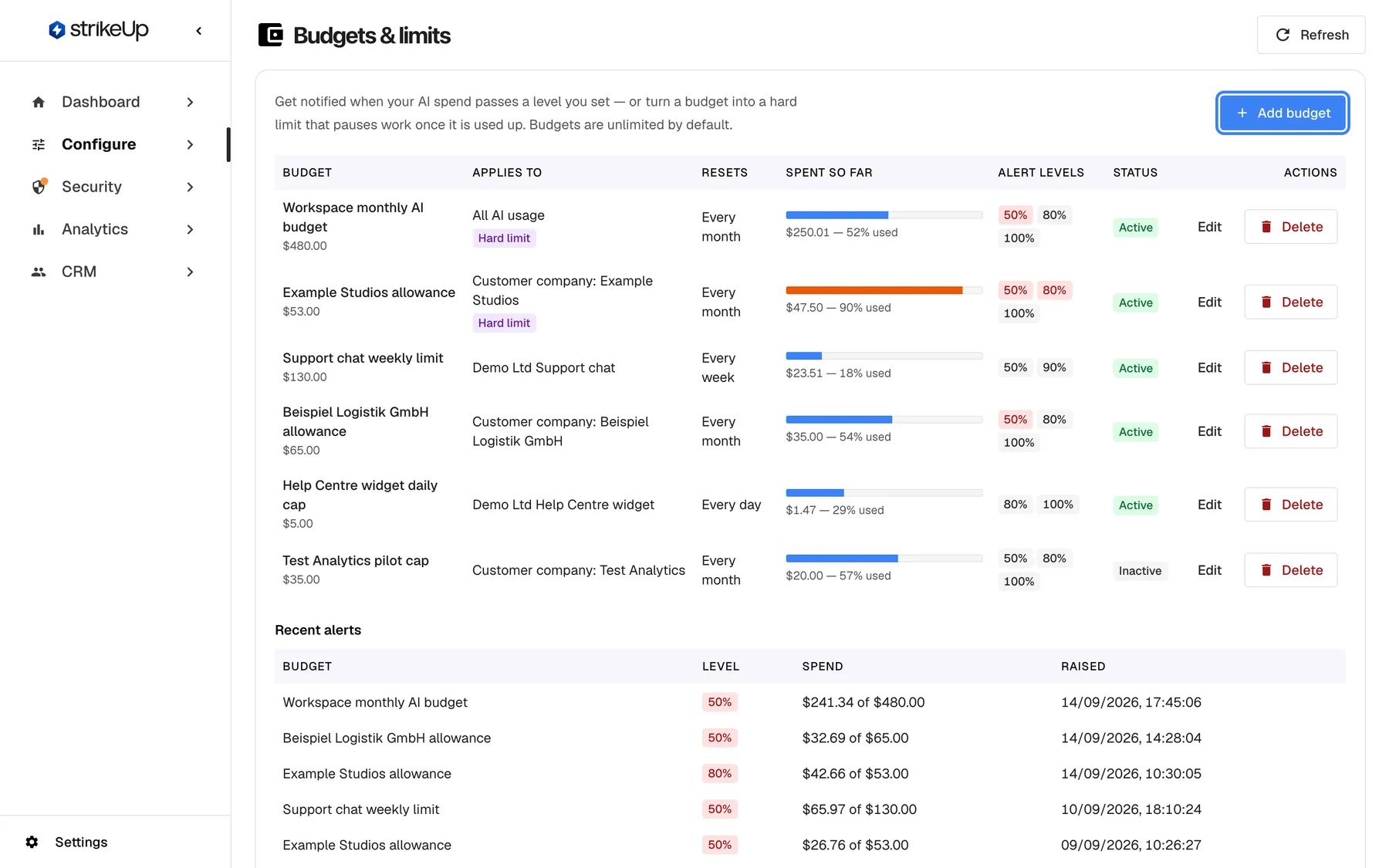
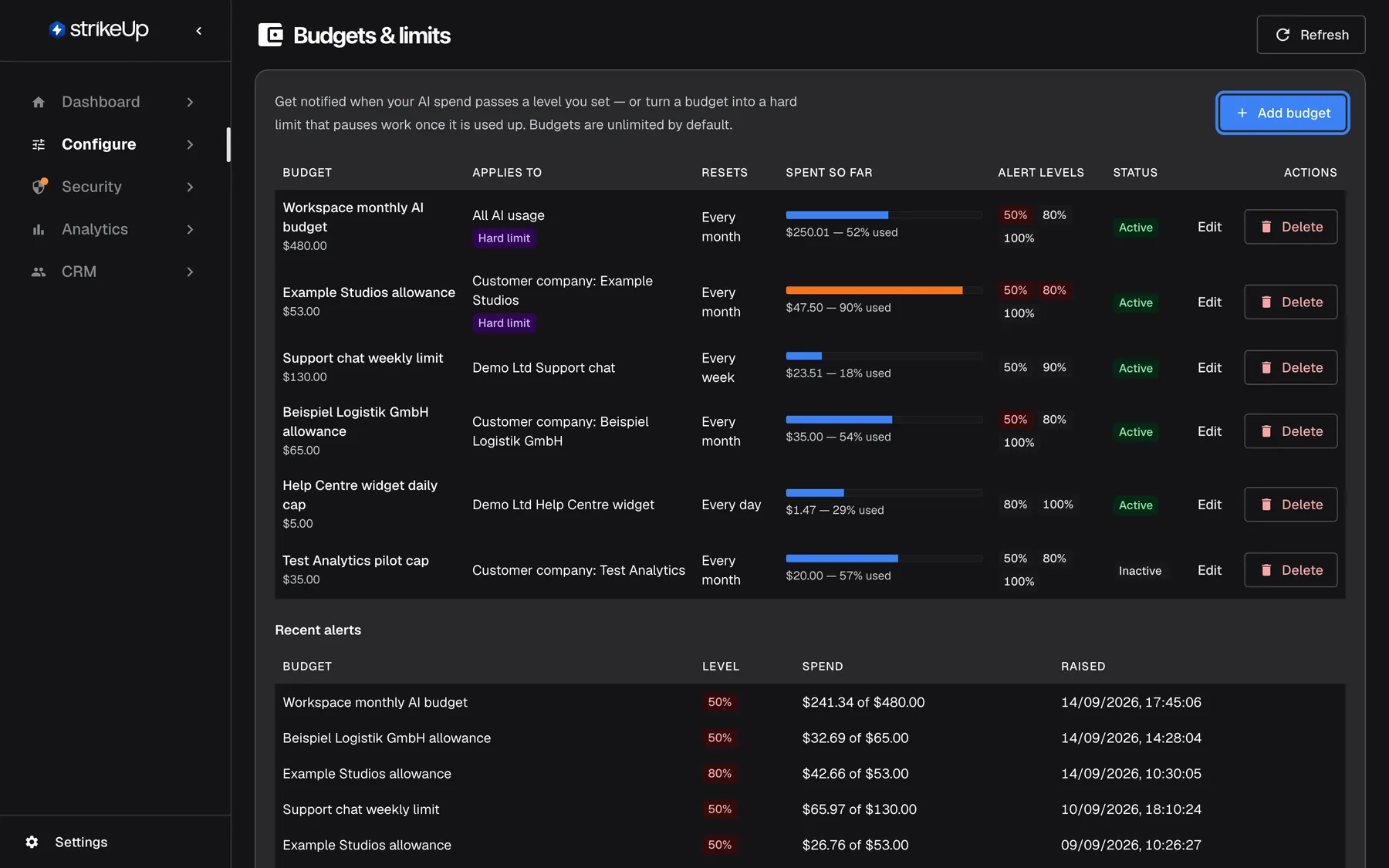
What this screenshot shows
- Screen
- Budgets & limits (/admin/configure/budgets)
- Highlighted
- button “Add budget”, table-header-right, enabled. opens the Add budget form
- Also visible
- 6 budgets, two with Hard limit, one Inactive; Recent alerts below the table
- Purpose
- overview of budgets
| Region | What it shows | What you do there |
|---|---|---|
| Header | The title, the line Get notified when your AI spend passes a level you set — or turn a budget into a hard limit that pauses work once it is used up. Budgets are unlimited by default., Refresh and Add budget | Reload, add a budget |
| Budget table | One row per budget: Budget, Applies to, Resets, Spent so far, Alert levels, Status, Actions | Read usage, edit or delete |
| Recent alerts | The latest 25 alerts: Budget, Level, Spend, Raised | See which levels were reached and when |
Without any budget, the table shows No budgets yet. Add one to be told when spend passes a level you care about. and the alerts show No alerts raised yet.. Spend is then unlimited and nobody is notified.
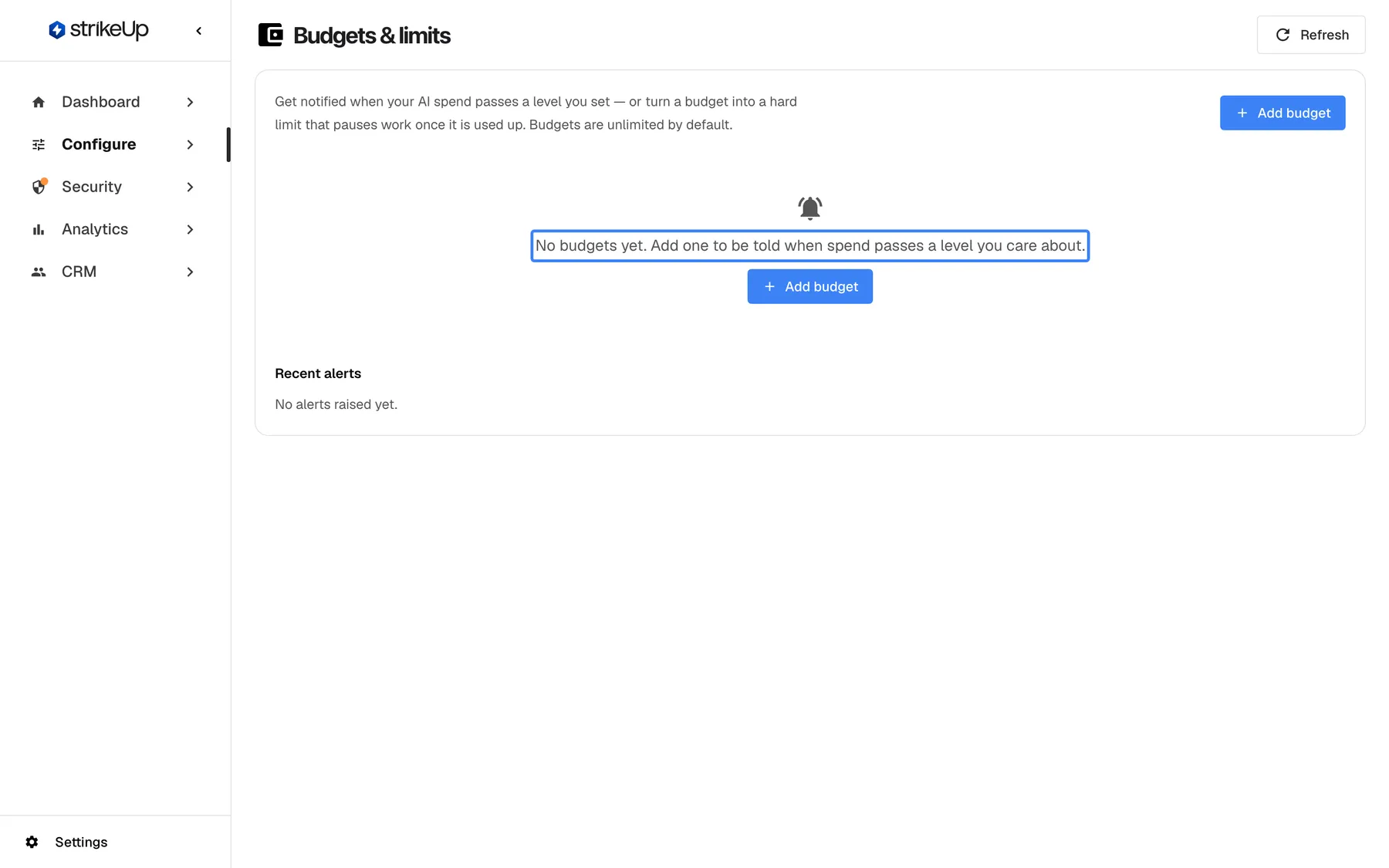
What this screenshot shows
- Screen
- Budgets & limits (/admin/configure/budgets)
- Highlighted
- “”, table-center, empty. none
- Also visible
- Add budget button; Recent alerts empty
- Purpose
- the default state
What a budget counts
Section titled “What a budget counts”A budget counts the estimated cost of your agents’ calls to AI models since the start of its current period, the same figures DashboardAI Spend shows for your agents.
| Counted | Not counted |
|---|---|
| Every AI call your agents make in the budget’s scope: chat answers, sub-agents, workflows, autonomous agents, the question judge | The stages StrikeUp runs on its own models, such as planning and safety checks |
| Calls through your own connectors, estimated from the same price list | Sample data StrikeUp adds to a workspace for demonstrations |
| Spend from earlier in the current period, even before you created the budget | Calls through a Self-hosted endpoint connector to a model with no published price, which are free unless StrikeUp sets a price for that connector |
| Calls to a model with no published price, charged at a typical rate |
A budget charges calls that have no published price. AI Spend marks such calls as not priced and adds nothing for them; a budget charges them at a typical rate instead: the middle of the current published prices for that provider’s models, or of all models when there is no price for that provider. Without this, a budget on a model with no price would never move. A budget can therefore show more spend than AI Spend; the two match when every call in the period has a price.
| Scope | Counts |
|---|---|
| All AI usage | All of your agents’ spend in the workspace |
| Widget | Spend recorded for one widget |
| Customer company | Only that company's customers, workflows and agents count against it — and, when enforced, are paused by it. |
Periods follow the calendar in UTC: a monthly budget starts on the 1st at 00:00 UTC, a weekly one on Monday at 00:00 UTC, and a daily one at 00:00 UTC. A new period starts from zero.
Add a budget
Section titled “Add a budget”-
Open ConfigureBudgets & limits and select Add budget. The dialog Add budget opens.
-
Enter a Name and the Amount (USD) for one period, and choose when it Resets.
-
Enter the Alert levels (%), such as
50, 80, 100, or leave it empty for those three. Enter the addresses under Email alerts to, or leave it empty to email every workspace administrator. -
Under Applies to, choose All AI usage, Widget or Customer company, and pick the widget or company.
-
Switch on Enforce as a hard limit only if work should stop when the amount is used up. Leave Active on.
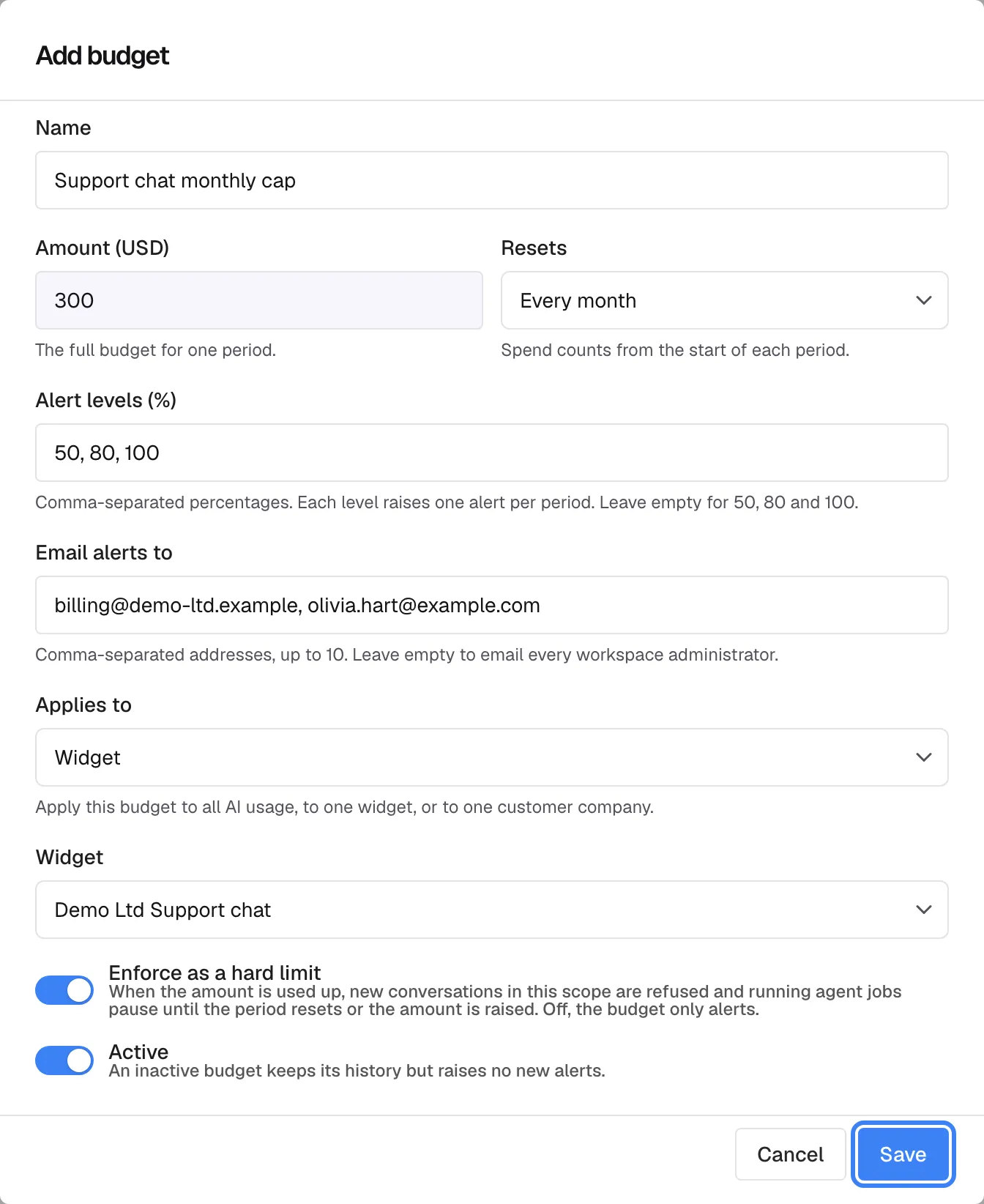
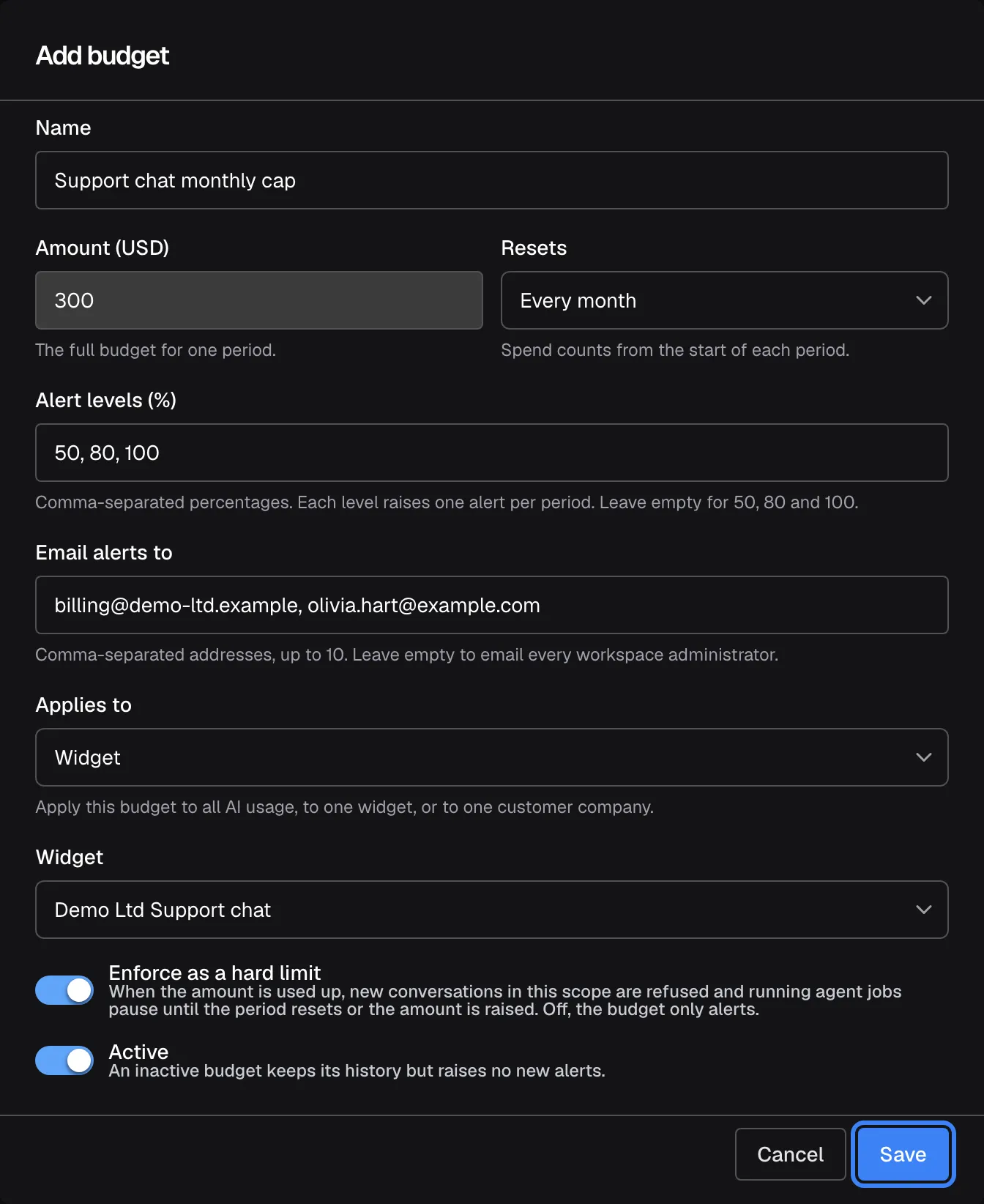
A budget needs a name and an amount; switch on the hard limit only if work should stop when it is used up. What this screenshot shows
- Screen
- Add budget (/admin/configure/budgets)
- Highlighted
- button “Save”, dialog-footer, enabled. creates the budget
- Also visible
- Amount 300 USD, monthly, alerts 50/80/100, widget scope Demo Ltd Support chat, hard limit on
- Purpose
- creating a budget
-
Select Save. The notice Budget created appears and the budget is listed with its current spend.
Because a new budget counts spend from the start of the current period, it can raise alerts straight away. A monthly budget of $300 created on the 20th, in a month where $250 was already spent, is at 83% and raises its 50% and 80% alerts after the next AI call.
Read how much is used
Section titled “Read how much is used”Spent so far shows a bar and the value, such as “$48.36 — 90% used”.
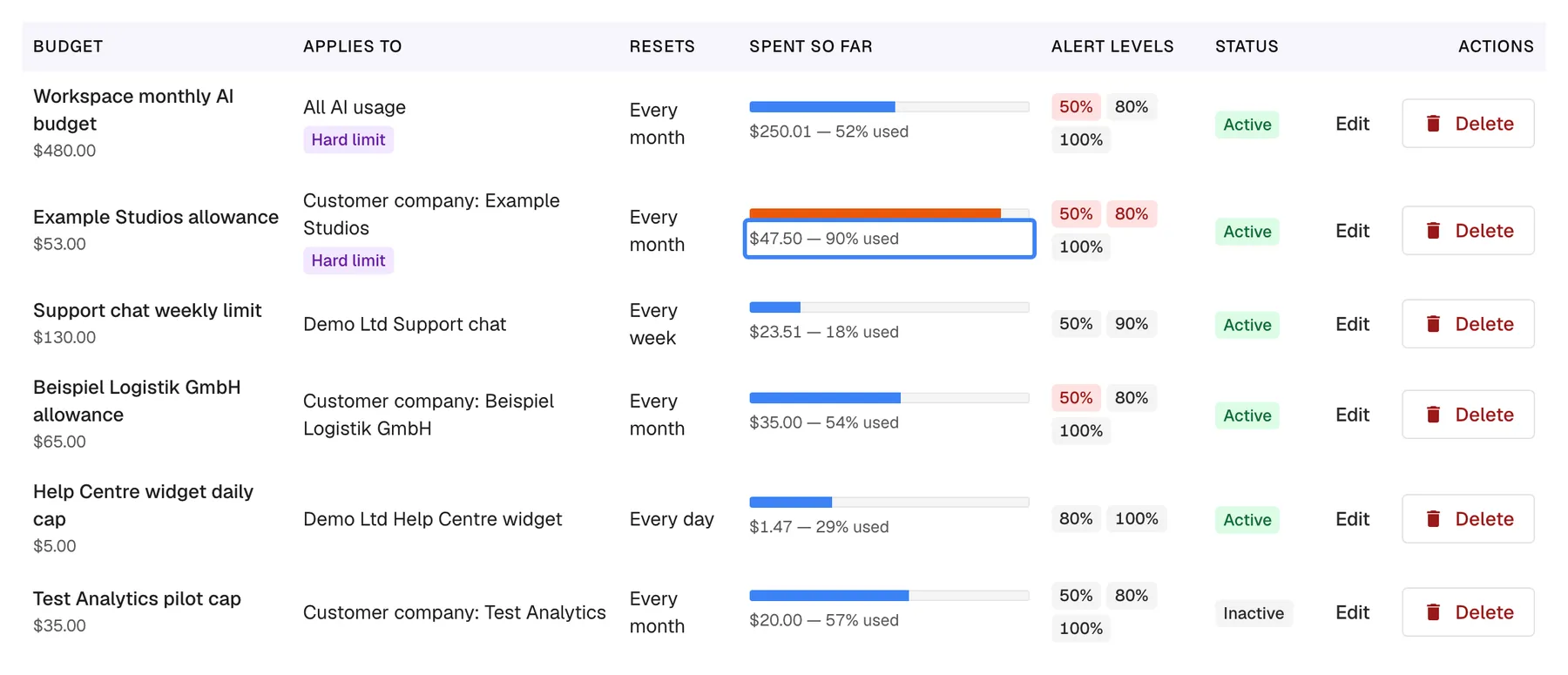
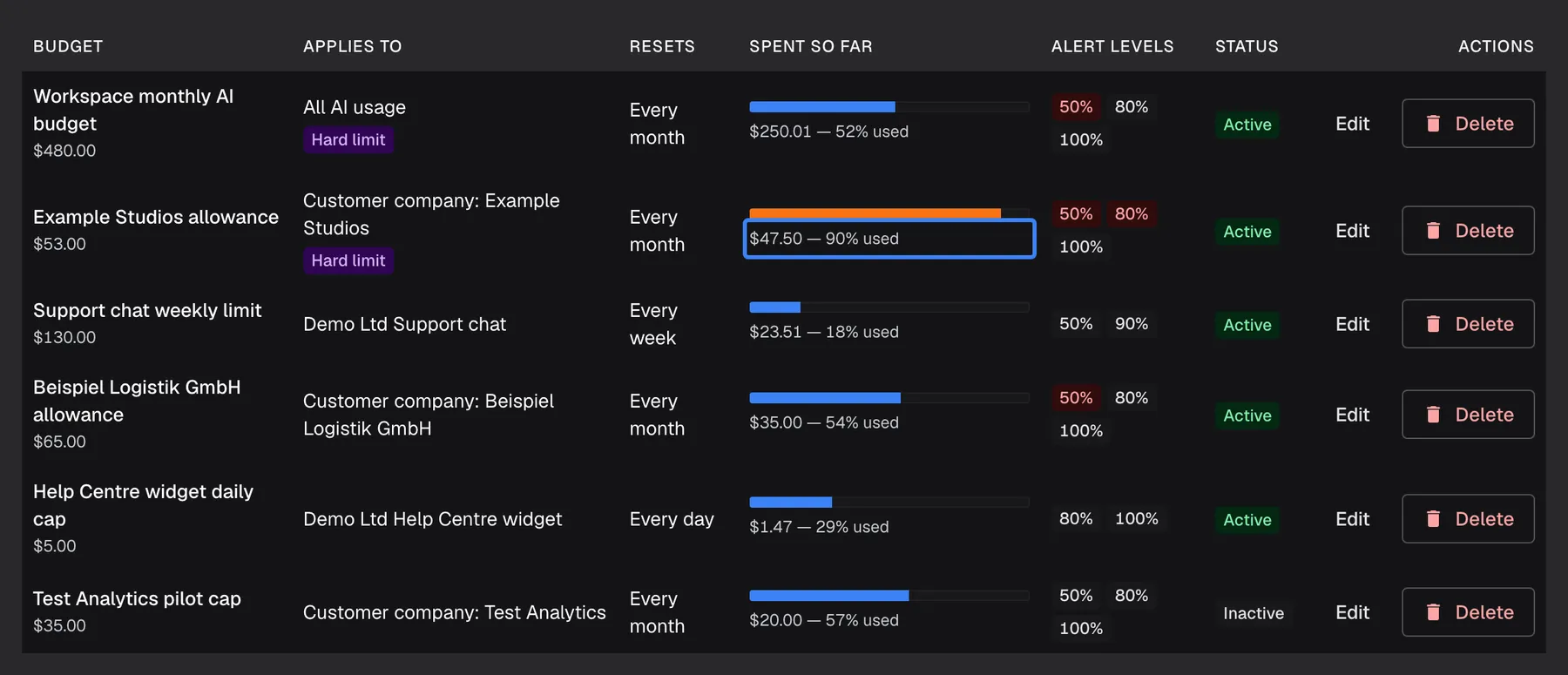
What this screenshot shows
- Screen
- Budgets & limits (/admin/configure/budgets)
- Highlighted
- “”, spent-so-far-column, near limit. none
- Also visible
- Example Studios allowance: Hard limit, 50% and 80% reached
- Purpose
- spotting a budget close to its limit
| Used | Bar | Example for a $300 budget |
|---|---|---|
| Below 80% | Blue | $239.99 is 79% |
| 80% to below 100% | Orange | $240.00 is 80% |
| 100% and more | Red | $300.00 is 100%; $390.00 is 130%, with the bar full |
The bar stops at 100%, but the number keeps counting, because a budget that only alerts does not stop spend. In Alert levels, each level reached in the current period turns red; the others stay grey. A badge Hard limit next to the amount marks a budget enforced as a hard limit.
Understand alerts
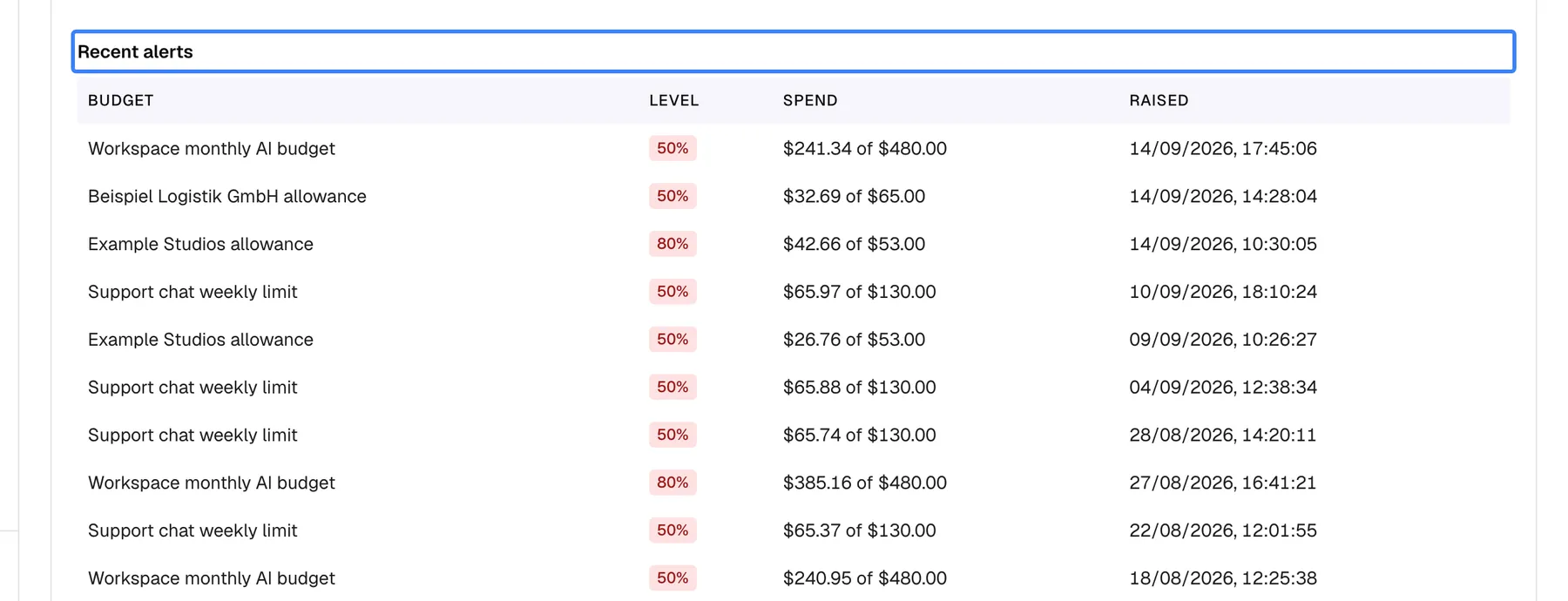
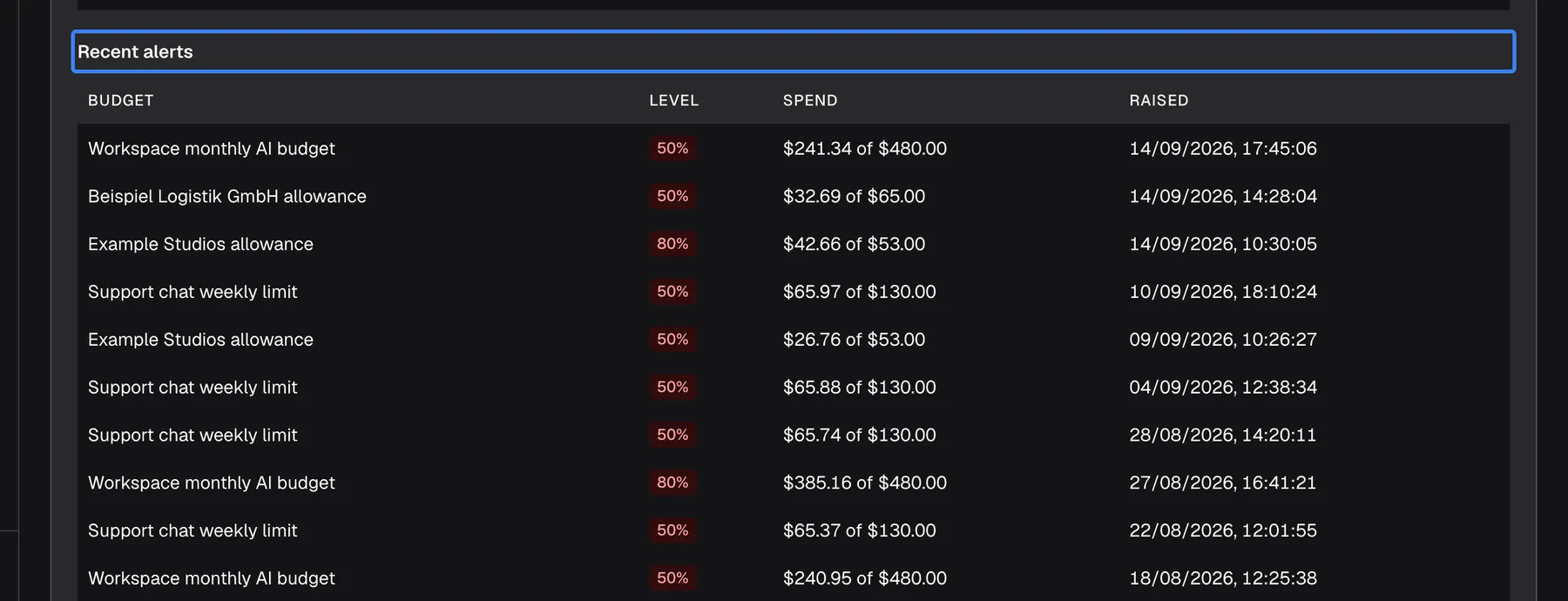
Section titled “Understand alerts”An alert is raised when a budget’s spend reaches one of its levels: at 80%, spend of exactly 80% counts as reached.
What this screenshot shows
- Screen
- Recent alerts (/admin/configure/budgets)
- Highlighted
- “”, alerts-section, read-only. none
- Also visible
- Alerts at 50% and 80% with spend of amount and time raised
- Purpose
- checking which alerts fired
- One alert per level per period. The 80% alert is raised once a month for a monthly budget, however much spend goes on to grow. Several levels crossed at once raise one alert each. In the next period, the levels can alert again.
- Alerts come shortly after a call, not instantly. StrikeUp checks your budgets in the background after calls to AI models that have a cost, at most once every 5 minutes per workspace. An alert can arrive up to about 5 minutes after the crossing, and only once another priced call has happened.
- Each alert is listed under Recent alerts with the level, the spend at that moment out of the amount at that moment, and when it was raised.
- Each alert is emailed to the addresses on the budget or, when there are none, to every active administrator of the workspace. The subject reads
AI usage alert: "Support chat monthly cap" reached 80%, orAI allowance used up: "Support chat monthly cap" reached 100%for a hard limit that is used up. The email links to this page. If sending fails, the alert stays listed and is not resent.
Enforce a hard limit
Section titled “Enforce a hard limit”When an active budget with Enforce as a hard limit reaches 100%:
| What | What happens |
|---|---|
| A new message in a widget chat covered by the budget | Refused before the AI runs. The visitor reads: “This workspace’s AI allowance for the current period is used up (budget “Support chat monthly cap”). It resets on 1 Oct 2026.” |
| An agent job that is running | Pauses with Paused — the AI allowance for this period is used up; the run continues when it resets or the limit is raised. and continues when the period resets |
| A job that would start | Marked as failed, with the used-up allowance as the reason |
| Raising the amount, switching enforcement off, switching the budget off or deleting it | Paused jobs wake up at once and continue |
- The tightest budget decides. When several enforced budgets apply to one conversation, for example the workspace budget and its widget’s budget, the one with the least money left blocks first.
- The visitor sees the budget’s name. Name enforced budgets with words you are happy for customers to read.
- Budgets that only alert never block, slow down or change models, even at 200%.
- When an enforced budget covers the workspace, DashboardAI Spend shows an Allowance box with how much of it is used and when it resets.
Edit, switch off or delete a budget
Section titled “Edit, switch off or delete a budget”-
Select Edit in the budget’s row. The dialog Edit budget opens. Change any field, including Active, and select Save. The notice Budget saved appears.
-
To delete it instead, select Delete. The popover Delete this budget? warns: The budget and the alerts it has already raised are removed. To keep the history, switch it off instead. Confirm with Delete.
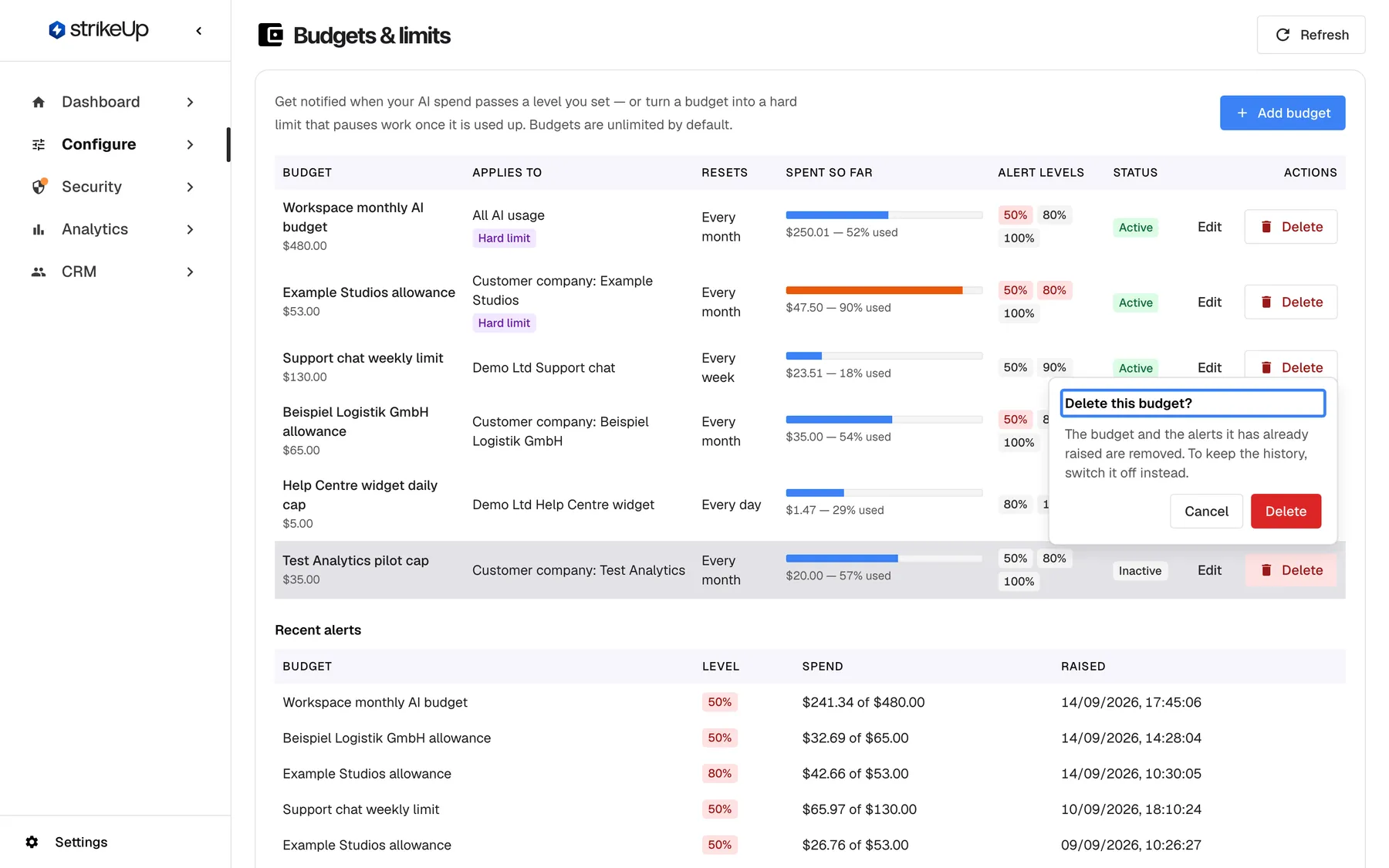
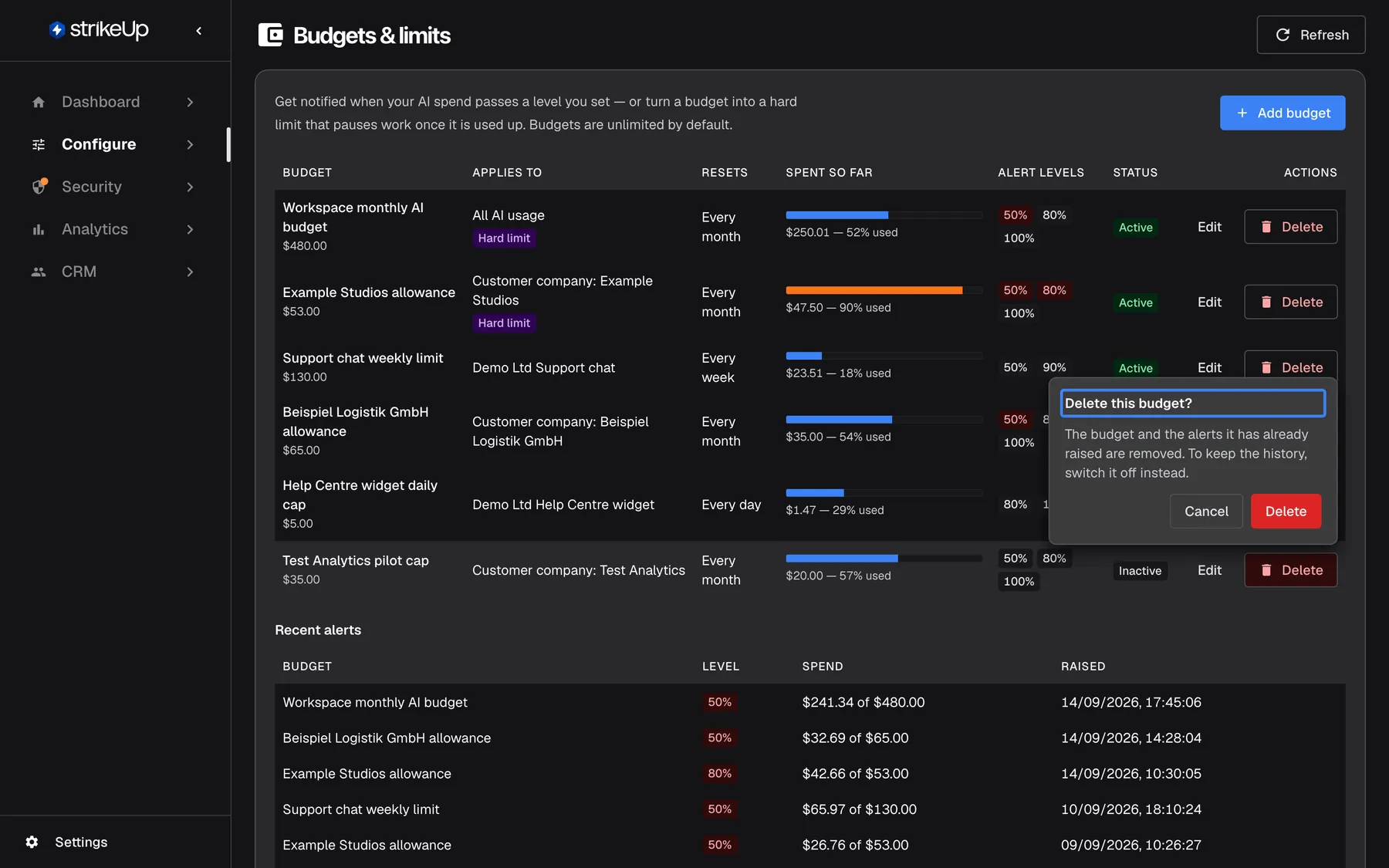
Deleting a budget also deletes its alerts; switch it off instead to keep the history. What this screenshot shows
- Screen
- Budgets & limits (/admin/configure/budgets)
- Highlighted
- “”, delete-popover, open. asks to confirm the deletion
- Also visible
- Cancel and Delete
- Purpose
- removing a budget
| Action | Alerts already raised | New alerts | Blocking |
|---|---|---|---|
| Switch Active off | Kept | None | Stops |
| Delete | Deleted with the budget | None | Stops |
A budget whose widget or customer company was deleted stays, showing Deleted widget or Deleted customer company under Applies to. It measures nothing from then on; delete it or point it at another scope.
Every control, explained
Section titled “Every control, explained”Add budget and Refresh
Section titled “Add budget and Refresh”Top right of the page: Refresh and Add budget. Add budget also appears in the empty state.
Refresh re-reads budgets, spend and alerts. Add budget opens Add budget.
Spend changes with every conversation; refresh to see the latest figure.
Budget table columns
Section titled “Budget table columns”| Column | What it shows | Why |
|---|---|---|
| Budget | The name, the amount and, for an enforced budget, Hard limit | Recognise the budget and whether it can block |
| Applies to | All AI usage, the widget’s name, or Customer company: {{name}} | What spend it counts |
| Resets | Every month, Every week or Every day | When it starts from zero |
| Spent so far | Bar and {{spend}} — {{percent}}% used | How close it is |
| Alert levels | One badge per level, red once reached this period | Which alerts have gone out |
| Status | Active or Inactive | Whether it alerts and blocks |
| Actions | Edit and Delete | Change or remove it |
Recent alerts
Section titled “Recent alerts”Below the budget table, Recent alerts.
The latest 25 alerts of all budgets: Budget, Level, Spend as {{spend}} of {{amount}} at that moment, and Raised.
A record of when each level was reached, even if an email went astray.
Budget fields
Section titled “Budget fields”| Field | Default | Rules and messages |
|---|---|---|
| Name | — | Required, up to 200 characters. Empty: Enter a name. Visitors see it when an enforced budget is used up. |
| Amount (USD) | — | The full budget for one period. Greater than 0 and at most 1,000,000 US dollars. Otherwise: Enter an amount greater than zero. |
| Resets | Every month | Spend counts from the start of each period. Periods follow the UTC calendar. |
| Alert levels (%) | 50, 80, 100 | Comma-separated percentages. Each level raises one alert per period. Leave empty for 50, 80 and 100. Whole numbers from 1 to 1000, at most 10 levels; duplicates are removed and the list is sorted. Otherwise: Use whole percentages between 1 and 1000, separated by commas. |
| Email alerts to | Every active administrator | Comma-separated addresses, up to 10. Leave empty to email every workspace administrator. At most 500 characters in all. Otherwise: Enter up to 10 valid email addresses, separated by commas. |
| Applies to | All AI usage | Apply this budget to all AI usage, to one widget, or to one customer company. Without a pick: Pick the widget or customer company the budget applies to. A deleted widget: That widget no longer exists. Pick another one. A missing or deactivated company: That customer company was not found or is deactivated. |
| Enforce as a hard limit | Off | When the amount is used up, new conversations in this scope are refused and running agent jobs pause until the period resets or the amount is raised. Off, the budget only alerts. |
| Active | On | An inactive budget keeps its history but raises no new alerts. |
Edit and Delete
Section titled “Edit and Delete”Actions column of each row.
Edit opens Edit budget and saves every field together. Delete asks Delete this budget? and removes the budget and its alerts.
Change a budget as your usage grows; delete one that no longer means anything.
What you need to know
Section titled “What you need to know”| Topic | Fact |
|---|---|
| Currency | US dollars only, estimated from the providers’ published prices. |
| Periods | Calendar periods in UTC; the month starts on the 1st, the week on Monday. |
| Alert timing | Up to about 5 minutes after the crossing, and only after another priced call. |
| Alert frequency | One per level per period. |
| Recipients | The listed addresses, or every active administrator. No other channel. |
| Hard limits | Only with Enforce as a hard limit on. Refuses new messages, pauses jobs, never switches models. |
| Several budgets | Each alerts on its own; for blocking, the one with the least left wins. |
| Scope of spend | Your own agents only; StrikeUp’s own stages and demonstration data never count. |
| Deleting | Removes the budget’s alerts. Switch it off to keep them. |
| Who can change budgets | Users with the Admin role. Every other signed-in user can view them; their changes fail with “This action requires the Admin role.” |
Frequently asked questions
Section titled “Frequently asked questions”Budgets and spend
Section titled “Budgets and spend”Does a budget stop spending?
Section titled “Does a budget stop spending?”Only when Enforce as a hard limit is on. A budget without it only raises alerts and never blocks, slows down or changes models, even past 100%. With it, new messages in the budget’s scope are refused and agent jobs pause once the amount is used up.
When does a monthly budget start counting again?
Section titled “When does a monthly budget start counting again?”On the 1st of each month at 00:00 UTC. Weekly budgets restart on Monday at 00:00 UTC and daily budgets at 00:00 UTC each day. Depending on your time zone, that can be in the evening before or the morning of the local day.
Does a new budget count spend from earlier this month?
Section titled “Does a new budget count spend from earlier this month?”Yes. A budget always counts spend from the start of its current period, including calls made before you created it. A new budget can therefore show a high percentage and raise alerts after the next AI call.
Does spend through my own provider key count?
Section titled “Does spend through my own provider key count?”Yes. Calls through your own connectors are estimated from the same price list as every other call and count towards budgets that cover them. Budgets measure estimated cost, whichever connector or key served the call.
Why does a budget show more spend than AI Spend?
Section titled “Why does a budget show more spend than AI Spend?”Because a budget also charges calls to models that have no published price, at a typical rate: the middle of the current published prices for that provider’s models, or of all models when there is none for that provider. DashboardAI Spend marks those calls as not priced and adds nothing for them. Calls through your own Self-hosted endpoint connector are never charged that rate.
Do StrikeUp’s own stages count against my budget?
Section titled “Do StrikeUp’s own stages count against my budget?”No. Planning, safety checks, chat titles and the other stages StrikeUp runs on its own models never count towards a budget. Only your agents’ calls count, as shown for your agents on DashboardAI Spend.
Why does Spent so far show more than 100%?
Section titled “Why does Spent so far show more than 100%?”A budget that only alerts does not stop spend, so its spend can pass the amount. The bar stops at full, but the value under Spent so far keeps counting, for example 130%. Switch on Enforce as a hard limit if spend should stop at the amount.
What is the largest budget I can set?
Section titled “What is the largest budget I can set?”The Amount (USD) must be greater than 0 and at most 1,000,000 US dollars per period. The levels under Alert levels (%) can go up to 1000%, so a budget can also warn you when spend reaches ten times its amount.
Alerts
Section titled “Alerts”Why have I not received an alert although spend passed 80%?
Section titled “Why have I not received an alert although spend passed 80%?”StrikeUp checks budgets in the background after an AI call that has a cost, at most once every 5 minutes per workspace. The alert therefore follows the next priced call, up to about 5 minutes later. If Recent alerts lists the alert but no email came, check the addresses on the budget.
Who receives the alert emails?
Section titled “Who receives the alert emails?”The addresses under Email alerts to, up to 10. If that field is empty, every active administrator of your workspace receives them. There is no other notification channel for budget alerts.
Can the same level alert twice?
Section titled “Can the same level alert twice?”Not within one period. Each level raises one alert per budget per period, however far spend goes past it. When the next month, week or day starts, every level can alert again.
Hard limits
Section titled “Hard limits”What does a visitor see when a hard limit is used up?
Section titled “What does a visitor see when a hard limit is used up?”The visitor’s message is refused before the AI runs, and the chat shows: “This workspace’s AI allowance for the current period is used up (budget ”…”). It resets on …”, with the budget’s name and the reset date. Name enforced budgets with that in mind.
What happens to agent jobs that are running?
Section titled “What happens to agent jobs that are running?”They pause with Paused — the AI allowance for this period is used up; the run continues when it resets or the limit is raised. and continue when the period resets. Raising the amount, switching enforcement off, switching the budget off or deleting it wakes them at once. A job that would start while the allowance is used up is marked as failed.
Several budgets apply. Which one blocks?
Section titled “Several budgets apply. Which one blocks?”For alerts, every budget works on its own. For blocking, StrikeUp looks at every active enforced budget that covers the conversation: the workspace, its widget and its customer company. The one with the least money left decides, so a small widget budget can block before the workspace budget.
Changing and deleting
Section titled “Changing and deleting”Should I delete a budget or switch it off?
Section titled “Should I delete a budget or switch it off?”Switch Active off to keep the budget and the alerts it has raised; it then raises no new alerts and blocks nothing. Delete it only when you no longer need its history, because deleting removes its alerts too.
Troubleshooting
Section titled “Troubleshooting”| Symptom | What to check |
|---|---|
| No alert although the level was passed | Wait up to 5 minutes after the next AI call. Check that the budget is Active and covers the right scope. |
| Alert listed, but no email | Check Email alerts to. If empty, check that your administrators are active users with valid addresses. |
| That widget no longer exists. Pick another one. | The widget was deleted. Pick another widget or another scope. |
| That customer company was not found or is deactivated. | Reactivate the company in CRM, or choose another. |
| Use whole percentages between 1 and 1000, separated by commas. or Request failed when saving levels | Use whole numbers from 1 to 1000, at most 10 levels, separated by commas. |
| Visitors see “This workspace’s AI allowance for the current period is used up” | An enforced budget reached 100%. Raise its amount, switch enforcement off, or wait for the reset. |
| Jobs show Paused — the AI allowance for this period is used up; the run continues when it resets or the limit is raised. | The same: raise the amount or switch enforcement off, and they continue at once. |
| A budget shows Deleted widget | It now measures nothing. Edit it to point at another scope, or delete it. |
| Spend looks lower than your provider’s bill | Budgets estimate from published prices; a model without a price is charged at a typical rate, which can differ from your provider’s own price. Check the notice on AI Spend. |
| Spend is higher than AI Spend shows | Some calls have no published price; the budget charges them at a typical rate, while AI Spend adds nothing for them. |
| A change fails with Request failed and “This action requires the Admin role.” | Changes on this page need the Admin role. Ask an Admin to make the change, or to give you the Admin role under Settings › Users. |