

Accept Invitation
The invitation page turns an invitation email into a StrikeUp account. An administrator of your company invites you by email address and chooses your role; the link in the email opens this page, where you choose your password and are signed in to your company’s workspace. The page is at /auth/accept-invitation and only works from the link in the email, which is valid for 7 days.
What you can do here
Section titled “What you can do here”- Choose your password and join the company. Your account is created with the email address the invitation was sent to and the role the administrator chose, and you are signed in at once. Accept your invitation.
- Add an authenticator if your company requires one. In that case you scan a QR code with an authenticator app before you reach StrikeUp; this step cannot be skipped. Set up your authenticator while accepting · Two-factor authentication.
- Recognise a link that no longer works. A link from an older email, a cancelled invitation or one older than 7 days is refused, and the administrator can send a new one. When the link does not work.
The screen at a glance
Section titled “The screen at a glance”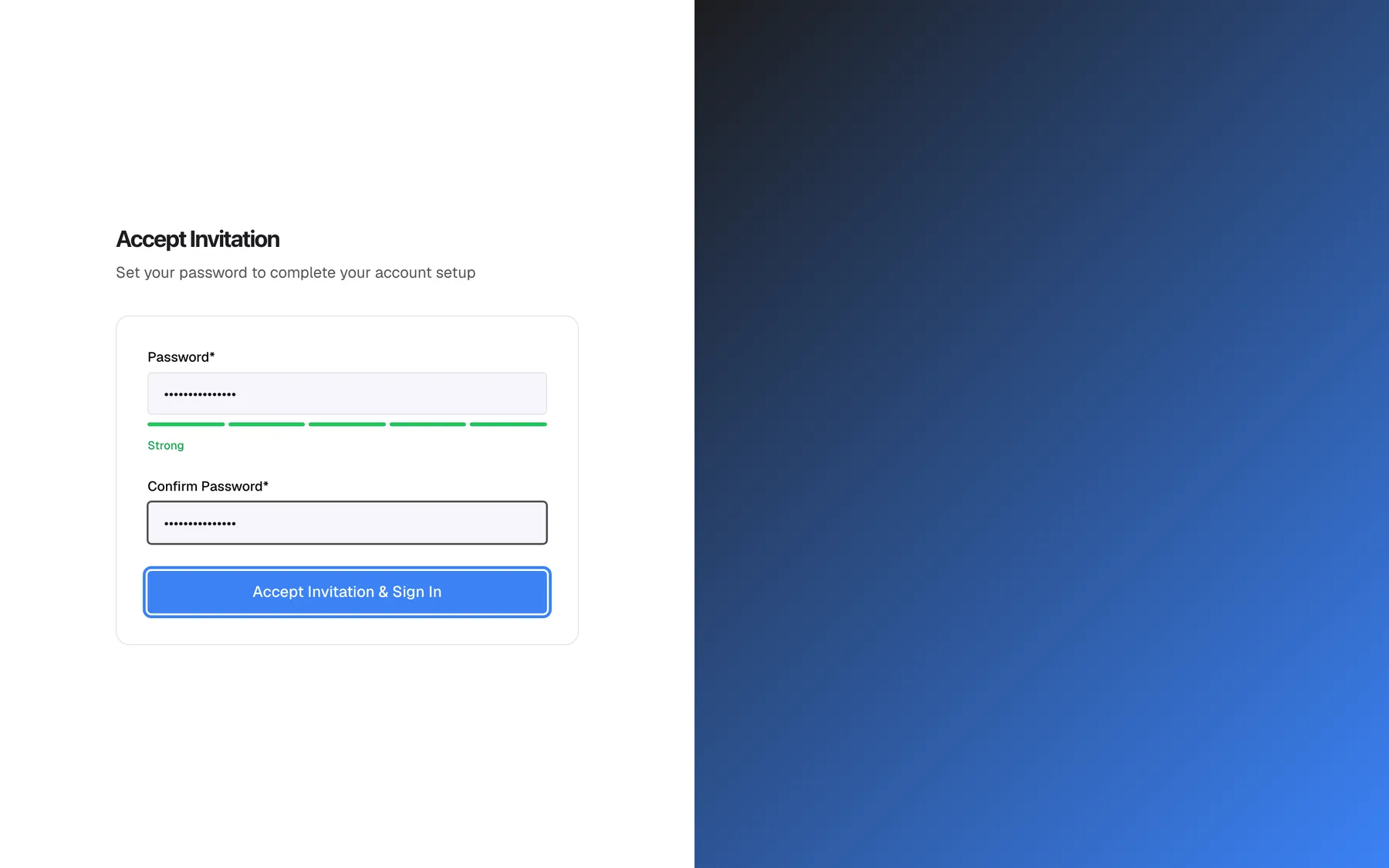
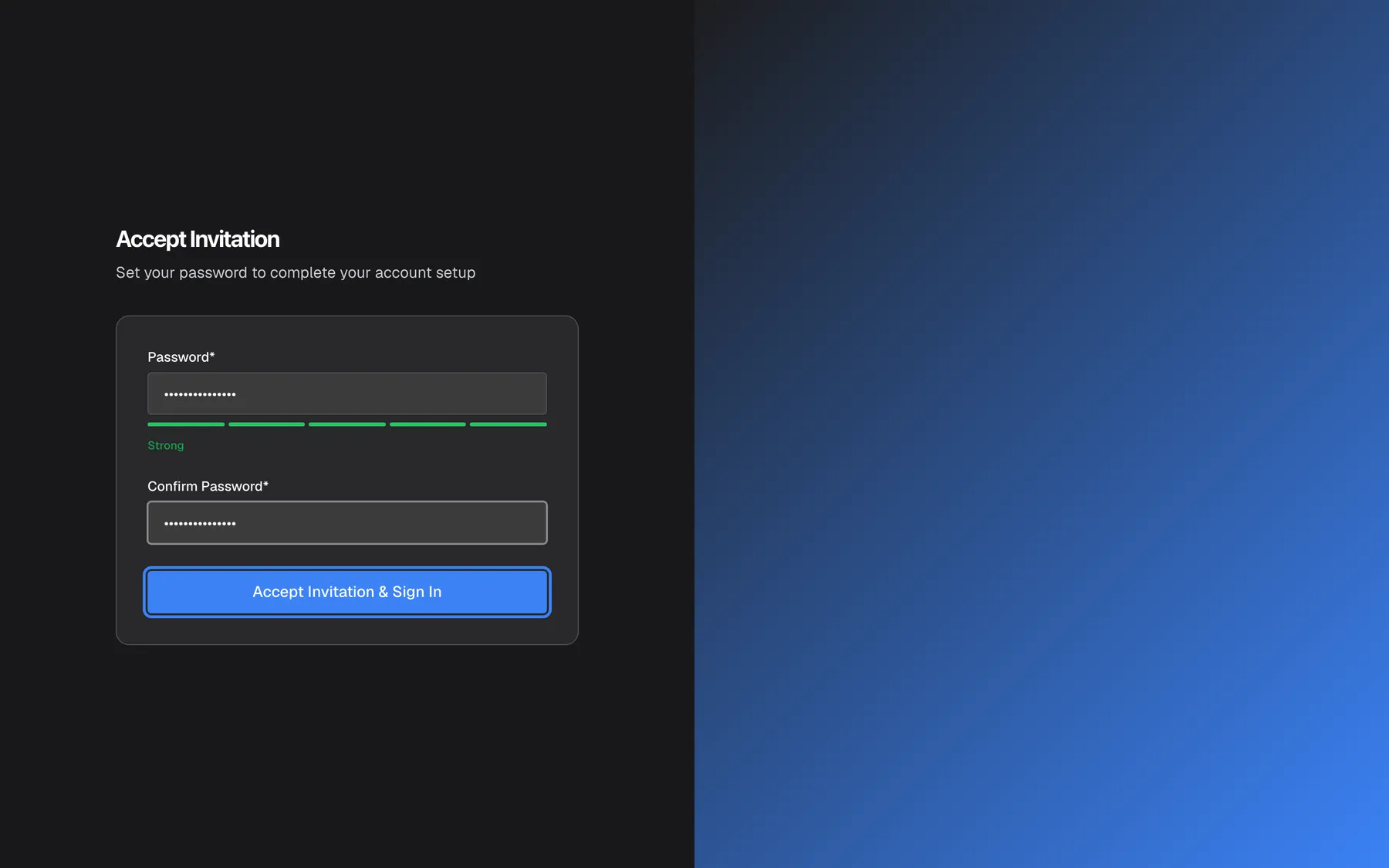
What this screenshot shows
- Screen
- Accept Invitation (/auth/accept-invitation?token=…)
- Highlighted
- button “Accept Invitation & Sign In”, invitation-card-bottom, enabled. creates the invited user (POST /api/auth/accept-invitation) and opens /admin
- Also visible
- Password* and Confirm Password* filled (masked); Password strength: 5 of 5 segments, Strong; No email field
- Purpose
- the invited teammate sets a password and joins the company
| Region | What it shows | What you do there |
|---|---|---|
| Heading, top left | The StrikeUp logo, the heading Accept Invitation and the line Set your password to complete your account setup | Confirm you opened your invitation |
| Banner, above the card (only when there is something to say) | A red message when the link or the password is refused | Read what to correct |
| The card | Password* with a strength meter, Confirm Password* and the Accept Invitation & Sign In button | Choose your password and join |
| Right half (large screens only) | A brand colour gradient | Nothing |
There is no email field. Your account uses the address the invitation was sent to, and it cannot be changed here.
Accept your invitation
Section titled “Accept your invitation”-
Open the invitation email and select its link. If you are signed in to StrikeUp in this browser with another account, sign out first from SettingsLogout; otherwise the link takes you to that account’s Dashboard instead.
-
Type a password in Password*. It needs at least 8 characters and three of these five criteria: 8 characters, an upper-case letter, a lower-case letter, a digit and a special character such as
!or?. A hyphen does not count as a special character. The meter must show at least Good. -
Type the same password in Confirm Password*.
-
Select Accept Invitation & Sign In. The button reads Creating Account... while StrikeUp creates your account.
StrikeUp creates your account with the invited email address and the role the administrator chose, marks the invitation as used and opens the Dashboard. From now on you sign in on the sign-in page with that email address, in any mix of capital and small letters, and your new password.
Example: Olivia Hart, an administrator of Demo Ltd, invites anna.becker@example.com with the User role. Anna opens the link, chooses Becker-Demo-26!, and lands on the Dashboard. She can open every screen but, as a User, cannot save changes.
What your role lets you do
Section titled “What your role lets you do”| Role | What you can do after joining |
|---|---|
| Admin | Change every setting, invite and manage teammates. |
| User | Open every screen and read everything, but not save changes. |
Whatever your role, you can change your own password and manage your own two-factor authentication on SettingsProfile. Your role is shown there, and only an administrator can change it.
Set up your authenticator while accepting
Section titled “Set up your authenticator while accepting”If your company requires two-factor authentication, selecting Accept Invitation & Sign In leads to the authenticator setup instead of the Dashboard.
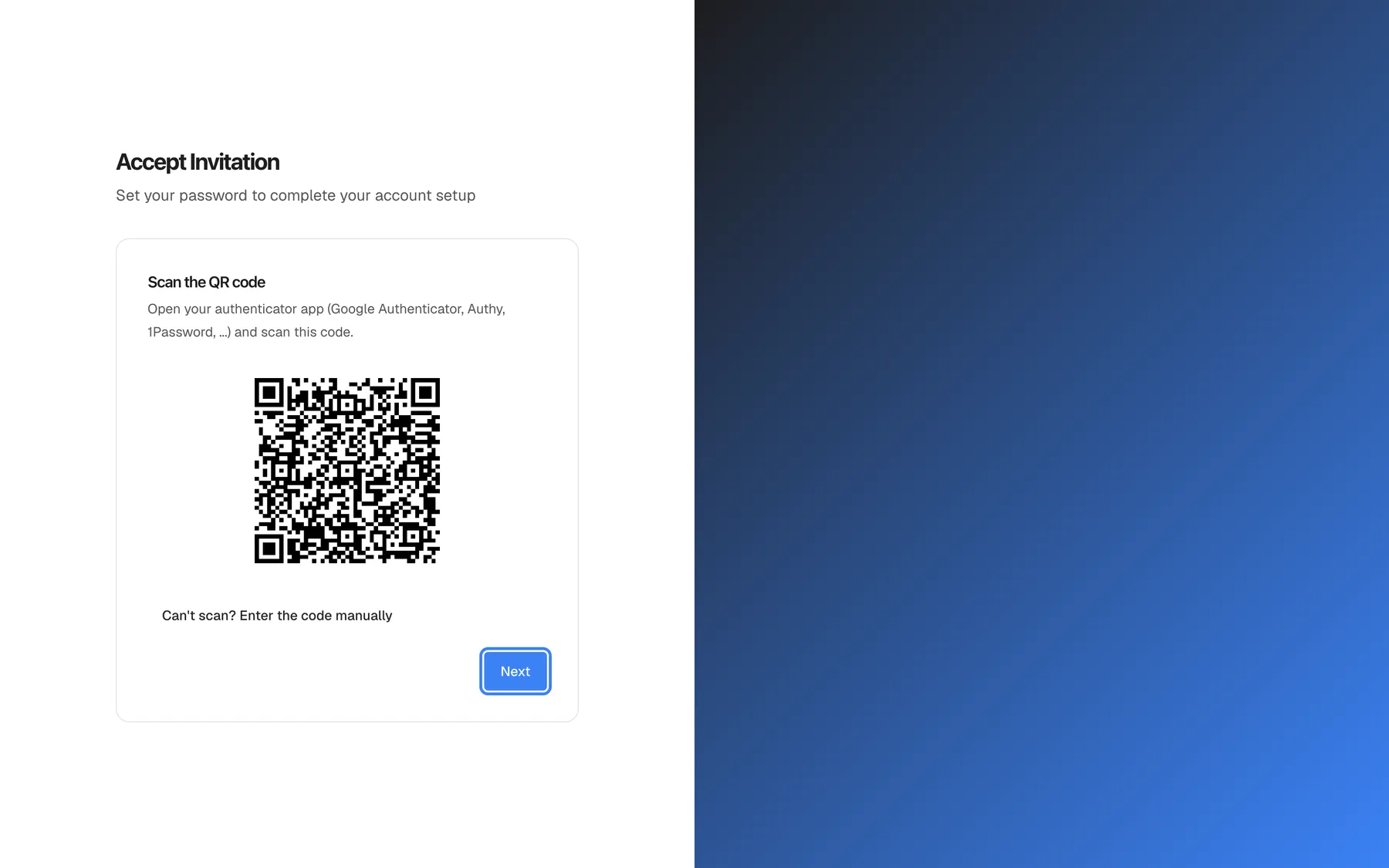
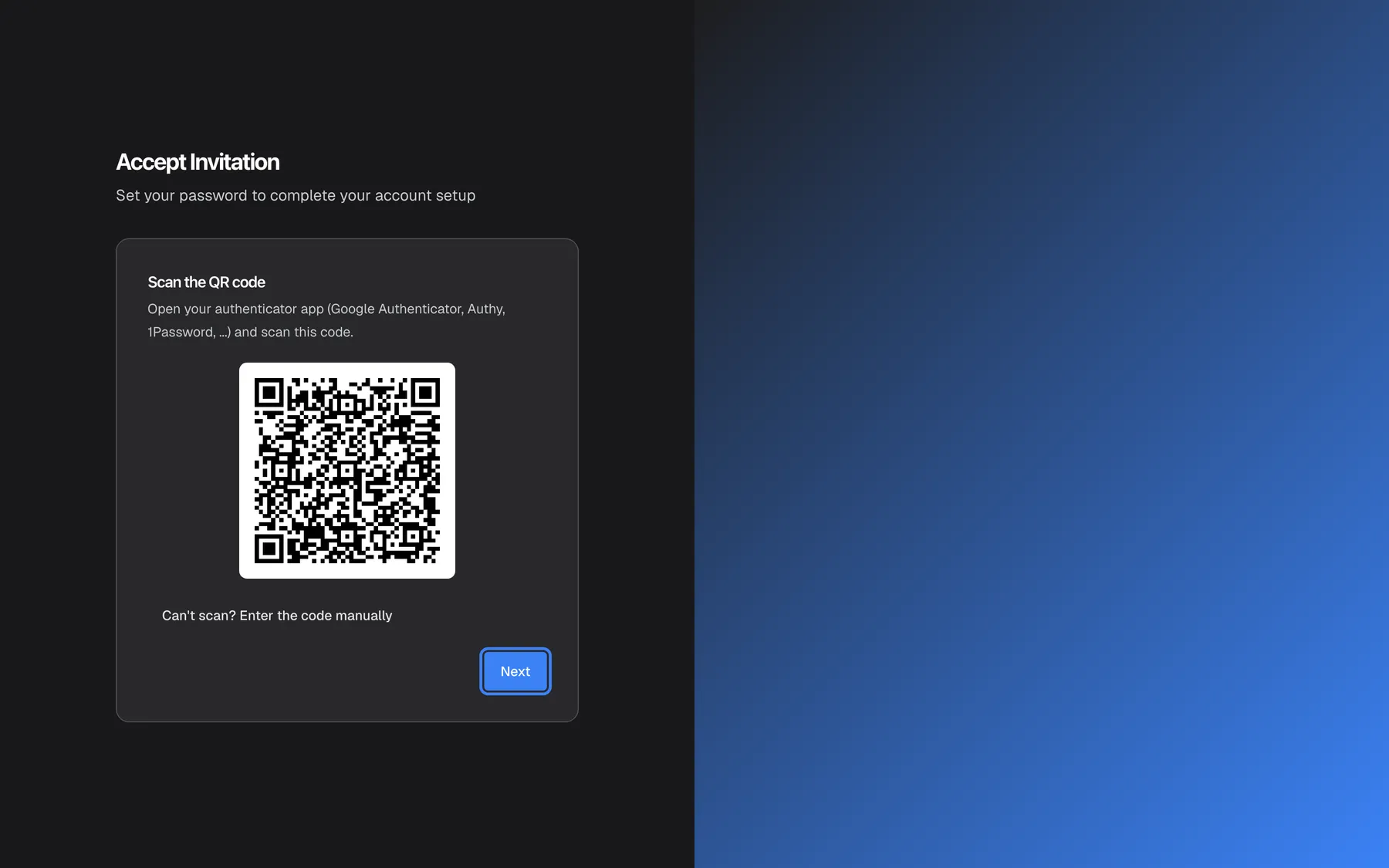
What this screenshot shows
- Screen
- Accept Invitation (/auth/accept-invitation?token=…)
- Highlighted
- button “Next”, invitation-card-bottom-right, enabled. shows the Enter the code step
- Also visible
- Heading Scan the QR code; QR code (fictional secret); No Cancel button
- Purpose
- forced authenticator enrolment while accepting an invitation
-
Open an authenticator app on your phone, such as Google Authenticator, Authy or 1Password, and scan the QR code. If scanning fails, select Can't scan? Enter the code manually and type the key into the app.
-
Select Next.
-
Type the 6-digit code the app shows and select Verify & enable. StrikeUp switches two-factor authentication on and opens the Dashboard.
There is no Cancel on this step: you finish the setup before you can use StrikeUp. Your account already exists at this point, so if you close the page now, the sign-in page asks you to finish the setup after your password the next time.
When the link does not work
Section titled “When the link does not work”A link that lost its invitation code, for example because it was cut off when copied, shows only a red banner and no form:
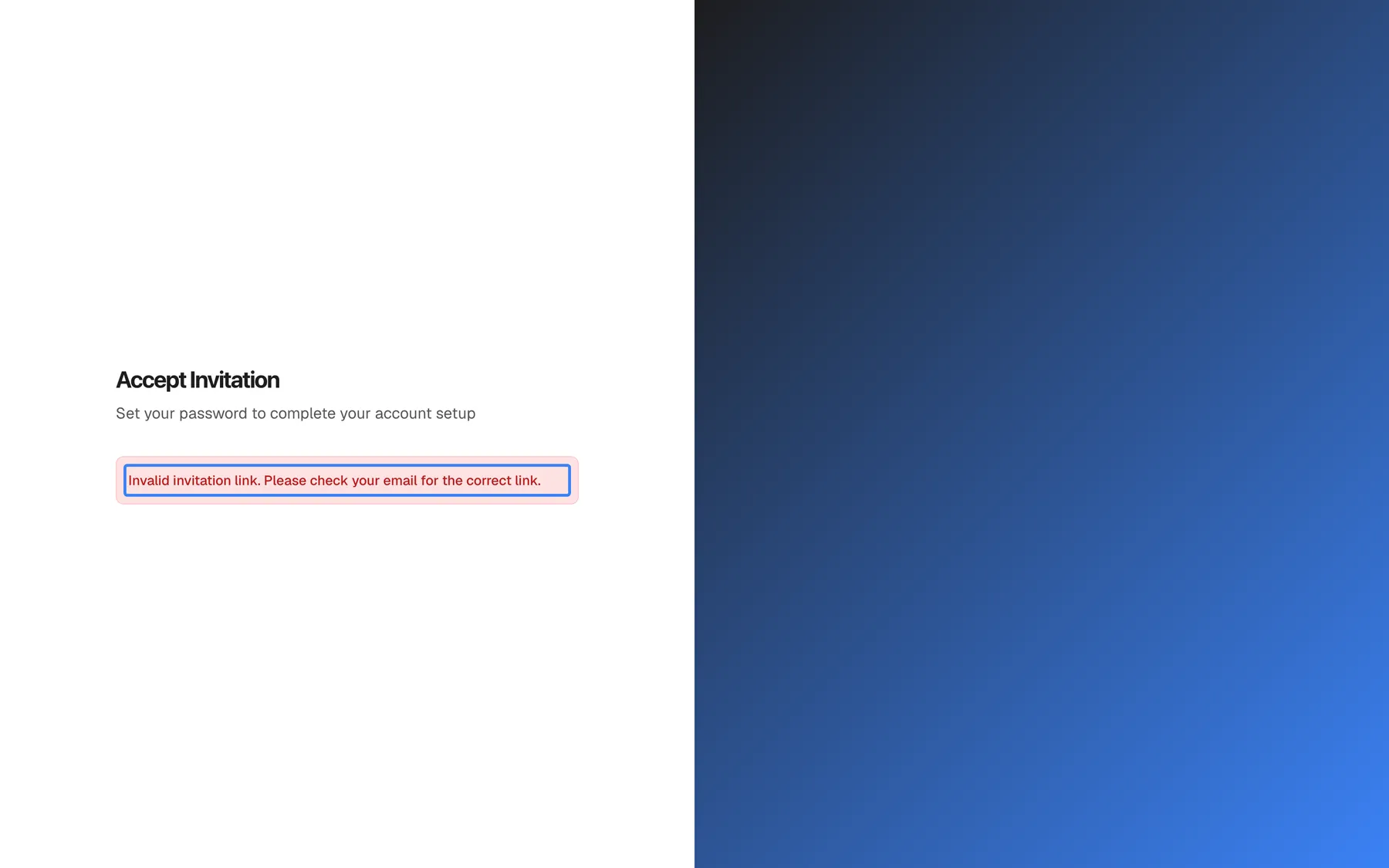
What this screenshot shows
- Screen
- Accept Invitation (/auth/accept-invitation)
- Highlighted
- alert-banner “Invalid invitation link. Please check your email for the correct link.”, below-heading, visible. none
- Also visible
- No form fields
- Purpose
- error state when the token query parameter is missing
Other problems appear only when you select Accept Invitation & Sign In:
| Message | Why | What to do |
|---|---|---|
| Invalid invitation link. Please check your email for the correct link. | The link has no invitation code | Open the full link from the most recent invitation email |
| “Invalid invitation token” | The link is from an older email, after the invitation was sent again, or the invitation was cancelled | Use the newest invitation email, or ask the administrator to invite you again |
| “This invitation has already been used” | You, or someone with the link, already accepted it | Sign in on the sign-in page with the invited email address |
| “This invitation has expired” | The invitation is more than 7 days old | Ask the administrator to invite you again |
Every control, explained
Section titled “Every control, explained”The invitation card has two fields and one button; the setup step adds the authenticator controls.
Password and its strength meter
Section titled “Password and its strength meter”The first field, Password*, with the hint Min. 8 characters. A five-segment meter and its label appear under it as you type.
Your new password. The form refuses fewer than 8 characters (Password must be at least 8 characters) and fewer than three of the five criteria (Password is too weak. Please meet at least 3 requirements.); StrikeUp also refuses more than 128 characters. The meter labels on this page go from Weak through Fair and Good to Strong, which is the top level here, even for a password that meets all five criteria. A password that meets none shows the text app.auth.signUp.passwordStrength.veryweak instead of a label.
The password protects an account inside your company’s workspace, so the same rules apply as for the administrator who signed the company up.
Confirm Password
Section titled “Confirm Password”The second field, Confirm Password*.
Must match the password exactly; otherwise the form shows Passwords do not match and nothing is created.
A typing mistake in a hidden field would otherwise lock you out of the account you are creating.
Accept Invitation & Sign In
Section titled “Accept Invitation & Sign In”The full-width blue button at the bottom of the card, Accept Invitation & Sign In. It reads Creating Account... while StrikeUp works.
Checks the password in the browser, then asks StrikeUp to check the invitation and create your account. On success you are signed in and see the Dashboard, or the authenticator setup when your company requires two-factor authentication. If something fails, the red banner shows StrikeUp’s message, or Failed to accept invitation. The link may be invalid or expired. when there is none.
Accepting and signing in are one step, so you never have to work out your new sign-in details before you first see the workspace.
The authenticator setup
Section titled “The authenticator setup”Replaces the password form after acceptance when your company requires two-factor authentication: the step Scan the QR code with a QR code and Can't scan? Enter the code manually, then Enter the code with the code field and Verify & enable.
Links an authenticator app to your new account. Only Next is offered on the first step; there is no way to cancel. A wrong code shows Invalid authentication code. Please try again. and you can retype it.
Your company decided that every member must use a second step at sign-in, and this makes sure new members are protected from their first day.
What you need to know
Section titled “What you need to know”| Topic | Fact |
|---|---|
| Link validity | 7 days from the invitation, or from the last time the administrator sent it again. |
| Sent again | Sending an invitation again creates a new link; the link in the older email stops working. |
| Single use | Each invitation can be accepted once. Afterwards you sign in normally. |
| Email address | Your account uses the invited address, stored in lower case. Capitals do not matter when you sign in. |
| One company per email | An address that already has a StrikeUp account cannot be invited to another company. |
| Signed-in browsers | The link only works when you are signed out in that browser. |
| Setup wizard | Accepting any invitation marks the company’s setup wizard as finished, also for the administrator who invited you. |
| Rate limit | Accepting shares the sign-in rate limit for your network address. |
Frequently asked questions
Section titled “Frequently asked questions”The invitation link
Section titled “The invitation link”How long is my invitation link valid?
Section titled “How long is my invitation link valid?”Seven days from the moment the administrator invited you, or from the last time they sent the invitation again. After that, selecting Accept Invitation & Sign In shows “This invitation has expired”, and the administrator has to invite you again from SettingsUsers.
My invitation expired. What now?
Section titled “My invitation expired. What now?”Ask an administrator of your company to invite you again. Expired invitations disappear from the list under SettingsUsers, so the administrator uses Invite User with your email address and the same role. The new email contains a new link valid for 7 days.
The link in my first invitation email stopped working. Why?
Section titled “The link in my first invitation email stopped working. Why?”The administrator sent the invitation again, which replaces the link. Only the link in the most recent invitation email works; older ones answer “Invalid invitation token”. The same message appears if the administrator cancelled the invitation.
Why does the invitation link take me to the Dashboard?
Section titled “Why does the invitation link take me to the Dashboard?”You are already signed in to StrikeUp in this browser, possibly with another account. Sign out from SettingsLogout, then open the invitation link again, or open it in a private browser window.
Your account
Section titled “Your account”Can I choose a different email address for my account?
Section titled “Can I choose a different email address for my account?”No. Your account uses the address the invitation was sent to, and the page has no email field. If you want to sign in with another address, ask the administrator to cancel this invitation and invite that address instead.
I already have a StrikeUp account. Can I be invited to a second company?
Section titled “I already have a StrikeUp account. Can I be invited to a second company?”No. An email address can have only one StrikeUp account, in one company, and StrikeUp refuses to invite an address that already has an account, with “User with this email already exists.” Use a different email address for the second company.
What role will I have?
Section titled “What role will I have?”The role the administrator chose when inviting you, Admin or User. Admins can change everything; Users can open every screen but cannot save changes. Your role appears on SettingsProfile after you join, and only an administrator can change it.
Do I have to set up two-factor authentication?
Section titled “Do I have to set up two-factor authentication?”Only if your company requires it. Then the authenticator setup follows straight after your password, with no way to cancel, and you scan a QR code with an app such as Google Authenticator, Authy or 1Password. If your company does not require it, you can still switch it on later from your profile.
What are the password rules on the invitation page?
Section titled “What are the password rules on the invitation page?”At least 8 and at most 128 characters, and at least three of five criteria: 8 or more characters, an upper-case letter, a lower-case letter, a digit and a special character such as ! or ?. A hyphen is not counted as a special character. The meter must show at least Good.
Troubleshooting
Section titled “Troubleshooting”| Symptom | What to check |
|---|---|
| Invalid invitation link. Please check your email for the correct link. and no form | The link was cut off. Copy the complete link from the email, or select it directly in the email program. |
| “Invalid invitation token” | You used an older email after the invitation was sent again, or the invitation was cancelled. Use the newest email, or ask for a new invitation. |
| “This invitation has expired” | More than 7 days have passed. Ask the administrator to invite you again. |
| “This invitation has already been used” | Your account exists. Sign in on the sign-in page with the invited address. |
| Password is too weak. Please meet at least 3 requirements. | Add an upper-case letter, a digit or a special character such as ! until the meter shows Good. |
| The link opens the Dashboard of another account | Sign out in this browser, then open the link again. |
| The authenticator setup shows an error and no button | Your account already exists. Open the sign-in page, sign in with the invited email and your new password, and finish the setup there. |
| “Too many requests. Please wait a minute and try again.” | Too many requests came from your network address. Wait a minute and try once. |