

Tool Access Simulation
The tool access simulation shows which tools a widget offers the assistant when a chat session carries the policy keys you choose. It only simulates: nothing you do here changes a widget, a policy or a chat. Use it to check a policy before you rely on it, or to compare two set-ups, such as two plan tiers, side by side. The page has no sidebar entry: open SecurityTool Policies and select Tool Access Simulation in the header. The page heading reads Tool Access Preview.
What you can do here
Section titled “What you can do here”- See the tools a widget offers for a set of policies. Pick a widget, tick policies, and the list of available tools updates at once, with a count of tools at the top. Preview a widget’s tools.
- See the default without any policy. With no policy ticked, the list shows every active tool of the widget’s toolkits, which is what a session without keys gets. Preview a widget’s tools.
- Compare two set-ups. Choose a widget and policies for two scenarios and see which tools only one of them gets and which both share. Compare two set-ups.
- Understand what tool policies do. The feature guide explains keys, combinations and limits in full. Plan and simulate tool policies.
The screen at a glance
Section titled “The screen at a glance”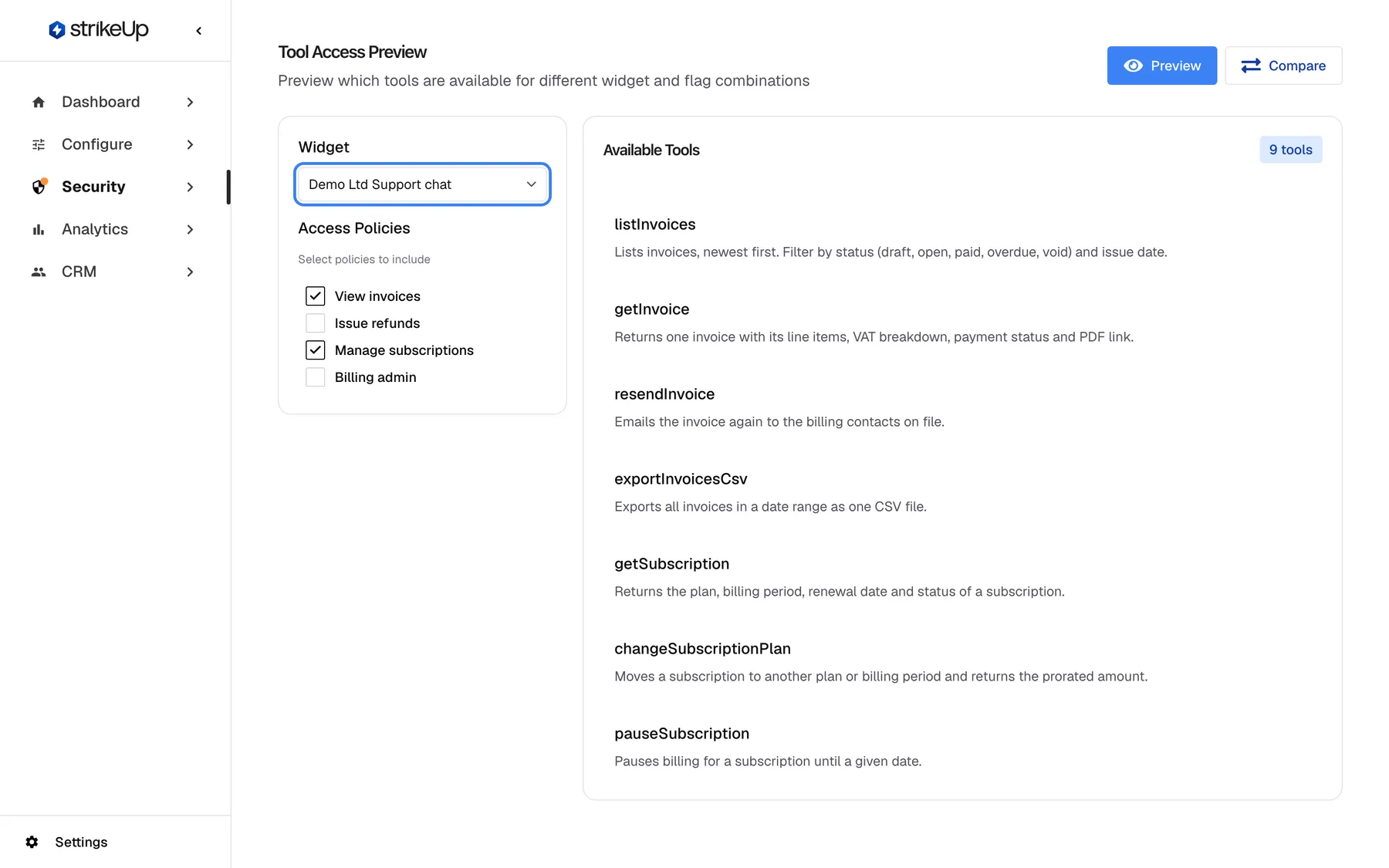
What this screenshot shows
- Screen
- Tool Access Preview (/admin/feature-flags/preview)
- Highlighted
- combobox “Widget”, left-panel-top, Demo Ltd Support chat selected. chooses the widget whose toolkits are simulated
- Also visible
- Access Policies: View invoices and Manage subscriptions ticked; Available Tools: badge 9 tools; list scrolls (7 visible); Preview / Compare mode buttons top right
- Purpose
- simulate the tool list of a session that carries the chosen policy keys
| Region | What it shows | What you do there |
|---|---|---|
| Header | Tool Access Preview, its subtitle, and the mode buttons Preview and Compare | Switch between one preview and a comparison |
| Left panel | Widget and the Access Policies checkboxes | Choose what to simulate |
| Available Tools | The tool count and each tool with its description | Read the result |
Preview a widget’s tools
Section titled “Preview a widget’s tools”- Open SecurityTool Policies and select Tool Access Simulation. The page opens in Preview mode and shows Select a widget to see available tools.
- Choose a widget in Widget. The list shows every active tool of the widget’s toolkits.
- Tick one or more policies under Access Policies. The list updates with each tick; there is no button to press.
The result is the tool list of a chat session on that widget that carries exactly the keys of the ticked policies:
| Policies ticked | Tools listed |
|---|---|
| None | Every active tool of the widget’s toolkits |
| One | The active tools mapped to that policy on the widget’s toolkits |
| Several | Every tool mapped to any of them, each listed once |
Example. Demo Ltd’s support chat has two toolkits, Demo Billing API and Demo Accounts API. With no policy ticked, the list shows 34 tools. With View invoices ticked, it shows 4: listInvoices, getInvoice, resendInvoice and exportInvoicesCsv. With View invoices and Manage subscriptions ticked, it shows 9, the tools of both policies together.
A policy only grants tools on the widget’s own toolkits. A policy whose tools all belong to another toolkit leaves the list empty, which is also what a live session carrying only that key gets from the widget’s toolkits.
Compare two set-ups
Section titled “Compare two set-ups”- Select Compare at the top right.
- Under Scenario A, choose a widget and tick policies under Feature Flags.
- Do the same under Scenario B. It may use the same widget or another one.
- Select Compare Results.
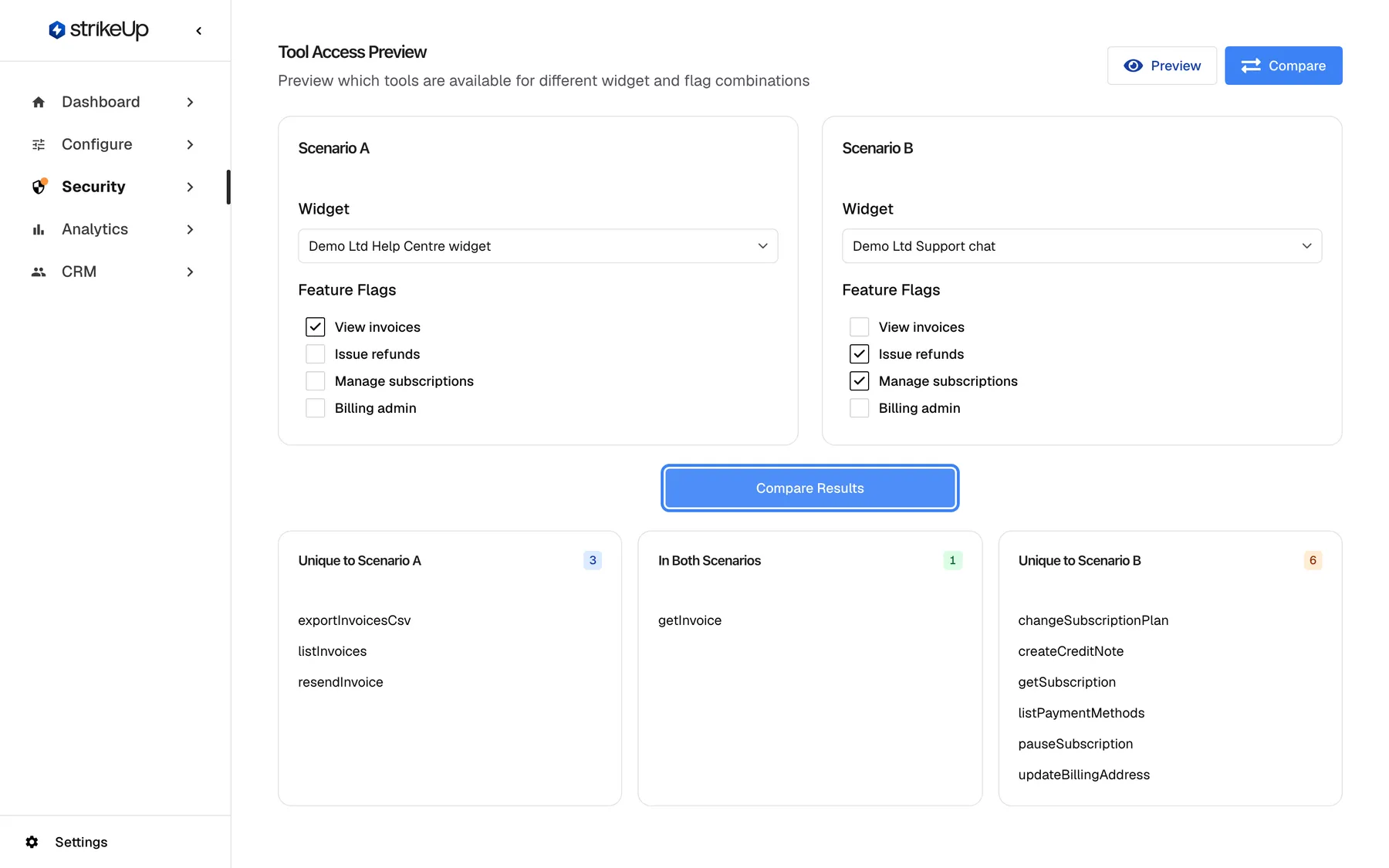
What this screenshot shows
- Screen
- Tool Access Preview (/admin/feature-flags/preview)
- Highlighted
- button “Compare Results”, below-scenarios, used. compares the tool sets of both scenarios
- Also visible
- Scenario A: Help Centre widget + View invoices; Scenario B: Support chat + Issue refunds + Manage subscriptions; Results: 3 unique to A, 1 in both, 6 unique to B
- Purpose
- A/B comparison of tool access between two configurations
The results show three columns, each sorted by tool name:
| Column | What it lists | Empty column shows |
|---|---|---|
| Unique to Scenario A | Tools only scenario A gets | No unique tools |
| In Both Scenarios | Tools both scenarios get | No common tools |
| Unique to Scenario B | Tools only scenario B gets | No unique tools |
Example. In scenario A, the Demo Ltd Help Centre widget carries View invoices; in scenario B, the support chat carries Issue refunds and Manage subscriptions. Only A gets exportInvoicesCsv and resendInvoice, both get getInvoice and listInvoices, and only B gets six tools, among them createCreditNote and changeSubscriptionPlan. Tools are compared by name.
Both scenarios need a widget, and both widgets need at least one toolkit; otherwise a notice in English appears, “Both scenarios must have a widget selected” or “Selected widgets must have servers configured”.
Every control, explained
Section titled “Every control, explained”Preview and Compare
Section titled “Preview and Compare”Widget
Section titled “Widget”Access Policies
Section titled “Access Policies”Available Tools
Section titled “Available Tools”Compare Results
Section titled “Compare Results”Who sees what
Section titled “Who sees what”| Part | Who can use it |
|---|---|
| The Tool Access Simulation button and the page | Every signed-in member can open them |
| Running a preview or a comparison | The Admin role only. Other roles get Request failed with “This action requires the Admin role.”, although nothing is saved |
What you need to know
Section titled “What you need to know”| Topic | Fact |
|---|---|
| Same rule as live chats | The simulation uses the same rule that builds a live session’s tool list from the widget’s toolkits and the session’s keys. |
| Built-in tools are not shown | A live session can also get StrikeUp’s built-in notification tools, which do not depend on policies. The simulation lists your toolkits’ tools only. |
| Inactive policies | The simulation lists active policies only. An inactive policy also grants nothing in live sessions. |
| Open chats | A change to a policy’s key, status or tools reaches open chats with the customer’s next message. The simulation always shows the current state. |
| Switched-off tools | Tools switched off on the Toolkits page never appear, whatever policies you tick. |
| Duplicate names | If two toolkits of a widget have a tool with the same name, the simulation shows “Error previewing tools” with “Duplicate tool names detected across servers”. Live chats on that widget cannot load their tools either. |
| Nothing is saved | Previews and comparisons are not stored and leave no record. |
| English notices | Error and warning notices on this page are shown in English in every language. |
Frequently asked questions
Section titled “Frequently asked questions”General
Section titled “General”Does the simulation change anything for my customers?
Section titled “Does the simulation change anything for my customers?”No. Tool Access Preview only reads your widgets, toolkits and policies and shows the result. No widget, policy or chat changes, and nothing is recorded. Change policies on SecurityTool Policies instead.
Where is the simulation in the menu?
Section titled “Where is the simulation in the menu?”It has no sidebar entry. Open SecurityTool Policies and select Tool Access Simulation at the top of the page. You can also bookmark the page once it is open.
Why can’t my colleague run the simulation?
Section titled “Why can’t my colleague run the simulation?”Running a preview or a comparison needs the Admin role, even though nothing is saved. Colleagues with other roles can open the page, but each preview fails with Request failed and “This action requires the Admin role.” An administrator can change their role.
Results
Section titled “Results”Why does the preview list every tool when I tick nothing?
Section titled “Why does the preview list every tool when I tick nothing?”With no policy ticked, the simulation shows a session without policy keys, and such a session is offered every active tool of the widget’s toolkits. Tick a policy to see how its key narrows the list.
Why is the tool list empty?
Section titled “Why is the tool list empty?”Either the widget has no toolkit, or none of the ticked policies has tools on the widget’s toolkits. Check the widget’s toolkits, and check on SecurityTool Policies which tools each ticked policy grants.
How do several ticked policies combine?
Section titled “How do several ticked policies combine?”They add up. The list shows every tool mapped to any of the ticked policies, and a tool that two policies share appears once. A session that carries several keys gets the same combined list.
Why is a policy missing from the list of policies?
Section titled “Why is a policy missing from the list of policies?”The simulation lists active policies only. Open the policy with the pencil icon on SecurityTool Policies and set Status to Active to see it here. While it is inactive, it also grants nothing in live chats.
Why does a customer’s chat show tools the simulation does not list?
Section titled “Why does a customer’s chat show tools the simulation does not list?”Live sessions can also get StrikeUp’s built-in notification tools, which do not depend on policies and are not listed here. A customer your backend did not sign in with a login ticket that lists policy keys is also offered every active tool, whatever you tick here.
Comparing
Section titled “Comparing”Can I compare two policies on the same widget?
Section titled “Can I compare two policies on the same widget?”Yes. Choose the same widget under both Scenario A and Scenario B, tick different policies, and select Compare Results. The three result columns show what each policy adds.
Troubleshooting
Section titled “Troubleshooting”| Symptom | What to check |
|---|---|
| Every preview fails with Request failed | You need the Admin role to run the simulation. |
| “Error previewing tools” with “Duplicate tool names detected across servers” | Two toolkits of the widget have a tool with the same name. Rename one tool, or remove one toolkit from the widget. |
| The list stays empty after choosing a widget | The widget has no toolkit, or the ticked policies have no tools on its toolkits. |
| “Both scenarios must have a widget selected” | Choose a widget for scenario A and scenario B. |
| “Selected widgets must have servers configured” | Link at least one toolkit to each chosen widget. |
| A policy is missing from the checkboxes | It is inactive. Set it to active on the policy list to simulate it. |
| Results do not change after editing a scenario | Select Compare Results again. |