

Shortcuts
A prompt shortcut is a ready-made message your visitors can drop into the chat instead of typing it. A visitor types ”/” in any of your widgets, picks a shortcut from the list, fills in any blanks and sends it. You manage them on ConfigureShortcuts; the page itself is titled Prompt Shortcuts. Shortcuts apply to every widget in your workspace, so one list serves all your assistants.
What you can do here
Section titled “What you can do here”- Create a shortcut. Give it a name, a short description and the message it inserts, with blanks such as
{invoiceNumber}the visitor fills in. Create a shortcut. - Adopt suggested shortcuts. StrikeUp proposes shortcuts for questions visitors keep asking; accept one and it is live at once. Accept a suggested shortcut · Suggestions.
- Order, pause and remove shortcuts. Move a shortcut up or down, switch it off without deleting it, or delete it for good. Manage the list.
- Offer shortcuts in your visitors’ languages. Add translations of the name, description and message for up to 20 languages. Create a shortcut.
The screen at a glance
Section titled “The screen at a glance”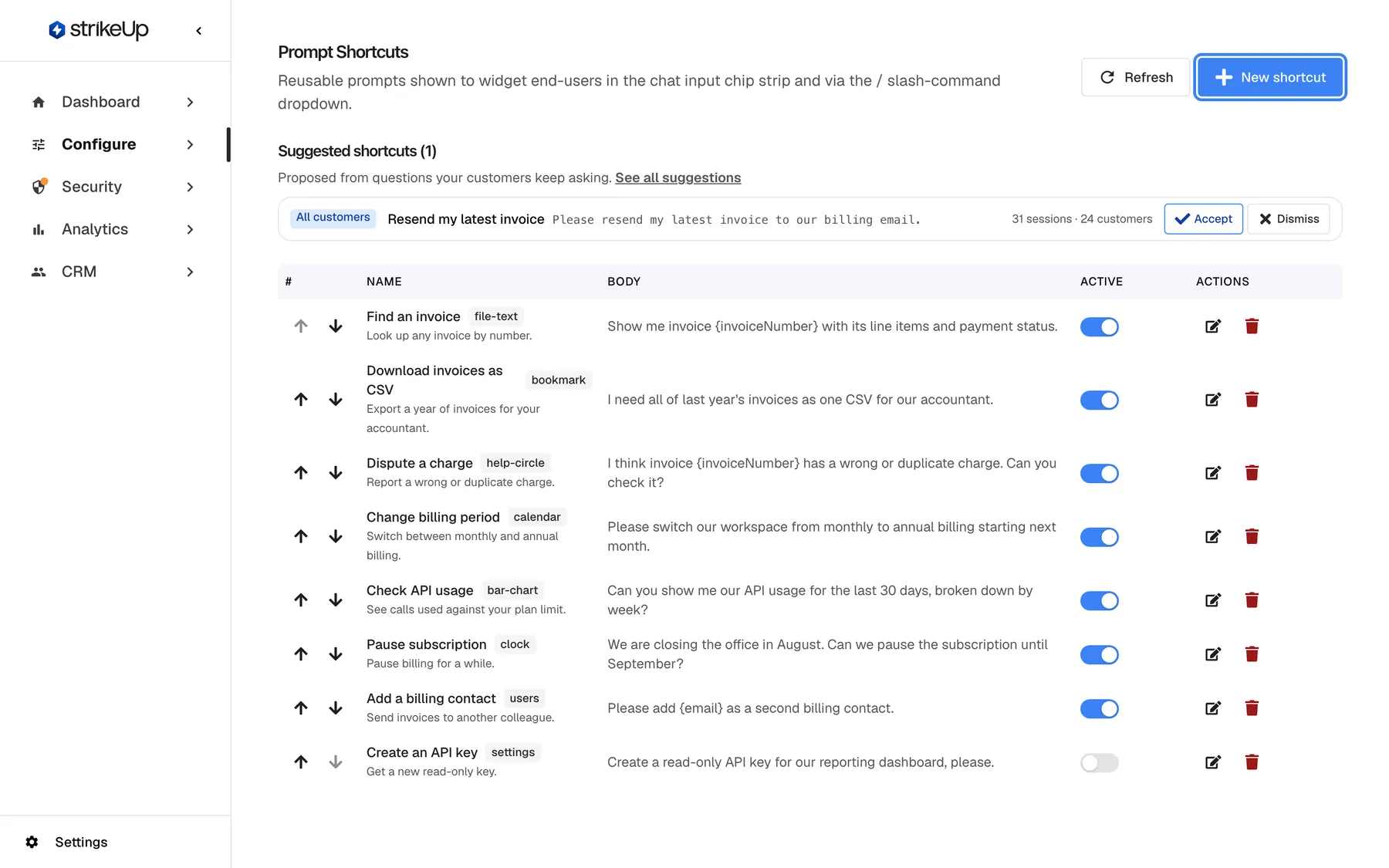
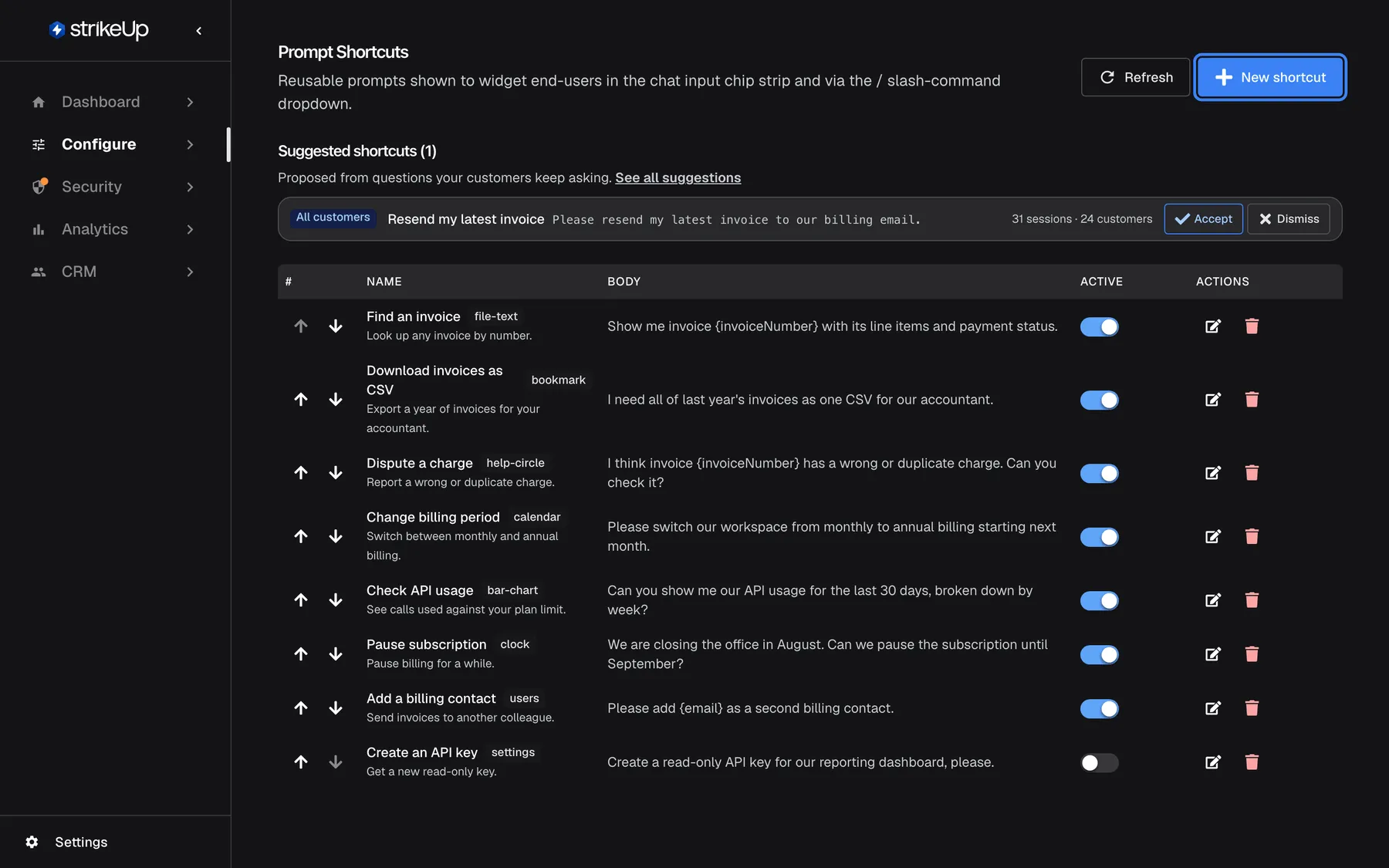
What this screenshot shows
- Screen
- Prompt Shortcuts (/admin/configure/prompt-shortcuts)
- Highlighted
- button “New shortcut”, header-right, enabled. opens the New prompt shortcut dialog
- Also visible
- Suggested shortcuts (1): Resend my latest invoice, with Accept and Dismiss; Eight shortcuts with order arrows, name, icon id, body, Active switch, edit and delete; Create an API key switched off
- Purpose
- entry point of the Shortcuts page
| Region | What it shows | What you do there |
|---|---|---|
| Header | The title Prompt Shortcuts, the subtitle, Refresh and New shortcut | Reload the list, create a shortcut |
| Suggested shortcuts | Up to 5 shortcuts proposed from real chats, with Accept and Dismiss. Hidden when there are none | Adopt or reject a proposal |
| Table | One row per shortcut: order number, Name, Body, the icon, the Active switch, and the actions | Reorder, switch off, edit or delete |
The sidebar entry reads Shortcuts; the page heading reads Prompt Shortcuts. Both are the same page.
Create a shortcut
Section titled “Create a shortcut”- Select New shortcut. The New prompt shortcut dialog opens.
- Fill in Name, such as Resend an invoice. It is what visitors see in the list, up to 255 characters, and must be unique in your workspace.
- Optionally fill in Description, such as Email an invoice to a billing contact again. It is shown under the name in the ”/” list, up to 1,000 characters.
- Write the Prompt body, the message the shortcut inserts, such as
Please resend invoice {invoiceNumber} to {email}.Mark each blank the visitor fills in with curly braces. - Optionally pick an Icon, and add translations with + Add language.
- Select Create. The message Shortcut created confirms it, and the shortcut is active in every widget straight away.
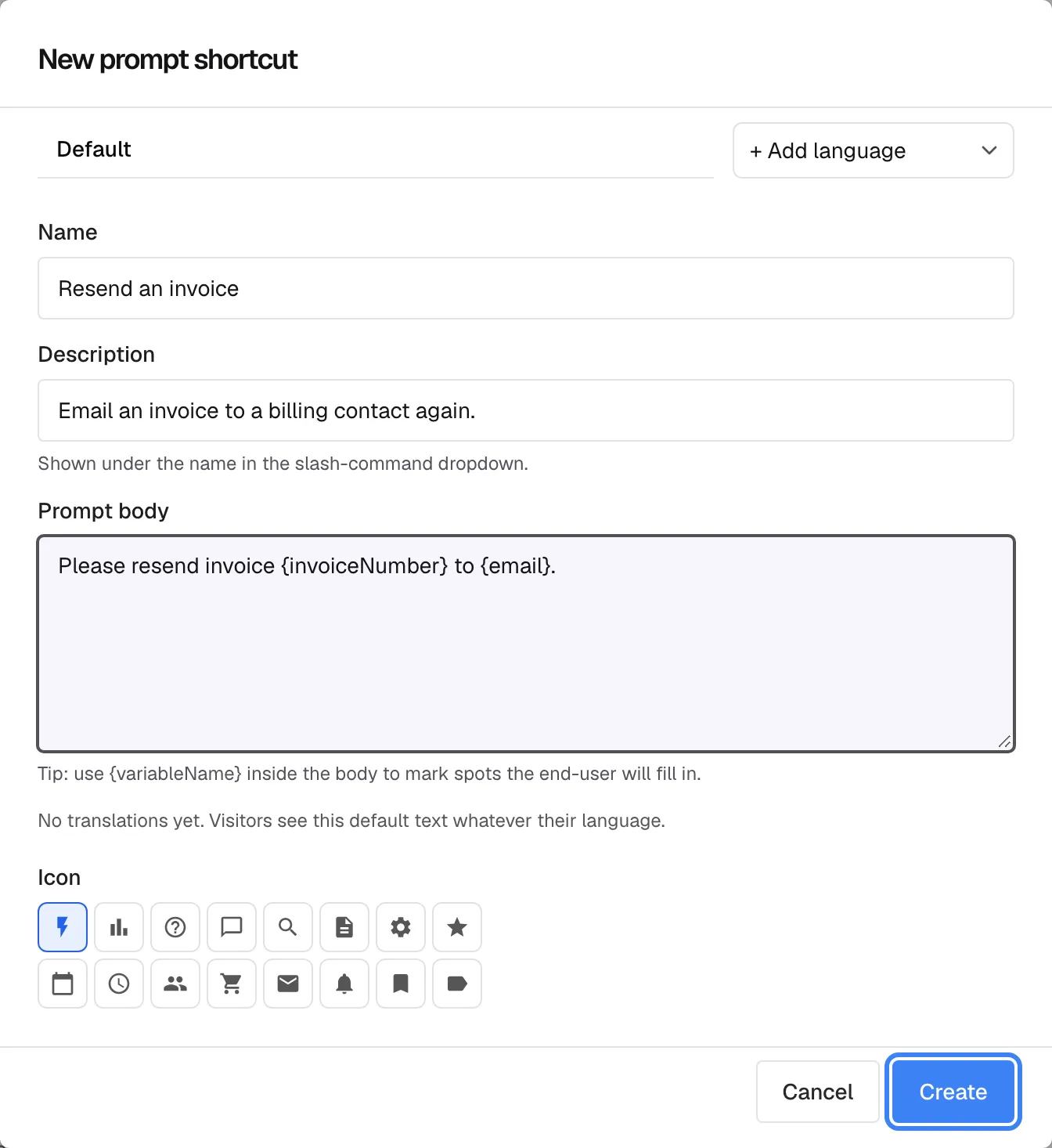
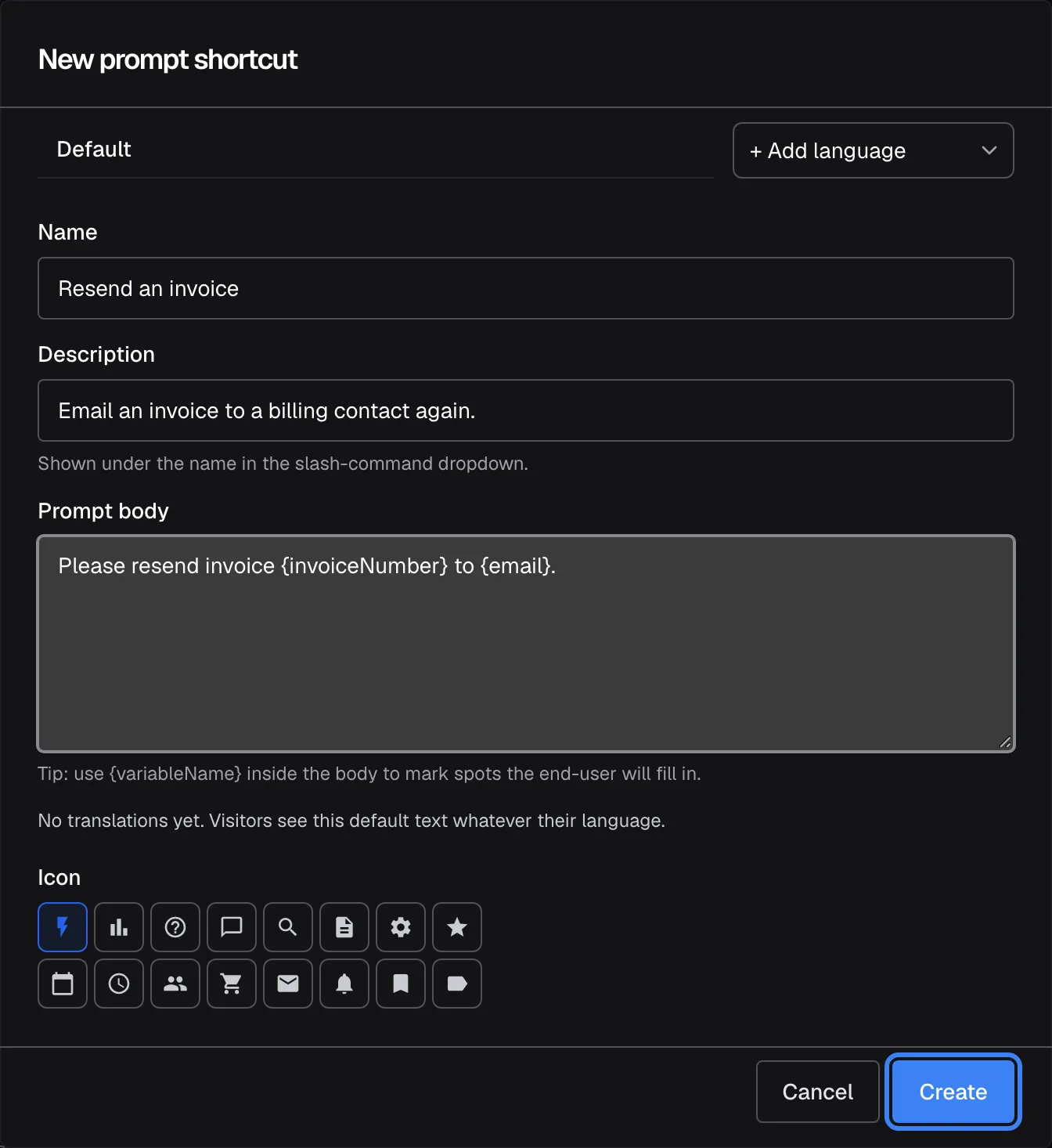
What this screenshot shows
- Screen
- Prompt Shortcuts (/admin/configure/prompt-shortcuts)
- Highlighted
- button “Create”, dialog-footer, enabled. saves the new shortcut; it is active immediately for all widgets
- Also visible
- Name: Resend an invoice; Description: Email an invoice to a billing contact again.; Prompt body with placeholders {invoiceNumber} and {email}; Placeholder tip and Cancel button
- Purpose
- creating a tenant-wide prompt shortcut
Blanks. A blank is a name in curly braces made of letters, digits and underscores, starting with a letter or underscore, such as {invoiceNumber} or {customer_email}. When a visitor picks a shortcut with blanks, the widget opens a small form with one field per blank, labelled in plain words: {invoiceNumber} becomes “Invoice Number”. The message is sent with the values filled in. A shortcut without blanks is placed in the message box as it is, for the visitor to send or change.
Example: the shortcut Resend an invoice with the body Please resend invoice {invoiceNumber} to {email}. asks the visitor for “Invoice Number” and “Email”. With INV-2026-0418 and maria.keller@example.com, the chat receives Please resend invoice INV-2026-0418 to maria.keller@example.com.
Rejections: an empty name gives Name is required, a longer one Name must be 255 characters or fewer, and an empty body Prompt body is required. A name already in use is refused with “A tenant shortcut named ’…’ already exists.”
Translations. Each shortcut can carry its name, description and body in up to 20 languages. The widget picks the visitor’s browser language: an exact match first, then the language without region, then another region of the same language, then your default text. A translated field left empty falls back to the default text.
Accept a suggested shortcut
Section titled “Accept a suggested shortcut”Suggested shortcuts shows up to 5 shortcuts StrikeUp proposes from conversations where visitors kept asking the same thing. Each shows its name, body, who it is for and the evidence, such as 31 sessions and 24 customers.


What this screenshot shows
- Screen
- Prompt Shortcuts (/admin/configure/prompt-shortcuts)
- Highlighted
- button “Accept”, suggested-shortcuts-strip, enabled. creates the suggested shortcut as an active shortcut
- Also visible
- Suggestion: Resend my latest invoice, All customers, 31 sessions · 24 customers; See all suggestions link to the Suggestions page; Dismiss button
- Purpose
- adopting a shortcut proposed from real conversations
- Accept creates the shortcut, switched on, straight away. You cannot edit it first; edit it in the table afterwards.
- Dismiss removes the proposal from this strip; it is not proposed again.
- See all suggestions opens Suggestions, where all proposals, including dismissed and accepted ones, are listed.
A suggestion made for one of your business customers creates a shortcut for that customer company only. If a shortcut with the same name already exists, accepting is refused with “A shortcut named ’…’ already exists. Rename it before accepting.” Rename the existing shortcut, then accept again.
Manage the list
Section titled “Manage the list”| Action | How | What happens |
|---|---|---|
| Change the order | Move up or Move down on a row | The shortcut swaps places with its neighbour. The widget lists shortcuts in this order |
| Switch off | The Active switch | The shortcut disappears from every widget but stays in the list |
| Edit | The edit icon | The Edit prompt shortcut dialog opens; saving shows Shortcut updated |
| Delete | The delete icon, then confirm Delete shortcut | The shortcut is removed for good |
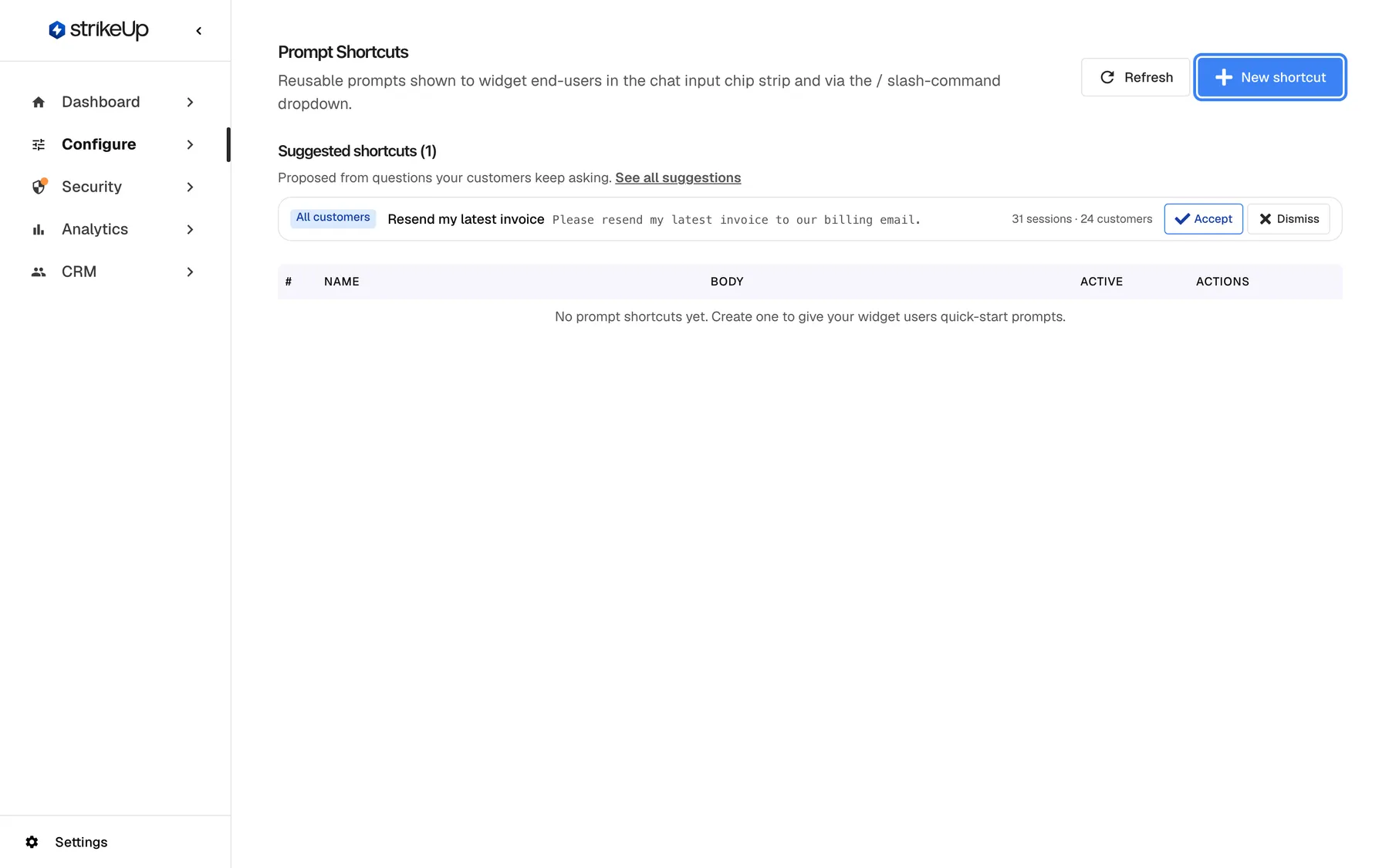
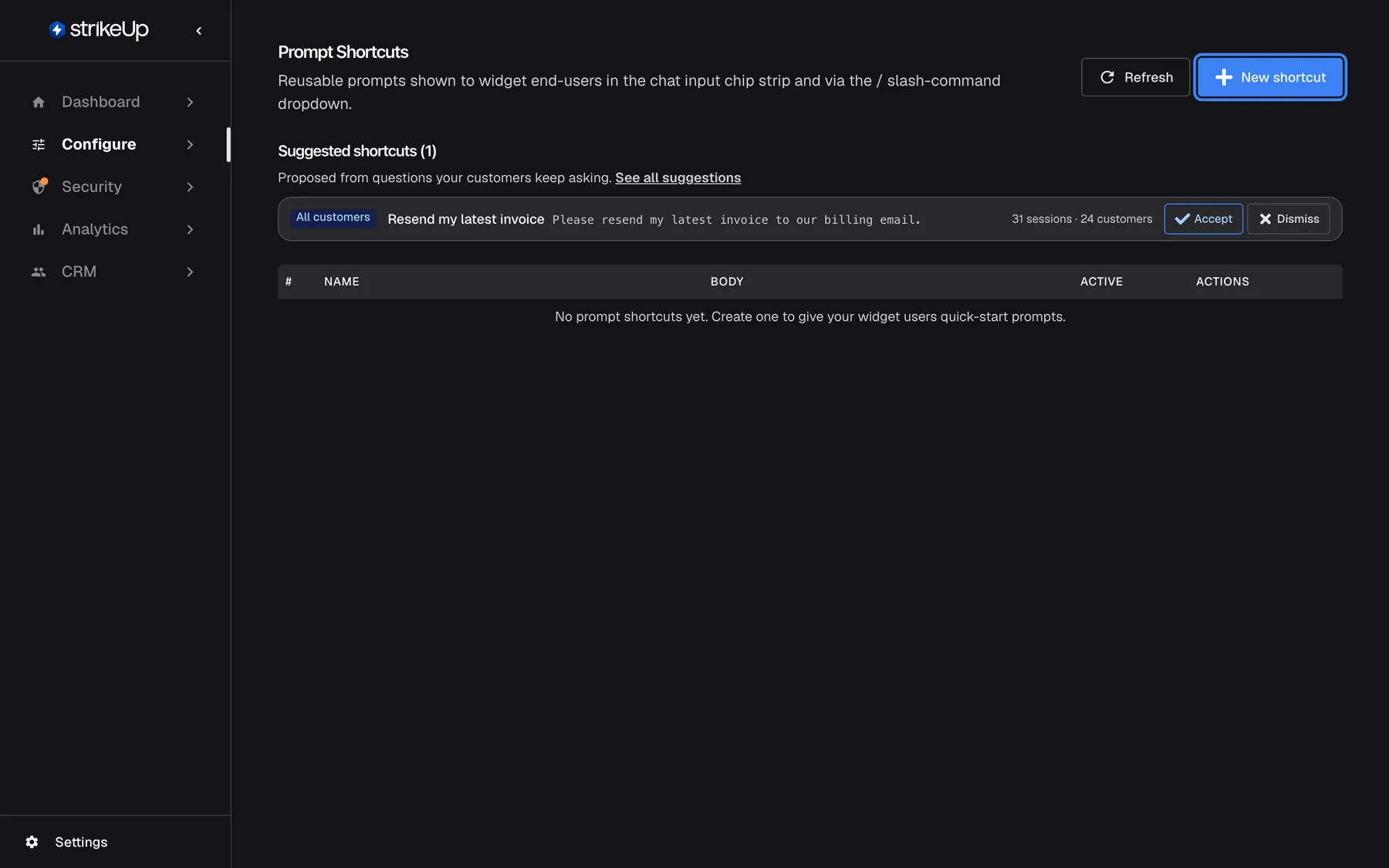
What this screenshot shows
- Screen
- Prompt Shortcuts (/admin/configure/prompt-shortcuts)
- Highlighted
- button “New shortcut”, header-right, enabled. opens the New prompt shortcut dialog
- Also visible
- Empty state: No prompt shortcuts yet.; Suggested shortcuts strip still shown
- Purpose
- what a new workspace sees on this page
A new workspace starts with an empty table, No prompt shortcuts yet. Create one to give your widget users quick-start prompts.. Proposed shortcuts can appear above it as soon as visitors have chatted.
Every control, explained
Section titled “Every control, explained”New shortcut
Section titled “New shortcut”The button at the top right of ConfigureShortcuts.
Opens New prompt shortcut with Name (required, up to 255 characters, unique), Description (optional, up to 1,000), Prompt body (required), Icon (16 choices) and language tabs. There is no limit on the number of shortcuts.
Visitors ask the same things again and again. A shortcut turns a common request into one pick from a list.
Refresh
Section titled “Refresh”Next to New shortcut, labelled Refresh.
Reloads the shortcuts and the suggested shortcuts.
A colleague may have changed the list, or a suggestion may have been accepted elsewhere.
Suggestions strip
Section titled “Suggestions strip”The strip above the table, headed Suggested shortcuts, shown only when there are pending proposals.
The top 5 pending shortcut proposals by score, each with Accept and Dismiss, and a link to all suggestions.
Proposals come from what visitors actually ask, so they point at shortcuts that will be used.
Table columns
Section titled “Table columns”| Column | What it shows | Why |
|---|---|---|
| # | The position in the list | The widget offers shortcuts in this order |
| Name | The name, and the description under it | What visitors see in the ”/” list |
| Body | The message the shortcut inserts | Check blanks and wording at a glance |
| Icon | The icon’s name | Recognise shortcuts quickly |
| Active | A switch; off hides the shortcut in every widget | Pause a shortcut without losing it |
| Actions | Move up, Move down, edit and delete | Order and maintain the list |
What you need to know
Section titled “What you need to know”| Topic | Fact |
|---|---|
| Scope | Shortcuts on this page apply to every widget of your workspace. Business customers can add their own in the customer portal; theirs win when a name is the same. |
| Who sees them | Every visitor of every widget, signed in or not. Shortcuts of a customer company appear once a visitor of that company is signed in. |
| Who can change them | Users with the Admin role, including accepting and dismissing proposed shortcuts. Everyone else can read the list; their changes fail with “This action requires the Admin role.” |
| Order | By position, then by name. |
| Inactive | Switched-off shortcuts are hidden in every widget immediately. |
| Per widget | There is no setting here to switch shortcuts off for one widget. |
| Welcome-screen cards | The cards on a widget’s welcome screen are separate and set per widget on User Interface. |
Frequently asked questions
Section titled “Frequently asked questions”Using shortcuts
Section titled “Using shortcuts”How do visitors use a shortcut?
Section titled “How do visitors use a shortcut?”In the widget, a visitor types ”/” at the start of the message box, or selects the ”/” button next to it. A list of shortcuts appears and narrows as they type, matching names and descriptions. Picking one inserts its message, or opens a small form first when the message has blanks.
Who can see my shortcuts?
Section titled “Who can see my shortcuts?”Every visitor of every widget in your workspace, whether signed in or not. Shortcuts created by a business customer in their customer portal are added for that customer company’s signed-in visitors, and replace yours when the names are the same.
What is the difference between shortcut cards and prompt shortcuts?
Section titled “What is the difference between shortcut cards and prompt shortcuts?”The cards on a widget’s welcome screen belong to that widget, up to 8 of them, set on ConfigureUser Interface, and send their prompt in one click. The prompt shortcuts on ConfigureShortcuts work in every widget, are reached by typing ”/” and can have blanks to fill in.
Why does the chip strip not show my shortcuts on the welcome screen?
Section titled “Why does the chip strip not show my shortcuts on the welcome screen?”The strip of shortcuts above the message box appears only after the conversation has started. On the welcome screen, before the first message, the widget shows the widget’s shortcut cards instead. Typing ”/” works on both.
Managing shortcuts
Section titled “Managing shortcuts”How do I hide a shortcut for a while?
Section titled “How do I hide a shortcut for a while?”Switch off its Active switch on ConfigureShortcuts. It disappears from every widget but keeps its text, translations and position, and you can switch it on again at any time.
Can I turn shortcuts off for one widget only?
Section titled “Can I turn shortcuts off for one widget only?”Not on this page. Shortcuts on ConfigureShortcuts apply to every widget of your workspace, and the widgets’ own settings have no switch for them. You can only switch a shortcut off everywhere with its Active switch.
Why do I get “A tenant shortcut named … already exists”?
Section titled “Why do I get “A tenant shortcut named … already exists”?”Shortcut names must be unique in your workspace, compared when you save on ConfigureShortcuts. Choose a different name, or edit the existing shortcut with that name instead of creating a new one.
How do I change the order of shortcuts?
Section titled “How do I change the order of shortcuts?”Use Move up and Move down on a row of the table on ConfigureShortcuts. Each click swaps the shortcut with its neighbour. Widgets list shortcuts in the same order, the first row first.
Where do suggested shortcuts come from?
Section titled “Where do suggested shortcuts come from?”StrikeUp analyses past conversations and proposes a shortcut when several visitors kept asking the same thing, at least 3 sessions from at least 2 people, and no existing shortcut or shortcut card already covers it. All proposals are listed on ConfigureSuggestions.
Troubleshooting
Section titled “Troubleshooting”| Symptom | What to check |
|---|---|
| A shortcut does not appear in the widget | Check that its Active switch is on, then reload the page with the widget. For a customer company’s shortcut, check that the visitor is signed in. |
| The ”/” list does not open | The message box must start with ”/” and contain no space. Clear the box and type ”/” again. |
| The fill-in form does not appear | The blanks must be written as {name} with letters, digits or underscores and no spaces, starting with a letter or underscore. |
| “A tenant shortcut named ’…’ already exists.” | Choose another name, or edit the existing shortcut. |
| Accepting a suggestion fails with “A shortcut named ’…’ already exists.” | Rename the existing shortcut, then accept again. |
| Visitors see the default text instead of their language | Check the translation’s language code and that its fields are filled. |
| A change fails with Request failed and “This action requires the Admin role.” | Changes on this page need the Admin role. Ask an Admin to make the change, or to give you the Admin role under Settings › Users. |