

Customer company: integrations
The Integrations tab of a customer company sets up that company’s own notification channels. When StrikeUp emails or messages one of the company’s people, it uses the company’s channel for that provider before your workspace’s channel: its own mailbox, Telegram bot, Slack app or Teams bot. The tab also holds the company’s limit on what its people may approve with a button in a chat app. Open it from CRMCompanies: select the company, then Integrations.
What you can do here
Section titled “What you can do here”- Give the company its own channels. One channel per provider, used for this company’s people instead of yours. A company whose people work in their own Microsoft 365 organisation needs its own Teams channel. Add a channel for the company.
- Test a channel. An email test goes to an address you type; a bot test checks the credentials. Test a channel.
- Switch a channel off or delete it. The company’s people then fall back to your workspace’s channel for that provider. Switch a channel off or delete it.
- Cap approvals from chat apps. Decide the highest risk the company’s people may approve from Slack, Telegram or Teams. Limit approvals from chat apps · Job notifications and chat apps.
The screen at a glance
Section titled “The screen at a glance”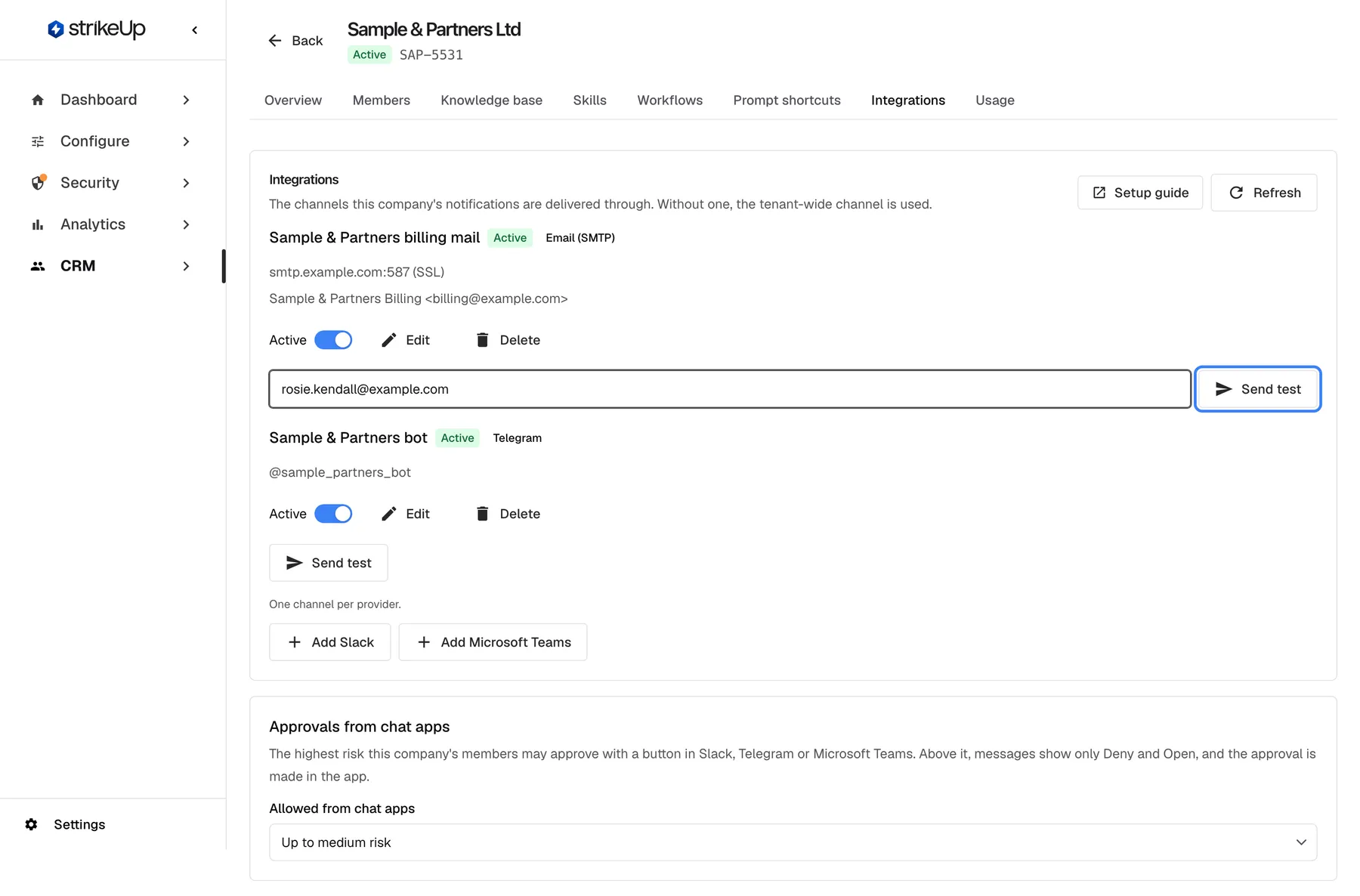
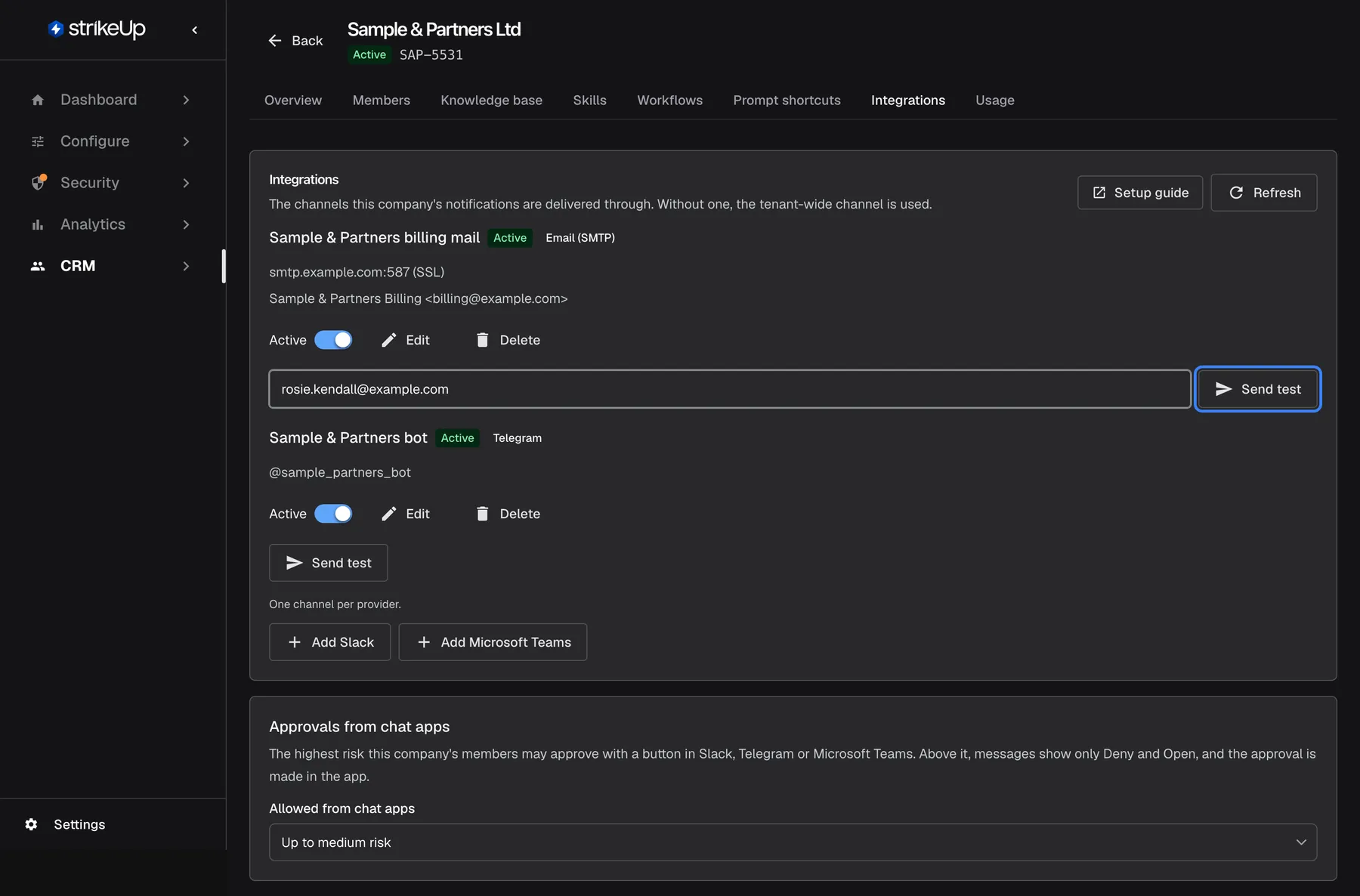
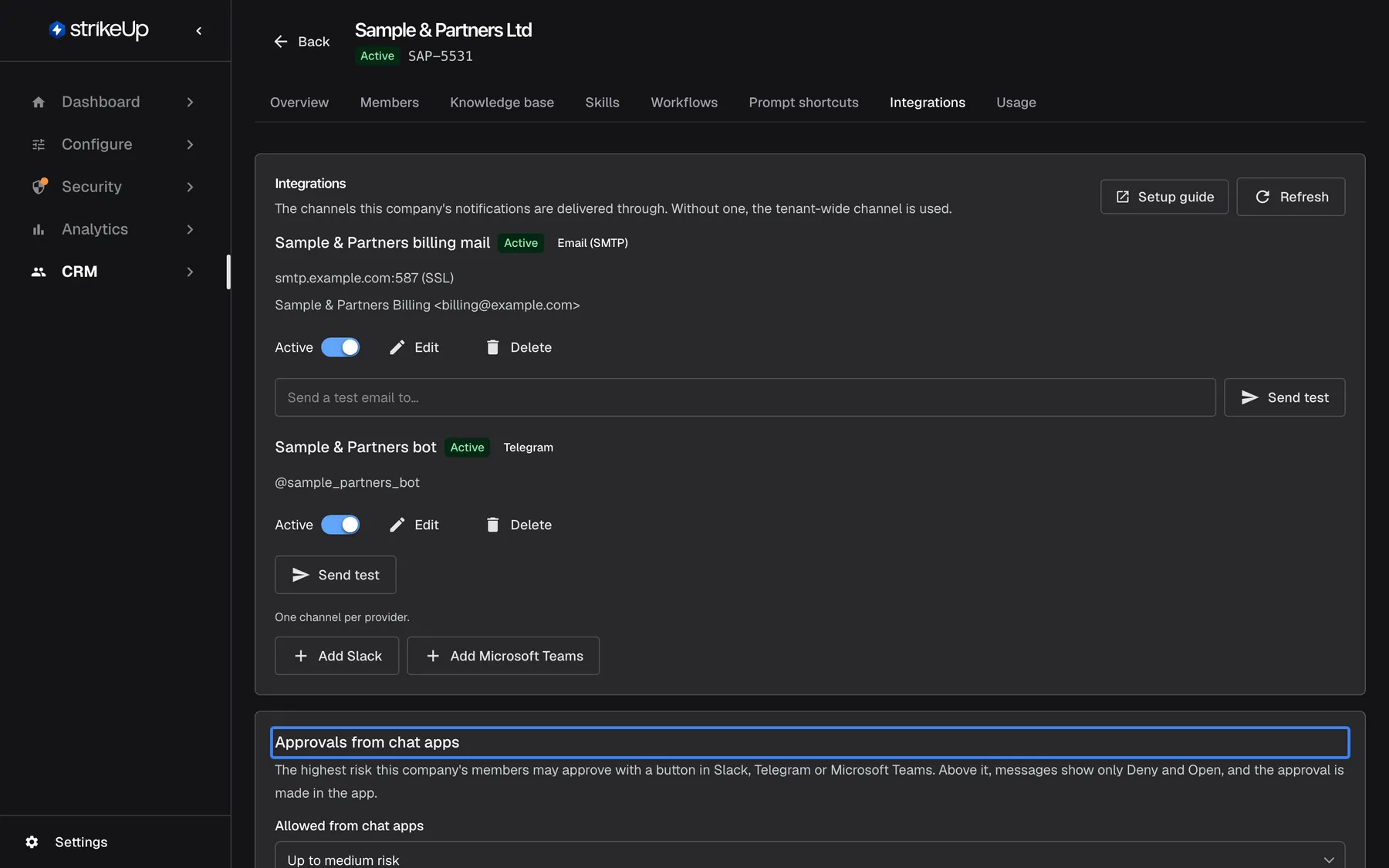
What this screenshot shows
- Screen
- Integrations (/admin/customer-companies/:id?tab=integrations)
- Highlighted
- button “Send test”, channel-smtp, enabled, test address filled. sends a test email to the typed address
- Also visible
- Sample & Partners billing mail: Active, Email (SMTP), smtp.example.com:587 (SSL); Sample & Partners bot: Active, Telegram, @sample_partners_bot; Add Slack, Add Microsoft Teams; Approvals from chat apps: Up to medium risk
- Purpose
- the company's own channels
| Region | What it shows | What you do there |
|---|---|---|
| Header | Integrations, The channels this company's notifications are delivered through. Without one, the tenant-wide channel is used., Setup guide and a refresh button | Open the setup guide, reload |
| Channel list | Each channel’s name, an Active or Inactive badge, the provider and a detail line, an Active switch, Edit, Delete and Send test | Edit, switch, delete and test channels |
| Add row | One channel per provider. and one Add button per provider without a channel | Add a channel |
| Approvals from chat apps | The company’s approval limit for chat apps | Change the limit |
The detail line shows the server, port and sender for email, the bot’s username for Telegram, the token state for Slack and the App ID for Teams.
Add a channel for the company
Section titled “Add a channel for the company”- Select the Add button of the provider, for example the one for Email (SMTP). A dialog opens, already named after the provider.
- Fill in Channel name and the provider’s fields. Where do I find these? at the top right opens the matching part of the setup guide in a new tab.
- Select Save. The notice Notification channel saved. appears and the channel joins the list.
The fields and the rules are the same as on ConfigureNotifications: host and port for email, a bot token for Telegram, nothing for a first Slack save (it returns the app manifest), and the App ID, client secret and Directory (tenant) ID for Teams. A new Slack channel saved without a token reopens at once on its manifest. The server refuses a second channel for a provider the company already has. An email channel connects only to a public mail server on port 25, 465, 587, 2465, 2525 or 2587, and when you change its host, port or user name, or switch SSL/TLS off, you type the password again; otherwise saving stops with Enter the password again: the host, port or username changed, or SSL was turned off.. A company’s email channel sends assistant emails only to the signed-in customer’s own, confirmed address.
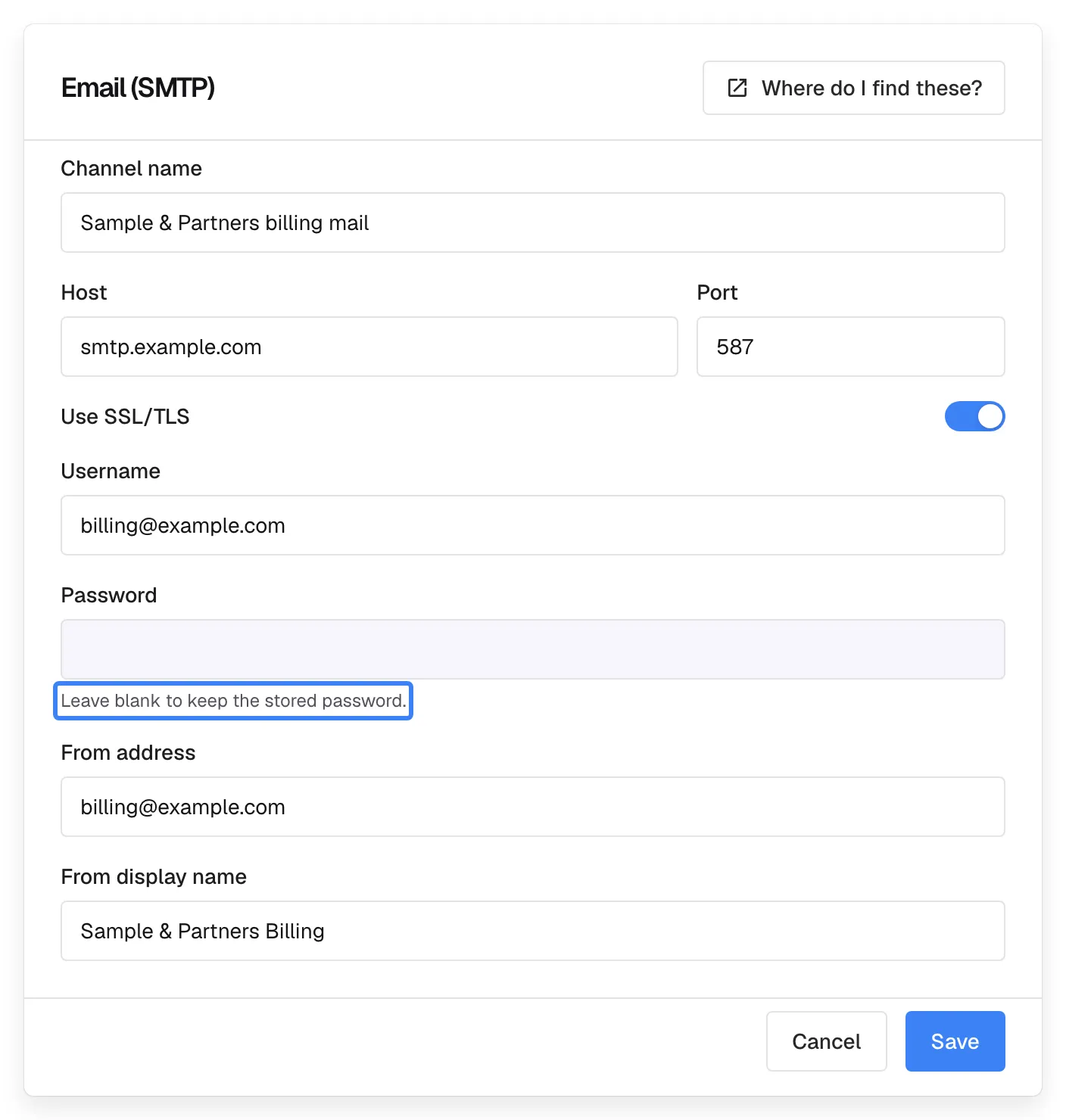
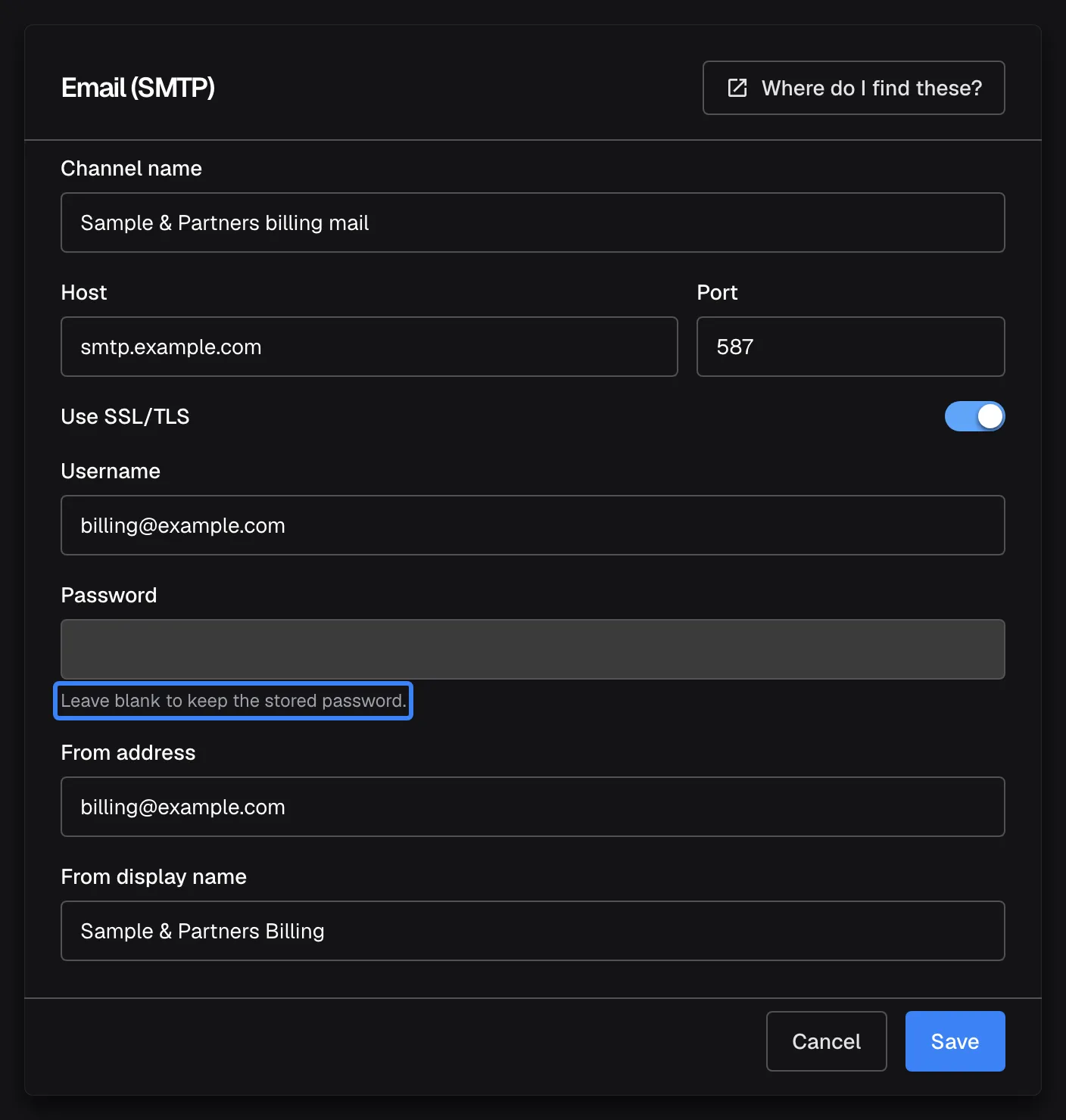
What this screenshot shows
- Screen
- Email (SMTP) (/admin/customer-companies/:id?tab=integrations)
- Highlighted
- “Leave blank to keep the stored password.”, dialog, password empty (stored one kept). none
- Also visible
- Channel name, Host, Port, Use SSL/TLS, Username, Password, From address, From display name
- Purpose
- editing an email channel
Example: Sample & Partners Ltd sends from its own mailbox Sample & Partners billing mail on smtp.example.com:587 and notifies its people through its own Telegram bot @sample_partners_bot. It has no Slack or Teams channel, so for those providers its people are reached through your workspace’s channels.
Test a channel
Section titled “Test a channel”For an email channel, type an address into Send a test email to… and select Send test. Leave the address empty to send the test to the channel’s own sender address. For a Telegram, Slack or Teams channel, Send test checks the credentials with the provider and sends no message. The result appears as a notice, and the list reloads to show the new status.
Switch a channel off or delete it
Section titled “Switch a channel off or delete it”| Action | Control | What happens |
|---|---|---|
| Switch off | The Active switch | The badge turns Inactive, the channel is skipped and the company’s people fall back to your workspace’s channel for that provider |
| Edit | Edit | The dialog opens with the stored values; secrets stay blank and are kept when left blank. Telegram, Slack and Teams channels also show their two-way setup panel |
| Delete | Delete | After the confirmation This company's notifications will fall back to the tenant-wide channel. the channel is removed |
Limit approvals from chat apps
Section titled “Limit approvals from chat apps”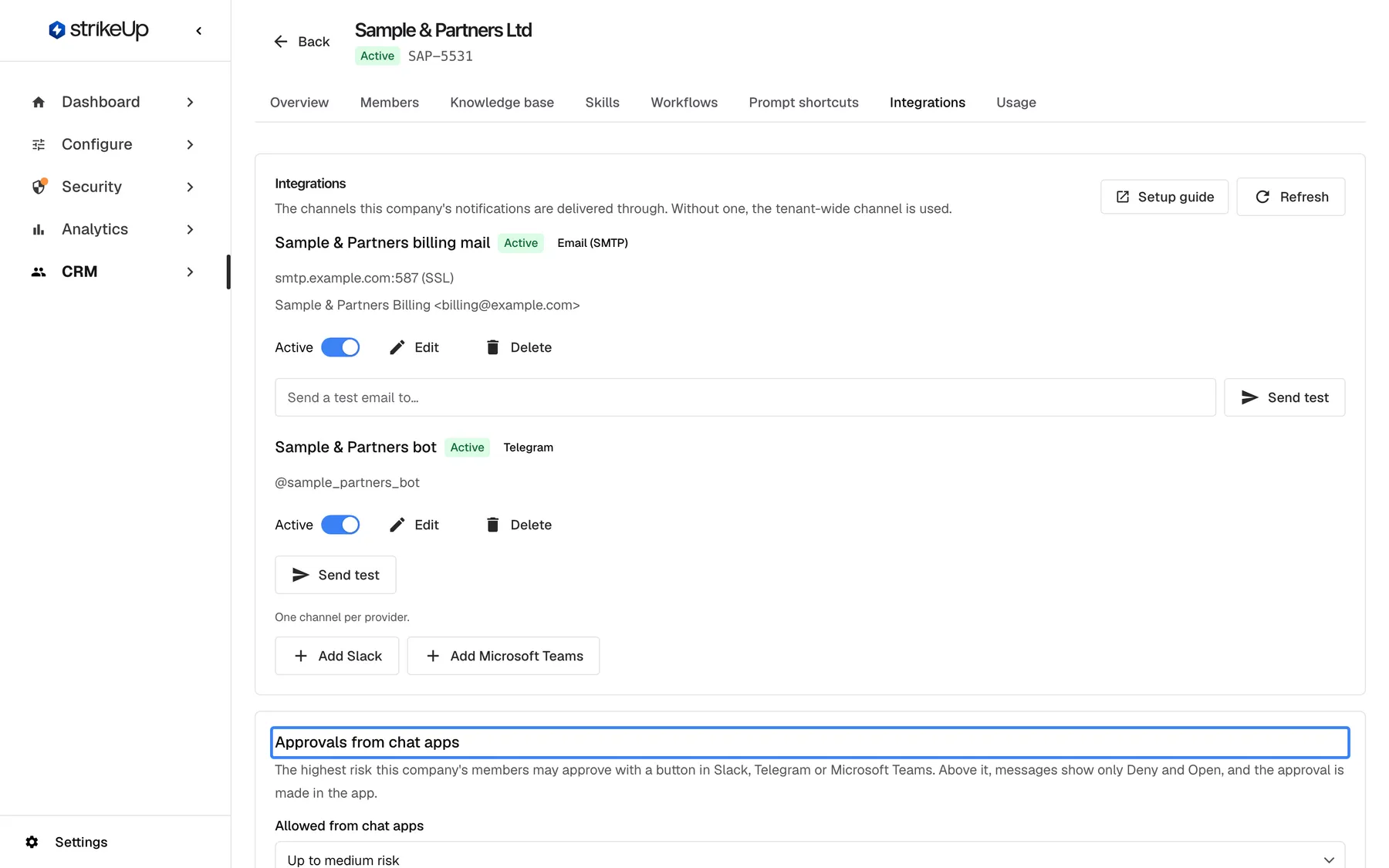
What this screenshot shows
- Screen
- Integrations (/admin/customer-companies/:id?tab=integrations)
- Highlighted
- “Approvals from chat apps”, approval-limit-card, Up to medium risk selected. choosing another value saves the limit
- Also visible
- Allowed from chat apps: Up to medium risk
- Purpose
- the chat-app approval limit
Under Approvals from chat apps, choose in Allowed from chat apps the highest risk the company’s people may approve with a button in Slack, Telegram or Teams. The choice saves at once with Approval limit saved..
| Setting | Can be approved with a button |
|---|---|
| Everything (default) | Every request, including high-risk ones |
| Up to medium risk | Low- and medium-risk requests |
| Low risk only | Low-risk requests |
| Deny only | Nothing; Deny still works |
Above the limit, the message shows only Deny and Open, and the person approves in your app. The limit applies to the company’s people wherever the channel comes from. The company’s Customer Admins see and change the same setting in the Customer Portal.
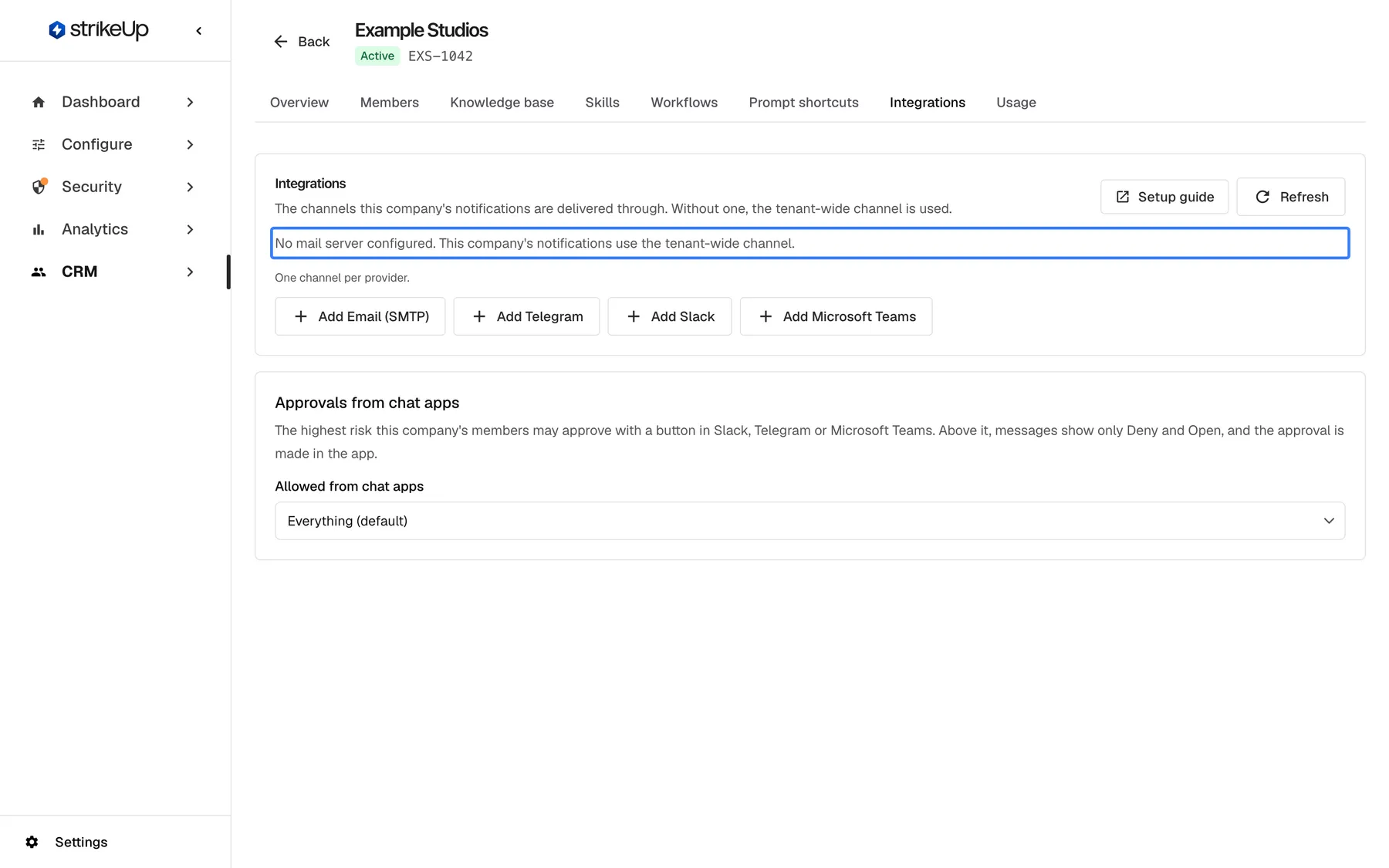
What this screenshot shows
- Screen
- Integrations (/admin/customer-companies/:id?tab=integrations)
- Highlighted
- “No mail server configured. This company's notifications use the tenant-wide channel.”, tab-body, shown. none
- Also visible
- Add Email (SMTP), Add Telegram, Add Slack, Add Microsoft Teams
- Purpose
- the default for a company without channels
Every control, explained
Section titled “Every control, explained”Add buttons
Section titled “Add buttons”Below the channel list, one per provider without a channel, under One channel per provider..
Opens the dialog for a new channel of that provider. The button disappears once the company has a channel for the provider.
A company that wants messages to come from its own mailbox or its own bot gets them without affecting your other customers.
Active
Section titled “Active”The switch on each channel.
Turns the channel on or off at once. Off, the channel is skipped and your workspace’s channel delivers instead.
Pause the company’s own channel, for example while its credentials are being renewed, without losing them.
The Edit button on each channel.
Opens the provider dialog with the stored settings. Secrets are never shown; a blank secret keeps the stored one. Saving shows Notification channel saved..
Rename the channel or rotate a password or token without deleting the channel.
Send test
Section titled “Send test”The Send test button on each channel; for email, next to the address field.
For email, sends a test message to the typed address or, when it is empty, to the channel’s sender address. For bots, checks the credentials only. The status shown in the list updates after the test.
Confirms the company’s own credentials before its people depend on them.
Delete
Section titled “Delete”The Delete button on each channel.
Asks Delete notification channel with This company's notifications will fall back to the tenant-wide channel., then removes the channel. A success shows Notification channel deleted..
Return the company to your workspace’s channels for that provider.
Approvals from chat apps
Section titled “Approvals from chat apps”The card Approvals from chat apps below the channels.
The list Allowed from chat apps with four values; the default is Everything (default). A change saves at once. If the value cannot be loaded, the card shows Could not load the approval limit..
Some companies want destructive actions approved only after a second look in the app, not with one tap on a phone.
Who sees what
Section titled “Who sees what”| Part | Who |
|---|---|
| The tab and its channels | Every signed-in user of your workspace |
| Adding, editing, testing, switching, deleting, the approval limit | Users with the Admin role; others get “This action requires the Admin role.” |
| The same channels and limit in the Customer Portal | The company’s Customer Admins, when its widget shows the portal’s notification channels page |
What you need to know
Section titled “What you need to know”| Topic | Fact |
|---|---|
| Priority | A company channel that is active and has its credentials wins over your workspace’s channel for the same provider. One still waiting for its token is skipped. |
| One per provider | Each company can have one channel per provider. |
| Teams | A Teams bot answers only its own Microsoft 365 organisation. |
| Bots in use | A Telegram bot or Azure Bot can serve one channel only. |
| Secrets | Passwords, tokens and secrets are never shown after saving. |
| Opt-in | The company’s people choose their own channels under My notifications in the Customer Portal. |
Frequently asked questions
Section titled “Frequently asked questions”When should a company have its own channels?
Section titled “When should a company have its own channels?”When its messages must come from its own mailbox or bot, or when its people work in their own Microsoft 365 organisation, because a Teams bot only reaches the organisation it was created in. Otherwise leave the company’s Integrations tab empty and your workspace’s channels deliver.
Can a company have two email channels?
Section titled “Can a company have two email channels?”No. A company has at most one channel per provider on its Integrations tab, and the server refuses a second one. Edit the existing channel to change its server or address.
Why is the password field empty when I edit a channel?
Section titled “Why is the password field empty when I edit a channel?”StrikeUp never shows a stored password, token or secret. Leave the field blank in the dialog on the company’s Integrations tab to keep the stored value, or type a new one to replace it.
Can the company’s own admins set up these channels?
Section titled “Can the company’s own admins set up these channels?”Yes. A company’s Customer Admins manage the same channels on the Notifications page of the Customer Portal, when the widget shows the portal’s notification channels page. Changes made there and on this tab are the same channels.
Testing and fallback
Section titled “Testing and fallback”Who receives the test email?
Section titled “Who receives the test email?”The address you type into Send a test email to… before selecting Send test. When the field is empty, the test goes to the email channel’s own sender address.
What happens if I switch a channel off?
Section titled “What happens if I switch a channel off?”The company’s people are reached through your workspace’s channel for that provider, if you have one, until you switch the company’s channel back on with the Active switch on its Integrations tab.
What happens when I delete a channel?
Section titled “What happens when I delete a channel?”The channel is removed and the company falls back to your workspace’s channel for that provider, as This company's notifications will fall back to the tenant-wide channel. says. People who had connected to the company’s own bot must connect again to whichever bot then serves them.
Approvals
Section titled “Approvals”What does Up to medium risk allow?
Section titled “What does Up to medium risk allow?”With Up to medium risk in Allowed from chat apps, the company’s people can approve low- and medium-risk requests with a button in Slack, Telegram or Teams. A high-risk request, such as one that deletes or overwrites data, shows only Deny and Open, and is approved in your app.
Does the approval limit apply in the widget?
Section titled “Does the approval limit apply in the widget?”No. Approvals from chat apps only limits buttons in Slack, Telegram and Teams messages. Approvals in the widget and in the Customer Portal follow your tool policies as before.
Troubleshooting
Section titled “Troubleshooting”| Symptom | What to check |
|---|---|
| Request failed when saving | Read the reason in the dialog: a missing name or host, an invalid port or GUID, a second channel for the same provider, or a bot another channel already uses. |
| Saving an email channel shows Enter the password again: the host, port or username changed, or SSL was turned off. | The host, port or user name changed, or SSL/TLS was switched off. Type the password again and save. |
| The test says the SMTP port is not allowed, or the host is not a public internet address | Use port 25, 465, 587, 2465, 2525 or 2587 and a mail server reachable from the internet. |
| The test says Test email failed. | For email, check host, port, SSL/TLS and credentials. For bots, check the token or the Teams IDs and secret. |
| The company’s people still get messages from your bot | The company’s channel is switched off, still lacks its token, or does not exist for that provider. |
| Approve buttons are missing in Slack, Telegram or Teams | Check the company’s Approvals from chat apps; above it, only Deny and Open show. |
| A change fails with “This action requires the Admin role.” | Changes on this tab need the Admin role. |