

AI Gateway: connectors
A connector is one AI provider account that your assistant can call: where the provider’s endpoint is, which key to send, and which model to use by default. The Connectors tab is where you connect your own provider accounts, so that the calls your agents make go to an account you hold with the provider, test them, and watch whether they are failing. It is the first tab of ConfigureAI Gateway and opens by default. The page is available once StrikeUp has switched the AI Gateway feature on for your workspace; after that, every signed-in user of the workspace can view it, and adding, testing, editing and deleting connectors needs the Admin role.
What you can do here
Section titled “What you can do here”- See which provider accounts your agents can use. The table lists your own connectors next to the one managed by StrikeUp for your plan. The screen at a glance.
- Connect your own provider account. Add a connector with a name, the provider, the request format and your key. The key is stored encrypted and never shown again. Add a connector.
- Check that a connector works. Test sends one small request and shows the model and the response time, or the provider’s reason for failing. Test a connector.
- Spot a connector that is failing. The Health column shows recent failures and whether StrikeUp is temporarily skipping the connector. Read a connector’s health.
- Change a connector or replace its key. Leave the key box empty to keep the stored key. Edit a connector.
- Remove a connector. Stages pinned to its models fall back to your default model. Delete a connector.
- Run on your plan’s models without any connector. You do not need a connector. Work without a connector · AI models, spend and budgets.
The screen at a glance
Section titled “The screen at a glance”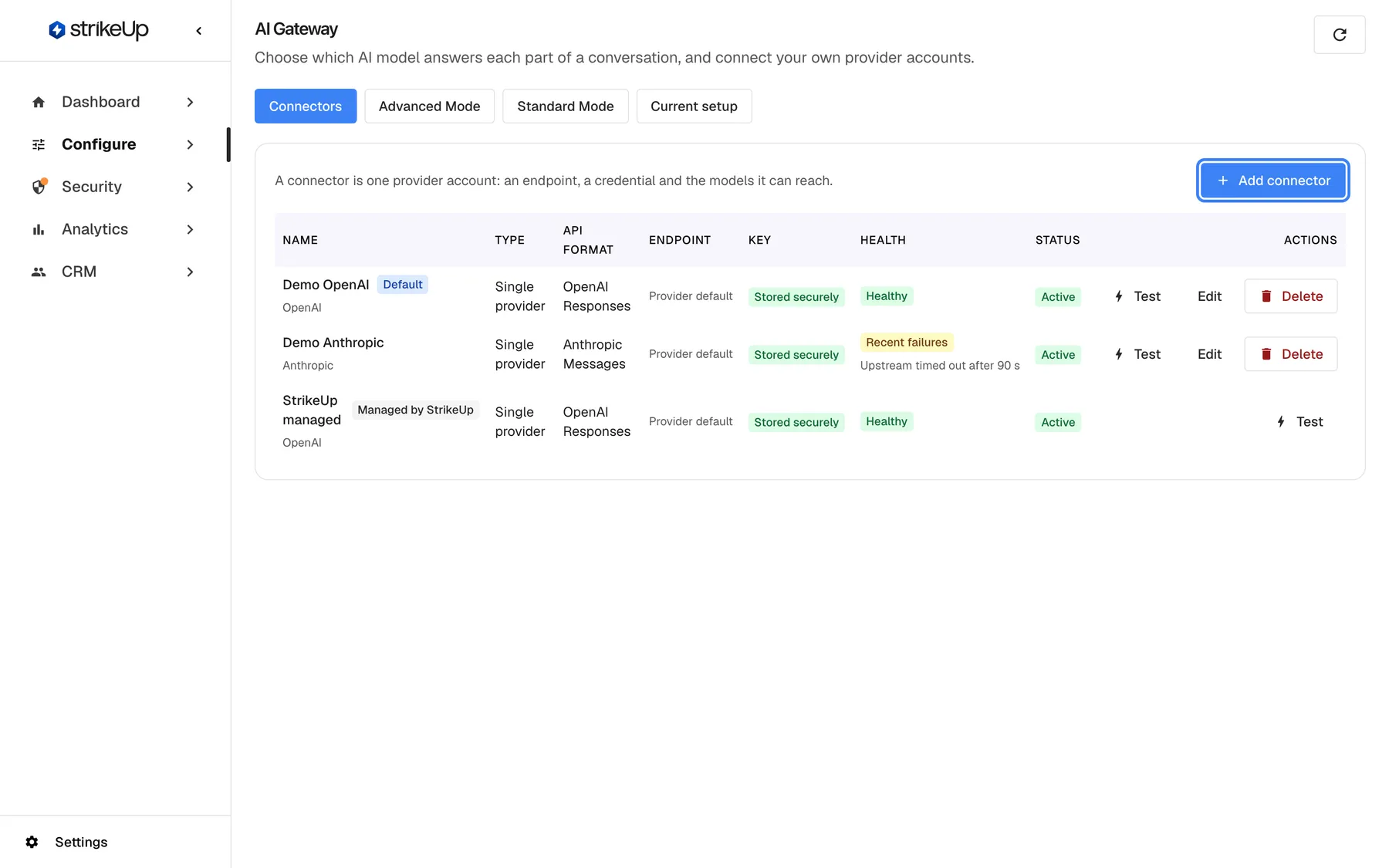
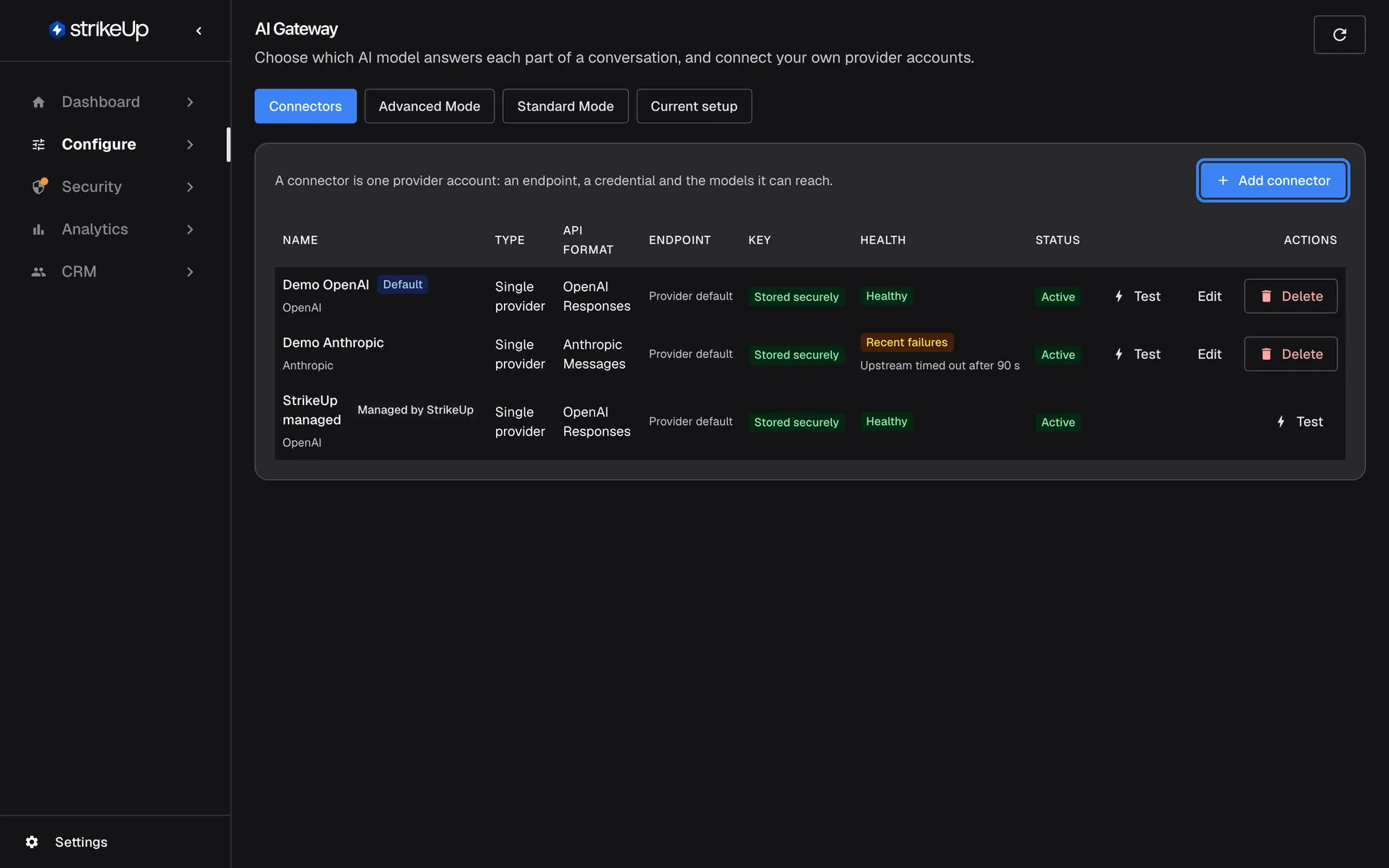
What this screenshot shows
- Screen
- Connectors (/admin/configure/ai-gateway)
- Highlighted
- button “Add connector”, panel-header-right, enabled. opens the Add connector form
- Also visible
- 3 connectors: Demo OpenAI (Default), Demo Anthropic, StrikeUp managed (Managed by StrikeUp); Columns Name, Type, API format, Endpoint, Key, Health, Status, Actions
- Purpose
- entry point for bringing your own provider key
| Region | What it shows | What you do there |
|---|---|---|
| Page header | The title AI Gateway, the line Choose which AI model answers each part of a conversation, and connect your own provider accounts. and a round refresh button at the right | Reload all four tabs and the change history |
| Tab strip | Connectors, Advanced Mode, Standard Mode, Current setup | Switch tab; the page always opens on Connectors |
| Panel header | The line A connector is one provider account: an endpoint, a credential and the models it can reach. and Add connector | Start a new connector |
| Connector table | One row per connector: name and badges, type, request format, endpoint, key state, health, status and actions | Test, edit or delete a connector |
If the page cannot load its settings, it shows The AI Gateway settings could not be loaded. with Try again.
Add a connector
Section titled “Add a connector”-
Open ConfigureAI Gateway. The Connectors tab is selected.
-
Select Add connector. The dialog Add connector opens.
-
Enter a Name your team will recognise, such as the account it belongs to, and the Provider, for example
OpenAI,AnthropicorMistral. The provider is the company that bills the account, and it cannot be changed later. -
Choose the Type, the API format and the Credential type. For a direct account with OpenAI, Anthropic or Google, keep Single provider and pick the provider’s own format.
-
Paste the key into API key, and enter a Default model the account can use, such as
mistral-large-latest.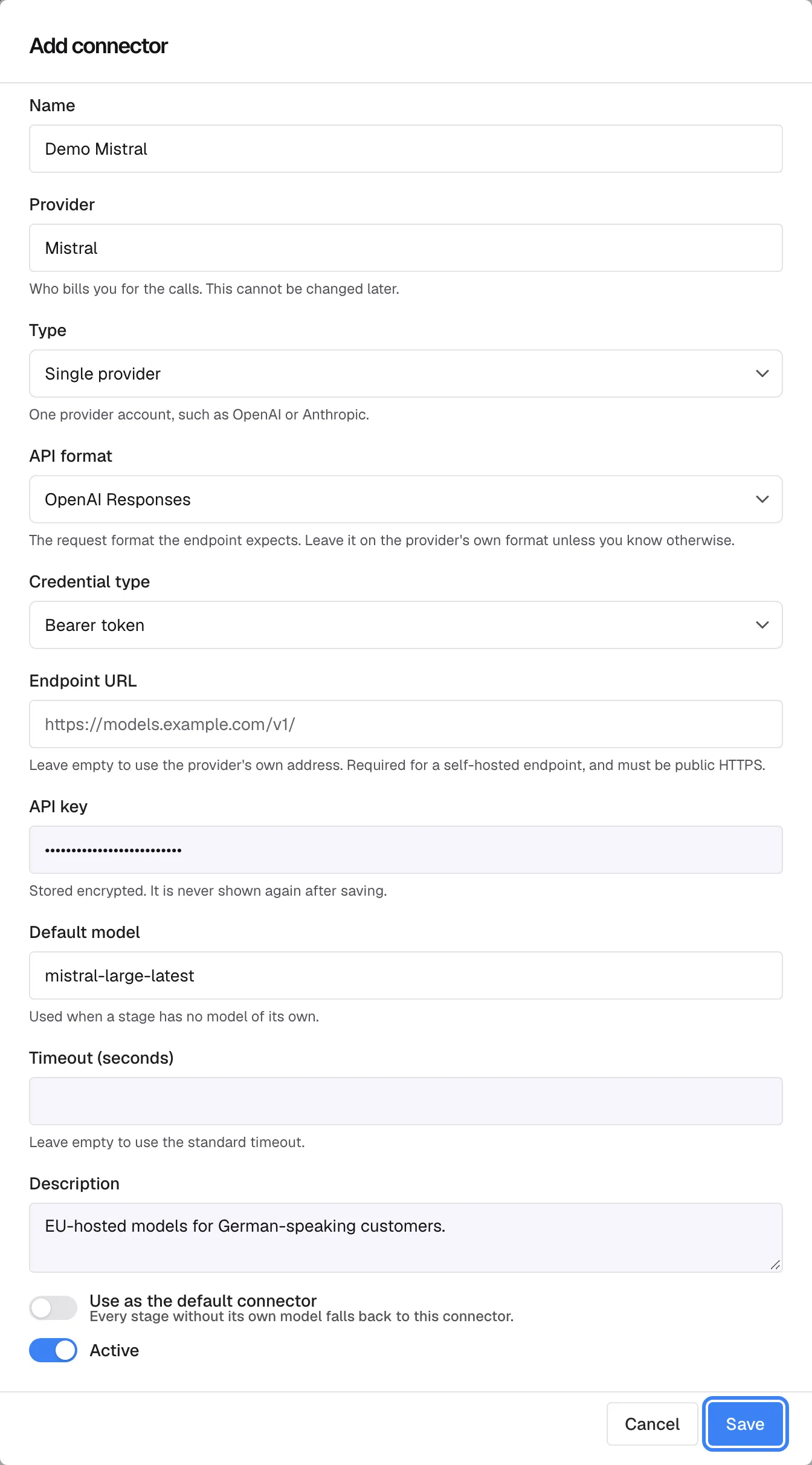
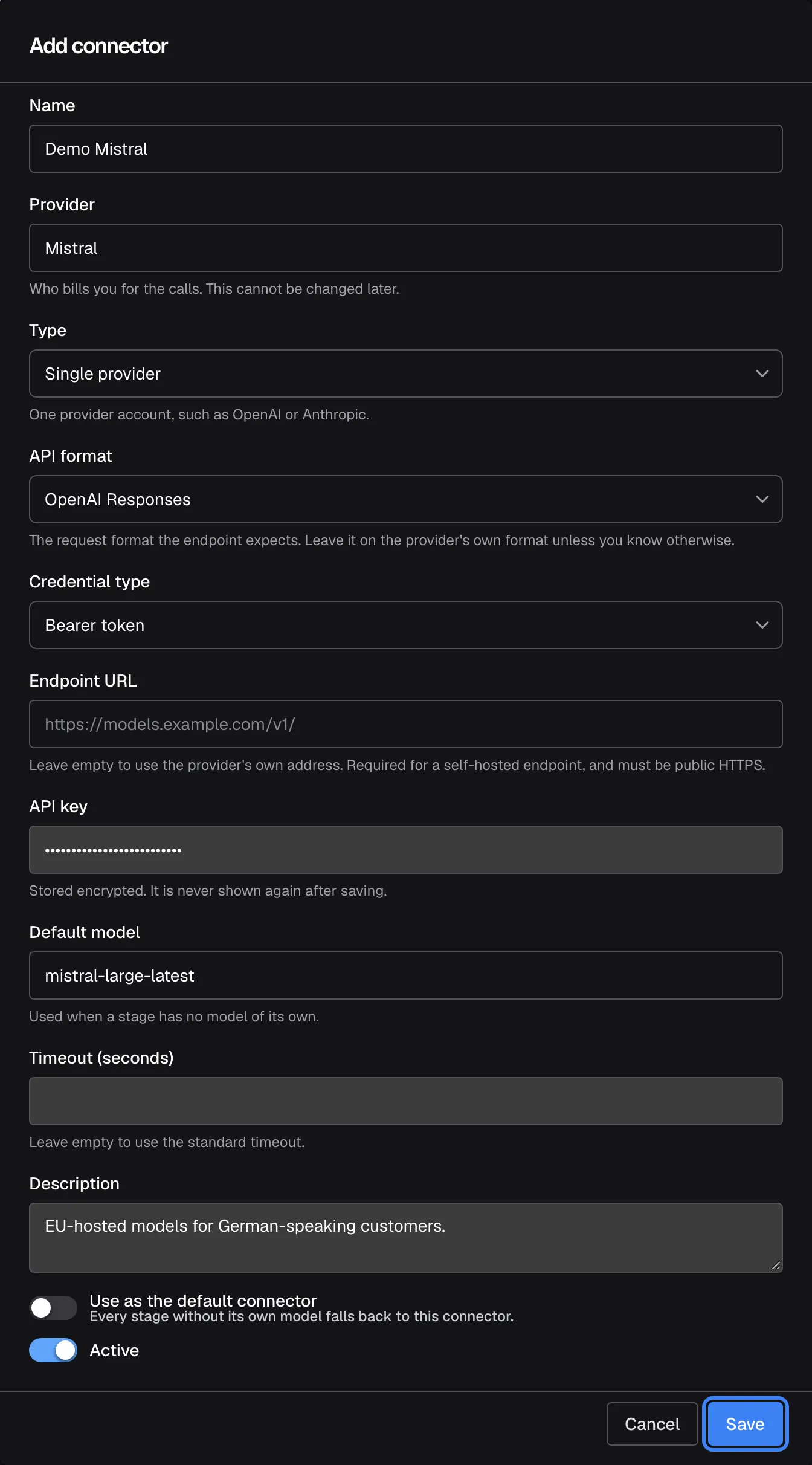
A new connector needs a name and a provider; the key is stored encrypted and never shown again. What this screenshot shows
- Screen
- Add connector (/admin/configure/ai-gateway)
- Highlighted
- button “Save”, dialog-footer, enabled. creates the connector
- Also visible
- Name: Demo Mistral; Provider: Mistral; Default model: mistral-large-latest; API key entered (masked); Switches: Use as the default connector, Active
- Purpose
- adding a bring-your-own-key connector
-
Select Save. The notice Connector created appears and the connector is added to the table, with the key shown as Stored securely.
Select Test on the new row straight away to confirm that the key and the default model work.
Every change to a connector is recorded under Configuration changes on the Current setup tab, with who made it and when, without the key. Saved changes reach conversations within about a minute.
Test a connector
Section titled “Test a connector”Select Test in a row’s actions. StrikeUp sends one minimal request through the connector, using its Default model, and shows the result in place, under the connector’s name.
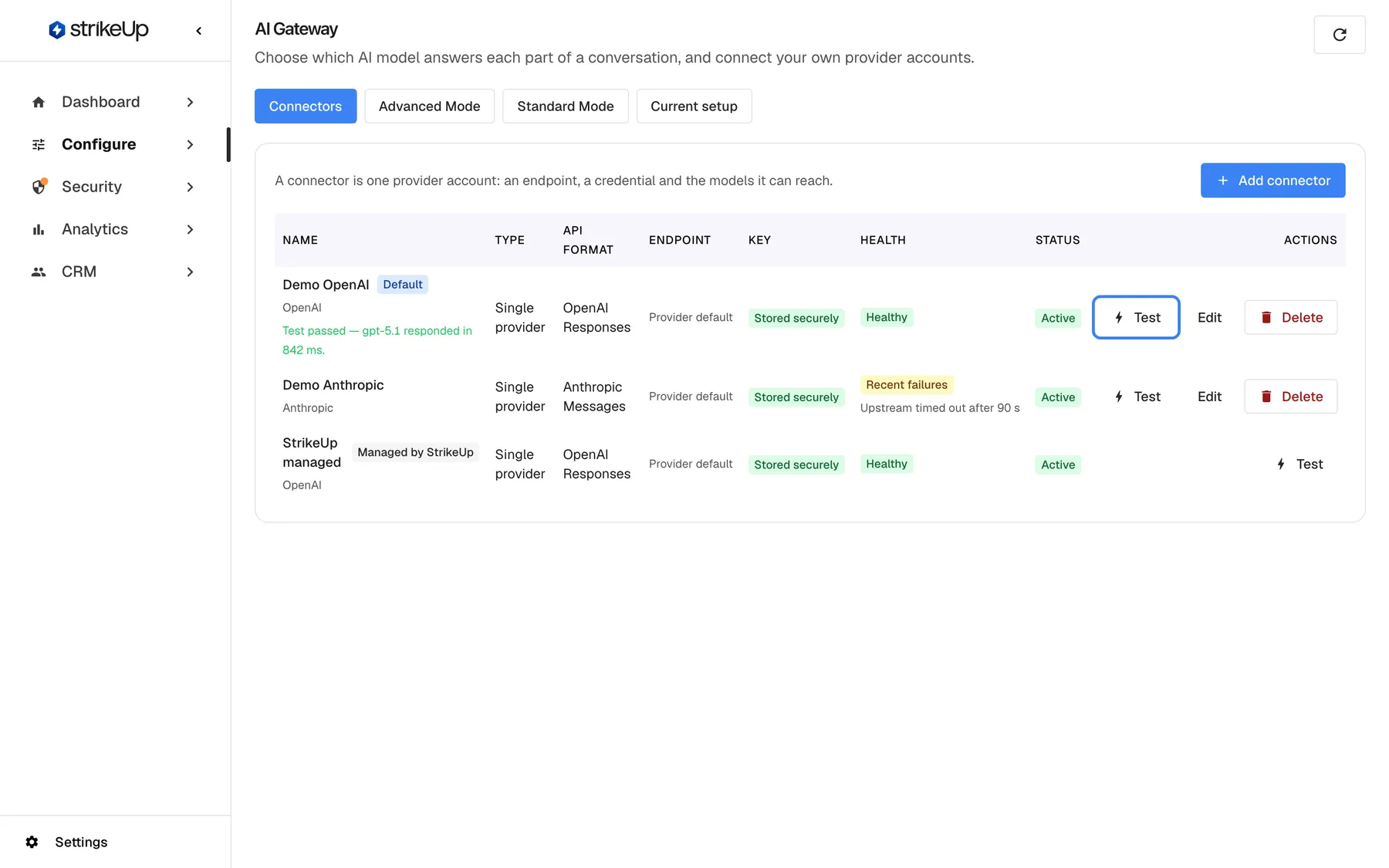
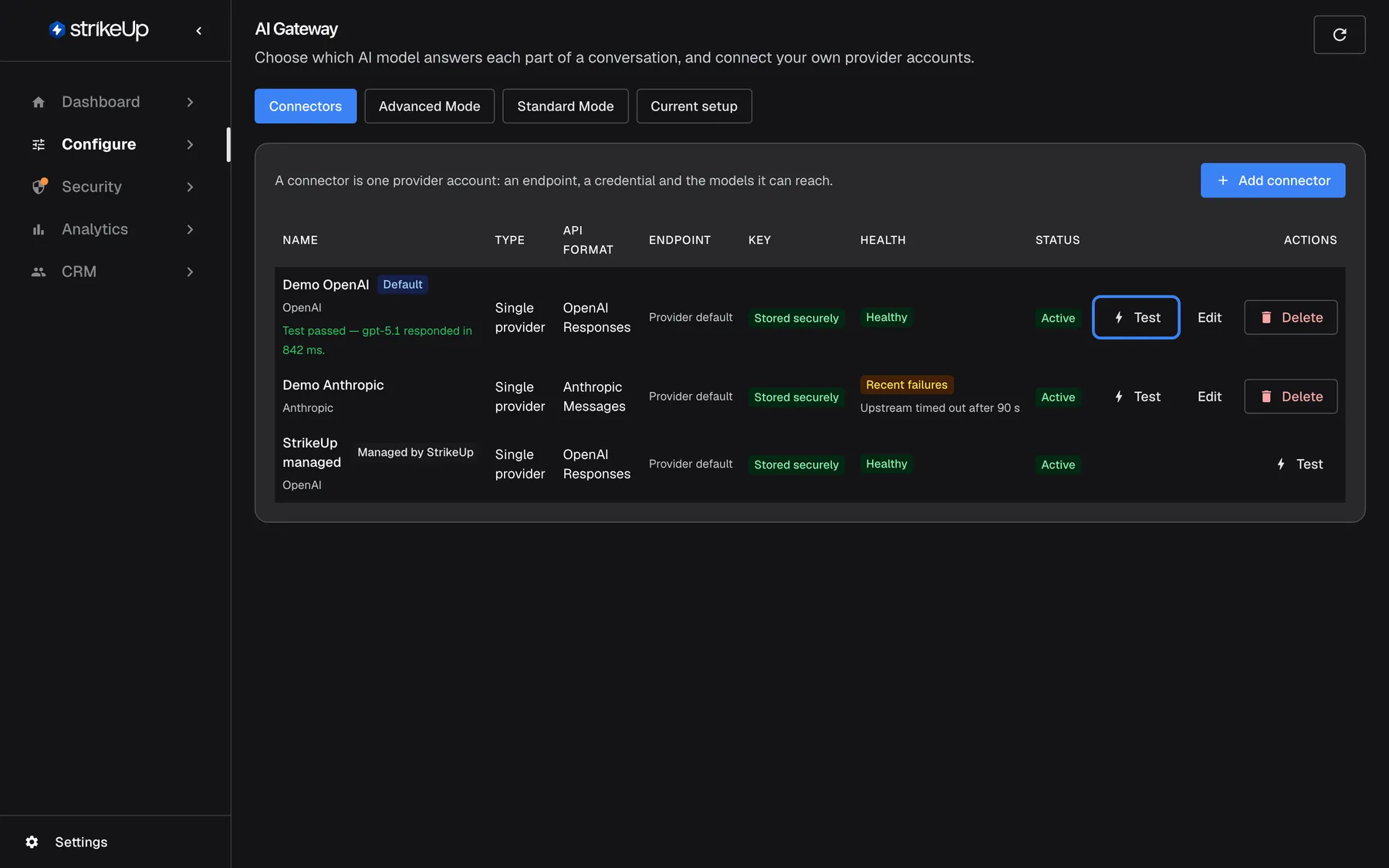
What this screenshot shows
- Screen
- Connectors (/admin/configure/ai-gateway)
- Highlighted
- button “Test”, table-actions-column, enabled. runs a one-request connection test
- Also visible
- Demo OpenAI: Test passed — gpt-5.1 responded in 842 ms.
- Purpose
- checking a connector works
| Result under the name | Meaning |
|---|---|
| Test passed — {{model}} responded in {{ms}} ms., with the model and milliseconds filled in | The key works and the model answered |
| Test failed — {{reason}}, followed by the provider’s reason | The provider refused or failed the request, for example because the key is wrong or the model name does not exist for this account |
| The reason the provider did not explain why | The request failed and the provider gave no reason |
| The reason the connector could not be reached | StrikeUp could not reach the endpoint at all |
- A connector needs a model to test. Without a Default model, the test fails with “This connector names no default model and the catalog has no active model for it. Set a default model or add one to the catalog.” Edit the connector and set one.
- The test goes straight to the provider, and it counts. It does not pass through the rest of your setup, but it is recorded and priced like any other call, on AI Spend under the stage
connector_test, and it counts towards your AI budgets. The provider charges the account for the one small request. - Tests are limited. Up to 5 tests per connector a minute and 200 across your workspace in 24 hours; over the limit the result reads too many tests in a row, wait a minute and try again.
- The result is not saved. It disappears when you reload the page or switch tab.
Read a connector’s health
Section titled “Read a connector’s health”The Health column shows what happened to recent calls through the connector. It is a record of real calls, not a live check: use Test for that.
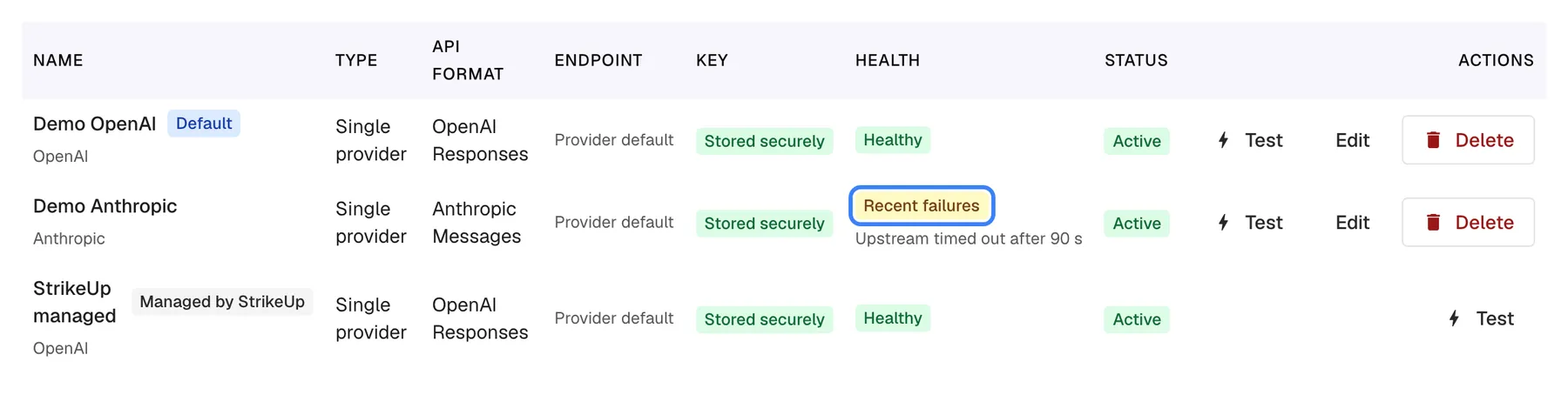
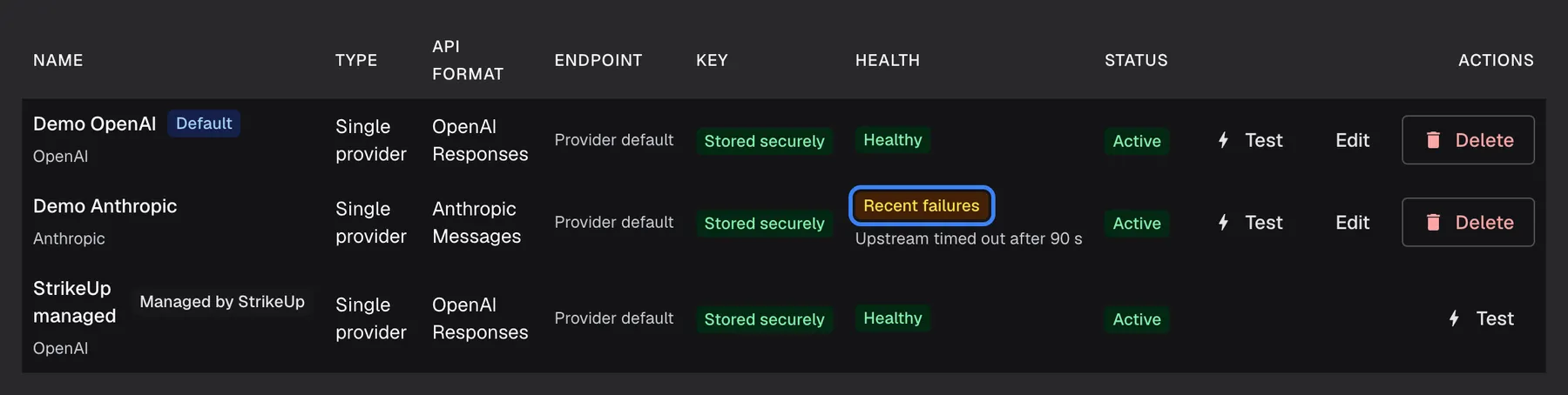
What this screenshot shows
- Screen
- Connectors (/admin/configure/ai-gateway)
- Highlighted
- “”, table-health-column, shown for Demo Anthropic. none (status badge)
- Also visible
- Demo Anthropic: Recent failures, reason 'Upstream timed out after 90 s'; Demo OpenAI and StrikeUp managed: Healthy
- Purpose
- reading connector health
| Badge | Meaning | What StrikeUp does |
|---|---|---|
| Healthy (green) | No recent failures | Uses the connector normally |
| Recent failures (yellow) | Some calls failed lately, but not enough to stop using it | Keeps using it, retrying failed calls |
| Temporarily skipped (red) | Five calls in a row failed, or the provider rejected the key | Skips the connector and uses backup models, for 60 seconds at first and up to 10 minutes after repeated failures |
| Recovering (orange) | The cool-down has ended | Lets a call through to see whether the provider is back |
Under every badge except Healthy, the provider’s own reason for the last failure is shown, such as a timeout or an HTTP 401, or The provider gave no reason..
How StrikeUp treats failures:
- Busy or temporarily failing providers (rate limits, server errors, timeouts) are retried up to 2 times on the same connector, then the next backup model is tried.
- A rejected key (HTTP 401 or 403) is not retried. The connector is skipped at once and backup models take over.
- A request the provider calls invalid (HTTP 400, 413 or 422) is not retried and not passed to a backup model, because another model would refuse it too.
- When every option fails, the visitor reads “The assistant is temporarily unavailable. Please try again shortly.” or, when the providers are rate-limiting, “The assistant is busy right now. Please try again in a moment.”
Edit a connector
Section titled “Edit a connector”-
Select Edit in the connector’s row. The dialog Edit connector opens with the current values.
-
Change what you need. Provider is greyed out with The provider is fixed once a connector is created.. The key box reads A key is already stored. Leave this empty to keep it..
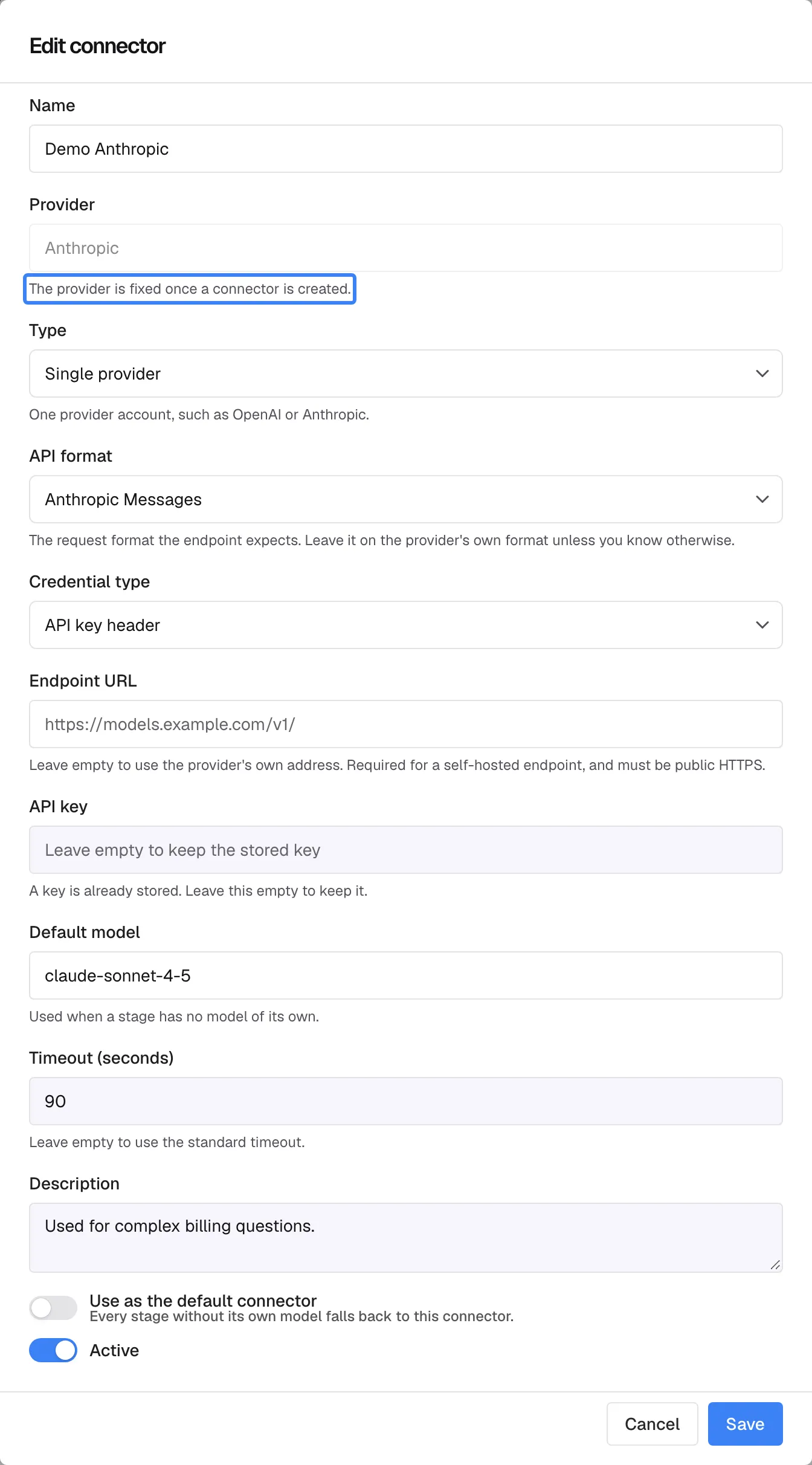
When editing, the provider is locked and an empty key field keeps the key already stored. What this screenshot shows
- Screen
- Edit connector (/admin/configure/ai-gateway)
- Highlighted
- “”, dialog-provider-field, provider disabled. none (hint)
- Also visible
- Demo Anthropic, provider Anthropic, default model claude-sonnet-4-5, timeout 90; API key: A key is already stored. Leave this empty to keep it.
- Purpose
- editing an existing connector
-
To replace the key, paste the new one. To keep it, leave the box empty.
-
Select Save. The notice Connector saved appears.
Only connectors you created can be edited. The connector marked Managed by StrikeUp is shared by every workspace on StrikeUp, so it only offers Test. To move an account to another provider, add a new connector and delete the old one.
Delete a connector
Section titled “Delete a connector”-
Select Delete in the connector’s row.
-
Read the popover Delete this connector?: Any route bound to one of its models falls back to your default model. This cannot be undone.
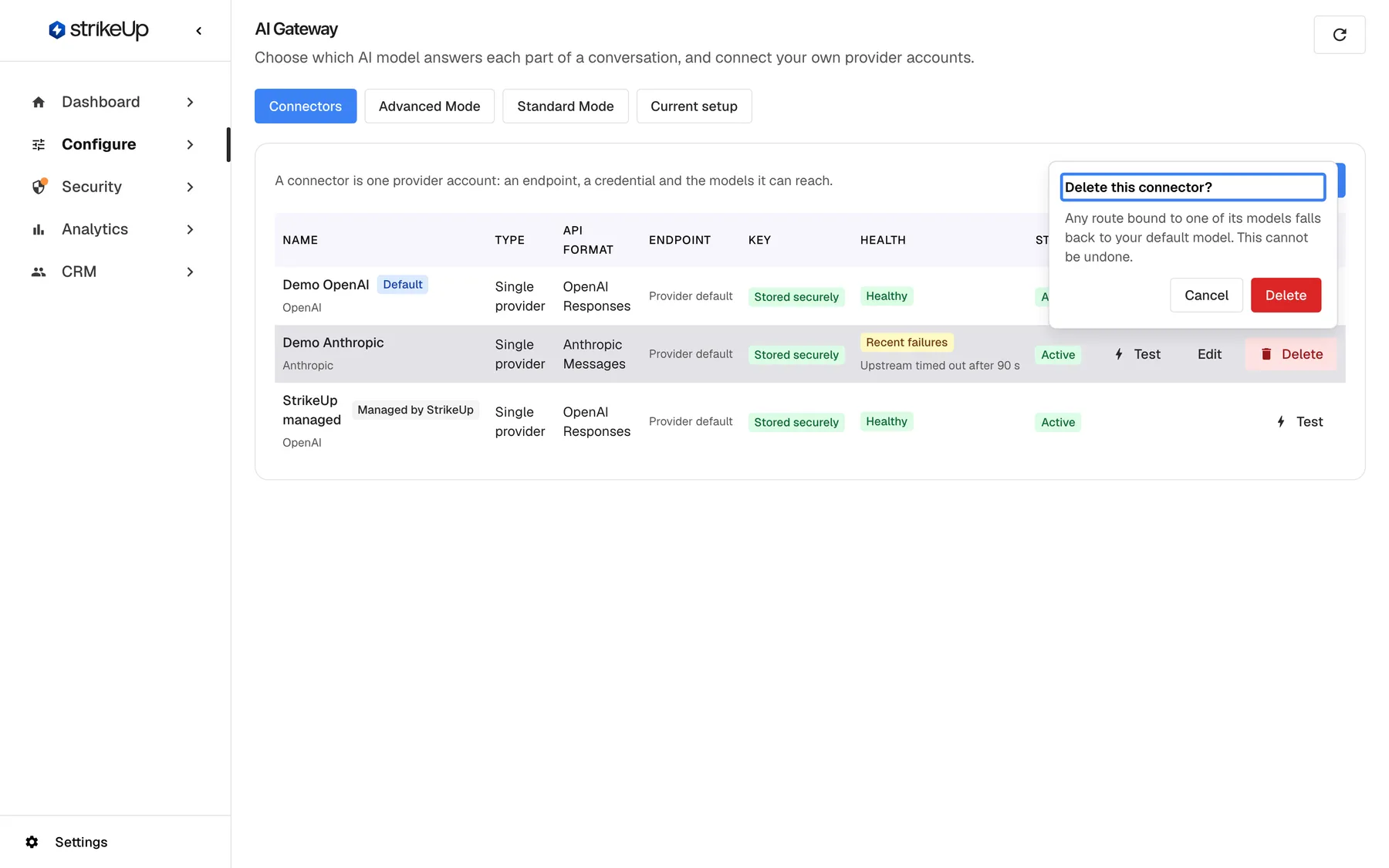
Deleting a connector cannot be undone; stages pinned to its models fall back to your default model. What this screenshot shows
- Screen
- Connectors (/admin/configure/ai-gateway)
- Highlighted
- “”, delete-popover, open. asks to confirm the deletion
- Also visible
- Popover: Delete this connector? with the fallback warning
- Purpose
- removing a connector
-
Select the red Delete to confirm. The notice Connector deleted appears.
Deleting cannot be undone. A stage that was pinned to one of the connector’s models on Advanced Mode keeps working: it takes its model from the next setting in line, such as its level on Standard Mode. Past calls in AI actions keep the record of which connector served them. To stop using a connector for a while instead, edit it and switch Active off.
Work without a connector
Section titled “Work without a connector”You do not need a connector. With none of your own, the table shows only the connector StrikeUp manages, or, when there is none to show, the message No connectors yet. Your agents currently run on the models included with your plan.
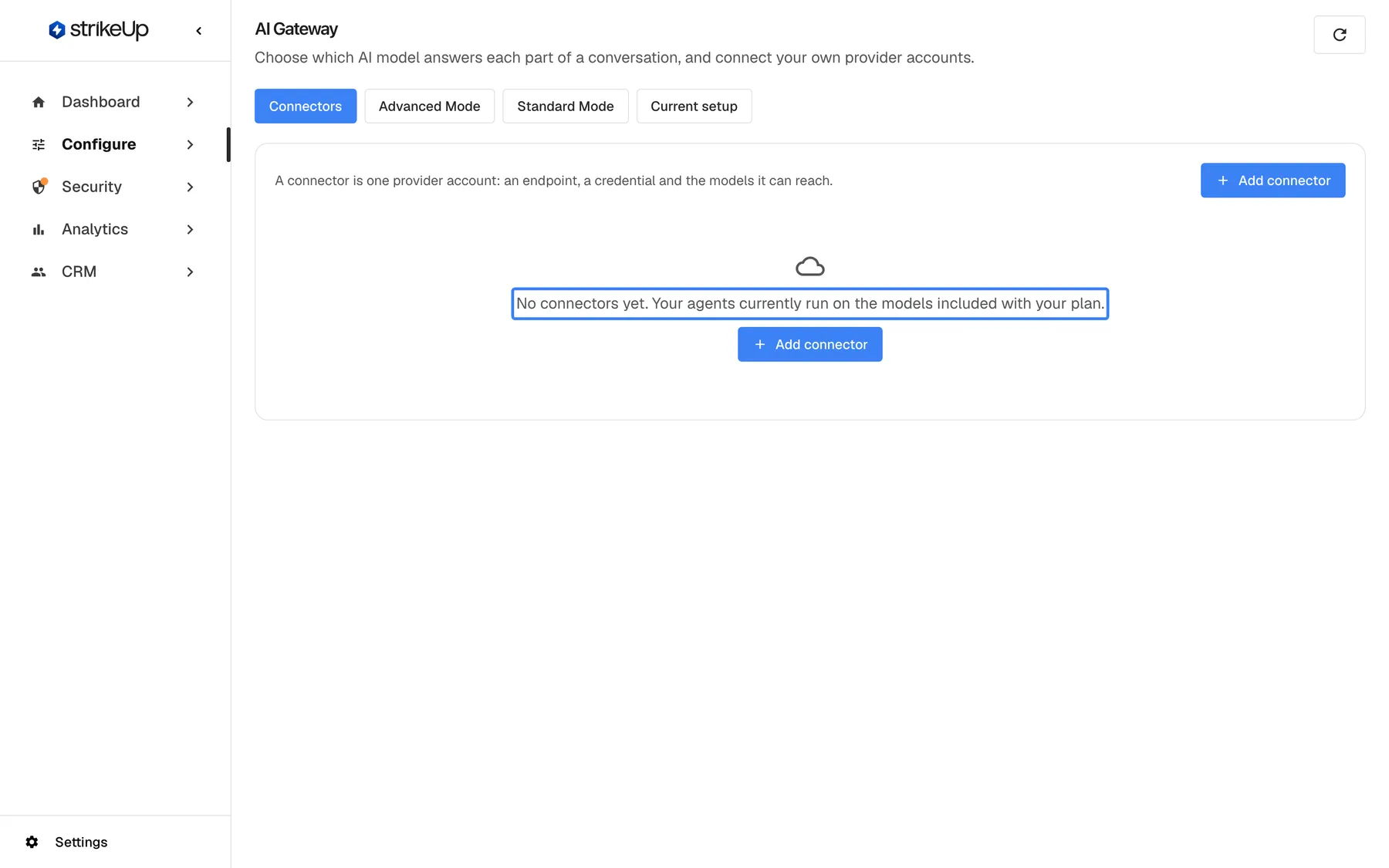
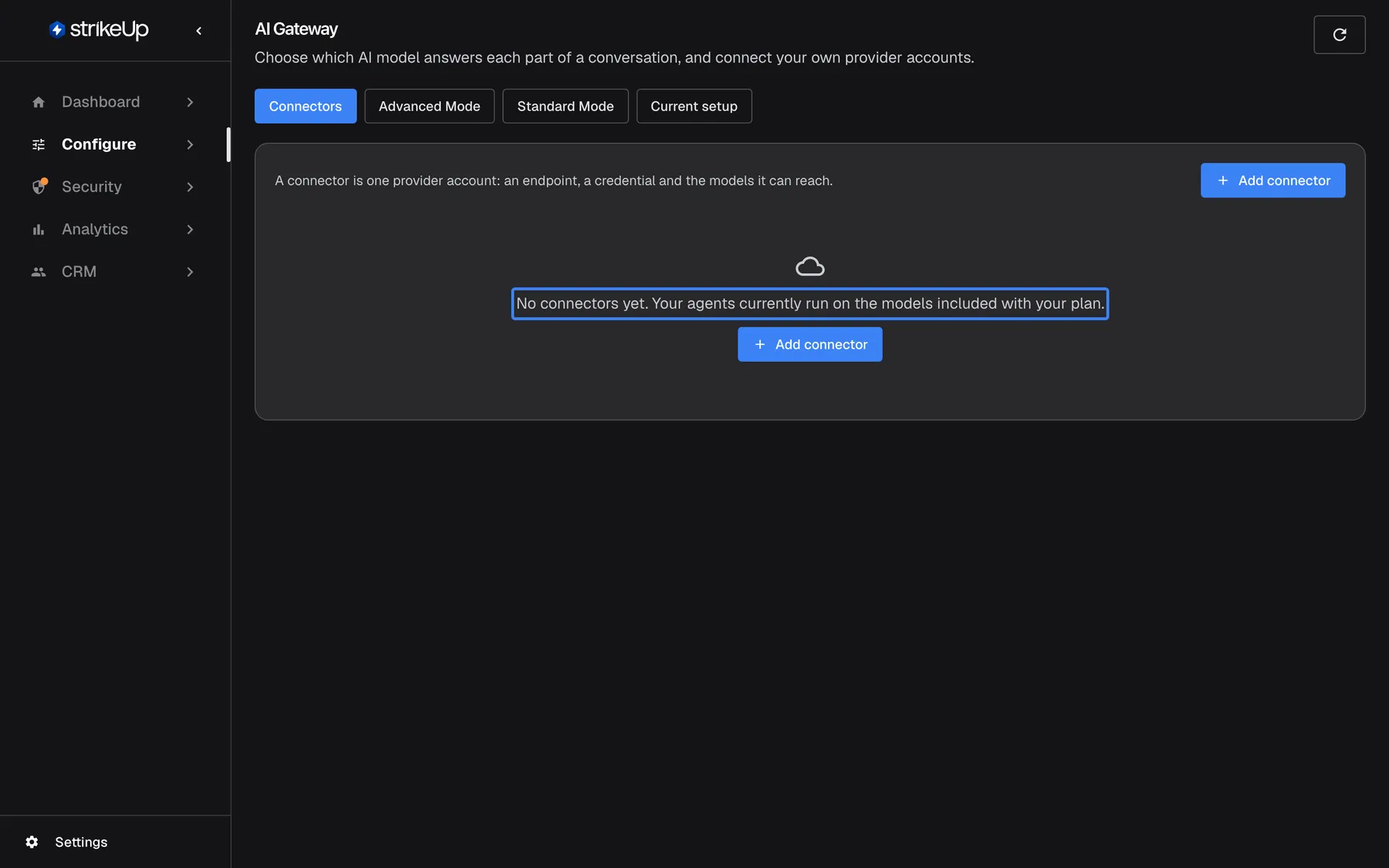
What this screenshot shows
- Screen
- Connectors (/admin/configure/ai-gateway)
- Highlighted
- “”, panel-center, empty list. none
- Also visible
- Empty state message and Add connector button
- Purpose
- what a workspace without connectors sees
The other three tabs still work: you can choose models per level on Standard Mode and pin stages on Advanced Mode from the models available to your workspace.
Every control, explained
Section titled “Every control, explained”Refresh and tabs
Section titled “Refresh and tabs”The round refresh button at the right of the page header, and the tab strip under it.
Refresh reloads all four tabs and the change history at once. The tabs switch between Connectors, Advanced Mode, Standard Mode and Current setup. The page always opens on Connectors.
A connector change also changes the model lists on the other tabs, so they reload together.
Add connector
Section titled “Add connector”The blue Add connector button at the right of the panel header, and under the empty-state message.
Opens the dialog Add connector with the fields described under Connector fields. New connectors start with Active on.
One connector per provider account keeps keys and bills separate.
Connector table columns
Section titled “Connector table columns”| Column | What it shows | Why |
|---|---|---|
| Name | The name; the badges Default, Managed by StrikeUp or Network check waived; the provider underneath; the last test result | Recognise the account and see its role |
| Type | Single provider, Aggregator or Self-hosted endpoint | What kind of account it is |
| API format | The request format, such as Anthropic Messages | Must match what the endpoint expects |
| Endpoint | The address, or Provider default | Where calls go |
| Key | Stored securely (green), Needs re-saving (orange) or Not set | Whether a key is stored, and stored safely; the key itself is never shown |
| Health | Healthy, Recent failures, Temporarily skipped or Recovering, with the provider’s reason | Spot a failing account |
| Status | Active or Inactive | Inactive connectors are never used |
| Actions | Test, and for your own connectors Edit and Delete | Act on the connector |
Actions column, Test, on every row.
Sends one minimal request with the connector’s Default model and shows Test passed — {{model}} responded in {{ms}} ms. or Test failed — {{reason}} under the name until you reload. StrikeUp does not record it; the provider charges the request to the account.
The only live check of a key and a model, without waiting for a visitor to hit a failure.
Actions column, Edit, on connectors you created.
Opens Edit connector. Every field except Provider can change. An empty key box keeps the stored key.
Rotating a key or raising a timeout should not mean rebuilding the connector.
Delete
Section titled “Delete”Actions column, Delete, on connectors you created. Opens a confirmation popover.
Deletes the connector permanently. Stages pinned to its models fall back to the next setting in line.
Removes an account you no longer hold, without breaking conversations.
Connector fields
Section titled “Connector fields”| Field | Required | Default | What it does and what is checked |
|---|---|---|---|
| Name | Yes | — | A name for you, such as Our OpenAI account. Empty: Enter a name.. Two connectors for the same provider cannot share a name. |
| Provider | Yes, when creating | — | Free text, such as OpenAI. Who bills you for the calls. This cannot be changed later. Empty: Enter a provider. |
| Type | Yes | Single provider | Single provider: One provider account, such as OpenAI or Anthropic. Aggregator: One account that fronts many providers, such as OpenRouter. Self-hosted endpoint: Your own endpoint, reachable over public HTTPS. |
| API format | Yes | OpenAI Responses | OpenAI Responses, OpenAI Chat Completions, Anthropic Messages or Gemini. The request format the endpoint expects. Leave it on the provider's own format unless you know otherwise. |
| Credential type | Yes | Bearer token | How the key is sent: Bearer token, API key header or No credential |
| Model list | Only for Aggregator | Enter models by hand | Enter models by hand or Pull the model list from the provider. Other types always keep Enter models by hand. |
| Endpoint URL | Only for Self-hosted endpoint | The provider’s own address | Leave empty to use the provider's own address. Required for a self-hosted endpoint, and must be public HTTPS. Empty for a self-hosted endpoint: A self-hosted endpoint needs a URL. A private, internal or non-HTTPS address: This address is not reachable over public HTTPS. Private and internal network addresses are not allowed. |
| API key | No | — | Stored encrypted. It is never shown again after saving. When editing, empty keeps the stored key. |
| Default model | No | — | Used when a stage has no model of its own. Also the model Test uses. |
| Timeout (seconds) | No | The standard timeout | Whole seconds from 1 to 600. Zero or less: The timeout must be greater than zero. |
| Description | No | — | A note for your team, such as what the account is for. |
Amazon Bedrock is not offered for workspace connectors: it runs on StrikeUp’s own account, so neither its request format nor its signing scheme appears in the lists. Use an OpenAI-compatible, Anthropic or Gemini connector with your own key instead.
Use as the default connector
Section titled “Use as the default connector”The switch Use as the default connector at the bottom of the connector dialog. Saved with the dialog.
Every stage without its own model falls back to this connector. Switching it on for one connector switches it off for your other connectors of the same provider, so each provider has at most one default. The row shows the Default badge.
When you hold two accounts with one provider, the default decides which of them serves calls that do not name a connector.
Active
Section titled “Active”The switch Active at the bottom of the connector dialog, on by default. Saved with the dialog.
Off: the connector is never used, and the Status column shows Inactive. Its key and settings are kept, and switching it on again restores it.
Pause an account, for example while a key is being rotated, without losing its configuration.
Who sees what
Section titled “Who sees what”| Part | What decides whether you see it |
|---|---|
| AI Gateway in the sidebar and the whole page | The AI Gateway feature, which StrikeUp switches on per workspace. Without it the menu item is hidden and opening the page’s address takes you to the Dashboard. |
| Edit and Delete on a row | Only on connectors your workspace created; never on the one marked Managed by StrikeUp |
| The connector marked Managed by StrikeUp | Shown when StrikeUp provides one your workspace can use |
Every signed-in user of a workspace with the feature can read the list. Adding, testing, editing and deleting connectors needs the Admin role; for anyone else the action fails with “This action requires the Admin role.”
What you need to know
Section titled “What you need to know”| Topic | Fact |
|---|---|
| Key storage | Keys are encrypted before they are stored and are never returned to the browser, not even to the person who saved them. Only Stored securely, Needs re-saving or Not set is shown. |
| Needs re-saving | The key was saved before encryption was in place. Paste the key again and save to encrypt it. |
| Addresses | Any endpoint address must use HTTPS and resolve to a public internet address. Private, internal and cloud-metadata addresses are refused. |
| Provider | Fixed once the connector is created. |
| Tests | Recorded and priced on the stage connector_test; up to 5 per connector a minute and 200 per workspace a day. |
| Self-hosted endpoints | Calls through a Self-hosted endpoint connector to a model with no published price are counted at $0 and do not use up a budget, unless StrikeUp sets a price for that connector. |
| Timeout | 1 to 600 seconds, or empty for the standard timeout. |
| When changes apply | Within about a minute; a save normally takes effect from the next message. |
| History | Every create, change and delete is listed under Configuration changes on Current setup, without the key. |
| Retries | Up to 2 retries per connector for temporary failures, then backup models. |
| Cool-down | A skipped connector is tried again after 60 seconds, doubling with each further failure up to 10 minutes. |
| Who can change it | Users with the Admin role, once the feature is on. Every other signed-in user can view it. |
Frequently asked questions
Section titled “Frequently asked questions”Getting started
Section titled “Getting started”Do I need a connector at all?
Section titled “Do I need a connector at all?”No. Without a connector of your own, your agents run on the models included with your plan, and the tab says so when the list is empty. Add a connector under ConfigureAI Gateway only when you want calls to go to a provider account you hold yourself.
Why is the gateway missing from my menu?
Section titled “Why is the gateway missing from my menu?”The AI Gateway feature is off for every workspace until StrikeUp switches it on. Without it, AI Gateway is hidden under Configure and opening the page’s address takes you to the Dashboard. Ask StrikeUp to switch the feature on for your workspace.
Which providers can I connect?
Section titled “Which providers can I connect?”Any provider that speaks one of the request formats in API format: OpenAI Responses, OpenAI Chat Completions, Anthropic Messages or Gemini. That includes OpenAI-compatible aggregators and your own endpoint over public HTTPS. Amazon Bedrock connectors are managed by StrikeUp and cannot be added by a workspace.
Can I connect two accounts with the same provider?
Section titled “Can I connect two accounts with the same provider?”Yes, as long as the two connectors have different names. Switch Use as the default connector on for the one that should serve calls that do not name a connector; StrikeUp keeps at most one default per provider.
Keys and security
Section titled “Keys and security”Where is my API key stored, and can anyone see it?
Section titled “Where is my API key stored, and can anyone see it?”The key is encrypted before it is stored, and no screen or request ever returns it, not even to the person who saved it. The Key column only shows whether a key is stored. The change history under Current setup never contains the key either.
I left the key box empty when editing. Was my key deleted?
Section titled “I left the key box empty when editing. Was my key deleted?”No. In Edit connector, an empty API key box keeps the key already stored. Paste a new key only when you want to replace it.
What does Needs re-saving mean in the Key column?
Section titled “What does Needs re-saving mean in the Key column?”Needs re-saving means the key was stored before keys were encrypted. Select Edit, paste the same key into API key and save; the column then shows Stored securely.
Why was my endpoint address rejected?
Section titled “Why was my endpoint address rejected?”Every endpoint address must use HTTPS and resolve to a public internet address. Addresses on a private or internal network, such as localhost or 10.0.0.5, are refused with This address is not reachable over public HTTPS. Private and internal network addresses are not allowed. under Endpoint URL. Publish the endpoint over public HTTPS and try again.
Testing and health
Section titled “Testing and health”What does Test cost, and is it recorded?
Section titled “What does Test cost, and is it recorded?”Test sends one minimal request to the provider with the connector’s Default model. The provider charges that small request to the account, and StrikeUp records it like any other call: it shows on DashboardAI Spend under the stage connector_test and counts towards your AI budgets. The result on the row disappears when you reload the page. You can test one connector up to 5 times a minute and run up to 200 tests a day across your workspace.
The test says the connector names no default model. What do I do?
Section titled “The test says the connector names no default model. What do I do?”Select Edit, enter a model name that this provider account can use in Default model, such as gpt-4o-mini, and save. Then select Test again.
What does Temporarily skipped mean?
Section titled “What does Temporarily skipped mean?”Temporarily skipped means five calls in a row failed, or the provider rejected the key, so StrikeUp stops calling the connector and uses backup models instead. It tries again after 60 seconds, then after longer pauses up to 10 minutes while failures continue. Read the reason under the badge, fix the key or settings, and wait for Recovering.
Is the Health column a live check?
Section titled “Is the Health column a live check?”No. Health is a record of what happened to real calls through the connector. A connector nobody has used shows Healthy even if its key is wrong. Use Test for a live check.
Changing and deleting
Section titled “Changing and deleting”Can I change a connector’s provider?
Section titled “Can I change a connector’s provider?”No. Provider is fixed when the connector is created and is greyed out when editing. Add a new connector for the other provider, move your stages to it, then delete the old one.
What happens to conversations when I delete a connector?
Section titled “What happens to conversations when I delete a connector?”They keep working. A stage that was pinned to one of the deleted connector’s models takes its model from the next setting in line, such as its level on Standard Mode. Past calls in AI actions keep the record of the connector that served them. Deletion cannot be undone.
Why can’t I edit the connector marked Managed by StrikeUp?
Section titled “Why can’t I edit the connector marked Managed by StrikeUp?”The connector marked Managed by StrikeUp is the one StrikeUp provides for your plan and shares with other workspaces, so changing it would change theirs. It only offers Test.
Troubleshooting
Section titled “Troubleshooting”| Symptom | What to check |
|---|---|
| AI Gateway is missing from the menu | The AI Gateway feature is not switched on for your workspace. Ask StrikeUp to switch it on. |
| You cannot find Amazon Bedrock in the lists | Bedrock connectors are managed by StrikeUp and are not offered to workspaces. Use an OpenAI-compatible, Anthropic or Gemini connector with your own key. |
| Request failed saying a connector with that name already exists | Two connectors for the same provider cannot share a name. Choose another Name. |
| The test result reads too many tests in a row, wait a minute and try again | You tested the same connector more than 5 times in a minute, or your workspace ran 200 tests in 24 hours. Wait a minute, or until the next day, and test again. |
| This address is not reachable over public HTTPS. Private and internal network addresses are not allowed. under the address | The address is not public HTTPS. Use the provider’s public address, or publish your endpoint over HTTPS. |
| Temporarily skipped with an HTTP 401 or 403 reason | The provider rejected the key. Edit the connector, paste a valid key, save, and select Test. |
| Recent failures with a timeout reason | The provider is slow. Raise Timeout (seconds), or check the provider’s status page. |
| Test failed — {{reason}} naming an unknown model | The Default model does not exist for this account. Correct it. |
| The test passes, but a stage still uses another model | Open Current setup and read Decided by for that stage; a pin on Advanced Mode or an agent’s own model setting may decide first. |
| The AI Gateway settings could not be loaded. | Select Try again. If it persists, sign out and in again. |
| A change fails with Request failed and “This action requires the Admin role.” | Changes on this page need the Admin role. Ask an Admin to make the change, or to give you the Admin role under Settings › Users. |
Related
Section titled “Related”- AI Gateway: Advanced Mode: pin a stage to an exact model
- AI Gateway: Standard Mode: one model per level
- AI Gateway: Current setup: what every stage uses now
- AI models, spend and budgets
- Budgets & limits
- AI Spend