

Integrations
When the assistant cannot help a visitor, a person on your support team can take over the chat, and the conversation then continues in your helpdesk. The Integrations page is where you connect that helpdesk to StrikeUp. Once a helpdesk is connected here, you choose it for each widget in the human handoff settings. Open the page from ConfigureIntegrations. It belongs to the Handoff Integrations feature, which is on for every new workspace; every signed-in user can view it, and connecting, renaming and disconnecting helpdesks needs the Admin role. The page is shown in English in every language, except the Intercom form, which follows your language.
What you can do here
Section titled “What you can do here”- Connect Help Scout. Sign in to Help Scout and allow StrikeUp access; StrikeUp sets up the rest, including the notifications that bring agents’ replies back to the chat. Connect Help Scout · Human handoff.
- Connect Intercom. Paste your Intercom app’s access token and client secret, then register one webhook in Intercom so agents’ replies come back. Connect Intercom.
- Connect more than one account. Several helpdesk connections can exist side by side, for example one per team. Connect Help Scout.
- Rename a connection. Give each connection a name your team recognises in the widget settings. Rename a connection.
- Reconnect a connection. When a helpdesk stops accepting StrikeUp’s sign-in, the connection shows “ERROR”; reconnect it without setting up your widgets again. Reconnect a connection.
- Disconnect a helpdesk. Removes the connection and switches handoff off in every widget that used it. Disconnect a helpdesk.
The screen at a glance
Section titled “The screen at a glance”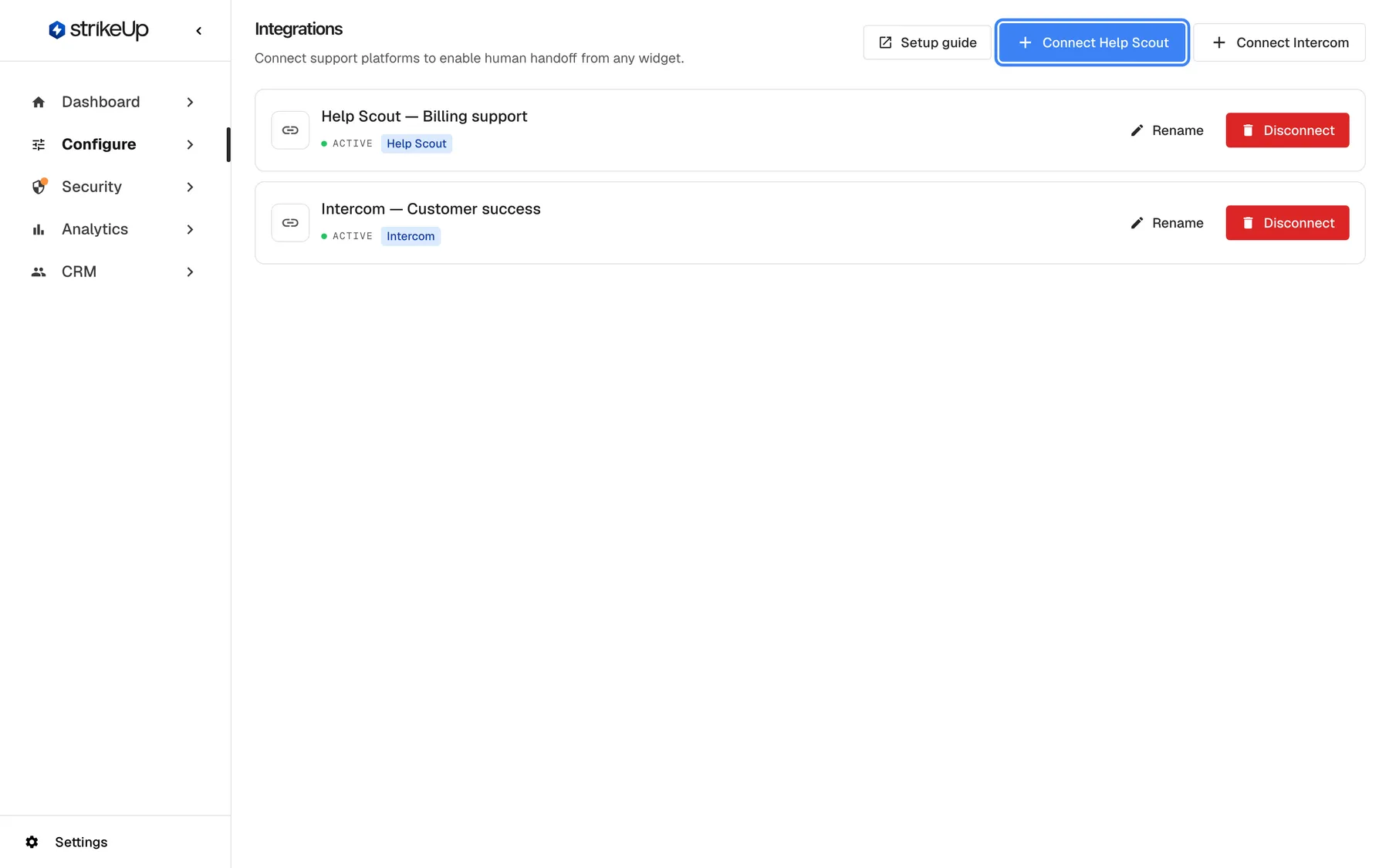
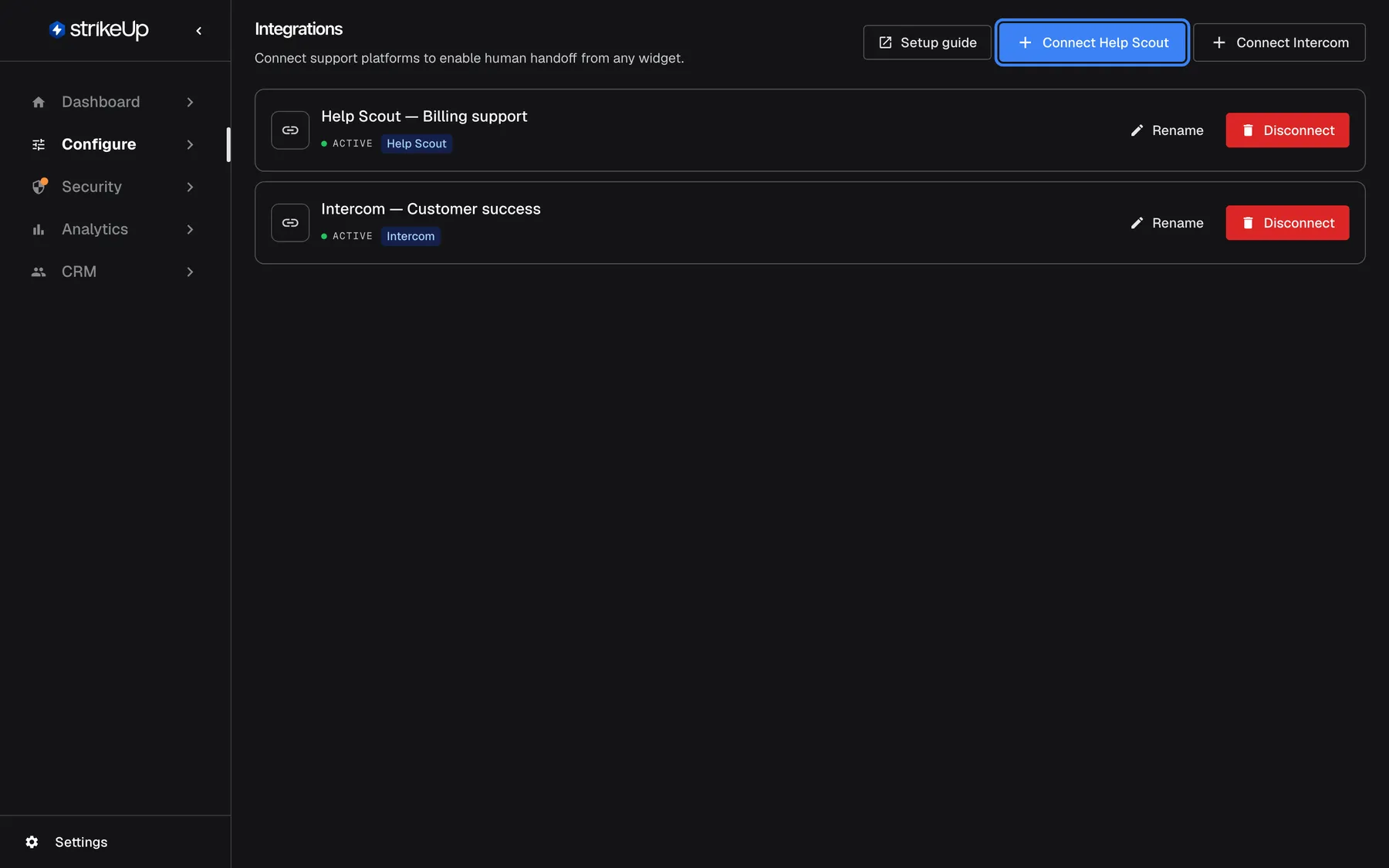
What this screenshot shows
- Screen
- Integrations (/admin/integrations)
- Highlighted
- button “”, header-right, enabled. starts the Help Scout authorisation
- Also visible
- Help Scout — Billing support: ACTIVE; Intercom — Customer success: ACTIVE
- Purpose
- entry point for connecting a helpdesk
| Region | What it shows | What you do there |
|---|---|---|
| Header | “Integrations”, “Connect support platforms to enable human handoff from any widget.”, and the buttons Setup guide, “Connect Help Scout” and “Connect Intercom”. The Intercom form adds Where do I find these? | Open the Support Integrations setup guide in a new tab, start a new connection |
| Connection list | One row per connection: its name, its status and a badge for the helpdesk, with “Rename”, “Reconnect” while the status is “ERROR”, and “Disconnect” | Rename, reconnect or disconnect |
Without any connection, the page shows “No integrations yet” and “Connect a support platform to enable human handoff for your widgets.” with the same two buttons.
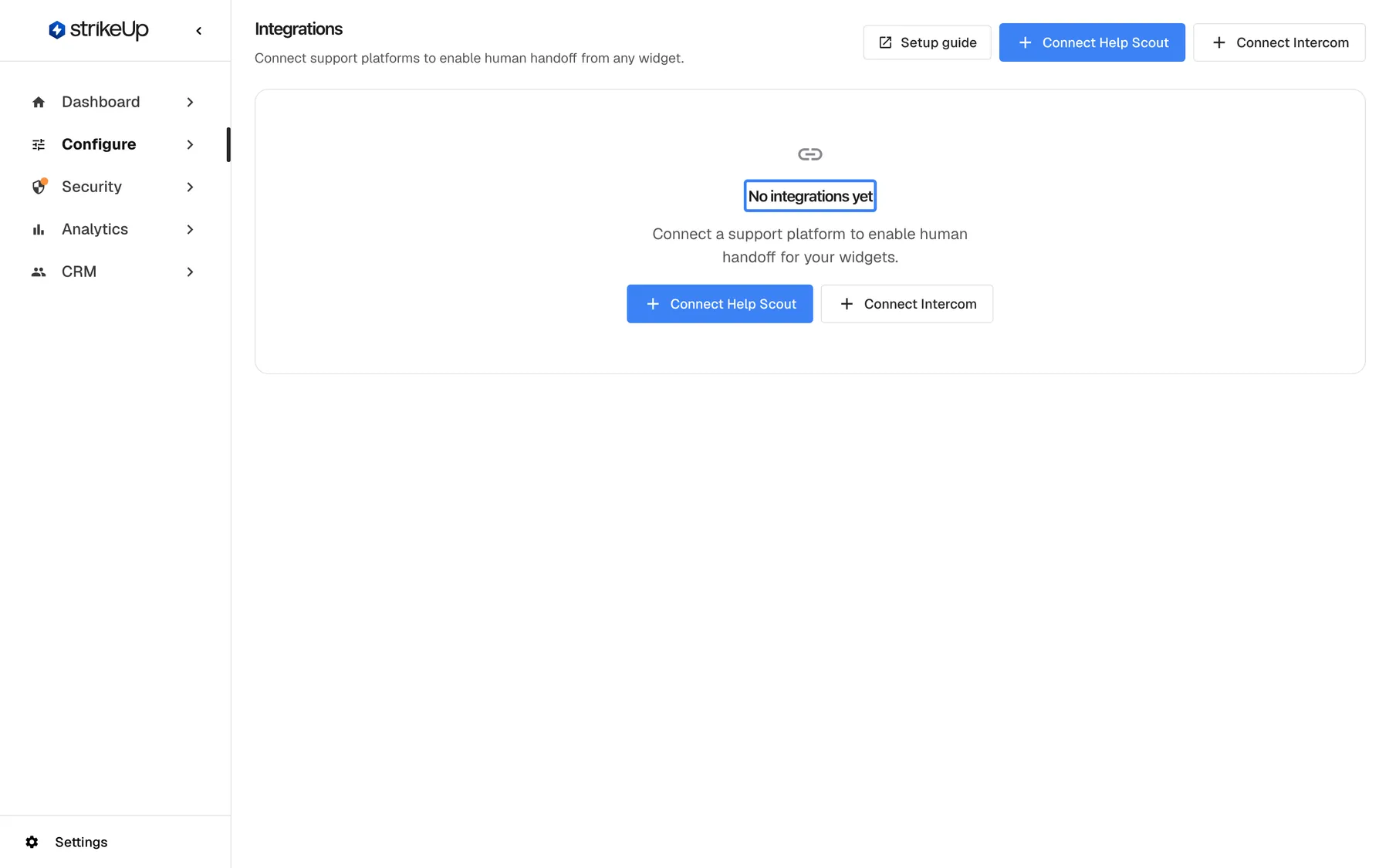
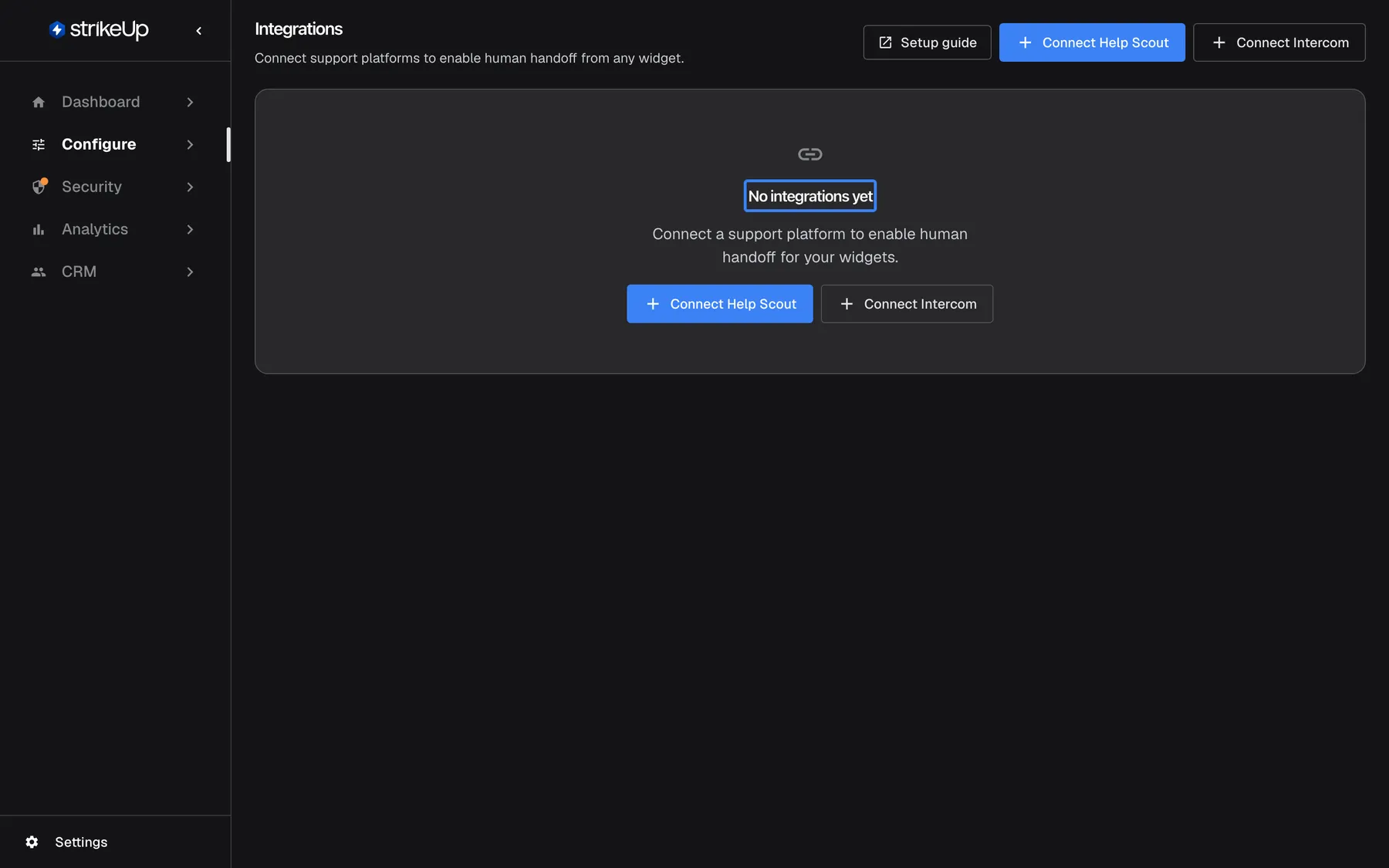
What this screenshot shows
- Screen
- Integrations (/admin/integrations)
- Highlighted
- “”, page-center, empty list. none
- Also visible
- Connect Help Scout and Connect Intercom buttons in the header
- Purpose
- what a new workspace sees
Connect Help Scout
Section titled “Connect Help Scout”-
Open ConfigureIntegrations and select “Connect Help Scout”. The button reads “Connecting…” while StrikeUp prepares the sign-in.
-
Help Scout opens. Sign in with a Help Scout account that may manage your mailboxes, and allow StrikeUp access.
-
After you allow it, a short “Connected!” page appears and you return to the Integrations page. A new connection named “Help Scout” is listed.
-
Optionally rename the connection, as described under Rename a connection.
When you connect, StrikeUp registers itself with Help Scout to be told when an agent replies to, takes over or closes a handoff conversation. Help Scout’s access is renewed automatically, so the connection keeps working without you signing in again. You can connect several Help Scout accounts; each becomes its own connection.
Next: choose the connection for a widget, and pick the Help Scout mailbox new conversations go to, in the human handoff settings on ConfigureAI & UX. See Human handoff.
If preparing the sign-in fails, the page shows “Failed to start Help Scout authorization.” Select the button again. If you come back to the page without a new connection, the authorisation in Help Scout did not complete; start again.
Connect Intercom
Section titled “Connect Intercom”“Connect Intercom” opens the form Connect Intercom with an access token below the header, with Integration name (optional), Access token and Client secret (optional). You find both values on your app’s Basic info page in the Intercom Developer Hub.
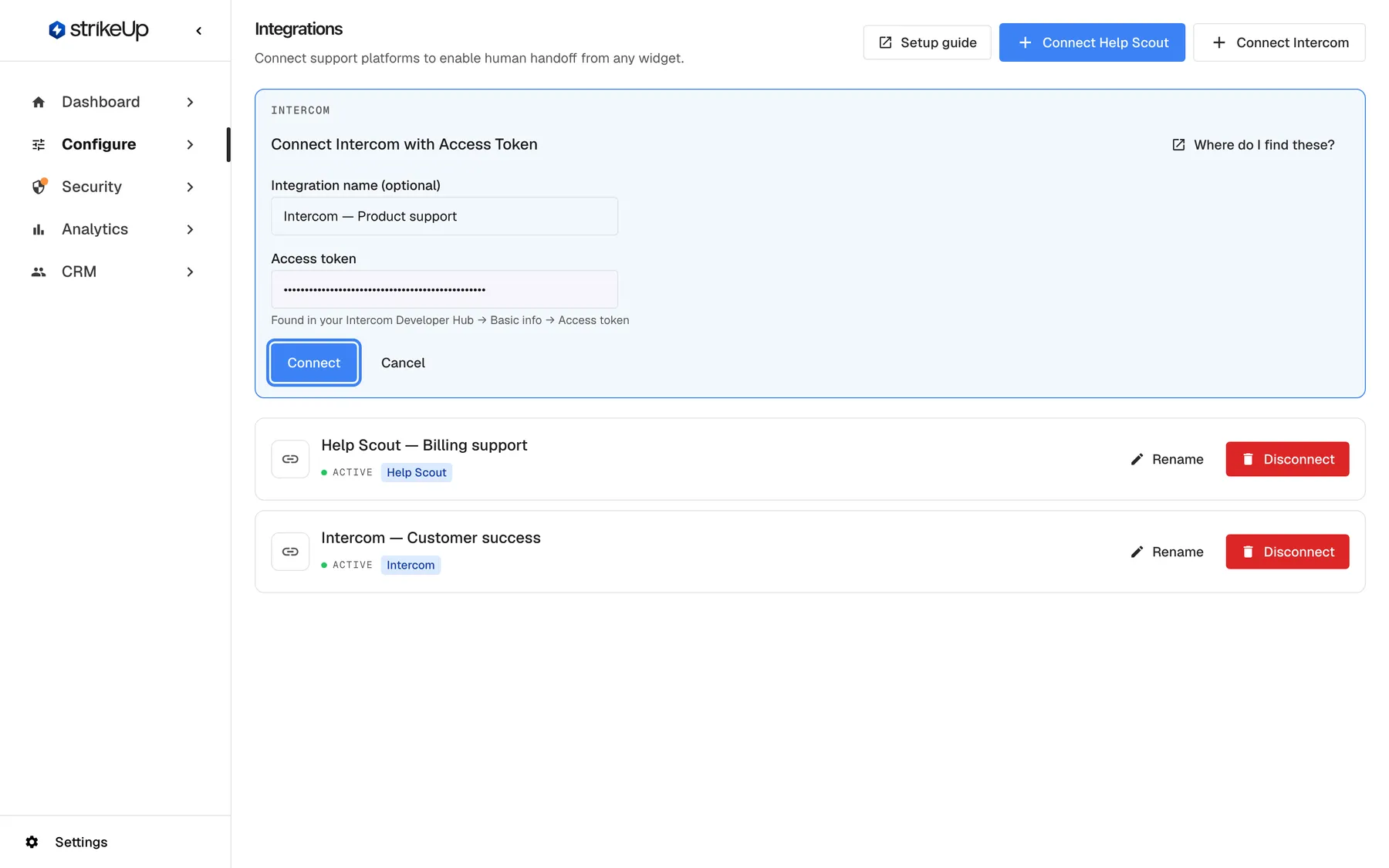
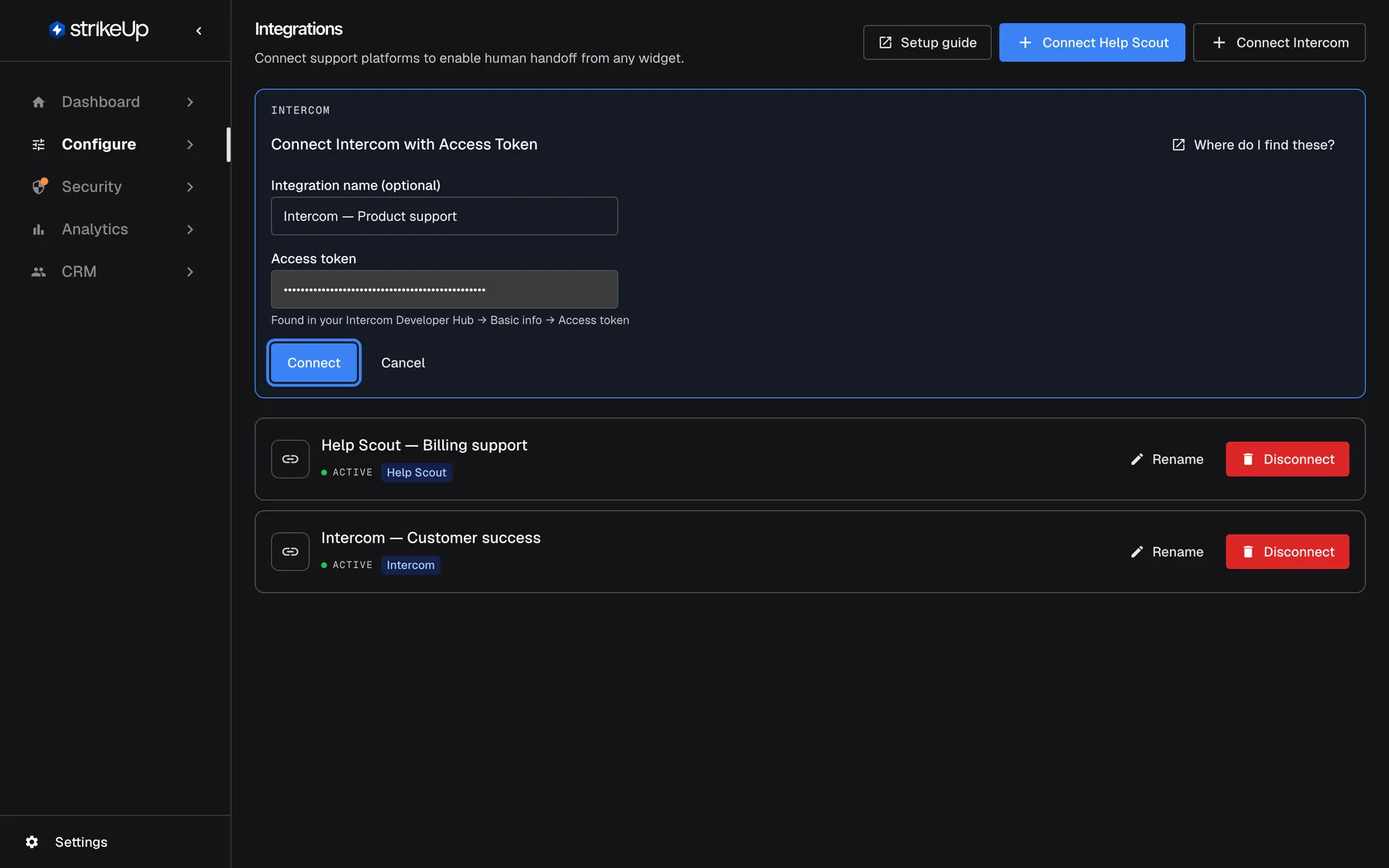
What this screenshot shows
- Screen
- Integrations (/admin/integrations)
- Highlighted
- button “”, intercom-form, enabled (token entered). validates the token and creates the Intercom connection
- Also visible
- Integration name: Intercom — Product support; Access token entered (masked)
- Purpose
- connecting Intercom
-
In the Intercom Developer Hub, open your app’s Basic info page and copy the access token and the client secret.
-
On ConfigureIntegrations, select “Connect Intercom”, optionally enter a name, and paste the token and the client secret into their fields.
-
Select “Connect”. It stays disabled until a token is entered and reads “Connecting…” while StrikeUp checks the token with Intercom.
-
Register the webhook in Intercom. The page now shows “Intercom Connected — Manual Webhook Setup Required” with the webhook URL and the topics
conversation.admin.replied,conversation.admin.assignedandconversation.admin.closed. Add them under Webhooks in your app in the Intercom Developer Hub. This is needed once per Intercom app.
When Intercom accepts the token, a connection named “Intercom” or the name you entered is listed. If Intercom refuses it, the form shows “Invalid access token. Verify it in your Intercom Developer Hub.”; Cancel closes the form.
Why the client secret matters. Intercom signs every notification it sends, including your agents’ replies, with your app’s client secret. StrikeUp accepts a reply only when that signature matches, so without the secret your agents’ replies never reach the widget. The secret is stored encrypted and is never shown again.
Connecting the same workspace again updates its existing connection instead of adding a second one. The token is replaced, widgets keep using the connection, and the name and client secret change only when you enter new ones; leave the client secret blank to keep the stored one.
Reconnect a connection
Section titled “Reconnect a connection”A connection shows “ERROR” when the helpdesk no longer accepts StrikeUp’s sign-in, for example because access was revoked in Help Scout or the Intercom token or app was deleted. New handoffs to it fail, and visitors see “Could not connect to support.”, until you reconnect.
-
Select “Reconnect” on the connection. The button is shown only while the status is not “ACTIVE”.
-
For Help Scout, sign in and allow access again, as when connecting. For Intercom, the access-token form opens: paste a current token from the same Intercom workspace and select “Connect”.
The connection keeps its name and its widgets and shows “ACTIVE” again. A Help Scout connection also renews its registration for Help Scout’s notifications. An Intercom token from a different workspace adds a new connection instead.
Rename a connection
Section titled “Rename a connection”-
Select “Rename” on the connection. Its name becomes a text box.
-
Type the new name, up to 200 characters, and press Enter or select the check mark. Press Escape or select “Cancel” to keep the old name.
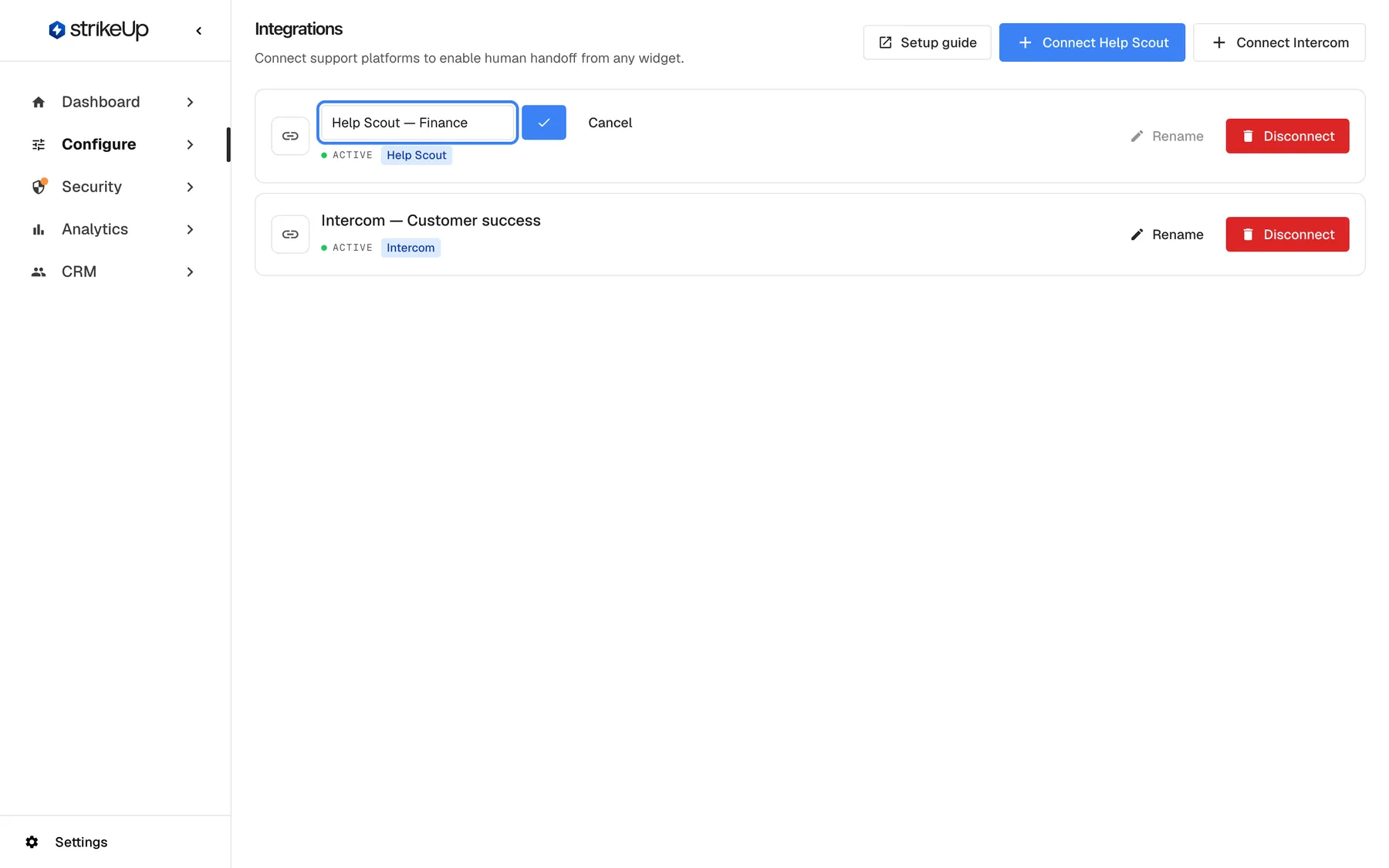
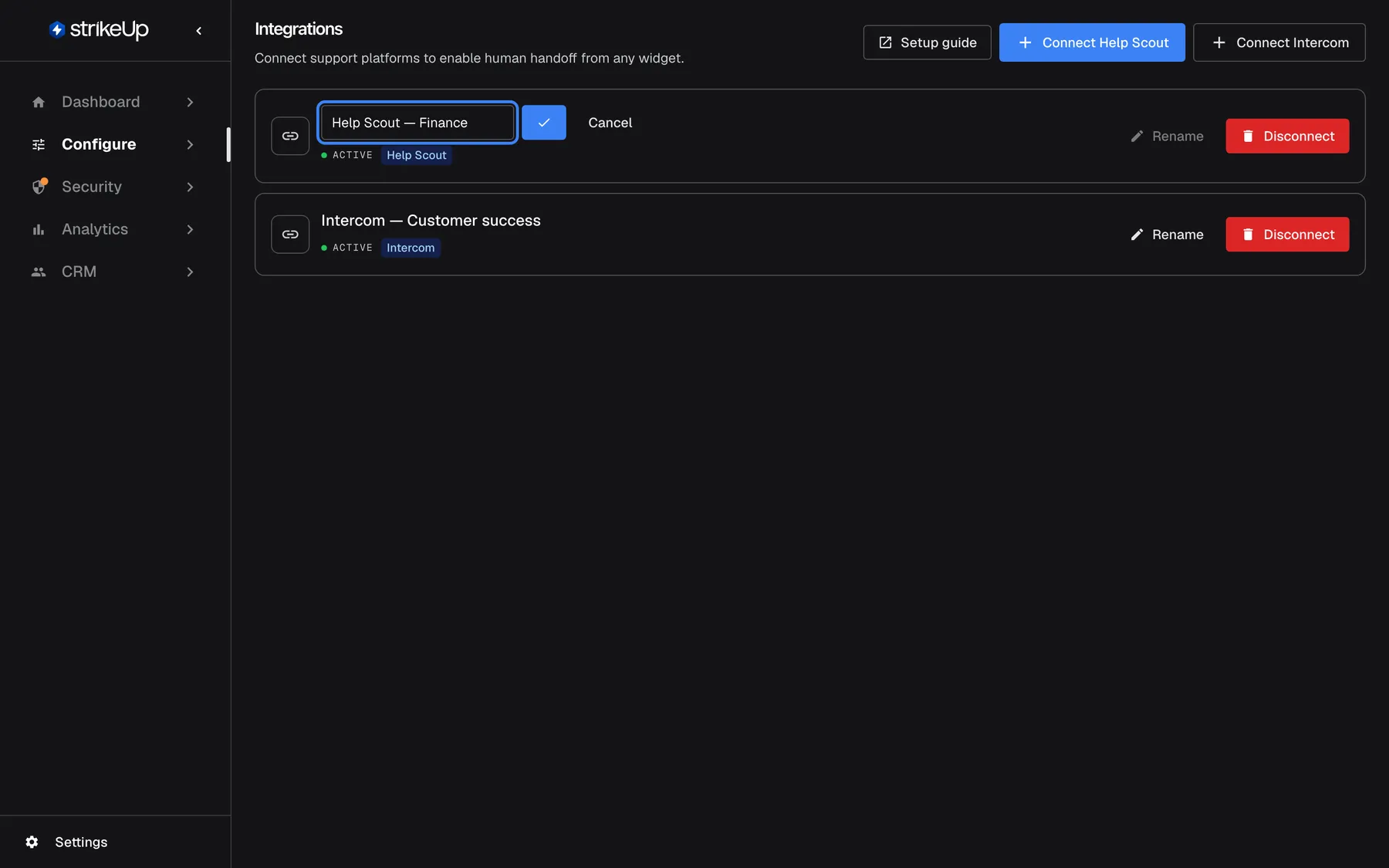
Rename edits the connection's name in place; Enter saves and Escape cancels. What this screenshot shows
- Screen
- Integrations (/admin/integrations)
- Highlighted
- textbox “”, first-connection-row, new name typed: Help Scout — Finance. renames the connection on Enter
- Also visible
- Save (check mark) and Cancel next to the name field
- Purpose
- renaming a connection
The new name appears at once, also in the widgets’ handoff settings, where connections are listed as name and helpdesk type. Widgets keep using the connection; nothing else changes. An empty name is not saved. If renaming fails, the page shows “Failed to rename integration.”
Disconnect a helpdesk
Section titled “Disconnect a helpdesk”-
Select “Disconnect” on the connection.
-
Confirm the browser’s question “Disconnect this integration? This will remove it from any widgets using it.”
What disconnecting does:
- Every widget that used the connection has human handoff switched off, and its integration and inbox choice are cleared. The Invite an agent button disappears from those widgets.
- StrikeUp removes its notification registration in Help Scout, where it can.
- The connection is removed from this page. Conversations already in your helpdesk stay there.
To use the helpdesk again, connect it again and choose it in each widget’s handoff settings.
Every control, explained
Section titled “Every control, explained”Connect Help Scout
Section titled “Connect Help Scout”Header, top right, the blue “Connect Help Scout” button, also shown when the list is empty.
Opens Help Scout’s sign-in and, after you allow access, adds a connection named “Help Scout” and registers for Help Scout’s notifications about handoff conversations.
One sign-in sets up everything a widget needs to hand chats to your Help Scout mailboxes.
Connect Intercom
Section titled “Connect Intercom”Header, next to “Connect Help Scout”.
Opens the access-token form described under Connect Intercom. The token is checked with Intercom before the connection is added; a workspace that is already connected has its connection updated.
Intercom connects with an access token from your own Intercom app; its client secret lets StrikeUp verify the replies Intercom sends back.
Connection rows
Section titled “Connection rows”| Part | What it shows or does | Why |
|---|---|---|
| Name | The connection’s name, editable with “Rename” | Recognise the connection in widget settings |
| Status | “ACTIVE” for a working connection; “ERROR” when the helpdesk no longer accepts StrikeUp’s sign-in | See at once when a connection needs reconnecting |
| Badge | “Help Scout” or “Intercom” | Which helpdesk it is |
| “Rename” | Edits the name in place | Keep names meaningful as you add connections |
| “Reconnect” | Shown while the status is “ERROR”. Signs in to Help Scout again, or opens the Intercom form; the connection keeps its name and widgets | Repair a connection without setting up widgets again |
| “Disconnect” | Removes the connection after a confirmation and switches handoff off in widgets using it | Stop handing chats to that account |
Who sees what
Section titled “Who sees what”| Part | What decides whether you see it |
|---|---|
| Integrations in the menu and the page | The Handoff Integrations feature, on for every new workspace. When it is off, the menu item is hidden, the page’s address leads to the Dashboard, and the human handoff section is hidden on AI & UX. |
Every signed-in user can see the connected helpdesks. Connecting, renaming and disconnecting them needs the Admin role; for anyone else the change fails with “This action requires the Admin role.”
What you need to know
Section titled “What you need to know”| Topic | Fact |
|---|---|
| Helpdesks | Help Scout, by signing in; Intercom, with an access token, the app’s client secret and a webhook you register in Intercom. |
| Several connections | Allowed, for both helpdesks. |
| Help Scout access | Renewed automatically. |
| Status | “ACTIVE”, or “ERROR” when the helpdesk refuses the sign-in; new handoffs fail until you reconnect. |
| Reconnecting | Updates the same connection; widgets keep using it. Connecting an Intercom workspace again does the same. |
| Renaming | Up to 200 characters; widgets keep working. |
| Disconnecting | Switches handoff off in every widget using the connection. |
| Language | The page is in English in every language, except the Intercom form, which follows your language. |
| Where it is used | Only by the human handoff settings of each widget. |
Frequently asked questions
Section titled “Frequently asked questions”Connecting
Section titled “Connecting”Which helpdesks can I connect?
Section titled “Which helpdesks can I connect?”Help Scout, which you connect by signing in to Help Scout and allowing access, and Intercom, which you connect with the access token and client secret of your Intercom app. Both are connected on ConfigureIntegrations.
Do I need to set up webhooks in Help Scout?
Section titled “Do I need to set up webhooks in Help Scout?”No. When you connect Help Scout, StrikeUp registers itself with Help Scout to be told about agents’ replies, assignments and closed conversations. You only choose the connection and a mailbox in each widget’s handoff settings.
Why did my browser tab go to Help Scout?
Section titled “Why did my browser tab go to Help Scout?”Connecting Help Scout takes you to Help Scout’s own sign-in to allow StrikeUp access. After you allow it, a short “Connected!” page appears and you come back to Integrations, with the new connection listed.
Can I connect two Help Scout accounts?
Section titled “Can I connect two Help Scout accounts?”Yes. Each sign-in through “Connect Help Scout” adds a separate connection, and each widget chooses one of them in its handoff settings. Rename the connections so your team can tell them apart.
What does Invalid access token mean when connecting Intercom?
Section titled “What does Invalid access token mean when connecting Intercom?”Intercom refused the token you pasted. Copy the access token again from your Intercom Developer Hub, check that it belongs to the right workspace, and select “Connect” again.
Why does Intercom need my app’s client secret?
Section titled “Why does Intercom need my app’s client secret?”Because Intercom signs every notification it sends, including your agents’ replies, with that secret. StrikeUp accepts a reply only when the signature matches, so without the secret replies never reach the widget. Copy it from your app’s Basic info page in the Intercom Developer Hub, next to the access token.
Do I need to set up webhooks in Intercom?
Section titled “Do I need to set up webhooks in Intercom?”Yes, once per Intercom app; Intercom does not let StrikeUp register them. Right after you connect, the page shows the webhook URL and the three topics to subscribe to. Add them under Webhooks in your app in the Intercom Developer Hub.
Managing connections
Section titled “Managing connections”What does ERROR next to a connection mean?
Section titled “What does ERROR next to a connection mean?”The helpdesk no longer accepts StrikeUp’s sign-in, for example because access was revoked in Help Scout or the Intercom token was deleted. New handoffs to that connection fail, and visitors see “Could not connect to support.”. Select “Reconnect” on the connection; widgets keep their settings.
Can I connect the same Intercom workspace twice?
Section titled “Can I connect the same Intercom workspace twice?”No. Connecting a workspace that is already connected updates its existing connection, for example with a new token or client secret. Another Intercom workspace becomes its own connection.
Does renaming a connection affect my widgets?
Section titled “Does renaming a connection affect my widgets?”No. Widgets refer to the connection itself, not its name, so they keep handing chats over as before. The new name appears at once in the widgets’ handoff settings on ConfigureAI & UX.
What happens when I disconnect a helpdesk?
Section titled “What happens when I disconnect a helpdesk?”The connection is removed, and every widget that used it has human handoff switched off, with its integration and inbox choice cleared. Visitors no longer see the Invite an agent button there. Conversations already in your helpdesk stay where they are.
Who can manage integrations?
Section titled “Who can manage integrations?”Users with the Admin role. They connect, rename and disconnect helpdesks on the Integrations page; every other signed-in user of your workspace can see the page but not change it.
Why is the Integrations page missing from my menu?
Section titled “Why is the Integrations page missing from my menu?”The page belongs to the Handoff Integrations feature. It is on for every new workspace; if it was switched off for yours, the menu item is hidden and human handoff is not available. Ask StrikeUp to switch it on.
Troubleshooting
Section titled “Troubleshooting”| Symptom | What to check |
|---|---|
| “Failed to start Help Scout authorization.” | Select “Connect Help Scout” again. |
| Back on the page, but no new Help Scout connection | The authorisation in Help Scout was not completed. Start again and allow access. |
| “Invalid access token. Verify it in your Intercom Developer Hub.” | Copy the access token again from Intercom. |
| The connection shows “ERROR” | The helpdesk refused StrikeUp’s sign-in. Select “Reconnect” and sign in again (Help Scout) or paste a current access token (Intercom). |
| Intercom conversations are created, but agents’ replies never reach the widget | Check the webhook in the Intercom Developer Hub: the URL and the three topics. Then connect again with your app’s client secret. |
Intercom shows its webhook deliveries failing with 401 | The client secret is missing or wrong. Select “Connect Intercom”, paste the same access token and the client secret, and select “Connect”. |
| “Failed to load integrations.” | Reload the page. |
| “Failed to rename integration.” | Rename it once more; an empty name is not saved. |
| The handoff button disappeared from a widget | The connection it used was disconnected. Connect the helpdesk again and choose it in the widget’s handoff settings. |
| A change fails with Request failed and “This action requires the Admin role.” | Changes on this page need the Admin role. Ask an Admin to make the change, or to give you the Admin role under Settings › Users. |