

The customer portal
Every request to add a colleague, upload a price list or change a weekly report lands on your support team when your business customers cannot do it themselves. The customer portal is a self-service area inside the widget where your end customers manage their own profile and, as company Admins, their company’s members, knowledge, skills, workflows, email channel and shortcuts, while you decide which pages they see.
What it does
Section titled “What it does”Your end customers work for companies, and those companies want a say in how the assistant serves them: which documents it knows, which reports it runs on a schedule, who in their team may use it. Without a portal, each of those changes is a ticket for your staff.
The portal opens from a gear button in the chat’s top bar. It shows up to eleven pages: three for every signed-in customer and eight that you can show or hide per widget. From there:
- Each customer sees their profile, their agent runs, their memories and their allowance. Understanding portal roles.
- A customer Admin manages their company’s members, knowledge base, skills, workflows, email channel, settings and prompt shortcuts. The portal in the widget.
- You choose which of those pages your customers see on each widget. Visible pages, what customers see.
- Your staff manage the same company data in CRM, whatever the portal shows. The portal’s data in CRM.
Every change a customer makes in the portal is made to records your staff can see under CRMCompanies.
Before you start
Section titled “Before you start”| Requirement | Details |
|---|---|
| A widget installed in your product | Install the widget in your product |
| Signed-in customers | The portal belongs to a customer and their company, so customers need a session. Switch on Require customer authentication; see End-customer sign-in |
| Customer companies | Customers grouped into companies under CRMCompanies, by import or by the userCompanyId your page passes |
| Role in StrikeUp | The Admin role to change the portal switches; every other signed-in user of your workspace can view them |
| Plan or cost | No plan gate. Skills, workflows and knowledge used by the assistant count towards your usage like any other chat |
Understanding portal roles
Section titled “Understanding portal roles”Every customer is an Admin or a Member of their company. The role decides which pages they get; your switches then hide pages from both.
| Page | Admin | Member | What it does | Can you hide it? |
|---|---|---|---|---|
| “Profile” | Yes | Yes | Edit own name and email; the customer id is read-only; the role is shown | No |
| “Agent runs” | The company’s runs, except other people’s personal workflows | Own runs and the company workflows’ runs | Follow runs, approve or deny steps, answer questions, cancel or resume | No |
| “Memory” | Yes | Yes | Switch memory on or off, read and forget remembered facts | No |
| Members | Yes | No | List members, change roles, disable and enable | Yes |
| Knowledge Base | Yes | No | Upload and delete company documents, test retrieval | Yes |
| Skills | Yes | No | Create a skill by chatting with a wizard, switch skills on and off, delete them | Yes |
| Workflows | Company and own personal workflows | Company workflows read-only, own personal workflows | Workflows and their schedules, run now, execution logs | Yes |
| “Notifications”: My notifications | Yes | Yes | Where each person is told about background jobs: email, Telegram, Slack or Teams, and which outcomes | No |
| Notification channels | Yes | No | The company’s own channels (one each for email, Telegram, Slack and Teams) and its approval limit for chat apps, on the Notifications page | Yes; the Notifications page itself stays |
| Settings | Yes | No | Self-registration, the default credential type and an instruction for the assistant | Yes |
| Prompt Shortcuts | Create, edit, delete | Read only | Company prompt shortcuts with placeholders | Yes |
| Usage | Yes | Yes | The percentage of the AI allowance left and its reset date | Yes |
How StrikeUp decides
Section titled “How StrikeUp decides”- The gear needs a session. It appears when Enable Customer Portal is on and the visitor has a customer session, and not in an inline widget unless your code passes
portalDisplayType: "inline". - Who is Admin. Customers created at first sign-in or by import (unless the file says otherwise) are Admins. A self-registered customer is Admin only when they are the first person in the company; everyone after them joins as Member.
- Role changes apply at the next sign-in. A role change signs the customer out on their next request, and they get the new page set when they sign in again. A customer who is disabled is signed out at once.
- A deactivated company is read-only. Its Admins can no longer change portal data.
- One company per customer. Every page works on the signed-in customer’s own company; customers never see other companies or other customers’ chats.
What the portal does not do
Section titled “What the portal does not do”- Invite people: there is no invite. Members arrive through the ids your page passes, your import, or a self-registration link.
- Change a PIN or password, or rename the company: both are read-only for customers; your staff change the company name in CRM.
- Show tokens or money: Usage shows only a percentage and a reset date.
Setting it up in four steps
Section titled “Setting it up in four steps”-
Make sure customers sign in. On ConfigureUser Interface, select the widget’s card and check that Require customer authentication is on in the Customer Portal section.
-
Switch the portal on. In the same section, turn on Enable Customer Portal. New widgets have it on.
-
Choose the visible pages. Under Visible pages, untick the pages your customers should not see. Then select
Save User Interface Settingsat the bottom of the page.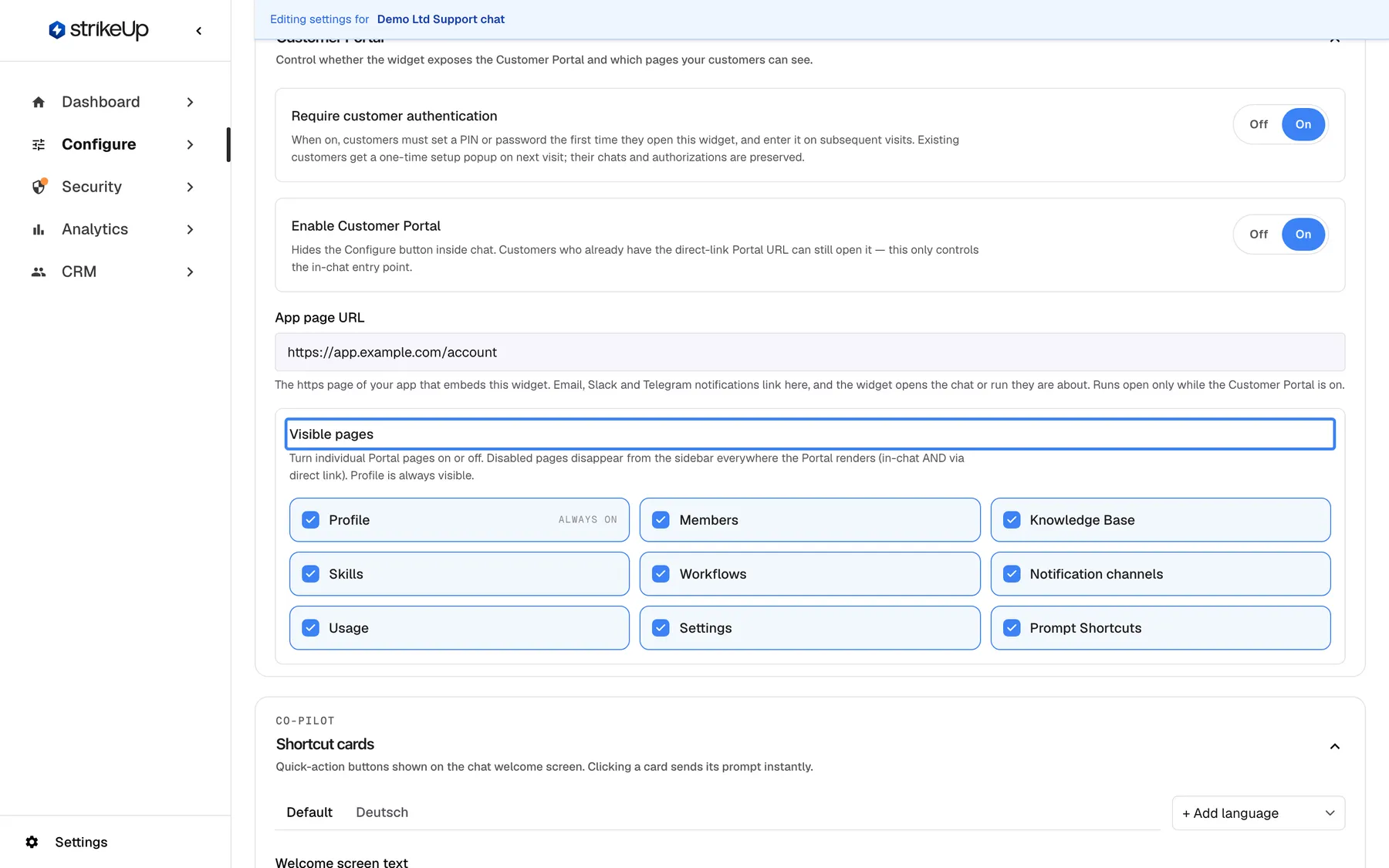
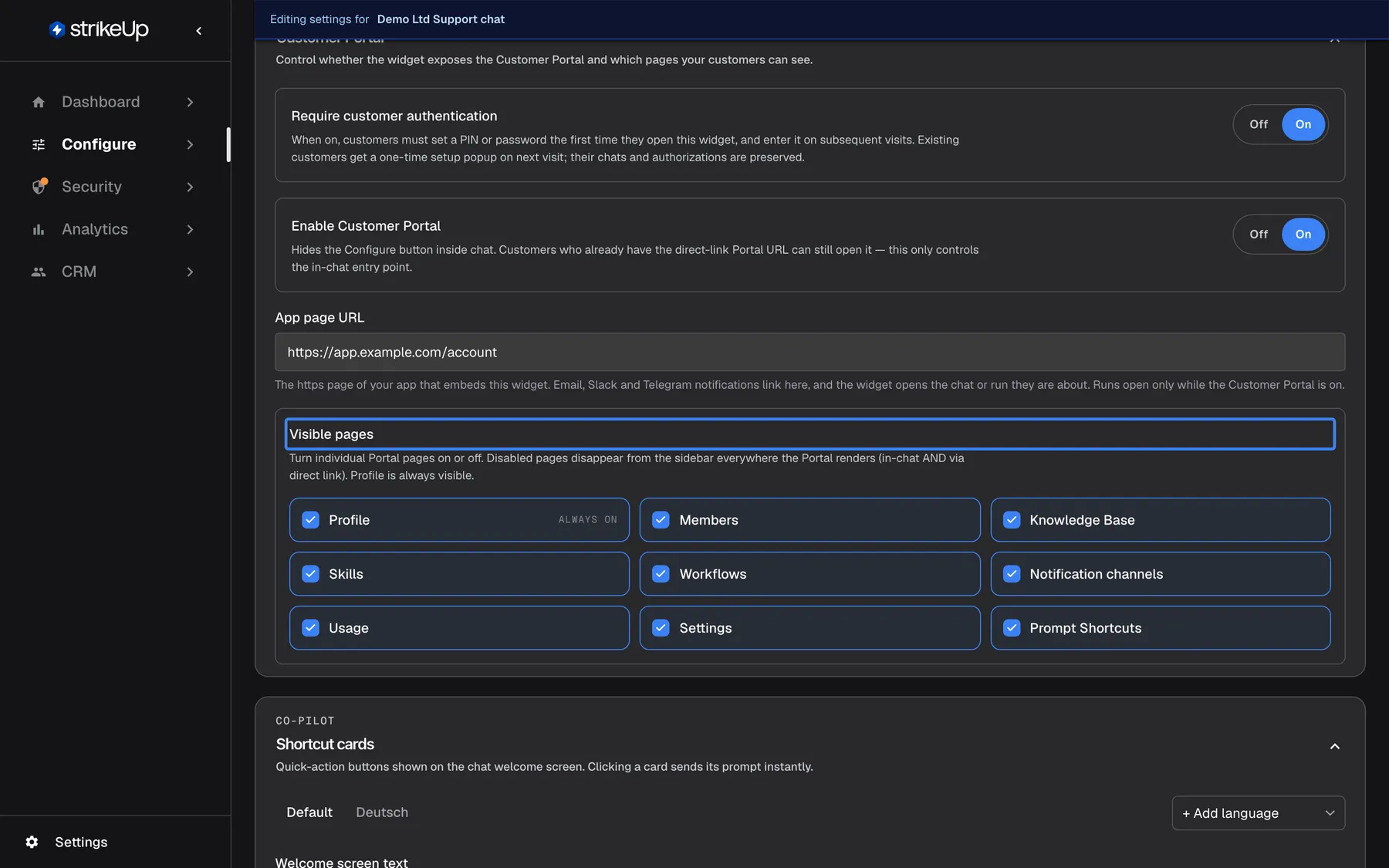
One switch shows the portal's gear in the chat; the page checkboxes hide portal pages from your customers. What this screenshot shows
- Screen
- User Interface (/admin/configure/user-interface?widgetId=…)
- Highlighted
- group “Visible pages”, customer-portal-visible-pages, all pages ticked. hides unticked pages from the portal sidebar (saved with the page)
- Also visible
- Require customer authentication On; Enable Customer Portal On; Nine page checkboxes, all ticked
- Purpose
- switching the portal and its pages on or off
-
Check the gear as a customer. Open your product as a test customer who is an Admin of a test company, sign in, and select the gear in the chat’s top bar. The portal opens with the pages you left ticked.
Every setting, explained
Section titled “Every setting, explained”The portal’s switches are in the Customer Portal section of ConfigureUser Interface; two more options belong to your code.
Enable Customer Portal, the gear in the chat
Section titled “Enable Customer Portal, the gear in the chat”ConfigureUser Interface, the widget’s card, the Customer Portal section, the switch Enable Customer Portal. Saved with Save User Interface Settings. On by default.
On: signed-in customers see a gear button labelled “Configure” in the chat’s top bar, which opens the portal in a large centred window over the dimmed page, up to 1400 × 900 pixels; the chat stays underneath, and the window’s close button returns to it. Off: the gear disappears. The help text reads: Hides the Configure button inside chat. Customers who already have the direct-link Portal URL can still open it — this only controls the in-chat entry point.
Some products want the portal on its own page instead of behind a gear in the chat; others do not want a portal at all.
Visible pages, what customers see
Section titled “Visible pages, what customers see”Under Visible pages in the same section: Members, Knowledge Base, Skills, Workflows, Notification channels, Usage, Settings and Prompt Shortcuts, all ticked by default. Saved with Save User Interface Settings.
An unticked page disappears from the portal’s sidebar wherever the portal appears, through the gear and through the direct link. “Profile”, “Agent runs”, “Memory” and “Notifications” are always shown; unticking Notification channels hides only the company channels on the Notifications page. The help text reads: Turn individual Portal pages on or off. Disabled pages disappear from the sidebar everywhere the Portal renders (in-chat AND via direct link). Profile is always visible. An unticked page is also switched off on the server: from the customer’s next request, StrikeUp refuses its requests with HTTP 403 and the code portalPageDisabled, with no sign-out or redeploy needed. The switches do not control agent runs and their approvals, the prompt shortcuts in the chat (unticking Prompt Shortcuts only stops customers creating and changing them), the customer’s own profile and notification choices, or workflows started from the chat.
A smaller portal is easier to support. Show only the pages your customers need and your staff are ready to help with.
Open Customer Portal inline, for inline widgets
Section titled “Open Customer Portal inline, for inline widgets”portalDisplayType: "inline" in your initStrikeUpChatWidget call, next to displayType: "inline" and container. On ConfigureEmbed, the switch Open Customer Portal inline adds it to the generated code.
In an inline widget, the gear appears only with this option, and the portal then replaces the chat inside your container instead of opening a window over the page.
window.initStrikeUpChatWidget({ applicationToken: "<your widget's application token>", userId: "cus_48210", displayType: "inline", container: "#strikeup-widget", portalDisplayType: "inline"});An inline widget lives inside your layout; a window over the page would break it.
The direct portal link, the portal on its own page
Section titled “The direct portal link, the portal on its own page”An address built from the widget’s host (the folder that serves the widget script) and the widget’s application token: https://<your widget host>/?applicationToken=<token>&mode=portal. Add &userId=<id> and, for silent sign-in, &loginTicket=<ticket>. Use it as the src of an <iframe> on your own page.
The portal fills the frame, with no close button. It always asks for sign-in, whatever Require customer authentication says, and it keeps working when Enable Customer Portal is off. Hidden pages are hidden here too, and their requests are refused.
An “Account” or “Team” page in your product can show the portal full-size, without the chat.
How the settings combine
Section titled “How the settings combine”| Enable Customer Portal | Page ticked | Customer has a session | Result |
|---|---|---|---|
| On | Yes | Yes | Gear in the chat; the page is in the sidebar for roles that may see it |
| On | No | Yes | Gear in the chat; the page is missing from the sidebar |
| On | Any | No | No gear |
| Off | Yes | Yes | No gear; the page is in the sidebar when the portal is opened through the direct link |
| Off | No | Any | No gear; the page is missing everywhere |
The portal in the widget
Section titled “The portal in the widget”| What the customer sees | Meaning |
|---|---|
| A gear “Configure” in the chat’s top bar | The portal is on and the customer is signed in |
| A large window with a sidebar of pages | The portal, opened from the gear |
| Fewer pages in the sidebar | The customer is a Member, or you hid pages |
| “Log out” at the bottom of the sidebar | The only place in the widget where a customer signs out |
The gear in the chat
Section titled “The gear in the chat”The gear sits at the right end of the chat’s top bar, after the new-chat icon. It appears only for signed-in customers when the portal is on.
Why: the portal is one click away from the conversation that made the customer need it.
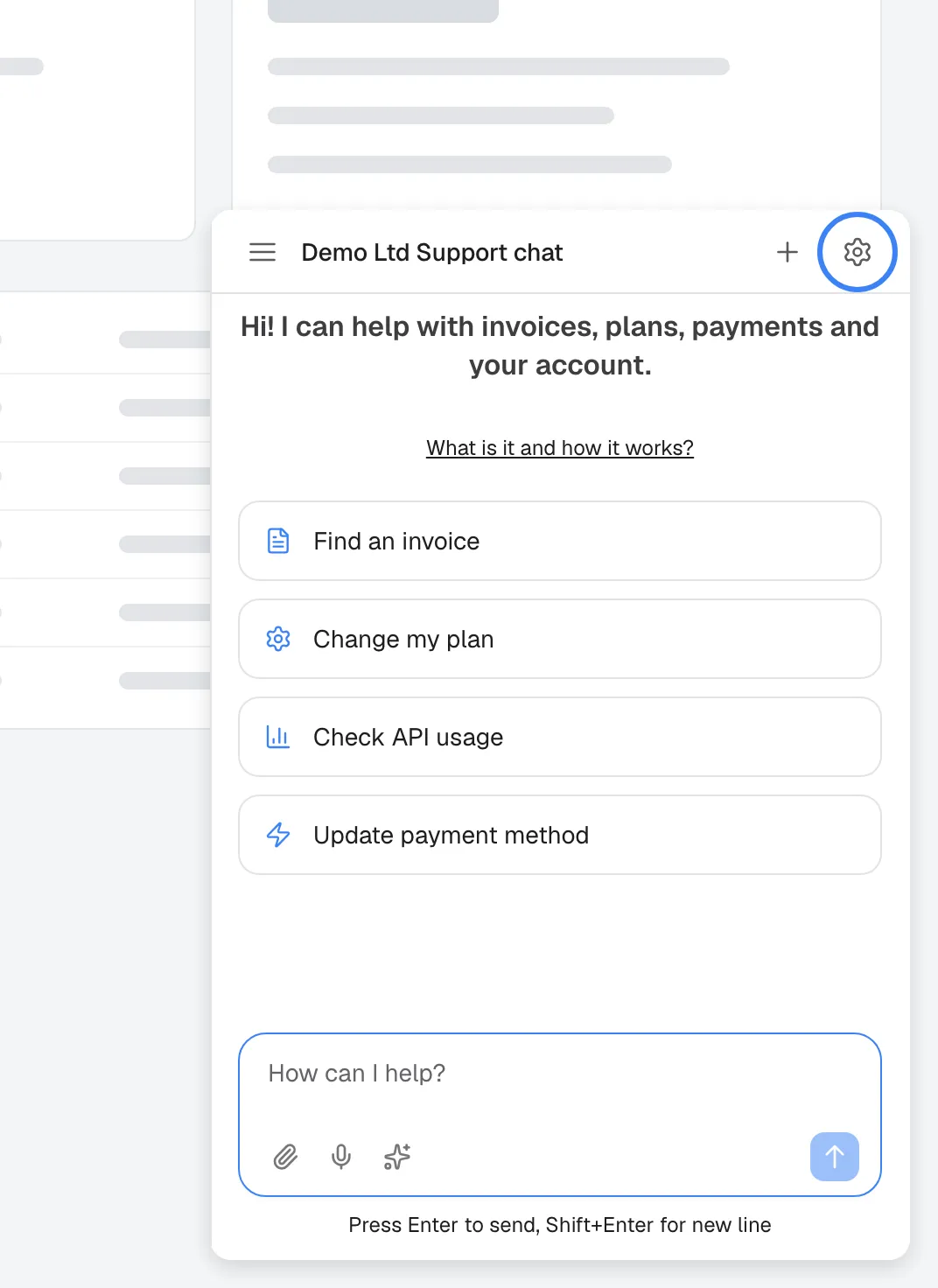
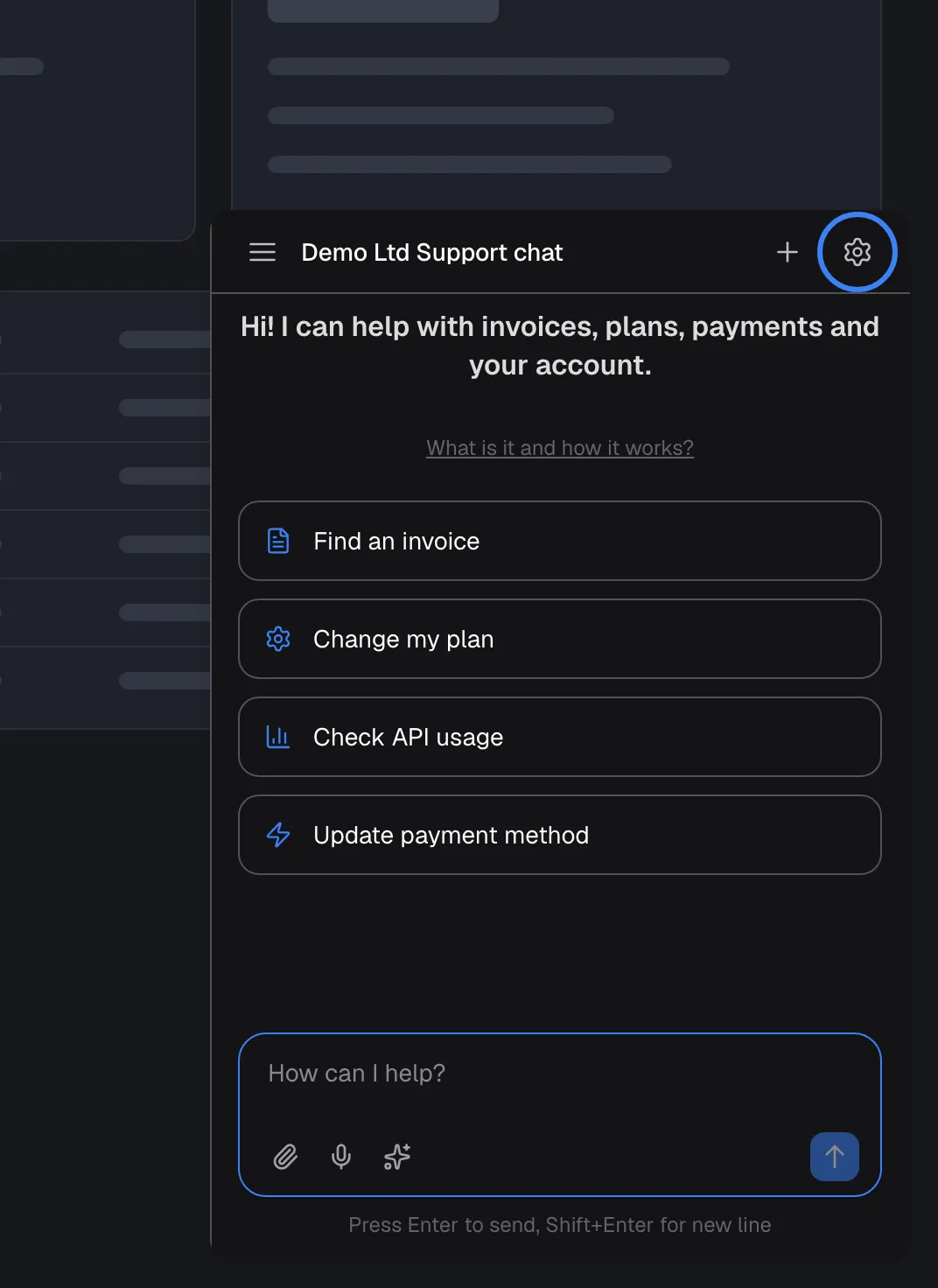
What this screenshot shows
- Screen
- (host page › widget (popup))
- Highlighted
- button “Configure”, chat-top-bar-right, shown (portal enabled, customer signed in). opens the Customer Portal over the page
- Also visible
- Title Demo Ltd Support chat; Welcome text, shortcut cards, message box
- Purpose
- the in-chat entry point of the portal
What an Admin sees
Section titled “What an Admin sees”An Admin sees every page you left visible. On Members, the list shows each member’s name, role, an Admin/Member switch and Disable or Enable; the Admin’s own row is read-only, and the last Admin of a company cannot be demoted or disabled. There is no invite button.
Why: a company’s own Admin knows who has left and who needs more rights, without a ticket to your team.
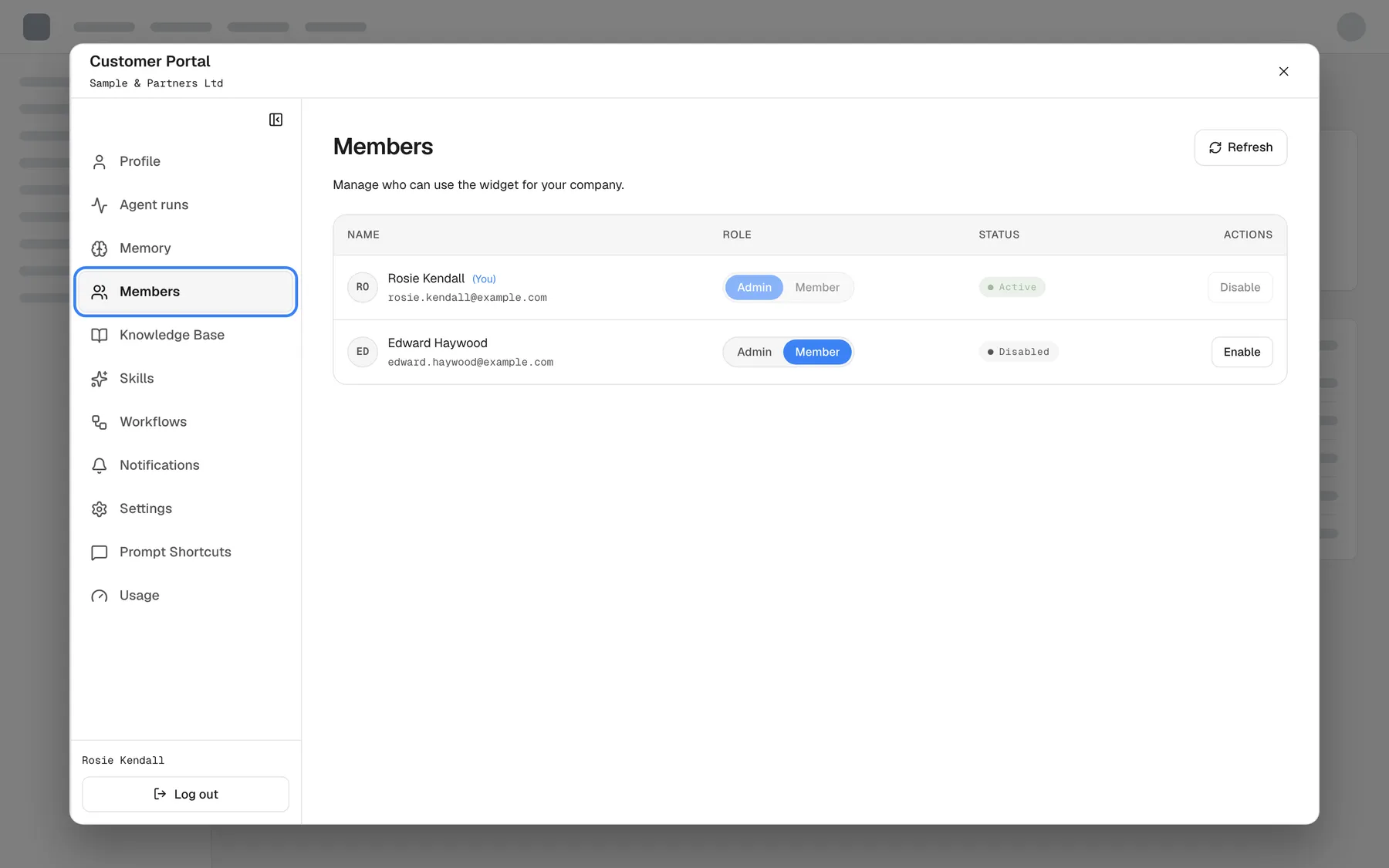
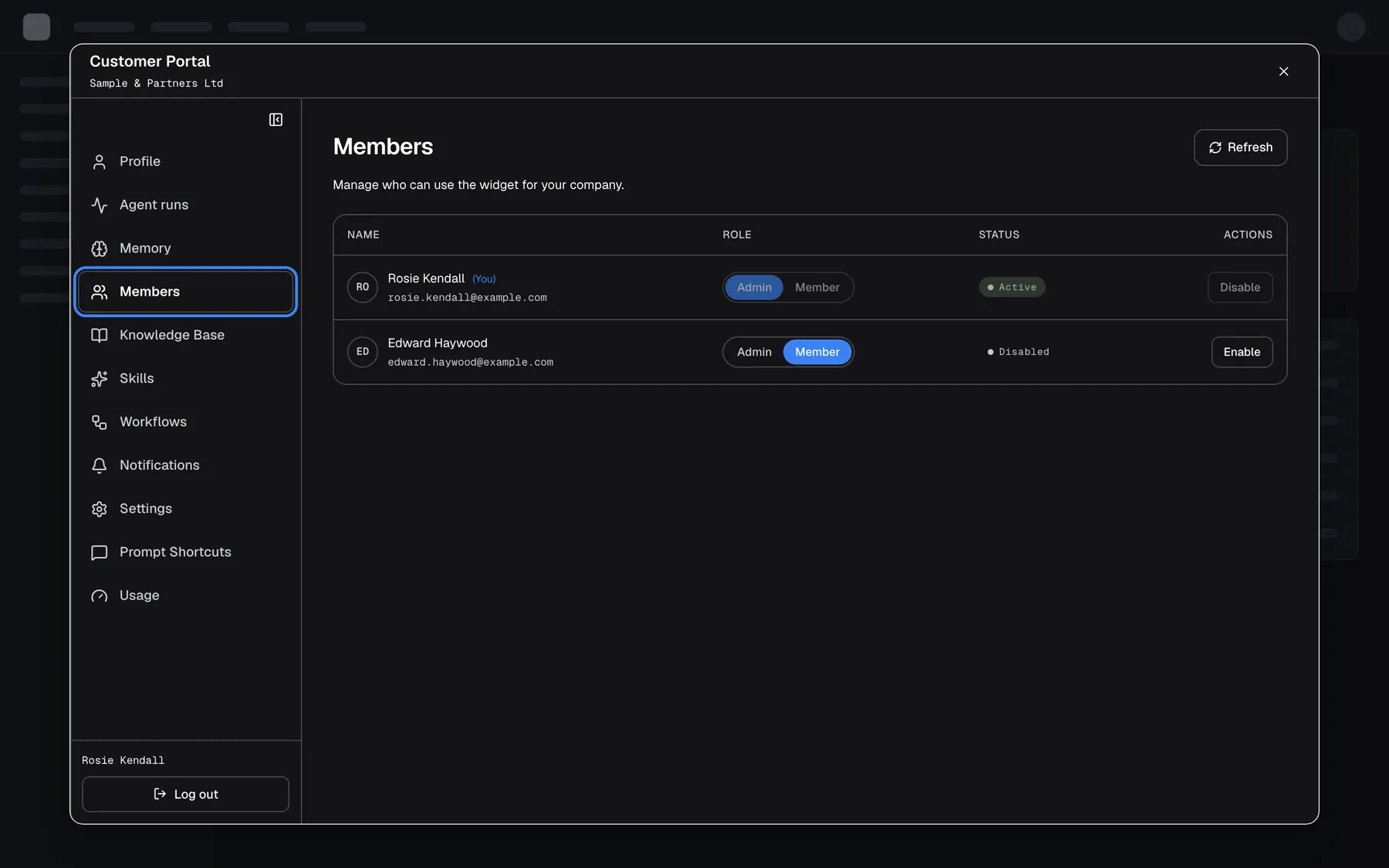
What this screenshot shows
- Screen
- Members (host page › widget › Customer Portal › Members)
- Highlighted
- button “Members”, portal-sidebar, selected. shows the company's members
- Also visible
- Portal window over the dimmed host page; Four members with role switch and Disable/Enable; Rosie Kendall and Log out at the bottom of the sidebar
- Purpose
- what a customer Admin can do in the portal
Company settings
Section titled “Company settings”On Settings, an Admin sees the company name (read-only), the switch Allow self-registration, the default credential type and an agent instruction: guidance the assistant follows for everyone in that company, reviewed for safety before it is saved. With self-registration on, anyone who has the company’s registration link can register for it and becomes an Admin. The link is https://<your widget host>/?applicationToken=<token>&mode=register&customerCompanyId=<company id>, where the company id is the one in the address of the company’s page in CRM; the portal does not show it. The registration screen is in English.
Why: a company can tailor the assistant to its own rules, such as quoting amounts in its currency.
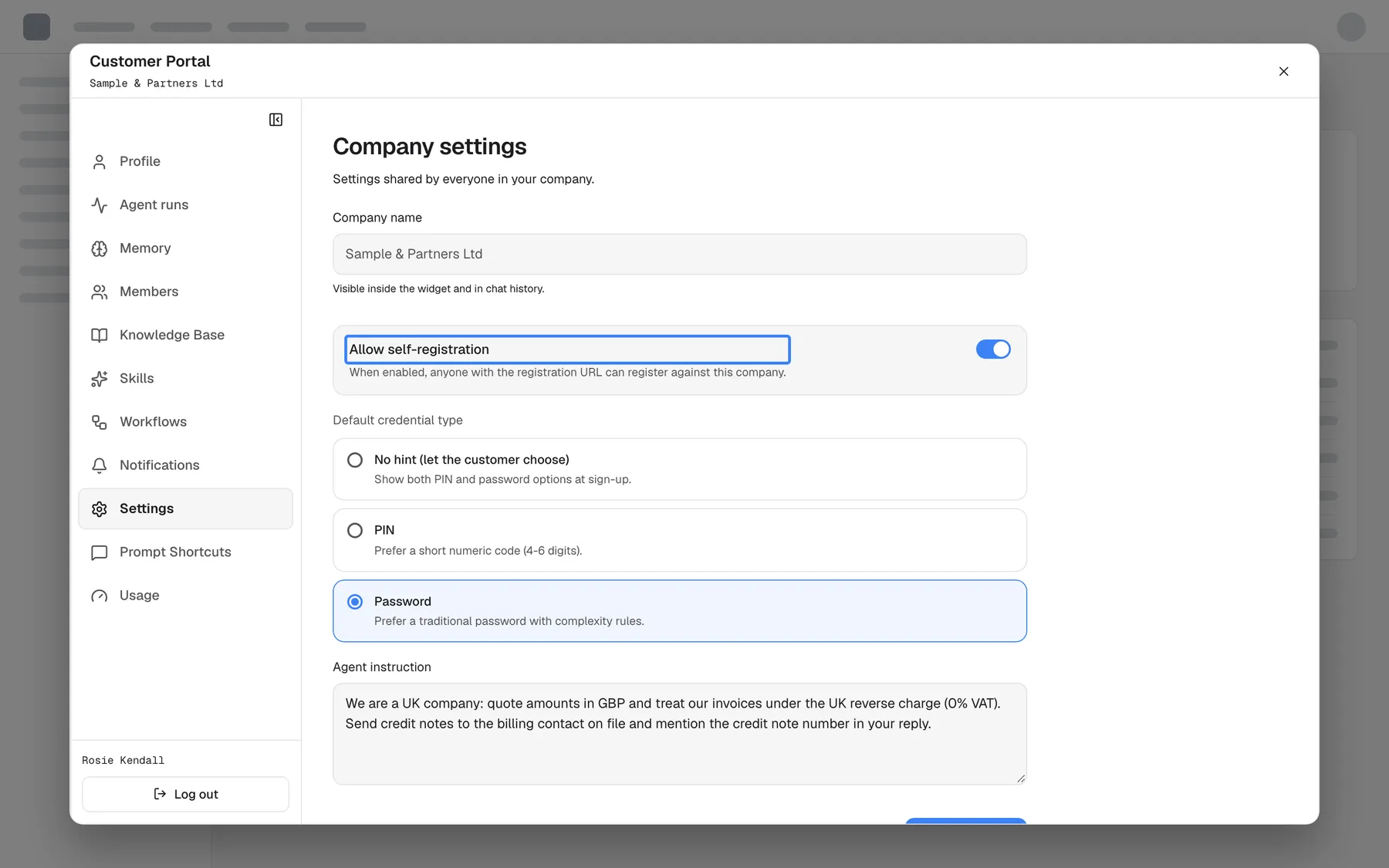
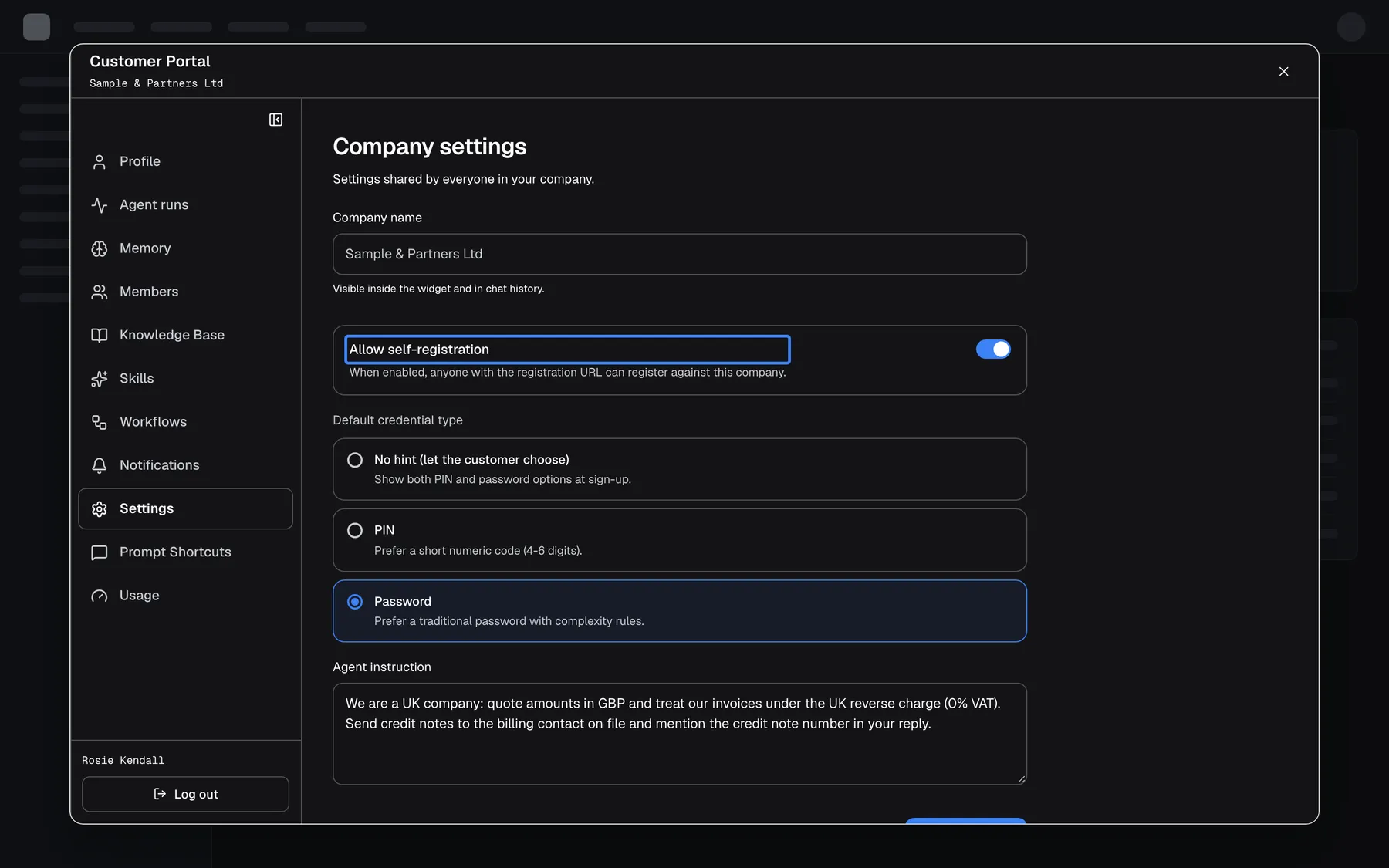
What this screenshot shows
- Screen
- Settings (host page › widget › Customer Portal › Settings)
- Highlighted
- switch “Allow self-registration”, settings-form, on. lets anyone with the company's registration link create an account
- Also visible
- Company name Sample & Partners Ltd (read-only); Default credential type Password selected; Agent instruction about GBP and UK reverse charge
- Purpose
- company-wide settings a customer Admin controls
What a Member sees
Section titled “What a Member sees”A Member gets “Profile”, “Agent runs” (their own and the company workflows’ runs), “Memory”, “Workflows” (the company’s read-only, plus their own personal ones), “Notifications” (their own choices), Prompt Shortcuts (read only) and Usage. They can use the company’s shortcuts in the chat but not change them.
Why: most people in a company only need their own account; managing the company stays with its Admins.
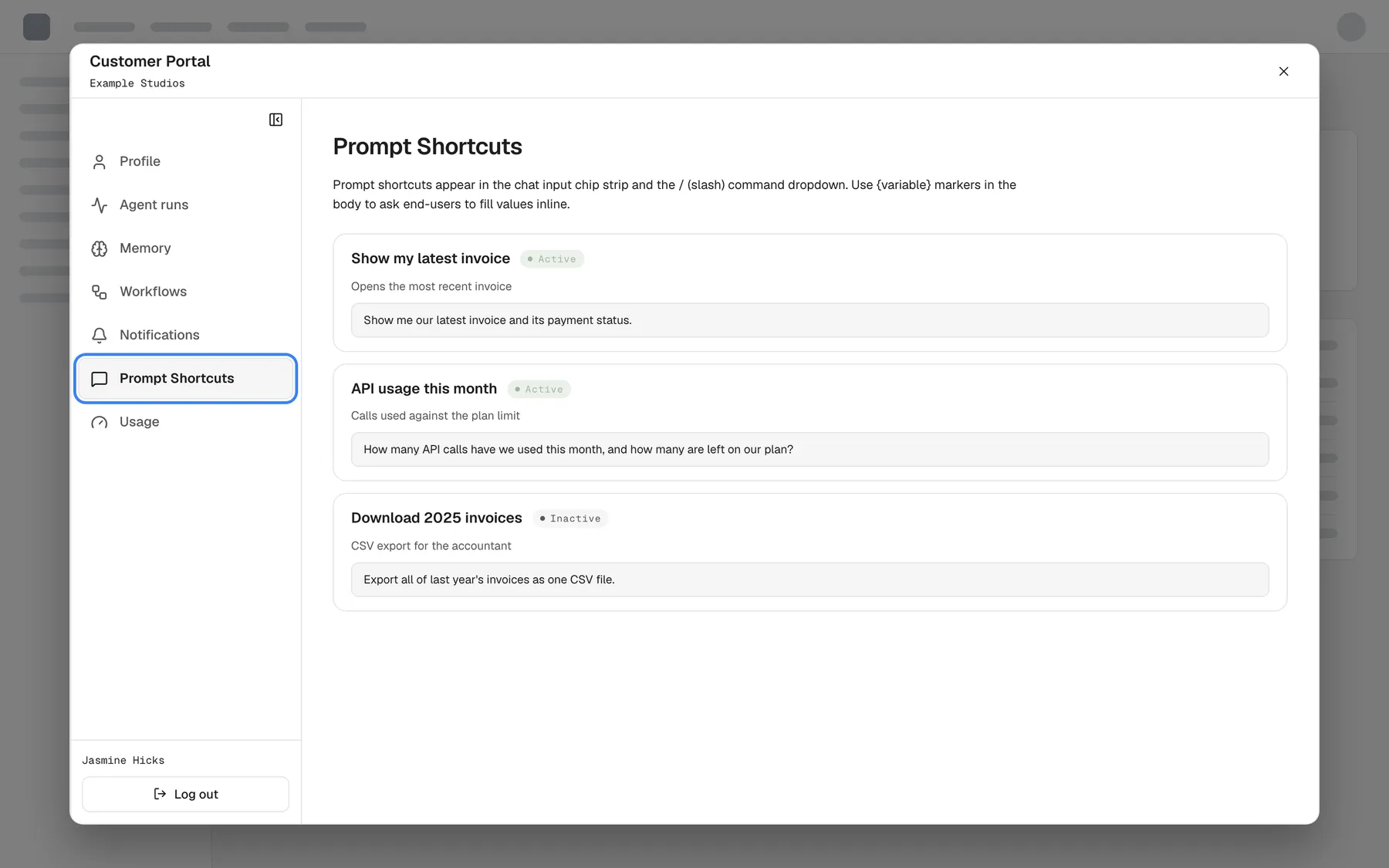
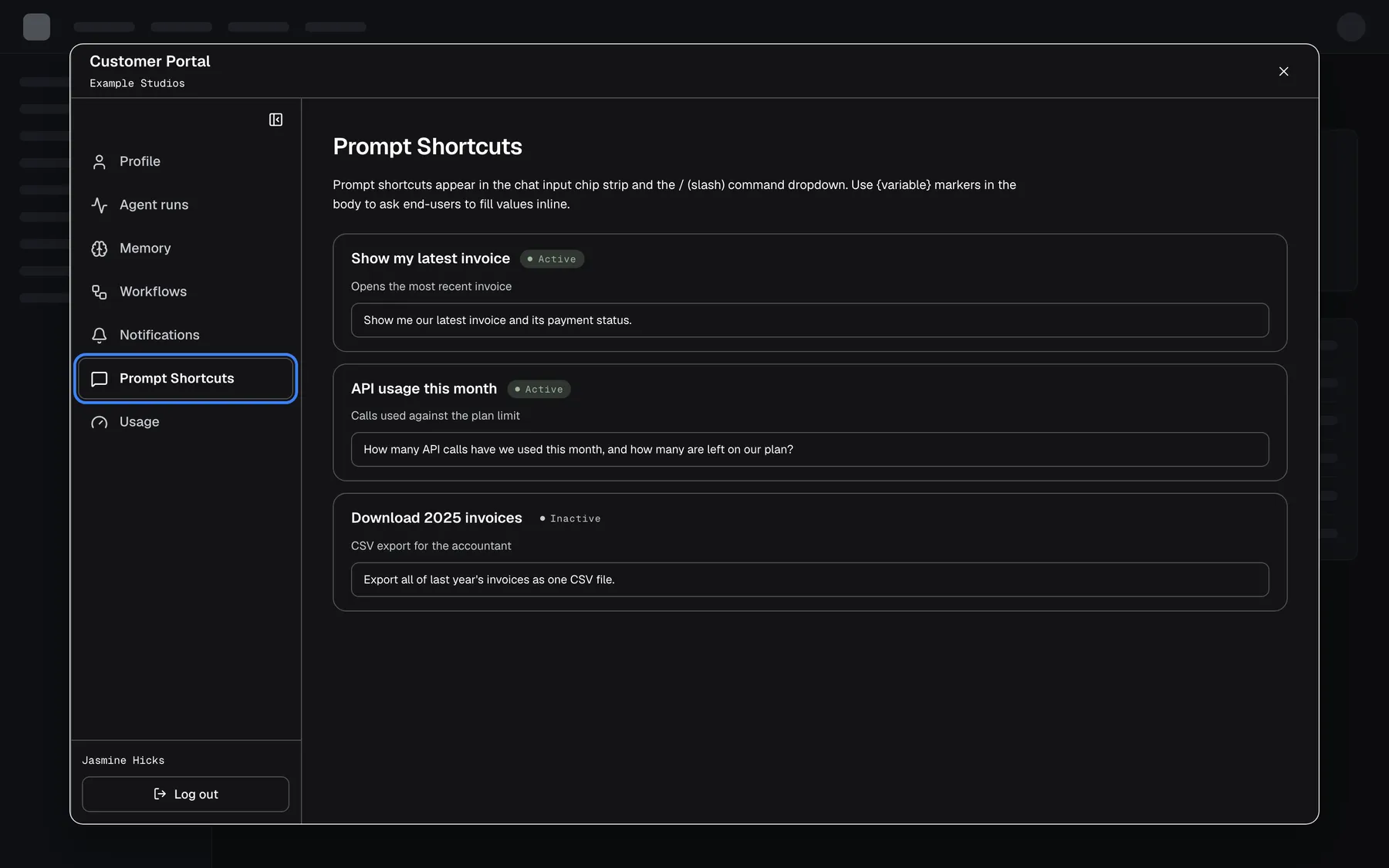
What this screenshot shows
- Screen
- Prompt Shortcuts (host page › widget › Customer Portal › Prompt Shortcuts)
- Highlighted
- button “Prompt Shortcuts”, portal-sidebar, selected. shows the company's shortcuts read-only
- Also visible
- Member sidebar: Profile, Agent runs, Memory, Workflows, Notifications, Prompt Shortcuts, Usage; Shortcuts Show my latest invoice, API usage this month (Active), Download 2025 invoices (Inactive); Jasmine Hicks and Log out at the bottom
- Purpose
- what a customer Member sees
The portal’s data in CRM
Section titled “The portal’s data in CRM”CRMCompanies, then a company. Its tabs cover the overview, members, knowledge base, skills, workflows, prompt shortcuts, integrations and usage.
Your staff see and manage the same records customers manage in the portal: the documents a customer Admin uploaded, the skills they created, their workflows and schedules, their members and roles. The portal’s page switches do not apply to your staff. Staff can also change what customers cannot, such as the company name.
When a customer asks for help with their portal, your staff see exactly what they see, and can fix it for them.
- A customer Admin uploads “VAT and tax settings.md” → it appears on the company’s knowledge base tab in CRM, where your staff can check whether it was indexed.
- A Member asks for Admin rights → your staff or the company’s Admin change the role; it applies at the Member’s next sign-in.
- All Admins of a company have left → your staff assign a new Admin in CRM.
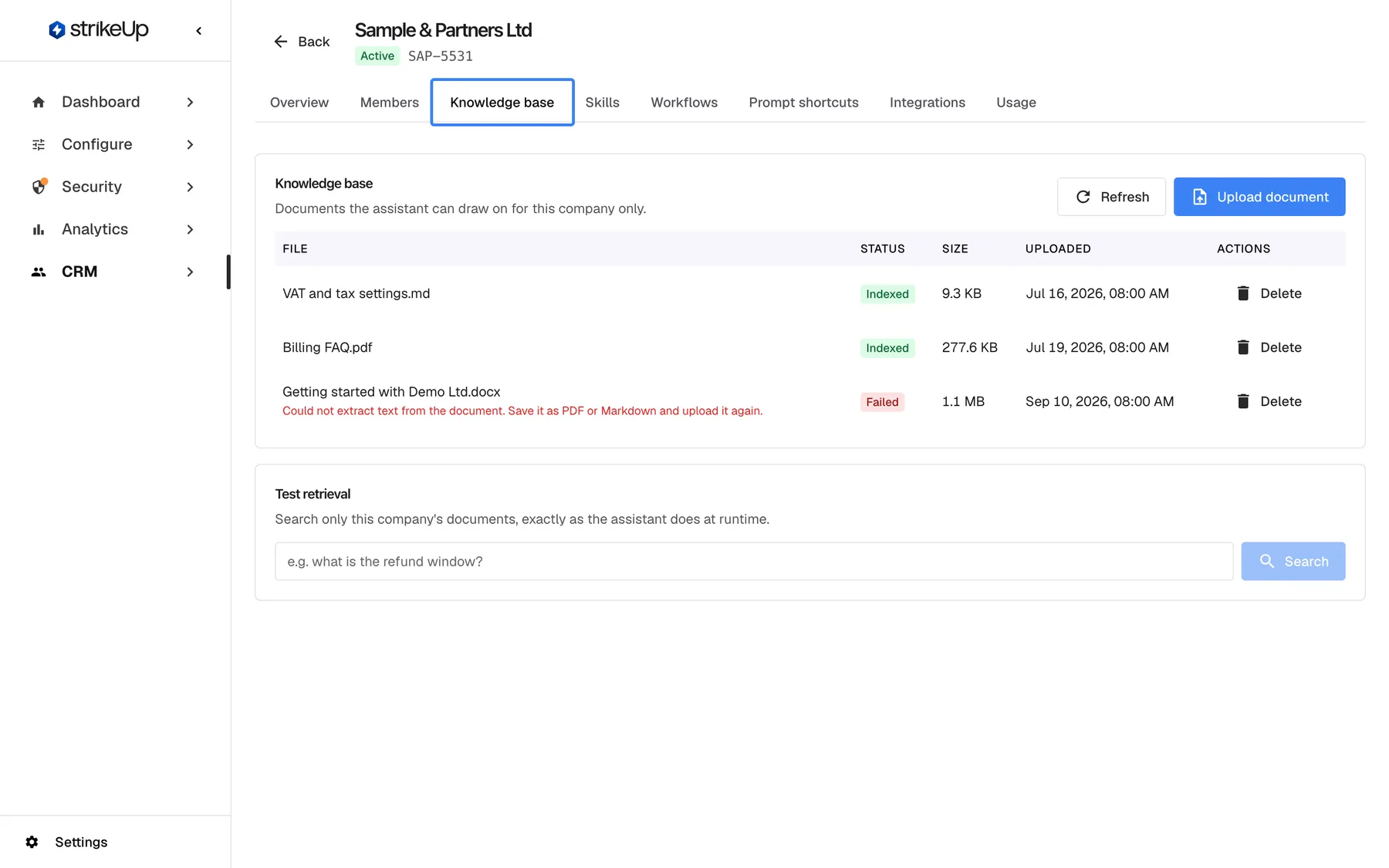
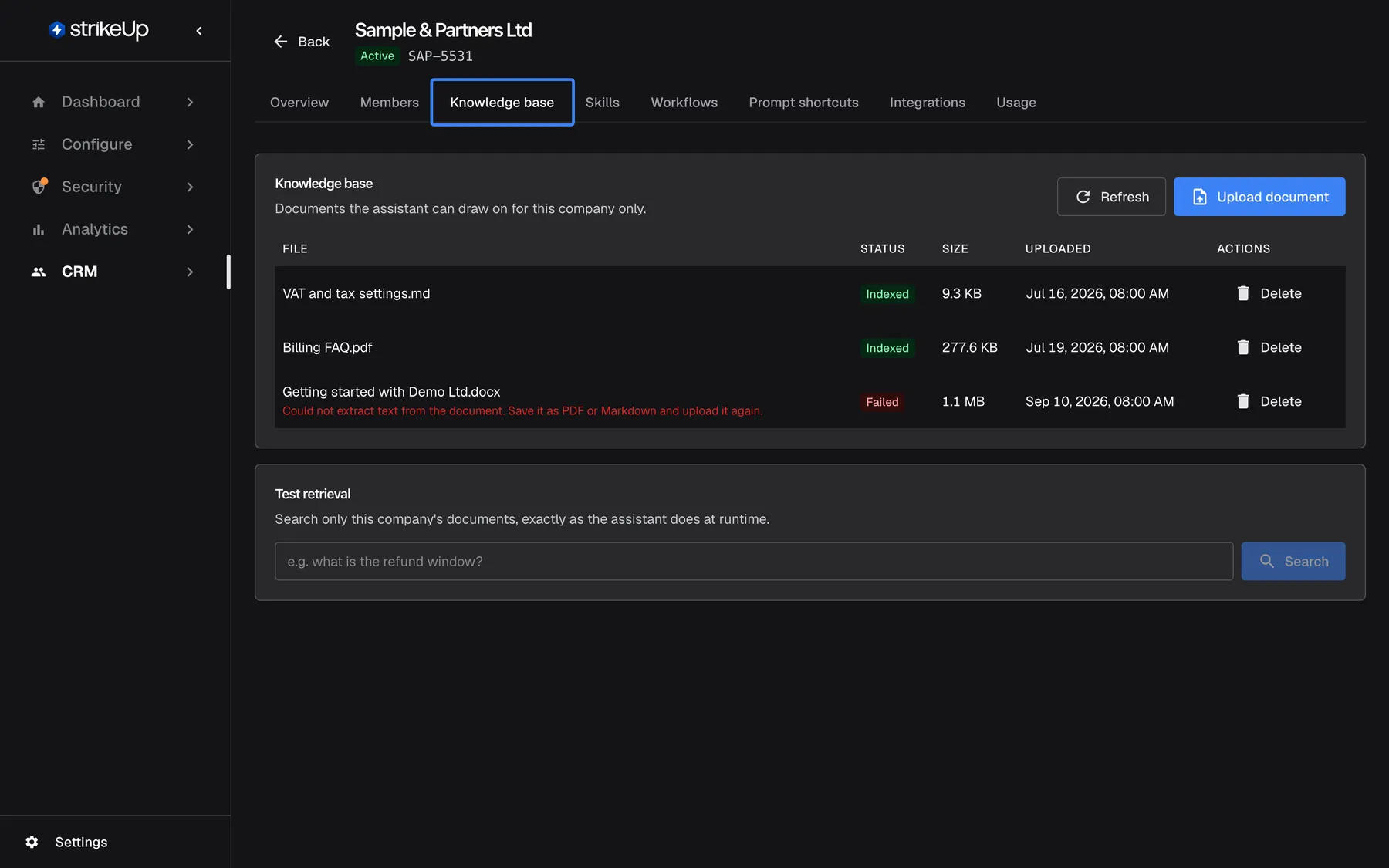
What this screenshot shows
- Screen
- Knowledge base (/admin/customer-companies/:id)
- Highlighted
- tab “Knowledge base”, company-tab-strip, selected. shows the company's own documents
- Also visible
- Tabs Overview, Members, Knowledge base, Skills, Workflows, Prompt shortcuts, Integrations, Usage; Three documents, two Indexed, one Failed; Upload document, Test retrieval
- Purpose
- the staff counterpart of the customer portal
What you need to know
Section titled “What you need to know”| Topic | Fact |
|---|---|
| Who gets in | Signed-in customers; the direct link always asks for sign-in |
| Default role | Admin for customers created at first sign-in or by import without a role; for self-registration, Admin for the company’s first person and Member for everyone after |
| Always visible | “Profile”, “Agent runs”, “Memory” and “Notifications” |
| Page switches | Hide the page and refuse its requests with HTTP 403 portalPageDisabled, from the customer’s next request |
| Enable Customer Portal | Shows or hides the gear in the chat only; the direct link and each page’s own switch are unaffected |
| Role changes | Apply at the customer’s next sign-in |
| Disabling a member | Signs them out at once |
| Deactivated company | Its Admins cannot change portal data |
| Language | Follows the browser (English, German, Spanish); some messages from the server are in English |
| Sign-out | “Log out” in the portal’s sidebar is the only sign-out in the widget |
Frequently asked questions
Section titled “Frequently asked questions”General
Section titled “General”How do my customers open the portal?
Section titled “How do my customers open the portal?”Through the gear button “Configure” in the chat’s top bar, once they are signed in and the portal is switched on for the widget. You can also show the portal on a page of your own product with the direct portal link in an iframe, which always asks the customer to sign in.
Do customers need to sign in to use the portal?
Section titled “Do customers need to sign in to use the portal?”Yes. The portal belongs to a customer and their company, so it needs a customer session. The gear appears only for customers with a session, and the direct portal link always asks for sign-in. Switch on Require customer authentication on ConfigureUser Interface for the widget.
Can I turn the whole portal off?
Section titled “Can I turn the whole portal off?”Switch off Enable Customer Portal on ConfigureUser Interface to remove the gear, and untick every page under Visible pages. Profile, Agent runs and Memory cannot be hidden and stay reachable through the direct portal link for customers who have it.
Is the portal translated?
Section titled “Is the portal translated?”The portal follows the customer’s browser language: English, German or Spanish, with no language picker. Some messages that come from the server, such as validation errors, appear in English whatever the browser language.
Where do I choose which portal pages customers see?
Section titled “Where do I choose which portal pages customers see?”On ConfigureUser Interface, select the widget’s card and, in the Customer Portal section, tick or untick the pages under Visible pages. Then select Save User Interface Settings. The change applies to every place the portal appears for that widget, through the gear and through the direct link.
Can I hide the gear but show the portal on a page of my app?
Section titled “Can I hide the gear but show the portal on a page of my app?”Yes. Switch off Enable Customer Portal for the widget, then show the portal on your own page with the direct link, https://<your widget host>/?applicationToken=<token>&mode=portal, in an iframe. The direct link keeps working when the gear is off and always asks for sign-in.
Can the portal open inside my inline widget?
Section titled “Can the portal open inside my inline widget?”Yes. Add portalDisplayType: "inline" to the initStrikeUpChatWidget call of your inline widget. The gear then appears in the inline chat, and the portal replaces the chat inside your container instead of opening a window over the page.
Roles and members
Section titled “Roles and members”Why can’t a Member see the knowledge base?
Section titled “Why can’t a Member see the knowledge base?”Members get a reduced portal: Profile, their own Agent runs, Memory, Workflows (company ones read-only), Notifications (their own choices), Prompt Shortcuts as read-only, and Usage. Members, Knowledge Base, Skills, the company channels and Settings are for the company’s Admins. Change the person’s role to Admin in CRM or on the portal’s Members page if they need those pages.
How does someone become an Admin of their company?
Section titled “How does someone become an Admin of their company?”Customers created at first sign-in, by self-registration, or by an import without a Role are Admins by default. An existing Admin can change a member’s role on the portal’s Members page, and your staff can change it under CRM. The new role applies at the customer’s next sign-in.
Can a customer Admin invite new people?
Section titled “Can a customer Admin invite new people?”No. The portal has no invite. People join a company when your page passes their userId with the company’s id, when your staff import them under CRM › Customers, or when they register through the company’s self-registration link while Allow self-registration is on.
A role change did not take effect. Why?
Section titled “A role change did not take effect. Why?”Role changes apply when the customer signs in again, because the role is read at sign-in. Ask the customer to use Log out at the bottom of the portal’s sidebar and sign in again, or wait for their session to end. Disabling a member, in contrast, signs them out at once.
Who manages a company if all its Admins leave?
Section titled “Who manages a company if all its Admins leave?”Your staff. Under CRM › Customer companies, open the company and give a remaining member the Admin role. The portal itself never lets the last Admin of a company be demoted or disabled, so a company is not left without an Admin by accident.
Do customers see each other’s chats?
Section titled “Do customers see each other’s chats?”No. Every customer sees only their own chats in the widget. The portal shows company-wide data such as documents, workflows and shortcuts, and an Admin sees the company’s agent runs, but never another customer’s conversations.
Does hiding a portal page block its use?
Section titled “Does hiding a portal page block its use?”Yes. While a page is unticked, StrikeUp refuses the requests behind it with HTTP 403 and the code portalPageDisabled (“This page is turned off for this portal.”), from the customer’s next request and without a sign-out. The switches do not control agent runs and their approvals, the prompt shortcuts in the chat, the customer’s own profile and notification choices, or workflows started from the chat. Enable Customer Portal only shows or hides the gear and blocks no page.
Can customers change their PIN in the portal?
Section titled “Can customers change their PIN in the portal?”No. The Profile page lets customers edit their name and email only; the customer id and role are read-only, and there is no PIN or password change. To replace a credential, import the customer again with a new Pin or Password under CRM › Customers.
Can a customer rename their company?
Section titled “Can a customer rename their company?”No. The company name is read-only in the portal’s Settings page. Your staff can rename the company under CRM › Customer companies, and the new name appears in the portal on the customer’s next visit.
What is the agent instruction on the Settings page?
Section titled “What is the agent instruction on the Settings page?”It is company-level guidance the assistant follows for everyone in that customer company, such as “quote amounts in GBP”. StrikeUp reviews it for safety before saving it. A customer Admin edits it on the portal’s Settings page; your staff see it on the company’s overview in CRM.
What does the Usage page show?
Section titled “What does the Usage page show?”The percentage of the company’s AI allowance that is left and the date it resets. It never shows tokens or amounts of money. Every customer, Admin or Member, can open it unless you hide it under Visible pages.
Which channels can a company set up in the portal?
Section titled “Which channels can a company set up in the portal?”A company’s Admins set up one channel each for email (SMTP), Telegram, Slack and Microsoft Teams on the portal’s Notifications page, each with a test, plus the approval limit for chat apps. These channels replace yours for that company’s people. See Job notifications and chat apps.
“Run now” asks the customer to wait. Why?
Section titled ““Run now” asks the customer to wait. Why?”Manual runs of workflows are limited per minute. When a customer starts too many in a short time, the portal shows Too many runs in the last minute. Try again shortly. and does not start the run. Waiting a minute and starting the run again works.
Data and privacy
Section titled “Data and privacy”What happens to portal data when a company is deactivated?
Section titled “What happens to portal data when a company is deactivated?”The data stays. A deactivated company’s Admins can no longer change it in the portal, and its customers cannot sign in again until your staff reactivate the company under CRM › Customer companies. Your staff can still see and manage the data in CRM.
Can my staff see what customers changed in the portal?
Section titled “Can my staff see what customers changed in the portal?”Yes. Everything a customer manages in the portal, from documents and skills to workflows, members and shortcuts, is visible to your staff under CRM › Customer companies, on the company’s tabs. The portal’s page switches do not apply to your staff.
Troubleshooting
Section titled “Troubleshooting”| Symptom | What to check |
|---|---|
| The gear is missing | In order: is Enable Customer Portal on? Is the visitor signed in? Is it an inline widget without portalDisplayType: "inline"? |
| A page is missing for one customer | Is the customer a Member? Members see only “Profile”, “Agent runs”, “Memory”, “Workflows”, “Notifications”, Prompt Shortcuts and Usage |
| A page is missing for every customer | It is unticked under Visible pages on ConfigureUser Interface |
| A customer sees “This page is turned off for this portal.” | The page was unticked while the customer had it open. Tick it under Visible pages and save if the customer should use it; it applies from their next request. Otherwise the page leaves their portal when they reload |
| A promoted customer still sees the Member pages | Role changes apply at the next sign-in. Ask them to use “Log out” and sign in again |
| A customer Admin cannot save anything | Is the company deactivated under CRMCompanies? |
| The direct link asks for sign-in although the widget has no sign-in | The direct link always asks for sign-in. Pass userId and a loginTicket in the link, or import the customer with a credential |
| A self-registered person is the company’s Admin | The first person in a customer company’s account starts as its Admin; everyone who joins after them through the registration link starts as Member. Change roles on the portal’s members page or in CRM |
| The portal opens over the whole page in an inline layout | Pass portalDisplayType: "inline" so it opens inside the container |
| A customer cannot remove the last Admin | The last Admin of a company cannot be demoted or disabled. Make another member Admin first |
| Staff cannot find a customer’s portal changes | Look under CRMCompanies, on the company’s tabs, not on the customer |
| A change fails with Request failed and “This action requires the Admin role.” | Changing these settings in StrikeUp needs the Admin role. Ask an Admin to make the change, or to give you the Admin role under Settings › Users. |