

Dashboard
The Dashboard is where the StrikeUp admin app opens after every sign-in. It answers four questions about your assistant: is it being used, how much, is it working well, and what does its AI cost. Every page in the section only reads data, so nothing you do there changes your setup or what your visitors see.
Each page covers one of those questions for a period you choose. One date range drives all four pages and is remembered in your browser as you move between them. Open the section from Dashboard in the sidebar.
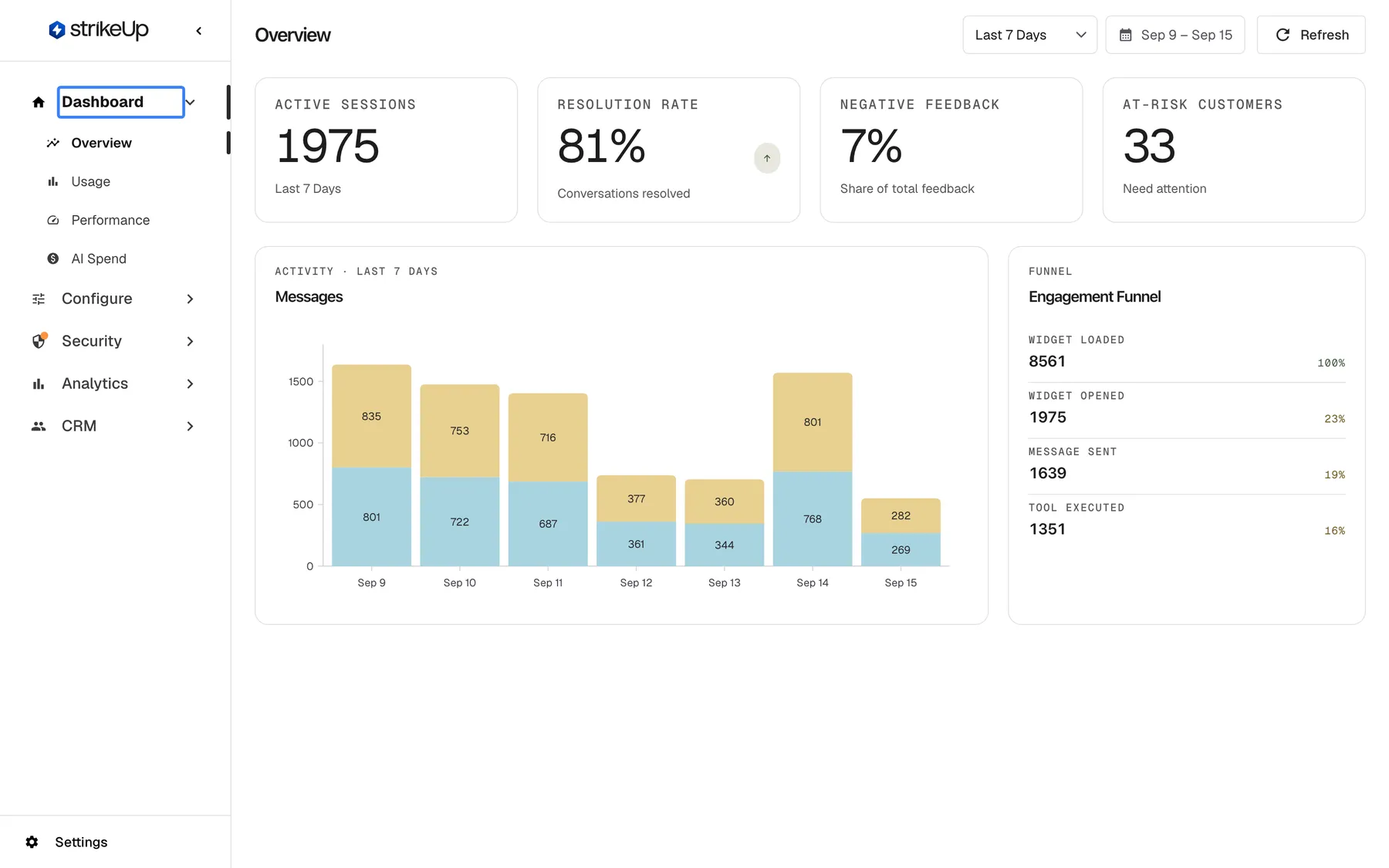
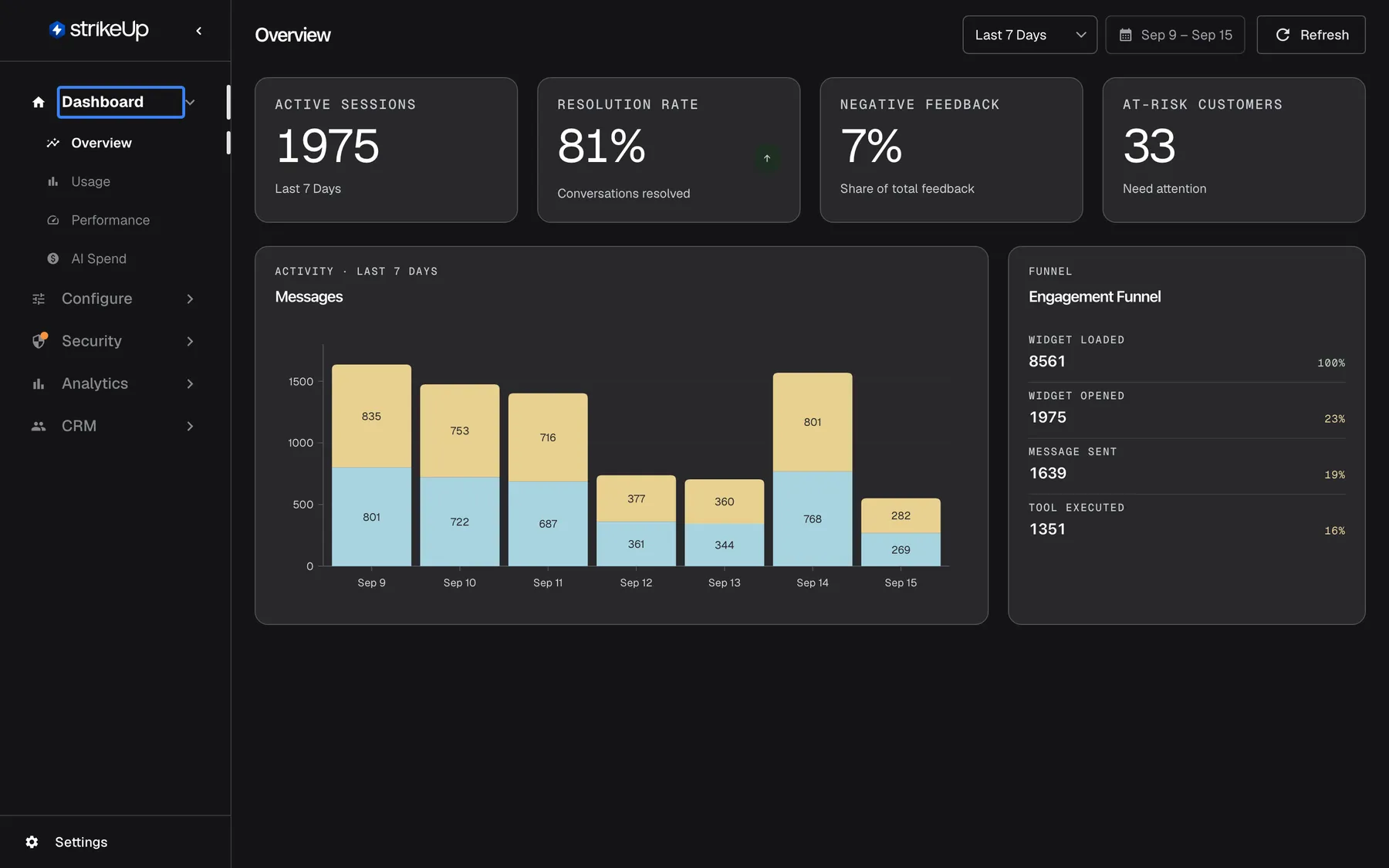
What this screenshot shows
- Screen
- Dashboard (/admin/dashboard/overview)
- Highlighted
- link “Dashboard”, sidebar, expanded. shows the four dashboard pages
- Also visible
- Sidebar children: Overview, Usage, Performance, AI Spend; Overview page with KPI tiles, Messages chart and Engagement Funnel
- Purpose
- where the dashboard lives and what it contains
Pages in this section
Section titled “Pages in this section”| Page | The question it answers | What you find there |
|---|---|---|
| Overview | How is the assistant doing right now? | Four headline tiles, the message chart and the engagement funnel. It is the page you land on after sign-in. |
| Usage | How much is it used, and for what? | Daily active users, messages, the most-called API endpoints, the most-used skills, autonomous agent runs and the full skills list with a CSV export. |
| Performance | Is it working well? | Successful and failed tool calls, blocked messages, visitor feedback, session quality and a health score for each customer. |
| AI Spend | What did its calls to AI models cost, and who made them? | The estimated cost in US dollars by model, stage and widget, and usage by customer company, customer, source, workflow, autonomous agent and run. |
/admin/dashboard on its own has no screen: it always opens Overview.
What you can do here
Section titled “What you can do here”- Check the headline numbers at a glance. Overview shows chat-window opens, the share of sessions with a successful tool call, the share of negative feedback and the number of customers whose health score is below 80. The Overview page.
- See how much the assistant is used. Usage counts the people who chatted each day, the messages exchanged, and which API endpoints, skills and autonomous agents were used most. The Usage page.
- Export every skill’s usage as a spreadsheet. The skills table on Usage downloads every skill used in the range, with its source and number of uses, as a CSV file. The Usage page.
- Find out where answers go wrong. Performance shows failed tool calls, messages your guardrails blocked, thumbs-down votes with their reasons, and customers who are drifting away. The Performance page · Review and improve answer quality.
- Follow what the AI costs. AI Spend estimates the cost of every call to an AI model in US dollars and splits it by model, stage, widget, customer and run. The AI Spend page · AI models, spend and budgets.
Concepts to know
Section titled “Concepts to know”The shared date range
Section titled “The shared date range”The date range at the top right of every Dashboard page sets the period for every tile, chart and table on it.
| Choice | What it covers |
|---|---|
| Last 7 Days (the default) | Today and the 6 days before it |
| Last 14 Days | Today and the 13 days before it |
| Last 30 Days | Today and the 29 days before it |
| Custom | The first and last day you pick in the calendar, both included |
- Presets move with the calendar. A preset is worked out again from today every time you open a page, so Last 7 Days tomorrow covers a different week. A custom range keeps its exact dates.
- The range is remembered in this browser, for you only. It follows you from page to page and is still set the next time you open the Dashboard in the same browser. Colleagues, and you on another device, see their own range.
- Days are UTC days. A day runs from midnight to midnight UTC, which is 02:00 to 02:00 in Berlin in summer. The tiles count exactly those hours.
- Future days cannot be picked. The calendar greys out every day after today.
- Short ranges are shown by the hour. When a custom range covers one or two days, the message and tool-call charts show hourly bars instead of daily ones.
- Two cards follow their own rules. Autonomous Agent Usage on Usage always counts back from today for the number of days in the range, and AI Spend cuts any range to at most 90 days and stops it at the current moment.
Visitors, customers and active users
Section titled “Visitors, customers and active users”The Dashboard counts people by the identity the chat widget gives them. A visitor who signs in or is identified by your product is counted under their customer record, with their name or email. A visitor who stays anonymous gets an identity of their own that starts with anon-, so each anonymous visitor is counted once per browser. If they clear their browser data, they count again as a new visitor. The assistant’s own replies are never counted as a user.
Estimated cost
Section titled “Estimated cost”AI Spend shows an estimate in US dollars, worked out for each AI call when it ran from the price listed for that model at that moment. Calls with no price are counted but add nothing to the total. The estimate is not an invoice.
Availability
Section titled “Availability”Every signed-in user of your workspace sees all four pages, whatever their role, and no feature flag or plan switches them on or off. AI Spend is there whether or not your workspace uses the AI gateway. Your end customers never see the Dashboard.