

Usage
The Usage page shows how much your assistant is used and for what: how many people chat each day, how many messages they exchange, which of your API endpoints the assistant calls, which skills it relies on and how often your autonomous agents run. Use it to see whether adoption is growing and which parts of your setup do the work. It lives at DashboardUsage, and everyone in your workspace can open it.
What you can do here
Section titled “What you can do here”- Count the people who chat each day. A line chart shows how many different people had a chat message on each day of the range, anonymous visitors included. Count the people who chat.
- Follow message volume. A stacked bar chart shows visitor messages and assistant replies per day. Follow message volume.
- Find the busiest API endpoints. The ten endpoints the assistant called most, with successful and failed calls side by side. Find the busiest API endpoints.
- See which skills the assistant relies on. The ten skills loaded in the most conversation turns. See which skills are used · Skills.
- Check how often autonomous agents run. Runs per autonomous agent, counted back from today. Check autonomous agent runs · The end-to-end guide to autonomous agents.
- Browse and export every skill’s usage. A paged table of every skill used in the range, which you can download as a CSV file. Browse and export every skill’s usage.
- Change the period. The same date range as on the other Dashboard pages. Change the period.
The screen at a glance
Section titled “The screen at a glance”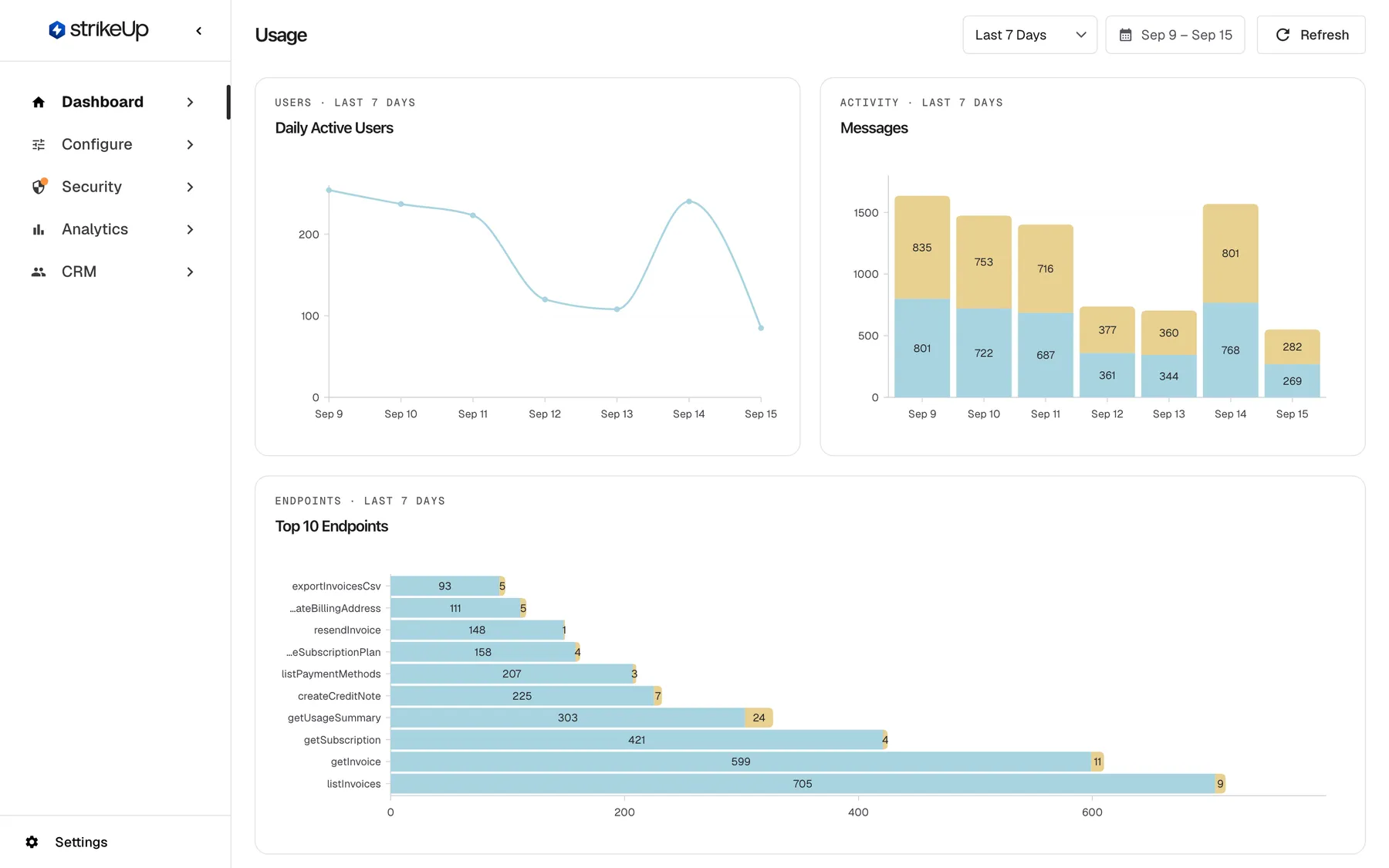
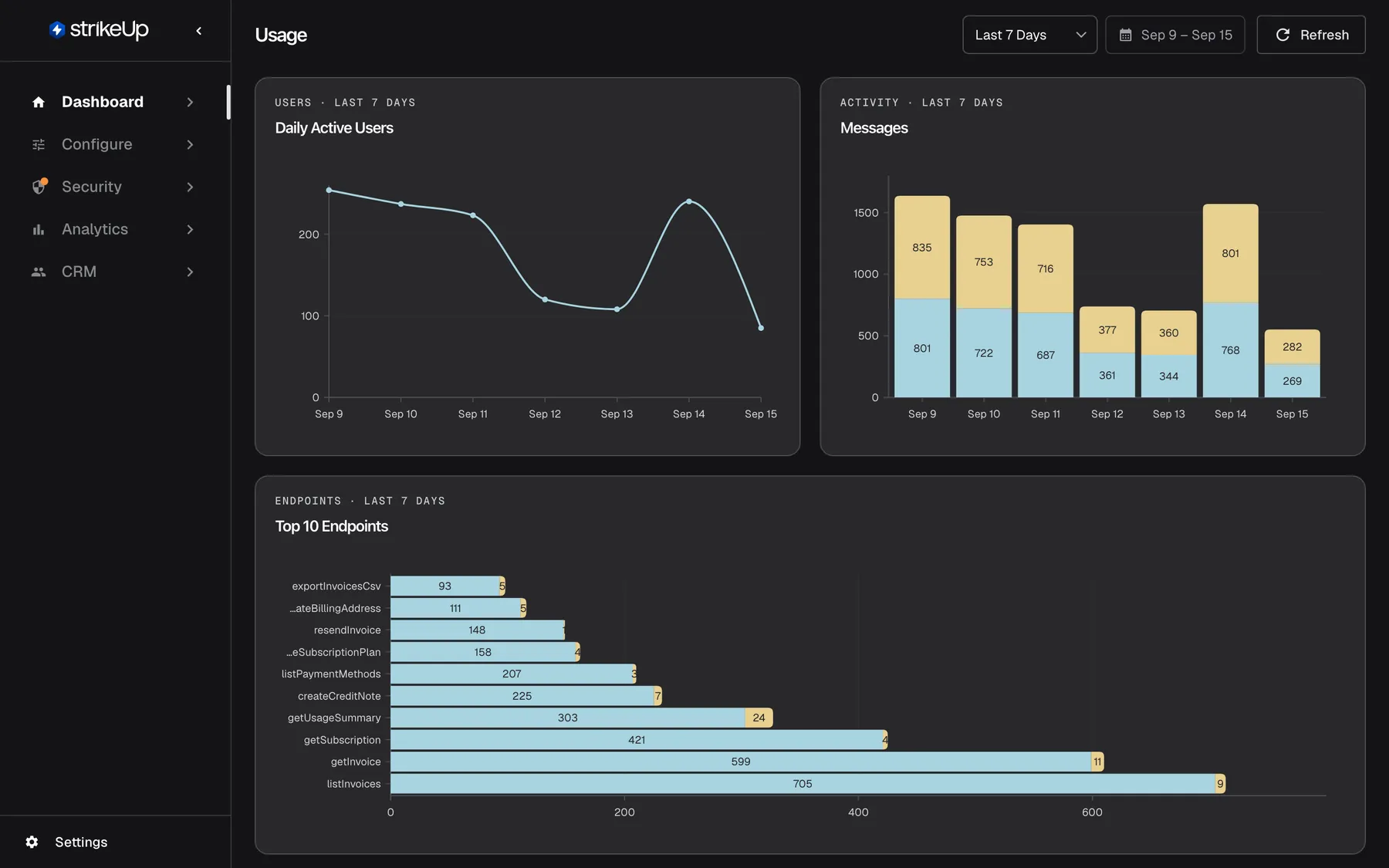
What this screenshot shows
- Screen
- Usage (/admin/dashboard/usage)
- Highlighted
- heading “Usage”, page, loaded with the last 7 days. read-only overview of activity volume
- Also visible
- Daily Active Users line chart, Sep 9 – Sep 15 (254 … 85); Messages stacked bar chart; Top 10 Endpoints chart, top of the card
- Purpose
- the Usage screen as it opens
| Region | What it shows | What you do there |
|---|---|---|
| Header, right | The range drop-down, the calendar button and Refresh | Change the period, reload the data |
| Daily Active Users, top left | Different people with a chat message, per day | Hover the line for a day’s number |
| Messages, top right | Visitor messages and assistant replies per day | Hover a bar for the exact count |
| Top 10 Endpoints, full width | The ten most-called API endpoints, successful and failed calls | Hover a bar part for its count |
| Top 10 Skills | The ten skills loaded in the most turns | Read the ranking |
| Autonomous Agent Usage | Runs per autonomous agent | Read the ranking |
| All Skills Usage, bottom | Every skill used in the range, 10 per page | Page through it, export it as CSV |
Count the people who chat
Section titled “Count the people who chat”The Daily Active Users chart has one point per UTC day. Each point is the number of different people who had at least one chat message stored that day.
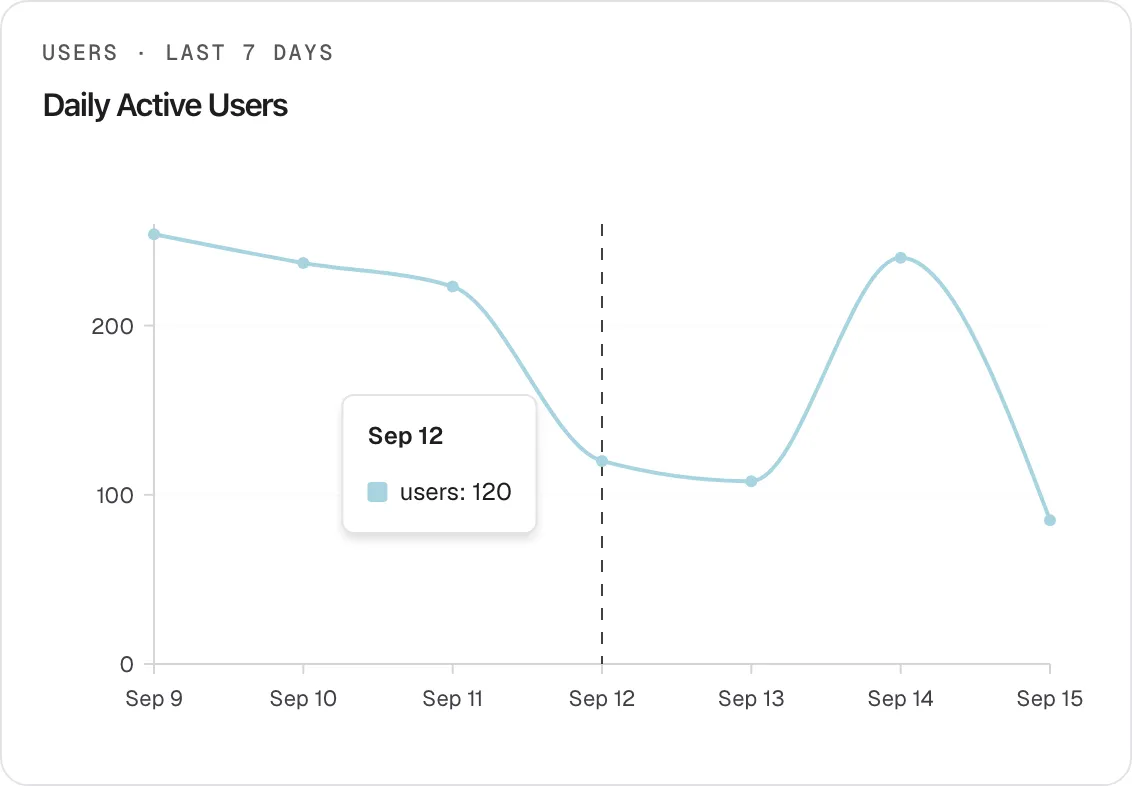
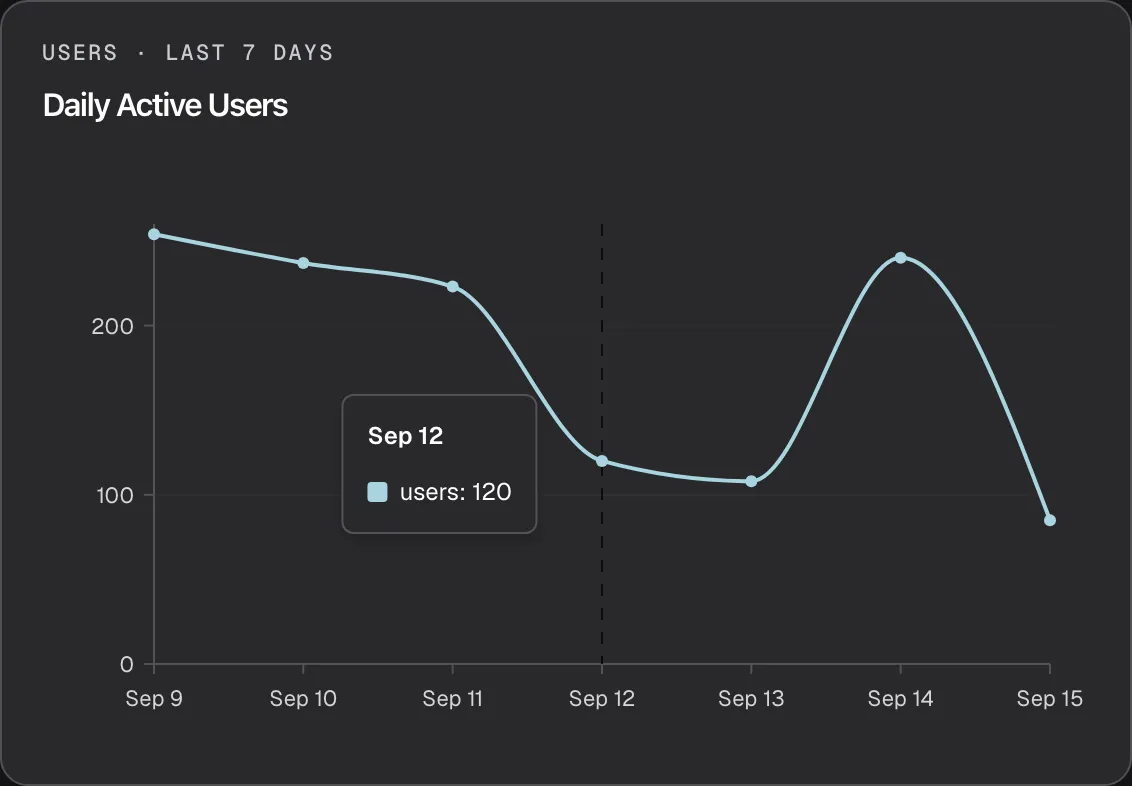
What this screenshot shows
- Screen
- Usage (/admin/dashboard/usage)
- Highlighted
- tooltip “”, daily-active-users-card, tooltip shown for Sep 12. shows the number of distinct active users on that day
- Also visible
- Line chart Sep 9 – Sep 15: 254, 237, 223, 120, 108, 240, 85; Tooltip for Sep 12: users: 120 (series name is English in every language)
- Purpose
- reading a daily active users value
Hover the line to see a day’s number in a tooltip, such as “Sep 12” and “users: 120”.
What counts:
- Every person counts once per day. Someone who chats on three days of the range counts on each of those days, so you cannot add the points up to get the number of people in the range.
- Anonymous visitors count. Each one has an identity of their own beginning with
anon-and counts as one person. A visitor who clears their browser data comes back as a new identity. - The assistant never counts. Its replies are stored under its own identity, which the chart leaves out.
- The chart is always daily, even for a range of one day.
Example: on 9 September, 254 people chatted, among them 180 anonymous visitors and 74 signed-in customers. The point for Sep 9 reads 254.
Follow message volume
Section titled “Follow message volume”The Messages chart is the same one as on Overview. For each day it stacks the messages your visitors sent (blue, at the bottom) on the replies the assistant gave (yellow, on top), with the count inside each part. Hover a part for the exact number. The series names, User Messages and Assistant Messages, are in English in every language. For a range of one or two days the bars are hourly.
Find the busiest API endpoints
Section titled “Find the busiest API endpoints”The Top 10 Endpoints chart lists the API operations the assistant called most often in the range, each as one horizontal bar. The busiest is at the bottom.
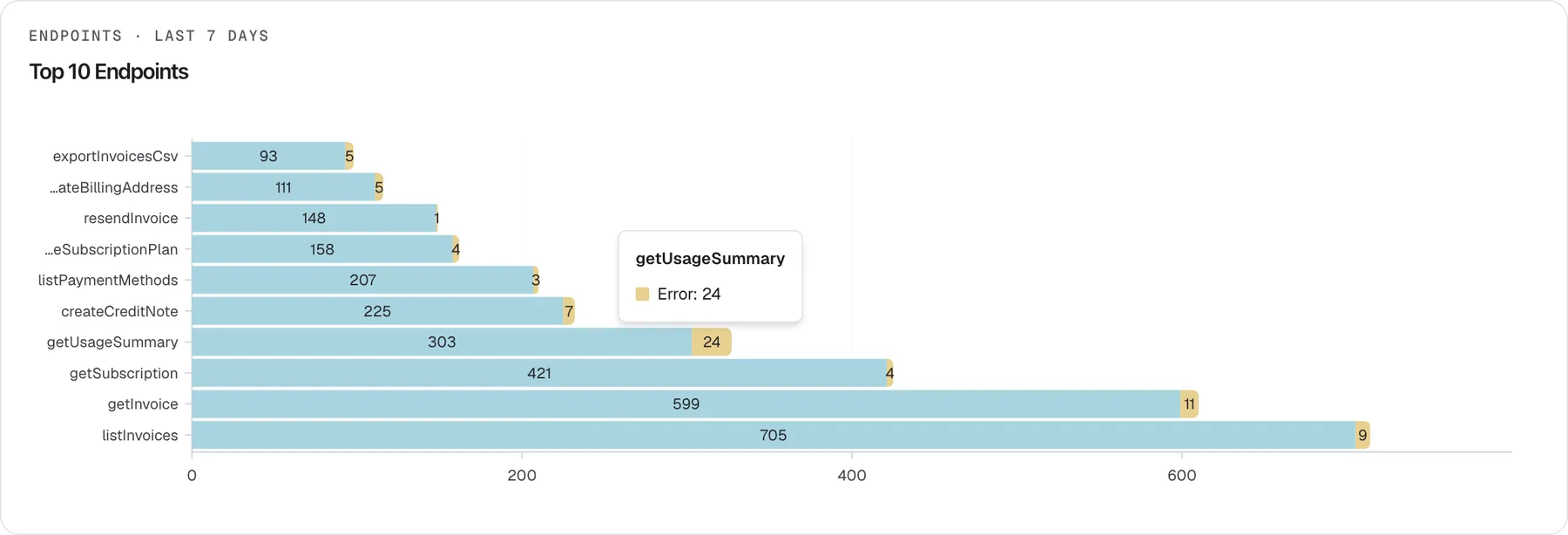
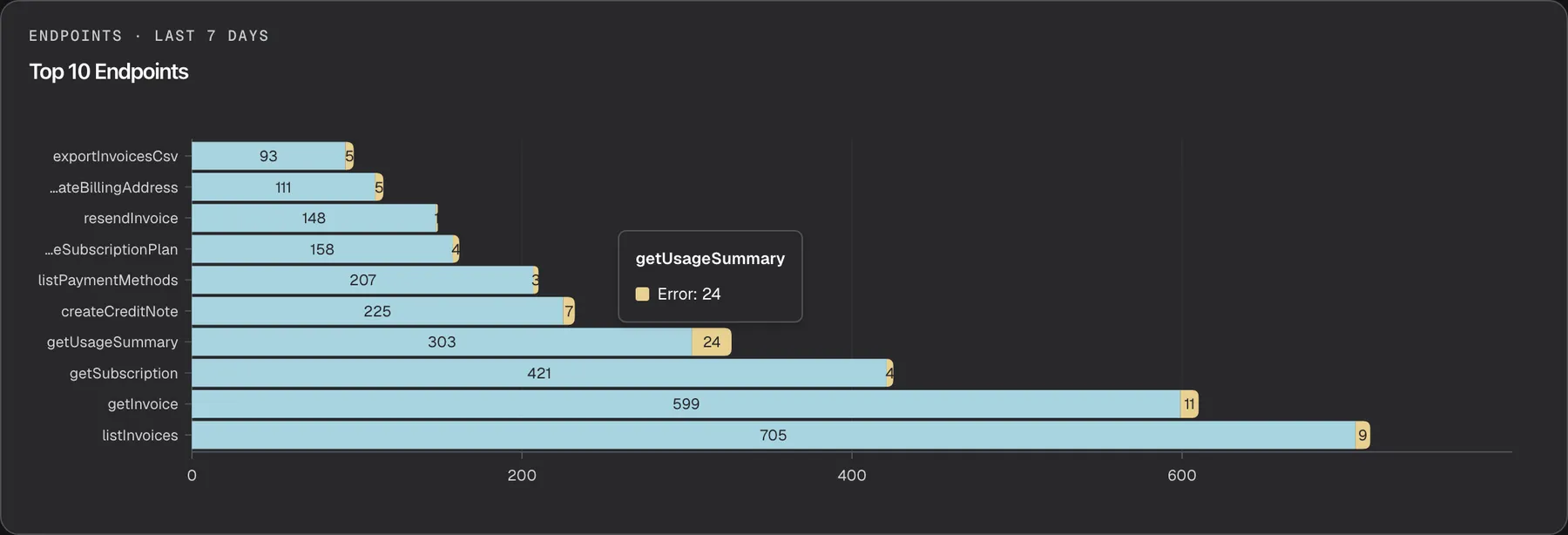
What this screenshot shows
- Screen
- Usage (/admin/dashboard/usage)
- Highlighted
- tooltip “”, top-endpoints-card, tooltip shown. shows the operation, the series (Success or Error) and the count
- Also visible
- Ten horizontal bars, listInvoices 705/9 at the bottom, exportInvoicesCsv 93/5 at the top; No legend; the tooltip names the series; Long operation names are shortened from the left (…ateBillingAddress)
- Purpose
- reading successful and failed calls per API operation
- Read each bar as two parts: the long blue part is successful calls and the short yellow part is failed calls. The count is printed in each part.
- Hover a part to see its series in a tooltip, Success or Error, with the exact count, such as
getUsageSummaryand “Error: 24”.
How calls are counted:
- A call is successful when your API answered with an HTTP status from 200 to 299. Every other result, such as 404, 500 or a call that got no response, counts as an error.
- Only the top 10 are shown, ranked by total calls. Every call the assistant made in a chat or after an approval counts.
- Long names are shortened from the left, so the end of the name stays readable, such as
…ateBillingAddress. A call with no tool name is shown as “Unknown”. - With no calls in the range, the card stays empty, without a message.
For each failed call, with its request and response, go to AnalyticsTool runs.
See which skills are used
Section titled “See which skills are used”The Top 10 Skills chart ranks the ten skills used in the most conversation turns, with the number of uses in each bar.
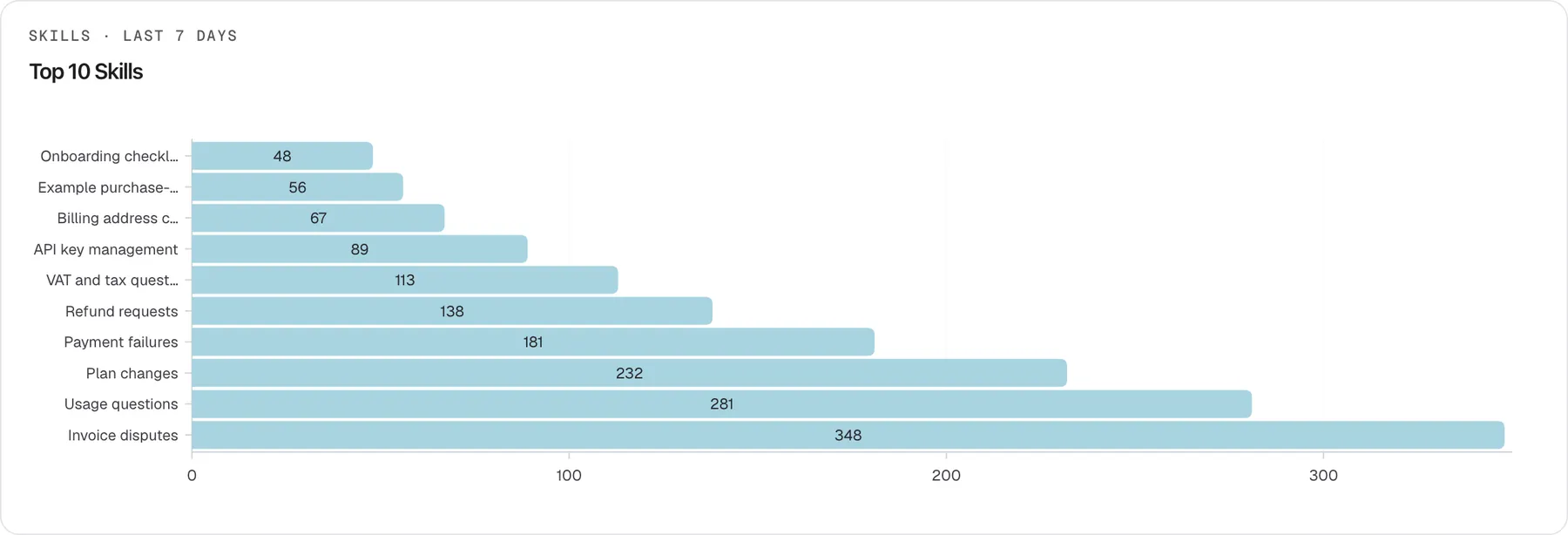
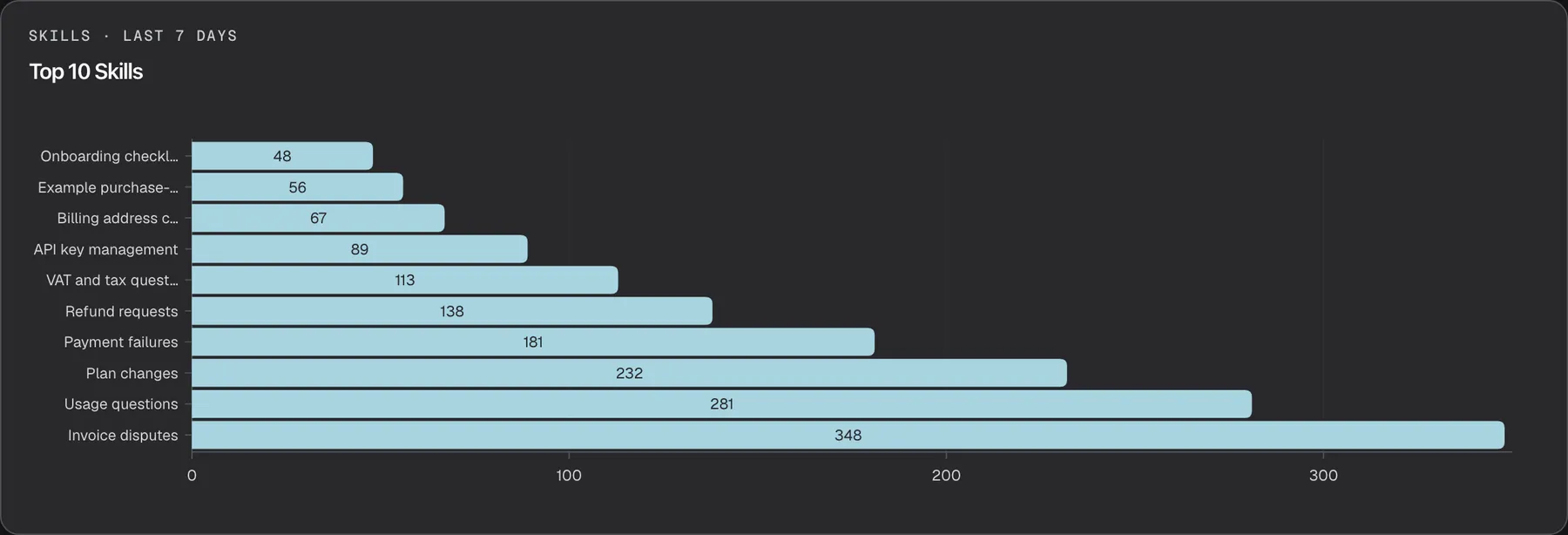
What this screenshot shows
- Screen
- Usage (/admin/dashboard/usage)
- Highlighted
- heading “Top 10 Skills”, top-skills-card, loaded with the last 7 days. read-only
- Also visible
- Ten skills, Invoice disputes 348 … Onboarding checklist 48; Truncated names with an ellipsis
- Purpose
- the most-used skills in the range
- One use is one visitor turn in which the skill was loaded for the assistant. If the assistant consults the skill several times while answering one message, that is still one use.
- A use means the skill was given to the assistant, not that the answer followed it. To check what the assistant did, open the turn in AnalyticsAI actions.
- Renamed or deleted skills keep their history. Each use records the skill as it was at the time, and the chart shows the latest name used in the range.
- Long names are cut off with an ellipsis. The full names are in the All Skills Usage table further down.
- With no skills used in the range, the card shows No data available.
Check autonomous agent runs
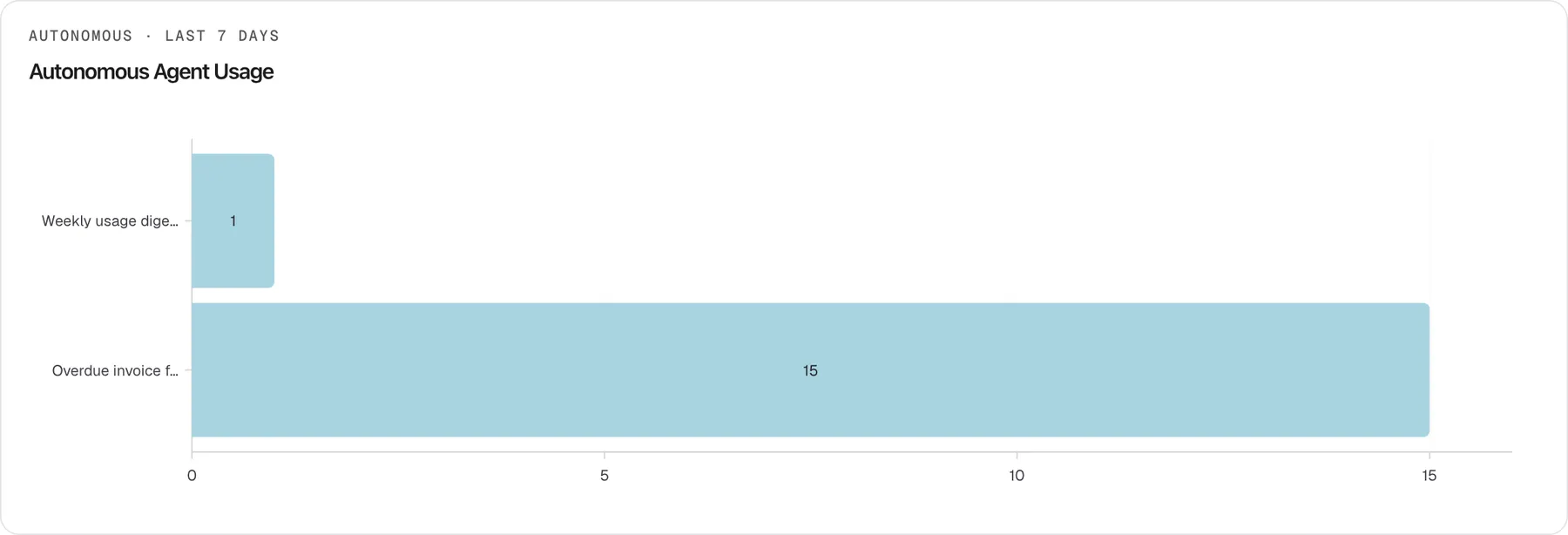
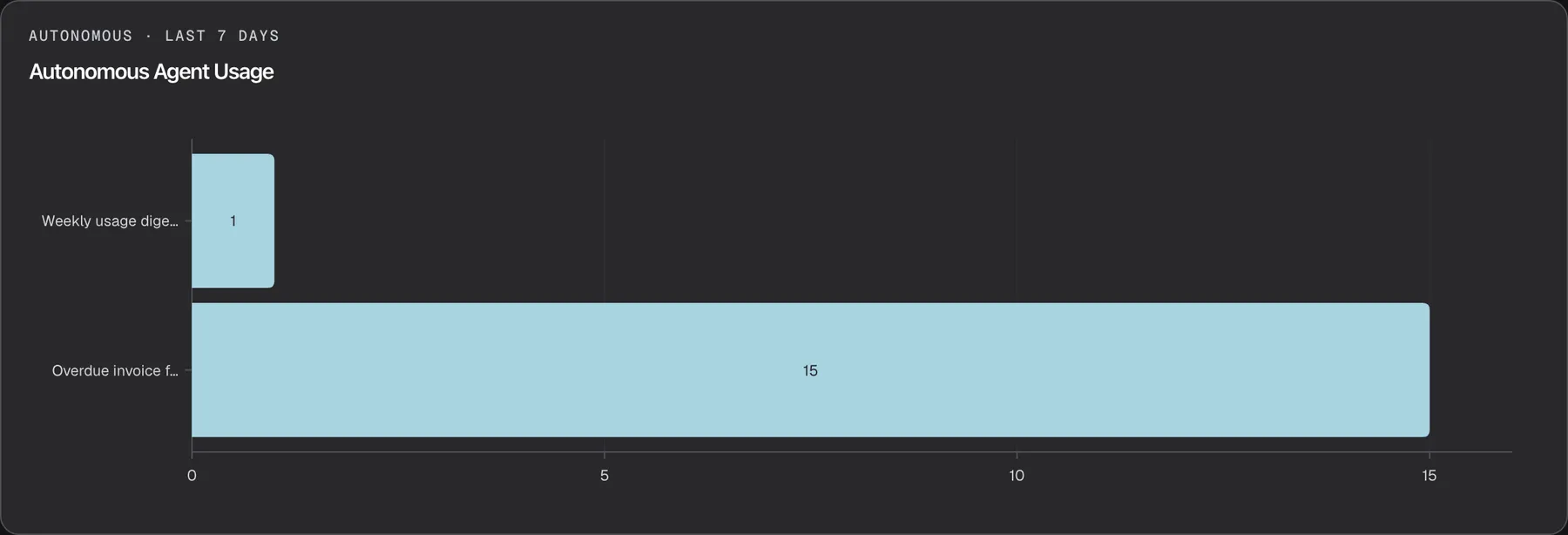
Section titled “Check autonomous agent runs”The Autonomous Agent Usage chart shows how many times each autonomous agent ran, one bar per agent, up to ten agents, busiest at the bottom.
What this screenshot shows
- Screen
- Usage (/admin/dashboard/usage)
- Highlighted
- heading “Autonomous Agent Usage”, autonomous-agent-usage-card, loaded. read-only
- Also visible
- Overdue invoice follow-up 15, Weekly usage digest 1 (names truncated)
- Purpose
- runs per autonomous agent
- One run is one start of the agent, whatever its result. The chart does not split completed from failed runs; for that, open AnalyticsAgent jobs.
- This card always counts back from today. It takes the number of days in your range and counts that many days back from now. With Last 7 Days that is the same week as the rest of the page, but with a custom range in the past, such as 1 to 7 June, it shows the last 7 days instead.
- Agents are listed by their current name. Runs of agents that have since been deleted are not shown.
- With no runs, the card shows No data available.
Browse and export every skill’s usage
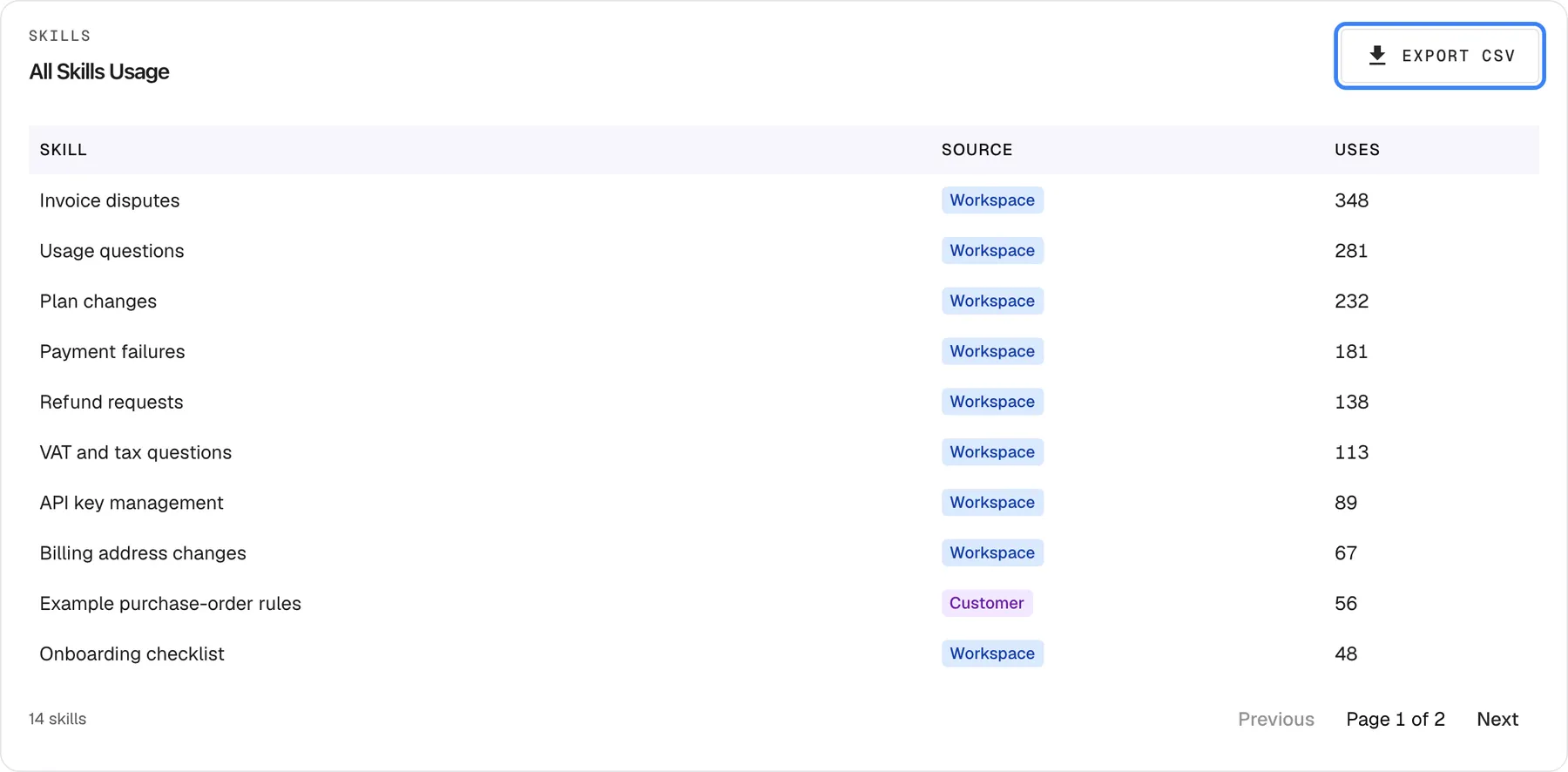
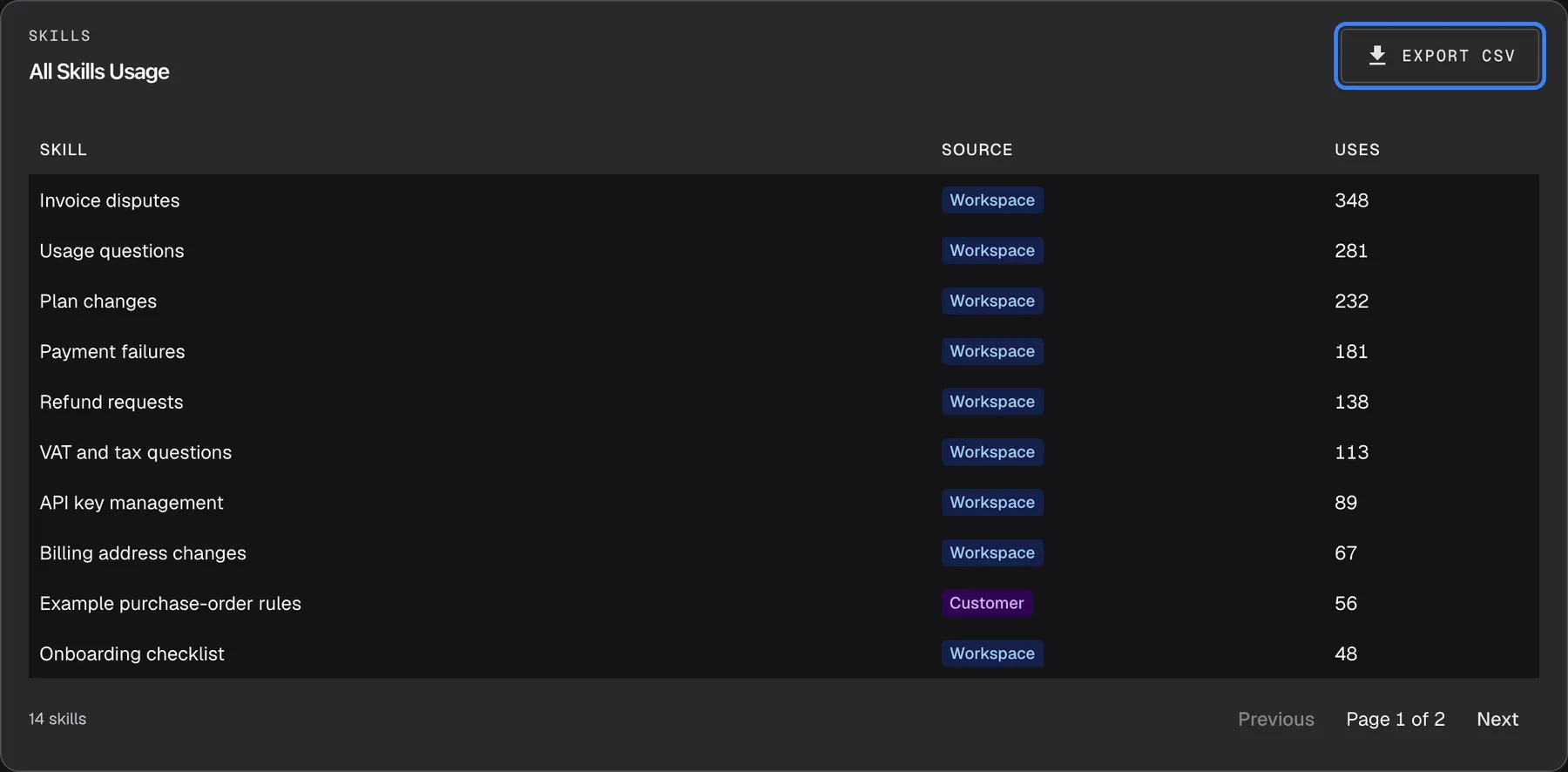
Section titled “Browse and export every skill’s usage”The All Skills Usage table at the bottom of the page lists every skill used in the range, most-used first, 10 per page.
What this screenshot shows
- Screen
- Usage (/admin/dashboard/usage)
- Highlighted
- button “Export CSV”, all-skills-card-top-right, enabled. downloads skills-usage_<from>_<to>.csv with every skill in the range
- Also visible
- Columns Skill, Source, Uses; 10 of 14 skills, Workspace and Customer source badges; Footer: 14 skills, Page 1 of 2, Previous disabled, Next enabled
- Purpose
- the complete skills list and its CSV export
-
Scroll to All Skills Usage at the bottom of DashboardUsage.
-
Read each row: the skill’s name, its source badge and its number of uses. A blue Workspace badge marks a skill of your workspace; a purple Customer badge marks a skill that belongs to one of your customer companies.
-
Use Previous and Next in the footer to page through the list. The footer shows the number of skills and the page you are on, such as “14 skills” and “Page 1 of 2”.
-
Select Export CSV at the top right of the card. Your browser downloads the whole list, not only the page on screen.
The file is named after the range, such as skills-usage_2026-09-09_2026-09-15.csv. It has one header row with the column names in your language, then one row per skill:
"Skill","Source","Uses""Invoice disputes","tenant",348"Example purchase-order rules","cc",56In the source column, tenant means a workspace skill and cc a customer-company skill. The file is UTF-8 with a byte-order mark, so spreadsheet programs such as Excel show accented skill names correctly. It is built in your browser from the table’s data; nothing is sent anywhere.
Things that surprise people:
- The table goes back to page 1 every time it reloads, after a range change or Refresh.
- Export CSV is greyed out while the table loads and when no skill was used in the range.
- With no skills in the range, the table shows No data available.
Change the period
Section titled “Change the period”The range drop-down and the calendar button at the top right set the period for every card on the page, except Autonomous Agent Usage, which always counts back from today. Pick Last 7 Days, Last 14 Days or Last 30 Days, or pick a first and a last day in the calendar. The range is remembered in this browser and shared with the other Dashboard pages. Days are UTC days; the full rules are on the Overview page.
Every control, explained
Section titled “Every control, explained”Range drop-down and calendar
Section titled “Range drop-down and calendar”At the top right of the page. Both apply the moment you choose; there is nothing to save.
The drop-down offers Last 7 Days (the default), Last 14 Days, Last 30 Days and Custom. The calendar button shows the dates in force and opens a calendar for a custom range; days after today cannot be picked. The choice is stored in this browser and also applies on Overview, Performance and AI Spend.
Comparing the same cards across different weeks shows whether usage is growing.
Refresh
Section titled “Refresh”The Refresh button at the top right.
Fetches every card again for the same range; each card shows a spinner while it reloads. The page never refreshes on its own.
See the latest figures after a busy hour without reloading the browser tab.
Charts
Section titled “Charts”| Chart | What it shows | Why |
|---|---|---|
| Daily Active Users | Different people with a chat message per UTC day, anonymous visitors included; tooltip “users” | Shows whether more people use the assistant over time |
| Messages | Visitor messages (blue) and assistant replies (yellow) per day, or per hour for one or two days | Shows the volume of conversation |
| Top 10 Endpoints | The ten most-called API operations, Success in blue and Error in yellow | Shows which parts of your API the assistant depends on, and which fail |
| Top 10 Skills | The ten skills loaded in the most visitor turns | Shows which skills do the work, and which are never used |
| Autonomous Agent Usage | Runs per existing autonomous agent, counted back from today for the length of the range | Shows how busy each agent is |
All Skills Usage table
Section titled “All Skills Usage table”| Column or control | What it shows or does | Why |
|---|---|---|
| Skill | The skill’s name, the latest one used in the range | Identify the skill even after a rename |
| Source | Workspace (blue) for a workspace skill, Customer (purple) for a customer-company skill | See whether a skill is shared or specific to one company |
| Uses | Visitor turns in which the skill was loaded | Rank skills by how much they are relied on |
| Export CSV | Downloads every row, not only the current page, as a CSV file named after the range | Work with the numbers in a spreadsheet or share them |
| Previous and Next | Move between pages of 10; greyed out on the first and last page | Browse long lists |
What you need to know
Section titled “What you need to know”| Topic | Fact |
|---|---|
| Read-only | Nothing on this page changes your setup. |
| Who sees it | Every signed-in user of your workspace, whatever their role. |
| Daily, not total | Daily Active Users counts each person once per day. There is no total of different people for the whole range. |
| Top 10 only | The endpoint, skill and agent charts show at most ten entries. The skills table has them all. |
| Window for autonomous agents | Autonomous Agent Usage counts back from today, whatever dates you picked. |
| UTC days | Each day starts and ends at midnight UTC. West of UTC, day labels read one day earlier than the UTC day they count. |
| Success and error | A tool call succeeds when your API returns a status from 200 to 299. |
| Sample data | If StrikeUp has added sample records to your workspace for a demonstration, they are counted on this page. |
| Live data | Every load, range change and refresh reads current data; nothing is cached. |
Frequently asked questions
Section titled “Frequently asked questions”Users and messages
Section titled “Users and messages”What counts as an active user?
Section titled “What counts as an active user?”On DashboardUsage, an active user is anyone who had at least one chat message stored on that UTC day, whether a signed-in customer or an anonymous visitor. The assistant’s own replies are never counted as a user.
Why is the same person counted on several days?
Section titled “Why is the same person counted on several days?”Daily Active Users counts different people per day, not per range. Someone who chats on Monday, Wednesday and Friday adds one to each of those three days, so adding the daily points together gives more than the number of different people.
Do anonymous visitors count as active users?
Section titled “Do anonymous visitors count as active users?”Yes. Each anonymous visitor gets an identity of their own that begins with anon-, and Daily Active Users counts it like any other person. A visitor who clears their browser data is counted again under a new identity.
Endpoints
Section titled “Endpoints”What counts as an error in Top 10 Endpoints?
Section titled “What counts as an error in Top 10 Endpoints?”In Top 10 Endpoints on DashboardUsage, any call where your API did not answer with an HTTP status from 200 to 299 counts as Error, including 4xx and 5xx answers and calls that got no response.
Why do I see only ten endpoints?
Section titled “Why do I see only ten endpoints?”Top 10 Endpoints shows the ten API operations with the most calls in the range, successful and failed together. To see every call, including rarely used endpoints, open AnalyticsTool runs and filter there.
Skills
Section titled “Skills”What does a skill “use” mean?
Section titled “What does a skill “use” mean?”A use in Top 10 Skills and All Skills Usage is one visitor turn, one message and its answer, in which the skill was loaded for the assistant. Several look-ups of the same skill while answering one message count as one use.
I renamed or deleted a skill. Where did its usage go?
Section titled “I renamed or deleted a skill. Where did its usage go?”Its usage stays. Each use records the skill as it was at the time, so Top 10 Skills and All Skills Usage keep counting it after a rename or deletion and show the latest name it had within the selected range.
What is in the CSV file?
Section titled “What is in the CSV file?”Export CSV downloads every skill used in the selected range, not only the page on screen, with three columns: the skill name, its source (tenant for a workspace skill, cc for a customer-company skill) and its number of uses. The file name contains the first and last day of the range.
Why is Export CSV greyed out?
Section titled “Why is Export CSV greyed out?”Export CSV on DashboardUsage stays greyed out while the skills table is loading and whenever no skill was used in the selected range, because there is nothing to export.
Does the CSV follow the date range?
Section titled “Does the CSV follow the date range?”Yes. The export contains exactly the skills and uses counted for the range set at the top right of DashboardUsage, and its file name carries the range’s first and last day, such as skills-usage_2026-09-09_2026-09-15.csv.
Autonomous agents
Section titled “Autonomous agents”Why doesn’t Autonomous Agent Usage match my custom dates?
Section titled “Why doesn’t Autonomous Agent Usage match my custom dates?”Autonomous Agent Usage always counts back from today. It takes the number of days in your range and counts runs over that many days ending now, so a custom range in the past shows recent runs rather than runs from those dates.
Why have my deleted agent’s runs disappeared?
Section titled “Why have my deleted agent’s runs disappeared?”Autonomous Agent Usage only lists autonomous agents that still exist, under their current names. Once an agent is deleted, its runs are no longer shown on the chart, even for days when it was active.
Data and privacy
Section titled “Data and privacy”Who can see the Usage page?
Section titled “Who can see the Usage page?”Every signed-in user of your workspace can open DashboardUsage, whatever their role. End customers never see it. The page shows counts and skill names, not the content of conversations.
Troubleshooting
Section titled “Troubleshooting”| Symptom | What to check |
|---|---|
| Top 10 Endpoints is an empty chart | The assistant made no tool calls in the range. Widen the range, then check AnalyticsTool runs and that your toolkit’s tools are enabled. |
| Top 10 Skills shows No data available | No skill was loaded in any turn of the range. Check that your skills are switched on under ConfigureSkills. |
| Autonomous Agent Usage is empty for a period in the past | The card counts back from today, not over your custom dates. Check the agent’s runs in AnalyticsAgent jobs. |
| Skill uses are lower than expected | One visitor turn counts once, however often the assistant consulted the skill while answering. |
| A Request failed message appears and cards stay empty | Select Refresh. If it happens again, sign out and in again; your session may have expired. |