

Import customers
The Import customers from CSV page creates or updates many customers at once from a CSV file: their email, company, role in that company, a PIN or password, and optionally their credentials for your toolkits. Every row is checked before anything is saved, and the import saves all rows or none. Open it from CRMCustomers with Import from CSV at the top right.
What you can do here
Section titled “What you can do here”- Start from a template. Download template gives you a CSV file with every supported column and three example rows. Prepare the file.
- Include toolkit credentials. Tick toolkits under Pre-fill server credentials (optional) and the template gets a column for each customer’s credentials. Include toolkit credentials.
- Check the file without saving. Preview runs every check and saves nothing. Preview the import.
- Import everything in one go. Commit import saves all rows together; if one fails, none is saved. Commit the import.
- Change customers who already exist. With Update existing customers ticked, a row with an existing id updates that customer, for example to move them to another company or replace a forgotten PIN; unticked, existing customers are skipped and left unchanged. Update existing customers · Customer roles and access.
- Import a large file in parts. One upload takes up to 1,000 customers and 5 MB; a larger file is split into parts after you agree, and each part is checked and imported in turn. Commit the import.
The screen at a glance
Section titled “The screen at a glance”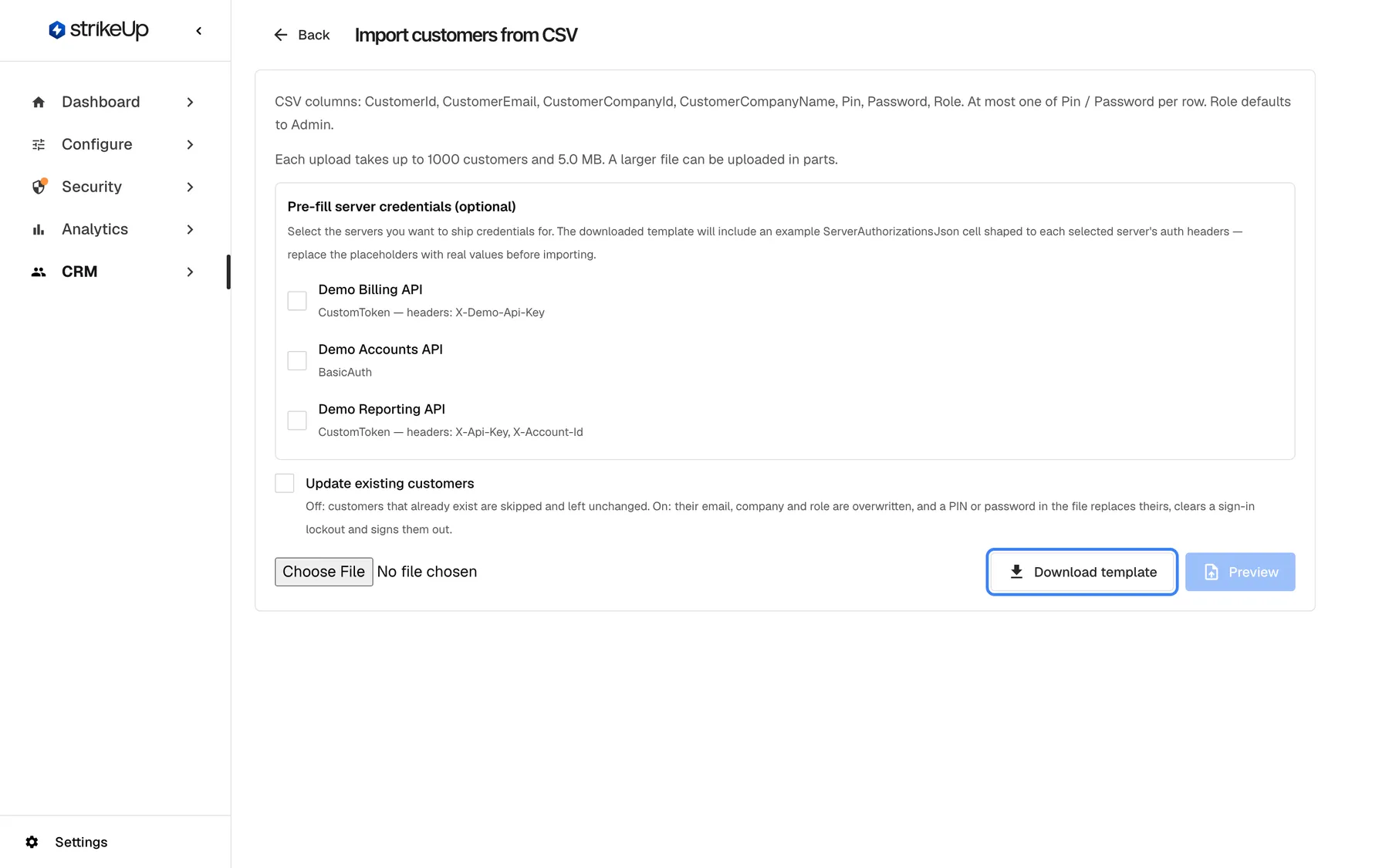
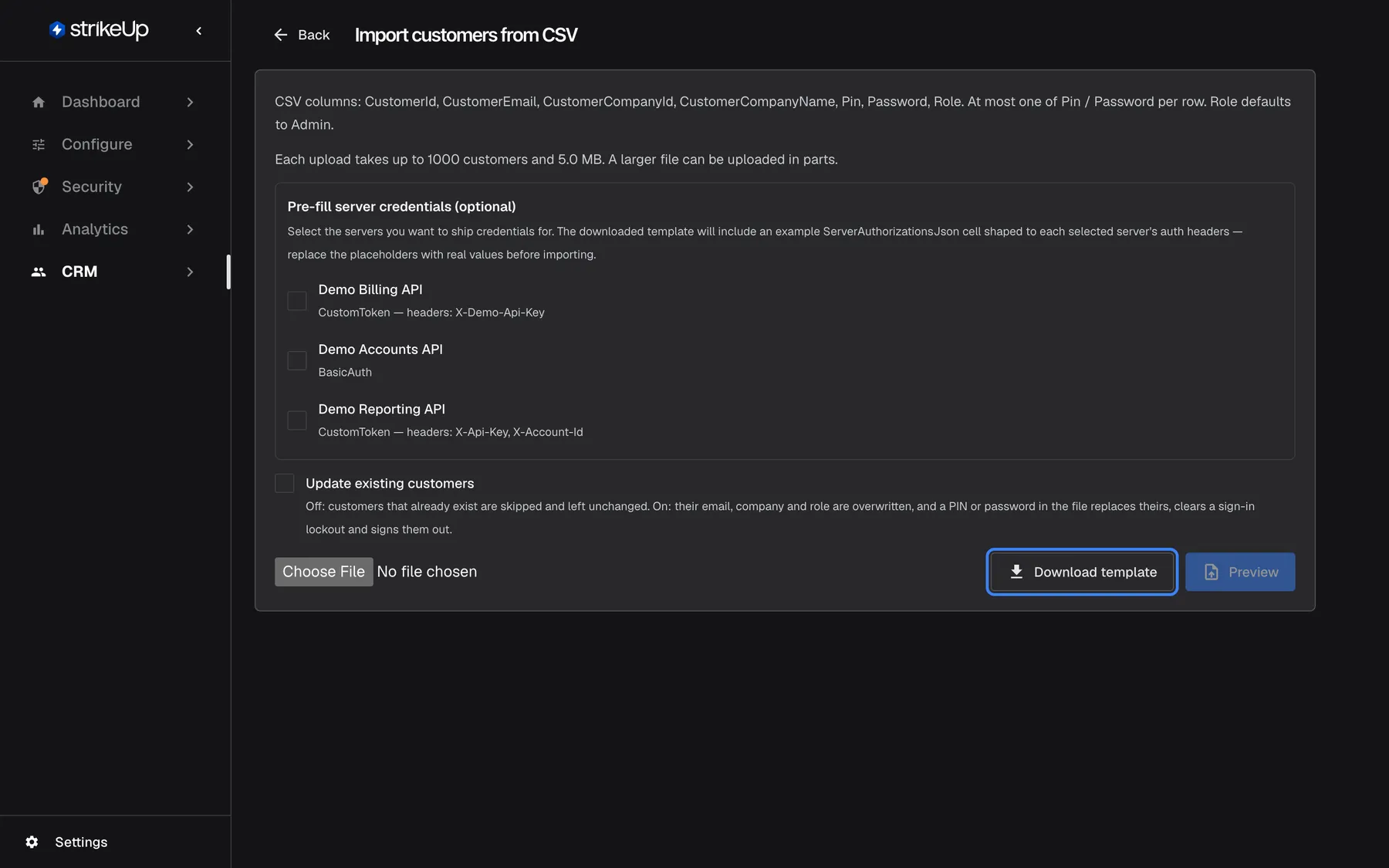
What this screenshot shows
- Screen
- Import customers from CSV (/admin/customers-import)
- Highlighted
- button “Download template”, actions-right, enabled. downloads customers-import-template.csv
- Also visible
- Column list and Role default Admin; Pre-fill server credentials with Demo Billing API, Accounts API and Reporting API; Preview disabled until a file is chosen
- Purpose
- starting a customer import
| Region | What it shows | What you do there |
|---|---|---|
| Header | Back, the title Import customers from CSV and CSV columns: CustomerId, CustomerEmail, CustomerCompanyId, CustomerCompanyName, Pin, Password, Role. At most one of Pin / Password per row. Role defaults to Admin. | Return to the customers list |
| Pre-fill box (optional) | Pre-fill server credentials (optional) with a checkbox per toolkit | Add credential columns to the template |
| File row | The file chooser, Download template and Preview | Get the template, choose your file, preview it |
| Results | Preview results or Commit results: counts, new companies, one row per line of the file | Read the checks, then Commit import |
Prepare the file
Section titled “Prepare the file”- Select Download template. A file named
customers-import-template.csvdownloads. - Replace the example rows with your customers, one per line, keeping the header line.
- Save it as CSV with commas between values, in UTF-8.
| Column | Required | What to put in it |
|---|---|---|
CustomerId | Yes | The user id your product passes to the widget for this person, such as cus_48712. Unique within the file, ignoring case. |
CustomerEmail | No | Their email address |
CustomerCompanyId | No | The internal id of an existing company: the long identifier in the company page’s address, not the Company ID shown on the company. Wins over CustomerCompanyName. |
CustomerCompanyName | No | The company’s name. An existing company with that name is used, ignoring case and extra spaces; otherwise the company is created when you commit. |
Pin | No | 4–8 digits |
Password | No | At least 8 characters. Use Pin or Password, not both. |
Role | No | Admin or Member, in any case. Empty means Admin. |
ServerAuthorizationsJson | No | Toolkit credentials, only when you pre-filled them in the template |
Columns can be in any order, and their names ignore case. Values are trimmed, blank lines are skipped, and a value containing a comma must be in double quotes. A value cannot span several lines.
| Your row | Result |
|---|---|
cus_48712, morgan.hayes@example.com, , Example Studios, 4821, , Member | New Member of Example Studios, with the PIN 4821 |
cus_48749, …, Example Studios, 482, , Admin | Error: “Pin must be 4-8 numeric digits.” |
cus_48786, …, Fairbanks Joinery Ltd, , , Owner | Error: “Unknown role ‘Owner’. Use Admin or Member.” |
cus_48823, …, Fairbanks Joinery Ltd, , kestrel-ridge-42, | New Admin; warning that Fairbanks Joinery Ltd will be created |
| A row with no PIN and no password | The customer is created without a credential; see End-customer sign-in for how customers sign in |
Include toolkit credentials
Section titled “Include toolkit credentials”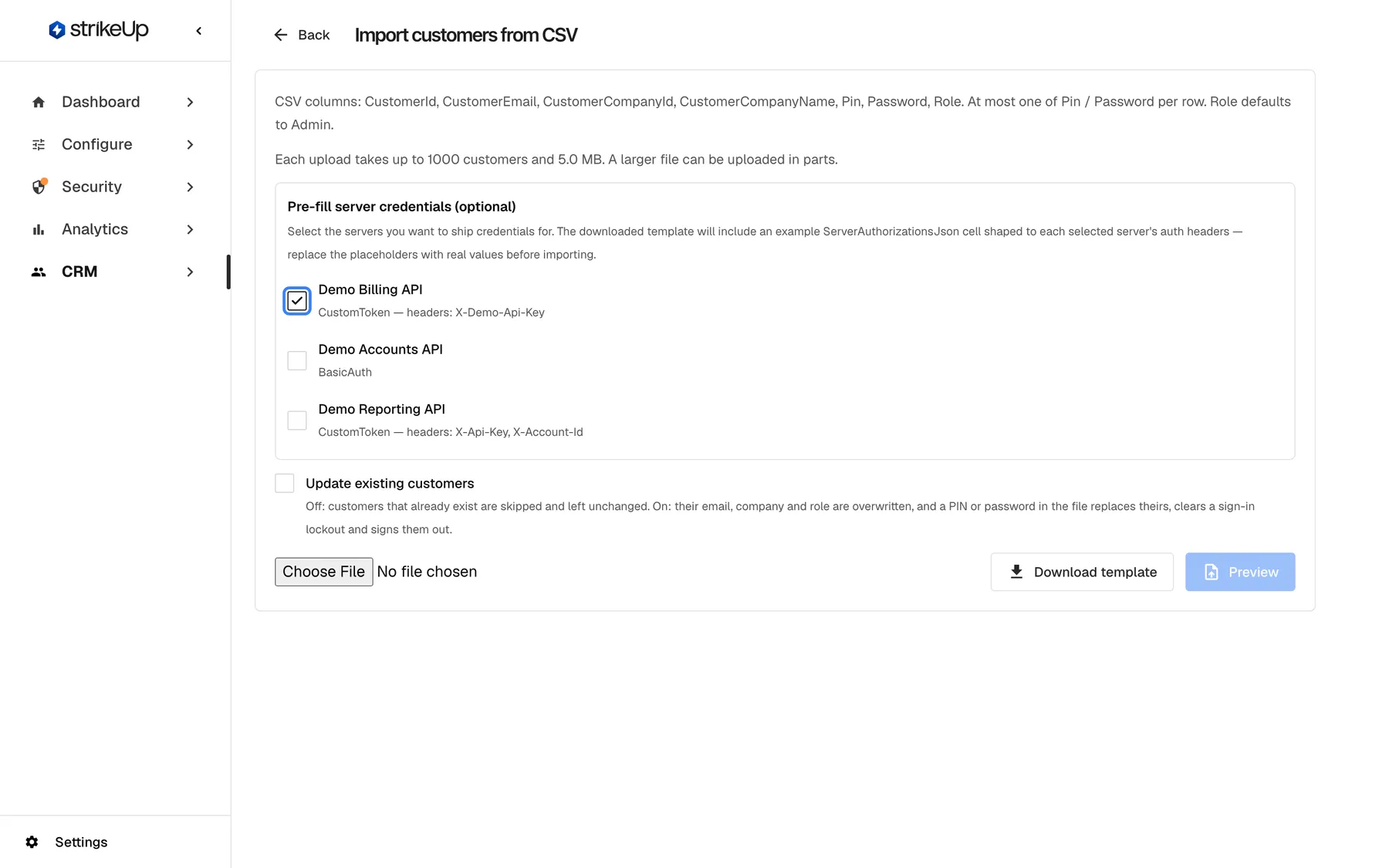
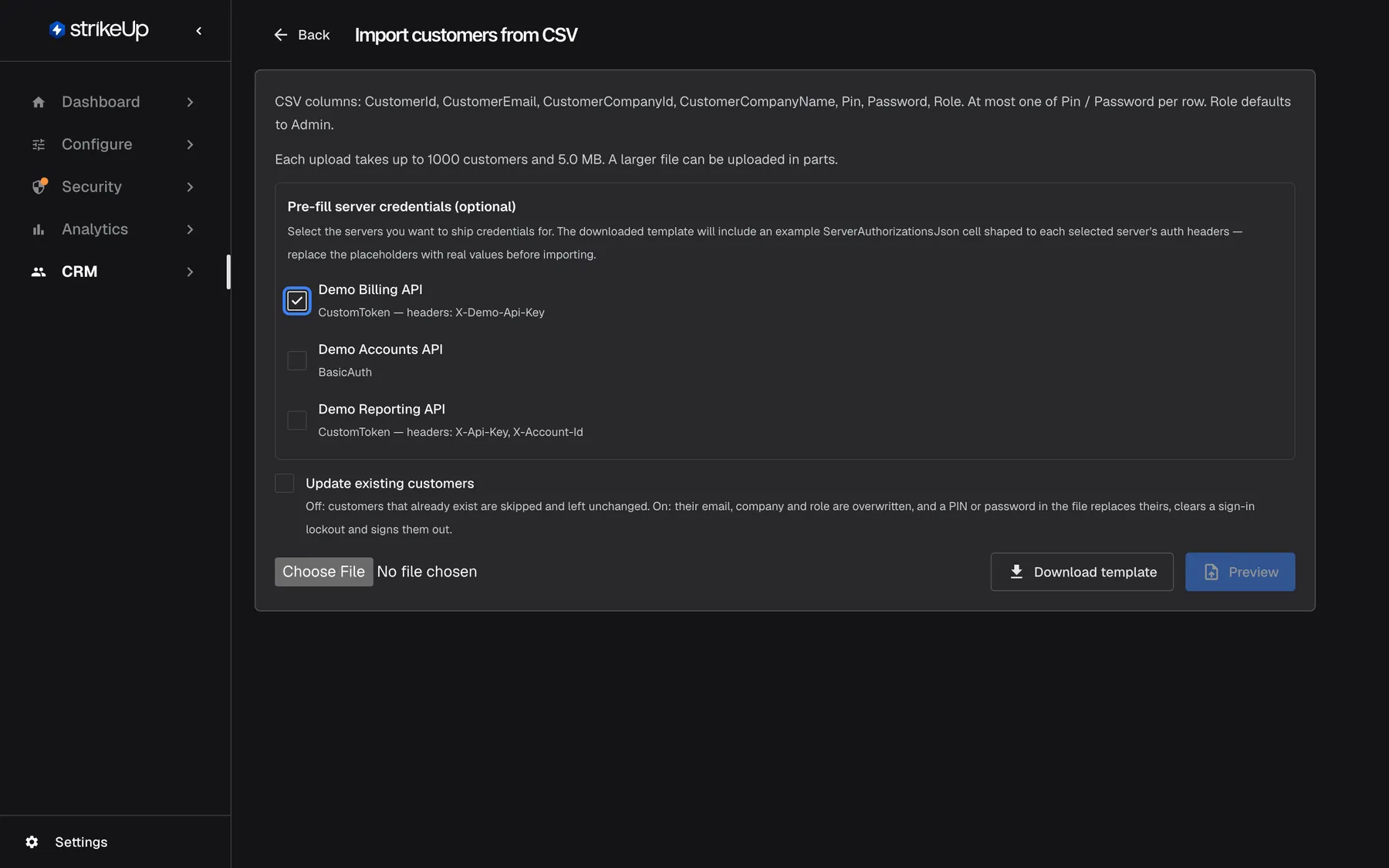
What this screenshot shows
- Screen
- Pre-fill server credentials (optional) (/admin/customers-import)
- Highlighted
- checkbox “”, prefill-box, checked. adds a ServerAuthorizationsJson column for this toolkit to the template
- Also visible
- Three toolkits with their auth type and header names
- Purpose
- importing per-customer toolkit credentials
The box Pre-fill server credentials (optional) lists your toolkits that are chosen for a widget and need credentials, with their authorisation type and header names. Select the servers you want to ship credentials for. The downloaded template will include an example ServerAuthorizationsJson cell shaped to each selected server's auth headers — replace the placeholders with real values before importing.
Tick each toolkit, then select Download template. In the ServerAuthorizationsJson cell of each row, replace the placeholders, such as Bearer <your-token>, with that customer’s real values. The assistant then uses them when it calls that toolkit for the customer. See Let the assistant call your API as the user.
StrikeUp stores the imported credentials per customer, encrypted, in the same way as credentials customers enter in the chat. They are decrypted only on the server when a tool call needs them.
| Message in a row | Meaning |
|---|---|
| “ServerId is required.” | The cell is not valid JSON, or an entry has no toolkit id |
| “Duplicate ServerId within this row.” | The same toolkit appears twice in one cell |
| “Server … does not belong to this company or is not mapped to any widget.” | The toolkit id is wrong, or the toolkit is not chosen for any widget |
| “Server ’…’ has AuthorizationType=‘None’ — no credentials are accepted.” | That toolkit needs no credentials |
| “AuthData must contain at least one header.” / “AuthData keys must be non-empty and values non-null.” | The header values are missing |
Preview the import
Section titled “Preview the import”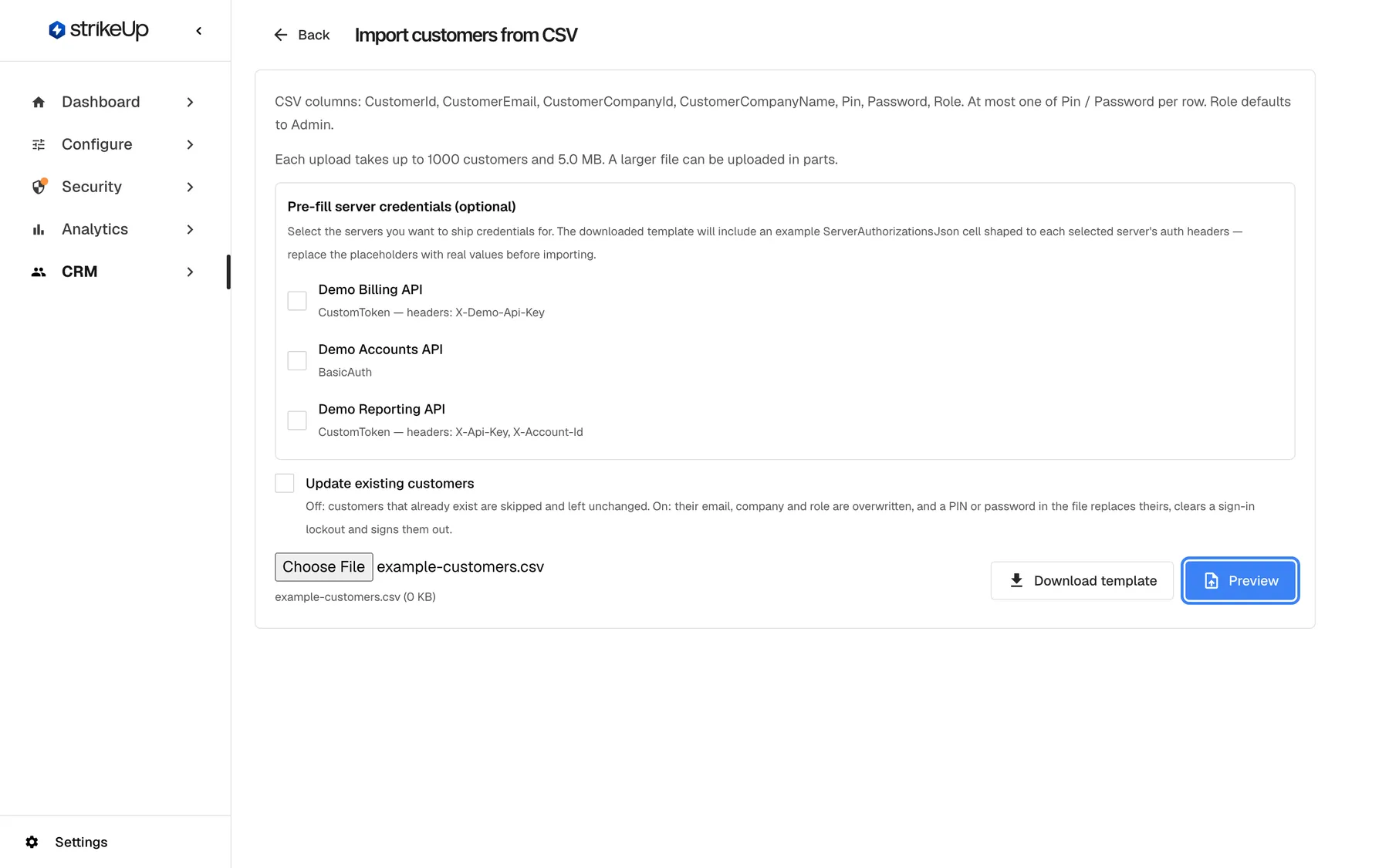
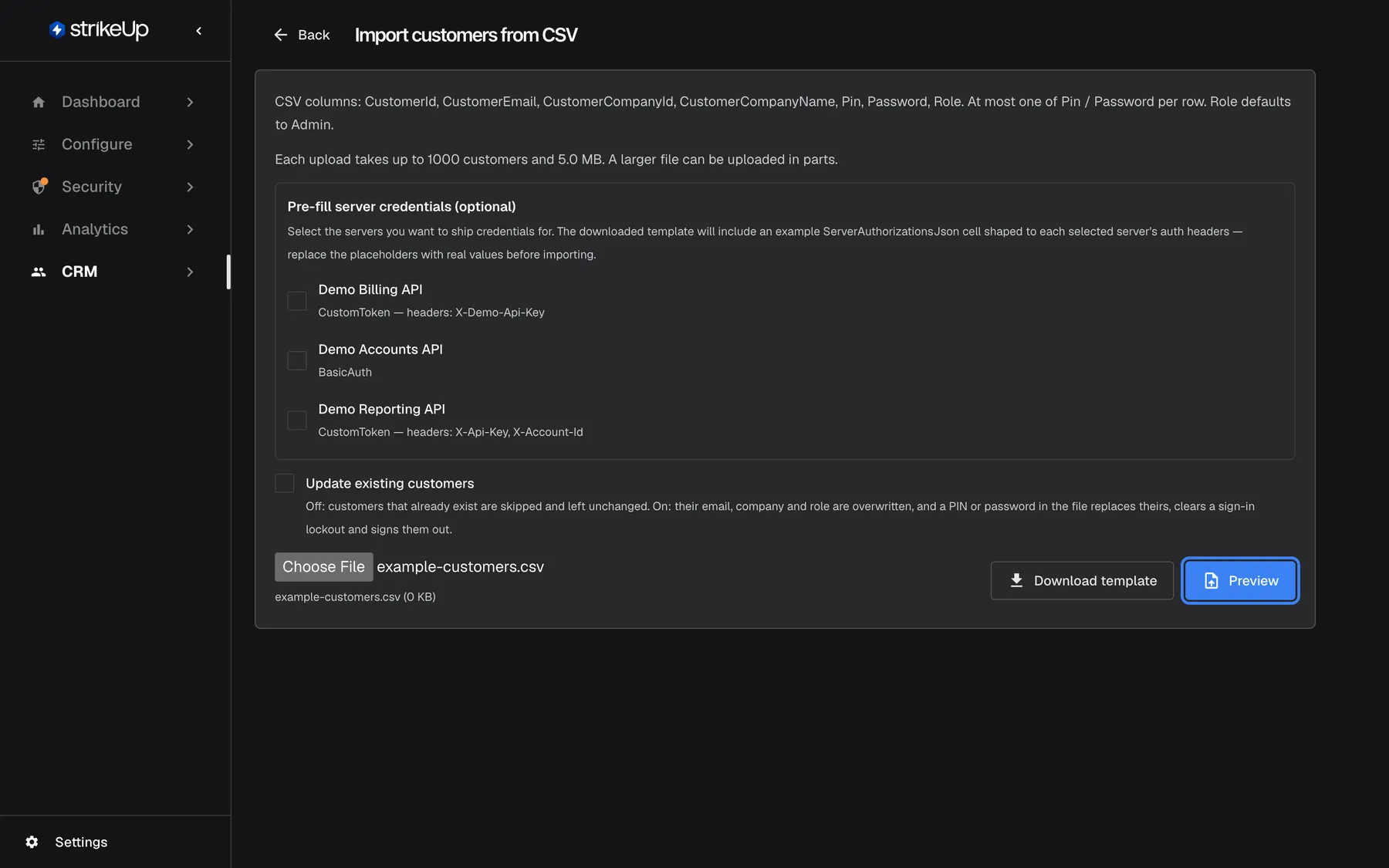
What this screenshot shows
- Screen
- Import customers from CSV (/admin/customers-import)
- Highlighted
- button “Preview”, actions-right, enabled. uploads the file for a dry-run validation (POST /api/customer-import/preview)
- Also visible
- Chosen file example-customers.csv (0 KB)
- Purpose
- checking a CSV before importing
- Choose your file. Preview becomes available.
- Select Preview. StrikeUp checks every row and saves nothing.
- Read Preview results.
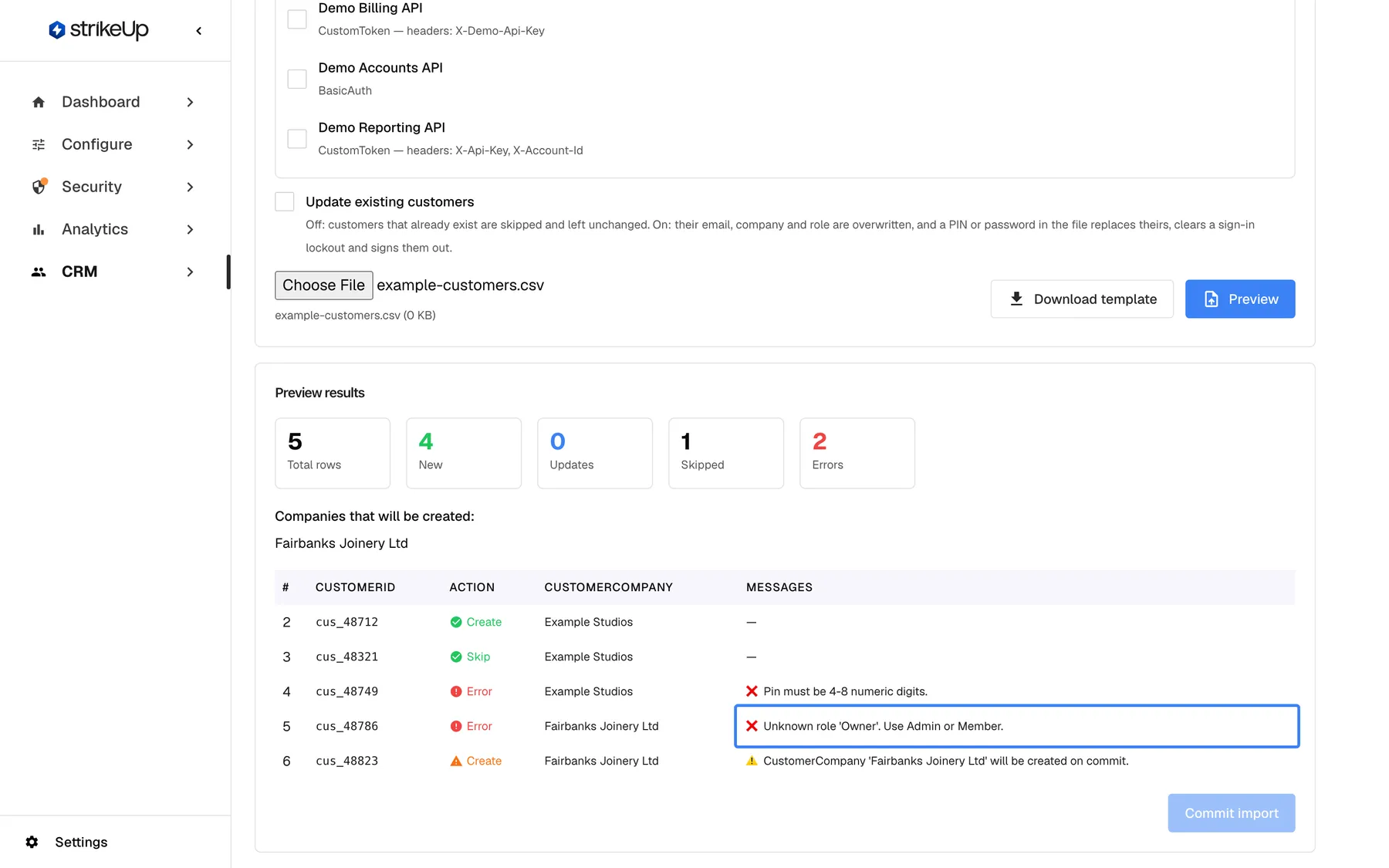
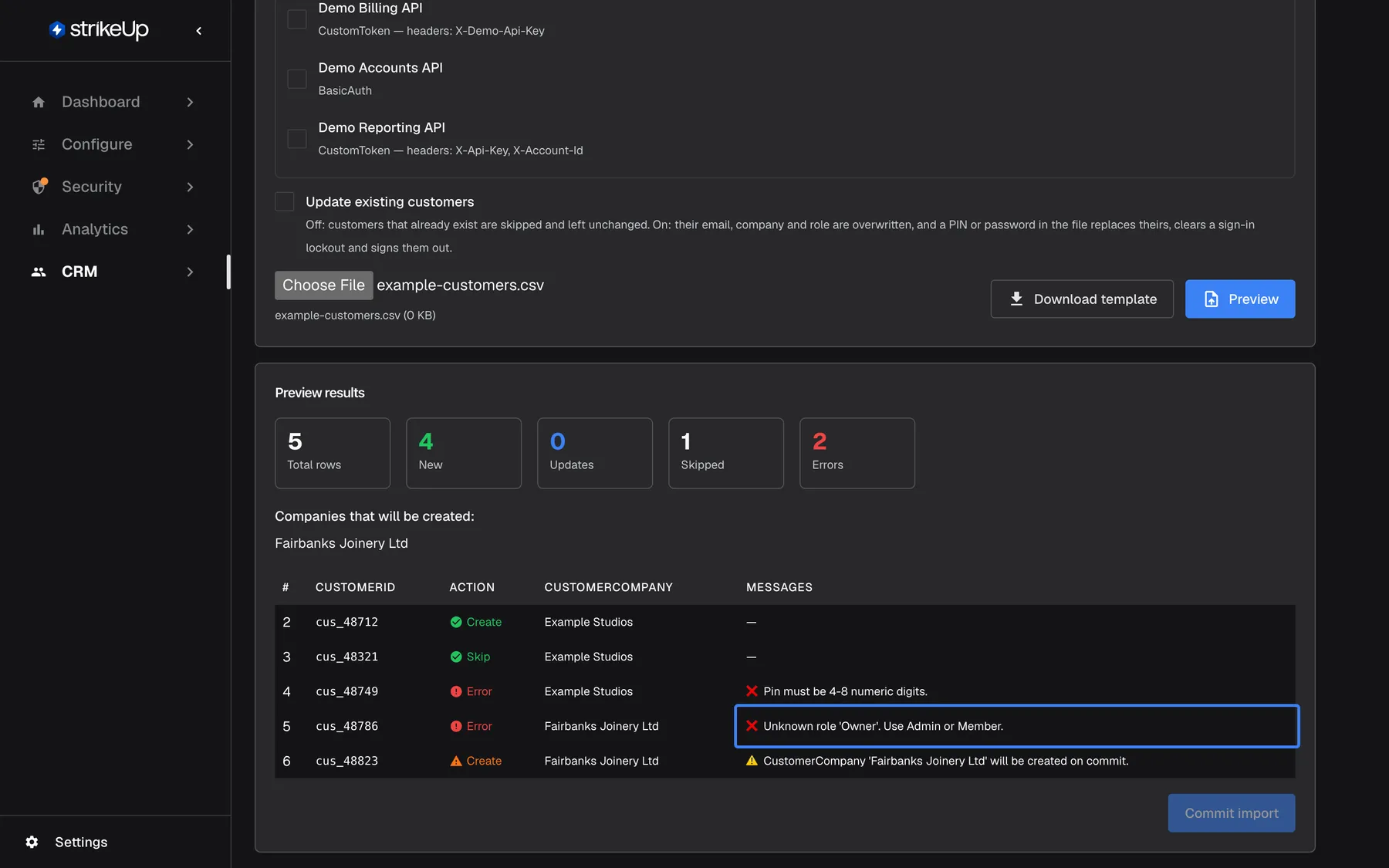
What this screenshot shows
- Screen
- Preview results (/admin/customers-import)
- Highlighted
- cell “”, rows-table, error. none; fix the Role value in the file
- Also visible
- 5 total, 4 new, 1 update, 2 errors; New company Fairbanks Joinery Ltd; Commit import disabled
- Purpose
- reading validation errors before importing
| Part | What it shows |
|---|---|
| Total rows, New, Updates, Skipped, Errors | How many rows, how many create, update or skip a customer, how many have errors (in red). Skipped appears only when a row is skipped. |
| Companies that will be created: | Companies the import will create |
| Rows table | ”#”, “CustomerId”, “Action”, “CustomerCompany” and “Messages”, in English. Row numbers count the header as row 1. |
In the “Action” column, “Error” means the row cannot be imported. Otherwise it shows “Create” for a row that creates a customer, “Update” for one that updates an existing customer, and “Skip” for an existing customer that is left unchanged because Update existing customers is not ticked. Orange marks a row with a warning. Messages start with ❌ for an error and ⚠️ for a warning.
Fix every error in the file, choose it again and preview again until Errors is 0. Choosing another file clears the results.
Commit the import
Section titled “Commit the import”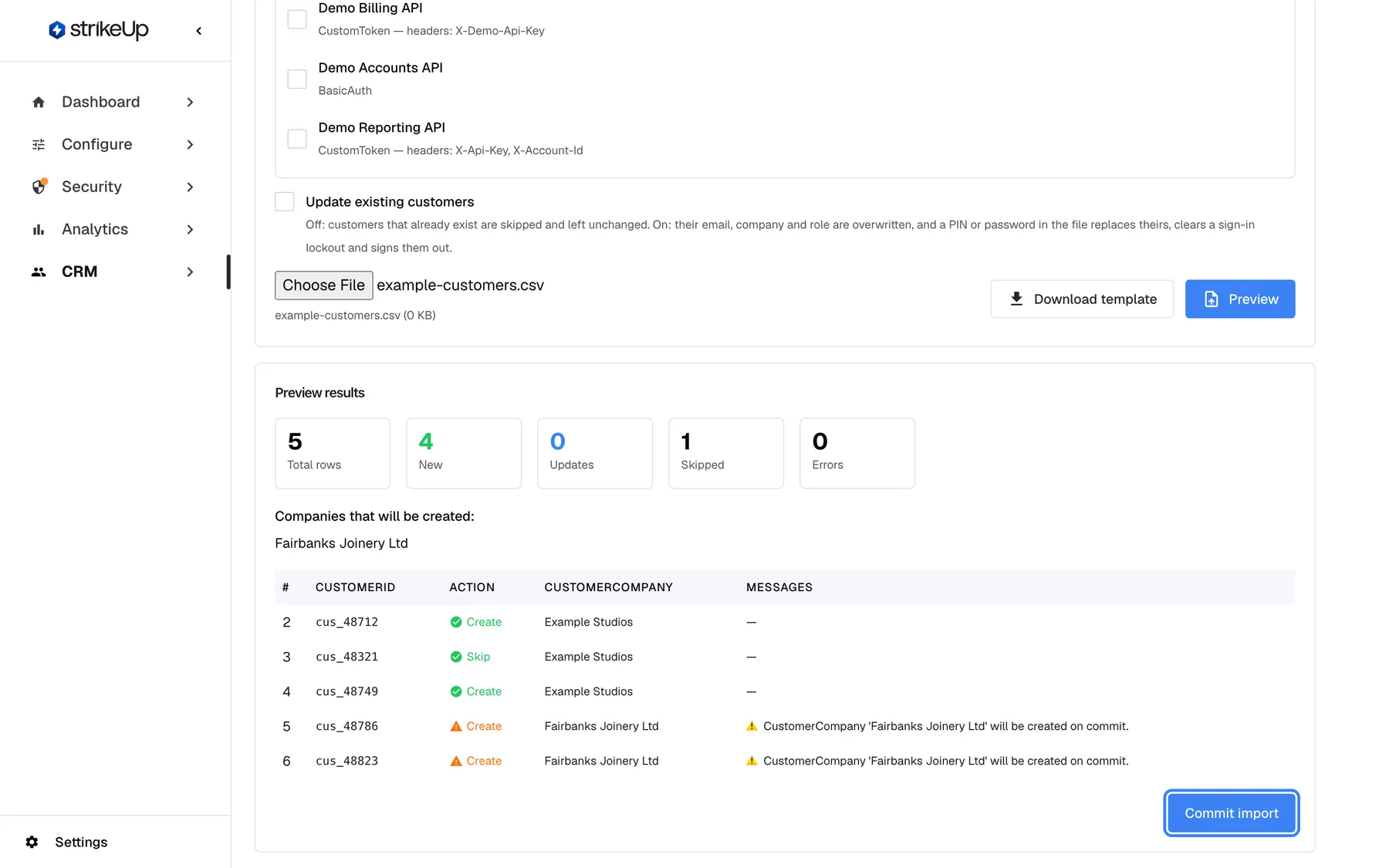
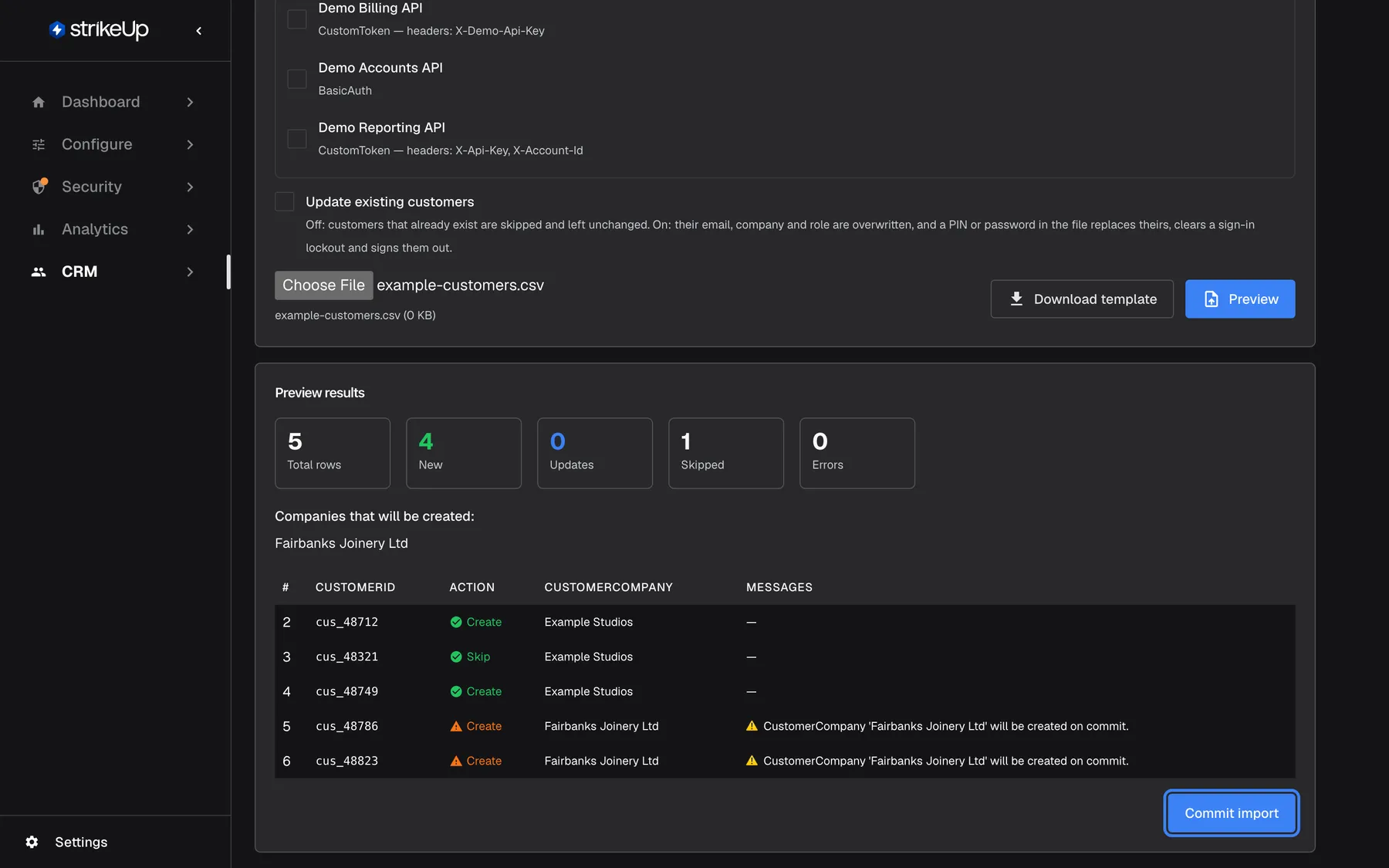
What this screenshot shows
- Screen
- Preview results (/admin/customers-import)
- Highlighted
- button “Commit import”, card-footer-right, enabled. imports all rows in one transaction (all or nothing)
- Also visible
- 5 total, 4 new, 1 update, 0 errors; Warning: Fairbanks Joinery Ltd will be created on commit
- Purpose
- the import ready to commit
Commit import is available only when no row has an error. Select it: StrikeUp checks the file again and saves every row in one go. You see Commit results with Created, Updated, Skipped and Errors, and Import committed..
If anything fails during the commit, nothing is saved: the heading reads Commit rolled back — fix errors and try again and Commit rolled back due to errors. appears. Fix the file and try again.
A file over 1,000 customers or 5 MB is imported in parts. When you choose it, the page says how many customers it holds and offers Upload in {{parts}} parts; agree, and the preview and the commit run part by part, showing which part is being sent. The parts are separate imports: when one fails, the parts before it stay imported and the remaining parts are not uploaded, and the result reads Import stopped part-way. Fix the problem and import the same file again; with Update existing customers unticked, the customers already imported are skipped. The same CustomerId twice in one file is an error even when the two rows land in different parts.
Update existing customers
Section titled “Update existing customers”Tick Update existing customers above the file chooser before you preview. Then a row whose CustomerId matches an existing customer, ignoring case, updates that customer:
| Column in the row | Effect on the existing customer |
|---|---|
CustomerEmail filled | Email replaced |
| A company column filled | Moved to that company |
Role filled | Role changed. This does not protect a company’s last Admin. |
Pin or Password filled | Credential replaced and any lockout lifted. The customer is signed out on their next request. |
| A column left empty | That value is kept |
With Update existing customers unticked, the default, such a row is skipped: the preview shows “Skip” in the “Action” column, counts it under Skipped, and the customer stays exactly as it is.
Every control, explained
Section titled “Every control, explained”Back at the top left.
Returns to the customers list. Nothing from an unfinished import is saved.
The import page has no sidebar entry.
Pre-fill server credentials
Section titled “Pre-fill server credentials”The box Pre-fill server credentials (optional), shown only when at least one toolkit chosen for a widget needs credentials.
One checkbox per toolkit, with its authorisation type and headers. Ticked toolkits add a ServerAuthorizationsJson column to the template.
Give each imported customer working access to your API from their first chat.
Download template
Section titled “Download template”Download template beside the file chooser.
Downloads customers-import-template.csv with every column and three example rows: one with a PIN and Admin, one with a password and Member, one without a credential.
A file built from the template has the column names StrikeUp expects.
Update existing customers
Section titled “Update existing customers”The checkbox above the file chooser. It applies to the next preview and commit.
Off by default: rows for customers who already exist are skipped and left unchanged. On: their email, company and role are overwritten from the file, and a PIN or password in the file replaces theirs, lifts a sign-in lockout and signs them out.
Re-importing an export by mistake should not overwrite everyone’s details or sign them out; tick it only when the file is meant to change existing customers.
Choose file
Section titled “Choose file”The file chooser on the left of the file row.
Accepts .csv files. Choosing a new file clears earlier results. An empty file is refused with “CSV file is required.”
Pick the file to check and import.
Preview
Section titled “Preview”Preview, available once a file is chosen.
Checks every row and shows the results. Saves nothing. If the check itself fails, Preview failed. appears.
See every problem in the file before anything changes.
Commit import
Section titled “Commit import”Commit import under the results, available only with no errors.
Checks the file again and saves all rows together, or none. Shows Committing… while it runs, and Commit failed. if the server fails.
An all-or-nothing import never leaves half a customer base behind.
Who sees what
Section titled “Who sees what”| Part of the screen | Who can use it |
|---|---|
| The page | Every signed-in user can open it |
| Download template, Preview and Commit import | Users with the Admin role. For anyone else they fail |
What you need to know
Section titled “What you need to know”| Topic | Fact |
|---|---|
| All or nothing | One failing row, or any failure during the commit, saves nothing. |
| Default role | Admin, when Role is empty. Set Member for everyone who should not manage the company. |
| PIN and password | PIN 4–8 digits, password at least 8 characters, one or the other per row. |
| Company columns | CustomerCompanyId needs the company’s internal id; CustomerCompanyName matches or creates by name. |
| Separator | Commas only. |
| Size | Up to 1,000 customers and 5 MB per upload; a larger file is imported in parts. Values over 255 characters fail at commit with Commit failed.. |
| Company reference | The company’s own Company ID cannot be set by import. |
Frequently asked questions
Section titled “Frequently asked questions”The file
Section titled “The file”Which columns can the CSV have?
Section titled “Which columns can the CSV have?”CustomerId (required), CustomerEmail, CustomerCompanyId, CustomerCompanyName, Pin, Password, Role and, when you pre-fill toolkits, ServerAuthorizationsJson. Only the first one is required; the others can stay empty or be left out. Select Download template on Import customers from CSV to get them all with three example rows.
How long can a PIN be?
Section titled “How long can a PIN be?”A PIN has 4 to 8 digits and nothing else; a password needs at least 8 characters. Some admin screens label the PIN option “4-6 digits”, but 7- and 8-digit PINs are accepted. A wrong PIN shows “Pin must be 4-8 numeric digits.” in the preview.
Is CustomerCompanyId the Company ID shown on the company?
Section titled “Is CustomerCompanyId the Company ID shown on the company?”No. CustomerCompanyId needs the company’s internal id, the long identifier in the address of its page under CRMCompanies. The Company ID shown on the company is a different value; using it gives “CustomerCompanyId must be a valid Guid.” Use CustomerCompanyName if that is easier.
Why does every row say CustomerId is required?
Section titled “Why does every row say CustomerId is required?”The header line is missing or misspelt, or the file uses semicolons instead of commas, which Excel does in some languages. Open the file in a text editor, check that the first line starts with CustomerId and that values are separated by commas, then preview again.
What role do imported customers get?
Section titled “What role do imported customers get?”The role in the Role column, Admin or Member. An empty Role makes the customer an Admin, who can manage the company in the customer portal. Set Member for everyone who should only use the assistant.
Importing
Section titled “Importing”What happens if one row has an error?
Section titled “What happens if one row has an error?”Commit import stays unavailable until no row has an error, and if anything fails during the commit itself, no row is saved and Commit rolled back — fix errors and try again appears. Fix the file and preview again until Errors shows 0.
What do Create, Update and Skip in the Action column mean?
Section titled “What do Create, Update and Skip in the Action column mean?”In the preview’s “Action” column, “Create” means the row will create a new customer, “Update” that it will update an existing one, and “Skip” that it will leave an existing customer unchanged because Update existing customers is not ticked; “Error” means it cannot be imported. The colour shows the rest: green for a clean row, orange for a row with a warning.
Can I update customers who already exist?
Section titled “Can I update customers who already exist?”Yes, when you tick Update existing customers before the preview. Then a row whose CustomerId matches an existing customer updates them: a filled email, company, role or credential replaces the current one, and empty columns leave the current values alone. The preview counts these rows under Updates.
Can a re-import reset a forgotten PIN?
Section titled “Can a re-import reset a forgotten PIN?”Yes. Import the customer again with a new value in Pin or Password. The credential is replaced and any lockout after failed attempts is lifted. The customer is also signed out on their next request and signs in again with the new credential.
Can I put customers into a company that does not exist yet?
Section titled “Can I put customers into a company that does not exist yet?”Yes. Put the new company’s name in CustomerCompanyName. The preview lists it under Companies that will be created: and warns that it “will be created on commit”; the company is created when you select Commit import.
Troubleshooting
Section titled “Troubleshooting”| Symptom | What to check |
|---|---|
| Existing customers were not changed, and the preview counts them under Skipped | Update existing customers was not ticked. Tick it, preview and commit again. |
| The page says the file holds more customers than one upload takes | Accept Upload in {{parts}} parts, or split the file yourself into files of up to 1,000 customers and 5 MB. |
| Import stopped part-way after a commit in parts | Read which part failed and why. Fix the file and import it again; customers from the parts that worked are skipped unless Update existing customers is ticked. |
| Every row: “CustomerId is required.” | The header line is missing or the file uses semicolons; save as comma-separated CSV. |
| “Pin must be 4-8 numeric digits.” | Use 4–8 digits only; format the column as text in Excel so leading zeros stay. |
| “Specify at most one of Pin / Password per row.” | Leave one of the two empty. |
| “CustomerCompanyId must be a valid Guid.” or “CustomerCompanyId … does not exist.” | Use the internal id from the company page’s address, or remove it and use CustomerCompanyName. |
| “Unknown role ’…’. Use Admin or Member.” | Correct the Role value. |
| Duplicate CustomerId within this file. | Each id may appear only once, ignoring case. |
| “CustomerEmail is not a valid email address.” | The value needs an @. |
| Commit import stays unavailable | At least one row has an error; fix it and preview again. |
| Commit failed. | A value may be too long (over 255 characters); shorten it and try again. |
| A change fails with Request failed and “This action requires the Admin role.” | Download template, Preview and Commit import all need the Admin role. Ask an Admin to make the change, or to give you the Admin role under Settings › Users. |