

Human handoff
Some questions need a person: a refund outside the rules, an angry customer, a problem the assistant has no tool for. Human handoff lets the visitor bring a person from your support team into the same chat. The assistant offers it when it should, the visitor accepts with one click, a conversation opens in your Help Scout mailbox or Intercom inbox with the context, and your agent’s replies appear in the widget.
What it does
Section titled “What it does”Without handoff, a visitor the assistant cannot help has to leave the chat, find your contact form and explain everything again. Many give up, and the ones who write in arrive frustrated.
With handoff on for a widget, the assistant offers an Invite an agent button when the conversation calls for a person, at a sensitivity you choose. When the visitor selects it, StrikeUp opens a conversation in your helpdesk with a summary of the chat, and relays messages both ways until your agent closes it or the visitor ends it. From there:
- You choose how readily the assistant offers a person. Setting it up in 5 steps · Handoff sensitivity.
- Your agent gets the visitor’s details and the last messages, in the Help Scout mailbox or Intercom team you choose. What your agent receives.
- The visitor sees when the agent joins, talks to them in the widget, and returns to the assistant when the agent closes the conversation or the visitor ends the chat. Handoff in the widget.
Every handoff is recorded with when it was requested, when an agent joined and when it closed, and the conversation itself stays in your helpdesk as the record of what was said.
Before you start
Section titled “Before you start”| Requirement | Details |
|---|---|
| Feature | Handoff Integrations, on for every new workspace. Without it, Integrations is not in the menu and the handoff section is hidden on AI & UX. |
| A connected helpdesk | Help Scout or Intercom, connected on ConfigureIntegrations. Intercom also needs its webhook registered. See Integrations. |
| A mailbox or a team | Help Scout: a mailbox, chosen per widget, is required; conversations are created in it. Intercom: a team is optional; without one, Intercom’s own assignment rules apply. |
| Role | The Admin role to change a widget’s handoff settings. Every other signed-in user can view them; their saves fail with “This action requires the Admin role.” |
| Visitor details | Optional. When your page tells the widget who the visitor is, their name and email reach your agent. See Identify users and pass context. |
| Cost | The handoff itself makes no AI call; the summary is built from the chat’s messages. |
Understanding a handoff
Section titled “Understanding a handoff”A handoff moves through these stages:
| Stage | What the visitor sees | What happens in the helpdesk |
|---|---|---|
| Offered | The Invite an agent button next to the message box, and “Connect with agent” under the assistant’s reply | Nothing yet |
| Requested | A notice “Connecting to support…”; the message box shows “Please wait…” | A new conversation is created |
| Waiting for an agent | A notice “Waiting for an agent to join…”; the message box shows “Message the support agent…” and messages sent now are passed on; the “End chat with agent” button replaces Invite an agent | The conversation waits in the mailbox or inbox |
| Agent joined | A notice “Name joined the conversation” and a divider in the chat; “End chat with agent” stays | The agent replied or was assigned |
| Closing | The message box shows “Please wait…” | The agent closed the conversation, or the visitor selected “End chat with agent” and StrikeUp closed it |
| Back with the assistant | A notice “Support session ended” and a divider; the button reads “Invite again” | — |
| Failed | A notice “Could not connect to support.”; the button returns | The conversation could not be created, for example because the connection shows “ERROR” |
How the assistant decides to offer a person
Section titled “How the assistant decides to offer a person”When handoff is on, the assistant follows the instruction for the widget’s sensitivity:
| Sensitivity | The assistant offers a person when | Example |
|---|---|---|
| Easy | The visitor first expresses any wish for human help, or asks for something beyond its abilities | Can I talk to someone? in the first message |
| Normal (default) | It has already tried to help and the visitor is still unsatisfied or asks again, or the visitor asks explicitly | That didn’t help, I’d like to speak to a person. |
| Hard | It has tried its tools, the knowledge base and clarifying questions without success, or the visitor insists | The visitor asks for a person a second time after three attempts |
When it decides to offer, the assistant writes a short, positive confirmation and the widget shows the button. Only the assistant’s own latest reply counts: text in a document, a web page or a tool result cannot make the button appear.
What does not start a handoff
Section titled “What does not start a handoff”- A widget with the switch off, or with no integration chosen: the button never appears.
- A message from the visitor alone: the visitor must select the button.
- A conversation that is already handed over: asking again only notifies the agent again.
- Text that only quotes a handoff, such as a help article about contacting support.
Setting it up in 5 steps
Section titled “Setting it up in 5 steps”-
Connect your helpdesk. Open ConfigureIntegrations. For Help Scout, select “Connect Help Scout”, sign in to Help Scout and allow access. For Intercom, select “Connect Intercom”, paste your app’s access token and client secret, and register the webhook the page shows; see Connect Intercom.
-
Open the widget’s handoff settings. Open ConfigureAI & UX, pick the widget in the row of cards, and open the “Human Handoff” section.
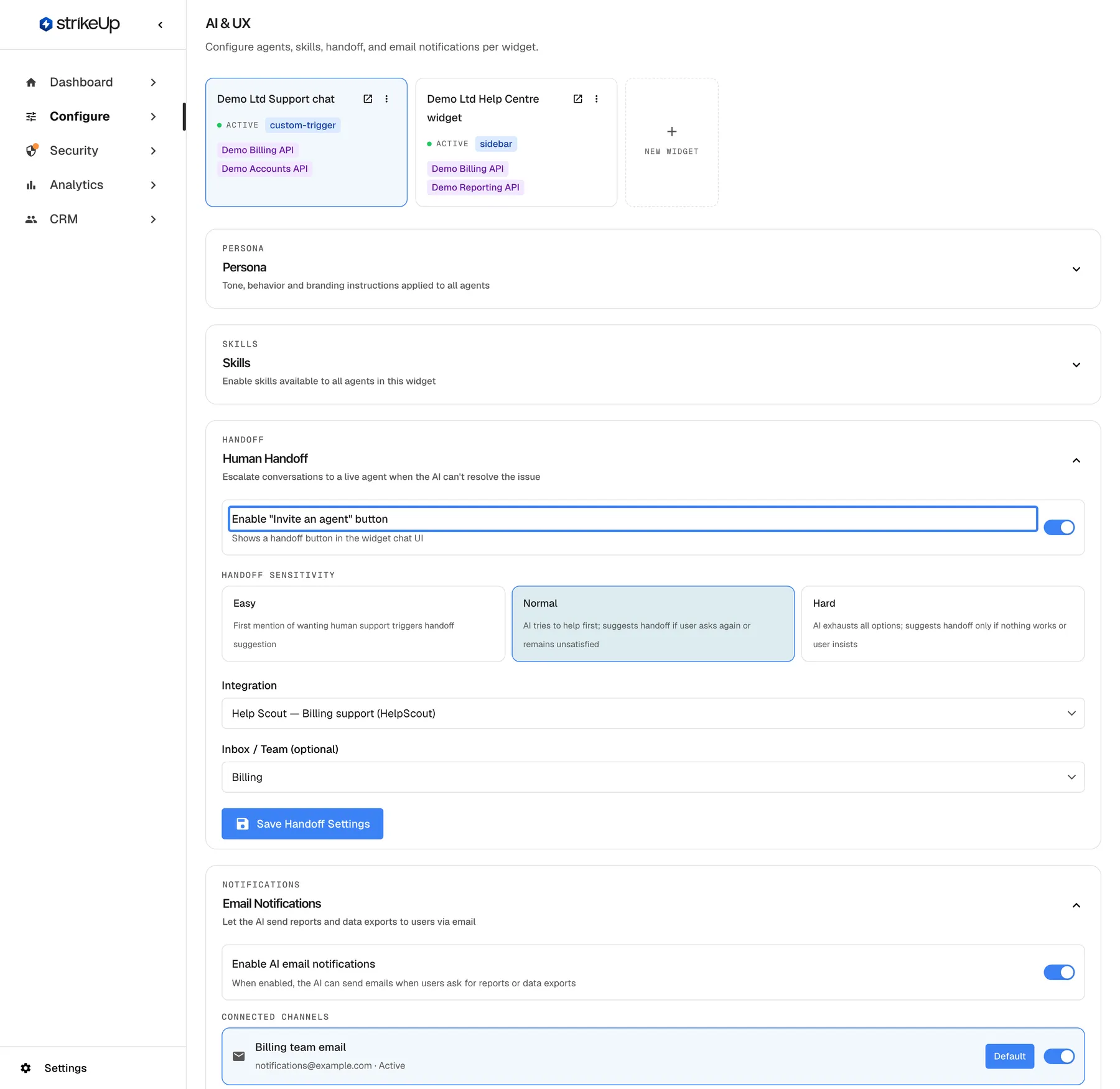
Handoff is switched on per widget in the Human Handoff section of the AI & UX page. What this screenshot shows
- Screen
- AI & UX (/admin/configure/agents)
- Highlighted
- “”, handoff-section-top, on. allows the widget to show the handoff button
- Also visible
- Handoff sensitivity: Normal selected; Integration: Help Scout — Billing support (HelpScout); Inbox / Team: Billing
- Purpose
- step 2 of handoff setup
-
Switch the button on and choose the sensitivity. Turn on
Enable "Invite an agent" buttonand choose Easy, Normal or Hard. -
Choose the helpdesk and where conversations go. Under “Integration”, choose your connection. For Help Scout, choose the mailbox under “Mailbox”; “Save Handoff Settings” stays disabled until you do. For Intercom, optionally choose a team under “Inbox / Team (optional)”.
-
Save. Select “Save Handoff Settings”. The button now appears in this widget when the assistant offers a person.
Every setting, explained
Section titled “Every setting, explained”The handoff settings are a section of AI & UX, one set per widget, shown in English in every language except the Help Scout “Mailbox” field, which follows your language.
Enable “Invite an agent” button, the master switch
Section titled “Enable “Invite an agent” button, the master switch”ConfigureAI & UX › the widget › “Human Handoff”, the switch Enable "Invite an agent" button (“Shows a handoff button in the widget chat UI”). Saved with “Save Handoff Settings”.
Off (default): the assistant never offers a person and the button never appears. On: the assistant follows the sensitivity, and the button appears when it offers a person, provided an integration is chosen. The visitor sees the button in their own language; to use your own wording, set Invite agent button under Chat labels on User Interface.
Some widgets, such as a public pre-sales chat, should never route visitors to your support team.
Handoff sensitivity, when the assistant offers a person
Section titled “Handoff sensitivity, when the assistant offers a person”“Handoff sensitivity”, three cards: Easy, Normal and Hard. Saved with “Save Handoff Settings”.
Easy: “First mention of wanting human support triggers handoff suggestion”. Normal (default): “AI tries to help first; suggests handoff if user asks again or remains unsatisfied”. Hard: “AI exhausts all options; suggests handoff only if nothing works or user insists”.
Balances how much the assistant tries on its own against how quickly visitors reach a person.
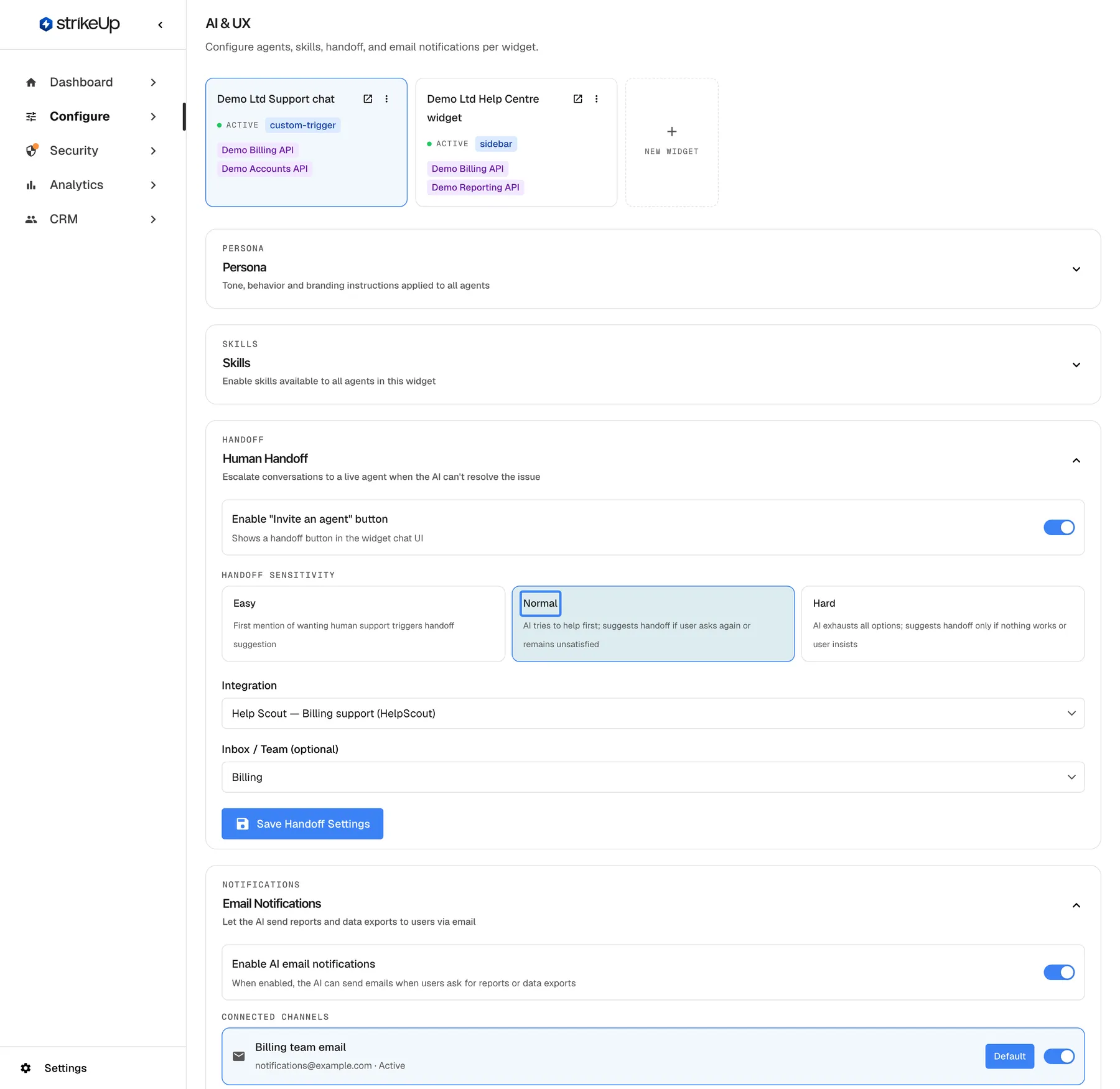
What this screenshot shows
- Screen
- AI & UX (/admin/configure/agents)
- Highlighted
- “”, handoff-sensitivity, selected. sets the handoff level
- Also visible
- Easy, Normal, Hard with their descriptions
- Purpose
- choosing when handoff is offered
| Choose | When |
|---|---|
| Easy | Your team has capacity and visitors expect a person, such as premium support |
| Normal | Most widgets: the assistant tries first, people step in when needed |
| Hard | High volume and a capable assistant; people only for what it truly cannot do |
Integration, which helpdesk
Section titled “Integration, which helpdesk”“Integration”, a drop-down with ”— None —” and every connection as name and helpdesk type. Shown when at least one helpdesk is connected.
The helpdesk this widget’s handoffs go to. Changing it clears the mailbox or team and loads the new helpdesk’s mailboxes or teams; if that fails, the section shows “Failed to load inboxes.”
Different widgets can go to different helpdesks or accounts, for example one per brand.
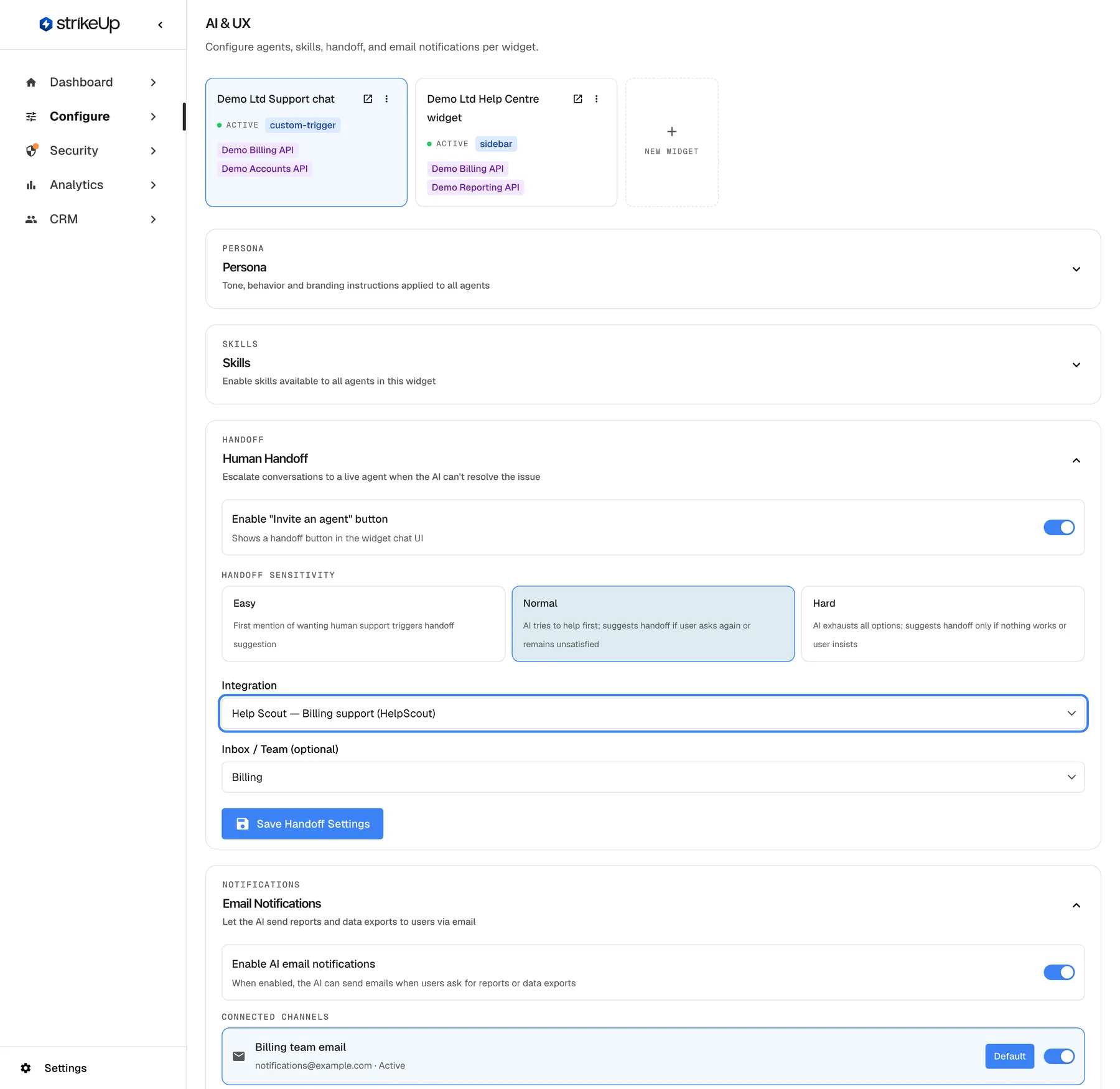
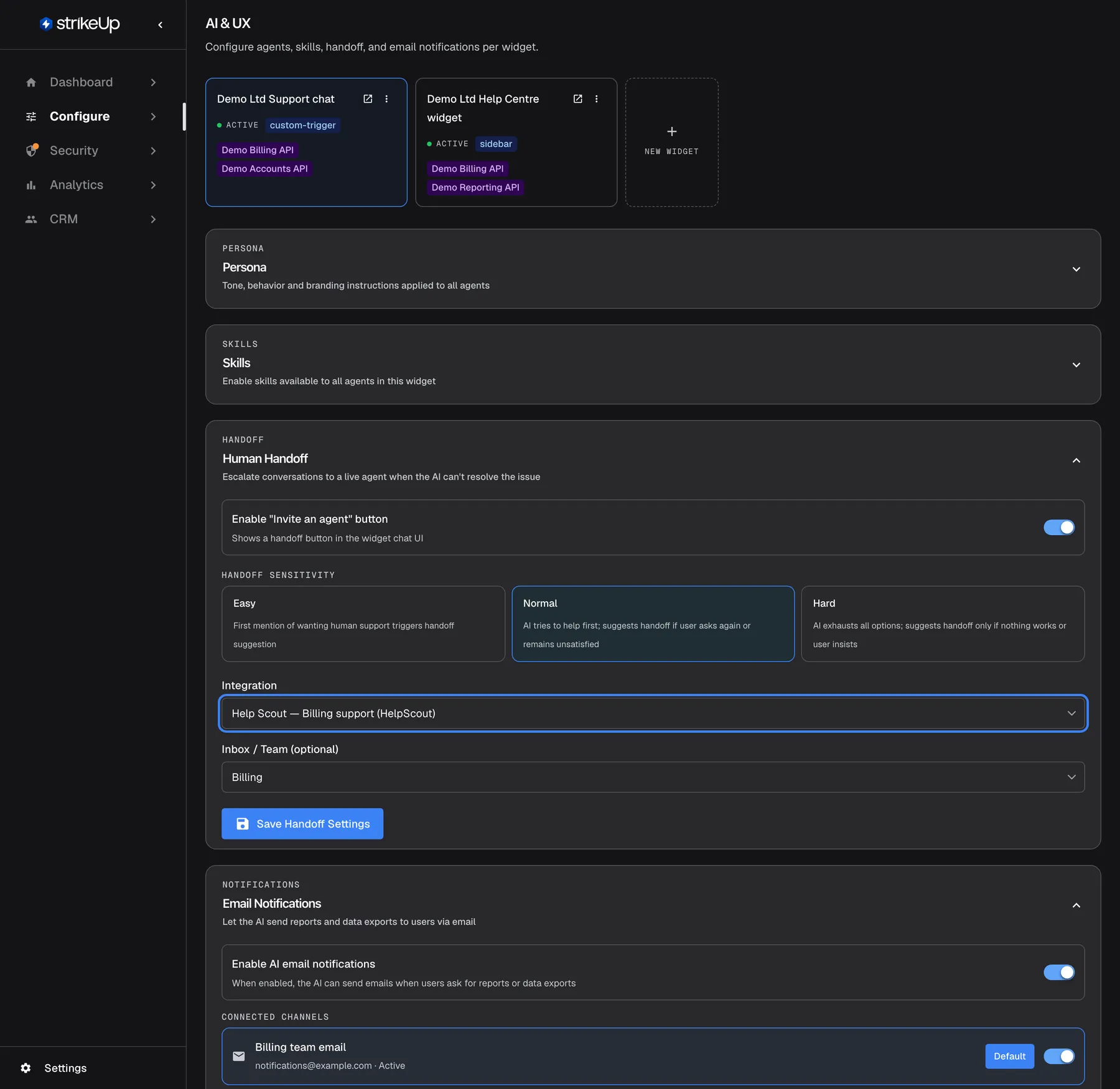
What this screenshot shows
- Screen
- AI & UX (/admin/configure/agents)
- Highlighted
- combobox “”, handoff-integration, Help Scout — Billing support (HelpScout). chooses the helpdesk
- Also visible
- Inbox / Team: Billing
- Purpose
- routing handoffs to a helpdesk
Mailbox or Inbox / Team, where conversations go
Section titled “Mailbox or Inbox / Team, where conversations go”Shown once an integration is chosen: “Mailbox” for a Help Scout connection, “Inbox / Team (optional)” for an Intercom connection.
Help Scout: the mailboxes of the chosen connection, starting with — Choose a mailbox —. A mailbox is required: new handoff conversations are created in it, and while handoff is on and none is chosen, the field shows Choose a Help Scout mailbox. and “Save Handoff Settings” stays disabled. If the account sees no mailboxes, the field shows No mailboxes found. Help Scout handoff needs one — check that the connected Help Scout account can see a mailbox.
Intercom: the teams of the chosen workspace, starting with ”— None (default / unassigned) —”. A chosen team gets the new conversations; with none, Intercom’s own assignment rules decide. If the workspace has no teams, the note “No teams/mailboxes found. Conversations will go to the default inbox.” appears.
Routes handoffs to the team that handles that widget’s customers.
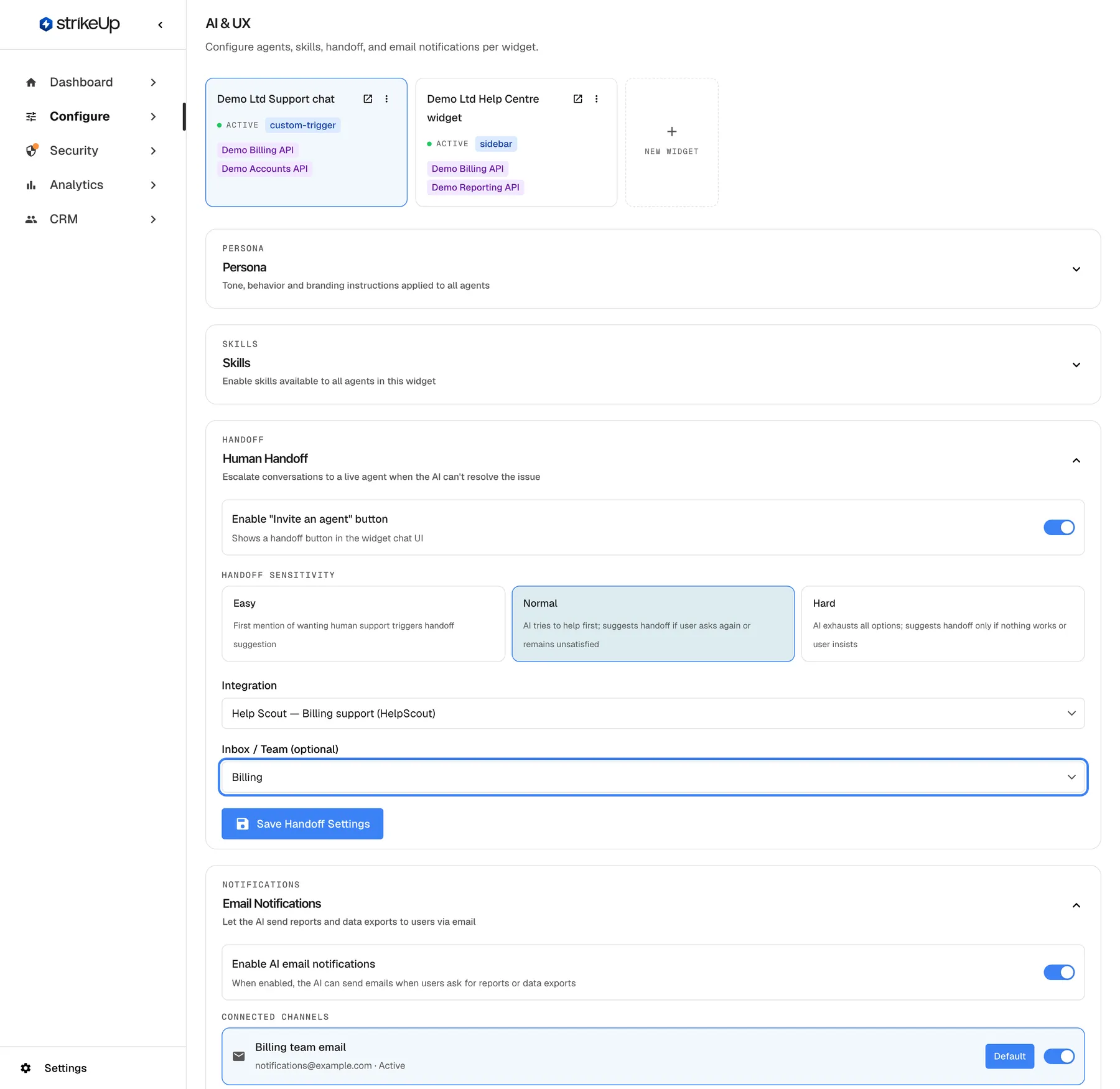
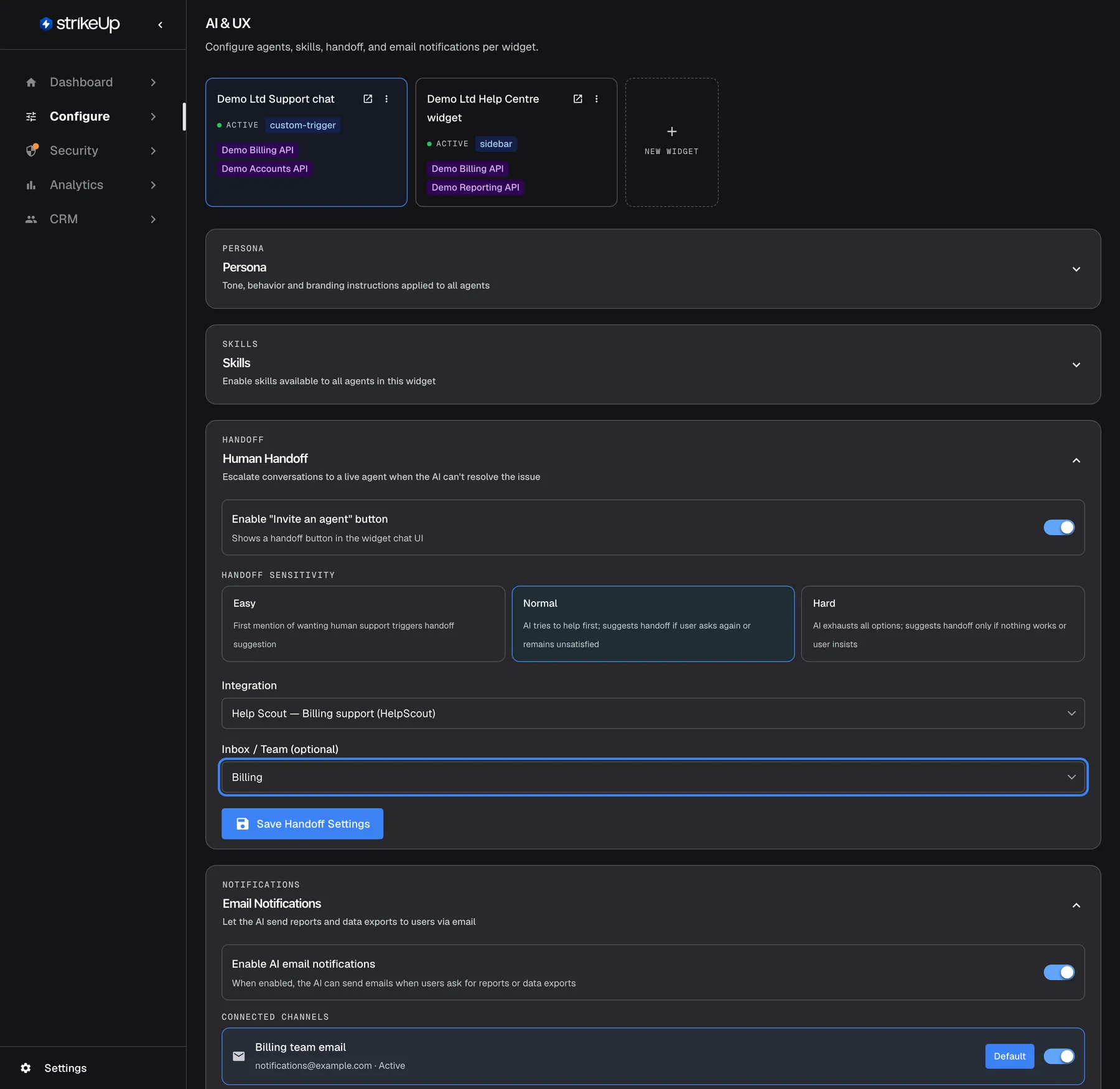
What this screenshot shows
- Screen
- AI & UX (/admin/configure/agents)
- Highlighted
- combobox “”, handoff-inbox, Billing. chooses the mailbox or team
- Also visible
- Integration Help Scout — Billing support (HelpScout)
- Purpose
- choosing the destination inbox
Save Handoff Settings
Section titled “Save Handoff Settings”The button at the bottom of the section. It saves only this section, separately from the rest of the page.
Saves the switch, sensitivity, integration and mailbox together; the button reads “Saving…” meanwhile. Errors appear at the top of the section, such as “Integration not found or does not belong to this company.” or “Failed to update handoff settings.”
Handoff settings change what visitors can do, so they apply only when you save them.
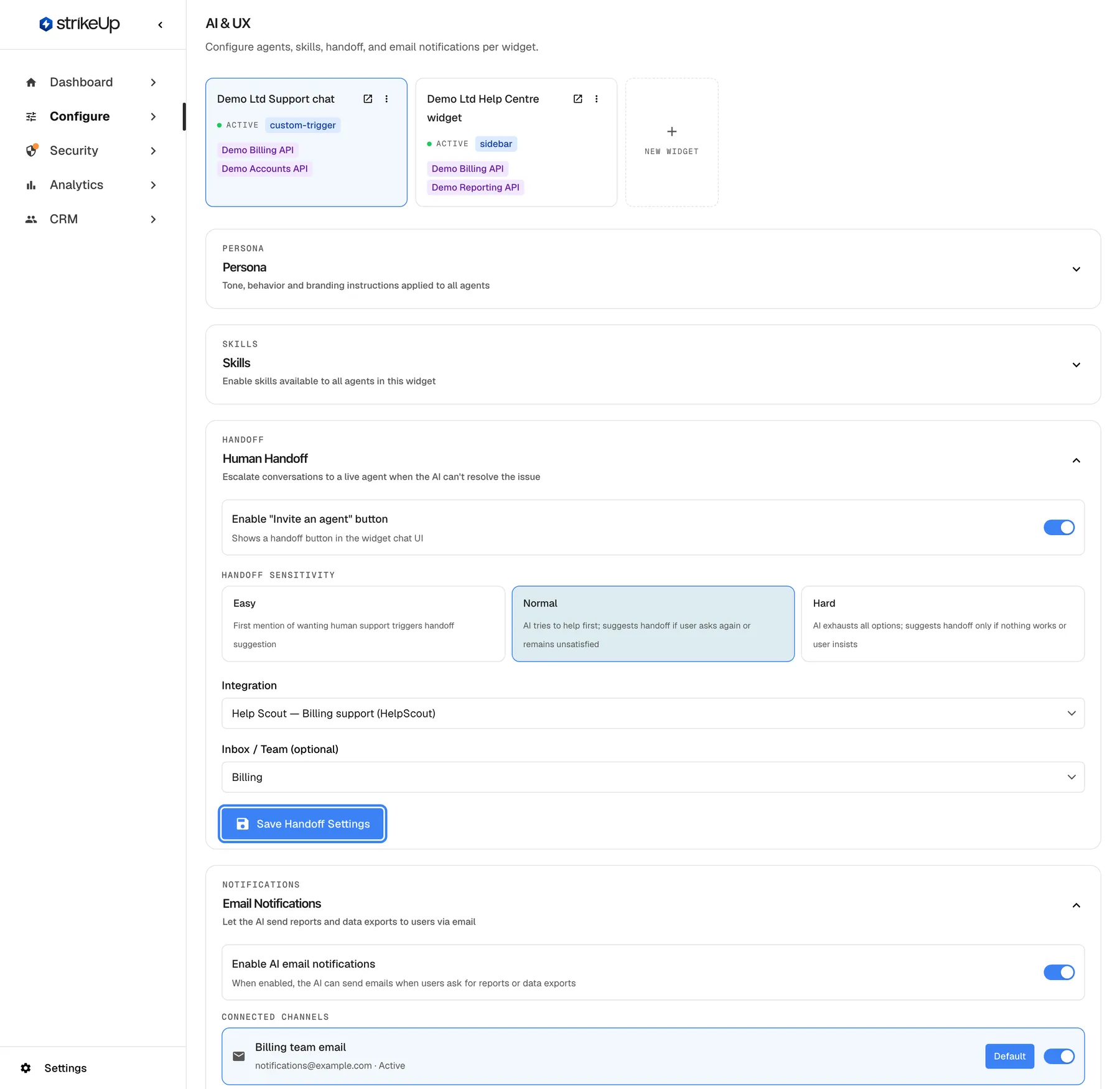
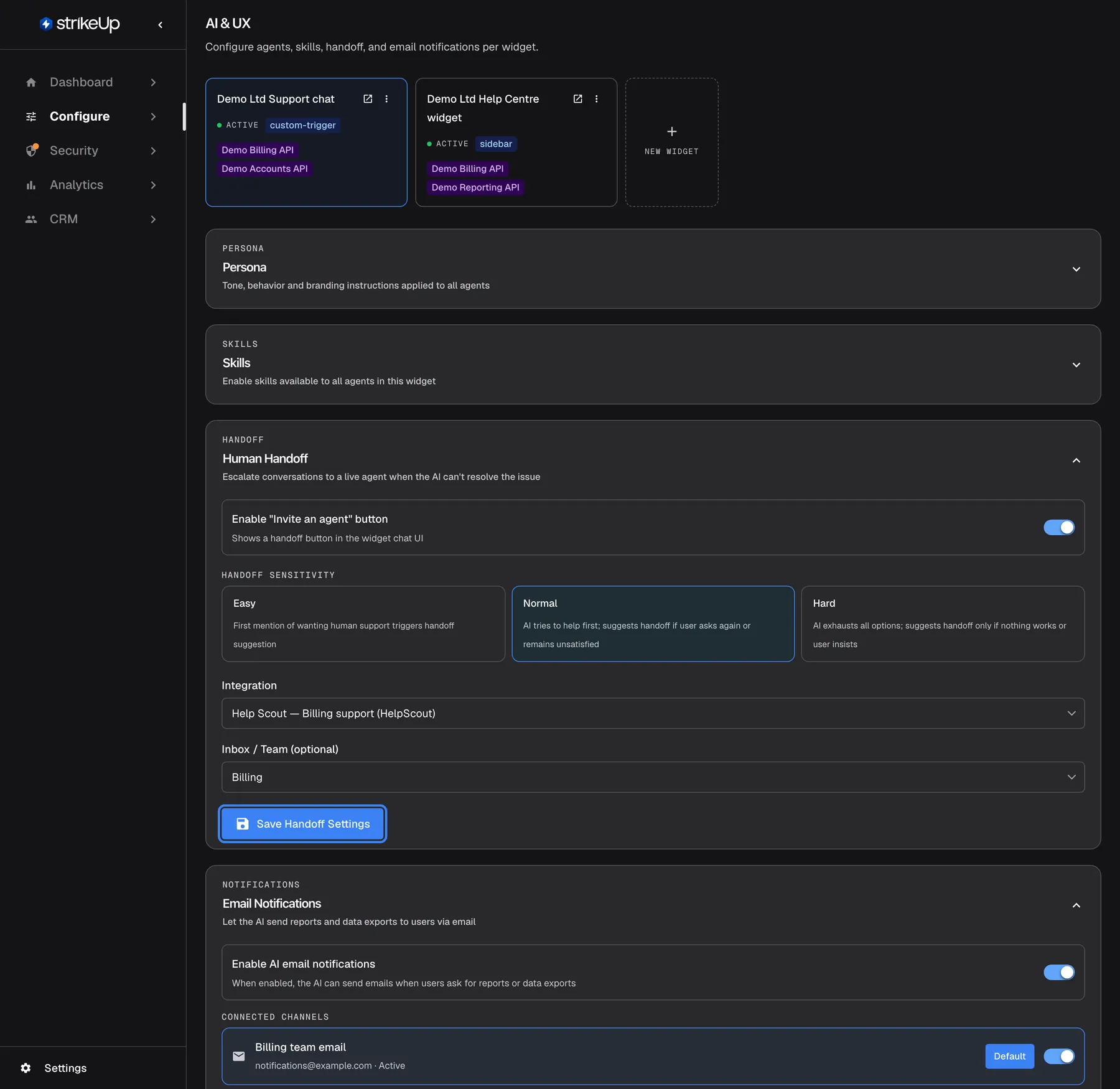
What this screenshot shows
- Screen
- AI & UX (/admin/configure/agents)
- Highlighted
- button “”, handoff-section-footer, enabled. saves the widget's handoff settings
- Also visible
- Enabled, Normal, Help Scout — Billing support, Billing
- Purpose
- step 3 of handoff setup
No helpdesk connected, the warning
Section titled “No helpdesk connected, the warning”The top of the “Human Handoff” section, when your workspace has no helpdesk connection.
The amber warning “No support integrations connected. Go to Integrations to connect Help Scout.” The switch and the sensitivity cards are shown, but there is no “Integration” drop-down, so no handoff can happen yet.
Tells you before you configure anything that the helpdesk has to be connected first.
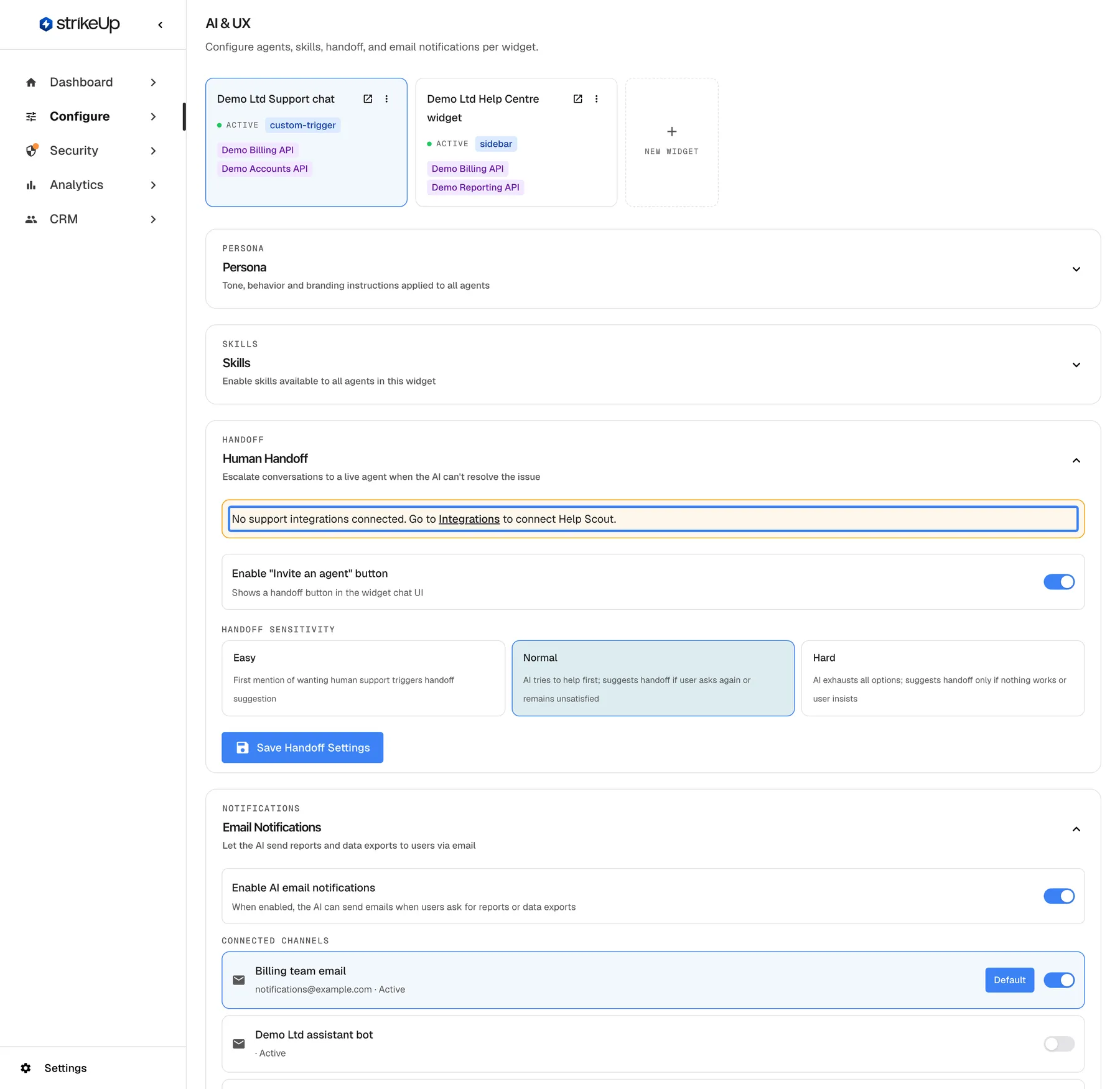
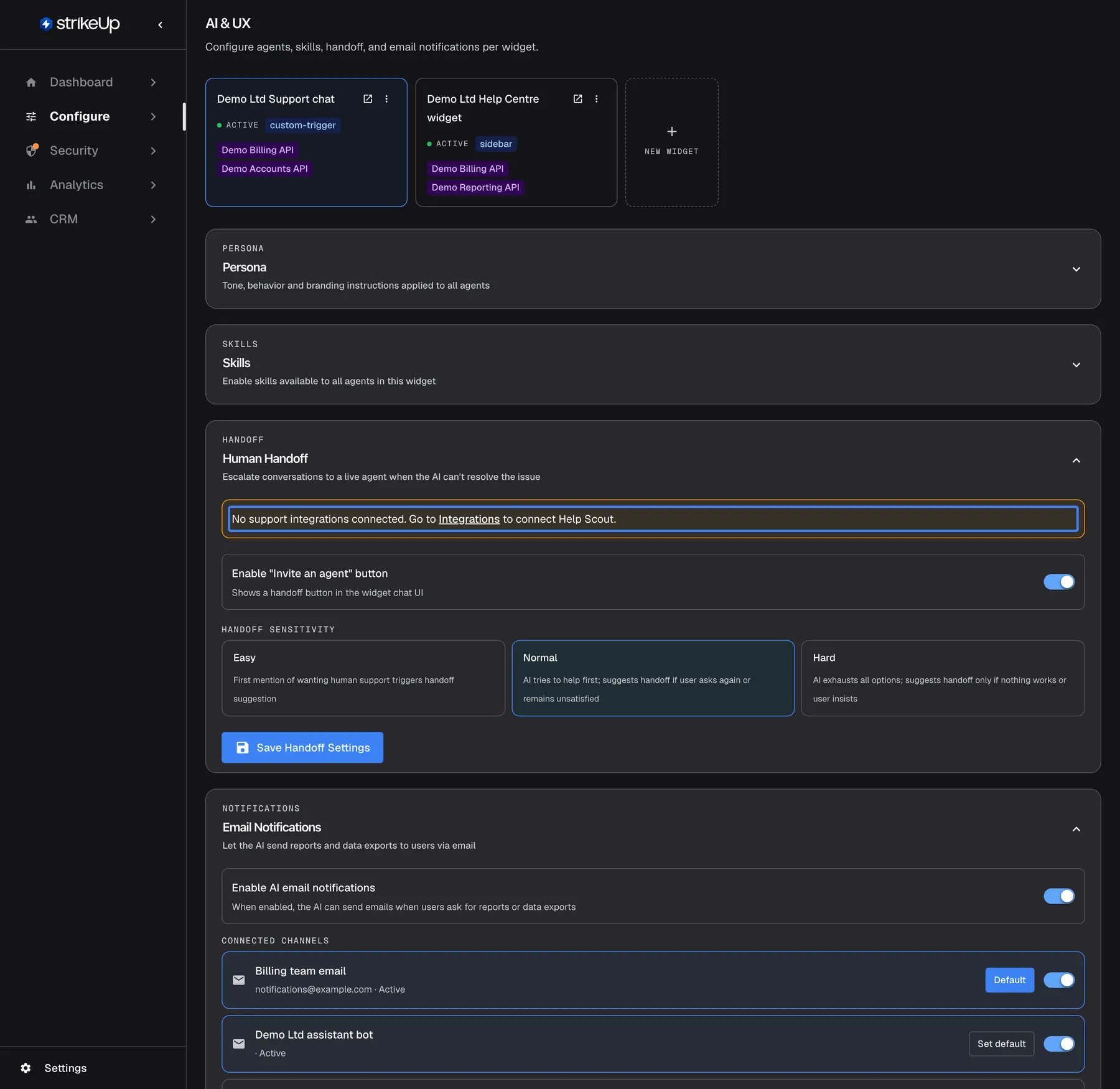
What this screenshot shows
- Screen
- AI & UX (/admin/configure/agents)
- Highlighted
- “”, handoff-section-top, shown. none
- Also visible
- No Integration select
- Purpose
- the most common setup gap
How the settings combine
Section titled “How the settings combine”| Switch | Integration | Mailbox | Result |
|---|---|---|---|
| Off | Any | Any | No handoff in this widget |
| On | ”— None —” | — | The button never appears |
| On | Help Scout | A mailbox | Handoffs open conversations in that mailbox |
| On | Help Scout | — Choose a mailbox — | “Save Handoff Settings” stays disabled; Help Scout handoff needs a mailbox |
| On | Intercom | A team | Handoffs open conversations assigned to that team |
| On | Intercom | ”— None (default / unassigned) —” | Handoffs open conversations that Intercom’s own rules assign |
What your agent receives
Section titled “What your agent receives”When the visitor selects Invite an agent, StrikeUp opens a conversation in your helpdesk. In Help Scout, it creates a chat conversation in the chosen mailbox:
| Part | Content |
|---|---|
| Subject | “Widget Support – ” followed by the visitor’s name or user ID |
| Customer | The visitor’s email and first name, when the page passes them to the widget |
| Session context | The widget, the chat session’s ID, the user, their email and company |
| Summary and recent messages | Up to the last 10 messages of the chat, visitor and assistant, each shortened to 200 characters in the summary |
In Intercom, the conversation comes from the visitor’s own contact: StrikeUp finds it by the visitor’s user ID or email, or creates it. The conversation opens with the visitor’s last message, up to 500 characters, or “I’d like to speak to a human agent, please.” when there is none. The session context and the summary of the last messages are added as an internal note that only your team sees, and the conversation is assigned to the chosen team.
The full chat is not attached. Messages the visitor sends while waiting are added to the conversation.
Handoff in the widget
Section titled “Handoff in the widget”What the visitor sees, in the visitor’s browser language (English, German or Spanish):
| Indicator | Meaning |
|---|---|
| Invite an agent button (person icon), or “Connect with agent” under the assistant’s reply | The assistant offered a person; selecting it requests one |
| “Connecting to support…” | The request is being sent |
| “Waiting for an agent to join…” | The conversation was created; no agent has replied yet |
| “End chat with agent” button (person icon with a cross) | Shown while waiting for or talking to an agent; selecting it ends the session |
| “Your message will be delivered when the agent joins.” | Shown with messages typed while waiting |
| “Name joined the conversation” or “Support agent joined” | The agent replied or was assigned |
| “Name: text” | A reply from your agent |
| “Support session ended” | The agent closed the conversation, or the visitor ended it; the assistant answers again |
| “Invite again” | The button after a session ended, to ask for a person again |
| “Could not connect to support.” | The handoff failed; the button returns |
Notices disappear after 5 seconds; the dividers stay in the chat. “Your message will be delivered when the agent joins.” is always in English.
The visitor’s side of the conversation
Section titled “The visitor’s side of the conversation”- The visitor can end the session. “End chat with agent” closes the conversation in your helpdesk, and the assistant answers again. Your agent can also end it by closing the conversation.
- Replies after closing are not delivered. An agent who writes after closing the conversation is not shown in the widget.
- The assistant stays quiet during the handoff. It does not answer while an agent is requested or active.
- The assistant does not see what the person said. After the session ends, it continues without the agent’s messages.
Handoff in StrikeUp
Section titled “Handoff in StrikeUp”The chat details page under CRMCustomers shows the visitor’s messages, the AI runs and the tool runs of the chat. Your agent’s replies are not shown there: the helpdesk conversation is the record of what your agent said.
Why: the helpdesk is where your team works the conversation, assigns it and closes it.
What you need to know
Section titled “What you need to know”| Topic | Fact |
|---|---|
| Who starts it | Always the visitor, with the button the assistant offers. |
| Default | Switch off; sensitivity Normal. |
| Context sent | Up to the last 10 messages, each shortened to 200 characters, plus the visitor’s details when known. |
| Agent joins | With the first reply or assignment in Help Scout, or with the first reply or assignment to a person in Intercom. |
| Ending | When the agent closes the conversation, or the visitor selects “End chat with agent”. |
| During the handoff | The assistant does not answer; visitor messages go to the helpdesk. |
| After the handoff | The assistant answers again, without the agent’s messages. |
| Failure | “Could not connect to support.” and the button returns. |
| Connection showing “ERROR” | New handoffs to it fail until you reconnect it on Integrations. |
| Cost | No AI call for the handoff itself. |
| Language | Widget handoff texts follow the visitor’s browser language, except “Your message will be delivered when the agent joins.”, which is in English; the assistant’s confirmation follows the conversation. |
| Disconnecting the helpdesk | Switches handoff off in every widget that used it. |
Frequently asked questions
Section titled “Frequently asked questions”General
Section titled “General”Does the assistant hand a chat over automatically?
Section titled “Does the assistant hand a chat over automatically?”No. The assistant offers a person by showing the Invite an agent button, according to the widget’s sensitivity. The handoff starts only when the visitor selects it. A visitor who ignores the button stays with the assistant.
Which helpdesk can I hand chats to?
Section titled “Which helpdesk can I hand chats to?”Help Scout or Intercom, connected on ConfigureIntegrations. Each widget then chooses a connection in the “Human Handoff” section of ConfigureAI & UX, plus a mailbox for Help Scout or, optionally, a team for Intercom.
Does human handoff cost AI usage?
Section titled “Does human handoff cost AI usage?”The handoff itself makes no AI call: the summary for your agent is built from the chat’s messages. The assistant’s reply that offers a person is an ordinary answer, priced like any other.
Is handoff available on my plan?
Section titled “Is handoff available on my plan?”Handoff belongs to the Handoff Integrations feature, which is on for every new workspace. If Integrations is missing from your menu, the feature was switched off for your workspace; ask StrikeUp to switch it on.
Where do I switch handoff on?
Section titled “Where do I switch handoff on?”On ConfigureAI & UX, pick the widget, open “Human Handoff”, turn on Enable "Invite an agent" button, choose an integration and, for Help Scout, a mailbox, and select “Save Handoff Settings”. Each widget has its own settings.
What is the default sensitivity?
Section titled “What is the default sensitivity?”Normal: the assistant tries to help first and offers a person if the visitor asks again or remains unsatisfied, or asks for one directly. The switch itself is off by default, so no widget offers a person until you turn it on.
Do I have to choose a Help Scout mailbox?
Section titled “Do I have to choose a Help Scout mailbox?”Yes. Handoff conversations are created in the mailbox chosen under “Mailbox” for the widget, and “Save Handoff Settings” stays disabled until one is chosen. Choose the mailbox of the team that handles that widget’s customers, then save.
Do I have to choose an Intercom team?
Section titled “Do I have to choose an Intercom team?”No. Under “Inbox / Team (optional)”, a chosen team gets the widget’s handoff conversations. With ”— None (default / unassigned) —”, Intercom’s own assignment rules decide who gets them.
Why is there no Human Handoff section on the AI & UX page?
Section titled “Why is there no Human Handoff section on the AI & UX page?”The section belongs to the Handoff Integrations feature and is hidden when the feature is off for your workspace. When it is shown but has no “Integration” drop-down, no helpdesk is connected yet; connect one on ConfigureIntegrations.
Do I need to save after changing the sensitivity?
Section titled “Do I need to save after changing the sensitivity?”Yes. The handoff settings apply only after you select “Save Handoff Settings” at the bottom of the section. That button saves this section alone; the other sections of the page have their own save buttons.
The visitor’s experience
Section titled “The visitor’s experience”What does the visitor see after selecting Invite an agent?
Section titled “What does the visitor see after selecting Invite an agent?”A notice “Waiting for an agent to join…” appears, and the message box changes to “Message the support agent…”. When your agent replies or is assigned, a notice says the agent joined, and the agent’s replies appear in the chat with their name.
Can the visitor keep writing while waiting?
Section titled “Can the visitor keep writing while waiting?”Yes. Messages the visitor sends while waiting are passed on to the helpdesk conversation and marked in the widget with “Your message will be delivered when the agent joins.”. The assistant does not answer them.
Can the visitor end the conversation with the agent?
Section titled “Can the visitor end the conversation with the agent?”Yes. While waiting for or talking to an agent, the visitor selects “End chat with agent” next to the message box. StrikeUp closes the conversation in your helpdesk, the widget shows “Support session ended”, and the assistant answers again. Your agent can also end it by closing the conversation.
What happens when the agent closes the conversation?
Section titled “What happens when the agent closes the conversation?”The widget shows a divider and the notice “Support session ended”, and the assistant takes over again. The button now reads “Invite again”, so the visitor can ask for a person a second time. Replies your agent writes after closing are not shown.
Can text in our documents make the button appear?
Section titled “Can text in our documents make the button appear?”No. Only the assistant’s own latest reply can offer a person. Text in a knowledge base document, a web page or a tool result that mentions contacting support does not show the button.
Your agent and the helpdesk
Section titled “Your agent and the helpdesk”What does my support agent receive?
Section titled “What does my support agent receive?”In Help Scout, a chat conversation in the chosen mailbox with the subject “Widget Support – ” and the visitor’s name or ID, the session context, and a summary of up to the last 10 messages, each shortened to 200 characters. In Intercom, a conversation from the visitor’s contact that opens with their last message, with the session context and the summary as an internal note. The full transcript is not attached.
Are the visitor’s name and email passed to the agent?
Section titled “Are the visitor’s name and email passed to the agent?”Yes, when the page that embeds the widget tells it who the visitor is. Otherwise the conversation identifies the visitor by their user ID. See the widget guide on identifying users for how to pass these details.
Does the assistant know what the agent said?
Section titled “Does the assistant know what the agent said?”No. Messages between the visitor and your agent are not shown to the assistant. When the session ends, the assistant continues from the conversation before the handoff and does not see the agent’s answers.
When does the agent count as joined?
Section titled “When does the agent count as joined?”When the agent first replies to the conversation, or when the conversation is assigned to someone. In Intercom, assigning it only to a team does not count; it counts once a person is assigned or replies. The widget then shows that the agent joined.
Where it is shown
Section titled “Where it is shown”Where do I see handoff conversations in StrikeUp?
Section titled “Where do I see handoff conversations in StrikeUp?”The chat details page shows the visitor’s messages, the AI runs and the tool runs, but not your agent’s replies. The full conversation between visitor and agent is in your helpdesk.
What happens to widgets if I disconnect my helpdesk?
Section titled “What happens to widgets if I disconnect my helpdesk?”Every widget that used the connection has handoff switched off and its integration and mailbox cleared. The button disappears from those widgets until you connect the helpdesk again and choose it in each widget’s settings.
Troubleshooting
Section titled “Troubleshooting”| Symptom | What to check |
|---|---|
| The Invite an agent button never appears | Is the switch on and saved? Is an integration chosen? Is the sensitivity Hard, so the assistant tries everything first? Ask for a person explicitly to test. |
| The section shows “No support integrations connected.” | Connect Help Scout or Intercom on ConfigureIntegrations. |
| The visitor sees “Could not connect to support.” | For Help Scout, check that a mailbox is chosen under “Mailbox” and saved. On Integrations, check whether the connection shows “ERROR”; if it does, select “Reconnect”. See Reconnect a connection. |
| “Save Handoff Settings” is disabled | Handoff is on for a Help Scout connection and no mailbox is chosen. Choose one under “Mailbox”. |
| The visitor waits, but no conversation is in the helpdesk | Check the mailbox or team chosen for the widget; the conversation is created there. |
| The agent’s replies do not reach the widget | Check the agent replied in the conversation StrikeUp created, not in a new one. For Help Scout, connect the account again if access was removed. For Intercom, check the webhook and that the connection was made with your app’s client secret; see Connect Intercom. |
| The visitor ended the chat, but the conversation is still open in the helpdesk | StrikeUp could not reach the helpdesk to close it. Close it there; the visitor is back with the assistant either way. |
| The button disappeared from a widget | The helpdesk was disconnected, or the switch was turned off. Check the widget’s handoff settings. |
| “Failed to load inboxes.” | Choose the integration again. If it persists, check whether the connection shows “ERROR” on Integrations and reconnect it. |
| “Integration not found or does not belong to this company.” | The chosen connection was removed. Choose another and save. |
| The agent sees the visitor only as an ID | The page does not pass the visitor’s details to the widget. |
| A change fails with Request failed and “This action requires the Admin role.” | Changes on this page need the Admin role. Ask an Admin to make the change, or to give you the Admin role under Settings › Users. |