

Skills
A skill is a named block of instructions that teaches the assistant how to handle one kind of request, such as invoice disputes or plan changes. On the Skills page you write skills, either through a short chat in which an AI assistant drafts the skill for you or by typing every field yourself, and you read, edit and delete them. Skills belong to your whole workspace; a skill only takes effect in the widgets where you switch it on. Open the page from ConfigureSkills. Every signed-in user of your workspace can read it; creating, editing and deleting skills needs the Admin role.
What you can do here
Section titled “What you can do here”- Create a skill with AI. Describe the job in your own words; an assistant asks follow-up questions and then writes the description, the trigger sentence and the agent instructions for you. Create a skill with AI.
- Create a skill by hand. Type the name, description, one-sentence trigger and the exact instructions. Nothing is rewritten. Create a skill by hand.
- Read what a skill does. Select a skill to see its description, trigger, the exact instructions the assistant receives and its status. Read a skill.
- Change a skill. Edit fields directly, or describe a change and let the AI rewrite the trigger and instructions. Edit a skill.
- Delete a skill. Deleting is permanent and removes the skill from every widget that uses it. Delete a skill.
- Switch a skill on for a widget. A skill does nothing until it is switched on for a widget on the AI & UX page. Use a skill in a widget · AI & UX.
The screen at a glance
Section titled “The screen at a glance”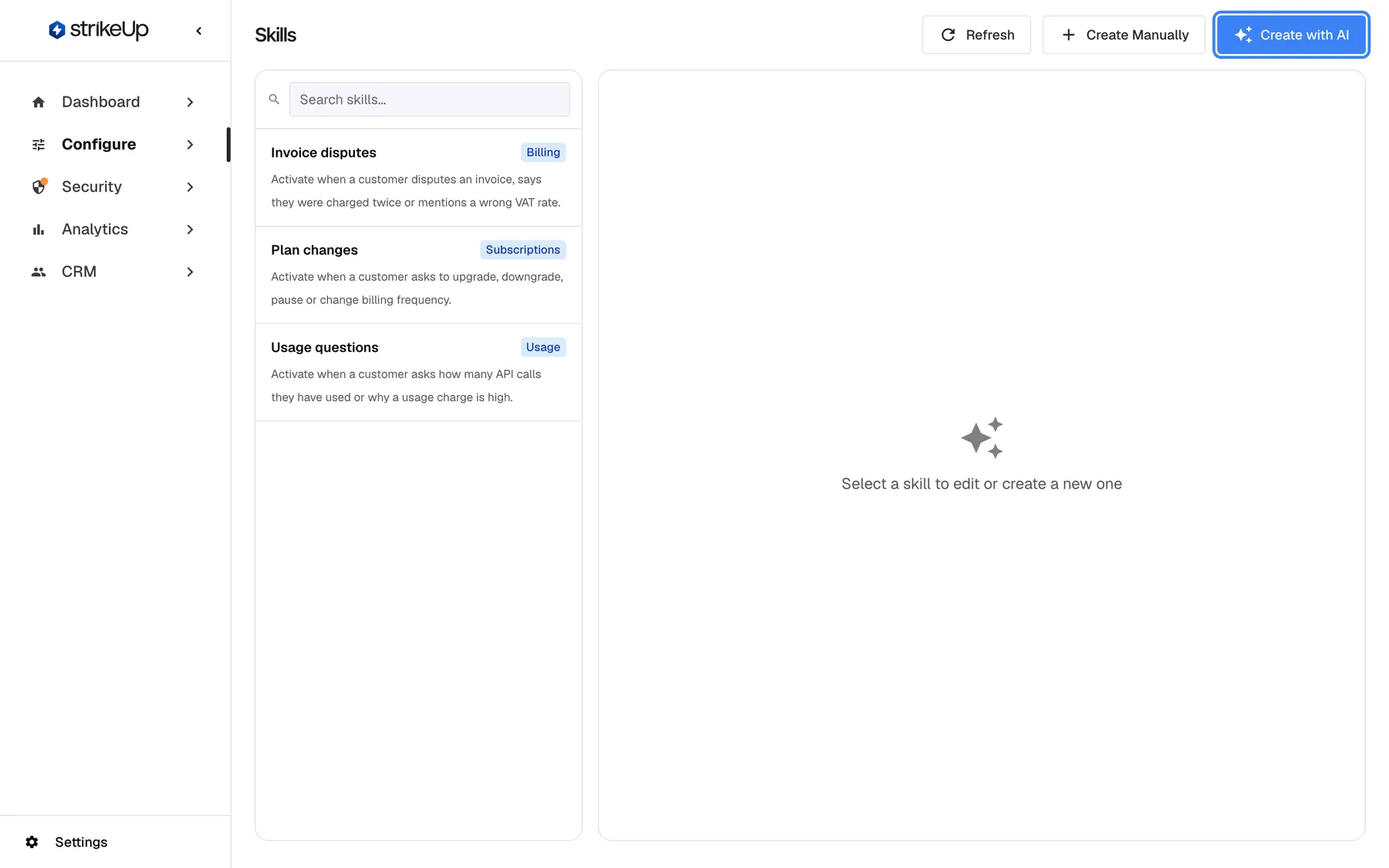
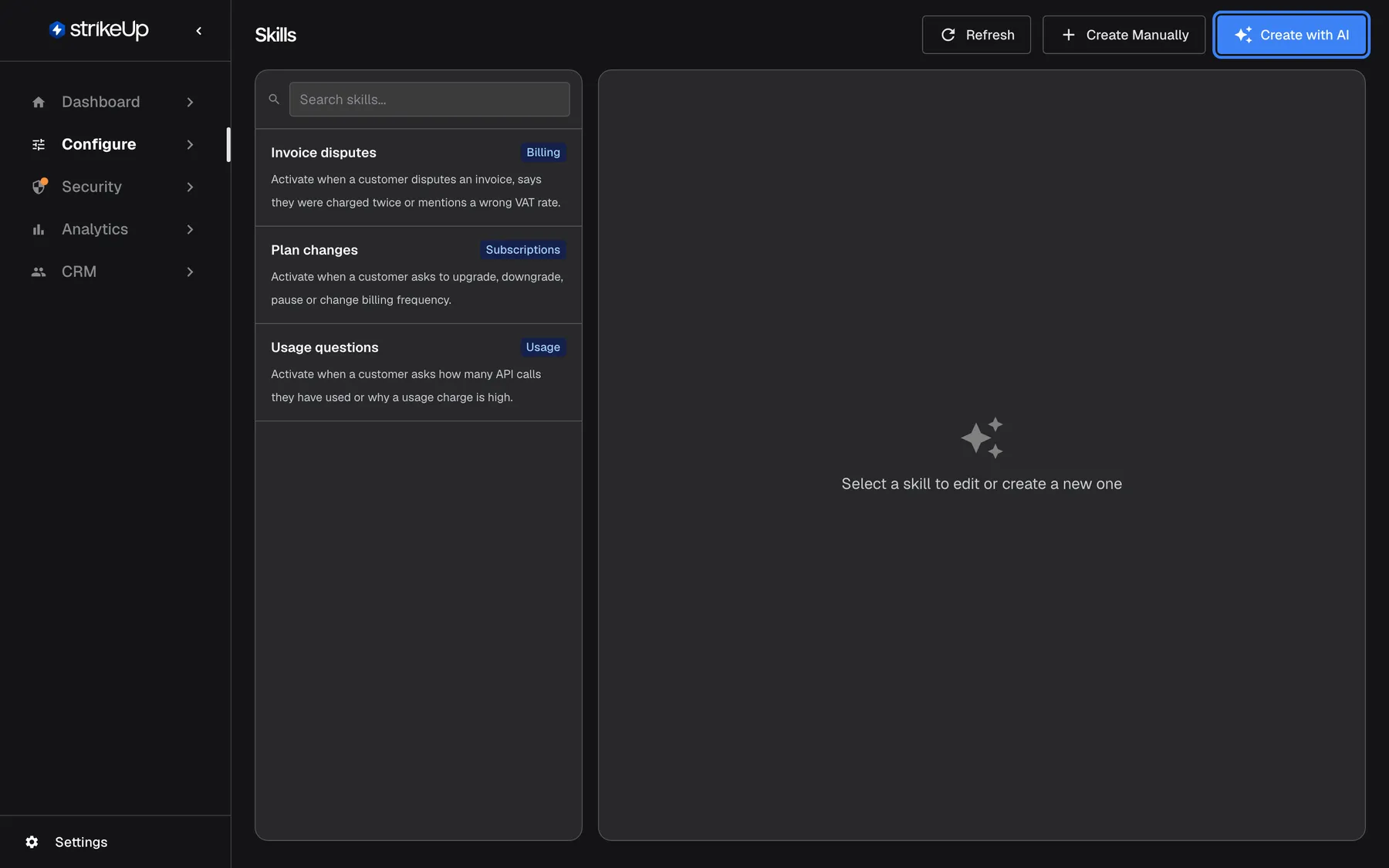
What this screenshot shows
- Screen
- Skills (/admin/skills)
- Highlighted
- button “Create with AI”, header-right, enabled. opens the AI skill wizard
- Also visible
- 3 skills: Invoice disputes, Plan changes, Usage questions; Right panel: Select a skill to edit or create a new one
- Purpose
- entry point for creating a skill
| Region | What it shows | What you do there |
|---|---|---|
| Header, right | A refresh button, Create Manually and Create with AI | Reload the list, start a new skill |
| Skill list, left | The search box Search skills..., then one row per skill: its name and its trigger sentence, sorted by name | Search, select a skill to read it |
| Panel, right | Select a skill to edit or create a new one until you select or create something; then the skill’s details, the edit form or the AI chat | Read, create, edit or delete |
When the workspace has no skills yet, the list shows No skills yet and a hint. Use Create with AI or Create Manually to start.
Type into the search box to narrow the list: it matches the skill’s name, category, trigger sentence and description, as you type. With no match the list reads No skills match your search.. The refresh button reloads the list and keeps it on screen while it loads, for example after a colleague added a skill.
How the assistant uses a skill
Section titled “How the assistant uses a skill”The assistant does not read every skill on every message. For each visitor message, a planning step reads the list of skills switched on for that widget, each as its name and its Trigger Context, and picks every skill whose trigger plausibly matches the message. When in doubt it includes the skill. The Agent Instructions of each chosen skill is then added to the assistant’s instructions for that one answer, in the order the skills are assigned to the widget.
- Several skills can apply to one answer. There is no limit on how many skills are chosen or how many a widget has.
- Skills work together with your toolkits. A skill can tell the assistant which tool to call and in which order; it does not replace the tools.
- Answers that take several steps give each step only the skills whose trigger shares significant words with that step’s task. A skill with a blank trigger would apply to every step, but the form requires a trigger, so this only happens with skills created outside this page.
- The trigger decides, the category does not. Category is a label for you; the assistant never reads it.
- Changes apply from the next message. Skills are loaded fresh for every message, so an edited skill is used straight away, even in conversations that are already open.
Skills that customer companies write for themselves in the customer portal are added to this list for visitors who belong to that company, when the widget allows it. Those skills are managed on the company’s page in CRM, not here. See the company’s skills.
Create a skill with AI
Section titled “Create a skill with AI”The AI wizard turns a plain description into a finished skill. It is the quickest way to get a well-formed trigger sentence.
-
Select Create with AI at the top right. The panel shows Create New Skill and the assistant’s opening question: “Tell me what you’d like this skill to help your agent do. What situations or questions should it handle?” The question is shown in English whatever your interface language.
-
Describe the job in the box at the bottom, for example Customers often ask for copies of old invoices or a statement for their accountant. Press Enter to send; Shift+Enter starts a new line. While the assistant writes, Thinking... is shown.
-
Answer its follow-up questions. The assistant asks about the situations to cover, the steps to take and what to avoid, then summarises the skill.
-
When the assistant has enough, the green Save Skill button appears above the message box. Select it.
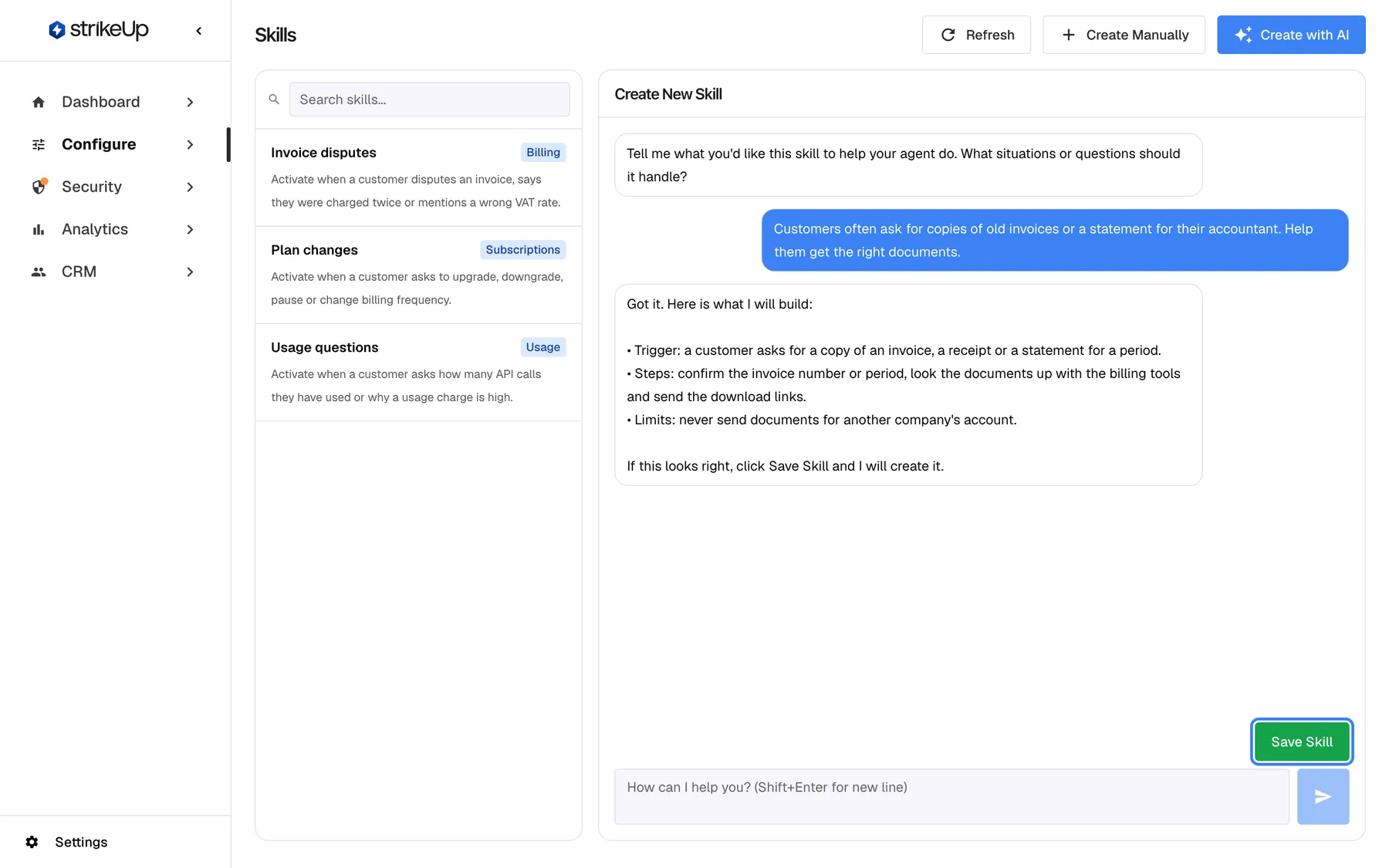
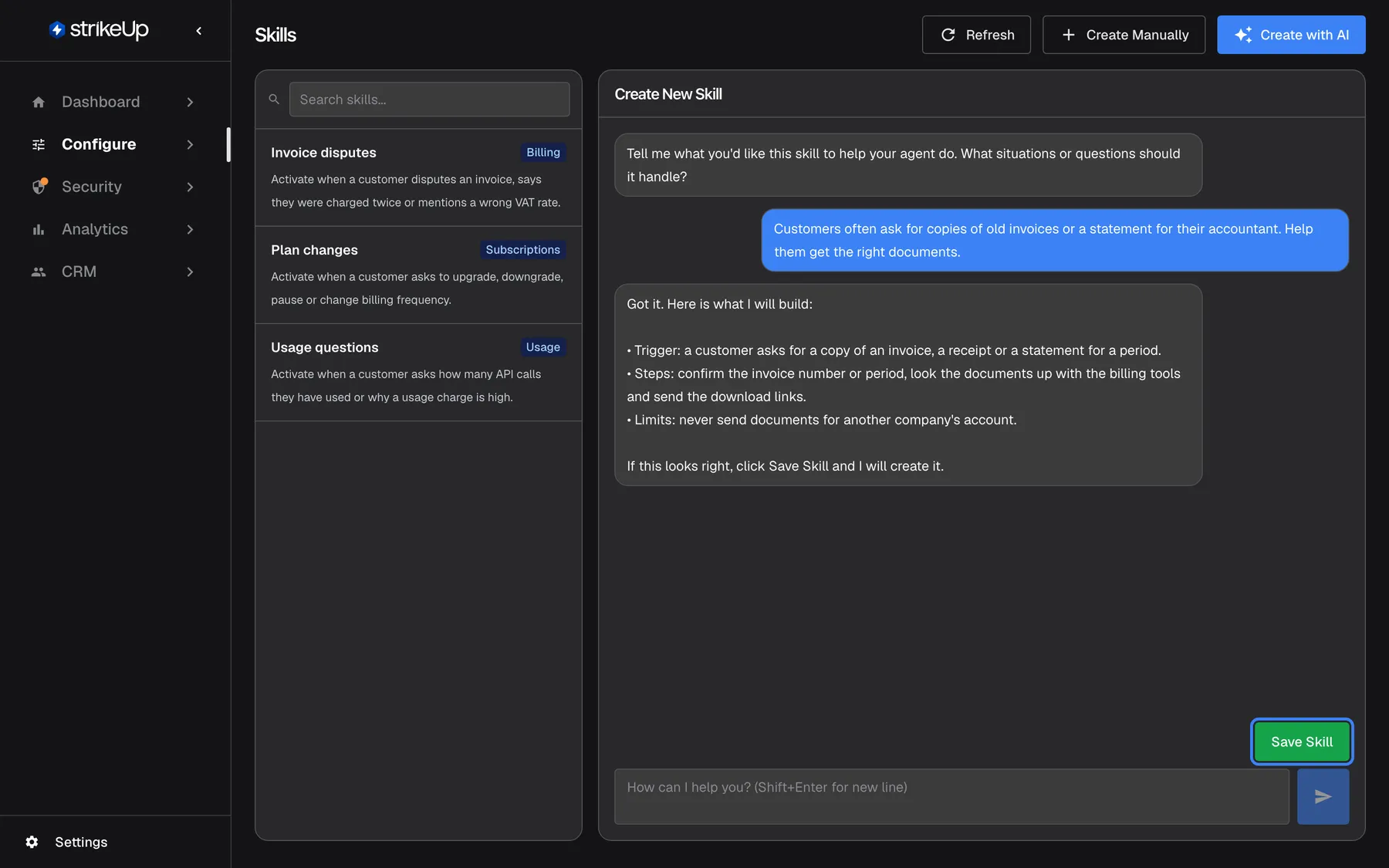
Describe the job in your own words; when the assistant is ready, Save Skill turns the conversation into a skill. What this screenshot shows
- Screen
- Create New Skill (/admin/skills)
- Highlighted
- button “Save Skill”, wizard-footer, shown after the assistant signals it is ready. compiles and creates the skill
- Also visible
- Hard-coded English greeting, the user's request and the assistant's summary
- Purpose
- creating a skill with AI
-
StrikeUp writes the skill from the whole conversation and opens it in the edit form, so you can check every field before you leave the page.
What happens next: the skill is saved and active for your workspace, but no widget uses it yet. Switch it on for a widget, as explained under Use a skill in a widget.
- If the assistant cannot answer, the panel shows Failed to get AI response. Send the message again.
- If the conversation could not be turned into a skill, the panel shows the reason, for example “Compiler output is missing required fields.” Add a little more detail to the conversation and select Save Skill again.
- If the AI does not come up with a name, the skill is saved as “New Skill”. Rename it in the edit form.
- The wizard runs on StrikeUp’s own models, so drafting and rewriting skills does not count towards your AI spend.
Create a skill by hand
Section titled “Create a skill by hand”Use the manual form when you already know the exact instructions, or when you are copying a skill from another workspace.
-
Select Create Manually at the top right. The panel shows Create Skill Manually.
-
Fill in Name, optionally Category, then Description.
-
Write the Trigger Context: one sentence that says when the skill applies, such as The customer asks for a copy of an invoice, a receipt or a statement.
-
Write the Agent Instructions: the steps the assistant should take. Numbered steps work well.
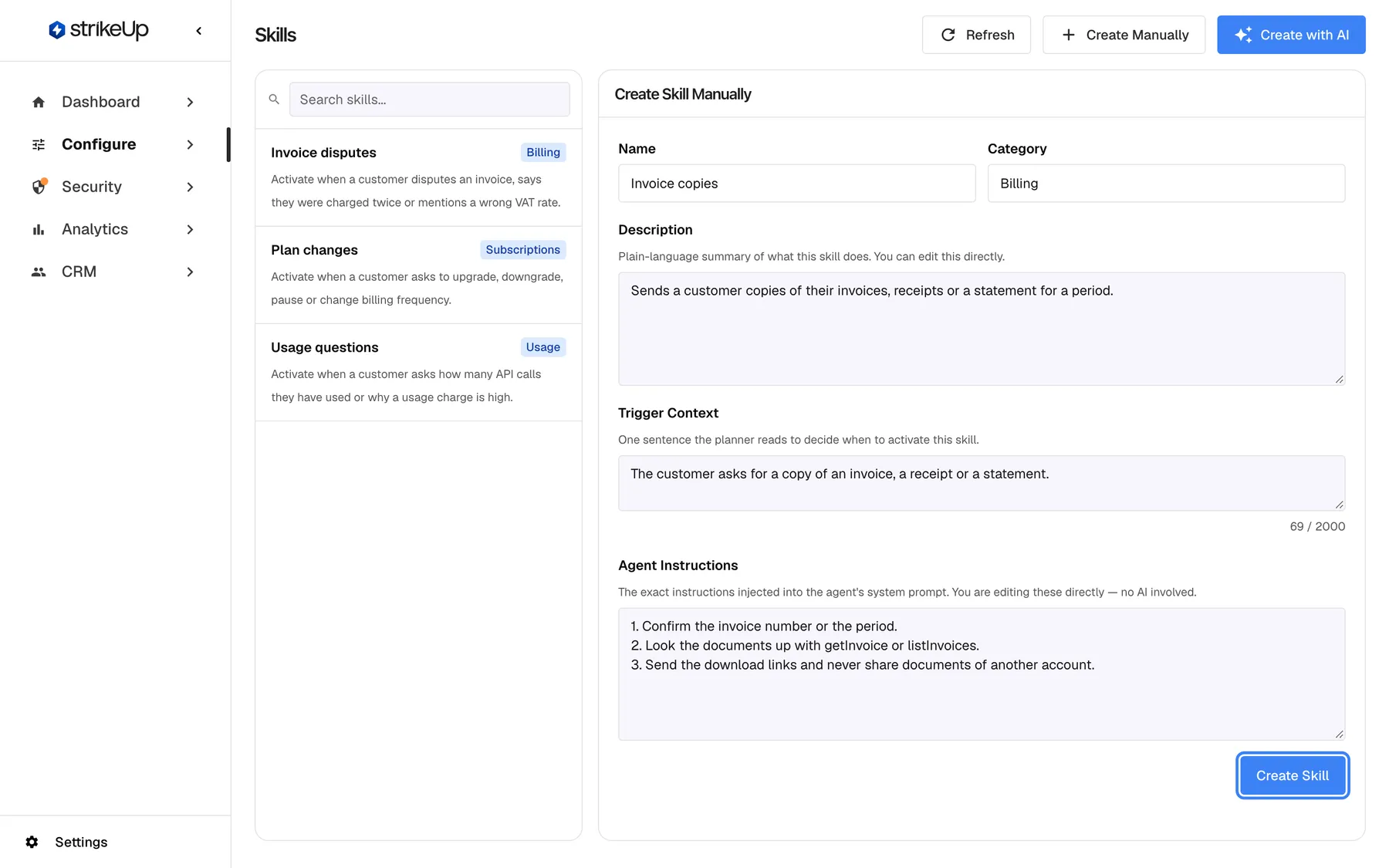
A manual skill needs a name, a description, a one-sentence trigger and the agent instructions. What this screenshot shows
- Screen
- Create Skill Manually (/admin/skills)
- Highlighted
- button “Create Skill”, form-footer, enabled. creates the skill
- Also visible
- Name: Invoice copies; Category: Billing; Trigger Context with n / 2000 counter
- Purpose
- creating a skill by hand
-
Select Create Skill. The skill appears in the list and opens for reading.
StrikeUp checks the fields in this order and shows the first problem under the form: Skill name is required, Description is required, Trigger context is required, Agent instructions are required. Spaces at the start and end of each field are removed before saving. No AI rewrites what you type; the only check is the content safety check described under What you need to know.
| Do | Don’t |
|---|---|
| Write the trigger as the situation the customer is in: “The customer disputes an invoice or says they were charged twice.” | Write the trigger as a title: “Invoices” |
| Keep one job per skill, so the planner can pick exactly what applies | Put billing, shipping and account questions into one skill |
| Name the tools in the instructions where order matters: “Look the invoice up with getInvoice before you answer.” | Repeat general tone rules in every skill; they belong in the widget’s instructions on AI & UX |
| Say what the assistant must not do: “Never promise a refund amount.” | Leave limits implicit |
Read a skill
Section titled “Read a skill”Select a skill in the list. The panel shows its Description, Trigger Context, Agent Instructions and Status, read-only, with Edit and Delete at the top.
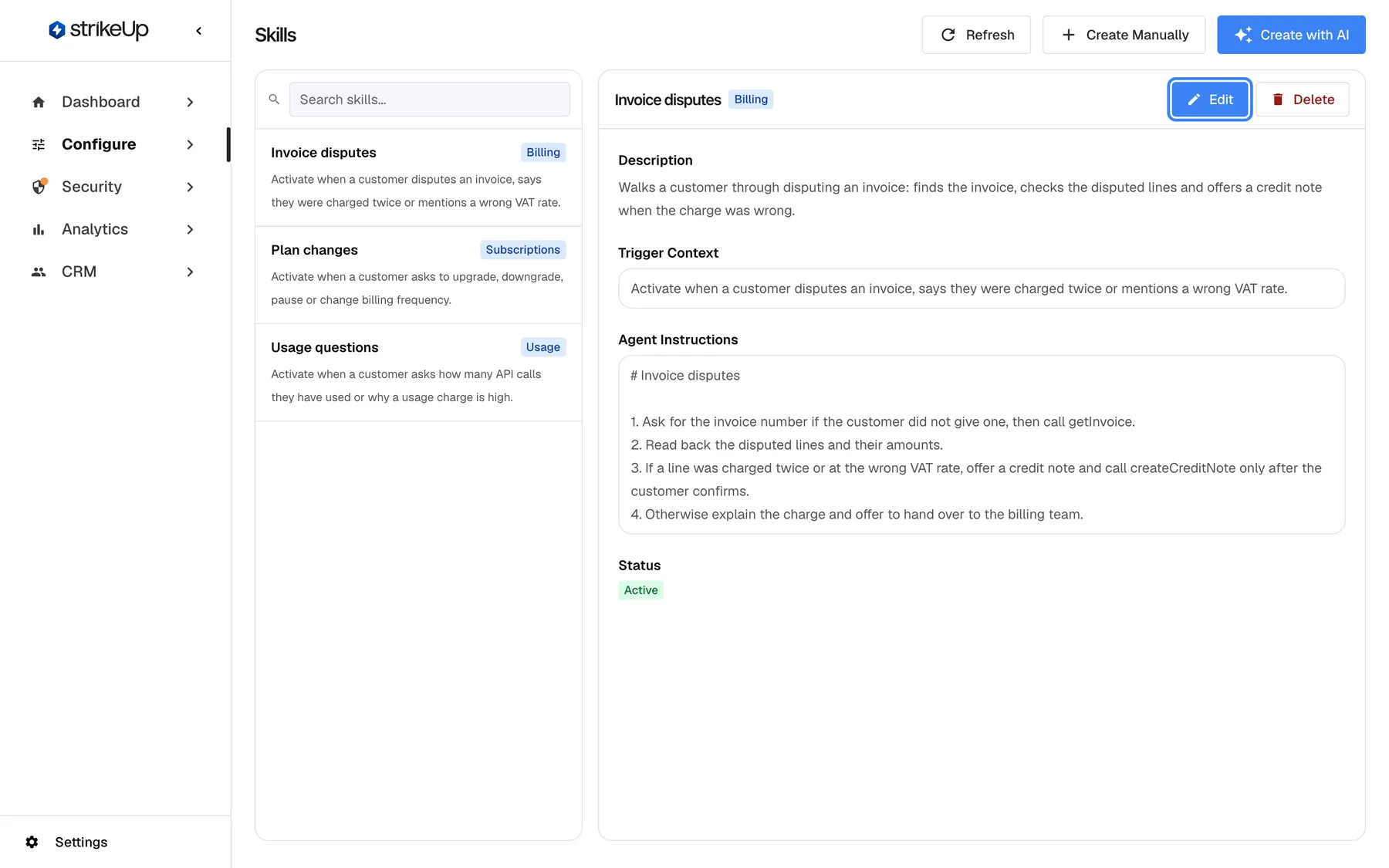
What this screenshot shows
- Screen
- Skills (/admin/skills)
- Highlighted
- button “Edit”, detail-panel-header, enabled. opens the edit panel
- Also visible
- Description, Trigger Context, Agent Instructions, Status Active
- Purpose
- reading a skill
The Agent Instructions shown here is exactly what the assistant receives when the skill is chosen. The status always reads Active on this page, because skills that are not active are not listed.
Edit a skill
Section titled “Edit a skill”-
Select the skill, then Edit. The edit form opens in AI Assistant mode.
-
Choose the Editing mode:
- Manual makes every field editable. What you type is saved as it is.
- AI Assistant keeps Trigger Context and Agent Instructions read-only. You change the Description or type a Change Request, such as Also handle requests to switch from monthly to yearly billing.
-
In AI Assistant mode, the notice AI will regenerate the skill based on your changes appears as soon as you change the description or type a change request.
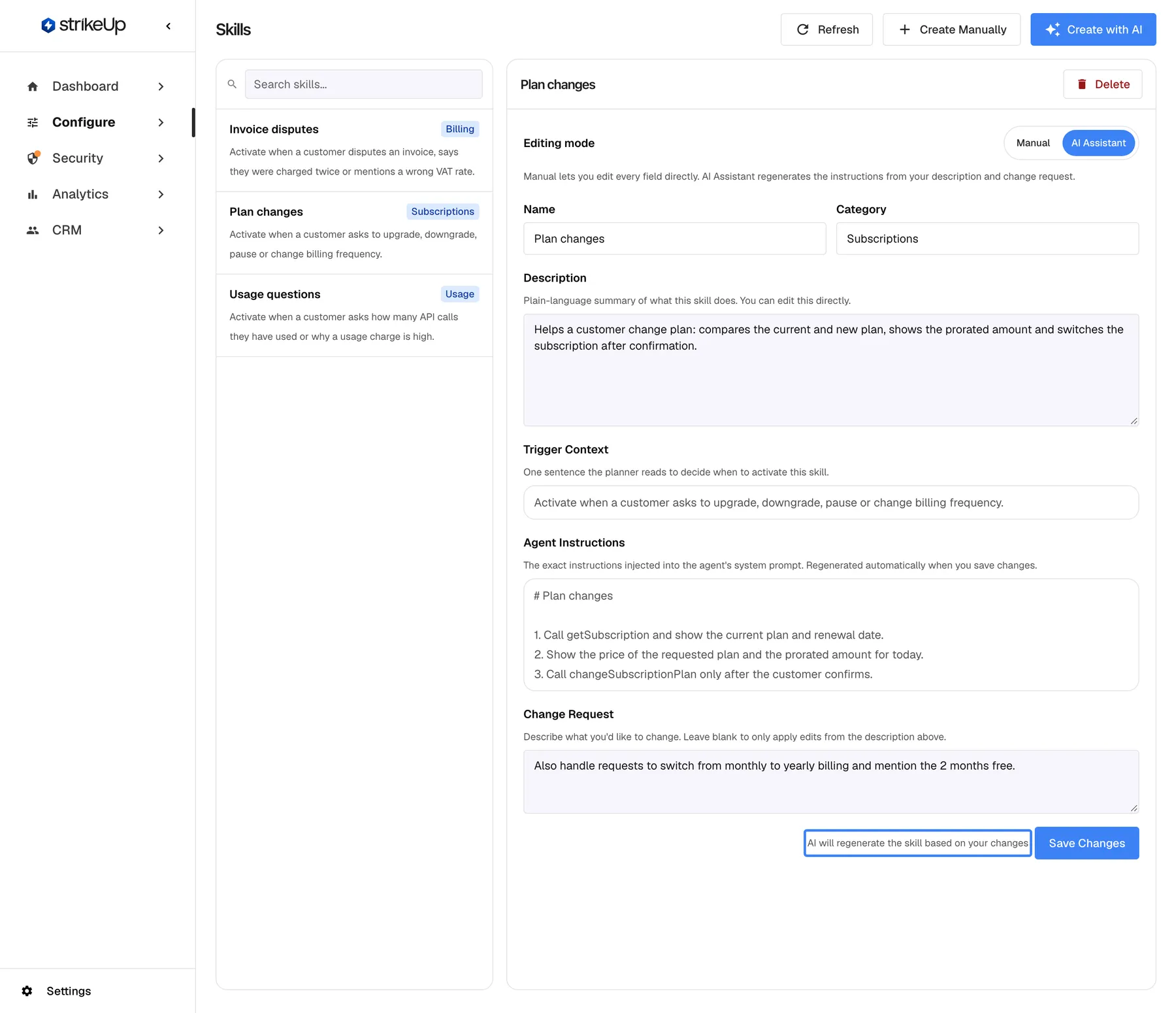
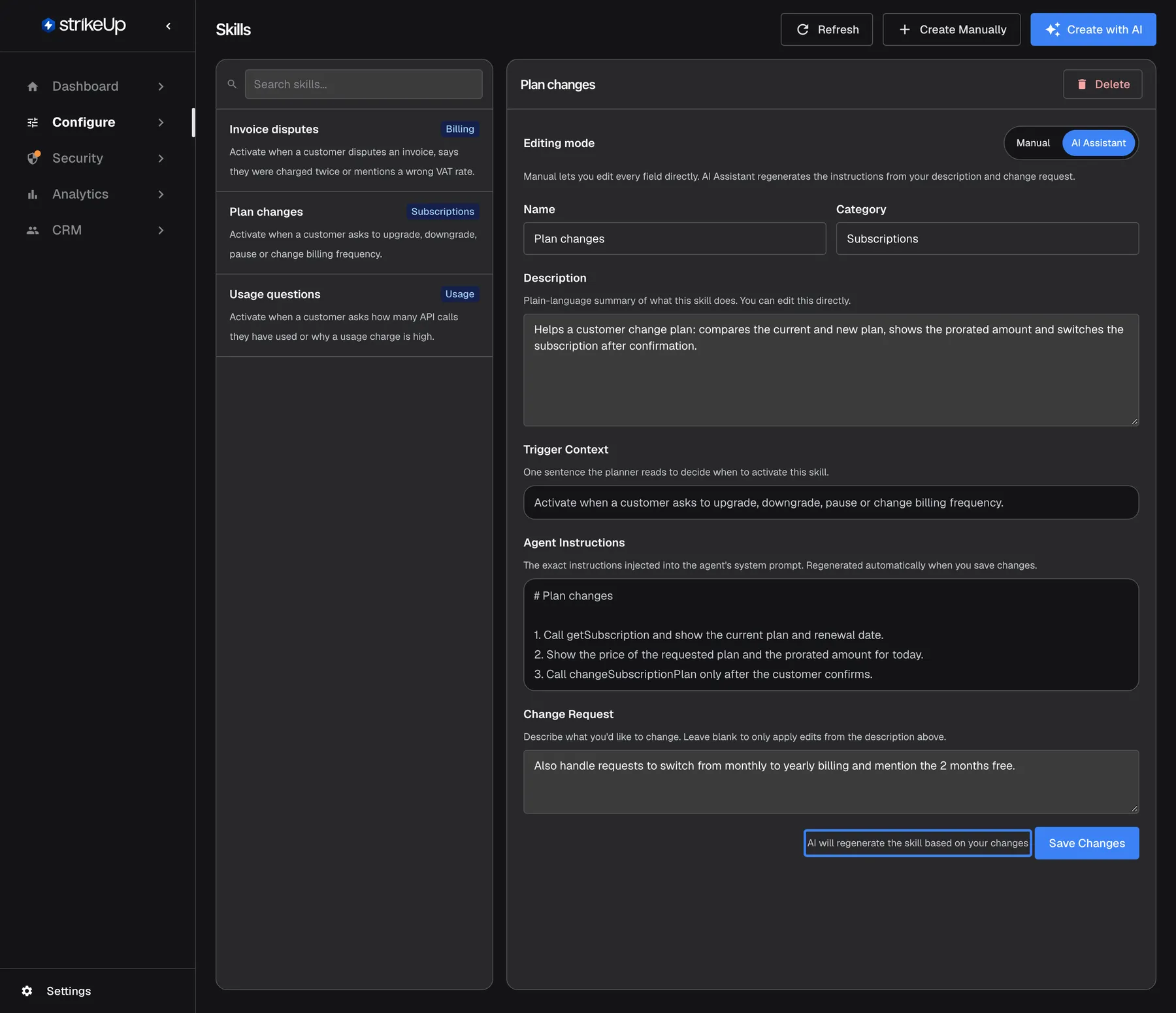
In AI Assistant mode, describe the change and the skill's trigger and instructions are rewritten when you save. What this screenshot shows
- Screen
- Editing mode (/admin/skills)
- Highlighted
- “”, edit-panel, shown because a change request was typed. none (notice)
- Also visible
- Editing mode: AI Assistant selected; Change Request filled
- Purpose
- changing a skill with AI
-
Select Save Changes.
In AI Assistant mode, saving with a changed description or a change request rewrites the trigger and instructions from your description and request. If you only changed the name or category, nothing is rewritten. There is no undo and no version history for edits made here, so copy the old instructions somewhere first if you may want them back.
Delete a skill
Section titled “Delete a skill”-
Select the skill, then Delete.
-
Read the popover Delete this skill? and confirm with Delete.
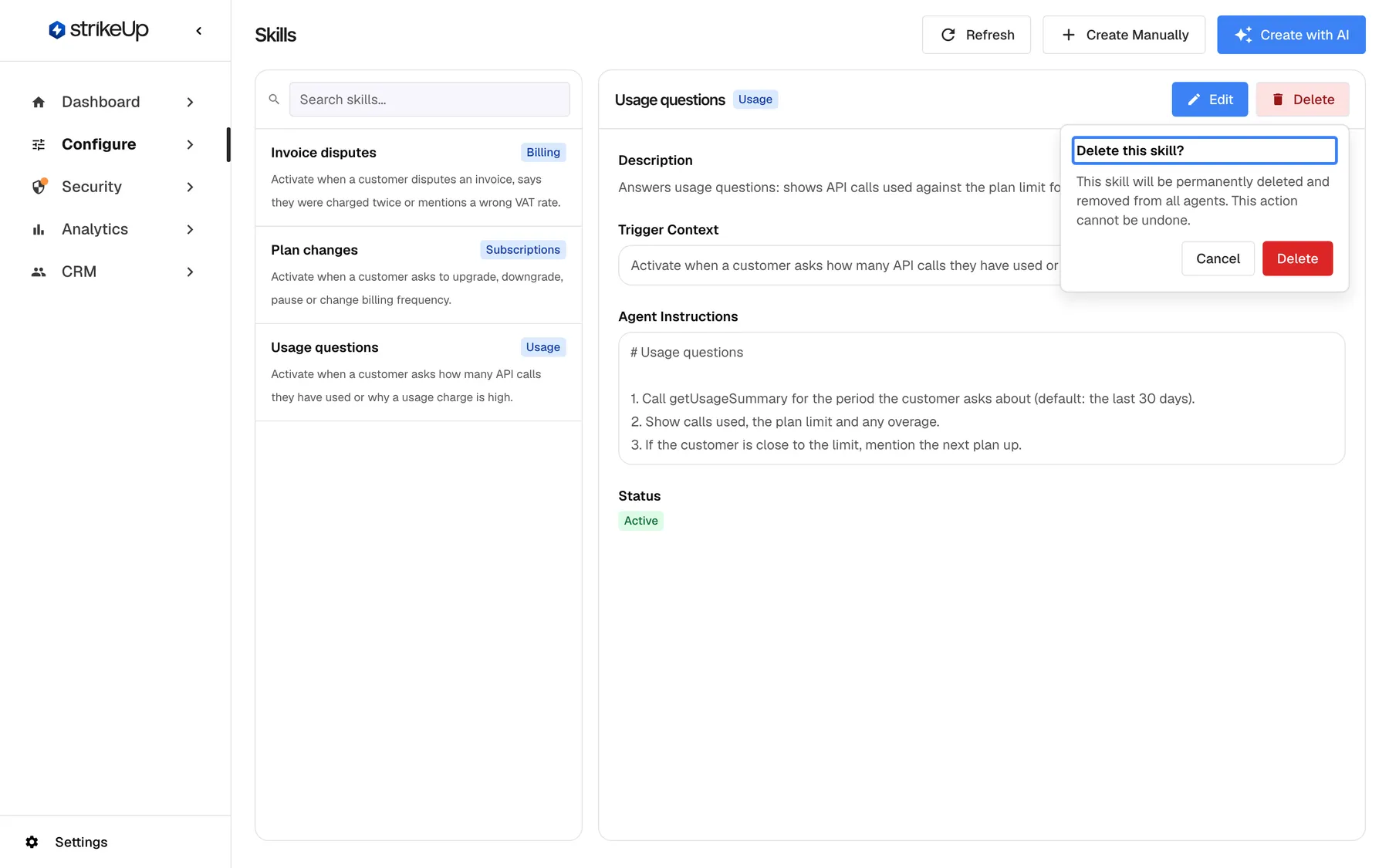
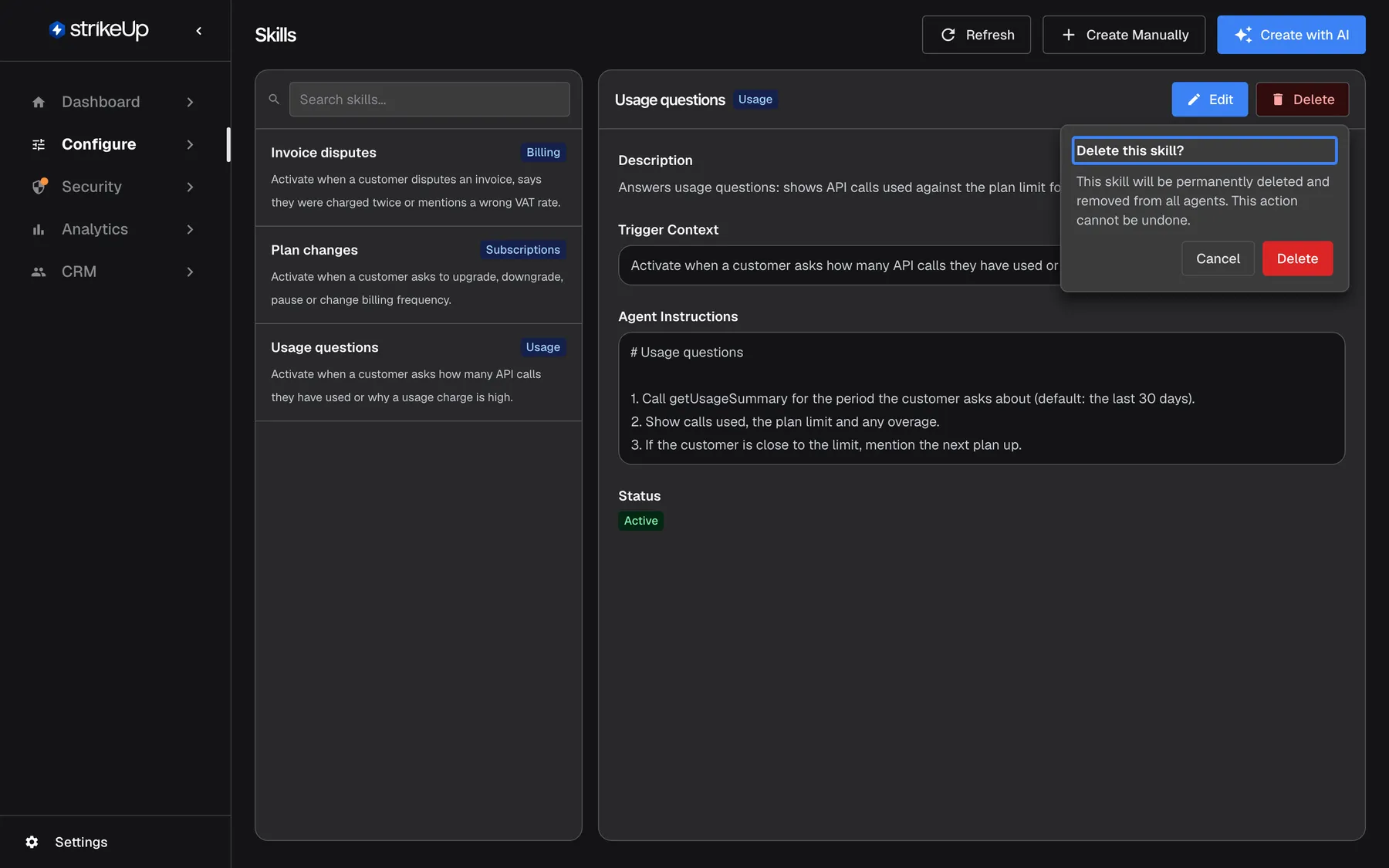
Deleting a skill is permanent and removes it from every widget that uses it. What this screenshot shows
- Screen
- Skills (/admin/skills)
- Highlighted
- “”, delete-popover, open. asks to confirm the deletion
- Also visible
- Cancel and Delete buttons
- Purpose
- removing a skill
Deletion is permanent. The skill disappears from this list and from every widget that had it switched on, from the next message. Skills that customer companies wrote for themselves are separate and stay. To stop a skill in one widget only, switch it off for that widget instead.
Use a skill in a widget
Section titled “Use a skill in a widget”A new skill is not used anywhere until you switch it on for a widget.
-
Open ConfigureAI & UX and pick the widget in the row of cards at the top.
-
Open the “Skills” section (“Enable skills available to all agents in this widget”). It lists every skill with its trigger sentence and a switch. The section is hidden while your workspace has no skills.
-
Turn the switch on for each skill this widget should use. Each switch saves the moment you change it.
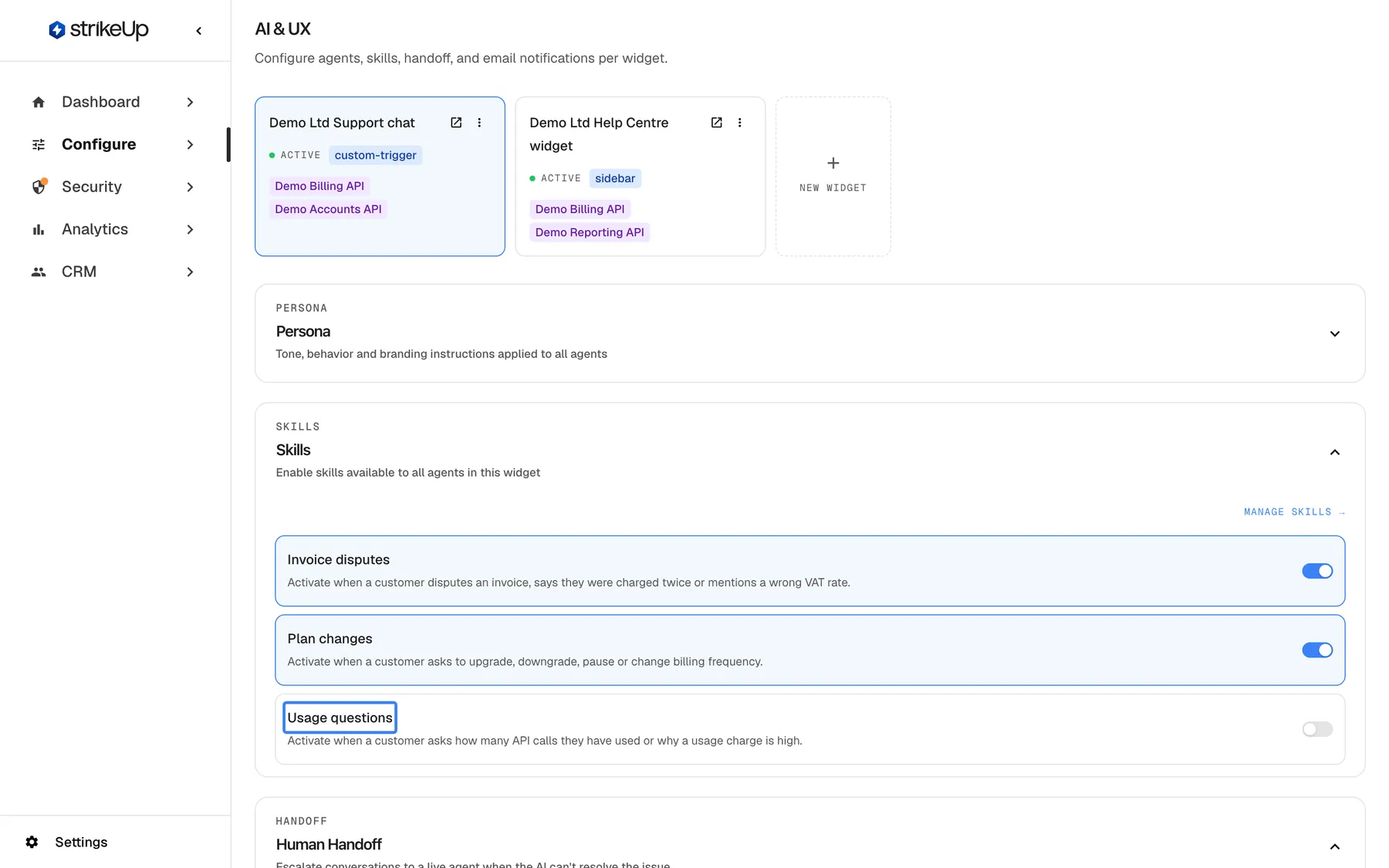
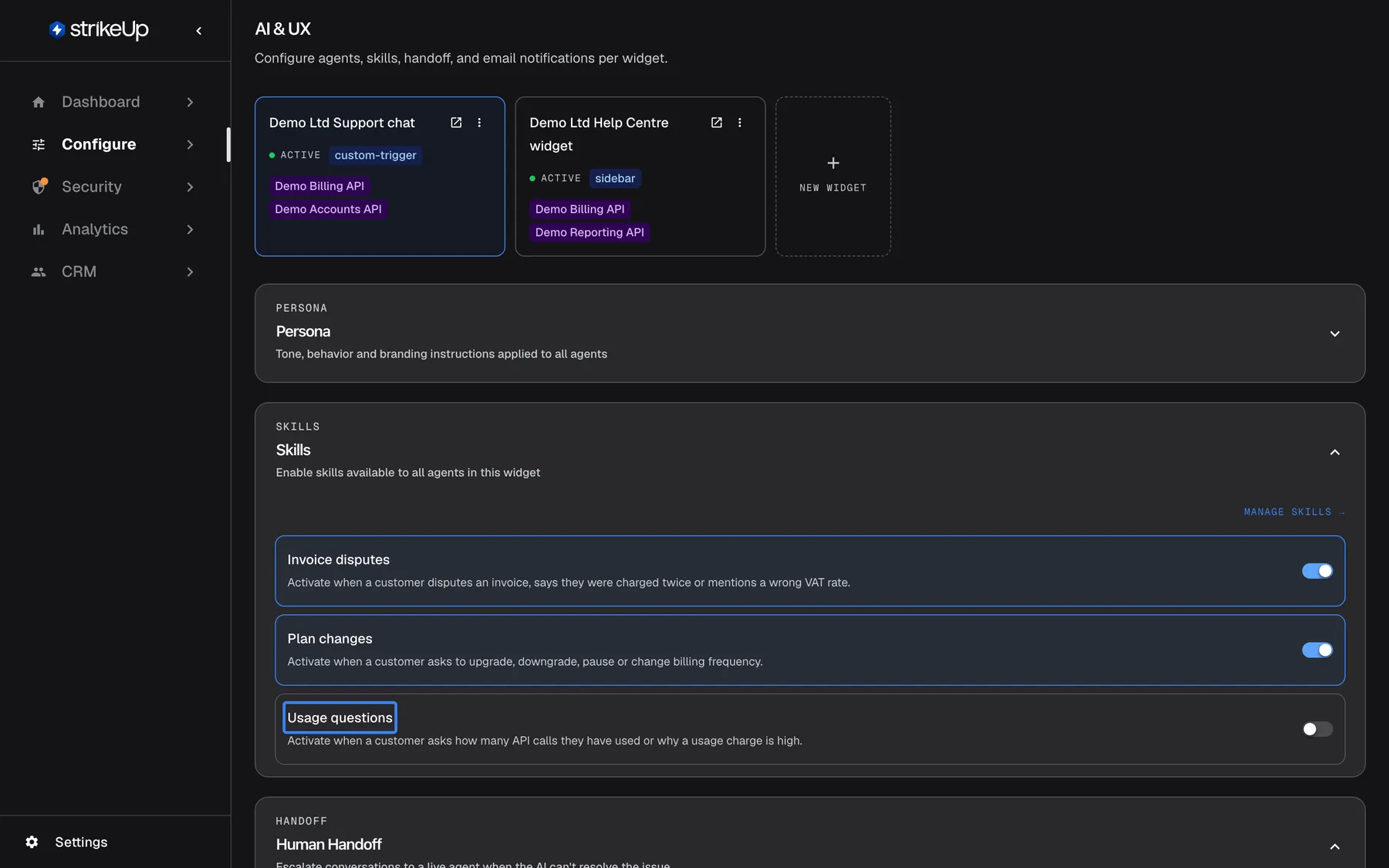
A skill only takes effect in widgets where it is switched on on the AI & UX page. What this screenshot shows
- Screen
- AI & UX (/admin/configure/agents)
- Highlighted
- “”, skills-section, switched off. none (switch saves immediately)
- Also visible
- Invoice disputes, Plan changes: on; Usage questions: off
- Purpose
- where a skill is switched on
“Manage Skills →” at the top of the section brings you back to this page. A newly switched-on skill is added after the widget’s other skills; that order decides the order in which several chosen skills are added to a reply. If switching fails, the section shows “Failed to update skill assignment”; try again.
Every control, explained
Section titled “Every control, explained”Create with AI
Section titled “Create with AI”Header, top right, the blue Create with AI button.
Opens Create New Skill, a chat with an assistant that asks questions and then drafts the skill. Each message sends the whole conversation so far. Save Skill appears only when the assistant signals that it has enough information.
Most people describe a job better in conversation than in a form, and the assistant writes a trigger sentence in the form the planner reads best.
Create Manually
Section titled “Create Manually”Header, top right, Create Manually, next to Create with AI.
Opens an empty form with the five fields described below. Create Skill saves it as typed, after the content safety check.
Full control over the exact wording, and the fastest way to copy a skill you have already written.
Skill fields
Section titled “Skill fields”| Field | Required | Limit | What it does |
|---|---|---|---|
| Name | Yes | 200 characters, with a counter | Shown in the list, on AI & UX and in usage reports. The planner sees it next to the trigger. |
| Category | No | 100 characters | A label for you. The assistant never reads it. Once set, it cannot be cleared to empty on this page; replace it with another word instead. |
| Description | Yes | None shown | A plain-language summary for people. In AI Assistant mode it is the basis of the rewrite. |
| Trigger Context | Yes | 2,000 characters; the counter turns orange at the limit | The one sentence the planner reads to decide whether the skill applies to a message. |
| Agent Instructions | Yes | None shown | The exact instructions added to the assistant’s instructions when the skill is chosen. |
Editing mode
Section titled “Editing mode”In the edit form, the Editing mode toggle with Manual and AI Assistant. The form opens in AI Assistant.
Manual: every field is editable and saved as typed, with the same required-field checks as the manual create form. AI Assistant: the trigger and instructions are read-only and are rewritten from the description and the Change Request when you save, unless both are unchanged.
Small wording fixes are safest by hand; larger changes in scope are easier to describe than to write.
Change Request
Section titled “Change Request”In AI Assistant mode, the box Change Request under the read-only instructions.
Free text describing what should change. Leave it blank to apply only your edits to the description. Typing anything shows AI will regenerate the skill based on your changes.
Lets you extend or narrow a skill without rewriting its instructions yourself.
Save Changes
Section titled “Save Changes”Bottom of the edit form, Save Changes.
Saves the skill. If saving fails, Failed to save skill appears under the form. The new version is used from the next visitor message.
One button for both modes, so you always know when the change takes effect.
Edit and Delete
Section titled “Edit and Delete”At the top of the panel when a skill is selected: Edit and Delete.
Edit opens the edit form. Delete opens the popover Delete this skill?; confirming deletes the skill permanently and removes it from every widget.
Deleting affects every widget at once, so it asks first.
Status
Section titled “Status”The last line of a skill’s read-only details, Status.
Shows Active. There is no switch here: skills that are not active are hidden from the list and never used.
To pause a skill, switch it off for the widgets that use it on AI & UX.
What you need to know
Section titled “What you need to know”| Topic | Fact |
|---|---|
| Scope | Skills belong to your whole workspace. Each widget chooses which of them it uses. |
| Who can change skills | Users with the Admin role. Everyone else can read skills; their creates, edits and deletes fail with “This action requires the Admin role.” |
| Limits | No limit on the number of skills, or on how many one widget uses. Name 200, category 100, trigger 2,000 characters. |
| Content safety check | The trigger and the instructions are checked for unsafe content, such as text that tells the assistant to ignore its previous instructions or to switch off guardrails, whenever they are new or changed. A rejected skill is not saved: the form shows Failed to save skill, and a Request failed notice names the field and the reason. |
| When changes apply | From the next visitor message, in every conversation. |
| History | Edits made here keep no earlier version. |
| Deletion | Permanent; removes the skill from every widget. |
| Cost | Drafting and rewriting with AI runs on StrikeUp’s own models and does not count towards your AI spend. A chosen skill adds its instructions to that answer, so long instructions make answers that use them slightly more expensive. |
| Where you see usage | The dashboard’s skill usage shows which skills were used, from the assistant’s records of each answer. |
| Language | Skills are stored exactly as written. Write them in the language your instructions should be in; the wizard’s first question is always in English. |
Frequently asked questions
Section titled “Frequently asked questions”Using skills
Section titled “Using skills”Why does the assistant never use my new skill?
Section titled “Why does the assistant never use my new skill?”A skill is only used in widgets where it is switched on. Open ConfigureAI & UX, pick the widget and turn the skill’s switch on in the “Skills” section. If it is on, check the Trigger Context: the planner picks a skill only when the visitor’s message matches that sentence.
Can several skills apply to the same answer?
Section titled “Can several skills apply to the same answer?”Yes. For each visitor message the planner picks every switched-on skill whose trigger plausibly matches, and adds all of their instructions to that answer, in the order the skills are assigned to the widget. There is no limit on how many skills are chosen.
How many skills can a widget use?
Section titled “How many skills can a widget use?”There is no limit on the number of skills in your workspace or on how many one widget has switched on. Only the skills whose Trigger Context matches a message are added to that answer, so a long list does not make every answer longer.
Does the category change how the assistant uses a skill?
Section titled “Does the category change how the assistant uses a skill?”No. The Category field is a label for you and your team. The assistant decides from the skill’s name and Trigger Context only, and never reads the category.
Which steps of a multi-step answer get the skill?
Section titled “Which steps of a multi-step answer get the skill?”When the assistant splits a reply into several steps, each step gets the skills whose Trigger Context shares significant words with that step’s task. Write the trigger with the words a task about that subject would contain, such as “invoice” or “refund”.
Creating and editing
Section titled “Creating and editing”Is AI involved when I create a skill manually?
Section titled “Is AI involved when I create a skill manually?”No AI writes or changes anything in a manually created skill. StrikeUp only runs its content safety check over the trigger and instructions before saving. The skill is stored exactly as you typed it, apart from spaces at the start and end of each field.
What happens to my skill when I save in AI Assistant mode?
Section titled “What happens to my skill when I save in AI Assistant mode?”When you changed the Description or typed a Change Request, saving rewrites the Trigger Context and Agent Instructions from them. If you changed only the name or the category, nothing is rewritten. Switch the Editing mode to Manual to edit the instructions word for word.
Can I get an older version of a skill back?
Section titled “Can I get an older version of a skill back?”Not on the Skills page. Edits made there keep no earlier version, so copy the instructions somewhere before a larger change.
Can I clear a skill’s category?
Section titled “Can I clear a skill’s category?”Not to an empty value. Once a Category is set, saving the field empty keeps the old category. Replace it with another word, such as the team that owns the skill.
What are the field limits?
Section titled “What are the field limits?”Name up to 200 characters, Category up to 100 and Trigger Context up to 2,000; the trigger’s counter turns orange at the limit. Description and Agent Instructions have no limit shown in the form.
Do changes affect conversations that are already open?
Section titled “Do changes affect conversations that are already open?”Yes, from the next message. The assistant loads the switched-on skills fresh for every visitor message, so an edited, deleted or newly switched-on skill applies to the next answer in every open conversation.
Switching skills on and off
Section titled “Switching skills on and off”Can I switch a skill off without deleting it?
Section titled “Can I switch a skill off without deleting it?”Yes, per widget. Open ConfigureAI & UX, pick the widget and turn the skill’s switch off in the “Skills” section. The skill stays on the Skills page and can be switched on again at any time. There is no workspace-wide off switch.
Does deleting a skill remove it from my widgets?
Section titled “Does deleting a skill remove it from my widgets?”Yes. Deleting from the Skills page is permanent and removes the skill from every widget that had it switched on, from the next message. Skills that your customer companies wrote for themselves are separate and are not affected.
Why is there no Skills section for my widget?
Section titled “Why is there no Skills section for my widget?”The “Skills” section on ConfigureAI & UX is hidden while your workspace has no skills. Create a skill on the Skills page first, then reload the page with the widget settings.
Cost and data
Section titled “Cost and data”Does creating skills with AI cost anything?
Section titled “Does creating skills with AI cost anything?”Drafting a skill with Create with AI and rewriting it in AI Assistant mode run on StrikeUp’s own models and do not count towards your AI spend. A skill that is chosen for a reply adds its instructions to that answer, which adds a few tokens to its cost.
Where can I see which skills were used?
Section titled “Where can I see which skills were used?”The dashboard’s skill usage lists the skills the assistant used, from its records of each answer. The summary of each chat session also lists the skills that were used in it.
Troubleshooting
Section titled “Troubleshooting”| Symptom | What to check |
|---|---|
| A skill is never used | Is it switched on for the widget under ConfigureAI & UX? Does the Trigger Context describe the situation the visitor is in, in the words a visitor would use? |
| Failed to save skill when saving | Read the Request failed notice that appears at the same time; it names the field and the reason. Check the trigger and instructions for text that tries to change the assistant’s rules or role; the content safety check rejects it. Rephrase and save again. If it keeps failing, reload the page and retry. |
| Failed to get AI response in the AI chat | The assistant did not answer. Send the message again. If it persists, try Create Manually. |
| Save Skill never appears | The assistant still has questions. Answer them, or say that it has everything it needs. |
| Skill name is required, Trigger context is required or a similar message | Fill in the named field. Only Category is optional. |
| Failed to load skills instead of the list | Reload the page. If you were signed out, sign in again. |
| A skill disappeared from the list | It was deleted, or it was set to inactive outside this page. Deleted skills cannot be restored. |
| A skill applies to the wrong questions | Narrow its Trigger Context. The planner includes a skill whenever the trigger plausibly matches, so a broad trigger matches often. |
| A change fails with Request failed and “This action requires the Admin role.” | Changes on this page need the Admin role. Ask an Admin to make the change, or to give you the Admin role under Settings › Users. |
Related
Section titled “Related”- AI & UX: switch skills on per widget
- Suggestions: suggested new skills and amendments
- The company’s skills: skills written by your customer companies
- Toolkits