

Configure
The Configure section is where you build the assistant your customers talk to. You import your product’s API so the assistant can act in it, decide which of its endpoints the assistant may call and with whose credentials, shape what the assistant says and how the chat widget looks, and finally copy the code that puts the widget into your product. What a visitor experiences in the chat is decided on these screens.
The section has thirteen screens in the sidebar, plus a log screen you open from a toolkit. Some screens apply to your whole workspace, such as toolkits, skills and shortcuts. Others edit one chat widget at a time: you pick the widget from a row of cards at the top, and the choice follows you between those screens. Open the section from Configure in the sidebar; it is collapsed until you select it.
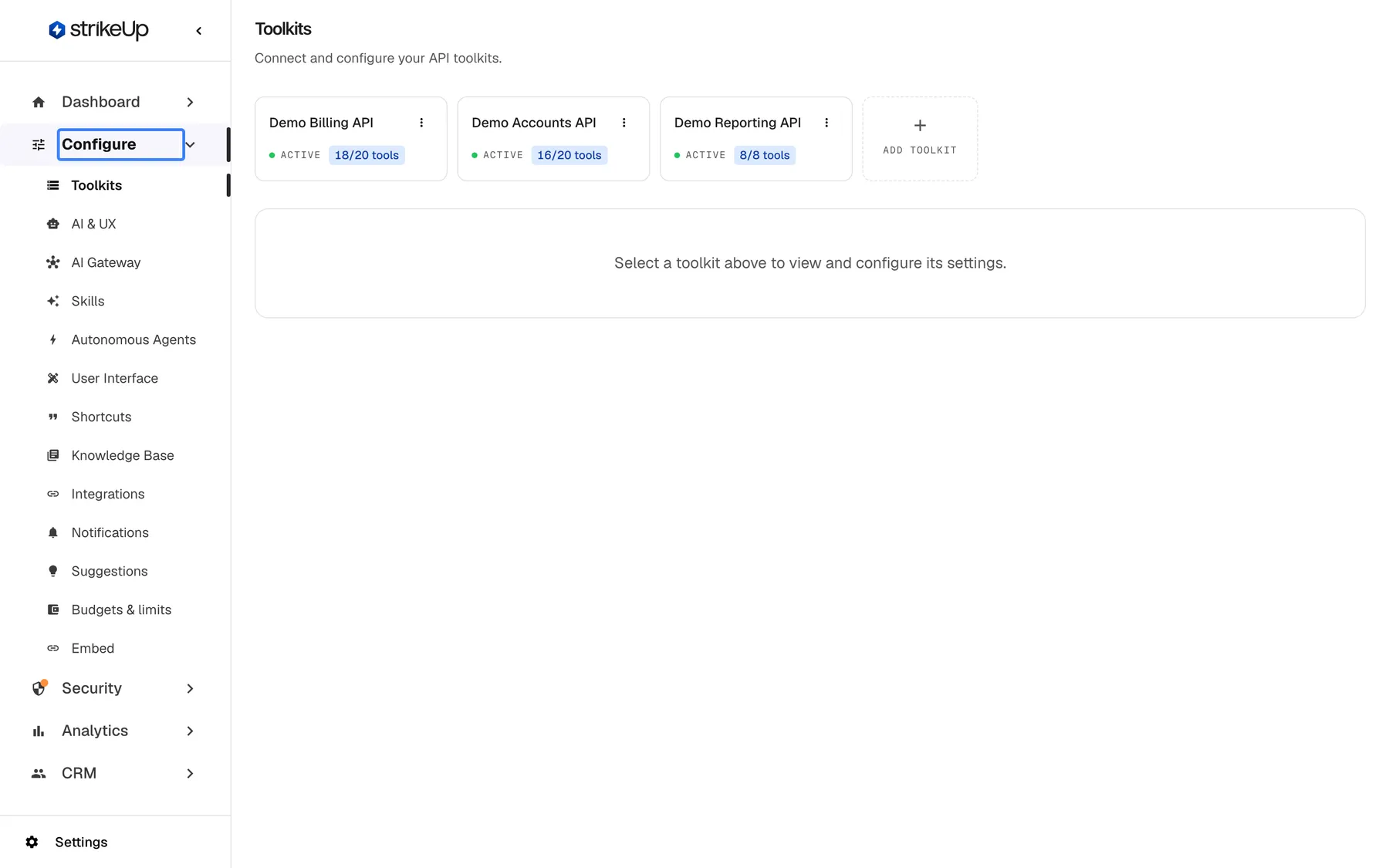
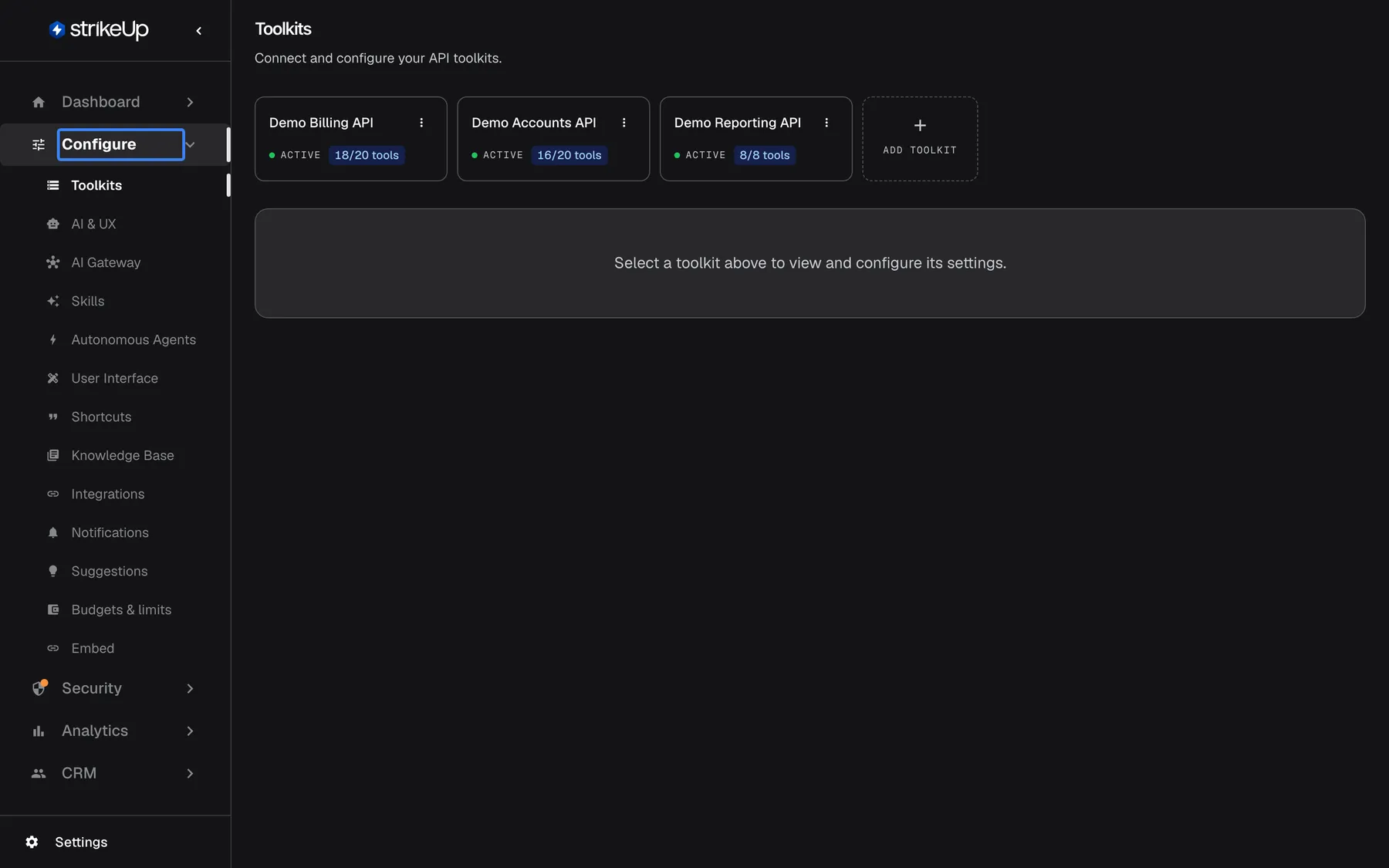
What this screenshot shows
- Screen
- Toolkits (/admin/servers)
- Highlighted
- link “Configure”, sidebar, expanded. shows or hides the Configure menu items
- Also visible
- Configure items: Toolkits, AI & UX, AI Gateway, Skills, Autonomous Agents, User Interface, Shortcuts, Knowledge Base, Integrations, Notifications, Suggestions, Budgets & limits, Embed; Toolkits page with three toolkit cards
- Purpose
- orientation for the Configure section
Pages in this section
Section titled “Pages in this section”The screens appear here in the order of the sidebar.
| Screen | What you set up there | Scope |
|---|---|---|
| Toolkits | Import an API from its Swagger, OpenAPI or Readme.io specification, switch its tools on, set their risk and approval flags, and configure how calls are authorised | Your workspace |
| Authorization Logs | Read every automatic token request a toolkit made, with its result. Opened from a toolkit, not from the sidebar | One toolkit |
| AI & UX | The assistant’s tone and behaviour instructions, which skills it may use, human handoff and AI email notifications | One widget |
| AI Gateway › Connectors | Connect your own AI provider keys | Your workspace |
| AI Gateway › Advanced Mode | Pick the model, and backup models, for each stage of the assistant | Your workspace |
| AI Gateway › Standard Mode | Pick models by how hard a question is, instead of stage by stage | Your workspace |
| AI Gateway › Current setup | See which model and key each stage really uses, and what changed | Your workspace |
| Skills | Write reusable instructions the assistant follows for a kind of request | Your workspace; switched on per widget |
| Autonomous Agents › Agents | Agents that run on their own when your systems call a webhook | Your workspace |
| Autonomous Agents › Access tokens | The tokens your systems use to start those agents | Your workspace |
| User Interface | The widget’s display type, size, colours and fonts, the customer portal, end-customer sign-in, the welcome screen’s shortcut cards and the pages the widget appears on | One widget |
| Shortcuts | Ready-made prompts visitors insert in the chat by typing ”/” | Every widget in your workspace |
| Knowledge Base | Documents and web pages the assistant can answer from | Your workspace; chosen per widget |
| Integrations | Connect a helpdesk so a chat can be handed to a person | Your workspace |
| Notifications | Email, Telegram, Slack and Teams channels for assistant emails and job notifications; see also Job notifications and chat apps | Your workspace; email linked per widget |
| Suggestions | Review what StrikeUp proposes from past chats: shortcuts, skills, tool changes and masking rules | Your workspace |
| Budgets & limits | Spending limits and alerts for the cost of AI models | Your workspace |
| Embed | The widget’s name, toolkits and knowledge, the embed code and the JavaScript snippets for your product | One widget |
Three guides follow one feature across several of these screens:
| Guide | What it covers |
|---|---|
| Human handoff | How a helpdesk connection and a widget’s handoff settings decide when a chat goes to a person |
| AI models, spend and budgets | How model choice, budget limits and the spend dashboard work together |
| The end-to-end guide to autonomous agents | Setting up an agent, starting it from your systems and reviewing its runs |
What you can do here
Section titled “What you can do here”- Let the assistant act in your product. Import your API once as a toolkit, and every endpoint becomes a tool the assistant can call. Tools start switched off, so nothing is callable until you choose. Toolkits.
- Decide whose credentials a call uses. Each toolkit has its own authorisation: none, a key or token header, a user name and password, or a token your own endpoint issues. Calls that need a visitor’s credentials ask the visitor for them in the chat. Toolkits · Let the assistant call your API as the user.
- Shape what the assistant says. Give a widget a tone of voice and behaviour instructions, switch skills on for it, and add knowledge it can answer from. AI & UX · Skills · Knowledge Base.
- Make the widget look like your product. Choose how it opens, its colours and fonts, whether visitors must sign in, and on which pages it appears. User Interface.
- Put the widget into your product. Copy the embed code for a widget, pass in who the visitor is, and open the widget from your own buttons. Embed · Install the widget in your product.
- Control models and cost. Choose the AI models, bring your own provider keys and set spending limits. AI models, spend and budgets.
- Improve the assistant from real chats. Review suggested shortcuts, skills and tool changes drawn from what visitors kept asking. Suggestions.
New to StrikeUp? The guide From sign-up to an assistant in your product walks through these screens in order, from the first toolkit to an embedded widget.
Concepts to know
Section titled “Concepts to know”Toolkits and tools
Section titled “Toolkits and tools”A toolkit is one API you imported, from the address of its Swagger, OpenAPI or Readme.io specification. A tool is one endpoint of that API, such as “list invoices” or “update a contact”. The assistant only ever calls tools that are switched on, and it asks the visitor to approve a tool marked as needing approval before calling it. A tool’s risk level (low, medium or high) is set when the toolkit is imported and you can change it.
Widgets
Section titled “Widgets”A widget is one chat assistant you embed in your product. Each widget has its own toolkits (at least 1 and at most 5), knowledge, persona, skills, look and embed code, so you can run several assistants for different products or audiences. Three screens edit one widget at a time: AI & UX, User Interface and Embed. Each opens with a row of widget cards; the selected card is the widget you are editing, and it stays selected when you move between those three screens. The dashed “New widget” card on any of them creates a widget.
Visitors and customers
Section titled “Visitors and customers”A visitor who chats in your widget is a customer in StrikeUp. Your embed code tells the widget who the visitor is, and the customer records live under CRM. Credentials a visitor enters for a toolkit are kept for that customer, so they are asked only once. How to pass a visitor’s identity is in Identify users and pass context.
Suggestions
Section titled “Suggestions”StrikeUp reads past chats and proposes improvements: shortcuts for questions visitors keep asking, skills, tool changes, and masking rules for sensitive fields found in your toolkits. Two banners at the top of the admin app tell you when new ones arrive. Each banner can be closed with Dismiss, which hides it for you only. The masking banner comes back when an imported toolkit produces new masking suggestions. Nothing changes until you accept a suggestion on ConfigureSuggestions.
Availability
Section titled “Availability”Every signed-in user of your workspace can open the Configure screens and read what is on them. Making changes needs the Admin role: Users and Guests still see the buttons, but a save, test or delete they try is refused with “This action requires the Admin role.” Two actions work for every role: testing which passages a question finds on Knowledge Base, and closing a suggestions banner with Dismiss. Authorization Logs needs the Admin role even to read, and on Toolkits only Admins see stored secrets. Roles are given under Settings › Users.
Three screens appear only when their feature is switched on for your workspace:
| Screen | Shown when |
|---|---|
| AI Gateway | The AI Gateway feature is on |
| Knowledge Base | The knowledge base feature is on |
| Integrations | The helpdesk integrations feature is on. The human handoff settings on AI & UX follow the same feature |
When a feature is off, its screen is missing from the sidebar, and opening its address directly takes you to the Dashboard. Your end customers never see any Configure screen; they see only the result in the widget.