

AI Gateway: current setup
The Current setup tab answers the question “which model is actually answering?” It lists every stage of your assistant with the model it resolves to right now, the connector it runs through and which setting decided it, so you can see at a glance why a change you made elsewhere does or does not take effect. Below the table, a history lists the latest changes to your gateway settings, with who made them. The tab is read-only. Open it from ConfigureAI Gateway and select Current setup. The page is available once StrikeUp has switched the AI Gateway feature on for your workspace.
What you can do here
Section titled “What you can do here”- See the model behind every stage. One row per stage, yours and StrikeUp’s, with the model, provider and connector it uses now. Read the stage table.
- Find out why a stage uses that model. The Decided by badge names the setting that won, and its tooltip explains it. Understand which setting decided.
- See who changed the gateway, and when. The latest 50 changes to connectors, pins and levels, without any keys. Read the change history.
- Check a change took effect. Use the refresh button after saving on another tab. Check a change you made · AI models, spend and budgets.
The screen at a glance
Section titled “The screen at a glance”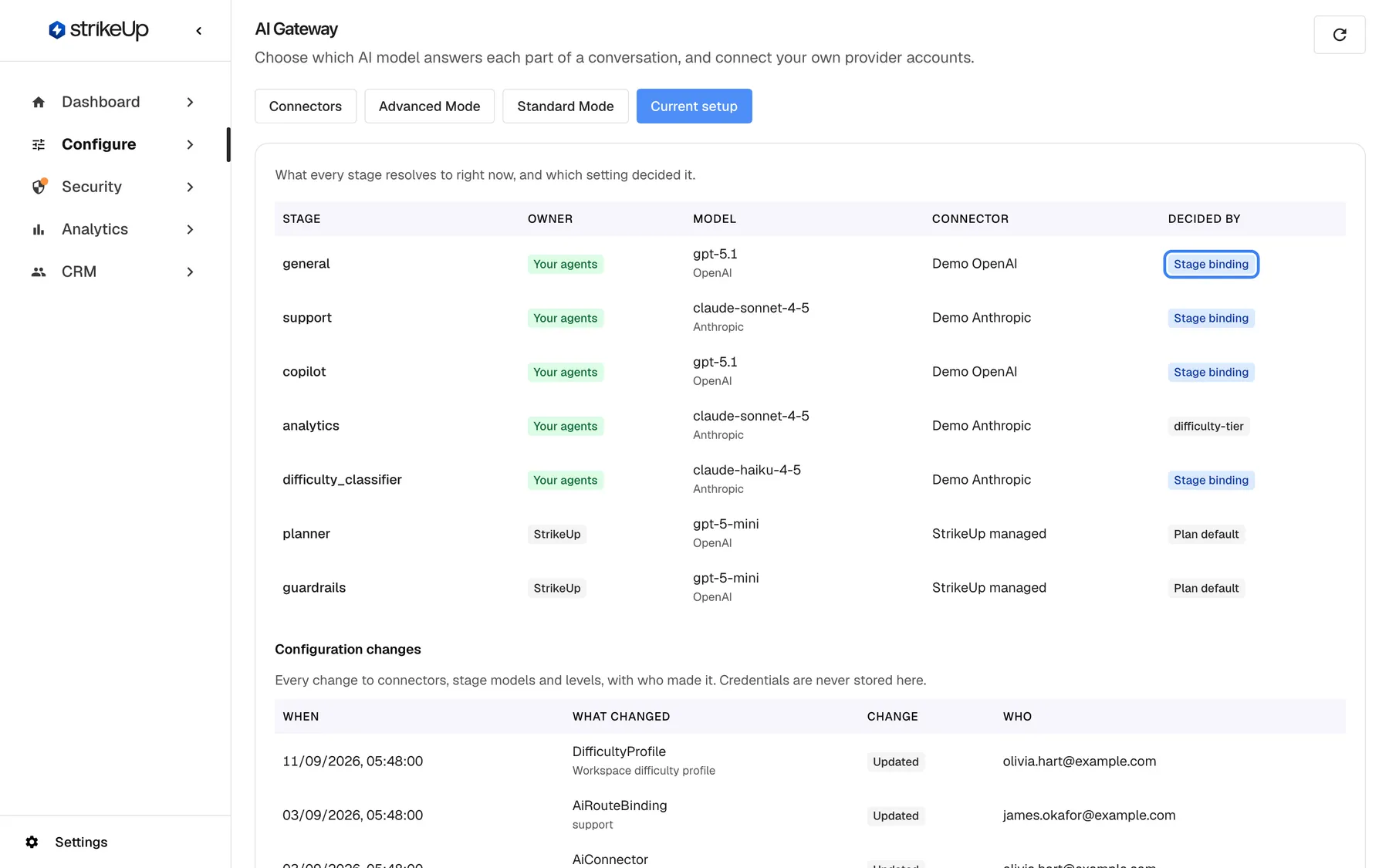
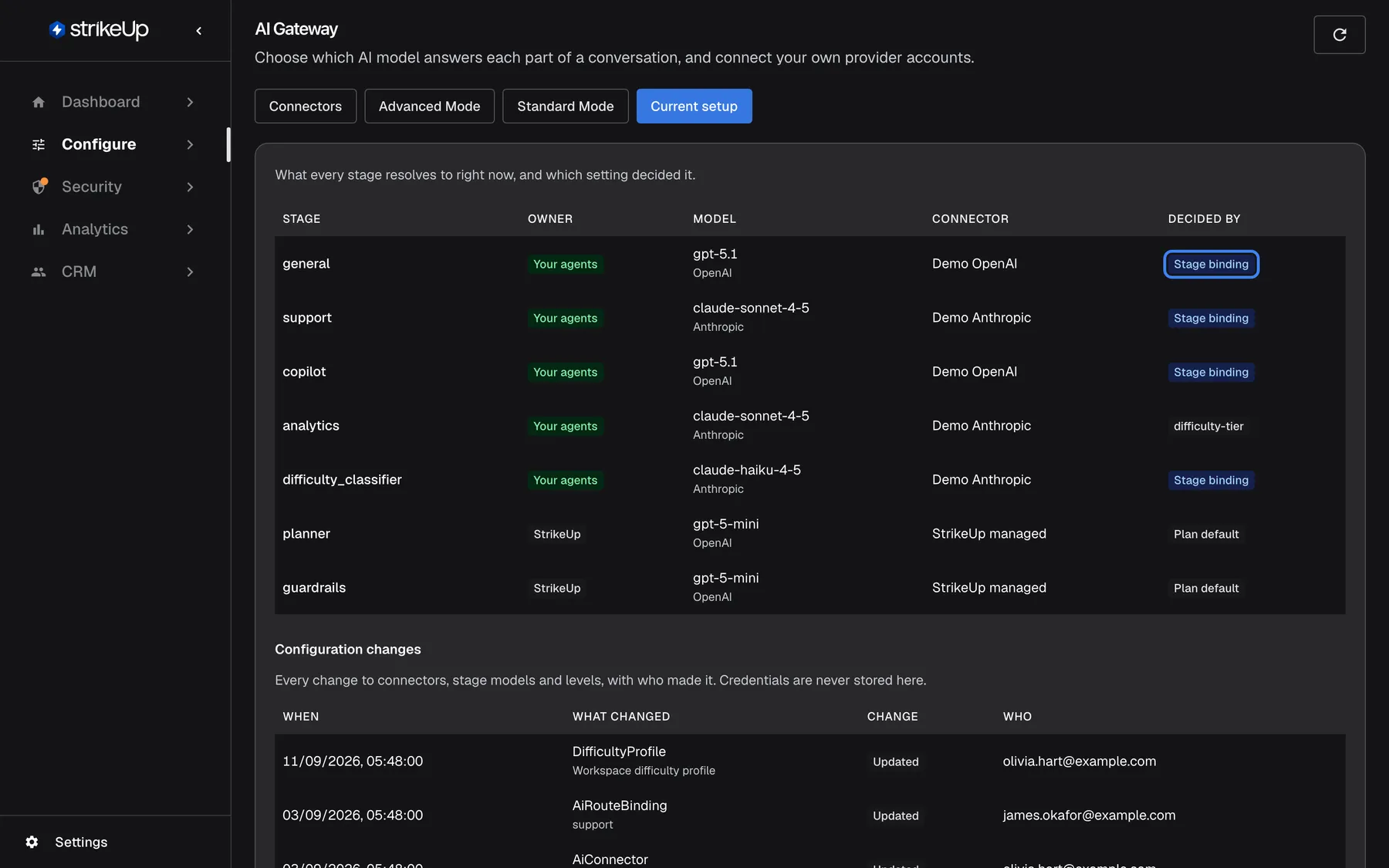
What this screenshot shows
- Screen
- Current setup (/admin/configure/ai-gateway)
- Highlighted
- “”, decided-by-column, shown for general. none (explains the decision)
- Also visible
- Owner badges: Your agents / StrikeUp; Decided by: Stage binding, difficulty-tier (analytics), Plan default
- Purpose
- checking what is in effect right now
| Region | What it shows | What you do there |
|---|---|---|
| Intro | What every stage resolves to right now, and which setting decided it. | — |
| Stage table | Stage, Owner, Model, Connector, Decided by | Read; hover a badge for the explanation |
| Configuration changes | Every change to connectors, stage models and levels, with who made it. Credentials are never stored here. | Read who changed what |
When there is nothing to resolve yet, the table shows Nothing to show yet.
Read the stage table
Section titled “Read the stage table”| Column | What it shows |
|---|---|
| Stage | The stage’s internal name, such as general, support, planner or guardrails, in every language. Unnamed stage when a stage has none. |
| Owner | Your agents (green) for your agents’ stages, which you can configure; StrikeUp (grey) for the stages StrikeUp runs on its own models |
| Model | The model the stage resolves to, with its provider underneath |
| Connector | The connector the call goes through, or Plan default when it uses the connection included with your plan |
| Decided by | A coloured badge naming the setting that decided, with an explanation in its tooltip |
This is what the next call would use. What a past conversation actually used, including any backup model that took over, is in AI actions.
Understand which setting decided
Section titled “Understand which setting decided”StrikeUp walks through your settings in a fixed order for every stage, and the first usable one wins. The badge names it:
| Badge | Colour | Meaning | Where it is set |
|---|---|---|---|
| Stage binding | Blue | The stage is pinned to this model | Advanced Mode |
| Agent setting | Purple | The agent has its own model setting | The agent’s own settings |
| Request override | Teal | A single request named its own model. Conversations never do this. | — |
difficulty-tier | Grey | The model you chose for the stage’s level | Standard Mode |
| Plan default | Grey | Nothing you set applies; StrikeUp’s default is used | — |
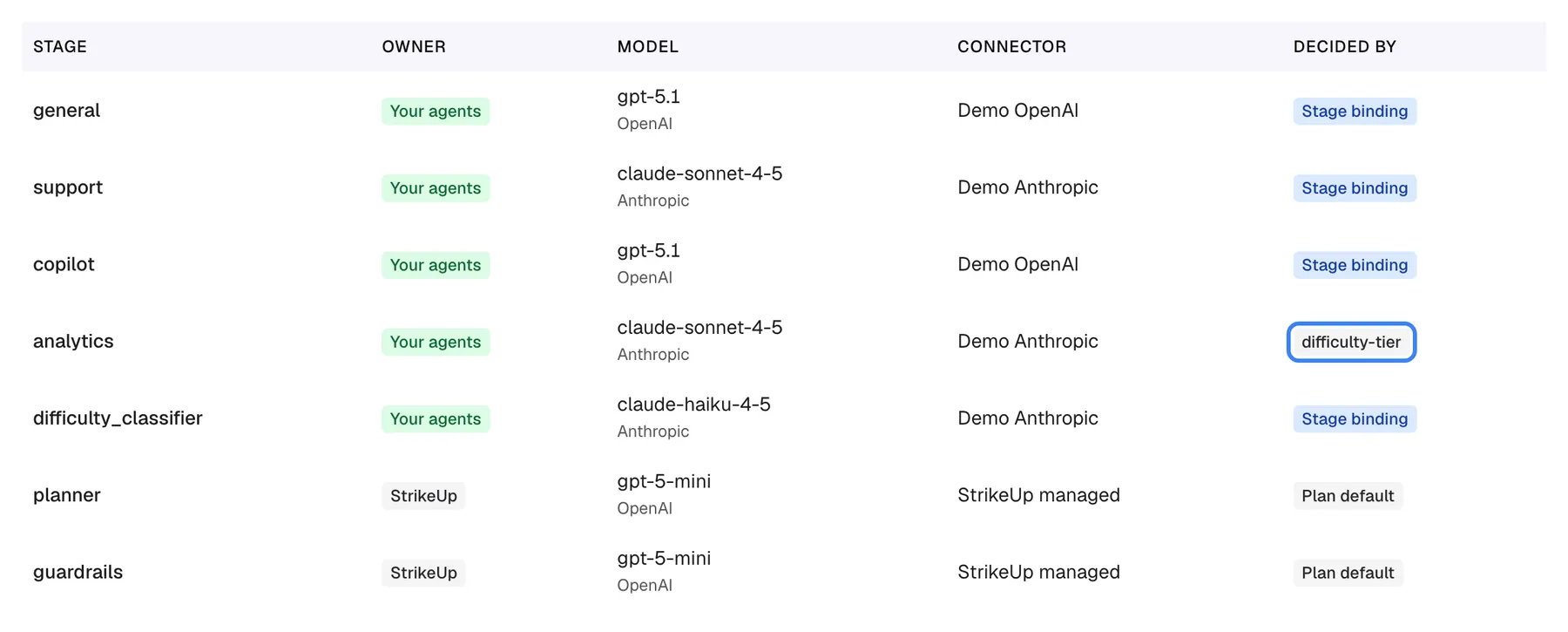
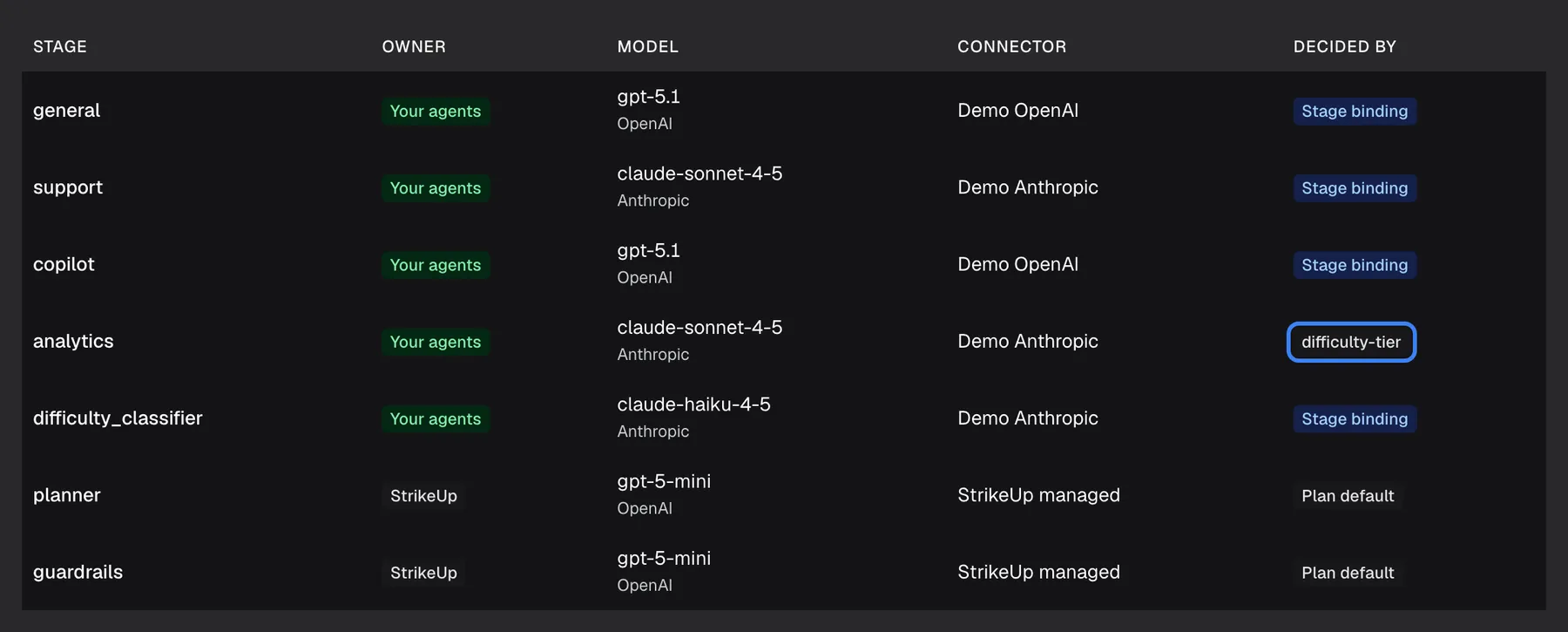
What this screenshot shows
- Screen
- Current setup (/admin/configure/ai-gateway)
- Highlighted
- “”, decided-by-column, shown for analytics. none
- Also visible
- analytics: claude-sonnet-4-5 on Demo Anthropic, Decided by difficulty-tier (raw, untranslated)
- Purpose
- recognising a level-based decision
The badge difficulty-tier is shown with that exact text in every language. Hover any badge to read StrikeUp’s explanation in English, such as “Bound to ‘Our OpenAI key’ / gpt-4o-mini”.
What the order means in practice:
- A pin hides the level. If a stage shows Stage binding, changing its level on Standard Mode has no effect until you clear the pin.
- An agent’s own model hides the level too. Agent setting beats the level but not a pin.
- A setting that cannot be used is skipped. A pin to a withdrawn model, or through a deleted or inactive connector, falls through to the next step, and the badge shows that next step.
- StrikeUp’s own stages always show StrikeUp’s choices, whatever you set.
Check a change you made
Section titled “Check a change you made”- Save the change on Connectors, Advanced Mode or Standard Mode.
- Open Current setup. The tabs reload after every save; select the round refresh button at the top right to reload again.
- Find the stage and read Model and Decided by.
Example: you chose a new model for Medium on Standard Mode, but support still shows the old model with Stage binding. The stage is pinned on Advanced Mode; clear the pin there and support follows its level.
Conversations pick up saved changes within about a minute, normally from the next message.
Read the change history
Section titled “Read the change history”Configuration changes sits under the stage table and lists the latest 50 changes, newest first.
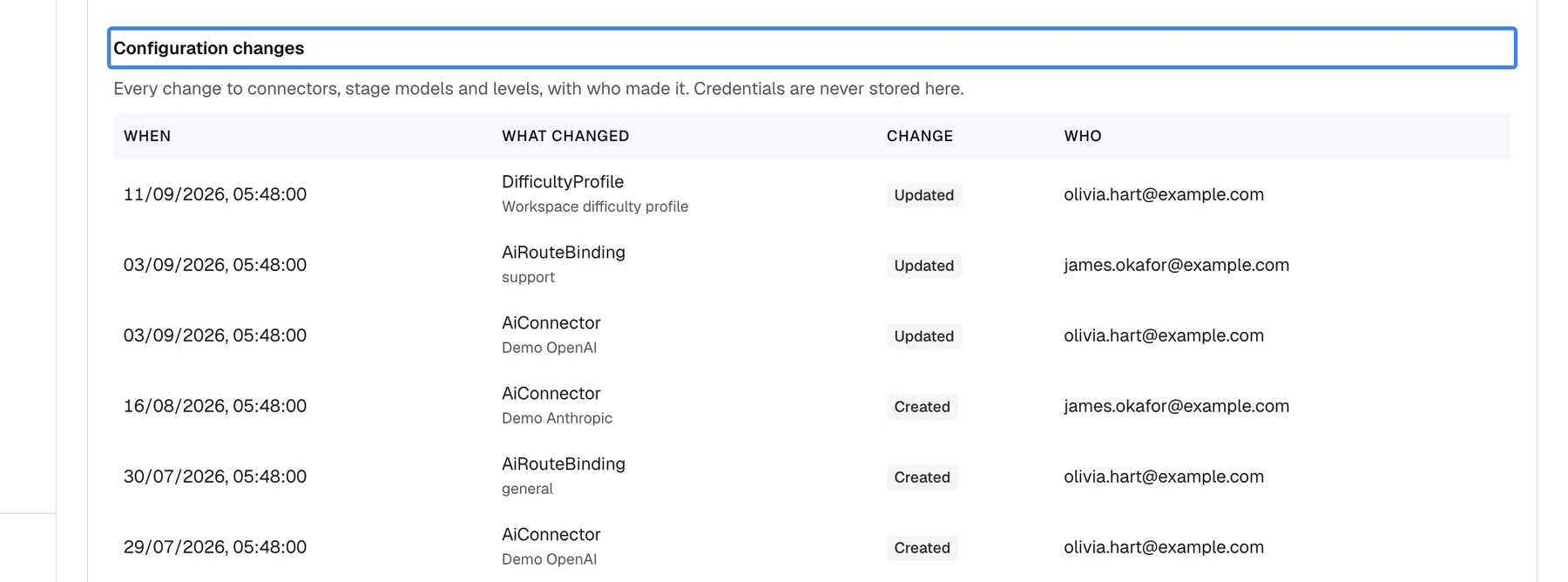
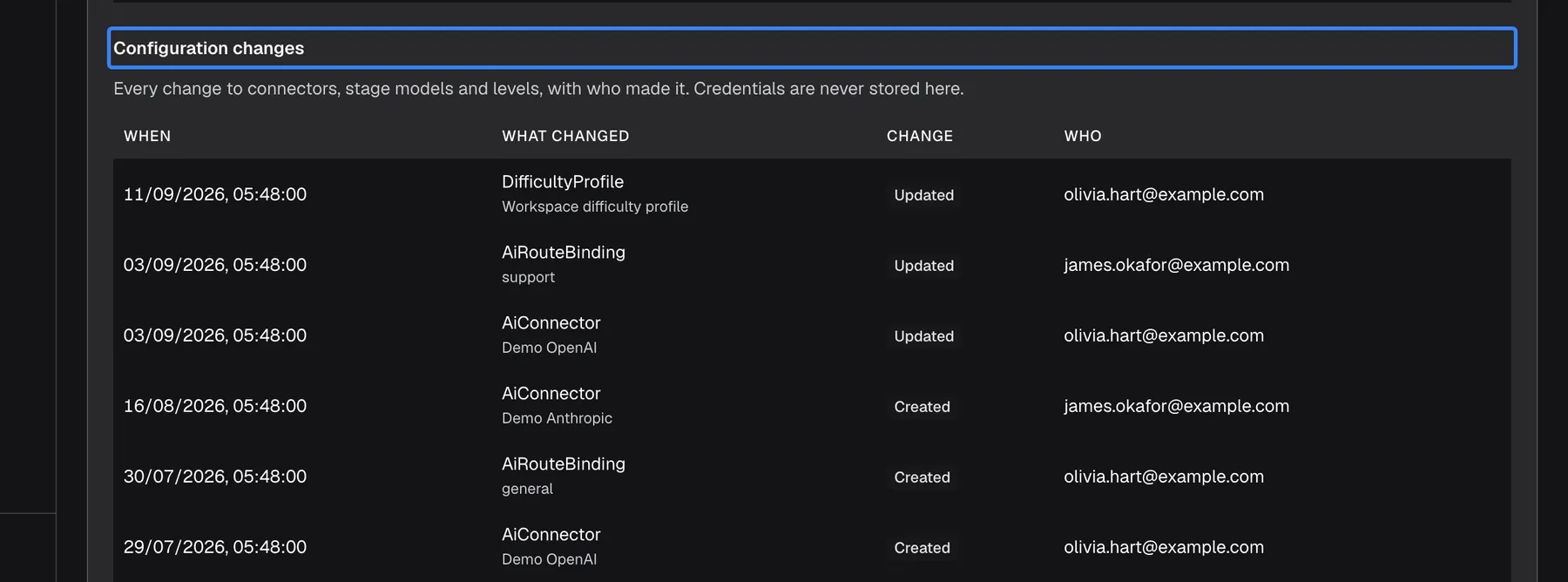
What this screenshot shows
- Screen
- Current setup (/admin/configure/ai-gateway)
- Highlighted
- “”, configuration-changes-section, read-only. none
- Also visible
- 6 changes by olivia.hart@example.com and james.okafor@example.com
- Purpose
- auditing gateway changes
| Column | What it shows |
|---|---|
| When | Date and time, in your browser’s format and time zone |
| What changed | The kind of setting, by its internal name, with the setting’s name underneath. For example AiConnector for a connector, AiRouteBinding for a pin and DifficultyProfile for the Standard Mode settings. |
| Change | Created, Updated or Deleted |
| Who | The email address of the person who made it, or StrikeUp for a change made by StrikeUp |
- Keys are never part of the history. A connector change records the connector’s settings without its key.
- Only the latest 50 changes are shown. Older changes are not shown on this tab.
- It reloads with the page’s refresh button. When nothing has changed yet, it shows No configuration changes recorded yet.
Every control, explained
Section titled “Every control, explained”Stage table
Section titled “Stage table”The top of the Current setup tab. Read-only.
One row per stage with Stage, Owner, Model, Connector and Decided by. Reloads with the round refresh button and after every save on the other tabs.
Several settings can decide a stage’s model, and only one wins. This shows which.
Decided by badge and tooltip
Section titled “Decided by badge and tooltip”The last column of the stage table. Hover the badge for its tooltip.
The badge names the deciding setting, coloured from the most specific (blue for a pin) to the least (grey for StrikeUp’s default). The tooltip gives StrikeUp’s explanation in English, naming the connector and model.
Turns “I changed a setting and nothing happened” into one glance.
Configuration changes
Section titled “Configuration changes”Under the stage table, the section Configuration changes. Read-only.
The latest 50 changes to connectors, pins, levels and other gateway settings, with When, What changed, Change and Who.
When the assistant’s behaviour or cost changes, you can see who changed which setting and when.
Who sees what
Section titled “Who sees what”| Part | What decides whether you see it |
|---|---|
| The Current setup tab and the whole page | The AI Gateway feature, which StrikeUp switches on per workspace. Without it the menu item is hidden and the page’s address takes you to the Dashboard. |
| Rows owned by StrikeUp | Always shown, for transparency; you cannot change them |
No role is required: every signed-in user of a workspace with the feature can read this tab.
What you need to know
Section titled “What you need to know”| Topic | Fact |
|---|---|
| Read-only | Nothing on this tab can be changed. Change settings on the other three tabs. |
| Expected, not actual | The table shows what the next call would use. Past calls, including backups that took over, are in AI actions. |
| When changes show | Right after a save, when the tabs reload. Conversations follow within about a minute. |
| History length | The latest 50 changes. |
| Keys | Never shown, never stored in the history. |
| Language | Stage names, the difficulty-tier badge, the tooltips and the change kinds appear in English in every language. |
Frequently asked questions
Section titled “Frequently asked questions”Reading the table
Section titled “Reading the table”What does the last column of the stage table mean?
Section titled “What does the last column of the stage table mean?”Decided by names the setting that chose the stage’s model: Stage binding for a pin on Advanced Mode, Agent setting for an agent’s own model, difficulty-tier for the stage’s level on Standard Mode, and Plan default when nothing you set applies. Hover the badge for the details.
Why does a stage show Plan default?
Section titled “Why does a stage show Plan default?”Plan default in Decided by means none of your settings applies to that stage, so StrikeUp’s default model is used. In Connector, Plan default means the call uses the connection included with your plan rather than one of your connectors.
Why does a stage show difficulty-tier?
Section titled “Why does a stage show difficulty-tier?”The badge difficulty-tier means the model comes from the stage’s level on the Standard Mode tab, from the model you chose for that level. It is shown with that exact text in every language. Hover it to see the level and model.
Why are some rows owned by StrikeUp?
Section titled “Why are some rows owned by StrikeUp?”Rows with StrikeUp in Owner are the stages StrikeUp runs around your agents, such as planner and guardrails. They run on StrikeUp’s own models, are listed for transparency and cannot be changed on any tab.
Is this what my last conversation used?
Section titled “Is this what my last conversation used?”Not necessarily. Current setup shows what the next call would use. A past conversation may have used a backup model, or an earlier setting. Open AI actions to see which model each past call actually used.
Change history
Section titled “Change history”Does the change history show API keys?
Section titled “Does the change history show API keys?”No. Every change to connectors, stage models and levels, with who made it. Credentials are never stored here. A change to a connector records its name and settings, never the key, and keys are never returned to the browser anywhere in StrikeUp.
How far back does the history go?
Section titled “How far back does the history go?”The Configuration changes section lists the latest 50 changes to your gateway settings, newest first. Older changes are not shown on this tab.
Who is StrikeUp in the Who column?
Section titled “Who is StrikeUp in the Who column?”StrikeUp in Who marks a change that StrikeUp made rather than a person in your workspace, such as moving pins to a replacement model when a model is retired. Changes by people show their email address.
Troubleshooting
Section titled “Troubleshooting”| Symptom | What to check |
|---|---|
| A setting you changed is not reflected | Select the round refresh button. If the stage still shows the old model, read Decided by: a pin or an agent’s own model setting may decide first. |
| A stage shows Plan default although you pinned it | The pinned model or its connector is no longer usable. Open Advanced Mode and look for Retired model — no longer available, and check the connector’s status on Connectors. |
| A stage you expect is missing | It is listed once its agent is switched on for a widget, or once it has a pin. |
| Nothing to show yet. | No stages yet. Set up a widget’s agents first. |
| A change is missing from the history | Only the latest 50 changes are listed; reload with the refresh button. |
| The tab is missing | The AI Gateway feature is not switched on for your workspace. |